6. Inward Retail Bill Contract
This chapter explains the process to create and maintain inward retail bills contracts in Oracle FLEXCUBE.
This chapter contains the following sections:
l Section 6.2, "Inward Retail Bills/Cheques for Collection"
l Section 6.3, "Amend Inward Retail Bills/Cheques for Collection"
l Section 6.4, "Realizing of Inward Retail Bills/Cheques for Collection"
l Section 6.6, "Dishonour/Protest /Return Details of Inward Retail Bills/Cheques for Collection"
l Section 6.7, "Inward Retail Bills/Cheques for Collection in Bulk"
l Section 6.8, "Inward Bills in Bulk"
l Section 6.9, "Inward Bulk Dishonour/Protest/Return Details"
l Section 6.10, "Reversal of Inward Retail Collection Bill/Cheque Contract"
6.2 Inward Retail Bills/Cheques for Collection
This section contains the following topics:
l Section 6.2.1, "Creating Inward Retail Bills/Cheques for Collection"
l Section 6.2.3, "Other Details Tab"
l Section 6.2.4, "Capturing Additional Details for Inward Retail Bill/Cheque for Collection"
l Section 6.2.5, "Viewing Summary of Inward Retail Bill/Cheque for Collection"
6.2.1 Creating Inward Retail Bills/Cheques for Collection
You can create an inward retail bill/cheque for collection using the ‘Retail Bills-Inward Contract Details’ screen. You can invoke the Contract input screen by typing ‘RBDICONL’ in the field at the top right corner of the Application tool bar and clicking on the adjoining arrow button.
In this screen, you can enter information relating to the following types of transactions:
l Inward Retail Bills for Collection
l Inward Retail Cheques for Collection
For any Inward Contract you create in Oracle FLEXCUBE, you can define generic attributes, such as Advices, Events and Settlements, MIS details, Charge details etc, by clicking on the appropriate icon in the horizontal array of buttons in this screen.
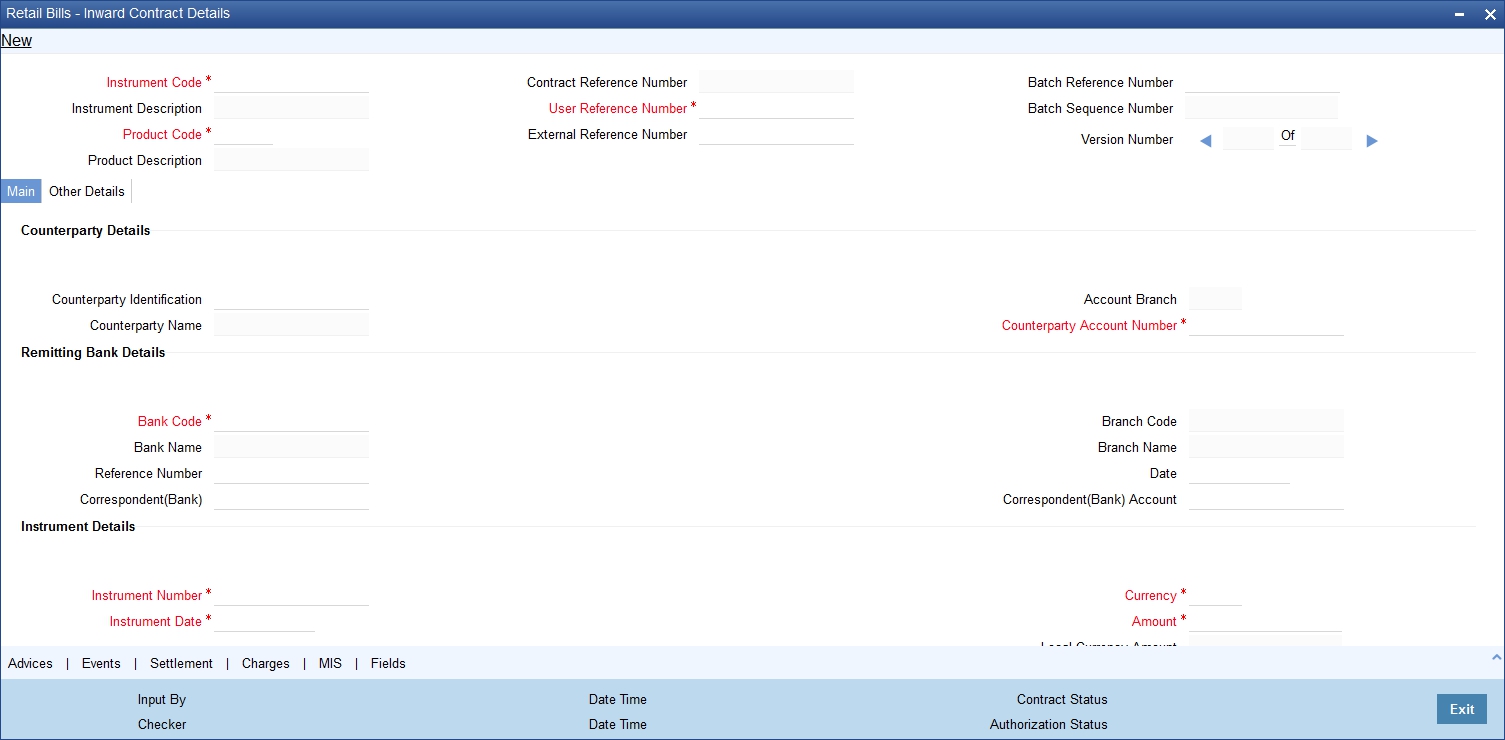
Specify the following details:
Instrument Code
Select the instrument code from the option list. The list contains only those instruments for selection which are linked to the following product types:
l Inward Bills for Collection
l Inward Cheques for Collection
Instrument Description
The system displays the description of the instrument code selected.
Product Code
Select a product code from the available list of products for the selected instrument code. For selecting the product code, system allows only those products which are of product type ‘Inward Bills for Collection’ or ‘Inward Cheque for Collection’.
Product Description
System displays the description for the product code selected above.
Contract Reference Number
System generates and displays a unique reference number for the contract being booked and the reference is used in all accounting entries and transactions related to this contract.
User reference Number
By default, contract reference number is displayed. However, you can change this value when required.
External Reference Number
Specify an external system’s reference for this contract and it is used when the contract is being uploaded from an external system.
Batch Reference Number
Select a reference number from the option list. Batch reference number is applicable only when an instrument needs to be added to a batch that has been already booked. Batch reference number of the bulk contracts booked on current date for the selected instrument type will be displayed here.
For adding a reference number to a batch, the common attributes of the batch should match with the attributes of reference number.
Batch Sequence Number
The system generates a batch sequence number only for contracts that are to be considered as part of a batch. The value is applicable only if the batch reference number is selected.
Specify the following details:
Counterparty Details
Counterparty Identification
Select the customer Identification from whom the proceeds need to be collected from the adjoining option list.
Counterparty Name
System displays the name of the customer.
Account Branch
The system displays the branch to which the customer account belongs.
Counterparty Account number
Select the account number of the customer from the adjoining option list.
To view the joint holder’s details of an account and the mode of operation maintained at the account level, place the cursor on the Counterparty Account Number field and press Ctrl+J. The system displays the ‘Joint Holder’ screen.
For more information on the ‘Joint Holder’ screen refer to the section ‘Joint Holder Maintenance’ in the Core User Manual.
Remitting bank Details
Bank Code
Select the bank code of the remitting bank from the adjoining option list.
Bank Name
System displays the name of the remitting bank.
Reference Number
Specify the reference number of the remitting bank.
Correspondent (Bank)
Select the BIC code of the remitting bank’s correspondent from the adjoining option list.
Branch Code
System displays a branch of the remitting bank/ or the same bank’s branch from which the instrument is received for collection.
Branch Name
System displays the name of the branch corresponding to the branch code mentioned above.
Date
Specify a date on which the instrument is received for collection.
Correspondent (Bank) Account
Specify an account number of the remitting bank’s correspondent.
Instrument Details
Instrument Number
Specify a reference number of the instrument. In case of a cheque, the cheque number is the instrument number.
Instrument Date
Specify the date of the bill or cheque.
Currency
Select the Instrument currency from the adjoining option list. System defaults the local currency as the bill currency for ‘Inward Bill’ type instruments and account currency for Inward Cheque type instruments. You can edit this value if needed.
Amount
Specify the bill/cheque amount.
Local Currency Amount
The system defaults the local currency amount on save or subsystem visit.
Other Party Details
Other Party Identification
Select the other party identification from the adjoining option list.
Other Party Name
The system displays the other party name, based on the other party identification selected.
Additional Details
Booking Date
System displays the current application date as the booking date of the contract. You cannot modify the booking date.
Maturity Date
Specify the maturity date of the bill type of instrument. This field is not applicable for Cheque type instrument and it will be cleared on save if provided.
Grace Days
Specify the grace days if any mentioned in the remitting bank instruction. This is the number of days from the due date for payment up to which the instrument can be paid without any dishonour or protest. This field is not applicable for Inward Cheque instruments and it will be cleared on save if provided.
Due Date for Payment
System displays the date on which the Instrument is due for payment.
l For Inward Bill Instruments, the Maturity Date is defaulted as the due date and if the booking date is greater than the maturity date then booking date is defaulted as the due date for payment.
For Inward Cheque Instruments, the Instrument Date is defaulted as the due date and if the booking date is greater than the instrument date then booking date is defaulted as the due date for payment.
Account Branch
System displays the account branch of the selected/defaulted Credit Account for Realization.
Credit Account for Realization
Select the relevant Nostro/Vostro account from the adjoining option list. If you do not select a credit account for realization, on saving the record, the system defaults the value from settlement instruction maintained in the system.'
To view the joint holder’s details of an account and the mode of operation maintained at the account level, place the cursor on the Credit Account for Realization field and press Ctrl+J. The system displays the ‘Joint Holder’ screen.
For more information on the ‘Joint Holder’ screen refer to the section ‘Joint Holder Maintenance’ in the Core User Manual.
Protest
Check this box to indicate that the bill/cheque should be protested in case of non-payment by the drawee and the value is captured here based on the remitting bank instructions.
This field value will be defaulted initially from the instrument maintenances during product default.
Auto Liquidation
Check this box to indicate that the instrument should be liquidated automatically on due date. By default, the system displays the status of the check-box as maintained for the product associated with the contract.
Liquidation with Booking
Check this box to indicate that the instrument will be liquidated along with booking.
Internal Remarks
Specify your remarks on the transaction.
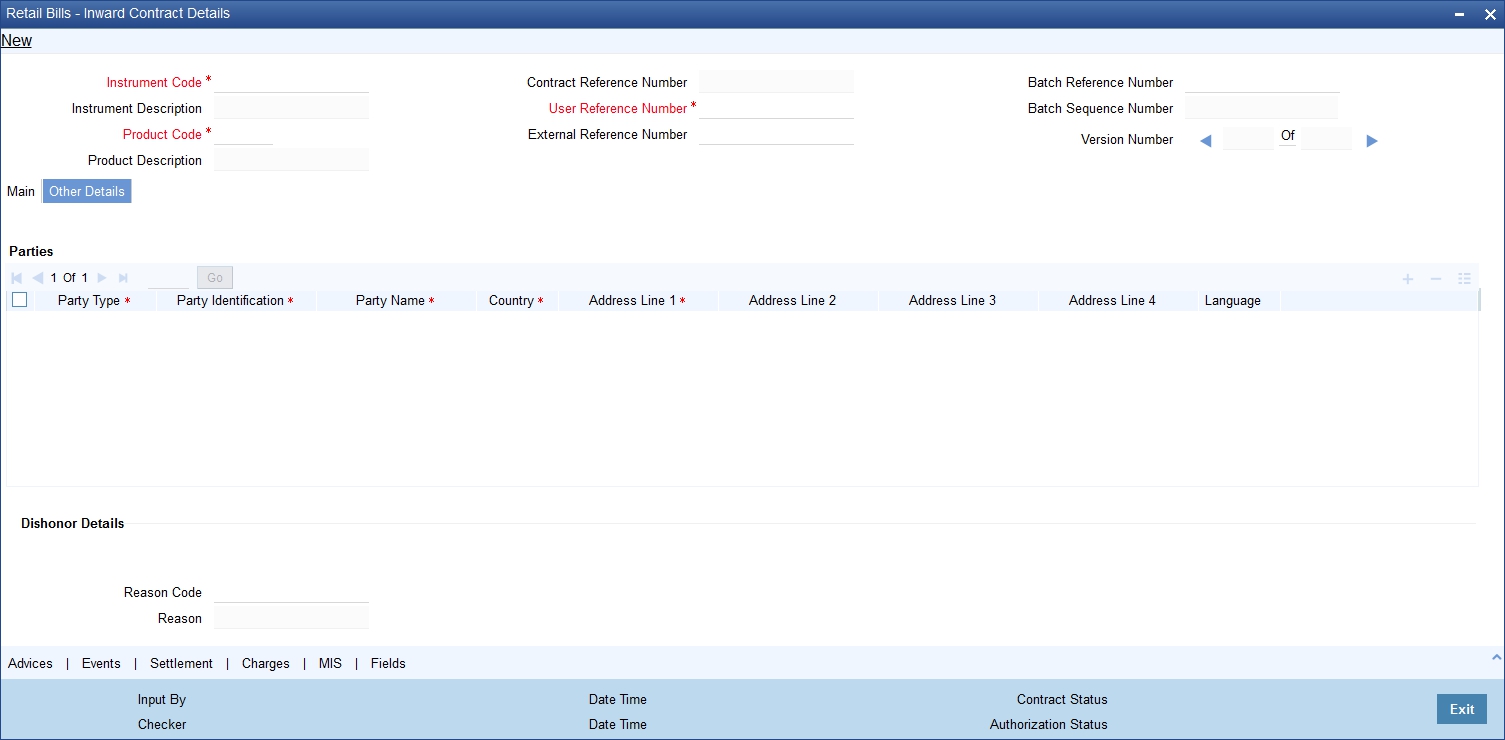
Specify the following details:
Parties
When you click ‘Default' button on the Main tab, the system defaults the parties details under this tab.
The drawee details are displayed based on the counterparty ID specified in Main tab. The drawer details are displayed based on the other party ID specified in the Main tab. The remitting bank details are displayed based on the remitting bank code captured in Main tab.
Party Type
The system displays the party type here.
Party Identification
The system displays the party Identification based on the Customer Identification Number defined in the main tab.
Party Name
System defaults the name based on the CIF. This can be modified if walk-in Customer captured as the corresponding Party.
Country
System defaults the value for the field based on the party identification defined. However, you can modify this for walk-in as well as non walk-in party.
Address Line 1
System displays the value for the field based on the CIF defined in the main tab. However, you can modify this for walk-in as well as non walk-in party.
Address Line 2
System displays the value for the field based on the CIF defined in the main tab. However, you can modify this for walk-in as well as non walk-in party.
Address Line 3
System displays the value for the field based on the CIF defined in the main tab. However, you can modify this for walk-in as well as non walk-in party.
Address Line 4
System displays the value for the field based on the CIF defined in the main tab. However, you can modify this for walk-in as well as non walk-in party.
Language
System defaults the value for the language field based on the CIF defined in the main tab. However, you can modify this for walk-in as well as non walk-in party.
Dishonour Details
Reason Code
In case of dishonour of an instrument, you need to select the dishonour reason code from the adjoining option list.
Reason
System displays the description for the reason code selected above.
Once you have specified the above details, click ‘Save’ button to save the contract.
6.2.4 Capturing Additional Details for Inward Retail Bill/Cheque for Collection
A horizontal array of buttons are provided at the bottom of the screen for capturing additional details. You can capture/view the following additional details inward retail cheque/bill for collection.
l Advices
l Events
l Settlement
l Charge
l MIS
l User Defined Fields
For further details on these sub-systems, refer to the section 'Capturing Additional Details for Outward Retail Bills/Cheques for Collection' in chapter 'Outward Retail Bill Contract' of this user manual.
6.2.5 Viewing Summary of Inward Retail Bill/Cheque for Collection
You can view a summary of inward retail bill/cheque for collection in ‘Retail Bills-Inward Contract-Summary’ screen. To invoke this screen, type ‘RBSICONL’ in the field at the top right corner of the application toolbar and click the adjoining arrow button.
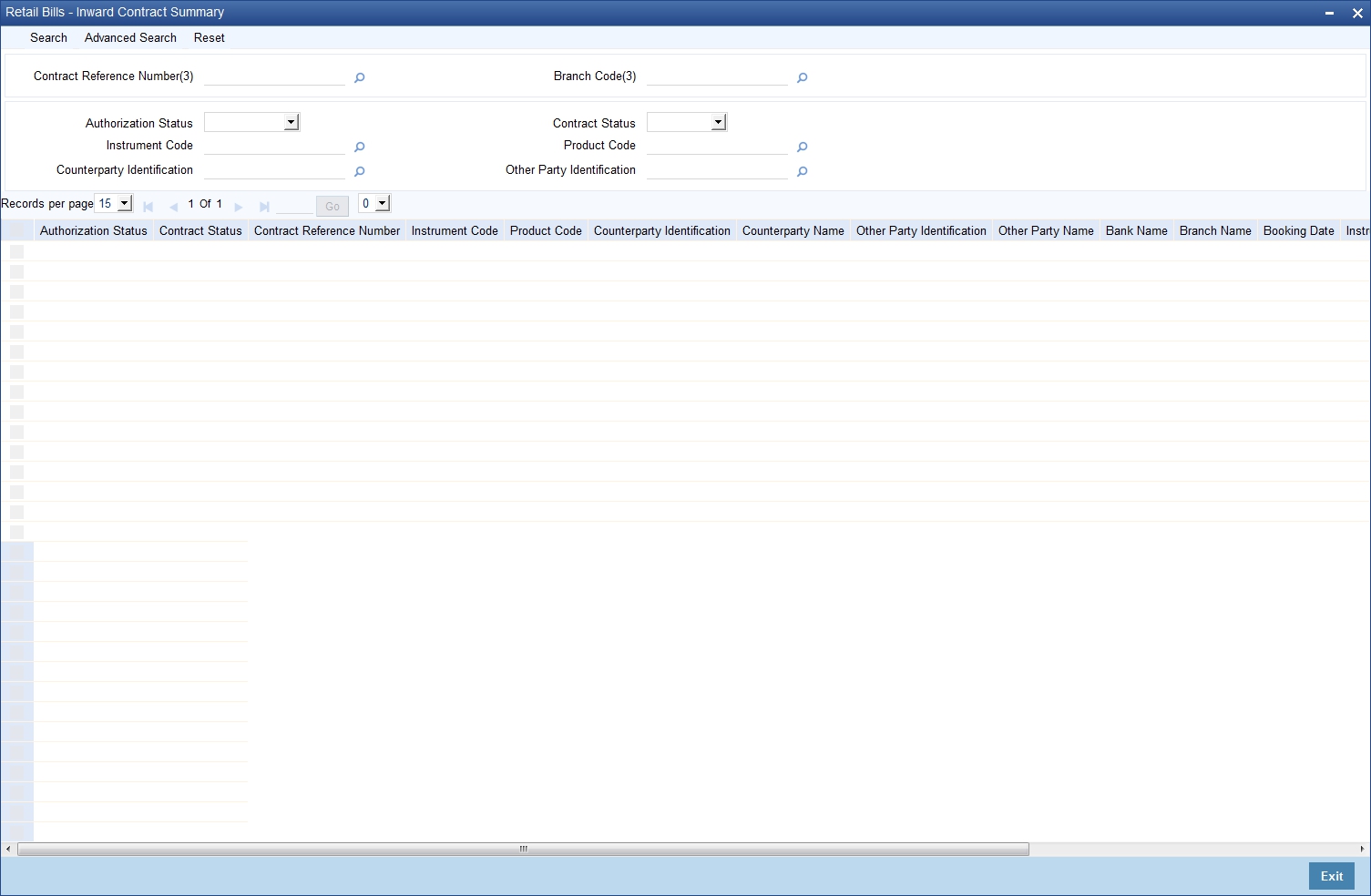
You can search for the records based on one or more of the following parameters:
l Authorization Status
l Contract Reference Number
l Product Code
l Other Party Identification
l Contract Status
l Instrument Code
l Counterparty Identification
Once you have specified the search parameters, click ‘Search’ button. The system displays the records that match the search criteria. You can view the following details of the resultant records:
l Authorization Status
l Contract Status
l Contract Reference Number
l Instrument Code
l Product Code
l Counterparty Identification
l Counterparty Name
l Other Party Identification
l Other Party Name
l Bank Name
l Branch Name
l Booking Date
l Instrument Number
l Currency
l Instrument Date
l Amount
6.3 Amend Inward Retail Bills/Cheques for Collection
This section contains the following topics:
l Section 6.3.1, "Amending Inward Retail Bills/Cheques for Collection"
l Section 6.3.3, "Other Details Tab"
6.3.1 Amending Inward Retail Bills/Cheques for Collection
You can amend certain details of an existing contract based on the user request.The amendment process is initiated for an existing contract from the 'Retail Bills-Inward Contract Details' screen by using 'unlock' option.
You can invoke ‘Retail Bills-Inward Contract Details’ screen by typing ‘RBDICONL’ in the field at the top right corner of the Application tool bar and clicking on the adjoining arrow button.
The amendment of an existing contract is allowed in the following scenarios:
l Bill contract is not closed/reversed
l Bill contract is not realized
l Bill contract is not dishonoured or protested or returned
Following fields are editable for amendment:
l Counterparty Account Number
l Instrument Number
l Instrument Date
l Amount
l Remitting Bank Code
l Remitting Bank Reference Number
l Remitting Bank Date
l Correspondent (bank)
l Correspondent (bank) Account
l Other Party Identification
l Maturity Date
l Protest
l Auto Liquidation
l Internal Remarks
Following fields are editable for amendment:
l Country
l Address
l Party name if party is a walk-in customer
You can amend the details for the following subsystems:
l Settlements
l Charges
l MIS
l Fields
For detailed information on Settlements, Charges, MIS and Fields, refer ‘Contract Input – Inward Retail Bills/Cheques for Collection of this User Manual.
6.4 Realizing of Inward Retail Bills/Cheques for Collection
You can invoke ‘Retail Bills-Inward Contract Realization Details’ screen by typing ‘RBDIREAL’ in the field at the top right corner of the Application tool bar and clicking on the adjoining arrow button.
This screen is used for realization of inward retail bills/cheques for collection.
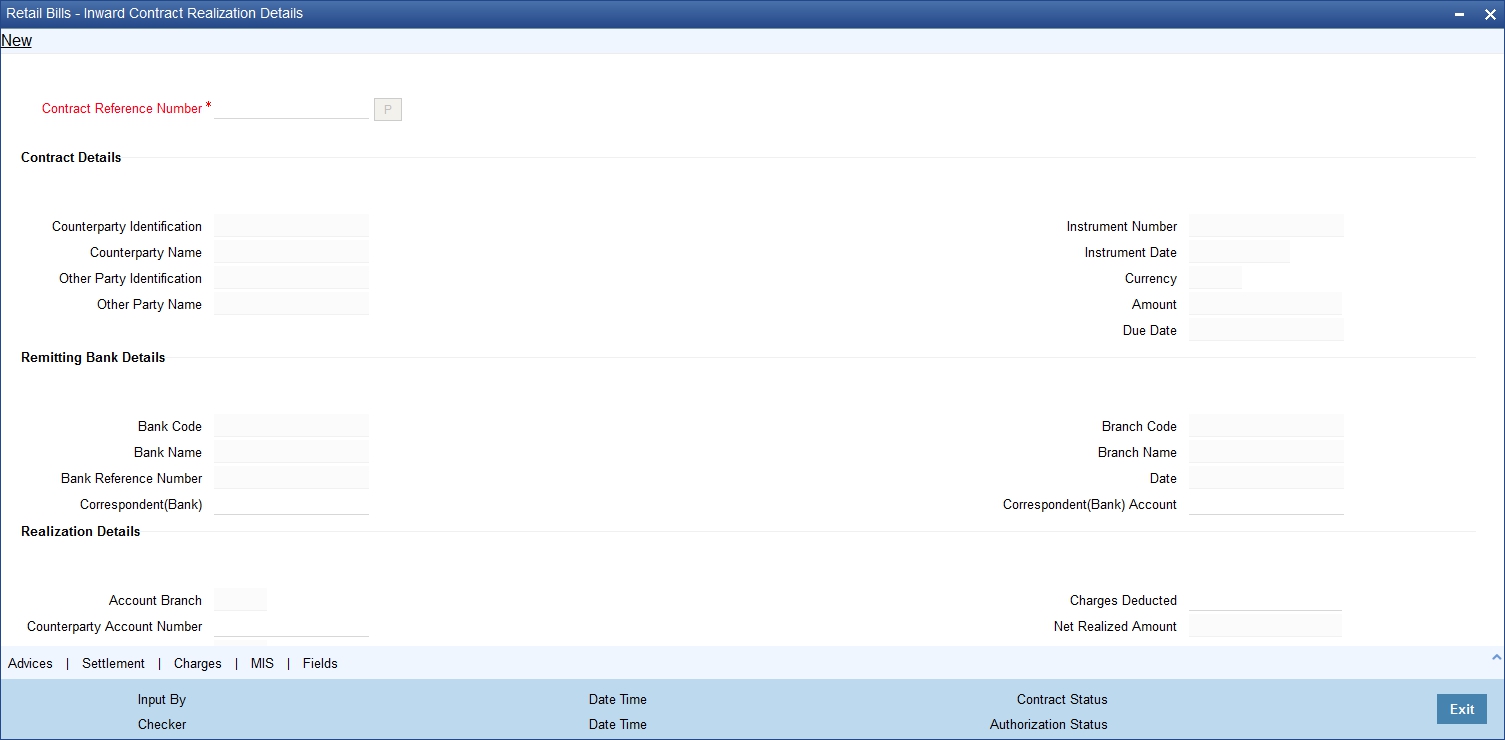
Specify the following details:
Contract Reference Number
Selects the Contract reference number of the instrument for which the realization needs to be done from the adjoining option list.
Once you have specified the contract reference number, click ‘P’ button to populate the contract details associated with it.
Contract Details
Counterparty Identification
System displays the Customer Identification based on the contract reference number selected.
Counterparty Name
System displays the name of the customer based on the contract reference number selected.
Other Party Identification
System displays the Other Party Identification based on the contract reference number selected.
Other Party Name
System displays the Other Party Name based on the contract reference number selected.
Instrument Number
System displays the Instrument number based on the contract reference number selected.
Instrument Date
System displays the Instrument date based on the contract reference number selected.
Currency
System displays the Currency of the bill/cheque.
Amount
System displays the amount of the bill/cheque.
Due Date
System displays the due date based on the contract reference number selected.
Remitting Bank Details
Bank Code
System displays the bank code for the selected contract.
Bank Name
System displays the bank name for the selected contract.
Bank Reference Number
System displays the remitting bank reference number based on the contract reference selected.
Correspondent (Bank)
By default, system displays the BIC code of the Remitting Bank’s Correspondent which is captured during the booking of an inward contract. However you can edit this value when needed.
Branch Code
System displays the branch code for the selected contract.
Branch Name
System displays the branch name for the selected contract.
Date
System displays the date of the collection schedule which is sent by the remitting bank.
Correspondent (Bank) Account
By default, system displays the account number of the Remitting Bank’s Correspondent which is captured during the booking of an inward contract. However you can edit this value when needed.
Realization Details
Counterparty Account Number
Select an account number from which the proceeds should be debited and initially the value is defaulted from the contract input screen. However you can edit this value by choosing from the adjoining option list.
Account Number selected during Contract Input will be defaulted in this field. However you can edit this value by choosing from the adjoining option list.
To view the joint holder’s details of an account and the mode of operation maintained at the account level, place the cursor on the Counterparty Account Number field and press Ctrl+J. The system displays the ‘Joint Holder’ screen.
For more information on the ‘Joint Holder’ screen refer to the section ‘Joint Holder Maintenance’ in the Core User Manual.
Account Branch
System displays the branch associated with the account number mentioned above.
Credit Account for Realization
By default, the credit account for realization specified in the contract input screen is used. However you can edit this value by selecting from the adjoining option list.
To view the joint holder’s details of an account and the mode of operation maintained at the account level, place the cursor on the Credit Account for Realization field and press Ctrl+J. The system displays the ‘Joint Holder’ screen.
For more information on the ‘Joint Holder’ screen refer to the section ‘Joint Holder Maintenance’ in the Core User Manual.
Credit Account Branch
System displays the branch associated with the account mentioned above.
Value Date
By default, application date is used, However you can edit this value.
Charges Deducted
Specify the charges of the bank here and the system will debit from proceeds being remitted to the remitting bank.
Net Realized Amount
System displays the net realized amount based on the instrument amount and charges.
Here, Net realized amount = Instrument amount - Charges deducted.
Dishonour Reason Code
Specify a reason code from the adjoining option list. The code is applicable when the liquidation fails due to insufficient balance in the account or there is a restriction in the account.
Dishonour Reason
System displays a description for the dishonour reason here.
Once you have specified the above details, click ‘Save’ button to save the contract.
6.5 Capturing Additional Details for Realization of Inward Retail Bill/Cheque for Collection
A horizontal array of buttons are provided at the bottom of the screen for capturing additional details. You can capture/view the following additional details on realization of inward retail cheque/bill for collection.
l Advices
l Settlement
l Charge
l MIS
l User Defined Fields
For further details on these sub-systems, refer to the section 'Capturing Additional Details for Outward Retail Bills/Cheques for Collection' in chapter 'Outward Retail Bill Contract' of this user manual.
6.5.1 Viewing Summary of Inward Retail Bills/Cheques for Collection Realization
You can view a summary of inward contract realization in ‘Retail Bills - Inward Contract Realization - Summary’ screen. To invoke this screen, type ‘RBSIREAL’ in the field at the top right corner of the application toolbar and click the adjoining arrow button.
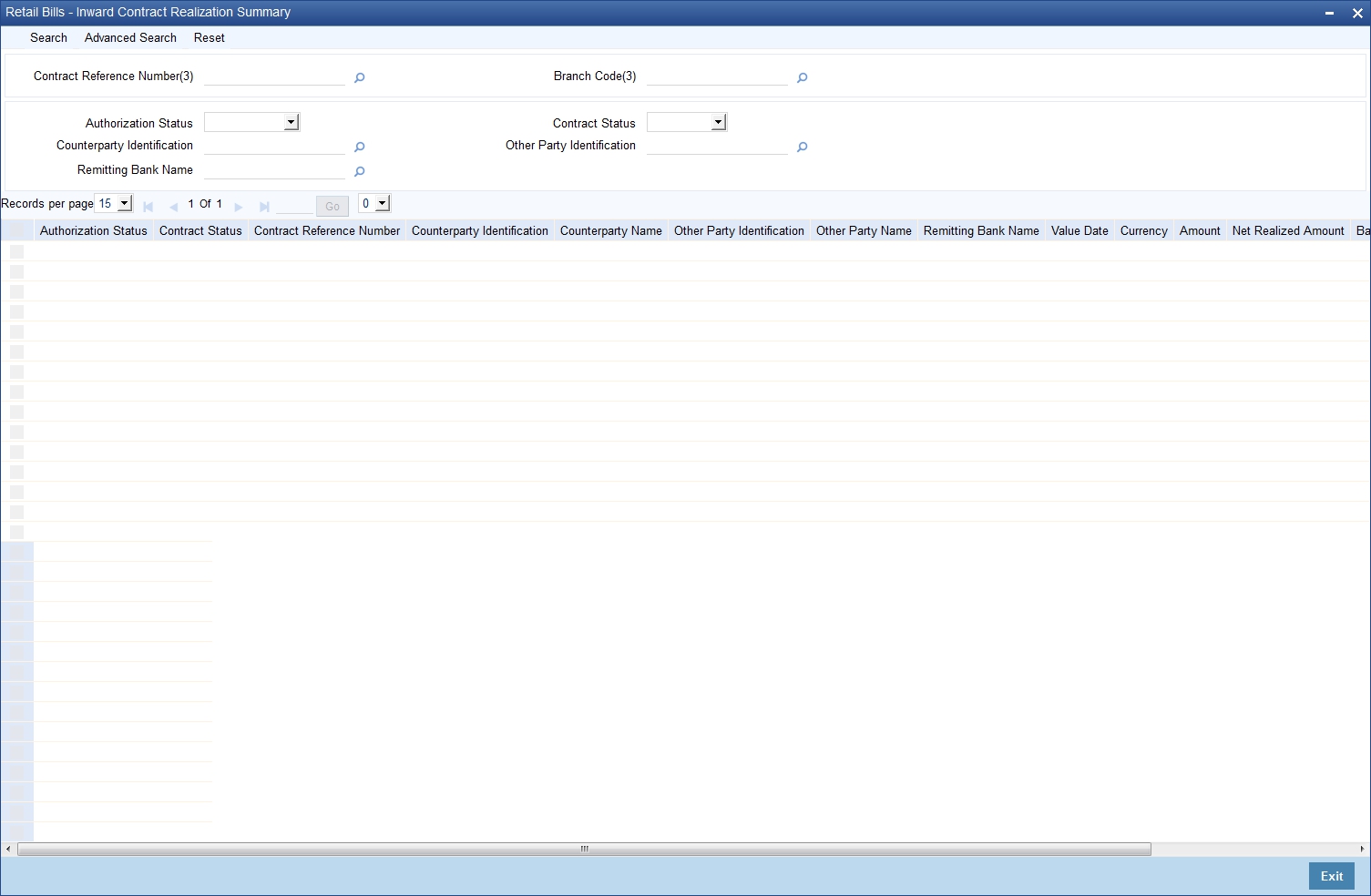
You can search for the records based on one or more of the following parameters:
l Authorization Status
l Contract Reference Number
l Other Party Identification
l Contract Status
l Counterparty Identification
l Remitting Bank Name
Once you have specified the search parameters, click ‘Search’ button. The system displays the records that match the search criteria. You can view the following details of the resultant records:
l Authorization Status
l Contract Status
l Contract Reference Number
l Counterparty Identification
l Counterparty Name
l Other Party Identification
l Other Party Name
l Remitting Bank Name
l Value Date
l Currency
l Amount
l Net Realized Amount
l Bank Reference Number
6.6 Dishonour/Protest /Return Details of Inward Retail Bills/Cheques for Collection
This section contains the following topics:
l Section 6.6.2, "Capturing Additional Details for Dishonour/Protest/Return of Inward Instruments"
l Section 6.6.3, "Viewing Summary of Inward Dishonour/Protest/Return"
6.6.1 Capturing Dishonour/Protest /Return Details of Inward Retail Bills/Cheques for Collection
Dishonour/Protest/Return of Retail Bills/Cheques is handled through a common screen for both outward and inward instruments. You can invoke this screen by typing ‘RBDDPROL’ in the field at the top right corner of the Application tool bar and clicking on the adjoining arrow button.
The ‘Dishonour-Protest-Return Details’ screen is used to capture dishonour, return and protest details of retail instruments.
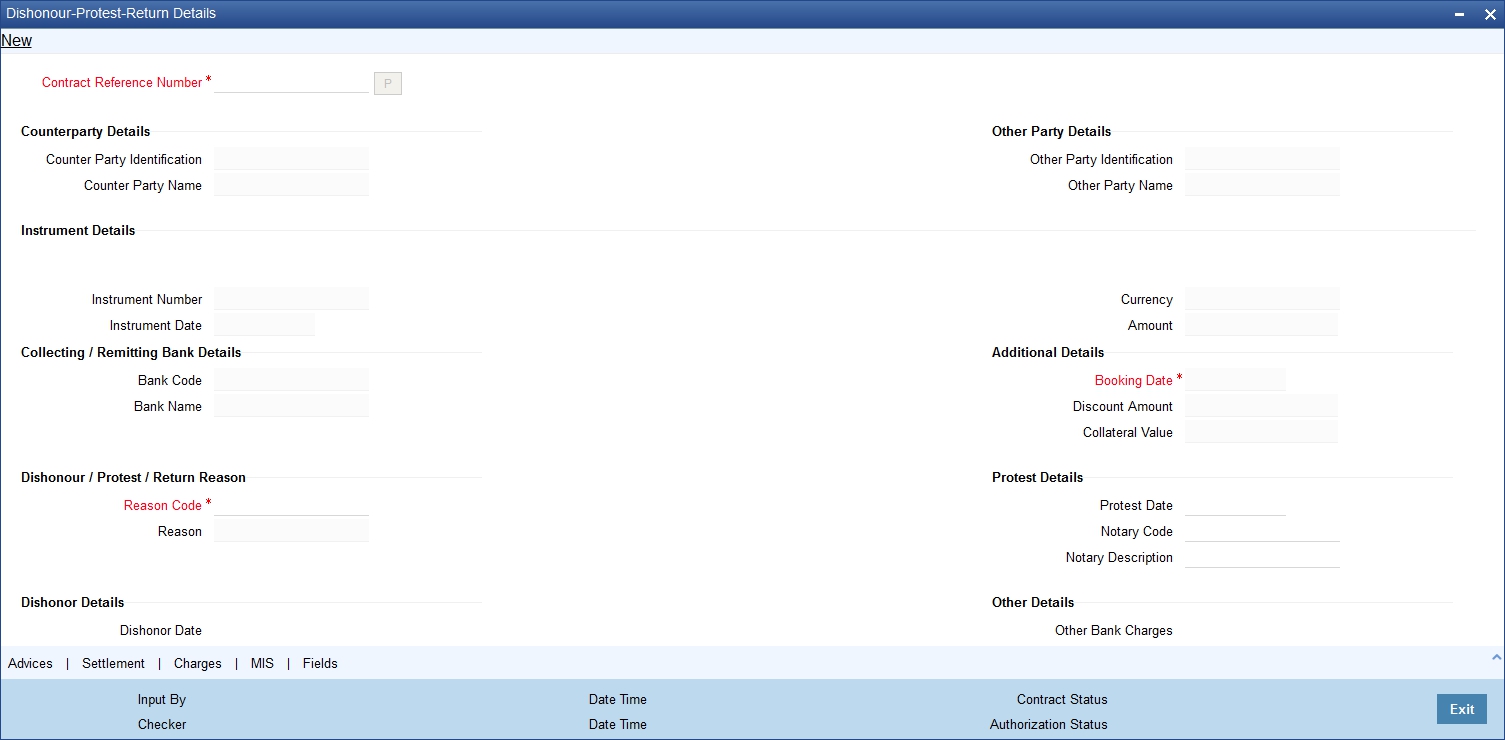
Specify the following details:
Contract Reference Number
Select the Contract reference number of the instrument which needs to be dishonoured/protested/returned from the adjoining option list.
Once you have specified the contract reference number, click ‘P’ button to populate the contract details.
Counterparty Details
Counterparty Identification
System displays the Counterparty identification based on the contract reference number selected.
Counterparty Name
System displays the Counterparty Name based on the contract reference number selected.
Other Party Details
Other Party Identification
System displays the other party identification based on the contract reference number selected.
Other Party Name
System displays the other party name based on the contract reference number selected.
Instrument Details
Instrument Number
System displays the instrument number for the selected contract.
Instrument Date
System displays the instrument date for the selected contract.
Currency
System displays the currency for the selected contract.
Amount
System displays the amount for the selected contract.
Collecting/Remitting Bank Details
Bank Code
System displays the bank code based on the contract reference number selected.
Bank Name
System displays the bank name based on the contract reference number selected.
Additional Details
Booking Date
System displays the booking date based on the contract reference number selected.
Dishonour/Protest/Return Reason
Reason Code
Select a reason code from the adjoining option list.
Reason
System displays a reason description based on the reason code selected.
Protest Details
Protest Date
Specify a date of protest.
The date of protest specified should not be earlier than the booking date or later than the system date. The protest date should not be earlier than dishonour date for instruments that are already dishonoured.
Notary Code
Select a notary code from the adjoining option list.
Notary Description
System displays the notary description based on the notary code selected and you can edit this value whenever required.
Dishonour Details
Dishonour Date
Specify a date of dishonour and it should not be earlier than the booking date or later than the system date.
Other Details
Other Bank Charges
In this field, you can specify the charges that are claimed by the other bank. However, this is not applicable for inward instruments.
Charges Claimed
Specify the Charges that are claimed by the bank from other bank.
Remarks
Specify your remarks on the transaction.
Return Details
Return Date
Specify a date of return of the instrument.
The return date should not be earlier than the booking date or later than the system date. The return date should not be earlier than dishonour date or protest date for an instrument which is already dishonoured/protested.
6.6.2 Capturing Additional Details for Dishonour/Protest/Return of Inward Instruments
A horizontal array of buttons are provided at the bottom of the screen for capturing additional details. You can capture/view the following additional details for dishonour, protest or return of inward instruments.
l Advices
l Settlement
l Charge
l MIS
l User Defined Fields
For further details on these sub-systems, refer to the section 'Capturing Additional Details for Outward Retail Bills/Cheques for Collection' in chapter 'Outward Retail Bill Contract' of this user manual.
6.6.3 Viewing Summary of Inward Dishonour/Protest/Return
Dishonour/Protest/Return of Retail Bills/Cheques is viewed through a common summary screen 'Dishonour-Protest-Return Details ' for both outward and inward instruments.You can invoke this screen by typing ‘RBSDPROL’ in the field at the top right corner of the Application tool bar and clicking on the adjoining arrow button.
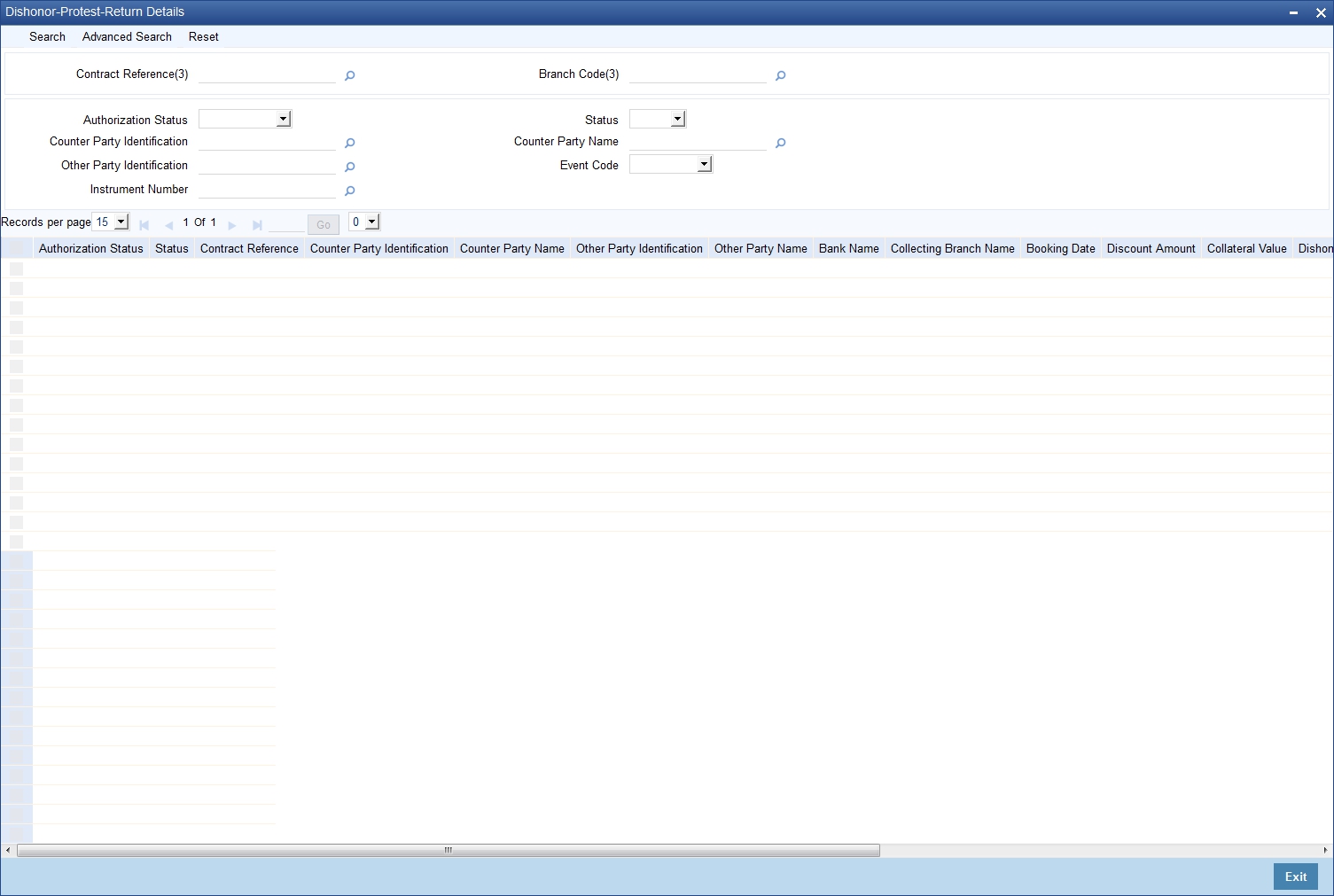
.You can search for the records based on one or more of the following parameters:
l Authorization Status
l Contract Reference
l Counterparty Name
l Event Code
l Status
l Counterparty Identification
l Other Party Identification
Once you have specified the search parameters, click ‘Search’ button. The system displays the records that match the search criteria. You can view the following details of the resultant records:
l Authorization Status
l Status
l Contract Reference
l Counterparty Identification
l Counterparty Name
l Other Party Identification
l Other Party Name
l Bank Name
l Collecting Branch Name
l Booking Date
l Discount Amount
l Collateral Value
l Dishonour Date
l Protest Date
l Return Date
l Event Code
l Notary Code
l Reason
6.7 Inward Retail Bills/Cheques for Collection in Bulk
This section contains the following topics:
l Section 6.7.1, "Creating Inward Retail Bills/Cheques for Collection in Bulk"
l Section 6.7.2, "Viewing Override Details"
l Section 6.7.3, "Viewing Summary of Inward Bulk Retail Bills/Cheques for Collection"
6.7.1 Creating Inward Retail Bills/Cheques for Collection in Bulk
You can book multiple retail inward bills/cheques for collection using 'Retail Bills -Bulk Inward Bill Booking Details' screen. This screen may be used when more than one inward instrument of the same instrument type is received, where the counterparty, other party, remitting bank and currency are the same for all the instruments.You can invoke this screen by typing ‘RBDBINOL’ in the field at the top right corner of the Application tool bar and clicking on the adjoining arrow button.
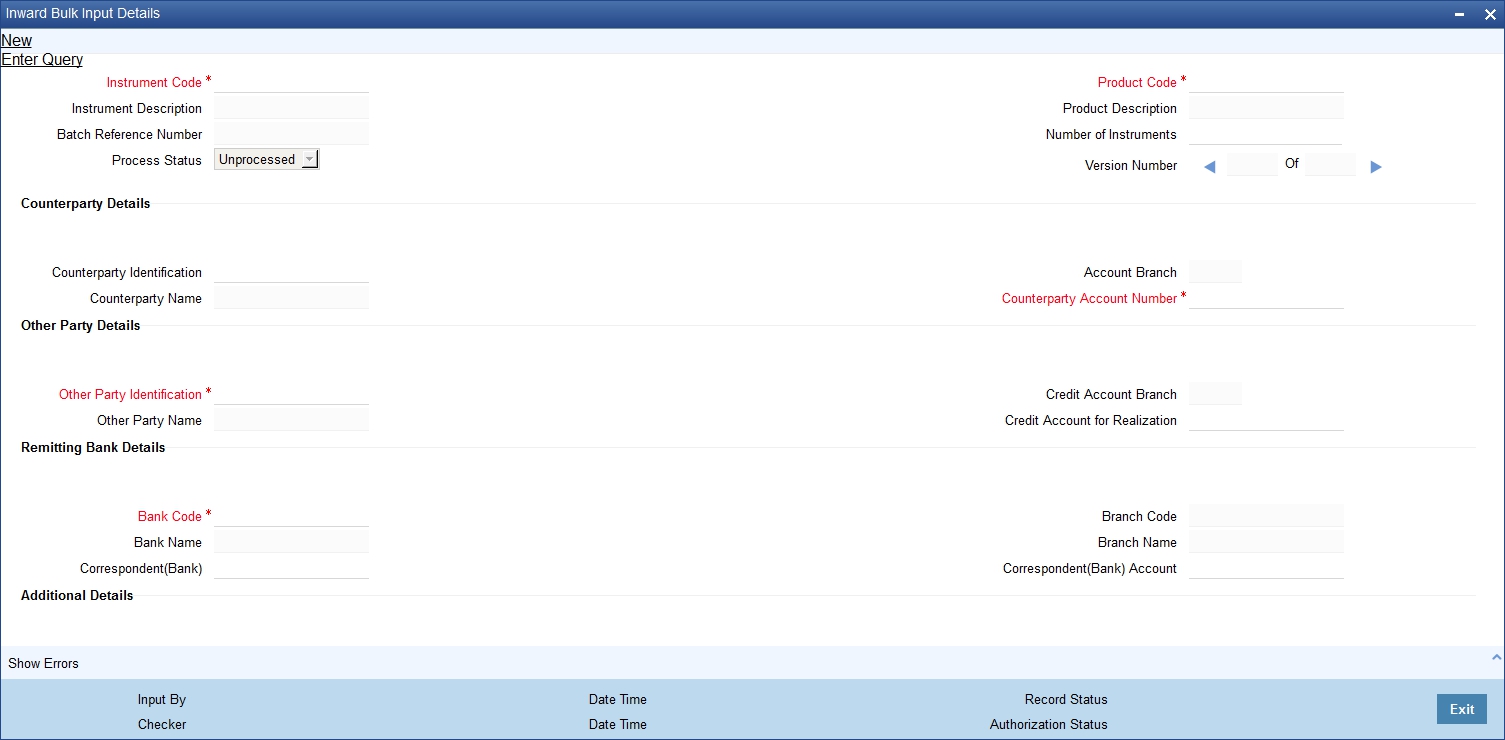
Here all the common details of instruments such as instrument code, product code, Counterparty details etc. will be captured as header and the individual instrument details such as amount, maturity date will be captured each contract wise in the multi record grid.Specify the following details:
Instrument Code
Select the instrument code from the adjoining option list.The list contains only those instruments for selection which are linked to the following Product Types:
l Inward Bills for Collection
l Inward Cheques for Collection
Instrument Description
System displays the description of the instrument code selected.
Batch Reference Number
System generates and displays a unique reference number for the batch of instruments being booked.
Process Status
System displays the process status from the Bulk Reference Number here.
l Unprocessed – The Transactions for the Bulk Reference number are yet to be processed
l Processed – The Transactions for the Bulk Reference number are processed
Product Code
Select the product under which the contract is being booked from the adjoining option list and the list displays only those products under product types that are allowed for the selected instrument code.
Product Description
System displays the description of the product here.
Counterparty Details
Counterparty Identification
Select the customer identification from the adjoining option list, for whom the bulk transactions needs to be done.
Counterparty Name
System displays the counter party name.
Counterparty Account Number
Select the counterparty account number for credit of bill/cheque proceeds and debit of charges (if any) from the adjoining option list. It lists only those accounts that belong to the customer.
To view the joint holder’s details of an account and the mode of operation maintained at the account level, place the cursor on the Counterparty Account Number field and press Ctrl+J. The system displays the ‘Joint Holder’ screen.
For more information on the ‘Joint Holder’ screen refer to the section ‘Joint Holder Maintenance’ in the Core User Manual.
Account Branch
System displays the name of the branch associated with the account.
Other party details
Other Party Identification
Select the other party Identification from the adjoining option list.
Other Party Name
System displays the other party name based on the other party Id selected.
Credit Account for Realization
Select the account number of the other party, which needs to be credited during realization from the adjoining option list.
To view the joint holder’s details of an account and the mode of operation maintained at the account level, place the cursor on the Credit Account for Realization field and press Ctrl+J. The system displays the ‘Joint Holder’ screen.
For more information on the ‘Joint Holder’ screen refer to the section ‘Joint Holder Maintenance’ in the Core User Manual.
Credit Account Branch
System displays the branch associated with the account.
Remitting Bank Details
Bank Code
Select the bank & branch of the remitting bank from the option list.
Bank Name
System displays the name of the remitting bank.
Correspondent (Bank)
Select the BIC code of the Remitting Bank’s correspondent from the adjoining option list.
Branch Code
System displays the branch of the remitting bank/ or the same bank’s branch from which the instrument is received.
Branch Name
System displays the name of the branch.
Correspondent (Bank) Account
Specify the account number of the Remitting Bank’s Correspondent
Additional Details
Booking Date
System displays a date on which the batch is booked.
Currency
Select the instrument currency from the adjoining option list.The system defaults the local currency as the instrument currency.You can edit this value if needed.
Protest
Check this box to indicate that protest should be lodged in case of non-payment.The value is captured based on the remitting bank instructions.
Auto Liquidation
Check this box to indicate that all the contracts in a batch should be auto liquidated on the due date.
Multi-Record Block
Contract Reference Number
System generates and displays a unique reference number for the contract.This reference is used in all accounting entries and transactions related to this contract.
Instrument Number
Specify an instrument number.
Instrument Date
Specify a date of the bill or cheque.
Amount
Specify the amount of bill or cheque.
Remitting Bank Reference Number
Specify the reference number of the remitting bank for the instrument.
Remitting Bank Date
Specify the date of the schedule sent by a remitting bank.
Local Currency Amount
System displays the amount that is converted into the local currency of the branch.
Maturity Date
Specify the maturity date of a bill.System allows the lodging of bills after the maturity date and shows an exception message while saving the bill contract. For cheques, the instrument date is defaulted as the maturity date.
Grace Days
Specify the grace days if any. The field is applicable only for bills.
Remarks
Specify your remarks on the transaction.
Process Status
System displays the process status of the individual transaction in the Bulk here.
l Unprocessed – The Transaction is yet to be processed
l Processed – The Transaction is successfully processed.
l Hold – The Transaction is put on hold. “Show Error” subsystem displays the reason for placing the transaction on Hold
Error – The Transaction processing is failed. “Show Error” subsystem displays the reason for failure.Once you have specified the above details, click ‘Save’ button to save the contract.
6.7.2 Viewing Override Details
Click ‘Show errors’ button in the ‘Retail Bills -Bulk Inward Bill Booking Details’ screen to view the list of overrides applicable in the life cycle of a retail bill.
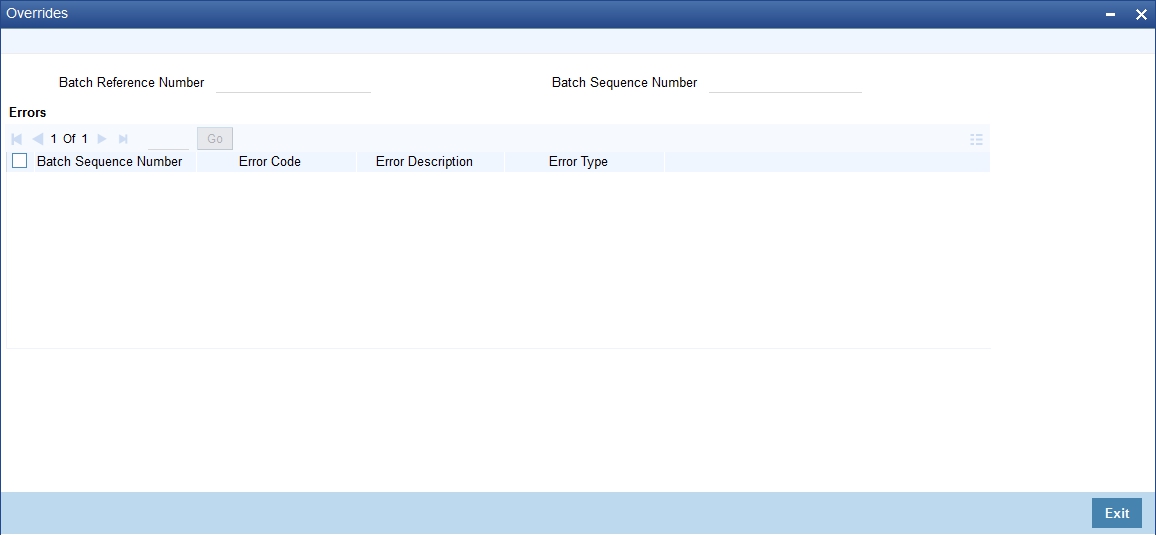
The following details are displayed here:
Batch Reference Number
Specify a batch reference number. It is applicable only for contracts that are to be considered as part of a batch.
Batch Sequence Number
The system generates the batch sequence number only for contracts that are to be considered as part of a batch.The value is applicable only if the batch reference number is specified.
Errors
l Batch Sequence Number
l Error Code
l Error Description
l Error Type
6.7.3 Viewing Summary of Inward Bulk Retail Bills/Cheques for Collection
You can view a summary of inward bulk retail bills/cheques for collection in ‘Retail Bills-Bulk Inward Bill Booking Details-Summary’ screen. To invoke this screen, type ‘RBSBINOL’ in the field at the top right corner of the application toolbar and click the adjoining arrow button.
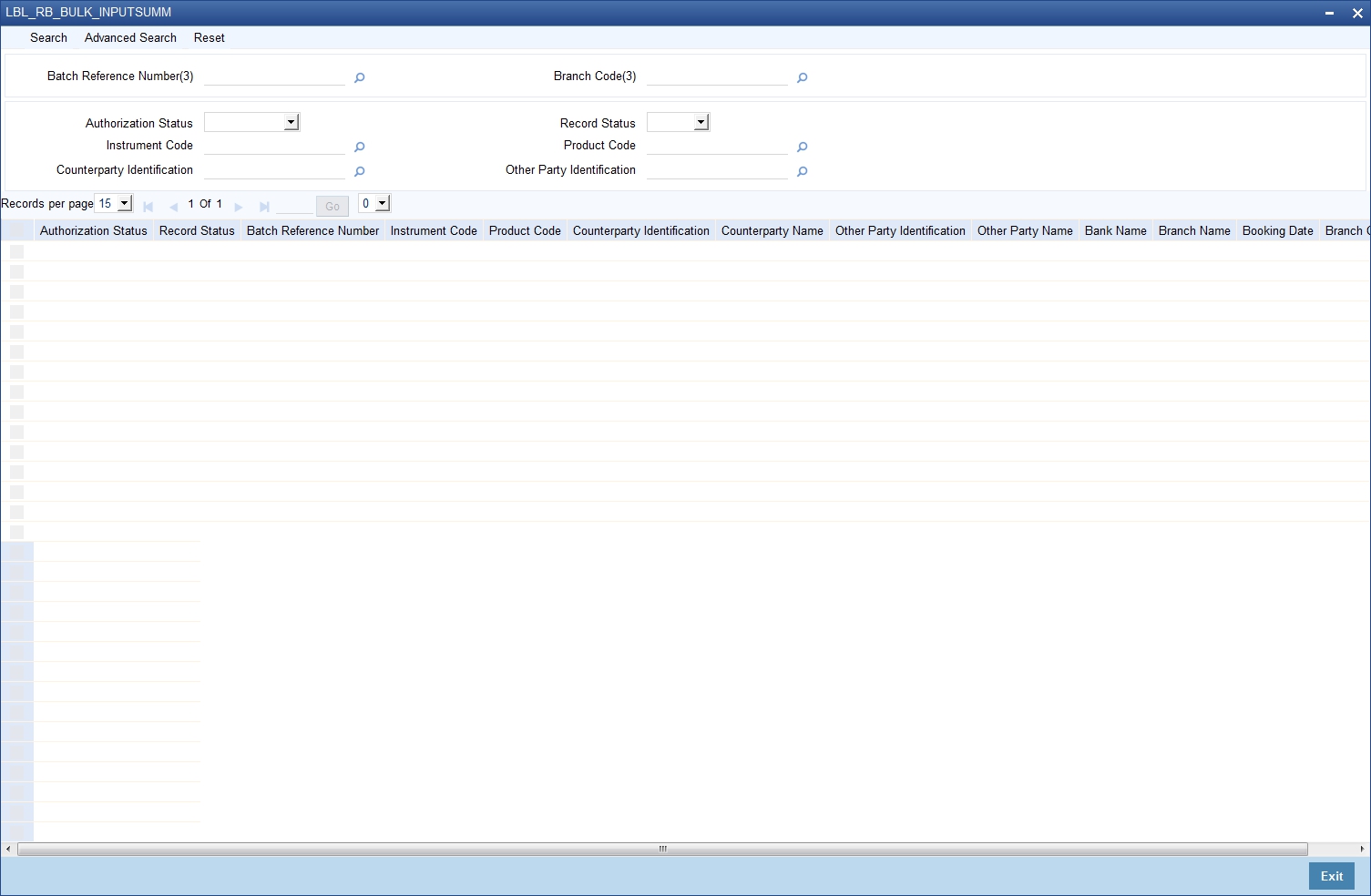
You can search for the records based on one or more of the following parameters:
l Authorization Status
l Batch Reference Number
l Product Code
l Other Party Identification
l Record Status
l Instrument Code
l Counterparty Identification
Once you have specified the search parameters, click ‘Search’ button. The system displays the records that match the search criteria. You can view the following details of the resultant records:
l Authorization Status
l Record Status
l Batch Reference Number
l Instrument Code
l Product Code
l Counterparty Identification
l Counterparty Name
l Other Party Identification
l Other Party Name
l Bank Name
l Branch Name
l Booking Date
This section contains the following topics:
l Section 6.8.1, "Realizing Inward Bills in Bulk"
l Section 6.8.2, "Viewing Override Details"
l Section 6.8.3, "Viewing Summary of Bulk Inward Retail Bill Realization"
6.8.1 Realizing Inward Bills in Bulk
You can realize the inward retail instruments in a bulk using 'Retail Bills-Bulk Inward Bill Realization Details' screen. You can invoke this screen by typing ‘RBDBIREA’ in the field at the top right corner of the Application tool bar and clicking on the adjoining arrow button.
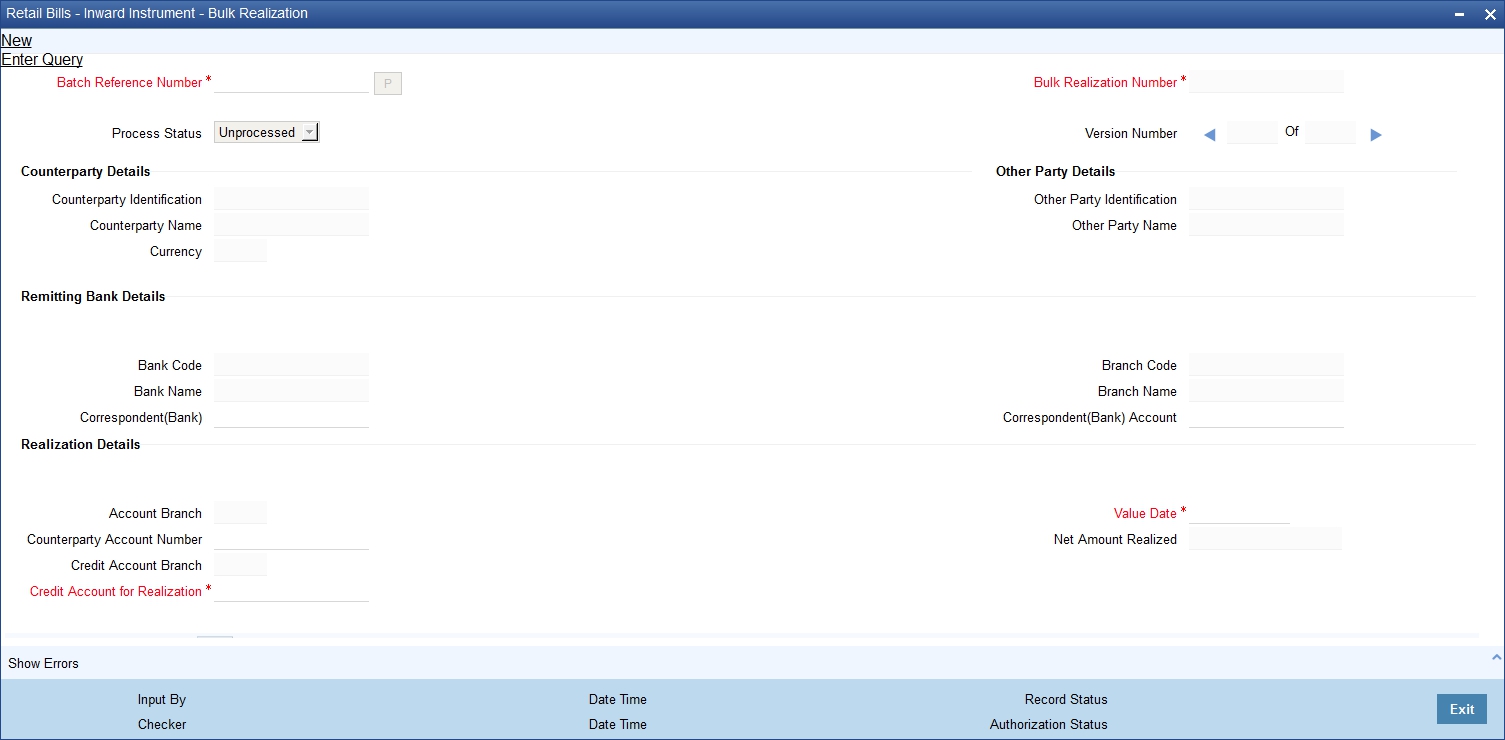
Specify the following details:
Batch Reference Number
Select the Batch Reference number from the adjoining option list for which the bulk realization has to be done.
Once you have specified the above details click 'P' button to populate the details of the instruments in a batch.
Process Status
System displays the process status from the Bulk Reference Number here.
l Unprocessed – The Transactions for the Bulk Reference number are yet to be processed
l Processed – The Transactions for the Bulk Reference number are processed
Bulk Realization Number
System generates and displays a unique bulk inward realization number.
Counterparty Details
Counterparty Identification
System displays the Customer Identification based on the batch reference selected.
Counterparty Name
System displays the name of the Customer based on the batch reference number selected.
Currency
System displays the Currency of the instruments in the Batch.
Other party Details
Other Party Identification
System displays Other party Identification based on the batch reference selected.
Other party name
System displays Other party name based on the batch reference selected.
Remitting Bank Details
Bank Code
System displays the bank code based on the batch reference selected.
Bank Name
System displays the bank name based on the batch reference selected.
Correspondent (Bank)
By default, system displays the BIC code of the Remitting Bank’s Correspondent which is captured during the booking of an inward contract. However you can edit this value when needed.
Branch Code
System displays the branch code based on the batch reference selected.
Branch Name
System displays the branch name based on the batch reference selected.
Correspondent (Bank) Account
By default, system displays the account number of the Remitting Bank’s Correspondent which is captured during the booking of an inward contract. However you can edit this value when needed.
Realization Details
Counterparty Account Number
Select an account number from which the proceeds should be debited and initially, the value is defaulted from the contract input screen.However you can edit this value by choosing from the adjoining option list.
To view the joint holder’s details of an account and the mode of operation maintained at the account level, place the cursor on the Counterparty Account Number field and press Ctrl+J. The system displays the ‘Joint Holder’ screen.
For more information on the ‘Joint Holder’ screen refer to the section ‘Joint Holder Maintenance’ in the Core User Manual.
Account Branch
System displays the branch associated with the account number mentioned above.
Credit Account for Realization
By default, the credit account for realization specified in the contract input screen is used. However, you can edit this value by selecting from the adjoining option list.
To view the joint holder’s details of an account and the mode of operation maintained at the account level, place the cursor on the Credit Account for Realization field and press Ctrl+J. The system displays the ‘Joint Holder’ screen.
For more information on the ‘Joint Holder’ screen refer to the section ‘Joint Holder Maintenance’ in the Core User Manual.
Credit Account Branch
System displays the branch associated with the account mentioned above.
Value Date
By default, application date is used, However you can edit this value.
Net Amount Realized
System displays the net realized amount based on the instrument amount and charges.
Here, Net realized amount = Instrument amount - Charges deducted.
Multi-Record Block
Contract Reference Number
System displays the contracts based on the batch reference number selected above.
Instrument Number
System displays the instrument number based on the batch reference number selected above.
Instrument Date
System displays an instrument number based on the batch reference number selected above.
Remitting Bank Reference Number
System displays a unique reference number based on the batch reference number selected above.
Remitting Bank Date
System displays a date of remitting bank’s acknowledgment based on the batch reference number selected above.
Amount
System displays the contract amount.
Net Amount Realized
System displays a net realized amount for the instrument. However, you can modify this amount.
Other Bank Charges
System displays the difference of instrument amount and net realized amount as the 'other bank charges'.
Remarks
System displays the remarks on the transaction.
Process Status
System displays the process status of the individual transaction in the Bulk here.
l Unprocessed – The Transaction is yet to be processed
l Processed – The Transaction is successfully processed.
l Hold – The Transaction is put on hold. “Show Error” subsystem displays the reason for placing the transaction on Hold
l Error – The Transaction processing is failed. “Show Error” subsystem displays the reason for failure.
6.8.2 Viewing Override Details
Click ‘Show errors’ button in the ‘Retail Bills-Bulk Inward Bill Realization Details’ screen to view the list of overrides applicable in the life cycle of a retail bill.
Batch Reference Number
Specify a batch reference number. It is applicable only for contracts that are to be considered as part of a batch.
Batch Sequence Number
The system generates the batch sequence number only for contracts that are to be considered as part of a batch. The value is applicable only if the batch reference number is specified.
The following details are displayed here:
l Batch Sequence Number
l Error Code
l Error Description
l Error Type
6.8.3 Viewing Summary of Bulk Inward Retail Bill Realization
You can view a summary of inward bulk bill realization in ‘Retail Bills-Bulk Inward Realization Details-Summary’ screen. To invoke this screen, type ‘RBSBIREA’ in the field at the top right corner of the application toolbar and click the adjoining arrow button.
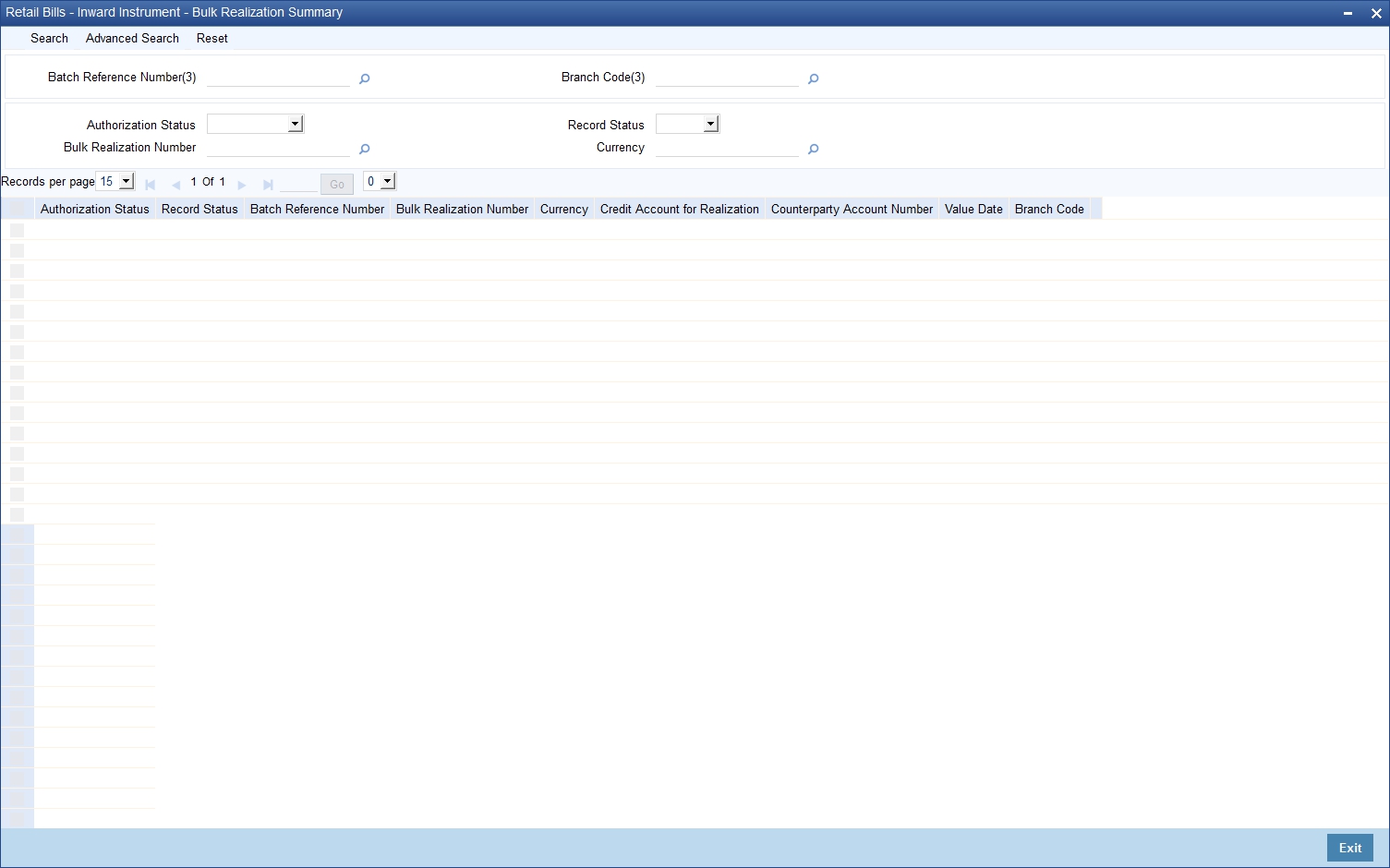
You can search for the records based on one or more of the following parameters:
l Authorization Status
l Batch Reference Number
l Currency
l Record Status
l Bulk Realization Number
Once you have specified the search parameters, click ‘Search’ button. The system displays the records that match the search criteria. You can view the following details of the resultant records:
l Authorization Status
l Record Status
l Batch Reference Number
l Bulk Realization Number
l Currency
l Credit Account for Realization
l Counterparty Account Number
l Value Date
6.9 Inward Bulk Dishonour/Protest/Return Details
This section contains the following topics:
l Section 6.9.1, "Capturing Inward Bulk Dishonour/Protest/Return Details"
l Section 6.9.2, "Viewing Override Details"
l Section 6.9.3, "Viewing Summary of Inward Bulk Dishonour/Protest/Return"
6.9.1 Capturing Inward Bulk Dishonour/Protest/Return Details
You can invoke the ‘Retail Bills-Inward Bulk Dishonour-Protest-Return Details‘ screen by typing ‘RBDBIDPR’ in the field at the top right corner of the Application tool bar and clicking on the adjoining arrow button.
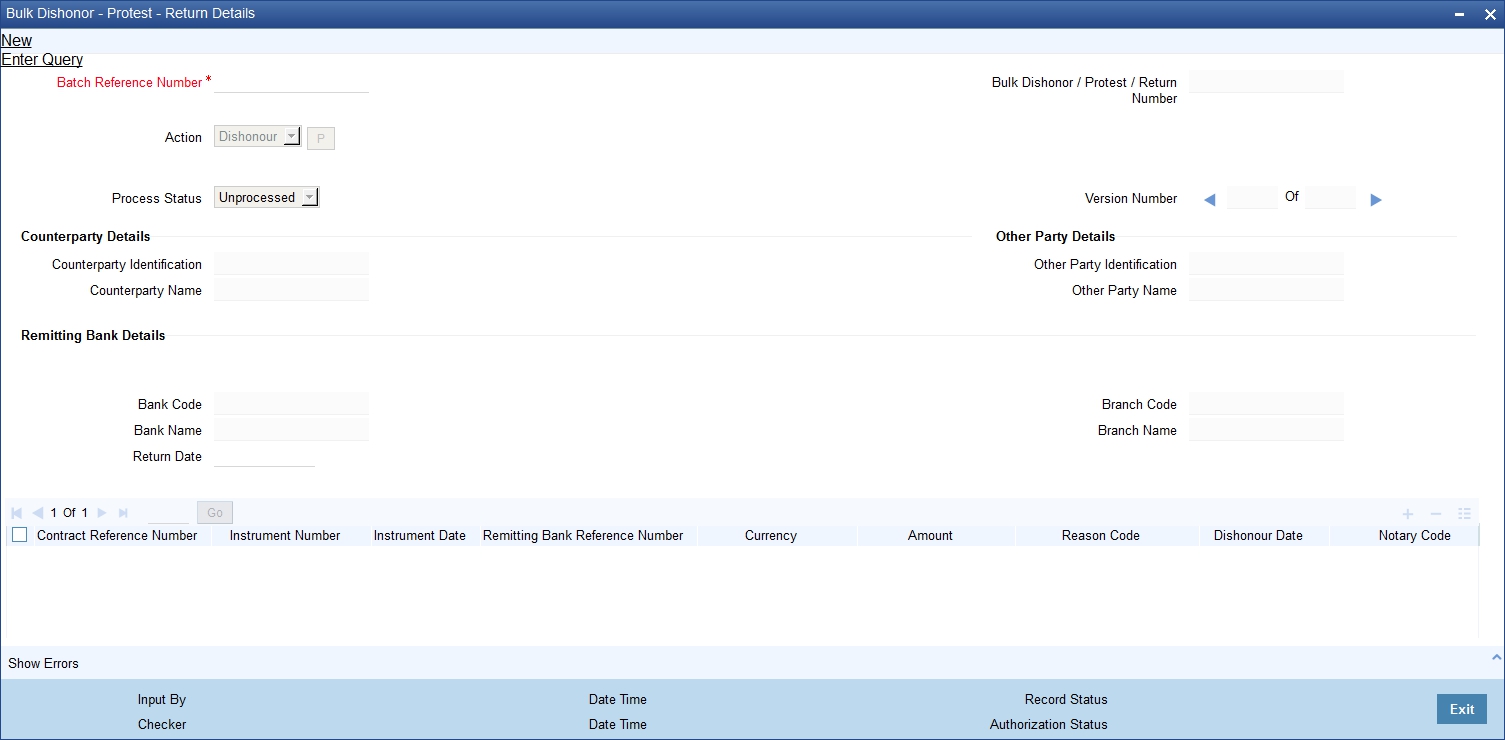
Here, once you have specified a batch reference number in the ‘Retail Bills-Inward Bulk Dishonour-Protest-Return Details‘ screen, system populates the contracts which needs to be dishonoured/protested/ returned.
You can choose the required actions that can be applied to the contracts from the screen and system creates the relevant event and passes the necessary accounting entries for all the selected contracts in a batch.
Specify the following details:
Batch Reference Number
Select the batch reference of the instruments that needs to be Dishonoured/Protested/Returned from the adjoining option list.
Action
Specify a valid action that should be performed on the instrument in a batch. This adjoining list displays all valid actions maintained in the system. You can choose the appropriate one.
Select the action from the adjoining drop-down list. This list displays the following values:
l Dishonour
l Protest
l Return
Once you have specified the above details, click 'P' button to display the contracts in the multi record block.
Process Status
System displays the process status from the Bulk Reference Number here.
l Unprocessed – The Transactions for the Bulk Reference number are yet to be processed
l Processed – The Transactions for the Bulk Reference number are processed
Bulk Dishonour/Protest/Return Number
System generates and displays a unique reference number for the bulk operation and it is a combination of 3-digit branch code, 4-char process code (ZBBO), 5-digit Julian date and a 4-digit serial number.
Counterparty Details
Counterparty identification
System displays a customer identification based on the batch reference number selected.
Counterparty Name
System displays the name of the customer based on the batch reference number selected.
Other Party Details
Other Party Identification
System displays the other party identification number.
Other Party name
System displays the name of the other party .
Remitting Bank Details
Bank Code
System displays the bank code of the remitting bank based on the batch reference number selected.
Bank Name
System displays the name of the remitting bank based on the batch reference number selected.
Return Date
By default, system date is displayed here if the action selected is 'Return'.However you can edit this value.
Branch Code
System displays the branch code based on the batch reference number selected.
Branch Name
System displays the branch name based on the batch reference number selected.
Multi-Block Record
Contract Reference Number
System displays a contract reference number based on the batch reference number and the action selected.
Instrument Number
System displays an instrument number based on the batch reference number and the action selected.
Instrument Date
System displays an instrument date based on the batch reference number and the action selected.
Remitting Bank Reference Number
System displays a remitting bank reference number based on the batch reference number and the action selected.
Currency
System displays a currency based on the batch reference number and the action selected.
Amount
System displays an amount based on the batch reference number and the action selected.
Reason Code
Select a reason code from the list if the instrument selected is dishonoured .This adjoining option list displays all the reason codes maintained in the reason code maintenance screen.You can choose the appropriate one.
Dishonour Date
Specify a date if the action selected is dishonour.The dishonour date should not be earlier than the booking date or later than the current system date, otherwise system generates an error message during save.
Notary Code
Select a notary code from the list if the action selected is protest .This adjoining option list displays all the notary codes defined in the notary maintenance screen.You can choose the appropriate one.
Protest Date
Specify a date if the action selected is protest.The protest date should not be earlier than the booking date and dishonour date or later than the current system date, otherwise system generates an error message during save.
Remarks
System displays your remarks on the transaction.
Process Status
System displays the process status of the individual transaction in the Bulk here.
l Unprocessed – The Transaction is yet to be processed
l Processed – The Transaction is successfully processed.
l Hold – The Transaction is put on hold. “Show Error” subsystem displays the reason for placing the transaction on Hold
l Error – The Transaction processing is failed. “Show Error” subsystem displays the reason for failure.
6.9.2 Viewing Override Details
Click ‘Show errors’ button in the ‘Retail Bills-Inward Bulk Dishonour-Protest-Return Details’ screen to view the list of overrides applicable in the life cycle of a retail bill.
Batch Reference Number
Specify a batch reference number. It is applicable only for contracts that are to be considered as part of a batch.
Batch Sequence Number
The system generates the batch sequence number only for contracts that are to be considered as part of a batch. The value is applicable only if the batch reference number is specified.
The following details are displayed here:
l Batch Sequence Number
l Error Code
l Error Description
l Error Type
6.9.3 Viewing Summary of Inward Bulk Dishonour/Protest/Return
You can view a summary of inward bulk dishonour, protest or return in ‘Retail Bills - Inward Bulk Dishonor - Protest - Return Summary’ screen. To invoke this screen, type ‘RBSBIDPR’ in the field at the top right corner of the application toolbar and click the adjoining arrow button.
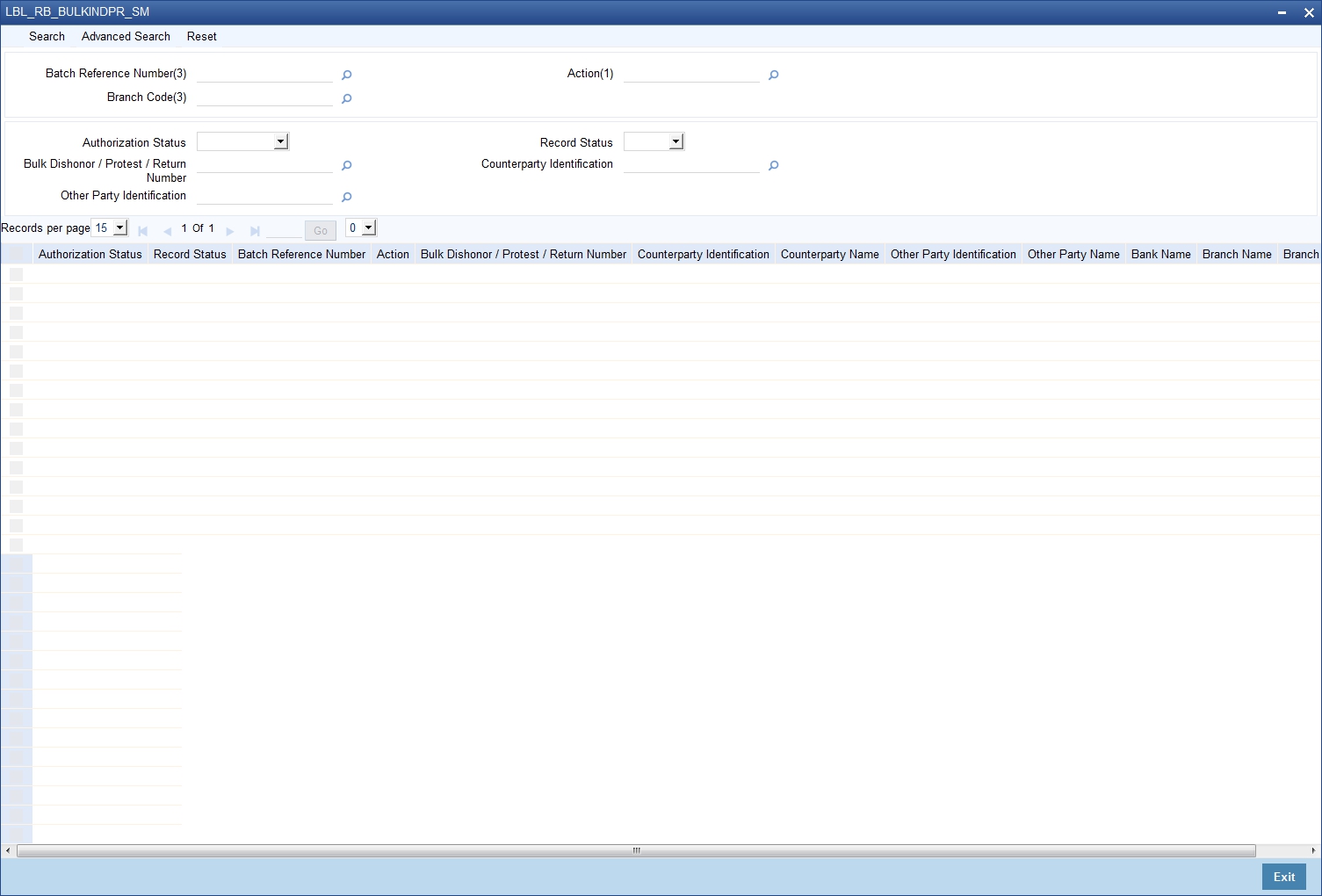
You can search for the records based on one or more of the following parameters:
l Authorization Status
l Batch Reference Number
l Bulk Dishonour / Protest / Return Number
l Other Party Identification
l Record Status
l Action
l Counterparty Identification
Once you have specified the search parameters, click ‘Search’ button. The system displays the records that match the search criteria. You can view the following details of the resultant records:
l Authorization Status
l Record Status
l Batch Reference Number
l Action
l Bulk Dishonour / Protest / Return Number
l Counterparty Identification
l Counterparty Name
l Other Party Identification
l Other Party Name
l Bank Name
l Branch Name
6.10 Reversal of Inward Retail Collection Bill/Cheque Contract
You can reverse the invalid contracts using 'Contract Input - Inward Retail Bills/Cheques for Collection' Screen by using the ‘Reverse’ action button. You can invoke this screen by typing ‘RBDICONL’ in the field at the top right corner of the Application tool bar and clicking on the adjoining arrow button.
Once 'input mistake' is identified after authorization of contract, you can reverse the invalid contract using 'Reverse' action button.
On reversal of the contract, the system validates the following parameters:
l The system validates whether the instrument is already reversed, realized, dishonoured, returned or protested. If any of these conditions are met, then the system will display an error message. Else, the system reverses the respective contract and proceeds with the following steps.
– The system updates the contract status as 'Reversed'.
– The system reverses all accounting entries generated during the previous events.