2. Activation of Sample Reports
In FLEXCUBE, the sample reports can be activated in two steps as follow:
l Section 2.1, "Activation of Menu"
l Section 2.2, "Activation of Report Roles"
The sample reports can be activated in Menu in either of the following two ways:
You can process the ‘Function Description Maintenance’ screen by typing ‘SMDFNDSC’ in the field at the top right corner of the application tool bar and clicking the adjoining arrow button. The ‘Function Description Maintenance’ screen is displayed.
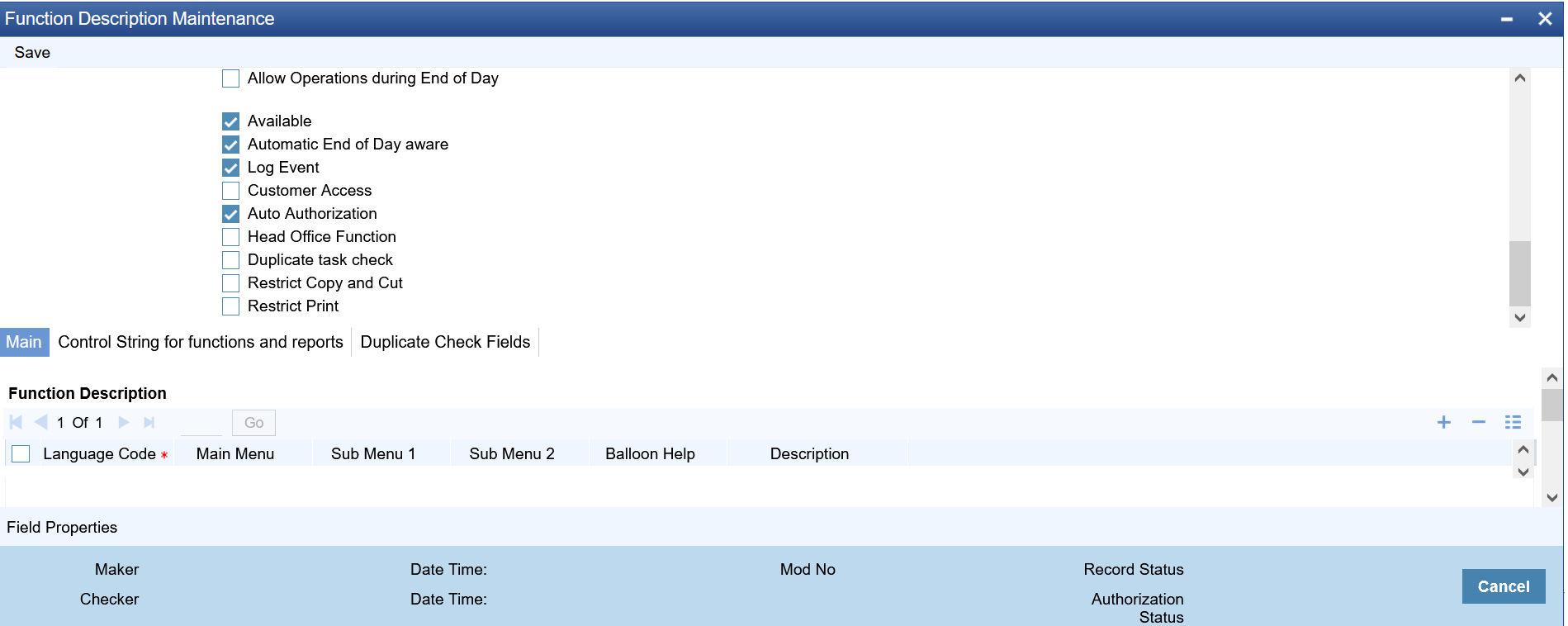
To activate the sample reports from the front end, the ‘Available’ check box should be enabled by modifying the record. The user should modify and authorize the records.
To activate the sample reports from the back end, update the static data of SMTB_MENU Available column to ‘1’ for all the reports.

2.2 Activation of Report Roles
All the report roles end with the word ‘REPORTS’. These reports are pre-shipped as closed. You can process the ‘Role Maintenance’ screen by typing ‘SMDROLDF’ in the field at the top right corner of the Application tool bar and clicking the adjoining arrow button. The ‘Role Maintenance’ screen is displayed.
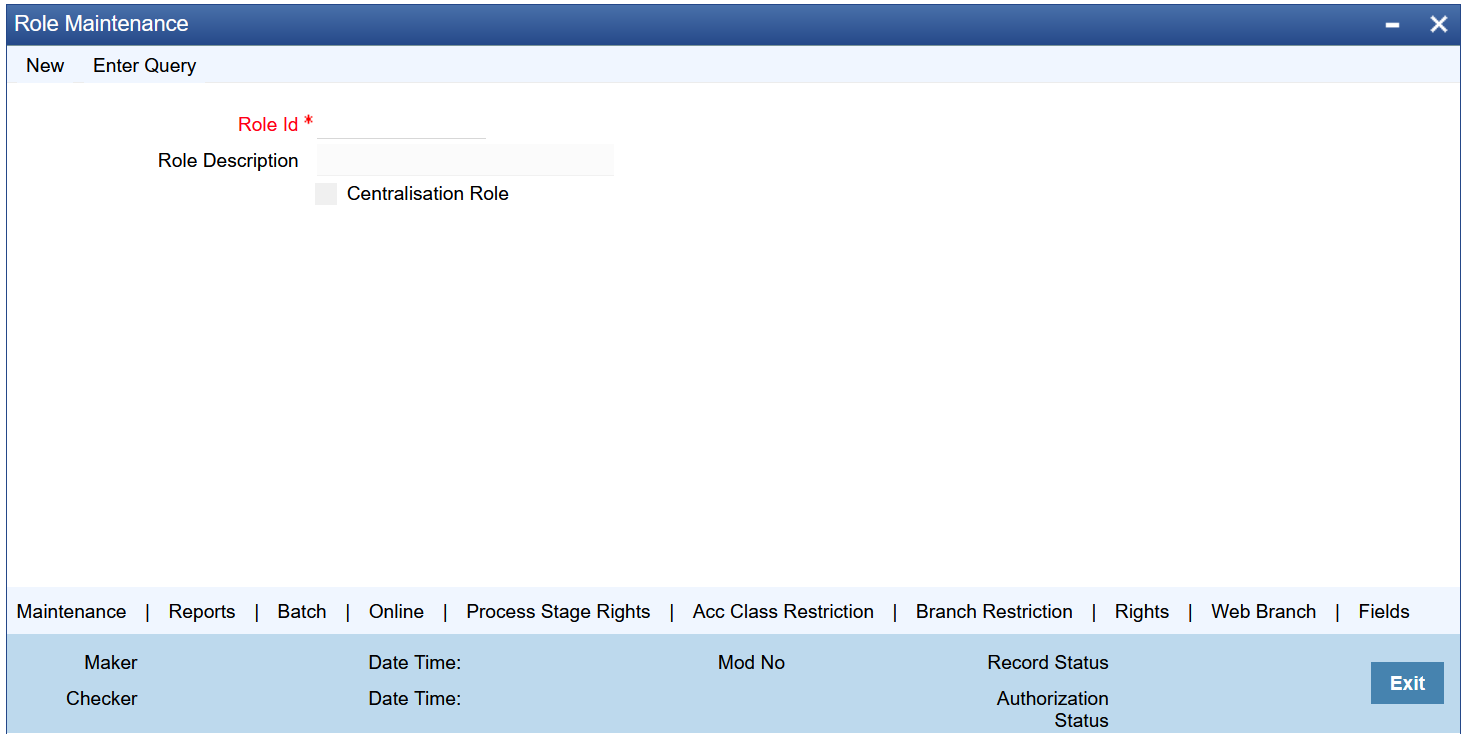
In this screen, specify the following details:
Role ID and Description
Specify the role Id of the reports. Alternatively, you can select the appropriate role Id from the option list. The system displays the role description.

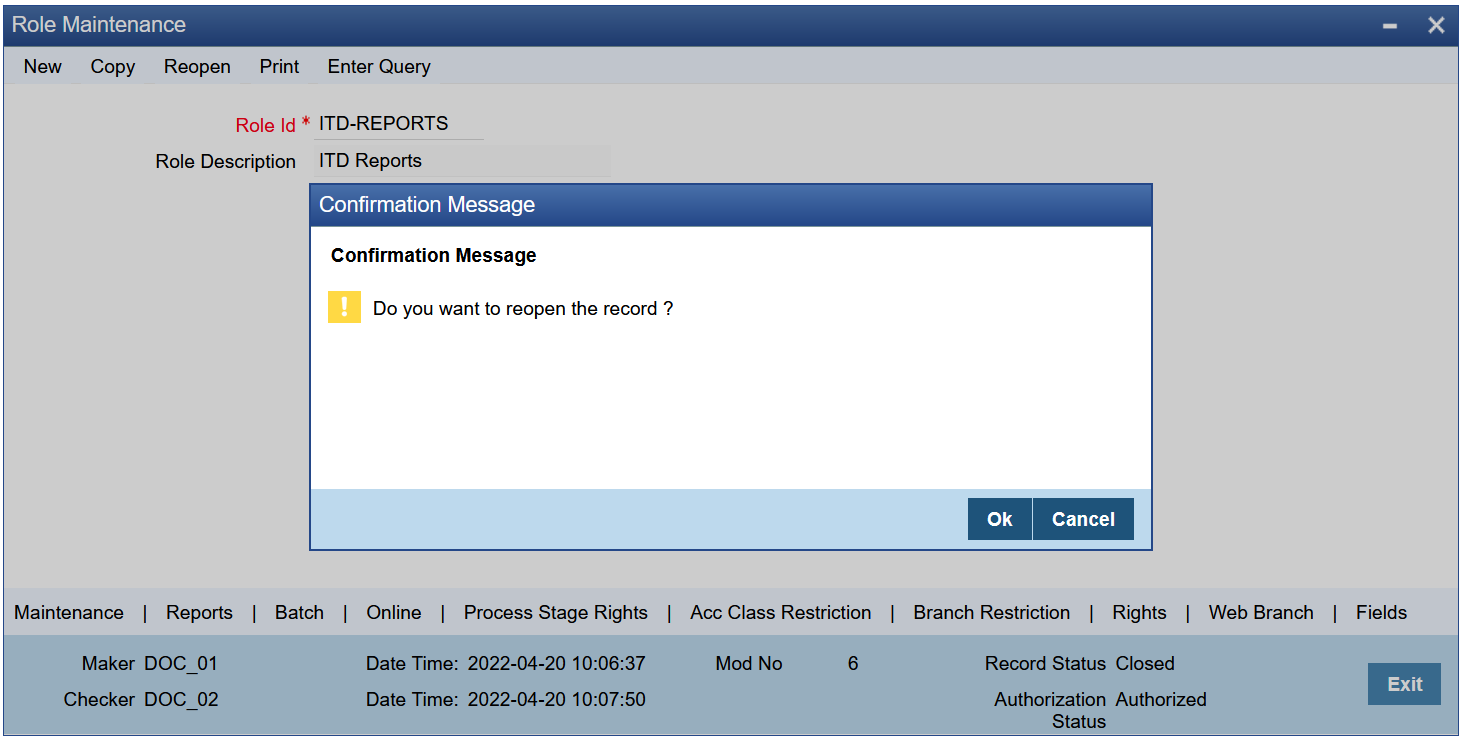
Initially, all the report roles would be in closed status, the user can reopen the report roles by clicking on the ‘Reopen’ button.
For Instance,
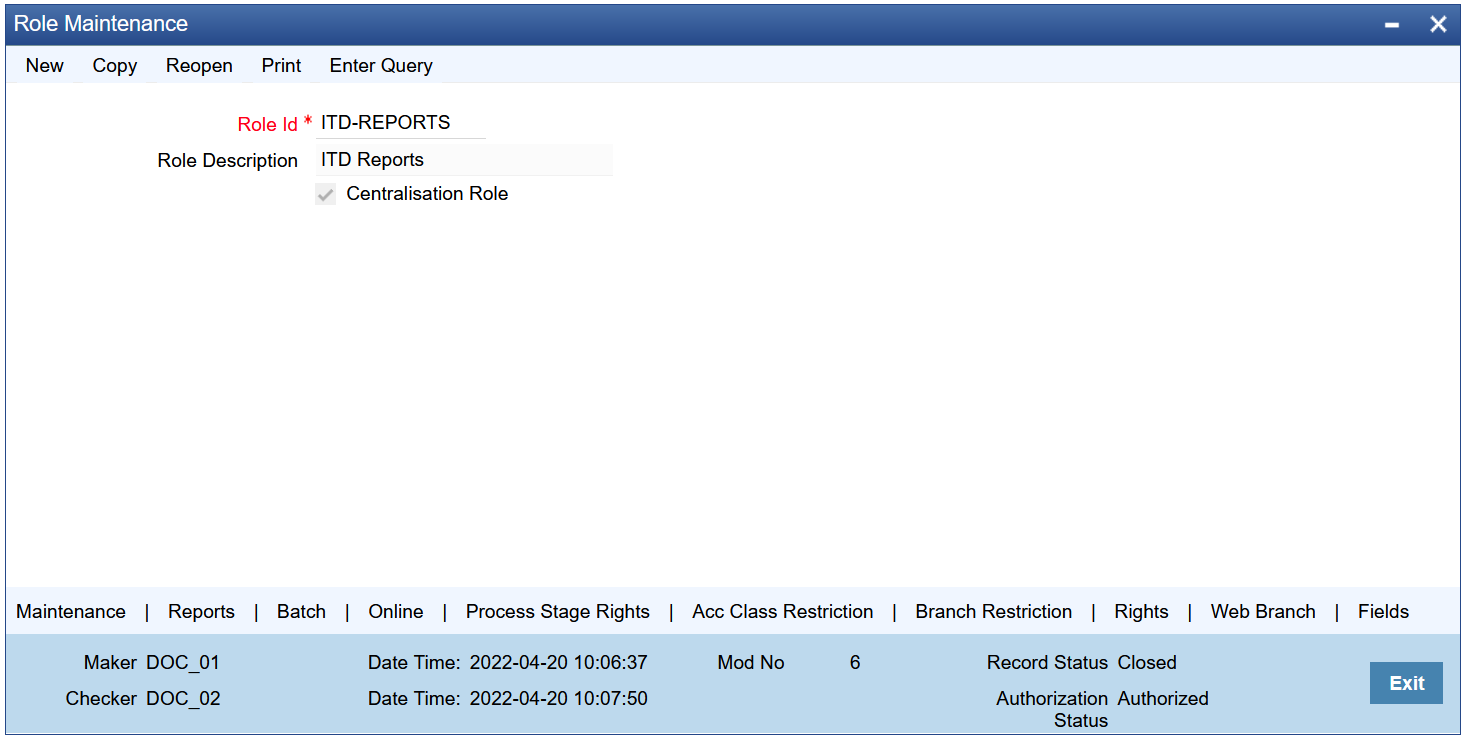
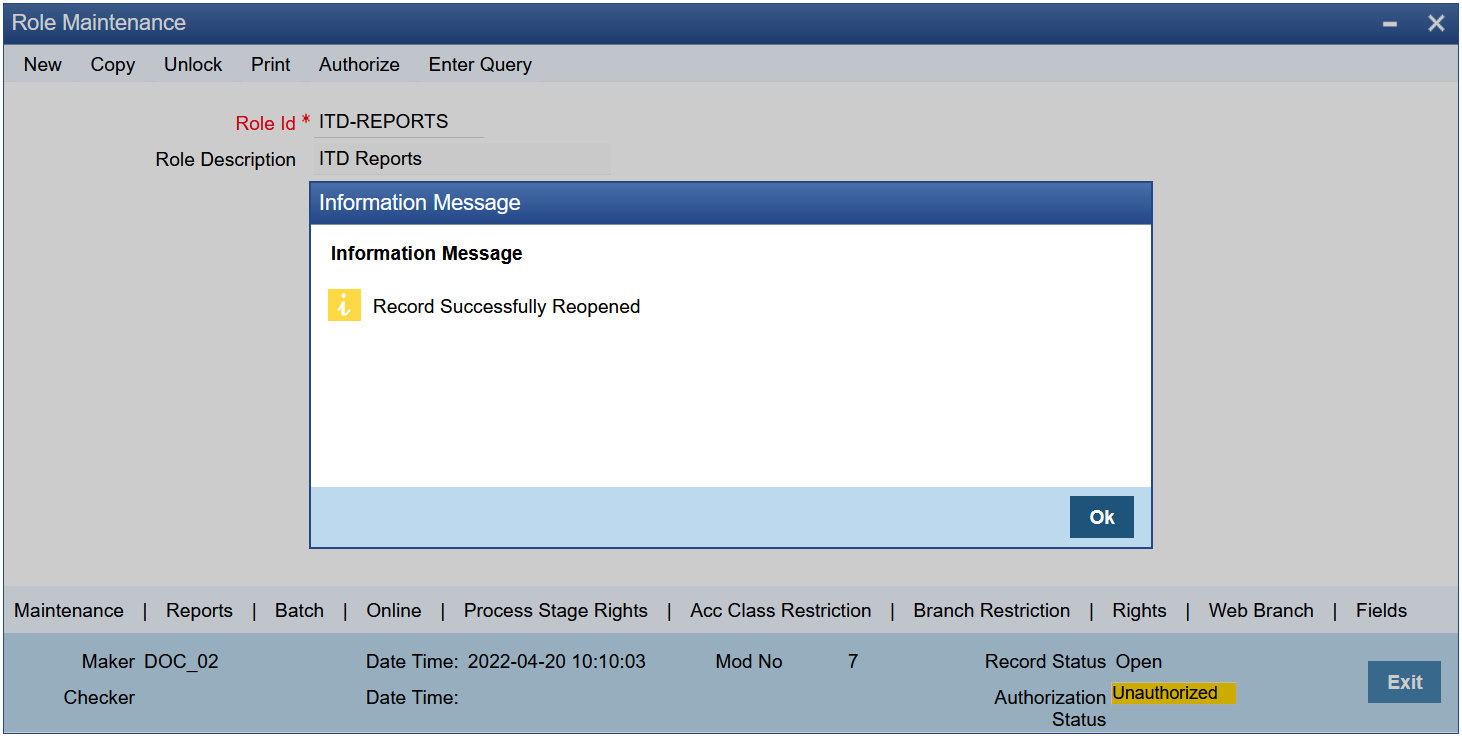
Click the ‘Reopen’ button. The confirmation message window is displayed. Click the ‘Ok’ button.
The Information Message window is displayed. Click the ‘Ok’ button. Now the report roles are in opened status.