2. Oracle FCUBS - External Accounting Interface
The integration between the Oracle FLEXCUBE Universal Banking System (FCUBS) and an External Product Processor enables processing external accounting entries in Oracle FLEXCUBE through external product processors.
This chapter contains the following sections:
l Section 2.2, "Prerequisites"
l Section 2.3, "Integration Process"
This section describes the scope of the integration with respect to FCUBS and an External Product Processor. Oracle FLEXCUBE allows processing external accounting entries to FCUBS. The system updates the customer account and ledger balances for the external product transactions.
The FCUBS accounting module will handle the ECA requests from external systems and processes the external transactions. The following accounting stages are impacted due to the external interface changes:
l Account service validations (EAC check)
l ECA request for accounts and related operations
l Debit transactions from external systems (ECA)
l Credit transactions from external systems
l Notify ECA/EA status for pending ECA/EA
Set up Oracle FLEXCUBE Universal Banking Application and the other external product processor interacting with FCUBS.
Refer the ‘Oracle FLEXCUBE Universal Banking Installation’ manual.
This section contains the following topic:
l Section 2.3.1, "Account Service Validations"
l Section 2.3.2, "Multiple Account Service Validations"
l Section 2.3.3, "Handling External Credit Approval (ECA) Requests"
l Section 2.3.4, "Triggering Accounting Entries to FCUBS"
l Section 2.3.5, "Processing Account Statements"
l Section 2.3.6, "Multi Currency Accounts"
l Section 2.3.7, "Handling MIS for External Product Processor"
l Section 2.3.8, “Notify ECA/EA status for pending ECA/EA”
2.3.1 Account Service Validations
The system performs account related validations for external transactions based on the requests. The response of these requests will be send to the external system.
FCUBS validates the status of the accounts based on the debit credit indicator send in the request. The account service validation request from the external system will be handled by ‘QueryCustAccVal’ interface.
For account related validations, the account validation services with credit indicator will be used. System performs the following validations on the accounts:
l Check unauthorized accounts
l Check closed accounts
l Check frozen status of CIF / account
l Check pending primary party change
l Check no debit marked for account
l Check no credit marked for account
l Check dormancy status of account
l Check debit interest due on account
l Check debit transactions if customer has become major and if age proof not submitted
If these account related validations are maintained as an override, then the request will be approved. If the validations are configured as an error, then the request will be rejected.
l If debit or credit indicator is specified as ‘None’ (N), only the account service validations like unauthorized account, closed account will be performed.
l If debit or credit indicator is specified as ‘Debit’ (D), then debit related validations like No debit, CIF minor, dormancy etc will be performed.
l If debit or credit indicator is specified as ‘Credit’ (C), credit related validations like No credit, dormancy will be performed.
l If debit or credit indicator is specified as ‘Both’ (B), then both credit and debit account service validations will be performed.
If any account validation fails, then the failure response will be send to the external system.
2.3.2 Multiple Account Service Validations
The system performs validations on multiple accounts for external transactions based on the request. The response of this request will be sent to the external system.
The new service CreateEACAccVal in ‘FCUBSAccService’ does the same validations on multiple accounts like QueryCustAccVal in ‘FCUBSAccService’ does for single account.
In multiple account related validations, if validation returns override, the validation is considered successful. If validation returns error it fails. In case of Dual Auth (error type is D), validation is treated as override and returns success.
Validation can be checked from both Gateway Service and ReST service.
2.3.3 Handling External Credit Approval (ECA) Requests
In this stage, the system performs account balance check and validations for the debit transactions.The debit transactions from external system will be processed through ECA.The amount requested for debit will be blocked in the account and the response will be send to the external system.
The system performs the following in this stage:
l If any account related validations fails and is configured as an override, then ECA will be approved. If it is configured as an error, ECA will be rejected.
l If the account validations are passed, then available balance check is done in the account. Balance check will take account level limits (TOD, Uncollected Limits, Daylight Limits) also into consideration for ECA approval. Minimum balance check will be performed on accounts during ECA block.
l If the total available balance is greater than or equal to ECA amount, system creates an amount block for ECA amount and ECA will be approved. If the available balance is less than ECA amount then ECA request will be rejected.
l If ECA account is linked to ELCM, an account balance check is performed based on the total available amount. If the available balance is less than ECA amount, system will look for limits availability and will perform limit utilization. An amount block will be created for the full ECA amount. ECA reference number will be generated for each ECA request.
l Amount block created through external systems, will be shown under ECA blocked amount (ACY_ECA_BLOCKED_AMT) in account balance table (sttm_account_balance). The ‘Blocked Amount’ field in STDCUSAC will display consolidated amount blocked through FCUBS or external systems.
l If the account has sweep facility enabled and is opted in the request, then the sweep processing will be done based on the ECA request. If the ECA request is sent with sweep required, system will perform sweep for the amount required. By default, sweep required will be ‘No’ for the requests.
l If the ECA amount is more than account balance post sweep, limit amount will be utilized for the remaining amount, if available.
l ECA external request reference is captured in request and system sends the ECA block reference in the ECA approval.
l Any ECA requests which are received during EOD will be processed. If the block results in any sweep entries it will be tanked.
l If one or more of the accounts under a request have failed for ECA block, ECA block will be done for the remaining accounts and account wise response will be returned.
l A tag ‘UPDASERRIFANYFAIL’ will be given to stop ECA block for the entire request, if any of the account has failed for ECA block. If the tag UPDASERRIFANYFAIL has value ‘No’ in the request, system will do the ECA block for the remaining accounts and only the ones with error will be failed. A success response will be given in this case against the ECA request. If tag UPDASERRIFANYFAIL is ‘Yes’, entire ECA request sent under create external ECA reference number will be rejected, even if one account fails for ECA block. A failure response will be given in this case against the ECA request.
l System will support partial block, if partial block tag is yes in the ECA Request. If account has lesser balance than the requested ECA amount, system will approve to the extent of available amount and the response will be send with the approved amount.
l If the partial release tag is No, partial request will not be allowed, ECA should be utilized in full. By default partial blocking will be No for the requests, if not sent by external systems.
l On ECA approval, account withdrawable balance will be reduced to the extent of ECA approved amount.
l Minimum ECA block amount maintained at account class (sttm_account_class) will be validated for the ECA block amount. If partial block is allowed, then system will first check whether amount is greater than the minimum ECA amount on account class level.
l If block amount is more than Minimum ECA block amount, but less than the available amount at the account, then error will be thrown for insufficient balance.
l If ECA debit request is rejected, the placed ECA block will not be released automatically. The external system has to send ECA Undo request to release the ECA block.
l You can do an ECA debit for lesser amount than the approved amount. The system will release the amount for full and do the debit for lesser amount that is requested. The balance amount will be released to the customer account.
l ECA debit can be done for lesser amount multiple times against an ECA block. This will be send as partial ECA debit request.
l You can also do an ECA debit for a bigger amount than the approved amount. When the ECA amount exceeds the approved amount the ECA block will be closed and the system performs account validations on the debit account for the excess amount. If the account does not hold balance for the additional amount, the entire ECA debit requested for the current transaction will fail.
l Effective date will be defaulted to application date for ECA block creation.
l TD and CL accounts will not be allowed in ECA creation.
l If Referral Allowed is set as 'Yes' and any dual auth/multi auth error is raised during ECA creation, then the transactions are parked in to the respective queue (OVDAUDEF and STDTREFQ) for further processing and sent pending status to the External system.
l ‘OVDAUDEF’ screen can be used to authorize/reject the transaction in case of dual authorization. And ‘STDTREFQ’ screen can be used to authorize/reject the transactions in case of multi authorization errors.
l When dual/multi auth queue records are authorized, then the ECA status becomes active. When the dual/multi auth queue records are rejected, then ECA status will be marked as an error.
l If dual auth queue records are rejected, then the pending approvals in the multi auth queue will get auto rejected for the same transactions or viz versa.
2.3.3.1 Viewing ECA Block Details
The system creates an ECA amount block on an account when an ECA request is approved. This blocked amount is used for ECA debit and will be active till the approved amount is debited or ECA request is cancelled. The interface ‘CreateEcablk’ will perform the ECA block request.You can view the ECA Block details in ECA block screen. The system allows you to only query the details in this screen. Other operations are not allowed in this screen. You can invoke this screen by typing ‘CADECABL’ in the field at the top right corner of the Application toolbar and clicking the adjoining arrow button.
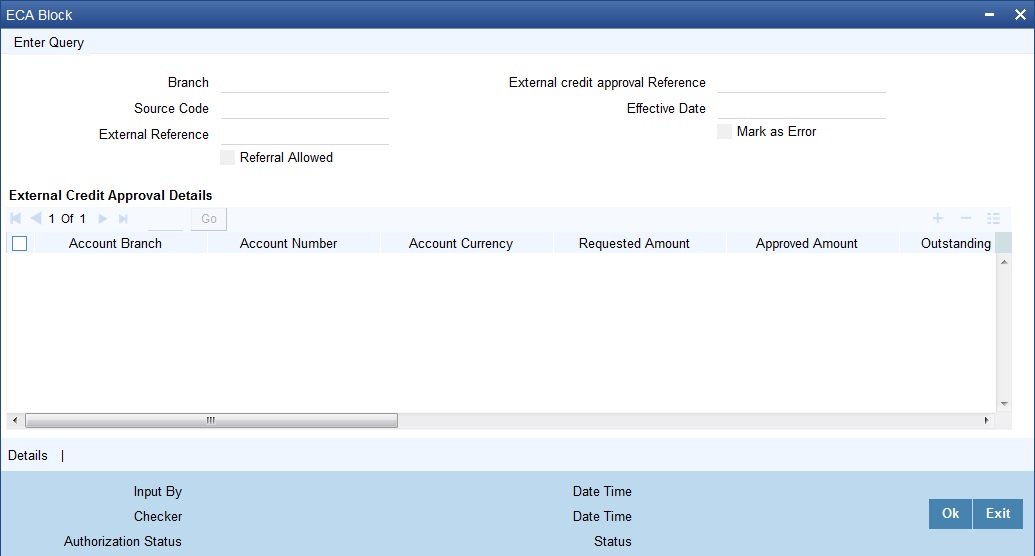
Click ‘Enter Query’ to specify and view the following details:
Branch
The system displays the current branch code.
Source Code
The system displays the source code passed in the request.
External Reference
Specify the external reference number.
ECA Reference
Specify the ECA reference number.
Effective Date
The system displays the effective date.
Referral Allowed
Select this option to specify Referral Allowed.
Mark as Error
If ‘Mark as Error’ is enabled then the complete ECA request will be rejected even if one account fails in the validation.
ECA Details
The following ECA details are displayed based on the query:
l Account Branch
l Account Number
l Account Currency
l Requested Amount’
l Approved Amount
l Outstanding Amount
l Status
l Remarks
l Sweep Required
l Partial Block Required
l Partial Release Allowed
2.3.3.2 Viewing ECA Block Details
You can view details of ECA Block through ‘ECA Block Summary’ screen. You can invoke this screen by typing ‘CASECABL’ the field at the top right corner of the Application tool bar and clicking on the adjoining arrow button.
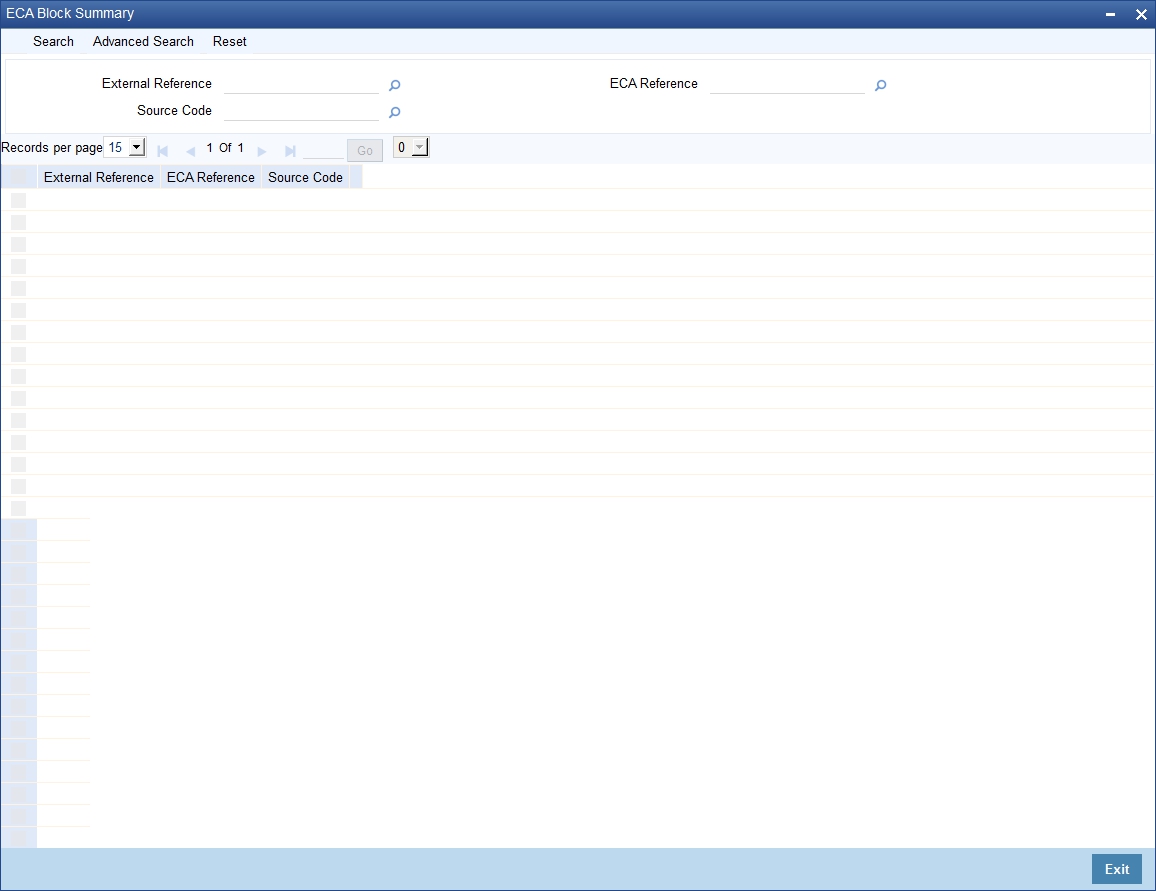
You can search records based on the following parameters:
l External Reference
l Source Code
l ECA Reference
Click on ‘Search’ button with or without entering any of the above search parameters. All records matching the search criteria are displayed. To view a particular record double click on the desired record displayed in the list of records. The following details pertaining to each record is displayed:
l External Reference
l ECA Reference
l Source Code
2.3.3.3 Cancelling ECA Request
The system allows you to cancel an approved and active ECA request. On cancellation request the system will release the amount block created on ECA block.
The system performs the following if cancellation of ECA is requested:
l ECA amount block created on block will be marked as Cancelled on ECA Undo.
l If any sweep transaction is executed on ECA block it will be reversed.
l If any ELCM utilization is done during ECA block, it will be de-utilized if line is revolving.
l Any debit request on the cancelled ECA request will be rejected.
l Partial cancellation of ECA request is not possible with Undo ECA option.
l Once the cancel ECA is successful, the confirmation will be provided in response against the Undo reference number.
2.3.3.4 ECA Undo and Query Block Interface
The interface ‘CloseEcablk’ and ‘QueryEcablk’ will perform ECA undo request and query the status of ECA transactions respectively. The system displays the approved amount, outstanding ECA amount ECA status etc for queried ECA external reference number.
2.3.4 Triggering Accounting Entries to FCUBS
The external systems can trigger accounting entries to FCUBS through external accounting interface ‘CreateExtAccEcaEntries’. This interface will do all the customer account validations during accounting. All the entries posted from the product processors will be passed as an authorized entry. You can view the external accounting entries passes using ‘External Accounting Entries’ screen. The system allows you to only query the details in this screen. Other operations are not allowed in this screen.You can invoke the screen by typing ‘IFDEXACC’ in the top right corner of the Application toolbar and clicking the adjoining arrow button.
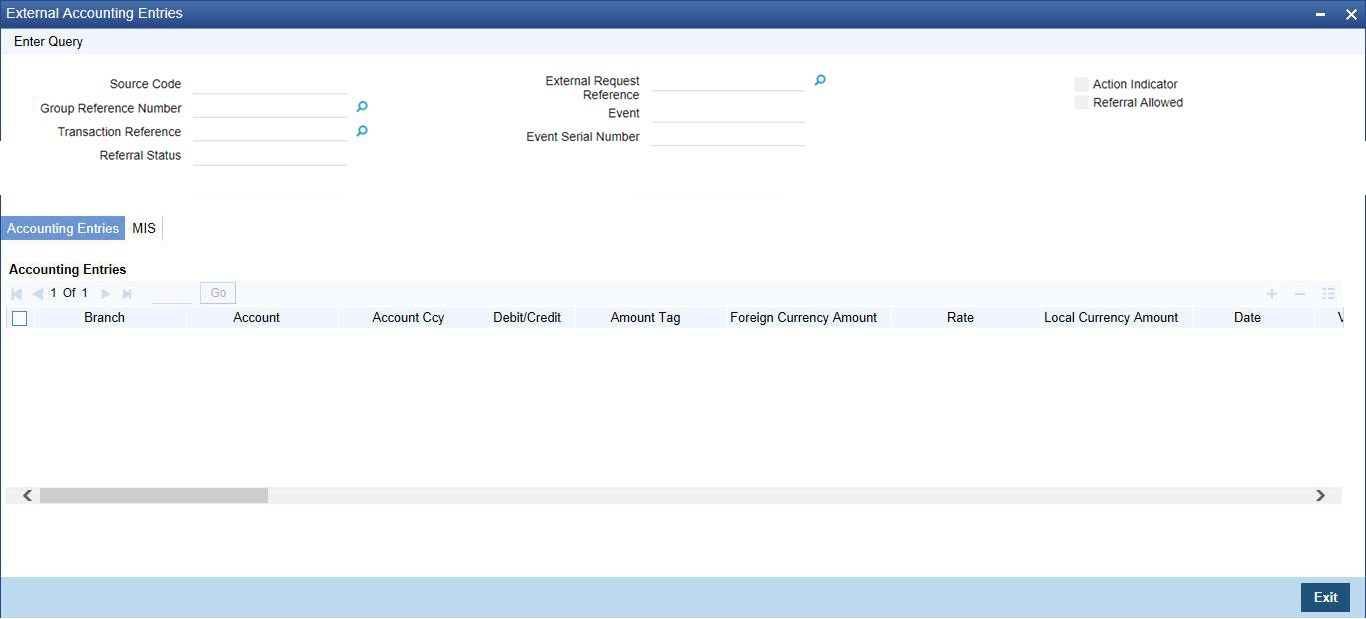
Click ‘Enter Query’ to specify and view the following details:
Source Code
The system displays the source code passed in the request.
Group Reference Number
Specify the group reference number generated for accounting handoff. All the entries under one handoff is treated under a group reference number.
Transaction Reference
Specify the transaction reference number specified in the ECA debit request. Alternatively, you can select the transaction reference from the option list. The list displays all valid options.
External Reference Number
Specify the external reference number. Alternatively, you can select the external reference number from the option list. The list displays all valid options.
Event
The system displays the vent passed in ECA debit request.
Event Serial Number
The system displays the event serial number generated on accounting hand-off.
Referral Status
The system displays the referral status.
Action Indicator
Check this box to indicate if the MIS send by the external product processor is new.
Referral Allowed
Select this option to specify Referral Allowed.
If ‘Referral Allowed’ is set as 'Yes' and any dual/multi auth error raised during EA, then the transaction inserted to the respective queue (OVDAUDEF and STDTREFQ) for further processing.
If dual/multi auth queue is authorized, then the EA status become authorized. If it is rejected, then the EA status will be marked as error/failed.
Click ‘Execute Query’ to view the following accounting entry and MIS details:
Accounting Entries
l Branch
l Account
l Account Ccy
l Debit/Credit
l Amount Tag
l Foreign Currency Amount
l Rate
l Local Currency Amount
l Date
l Value Date
l Event
l Event Serial Number
l Related Account
l Related Reference
l Related Customer
l ECA Reference
l Block Release Status
l Module
l External Reference Number
l MIS Head
l Instrument Code
l Product
l Available Balance Check Required
l Intra Day Release
l Availability Information
l Consider for Cover Sweeps
l Escrow Processing
l Cheque Mandatory
l Consider for Account Activity
l Salary Credit
l Component type for transaction
l Consider For Turnover Limit
l Anti Money Laundering Required
l Available Balance Update Through PPC
l Transaction Narrative
l Swift Code
l Transaction Code
l Debit Override Tracking
l Credit Override Tracking
l AML Product Category
l End Table
FCUBS will process the following on the external entries:
l Account and GL validations for the entry posting
l Account and GL balance updation
l Account statement processing
l Release of ECA Block for ECA based debit
l Inter branch entry posting, if transaction branch and account branch are not same
l CYPO entries processing, if account currency and local currency are not same
l Release of dormancy on entry posting
l Sweep entry related processing
l Updation of instrument status, if debit is against an instrument number
l ELCM limit updation
MIS Details
l MIS Group
l Unit Reference
l Branch Code
l Customer
l Product
l Processed Flag
l Unit Type
l Link to Group
l Currency
l Related Account
l Related Reference
l MIS Head
l Rate Code
l Spread
l Rate Type
l Profit Method
l Exchange Rate
l Refinance Rate
l Pool Code
l Cost Code
l Transaction MIS
l Composite MIS
l Fund MIS
2.3.4.1 Viewing External Accounting Entry Details
You can view details of External Accounting Entries through ‘External Accounting Entries Summary’ screen. You can invoke this screen by typing ‘IFSEXACC’ the field at the top right corner of the Application tool bar and clicking on the adjoining arrow button.
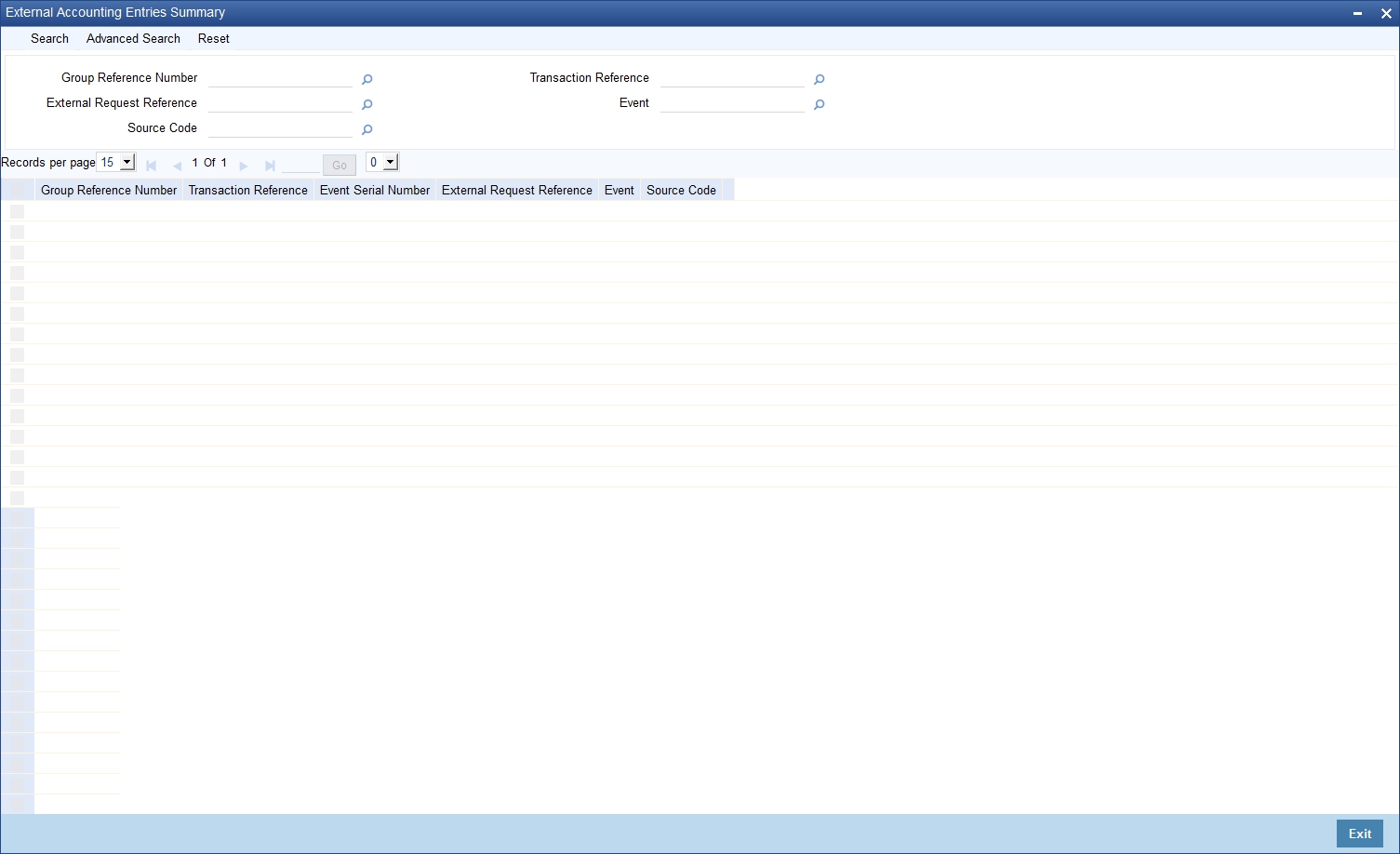
You can search records based on the following parameters:
l Group Reference Number
l External Reference Number
l Source Code
l Transaction Reference
l Event
Click on ‘Search’ button with or without entering any of the above search parameters. All records matching the search criteria are displayed. To view a particular record double click on the desired record displayed in the list of records. The following details pertaining to each record is displayed:
l Group Reference Number
l Transaction Reference
l Event Serial Number
l External Reference Number
l Event
l Source Code
2.3.5 Processing Account Statements
The product processors has to send all the required details for processing the account statement. Transaction narratives ‘TXNNARRATIVE’ in the request will be displayed as statement narrative against respective external entries. The statement date will be the application date for transactions originating from external systems.
The external product processors can view the authorized multi currency accounts of FCUBS. Multi currency accounts are identified with account class 7. The external product processor can fetch the real accounts based on the multi currency accounts and transaction currency. The transaction received from the external product processors are processed at FCUBS.
The external product processors can query the real accounts using ‘Real Account Derivation’ screen. You can invoke this screen by typing ‘STDMCYRL’ in the top right corner of the Application toolbar and clicking the adjoining arrow button.
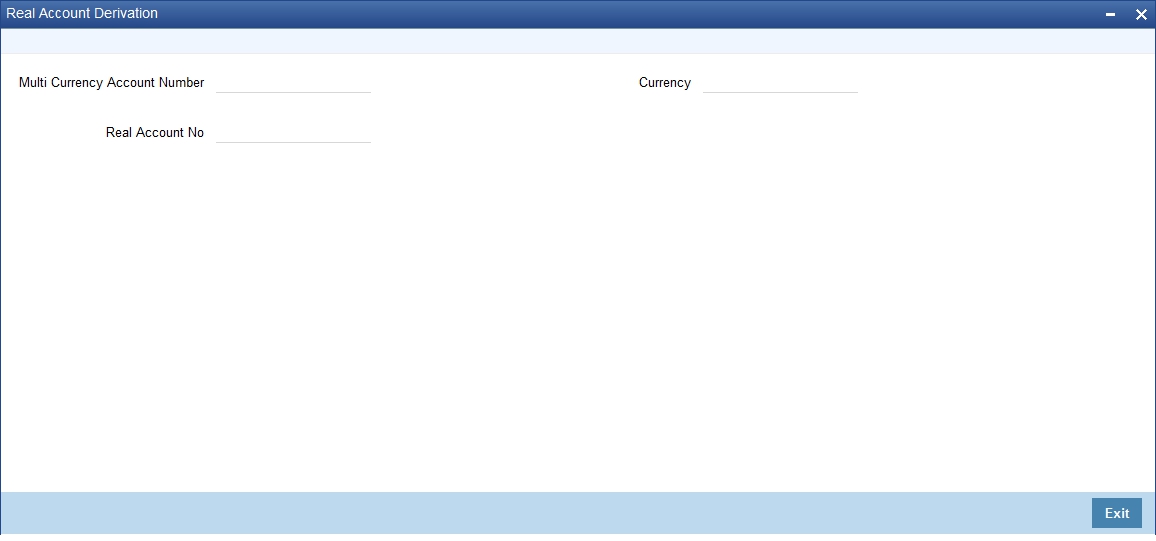
You can query with the following to derive the real account number:
l Multi Currency Account Number
l Currency
2.3.7 Handling MIS for External Product Processor
Oracle FLEXCUBE considers transactions from external product processors for MIS. Using the exposed service of external accounting, MIS details are sent to FCUBS. If there is any change in the MIS details that is sent for an account/transaction, then the modification flag is sent along with the accounting entries by the external product processor and the existing MIS details will be updated with changed MIS details in FCUBS.
2.3.8 Notify ECA/EA status for pending ECA/EA
When the ECA/EA request is sent with referral allowed = Y, there is a possibility for the status of the ECA/EA to be in pending in the synchronous response sent to the external system. The final status and other details for the ECA/EA is communicated in two ways:
1. ReST Service
2. Notification
For option 1, a record should be maintained in the External Payment System Maintenance screen (IFDEPSMT) screen with Service Code ECANotification or EANotification for ECA and EA respectively along with Rest URL for the web service exposed by the external system to consume the final status of the ECA/EA. The job FCNOTIFICATION should be configured for this.
For option 2, the notification will be triggered when the record is not maintained in an External Payment System Maintenance screen (IFDEPSMT) with Service Code ECANotification or EANotification for ECA and EA (Service code may not be right, Notif or Notification Code) respectively if the NOTIF job is configured. The notification can be seen in the NOTIFY_DEST_QUEUE with NOTIF_CODE: NOTIF_IF_ECA.
The other necessary maintenances for this are done in the screens Notification Enroute Maintenance (GWDNTFEN) and Notifications Installed Maintenance (GWDNTFIN)s