Deleting Rows
A single row or multiple rows can be deleted from the table. There is a warning message prior to the row or rows being deleted. Deletions are per page. You cannot select multiple rows across multiple pages and delete. Only the rows on the page you are currently on can be deleted. Make sure this is the action you want to take. Deletions cannot be undone.
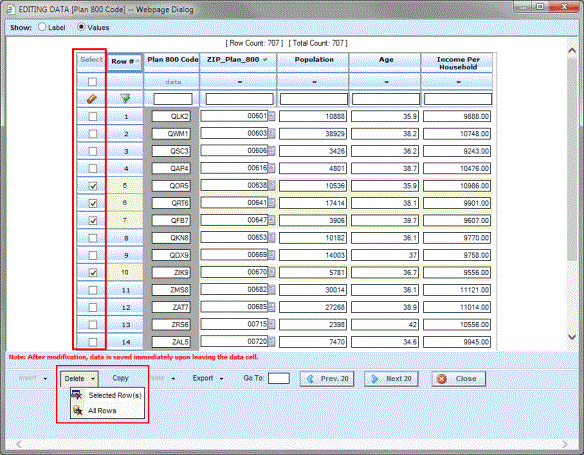
Deleting Rows from Table Data
- To delete a single row from the table, select a cell in the row you want to delete. Make sure the cell is highlighted with a bold outline. Click Delete and Selected Row(s). You will be asked to confirm deleting the row.
-
To delete more than one row, check the boxes in the Select column of the rows you want to delete. Verify your selections. Click Delete and Selected Row(s). You will be asked to confirm deleting all rows.
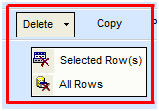
- To delete all rows from the table, click Delete and All Rows. You will be asked to confirm deleting all rows.
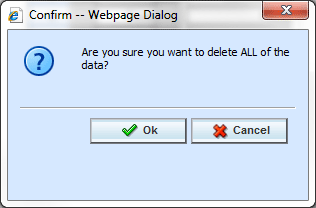
- Select Ok to delete all rows and return to the Edit Data screen or Cancel to return to the Edit Data screen.
- When you are finished editing the data, click Close to return the Edit Variable tab. If you changed any of the data, the time stamp on the Program Details tab will be updated.
