Export Data Tab-Delimited
Exporting a table in to a tab-delimited text file does not require any set up or permissions. If you have permissions to the product you can export a table variable in to a tab-delimited file. This option allows you to make changes to the file and then import the data back in to the same variable or a different variable.
Note: Exported tab-delimited files may contain RateManager added information such as default values, data type, and operators. This information must be deleted from the file before being brought back in to RateManager.
If you are exporting a table from the Program Details or Universal tab, the active revision is displayed on the listing. If you want to export a table variable revision that is not the active revision, you need to show/hide revisions and select the revision you want to export.
- Navigate to the Edit Variable tab for the table variable from where you want to export data. You also can export the data on the Program Details tab by right clicking the table variable and selecting Export Data (Tab-Delimited) from the menu.
- Click Export Data. You will be prompted by your browser to confirm downloading the file.
- Click Save to save to the default area of your local hard drive, or Save As to save the file to a designated place on your local or network hard drive or Open to open the file with your default text editor.
- If you chose to Save As the file, you will be asked to choose a location to save the file to.
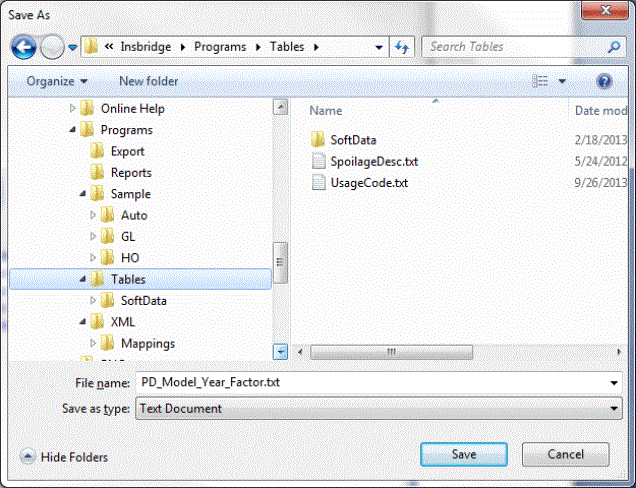
- Select the folder where you want to save the file and enter in a name for the file. By default, the file will be saved as the variable name. Click Save, the file will be saved to the location you specified. When the file has finished downloading, you will have the option to:
- OPEN:this opens the file in your default text editor.
- OPEN FOLDER: this opens your computers explorer.
- Close: this closes the dialog box.
You can now edit the file with the text editor of your choice. Edited tab-delimited files can be re-imported back in to RateManager.
