2. Oracle FCUBS - Common Core Integration
Common Core caters to the basic maintenances such as bank and branch parameters, currency definition, rates, holiday maintenance, time zones, BIC maintenance, MIS class/codes, Generic interface (GI), End of cycle subsystem, UDF subsystem and the Electronic messaging system.
Core entities such as system dates, currency definition, currency rates and holiday calendar will be accessed by FCUBS.
This chapter contains the following sections:
l Section 2.2, "Prerequisites"
l Section 2.3, "Integration Process"
This section describes the scope of the integration with respect to FCUBS and Common Core.
With the integration FCUBS entities can populate common core entities like Customer, Account, GL, transaction code. This population is enabled through gateway interface.
Set up Oracle FLEXCUBE Universal Banking Application and Oracle FLEXCUBE Payments Application.
Refer the ‘Oracle FLEXCUBE Universal Banking Installation’ manual.
This section contains the following topics:
l Section 2.3.1, "Technical Flow"
l Section 2.3.2, "Core Entity Processing Queue"
l Section 2.3.3, "Installation Parameters"
l Section 2.3.4, "Integration Maintenance"
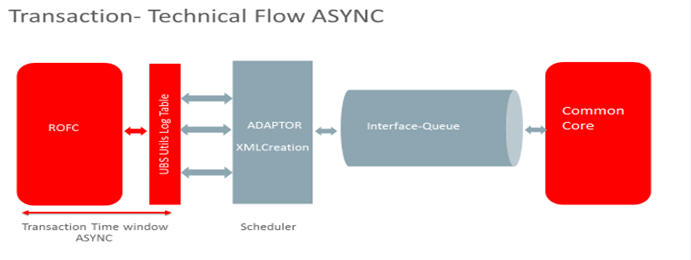
The system populates core entities through an ASYNC process. The below steps describes the integration flow in detail:
l After creation of core entities in FCUBS, requests are logged in existing UBS Queue table with 'X' status. After completing the authorization in FCUBS, status will be changed to 'P' in Queue table.
l A Job will pick these Core entity requests which are in pending status and form the web service XML requests.
l System creates a consolidated XML request for each transaction reference.
l Based on the Core System response, status of the request will be updated in FCUBS. Status can be Work in Progress (W) Processed (P) and Error.
2.3.2 Core Entity Processing Queue
You can query and perform manual actions on requests using the ‘Core Entities Processing Queue’ screen. You can invoke this screen by typing ‘IFSCRERQ’ in the top right corner of the Application toolbar and clicking the adjoining arrow button.
Core entity request is moved to Timed out status based on the time out parameter maintained. If no response is received from the external system within the given time, status is marked as timed out.
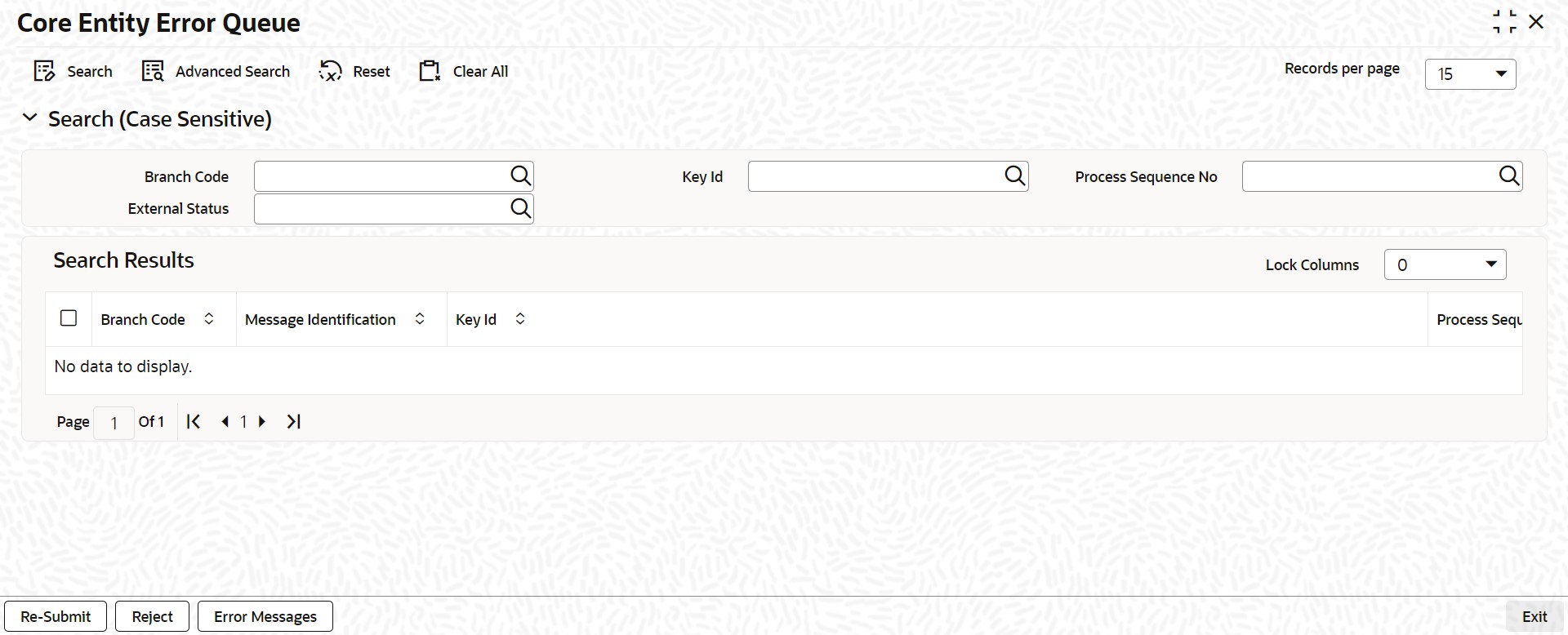
In the above screen, you can base your queries on any or all of the following parameters and fetch records:
l Branch Code
l Key ID
l Process Sequence No
l External Status
By default all error records shall be displayed.
Select any or all of the above parameters for a query and click ‘Search’ button. The system displays the following records meeting the selected criteria:
l Branch Code
l Message Identification
l Key Id
l Process Sequence No
l Service Code
l Process Status
l External Status
l Function Id
l Customer No
l Destination Source
l Process
l Authorization Status
l Request Type
l Reference Number
l Simulation
l Time
l Communication Mode
l Checker ID
l Checker Date Stamp
l Maker ID
l Release Time
l Source Sequence No
You can click ‘Resubmit’ and ‘Reject’ buttons in the bottom of the screen to process the error records. External status field will display the type of error like Timeout, Failed etc.
You can submit the record for processing again by selecting single or All records and clicking ‘Resubmit’ button. If the record fails, then the error details can be viewed by clicking ‘Error Messages’ button.
You can also reject such records by clicking ‘Reject’ and can manually create these records in Core.
The records that failed due to processing should be handled operationally.
Common core integration through gateway services can be achieved only if the external adapter plug-in in the GUI installer is enabled.
You can maintain external services using 'External Service Maintenance' screen. You can invoke this screen by typing 'IFDEXSER' in the top right corner of the Application toolbar and clicking the adjoining arrow button.

You can maintain the following in this screen:
External System
Specify the external system ‘FCCORE’, Alternatively, you can select the external system from the option list. The list displays all valid values maintained in the system.
Note: User should maintain external system as ‘FCCORE’ (This is applicable for Core entities i.e. Customer, Account, GL Code and TRN code) because it depends on static data as well
Description
The system displays the description based on the external system selected.
External User
Specify the external user. From this user, core entities would be created in core system
External System Type
The system defaults the External System Type.
External System AppID
Specify the External System AppID.
Archival Days
Specify the archival days.
Rest Services Secured
Select the check box.
Read Time Out (In Seconds)
Specify the web service read time out in seconds.
Connection Time Out (In Seconds)
Specify the web service connection time out in seconds.
Retry Count
Specify the retry count for reprocessing the records.
Type
Select the type from the drop-down list i.e. Soap request/Rest service.
Service Name
Specify the service name as ‘FCUBSCoreentitiesService’. Alternatively, you can select the service name from the option list. The list displays all valid service name maintained in the system.
WS Endpoint URL’Provide WS endpoint URL for the ‘FCUBSCoreentitiesService" service.
Rest Service Context
The system displays the rest service context.
Rest Service IP
The system displays the rest service IP.
Rest Service Pattern
The system displays the rest service pattern.
Note
1. If "FCCORE" is already existed, User can modify the following.
– "Modify WS Endpoint URL where "FCUBSCoreentitiesService" is installed.
– "Modify the External User to desired user.
2. For all requests, SOURCE set as SOURCE_SYSTEM value in CSTB_PARAM.
3. For maintained SOURCE_SYTEM value, GW maintenance need to be done. (Refer the section ‘Access Rights to an External System’ in ‘Common Core - Gateway’ user guide)