Setting Up Fluid Configuration
The Fluid Configuration component lets you define processing options for tiles on the Student Homepage.
This section describes how to:
Configure the Academic Progress tile.
Configure the Financial Accounts tile.
Configure Student Records activity guide options.
|
Page Name |
Definition Name |
Navigation |
Usage |
|---|---|---|---|
|
Academic Progress Tile Configuration |
SAA_IN_SETUP_FL |
|
Disable the academic progress report on the Academic Progress tile. |
|
Financial Account Tile Configuration |
SSF_IN_SETUP_FL |
|
Disable tuition calculation on the Financial Account tile. |
|
Student Records Activity Guide Options |
SSR_IN_SETUP_FL |
|
Configure the options that appear to students when they complete the enrollment or add tasks to cart. |
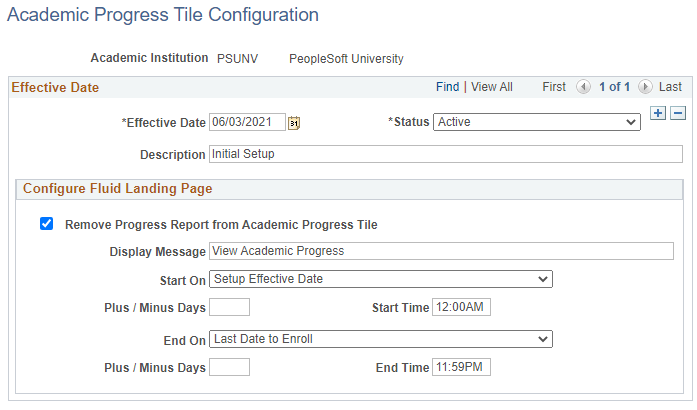
Use this page to disable the academic progress report on the Academic Progress tile during a specific date range.
Access the AA Tile Configuration page ().
This example illustrates the fields and controls on the Academic Progress Tile Configuration page. You can find definitions for the fields and controls later on this page.
|
Field or Control |
Description |
|---|---|
|
Remove Progress Report from Academic Progress Tile |
Select to disable academic progress report. The report isn't automatically run, and academic progress doesn't appear on the Student homepage. It is displayed only after students select the Academic Progress tile. |
|
Display Message |
Enter a message to encourage students to select the tile. |
|
Start On Date End On Date |
Define the date range in which the academic progress report is disabled. |
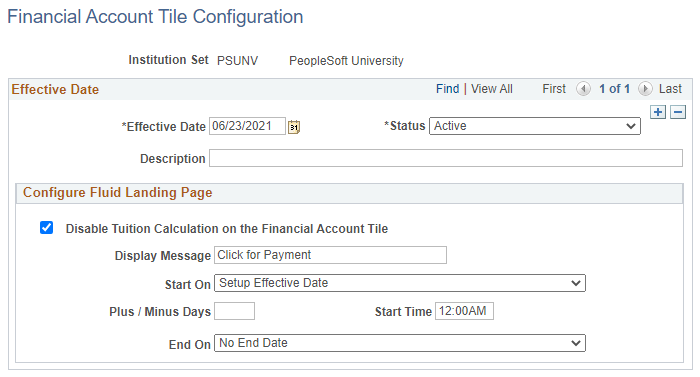
Use this page to disable tuition calculation on the Financial Account tile.
Access the Financial Account Tile Configuration page ().
This example illustrates the fields and controls on the Financial Account Tile Configuration page. You can find definitions for the fields and controls later on this page.
Students' access to the Financial Account tile is determined by the institution set. Configuring the Financial Account tile is used in combination with the SF institution set.
The tuition calculation control Auto Calculate Self Service is used to define the terms for tuition calculation. For more information on calculating tuition in self-service, see:
Configure Fluid Landing Page
|
Field or Control |
Description |
|---|---|
|
Disable Tuition Calc on the Financial Account Tile |
If you select this, tuition calculation isn't run until after students select the Financial Account tile. |
|
Display Message |
Enter a message to encourage students to select the tile. |
|
Start On Date End On Date |
Define the date range in which tuition calculation is disabled on the Financial Account tile. |
Use this page to configure the options that appear to students when they complete the enrollment or add to cart tasks.
Access the Student Records Activity Guide Options page ().
This example illustrates the fields and controls on the Student Records Activity Guide Options page. You can find definitions for the fields and controls later on this page.

Configure Enrollment or Add to Cart Activity Guide Steps
In this region, select the options that determine how the enrollment activity guide appears to students.
|
Field or Control |
Description |
|---|---|
|
Hide Class Permission Prompt when not in use on Review Class Preferences Step |
If you're not using class permission, select this option to hide Permission Number from the Review Class Preferences step. |
|
Submit Enrollment or Add to Cart without confirmation |
Hide the Confirmation button, but submit students' enrollment or cart. |