Assigning Sales Representatives to a Lead or Opportunity
This topic discusses how to:
Assign sales representatives.
Select sales representatives to assign.
Maintain data for the sales representative assignment.
|
Page Name |
Definition Name |
Usage |
|---|---|---|
|
Search Leads Page |
RSF_LEADS_HOME_GRD |
Search for leads. |
|
RSF_LEAD_ASSIGN |
Assign a sales representative to the lead. |
|
|
Search Opportunities Page |
RSF_OPP_HOMEPAGE |
Search for opportunities. |
|
RSF_OPP_ASSIGN |
Assign a sales representative to the opportunity. |
|
|
RSF_ASSIGN_TEAM_L |
Manually select sales representatives for the lead, and specify the primary lead team representative. The page appears only if the assignment configuration is set to manual selection. |
|
|
Sales Rep (sales representative) Page |
RSF_ASSIGN_TEAM_O |
Manually select sales representatives for the opportunity, and specify the primary opportunity team representative. The page appears only if the assignment configuration is set to manual selection. |
|
Organization Page |
RSF_TR_HTREE_SEC |
View the organization or territory to which the representative belongs. |
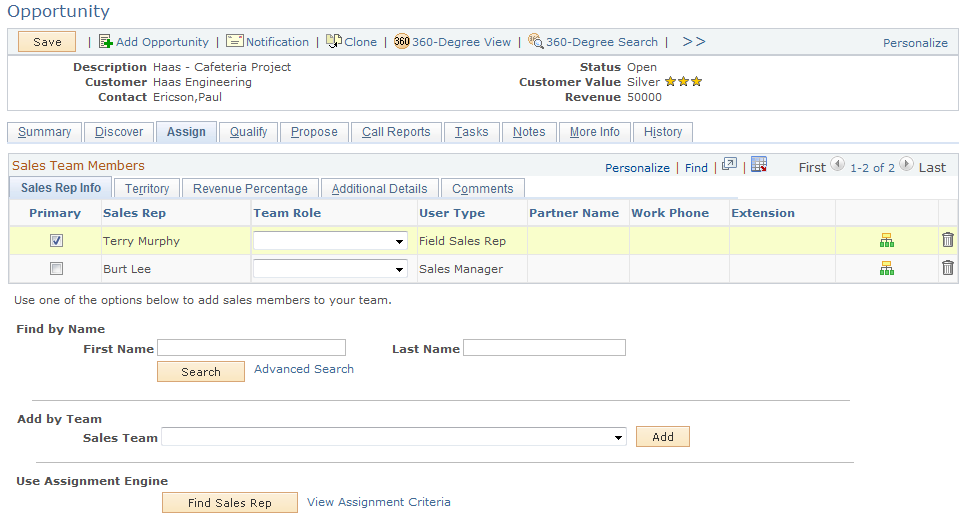
Use the Opportunity - Assign page (RSF_OPP_ASSIGN) to assign a sales representative to the opportunity.
Navigation:
Click the Add Team link on the Opportunity - Summary page.
Note: The Assign page appears in both the Lead component and the Opportunity component. Although the following example shows the Opportunity component, the information provided applies to both leads and opportunities.
This example illustrates the fields and controls on the Opportunity - Assign page (1 of 2).
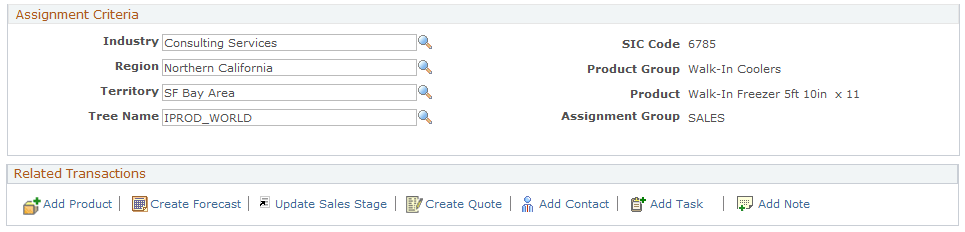
This example illustrates the fields and controls on the Opportunity - Assign page (2 of 2).
Note: If the lead was converted to an opportunity, fields are unavailable on the Lead - Assign page. Use the Opportunity - Assign page to update the data.
Sales Team Members
This section captures the information about sales representatives that are assigned (manually or automatically) to the lead or opportunity.
See Lead - Assign Page.
Find by Name
The same mechanism is used for manually assigning sales representatives to leads and opportunities.
Field or Control |
Description |
|---|---|
First Name and Last Name |
Enter the first name, last name, or both (full or partial) of the sales user to add to the Sales Team Members section of the lead or opportunity as sales team members. Only sales users, whether or not associated with a tree or territory, who belong to the same business unit as the lead or opportunity are available for selection. |
Add by Team
Field or Control |
Description |
|---|---|
Sales Team |
Select a sales team from the list to assign to the lead or opportunity. All of the active sales teams defined in the system are available for selection. When you select a sales team to add to the lead or opportunity, the system populates all its members to the Sales Team Members section, regardless of business unit or whether or not they are associated with trees or territories. Sales teams are defined on the Sales Team page. |
Use Assignment Engine
Field or Control |
Description |
|---|---|
Find Sales Rep (find sales representative) |
Click to initiate the assignment engine to assign sales representatives to the lead or opportunity. Assignment is performed using one of these methods:
The second and third methods are generally known as territory-based assignment, in which the assignment of sales representatives is controlled by the setting of the assignment group that is associated with the transaction's business unit. For example, you can set up the system to restrict the assignment of leads and opportunities only to sales users of the same business unit. Note: If the lead or opportunity has one existing primary sales representative and the assignment engine returns a new primary sales representative, the system replaces the old primary representative with the new primary representative and moves the revenue allocation from the old primary representative to the new primary representative. If the lead or opportunity has multiple existing primary sales representative and the assignment engine returns a new primary sales representative, the system adds the new representative as the primary representative and keeps the existing representatives. See Assign Group Page. |
View Assignment Criteria |
Click to display the assignment criteria on the page. Typically, you do not change the fields in the Assignment Criteria section. However, the system does allow you to edit the Industry, Region, Territory, and Tree Name fields. This link acts as a toggle. If the Assignment Criteria section is currently displayed, clicking the link causes it to not display. |
Assignment Criteria
Field or Control |
Description |
|---|---|
Industry |
The system populates this field with the industry, if any, associated with the customer on the Discover page. |
Region |
The system populates this field with the region, if any, associated with the customer on the Discover page. |
Territory |
If you used the assignment engine to assign a primary sales representative, the system populates this field with the territory associated with the primary sales representative. |
Tree Name |
The system populates this field with the default territory tree for the primary sales representative. |
SIC Code (standard industrial classification code) |
Displays the SIC code, if any, associated with the industry. |
Product Group and Product |
Displays the primary product information from the Product grid on the Propose page. |
Assignment Group |
Displays the default assignment group for the business unit. |
Use the Sales Rep (sales representative) page (RSF_ASSIGN_TEAM_L) to manually select sales representatives for the lead, and specify the primary lead team representative.
Navigation:
Click the Find Sales Rep button on the Lead - Assign page.
This example illustrates the fields and controls on the Sales Rep page.
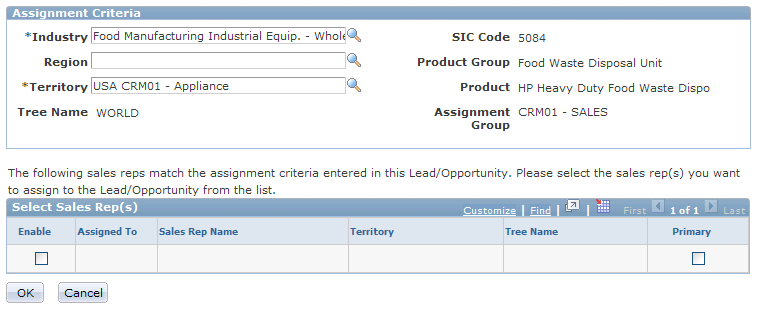
This page, with the list of candidates for assignment, is available only if the assignment mode of the associated assignment group is manual selection. Select the sales representatives to assign to the lead or opportunity.
If the sales representative that you want to assign to the lead or opportunity does not appear in this search result, add the representative manually in the Find by Name section of the Assign page.
Field or Control |
Description |
|---|---|
Enable |
Select to assign the sales representatives to the lead or opportunity. |
Primary |
Select to indicate the sales representative as primary for the lead or opportunity. You can have only one primary representative for each lead or opportunity. In that case, you can have two primary representatives—one external and one internal. |
Click the OK button to complete the assignment and return to the Assign page, which displays the name, territory, and associated industry and region, if any, of selected sales representatives.
Use the Lead - Assign page (RSF_LEAD_ASSIGN) to assign a sales representative to the lead.
Navigation:
Sales Rep Info Tab
Select the Sales Rep Info (sales representative information) tab in the Sales Team Members section.
Field or Control |
Description |
|---|---|
Primary |
Select to indicate the primary member of the sales team. Only one primary member can be selected, and that person should be the sales representative to whom the lead or opportunity is assigned. Only the primary sales representative is listed on many pages for the lead or opportunity. |
Team Role |
Select the role of the sales representative on the team (for example, Legal, Manager, Team Leader, and so on). See Sales Team Page. |
User Type |
Displays the sales user type associated with the sales representative on the Sales User page. |
|
Click to access the Organization page, where you can view the organization or territory to which the representative belongs. |

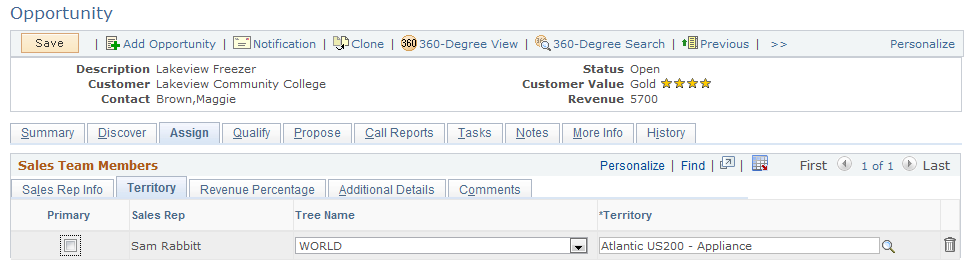
Territory Tab
Select the Territory tab in the Sales Team Members section.
This example illustrates the fields and controls on the Opportunity - Assign page: Territory tab.
Field or Control |
Description |
|---|---|
Tree Name |
After a sales representative is added to the lead or opportunity, the system displays the tree name for the sales representative as defined on the Sales User page. |
Territory |
After a sales representative is added to the lead or opportunity, the system displays the primary territory for the sales representative as defined on the Sales User page. |
Revenue Percentage Tab (Opportunities Only)
Select the Revenue Percentage tab in the Sales Team Members section of the Opportunity - Assign page.
This example illustrates the fields and controls on the Opportunity - Assign page: Revenue Percentage tab.
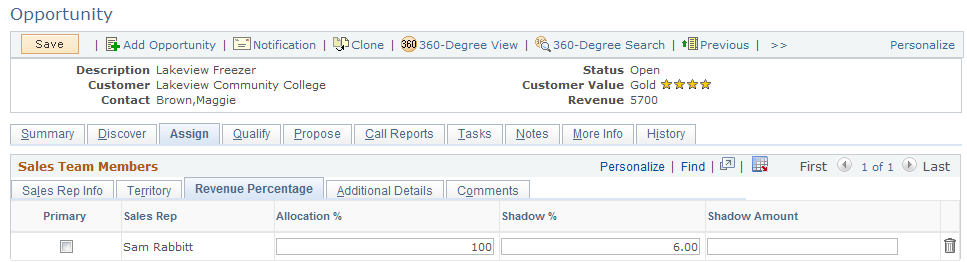
On this tab, you specify how revenues for the opportunity are allocated among the sales team. Revenue allocations are required for forecasting and for compensation calculations when you integrate with PeopleSoft Sales Incentive Management.
See Understanding Forecast Functionality in PeopleSoft Sales.
Note: Revenue allocations are required for an opportunity to roll up into pipelines and forecasts. Only opportunities roll up into pipelines and forecasts. You cannot include leads in pipelines and forecasts. Therefore, the Revenue Percentage tab appears in the Opportunity component only. The Revenue Percentage tab has no equivalent for the sales team in the Lead component.
Typically, only sales managers and administrators have access to the Revenue Percentage tab. Access depends on the setting in the user's sales access profile.
Field or Control |
Description |
|---|---|
Allocation % (allocation percentage) |
Enter the percentage of the opportunity's revenue that is credited to the sales representative. The sum of the allocation percentages must equal 100 percent. |
Shadow % (shadow percentage) |
Enter the percentage of the opportunity's revenue that is credited to the sales representative when calculating performance against quotas. The sum of the allocation percentages does not need to equal 100 percent. You can use this field to give a secondary sales representative partial credit for an opportunity's revenue. |
Shadow Amount |
Enter a dollar amount that is credited to the sales representative when calculating performance against quotas. The system calculates the total shadow forecast for a sales representative by multiplying the estimated revenue by the shadow percentage and then adding the shadow amount. |
Additional Details Tab
Select the Additional Details tab in the Sales Team Members section.
The system displays additional information about each team member, including company name, country code, and cell phone number. The information comes from the Person record or the Sales User page.
Comments Tab
Select the Comments tab in the Sales Team Members section.
Enter comments to describe a sales team member.