2. Customer Standard Instructions
Customer needs to provide instructions in advance to the bank, which should be maintained as Standard Instructions in the system and should be referred at the time of transactions.
At the time of initiating the transactions to the bank instructions can also be provided and the system should have place holders for these instructions.
This section contains the following topics:
2.1 Creating Customer Standard Instructions
OBTFPM user should be able to maintain the Standard Instructions received from the customer.This process allows the user to create Customer Standard Instructions, let’s look at the steps of creating the standard instructions process:
1. Using the entitled login credentials for Registration stage, login to the OBTFPM application.
2. On login, user must be able to view the dashboard screen with widgets as mapped to the user.
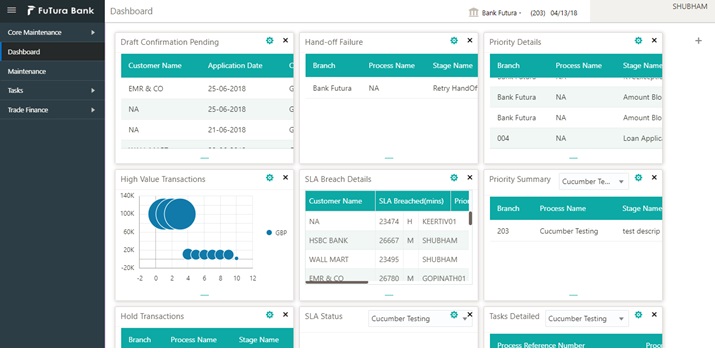
3. On the Dashboard, from Maintenance, under Trade Finance, click Customer Standard Instruction, and then Create Customer Standard Instruction or specify the Create Customer Standard Instruction in the Search icon bar.
The Create Customer Standard Instruction screen appears.
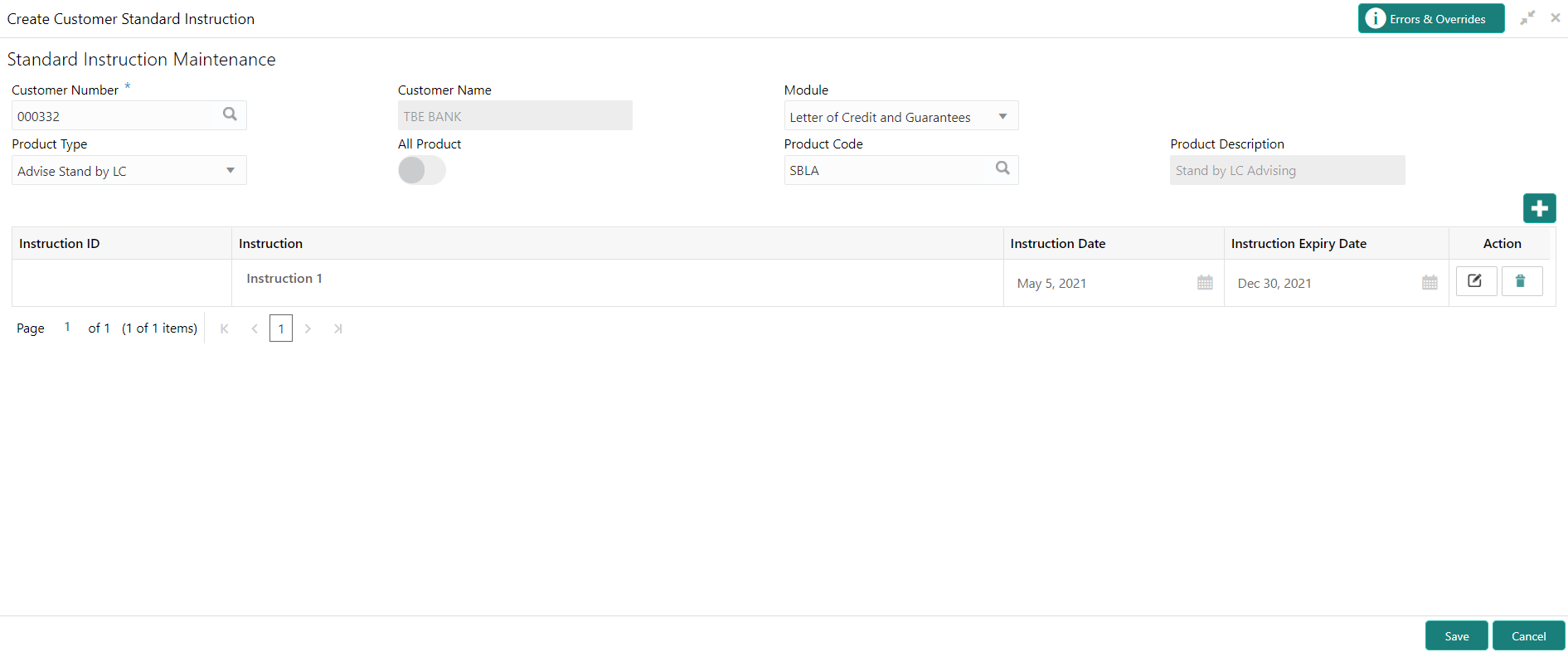
Provide the field description based on the following table.
|
Field |
Description |
|---|---|
|
Customer Number |
Click to search and select the customers from the list of open customers from LOV. |
|
Customer Name |
System populates the Customer Name on selecting the Customer ID. |
|
Module |
The user can select the Module in the drop-down. The options are: l Letters of Credit and Guarantees (LC – OBTF Mapping) l Drawings l Documentary Collections (BC – OBTF Mapping) l ALL (AL - OBTF Mapping) |
|
Product Type |
Click to search and select the product type from LOV. |
|
All Product |
Toggle to select the all products as Yes or No. |
|
Product Code |
Click to search and select the product code from LOV. Below are the Search criteria: l Open and Authorized Product code. l Based on the Module code, Under LC flag and Product Type User should be able to select the product code based on the above criteria |
|
Product Description |
System defaults the Product Type Description on selecting the Product Type. For value “ALL” description should default as ALL. |
|
Below fields appear on tab out after entering the above information. |
|
|
Stage Name |
On selection of the process code, the various stages available for the process should be defaulted. |
|
Instruction ID |
System automatically generates the Instruction Serial No on adding a new record. |
|
Instruction |
User can enter the Standard Instructions. |
|
Instruction Date |
System defaults the current branch date. |
|
Instruction Expiry Date |
System allows the user to enter the Instruction Expiry Date. |
|
Actions |
System should allow the user to Edit / Delete the new record before save and to view the existing Standard Instructions.. |
|
Field |
Description |
|---|---|
|
Errors & Overrides |
Click to view the generated errors and overrides |
|
Save |
Click to save the to close the task and reopen it to work later. |
|
Cancel |
Click to cancel the Create Customer Standard Instruction window and return to dashboard. The data input will not be saved. |
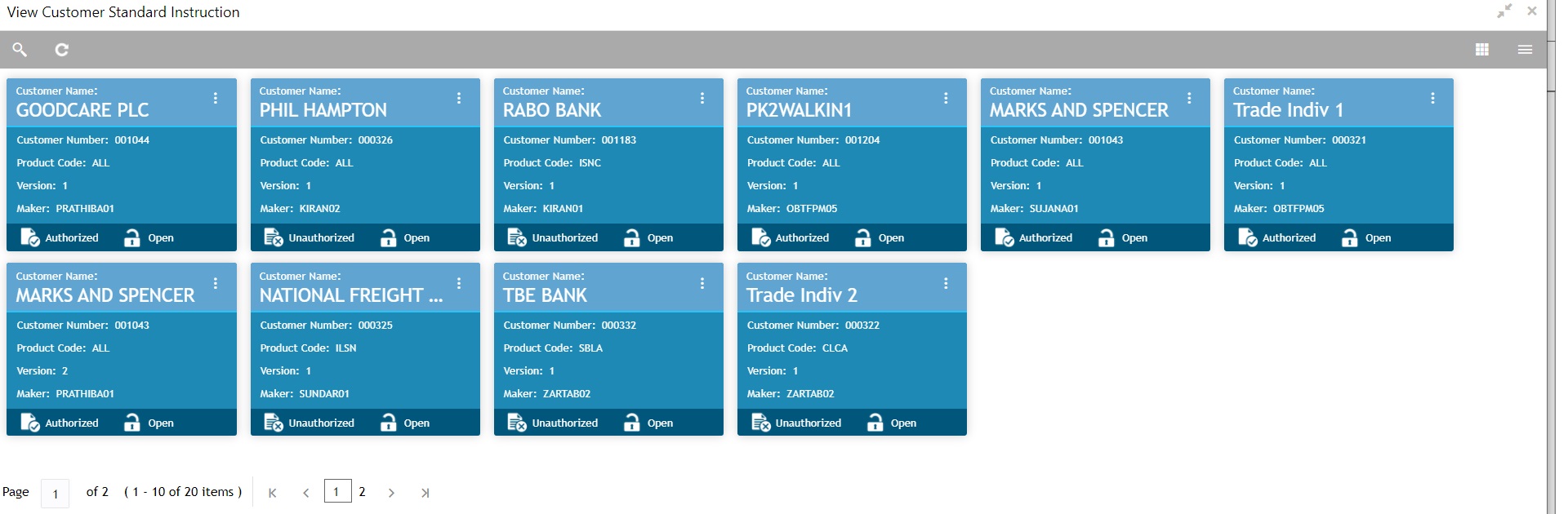
4. Click Save to save the created Standard Instruction. The new created Customer Standard Instruction is displayed as tile in the View Customer Standard Instruction screen.
2.2 Viewing Customer Standard Instruction
System lists the Customer Instructions maintained for the customers in the “View Standard Instructions” screen. The user can view the summary or Edit or Authorize the Instructions maintained through the View Customer Standard Instruction screen.
To view the customer standard instructions:
1. On the Dashboard, from Maintenance, under Trade Finance, click Customer Standard Instruction, and then View Customer Standard Instruction or specify the View Customer Standard Instruction in the Search icon bar.
The View Customer Standard Instruction screen appears.
|
Field |
Description |
|---|---|
|
Customer Name |
System displays the name of the customer. |
|
Customer Number |
System displays the customer number. |
|
Product Code |
System displays the product code. |
|
Version |
System displays the Version number. |
|
Maker |
System displays the maker ID. |
|
Status |
Displays the status of the record. Values are Authorized and Unauthorized. |
|
Record Status |
Displays the status of the record. Values are Open and Closed. |
2. Click the icon, and then click Authorize to Authorize the customer instructions
or Open to view the Customer Standard Instruction Maintenance screen.
or click Delete to delete the customer instructions.
or click View to view the customer instructions screen.
2.2.1 Search Customer Standard Instruction
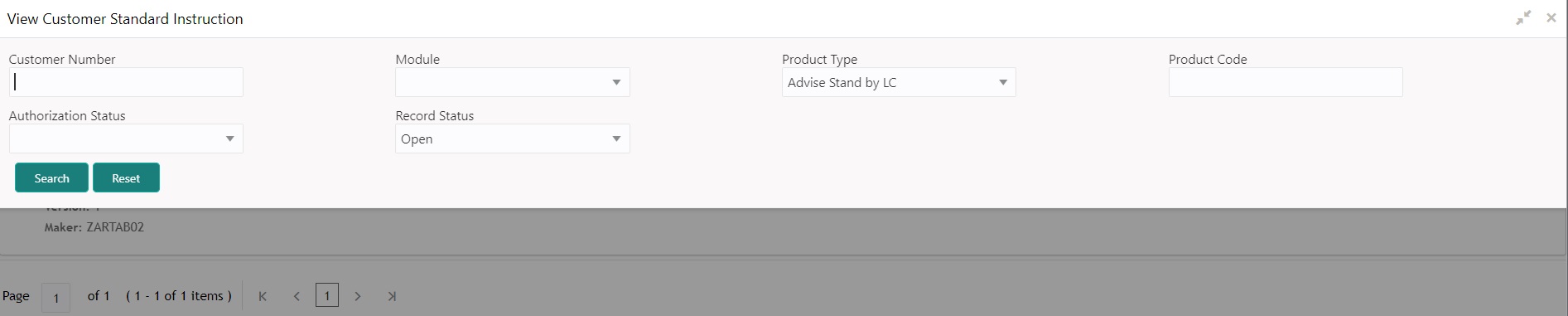
The user can search the Customer Standard Instruction already created, by entering the search criteria such as Customer Number, Module, Product Type, Product Code, Authorization status, Record Status (Drop down values – Open and Close).
1. In the View Customer Standard Instruction screen, click the search icon. The View Customer Standard Instruction screen appears with the records matching the search criteria.
|
Field |
Description |
|---|---|
|
Customer Number |
Enter the customers number. |
|
Module |
The user can select the Module in the drop-down. The options are: l Letters of Credit and Guarantees (LC – OBTF Mapping) l Drawings l Documentary Collections (BC – OBTF Mapping) l ALL (AL - OBTF Mapping) |
|
Product Type |
Select the product type. |
|
Product Code |
Enter the product code as a search criteria: |
|
Authorization Status |
Displays the authorization status of the record. Status (Mandatory for search – Authorized and Un authorized would be the drop-down values). |
|
Record Status |
Displays the status of the record. Values are Open and Closed. |
Provide the field description based on the following table.
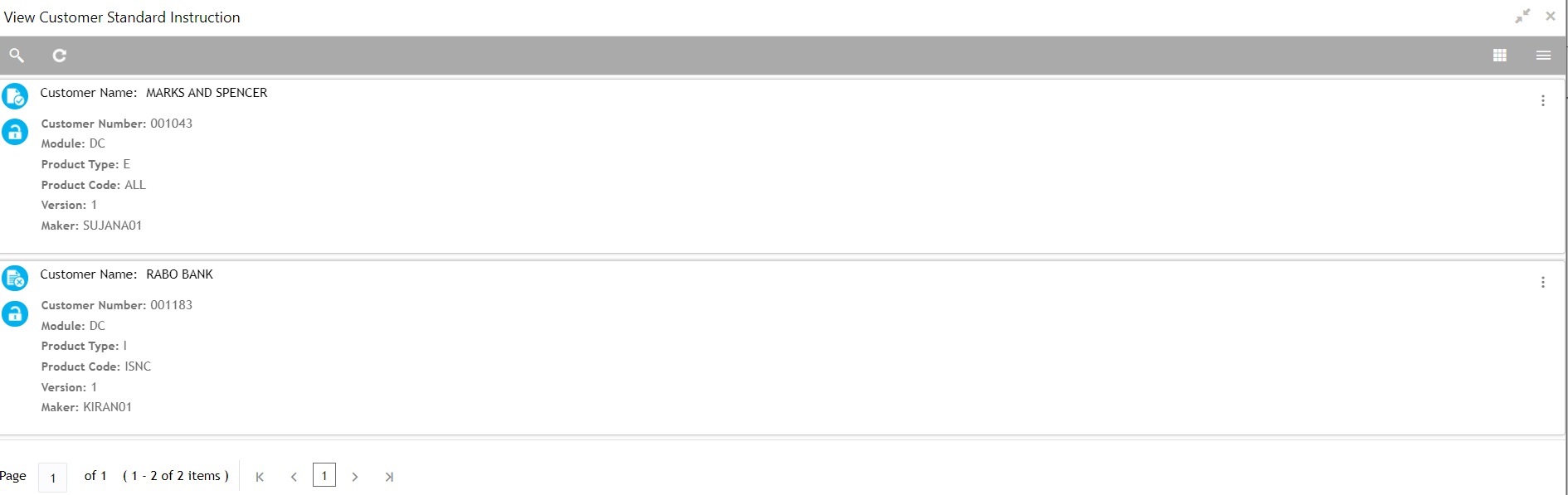
2. Click the ‘List’ or ‘Table’ icon on the top right corner of the screen to view the Customer Standard Instruction screen items in the list or tabular form.
Customer Standard Instruction - List View
|
Field |
Description |
|---|---|
|
Customer Name |
System displays the name of the customer. |
|
Customer Number |
System displays the customer number. |
|
Module |
System displays the module. |
|
Product Type |
System displays the product type. |
|
Product Code |
System displays the product code. |
|
Version |
System displays the Version number. |
|
Maker |
System displays the maker ID. |
Checker user has to authorize the maintenance from the “Standard Instructions View” screen. On authorization, system should handoff of the record details to the back office.
System should do Dedupe Checkup for items in work in progress for further modification. On authorization of the Maintenance, system would hand off the data to OBTF.