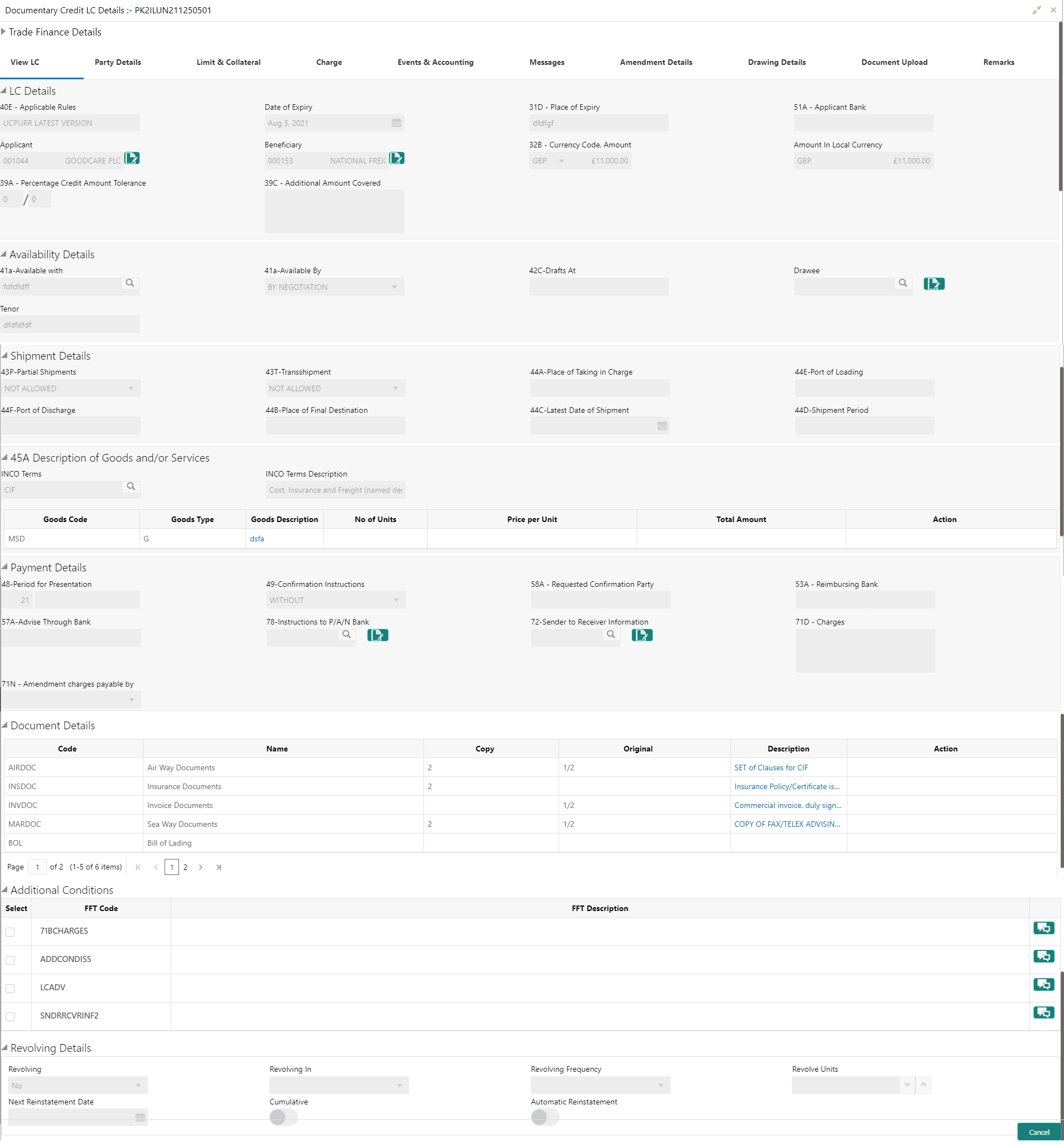
2. Trade 360 Degree
Corporates usually have multiple Trade transaction involving various trade products, the Trade 360 widget allows the user to view wholistically.
The Trade 360 allows the user to view all the Trade transactions booked by the customer in various trade products in a single page. The user can view Trade-360 details through widget and through Menu.
Following are the tabs in Trade 360 Degree screen
l Trade 360 Summary
l Documentary Credit
l Documentary Collection
On Customer ID Search, the Trade 360 page loads with the transaction details by default. On visiting of each tab, the transaction pertaining to each widget should display based on the filter criteria.
The user can set the filter criteria for each widget and the results get displayed based on the filter criteria. The user can view the transaction details as separate screen (read only), by clicking the Reference number link in any of the table grid.
The facility of switching over from the Table structure to Pie chart mode and vice versa is also available in the screen.
This section contains the following topics:
|
|
2.1 Accessing Trade 360 Degree
1. Using the entitled login credentials, login to the OBTFPM application.
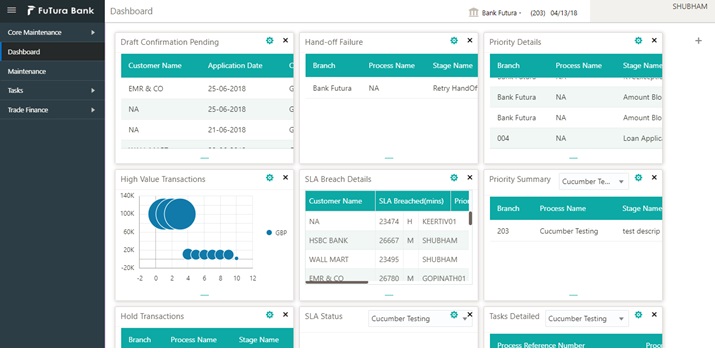
2. On login, user must be able to view the dashboard screen with widgets as mapped to the user.
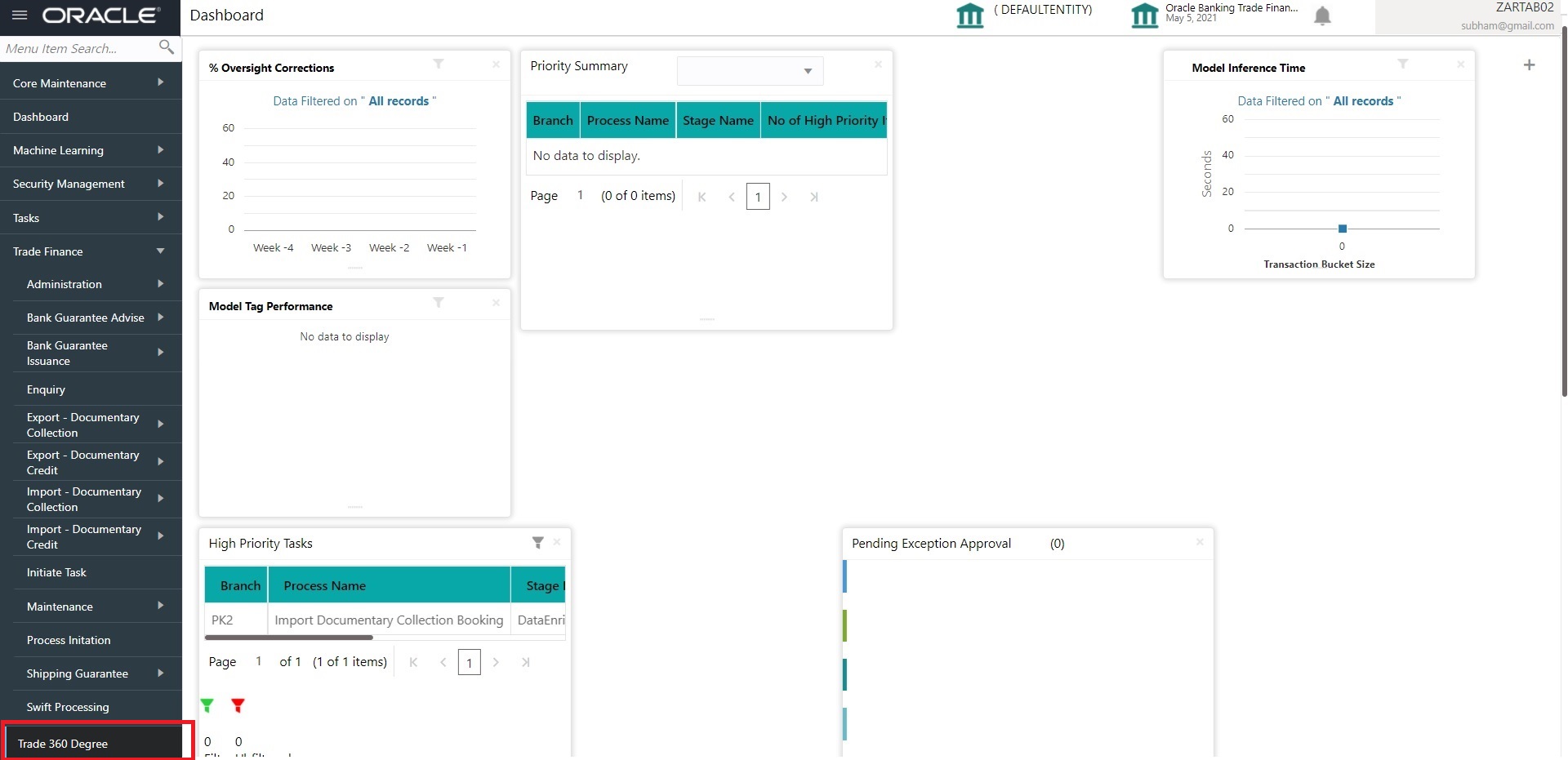
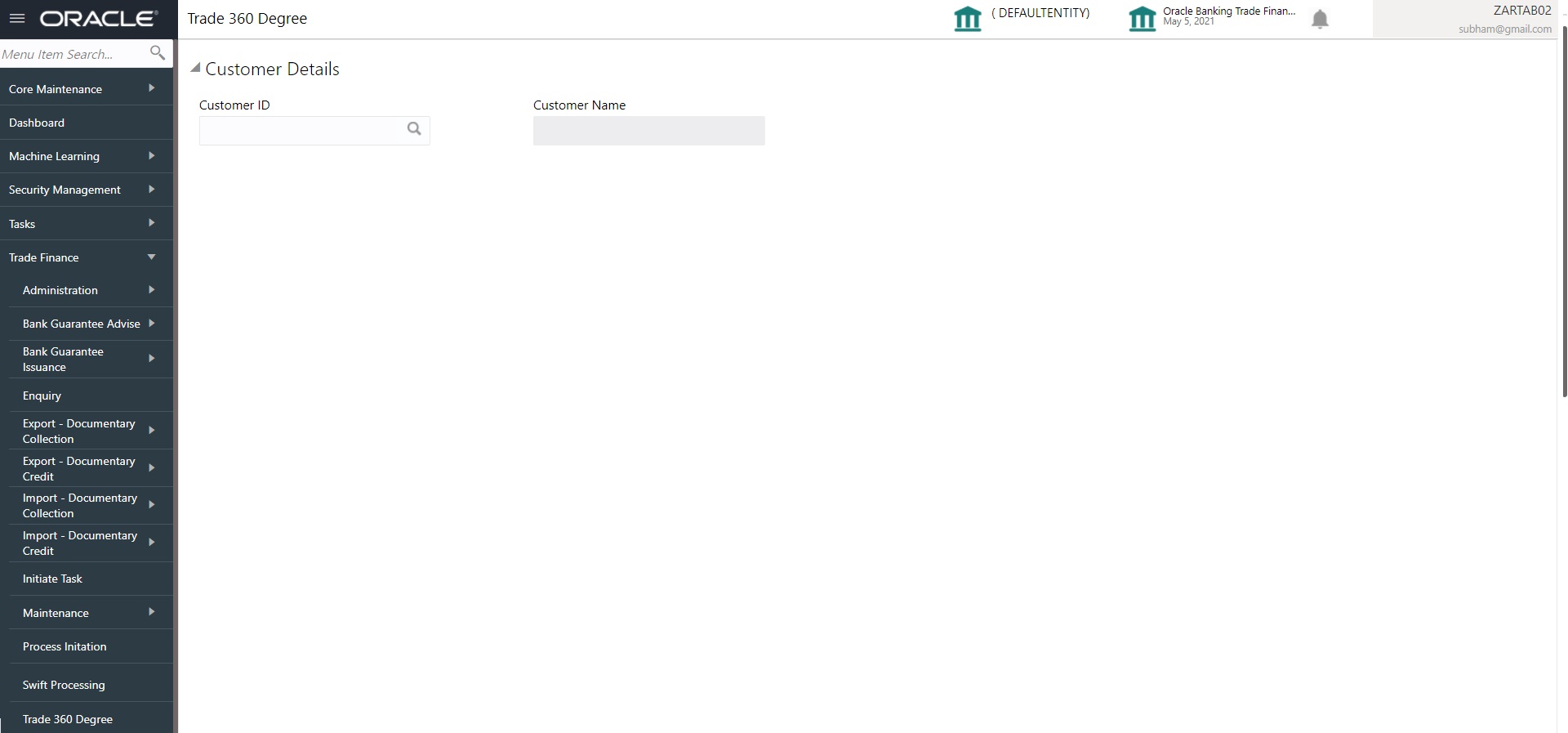
3. Click Trade Finance> Trade 360 Degree.
|
Field |
Description |
Sample Values |
|---|---|---|
|
Customer Id |
Provide the Customer Id. Alternatively, user can search the Customer Id using LOV. During the Fetch action, the Customer Id, Customer Name and Brancisd display as result |
|
|
Customer Name |
Customer Name will be populated based on the selected Customer Id from the LOV. |
EMR & CO |
4. On successful selection of the Customer Id, the pie chart is displayed.
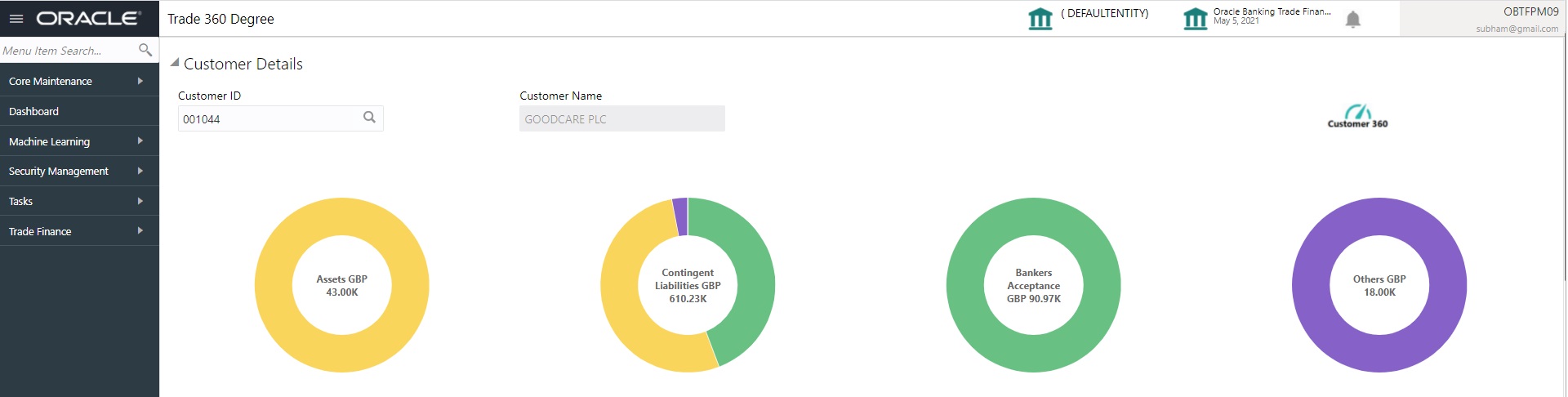
5. Click the Customer 360 speedometer icon. The Trade 360 Summary screen will display the details. The user can click each tab to view the details.
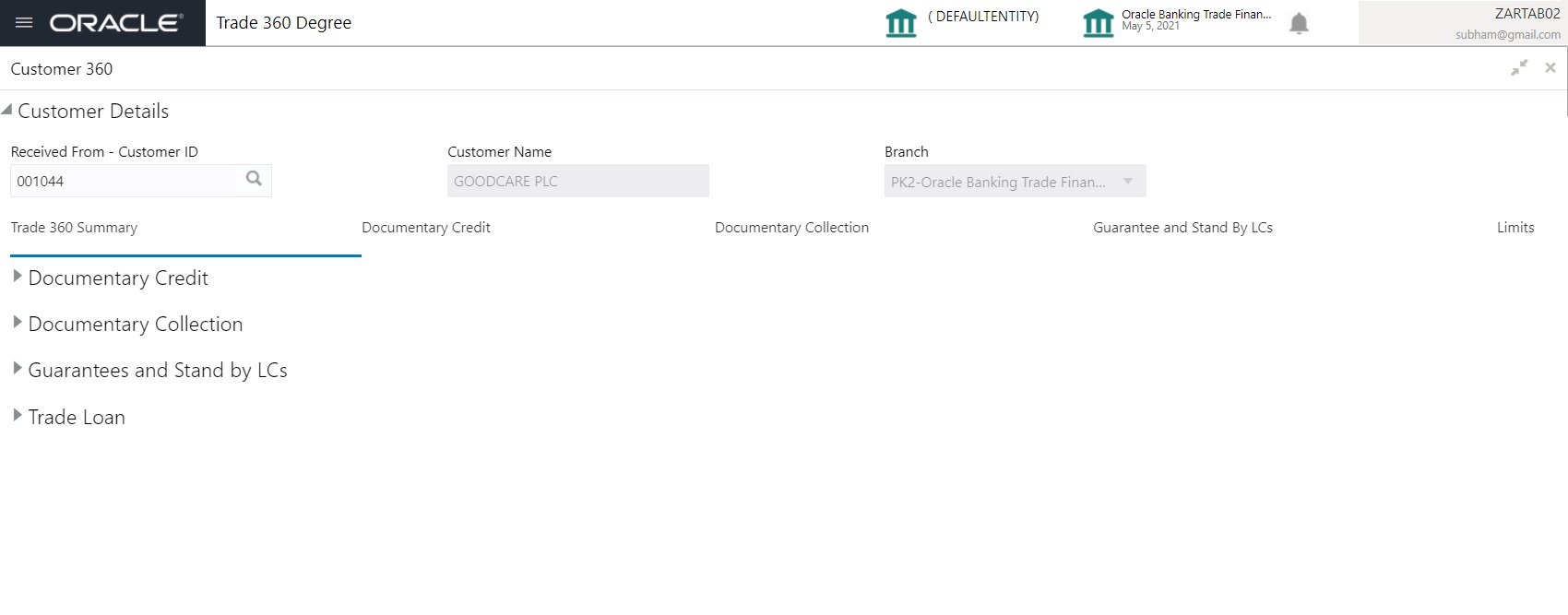
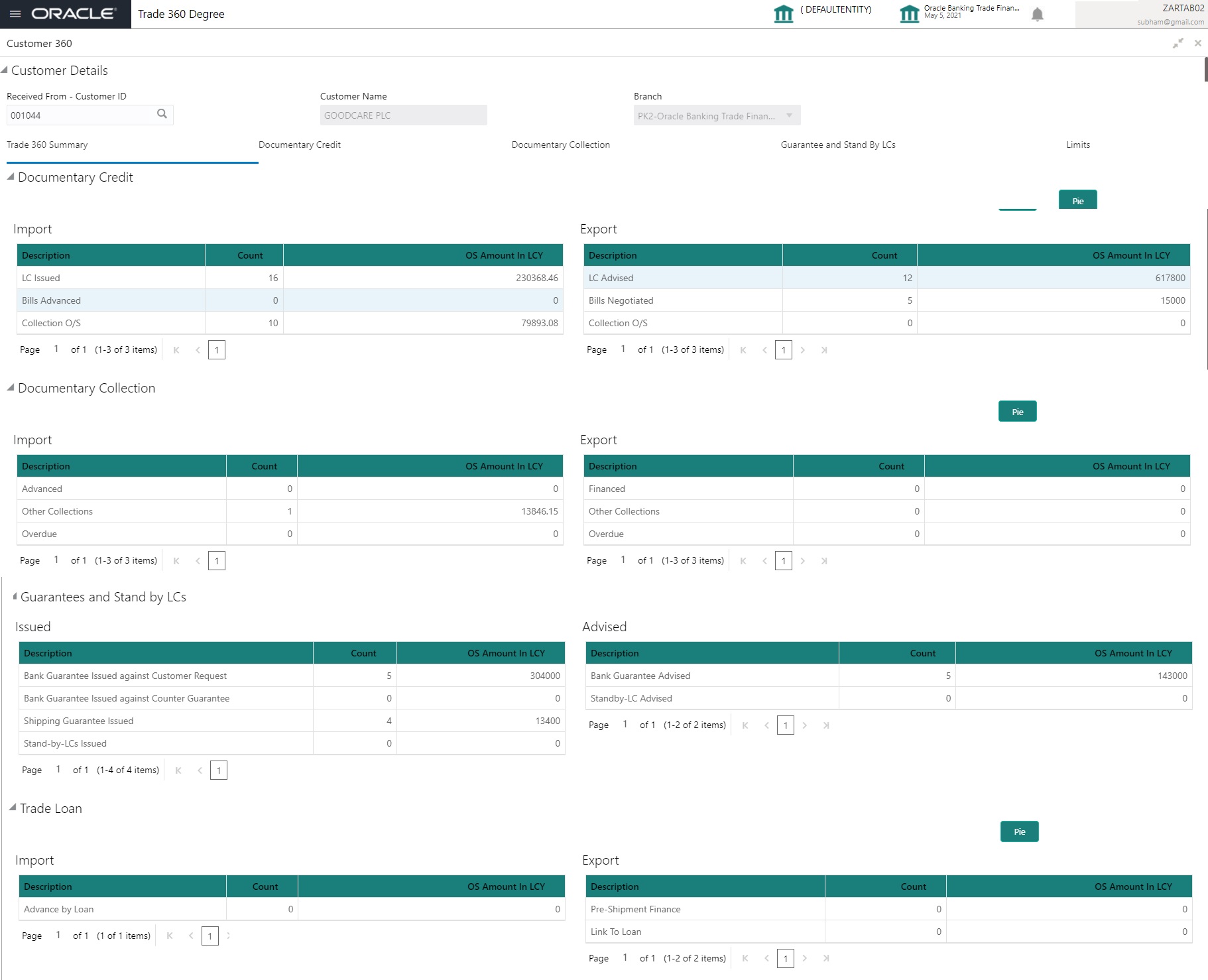
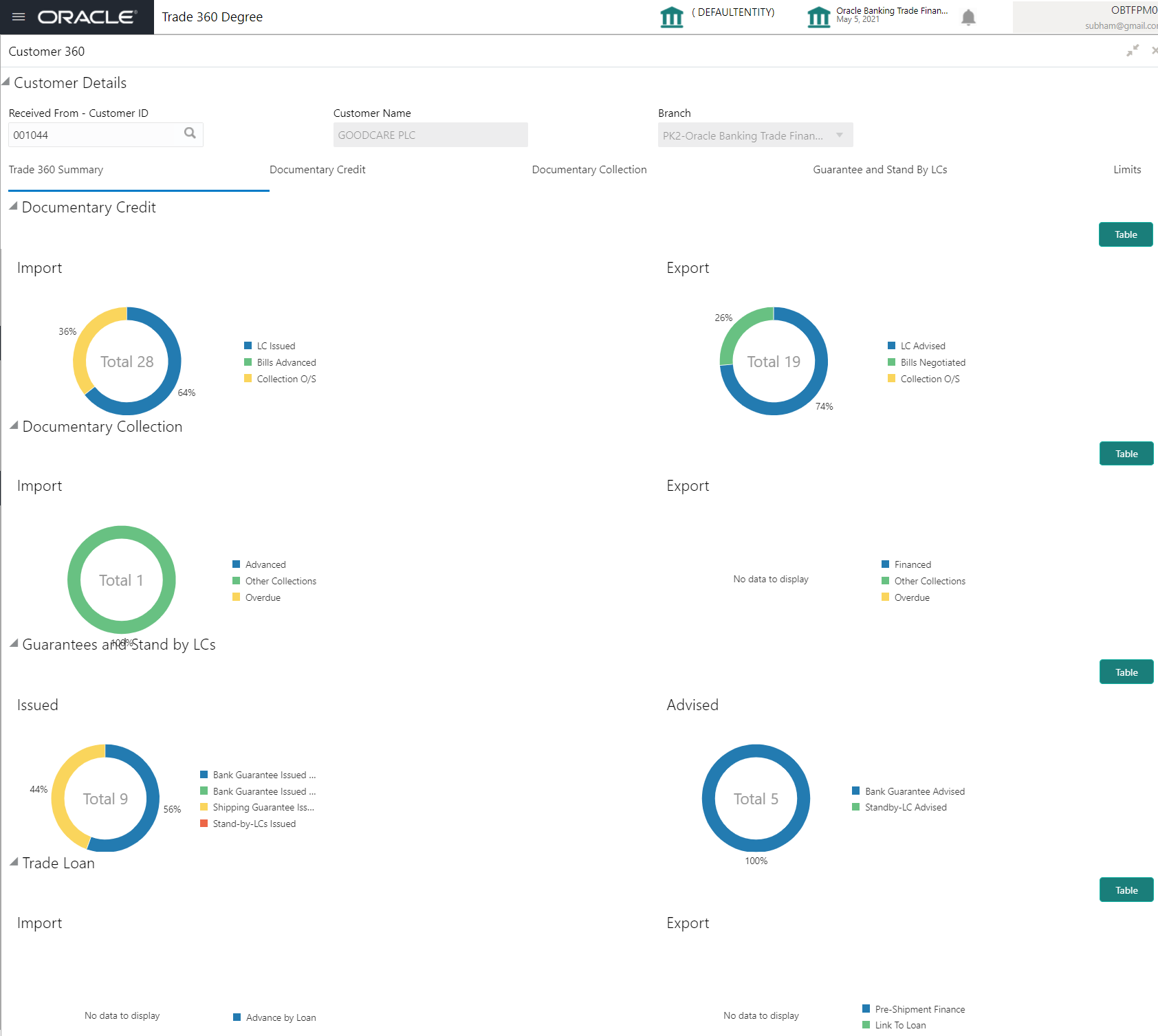
The Summary Tab displays the Outstanding Balances of trade transactions in various heads like Documentary Credit (Import & Export), Documentary Collection (Import & Export), and Guarantees and Stand-By-LCs. The user can click each head to view the details.
|
Field |
Description |
Sample Values |
|---|---|---|
|
Customer Id |
The Customer ID that the user has searched the using LOV. |
|
|
Customer Name |
Customer Name will be populated based on the selected Customer Id from the LOV. |
EMR & CO |
|
Branch |
Customer Name will be populated based on the selected Customer Id from the LOV. |
EMR & CO |
|
Documentary Credit |
||
|
Import |
||
|
Description |
Displays the description of the Import LC. |
EMR & CO |
|
Count |
Displays the count of LC. |
|
|
OS Amount in Local Currency |
Displays the Amount in local currency |
|
|
Export |
||
|
Description |
Displays the description of the export LC. |
EMR & CO |
|
Count |
Displays the count of export LC. |
|
|
OS Amount in Local Currency |
Displays the Amount in local currency |
|
|
Documentary Collection |
||
|
Import |
||
|
Description |
Displays the description of the Import collection. |
EMR & CO |
|
Count |
Displays the count of import collection. |
|
|
OS Amount in Local Currency |
Displays the Amount in local currency |
|
|
Export |
||
|
Description |
Displays the description of the export collection. |
EMR & CO |
|
Count |
Displays the count of export collection. |
|
|
OS Amount in Local Currency |
Displays the Amount in local currency |
|
|
Guarantees and Stand by LCs |
||
|
Issued |
||
|
Description |
Displays the description of the guarantee and standby LCs. |
|
|
Count |
Displays the count of guarantee and standby LCs. |
|
|
OS Amount in Local Currency |
Displays the Amount in local currency |
|
|
Advised |
||
|
Description |
Displays the description of the guarantee advise LC. |
|
|
Count |
Displays the count of guarantee advise LC. |
|
|
OS Amount in Local Currency |
Displays the Amount in local currency |
|
|
Trade Loan |
||
|
Import |
||
|
Description |
Displays the description of the trade loan. |
|
|
Count |
Displays the count of trade loan. |
|
|
OS Amount in Local Currency |
Displays the Amount in local currency |
|
|
Export |
||
|
Description |
Displays the description of the trade loan. |
|
|
Count |
Displays the count of trade loan. |
|
|
OS Amount in Local Currency |
Displays the Amount in local currency |
|
6. Click the Pie button in any widget, the table format widget is displayed as Pie chart Or click Table button to view the table.
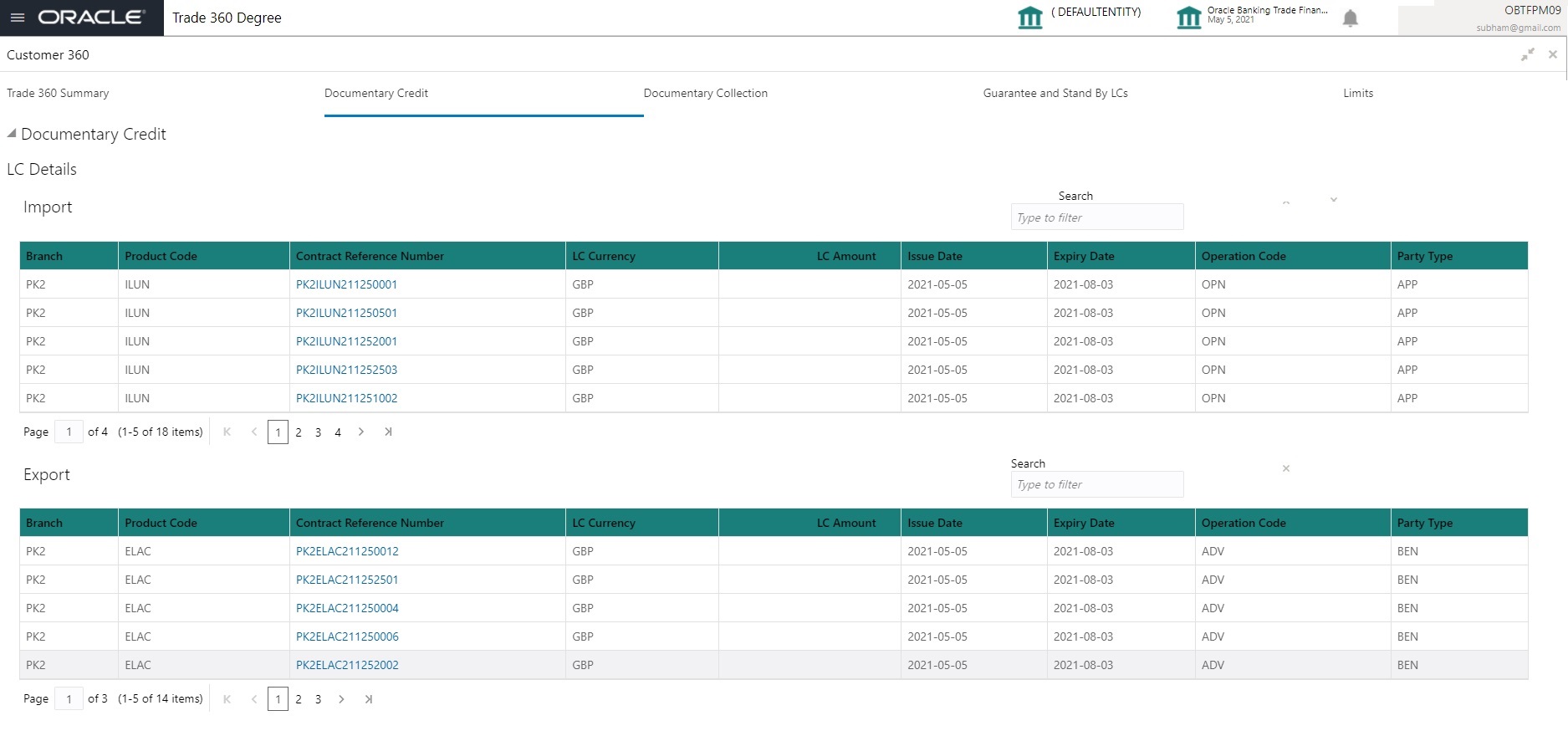
Documentary Credit Tab, should display both the LC and BC details from Import and Export. User can filter the records based on the filter options
7. Click the Documentary Credit Tab, the Trade 360 Degree screen with Documentary Credit details is displayed with two sub section for displaying LC Details and Bills Details.
|
Field |
Description |
Sample Values |
|---|---|---|
|
LC Details |
||
|
Search Filter |
The search filter criteria should be based on the column headers. Example: If the filter criteria is set as “ILUN”, the result should display only the contracts available in the ILUN product alone. |
|
|
Import |
The Import LC Contracts that are in active status and authorized pertaining to a corporate customer should be queried from the OBTF and displayed in LC Details frame. |
|
|
Branch |
Displays the branch code of the Import LC. |
|
|
Product Code |
Displays the product code of the import LC. |
|
|
Contract Reference Number |
Displays the Contract reference number. |
|
|
LC Currency |
Displays the currency of LC. |
|
|
LC Amount |
Displays the Amount of LC currency. |
|
|
Issue Date |
Displays the date on which the import LC is issued. |
|
|
Expiry Date |
Displays the expiry date of the issued LC. |
|
|
Operation Code |
Displays the operation code of import LC. |
|
|
Party Type |
Displays the party type of import LC. |
|
|
Export |
The Export LC Contracts that are in active status and authorized pertaining to a corporate customer should be queried from the OBTF and displayed in LC Details frame. |
|
|
Branch |
Displays the branch code of the export LC. |
|
|
Product Code |
Displays the product code of the export LC. |
|
|
Contract Reference Number |
Displays the Contract reference number. |
|
|
LC Currency |
Displays the currency of LC. |
|
|
LC Amount |
Displays the Amount of LC currency. |
|
|
Issue Date |
Displays the date on which the export LC is issued. |
|
|
Expiry Date |
Displays the expiry date of the issued LC. |
|
|
Operation Code |
Displays the operation code of export LC. |
|
|
Party Type |
Displays the party type of export LC. |
|
|
Bill Details |
||
|
Search Filter |
The search filter criteria should be based on the column headers. Example: If the filter criteria is set as “ILUN”, the result should display only the contracts available in the ILUN product alone. |
|
|
Import |
Bill contracts that are in active status, authorized and Under Letter of credit as “Yes” pertaining to a corporate customer should be queried from the OBTF and displayed in Import Details frame. The Export bill should display all the transaction Initial and Final stage. |
|
|
Branch |
Displays the branch code of the Import Bill. |
|
|
Product Code |
Displays the product code of the import Bill. |
|
|
Contract Reference Number |
Displays the Contract reference number of the import Bill. |
|
|
LC Currency |
Displays the currency of Bill. |
|
|
LC Amount |
Displays the Amount of Bill currency. |
|
|
Issue Date |
Displays the date on which the import Bill is issued. |
|
|
Expiry Date |
Displays the expiry date of the issued Bill. |
|
|
Operation Code |
Displays the operation code of import Bill. |
|
|
Party Type |
Displays the party type of import Bill. |
|
|
Export |
The the Export Bill contracts that are in active status, authorized and Under Letter of credit as “Yes” pertaining to a corporate customer should be queried from the OBTF and displayed in Export Details frame. The Export bill should display all the transaction in Initial and Final stage.. |
|
|
Branch |
Displays the branch code of the export Bill. |
|
|
Product Code |
Displays the product code of the export Bill. |
|
|
Contract Reference Number |
Displays the Contract reference number of the export Bill. |
|
|
LC Currency |
Displays the currency of Bill. |
|
|
LC Amount |
Displays the Amount of Bill currency. |
|
|
Issue Date |
Displays the date on which the export Bill is issued. |
|
|
Expiry Date |
Displays the expiry date of the issued Bill. |
|
|
Operation Code |
Displays the operation code of export Bill. |
|
|
Party Type |
Displays the party type of export Bill. |
|
2.1.5 Documentary Collection Tab
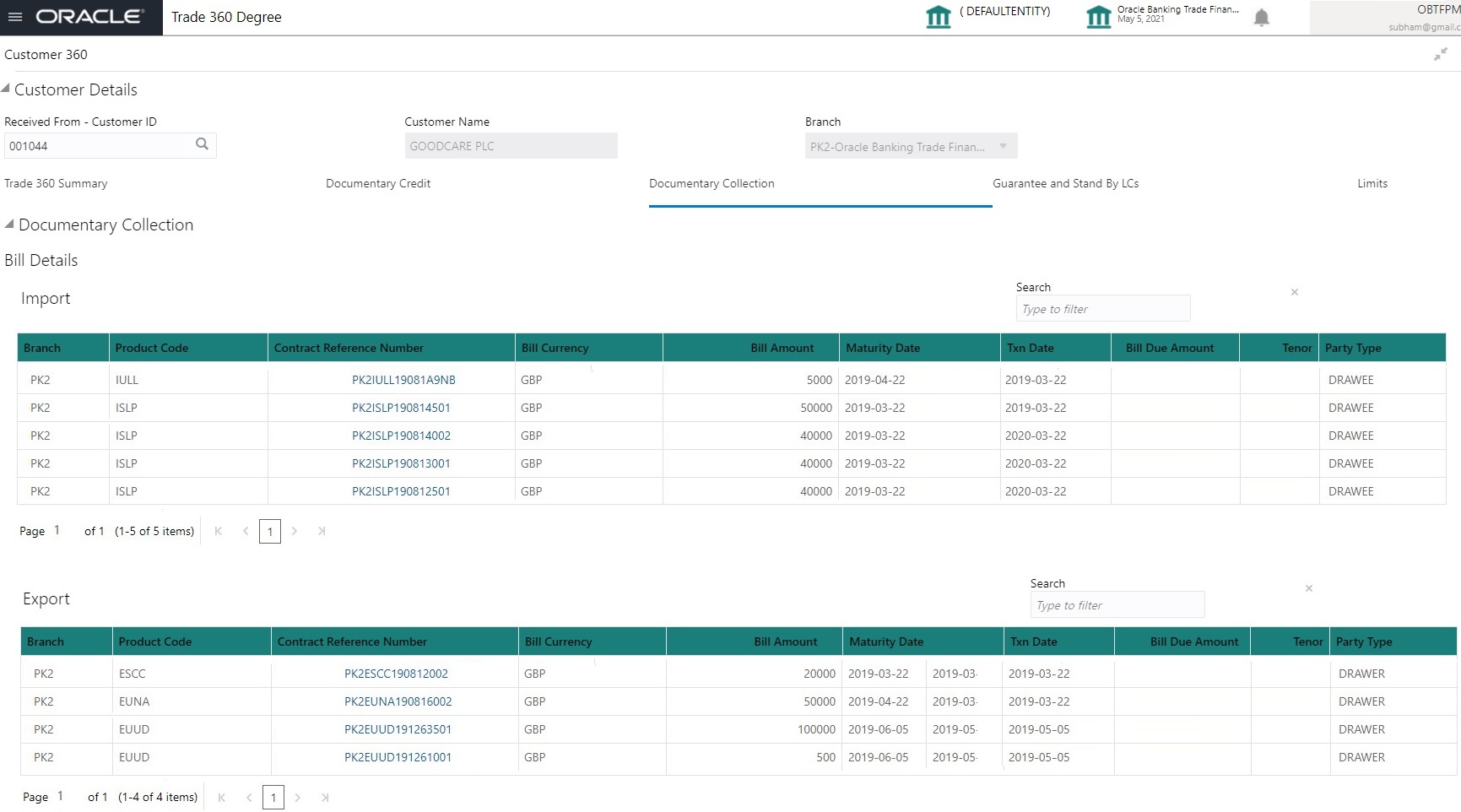
Documentary Collection Tab, should display with two sub section for displaying Bills Details.
8. Click the Documentary Collection Tab, the Trade 360 Degree screen with Documentary Collection details is displayed.
|
Field |
Description |
Sample Values |
|---|---|---|
|
Bill Details |
||
|
Search Filter |
The search filter criteria should be based on the column headers The filter criteria is set as “IULL” in Import BC widget, the result should be displayed only the contracts available in the IULL product alone. Example: The filter criteria is set as “IULL” in Import BC widget, the result should be displayed only the contracts available in the IULL product alone. |
|
|
Import |
Import Bill contracts that are in active status, authorized and Under Letter of credit as “No” pertaining to a corporate customer should be queried from the OBTF and displayed in Import Details frame. The Import bill should display all the transaction Initial and Final stage. |
|
|
Branch |
Displays the branch code of the Import bill. |
|
|
Product Code |
Displays the product code of the import bill. |
|
|
Contract Reference Number |
Displays the Contract reference number. |
|
|
Bill Currency |
Displays the currency of bill. |
|
|
Bill Amount |
Displays the Amount of bill. |
|
|
Maturity Date |
Displays the maturity date of the import bill. |
|
|
Transaction Date |
Displays the transaction date of the import bill. |
|
|
Bill Due Amount |
Displays the bill due amount of import bill. |
|
|
Tenor |
Displays the tenor of import bill. |
|
|
Party Type |
Displays the party type of import bill. |
|
|
Export |
The Export Bill contracts that are in active status, authorized and Under Letter of credit as “No” pertaining to a corporate customer should be queried from the OBTF and displayed in Export Details frame. The Export bill should display all the transaction Initial and Final stage. |
|
|
Branch |
Displays the branch code of the export bill. |
|
|
Product Code |
Displays the product code of the export bill. |
|
|
Contract Reference Number |
Displays the Contract reference number. |
|
|
Bill Currency |
Displays the currency of bill. |
|
|
Bill Amount |
Displays the bill amount. |
|
|
Maturity Date |
Displays the maturity date of the export bill. |
|
|
Transaction Date |
Displays the transaction date of the export bill. |
|
|
Bill Due Amount |
Displays the bill due amount of export bill. |
|
|
Tenor |
Displays the tenor of export bill. |
|
|
Party Type |
Displays the party type of export bill. |
|
2.1.6 Guarantee and Stand-By-LCs Collection Tab
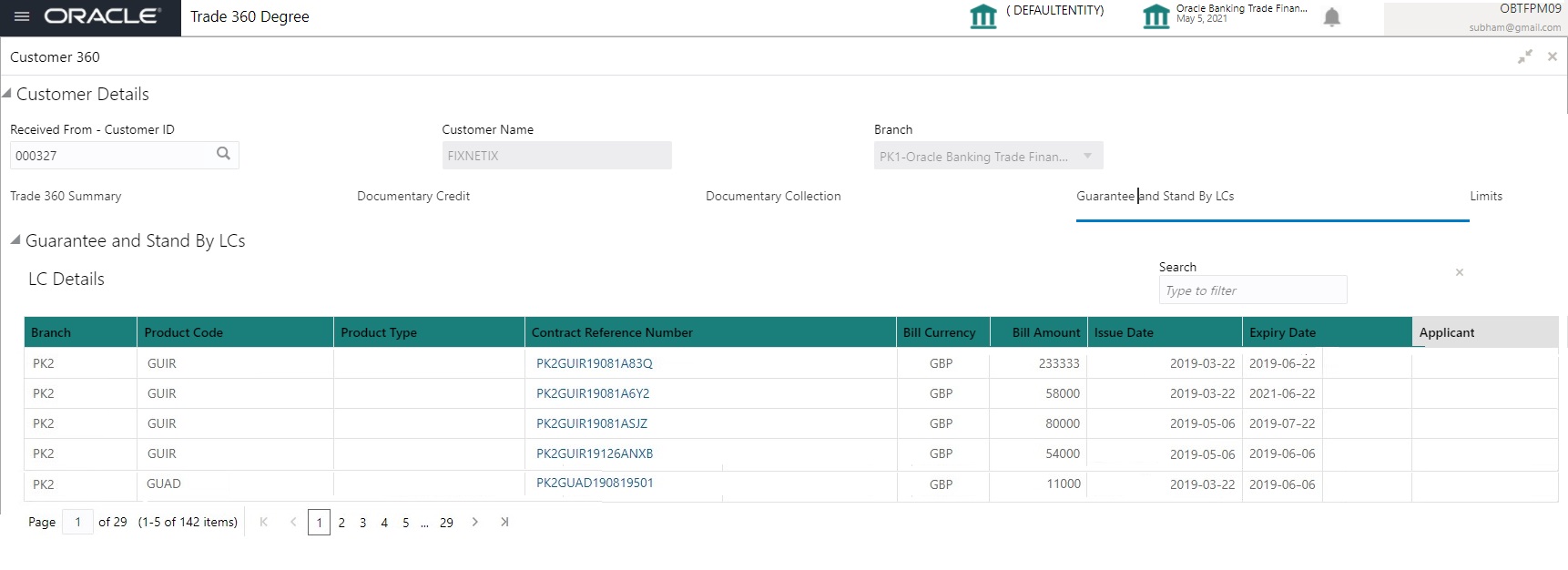
Guarantee and Stand-By-LCs Tab, displays all the Guaranties and Stand-By-LCs in single frame.
9. Click the Guarantee and Stand-By-LCs Tab, the Trade 360 Degree screen with Guarantee and Stand-By-LCs details is displayed.
|
Field |
Description |
Sample Values |
|---|---|---|
|
Search Filter |
The search filter criteria should support only the column headers from the respective resultant frame. Example: The filter criteria is set as “GUIR” in Import LC widget, the result should be displayed only the contracts available in the GUIR product alone. |
|
|
LC Details |
The Advice, and Issuance contracts that are in active status, authorized pertaining to a corporate customer should be queried from the OBTF and displayed in LC Details frame. |
|
|
Branch |
Displays the branch code of the Guarantee and Stand-By-LCs. |
|
|
Product Code |
Displays the product code of the Guarantee and Stand-By-LCs. |
|
|
Product Type |
Displays the product type of the Guarantee and Stand-By-LCs. |
|
|
Contract Reference Number |
Displays the Contract reference number. |
|
|
LC Currency |
Displays the currency of Guarantee and Stand-By-LCs. |
|
|
LC Amount |
Displays the Guarantee and Stand-By-LCs amount. |
|
|
Issue Date |
Displays the date on which the Guarantee and Stand-By LC is issued. |
|
|
Expiry Date |
Displays the expiry date of the issued LC. |
|
|
Applicant |
Enter valid customer id. |
|
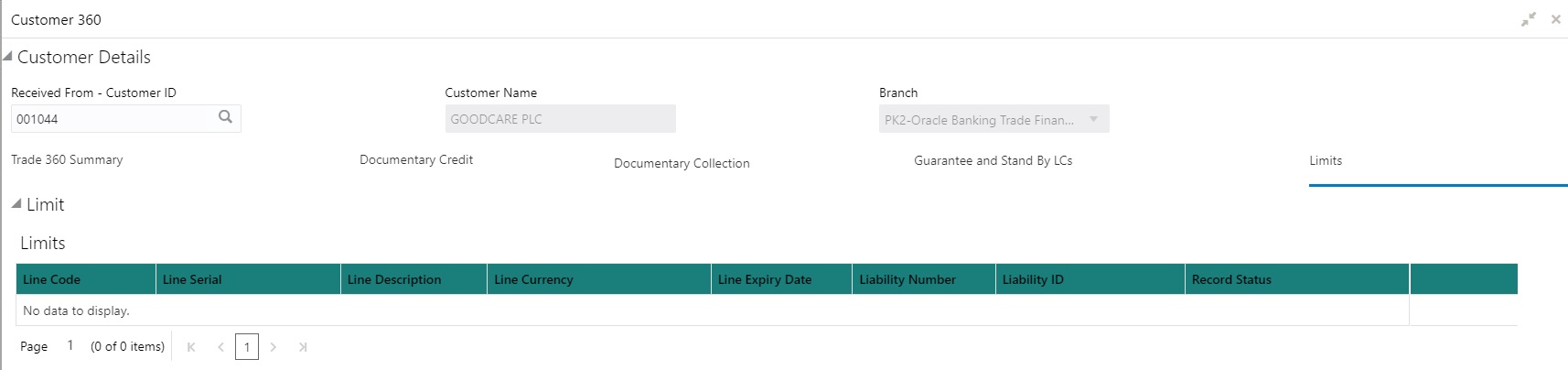
Limit Tab, displays all the limit line details in single frame.
10. Click the Limit Tab, the Trade 360 Degree screen with limit line details is displayed.
|
Field |
Description |
Sample Values |
|---|---|---|
|
Line Code |
Displays the limit line code. |
|
|
Line Serial |
Displays the line serial number |
|
|
Line Description |
Displays the description of the line limit. |
|
|
Line Currency |
Displays the currency of line limit. |
|
|
Liability Number |
Displays the liability number of the of line limit. |
|
|
Liability ID |
Displays the liability Id of the of line limit. |
|
|
Record Status |
Displays the record status of line limit. |
|
11. Click the Contract Reference Number link, in any of the Trade-360 widgets, the details about the transaction is displayed as below.