2. Bulk File Processing
Oracle Banking Payments supports processing of bulk files received from corporate customers containing mixed workload in ISO pain.001 format. Payment request can be for any of the following payment types:
l Domestic Low Value Payment (ACH)
l Domestic High Value Payment (RTGS)
l Cross-border Payment
l Faster Payments (SEPA Instant)
l Book Transfer
You can upload and process files received from corporate customers containing bulk payment initiation requests in pain.001 format. You can maintain customer preferences for bulk file handling. Bulk files are parsed, validated and processed so that payments are forwarded to appropriate Networks.
On processing the batches received in a bulk file, the batch amount is blocked in the debit account upfront. The rejected payments are be reversed individually, once the consolidated debit posting is done.
2.1.1 Batch Processing Preferences
This is a Host level maintenance. You can specify the time interval to process a batch, Job Execution intervals and Cutoff time for the Networks here.
You can invoke the ‘Batch Processing Preferences Detailed’ screen by typing ‘PMDBTPRF’ in the field at the top right corner of the application toolbar and clicking the adjoining arrow button. Click New button on the Application toolbar.
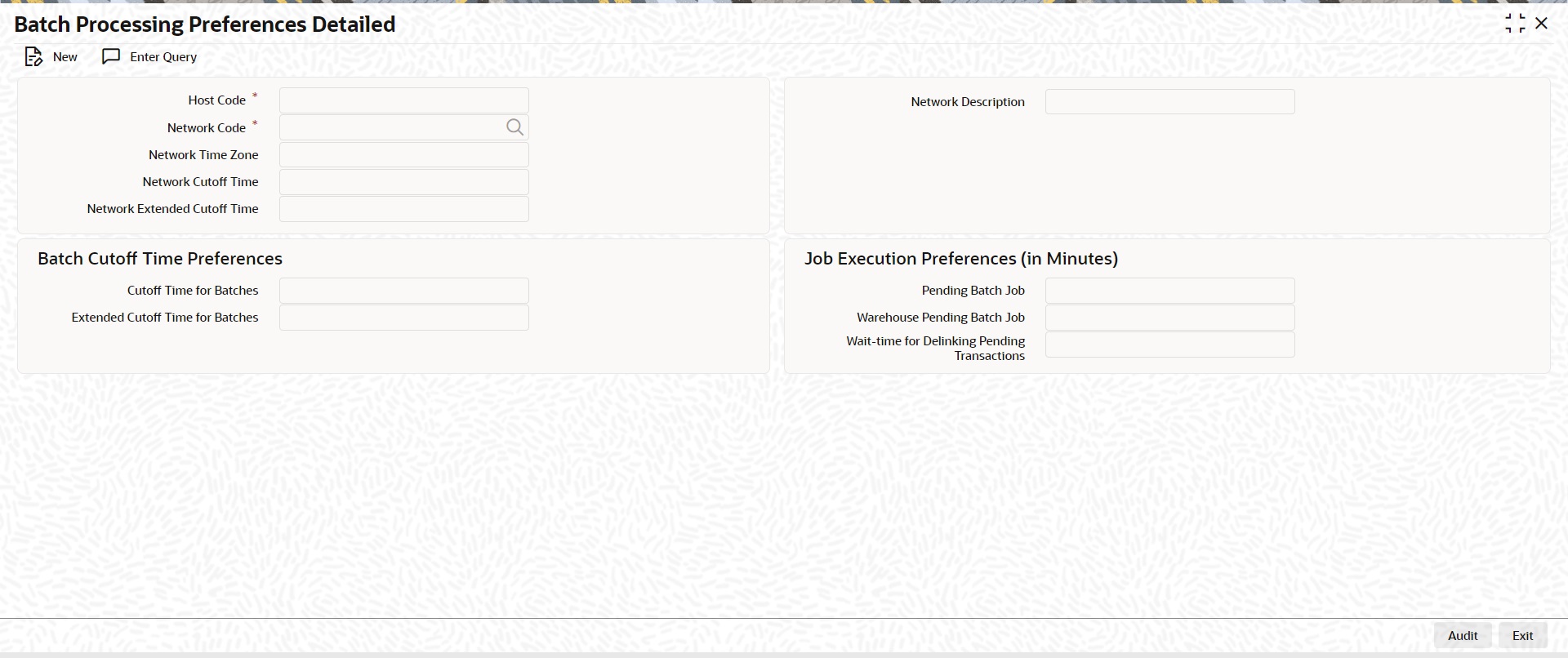
Specify the following fields:
Host Code
The system displays the Host Code of the logged in branch by default when you click on New.
Network Code
Specify the Network Code in the multi grid block. Select the specific Network for which the cutoff check happens based on the time interval specified here.
Network Time Zone
For the Networks for payment type 'ACH CT', the time zone is defaulted from Dispatch Preferences (PMDACHDS).
Note
For other Networks SEPA CT/ NACHA / Book Transfer, you can specify from list of values. All valid Time Zones are listed for the field.
Network Cutoff Time
The system displays the Network cutoff time based on the Network Maintenance.
Network Extended Cutoff Time
System displays the Extended Network cutoff time maintained in Dispatch Preferences (PMDACHDS) for Networks of payment type 'ACH CT'.
'Extended cutoff time for Batches' can be maintained only if Extended cutoff is maintained for the Network in Dispatch Preferences (PMDACHDS).
Batch extended cutoff should be maintained earlier to the Network extended cutoff. System validates the same.
Note
For other Networks, the fields 'Extended Cutoff Time for Batches' and 'Extended Network Cutoff' are not applicable.
Network Description
System defaults the description on the Network Code selected.
Batch Cutoff Time Preferences
Cutoff Time for Batches
Specify the Cut off time in HH:MM format.
This is the time for Job processing cutoff. After the specified time, any transaction/batch that is approved, will be moved to warehouse Queue and is initiated on next working day.
Extended Cutoff Time for Batches
Specify the Extended cutoff time for batches as per the Network Time Zone. System validates that the 'Extended Cutoff Time' maintained is later than the 'Cutoff time for Batches'.
Job Execution Preferences (in Minutes)
Pending Batch Job
Specify the Job Execution Interval in minutes for the Pending Batch Job.
System creates new consol for success / failed / seized transactions every ‘n’ minutes as specified in the ‘Pending Batch Job’ till the cutoff time specified.
This is done, post Wait time for batch processing is completed.
Warehouse Pending Batch Job
Specify the Job Execution Interval in minutes for the Warehouse Pending Batch Job based on which the pending transactions are picked from the warehouse queue.
Note
Warehouse pending batch, are the transactions that are pushed to queue after the breach of cutoff time. The transactions that are approved post cutoff time is also moved to warehouse queue.
Wait-time for Delinking Pending Transactions
Specify the wait time for the Batch process to get completed.
Post the specified wait time, when the batch is completed, system validates the batch file transactions. Following scenarios are possible post batch processing:
l The transactions that are successfully processed are further sent for liquidation and is split as new batch.
l The transactions that are pending will remain in the Original Consol. All failed/success/seized transactions are created as a new consol and is processed again based on the interval specified in ‘Pending batch Job’.
2.1.1.1 Batch Processing Preferences Summary
Batch Processing Preferences maintained in the ‘Batch Processing Preferences Detailed’ screen can be viewed here.
You can invoke the “Batch Processing Summary” screen by typing ‘PMSBTPRF’ in the field at the top right corner of the application toolbar and clicking the adjoining arrow button
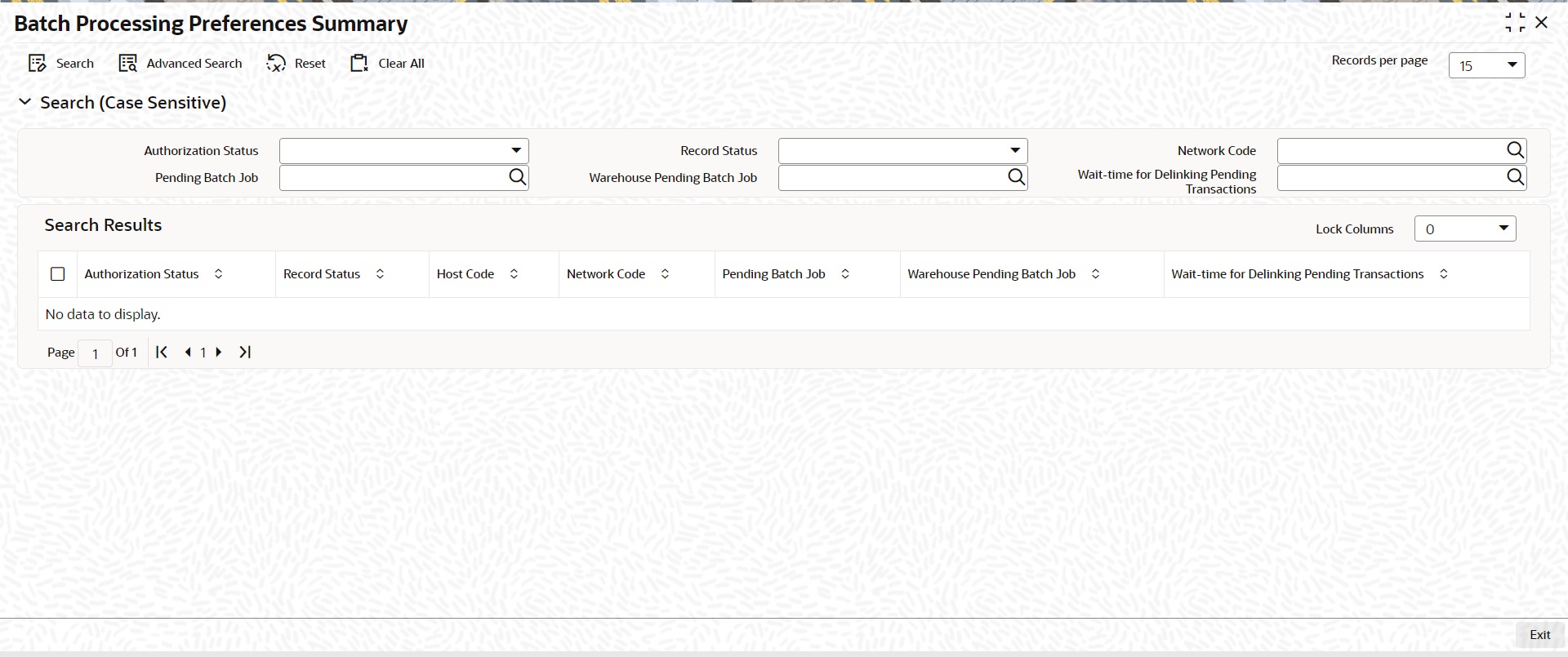
You can click ‘Search’ button to view all the pending functions. However, you can to filter your search based on any of the following criteria:
l Authorization Status
l Record Status
l Pending Batch Job
l Warehouse Pending Batch Job
l Wait Time for Batch processing (in minutes)
When you click ‘Search’ button the records matching the specified search criteria are displayed.
2.1.2 Batch Validations Maintenance
You can maintain the Batch duplicate check parameters and Back value allowed days, using this screen.
You can invoke this screen by typing ‘PMDBTVAL’ in the field at the top right corner of the Application tool bar and clicking the adjoining arrow button.
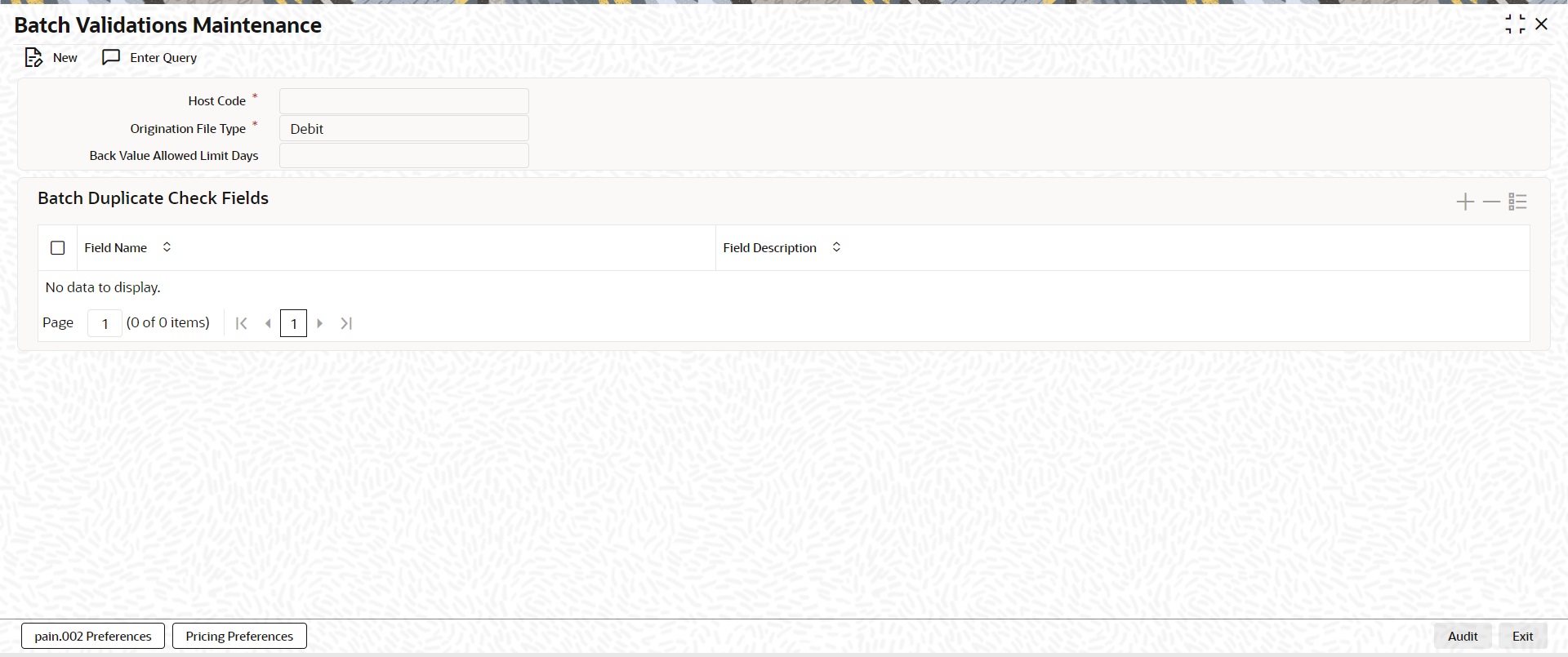
You can specify the following details:
Host Code
The system defaults the host code of transaction branch on clicking ‘New’.
Origination File Type
Select the Origination File Type from following drop down list:
l Debit
l Credit
Back Value Allowed Limit Days
You can specify the number of days for which back value date can be allowed for Requested execution date.
Batch Duplicate Check Fields
Field Name
Specify the Filed Name from the list of values.
Field Description
This filed displays Field Description, when Filed Name is selected.
2.1.2.1 pain.002 Preferences
You can invoke “pain.002 Generation Preferences” screen by clicking on pain.002 Preferences button.
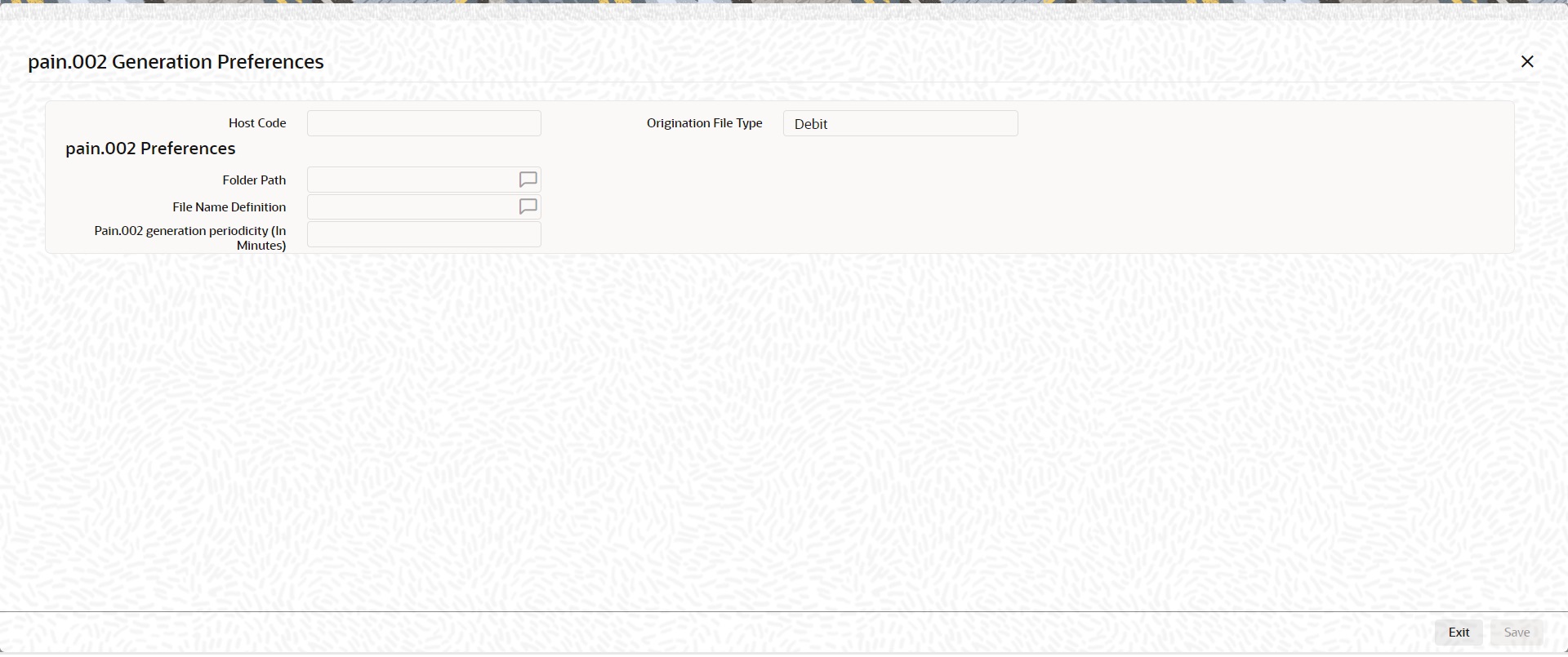
Below fields are defaulted from the maintenance screen:
l Host Code
l Original File Type
Specify the following fields:
pain.002 Preferences
Folder Path
Specify the Folder Path. File path is given for the main Folder.'init' and 'completed' sub folders are to be maintained within the main folder
File Name Definition
File Name Definition is defaulted as <FILE_NAME_PAIN001><DATE_PAIN002><TIME_PAIN002>.
Pain.002 generation periodicity (In Minutes)
Specify the Date and Time in the YYYYMMDDHHMMSSSSS format.
2.1.2.2 Pricing Preferences
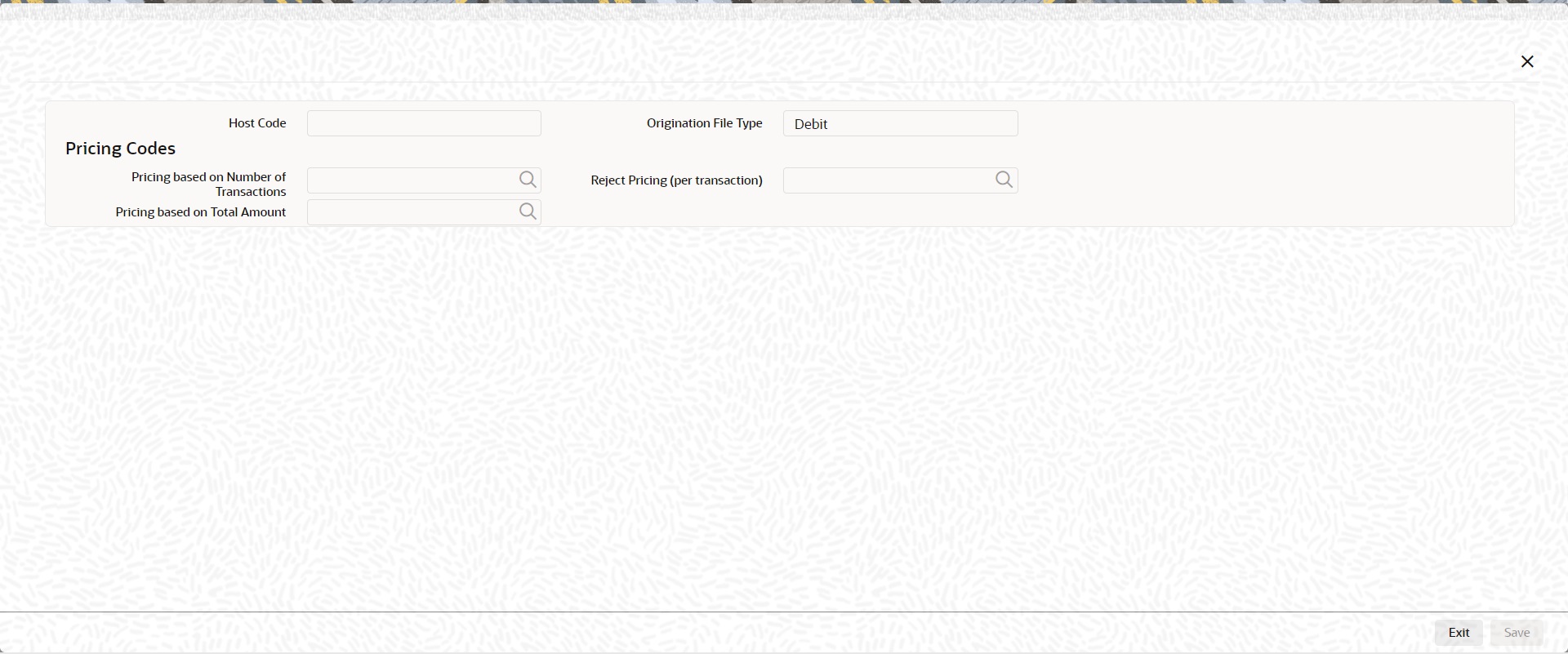
Below fields are defaulted from the maintenance screen:
l Host Code
l Original File Type
Pricing Codes
Pricing based on Number of Transactions
Specify the Pricing based on Number of Transactions from the list of values. All valid pricing codes maintained for the Host are listed.
Pricing based on Total Amount
Specify the Pricing based on Total Amount from the list of values. All valid pricing codes maintained for the Host are listed.
Reject Pricing (per transaction)
Specify the Reject Pricing from the list of values. All valid pricing codes maintained for the Host are listed.
2.1.2.3 Batch Validations Maintenance Summary
You can invoke “Batch Validations Maintenance Summary” screen by typing ‘PMSBTVAL’ in the field at the top right corner of the Application tool bar and clicking on the adjoining arrow button. Click new button on the Application toolbar.
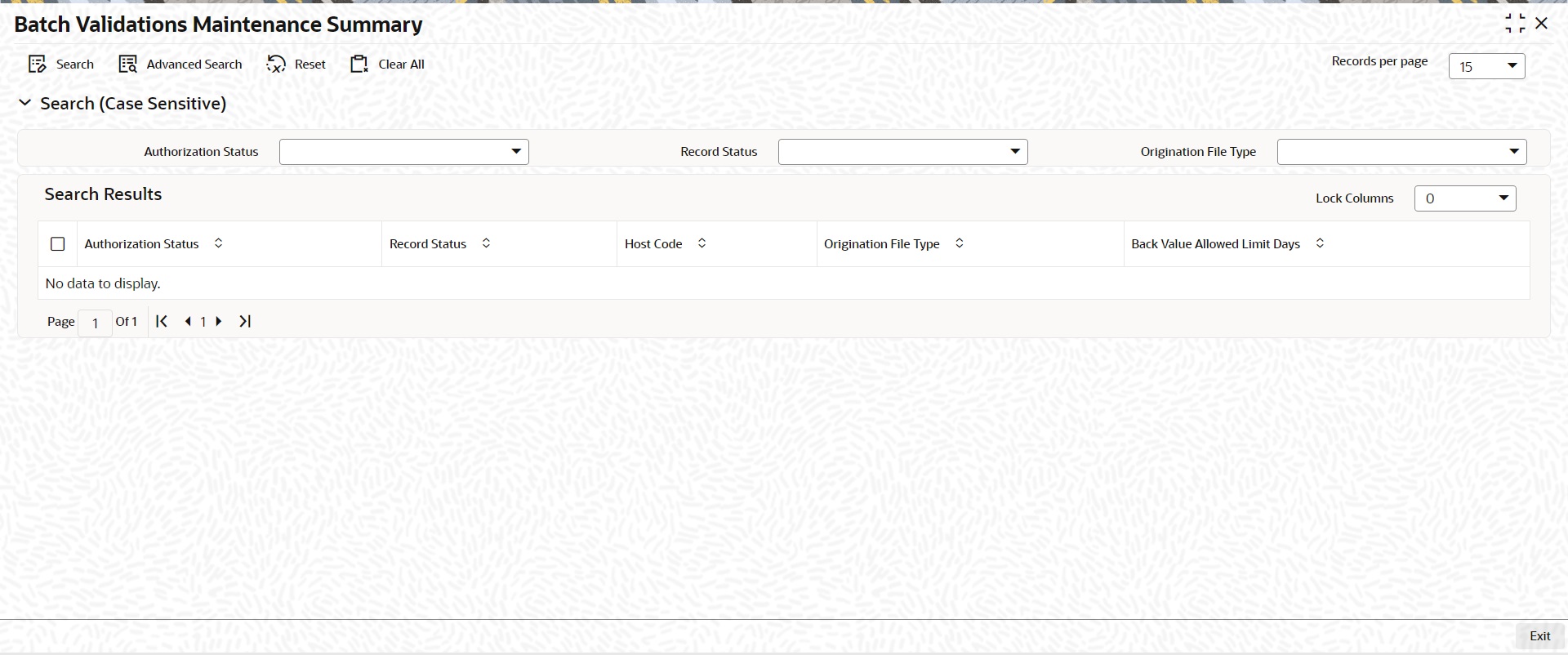
You can search using one or more of the following parameters:
l Authorization Status
l Record Status
l Origination File Type
Once you have specified the search parameters, click ‘Search’ button. The system displays the records that match the search criteria.
2.1.3 Payments Seed Job Parameter
Payments Seed Job Parameters screen can be used to configure Start and End Time for an auto job related to bulk file processing.
You can invoke the ‘Payments Seed Job Parameters Detailed” screen by typing ‘PMDSJBPR’ in the field at the top right corner of the application toolbar and clicking the adjoining arrow button. Click new button on the Application toolbar.
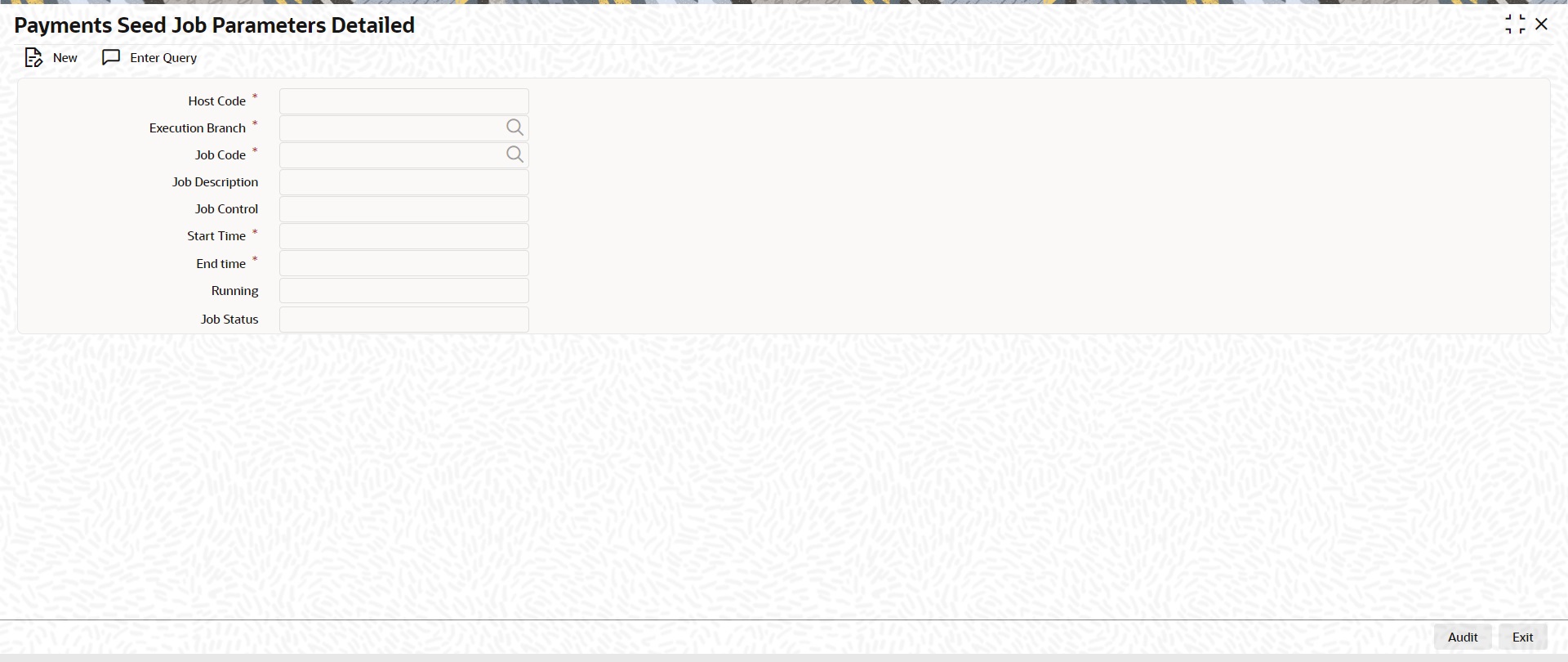
Specify the following fields:
Host Code
The system indicates the user’s logged in branch Host when you click on New.
Execution Branch
The branch selected in this field will be used for checking the local branch holidays for deriving the next execution date for the job. Any valid branch linked to the Host can be selected.
Job Code
Select the job code from the following list:
l C2B_HYBRID_FUTURE_JOB - Job code for future valued transactions
l C2B_HYBRID_NETWORK_RESOLUTION_JOB - Job code for Network resolution transaction
l C2B_HYBRID_POST_WAIT_PENDING_JOB - Job code for post wait pending job
l C2B_HYBRID_PRE_WAIT_PENDING_JOB - Job code for pre wait pending job
l C2B_PAIN002_GENERATION_JOB - Job code for generation of periodic pain.002 file
Job Description
This is defaulted based on the selected code.
Job Control
Select from the list of values displayed. Options are - Automatic / Manual.
Start Time
Specify the Start Time for the auto job configured.
End Time
Specify the End Time for the auto job configured.
Running
System defaults the value as ‘N’ to indicate if the job is running or not.
Job Status
System defaults the value as ‘Active’.
Note
ReST service 'PMJobStatusService' is available to control the seed job status from Active to Hold status or vice versa
2.1.3.1 Payments Seed Job Parameters Summary
You can invoke the ‘Payments Seed Job Parameters Summary” screen by typing ‘PMSSJBPR’ in the field at the top right corner of the application toolbar and clicking the adjoining arrow button. Click new button on the Application toolbar.
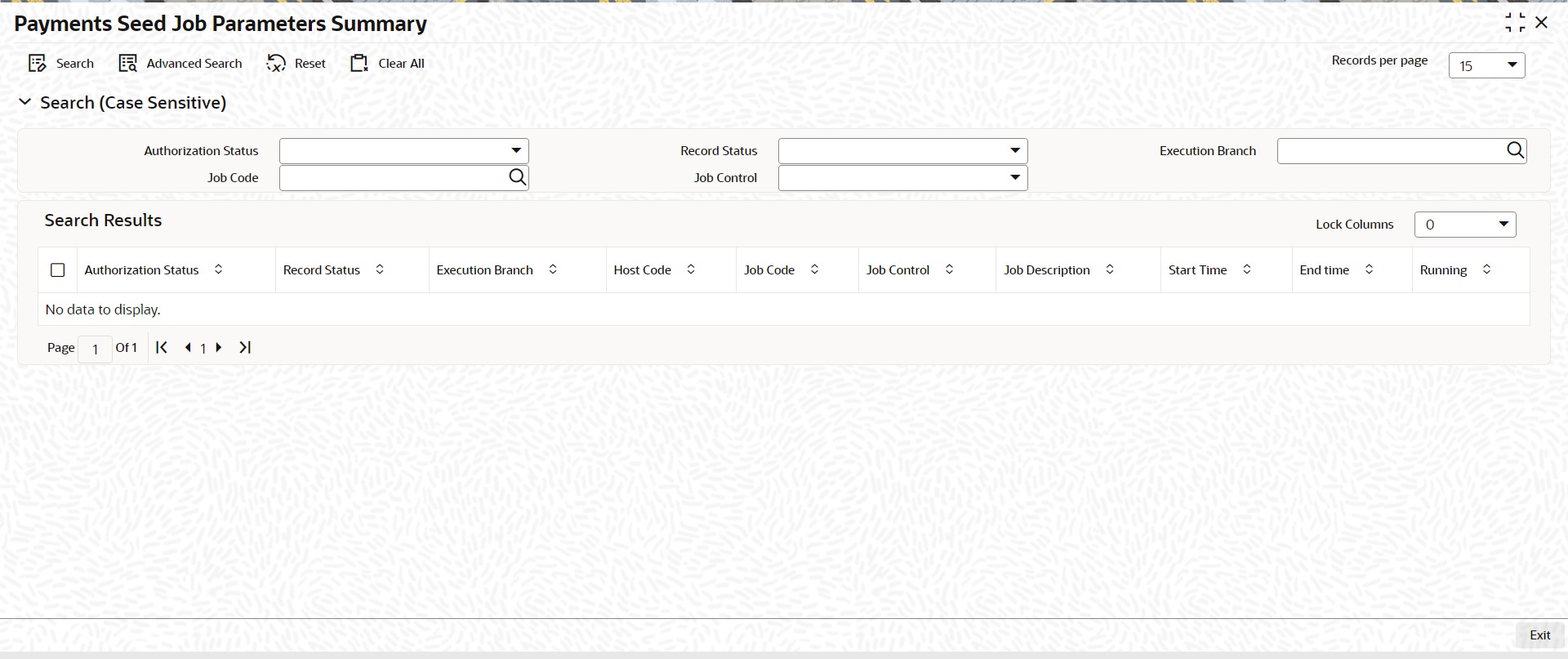
You can search using one or more of the following parameters:
l Authorization Status
l Record Status
l Execution Branch
l Job Code
l Job Control
Once you have specified the search parameters, click ‘Search’ button. The system displays the records that match the search criteria.
l Authorization Status
l Record Status
l Execution Branch
l Host Code
l Job Code
l Job Control
l Job Description
l Start time
l End Time
l Running
Double click a record or click the ‘Details’ button after selecting a record to view the detailed screen.
2.1.3.2 Other Maintenances
Other common maintenances that are required for Bulk File Handling are as follows:
l File Parameters Detailed (PMDFLPRM)
l Customer Preferences Detailed (PMDFLPRF)
l Network Rule Detailed (PMDNWRLE)
l System Parameters (PMDSYSPM)
Note
C2B_FLOW file path to be specified as H (Hybrid) for C2B Hybrid flow in System Parameters screen.
For more details on these screens, refer to Payments Core User Guide.
2.1.4 pain.002 Reason Code Mapping
You can link the system error codes with the valid reason codes through this screen.This is a common maintenance screen for group / batch / transaction level status.
You can invoke the ‘pain.002 Reason Code Mapping’ screen by typing ‘PMDPNRJT’ in the field at the top right corner of the application toolbar and clicking the adjoining arrow button. Click new button on the Application toolbar.
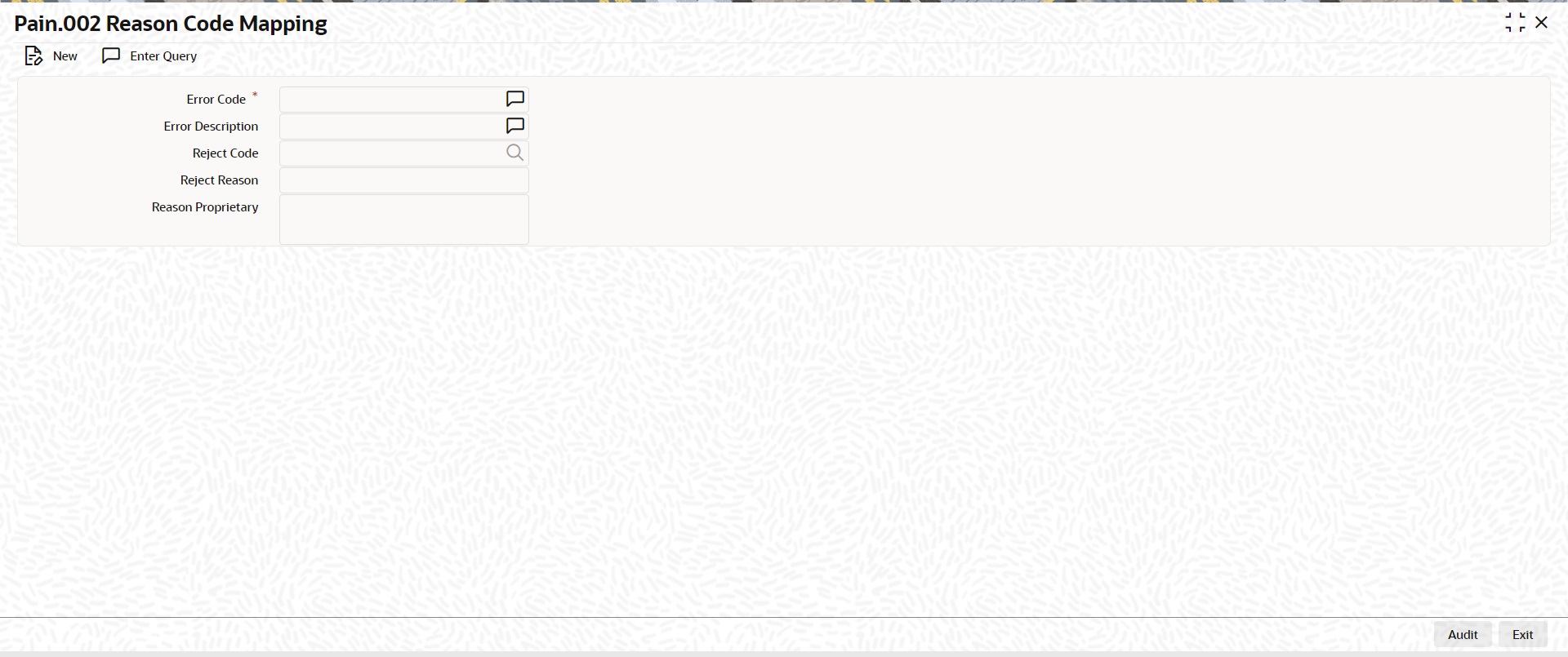
You can specify the following details in the fields:
Error Code
Select the Error Code from the list of values that is to be mapped with the Reason code.
Error Description
System defaults the description for the error code selected.
Reject Code
Select the code from the list of values. ISO reject codes available in External reason codes are listed here.
Reject Reason
System defaults the Reason for the Reject Code selected.
Reason Proprietary
You can specify the proprietary reason, when ISO Code is not selected in Reject Code.In this case, you can specify the proprietary reason. Maximum of 35 characters are allowed to enter.And the Reject Reason can be manually entered.
Note
It is mandatory to provide either reason code or reason proprietary. Both cannot be provided for the same record.
2.1.5 Bulk File Volume Based Pricing Summary
You can invoke the ‘Bulk File Volume Based Pricing Summary” screen by typing ‘PMSFILPR’ in the field at the top right corner of the application toolbar and clicking the adjoining arrow button. Click new button on the Application toolbar.
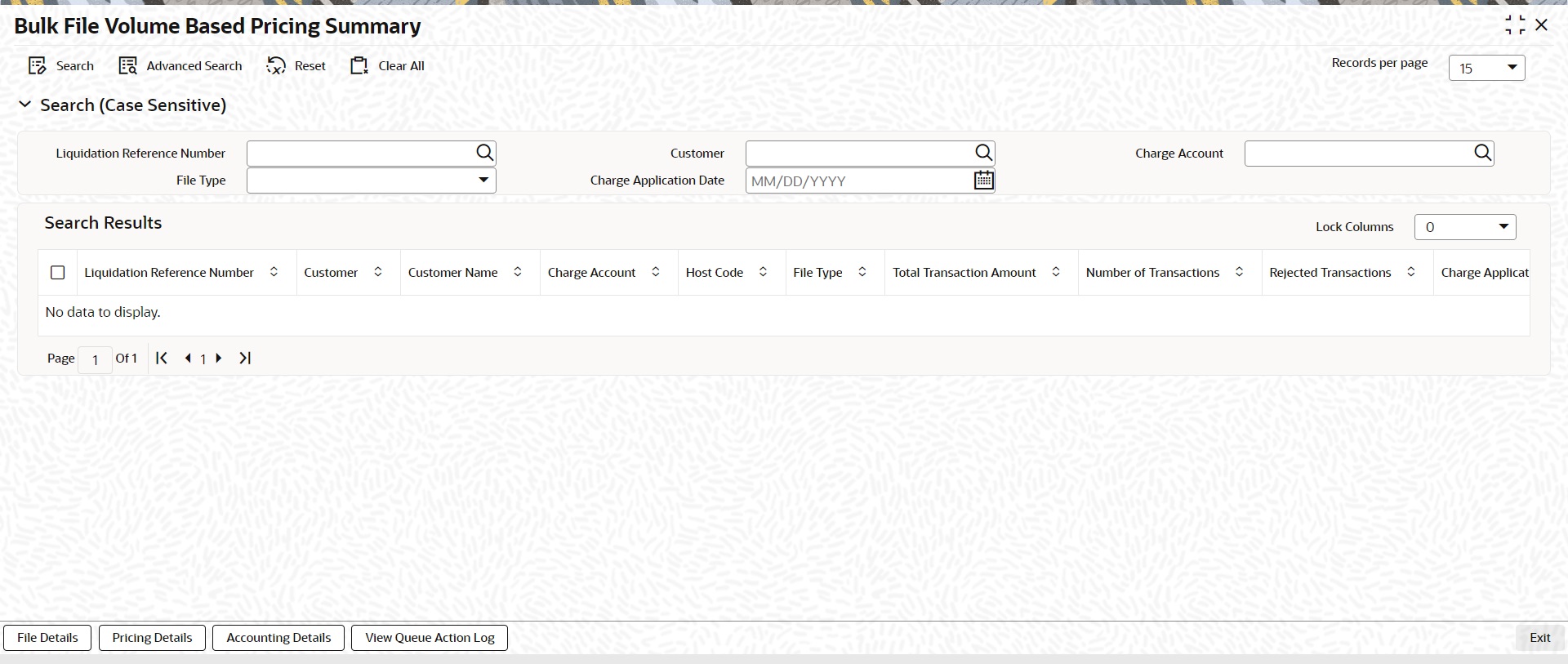
You can search using one or more of the following parameters:
l Liquidation Reference Number
l File Type
l Customer
l Charge Application Date
l Charge Account
Once you have specified the search parameters, click ‘Search’ button. The system displays the records that match the search criteria.
You can perform below actions on this screen:
|
Action |
Description |
|---|---|
|
File Details |
This action opens File Details screen for which the liquidation reference is applicable. |
|
Pricing Details |
This actions opens respective Pricing Details screen with pricing entries that are liquidated. |
|
Accounting Details |
This action is for Accounting Entries. |
|
View Queue Action Log |
This action opens View Queue Action Log sub screen. |
2.1.6 Bulk Single Payment Summary
The requests received through bulk SPS service can be viewed from this screen. You can invoke the ‘Bulk Single Payment Summary” screen by typing ‘PMSBLKSP’ in the field at the top right corner of the application toolbar and clicking the adjoining arrow button. Click new button on the Application toolbar.
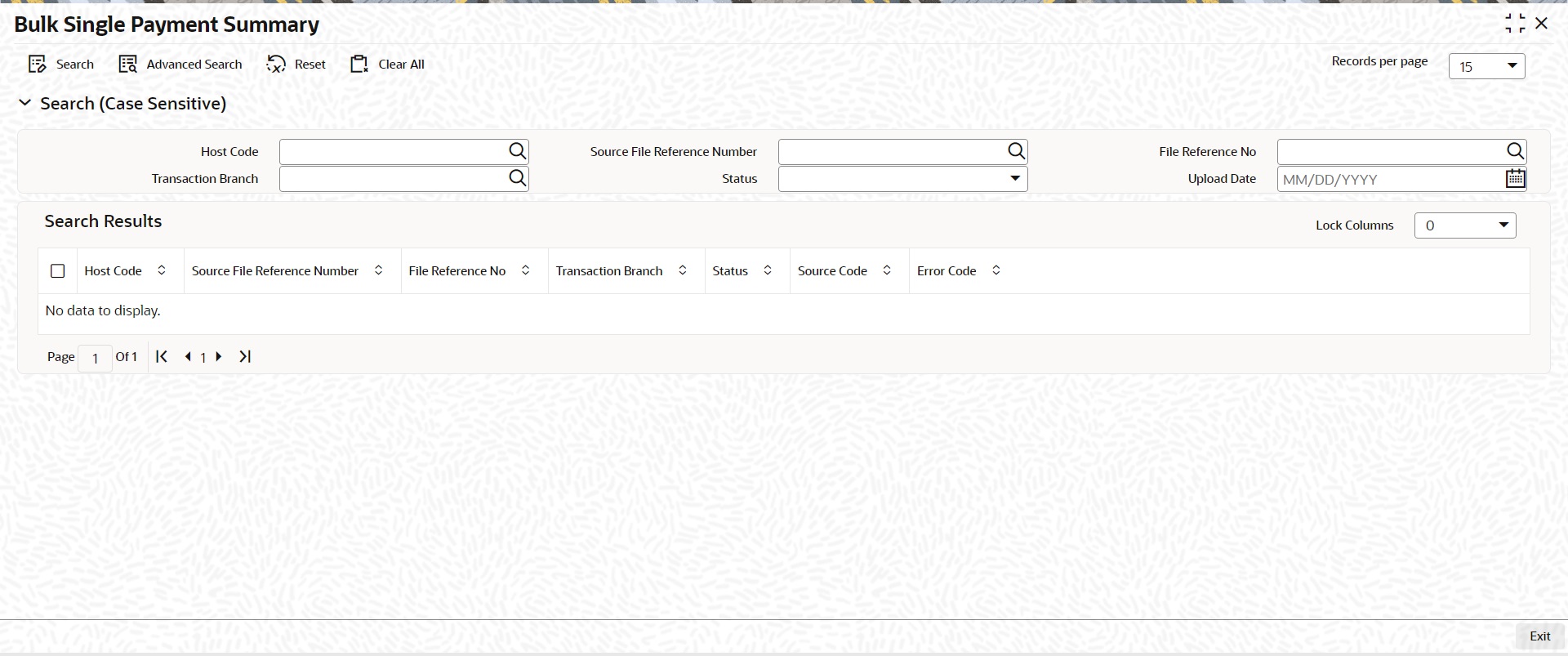
You can search using one or more of the following parameters:
l Host Code
l File Reference No
l Status
l Source File Reference Number
l Transaction Branch
l Upload Date
Once you have specified the search parameters, click ‘Search’ button. The system displays the records that match the search criteria.
2.2.1 pain.001 Batch Processing
l Batches belonging to multiple customers are allowed within the same file.
l pain.001 files to be uploaded are placed in the respective folder (EMS) with a valid format in the respective Host folder.
l Batch IDs (the ID received in the tag PaymentInformationIdentification <PmtInfId> of pain.001) provided in the file remains linked to each transaction record till the end of the payment life cycle. It is available as a transaction level information for view and query.
l <MsgID> and <PmtInfId> specified in the file upload is unique and is referred till the job is success.
2.2.1.1 File Handling & parsing
System parses the bulk file received in pain.001 format. Following check are performed, before processing the batches:
l File Format
l Number of transactions (both file level and batch level)
l Control Sum
Control sum as available in the Group header (file level) & PaymentInformation <PmtInf> (batch level) is considered for the check. Since these are optional fields, if the tag is not available for the file / batch, this check will be skipped.
All transactions in a batch should have the same transfer currency. System rejects the file, if this validation fails.
Each batch undergoes the following checks:
l Customer / Debit account status check for statuses which are not overridable:
– Customer status ->closed
– Account status ->closed
In case of exceptions/failures batch is moved to process exception (PE) queue. Batch can be reprocessed from the Process Exception queue or can be cancelled.
l Batch duplicate check:
This will be done based on the following parameters:
– Batch ID, Co ID - Co ID received in the payment request CstmrCdtTrfInitn / PmtInf / Dbtr / Id / OrgId/Othr/Id/SchmeNm/Prtry(
– Control sum – the control sum at Batch ID level split by transfer currency .
– Currency pair –The debit account currency and CurrencyOfTransfer <CcyOfTrf> will be considered. If account is provided as IBAN, system will find the corresponding account for fetching the debit account currency.
– Item count –Item count available for Batch ID split by transfer currency
Duplicate days is considered based on the information available in Batch Processing Preferences.
If system found duplicate batch, it moves to Business Override Queue.The batch can be approved or cancelled from the queue.
Note
Carry forward action for batches will be restricted for batches from Business Override Queues.
2.2.1.2 Network Resolution
Network resolution is done for each payment record within a batch for channel type ‘C2B’. This is based on the rules defined in Network Rule maintenance ‘PMDNWRLE’. Based on the linked payment type, payments are marked as urgent or Non-urgent payments.
Instrument codes can be selected in the Network code field if the bulk file request is related to Instrument Issue.
Urgent/ Non-urgent Batch
Urgent payments are not processed as batches. Each payment record in the batch is processed as an individual record.
In Urgent payments, transactions for the Network - Cross-Border, High Value Payments, SEPA Instant are processed immediately and all the checks for the individual transactions are done. Upon all the checks and verifications, new transactions are created in the respective networks.
Book transfers can be configured as Urgent or non-urgent payments based on system parameter C2B_BOOK_TFR_PMT_CATEGORY maintained as U or N.
Instrument issue request received in bulk file is also processed as individual transactions without consolidated debit.
Note
Both current & future dated transactions will be sent for processing. And post SC future dated transactions are moved to Warehousing Queue.
Non - urgent payments such as Domestic Low value Payments are processed as batches irrespective of the Batch booking tag value in the incoming file.
If the Network resolution fails, the transaction is moved to Network Resolution Queue. From this queue Network ID is provided manually.
2.2.1.3 Batch Re-grouping
For Batches where Batch booking is applicable, re-grouping of the payment requests are done based on the following parameters:
l Network
l Transfer Currency
l CO ID
l FX reference (if available as part of CreditTransferTransactionInformation <CdtTrfTxInf>
New consol reference is generated for each re-grouped batch. Original Batch ID is retained after re-grouping for tracking.
Further processing is done at the re-grouped batch level.
2.2.1.4 Date Resolution & Process cutoff check
The requested execution date for all transactions within a batch is same and this date is considered as the instruction date. Activation date is derived based on the instruction date.
Debit currency / Credit currency / Network holiday checks are applied to Instruction date as applicable for the payment type. Branch holiday check is done on the activation date if the same is applicable for the Network.
After deriving the dates, if the activation date falls on current date, process cut off check is done for the batch based on the cutoff time maintained in Payment Processing Cutoff Time screen(PMDCTOFF).
Release, cancel options is available for the batch from Process cut off queue.
2.2.1.5 Exchange Rate Fetch & Amount block
For current dated batches, exchange rate fetch is done. Internal rates are fetched for the batch if the batch amount is below the FX limit maintained in customer preferences. If batch transfer currency is different from the limit currency maintained, the batch amount will be converted to limit currency amount using the midrate between the currencies.
If the batch amount is more than limit amount, the batch details are sent for External rate fetch if External Rate fetch is applicable for the customer.When the criteria is not met, it moves to Exchange Rate Queue and carry forward/cancel/retry is manually initiated.
If FX reference number is available as part of the payment request, the same is sent to external system.
If no FX reference is available in the request and if the FX reference returned by the external system, the same is stored for the batch.
2.2.1.6 Credit Approval Check
The total batch amount along with other payment details is sent to DDA system for Customer/account validation, balance check and amount block in debit account.
If the amount block is a success, the ECA reference received is stored for the batch and the individual payments in the batch are sent to the payment processor for further processing.
If a batch is released from ECA queue on a later date, rollover preference for queues is applied based on Outbound Non-urgent Payment Preferences maintained for the source, Co-ID and debit account.
The interim/timed-out responses received are moved to ECA Queue and from this queue, we can manually initiate - Resend/Cancel/Carry Forward/ Approve actions.
If cancellation is done, FX unwind request is sent.
2.2.1.7 Payment Processing for Individual Transactions
The following processing steps are completed for each payment:
l Payment validations resulting in Process Exception, Repair or Business Override
Since the status validations for customer/debit account are already done at batch level, this is not be repeated again while processing individual transactions for current dated batches. For book transfers, credit account status validations are done.
l Sanction Check
It is possible to process sanction seizure for an individual transaction. Credit accounting will be to seizure GL in such cases. Messaging is not be applicable.
l Charge calculation
If a charge account is provided in the payment request the same is used for debiting the charges. If not available in the request the charge claim account maintained in customer preferences PMDFLPRF is used as debit amount for charges. If no preference is available transaction debit account is the charge account as well.
No amount block is done for charge accounting. Charges are force posted.
l EAC check for credit accounts in Book Transfers
The individual payment processing completion updates status of payment as one of the following:
– Success - All processing steps listed above are completed
– Cancelled - Payment is cancelled from any of the exception queue
– Seized - Sanction seizure applied to the payment
– Pending - Payment is pending in an exception queue
Note
For ACH CT transaction received in Bulk file, carry forward action from transaction exception queues is restricted, as date change is linked to the consolidate batch.
2.2.2 Batch Processing of Transactions
l A batch is closed and Network cutoff check/ accounting are done if
– All transactions are processed successfully.
OR
– Processing preferences is completed ahead of Host network cutoff or completion of the wait time configured in Batch.
l For example, a file is received at 10 a.m. and another file at 2.30.p.m. Wait time for Batch Processing maintained is 2 hours and Host network cutoff is @3.45.
– If all transactions are not processed successfully for the first file, @ 12.p.m, system segregates the successful transactions from the parent batch and creates a child batch. This batch of successful transactions are processed further. The pending transactions remain in the original batch.
– For the second batch wait time ends at 4.30 p.m. Since the Host network cutoff is earlier to this, the segregation of successful transactions to a new batch happens at 3.45.
2.2.2.1 Batch processing of Successful transactions
l If all transactions shows ‘Success’ status, Network cutoff is checked for the batch based on the time maintained in Network maintenance (PMDNWMNT).
l If cutoff time is over, the payment is moved to Network Cutoff Queue. Force release, Cancel & carry forward actions is possible from Network Cutoff queue.
l If a batch is cancelled from Network Cutoff queue, unwind requests for FX and ECA are sent.
l Debit accounting is applicable for successfully completed transactions only. Consolidated/Itemsised entries are posted based on Batch booking tag value or Non-Urgent preferences maintained.
The debit amount and entries posted will be consolidated if
– Batch Booking tag value in the incoming file for the Batch ID is ‘True’
OR
– If Batch Booking tag is not available for the Batch ID, in the Non urgent payment preferences, ’Batch debit accounting’ field value set as ‘Consolidated’.
The debit amount and entries posted will be Itemised if
l Individual debit entries are posted if Batch Booking tag in the file for the Batch ID is set as ‘False’ or if the tag is not available for the Batch ID, then in the Non urgent payment preferences, ’Batch debit accounting’ field value set as ‘Itemized’.
l Credit amount is always be passed for accounting as consolidated batch amount irrespective of the debit accounting preference.
l ECA reference is mentioned for the consolidated debit amount / transaction debit amount only. Charges are sent with Force Post flag as ‘Yes’.
l On completion of accounting the transactions are released from batch for messaging and dispatch file generation.
2.2.2.2 Pending transactions
Whenever successful transactions are sent for processing generating a new batch, the pending transactions will remain in the original batch.
The pending batch will be checked again for successful transactions at regular intervals. This will be achieved by configuring a job which can be run at pre-defined intervals. The time interval can be set in minutes.
The check for successful transactions will continue till the Host Batch cutoff time is reached.
l If pending transactions are remaining in the batch even after reaching the batch cutoff time, the batch is carried forwarded to next business day.
– The pending transactions in the batch is triggered every ‘n ‘ minutes as maintained in Batch Processing Preferences (PMDBTPRF). This process continues till the Batch Cutoff is reached.
l And the pending consolidated batch that are still pending/ approved after batch cutoff is moved to Warehousing queue.
l Processing of carried forward batches is explained under the section Future dated batch processing.
When a consolidated batch is carried forward due to batch cutoff validations, both FX and ECA are reversed and re-done when the batch is taken up for processing on Activation Date, and successful transactions are consolidated.
2.2.2.3 Rejected transactions handling
For each cancelled transaction, FX unwind request and Amount block reversal request is sent immediately on cancellation. This is processed at individual transaction level.
Every cancelled transaction for current date within a consolidation batch is part of the same reject batch. This reject batch form a place holder for all cancelled transactions, though processing is not batch -wise.
2.2.2.4 Seized transactions handling
If any transaction is moved to ‘Seized’ status from Sanction Queue during individual processing, a separate seized batch is created. Every seized transaction for current date within a consolidation batch is part of the same seized batch.
l The processing of a seized transaction is at individual transaction level. Accounting is posted debiting the customer account and crediting the seizure GL, if applicable.
2.2.3 Future Dated Batch Processing
Future dated batches are processed till sanction check on booking date itself. On value date, based on booking date processing, a separate batch is created for successful transactions.
When the consolidated Batch or transaction is released from the Warehouse queue, date re-derivation is done again based on the existing holiday maintenance.
Re-grouping of the pending/success/rejected batches are done. Then FX and amount block are done and transactions are sent for individual payment processing. The rest of the process flow remains same like a current dated batch.
The new job runs in regular intervals re-checking the transaction status of the transactions in the pending batches. The monitoring interval can be configured in minutes in Payments Auto Job Parameters (PMDSJBPR) based on the Pre wait/ Post wait job.
Note
For carried forward batches it is required to be checked whether FX or ECA is already done. If done, the undo request for old amount will be included in the new request sent on value date.
Corporate File Browser Screen is provided for users to view all the received pain.001 files. Batch IDs received in the file are stored for each batch processed and is available as a transaction level information for view and query.
You can invoke the ‘Corporate File Browser’ screen by typing ‘PMDUPDST’ in the field at the top right corner of the application toolbar and clicking the adjoining arrow button. Click new button on the Application toolbar.
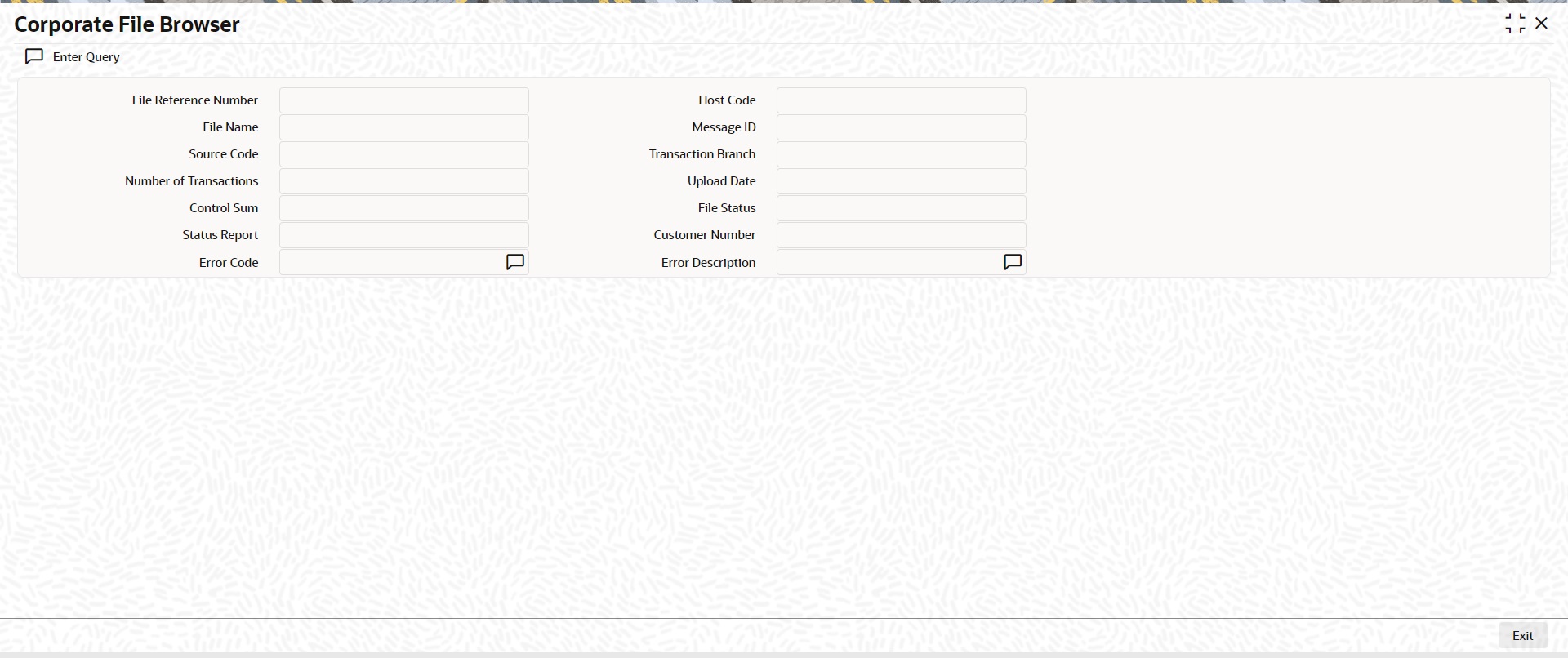
Query the details by entering the File Reference Number.The file details are displayed by the system on executing the query.
l Host Code
l File Name
l Message ID
l Source Code
l Transaction Branch
l Number of Transactions
l Upload Date
l Control Sum
l File status –Accepted/Rejected
l Status Report-pain.002 generated/dispatched
l Customer Number
l Error Code
l Error Description
2.2.4.1 Viewing Corporate File Browser Summary
You can invoke the ‘Corporate File Browser Summary’ screen by typing ‘PMSUPDST’ in the field at the top right corner of the application toolbar and clicking the adjoining arrow button. Click new button on the Application toolbar.
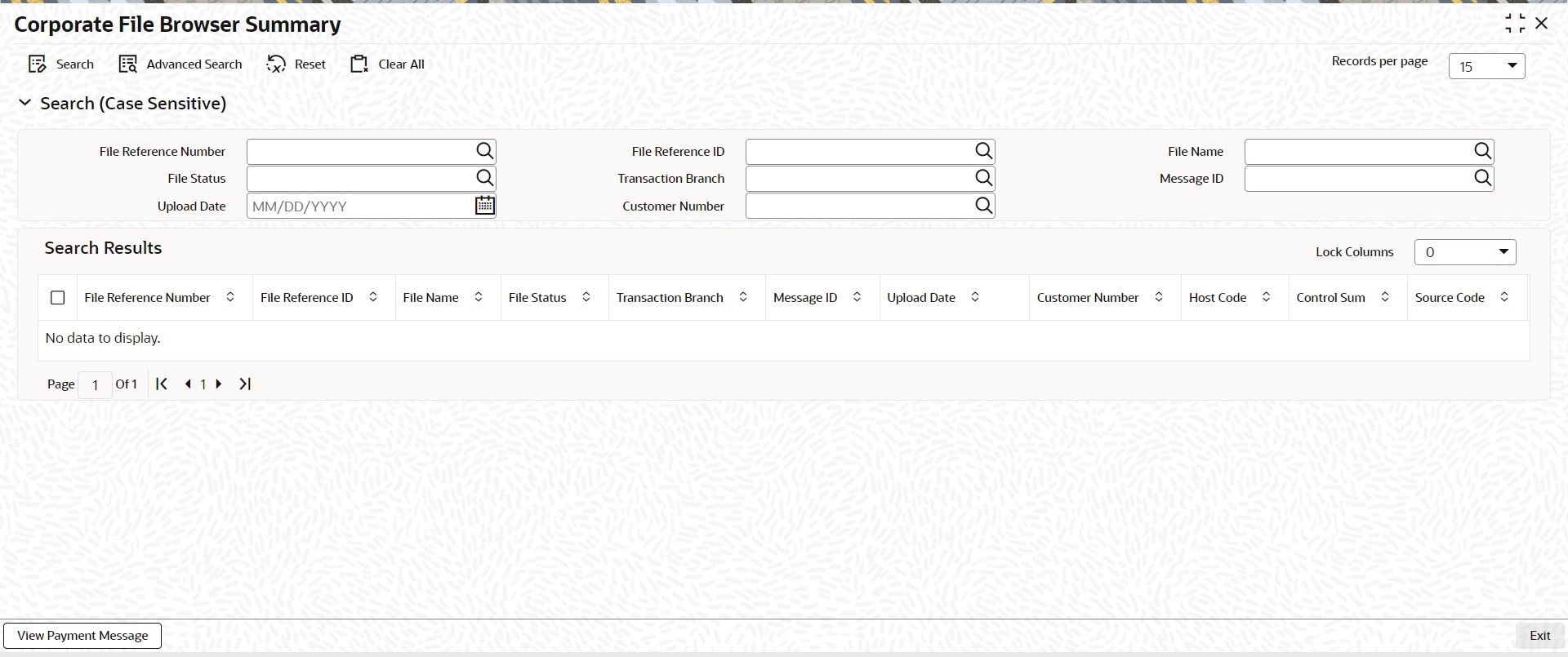
You can click ‘Search’ button to view all the pending functions. However, you can to filter your search based on any of the following criteria:
l File Reference Number
l File Reference ID
l File Name
l File Status
l Transaction Branch
l Message ID
l Customer Number
When you click ‘Search’ button the records matching the specified search criteria are displayed. For each record fetched by the system based on your query criteria, the following details are displayed:
l File Reference Number
l File Reference ID
l File Name
l File Status
l Transaction Branch
l Message ID
l Upload Date
l Customer Number
l Host Code
l Control Sum
l Source Code
l Status Report
l Number of Transactions
Action Buttons
View Payment Message
You can invoke the screen by clicking ‘ View Payments Message’ action button in Corporate File Browser Summary screen.
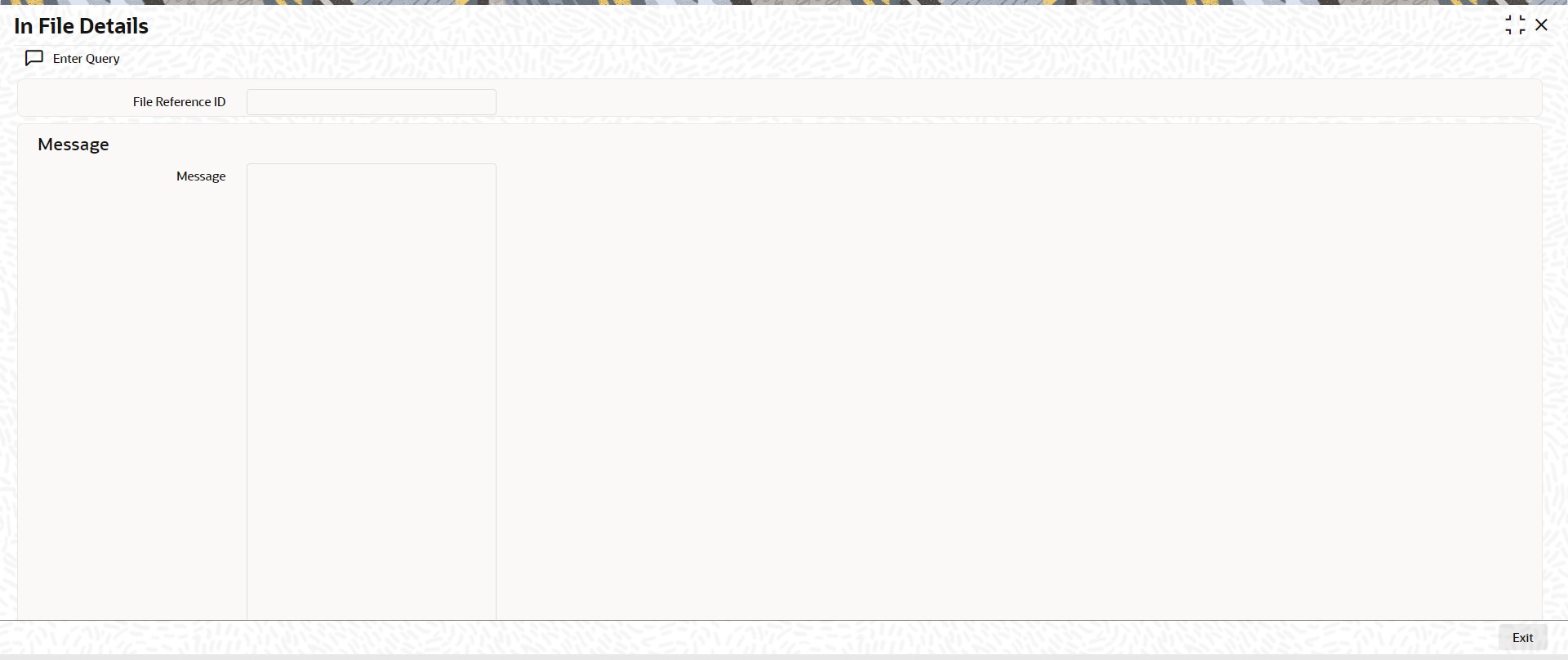
You can select a record in the Corporate File Browser Summary’ screen ‘PMSUPDST’ and click on View Payment message button to view the message details.
You can view the batches received in a file in this screen. Also, you can view all the linked Consol batches by selecting a particular batch.
You can invoke the ‘Batch Booking Browser Detailed’ screen by typing ‘PMDBATBR’ in the field at the top right corner of the application toolbar and clicking the adjoining arrow button. Click New button on the Application toolbar.
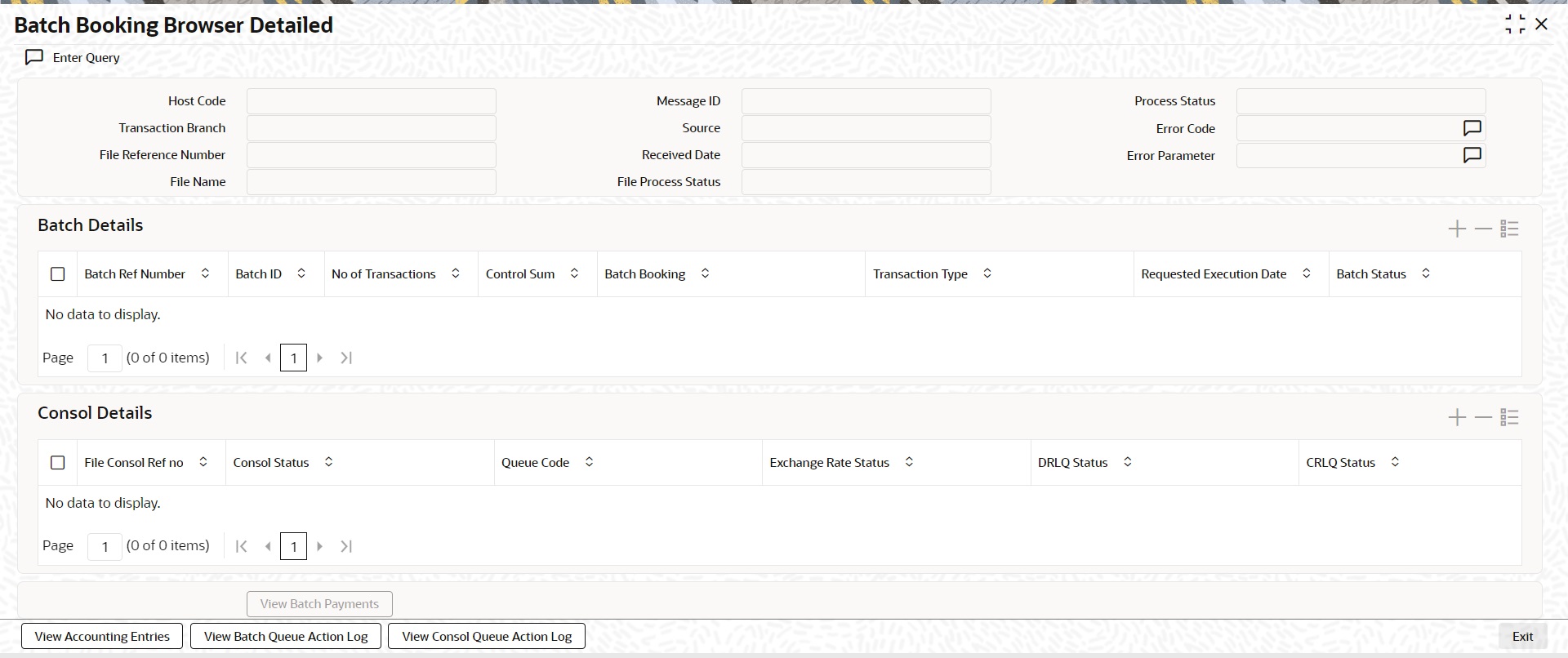
Input a valid File Reference Number and click on Execute Query. System defaults all the details pertaining to the batches and Consol batches. Following are the details displayed:
l Host Code
l Transaction Branch
l File Reference Number
l File Name (Name of the pain.001 file uploaded)
l Message ID (Is a unique ID for all the batches)
l Source
l Received Date
l Process Status (Displays the Process status for all the batches)
l Error Code
l Error Parameter
Batch Details
Batch Ref Number
Displays the Batch Ref number for the multiple batches created
Batch ID
Displays the unique Batch ID given in the pain.001 file before processing.
No of Transactions
Displays the no of transactions specified in each batch.
Control Sum
Displays the sum of transaction amount for the no of transactions specified in each batch
Batch Booking
Displays the Booking flag value.
Transaction Type
Displays the type of transaction as - Debit/Credit
Requested Execution Date
Displays the date of execution date and it is the current date and its the date provided in <ReqdExctnDt>tag of pain001
Also the following details are displayed in the Batch Details grid:
l Batch Status
l Queue Code
l Network Resolution Status
l Co ID
l Customer No
l Debit Account
l Debit Account Branch
l Debit Account Currency
l Error Code
l Error Description
Consol Details
Following are the details displayed in the Consol Details grid:
l File Consol Ref No
l Consol Status (If the consol is success/cancelled/seized/moved to queue/Future dated)
l Queue Code
l Exchange Rate Status
l DRLQ Status (Debit Liquidation Status)
l CRLQ (Credit Liquidation Status)
l ECA Status (Credit Approval Status)
l Post Cutoff
l Debit Currency
l Total Debit Amount (sum of the transactions in the consol)
l Exchange Rate
l Payment Category (If its urgent/non-urgent)
l Payment Type (displays the respective payment types)
l Process Date
l FX Reference
l Network Code
l Error Code
l Error Description
Following view actions can be performed from this screen:
2.2.5.1 View Batch Payments
You can view all the transactions in that batch and the selected consol by clicking the ‘View Batch Payments’ action tab present in the screen. All the details pertaining to that transaction can be viewed.
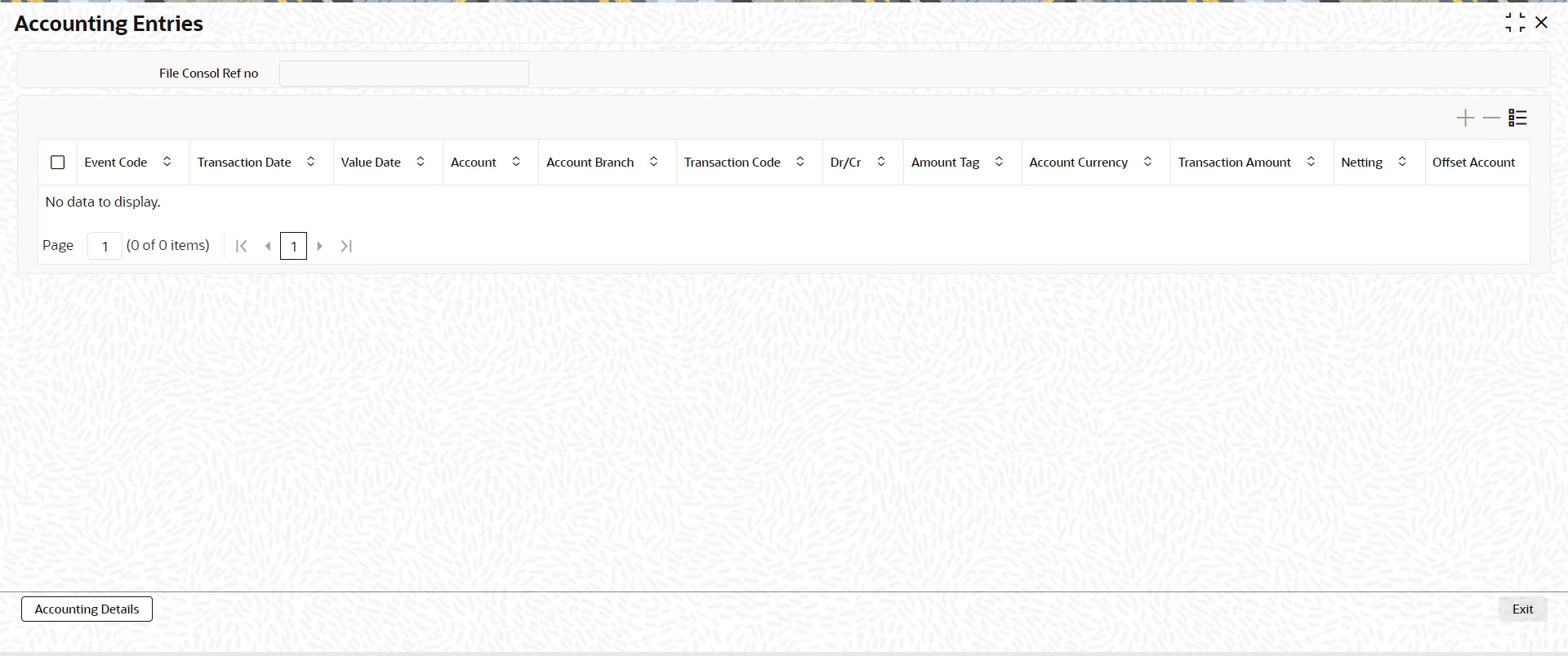
2.2.5.2 View Accounting Entries
You can view the accounting entries for the selected Consol by clicking the ‘ View Accounting Entries’ action tab present in the screen. Entries can either be consolidated or Itemised based on the preferences defined in the pain.001 file.
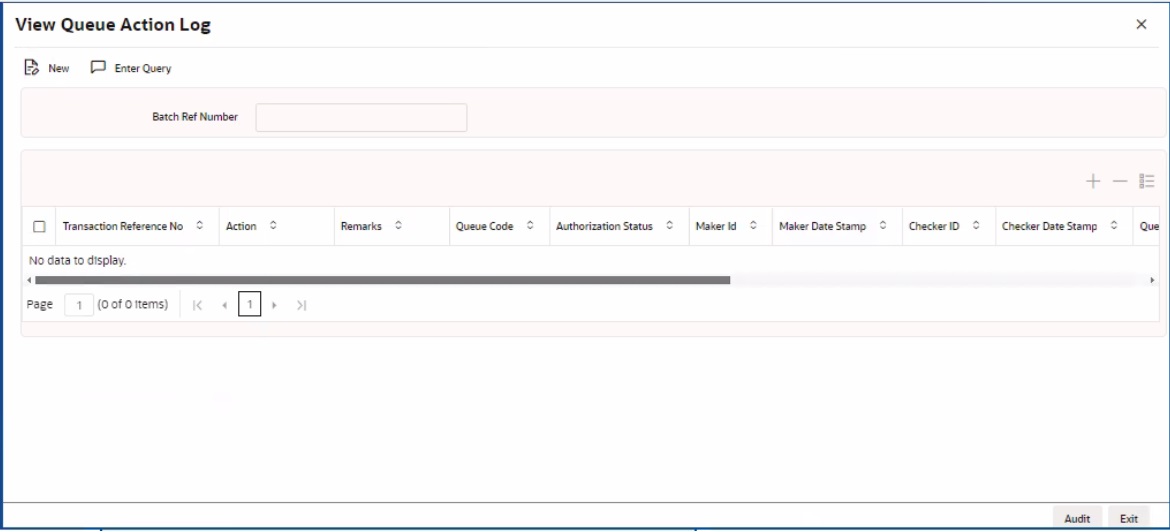
2.2.5.3 View Batch Queue Action Log
You can view all the queue actions for the selected batch by clicking the ‘ View Batch Queue Action Log’ action tab present in the screen.
2.2.5.4 View Consol Queue Action Log
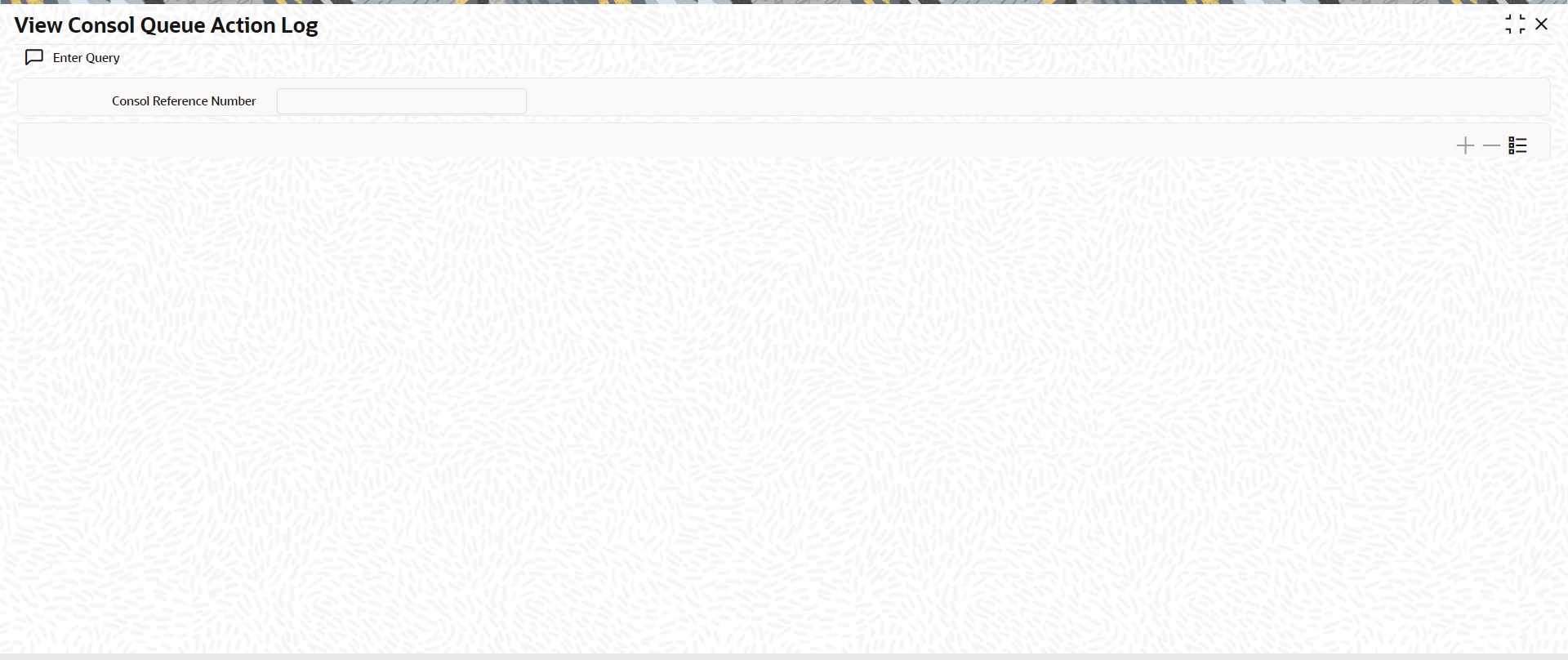
You can view all the queue actions for the selected Consol by clicking the ‘View Consol Queue Action Log’ action tab present in the screen.
For the queue actions listed, you can view the request sent and response received, by clicking the ‘View Request Message’ and ‘View Response Message’ action buttons respectively.
2.2.5.5 View Batch Cancellation Details
You can view all the cancelled transactions and its details for the batch, by clicking the ‘ View Batch Cancellation details’ action tab present in the screen.
Also, you can view the batch cancellations uploaded through pain.007 file in this screen.
You can view all the Batch Booking browser summary through this screen.
You can invoke ‘Bulk File Summary Screen‘ by typing ‘PMSBATBR’ in the field at the top right corner of the Application tool bar and clicking on the adjoining arrow button.
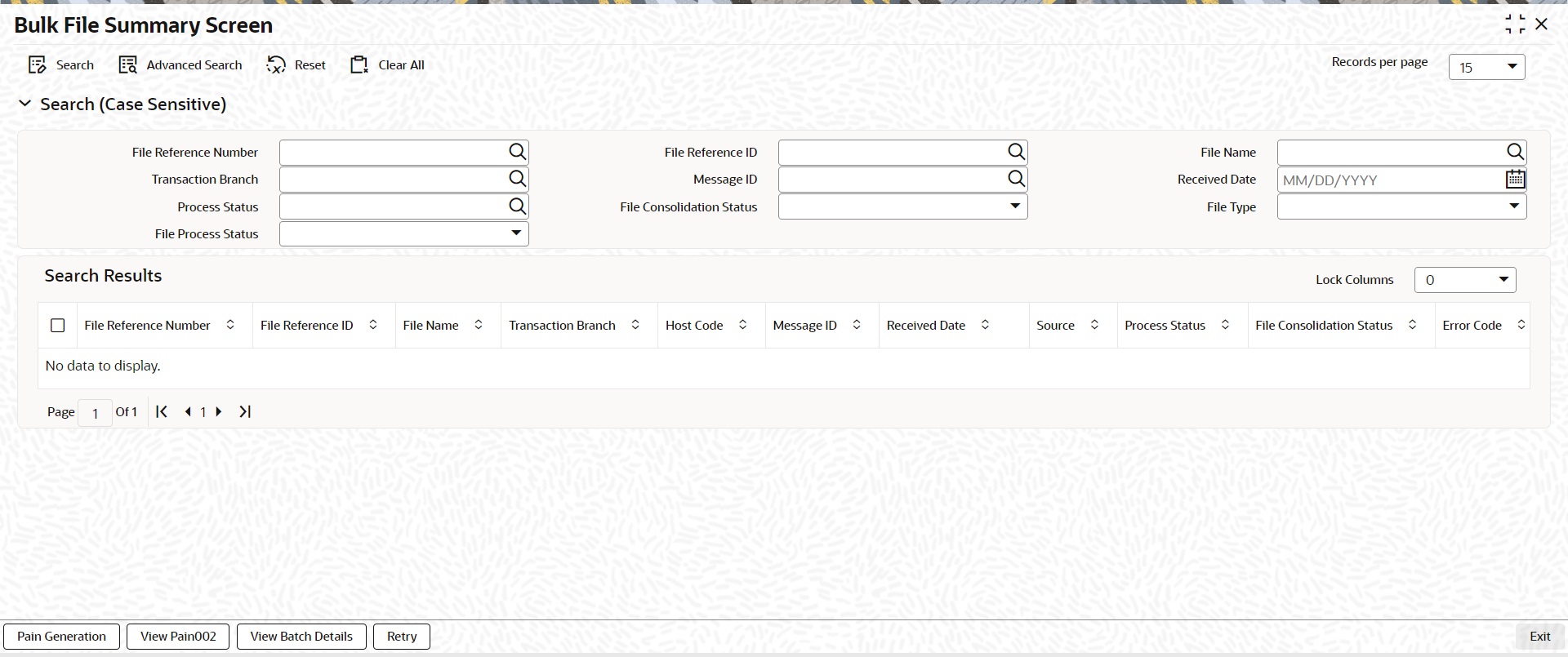
You can search for the records using one or more of the following parameters:
l File Reference Number
l File Reference ID
l File Name
l Transaction Branch
l Message ID
l Received Date
l Process Status
l File Consolidation Status
l File Type
l File Process Status
Once you have specified the search parameters, click ‘Search’ button. The system displays the records that match the following search criteria.
Double click a record or select a record and click on Details button to view the detailed maintenance screen.
2.2.6.1 Pain Generation
You can manually generate pain.002 files for the records listed in Batch Booking Browser Summary screen by clicking the ‘Pain Generation’ button.
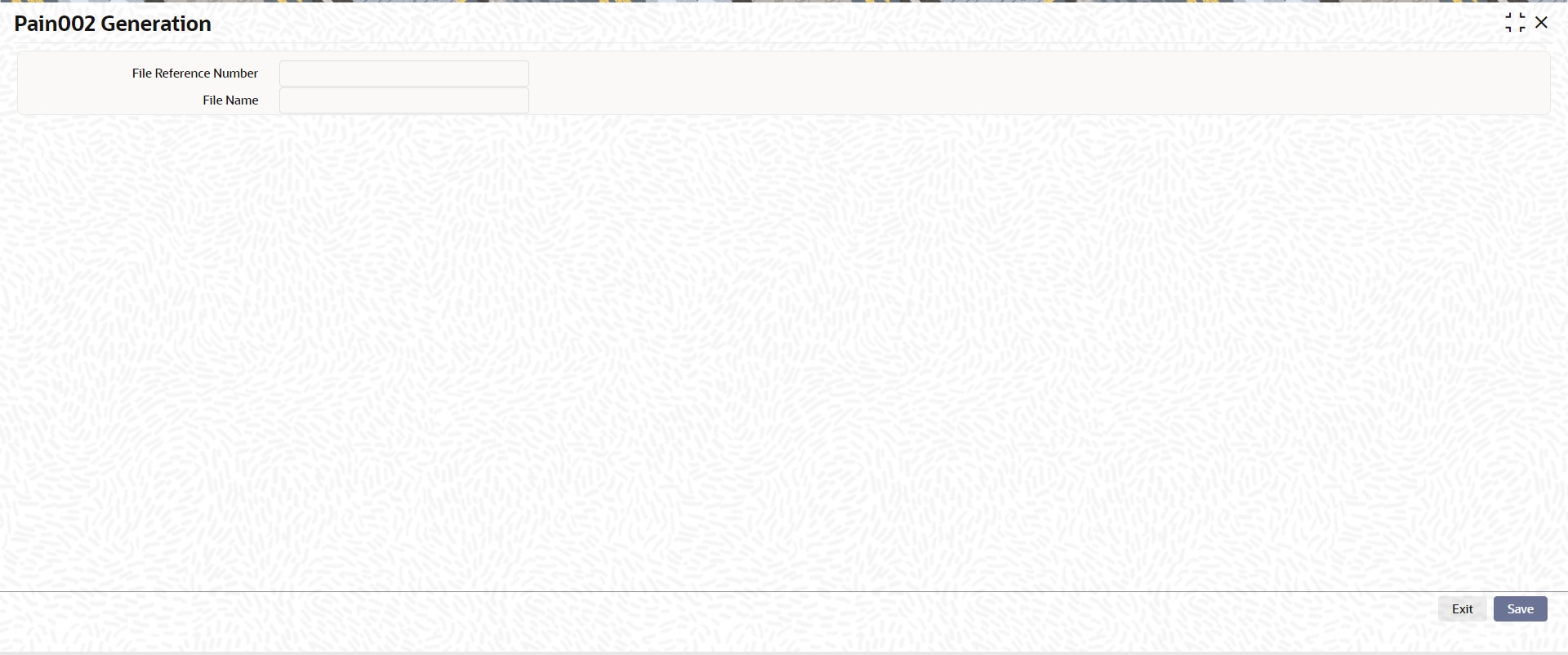
Generated file details are displayed here.
l Irrespective of the pain.002 generation level, i.e File level (L1), Batch +Transaction (L2) level or R-transaction (L3) level, auto generation of pain.002 is job based. A new job is provided which can be configured to run after regular host level batch cutoff so that the file level processing status can be sent to the customer.
l This is done on the date of file processing. If any R-transaction is initiated for one or more of the transactions which are part of the file , then too pain.002 message will be generated for the file.
l The pain.002 file is generated if the initiating party (if not available, debit account customer) has preferred for auto file generation.
l The file and batch level statuses are deduced while pain.002 message is generated.
2.2.6.2 View pain.002
You can view the pain.002 files generated both automatically and manually here by clicking the ‘View pain.002 button’.
pain.002 files that are generated automatically based on the preferences maintained in the Customer Preference Detailed screen (PMDFLPRF) can be viewed here.This is applicable only for L3 transactions.
And the files generated manually through Pain generation in Batch Booking Browser Summary screen (PMSBATBR) screen is also listed here.
System launches the ‘pain.002 Acknowledgement Browser’ screen on clicking the ‘View pain.002’ action button in PMSBATBR screen.
You can also invoke the ‘pain.002 Acknowledgement Browser‘ screen by typing ‘PMSACKBR’ in the field at the top right corner of the Application tool bar and clicking on the adjoining arrow button.
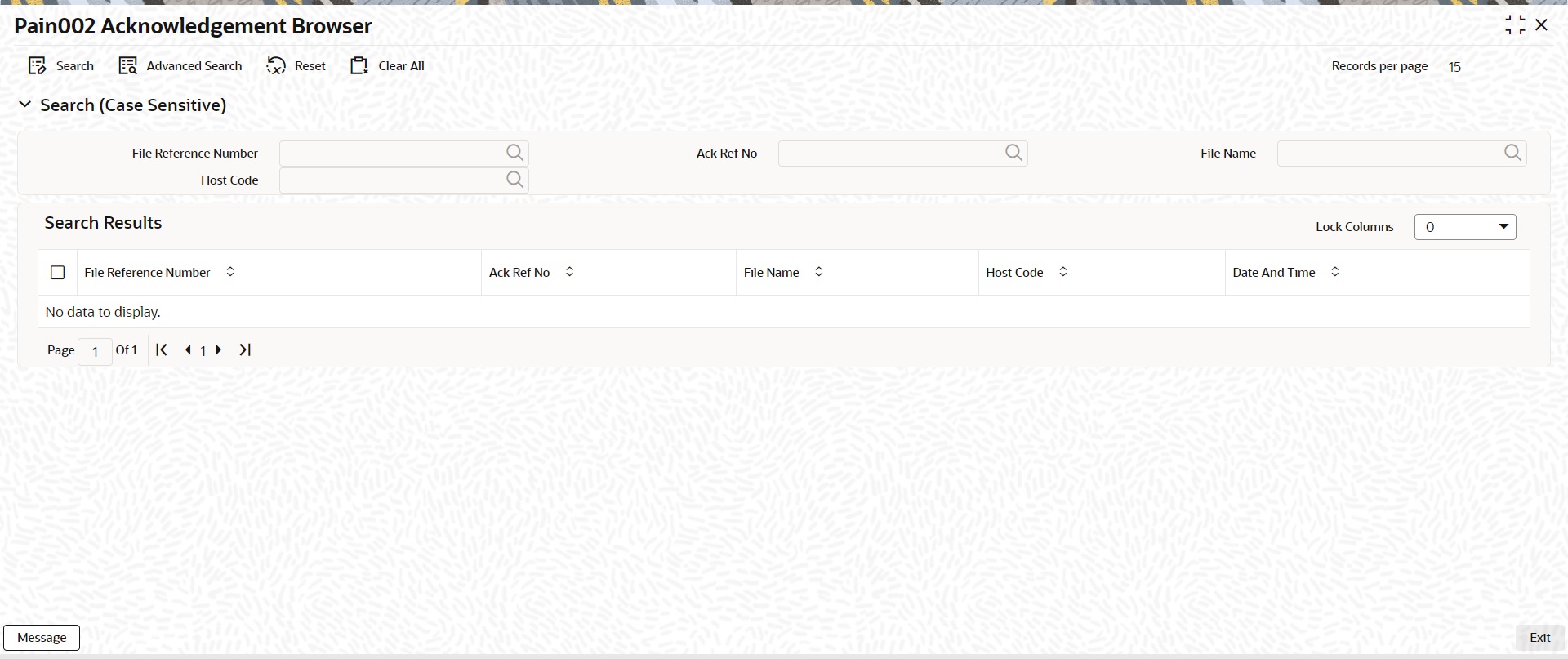
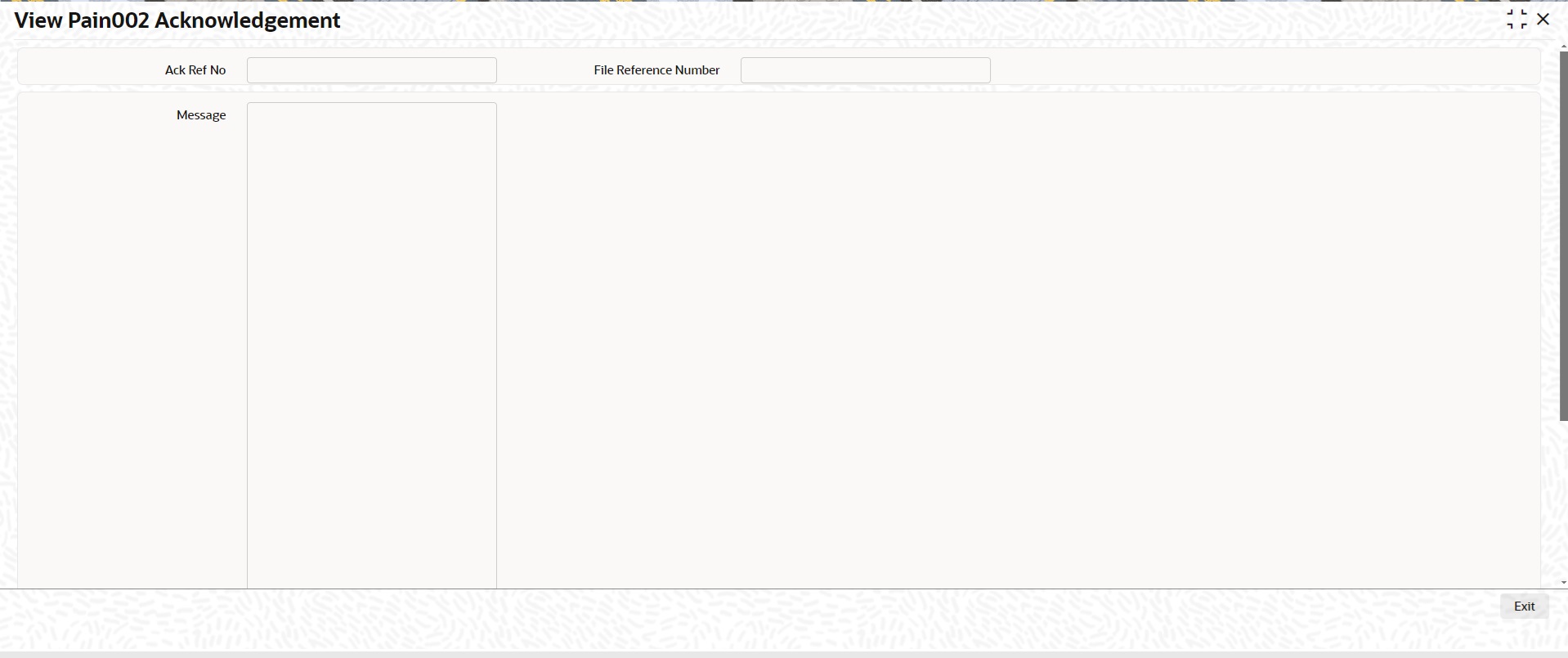
From the records listed, you can select a file and click on ‘Message’ action button to view the pain.002 message details.
2.2.6.3 View Batch Details
This button opens Bulk File Batch Summary screen listing the Batches received for the selected file. Only Single file can be selected for viewing Batch details. If multiple records are selected, system throws an error.
All users having access to Bulk file Batch Summary Screen (Function ID: PMSBATCH) can view the Batch details. No specific access right is required for this action.
2.2.6.4 Retry
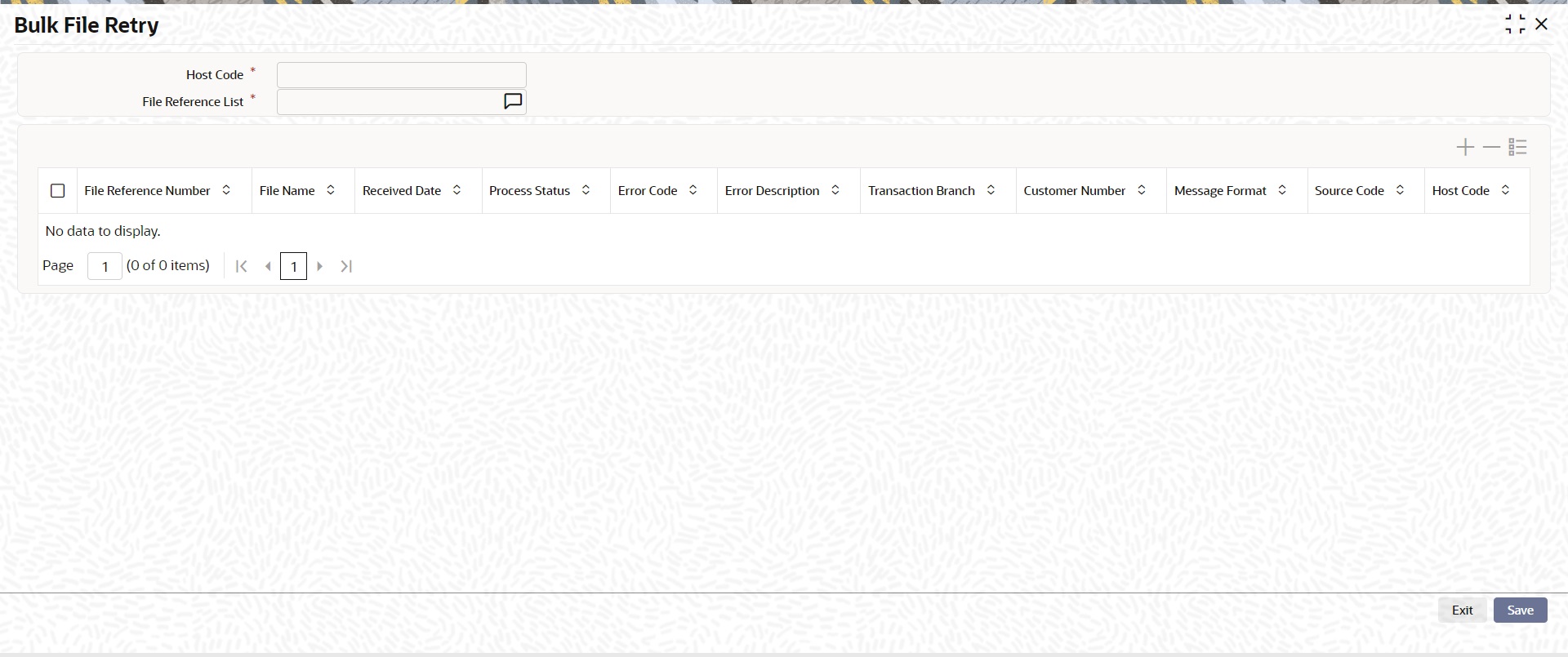
When you click Retry button “Bulk File Retry” sub-screen is launched to re-process error records.
You can invoke ‘Bulk File Batch Summary‘ screen by typing ‘PMSBATCH’ in the field at the top right corner of the Application tool bar and clicking on the adjoining arrow button.
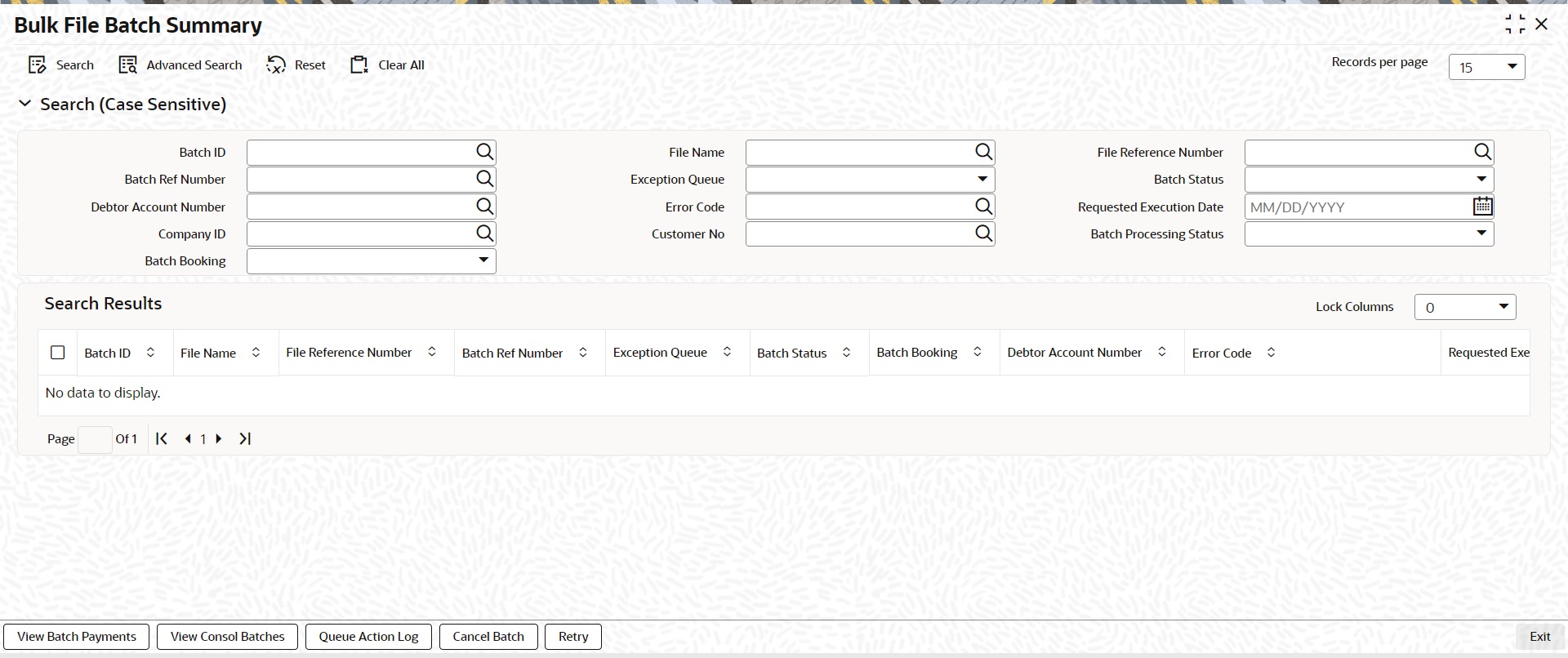
You can search for the records using one or more of the following parameters:
l Batch ID
l Batch Ref Number
l Debtor Account Number
l Company ID
l Batch Booking
l File Name
l Exception Queue
l Error Code
l Customer No
l File Reference Number
l Batch Status
l Requested Execution Date
l Batch Processing Status
Once you have specified the search parameters, click ‘Search’ button. The system displays the records that match the following search criteria.
Double click a record or select a record and click on Details button to view the detailed maintenance screen.
2.2.7.1 View Batch Payments
This button opens Bulk File Batch Payments Summary Screen (Function ID: PMSBTTXN). All the transaction records received for the selected Batch can be viewed.
A retry option is also available in Bulk File Batch Summary screen for retrying error records.
2.2.7.2 View Consol Batches
This button opens Bulk File Consolidated Batch Summary Screen (Function ID: PMSCONSL). All the consolidated batches for the selected Batch are displayed.
Note
Single Batch record only can be selected for viewing the Batch Payments and Consolidated Batch details.
2.2.7.3 Queue Action Log
You can view all the queue actions for the selected batch by clicking the ‘Queue Action Log’ action tab present in the screen.
2.2.7.4 Cancel Batch
This action can be performed by any user having access rights to the Batch Cancellation screen (Function ID PMSBATCN). Batch cancellation screen is opened in Full Batch Cancellation mode defaulting the Batch details of the selected record.
System allows only single record to be selected for cancellation.
2.2.7.5 Retry
When you click Retry button “Bulk Batch Retry” sub-screen is launched to re-process error records.
2.2.8 Bulk File Consolidated Batch Summary
You can invoke ‘Bulk File Consolidated Batch Summary‘ screen by typing ‘PMSCONSL’ in the field at the top right corner of the Application tool bar and clicking on the adjoining arrow button.
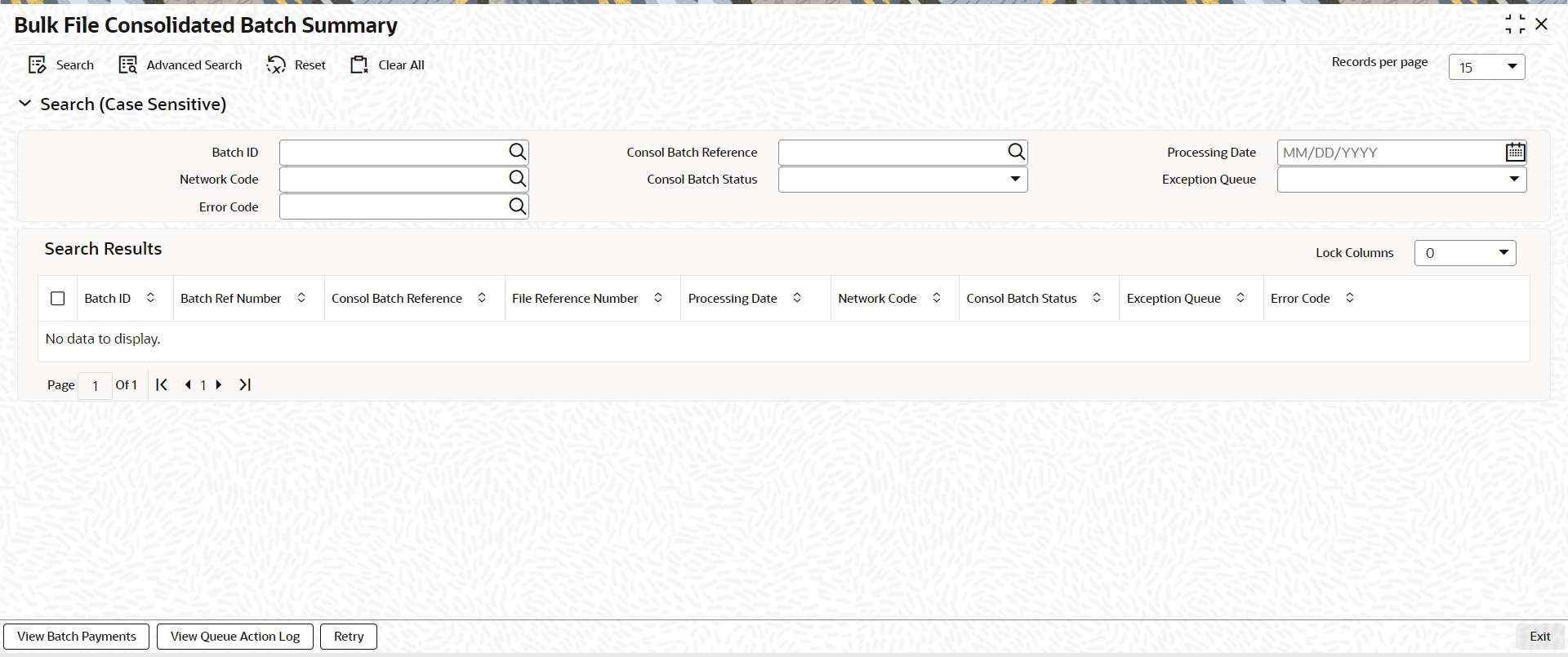
You can search for the records using one or more of the following parameters:
l Batch ID
l Processing Date
l Consol Batch Status
l Error Code
l Consol Batch Reference
l Network Code
l Exception Queue
Once you have specified the search parameters, click ‘Search’ button. The system displays the records that match the following search criteria.
Double click a record or select a record and click on Details button to view the detailed maintenance screen.
2.2.8.1 View Batch Payments
This button opens Bulk File Batch Payments Summary Screen (Function ID: PMSBTTXN). All the transaction records received for the selected Consolidated Batch can be viewed.
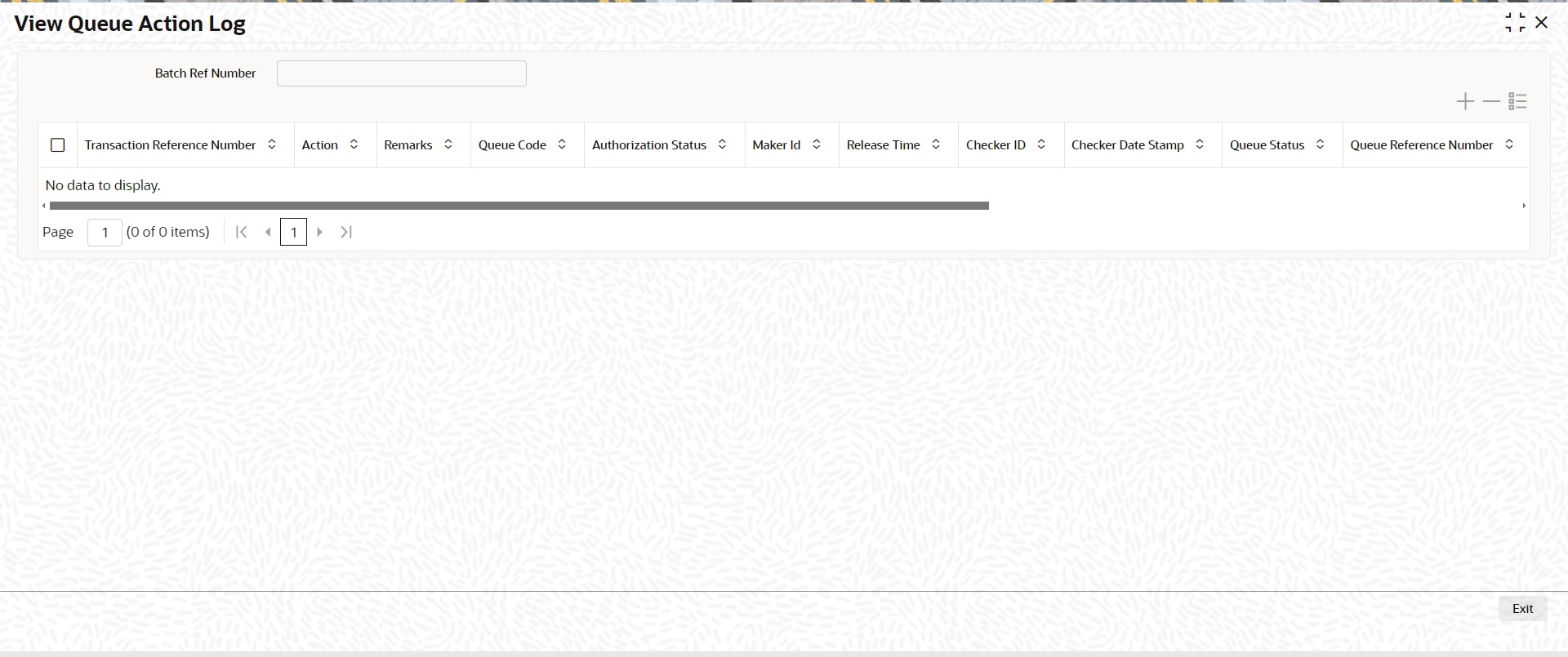
2.2.8.2 View Queue Action Log
You can view all the queue actions for the selected batch by clicking the ‘Queue Action Log’ action tab present in the screen.
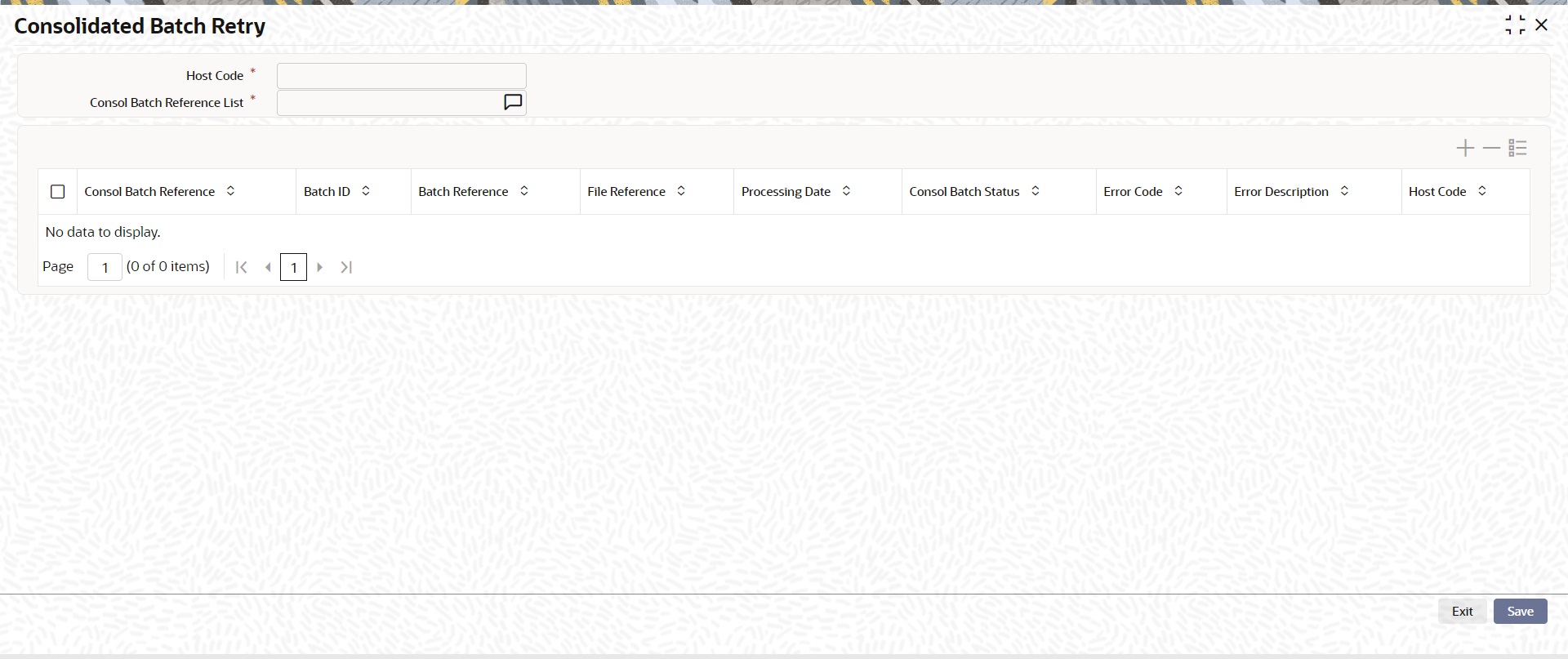
2.2.8.3 Retry
When you click Retry button “Consolidated Batch Retry” sub-screen is launched to re-process error records..
2.2.9 Batch File Batch Payment Summary
You can invoke ‘Batch File Batch Payment Summary‘ screen by typing ‘PMSBTTXN’ in the field at the top right corner of the Application tool bar and clicking on the adjoining arrow button.
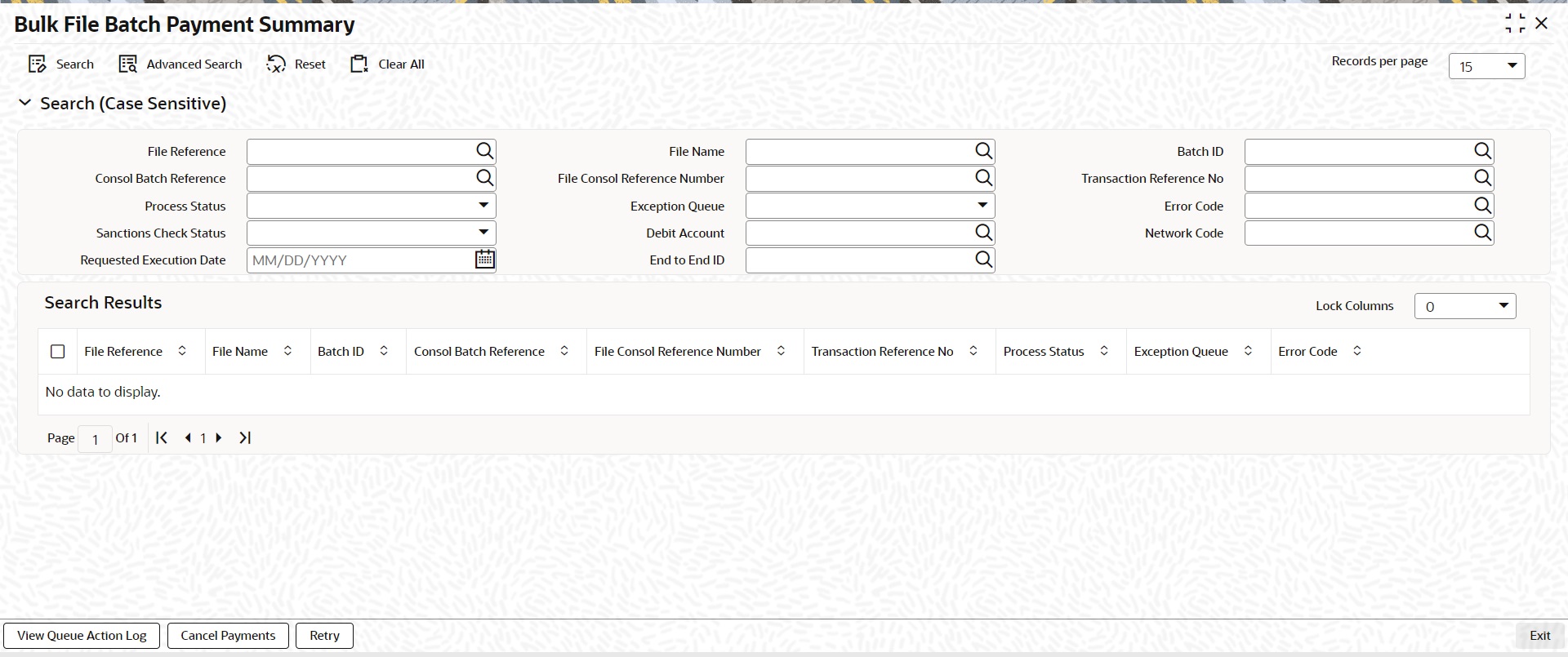
You can search for the records using one or more of the following parameters:
l File Reference
l Consol Batch Reference
l Process Status
l Sanctions Check Status
l Requested Execution Date
l File Name
l File Consol Reference Number
l Exception Queue
l Debit Account
l End to End ID
l Batch ID
l Transaction Reference No
l Error Code
l Network Code
Once you have specified the search parameters, click ‘Search’ button. The system displays the records that match the following search criteria.
Double click a record or select a record and click on Details button to view the detailed maintenance screen.
2.2.9.1 View Queue Action Log
You can view all the queue actions for the selected batch by clicking the ‘Queue Action Log’ action tab present in the screen.
2.2.9.2 Cancel Payment
You can select single or multiple payment records for the same Batch and initiate 'Cancel Payments' action. This can be done if the user is having access right to the screen Batch Cancellation (Function ID: PMDBATCN). The Batch Cancellation screen is opened in 'Partial Batch' cancellation mode listing the transaction records selected.
Note
System displays an error if the transactions selected belong to different Batch IDs.
2.2.9.3 Retry
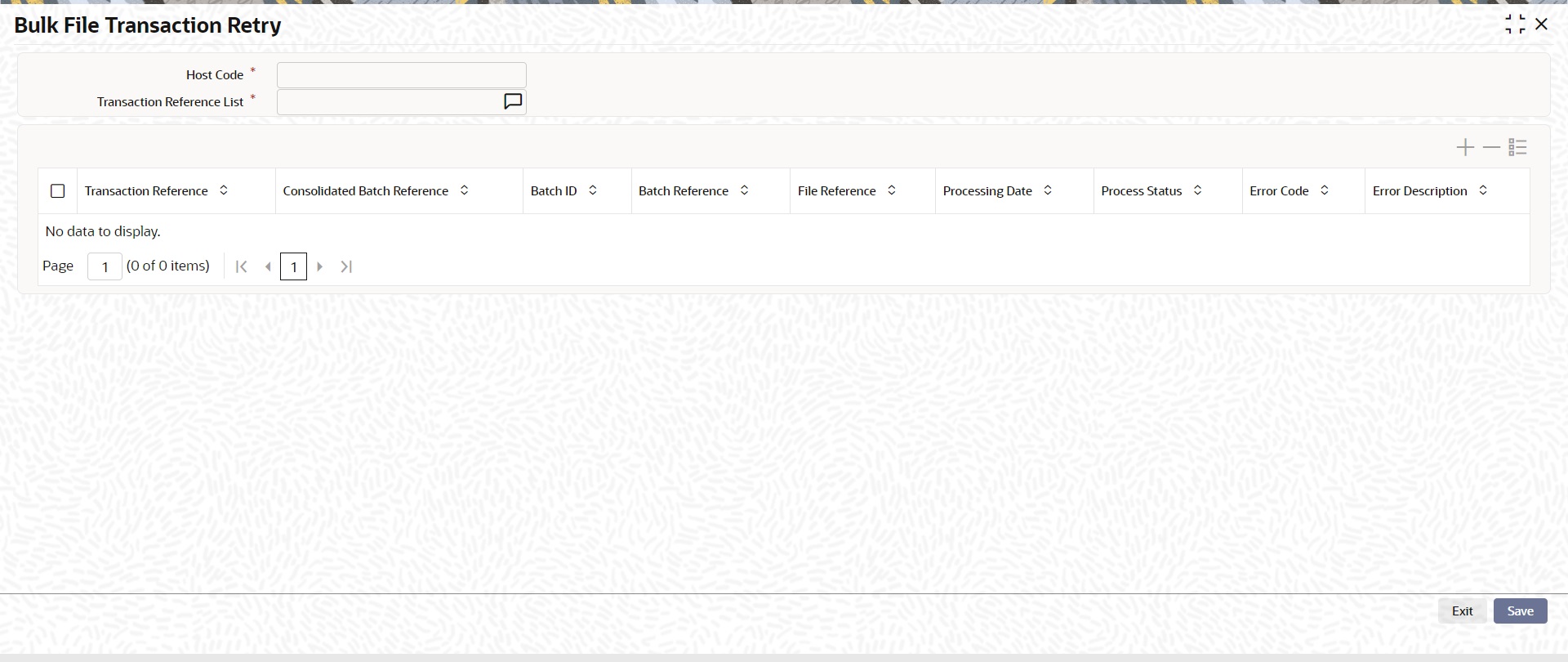
When you click Retry button “Bulk File Transaction Retry” sub-screen is launched to re-process file records.
You can generate customer payment status report pain.002 at the end of batch/file processing giving the current status for payment processing (e.g., reject, repair, passed STP, etc.). It is required to generate this report immediately post-processing and at any point thereafter.
2.3.1 File Level Status Report (L1)
l Pain.002 status message is generated if the pain.001 file is accepted/rejected. If the file is rejected due to format issues or the control sum being wrong, pain.002 is generated for the file rejected status.
l Group Status
– If the file is accepted, status is populated as ACCP (Accepted)
– If the file is rejected, status is populated as RJCT (Rejected). Individual batch/payment information will not be populated.
Note
System parameter FILE_LEVEL_PAIN002_CODE is provided if any other allowed group code status is to be populated other than ACCP.
l StatusReasonInformation – Reason Code
– For the group status level reason code, the following error-codes will be listed:
|
Exception scenario |
Error code |
Status level |
|
Invalid File Format |
|
Group |
|
Invalid Controlsum |
|
Group |
|
Any other error |
|
Group |
Note
Status Reason Information tag will not be populated in pain.002 if the reason code mapping is not found for the exception. The system will not fail the message generation for this reason.
2.3.2 Branch/Transaction Level Status Report (L2)
Generation of batch level pain.002 status reports are done in the following cases:
l All transactions in the batch are completed processing
l All success (Case 1)
– PaymentInformationStatus <PmtInfSts> is populated as ACSC - Settlement on the debtor's account has been completed.
– Reason code is not applicable
– Transaction level details are not populated
l All transaction are future valued (Case2)
– PaymentInformationStatus <PmtInfSts> is populated as PEND - Settlement on the debtor's account has been completed.
– Reason code is not applicable
– Transaction level details is not populated
l All cancelled or rejected (Case3)
– PaymentInformationStatus <PmtInfSts> is populated as RJCT - Payment initiation or individual transaction included in the payment initiation has been rejected
– PaymentInformationStatus <PmtInfSts> StatusReasonInformation <StsRsnInf> is populated for the batch
– PaymentInformationStatus <PmtInfSts> StatusReasonInformation <StsRsnInf> is populated for the batch
l Partly success, rest are rejected/cancelled/pending (Case4)
– PaymentInformationStatus <PmtInfSts> is populated as PART- A number of transactions have been accepted, whereas another number of transactions have not yet achieved 'accepted' status
– PaymentInformationStatus <PmtInfSts> StatusReasonInformation <StsRsnInf> is not populated for the batch
– Number of transactions and transaction status is populated at payment information level.
– TransactionStatus <TxSts> & StatusReasonInformation <StsRsnInf> will be populated for rejected transactions. Reason code population is based on the error code mapping
l For Case1, 2 & 3 listed above, transaction level details are not populated in pain.002. Batch level reason code is applicable for case 3.
l A batch can be cancelled as a result of a cancellation request received or can be rejected manually from the exception queues due to the following validation failures:
|
Batch Exception scenario |
Error code |
Status level |
|
Invalid debtor account (on cancellation from BO queue due to customer/account status validations) |
|
Payment Information |
|
Duplicate Payment Information ID ((on cancellation from BO queue due to duplicate check) |
|
Payment Information |
|
If cancelled from ECA queue |
|
Payment Information |
|
FX queue cancellation |
|
Payment Information |
|
Batch cancellation based on customer request |
|
Payment Information |
l For case 4 transaction level details of the rejected/cancelled transaction and the reason code will be populated.
|
Exception scenario |
Error code |
Status level |
|
Invalid debtor account (on cancellation from BO queue due to customer/account status validations) |
|
Transaction Status |
|
Transaction Duplicate check |
|
Transaction status |
|
If cancelled from ECA queue |
|
Transaction status |
|
FX queue cancellation |
|
Transaction status |
|
transaction cancellation based on customer request |
|
Transaction status |
l If no linkage to reason code is found, no reason details are populated.
2.3.3 R-Transaction Status Report (L3)
This report is generated as a last step of processing the following R-Transactions:
l SCT return of outward transaction
l SCT positive/negative response to recall of outward transaction
Note
R transaction related status reason codes are taken as is from the transaction and whether ISO reason code or not, it is validated from existing Reject code maintenance PMDRJMNT.
You can cancel the Batches received in pain.001 files, using this screen.
You can invoke ‘Batch Cancellation Detailed‘ screen by typing ‘PMDBATCN’ in the field at the top right corner of the Application tool bar and clicking on the adjoining arrow button. Click New button on the Application toolbar.
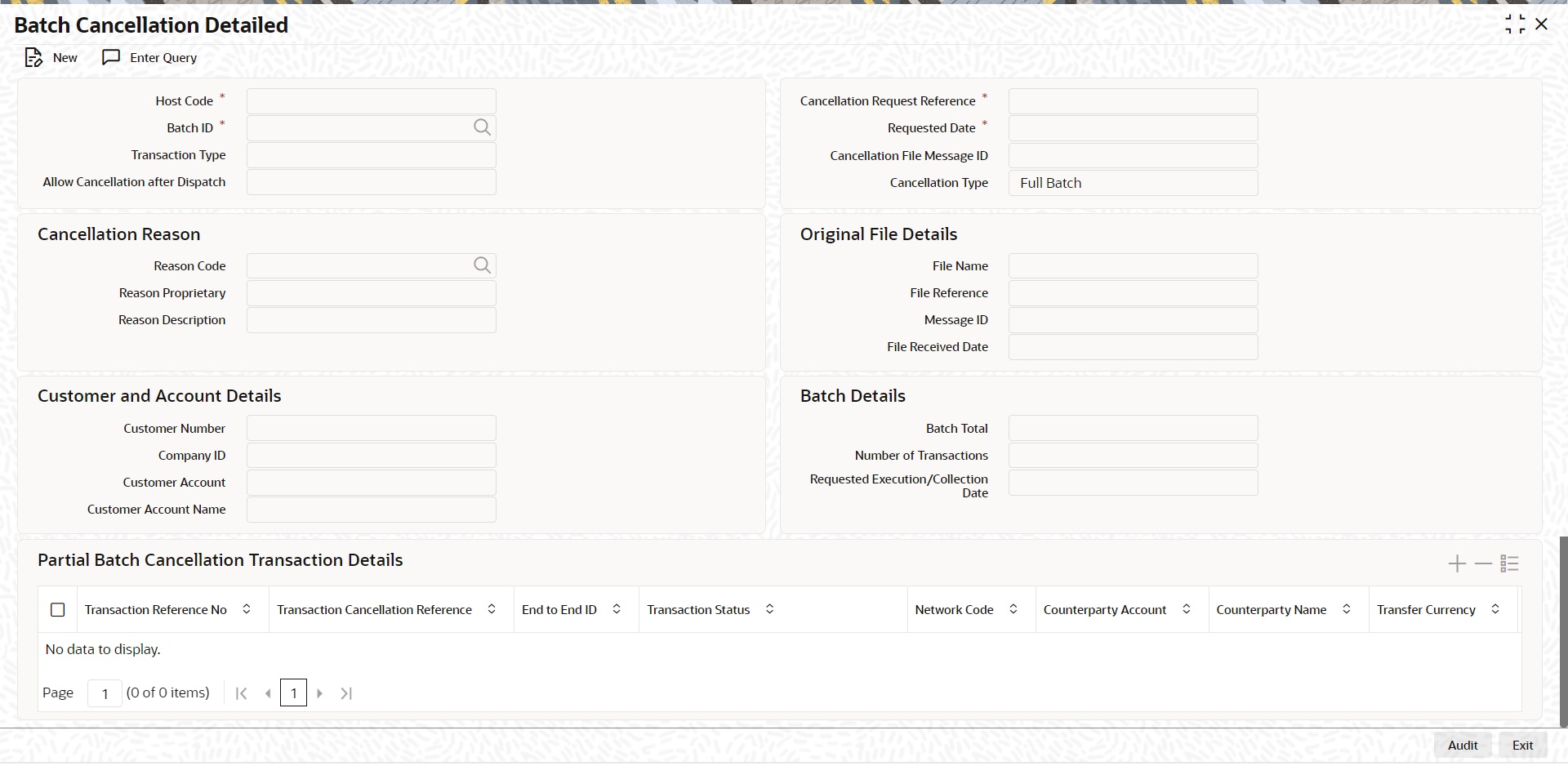
You can specify the following details:
Host Code
System defaults the Host Code that is linked to the logged in branch.
Batch ID
Specify the Batch ID from the list of values.
Transaction Type
Select the Transaction Type between Cancellation and Reversal.
Allow Cancellation after Dispatch
Select the Allow Cancellation after Dispatch between Yes or No. This field is mandatory if transaction type is selected as 'Cancellation'. If the Network does not allow cancellation, the field is defaulted as 'No' and disabled.
If Network allows cancellation, this field value is defaulted as 'Yes'. You can modify the option to 'No', if required, for not processing the cancellation if the dispatch is over.
Note
This field is applicable for ACH CT transactions only.
Cancellation Request Reference
System generated Reference Number for the Cancellation Request received.
Requested Date
System defaults the Requested Date as Current Date.
Cancellation File Message ID
If the Cancellation type is 'File', the Message ID of pain.007 file is populated in this screen.
Cancellation Type
Select the Cancellation Type between the values 'Full Batch' or 'Partial Batch'.
Cancellation Reason
Reason Code
Specify a valid Reason Code for Batch cancellation from the list of values available.
Reason Description
System defaults the Reason Description for the Reason Code selected.
Reason Proprietary
You can specify free text in this field upto 35 characters.
On the selection of Batch ID field, below fields are populated:
l Original File Details: File Name, File Reference, Message ID, File Received Date
l Customer and Account Details: Customer Number, Company ID, Customer Account, Customer Account Name
l Batch Details: Batch Total, Number of Transactions, Requested Execution/Collection Date
Partial Batch Cancellation Transaction Details
System validates that no other cancellation request record is pending for authorization for the same file upon saving the details.Also the following validations are done upon Saving.
l Transaction Reference Number
l Transaction Cancellation Reference
l End to End ID
l Transaction Status
l Network Code
l Counterparty Account
l Counterparty Name
l Transfer Currency
l Transaction Amount
l Cancellation Request Status
l Error Code
Note
Batch Cancellation Changes are same for the batches uploaded from pain.008 for ACH DD.
Cancel actions performed from Batch cancellation screen are displayed in Cancellation details of Transaction view screen for Book Transfer and generic ACH CT.
2.4.1 Batch Cancellation Checks
The related processing of cancellation is explained in the below table depending on the processing stage at which the request is received:
|
Batch Cancellation Check |
Resultant system action |
|
On successfully completing debit account validations which are not overridable. OR On releasing the batch from PE queue |
Check whether batch is marked for cancellation. If yes, mark the batch as cancelled. |
|
After successfully completing overridable exceptions OR On releasing the batch from BO queue |
|
|
On completion of network resolution OR On releasing the batch from Network resolution queue |
Check whether batch is marked for cancellation. If yes, mark each transaction record as cancelled. |
|
On segregating urgent and non-urgent payments, the non-urgent payment batches will be checked for batch cancellation |
Check whether batch is marked for cancellation. If yes, mark the Consol batch as cancelled. Note: Consol batch is the batch created after re-grouping |
|
After holiday check & processing date derivation of non-urgent batches |
|
|
On completion of FX rate fetch for non-urgent batches OR On release of batch from FX queues |
Check whether batch is marked for cancellation. If yes, mark the Consol batch as cancelled. Request for FX unwind will be sent. |
|
On completion of amount block for debit amount for non-urgent batches OR On release of the batch from ECA queue |
Check whether batch cancellation request received. If yes, mark the Consol batch as cancelled. Requests for FX & ECA unwind will be sent. |
|
Individual payment processing of Non urgent transactions completed last stage of individual payment processing |
Check whether batch cancellation request received. If yes, mark each transaction record as cancelled. Requests for FX & ECA unwind will be sent transaction-wise, if already done. |
|
Before Network cutoff check of a success batch |
Check whether batch cancellation request received. If yes, mark the Consol batch as cancelled. Requests for FX & ECA unwind will be sent. Transaction records of the Consol Batch will be marked as cancelled. |
|
On completion of network cutoff check |
|
|
Before doing accounting handoff |
|
|
Before doing dispatch |
Check whether batch cancellation request received. If yes, mark each transaction record as cancelled. Requests for FX & ECA unwind will be sent transaction-wise .Accounting entries will be reversed. |
|
When successful transactions of a future dated batch is sent for value date processing |
Check whether batch cancellation request received. If yes, mark the batch and the related payment records as cancelled. |
|
When successful transactions of a carried forward batch is sent for value date processing |
Check whether batch cancellation request received. If yes, mark the batch and related payment records as cancelled. Requests for FX & ECA unwind will be sent. |
|
When Urgent payment processing (individual)completed each stage or is released from an exception queue |
Check whether batch cancellation request received. If yes, mark each transaction record as cancelled. Requests for FX & ECA unwind will be sent transaction-wise, if already done. |
|
Transaction processing is completed with dispatch for a batch/consol batch |
Cancellation will not be applicable |
2.4.2 Batch Cancellation Summary
You can view all the Batch Cancellation summary through this screen.
You can invoke ‘Batch Cancellation Summary‘ screen by typing ‘PMSBATCN’ in the field at the top right corner of the Application tool bar and clicking on the adjoining arrow button.Click new button on the Application toolbar.
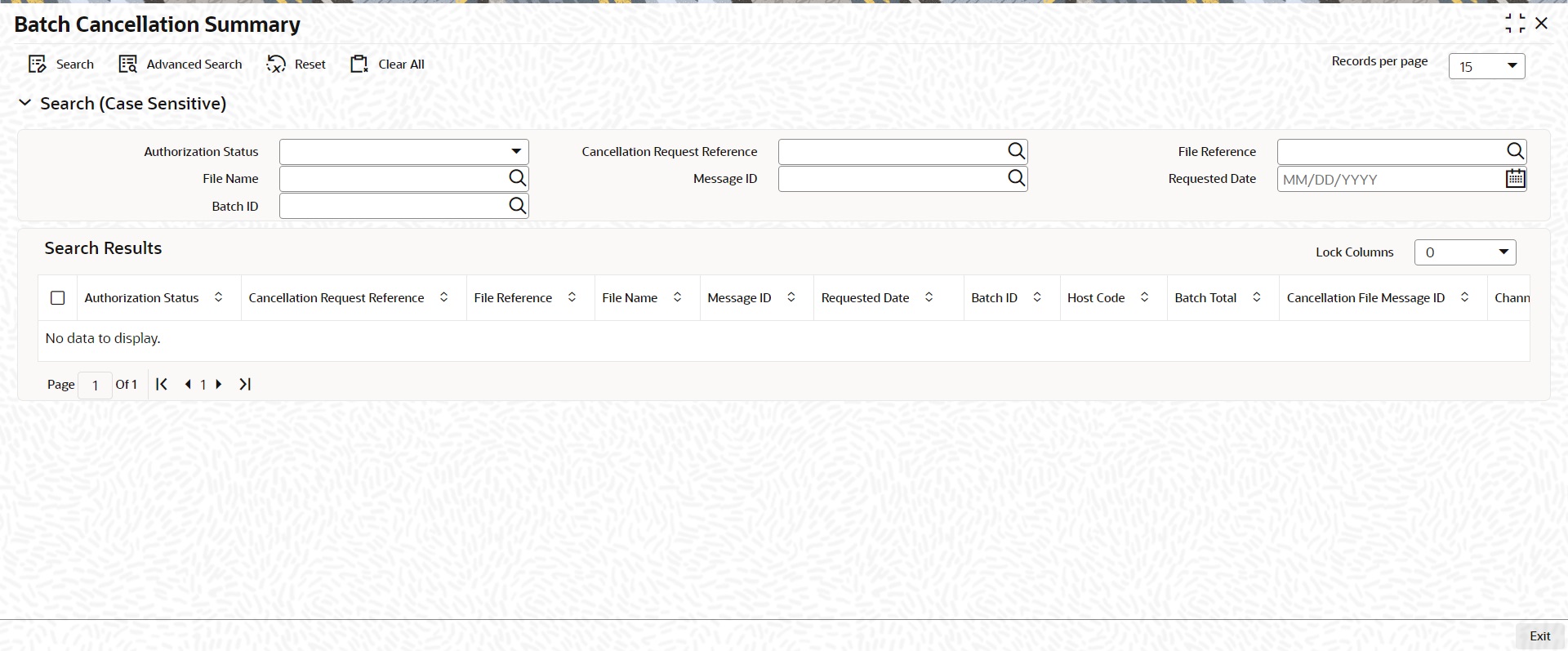
You can search for the records using one or more of the following parameters:
l Authorization Status
l Cancellation Request Reference
l File Reference
l File Name
l Message ID
l Requested Date
l Batch ID
Once you have specified the search parameters, click ‘Search’ button. The system displays the records that match the following search criteria.
Double click a record or select a record and click on Details button to view the detailed maintenance screen.