5. Generic Wires ISO Inbound Transaction
5.1 SWIFT CBPRPlus Inbound Transaction
This section details the Generic Wires ISO SWIFT CBPRPlus transaction screens.
This section contains the following sub-sections:
l Section 5.1.1, "Cross Border Inbound FI to FI Customer Credit Transfer Input"
l Section 5.1.2, "Cross Border Inbound FI Credit Transfer Input"
l Section 5.1.3, "Cross Border Inbound FI to FI Customer Credit Transfer View"
l Section 5.1.4, "Cross Border Inbound FI Credit Transfer View"
5.1.1 Cross Border Inbound FI to FI Customer Credit Transfer Input
You can do manual booking of customer transfer transactions through this screen.
You can invoke “Cross Border Inbound FI to FI Customer Credit Transfer Input” screen by typing the function ID ‘PSDICBCT’ in the field at the top right corner of the Application tool bar and clicking on the adjoining arrow button.
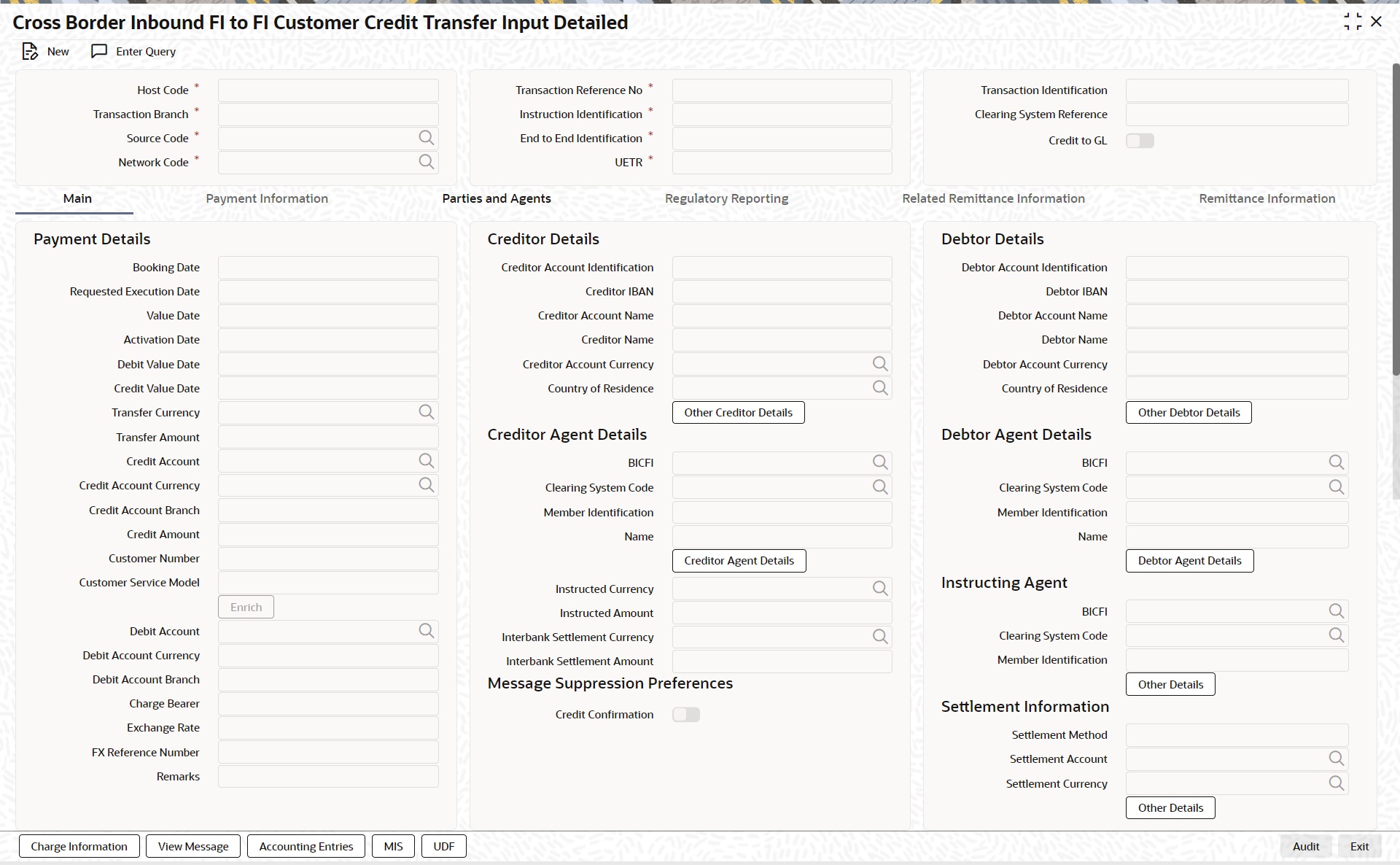
Click ‘New’ button on the Application toolbar.
Specify the following fields:
Host Code
System defaults the host code of the user’s logged in branch on clicking ‘New’ button.
Transaction Reference Number
System defaults the transaction reference number on clicking ‘New’ button.
Transaction Identification
Specify the transaction identification.
Transaction Branch
System defaults the transaction branch of the user’s logged in branch on clicking ‘New’ button.
Instruction Identification
System defaults this field with the transaction reference on clicking ‘New’ button.
Clearing System Reference
Specify the clearing system reference for the transaction.
Credit to GL
By default, this check box is unselected. You can select this check box if Credit to GL is required.
Source Code
Select from the list of values for source code.
End to End Identification
System defaults this field with the transaction reference on clicking ‘New’ button.
Network Code
Select from the list of values for network code. This list contains all Cross-border MX networks defined in Network code definition (PMDNWCOD) for the host.
UETR
Specify the UETR value.
5.1.1.1 Main Tab
Click the ‘Main’ tab in the ‘Cross Border Inbound FI to FI Customer Credit Transfer Input’ screen.
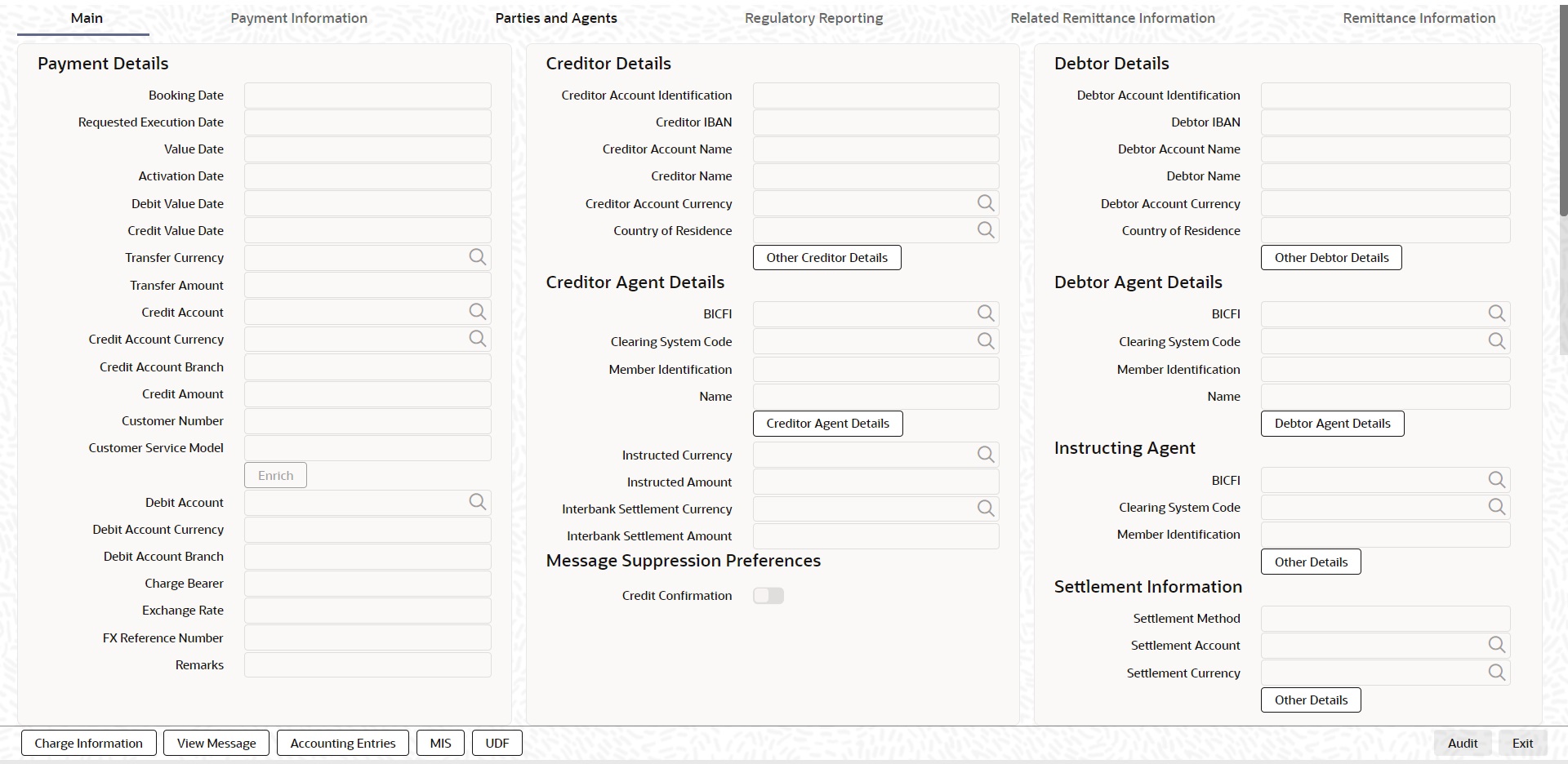
Payment Details
System defaults the following fields to current branch date:
l Booking Date
l Requested Execution Date
l Value Date
l Activation Date
Debit Value Date
Specify the debit entry value date.
Credit Value Date
Specify the credit entry value date.
Transfer Currency
Select from the list of values for transfer currency.
Transfer Amount
Specify the transfer amount.
Credit Account
Select from the list of values listed. This list contains all open and authorized customer accounts maintained in external customer account (STDCRACC), General Ledger Codes maintained in External Chart of Accounts (STDCRGLM) and loan account numbers maintained in external loan account (STDCRCLN).
Credit Account Currency
System populates this field with the account currency based on the credit account chosen.
Credit Account Branch
System populates this field with the account branch based on the credit account chosen.
Credit Amount
Specify the credit amount. If you do not enter this value, the system populates this field based on specified Transfer currency/amount.
Customer Number
System defaults the resolved customer number.
Customer Service Model
System defaults the customer service model of the resolved customer number.
Debit Account
Specify the debit account of the customer.
Note
l You can input the Nostro (mirror) account that would be debit as part of accounting.
l You can leave this field blank if the sender of the message is the Currency Correspondent.
l You can click ‘Enrich’ button to automatically populate this field with the associated Nostro/Vostro account.
Debit Account Currency
System populates this field with the Currency of the Nostro account that would be debit.
Debit Account Branch
System populates this field with the account branch of debit account.
Charge Bearer
Select from the list of values for charge bearer. This list contains values CRED, DEBT, and SHAR.
Exchange Rate
Specify the Exchange Rate if Debit account currency is different from Transfer currency (or) Instructed Currency is different from Transfer Currency.
FX Reference Number
Specify the FX Reference Number.
Remarks
Specify the Remarks, if applicable.
Creditor Details
Creditor Account Identification
System defaults this field based on credit account selected. You can modify the account number.
Creditor IBAN
System defaults this field based on credit account selected. You can modify the IBAN.
Creditor Account Name
Specify the debited account name.
Creditor Name
Specify the credited customer name.
Creditor Account Currency
Select from the list of values the selected credit account currency.
Country of Residence
Select from the list of values for country of residence.This field lists the 2-Char ISO Country code list from the factory-shipped table.
Note
Country of Residence (where the party physically lives) is used only if different from postal address /country.
Other Creditor Details Button
Click ‘Other Creditor Details’ button on ‘Main’ tab under ‘Creditor Details’ header to invoke the sub screen. This screen shows the Creditor Details.
Refer to the Section 5.1.1.2, "Other Details Button" for details of fields and sub screen of the ‘Creditor Details’ button.
Creditor Agent Details
BICFI
Select from the list of values for BICFI code.
Clearing System Code
Select from the list of values for clearing system code.
Note
You should input either BICFI or Clearing System Code/Member Identification.
Member Identification
Specify the clearing ID code.
Name
System defaults the name as per selected BICFI code.
Creditor Agent Details Button
Click ‘Creditor Agent Details’ button on ‘Main’ tab under Creditor Agent Details header to the sub screen. This screen shows the Creditor Agent Details.
Refer to the Section 5.1.1.3, "Agent Details Button" for details of fields and sub screen of the ‘Creditor Agent Details’ button.
Instructed Currency
Select from the list of values for instructed currency.
Instructed Amount
Specify the debit amount.
Interbank Settlement Currency
Display same as transfer currency.
Interbank Settlement Amount
Display final amount resolved.
Message suppression Preferences
Credit Confirmation
By default, the check box is unselected. If you select the check box, credit information is suppressed.
Debtor Details
Debtor Account Identification
Specify the Debtor Account Identification.
Debtor IBAN
Specify the Debtor IBAN.
Debtor Account Name
Specify the creditor account name.
Debtor Name
Specify the debited customer name.
Debtor Account Currency
Specify the currency of the selected debit account.
Country of Residence
Select from the list of values for country of residence.This field lists the 2-Char ISO Country code list from the factory-shipped table.
Note
Country of Residence (where the party physically lives) is used only if different from postal address /country.
Other Debtor Details Button
Click ‘Other Debtor Details’ button on ‘Main’ tab under Debtor Details header to invoke the sub screen. This screen shows the Debtor Details.
Refer to the Section 5.1.1.2, "Other Details Button" for details of fields and sub screen of the ‘Other Debtor Details’ button.
Debtor Agent Details
BICFI
Select from the list of values for BICFI code.
Clearing System Code
Select from the list of values for clearing system code.
Member Identification
Specify the clearing ID code.
Name
System defaults the name as per selected BICFI code.
Debtor Agent Details Button
Click ‘Debtor Agent Details’ button on ‘Main’ tab under Debtor Agent Details header to the sub screen. This screen shows the Debtor Agent Details.
Refer to the Section 5.1.1.3, "Agent Details Button" for details of fields and sub screen of the ‘Debtor Agent Details’ button.
Instructing Agent
BICFI
Select from the list of values for BICFI code.
Clearing System Code
Select from the list of values for clearing system code.
Member Identification
Specify the clearing ID code.
Other Details Button
Click ‘Other Details’ button on ‘Main’ tab under Instructed Agent header to invoke this screen. This screen shows the Instructing Agent Details.
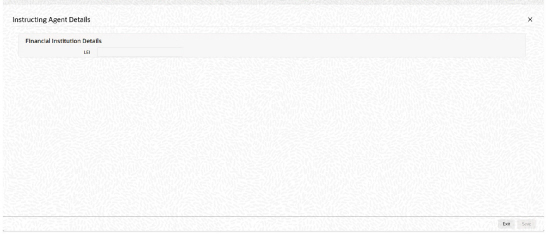
Specify the following fields available for this screen:
Financial Institution Details
LEI
Specify LEI of the agent.
Settlement Information
Settlement Method
Select the settlement method for the transaction. The drop down list contains values INDA, INGA, and COVE.
Settlement Account
Select from the list of values for settlement account.
Settlement Currency
System defaults the settlement currency as per the selected settlement account.
Other Details Button
Click ‘Other Details’ button on ‘Main’ tab under Settlement Information header to invoke this screen. This screen shows the Settlement Information Details.
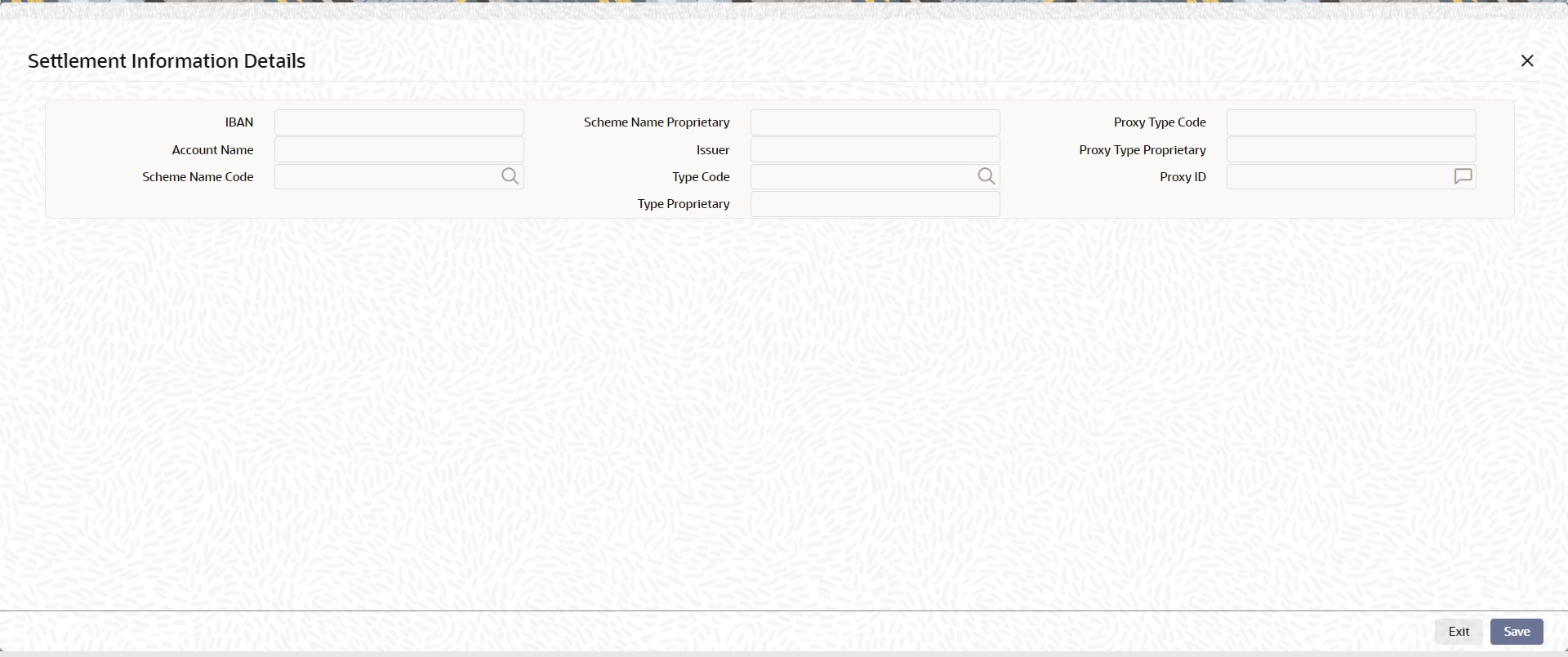
Following fields are available for this screen:
IBAN
System defaults IBAN of the agent as per the provided settlement account.
Scheme Name Proprietary
Specify the Scheme Name Proprietary of the agent.
Proxy Type Code
Select the Proxy Type Code for the agent. The drop down list contains values TELE, EMAL, and DNAM.
Account Name
System defaults Account Name of the agent as per the provided settlement account.
Issuer
Specify the Issuer of the agent.
Proxy Type Proprietary
Specify the Proxy Type Proprietary of the agent.
Scheme Name Code
Select from the list of values for Scheme Name Code of the agent.
Type Code
Select from the list of values for Type Code for the agent.
Proxy ID
Specify the proxy ID of the agent.
Type Proprietary
Specify the Type Proprietary of the agent.
The ‘Other Creditor Details’ and ‘Other Debtor Details’ button under ‘Main’ tab contains similar fields and sub screen. Depending upon which button you click, the screen header name changes.
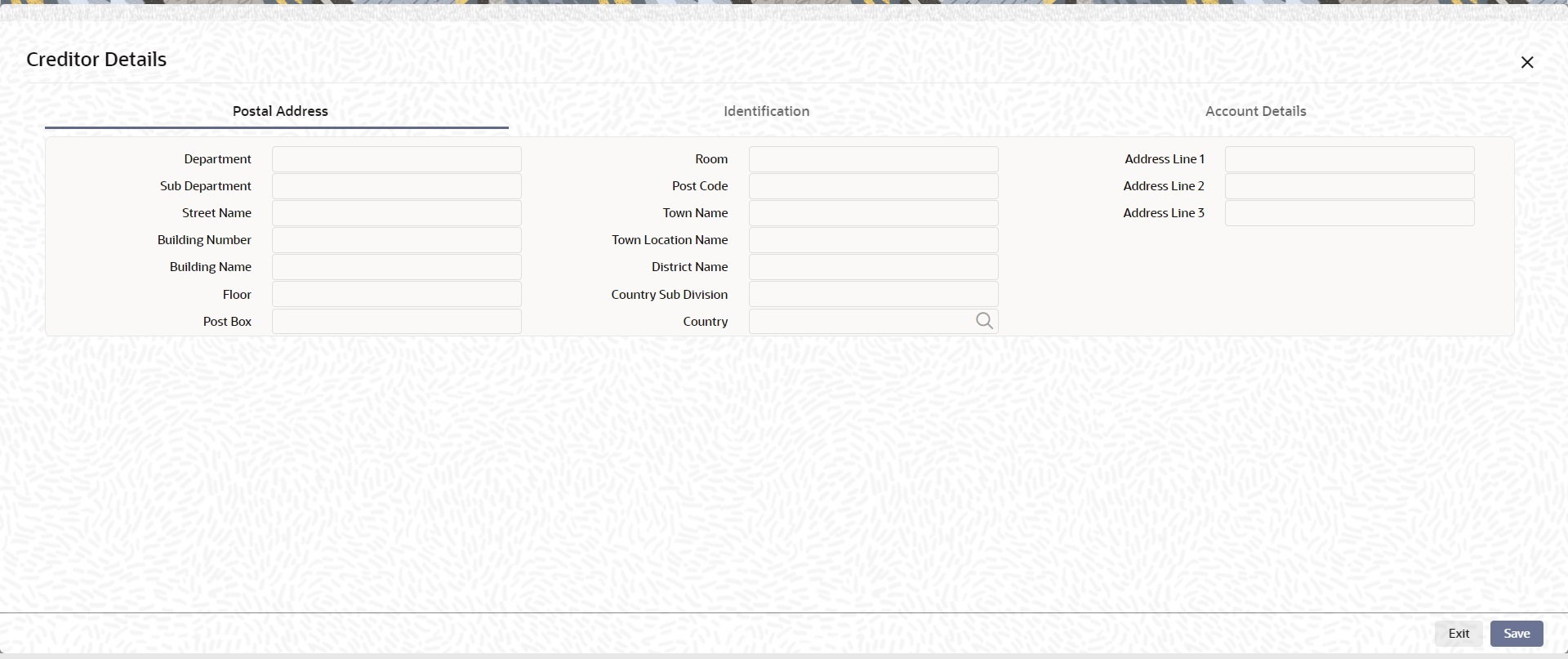
Postal Address
Specify the following fields available for this screen:
l Department
l Sub Department
l Street Name
l Building Number
l Building Name
l Floor
l Post Box
l Room
l Post Code
l Town Name
l Town Location Name
l District Name
l Country Sub Division
l Country
l Address Line 1
l Address Line 2
l Address Line 3
Identification
Click ‘Identification’ tab to invoke this screen.
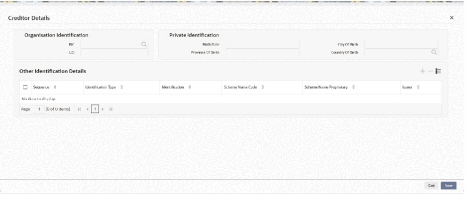
Specify the following fields for Debtor and Creditor. These fields are available under Organisation Identification:
l BIC
l LEI
Specify the following fields for Debtor and Creditor. These fields are available under Private Identification:
l Birth Date
l Province of Birth
l City of Birth
l Country of Birth
Specify the following fields for Debtor and Creditor. These fields are available under Other Identification Details:
l Identification Type
l Identification
l Scheme Name Code
l Issuer
Account Details
Click ‘Account Details’ tab to invoke this screen.

Specify the information into following fields for the agents:
l Type Code
l Type Proprietary
l Scheme Name Code
l Scheme Name Proprietary
l Issuer
l Proxy Type Code
l Proxy Type Proprietary
l Proxy ID
Note
l If you input Type information, either input Type Code (or) Type Proprietary.
l If you input Scheme information, either input Schema Name Code (or) Schema Name Proprietary.
l If you input Proxy information, either input Proxy Type Code (or) Proxy Type Proprietary.
l If you input Proxy information, you must input Proxy ID.
The ‘Creditor Agent Details’ and ‘Debtor Agent Details’ button under ‘Main’ tab contains similar fields and sub screen. Depending upon which button you click, the screen header name changes.
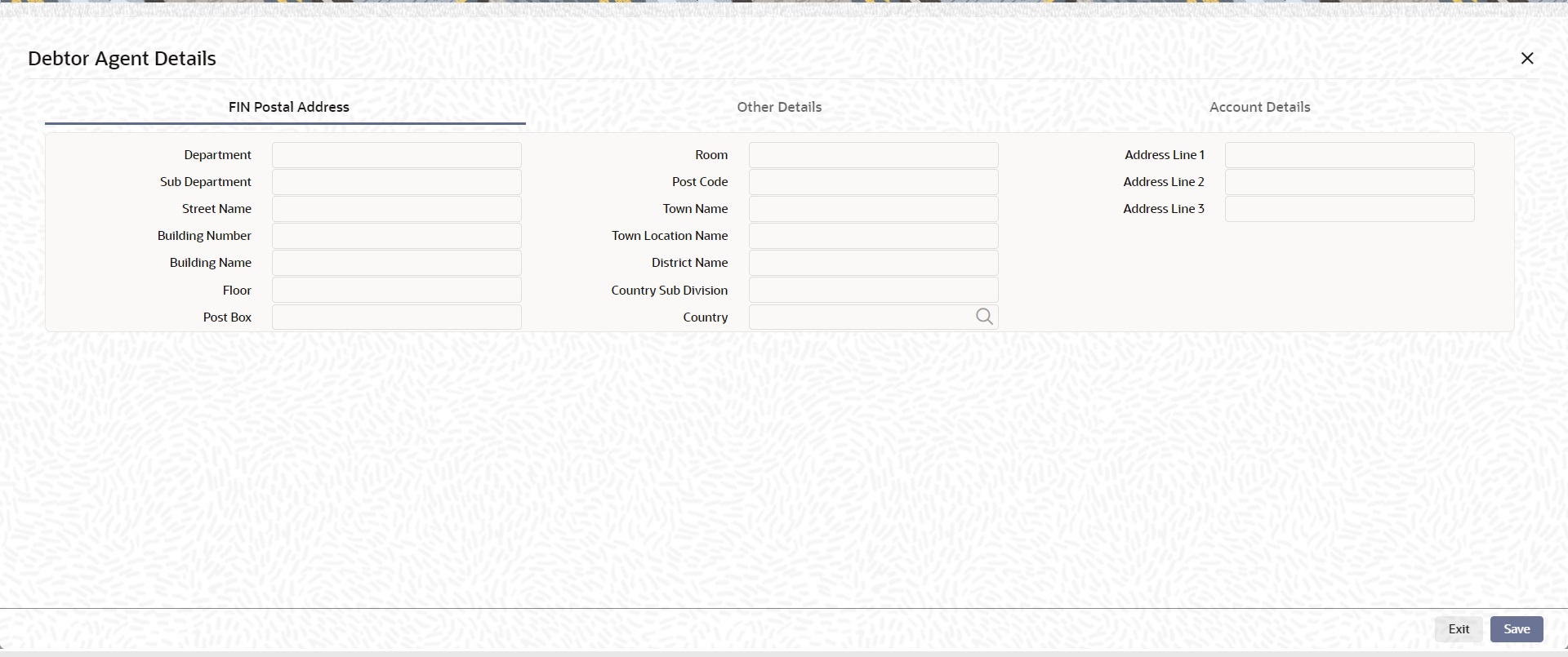
FIN Postal Address
Specify the following fields available for this screen:
l Department
l Sub Department
l Street Name
l Building Number
l Building Name
l Floor
l Post Box
l Room
l Post Code
l Town Name
l Town Location Name
l District Name
l Country Sub Division
l Country
l Address Line 1
l Address Line 2
l Address Line 3
Other Details
Click ‘Other Details’ tab to invoke this screen.
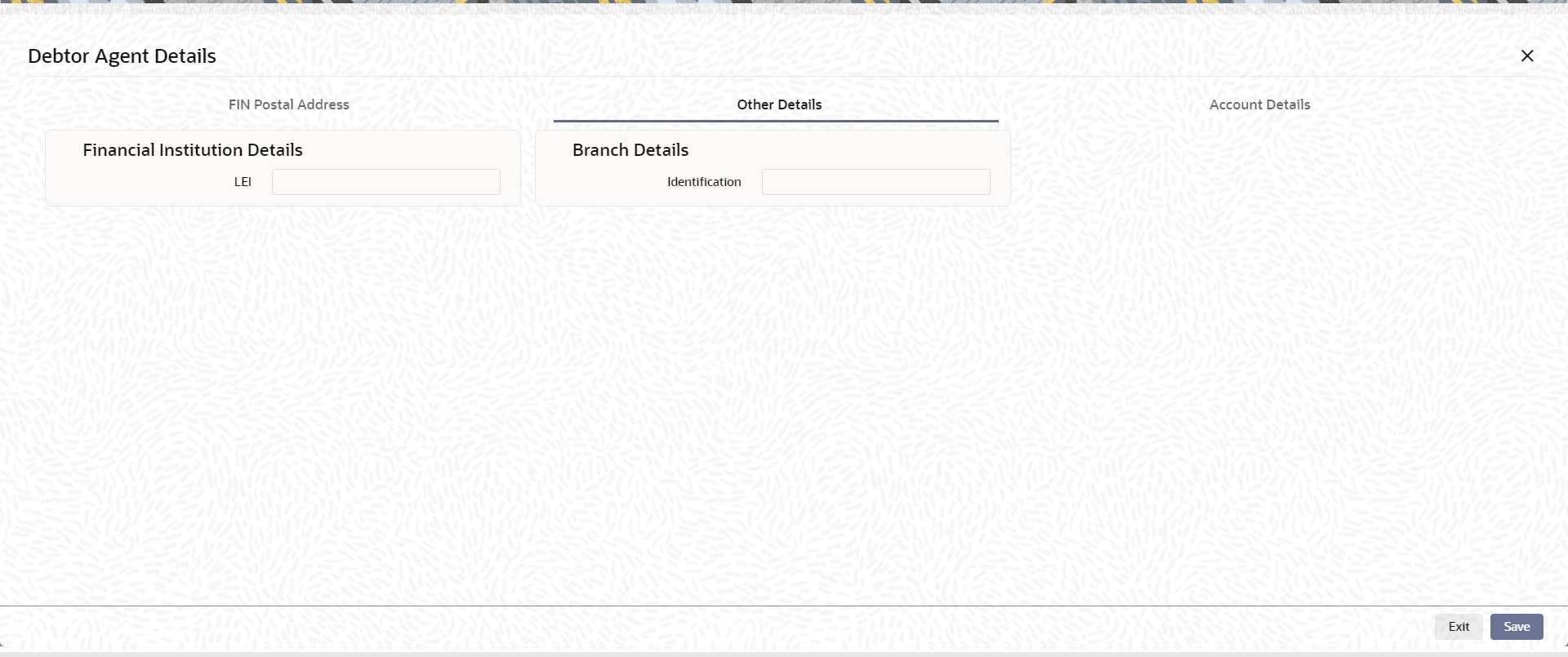
Specify the following fields available for this screen:
Financial Institution Details
LEI
Specify LEI of the agent.
Branch Details:
Identification
Specify Identification of the agent.
Account Details
Click ‘Account Details’ tab to invoke this screen.
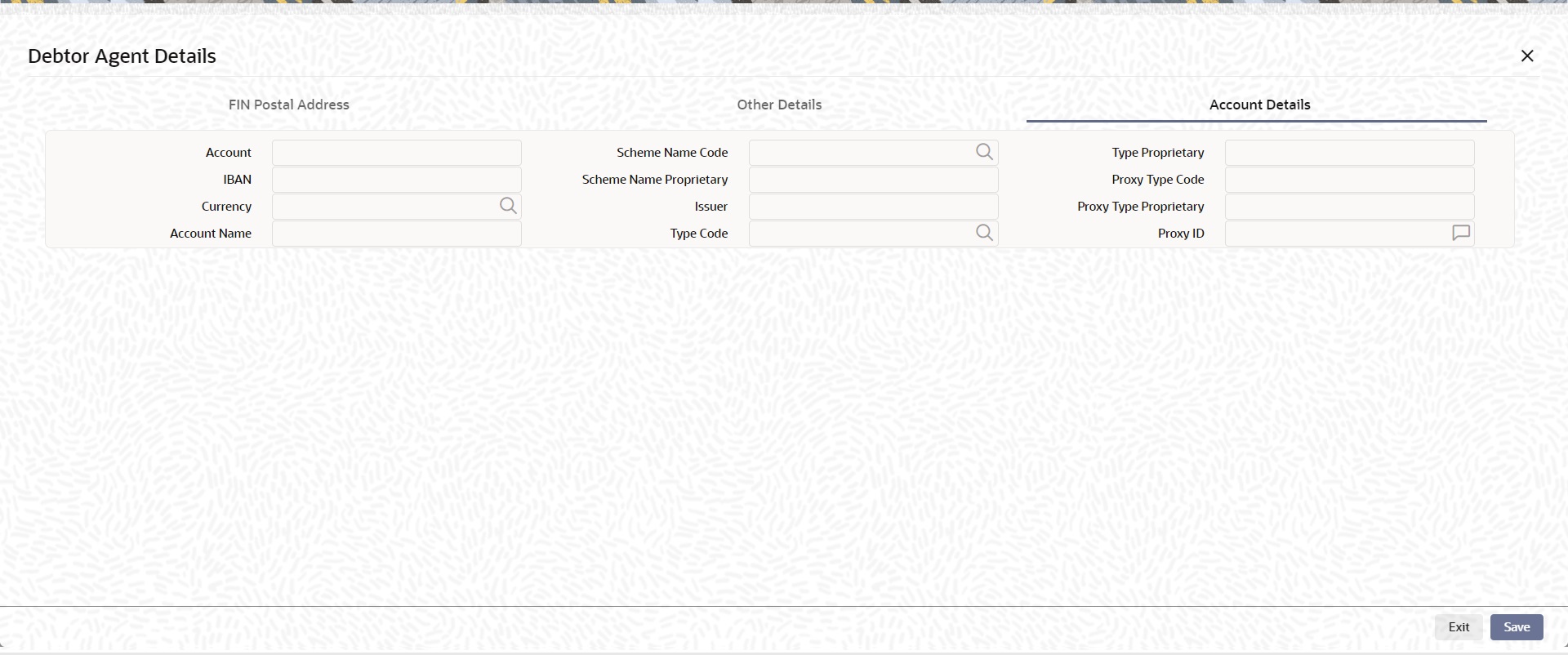
Specify the information into following fields for the agents:
l Account
l IBAN
l Currency
l Account Name
l Scheme Name Code
l Scheme Name Proprietary
l Issuer
l Type Code
l Type Proprietary
l Proxy Type Code
l Proxy Type Proprietary
l Proxy ID
Note
l If you input Type information, either input Type Code (or) Type Proprietary.
l If you input Scheme information, either input Schema Name Code (or) Schema Name Proprietary.
l If you input Proxy information, either input Proxy Type Code (or) Proxy Type Proprietary.
l If you input Proxy information, you must input Proxy ID.
5.1.1.4 Payment Information
Click the ‘Payment Information’ tab in the ‘Cross Border Inbound FI to FI Customer Credit Transfer Input’ screen.
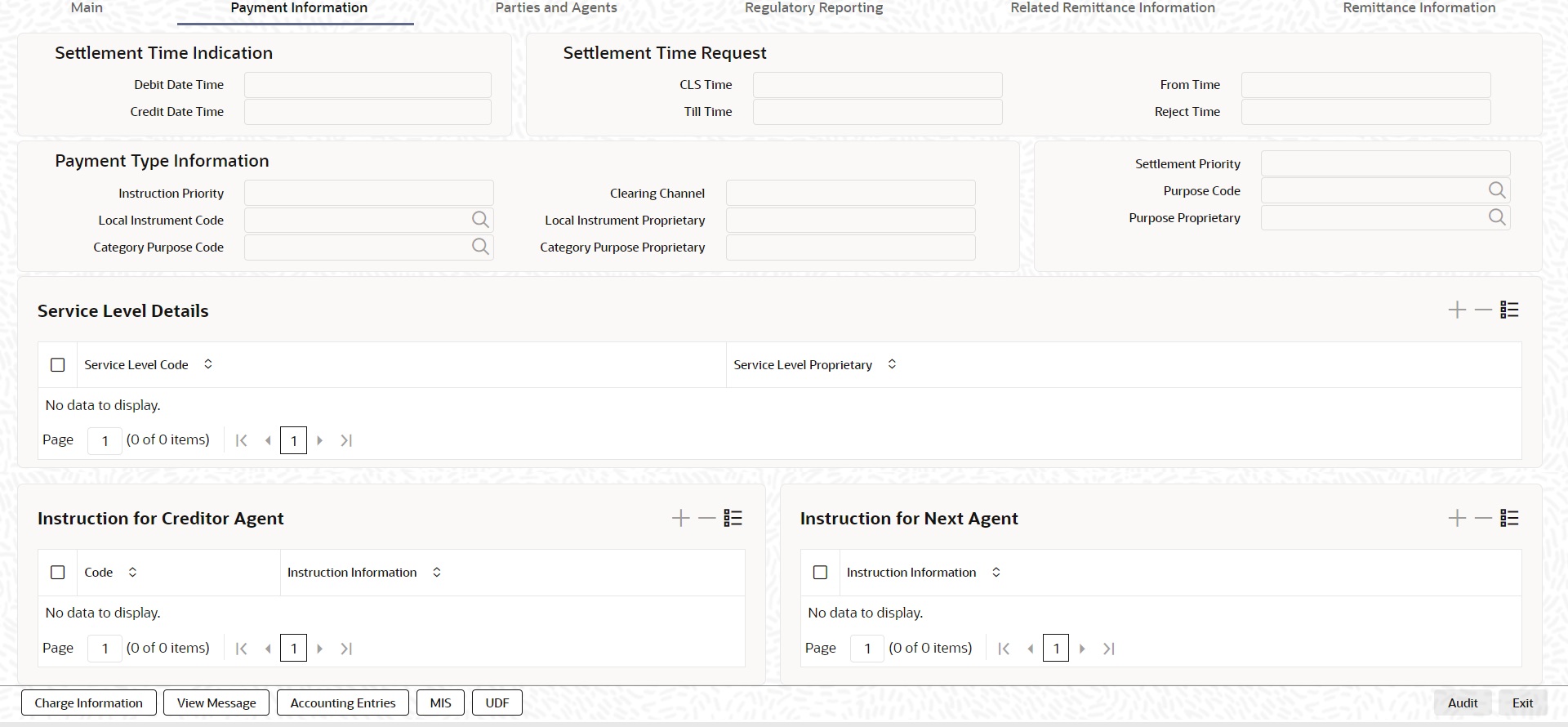
Specify the following fields:
Settlement Time Indication
Debit Date Time
Specify Date and Time of debiting the transaction.
Credit Date Time
Specify Date and Time of crediting the transaction.
Note
For above mentioned fields, the time Off-Set is made mandatory for translation purposes.
Settlement Time Request
CLS Time
Specify the CLS Time.
From Time
Specify the From Time.
Till Time
Specify the Till Time.
Reject Time
Specify the Reject Time.
Note
For the above mentioned fields, the time Off-Set is made mandatory for translation purposes.
Payment Type Information
Instruction Priority
Select from the list of values for Instruction Priority. The drop down list contains values ‘High’ and ‘Low’.
Clearing Channel
Select from the list of values for Clearing Channel. The drop down list contains values BOOK, MPNS, RTGS and RTNS.
Settlement Priority
Select from the list of values for Settlement Priority. The drop down list contains values HIGH, NORM, and URGT.
Local Instrument Code
Select from the list of values for Local Instrument Code. This list contains ISO 20022 Instrument codes.
Local Instrument Proprietary
Specify the Local Instrument Proprietary value.
Purpose Code
Select from the list of values for Purpose Code. This list contains ISO 20022 Purpose codes.
Purpose Proprietary
Specify the Purpose Proprietary value.
Category Purpose Code
Select from the list of values for Category Purpose Code. This list contains ISO 20022 Category Purpose codes.
Category Purpose Proprietary
Specify or Select from the list of values for Purpose Proprietary.
Note
l If you input Local Instrument, either you Code or Proprietary.
l If you input Purpose, either you input Code or Proprietary.
l If you input Category Purpose, either you Code or Proprietary.
Service Level Details
Service Level Code
Select from the list of values for Service Level Code. This list contains ISO 20022 Service Level codes.
Service Level Proprietary
Specify the Service Level Proprietary value.
Note
l Only three occurrences of Service Level are allowed.
l If you input Service Level, either you Code or Proprietary.
Instruction for Creditor Agent
Code
Select from the list of values for code. The list contains the values CHQB, HOLD, PHOB, TELB.
Instruction Information
Specify the Instruction Information.
Note
l Only two occurrences of Instruction For Creditor Agent are allowed.
l If code CHQB is present, then code HOLD is not allowed, else HOLD is optional.
l If code PHOB is present, then code TELB is not allowed, else TELB is optional.
Instruction for Next Agent
Instruction Information
Specify the Instruction information to be given to the next agent in the payment chain.
5.1.1.5 Parties and Agents
Click the ‘Parties and Agents’ tab in the ‘Cross Border Inbound FI to FI Customer Credit Transfer Input’ screen.
Specify the following fields:
Initiating Party
Name
Specify the Name of the initiating party.
Country of Residence
Select from the list of values for Country of initiating party. This field lists the 2-Char ISO Country code list from the factory-shipped table.
Note
Select Country of Residence (where the party physically lives) only if it is different from Postal Address/Country.
Other Details Button
Click ‘Other Details’ button on ‘Parties and Agents’ tab under ‘Initiating Party’ header to invoke the sub screen. This screen shows the Initiating Party Details.
Refer to the Section 5.1.1.6, "Party Other Details Button" for details of fields and sub screen of the ‘Other Details’ button.
Ultimate Debtor
Name
Specify the Name of the initiating party.
Country of Residence
Select from the list of values for Country of initiating party. This field lists the 2-Char ISO Country code list from the factory-shipped table.
Note
Select Country of Residence (where the party physically lives) only if it is different from Postal Address/Country.
Other Details Button
Click ‘Other Details’ button on ‘Parties and Agents’ tab under ‘Ultimate Debtor’ header to invoke the sub screen. This screen shows the Ultimate Debtor Details.
Refer to the Section 5.1.1.6, "Party Other Details Button" for details of fields and sub screen of the ‘Other Details’ button.
Ultimate Creditor
Name
Specify the Name of the initiating party.
Country of Residence
Select from the list of values for Country of initiating party. This field lists the 2-Char ISO Country code list from the factory-shipped table.
Note
Select Country of Residence (where the party physically lives) only if it is different from Postal Address/Country.
Other Details Button
Click ‘Other Details’ button on ‘Parties and Agents’ tab under ‘Ultimate Creditor’ header to invoke the sub screen. This screen shows the Ultimate Creditor Details.
Refer to the Section 5.1.1.6, "Party Other Details Button" for details of fields and sub screen of the ‘Other Details’ button.
Instructing Reimbursement Agent
BICFI
Select from the list of values for BICFI code.
Clearing System Code
Select from the list of values for Clearing System Code.
Member Identification
Specify the clearing ID code.
Name
System defaults the name as per selected BICFI code.
Other Details Button
Click ‘Other Details’ button on ‘Parties and Agents’ tab under ‘Instructing Reimbursement Agent’ header to invoke the sub screen. This screen shows the Instructing Reimbursement Agent Details.
Refer to the Section 5.1.1.7, "Agent Other Details Button" for details of fields and sub screen of the ‘Other Details’ button.
Instructed Reimbursement Agent
BICFI
Select from the list of values for BICFI code.
Clearing System Code
Select from the list of values for Clearing System Code.
Member Identification
Specify the clearing ID code.
Name
System defaults the name as per selected BICFI code.
Other Details Button
Click ‘Other Details’ button on ‘Parties and Agents’ tab under ‘Instructed Reimbursement Agent’ header to invoke the sub screen. This screen shows the Instructed Reimbursement Agent Details.
Refer to the Section 5.1.1.7, "Agent Other Details Button" for details of fields and sub screen of the ‘Other Details’ button.
Third Reimbursement Agent
BICFI
Select from the list of values for BICFI code.
Clearing System Code
Select from the list of values for Clearing System Code.
Member Identification
Specify the clearing ID code.
Name
System defaults the name as per selected BICFI code.
Other Details Button
Click ‘Other Details’ button on ‘Parties and Agents’ tab under ‘Third Reimbursement Agent’ header to invoke the sub screen. This screen shows the Third Reimbursement Agent Details.
Refer to the Section 5.1.1.7, "Agent Other Details Button" for details of fields and sub screen of the ‘Other Details’ button.
Intermediary Agent 1
BICFI
Select from the list of values for BICFI code.
Clearing System Code
Select from the list of values for Clearing System Code.
Member Identification
Specify the clearing ID code.
Name
System defaults the name as per selected BICFI code.
Other Details Button
Click ‘Other Details’ button on ‘Parties and Agents’ tab under ‘Intermediary Agent 1’ header to invoke the sub screen. This screen shows the Intermediary Agent 1 Details.
Refer to the Section 5.1.1.7, "Agent Other Details Button" for details of fields and sub screen of the ‘Other Details’ button.
Intermediary Agent 2
BICFI
Select from the list of values for BICFI code.
Clearing System Code
Select from the list of values for Clearing System Code.
Member Identification
Specify the clearing ID code.
Name
System defaults the name as per selected BICFI code.
Other Details Button
Click ‘Other Details’ button on ‘Parties and Agents’ tab under ‘Intermediary Agent 2’ header to invoke the sub screen. This screen shows the Intermediary Agent 2 Details.
Refer to the Section 5.1.1.7, "Agent Other Details Button" for details of fields and sub screen of the ‘Other Details’ button.
Intermediary Agent 3
BICFI
Select from the list of values for BICFI code.
Clearing System Code
Select from the list of values for Clearing System Code.
Member Identification
Specify the clearing ID code.
Name
System defaults the name as per selected BICFI code.
Other Details Button
Click ‘Other Details’ button on ‘Parties and Agents’ tab under ‘Intermediary Agent 3’ header to invoke the sub screen. This screen shows the Intermediary Agent 3 Details.
Refer to the Section 5.1.1.7, "Agent Other Details Button" for details of fields and sub screen of the ‘Other Details’ button.
Previous Instructing Agent 1
BICFI
Select from the list of values for BICFI code.
Clearing System Code
Select from the list of values for Clearing System Code.
Member Identification
Specify the clearing ID code.
Name
System defaults the name as per selected BICFI code.
Other Details Button
Click ‘Other Details’ button on ‘Parties and Agents’ tab under ‘Previous Instructing Agent 1’ header to invoke the sub screen. This screen shows the Previous Instructing Agent 1 Details.
Refer to the Section 5.1.1.7, "Agent Other Details Button" for details of fields and sub screen of the ‘Other Details’ button.
Previous Instructing Agent 2
BICFI
Select from the list of values for BICFI code.
Clearing System Code
Select from the list of values for Clearing System Code.
Member Identification
Specify the clearing ID code.
Name
System defaults the name as per selected BICFI code.
Other Details Button
Click ‘Other Details’ button on ‘Parties and Agents’ tab under ‘Previous Instructing Agent 2’ header to invoke the sub screen. This screen shows the Previous Instructing Agent 2 Details.
Refer to the Section 5.1.1.7, "Agent Other Details Button" for details of fields and sub screen of the ‘Other Details’ button.
Previous Instructing Agent 3
BICFI
Select from the list of values for BICFI code.
Clearing System Code
Select from the list of values for Clearing System Code.
Member Identification
Specify the clearing ID code.
Name
System defaults the name as per selected BICFI code.
Other Details Button
Click ‘Other Details’ button on ‘Parties and Agents’ tab under ‘Previous Instructing Agent 3’ header to invoke the sub screen. This screen shows the Previous Instructing Agent 3 Details.
Refer to the Section 5.1.1.7, "Agent Other Details Button" for details of fields and sub screen of the ‘Other Details’ button.
Instructed Agent
BICFI
Select from the list of values for BICFI code.
Clearing System Code
Select from the list of values for Clearing System Code.
Member Identification
Specify the clearing ID code.

Specify the following fields available for this screen:
Financial Institution Details
LEI
Specify LEI of the agent. Specify the following fields available for this screen:
5.1.1.6 Party Other Details Button
The ‘Other Details’ button for Initiating Party, Ultimate Debtor, and Ultimate Creditor under ‘Parties and Agents’ tab contains similar fields and sub screen. Depending upon which button you click, the screen header name changes.
Postal Address
Specify the following fields available for this screen:
l Department
l Sub Department
l Street Name
l Building Number
l Building Name
l Floor
l Post Box
l Room
l Post Code
l Town Name
l Town Location Name
l District Name
l Country Sub Division
l Country
Identification
Click ‘Identification’ tab to invoke this screen.
Specify the following fields for Initiating Party/Ultimate Debtor/Ultimate Creditor. These fields are available under Organisation Identification:
l BIC
l LEI
Specify the following fields for Initiating Party/Ultimate Debtor/Ultimate Creditor. These fields are available under Private Identification:
l Birth Date
l Province of Birth
l City of Birth
l Country of Birth
Specify the following fields for Initiating Party/Ultimate Debtor/Ultimate Creditor. These fields are available under Other Identification Details:
l Identification Type
l Identification
l Scheme Name Code
l Issuer
5.1.1.7 Agent Other Details Button
The ‘Other Details’ button for Instructing Reimbursement Agent, Instructed Reimbursement Agent, Third Reimbursement Agent, Intermediary Agent 1, Intermediary Agent 2, Intermediary Agent 3, Previous Instructing Agent 1, Previous Instructing Agent 2, and Previous Instructing Agent 3 under ‘Parties and Agents’ tab contains similar fields and sub screen. Depending upon which button you click, the screen header name changes.
FIN Postal Address
Specify the following fields available for this screen:
l Department
l Sub Department
l Street Name
l Building Number
l Building Name
l Floor
l Post Box
l Room
l Post Code
l Town Name
l Town Location Name
l District Name
l Country Sub Division
l Country
l Address Line 1
l Address Line 2
l Address Line 3
Other Details
Click ‘Other Details’ tab to invoke this screen.
Specify the following fields available for this screen:
Financial Institution Details
LEI
Specify LEI of the agent.
Account Details
Click ‘Account Details’ tab to invoke this screen.
Specify the information into following fields for the agents:
l Account
l IBAN
l Currency
l Account Name
l Scheme Name Code
l Scheme Name Proprietary
l Issuer
l Type Code
l Type Proprietary
l Proxy Type Code
l Proxy Type Proprietary
l Proxy ID
Note
l If you input Type information, either input Type Code (or) Type Proprietary.
l If you input Scheme information, either input Schema Name Code (or) Schema Name Proprietary.
l If you input Proxy information, either input Proxy Type Code (or) Proxy Type Proprietary.
l If you input Proxy information, you must input Proxy ID.
5.1.1.8 Regulatory Reporting
Click the ‘Regulatory Reporting’ tab in the ‘Cross Border Inbound FI to FI Customer Credit Transfer Input’ screen.
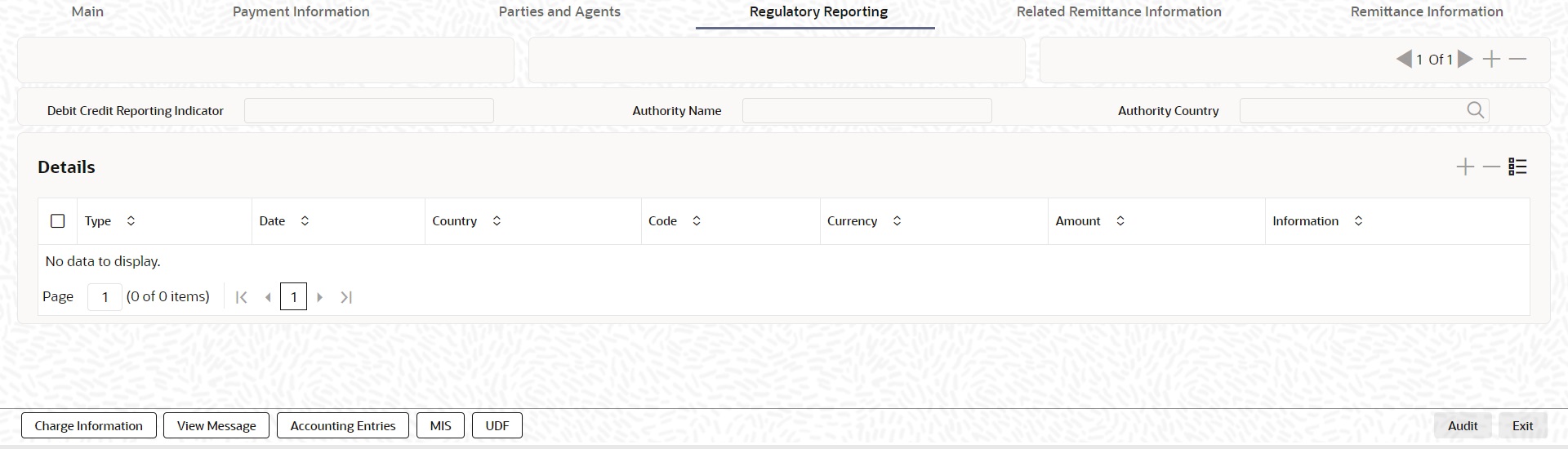
Specify the following fields:
Debit Credit Reporting Indicator
Select from the list of values for Debit Credit Reporting Indicator. The list contains the values BOTH, CRED, and DEBT.
Authority Name
Specify the name of the Authority.
Authority Country
Select from the list of values for country code of the Authority.
Details
Type
Specify the Type of the Regulatory Reporting.
Date
Specify the Date of the Regulatory Reporting.
Country
Select from the list of values for Country of the Regulatory Reporting.
Code
Specify the Code of the Regulatory Reporting.
Currency
Select from the list of values for Currency of the Regulatory Reporting.
Amount
Specify the Amount of the Regulatory Reporting.
Information
Click the ‘Information’ button. Specify the Additional Information of the Regulatory Reporting.
5.1.1.9 Related Remittance Information
Click the ‘Related Remittance Information’ tab in the ‘Cross Border Inbound FI to FI Customer Credit Transfer Input’ screen.
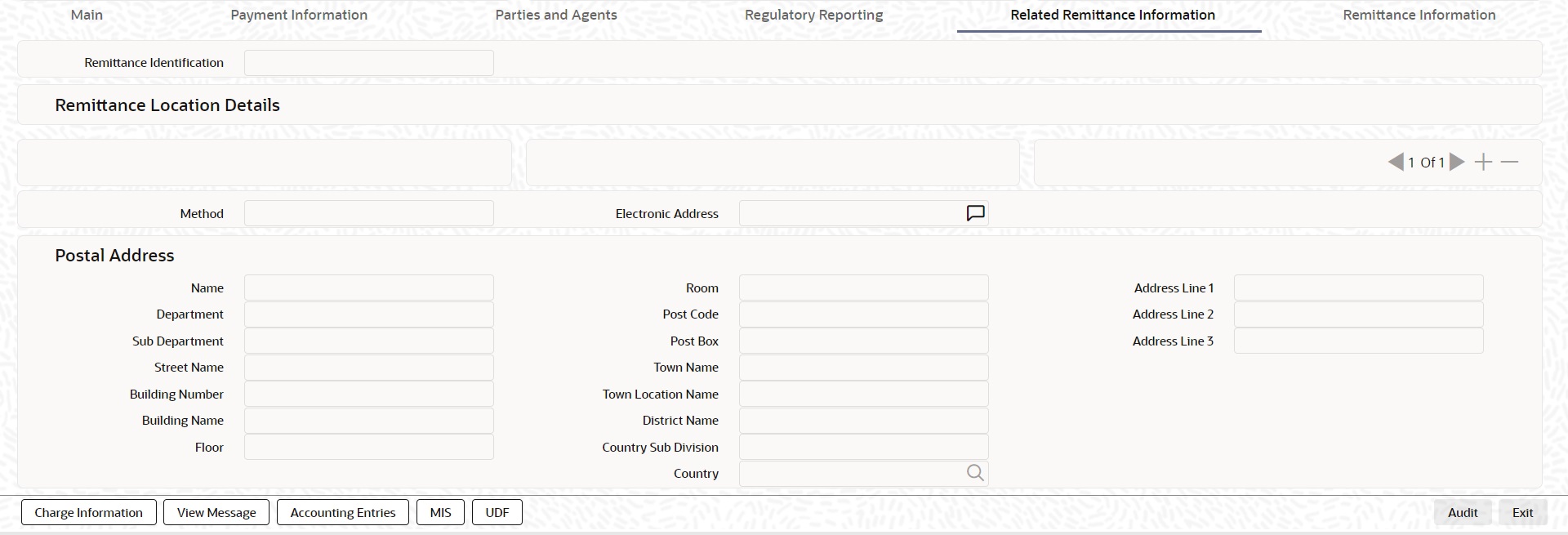
Specify the following fields:
Remittance Identification
Specify the Identification of the Remittance.
Remittance Location Details
Method
Specify the Method of the Remittance.
Electronic Address
Specify the Electronic Address of the Remittance.
Postal Address
Specify the following fields available for this screen:
l Name
l Department
l Sub Department
l Street Name
l Building Number
l Building Name
l Floor
l Room
l Post Code
l Town Name
l Town Location Name
l District Name
l Country Sub Division
l Country
l Address Line 1
l Address Line 2
l Address Line 3
l Address Line 4
l Address Line 5
l Address Line 6
l Address Line 7
5.1.1.10 Remittance Information
Click the ‘Remittance Information’ tab in the ‘Cross Border Inbound FI to FI Customer Credit Transfer Input’ screen.
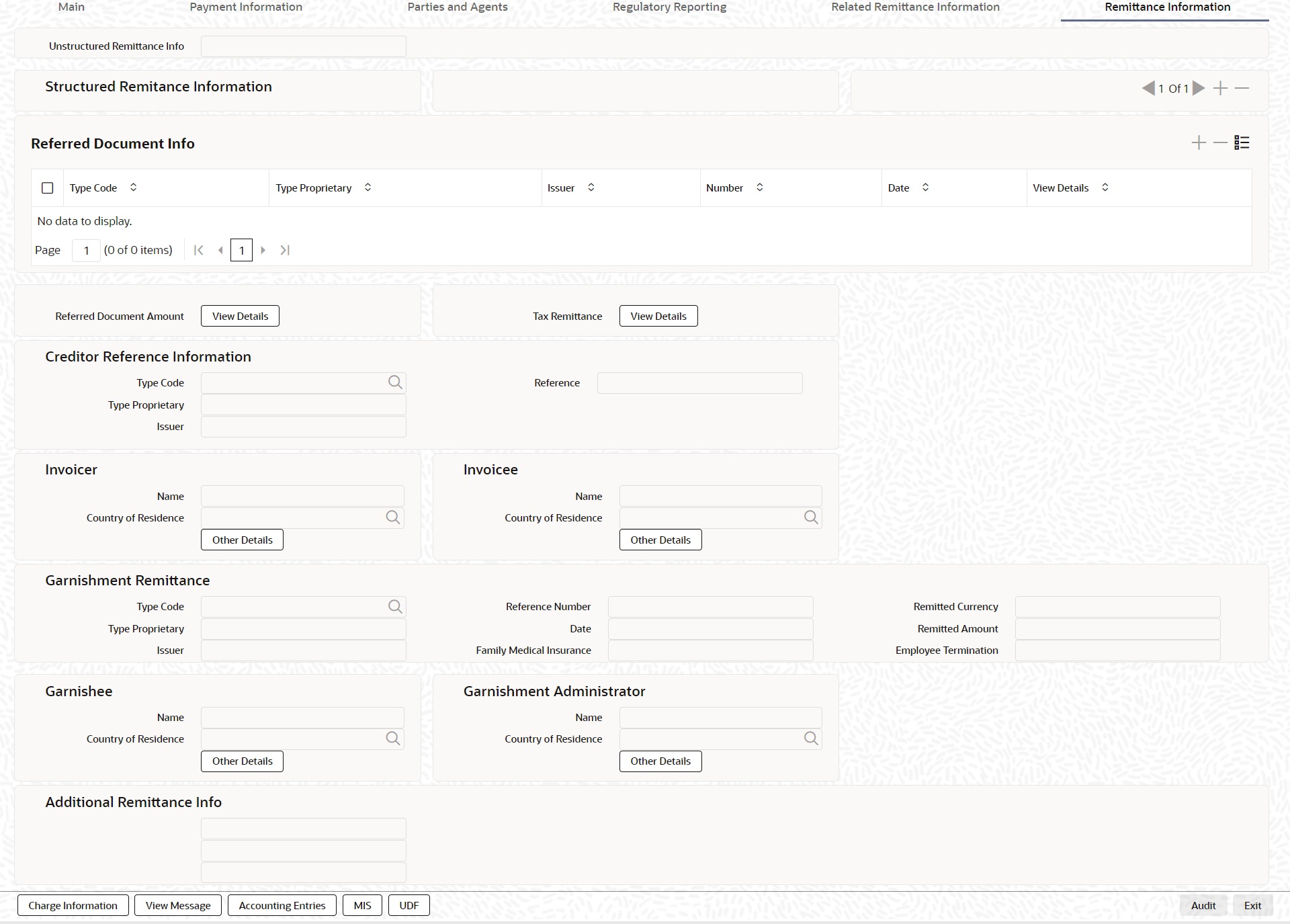
Specify the following fields:
Unstructured Remittance Info
Specify the Unstructured Remittance Information.
Referred Document Info
Type Code
Select from the list of values for Type Code of the Remittance.
Type Proprietary
Specify the Type Proprietary of the Remittance.
Note
If you input information for Type, either input Type Code or Type Proprietary.
Issuer
Specify the Issuer of the Remittance.
Number
Specify the Number of the Remittance.
Date
Specify the Date of the Remittance.
View Details button
Click ‘View Details’ button for Referred Document Info to invoke Referred Document Information Details screen.
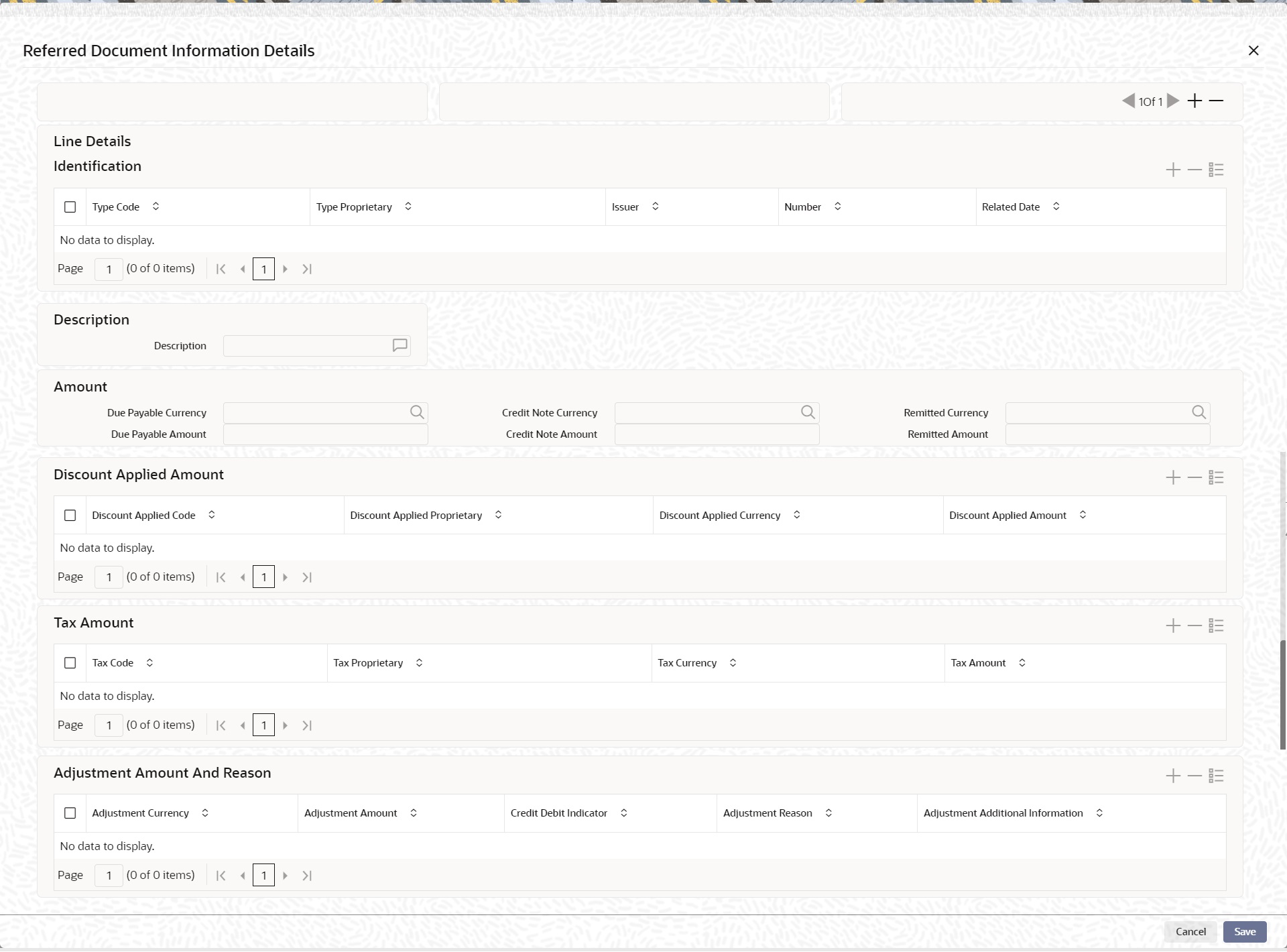
Specify the following fields:
Identification
Type Code
Select from the list of values for Type Code of the Remittance.
Type Proprietary
Specify the Type Proprietary of the Remittance.
Note
If you input information for Type, either input Type Code or Type Proprietary.
Issuer
Specify the Issuer of the Remittance.
Number
Specify the Number of the Remittance.
Related Date
Specify the Related Date of the Remittance.
Description
Specify the Description of the Remittance.
Amount
Due Payable Currency
Select from the list of values for Due Payable Currency of Remittance.
Due Payable Amount
Specify the Due Payable Amount of Remittance.
Credit Note Currency
Select from the list of values for Credit Note Currency of Remittance.
Credit Note Amount
Specify the Credit Note Amount of Remittance.
Remitted Currency
Select from the list of values for Remitted Currency of Remittance.
Remitted Amount
Specify the Remitted Amount of Remittance.
Discount Applied Amount
Discount Applied Code
Select from the list of values for Discount Applied Code of Remittance.
Discount Applied Proprietary
Specify the Discount Applied Proprietary of Remittance.
Discount Applied Currency
Select from the list of values for Discount Applied Currency of Remittance.
Discount Applied Amount
Specify the Discount Applied Amount of Remittance.
Note
l If you input information for Discount Applied Amount, either input Discount Applied Code or Discount Applied Proprietary.
l If you input information for Discount Applied Amount, you must input Discount Applied Amount and Discount Applied Currency.
Tax Amount
Tax Code
Select from the list of values for Tax Code of Remittance.
Tax Proprietary
Specify the Tax Proprietary of Remittance.
Tax Currency
Select from the list of values for Tax Currency of Remittance.
TaX Amount
Specify the Tax Amount of Remittance.
Note
l If you input information for Tax Amount, either input Tax Code or Tax Proprietary.
l If you input information for Tax Amount, you must input Tax Amount and Tax Currency.
Adjustment Amount And Reason
Adjustment Currency
Select from the list of values for Adjutment Currency of Remittance.
Adjustment Amount
Specify the Adjustment Amount of Remittance.
Credit Debit Indicator
Select from the list of values for Tax Currency of Remittance.
Adjustment Reason
Specify the Adjustment Reason of Remittance.
Adjustment Additional Information
Specify the Adjustment Additional Information of Remittance.
Note
If you input information for Adjustment Amount And Reason, you must input Adjustment Amount and Adjustment Currency.
Referred Document Amount
View Details button
Click ‘View Details’ button for Referred Document Amount to invoke Referred Document Amount Details screen.

Specify the following fields:
Due Payable Currency
Select from the list of values for Due Payable Currency of Remittance.
Due Payable Amount
Specify the Due Payable Amount of Remittance.
Credit Note Currency
Select from the list of values for Credit Note Currency of Remittance.
Credit Note Amount
Specify the Credit Note Amount of Remittance.
Remitted Currency
Select from the list of values for Remitted Currency of Remittance.
Remitted Amount
Specify the Remitted Amount of Remittance.
Discount Applied Amount
Discount Applied Code
Select from the list of values for Discount Applied Code of Remittance.
Discount Applied Proprietary
Specify the Discount Applied Proprietary of Remittance.
Discount Applied Currency
Select from the list of values for Discount Applied Currency of Remittance.
Discount Applied Amount
Specify the Discount Applied Amount of Remittance.
Note
l If you input information for Discount Applied Amount, either input Discount Applied Code or Discount Applied Proprietary.
l If you input information for Discount Applied Amount, you must input Discount Applied Amount and Discount Applied Currency.
Tax Amount
Tax Code
Select from the list of values for Tax Code of Remittance.
Tax Proprietary
Specify the Tax Proprietary of Remittance.
Tax Currency
Select from the list of values for Tax Currency of Remittance.
TaX Amount
Specify the Tax Amount of Remittance.
Note
l If you input information for Tax Amount, either input Tax Code or Tax Proprietary.
l If you input information for Tax Amount, you must input Tax Amount and Tax Currency.
Adjustment Amount And Reason
Adjustment Currency
Select from the list of values for Adjustment Currency of Remittance.
Adjustment Amount
Specify the Adjustment Amount of Remittance.
Credit Debit Indicator
Select from the list of values for Tax Currency of Remittance.
Adjustment Reason
Specify the Adjustment Reason of Remittance.
Adjustment Additional Information
Specify the Adjustment Additional Information of Remittance.
Note
If you input information for Adjustment Amount And Reason, you must input Adjustment Amount and Adjustment Currency.
Tax Remittance
View Details button
Click ‘View Details’ button for Tax Remittance to invoke Tax Remittance Details screen.

Specify the following fields:
Administration Zone
Specify the Administration Zone of Remittance.
Reference Number
Specify the Reference Number of Remittance.
Method
Specify the Method of Remittance.
Total Taxable Base Currency
Specify the Total Taxable Base Currency of Remittance.
Total Taxable Base Amount
Specify the Total Taxable Base Amount of Remittance.
Date
Specify the Date of Remittance.
Total Tax Currency
Specify the Total Tax Currency of Remittance.
Total Tax Amount
Specify the Total Tax Amount of Remittance.
Sequence Number
Specify the Sequence Number of Remittance.
Debtor
Tax Identification
Specify the Tax Identification of Debtor for Remittance.
Registration Identification
Specify the Registration Identification of Debtor for Remittance.
Tax Type
Specify the Tax Type of Debtor for Remittance.
Authorization Title
Specify the Authorization Title of Debtor for Remittance.
Authorization Name
Specify the Authorization Name of Debtor for Remittance.
Creditor
Tax Identification
Specify the Tax Identification of Creditor for Remittance.
Registration Identification
Specify the Registration Identification of Creditor for Remittance.
Tax Type
Specify the Tax Type of Creditor for Remittance.
Ultimate Debtor
Tax Identification
Specify the Tax Identification of Ultimate Debtor for Remittance.
Registration Identification
Specify the Registration Identification of Ultimate Debtor for Remittance.
Tax Type
Specify the Tax Type of Ultimate Debtor for Remittance.
Authorization Title
Specify the Authorization Title of Ultimate Debtor for Remittance.
Authorization Name
Specify the Authorization Name of Ultimate Debtor for Remittance.
Record
Type
Specify the Type of Record Type for Remittance.
Category
Specify the Category of Record Type for Remittance.
Category Details
Specify the Category Details of Record Type for Remittance.
Debtor Status
Specify the Debtor Status of Record Type for Remittance.
Certificate Identification
Specify the Certificate Identification of Record Type for Remittance.
Forms Code
Specify the Forms Code of Record Type for Remittance.
Year
Specify the Year of Record Type for Remittance.
Tax Type
Specify the Tax Type of Record Type for Remittance.
From Date
Specify the From Date of Record Type for Remittance.
To Date
Specify the To Date of Record Type for Remittance.
Additional Information
Specify the Additional Information of Tax Amount for Remittance.
Invoicer
Name
Specify the Name of the initiating party.
Country of Residence
Select from the list of values for Country of initiating party. This field lists the 2-Char ISO Country code list from the factory-shipped table.
Note
Select Country of Residence (where the party physically lives) only if it is different from Postal Address/Country.
Other Details Button
Click ‘Other Details’ button on ‘Remittance Information’ tab under ‘Invoicer’ header to invoke the sub screen. This screen shows the Invoicer Details.
Refer to the Section 5.1.1.11, "Other Details Button" for details of fields and sub screen of the ‘Other Details’ button.
Invoicee
Name
Specify the Name of the initiating party.
Country of Residence
Select from the list of values for Country of initiating party. This field lists the 2-Char ISO Country code list from the factory-shipped table.
Note
Select Country of Residence (where the party physically lives) only if it is different from Postal Address/Country.
Other Details Button
Click ‘Other Details’ button on ‘Remittance Information’ tab under ‘Invoicee’ header to invoke the sub screen. This screen shows the Invoicee Details.
Refer to the Section 5.1.1.11, "Other Details Button" for details of fields and sub screen of the ‘Other Details’ button.
Garnishment Remittance
Type Code
Select from the list of values of the Type Code for Garnishment Remittance.
Type Proprietary
Specify the Type Proprietary for Garnishment Remittance.
Issuer
Specify the Issuer for Garnishment Remittance.
Reference Number
Specify the Reference Number for Garnishment Remittance.
Date
Specify the Date for Garnishment Remittance.
Family Medical Insurance
Specify the Family Medical Insurance for Garnishment Remittance.
Remitted Currency
Select from the list of values of the Remitted Currency for Garnishment Remittance.
Remitted Amount
Specify the Remitted Amount for Garnishment Remittance.
Employee Termination
Specify the Employee Termination for Garnishment Remittance.
Garnishee
Name
Specify the Name of the initiating party.
Country of Residence
Select from the list of values for Country of initiating party. This field lists the 2-Char ISO Country code list from the factory-shipped table.
Note
Select Country of Residence (where the party physically lives) only if it is different from Postal Address/Country.
Other Details Button
Click ‘Other Details’ button on ‘Remittance Information’ tab under ‘Garnishee’ header to invoke the sub screen. This screen shows the Garnishee Details.
Refer to the Section 5.1.1.11, "Other Details Button" for details of fields and sub screen of the ‘Other Details’ button.
Garnishment Administrator
Name
Specify the Name of the initiating party.
Country of Residence
Select from the list of values for Country of initiating party. This field lists the 2-Char ISO Country code list from the factory-shipped table.
Note
Select Country of Residence (where the party physically lives) only if it is different from Postal Address/Country.
Other Details Button
Click ‘Other Details’ button on ‘Remittance Information’ tab under ‘Garnishment Administrator’ header to invoke the sub screen. This screen shows the Garnishment Administrator Details.
Refer to the Section 5.1.1.11, "Other Details Button" for details of fields and sub screen of the ‘Other Details’ button.
The ‘Other Details’ button under ‘Remittance Information’ tab for Invoicer, Invoicee, Garnishee, and Garnishment Administrator contains similar fields and sub screen. Depending upon which button you click, the screen header name changes.
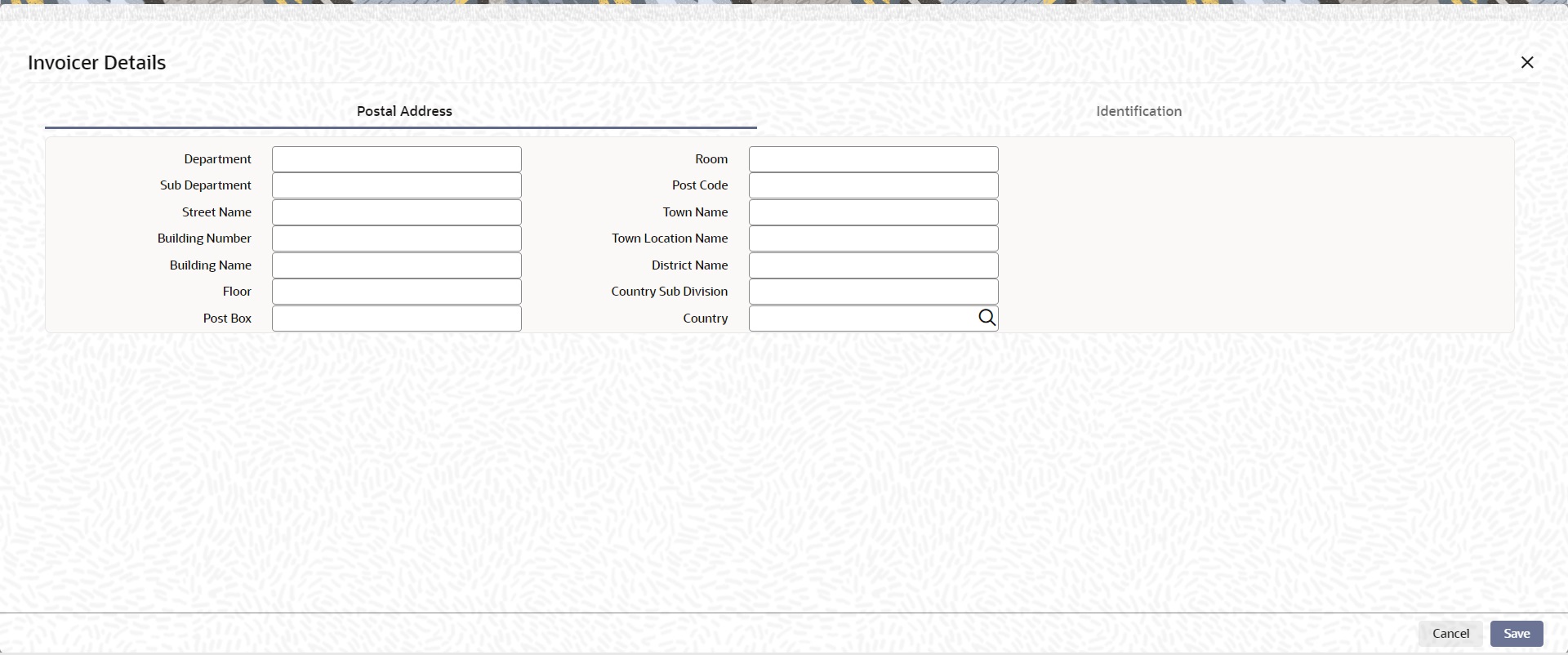
Postal Address
Specify the following fields available for this screen:
l Department
l Sub Department
l Street Name
l Building Number
l Building Name
l Floor
l Post Box
l Room
l Post Code
l Town Name
l Town Location Name
l District Name
l Country Sub Division
l Country
Identification
Click ‘Identification’ tab under to invoke this screen.
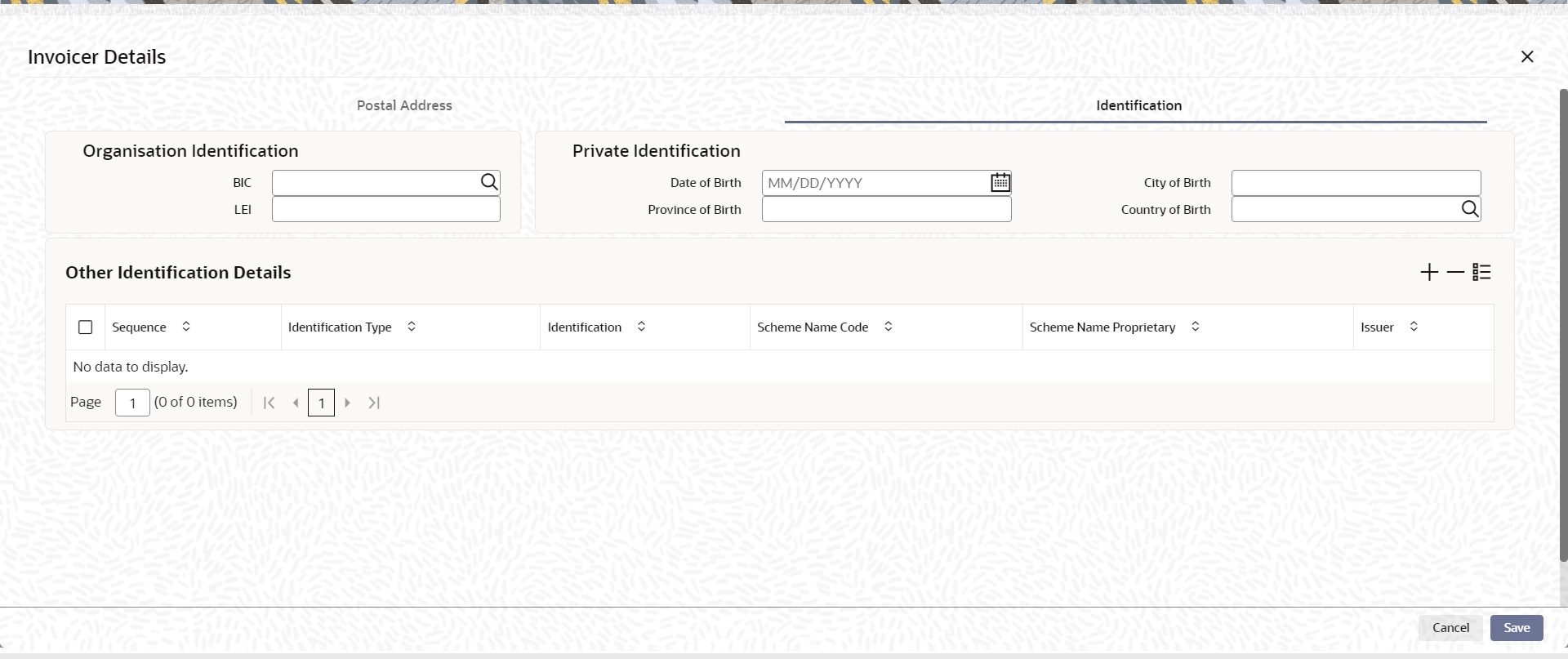
Specify the following fields. These fields are available under Organisation Identification:
l BIC
l LEI
Specify the following fields. These fields are available under Private Identification:
l Birth Date
l Province of Birth
l City of Birth
l Country of Birth
Specify the following fields. These fields are available under Other Identification Details:
l Identification Type
l Identification
l Scheme Name Code
l Scheme Name Proprietary
l Issuer
5.1.1.12 Charges Information Tab
You can view the Charges Information details for the transaction in this screen. Click the “Charges Information” tab in the Cross Border Inbound FI to FI Customer Credit Transfer Input Detailed screen to invoke this sub-screen.
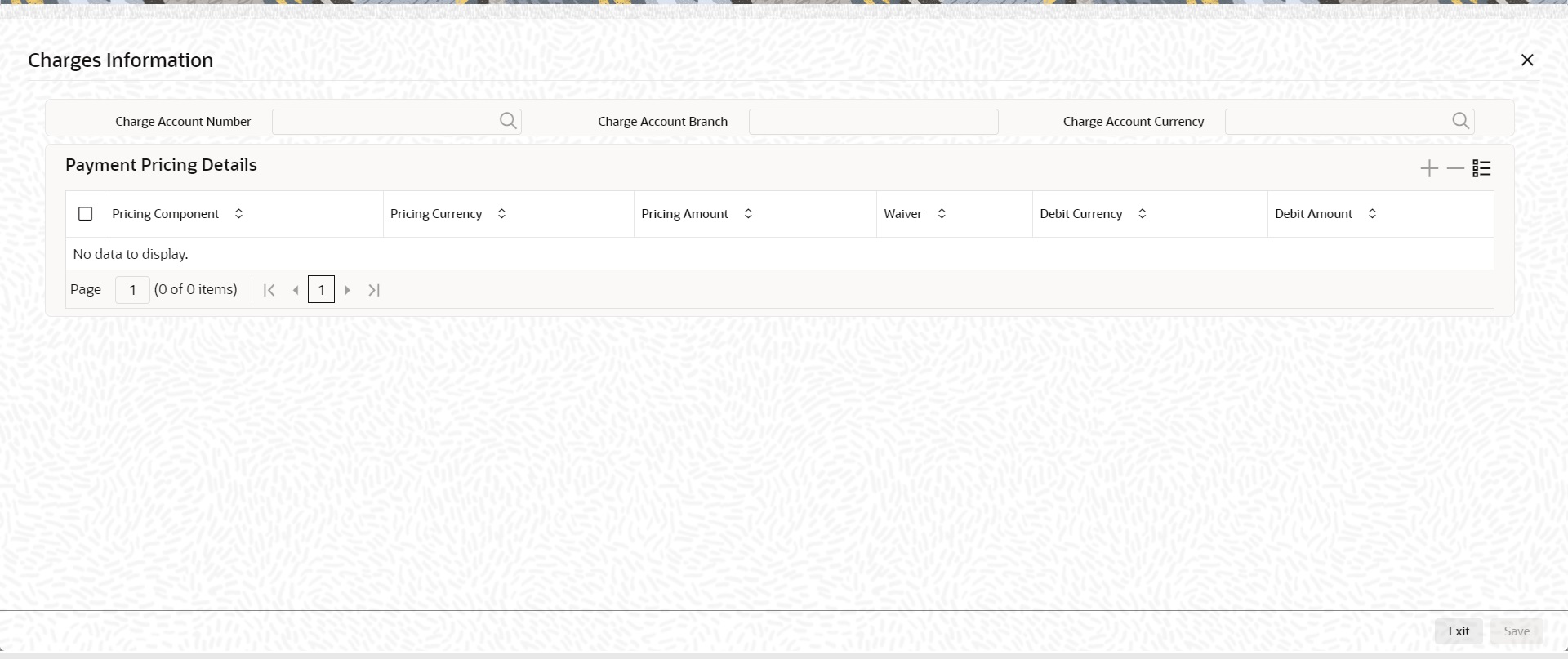
Specify the following details:
Charge Account Number
Select from the list of values for Charge Account Number.
Charge Account Branch
System defaults the Branch of the selected account.
Charge Account Currency
System defaults the Currency of the selected account.
Charges Information Details
Charge Information Currency
Select from the list of values for Currency of the charge.
Charge Information Amount
Specify the Amount of the charge.
BICFI
Select from the list of values for BIC code of the bank/institution.
Clearing System Code
Select from the list of values for ISO system clearing code.
Member Identification
Specify the clearing ID code.
Name
Specify the Name of charge.
Charges Agents Details Button
Click the ‘Charges Agents Details’ button to specify the details of the Agent from whom the charge is collected.
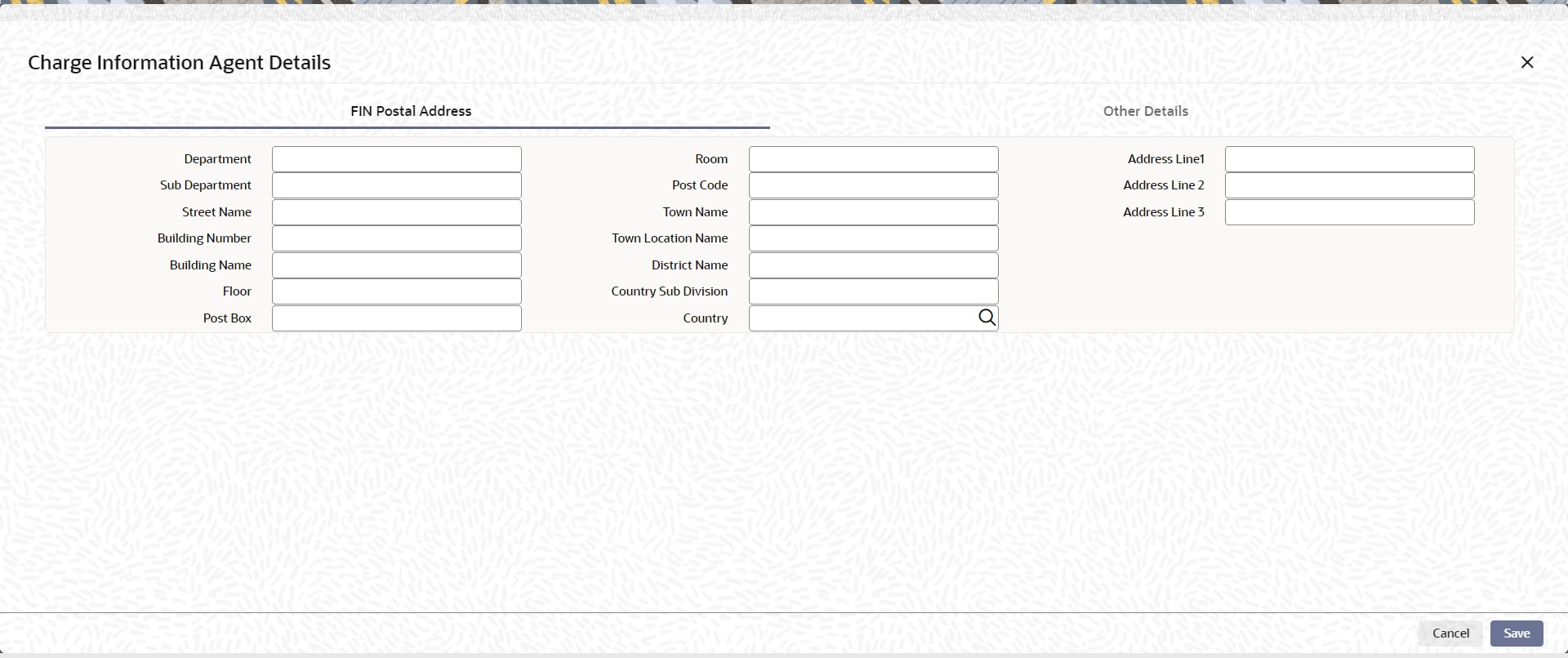
FIN Postal Address
Specify the following fields available for this screen:
l Department
l Sub Department
l Street Name
l Building Number
l Building Name
l Floor
l Post Box
l Room
l Post Code
l Town Name
l Town Location Name
l District Name
l Country Sub Division
l Country
l Address Line 1
l Address Line 2
l Address Line 3
Other Details
Click ‘Other Details’ tab to invoke this screen.
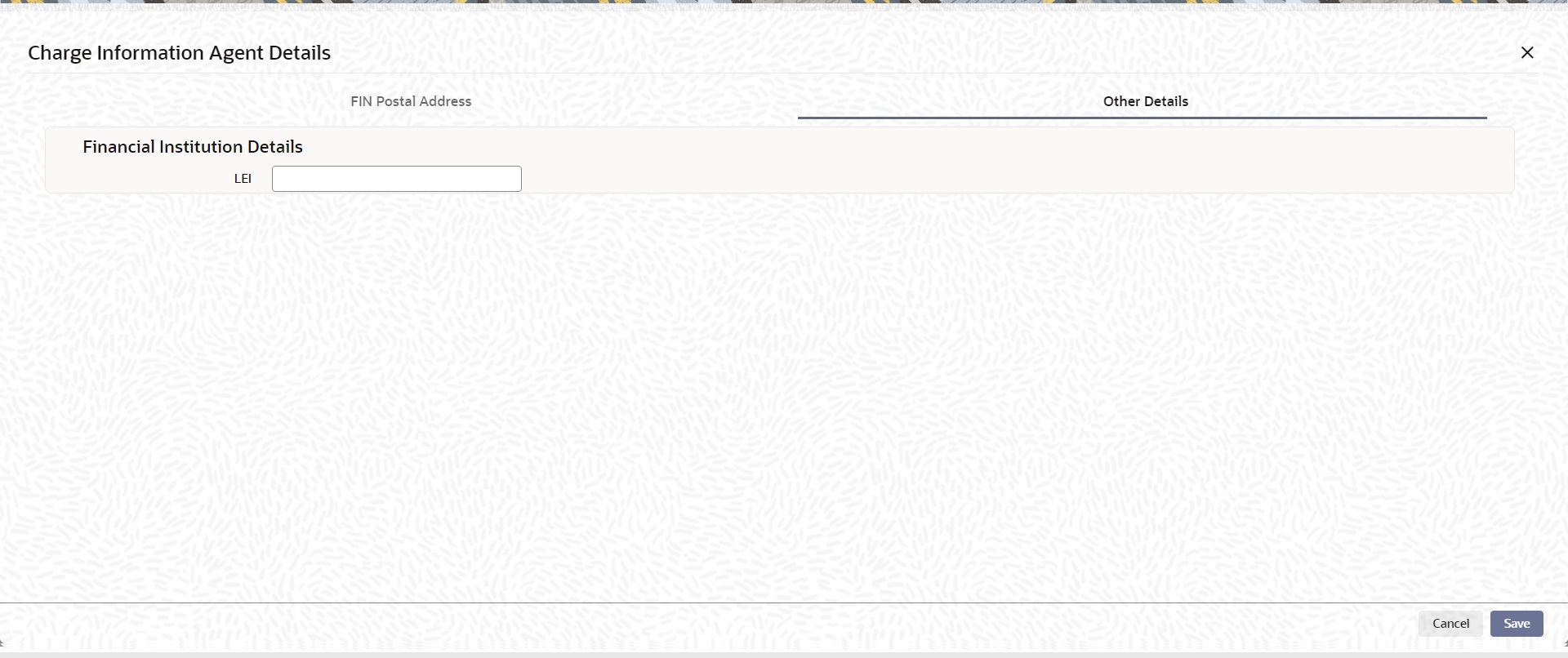
Specify the following fields available for this screen:
Financial Institution Details
LEI
Specify LEI of the agent.
Payment Pricing Details
Pricing Component
The system displays Pricing Component of the transaction.
Pricing Currency
The system displays Pricing Currency of the transaction.
Pricing Amount
Specify the Pricing Amount of the transaction.
Waiver
Select the check box to indicate if Pricing is waived.
Debit Currency
Specify the Currency of the Debit account from which charge is applied.
Debit Amount
Specify Debit Amount of the charge.
5.1.1.13 All Messages Tab
You can view the All Messages details for the transaction in this screen. Click the “Messages” tab in the Cross Border Inbound FI to FI Customer Credit Transfer Input Detailed screen to invoke this sub-screen.
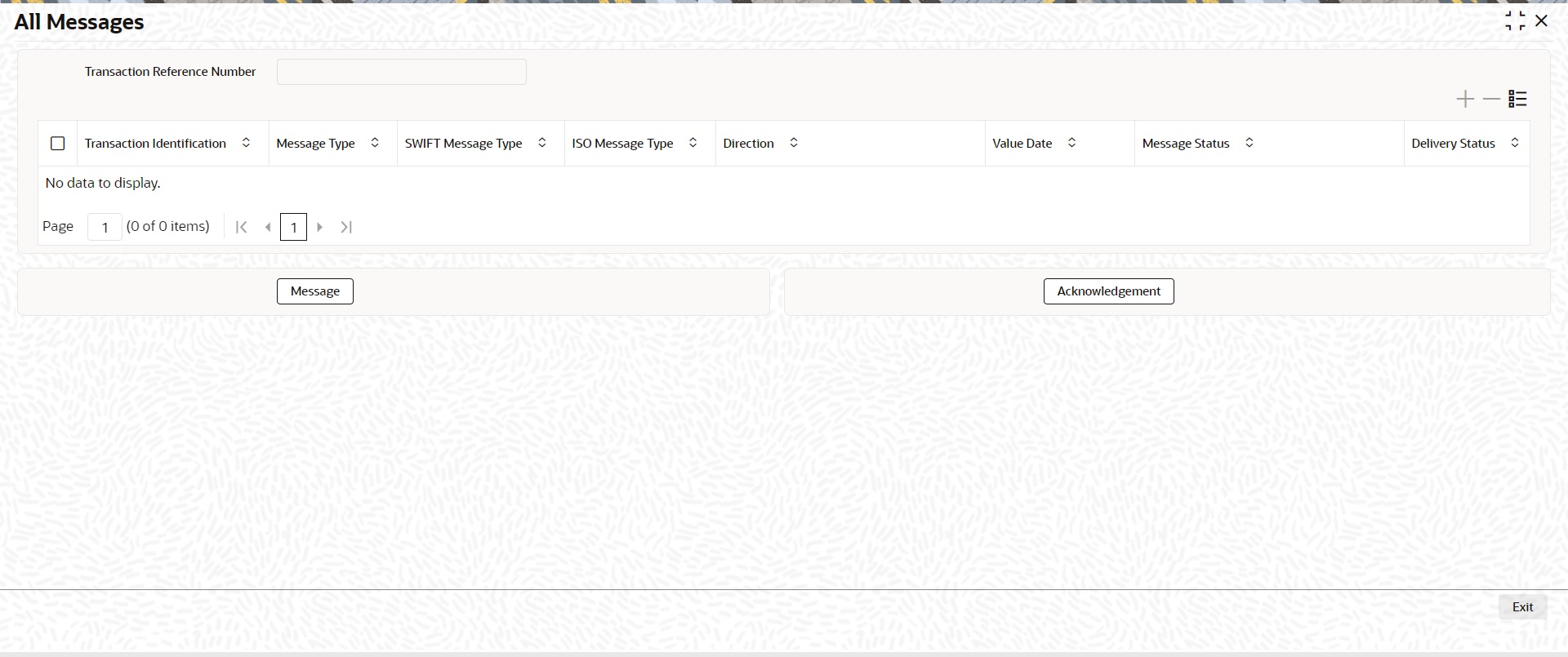
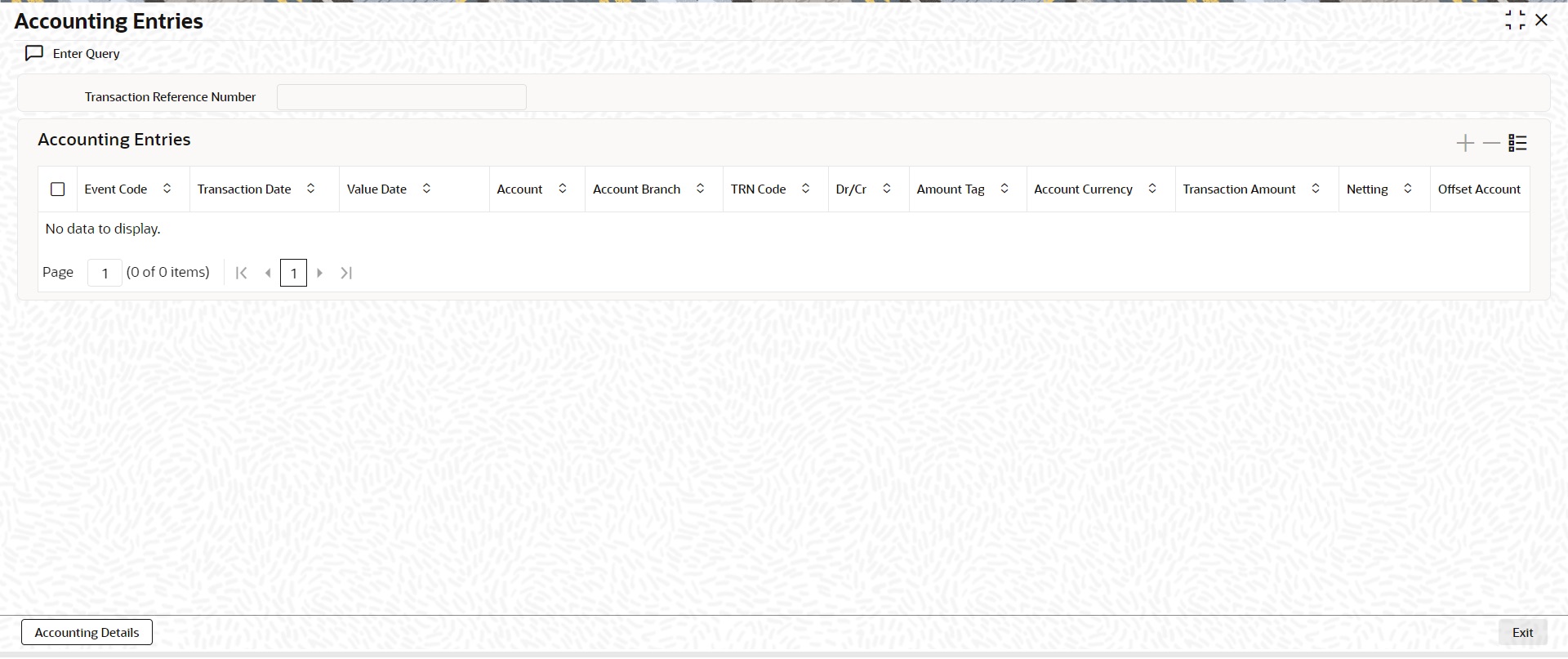
5.1.1.14 Accounting Entries
You can view the Accounting Entries details for the transaction in this screen. Click the “Accounting Entries” tab in the Cross Border Inbound FI to FI Customer Credit Transfer Input Detailed screen to invoke this sub-screen.
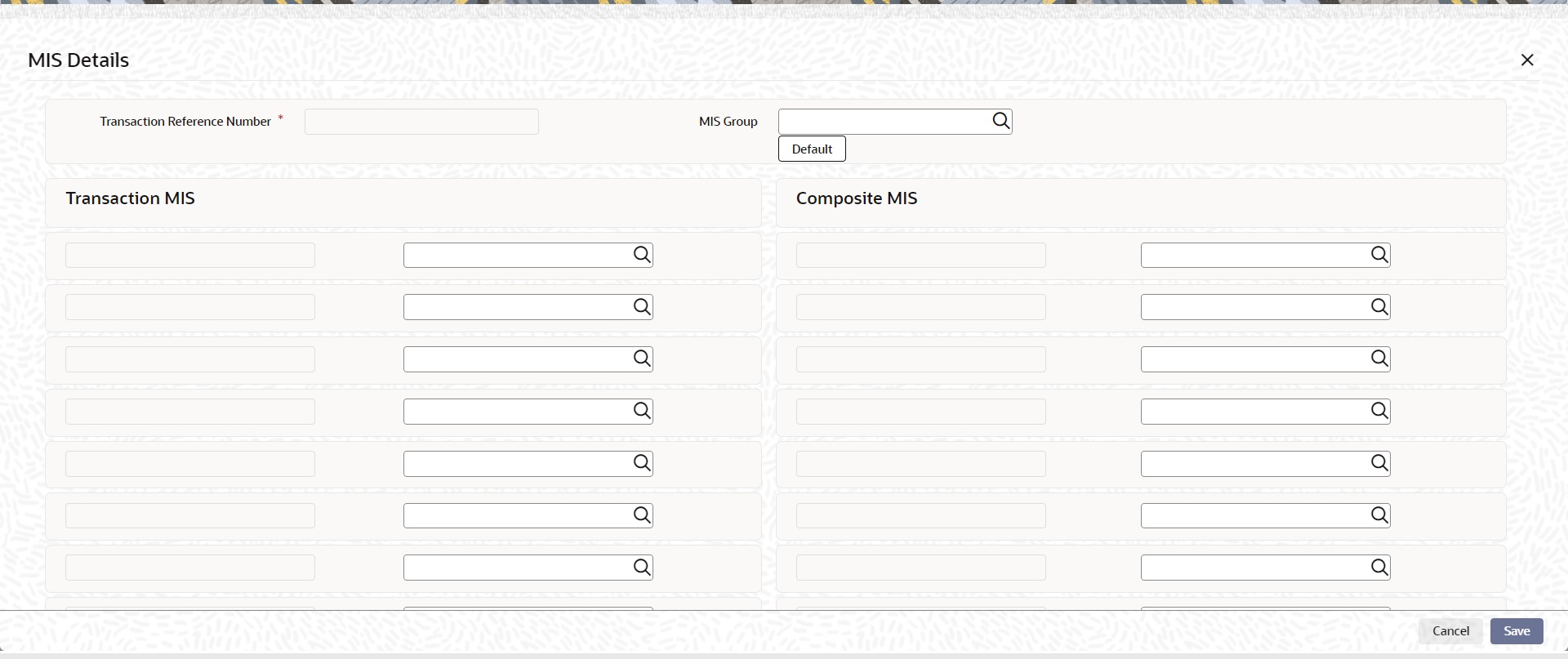
5.1.1.15 MIS Tab
Click the “MIS” tab in the Cross Border Inbound FI to FI Customer Credit Transfer Input Detailed screen to invoke this sub-screen.
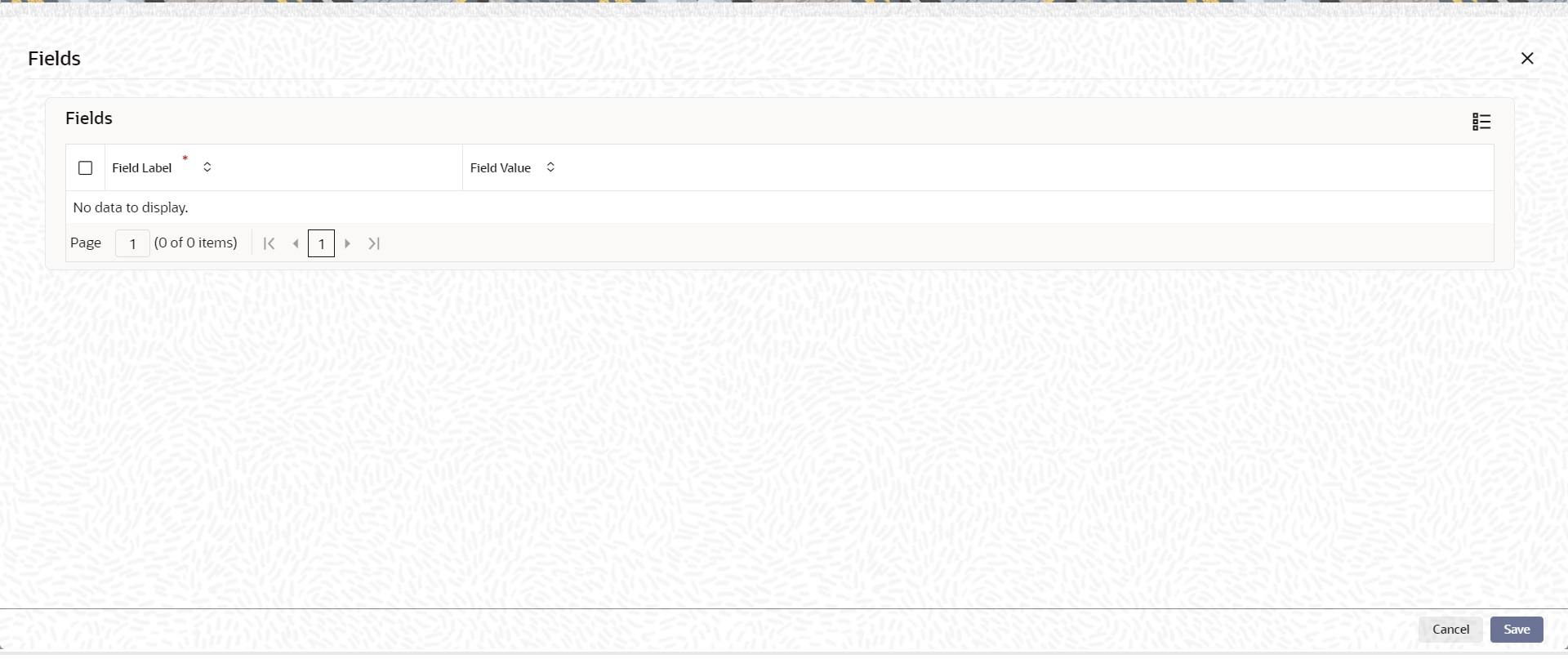
5.1.1.16 UDF Tab
Click the “UDF” tab in the Cross Border Inbound FI to FI Customer Credit Transfer Input Detailed screen to invoke this sub-screen.
5.1.1.17 Cross Border Inbound FI to FI Customer Credit Transfer Input Detailed Summary
You can invoke “Cross Border Inbound FI to FI Customer Credit Transfer Input Detailed Summary” screen by typing ‘PSSICBCT’ in the field at the top right corner of the Application tool bar and clicking on the adjoining arrow button.
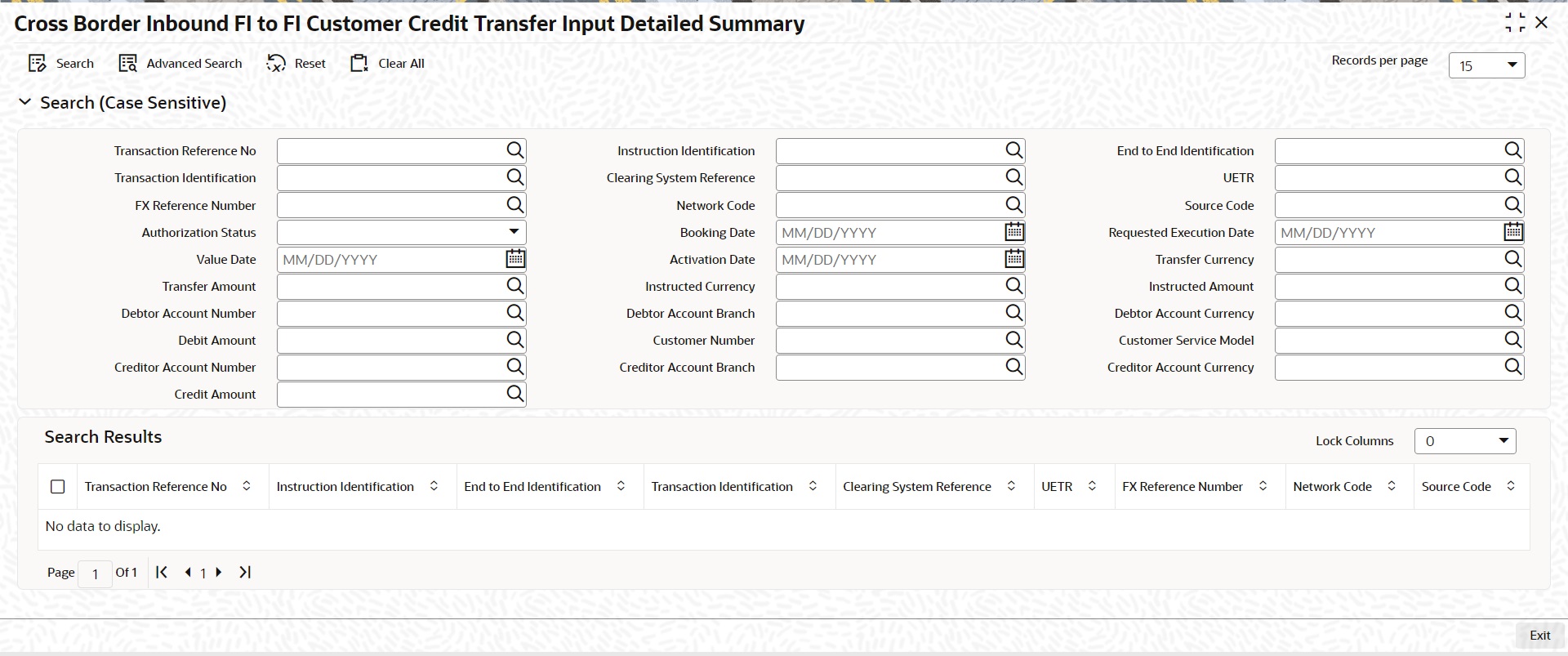
You can search using one or more of the following parameters:
l Transaction Reference Number
l Instruction Identification
l End to End Identification
l Transaction Identification
l Clearing System Reference
l UETR
l FX Reference Number
l Network Code
l Source Code
l Authorization Status
l Booking Date
l Requested Execution Date
l Value Date
l Activation Date
l Transfer Currency
l Transfer Amount
l Instructed Currency
l Instructed Amount
l Debtor Account Number
l Debtor Account Branch
l Debtor Account Currency
l Debit Amount
l Customer Number
l Customer Service Model
l Creditor Account Number
l Creditor Account Branch
l Creditor Account Currency
l Credit Amount
Once you have specified the search parameters, click ‘Search’ button. The system displays the records that match the search criteria.
Double click a record or click the ‘Details’ button after selecting a record to view the detailed screen.
5.1.2 Cross Border Inbound FI Credit Transfer Input
You can do manual booking of bank transfer transactions through this screen.
You can invoke “Cross Border Inbound FI Credit Transfer Input” screen by typing the function ID ‘PSDICBBT’ in the field at the top right corner of the Application tool bar and clicking on the adjoining arrow button.
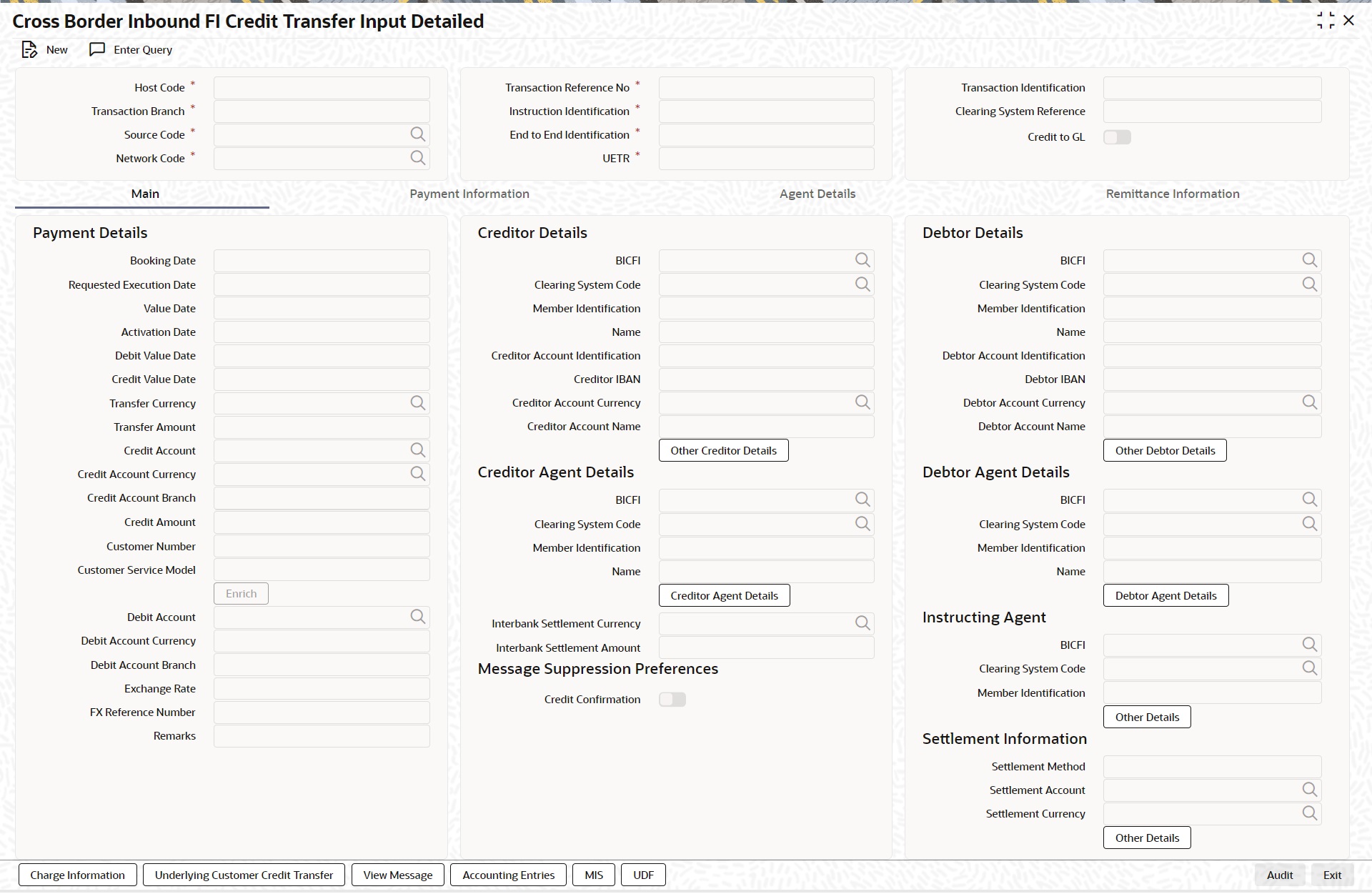
Click ‘New’ button on the Application toolbar.
Specify the following fields:
Host Code
System defaults the host code of the user’s logged in branch on clicking ‘New’ button.
Transaction Reference Number
System defaults the transaction reference number on clicking ‘New’ button.
Transaction Identification
Specify the transaction identification.
Transaction Branch
System defaults the transaction branch of the user’s logged in branch on clicking ‘New’ button.
Instruction Identification
System defaults this field with the transaction reference on clicking ‘New’ button.
Clearing System Reference
Specify the clearing system reference for the transaction.
Credit to GL
By default, this check box is unselected. You can select this check box if Credit to GL is required.
Source Code
Select from the list of values for source code.
End to End Identification
System defaults this field with the transaction reference on clicking ‘New’ button.
Note
l In the case of pacs.009 COV, End To End Identification should transport the instruction identification of the underlying pacs.008.
l In the case of pacs.009 CORE, If the debtor does not provide End To End Identification, then the element populates this field with “NOTPROVIDED”.
Network Code
Select from the list of values for network code. This list contains all Cross-border MX networks defined in Network code definition (PMDNWCOD) for the host.
UETR
Specify the UETR value.
Note
In the case of pacs.009 COV, UETR should transport the UETR of the underlying pacs.008.
5.1.2.1 Main Tab
Click the ‘Main’ tab in the ‘Cross Border Inbound FI Credit Transfer Input’ screen.
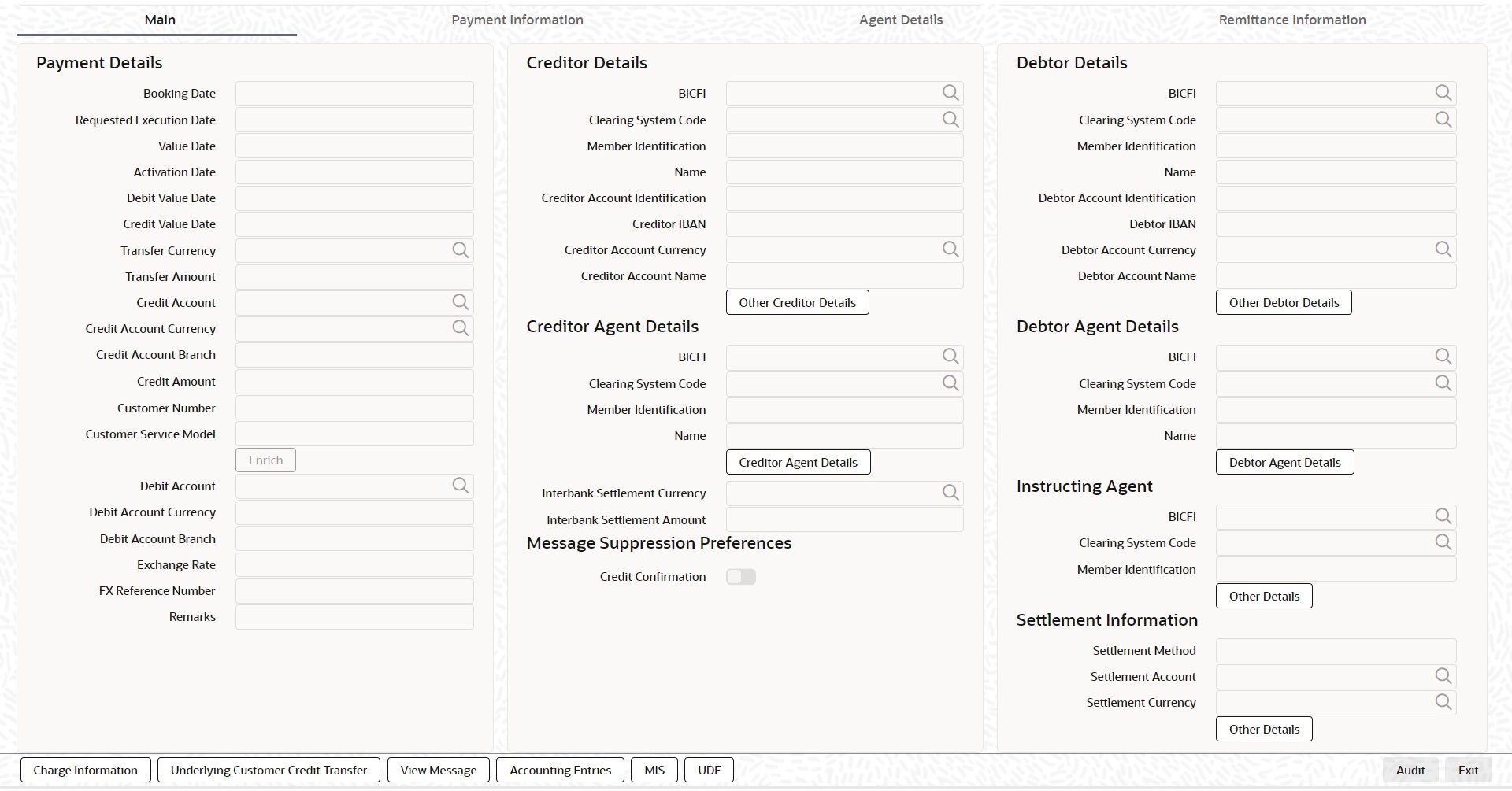
Payment Details
System defaults the following fields to current branch date:
l Booking Date
l Requested Execution Date
l Value Date
l Activation Date
Debit Value Date
Specify the debit entry value date.
Credit Value Date
Specify the credit entry value date.
Transfer Currency
Select from the list of values for transfer currency.
Transfer Amount
Specify the transfer amount.
Credit Account
Select from the list of values listed. This list contains all open and authorized customer accounts maintained in external customer account (STDCRACC), General Ledger Codes maintained in External Chart of Accounts (STDCRGLM) and loan account numbers maintained in external loan account (STDCRCLN).
Credit Account Currency
System populates this field with the account currency based on the credit account chosen.
Credit Account Branch
System populates this field with the account branch based on the credit account chosen.
Credit Amount
Specify the credit amount. If you do not enter this value, the system populates this field based on specified Transfer currency/amount.
Customer Number
System defaults the resolved customer number.
Customer Service Model
System defaults the customer service model of the resolved customer number.
Debit Account
Specify the debit account of the customer.
Note
l You can input the Nostro (mirror) account that would be debit as part of accounting.
l You can leave this field blank if the sender of the message is the Currency Correspondent.
l You can click ‘Enrich’ button to automatically populate this field with the associated Nostro/Vostro account.
Debit Account Currency
System populates this field with the Currency of the Nostro account that would be debit.
Debit Account Branch
System populates this field with the account branch of debit account.
Exchange Rate
Specify the Exchange Rate if Debit account currency is different from Transfer currency (or) Instructed Currency is different from Transfer Currency.
FX Reference Number
Specify the FX Reference Number.
Remarks
Specify the Remarks, if applicable.
Creditor Details
BICFI
Select from the list of values for BICFI code.
Clearing System Code
Select from the list of values for clearing system code.
Note
You should input either BICFI or Clearing System Code/Member Identification.
Member Identification
Specify the clearing ID code.
Name
System defaults the name as per selected BICFI code.
Creditor Account Identification
System defaults this field based on credit account selected. You can modify the account number.
Creditor IBAN
System defaults this field based on credit account selected. You can modify the IBAN.
Creditor Account Currency
Select from the list of values the selected credit account currency.
Creditor Account Name
Specify the debited account name.
Other Creditor Details Button
Click ‘Other Creditor Details’ button on ‘Main’ tab under Creditor Details header to invoke the sub screen. This screen shows the Creditor Details.
Refer to the Section 5.1.2.2, "Other Details Button" for details of fields and sub screen of the ‘Other Creditor Details’ button.
Creditor Agent Details
BICFI
Select from the list of values for BICFI code.
Clearing System Code
Select from the list of values for clearing system code.
Note
You should input either BICFI or Clearing System Code/Member Identification.
Member Identification
Specify the clearing ID code.
Name
System defaults the name as per selected BICFI code.
Creditor Agent Details Button
Click ‘Creditor Agent Details’ button on ‘Main’ tab under Creditor Agent Details header to invoke the sub screen. This screen shows the Creditor Agent Details.
Refer to the Section 5.1.2.3, "Agent Details Button" for details of fields and sub screen of the ‘Creditor Agent Details’ button.
Instructed Currency
Select from the list of values for instructed currency.
Instructed Amount
Specify the debit amount.
Interbank Settlement Currency
Display same as transfer currency.
Interbank Settlement Amount
Display final amount resolved.
Message suppression Preferences
Credit Confirmation
By default, the check box is unselected. If you select the check box, credit information is suppressed.
Debtor DetailsBICFI
Select from the list of values for BICFI code.
Clearing System Code
Select from the list of values for clearing system code.
Note
You should input either BICFI or Clearing System Code/Member Identification.
Member Identification
Specify the clearing ID code.
Name
System defaults the name as per selected BICFI code.
Debtor Account Identification
Specify the Debtor Account Identification.
Debtor IBAN
Specify the Debtor IBAN.
Debtor Account Currency
Specify the currency of the selected debit account.
Debtor Account Name
Specify the creditor account name.
Other Debtor Details Button
Click ‘Other Debtor Details’ button on ‘Main’ tab under Debtor Details header to invoke the sub screen. This screen shows the Debtor Details.
Refer to the Section 5.1.2.2, "Other Details Button" for details of fields and sub screen of the ‘Other Debtor Details’ button.
Debtor Agent Details
BICFI
Select from the list of values for BICFI code.
Clearing System Code
Select from the list of values for clearing system code.
Member Identification
Specify the clearing ID code.
Name
System defaults the name as per selected BICFI code.
Debtor Agent Details Button
Click ‘Debtor Agent Details’ button on ‘Main’ tab under Debtor Agent Details header to invoke the sub screen. This screen shows the Creditor Agent Details.
Refer to the Section 5.1.2.3, "Agent Details Button" for details of fields and sub screen of the ‘Debtor Agent Details’ button.
Instructing Agent
Select from the list of values for BICFI code.
Clearing System Code
Select from the list of values for clearing system code.
Member Identification
Specify the clearing ID code.
Name
System defaults the name as per selected BICFI code.
Other Details Button
Click ‘Other Details’ button on PSDICBBT’ screen under Instructing Agent header to invoke this screen. This screen shows the Instructing Agent Details.
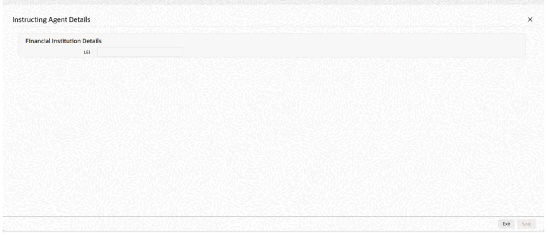
Specify the following fields available for this screen:
Financial Institution Details
LEI
Specify LEI of the agent.
Settlement Information
Settlement Method
Select the settlement method for the transaction. The drop down list contains values INDA, INGA, and COVE.
Settlement Account
Select from the list of values for settlement account.
Settlement Currency
System defaults the settlement currency as per the selected settlement account.
Other Details Button
Click ‘Other Details’ button on PSDICBBT’ screen under Settlement Information header to invoke this screen. This screen shows the Settlement Information Details.
Following fields are available for this screen:
IBAN
System defaults IBAN of the agent as per the provided settlement account.
Scheme Name Proprietary
Specify the Scheme Name Proprietary of the agent.
Proxy Type Code
Select the Proxy Type Code for the agent. The drop down list contains values TELE, EMAL, and DNAM.
Account Name
System defaults Account Name of the agent as per the provided settlement account.
Issuer
Proxy Type Proprietary
Specify the Proxy Type Proprietary of the agent.
Scheme Name Code
Select from the list of values for Scheme Name Code of the agent.
Type Code
Select from the list of values for Type Code for the agent.
Proxy ID
Specify the proxy ID of the agent.
Type Proprietary
Specify the Type Proprietary of the agent.
The ‘Other Debtor Details’ and ‘Other Creditor Details’ button under ‘Main’ tab contains similar fields and sub screen. Depending upon which button you click, the screen header name changes.
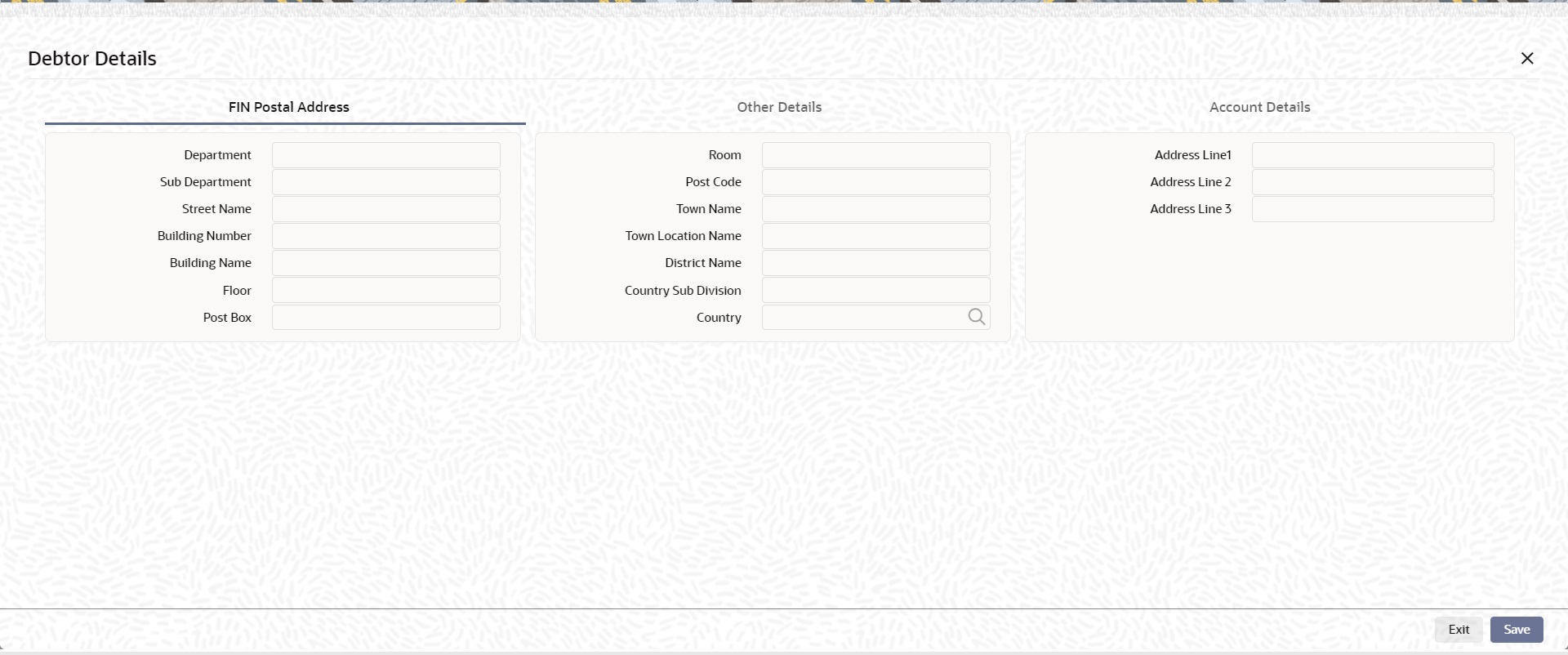
FIN Postal Address
Specify the following fields available for this screen:
l Department
l Sub Department
l Street Name
l Building Number
l Building Name
l Floor
l Post Box
l Room
l Post Code
l Town Name
l Town Location Name
l District Name
l Country Sub Division
l Country
l Address Line 1
l Address Line 2
l Address Line 3
Other Details
Click ‘Other Details’ tab to invoke this screen.
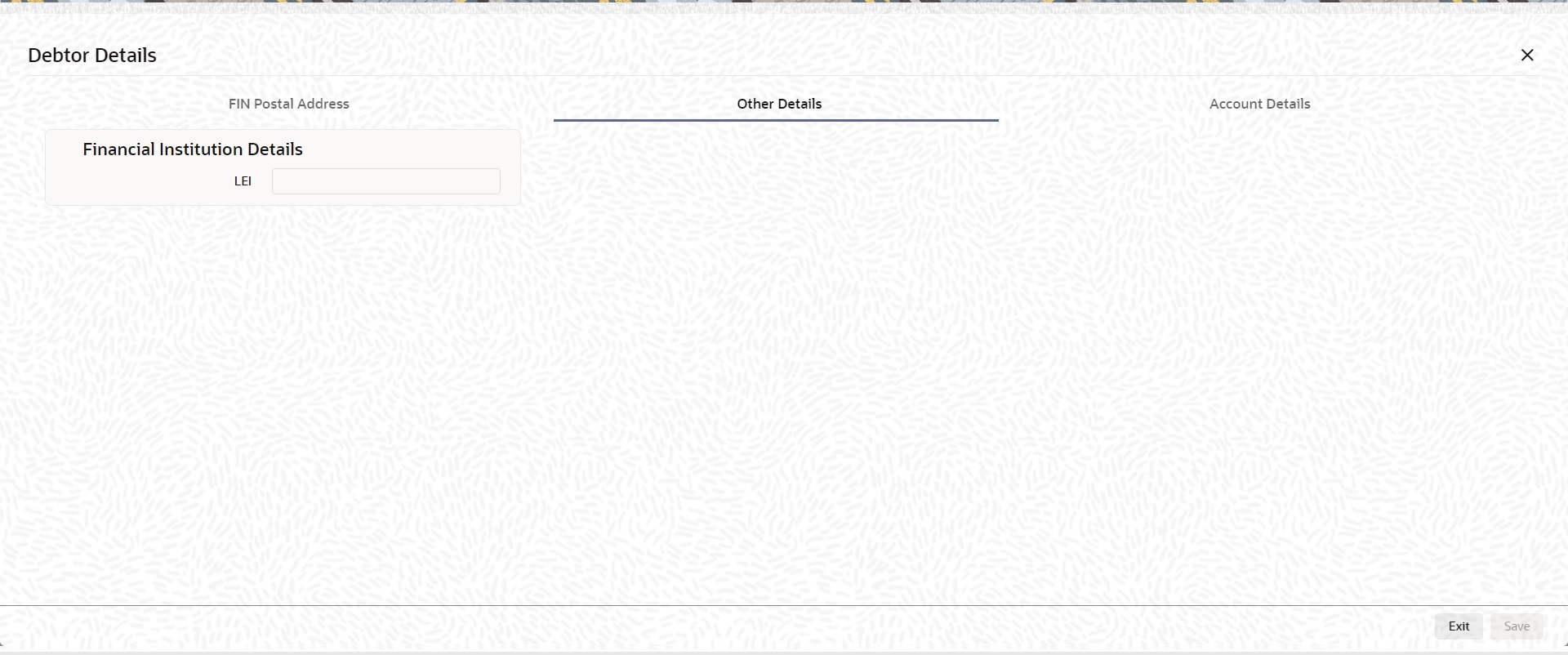
Specify the following fields for this screen:
Financial Institution Details
LEI
Specify LEI of the agent.
Account Details
Click ‘Account Details’ tab to invoke this screen.
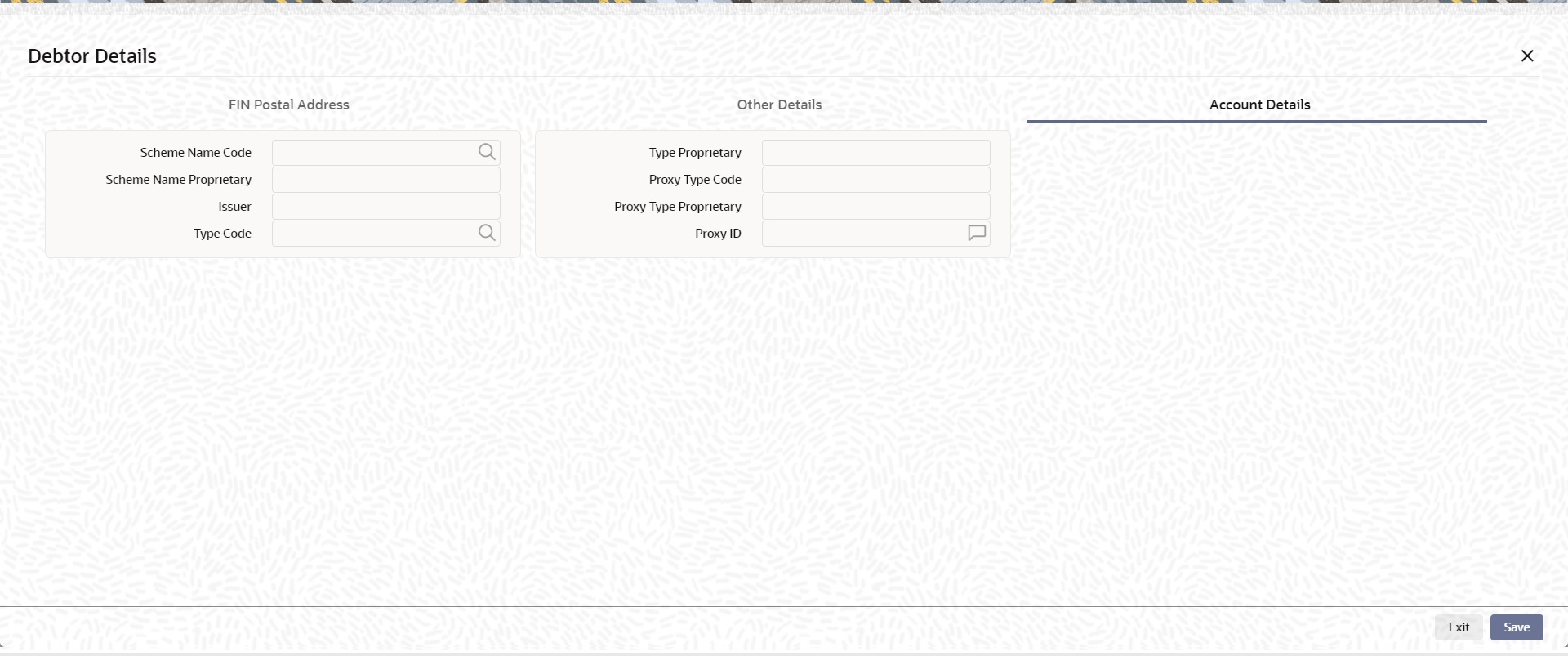
Specify the information into following fields for the agents:
l Scheme Name Code
l Scheme Name Proprietary
l Issuer
l Type Code
l Type Proprietary
l Proxy Type Code
l Proxy Type Proprietary
l Proxy ID
Note
l If you input Type information, either input Type Code (or) Type Proprietary.
l If you input Scheme information, either input Schema Name Code (or) Schema Name Proprietary.
l If you input Proxy information, either input Proxy Type Code (or) Proxy Type Proprietary.
l If you input Proxy information, you must input Proxy ID.
The ‘Creditor Agent Details’ and ‘Debtor Agent Details’ button under ‘Main’ tab contains similar fields and sub screen. Depending upon which button you click, the screen header name changes.
FIN Postal Address
Specify the following fields available for this screen:
l Department
l Sub Department
l Street Name
l Building Number
l Building Name
l Floor
l Post Box
l Room
l Post Code
l Town Name
l Town Location Name
l District Name
l Country Sub Division
l Country
l Address Line 1
l Address Line 2
l Address Line 3
Other Details
Click ‘Other Details’ tab under Debtor Agent Details header to invoke this screen.

Specify the following fields for this screen:
Financial Institution Details
LEI
Specify LEI of the agent.
Account Details
Click ‘Account Details’ tab under Debtor Agent Details header to invoke this screen.
Specify the information into following fields for the agents:
l Account
l IBAN
l Currency
l Account Name
l Scheme Name Code
l Scheme Name Proprietary
l Issuer
l Type Code
l Type Proprietary
l Proxy Type Code
l Proxy Type Proprietary
l Proxy ID
Note
l If you input Type information, either input Type Code (or) Type Proprietary.
l If you input Scheme information, either input Schema Name Code (or) Schema Name Proprietary.
l If you input Proxy information, either input Proxy Type Code (or) Proxy Type Proprietary.
l If you input Proxy information, you must input Proxy ID.
5.1.2.4 Payment Information
Click the ‘Payment Information’ tab in the ‘Cross Border Inbound FI Credit Transfer Input Detailed’ screen.
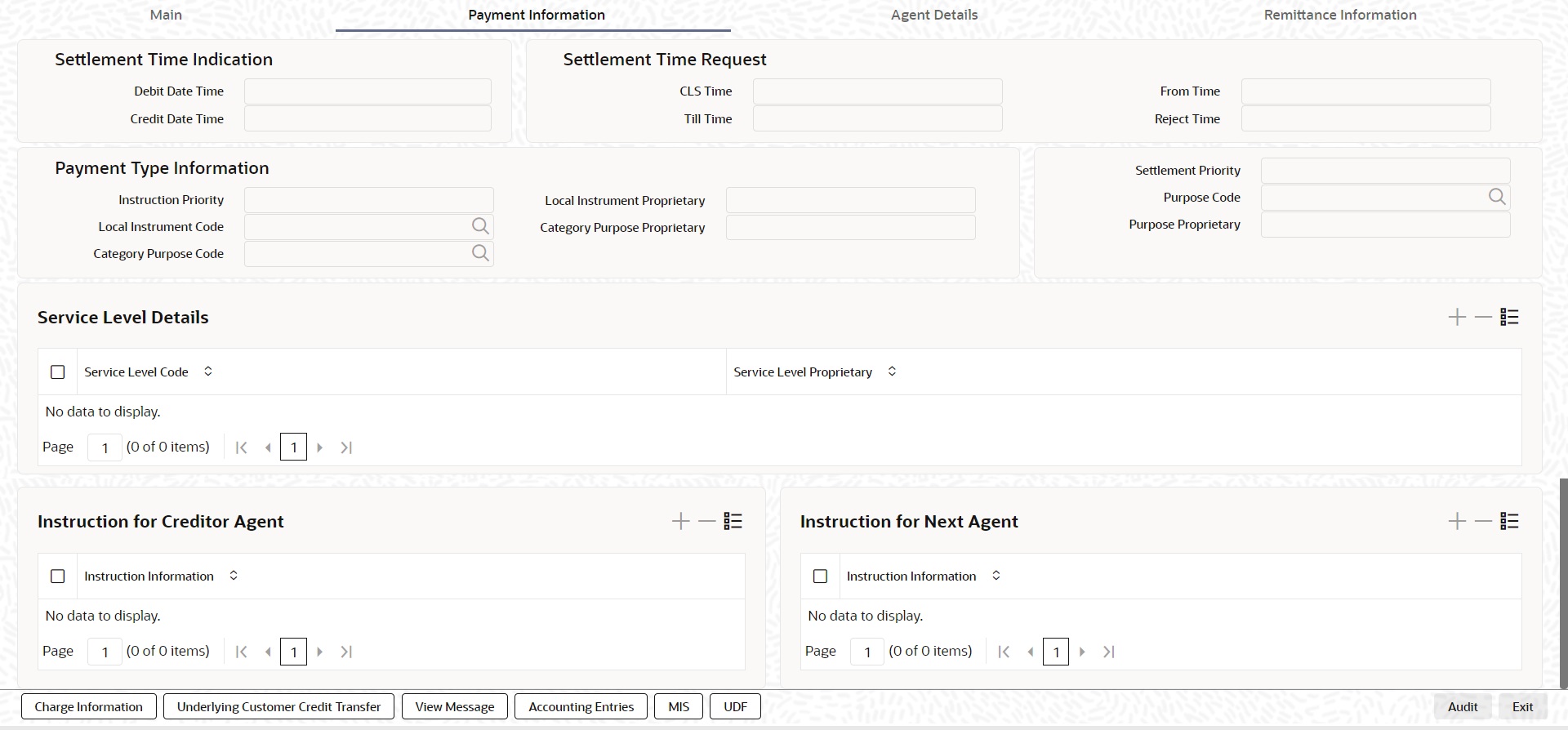
Specify the following fields:
Settlement Time Indication
Debit Date Time
Specify Date and Time of debiting the transaction.
Credit Date Time
Specify Date and Time of crediting the transaction.
Note
For above mentioned fields, the time Off-Set is made mandatory for translation purposes.
Settlement Time Request
CLS Time
Specify the CLS Time.
From Time
Specify the From Time.
Till Time
Specify the Till Time.
Reject Time
Specify the Reject Time.
Note
For the above mentioned fields, the time Off-Set is made mandatory for translation purposes.
Payment Type Information
Instruction Priority
Select from the list of values for Instruction Priority. The drop down list contains values ‘High’ and ‘Low’.
Local Instrument Code
Select from the list of values for Local Instrument Code. This list contains ISO 20022 Instrument codes.
Category Purpose Code
Select from the list of values for Category Purpose Code. This list contains ISO 20022 Category Purpose codes.
Local Instrument Proprietary
Specify the Local Instrument Proprietary value.
Note
If you input Local Instrument, either you input Code or Proprietary.
Category Purpose Proprietary
Specify the Category Purpose Proprietary value.
Note
If you input Category Purpose, either you input Code or Proprietary.
Settlement Priority
Select from the list of values for Settlement Priority. The drop down list contains values HIGH, NORM, and URGT.
Purpose Code
Select from the list of values for Purpose Code. This list contains ISO 20022 Purpose codes.
Purpose Proprietary
Specify the Purpose Proprietary value.
Note
If you input Purpose, either you input Code or Proprietary.
Service Level Details
Service Level Code
Select from the list of values for Service Level Code. This list contains ISO 20022 Service Level codes.
Service Level Proprietary
Specify the Service Level Proprietary value.
Note
l Only three occurrences of Service Level are allowed.
l If you input Service Level, either you input Code or Proprietary.
Instruction for Creditor Agent
Code
Select from the list of values for code. The list contains the values PHOB and TELB.
Instruction Information
Specify the Instruction Information.
Note
Only two occurrences of Instruction For Creditor Agent are allowed.
Instruction for Next Agent
Instruction Information
Specify the Instruction information to be given to the next agent in the payment chain.
Note
Only four occurrences of Instruction for Next Agent are allowed.
5.1.2.5 Agent Details
Click the ‘Agents Details’ tab in the ‘Cross Border Inbound FI Credit Transfer Input Detailed’ screen.
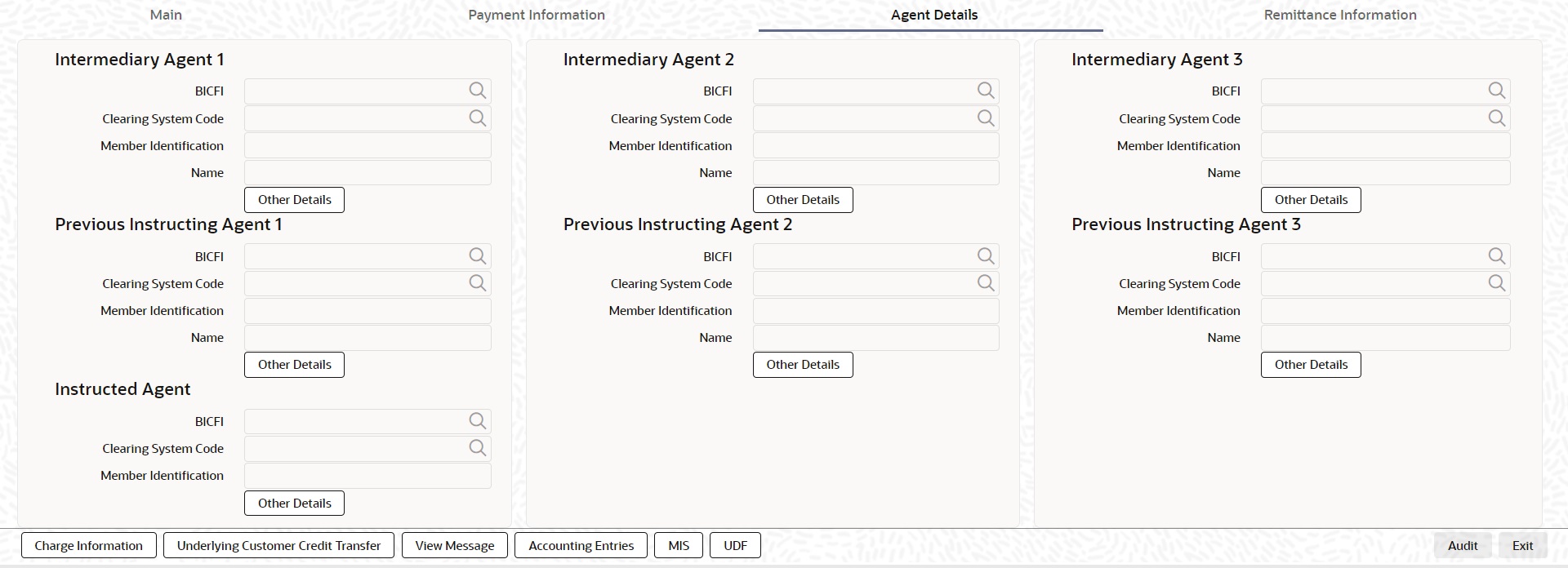
Specify the following fields:
Intermediary Agent 1
BICFI
Select from the list of values for BICFI code.
Clearing System Code
Select from the list of values for Clearing System Code.
Member Identification
Specify the clearing ID code.
Name
System defaults the name as per selected BICFI code.
Other Details Button
Click ‘Other Details’ button on ‘Agent Details’ tab under ‘Intermediary Agent 1’ header to invoke the sub screen. This screen shows the Intermediary Agent 1 Details.
Refer to the Section 5.1.2.6, "Agent Other Details Button" for details of fields and sub screen of the ‘Other Details’ button.
Intermediary Agent 2
BICFI
Select from the list of values for BICFI code.
Clearing System Code
Select from the list of values for Clearing System Code.
Member Identification
Specify the clearing ID code.
Name
System defaults the name as per selected BICFI code.
Other Details Button
Click ‘Other Details’ button on ‘Agent Details’ tab under ‘Intermediary Agent 2’ header to invoke the sub screen. This screen shows the Intermediary Agent 2 Details.
Refer to the Section 5.1.2.6, "Agent Other Details Button" for details of fields and sub screen of the ‘Other Details’ button.
Intermediary Agent 3
BICFI
Select from the list of values for BICFI code.
Clearing System Code
Select from the list of values for Clearing System Code.
Member Identification
Specify the clearing ID code.
Name
System defaults the name as per selected BICFI code.
Other Details Button
Click ‘Other Details’ button on ‘Agent Details’ tab under ‘Intermediary Agent 3’ header to invoke the sub screen. This screen shows the Intermediary Agent 3 Details.
Refer to the Section 5.1.2.6, "Agent Other Details Button" for details of fields and sub screen of the ‘Other Details’ button.
Previous Instructing Agent 1
BICFI
Select from the list of values for BICFI code.
Clearing System Code
Select from the list of values for Clearing System Code.
Member Identification
Specify the clearing ID code.
Name
System defaults the name as per selected BICFI code.
Other Details Button
Click ‘Other Details’ button on ‘Agent Details’ tab under ‘Previous Instructing Agent 1’ header to invoke the sub screen. This screen shows the Previous Instructing Agent 1 Details.
Refer to the Section 5.1.2.6, "Agent Other Details Button" for details of fields and sub screen of the ‘Other Details’ button.
Previous Instructing Agent 2
BICFI
Select from the list of values for BICFI code.
Clearing System Code
Select from the list of values for Clearing System Code.
Member Identification
Specify the clearing ID code.
Name
System defaults the name as per selected BICFI code.
Other Details Button
Click ‘Other Details’ button on ‘Agent Details’ tab under ‘Previous Instructing Agent 2’ header to invoke the sub screen. This screen shows the Previous Instructing Agent 2 Details.
Refer to the Section 5.1.2.6, "Agent Other Details Button" for details of fields and sub screen of the ‘Other Details’ button.
Previous Instructing Agent 3
BICFI
Select from the list of values for BICFI code.
Clearing System Code
Select from the list of values for Clearing System Code.
Member Identification
Specify the clearing ID code.
Name
System defaults the name as per selected BICFI code.
Other Details Button
Click ‘Other Details’ button on ‘Agent Details’ tab under ‘Previous Instructing Agent 3’ header to invoke the sub screen. This screen shows the Previous Instructing Agent 3 Details.
Refer to the Section 5.1.2.6, "Agent Other Details Button" for details of fields and sub screen of the ‘Other Details’ button.
Instructing Agent
BICFI
Select from the list of values for BICFI code.
Clearing System Code
Select from the list of values for Clearing System Code.
Member Identification
Specify the clearing ID code.
Name
System defaults the name as per selected BICFI code.
Other Details Button
Click ‘Other Details’ button on ‘Agent Details’ tab screen under Instructing Agent header to invoke this screen. This screen shows the Instructing Agent Details.
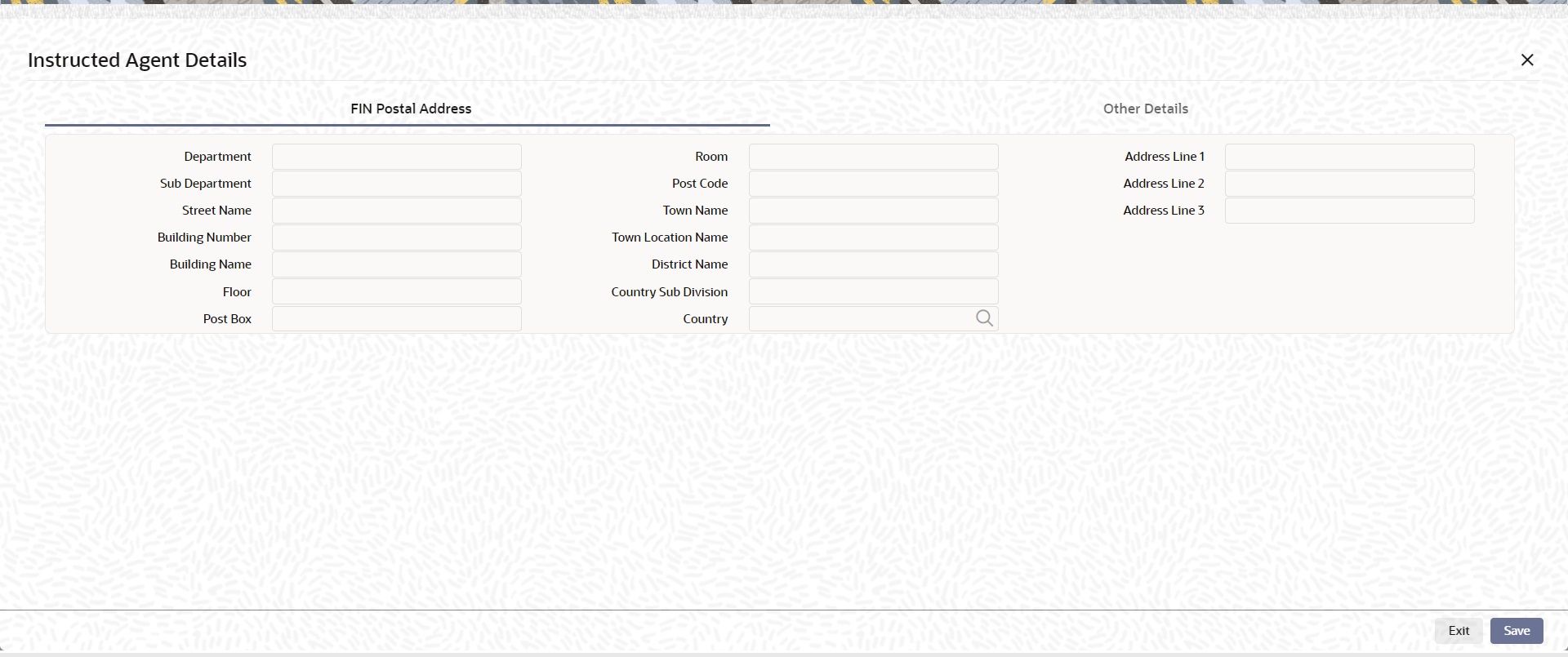
FIN Postal Address
Specify the following fields available for this screen:
l Department
l Sub Department
l Street Name
l Building Number
l Building Name
l Floor
l Post Box
l Room
l Post Code
l Town Name
l Town Location Name
l District Name
l Country Sub Division
l Country
l Address Line 1
l Address Line 2
l Address Line 3
Other Details
Click ‘Other Details’ tab to invoke this screen.
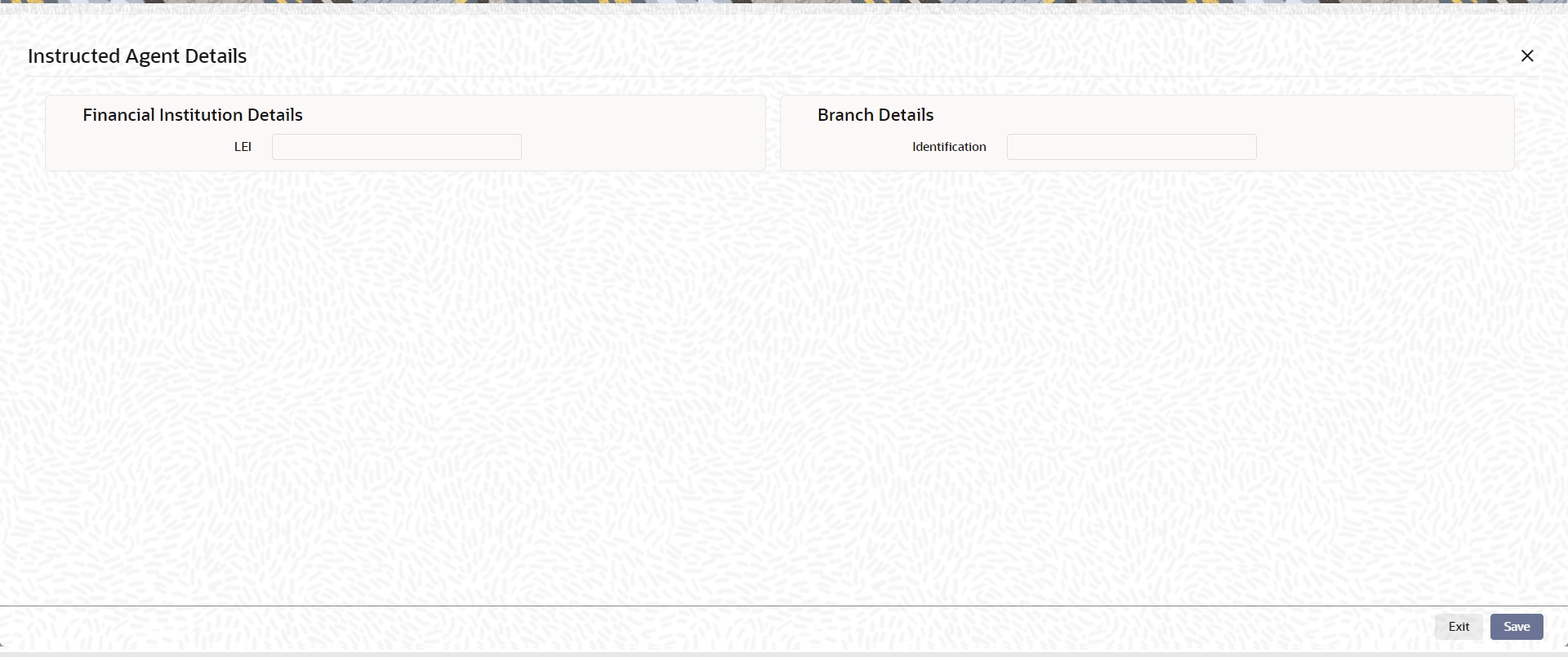
Specify the following fields available for this screen:
Financial Institution Details
LEI
Specify LEI of the agent.
5.1.2.6 Agent Other Details Button
The ‘Other Details’ button for Intermediary Agent 1, Intermediary Agent 2, Intermediary Agent 3, Previous Instructing Agent 1, Previous Instructing Agent 2, and Previous Instructing Agent 3 under ‘Agent Details’ tab contains similar fields and sub screen. Depending upon which button you click, the screen header name changes.
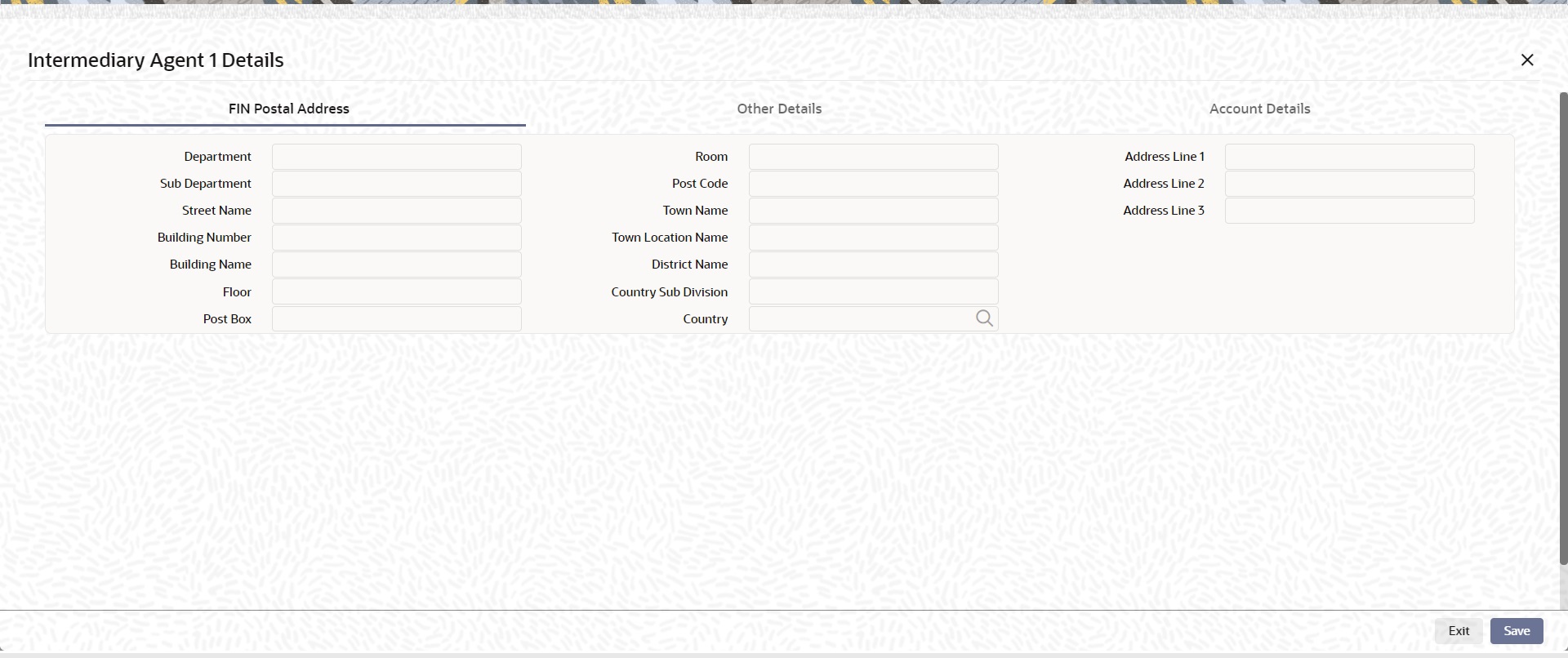
FIN Postal Address
Specify the following fields available for this screen:
l Department
l Sub Department
l Street Name
l Building Number
l Building Name
l Floor
l Post Box
l Room
l Post Code
l Town Name
l Town Location Name
l District Name
l Country Sub Division
l Country
l Address Line 1
l Address Line 2
l Address Line 3
Other Details
Click ‘Other Details’ tab to invoke this screen.
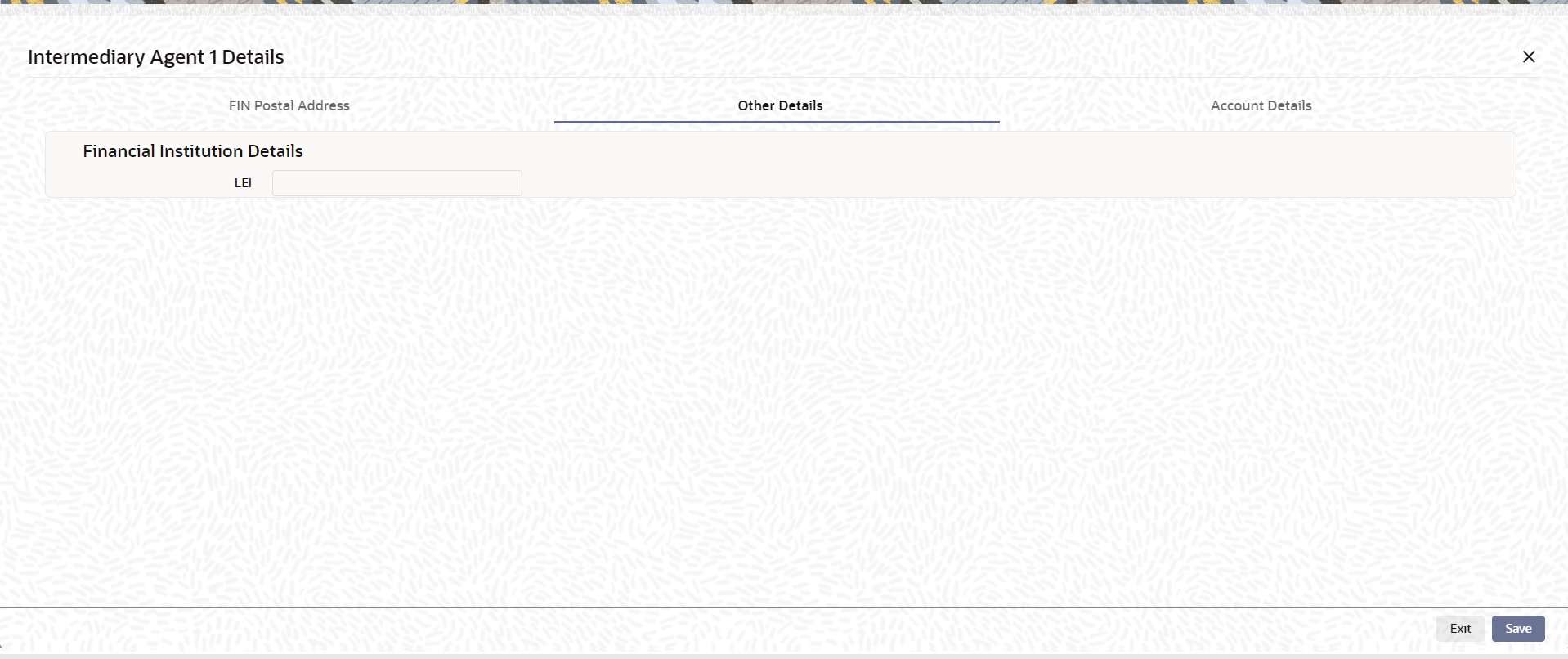
Specify the following fields available for this screen:
Financial Institution Details
LEI
Specify LEI of the agent.
Account Details
Click ‘Account Details’ tab to invoke this screen.
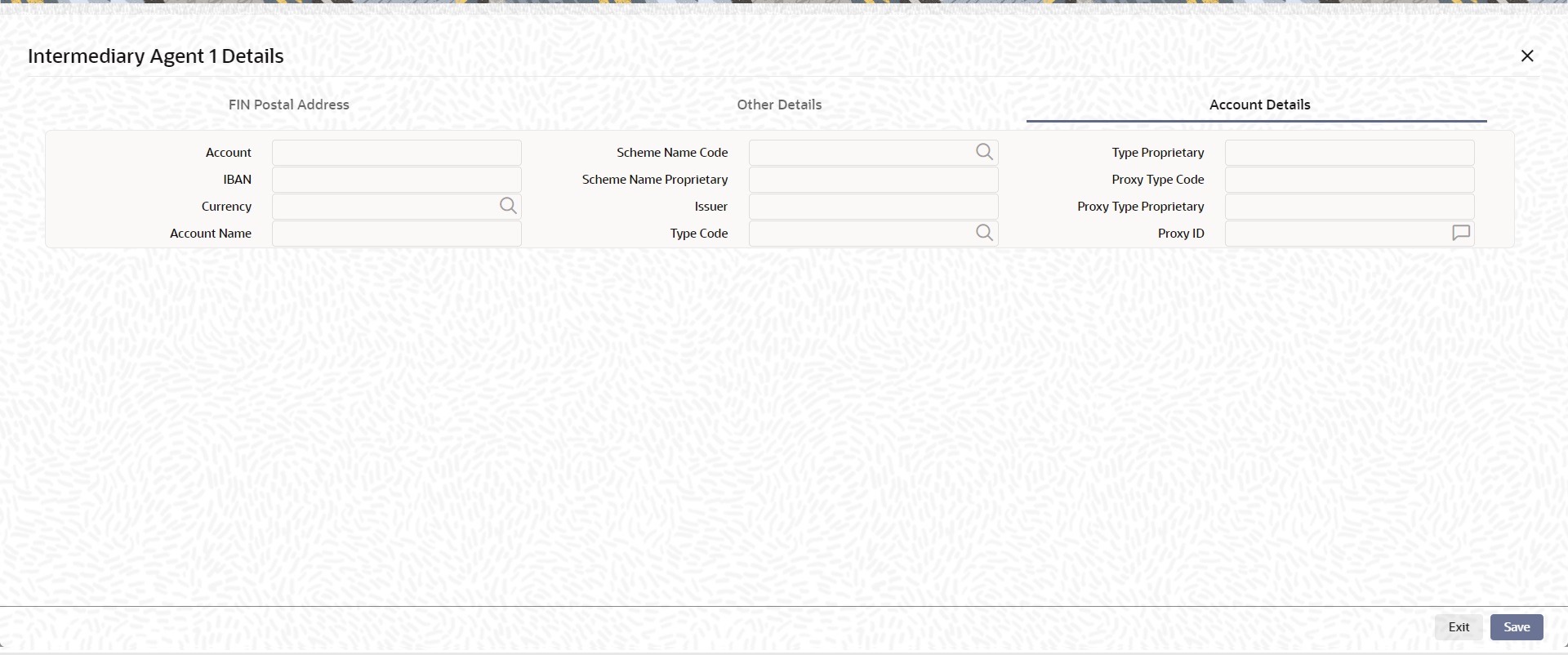
Specify the information into following fields for the agents:
l Account
l IBAN
l Currency
l Account Name
l Scheme Name Code
l Scheme Name Proprietary
l Issuer
l Type Code
l Type Proprietary
l Proxy Type Code
l Proxy Type Proprietary
l Proxy ID
Note
l If you input Type information, either input Type Code (or) Type Proprietary.
l If you input Scheme information, either input Schema Name Code (or) Schema Name Proprietary.
l If you input Proxy information, either input Proxy Type Code (or) Proxy Type Proprietary.
l If you input Proxy information, you must input Proxy ID.
5.1.2.7 Remittance Information
Click the ‘Remittance Information’ tab in the ‘Cross Border Inbound FI Credit Transfer Input Detailed’ screen.
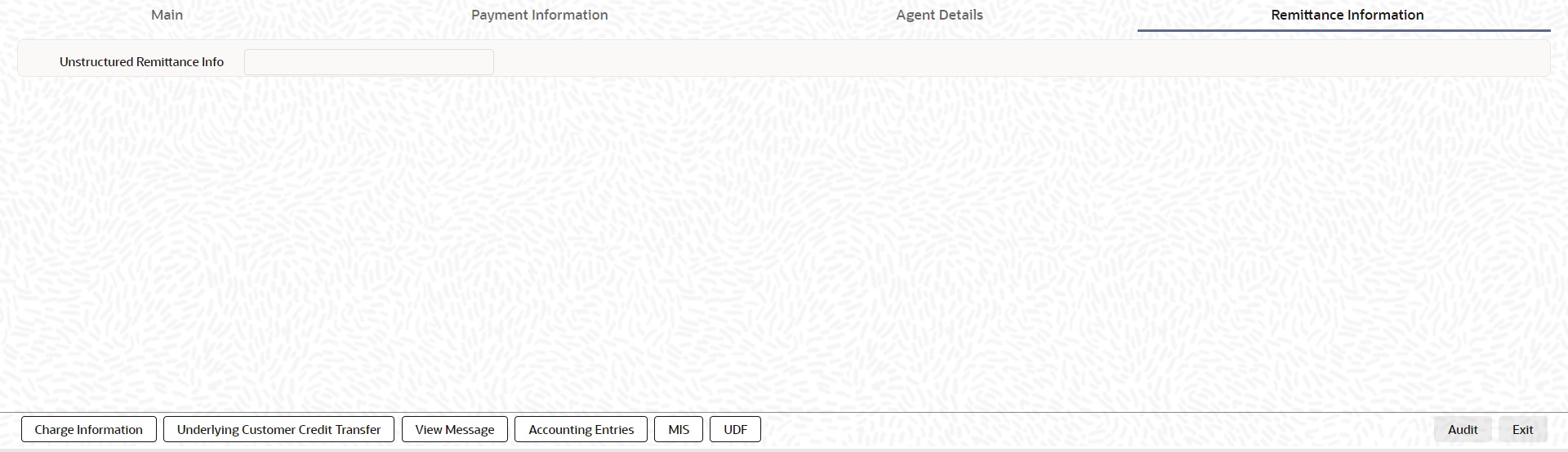
Specify the following fields:
Unstructured Remittance Info
Specify the Unstructured Remittance Information.
5.1.2.8 Charges Information Tab
You can view the Charges Information details for the transaction in this screen. Click the “Charges Information” tab in the Cross Border Inbound FI Credit Transfer Input Detailed screen to invoke this sub screen.
Specify the following details:
Charge Account Number
Select from the list of values for Charge Account Number.
Charge Account Branch
System defaults the Branch of the selected account.
Charge Account Currency
System defaults the Currency of the selected account.
Payment Pricing Details
Pricing Component
The system displays Pricing Component of the transaction.
Pricing Currency
The system displays Pricing Currency of the transaction.
Pricing Amount
Specify the Pricing Amount of the transaction.
Waiver
Select the check box to indicate if Pricing is waived.
Debit Currency
Specify the Currency of the Debit account from which charge is applied.
Debit Amount
Specify Debit Amount of the charge.
5.1.2.9 Underlying Customer Credit Transfer - Other PartiesTab
You can view the Underlying Customer Credit Transfer details for the ‘Other Parties’ in this screen. Click the “Other Parties” tab under “Underlying Customer Credit Transfer” tab in the Cross Border Inbound FI Credit Transfer Input Detailed screen to invoke this sub screen.
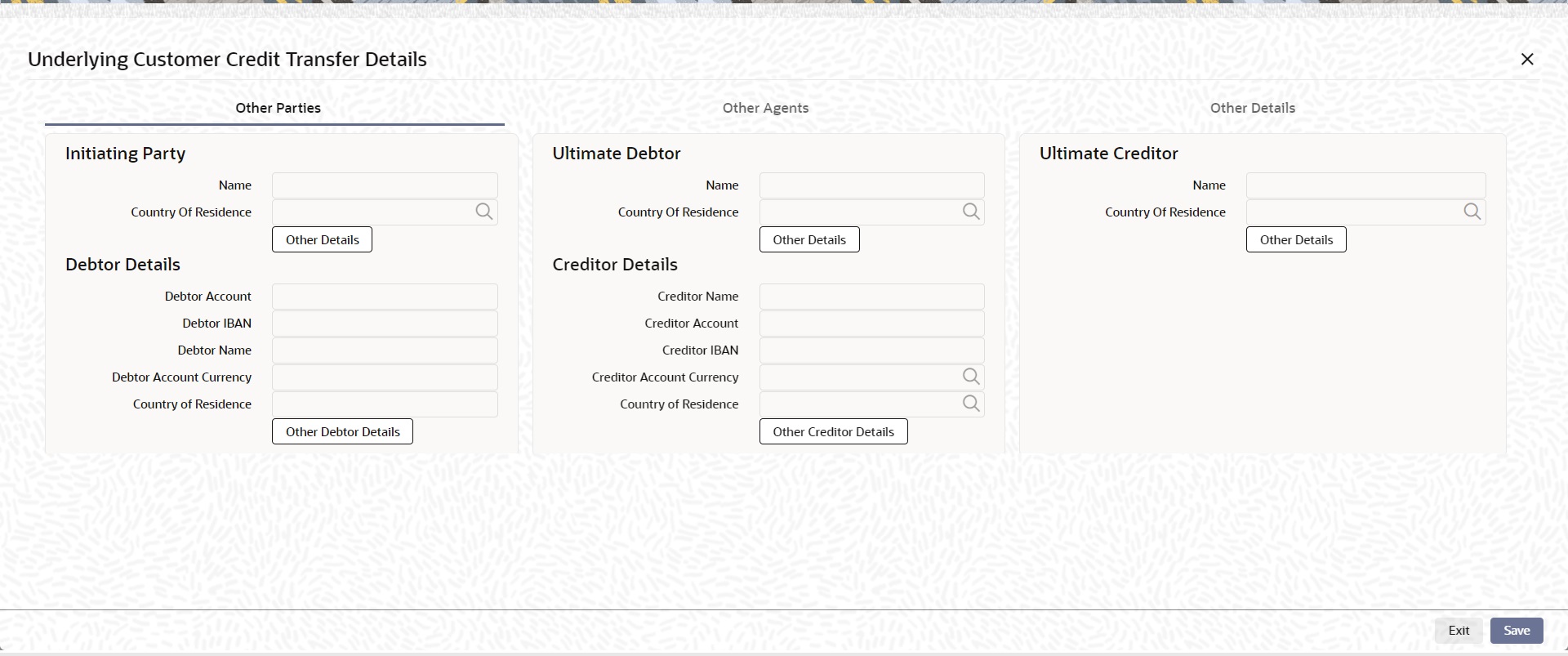
Specify the following fields:
Initiating Party
Name
Specify the Name of the initiating party.
Country of Residence
Select from the list of values for Country of initiating party. This field lists the 2-Char ISO Country code list from the factory-shipped table.
Note
Select Country of Residence (where the party physically lives) only if it is different from Postal Address/Country.
Other Details Button
Click ‘Other Details’ button on ‘Underlying Customer Credit Transfer Details’ tab under ‘Initiating Party’ header to invoke the sub screen. This screen shows the Initiating Party Details.
Refer to the Section 5.1.2.12, "Party Other Details Button" for details of fields and sub screen of the ‘Other Details’ button.
Ultimate Debtor
Name
Specify the Name of the initiating party.
Country of Residence
Select from the list of values for Country of initiating party. This field lists the 2-Char ISO Country code list from the factory-shipped table.
Note
Select Country of Residence (where the party physically lives) only if it is different from Postal Address/Country.
Other Details Button
Click ‘Other Details’ button on ‘Underlying Customer Credit Transfer details’ tab under ‘Ultimate Debtor’ header to invoke the sub screen. This screen shows the Ultimate Debtor Details.
Refer to the Section 5.1.2.12, "Party Other Details Button" for details of fields and sub screen of the ‘Other Details’ button.
Ultimate Creditor
Name
Specify the Name of the initiating party.
Country of Residence
Select from the list of values for Country of initiating party. This field lists the 2-Char ISO Country code list from the factory-shipped table.
Note
Select Country of Residence (where the party physically lives) only if it is different from Postal Address/Country.
Other Details Button
Click ‘Other Details’ button on ‘Underlying Customer Credit Transfer Details’ tab under ‘Ultimate Creditor’ header to invoke the sub screen. This screen shows the Ultimate Creditor Details.
Refer to the Section 5.1.2.12, "Party Other Details Button" for details of fields and sub screen of the ‘Other Details’ button.
Debtor Details
Debtor Account
Specify the Debtor Account.
Debtor IBAN
Specify the IBAN of the Debtor Account.
Debtor Name
Specify the debited customer name.
Debtor Account Currency
Select the currency of the Debtor Account.
Country of Residence
Select from the list of values for country of residence. This field lists the 2-Char ISO Country code list from the factory-shipped table.
Note
l You can input either Debtor Account or Debtor IBAN.
l Select Country of Residence (where the party physically lives) only if it is different from Postal Address/Country.
Other Debtor Details Button
Click ‘Other Debtor Details’ button on ‘Underlying Customer Credit Transfer Details’ tab under Debtor Details header to invoke the sub screen. This screen shows the Debtor Details.
Refer to the Section 5.1.2.13, "Other Details Button" for details of fields and sub screen of the ‘Other Debtor Details’ button.
Creditor Details
Creditor Name
Specify the Creditor Name.
Creditor Account
Specify Creditor Account Number.
Creditor IBAN
Specify Creditor IBAN Number.
Note
You can input either Creditor Account Number or Creditor IBAN.
Creditor Account Currency
Select from the list of values for Credit Account Currency.
Country of Residence
Select from the list of values for Country of Residence. This field lists the 2-Char ISO Country code list from the factory-shipped table.
Note
Select Country of Residence (where the party physically lives) only if it is different from Postal Address/Country.
Other Creditor Details Button
Click ‘Other Creditor Details’ button on ‘Underlying Customer Credit Transfer Details’ tab under ‘Creditor Details’ header to invoke the sub screen. This screen shows the Creditor Details.
Refer to the Section 5.1.2.13, "Other Details Button" for details of fields and sub screen of the ‘Creditor Details’ button.
5.1.2.10 Underlying Customer Credit Transfer - Other Agents Tab
You can view the Underlying Customer Credit Transfer details for the ‘Other Agents’ in this screen. Click the “Other Agents” tab under “Underlying Customer Credit Transfer” tab in the Cross Border Inbound FI Credit Transfer Input Detailed screen to invoke this sub screen.

Specify the following fields:
Debtor Agents Details
BICFI
Select from the list of values for BICFI code.
Clearing System Code
Select from the list of values for clearing system code.
Member Identification
Specify the clearing ID code.
Name
System defaults the name as per selected BICFI code.
Other Details Button
Click ‘Other Details’ button on ‘Other Agents’ tab under ‘Debtor Agents Details’ header to invoke the sub screen. This screen shows the Debtor Agents Details.
Refer to the Section 5.1.2.14, "Other Details Button" for details of fields and sub screen of the ‘Other Details’ button.
Creditor Agents Details
BICFI
Select from the list of values for BICFI code.
Clearing System Code
Select from the list of values for clearing system code.
Member Identification
Specify the clearing ID code.
Name
System defaults the name as per selected BICFI code.
Other Details Button
Click ‘Other Details’ button on ‘Other Agents’ tab under ‘Creditor Agents Details’ header to invoke the sub screen. This screen shows the Creditor Agents Details.
Refer to the Section 5.1.2.14, "Other Details Button" for details of fields and sub screen of the ‘Other Details’ button.
Previous Instructing Agent 1
BICFI
Select from the list of values for BICFI code.
Clearing System Code
Select from the list of values for clearing system code.
Member Identification
Specify the clearing ID code.
Name
System defaults the name as per selected BICFI code.
Other Details Button
Click ‘Other Details’ button on ‘Other Agents’ tab under ‘Previous Instructing Agent 1’ header to invoke the sub screen. This screen shows the Previous Instructing Agent 1 Details.
Refer to the Section 5.1.2.14, "Other Details Button" for details of fields and sub screen of the ‘Other Details’ button.
Previous Instructing Agent 2
BICFI
Select from the list of values for BICFI code.
Clearing System Code
Select from the list of values for clearing system code.
Member Identification
Specify the clearing ID code.
Name
System defaults the name as per selected BICFI code.
Other Details Button
Click ‘Other Details’ button on ‘Other Agents’ tab under ‘Previous Instructing Agent 2’ header to invoke the sub screen. This screen shows the Previous Instructing Agent 2 Details.
Refer to the Section 5.1.2.14, "Other Details Button" for details of fields and sub screen of the ‘Other Details’ button.
Previous Instructing Agent 3
BICFI
Select from the list of values for BICFI code.
Clearing System Code
Select from the list of values for clearing system code.
Member Identification
Specify the clearing ID code.
Name
System defaults the name as per selected BICFI code.
Other Details Button
Click ‘Other Details’ button on ‘Other Agents’ tab under ‘Previous Instructing Agent 3’ header to invoke the sub screen. This screen shows the Previous Instructing Agent 3 Details.
Refer to the Section 5.1.2.14, "Other Details Button" for details of fields and sub screen of the ‘Other Details’ button.
Intermediary Agent 1
BICFI
Select from the list of values for BICFI code.
Clearing System Code
Select from the list of values for clearing system code.
Member Identification
Specify the clearing ID code.
Name
System defaults the name as per selected BICFI code.
Other Details Button
Click ‘Other Details’ button on ‘Other Agents’ tab under ‘Intermediary Agent 1’ header to invoke the sub screen. This screen shows the Intermediary Agent 1 Details.
Refer to the Section 5.1.2.14, "Other Details Button" for details of fields and sub screen of the ‘Other Details’ button.
Intermediary Agent 2
BICFI
Select from the list of values for BICFI code.
Clearing System Code
Select from the list of values for clearing system code.
Member Identification
Specify the clearing ID code.
Name
System defaults the name as per selected BICFI code.
Other Details Button
Click ‘Other Details’ button on ‘Other Agents’ tab under ‘Intermediary Agent 2’ header to invoke the sub screen. This screen shows the Intermediary Agent 2 Details.
Refer to the Section 5.1.2.14, "Other Details Button" for details of fields and sub screen of the ‘Other Details’ button.
Intermediary Agent 3
BICFI
Select from the list of values for BICFI code.
Clearing System Code
Select from the list of values for clearing system code.
Member Identification
Specify the clearing ID code.
Name
System defaults the name as per selected BICFI code.
Other Details Button
Click ‘Other Details’ button on ‘Other Agents’ tab under ‘Intermediary Agent 3’ header to invoke the sub screen. This screen shows the Intermediary Agent 3 Details.
Refer to the Section 5.1.2.14, "Other Details Button" for details of fields and sub screen of the ‘Other Details’ button.
5.1.2.11 Underlying Customer Credit Transfer - Other Details Tab
You can view the Underlying Customer Credit Transfer details for the ‘Other Details’ in this screen. Click the “Other Details” tab under “Underlying Customer Credit Transfer” tab in the Cross Border Outbound FI Credit Transfer Input Detailed screen to invoke this sub screen.
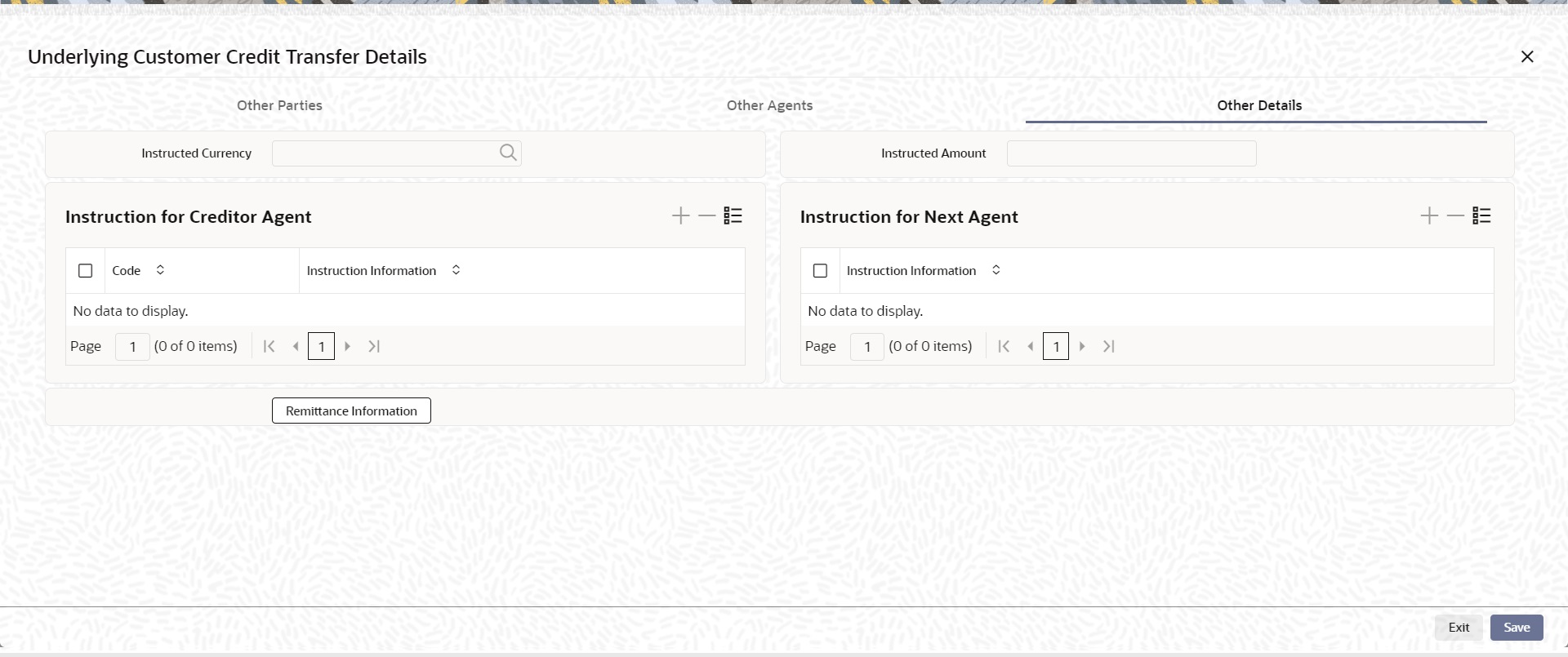
Specify the following fields:
Instructed Currency
Specify the Instructed Currency from the list of values. List of all valid (Open/Authorized) currencies defined.
Instructed Amount
Specify the Debit Amount.
Instruction for Creditor Agent
Code
Select from the list of values for code. The list contains the values CHQB, HOLD, PHOB, TELB.
Instruction Information
Specify the Instruction Information.
Note
l Only two occurrences of Instruction For Creditor Agent are allowed.
l If code CHQB is present, then code HOLD is not allowed, else HOLD is optional.
l If code PHOB is present, then code TELB is not allowed, else TELB is optional.
Instruction for Next Agent
Instruction Information
Specify the Instruction information to be given to the next agent in the payment chain.
Note
Only four occurrences of Instruction For Next Agent are allowed.
5.1.2.12 Party Other Details Button
The ‘Other Details’ button for Initiating Party, Ultimate Debtor, and Ultimate Creditor under ‘Underlying Customer Credit Transfer Details’ tab contains similar fields and sub screen. Depending upon which button you click, the screen header name changes.
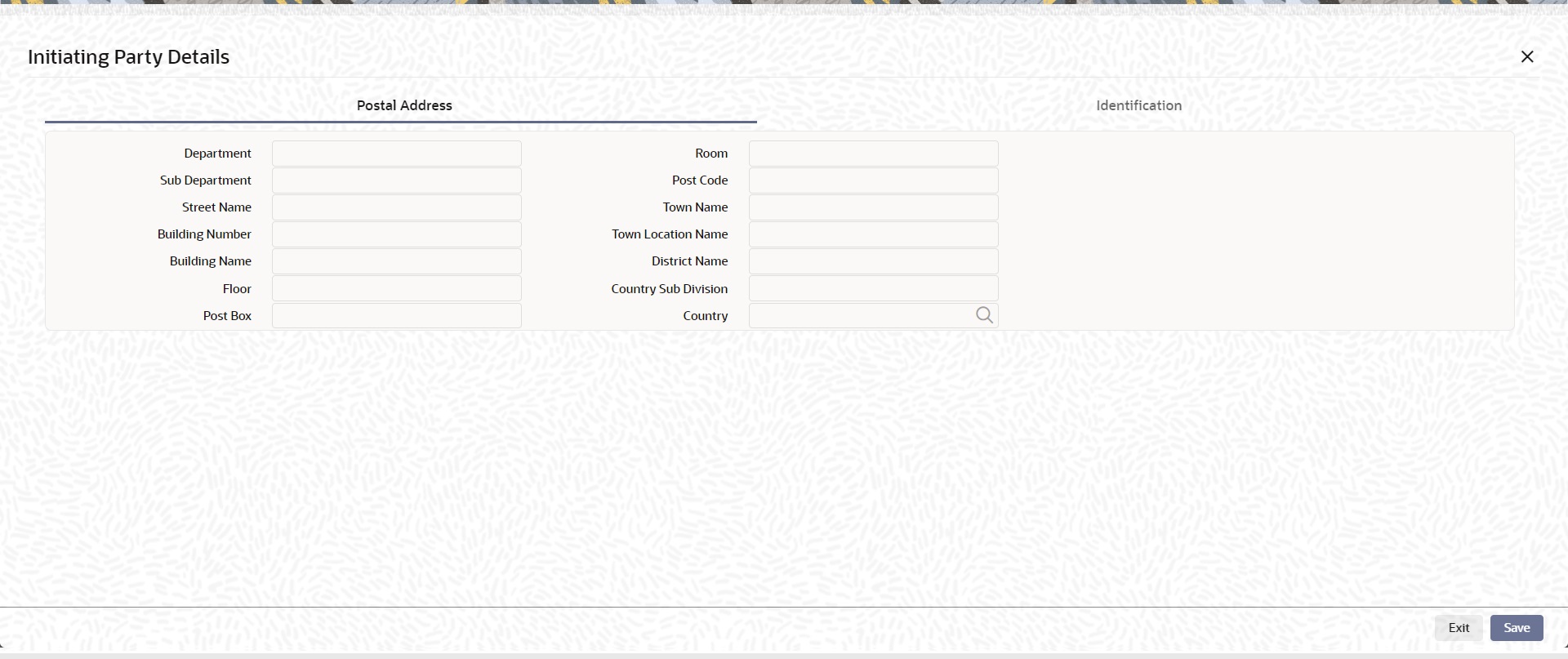
Postal Address
Specify the following fields available for this screen:
l Department
l Sub Department
l Street Name
l Building Number
l Building Name
l Floor
l Post Box
l Room
l Post Code
l Town Name
l Town Location Name
l District Name
l Country Sub Division
l Country
Identification
Click ‘Identification’ tab to invoke this screen.
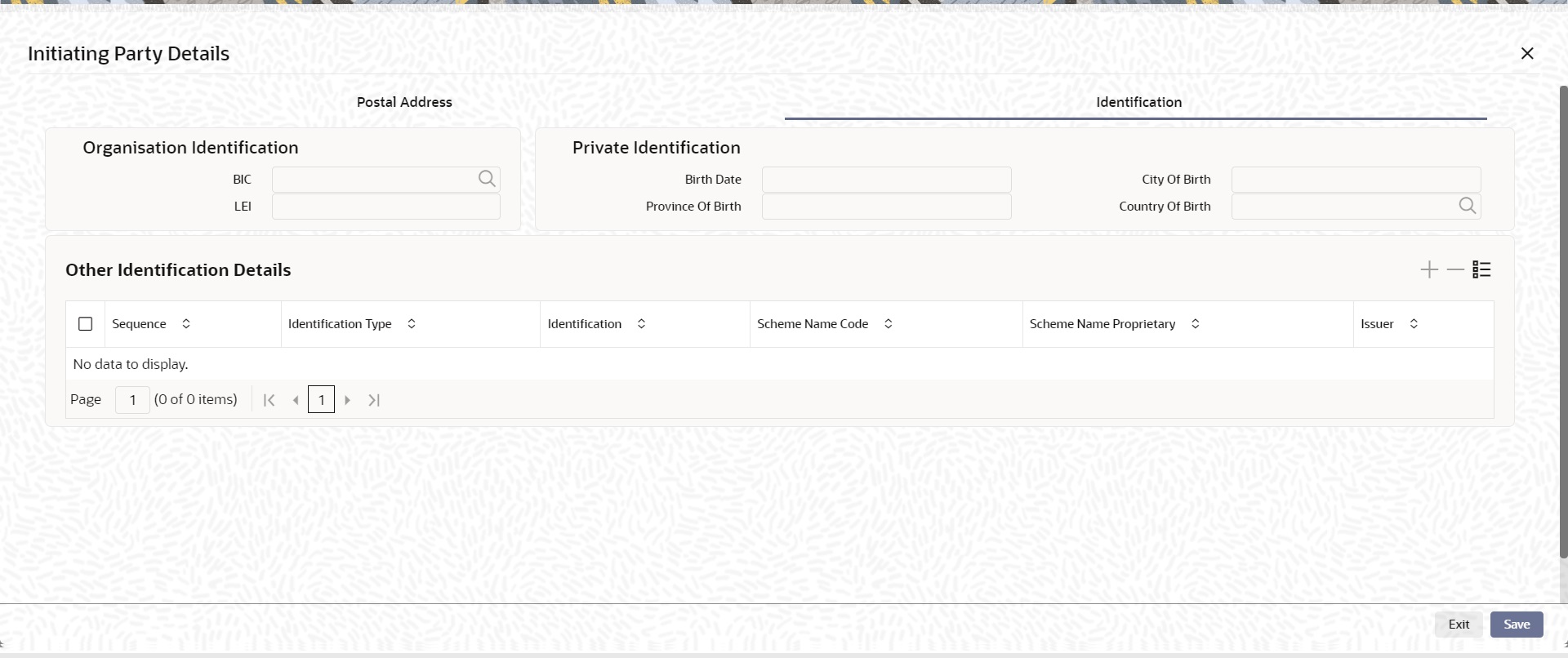
Specify the following fields for Initiating Party/Ultimate Debtor/Ultimate Creditor. These fields are available under Organisation Identification:
l BIC
l LEI
Specify the following fields for Initiating Party/Ultimate Debtor/Ultimate Creditor. These fields are available under Private Identification:
l Birth Date
l Province of Birth
l City of Birth
l Country of Birth
Specify the following fields for Initiating Party/Ultimate Debtor/Ultimate Creditor. These fields are available under Other Identification Details:
l Identification Type
l Identification
l Scheme Name Code
l Scheme Name Proprietary
l Issuer
The ‘Other Debtor Details’ and ‘Other Creditor Details’ button under ‘Underlying Customer Credit Transfer Details’ tab contains similar fields and sub screen. Depending upon which button you click, the screen header name changes.
Postal Address
Specify the following fields available for this screen:
l Department
l Sub Department
l Street Name
l Building Number
l Building Name
l Floor
l Post Box
l Room
l Post Code
l Town Name
l Town Location Name
l District Name
l Country Sub Division
l Country
l Address Line 1
l Address Line 2
l Address Line 3
Identification
Click ‘Identification’ tab under to invoke this screen.
Specify the following fields for Debtor and Creditor. These fields are available under Organisation Identification:
l BIC
l LEI
Specify the following fields for Debtor and Creditor. These fields are available under Private Identification:
l Birth Date
l Province of Birth
l City of Birth
l Country of Birth
Specify the following fields for Debtor and Creditor. These fields are available under Other Identification Details:
l Identification Type
l Identification
l Scheme Name Code
l Issuer
Account Details
Click ‘Account Details’ tab to invoke this screen.
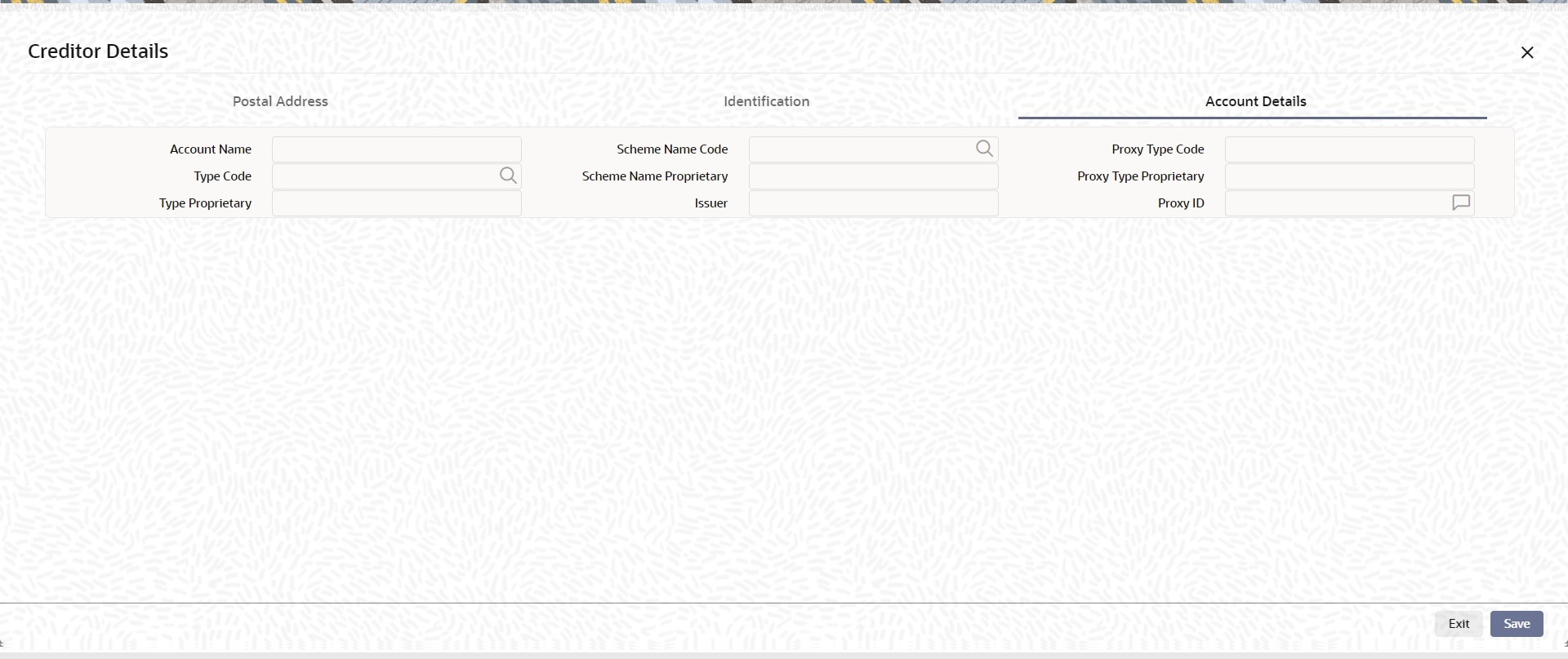
Specify the information into following fields for the agents:
l Account Name
l Type Code
l Type Proprietary
l Scheme Name Code
l Scheme Name Proprietary
l Issuer
l Proxy Type Code
l Proxy Type Proprietary
l Proxy ID
Note
l If you input Type information, either input Type Code (or) Type Proprietary.
l If you input Scheme information, either input Schema Name Code (or) Schema Name Proprietary.
l If you input Proxy information, either input Proxy Type Code (or) Proxy Type Proprietary.
l If you input Proxy information, you must input Proxy ID.
The ‘Other Details’ button for header Debtor Agents Details, Creditor Agents Details, Previous Instructing Agent 1, Previous Instructing Agent 2, Previous Instructing Agent 3, Intermediary Agent 1, Intermediary Agent 2, and Intermediary Agent 3 under ‘Other Agents’ tab for Underlying Credit Transfer Details, contains similar fields and sub screen. Depending upon which button you click, the screen header name changes.

FIN Postal Address
Specify the following fields available for this screen:
l Department
l Sub Department
l Street Name
l Building Number
l Building Name
l Floor
l Post Box
l Room
l Post Code
l Town Name
l Town Location Name
l District Name
l Country Sub Division
l Country
l Address Line 1
l Address Line 2
l Address Line 3
Other Details
Click ‘Other Details’ tab to invoke this screen.
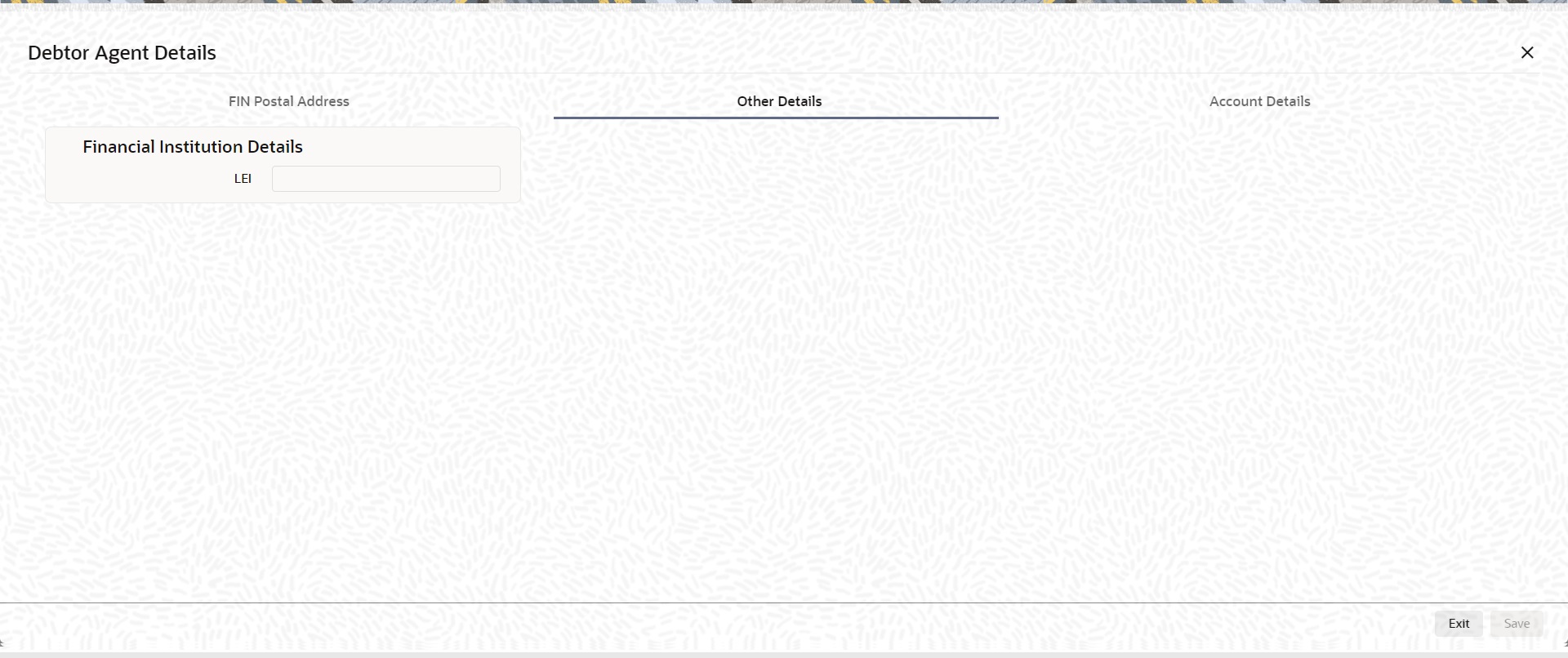
Specify the following fields available for this screen:
Financial Institution Details
LEI
Specify LEI of the agent.
Account Details
Click ‘Account Details’ tab to invoke this screen.

Specify the information into following fields for the agents:
l Account
l IBAN
l Currency
l Account Name
l Scheme Name Code
l Scheme Name Proprietary
l Issuer
l Type Code
l Type Proprietary
l Proxy Type Code
l Proxy Type Proprietary
l Proxy ID
Note
l If you input Type information, either input Type Code (or) Type Proprietary.
l If you input Scheme information, either input Schema Name Code (or) Schema Name Proprietary.
l If you input Proxy information, either input Proxy Type Code (or) Proxy Type Proprietary.
l If you input Proxy information, you must input Proxy ID.
5.1.2.15 All Messages Tab
You can view the All Messages details for the transaction in this screen. Click the “Messages” tab in the Cross Border Inbound FI Credit Transfer Input Detailed screen to invoke this sub screen.
5.1.2.16 Accounting Entries
You can view the Accounting Entries details for the transaction in this screen. Click the “Accounting Entries” tab in the Cross Border Inbound FI Credit Transfer Input Detailed screen to invoke this sub screen.
5.1.2.17 MIS Tab
Click the “MIS” tab in the Cross Border Inbound FI Credit Transfer Input Detailed screen to invoke this sub screen.
5.1.2.18 UDF Tab
Click the “UDF” tab in the Cross Border Inbound FI Credit Transfer Input Detailed screen to invoke this sub screen.
5.1.2.19 Cross Border Inbound FI Credit Transfer Input Detailed Summary
You can invoke “Cross Border Inbound FI Credit Transfer Input Detailed Summary” screen by typing ‘PSSICBBT’ in the field at the top right corner of the Application tool bar and clicking on the adjoining arrow button.
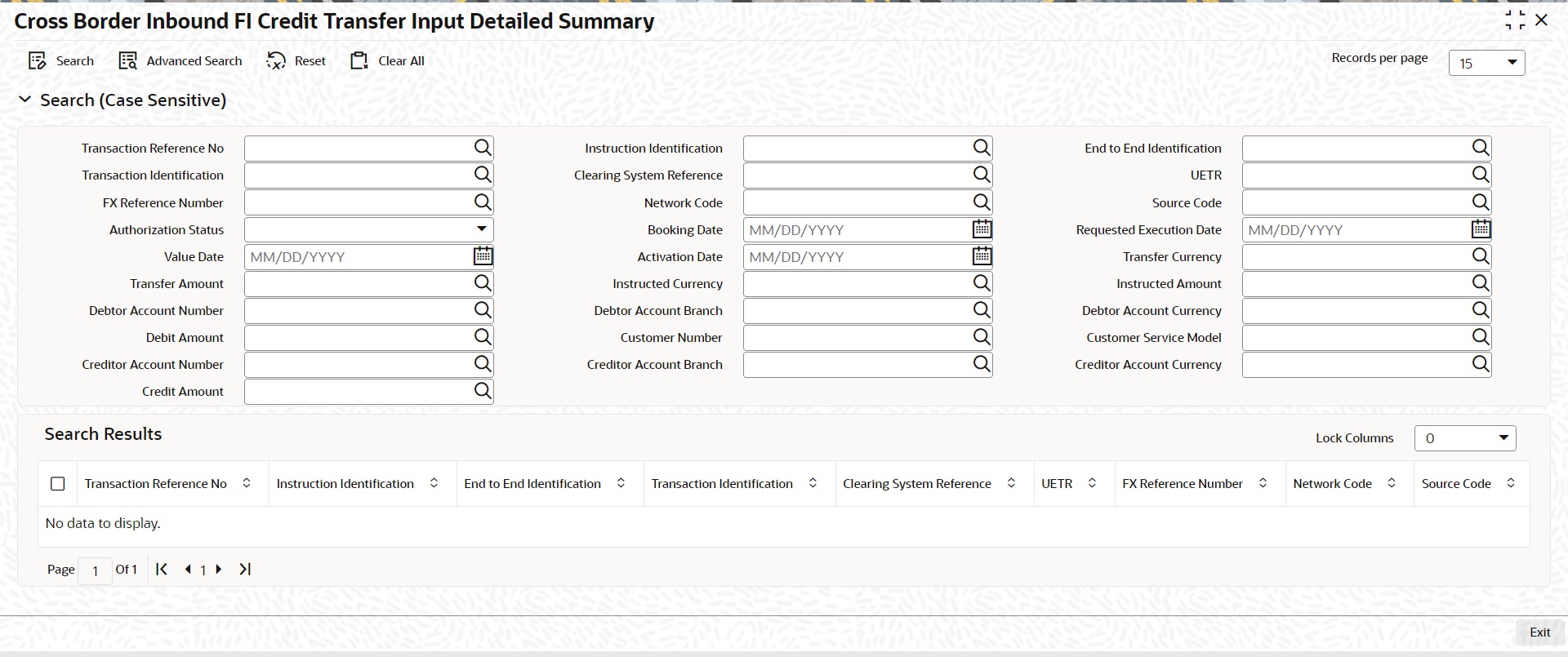
You can search using one or more of the following parameters:
l Transaction Reference Number
l Instruction Identification
l Transaction Identification
l Clearing System Reference
l FX Reference Number
l Network Code
l Authorization Status
l Booking Date
l Value Date
l Activation Date
l Transfer Amount
l Instructed Currency
l Debtor Account Number
l Debtor Account Branch
l Debit Amount
l Customer Number
l Creditor Account Number
l Creditor Account Branch
l Credit Amount
l End to End Identification
l UETR
l Source Code
l Requested Execution Date
l Transfer Currency
l Instructed Amount
l Debtor Account Currency
l Customer Service Model
l Creditor Account Currency
Once you have specified the search parameters, click ‘Search’ button. The system displays the records that match the search criteria.
Double click a record or click the ‘Details’ button after selecting a record to view the detailed screen.
5.1.3 Cross Border Inbound FI to FI Customer Credit Transfer View
You can view Cross Border Inbound FI to FI Customer Credit Transfer transactions through this screen.
You can invoke “Cross Border Inbound FI to FI Customer Credit Transfer View” screen by typing the function ID ‘PSDICBVW’ in the field at the top right corner of the Application tool bar and clicking on the adjoining arrow button.
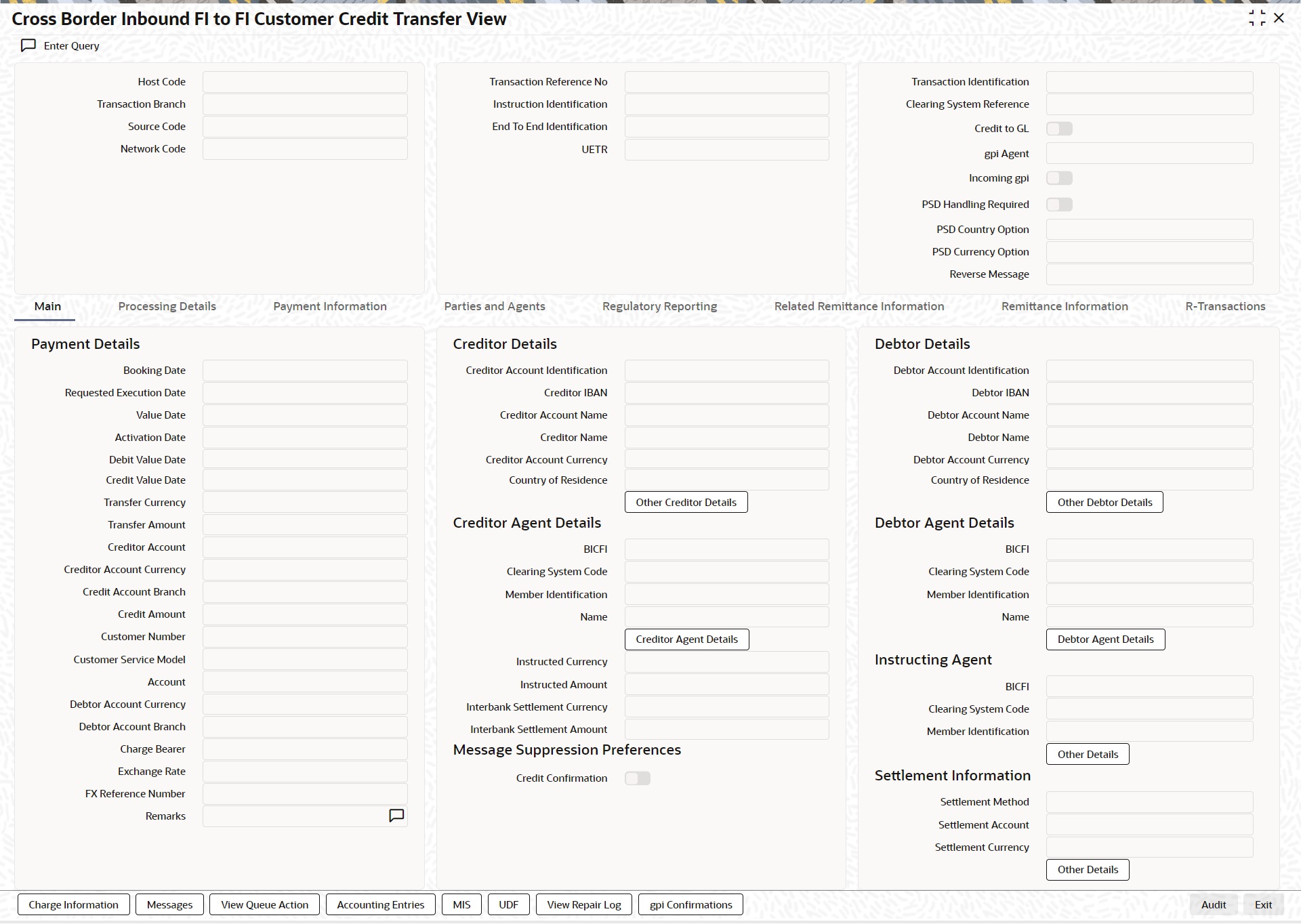
l From this screen, click ‘Enter Query’ button. The Transaction Reference Number field gets enabled, for the user to specify the Reference Number.
l Click ‘Execute Query’ button to populate the details of the transaction in the Cross Border Outbound FI to FI Customer Credit Transfer View screen. The system displays all the fields in the below mentioned tabs based on the transaction reference number selected:
– Main
– Processing Details
– Payment Information
– Parties and Agents
– Regulatory Reporting
– Related Remittance Information
– Remittance Information
For more details on Main, Payment Information, Parties and Agents, Regulatory Reporting, Related Remittance Information, and Remittance Information tabs refer to PSDICBCT’ screen details above.
5.1.3.1 Processing Details
You can invoke this screen by clicking ‘Processing Details’ tab at the bottom of Cross Border Inbound FI to FI Customer Credit Transfer View screen.
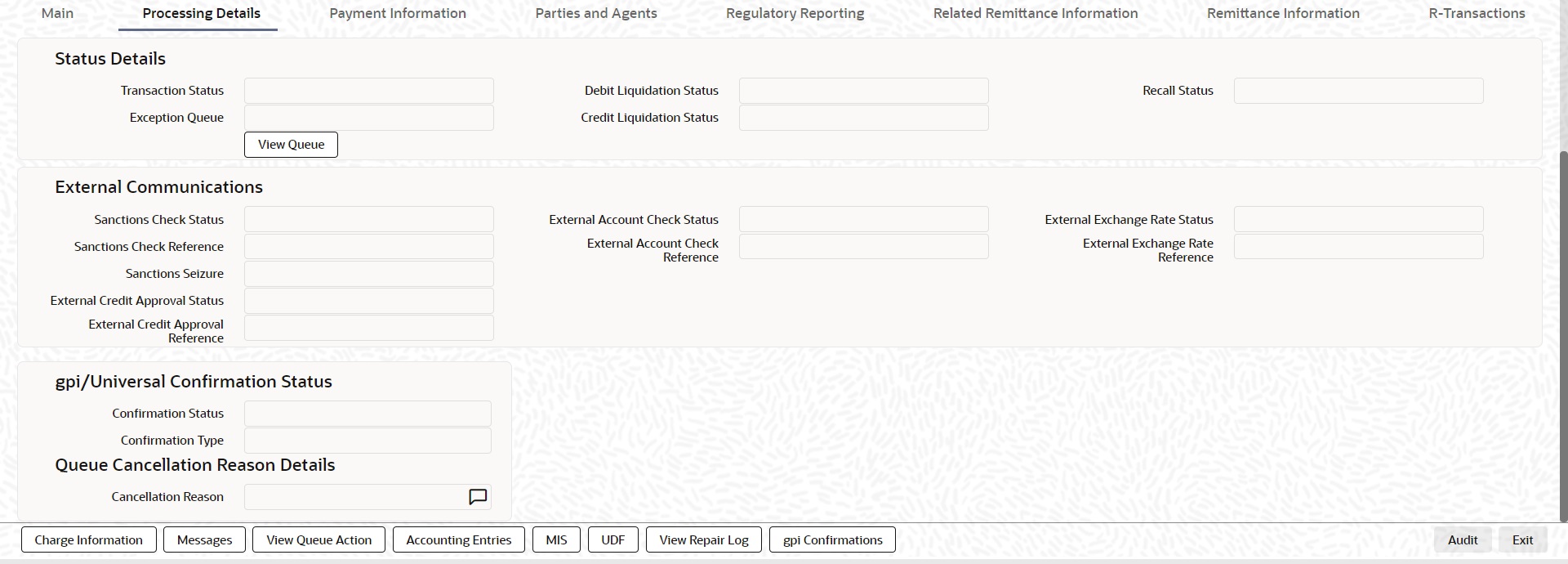
5.1.3.2 R-Transactions
You can invoke this screen by clicking ‘R-Transactions’ tab at the bottom of Cross Border Inbound FI to FI Customer Credit Transfer View screen.

l R-Transactions tab displays the Cancellation Request (camt.056) transaction received for the incoming pacs.008 transaction.
l You select the Cancellation Request (camt.056) transaction and click on View R-Transaction button to open Generic Wires ISO Inbound FI to FI Payment Cancellation Request View (PSDICNCV) screen with selected transaction details.
5.1.3.3 Charge Information
You can invoke this screen by clicking ‘Charge Information’ tab at the bottom of Cross Border Inbound FI to FI Customer Credit Transfer View screen.
5.1.3.4 All Messages
You can invoke this screen by clicking ‘Messages’ tab at the bottom of Cross Border Inbound FI to FI Customer Credit Transfer View screen.
5.1.3.5 View Queue Action Log
You can invoke this screen by clicking ‘View Queue Action’ tab at the bottom of Cross Border Inbound FI to FI Customer Credit Transfer View screen.
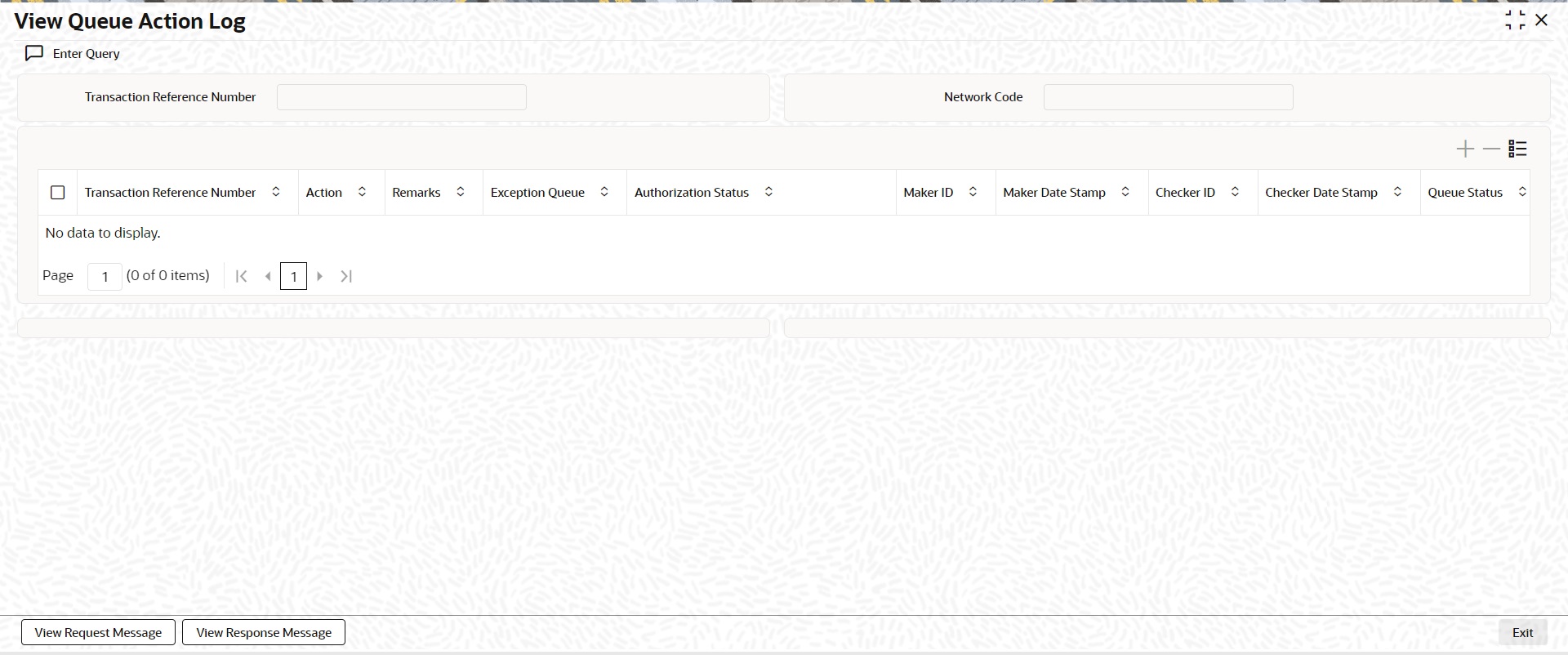
5.1.3.6 Accounting Entries
You can invoke this screen by clicking ‘Accounting Entries’ tab at the bottom of Cross Border Inbound FI to FI Customer Credit Transfer View screen.
5.1.3.7 MIS View
You can invoke this screen by clicking ‘MIS’ tab at the bottom of Cross Border Inbound FI to FI Customer Credit Transfer View screen.
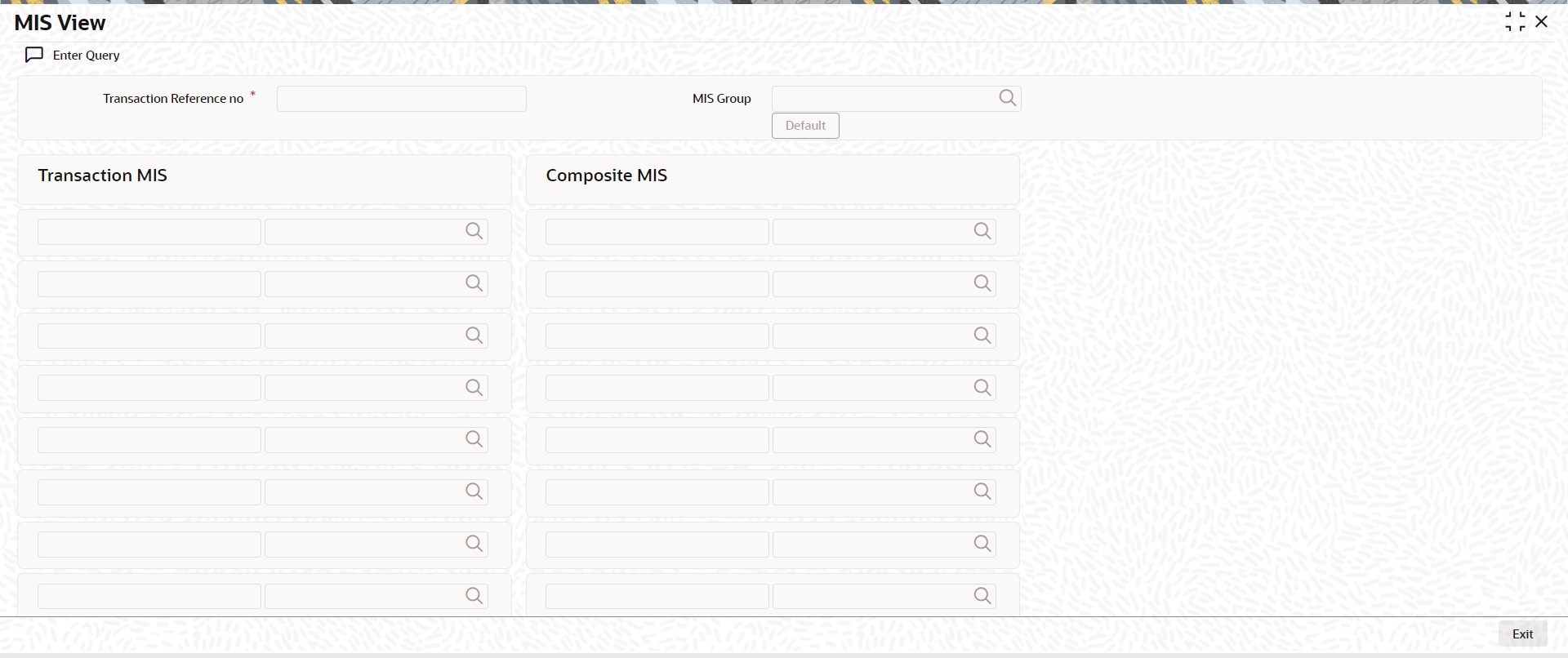
5.1.3.8 UDF View
You can invoke this screen by clicking ‘UDF’ tab at the bottom of Cross Border Inbound FI to FI Customer Credit Transfer View screen.
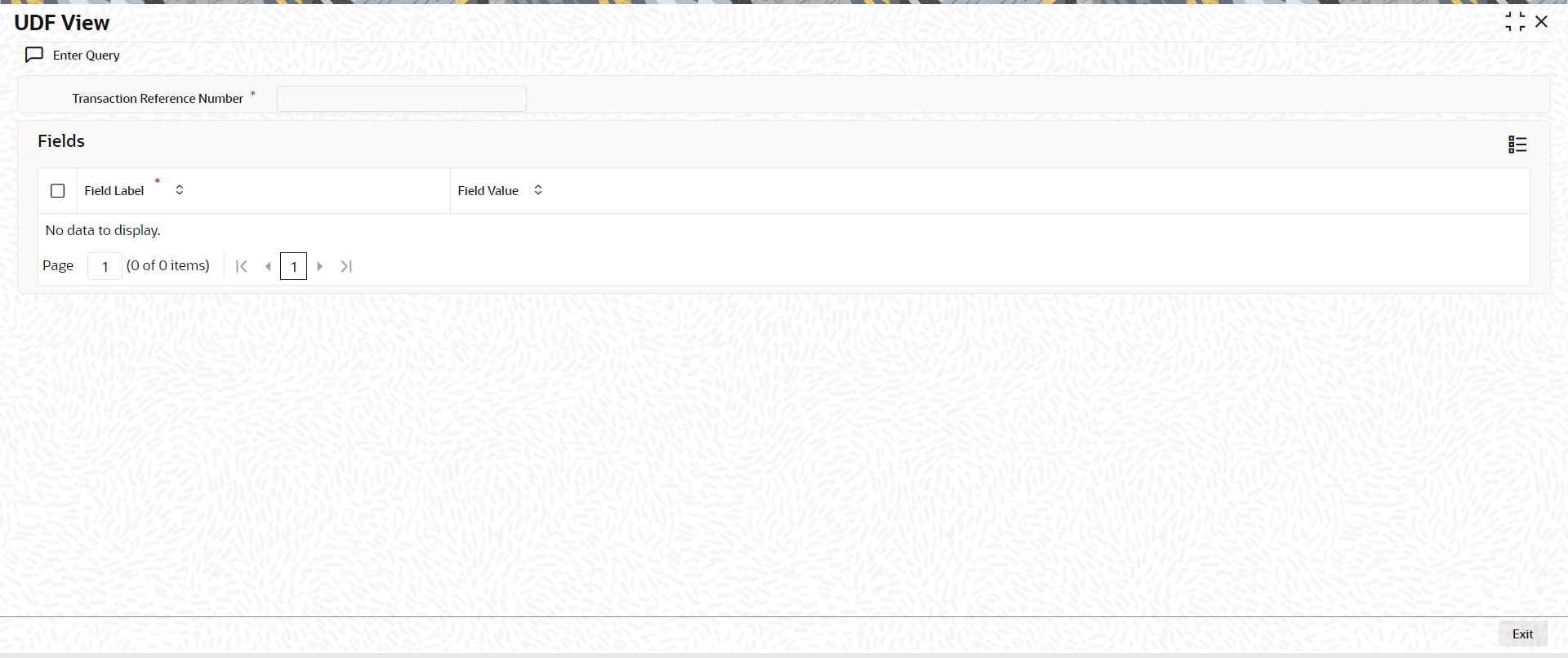
5.1.3.9 View Repair Log
You can invoke this screen by clicking the 'View Repair Log' tab in Cross Border Inbound FI to FI Customer Credit Transfer View screen to view repair data on the transaction.
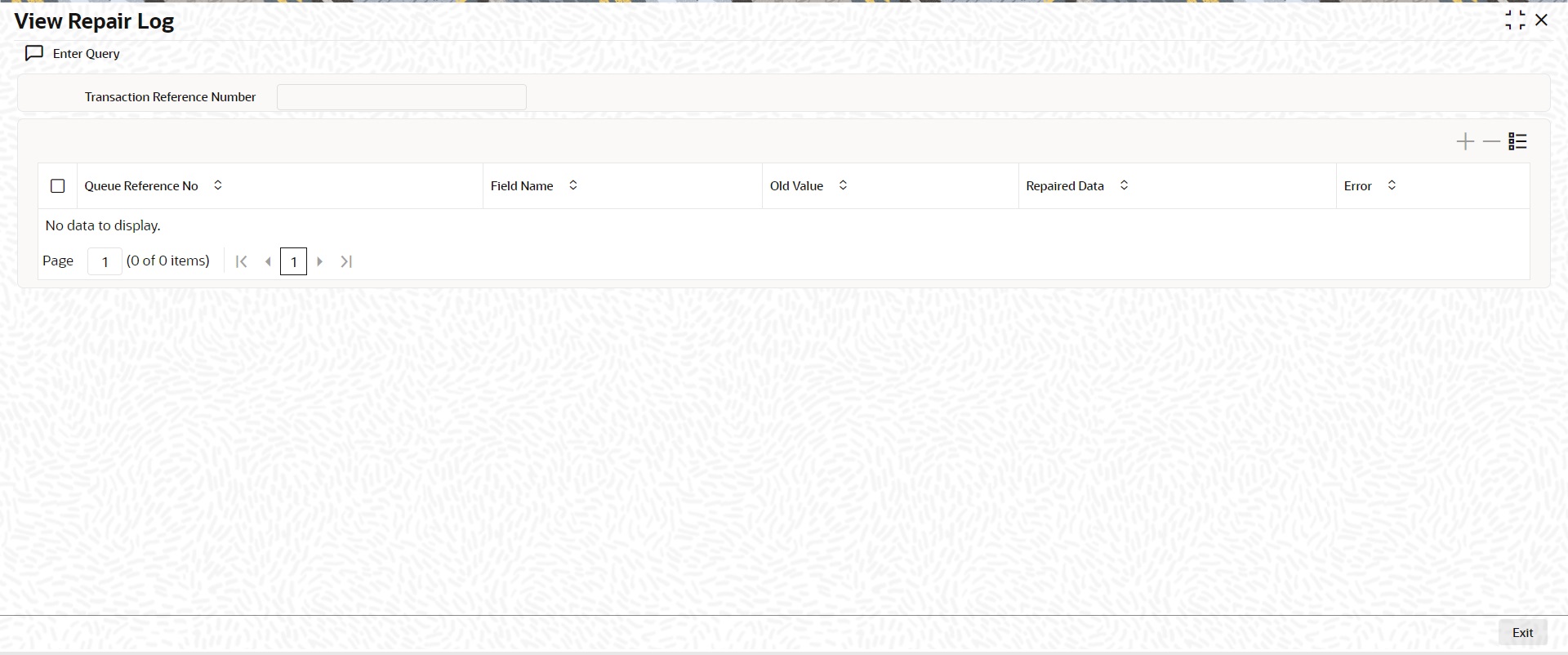
Following details are displayed:
l Queue Reference No
l Field Name
l Old Value
l Repaired Data
l Error
5.1.3.10 gpi confirmations
You can invoke this screen by clicking the 'gpi Confirmation' tab in Cross Border Inbound FI to FI Customer Credit Transfer View screen.
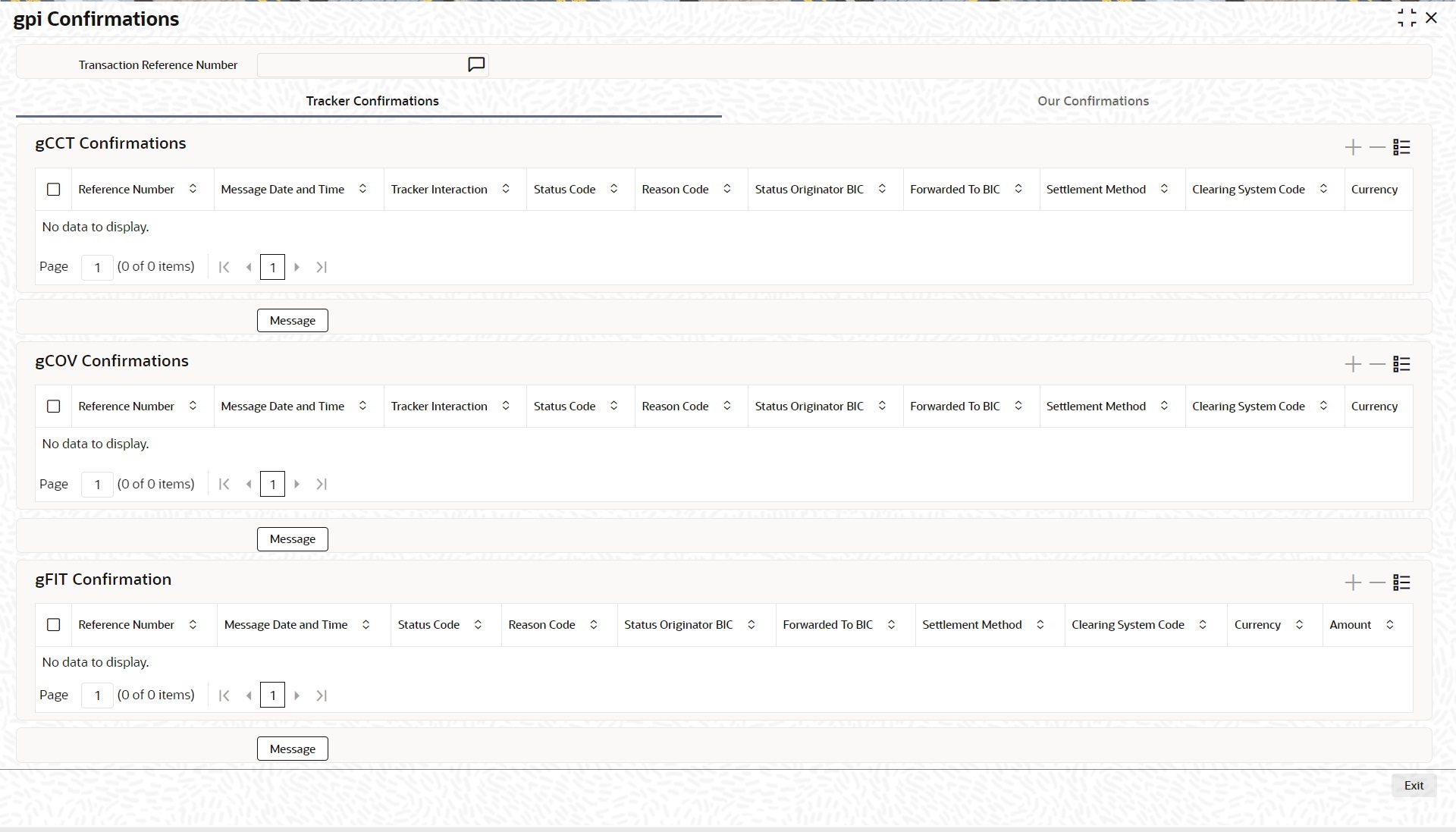
5.1.3.11 Cross Border Inbound FI to FI Customer Credit Transfer View Summary
You can invoke “Cross Border Inbound FI to FI Customer Credit Transfer View Summary” screen by typing ‘PSSICBVW’ in the field at the top right corner of the Application tool bar and clicking on the adjoining arrow button.
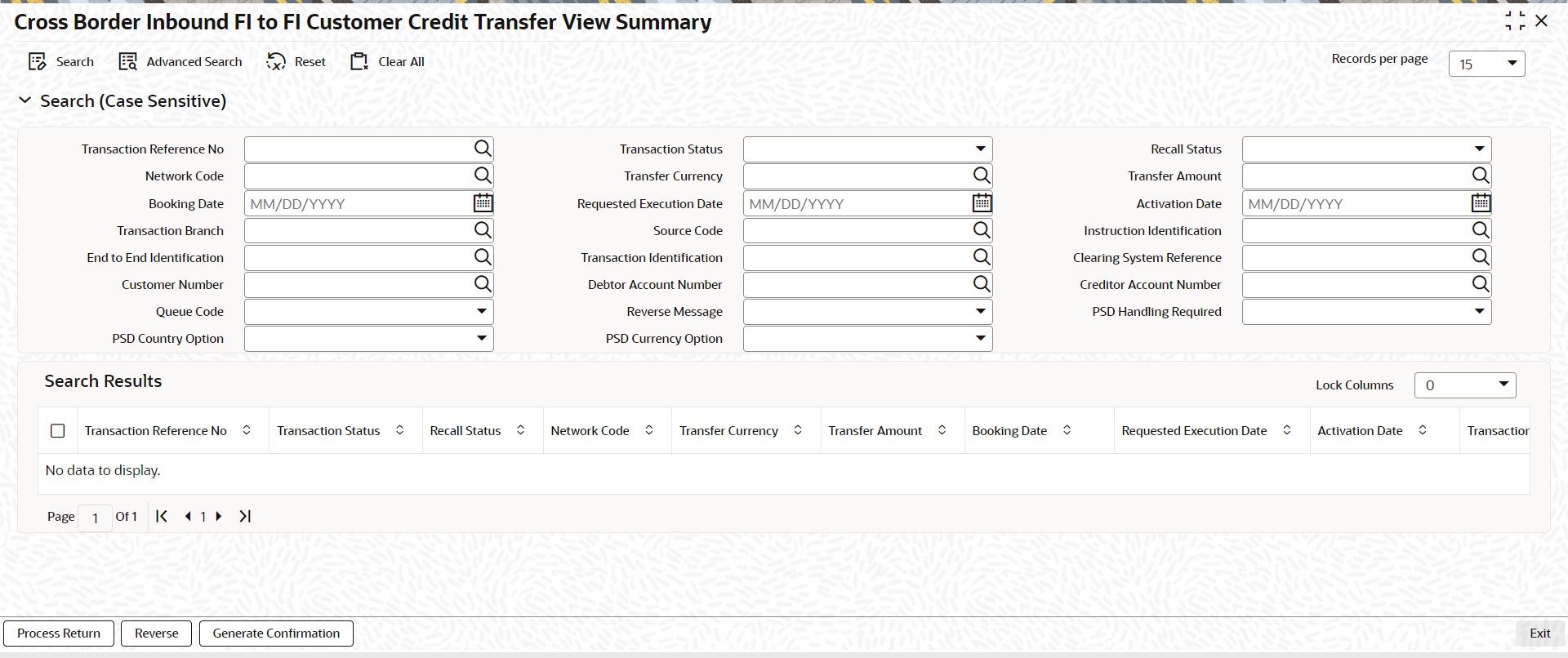
You can search using one or more of the following parameters:
l Transaction Reference Number
l Transaction Status
l Recall Status
l Network Code
l Transfer Currency
l Transfer Amount
l Booking Date
l Requested Execution Date
l Activation Date
l Transaction Branch
l Source Code
l Instruction Identification
l End to End Identification
l Transaction Identification
l Clearing System Reference
l Customer Number
l Debtor Account Number
l Creditor Account Number
l Queue Code
l Reverse Message
l PSD Handling Required
l PSD Country Option
l PSD Currency Option
Once you have specified the search parameters, click ‘Search’ button. The system displays the records that match the search criteria.
Double click a record or click the ‘Details’ button after selecting a record to view the detailed screen.
Process Return Button
Click the 'Process Return’ button at the bottom of the screen to invoke the Generic Wires ISO Outbound Payment Return Input Detailed ‘PSDOCBRT’ screen, when the below conditions are satisfied:
l You have required access rights on this user action (Either Role level or User Level).
l Transaction status is ‘Processed’.
Reverse Button
Click the 'Reverse’ button at the bottom of the screen to invoke the Generic Wires ISO Outbound Payment Return Input Detailed ‘PSDOCBRT’ screen, when the below conditions are satisfied:
l Transaction status is ‘Processed’.
Generate Confirmation Button
Click the 'Generate Confirmation’ button at the bottom of the screen to invoke the SWIFT/gpi Universal/Confirmation - Manual Generation ‘PXDGPIMC’ screen to capture the gpi/Confirmation message generation input values. The user action is allowed only when the below conditions are satisfied:
l You have required role or user level queue action access rights for the user action ‘Generate Confirmation’.
5.1.4 Cross Border Inbound FI Credit Transfer View
You can view Cross Border Inbound FI Credit Transfer transactions through this screen.
You can invoke “Cross Border Inbound FI Credit Transfer View” screen by typing the function ID ‘PSDICNVW’ in the field at the top right corner of the Application tool bar and clicking on the adjoining arrow button.
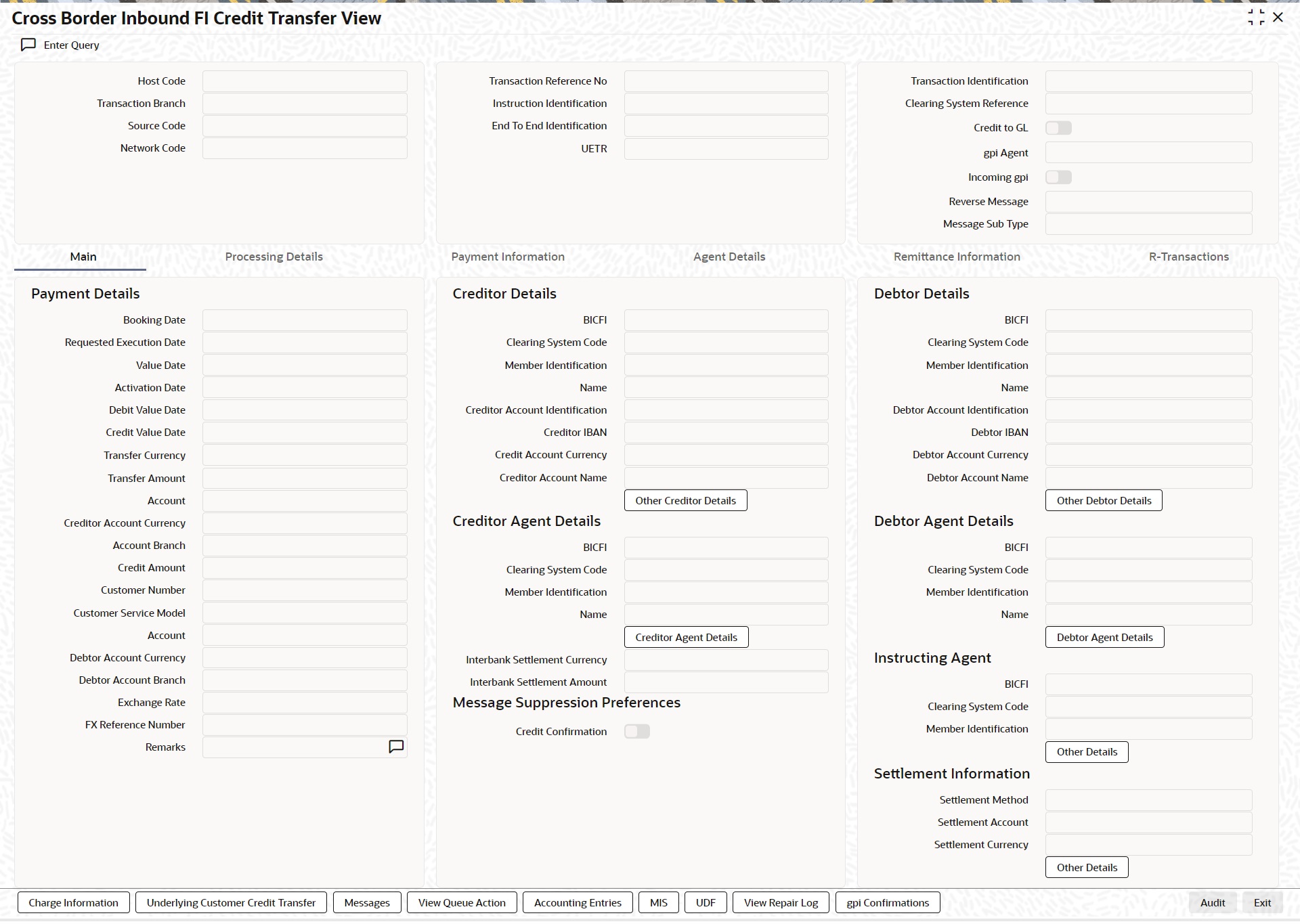
l From this screen, click ‘Enter Query’ button. The Transaction Reference Number field gets enabled, for the user to specify the Reference Number.
l Click ‘Execute Query’ button to populate the details of the transaction in the Cross Border Inbound FI Credit Transfer View screen. The system displays all the fields in the below mentioned tabs based on the transaction reference number selected:
– Main
– Processing Details
– Payment Information
– Agent Details
– Remittance Information
– R-Transactions
For more details on Main, Payment Information, Agent Details, Remittance Information tabs refer to ‘PSDICBBT’ screen details above.
5.1.4.1 Processing Details
You can invoke this screen by clicking ‘Processing Details’ tab at the Cross Border Inbound FI Credit Transfer View screen.
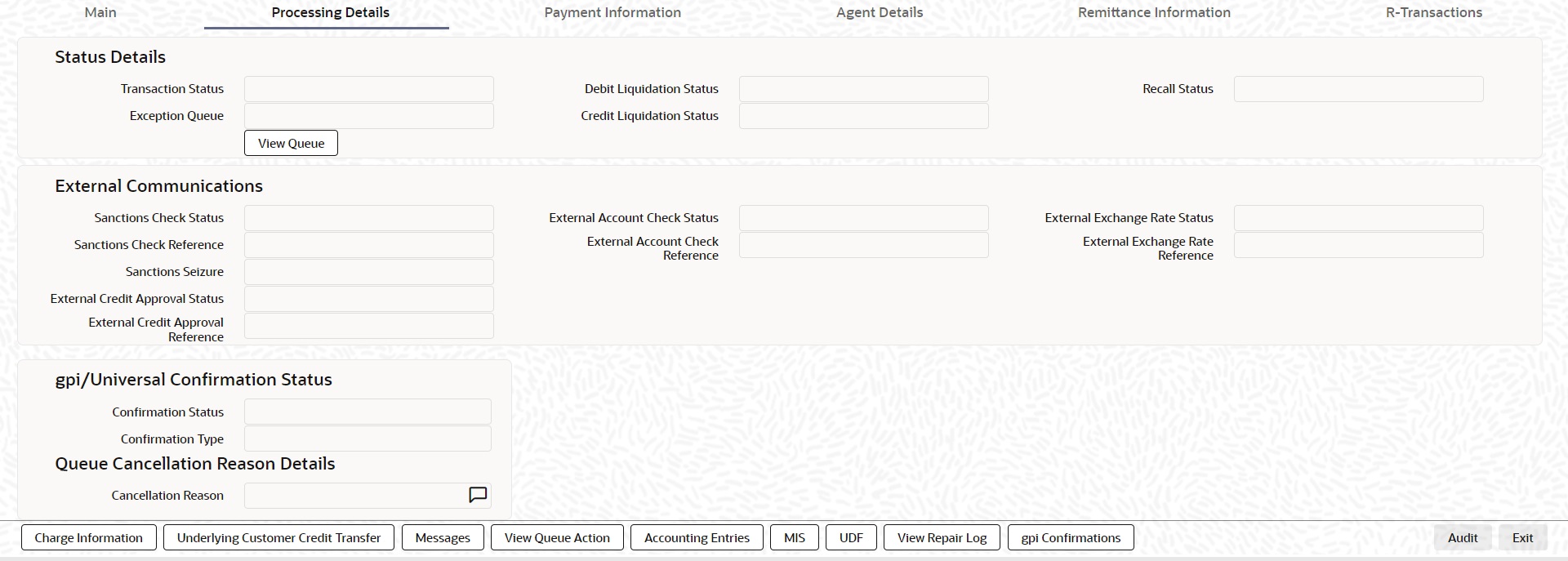
5.1.4.2 Agent Details
You can invoke this screen by clicking ‘Agent Details’ tab at the Cross Border Inbound FI Credit Transfer View screen.
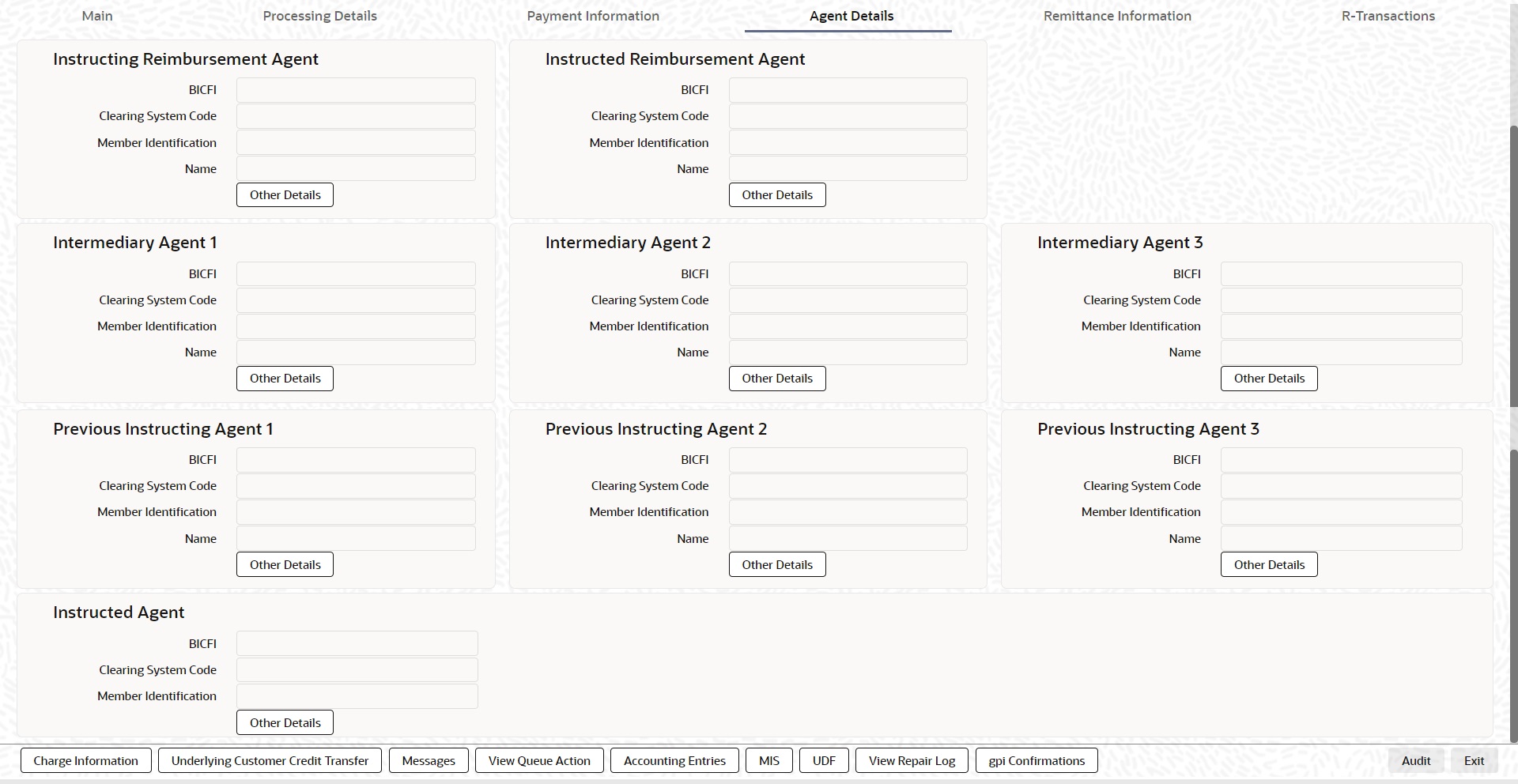
5.1.4.3 R-Transactions
You can invoke this screen by clicking ‘R-Transactions’ tab at the Cross Border Inbound FI Credit Transfer View screen.
l R-Transactions tab displays the Cancellation Request (camt.056) transaction received for the incoming pacs.009 transaction.
l You select the Cancellation Request (camt.056) transaction and click on View R-Transaction button to open Generic Wires ISO Inbound FI to FI Payment Cancellation Request View (PSDICNCV) screen with selected transaction details.
5.1.4.4 Charge Information
You can invoke this screen by clicking ‘Charge Information’ tab at the bottom of Cross Border Inbound FI Credit Transfer View screen.
5.1.4.5 Underlying Customer Credit Transfer
You can invoke this screen by clicking ‘Underlying Customer Credit Transfer’ tab at the bottom of Cross Border Inbound FI Credit Transfer View screen.

Other Agents
Click ‘Other Agents’ tab to invoke this screen.

Other Details
Click ‘Other Details’ tab to invoke this screen.
5.1.4.6 All Messages
You can invoke this screen by clicking ‘Messages’ tab at the bottom of Cross Border Inbound FI Credit Transfer View screen.
5.1.4.7 View Queue Action Log
You can invoke this screen by clicking ‘View Queue Action’ tab at the bottom of Cross Border Inbound FI Credit Transfer View screen.
5.1.4.8 Accounting Entries
You can invoke this screen by clicking ‘Accounting Entries’ tab at the bottom of Cross Border Inbound FI Credit Transfer View screen.
5.1.4.9 MIS View
You can invoke this screen by clicking ‘MIS’ tab at the bottom of Cross Border Inbound FI Credit Transfer View screen.
5.1.4.10 UDF View
You can invoke this screen by clicking ‘UDF’ tab at the bottom of Cross Border Inbound FI Credit Transfer View screen.
5.1.4.11 View Repair Log
You can invoke this screen by clicking the 'View Repair Log' tab in Cross Border Inbound FI Credit Transfer View screen to view repair data on the transaction.
Following details are displayed:
l Queue Reference No
l Field Name
l Old Value
l Repaired Data
l Error
5.1.4.12 gpi Confirmations
You can invoke this screen by clicking ‘gpi Confirmations’ tab at the bottom of Cross Border Inbound FI Credit Transfer View screen.
5.1.4.13 Cross Border Inbound FI Credit Transfer View Summary
You can invoke “Cross Border Inbound FI Credit Transfer View Summary” screen by typing ‘PSSICNVW’ in the field at the top right corner of the Application tool bar and clicking on the adjoining arrow button.
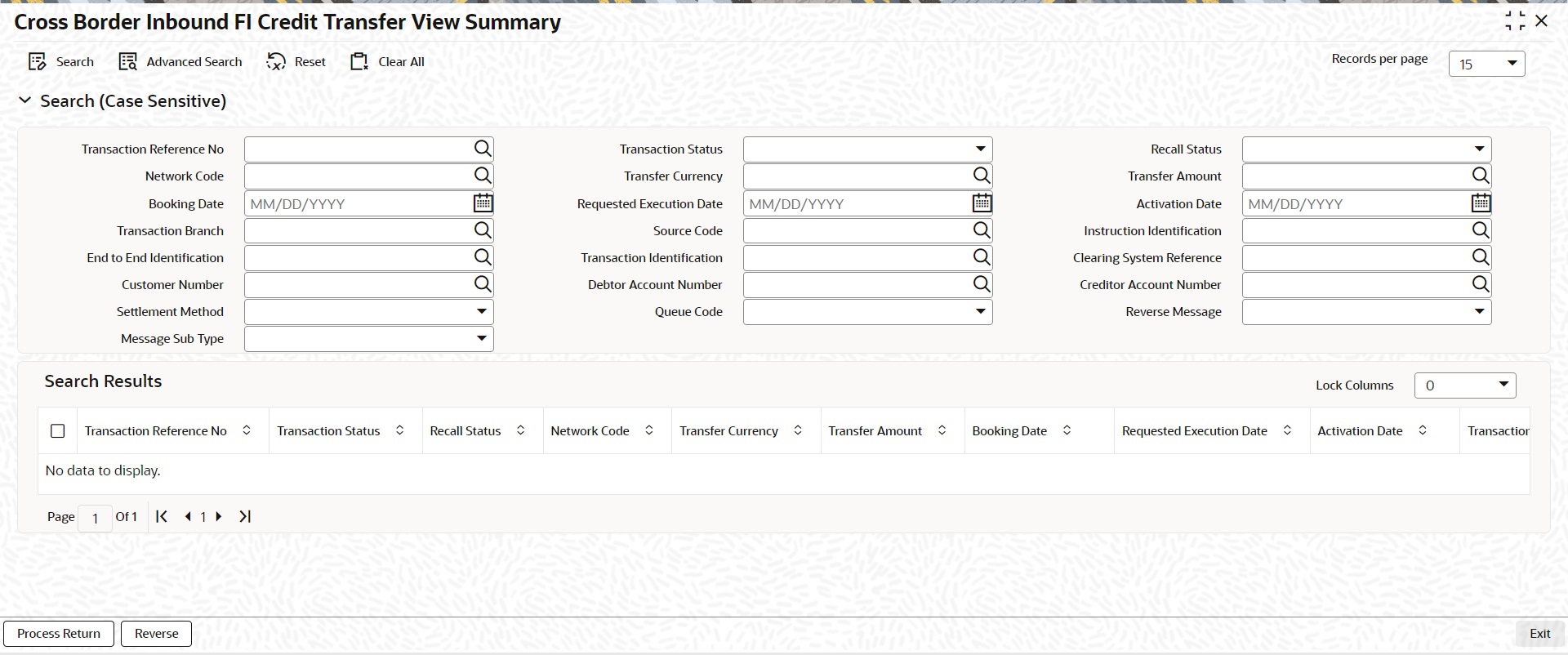
You can search using one or more of the following parameters:
l Transaction Reference Number
l Transaction Status
l Recall Status
l Network Code
l Transfer Currency
l Transfer Amount
l Booking Date
l Requested Execution Date
l Activation Date
l Transaction Branch
l Source Code
l Instruction Identification
l End to End Identification
l Transaction Identification
l Clearing System Reference
l Customer Number
l Debtor Account Number
l Creditor Account Number
l Queue Code
l Reverse Message
l Settlement Method
l Message Sub Type
Once you have specified the search parameters, click ‘Search’ button. The system displays the records that match the search criteria.
Double click a record or click the ‘Details’ button after selecting a record to view the detailed screen.
Process Return Button
Click the 'Process Return’ button at the bottom of the screen to invoke the Generic Wires ISO Outbound Payment Return Input Detailed ‘PSDOCBRT’ screen, when the below conditions are satisfied:
l You have required access rights on this user action (Either Role level or User Level).
l Transaction status is ‘Processed’.
Reverse Button
Click the 'Reverse’ button at the bottom of the screen to invoke the Generic Wires ISO Outbound Payment Return Input Detailed ‘PSDOCBRT’ screen, when the below conditions are satisfied:
l Transaction status is ‘Processed’.
5.2 TARGET2 Inbound Transaction
This section details the TARGET2 Inbound transaction screens.
This section contains the following sub-sections:
l Section 5.2.1, "RTGS ISO Inbound FI to FI Customer Credit Transfer Input"
l Section 5.2.2, "RTGS ISO Inbound FI Credit Transfer Input"
l Section 5.2.3, "RTGS ISO Inbound FI to FI Customer Credit Transfer View"
l Section 5.2.4, "RTGS ISO Inbound FI Credit Transfer View"
5.2.1 RTGS ISO Inbound FI to FI Customer Credit Transfer Input
You can do manual booking of customer transfer transactions through this screen.
You can invoke “RTGS ISO Inbound FI to FI Customer Credit Transfer Input” screen by typing the function ID ‘PSDIT2CT’ in the field at the top right corner of the Application tool bar and clicking on the adjoining arrow button.
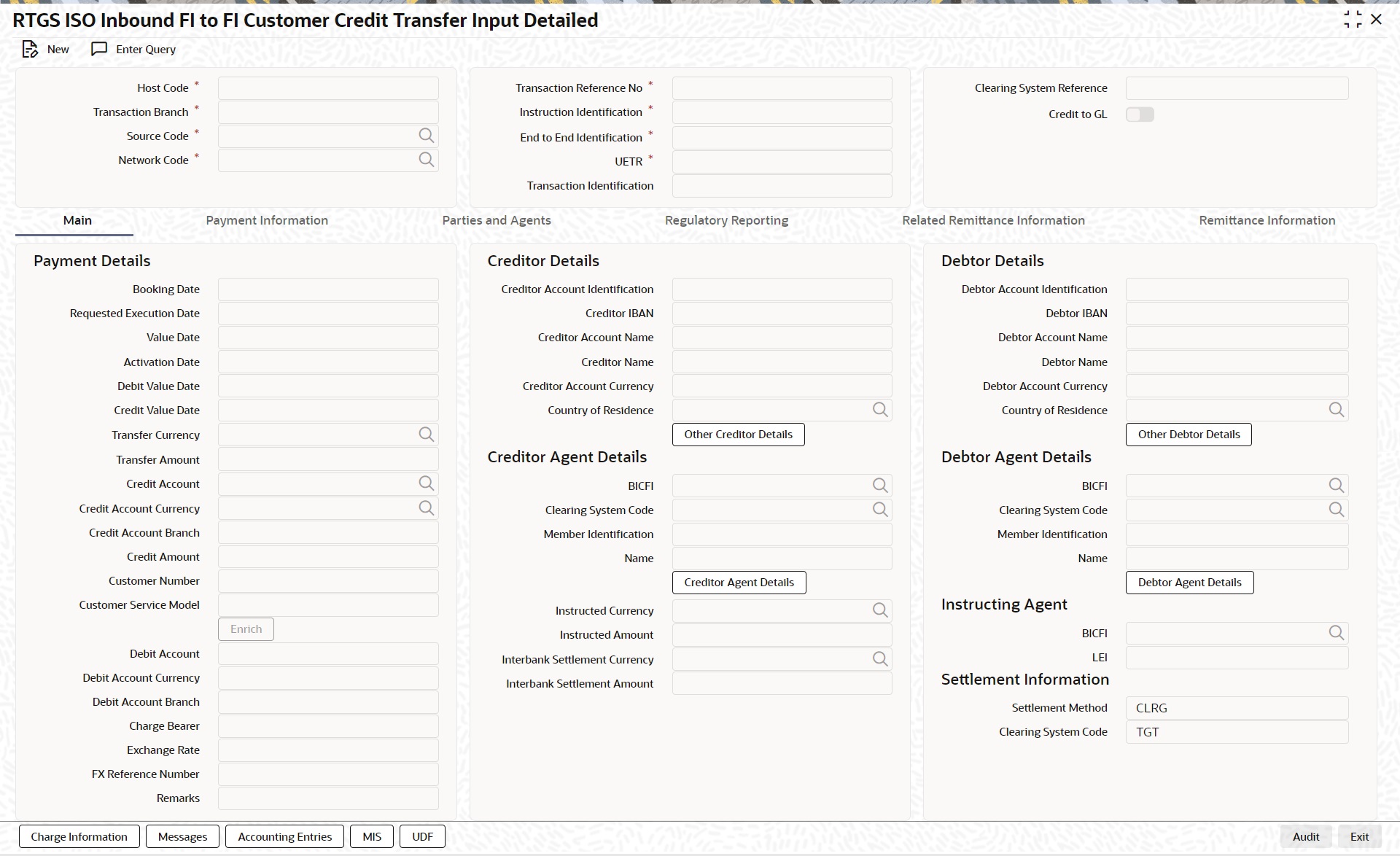
Click ‘New’ button on the Application toolbar.
Specify the following fields:
Host Code
System defaults the host code of the user’s logged in branch on clicking ‘New’ button.
Transaction Reference Number
System defaults the transaction reference number on clicking ‘New’ button.
End to End Identification
System defaults this field with the transaction reference on clicking ‘New’ button.
Transaction Branch
System defaults the transaction branch of the user’s logged in branch on clicking ‘New’ button.
Instruction Identification
System defaults this field with the transaction reference on clicking ‘New’ button.You can edit this field after system defaults the transaction reference up to 35 character.
UETR
Specify the UETR value.
Source Code
Select from the list of values for source code. This list contains all open/authorized source code defined in source code maintenance (PMDSORCE) for the host.
Network Code
Select from the list of values for network code. This list contains all EU-TARGET2 networks defined in Network code definition (PMDNWCOD) for the host.
Clearing System Reference
Specify the Clearing System Reference for transaction.
Clear to GL
By default, this check box is unselected. You can select this check box if Credit to GL is required.
5.2.1.1 Main Tab
Click the ‘Main’ tab in the ‘RTGS ISO Outbound FI to FI Customer Credit Transfer Input’ screen.
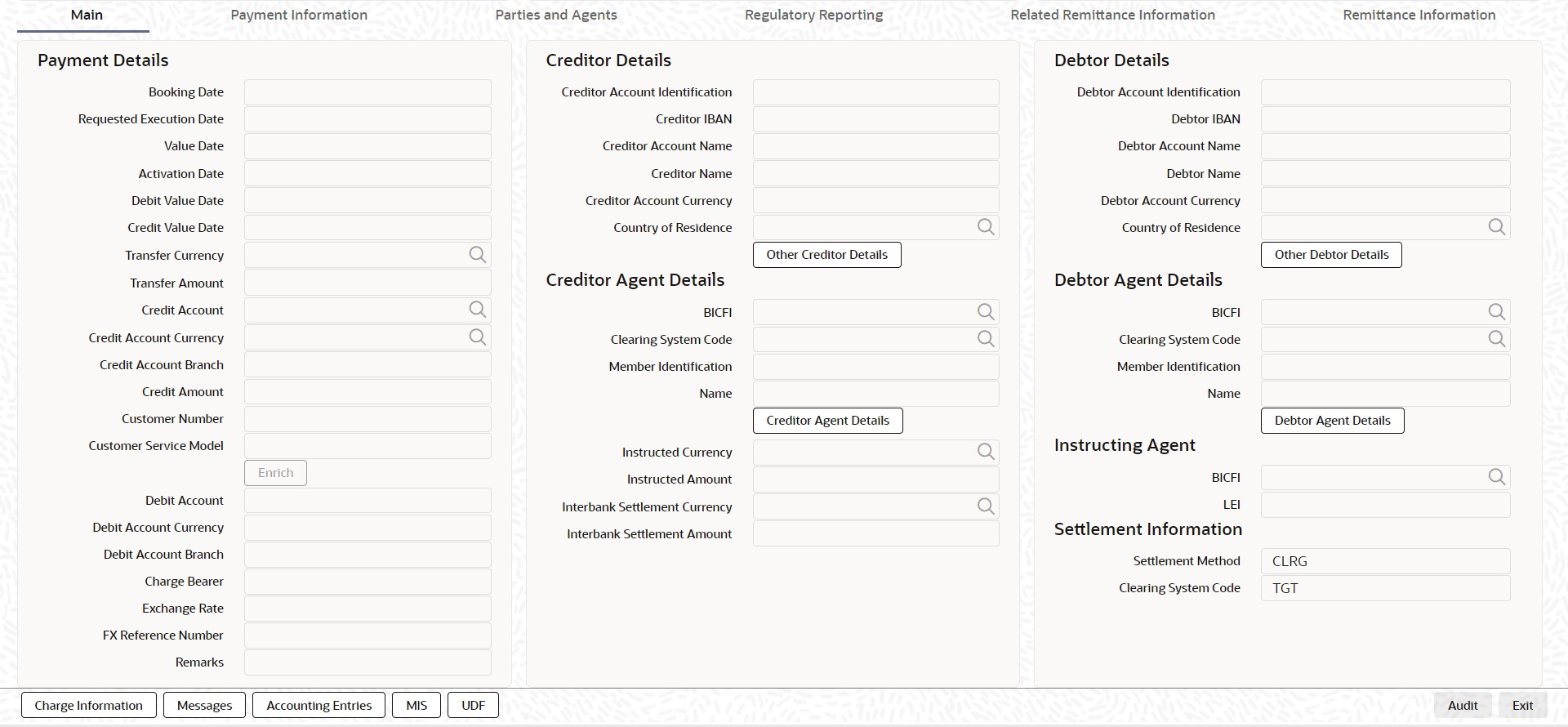
Payment Details
System defaults the following fields to current branch date:
l Booking Date
l Requested Execution Date
l Value Date
l Activation Date
Debit Value Date
The system derives the debit value date as part of transaction processing by clicking the 'Enrich' button. This field is disabled for user input.
Credit Value Date
The system derives the credit value date as part of transaction processing by clicking the 'Enrich' button. This field is disabled for user input.
Instructed Currency Indicator
Select from list of values for Instructed Currency Indicator. The list contains values ‘Transfer Currency’ and ‘Debit Currency’. Default value set is ‘Transfer Currency’.
Transfer Currency
Select from the list of values for transfer currency.
Transfer Amount
Specify the transfer amount.
Network Account
Specify the network account.
Credit Account
Select from the list of values listed. This list contains all open and authorized customer accounts maintained in external customer account (STDCRACC), General Ledger Codes maintained in External Chart of Accounts (STDCRGLM) and loan account numbers maintained in external loan account (STDCRCLN).
Credit Account Currency
System populates this field with the account currency of the Nostro account that would be credit.
Credit Account Branch
System populates this field with the account branch based on the credit account chosen.
Credit Amount
Specify the Credit Amount. If you do not enter this value, the system populates this field based on specified Transfer currency/amount.
Customer Number
System defaults the resolved customer number.
Customer Service Model
System defaults the customer service model of the resolved customer number.
Debit Account
Select from the list of values for debit account of the customer. This list contains all open and authorized customer accounts maintained in External Customer Accounts maintenance and GLs.
Note
You can click ‘Enrich/Save’ button to automatically populate this field with the associated Nostro (mirror) account that would be credited as part of accounting.
Debit Account Currency
System populates this field with the account currency based on the debit account chosen.
Debit Account Branch
System populates this field with the account branch based on the debit account chosen.
Charge Bearer
Select from the list of values for charge bearer. This list contains values CRED, DEBT, and SHAR.
Exchange Rate
Specify the Exchange Rate if Debit account currency is different from Transfer currency (or) Instructed Currency is different from Transfer Currency.
FX Reference Number
Specify the FX Reference Number.
Remarks
Specify the Remarks, if applicable.
Creditor Details
Creditor Account Identification
Specify Creditor Account Number.
Creditor IBAN
Specify Creditor IBAN Number.
Note
You can input either Creditor Account Number or Creditor IBAN.
Creditor Account Name
Specify the Creditor Account Name.
Creditor Name
Specify the Creditor Name.
Creditor Account Currency
Select from the list of values for Credit Account Currency.
Country of Residence
Select from the list of values for Country of Residence. This field lists the 2-Char ISO Country code list from the factory-shipped table.
Note
Select Country of Residence (where the party physically lives) only if it is different from Postal Address/Country.
Other Creditor Details Button
Click ‘Other Creditor Details’ button on ‘Main’ tab under ‘Creditor Details’ header to invoke the sub screen. This screen shows the Creditor Details.
Refer to the Section 5.2.1.2, "Other Creditor Details Button" for details of fields and sub screen of the ‘Creditor Details’ button.
Creditor Agent Details
BICFI
Select from the list of values for BICFI code.
Clearing System Code
Select from the list of values for clearing system code.
Note
You should input either BICFI or Clearing System Code/Member Identification.
Member Identification
Specify the clearing ID code.
Name
System defaults the name as per selected BICFI code.
Creditor Agent Details Button
Click ‘Creditor Agent Details’ button on ‘Main’ tab under Creditor Agent Details header to the sub screen. This screen shows the Creditor Agent Details.
Refer to the Section 5.2.1.4, "Agent Details Button" for details of fields and sub screen of the ‘Creditor Agent Details’ button.
Instructed Currency
Select from the list of values for instructed currency.
Instructed Amount
Specify the debit amount.
Interbank Settlement Currency
Display same as transfer currency.
Interbank Settlement Amount
Display final amount resolved.
Debtor Details
Debtor Account Identification
System defaults this field based on debit account selected. You can modify the account number.
Debtor IBAN
System defaults this field based on debit account selected. You can modify the account number.
Debtor Account Name
Specify the debited account name
Debtor Name
Specify the debited customer name.
Debtor Account Currency
Specify the currency of the selected debit account.
Country of Residence
Select from the list of values for country of residence. This field lists the 2-Char ISO Country code list from the factory-shipped table.
Note
Select Country of Residence (where the party physically lives) only if it is different from Postal Address/Country.
Other Debtor Details Button
Click ‘Other Debtor Details’ button on ‘Main’ tab under Debtor Details header to invoke the sub screen. This screen shows the Debtor Details.
Refer to the Section 5.2.1.3, "Other Debtor Details Button" for details of fields and sub screen of the ‘Other Debtor Details’ button.
Debtor Agent Details
BICFI
Select from the list of values for BICFI code.
Clearing System Code
Select from the list of values for clearing system code.
Member Identification
Specify the clearing ID code.
Name
System defaults the name as per selected BICFI code.
Debtor Agent Details Button
Click ‘Debtor Agent Details’ button on ‘Main’ tab under Debtor Agent Details header to the sub screen. This screen shows the Debtor Agent Details.
Refer to the Section 5.2.1.4, "Agent Details Button" for details of fields and sub screen of the ‘Debtor Agent Details’ button.
Instructed Agent
BICFI
Select from the list of values for BICFI code.
LEI
Specify the LEI of the Initiating Party/Ultimate Debtor/Ultimate Creditor.
Settlement Information
Settlement Method
Select the settlement method for the transaction. The possible value to select CLRG.
Clearing System Code
Displays the “Network Service ID” maintained in Generic RTGS Network Maintenance (PSDGRTNP) screen.
5.2.1.2 Other Creditor Details Button
Click ‘Other Creditor Details’ button on ‘Main’ tab under Creditor Details header to invoke the sub screen. This screen shows the Creditor Details.
Postal Address
Specify the following fields available for this screen:
l Department
l Sub Department
l Street Name
l Building Number
l Building Name
l Floor
l Post Box
l Room
l Post Code
l Town Name
l Town Location Name
l District Name
l Country Sub Division
l Country
l Address Line 1
l Address Line 2
l Address Line 3
Identification
Click ‘Identification’ tab under to invoke this screen.
Specify the following fields for Debtor and Creditor. These fields are available under Organisation Identification:
l BIC
l LEI
Specify the following fields for Debtor and Creditor. These fields are available under Private Identification:
l Birth Date
l Province of Birth
l City of Birth
l Country of Birth
Specify the following fields for Debtor and Creditor. These fields are available under Other Identification Details:
l Identification Type
l Identification
l Scheme Name Code
l Issuer
Account Details
Click ‘Account Details’ tab to invoke this screen.
Specify the information into following fields for the agents:
l Account Name
l Type Code
l Type Proprietary
l Scheme Name Code
l Scheme Name Proprietary
l Issuer
l Proxy Type Code
l Proxy Type Proprietary
l Proxy ID
Note
l If you input Type information, either input Type Code (or) Type Proprietary.
l If you input Scheme information, either input Schema Name Code (or) Schema Name Proprietary.
l If you input Proxy information, either input Proxy Type Code (or) Proxy Type Proprietary.
l If you input Proxy information, you must input Proxy ID.
5.2.1.3 Other Debtor Details Button
Click ‘Other Debtor Details’ button on ‘Main’ tab under Debtor Details header to invoke the sub screen. This screen shows the Debtor Details
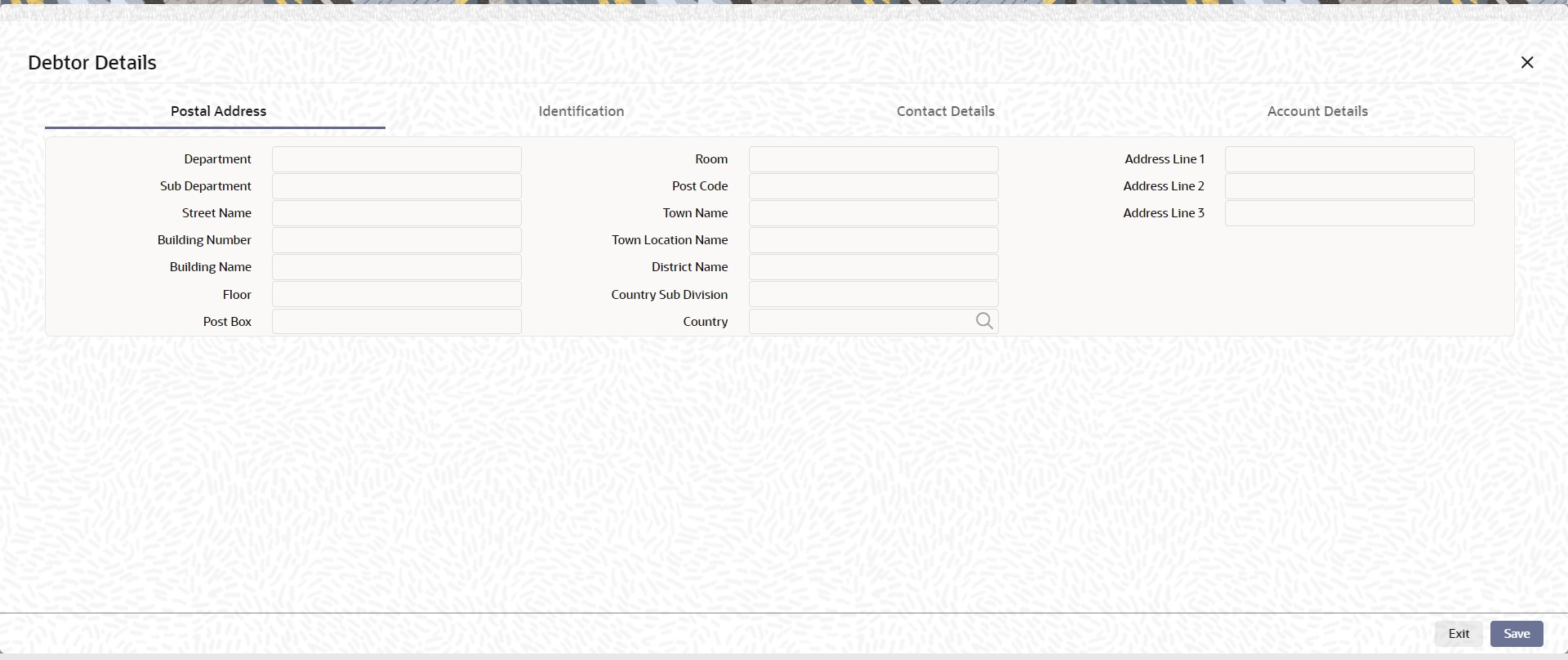
Postal Address
Specify the following fields available for this screen:
l Department
l Sub Department
l Street Name
l Building Number
l Building Name
l Floor
l Post Box
l Room
l Post Code
l Town Name
l Town Location Name
l District Name
l Country Sub Division
l Country
l Address Line 1
l Address Line 2
l Address Line 3
Identification
Click ‘Identification’ tab to invoke this screen.
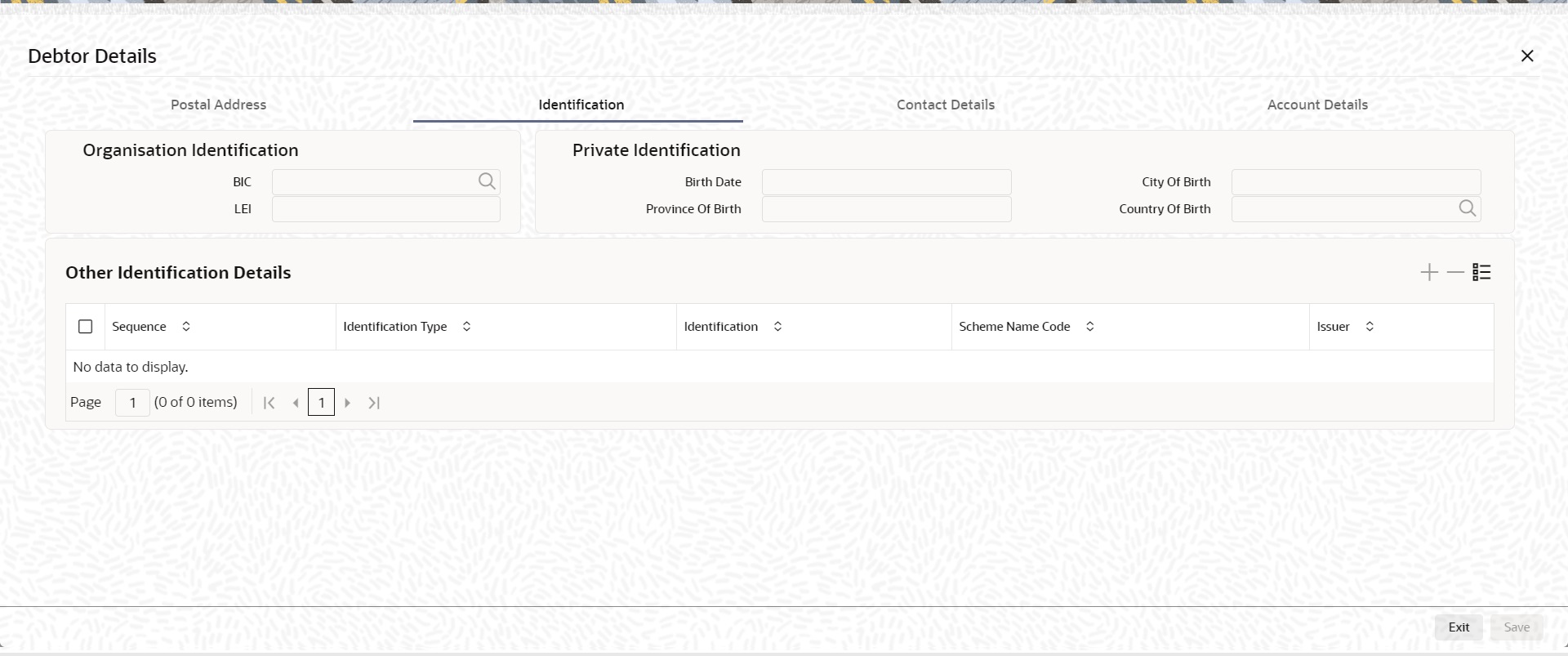
Specify the following fields for Debtor. These fields are available under Organisation Identification:
l BIC
l LEI
Specify the following fields for Debtor. These fields are available under Private Identification:
l Birth Date
l Province of Birth
l City of Birth
l Country of Birth
Specify the following fields for Debtor. These fields are available under Other Identification Details:
l Identification Type
l Identification
l Scheme Name Code
l
l Issuer
Note
l Identification is optional. If you input, either input Organization Identification or Private Identification.
l If you input Other section details under Organization Identification or Private Identification, then a maximum of two details are allowed to capture.
l Other Identification Details present under Organization Identification or Private Identification are optional. If you input Other Identification Details, you should input the Identification column.
l If you input Private Identification, you should input Birth Date, City Of Birth, and Country Of Birth.
l If you input value in the Identification field the Scheme Name Code is mandatory .
l If you input value in the Issuer field the Identification and Scheme Name Code is mandatory.
l If BIC is Absent, then Name is mandatory.
Contact Details
Click ‘Contact Details’ tab to invoke this screen.
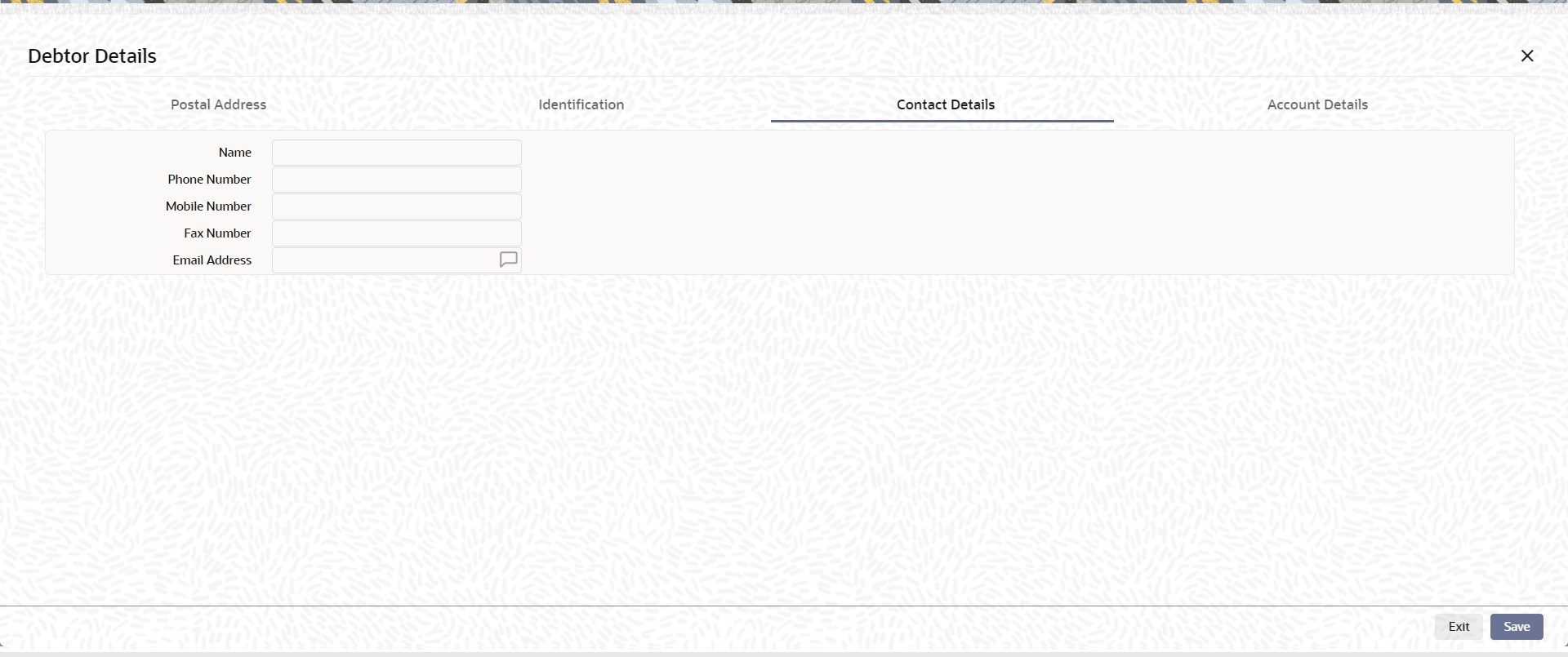
Specify the information into following fields for the agents:
l Name
l Phone Number
l Mobile Number
l Fax Number
l Email Address
Account Details
Click ‘Account Details’ tab to invoke this screen.
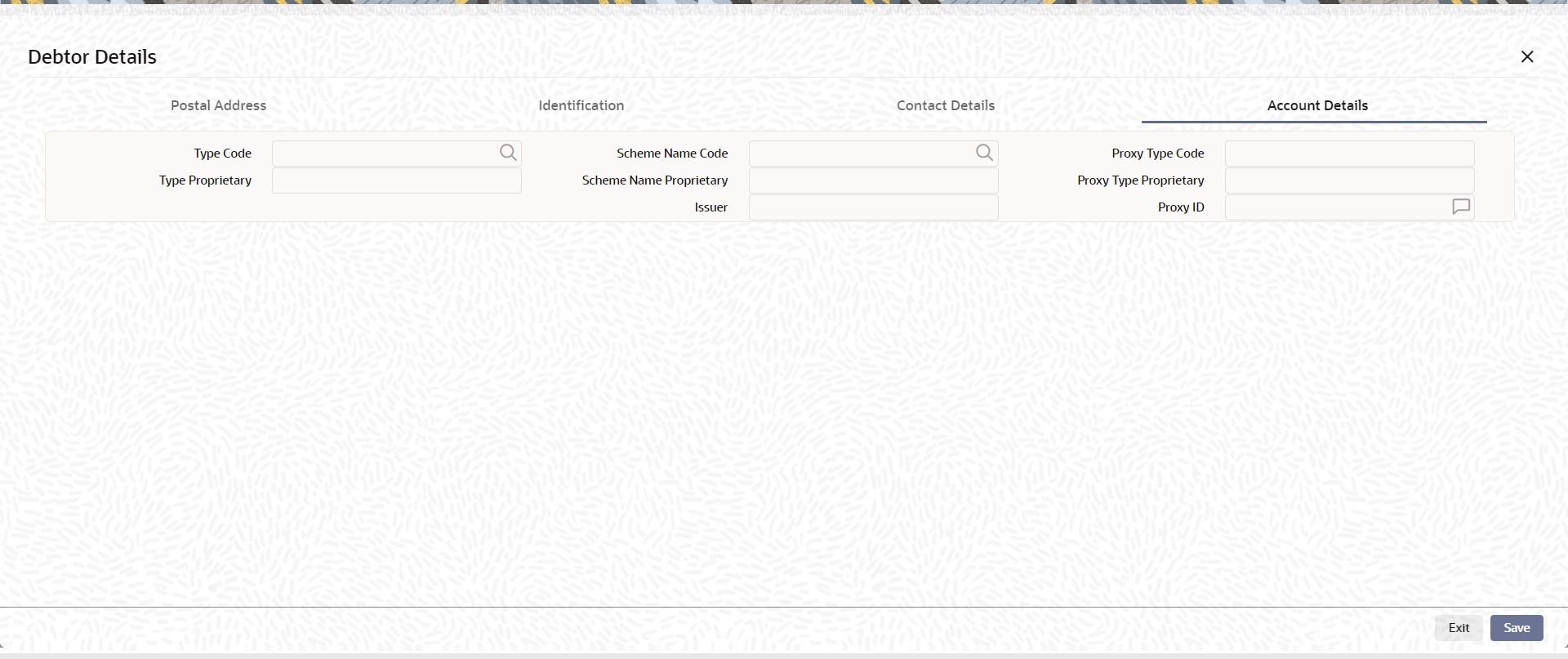
Specify the information into following fields for the agents:
l Type Code
l Type Proprietary
l Scheme Name Code
l Scheme Name Proprietary
l Issuer
l Proxy Type Code
l Proxy Type Proprietary
l Proxy ID
Note
l If you input Type information, either input Type Code (or) Type Proprietary.
l If you input Scheme information, either input Schema Name Code (or) Schema Name Proprietary.
l If you input Proxy information, either input Proxy Type Code (or) Proxy Type Proprietary.
l If you input Proxy information, you must input Proxy ID.
The ‘Debtor Agent Details’ and ‘Creditor Agent Details’ button under ‘Main’ tab contains similar fields and sub screen. Depending upon which button you click, the screen header name changes.

FIN Postal Address
Specify the following fields available for this screen:
l Department
l Sub Department
l Street Name
l Building Number
l Building Name
l Floor
l Post Box
l Room
l Post Code
l Town Name
l Town Location Name
l District Name
l Country Sub Division
l Country
l Address Line 1
l Address Line 2
l Address Line 3
Other Details
Click ‘Other Details’ tab to invoke this screen.
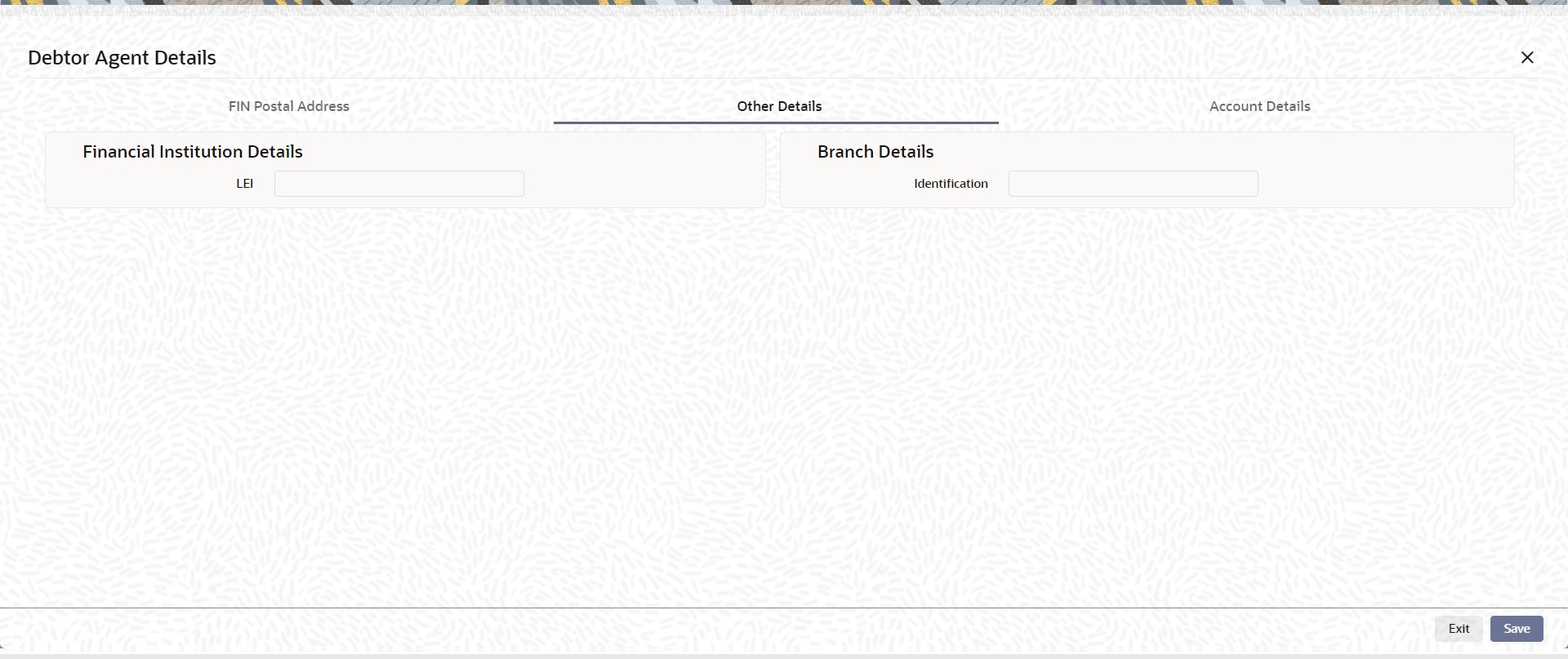
Specify the following fields available for this screen:
Financial Institution Details
LEI
Specify LEI of the agent.
Branch Details
Identification
Specify Identification of the agent.
Account Details
Click ‘Account Details’ tab to invoke this screen.
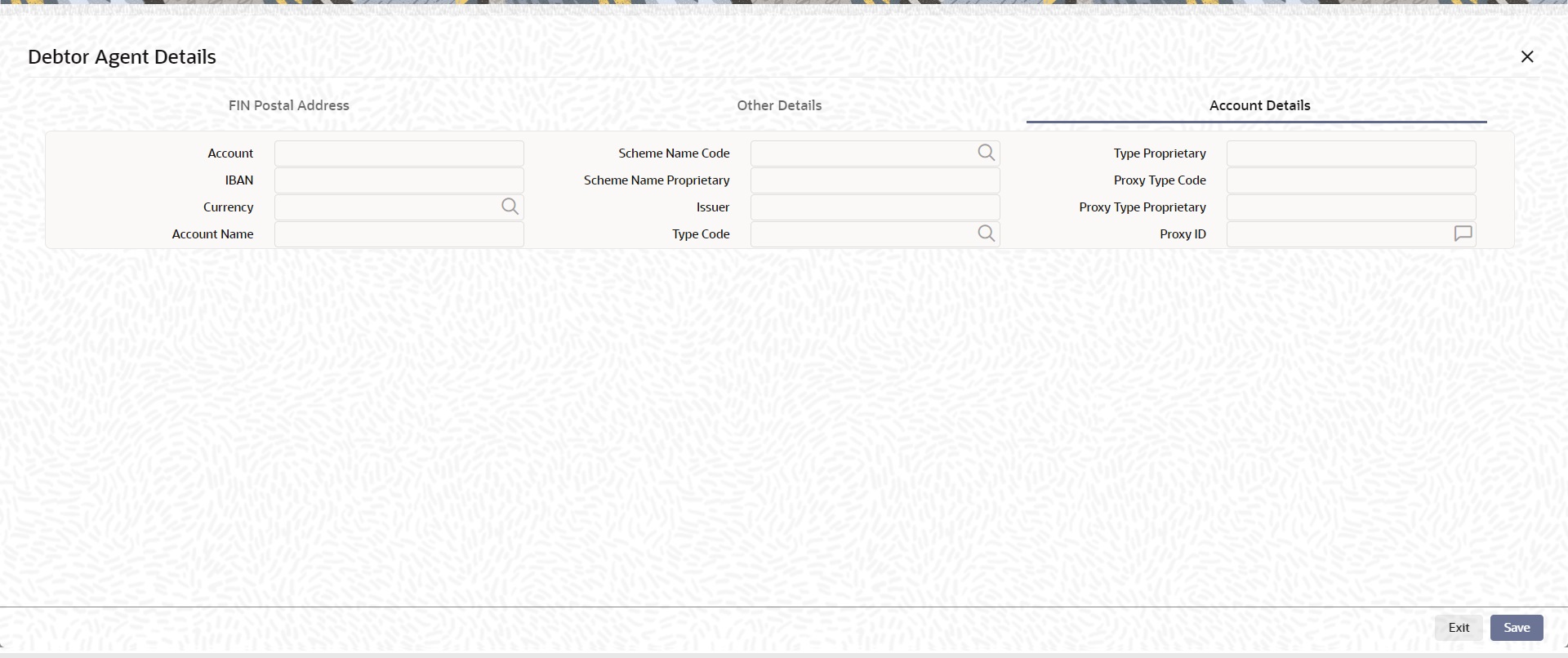
Specify the information into following fields for the agents:
l Account
l IBAN
l Currency
l Account Name
l Scheme Name Code
l Scheme Name Proprietary
l Issuer
l Type Code
l Type Proprietary
l Proxy Type Code
l Proxy Type Proprietary
l Proxy ID
Note
l If you input Type information, either input Type Code (or) Type Proprietary.
l If you input Scheme information, either input Schema Name Code (or) Schema Name Proprietary.
l If you input Proxy information, either input Proxy Type Code (or) Proxy Type Proprietary.
l If you input Proxy information, you must input Proxy ID.
5.2.1.5 Payment Information
Click the ‘Payment Information’ tab in the ‘RTGS ISO Inbound FI to FI Customer Credit Transfer Input Detailed’ screen.
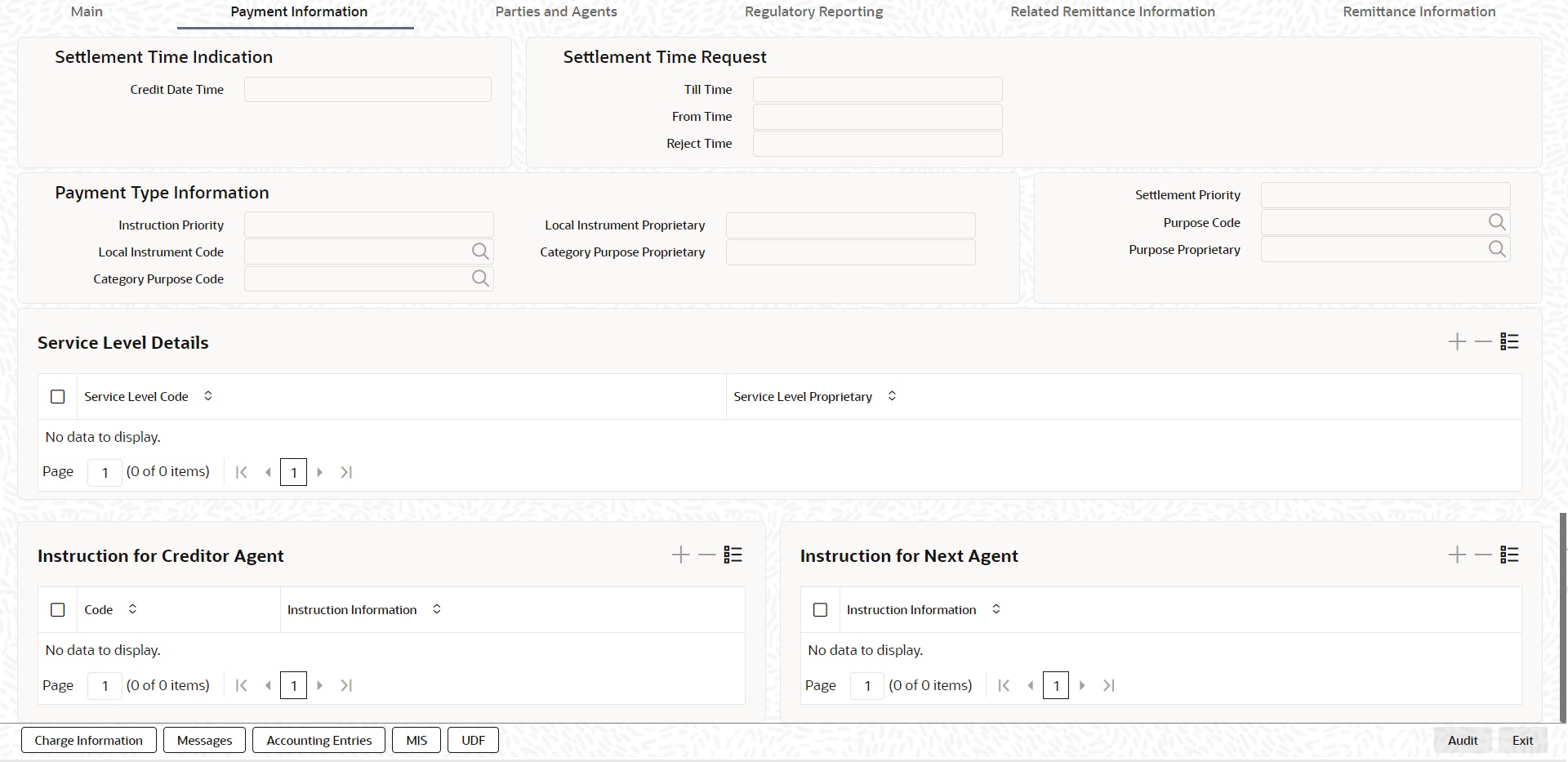
Specify the following fields:
Settlement Time Indication
Credit Date Time
Specify Date and Time of crediting the transaction.
Note
For above mentioned fields, the time Off-Set is made mandatory for translation purposes.
Settlement Time Request
From Time
Specify the From Time.
Till Time
Specify the Till Time.
Reject Time
Specify the Reject Time.
Payment Type Information
Instruction Priority
Select from the list of values for Instruction Priority. The drop down list contains values ‘High’ and ‘Low’.
Local Instrument Code
Select from the list of values for Local Instrument Code. This list contains ISO 20022 Instrument codes.
Category Purpose Code
Select from the list of values for Category Purpose Code. This list contains ISO 20022 Category Purpose codes.
Local Instrument Proprietary
Specify the Local Instrument Proprietary value.
Category Purpose Proprietary
Specify the Category Purpose Proprietary value.
Settlement Priority
Select from the list of values for Settlement Priority. The drop down list contains values HIGH, NORM, and URGT.
Purpose Code
Select from the list of values for Purpose Code. This list contains ISO 20022 Purpose codes.
Purpose Proprietary
Specify or Select from the list of values for Purpose Proprietary.
Note
l If you input Local Instrument, either you Code or Proprietary.
l If you input Category Purpose, either you Code or Proprietary.
l If you input Purpose, either you input Code or Proprietary.
Service Level Details
Service Level Code
Select from the list of values for Service Level Code. This list contains ISO 20022 Service Level codes.
Service Level Proprietary
Specify the Service Level Proprietary value.
Note
l Only three occurrences of Service Level are allowed.
l If you input Service Level, either you Code or Proprietary.
Instruction for Creditor Agent
Code
Select from the list of values for code. The list contains the values CHQB, HOLD, PHOB, TELB.
Note
The Code field is non-mandatory.
Instruction Information
Specify the Instruction Information.
Note
l Only two occurrences of Instruction For Creditor Agent are allowed.
l If you input Instruction For Creditor Agent, then you should input Code.
l If code CHQB is present, then code HOLD is not allowed, else HOLD is optional.
l If code PHOB is present, then code TELB is not allowed, else TELB is optional.
l You can use Instruction Information only when Code is PHOB to indicate the phone number.
Instruction for Next Agent
Instruction Information
Specify the Instruction information to be given to the next agent in the payment chain.
Note
Only six occurrences of Instruction For Next Agent are allowed.
5.2.1.6 Parties and Agents
Click the ‘Parties and Agents’ tab in the ‘RTGS ISO Inbound FI to FI Customer Credit Transfer Input Detailed’ screen.
Specify the following fields:
Initiating Party
Name
Specify the Name of the initiating party.
Country of Residence
Select from the list of values for Country of initiating party. This field lists the 2-Char ISO Country code list from the factory-shipped table.
Note
Select Country of Residence (where the party physically lives) only if it is different from Postal Address/Country.
Other Details Button
Click ‘Other Details’ button on ‘Parties and Agents’ tab under ‘Initiating Party’ header to invoke the sub screen. This screen shows the Initiating Party Details.
Refer to the Section 5.2.1.7, "Party Other Details Button" for details of fields and sub screen of the ‘Other Details’ button.
Ultimate Debtor
Name
Specify the Name of the initiating party.
Country of Residence
Select from the list of values for Country of initiating party. This field lists the 2-Char ISO Country code list from the factory-shipped table.
Note
Select Country of Residence (where the party physically lives) only if it is different from Postal Address/Country.
Other Details Button
Click ‘Other Details’ button on ‘Parties and Agents’ tab under ‘Ultimate Debtor’ header to invoke the sub screen. This screen shows the Ultimate Debtor Details.
Refer to the Section 5.2.1.7, "Party Other Details Button" for details of fields and sub screen of the ‘Other Details’ button.
Ultimate Creditor
Name
Specify the Name of the initiating party.
Country of Residence
Select from the list of values for Country of initiating party. This field lists the 2-Char ISO Country code list from the factory-shipped table.
Note
Select Country of Residence (where the party physically lives) only if it is different from Postal Address/Country.
Other Details Button
Click ‘Other Details’ button on ‘Parties and Agents’ tab under ‘Ultimate Creditor’ header to invoke the sub screen. This screen shows the Ultimate Creditor Details.
Refer to the Section 5.2.1.7, "Party Other Details Button" for details of fields and sub screen of the ‘Other Details’ button.
Intermediary Agent 1
BICFI
Select from the list of values for BICFI code.
Clearing System Code
Select from the list of values for Clearing System Code.
Member Identification
Specify the clearing ID code.
Name
System defaults the name as per selected BICFI code.
Other Details Button
Click ‘Other Details’ button on ‘Parties and Agents’ tab under ‘Intermediary Agent 1’ header to invoke the sub screen. This screen shows the Intermediary Agent 1 Details.
Refer to the Section 5.2.1.8, "Agent Other Details Button" for details of fields and sub screen of the ‘Other Details’ button.
Intermediary Agent 2
BICFI
Select from the list of values for BICFI code.
Clearing System Code
Select from the list of values for Clearing System Code.
Member Identification
Specify the clearing ID code.
Name
System defaults the name as per selected BICFI code.
Other Details Button
Click ‘Other Details’ button on ‘Parties and Agents’ tab under ‘Intermediary Agent 2’ header to invoke the sub screen. This screen shows the Intermediary Agent 2 Details.
Refer to the Section 5.2.1.8, "Agent Other Details Button" for details of fields and sub screen of the ‘Other Details’ button.
Intermediary Agent 3
BICFI
Select from the list of values for BICFI code.
Clearing System Code
Select from the list of values for Clearing System Code.
Member Identification
Specify the clearing ID code.
Name
System defaults the name as per selected BICFI code.
Other Details Button
Click ‘Other Details’ button on ‘Parties and Agents’ tab under ‘Intermediary Agent 3’ header to invoke the sub screen. This screen shows the Intermediary Agent 3 Details.
Refer to the Section 5.2.1.8, "Agent Other Details Button" for details of fields and sub screen of the ‘Other Details’ button.
Previous Instructing Agent 1
BICFI
Select from the list of values for BICFI code.
Clearing System Code
Select from the list of values for Clearing System Code.
Member Identification
Specify the clearing ID code.
Name
System defaults the name as per selected BICFI code.
Other Details Button
Click ‘Other Details’ button on ‘Parties and Agents’ tab under ‘Previous Instructing Agent 1’ header to invoke the sub screen. This screen shows the Previous Instructing Agent 1 Details.
Refer to the Section 5.2.1.8, "Agent Other Details Button" for details of fields and sub screen of the ‘Other Details’ button.
Previous Instructing Agent 2
BICFI
Select from the list of values for BICFI code.
Clearing System Code
Select from the list of values for Clearing System Code.
Member Identification
Specify the clearing ID code.
Name
System defaults the name as per selected BICFI code.
Other Details Button
Click ‘Other Details’ button on ‘Parties and Agents’ tab under ‘Previous Instructing Agent 2’ header to invoke the sub screen. This screen shows the Previous Instructing Agent 2 Details.
Refer to the Section 5.2.1.8, "Agent Other Details Button" for details of fields and sub screen of the ‘Other Details’ button.
Previous Instructing Agent 3
BICFI
Select from the list of values for BICFI code.
Clearing System Code
Select from the list of values for Clearing System Code.
Member Identification
Specify the clearing ID code.
Name
System defaults the name as per selected BICFI code.
Other Details Button
Click ‘Other Details’ button on ‘Parties and Agents’ tab under ‘Previous Instructing Agent 3’ header to invoke the sub screen. This screen shows the Previous Instructing Agent 3 Details.
Refer to the Section 5.2.1.8, "Agent Other Details Button" for details of fields and sub screen of the ‘Other Details’ button.
Instructing Agent
BICFI
Select from the list of values for BICFI code.
LEI
Specify LEI of the agent.
5.2.1.7 Party Other Details Button
The ‘Other Details’ button for Initiating Party, Ultimate Debtor, and Ultimate Creditor under ‘Parties and Agents’ tab contains similar fields and sub screen. Depending upon which button you click, the screen header name changes.
Postal Address
Specify the following fields available for this screen:
l Department
l Sub Department
l Street Name
l Building Number
l Building Name
l Floor
l Post Box
l Room
l Post Code
l Town Name
l Town Location Name
l District Name
l Country Sub Division
l Country
Identification
Click ‘Identification’ tab to invoke this screen.
Specify the following fields for Initiating Party/Ultimate Debtor/Ultimate Creditor. These fields are available under Organisation Identification:
l BIC
l LEI
Specify the following fields for Initiating Party/Ultimate Debtor/Ultimate Creditor. These fields are available under Private Identification:
l Birth Date
l Province of Birth
l City of Birth
l Country of Birth
Specify the following fields for Initiating Party/Ultimate Debtor/Ultimate Creditor. These fields are available under Other Identification Details:
l Identification Type
l Identification
l Scheme Name Code
l Issuer
5.2.1.8 Agent Other Details Button
The ‘Other Details’ button for Intermediary Agent 1, Intermediary Agent 2, Intermediary Agent 3, Previous Instructing Agent 1, Previous Instructing Agent 2, and Previous Instructing Agent 3 under ‘Parties and Agents’ tab contains similar fields and sub screen. Depending upon which button you click, the screen header name changes.
FIN Postal Address
Specify the following fields available for this screen:
l Department
l Sub Department
l Street Name
l Building Number
l Building Name
l Floor
l Post Box
l Room
l Post Code
l Town Name
l Town Location Name
l District Name
l Country Sub Division
l Country
l Address Line 1
l Address Line 2
l Address Line 3
Other Details
Click ‘Other Details’ tab to invoke this screen.
Specify the following fields available for this screen:
Financial Institution Details
LEI
Specify LEI of the agent.
Account Details
Click ‘Account Details’ tab to invoke this screen.
Specify the information into following fields for the agents:
l Account
l IBAN
l Currency
l Account Name
l Scheme Name Code
l Scheme Name Proprietary
l Issuer
l Type Code
l Type Proprietary
l Proxy Type Code
l Proxy Type Proprietary
l Proxy ID
Note
l If you input Type information, either input Type Code (or) Type Proprietary.
l If you input Scheme information, either input Schema Name Code (or) Schema Name Proprietary.
l If you input Proxy information, either input Proxy Type Code (or) Proxy Type Proprietary.
l If you input Proxy information, you must input Proxy ID.
5.2.1.9 Regulatory Reporting
Click the ‘Regulatory Reporting’ tab in the ‘RTGS ISO Inbound FI to FI Customer Credit Transfer Input Detailed’ screen.
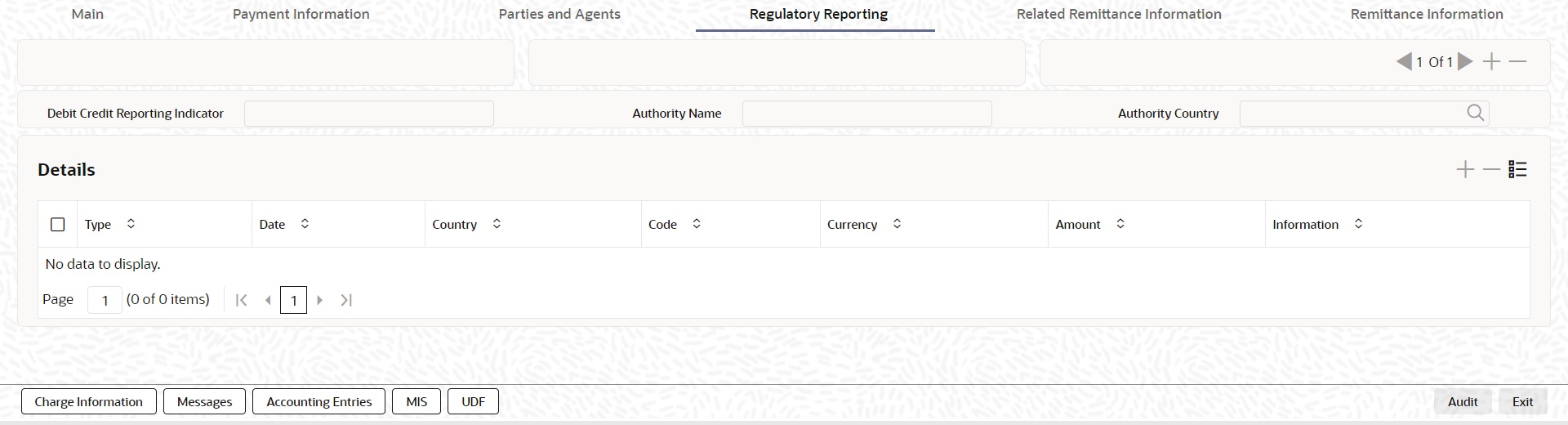
Specify the following fields:
Debit Credit Reporting Indicator
Select from the list of values for Debit Credit Reporting Indicator. The list contains the values BOTH, CRED, and DEBT.
Authority Name
Specify the name of the Authority.
Authority Country
Select from the list of values for country code of the Authority.
Details
Type
Specify the Type of the Regulatory Reporting.
Date
Specify the Date of the Regulatory Reporting.
Country
Select from the list of values for Country of the Regulatory Reporting.
Code
Specify the Code of the Regulatory Reporting.
Currency
Select from the list of values for Currency of the Regulatory Reporting.
Amount
Specify the Amount of the Regulatory Reporting.
Information
Click the ‘Information’ button. Specify the Additional Information of the Regulatory Reporting.
5.2.1.10 Related Remittance Information
Click the ‘Related Remittance Information’ tab in the ‘RTGS ISO Inbound FI to FI Customer Credit Transfer Input Detailed’ screen.
Specify the following fields:
Remittance Identification
Specify the Identification of the Remittance.
Remittance Location Details
Method
Specify the Method of the Remittance.
Electronic Address
Specify the Electronic Address for the Remittance.
Postal Address
Specify the following fields available for this screen:
l Name
l Department
l Sub Department
l Street Name
l Building Number
l Building Name
l Floor
l Room
l Post Code
l Town Name
l Town Location Name
l District Name
l Country Sub Division
l Country
5.2.1.11 Remittance Information
Click the ‘Remittance Information’ tab in the ‘RTGS ISO Inbound FI to FI Customer Credit Transfer Input Detailed’ screen.
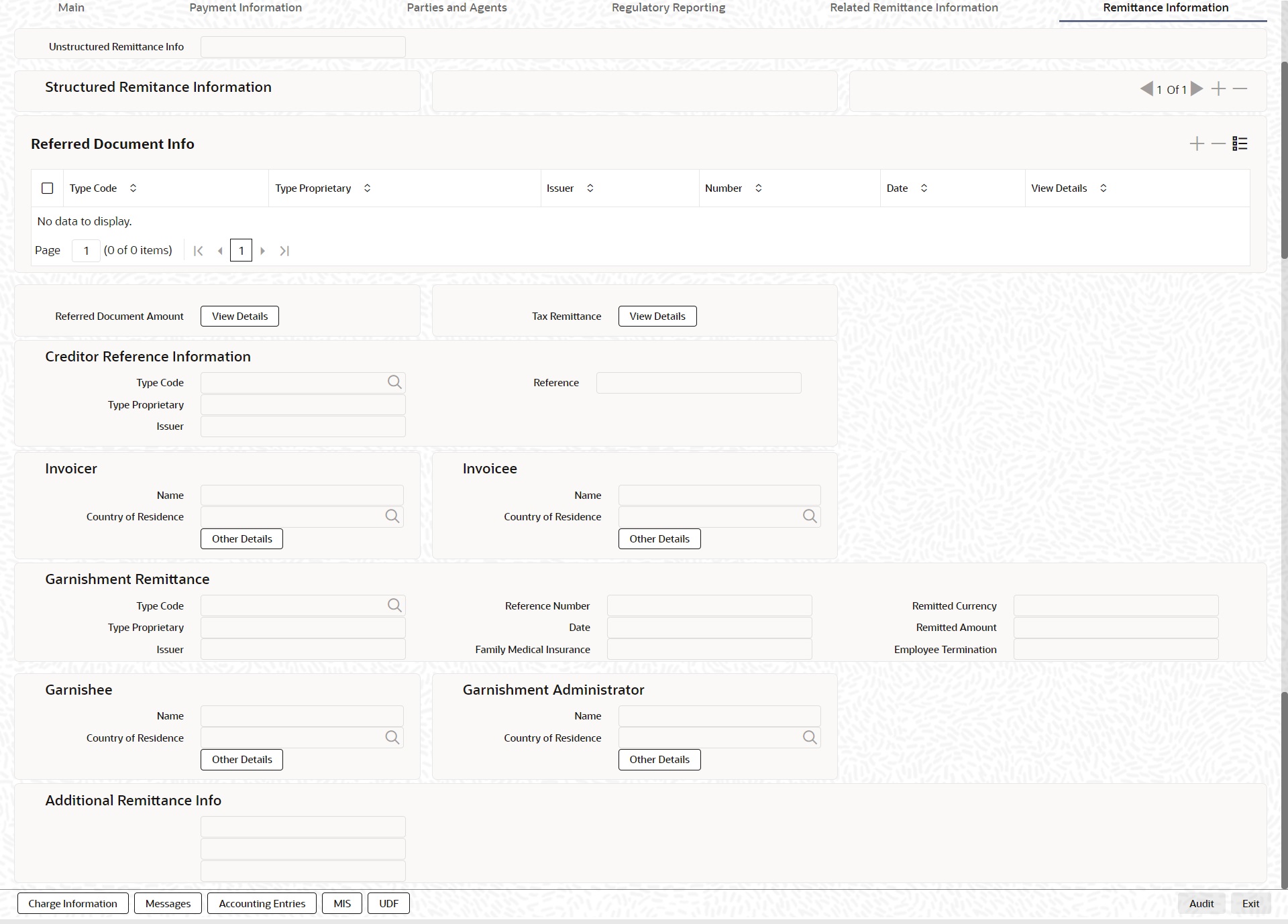
Specify the following fields:
Unstructured Remittance Info
Specify the Unstructured Remittance Information.
Structured Remittance Information
You can present either Structured or Unstructured Remittance.
You can repeat Structured Remittance, however, the total business data for all occurrences (excluding tags) must not exceed 9,000 characters.
Referred Document Info
Type Code
Select from the list of values for Type Code of the Remittance.
Type Proprietary
Specify the Type Proprietary of the Remittance.
Note
If you input information for Type, either input Type Code or Type Proprietary.
Issuer
Specify the Issuer of the Remittance.
Number
Specify the Number of the Remittance.
Date
Specify the Date of the Remittance.
View Details button
Click ‘View Details’ button for Referred Document Info to invoke Referred Document Information Details screen.
Specify the following fields:
Identification
Type Code
Select from the list of values for Type Code of the Remittance.
Type Proprietary
Specify the Type Proprietary of the Remittance.
Note
If you input information for Type, either input Type Code or Type Proprietary.
Issuer
Specify the Issuer of the Remittance.
Number
Specify the Number of the Remittance.
Related Date
Specify the Related Date of the Remittance.
Description
Specify the Description of the Remittance.
Amount
Due Payable Currency
Select from the list of values for Due Payable Currency of Remittance.
Due Payable Amount
Specify the Due Payable Amount of Remittance.
Credit Note Currency
Select from the list of values for Credit Note Currency of Remittance.
Credit Note Amount
Specify the Credit Note Amount of Remittance.
Remitted Currency
Select from the list of values for Remitted Currency of Remittance.
Remitted Amount
Specify the Remitted Amount of Remittance.
Discount Applied Amount
Discount Applied Code
Select from the list of values for Discount Applied Code of Remittance.
Discount Applied Proprietary
Specify the Discount Applied Proprietary of Remittance.
Discount Applied Currency
Select from the list of values for Discount Applied Currency of Remittance.
Discount Applied Amount
Specify the Discount Applied Amount of Remittance.
Note
l If you input information for Discount Applied Amount, either input Discount Applied Code or Discount Applied Proprietary.
l If you input information for Discount Applied Amount, you must input Discount Applied Amount and Discount Applied Currency.
Tax Amount
Tax Code
Select from the list of values for Tax Code of Remittance.
Tax Proprietary
Specify the Tax Proprietary of Remittance.
Tax Currency
Select from the list of values for Tax Currency of Remittance.
TaX Amount
Specify the Tax Amount of Remittance.
Note
l If you input information for Tax Amount, either input Tax Code or Tax Proprietary.
l If you input information for Tax Amount, you must input Tax Amount and Tax Currency.
Adjustment Amount And Reason
Adjustment Currency
Select from the list of values for Adjustment Currency of Remittance.
Adjustment Amount
Specify the Adjustment Amount of Remittance.
Credit Debit Indicator
Select from the list of values for Tax Currency of Remittance.
Adjustment Reason
Specify the Adjustment Reason of Remittance.
Adjustment Additional Information
Specify the Adjustment Additional Information of Remittance.
Note
If you input information for Adjustment Amount And Reason, you must input Adjustment Amount and Adjustment Currency.
Referred Document Amount
View Details button
Click ‘View Details’ button for Referred Document Amount to invoke Referred Document Amount Details screen.
Specify the following fields:
Due Payable Currency
Select from the list of values for Due Payable Currency of Remittance.
Due Payable Amount
Specify the Due Payable Amount of Remittance.
Credit Note Currency
Select from the list of values for Credit Note Currency of Remittance.
Credit Note Amount
Specify the Credit Note Amount of Remittance.
Remitted Currency
Select from the list of values for Remitted Currency of Remittance.
Remitted Amount
Specify the Remitted Amount of Remittance.
Discount Applied Amount
Discount Applied Code
Select from the list of values for Discount Applied Code of Remittance.
Discount Applied Proprietary
Specify the Discount Applied Proprietary of Remittance.
Discount Applied Currency
Select from the list of values for Discount Applied Currency of Remittance.
Discount Applied Amount
Specify the Discount Applied Amount of Remittance.
Note
l If you input information for Discount Applied Amount, either input Discount Applied Code or Discount Applied Proprietary.
l If you input information for Discount Applied Amount, you must input Discount Applied Amount and Discount Applied Currency.
Tax Amount
Tax Code
Select from the list of values for Tax Code of Remittance.
Tax Proprietary
Specify the Tax Proprietary of Remittance.
Tax Currency
Select from the list of values for Tax Currency of Remittance.
Tax Amount
Specify the Tax Amount of Remittance.
Note
l If you input information for Tax Amount, either input Tax Code or Tax Proprietary.
l If you input information for Tax Amount, you must input Tax Amount and Tax Currency.
Adjustment Amount And Reason
Adjustment Currency
Select from the list of values for Adjutment Currency of Remittance.
Adjustment Amount
Specify the Adjustment Amount of Remittance.
Credit Debit Indicator
Select from the list of values for Tax Currency of Remittance.
Adjustment Reason
Specify the Adjustment Reason of Remittance.
Adjustment Additional Information
Specify the Adjustment Additional Information of Remittance.
Note
If you input information for Adjustment Amount And Reason, you must input Adjustment Amount and Adjustment Currency.
Tax Remittance
View Details button
Click ‘View Details’ button for Tax Remittance to invoke Tax Remittance Details screen.
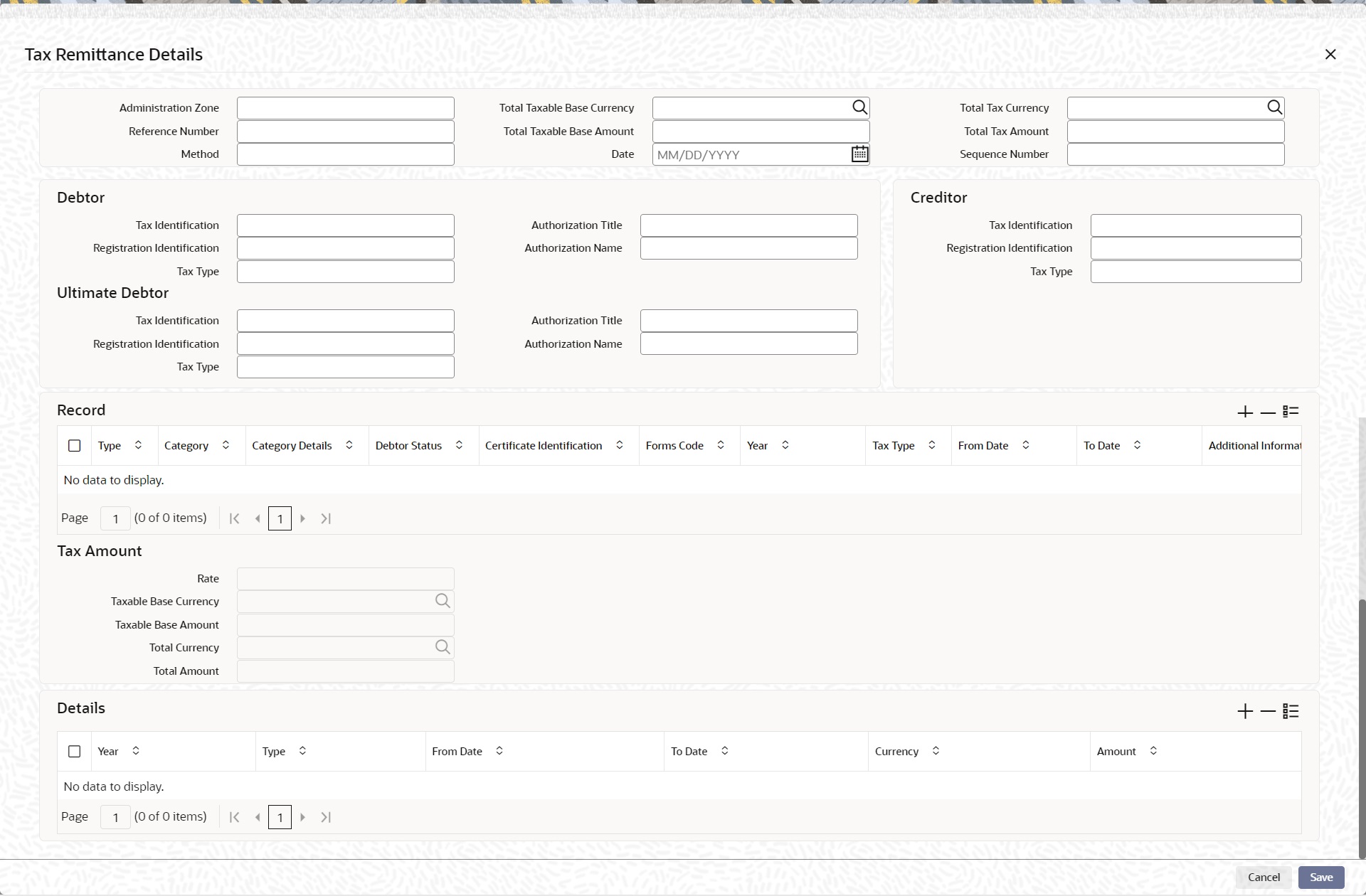
Specify the following fields:
Administration Zone
Specify the Administration Zone of Remittance.
Reference Number
Specify the Reference Number of Remittance.
Method
Specify the Method of Remittance.
Total Taxable Base Currency
Specify the Total Taxable Base Currency of Remittance.
Total Taxable Base Amount
Specify the Total Taxable Base Amount of Remittance.
Date
Specify the Date of Remittance.
Total Tax Currency
Specify the Total Tax Currency of Remittance.
Total Tax Amount
Specify the Total Tax Amount of Remittance.
Sequence Number
Specify the Sequence Number of Remittance.
Debtor
Tax Identification
Specify the Tax Identification of Debtor for Remittance.
Registration Identification
Specify the Registration Identification of Debtor for Remittance.
Tax Type
Specify the Tax Type of Debtor for Remittance.
Authorization Title
Specify the Authorization Title of Debtor for Remittance.
Authorization Name
Specify the Authorization Name of Debtor for Remittance.
Creditor
Tax Identification
Specify the Tax Identification of Creditor for Remittance.
Registration Identification
Specify the Registration Identification of Creditor for Remittance.
Tax Type
Specify the Tax Type of Creditor for Remittance.
Ultimate Debtor
Tax Identification
Specify the Tax Identification of Ultimate Debtor for Remittance.
Registration Identification
Specify the Registration Identification of Ultimate Debtor for Remittance.
Tax Type
Specify the Tax Type of Ultimate Debtor for Remittance.
Authorization Title
Specify the Authorization Title of Ultimate Debtor for Remittance.
Authorization Name
Specify the Authorization Name of Ultimate Debtor for Remittance.
Record
Type
Specify the Type of Record Type for Remittance.
Category
Specify the Category of Record Type for Remittance.
Category Details
Specify the Category Details of Record Type for Remittance.
Debtor Status
Specify the Debtor Status of Record Type for Remittance.
Certificate Identification
Specify the Certificate Identification of Record Type for Remittance.
Forms Code
Specify the Forms Code of Record Type for Remittance.
Year
Specify the Year of Record Type for Remittance.
Tax Type
Specify the Tax Type of Record Type for Remittance.
From Date
Specify the From Date of Record Type for Remittance.
To Date
Specify the To Date of Record Type for Remittance.
Additional Information
Specify the Additional Information of Tax Amount for Remittance.
Tax Amount
Rate
Specify the Rate of Tax Amount for Remittance.
Taxable Base Currency
Specify the Taxable Base Currency of Remittance.
Taxable Base Amount
Specify the Taxable Base Amount of Tax Amount for Remittance.
Total Currency
Specify the Total Currency of Tax Amount for Remittance.
Total Amount
Specify the Total Amount of Tax Amount for Remittance.
Details
Year
Specify the Year of Tax Amount for Remittance.
Type
Specify the Type of Tax Amount for Remittance.
From Date
Specify the From Date of Tax Amount for Remittance.
To Date
Specify the To Date of Tax Amount for Remittance.
Currency
Specify the Currency of Tax Amount for Remittance.
Amount
Specify the Amount of Tax Amount for Remittance.
Credit Reference Information
Type Code
Select from the list of values of the Type Code of the Remittance.
Type Proprietary
Specify the Type Proprietary of the Remittance.
Issuer
Specify the Issuer of the Remittance.
Reference
Specify the number of the Remittance.
Invoicer
Name
Specify the Name of the initiating party.
Country of Residence
Select from the list of values for Country of initiating party. This field lists the 2-Char ISO Country code list from the factory-shipped table.
Note
Select Country of Residence (where the party physically lives) only if it is different from Postal Address/Country.
Other Details Button
Click ‘Other Details’ button on ‘Remittance Information’ tab under ‘Invoicer’ header to invoke the sub screen. This screen shows the Invoicer Details.
Refer to the Section 5.2.1.12, "Other Details Button" for details of fields and sub screen of the ‘Other Details’ button.
Invoicee
Name
Specify the Name of the initiating party.
Country of Residence
Select from the list of values for Country of initiating party. This field lists the 2-Char ISO Country code list from the factory-shipped table.
Note
Select Country of Residence (where the party physically lives) only if it is different from Postal Address/Country.
Other Details Button
Click ‘Other Details’ button on ‘Remittance Information’ tab under ‘Invoicee’ header to invoke the sub screen. This screen shows the Invoicee Details.
Refer to the Section 5.2.1.12, "Other Details Button" for details of fields and sub screen of the ‘Other Details’ button.
Garnishment Remittance
Type Code
Select from the list of values of the Type Code for Garnishment Remittance.
Type Proprietary
Specify the Type Proprietary for Garnishment Remittance.
Issuer
Specify the Issuer for Garnishment Remittance.
Reference Number
Specify the Reference Number for Garnishment Remittance.
Date
Specify the Date for Garnishment Remittance.
Family Medical Insurance
Specify the Family Medical Insurance for Garnishment Remittance.
Remitted Currency
Select from the list of values of the Remitted Currency for Garnishment Remittance.
Remitted Amount
Specify the Remitted Amount for Garnishment Remittance.
Employee Termination
Specify the Employee Termination for Garnishment Remittance.
Garnishee
Name
Specify the Name of the initiating party.
Country of Residence
Select from the list of values for Country of initiating party. This field lists the 2-Char ISO Country code list from the factory-shipped table.
Note
Select Country of Residence (where the party physically lives) only if it is different from Postal Address/Country.
Other Details Button
Click ‘Other Details’ button on ‘Remittance Information’ tab under ‘Garnishee’ header to invoke the sub screen. This screen shows the Garnishee Details.
Refer to the Section 5.2.1.12, "Other Details Button" for details of fields and sub screen of the ‘Other Details’ button.
Garnishment Administrator
Name
Specify the Name of the initiating party.
Country of Residence
Select from the list of values for Country of initiating party. This field lists the 2-Char ISO Country code list from the factory-shipped table.
Note
Select Country of Residence (where the party physically lives) only if it is different from Postal Address/Country.
Other Details Button
Click ‘Other Details’ button on ‘Remittance Information’ tab under ‘Garnishment Administrator’ header to invoke the sub screen. This screen shows the Garnishment Administrator Details.
Refer to the Section 5.2.1.12, "Other Details Button" for details of fields and sub screen of the ‘Other Details’ button.
Additional Remittance Info
Specify the Additional Remittance Information.
The ‘Other Details’ button under ‘Remittance Information’ tab for Invoicer, Invoicee, Garnishee, and Garnishment Administrator contains similar fields and sub screen. Depending upon which button you click, the screen header name changes.
Postal Address
Specify the following fields available for this screen:
l Department
l Sub Department
l Street Name
l Building Number
l Building Name
l Floor
l Post Box
l Room
l Post Code
l Town Name
l Town Location Name
l District Name
l Country Sub Division
l Country
Identification
Click ‘Identification’ tab to invoke this screen.
Specify the following fields. These fields are available under Organisation Identification:
l BIC
l LEI
Specify the following fields. These fields are available under Private Identification:
l Birth Date
l Province of Birth
l City of Birth
l Country of Birth
Specify the following fields. These fields are available under Other Identification Details:
l Identification Type
l Identification
l Scheme Name Code
l Scheme Name Proprietary
l Issuer
5.2.1.13 Charges Information Tab
You can view the Charges Information details for the transaction in this screen. Click the “Charges Information” tab in the RTGS ISO Inbound FI to FI Customer Credit Transfer Input Detailed screen to invoke this sub-screen.
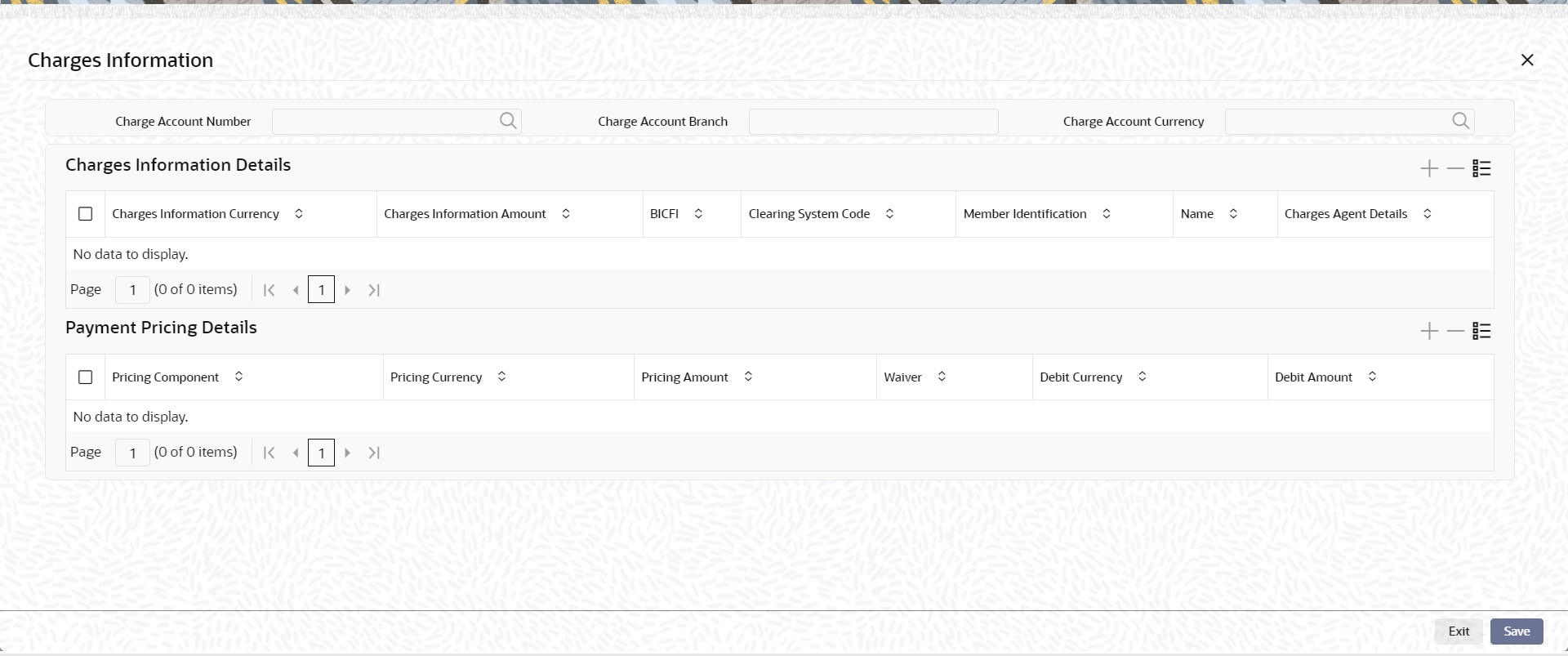
Specify the following details:
Charge Account Number
Select from the list of values for Charge Account Number.
Charge Account Branch
System defaults the Branch of the selected account.
Charge Account Currency
System defaults the Currency of the selected account.
Charges Information Details
Charge Information Currency
Select from the list of values for Currency of the charge.
Charge Information Amount
Specify the Amount of the charge.
BICFI
Select from the list of values for BIC code of the bank/institution.
Clearing System Code
Select from the list of values for ISO system clearing code.
Member Identification
Specify the clearing ID code.
Name
Specify the Name of charge.
Charges Agents Details Button
Click the ‘Charges Agents Details’ button to specify the details of the Agent from whom the charge is collected.
FIN Postal Address
Specify the following fields available for this screen:
l Department
l Sub Department
l Street Name
l Building Number
l Building Name
l Floor
l Post Box
l Room
l Post Code
l Town Name
l Town Location Name
l District Name
l Country Sub Division
l Country
l Address Line 1
l Address Line 2
l Address Line 3
Other Details
Click ‘Other Details’ tab to invoke this screen.
Specify the following fields available for this screen:
Financial Institution Details
LEI
Specify LEI of the agent.
Payment Pricing Details
Pricing Component
The system displays Pricing Component of the transaction.
Pricing Currency
The system displays Pricing Currency of the transaction.
Pricing Amount
Specify the Pricing Amount of the transaction.
Waiver
Select the check box to indicate if Pricing is waived.
Debit Currency
Specify the Currency of the Debit account from which charge is applied.
Debit Amount
Specify Debit Amount of the charge.
5.2.1.14 All Messages Tab
You can view the All Messages details for the transaction in this screen. Click the “Messages” tab in the RTGS ISO Inbound FI to FI Customer Credit Transfer Input Detailed screen to invoke this sub-screen.
5.2.1.15 Accounting Entries
You can view the Accounting Entries details for the transaction in this screen. Click the “Accounting Entries” tab in the RTGS ISO Inbound FI to FI Customer Credit Transfer Input Detailed screen to invoke this sub-screen.
5.2.1.16 MIS Tab
Click the “MIS” tab in the RTGS ISO Inbound FI to FI Customer Credit Transfer Input Detailed screen to invoke this sub-screen.
5.2.1.17 UDF Tab
Click the “UDF” tab in the RTGS ISO Inbound FI to FI Customer Credit Transfer Input Detailed screen to invoke this sub-screen.
5.2.1.18 RTGS ISO Inbound FI to FI Customer Credit Transfer Input Detailed Summary
You can invoke “RTGS ISO Inbound FI to FI Customer Credit Transfer Input Detailed Summary” screen by typing ‘PSSIT2CT' in the field at the top right corner of the Application tool bar and clicking on the adjoining arrow button.
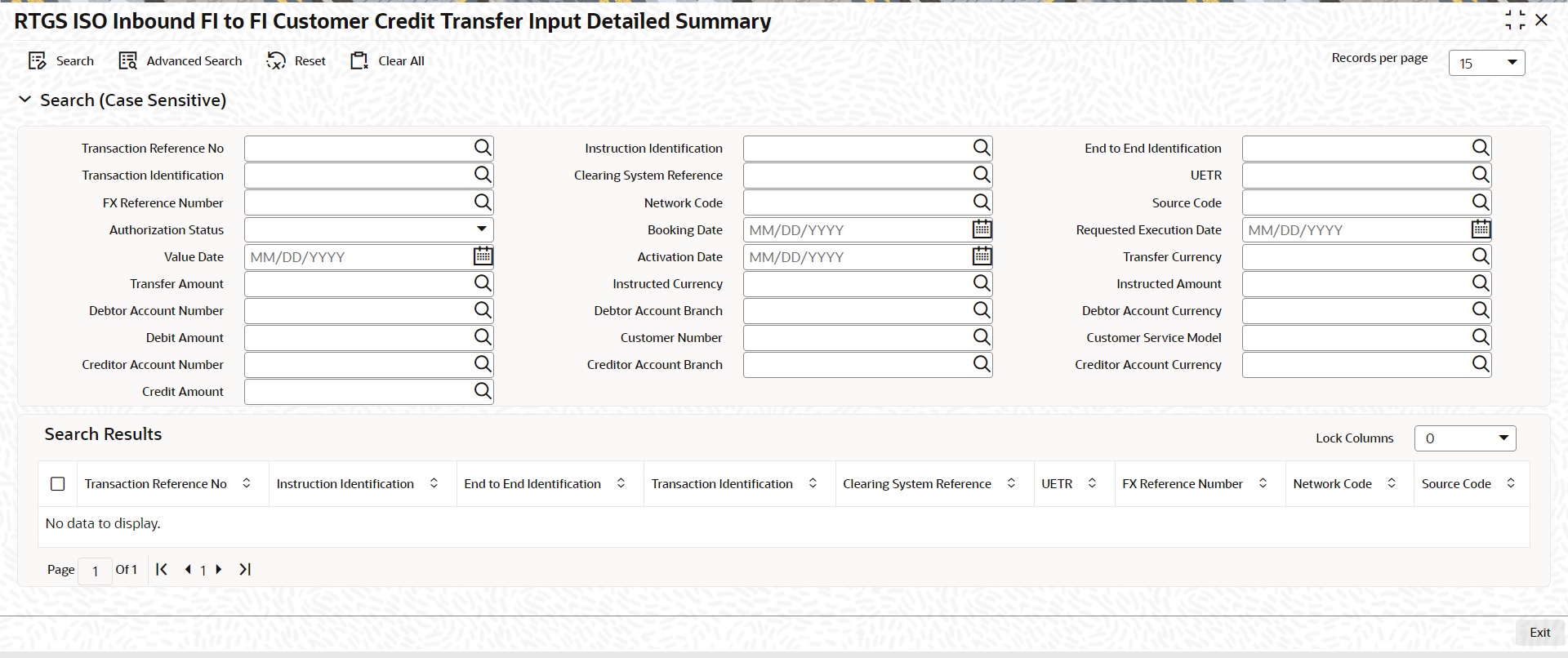
You can search using one or more of the following parameters:
l Transaction Reference Number
l Instruction Identification
l End to End Identification
l Transaction Identification
l Clearing System Reference
l UETR
l FX Reference Number
l Network Code
l Source Code
l Authorization Status
l Booking Date
l Requested Execution Date
l Value Date
l Activation Date
l Transfer Currency
l Transfer Amount
l Instructed Currency
l Instructed Amount
l Debtor Account Number
l Debtor Account Branch
l Debtor Account Currency
l Debit Amount
l Customer Number
l Customer Service Model
l Creditor Account Number
l Creditor Account Branch
l Creditor Account Currency
l Credit Amount
Once you have specified the search parameters, click ‘Search’ button. The system displays the records that match the search criteria.
Double click a record or click the ‘Details’ button after selecting a record to view the detailed screen.
5.2.2 RTGS ISO Inbound FI Credit Transfer Input
You can do manual booking of bank transfer transactions through this screen.
You can invoke “RTGS ISO Inbound FI Credit Transfer Input Detailed” screen by typing the function ID ‘PSDIT2BT’ in the field at the top right corner of the Application tool bar and clicking on the adjoining arrow button.
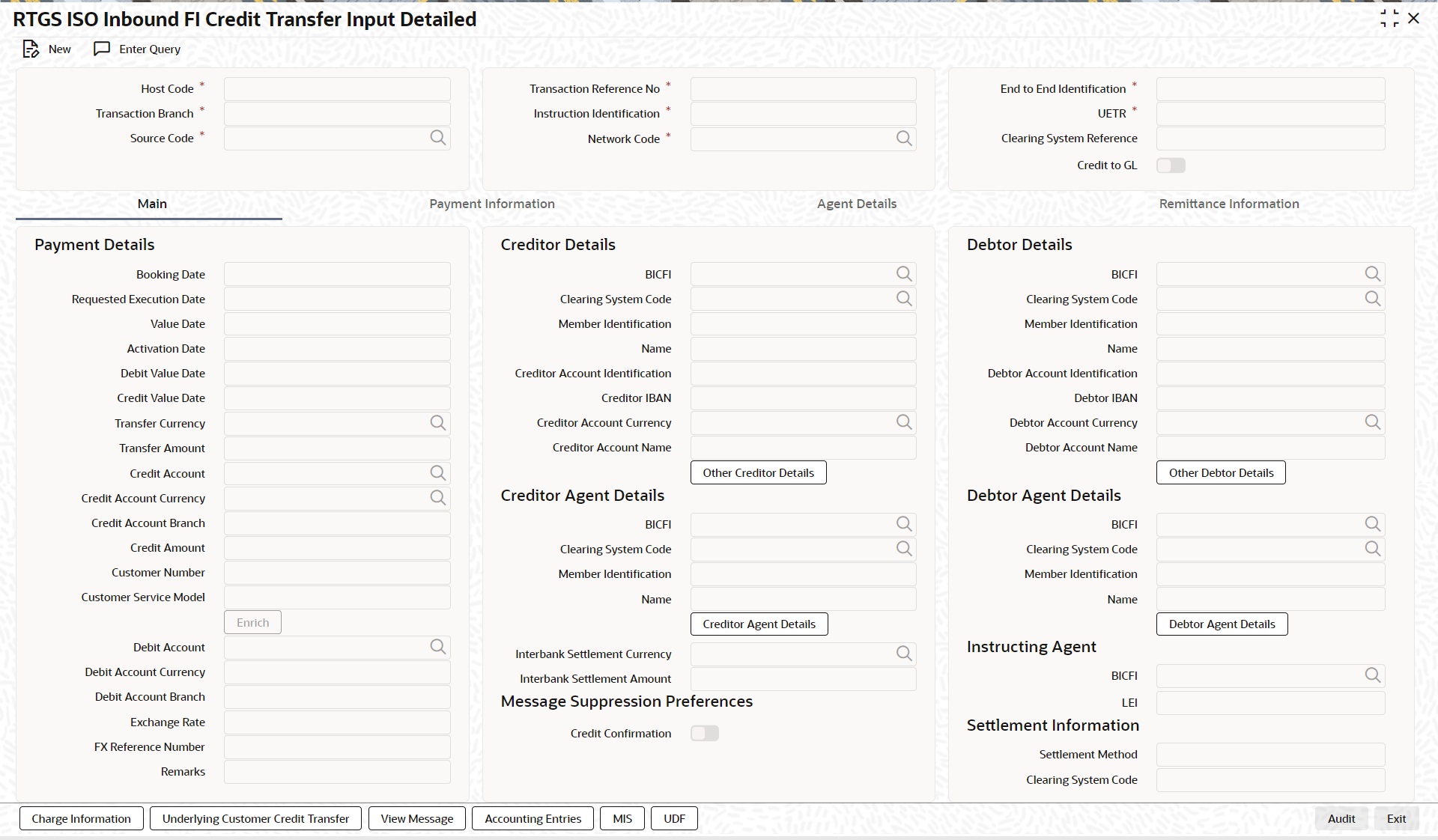
Click ‘New’ button on the Application toolbar.
Specify the following fields:
Host Code
System defaults the host code of the user’s logged in branch on clicking ‘New’ button.
Transaction Reference Number
System defaults the transaction reference number on clicking ‘New’ button.
End to End Identification
System defaults this field with the transaction reference on clicking ‘New’ button.
Note
l In the case of pacs.009 COV, End To End Identification should transport the instruction identification of the underlying pacs.008.
l In the case of pacs.009 CORE, If the debtor does not provide End To End Identification, then the element populates this field with “NOTPROVIDED”.
Transaction Branch
System defaults the transaction branch of the user’s logged in branch on clicking ‘New’ button.
Instruction Identification
System defaults this field with the transaction reference number on clicking ‘New’ button.You can edit this field after system defaults the transaction reference up to 35 character.
UETR
Specify the UETR value.
Note
In the case of pacs.009 COV, UETR should transport the UETR of the underlying pacs.008.
Source Code
Select from the list of values for source code.
Network Code
Select from the list of values for network code. This list contains all EU-TARGET2 networks defined in Network code definition (PMDNWCOD) for the host.
Clearing System Reference
Specify the Clearing System Reference.
Credit to GL
By default, this check box is unselected. You can select this check box if credit to GL is required.
5.2.2.1 Main Tab
Click the “Main” tab in the ‘RTGS ISO Inbound FI Credit Transfer Input Detailed’ screen.
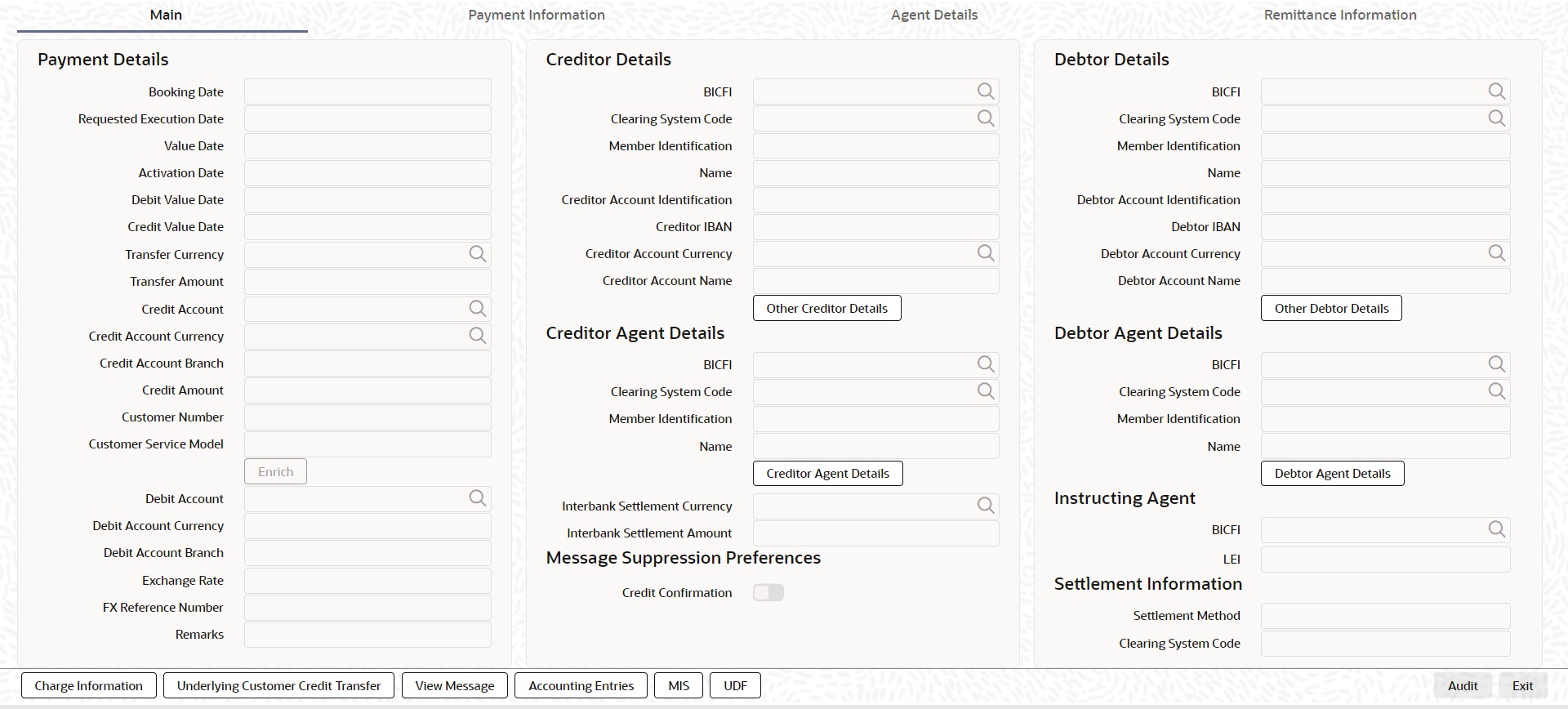
Payment Details
System defaults the following fields to current branch date:
l Booking Date
l Requested Execution Date
l Value Date
l Activation Date
Debit Value Date
The system derives the debit value date as part of transaction processing by clicking the 'Enrich' button. This field is disabled for user input.
Credit Value Date
The system derives the credit value date as part of transaction processing by clicking the 'Enrich' button. This field is disabled for user input.
Instructed Currency Indicator
Select from list of values for Instructed Currency Indicator. The list contains values ‘Transfer Currency’ and ‘Debit Currency’. Default value set is ‘Transfer Currency’.
Transfer Currency
Select from the list of values for transfer currency.
Transfer Amount
Specify the transfer amount.
Network Account
Select from the list of values for Network Account. This list contains all open and authorized customer accounts defined in the host. This field displays the Nostro account of the network.
Credit Account
Select from the list of values listed. This list contains all open and authorized customer accounts maintained in external customer account (STDCRACC), General Ledger Codes maintained in External Chart of Accounts (STDCRGLM) and loan account numbers maintained in external loan account (STDCRCLN).
Credit Account Currency
System populates this field with the account currency based on the credit account chosen.
Credit Account Branch
System populates this field with the account branch based on the credit account chosen.
Credit Amount
Specify the credit amount. If you do not enter this value, the system populates this field based on specified Transfer currency/amount.
Customer Number
System defaults the resolved customer number.
Customer Service Model
System defaults the customer service model of the resolved customer number.
Debit Account
Select from the list of values for debit account of the customer. This list contains all open and authorized customer accounts maintained in External Customer Accounts maintenance and GLs.
Note
You can click ‘Enrich/Save’ button to automatically populate this field with the associated Nostro (mirror) account that would be credited as part of accounting.
Debit Account Currency
System populates this field with the account currency based on the debit account chosen.
Debit Account Branch
System populates this field with the account branch based on the debit account chosen.
Exchange Rate
Specify the Exchange Rate if Debit account currency is different from Transfer currency (or) Instructed Currency is different from Transfer Currency.
FX Reference Number
Specify the FX Reference Number.
Remarks
Specify the Remarks, if applicable.
Creditor Details
BICFI
Select from the list of values for BICFI code.
Clearing System Code
Select from the list of values for clearing system code.
Member Identification
Specify the clearing ID code.
Name
System defaults the name as per selected BICFI code.
Creditor Account Identification
Specify Creditor Account Number.
Creditor IBAN
Specify Creditor IBAN Number.
Creditor Account Currency
Select from the list of values for Credit Account Currency.
Creditor Account Name
Specify the Creditor Account Name.
Other Creditor Details Button
Click ‘Other Creditor Details’ button on ‘Main’ tab under ‘Creditor Details’ header to invoke the sub screen. This screen shows the Creditor Details.
Refer to the Section 5.2.2.2, "Other Details Button" for details of fields and sub screen of the ‘Creditor Details’ button.
Creditor Agent Details
BICFI
Select from the list of values for BICFI code.
Clearing System Code
Select from the list of values for clearing system code.
Member Identification
Specify the clearing ID code.
Name
System defaults the name as per selected BICFI code.
Creditor Agent Details Button
Click ‘Creditor Agent Details’ button on ‘Main’ tab under Creditor Agent Details header to the sub screen. This screen shows the Creditor Agent Details.
Refer to the Section 5.2.2.3, "Agent Details Button" for details of fields and sub screen of the ‘Creditor Agent Details’ button.
Instructed Currency
Select from the list of values for instructed currency.
Instructed Amount
Specify the debit amount.
Interbank Settlement Currency
Display same as transfer currency.
Interbank Settlement Amount
Display final amount resolved.
Message suppression Preferences
Credit Confirmation
By default, the check box is unselected. If you select the check box, credit information is suppressed.
Debtor Details
BICFI
Select from the list of values for BICFI code.
Clearing System Code
Select from the list of values for clearing system code.
Member Identification
Specify the clearing ID code.
Name
System defaults the name as per selected BICFI code.
Debtor Account Identification
System defaults this field based on debit account selected. You can modify the account number.
Debtor IBAN
System defaults this field based on selected debit account. You can modify the account number.
Debtor Account Currency
Specify the currency of the selected debit account.
Debtor Account Name
Specify the Debtor Account Name.
Other Debtor Details Button
Click ‘Other Debtor Details’ button on ‘Main’ tab under Debtor Details header to invoke the sub screen. This screen shows the Debtor Details.
Refer to the Section 5.2.2.2, "Other Details Button" for details of fields and sub screen of the ‘Other Debtor Details’ button.
Debtor Agent Details
BICFI
Select from the list of values for BICFI code.
Clearing System Code
Select from the list of values for clearing system code.
Member Identification
Specify the clearing ID code.
Name
System defaults the name as per selected BICFI code.
Debtor Agent Details Button
Click ‘Debtor Agent Details’ button on ‘Main’ tab under Debtor Agent Details header to the sub screen. This screen shows the Debtor Agent Details.
Refer to the Section 5.2.2.3, "Agent Details Button" for details of fields and sub screen of the ‘Debtor Agent Details’ button.
Instructed Agent
BICFI
Select from the list of values for BICFI code.
LEI
Specify the LEI of the Initiating Party/Ultimate Debtor/Ultimate Creditor.
Settlement Information
Settlement Method
Select the settlement method for the transaction. The possible value to select CLRG.
Clearing System Code
Displays the “Network Service ID” maintained in Generic RTGS Network Maintenance (PSDGRTNP) screen.
The ‘Other Details’ button under ‘Main’ tab of Debtor Details and Creditor Details contains similar fields and sub screen. Depending upon which button you click, the screen header name changes.
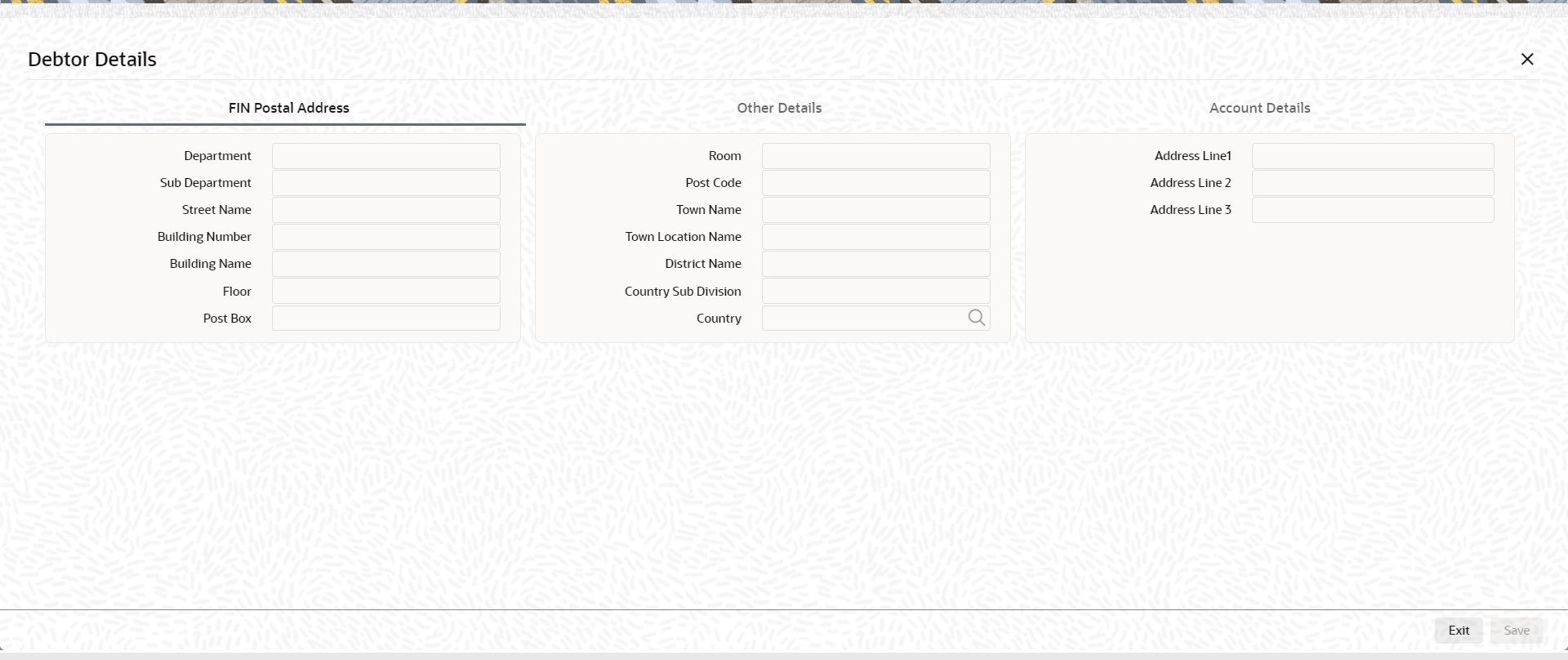
FIN Postal Address
Specify the following fields available for this screen:
l Department
l Sub Department
l Street Name
l Building Number
l Building Name
l Floor
l Post Box
l Room
l Post Code
l Town Name
l Town Location Name
l District Name
l Country Sub Division
l Country
l Address Line 1
l Address Line 2
l Address Line 3
Other Details
Click ‘Other Details’ tab to invoke this screen.

Specify the following fields available for this screen:
Financial Institution Details
LEI
Specify LEI of the agent.
Account Details
Click ‘Account Details’ tab to invoke this screen.

Specify the information into following fields for the agents:
l Scheme Name Code
l Scheme Name Proprietary
l Issuer
l Type Code
l Type Proprietary
l Proxy Type Code
l Proxy Type Proprietary
l Proxy ID
Note
l If you input Type information, either input Type Code (or) Type Proprietary.
l If you input Scheme information, either input Schema Name Code (or) Schema Name Proprietary.
l If you input Proxy information, either input Proxy Type Code (or) Proxy Type Proprietary.
l If you input Proxy information, you must input Proxy ID.
The ‘Debtor Agent Details’ and ‘Creditor Agent Details’ button under ‘Main’ tab of Debtor Agent Details and Creditor Agent Details contains similar fields and sub screen. Depending upon which button you click, the screen header name changes.
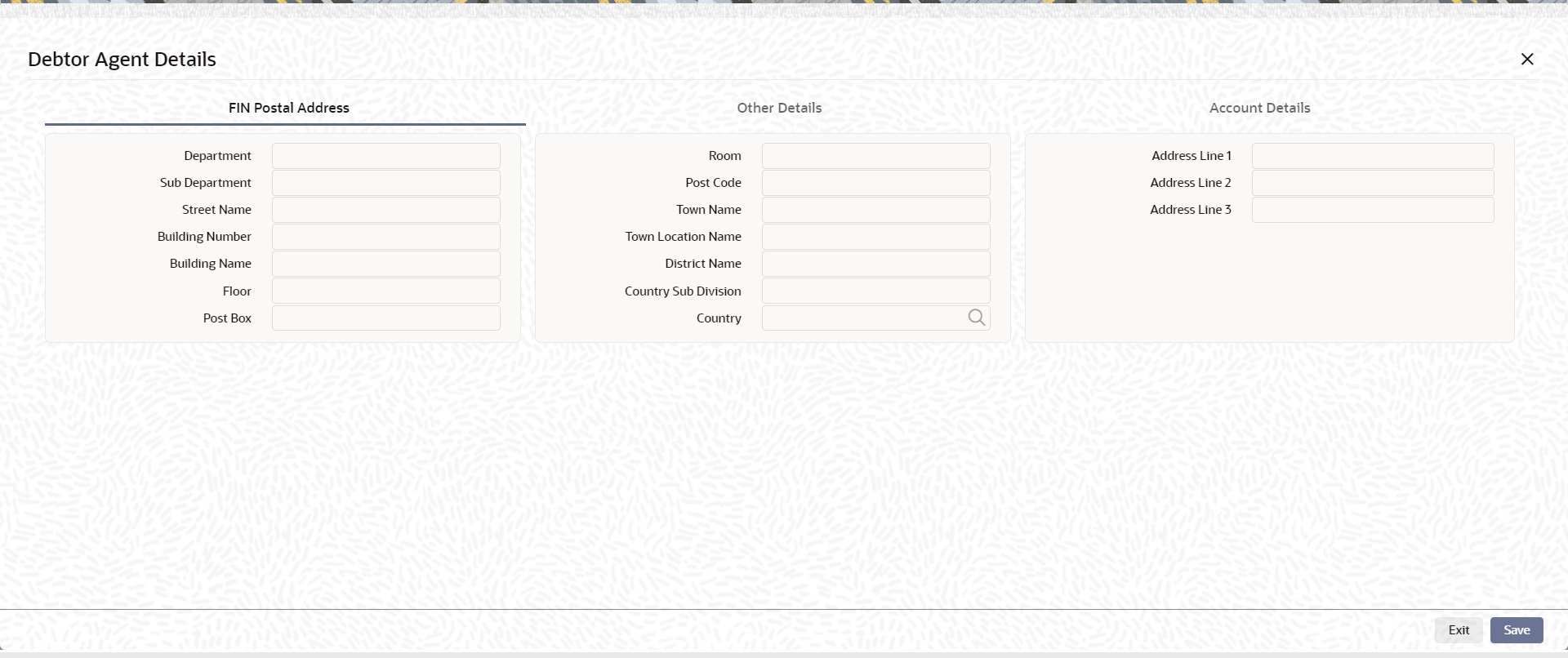
FIN Postal Address
Specify the following fields available for this screen:
l Department
l Sub Department
l Street Name
l Building Number
l Building Name
l Floor
l Post Box
l Room
l Post Code
l Town Name
l Town Location Name
l District Name
l Country Sub Division
l Country
l Address Line 1
l Address Line 2
l Address Line 3
Other Details
Click ‘Other Details’ tab to invoke this screen.

Specify the following fields available for this screen:
Financial Institution Details
LEI
Specify LEI of the agent.
Account Details
Click ‘Account Details’ tab to invoke this screen.

Specify the information into following fields for the agents:
l Account
l IBAN
l Currency
l Account Name
l Scheme Name Code
l Scheme Name Proprietary
l Issuer
l Type Code
l Type Proprietary
l Proxy Type Code
l Proxy Type Proprietary
l Proxy ID
Note
l If you input Type information, either input Type Code (or) Type Proprietary.
l If you input Scheme information, either input Schema Name Code (or) Schema Name Proprietary.
l If you input Proxy information, either input Proxy Type Code (or) Proxy Type Proprietary.
l If you input Proxy information, you must input Proxy ID.
5.2.2.4 Payment Information
Click the ‘Payment Information’ tab in the ‘RTGS ISO Inbound FI Credit Transfer Input Detailed’ screen.
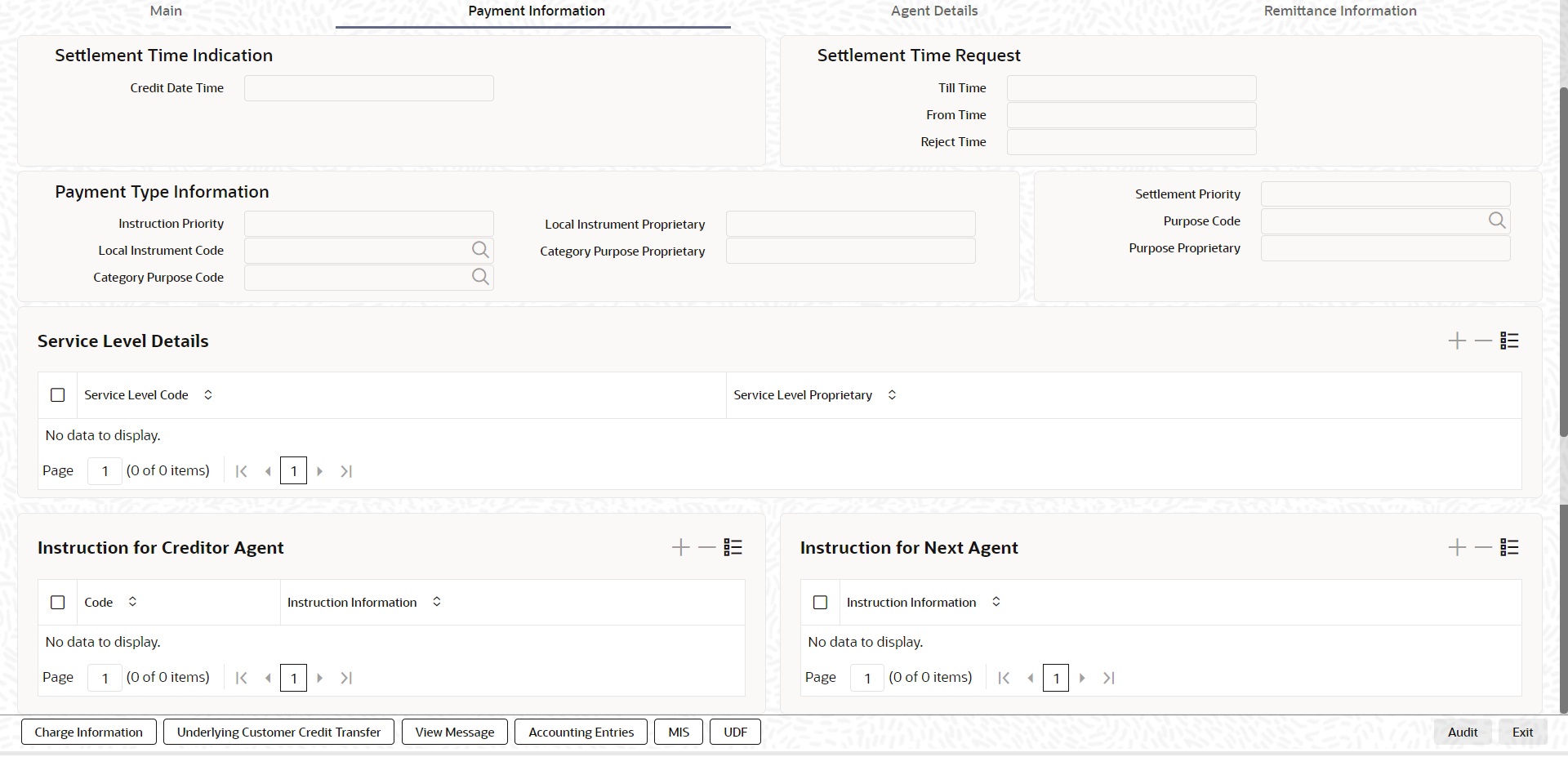
Specify the following fields:
Settlement Time Indication
Credit Date Time
Specify Date and Time of crediting the transaction.
Note
For above mentioned fields, the time Off-Set is made mandatory for translation purposes.
Settlement Time Request
From Time
Specify the From Time.
Till Time
Specify the Till Time.
Reject Time
Specify the Reject Time.
Note
l For the above mentioned fields, the time Off-Set is made mandatory for translation purposes.
l For Till Time and Reject Time, you should input the time value before the cutoff time for customer payments maintained in the Generic RTGS Network Preference Maintenance (PSDGRTNP) screen.
l For From Time, you should input the time value before the Till time or Reject time value.
l You can input either Till Time or Reject Time value but not both.
l Till Time or Reject Time value should be more than the current host date time if the Instruction date is today.
Payment Type Information
Instruction Priority
Select from the list of values for Instruction Priority. The drop down list contains values ‘High’ and ‘Low’.
Local Instrument Code
Select from the list of values for Local Instrument Code. This list contains ISO 20022 Instrument codes.
Category Purpose Code
Select from the list of values for Category Purpose Code. This list contains ISO 20022 Category Purpose codes.
Local Instrument Proprietary
Specify the Local Instrument Proprietary value.
Category Purpose Proprietary
Specify the Category Purpose Proprietary value.
Settlement Priority
Select from the list of values for Settlement Priority. The drop down list contains values HIGH, NORM, and URGT.
Purpose Code
Select from the list of values for Purpose Code. This list contains ISO 20022 Purpose codes.
Purpose Proprietary
Specify the Purpose Proprietary value.
Note
l If you input Local Instrument, either you Code or Proprietary.
l If you input Category Purpose, either you Code or Proprietary.
l If you input Purpose, either you input Code or Proprietary.
Service Level Details
Service Level Code
Select from the list of values for Service Level Code. This list contains ISO 20022 Service Level codes.
Service Level Proprietary
Specify the Service Level Proprietary value.
Note
l Only three occurrences of Service Level are allowed.
l If you input Service Level, either you Code or Proprietary.
Instruction for Creditor Agent
Code
Select from the list of values for code. The list contains the values PHOB and TELB.
Instruction Information
Specify the Instruction Information.
Note
Only two occurrences of Instruction For Creditor Agent are allowed.
Instruction for Next Agent
Instruction Information
Specify the Instruction information to be given to the next agent in the payment chain.
Note
Only six occurrences of Instruction For Next Agent are allowed.
5.2.2.5 Agent Details
Click the ‘Agents Details’ tab in the ‘RTGS ISO Inbound FI Credit Transfer Input Detailed’ screen.
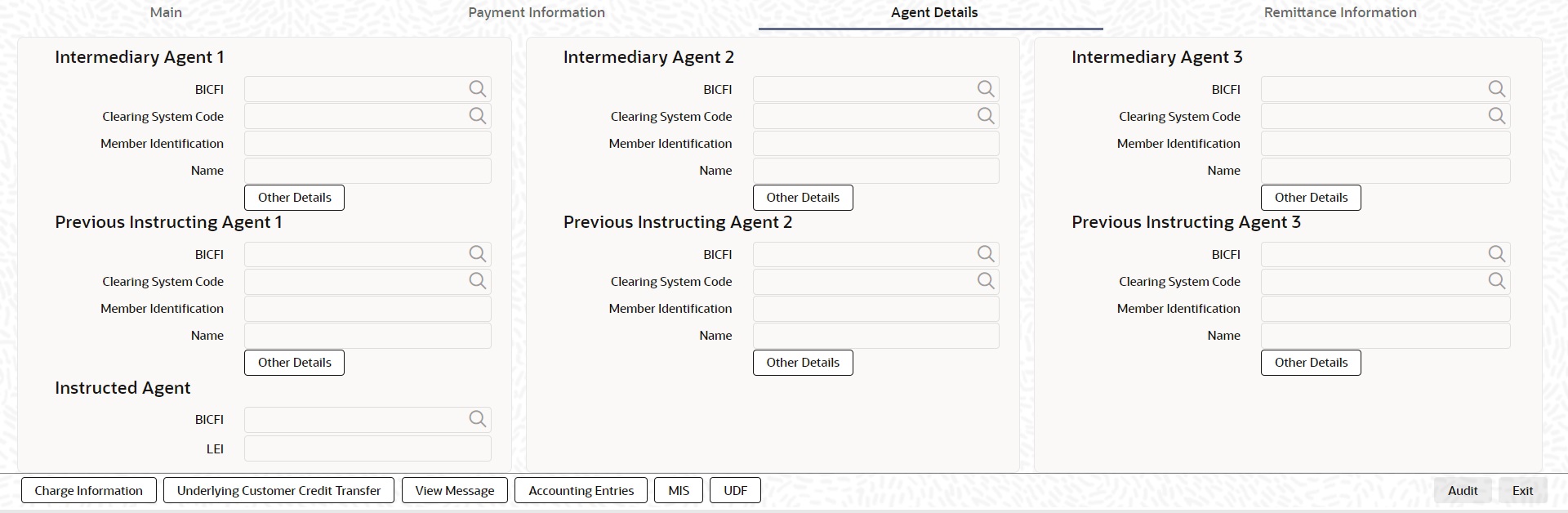
Specify the following fields:
Intermediary Agent 1
BICFI
Select from the list of values for BICFI code.
Clearing System Code
Select from the list of values for Clearing System Code.
Member Identification
Specify the clearing ID code.
Name
System defaults the name as per selected BICFI code.
Other Details Button
Click ‘Other Details’ button on ‘Agent Details’ tab under ‘Intermediary Agent 1’ header to invoke the sub screen. This screen shows the Intermediary Agent 1 Details.
Refer to the Section 5.2.2.6, "Agent Other Details Button" for details of fields and sub screen of the ‘Other Details’ button.
Intermediary Agent 2
BICFI
Select from the list of values for BICFI code.
Clearing System Code
Select from the list of values for Clearing System Code.
Member Identification
Specify the clearing ID code.
Name
System defaults the name as per selected BICFI code.
Other Details Button
Click ‘Other Details’ button on ‘Agent Details’ tab under ‘Intermediary Agent 2’ header to invoke the sub screen. This screen shows the Intermediary Agent 2 Details.
Refer to the Section 5.2.2.6, "Agent Other Details Button" for details of fields and sub screen of the ‘Other Details’ button.
Intermediary Agent 3
BICFI
Select from the list of values for BICFI code.
Clearing System Code
Select from the list of values for Clearing System Code.
Member Identification
Specify the clearing ID code.
Name
System defaults the name as per selected BICFI code.
Other Details Button
Click ‘Other Details’ button on ‘Agent Details’ tab under ‘Intermediary Agent 3’ header to invoke the sub screen. This screen shows the Intermediary Agent 3 Details.
Refer to the Section 5.2.2.6, "Agent Other Details Button" for details of fields and sub screen of the ‘Other Details’ button.
Previous Instructing Agent 1
BICFI
Select from the list of values for BICFI code.
Clearing System Code
Select from the list of values for Clearing System Code.
Member Identification
Specify the clearing ID code.
Name
System defaults the name as per selected BICFI code.
Other Details Button
Click ‘Other Details’ button on ‘Agent Details’ tab under ‘Previous Instructing Agent 1’ header to invoke the sub screen. This screen shows the Previous Instructing Agent 1 Details.
Refer to the Section 5.2.2.6, "Agent Other Details Button" for details of fields and sub screen of the ‘Other Details’ button.
Previous Instructing Agent 2
BICFI
Select from the list of values for BICFI code.
Clearing System Code
Select from the list of values for Clearing System Code.
Member Identification
Specify the clearing ID code.
Name
System defaults the name as per selected BICFI code.
Other Details Button
Click ‘Other Details’ button on ‘Agent Details’ tab under ‘Previous Instructing Agent 2’ header to invoke the sub screen. This screen shows the Previous Instructing Agent 2 Details.
Refer to the Section 5.2.2.6, "Agent Other Details Button" for details of fields and sub screen of the ‘Other Details’ button.
Previous Instructing Agent 3
BICFI
Select from the list of values for BICFI code.
Clearing System Code
Select from the list of values for Clearing System Code.
Member Identification
Specify the clearing ID code.
Name
System defaults the name as per selected BICFI code.
Other Details Button
Click ‘Other Details’ button on ‘Agent Details’ tab under ‘Previous Instructing Agent 3’ header to invoke the sub screen. This screen shows the Previous Instructing Agent 3 Details.
Refer to the Section 5.2.2.6, "Agent Other Details Button" for details of fields and sub screen of the ‘Other Details’ button.
Instructed Agent
BICFI
Select from the list of values for BICFI code.
LEI
Specify the of the Initiating Party/Ultimate Debtor/Ultimate Creditor.
Note
You should input either BICFI or LEI.
5.2.2.6 Agent Other Details Button
The ‘Other Details’ button for Intermediary Agent 1, Intermediary Agent 2, Intermediary Agent 3, Previous Instructing Agent 1, Previous Instructing Agent 2, and Previous Instructing Agent 3 under ‘Agent Details’ tab contains similar fields and sub screen. Depending upon which button you click, the screen header name changes.
FIN Postal Address
Specify the following fields available for this screen:
l Department
l Sub Department
l Street Name
l Building Number
l Building Name
l Floor
l Post Box
l Room
l Post Code
l Town Name
l Town Location Name
l District Name
l Country Sub Division
l Country
l Address Line 1
l Address Line 2
l Address Line 3
Other Details
Click ‘Other Details’ tab to invoke this screen.
Specify the following fields available for this screen:
Financial Institution Details
LEI
Specify LEI of the agent.
Account Details
Click ‘Account Details’ tab to invoke this screen.
Specify the information into following fields for the agents:
l Account
l IBAN
l Currency
l Account Name
l Scheme Name Code
l Scheme Name Proprietary
l Issuer
l Type Code
l Type Proprietary
l Proxy Type Code
l Proxy Type Proprietary
l Proxy ID
Note
l If you input Type information, either input Type Code (or) Type Proprietary.
l If you input Scheme information, either input Schema Name Code (or) Schema Name Proprietary.
l If you input Proxy information, either input Proxy Type Code (or) Proxy Type Proprietary.
l If you input Proxy information, you must input Proxy ID.
5.2.2.7 Remittance Information
Click the ‘Remittance Information’ tab in the ‘RTGS ISO Inbound FI Credit Transfer Input Detailed’ screen.
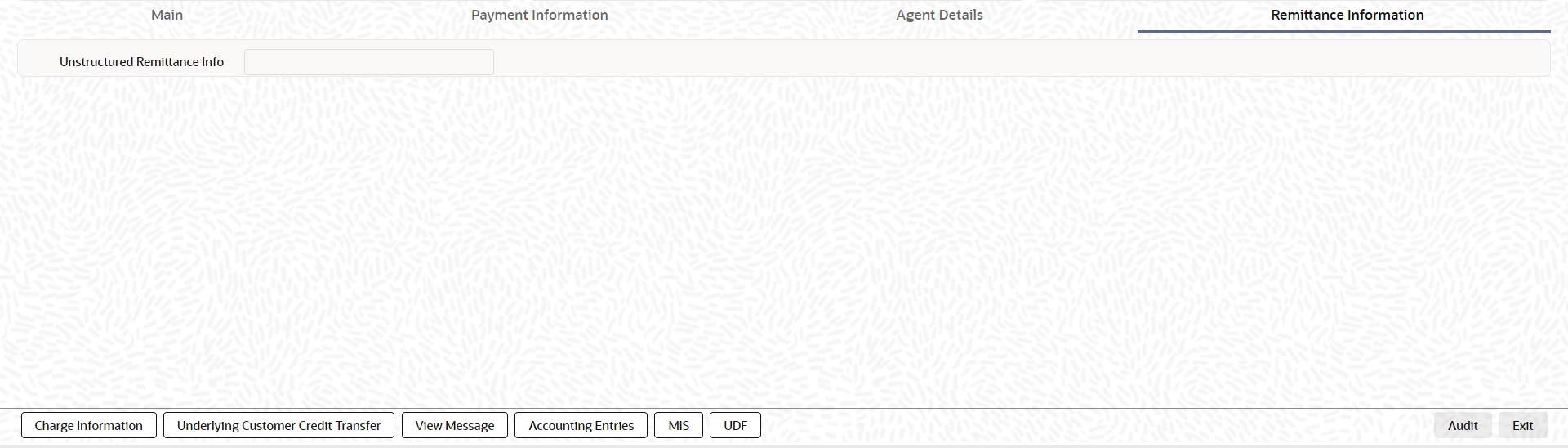
Specify the following fields:
Unstructured Remittance Info
Specify the Unstructured Remittance Information.
5.2.2.8 Charges Information Tab
You can view the Charges Information details for the transaction in this screen. Click the “Charges Information” tab in the RTGS ISO Inbound to FI Credit Transfer Input Detailed screen to invoke this sub-screen.
Specify the following details:
Charge Account Number
Select from the list of values for Charge Account Number.
Charge Account Branch
System defaults the Branch of the selected account.
Charge Account Currency
System defaults the Currency of the selected account.
Payment Pricing Details
Pricing Component
The system displays Pricing Component of the transaction.
Pricing Currency
The system displays Pricing Currency of the transaction.
Pricing Amount
Specify the Pricing Amount of the transaction.
Waiver
Select the check box to indicate if Pricing is waived.
Debit Currency
Specify the Currency of the Debit account from which charge is applied.
Debit Amount
Specify Debit Amount of the charge.
5.2.2.9 Underlying Customer Credit Transfer - Other Parties Tab
You can view the Underlying Customer Credit Transfer Details for the ‘Other Parties’ in this screen. Click the “Other Parties” tab under “Underlying Customer Credit Transfer” tab in the RTGS ISO Inbound FI Credit Transfer Input Detailed screen to invoke this sub screen.
Specify the following fields:
Initiating Party
Name
Specify the Name of the initiating party.
Country of Residence
Select from the list of values for Country of initiating party. This field lists the 2-Char ISO Country code list from the factory-shipped table.
Note
Select Country of Residence (where the party physically lives) only if it is different from Postal Address/Country.
Other Details Button
Click ‘Other Details’ button on ‘Underlying Customer Credit Transfer Details’ tab under ‘Initiating Party’ header to invoke the sub screen. This screen shows the Initiating Party Details.
Refer to the Section 5.2.2.12, "Party Other Details Button" for details of fields and sub screen of the ‘Other Details’ button.
Ultimate Debtor
Name
Specify the Name of the initiating party.
Country of Residence
Select from the list of values for Country of initiating party. This field lists the 2-Char ISO Country code list from the factory-shipped table.
Note
Select Country of Residence (where the party physically lives) only if it is different from Postal Address/Country.
Other Details Button
Click ‘Other Details’ button on ‘Underlying Customer Credit Transfer details’ tab under ‘Ultimate Debtor’ header to invoke the sub screen. This screen shows the Ultimate Debtor Details.
Refer to the Section 5.2.2.12, "Party Other Details Button" for details of fields and sub screen of the ‘Other Details’ button.
Ultimate Creditor
Name
Specify the Name of the initiating party.
Country of Residence
Select from the list of values for Country of initiating party. This field lists the 2-Char ISO Country code list from the factory-shipped table.
Note
Select Country of Residence (where the party physically lives) only if it is different from Postal Address/Country.
Other Details Button
Click ‘Other Details’ button on ‘Underlying Customer Credit Transfer Details’ tab under ‘Ultimate Creditor’ header to invoke the sub screen. This screen shows the Ultimate Creditor Details.
Refer to the Section 5.2.2.12, "Party Other Details Button" for details of fields and sub screen of the ‘Other Details’ button.
Debtor Details
Debtor Account
Specify the Debtor Account.
Debtor IBAN
Specify the IBAN of the Debtor Account.
Debtor Name
Specify the debited customer name.
Debtor Account Currency
Select the currency of the Debtor Account.
Country of Residence
Select from the list of values for country of residence. This field lists the 2-Char ISO Country code list from the factory-shipped table.
Note
l You can input either Debtor Account or Debtor IBAN.
l Select Country of Residence (where the party physically lives) only if it is different from Postal Address/Country.
Other Debtor Details Button
Click ‘Other Debtor Details’ button on ‘Underlying Customer Credit Transfer Details’ tab under Debtor Details header to invoke the sub screen. This screen shows the Debtor Details.
Refer to the Section 5.2.2.13, "Other Details Button" for details of fields and sub screen of the ‘Other Debtor Details’ button.
Creditor Details
Creditor Name
Specify the Creditor Name.
Creditor Account
Specify Creditor Account Number.
Creditor IBAN
Specify Creditor IBAN Number.
Note
You can input either Creditor Account Number or Creditor IBAN.
Creditor Account Currency
Select from the list of values for Credit Account Currency.
Country of Residence
Select from the list of values for Country of Residence. This field lists the 2-Char ISO Country code list from the factory-shipped table.
Note
Select Country of Residence (where the party physically lives) only if it is different from Postal Address/Country.
Other Creditor Details Button
Click ‘Other Creditor Details’ button on ‘Underlying Customer Credit Transfer Details’ tab under ‘Creditor Details’ header to invoke the sub screen. This screen shows the Creditor Details.
Refer to the Section 5.2.2.14, "Other Details Button" for details of fields and sub screen of the ‘Creditor Details’ button.
5.2.2.10 Underlying Customer Credit Transfer - Other Agents Tab
You can view the Underlying Customer Credit Transfer Details for the ‘Other Agents’ in this screen. Click the “Other Agents” tab under “Underlying Customer Credit Transfer” tab in the RTGS ISO Inbound FI Credit Transfer Input Detailed screen to invoke this sub screen.
Specify the following fields:
Debtor Agents Details
BICFI
Select from the list of values for BICFI code.
Clearing System Code
Select from the list of values for clearing system code.
Member Identification
Specify the clearing ID code.
Name
System defaults the name as per selected BICFI code.
Other Details Button
Click ‘Other Details’ button on ‘Other Agents’ tab under ‘Debtor Agents Details’ header to invoke the sub screen. This screen shows the Debtor Agents Details.
Refer to the Section 5.2.2.15, "Other Details Button" for details of fields and sub screen of the ‘Other Details’ button.
Creditor Agents Details
BICFI
Select from the list of values for BICFI code.
Clearing System Code
Select from the list of values for clearing system code.
Member Identification
Specify the clearing ID code.
Name
System defaults the name as per selected BICFI code.
Other Details Button
Click ‘Creditor Agents Details’ button on ‘Other Agents’ tab under ‘Creditor Agents Details’ header to invoke the sub screen. This screen shows the Creditor Agents Details.
FIN Postal Address
Specify the following fields available for this screen:
l Department
l Sub Department
l Street Name
l Building Number
l Building Name
l Floor
l Post Box
l Room
l Post Code
l Town Name
l Town Location Name
l District Name
l Country Sub Division
l Country
l Address Line 1
l Address Line 2
l Address Line 3
Identification
Click ‘Identification’ tab to invoke this screen.
Specify the following fields for Initiating Party/Ultimate Debtor/Ultimate Creditor. These fields are available under Organisation Identification:
l BIC
l LEI
Specify the following fields for Initiating Party/Ultimate Debtor/Ultimate Creditor. These fields are available under Private Identification:
l Birth Date
l Province of Birth
l City of Birth
l Country of Birth
Specify the following fields for Initiating Party/Ultimate Debtor/Ultimate Creditor. These fields are available under Other Identification Details:
l Identification Type
l Identification
l Scheme Name Code
l Scheme Name Proprietary
l Issuer
Intermediary Agent 1
BICFI
Select from the list of values for BICFI code.
Clearing System Code
Select from the list of values for clearing system code.
Member Identification
Specify the clearing ID code.
Name
System defaults the name as per selected BICFI code.
Other Details Button
Click ‘Other Details’ button on ‘Other Agents’ tab under ‘Intermediary Agent 1’ header to invoke the sub screen. This screen shows the Intermediary Agent 1 Details.
Refer to the Section 5.2.2.15, "Other Details Button" for details of fields and sub screen of the ‘Other Details’ button.
Intermediary Agent 2
BICFI
Select from the list of values for BICFI code.
Clearing System Code
Select from the list of values for clearing system code.
Member Identification
Specify the clearing ID code.
Name
System defaults the name as per selected BICFI code.
Other Details Button
Click ‘Other Details’ button on ‘Other Agents’ tab under ‘Intermediary Agent 2’ header to invoke the sub screen. This screen shows the Intermediary Agent 2 Details.
Refer to the Section 5.2.2.15, "Other Details Button" for details of fields and sub screen of the ‘Other Details’ button.
Intermediary Agent 3
BICFI
Select from the list of values for BICFI code.
Clearing System Code
Select from the list of values for clearing system code.
Member Identification
Specify the clearing ID code.
Name
System defaults the name as per selected BICFI code.
Other Details Button
Click ‘Other Details’ button on ‘Other Agents’ tab under ‘Intermediary Agent 3’ header to invoke the sub screen. This screen shows the Intermediary Agent 3 Details.
Refer to the Section 5.2.2.15, "Other Details Button" for details of fields and sub screen of the ‘Other Details’ button.
5.2.2.11 Underlying Customer Credit Transfer - Other Details Tab
You can view the Underlying Customer Credit Transfer details for the ‘Other Details’ in this screen. Click the “Other Details” tab under “Underlying Customer Credit Transfer” tab in the RTGS ISO Inbound FI Credit Transfer Input Detailed screen to invoke this sub screen.
Specify the following fields:
Instruction for Creditor Agent
Code
Select from the list of values for code. The list contains the values CHQB, HOLD, PHOB, TELB.
Note
The Code field is non-mandatory.
Instruction Information
Specify the Instruction Information.
Note
l Only two occurrences of Instruction For Creditor Agent are allowed.
l If code CHQB is present, then code HOLD is not allowed, else HOLD is optional.
l If code PHOB is present, then code TELB is not allowed, else TELB is optional.
Instruction for Next Agent
Instruction Information
Specify the Instruction information to be given to the next agent in the payment chain.
Note
Only four occurrences of Instruction For Next Agent are allowed.
5.2.2.12 Party Other Details Button
The ‘Other Details’ button for Initiating Party, Ultimate Debtor, and Ultimate Creditor under ‘Underlying Customer Credit Transfer Details’ tab contains similar fields and sub screen. Depending upon which button you click, the screen header name changes.
Postal Address
Specify the following fields available for this screen:
l Department
l Sub Department
l Street Name
l Building Number
l Building Name
l Floor
l Post Box
l Room
l Post Code
l Town Name
l Town Location Name
l District Name
l Country Sub Division
l Country
Identification
Click ‘Identification’ tab to invoke this screen.
Specify the following fields for Initiating Party/Ultimate Debtor/Ultimate Creditor. These fields are available under Organisation Identification:
l BIC
l LEI
Specify the following fields for Initiating Party/Ultimate Debtor/Ultimate Creditor. These fields are available under Private Identification:
l Birth Date
l Province of Birth
l City of Birth
l Country of Birth
Specify the following fields for Initiating Party/Ultimate Debtor/Ultimate Creditor. These fields are available under Other Identification Details:
l Identification Type
l Identification
l Scheme Name Code
l Scheme Name Proprietary
l Issuer
The ‘Other Debtor Details’ button under ‘Underlying Customer Credit Transfer Details’ tab contains similar fields and sub screen. Depending upon which button you click, the screen header name changes.

Postal Address
Specify the following fields available for this screen:
l Department
l Sub Department
l Street Name
l Building Number
l Building Name
l Floor
l Post Box
l Room
l Post Code
l Town Name
l Town Location Name
l District Name
l Country Sub Division
l Country
l Address Line 1
l Address Line 2
l Address Line 3
Identification
Click ‘Identification’ tab under to invoke this screen.
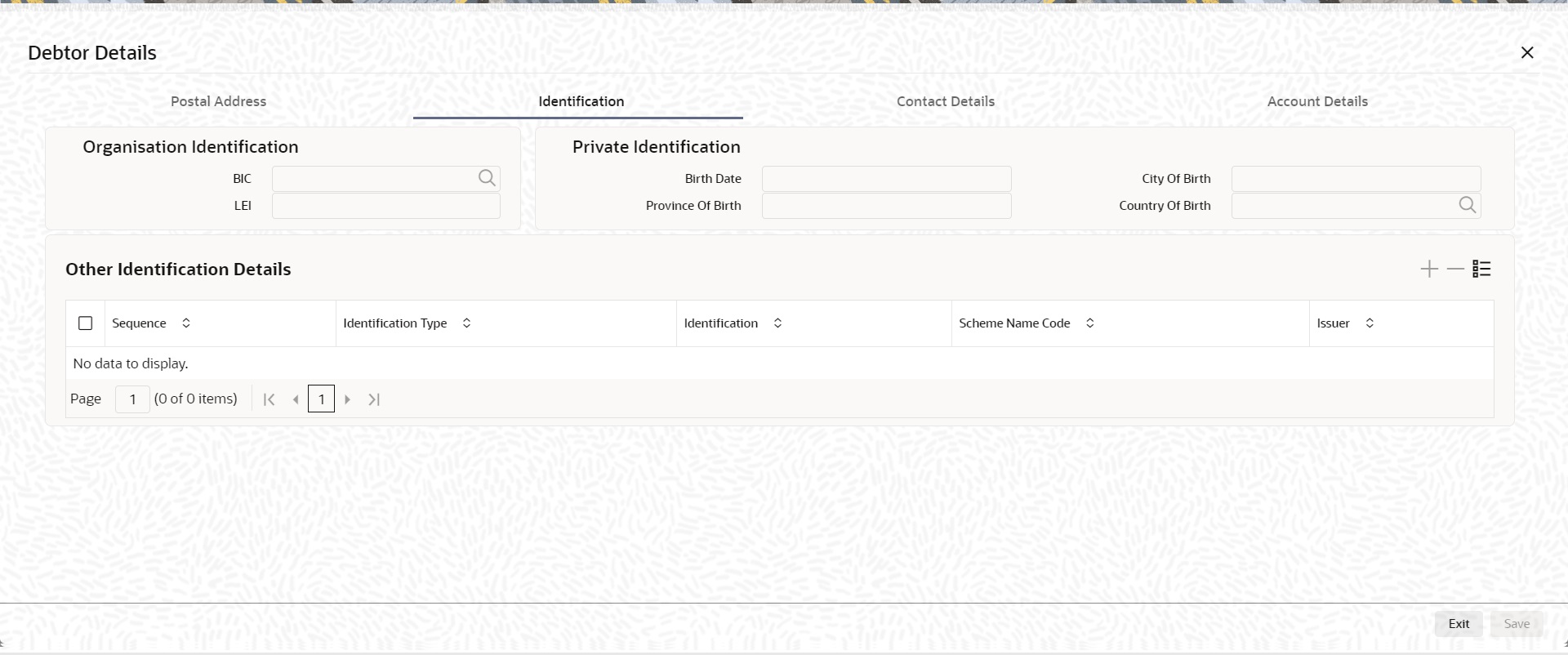
Specify the following fields for Debtor and Creditor. These fields are available under Organisation Identification:
l BIC
l LEI
Specify the following fields for Debtor and Creditor. These fields are available under Private Identification:
l Birth Date
l Province of Birth
l City of Birth
l Country of Birth
Specify the following fields for Debtor and Creditor. These fields are available under Other Identification Details:
l Identification Type
l Identification
l Scheme Name Code
l Issuer
Note
l The Scheme Name Code is mandatory if you provide value in the Identification field.
l The Identification and Scheme Name Code is mandatory if you provide value in the Issuer field.
Contact Details
Click ‘Contact Details’ tab to invoke this screen.

Specify the information into following fields for the agents:
l Name
l Phone Number
l Mobile Number
l Fax Number
l Email Address
Account Details
Click ‘Account Details’ tab to invoke this screen.

Specify the information into following fields for the agents:
l Account Name
l Type Code
l Type Proprietary
l Scheme Name Code
l Scheme Name Proprietary
l Issuer
l Proxy Type Code
l Proxy Type Proprietary
l Proxy ID
Note
l If you input Type information, either input Type Code (or) Type Proprietary.
l If you input Scheme information, either input Schema Name Code (or) Schema Name Proprietary.
l If you input Proxy information, either input Proxy Type Code (or) Proxy Type Proprietary.
l If you input Proxy information, you must input Proxy ID.
The ‘Other Creditor Details’ button under ‘Underlying Customer Credit Transfer Details’ tab contains similar fields and sub screen. Depending upon which button you click, the screen header name changes.
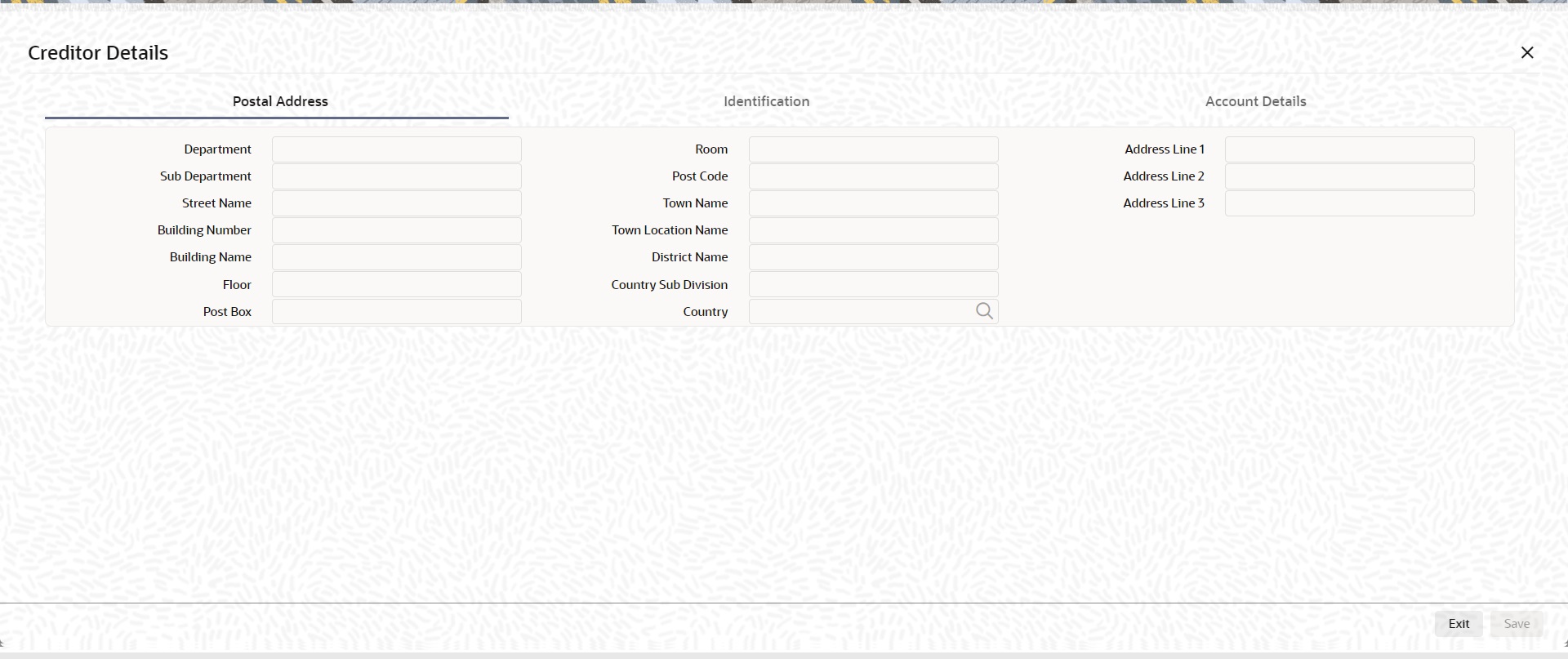
Postal Address
Specify the following fields available for this screen:
l Department
l Sub Department
l Street Name
l Building Number
l Building Name
l Floor
l Post Box
l Room
l Post Code
l Town Name
l Town Location Name
l District Name
l Country Sub Division
l Country
l Address Line 1
l Address Line 2
l Address Line 3
Identification
Click ‘Identification’ tab under to invoke this screen.
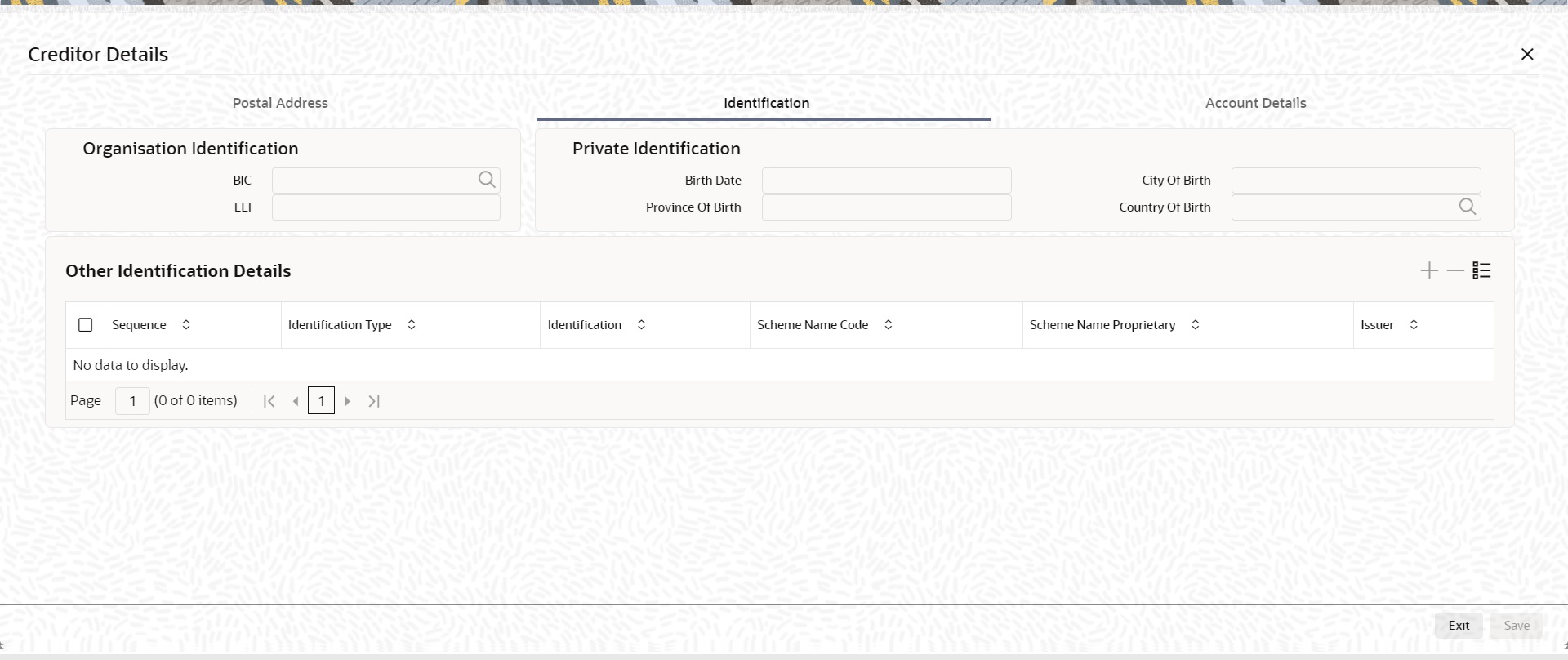
Specify the following fields for Debtor and Creditor. These fields are available under Organisation Identification:
l BIC
l LEI
Specify the following fields for Debtor and Creditor. These fields are available under Private Identification:
l Birth Date
l Province of Birth
l City of Birth
l Country of Birth
Specify the following fields for Debtor and Creditor. These fields are available under Other Identification Details:
l Identification Type
l Identification
l Scheme Name Code
l Scheme Name Proprietary
l Issuer
Account Details
Click ‘Account Details’ tab to invoke this screen.
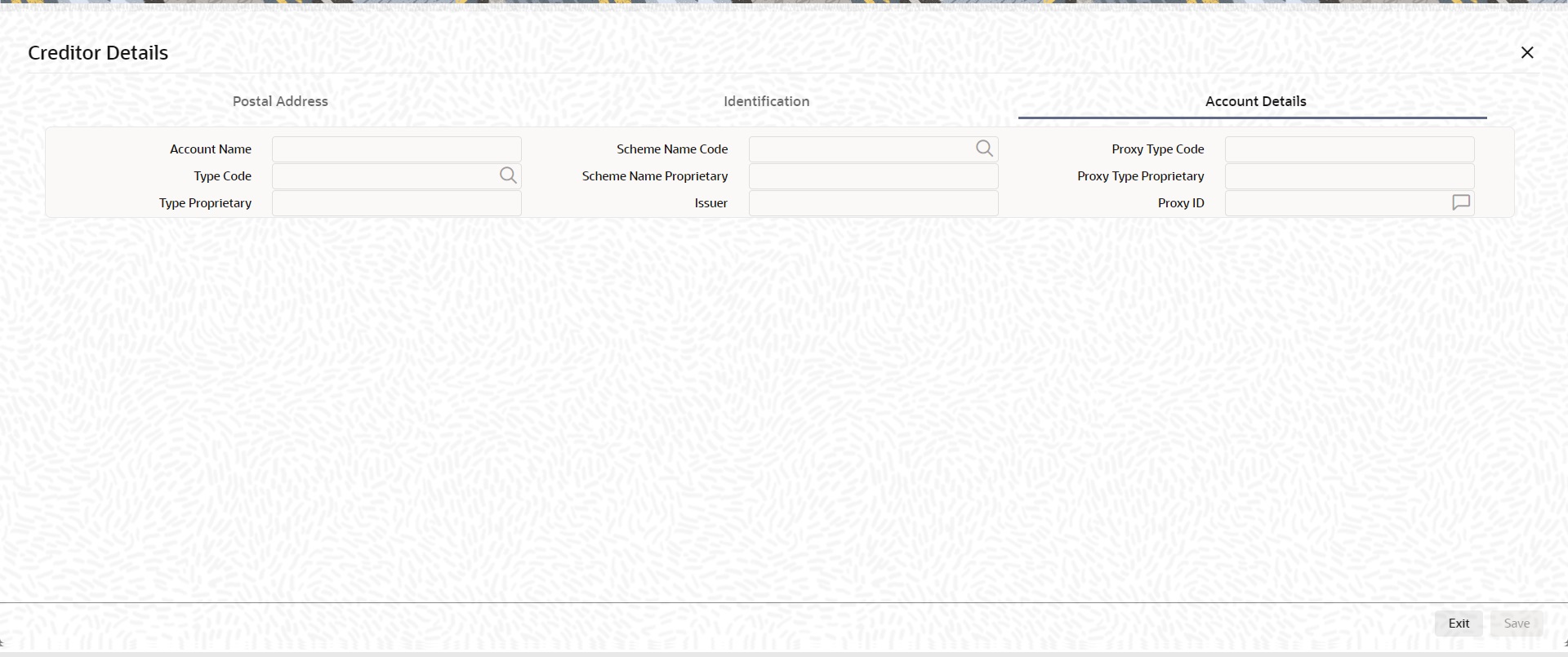
Specify the information into following fields for the agents:
l Account Name
l Type Code
l Type Proprietary
l Scheme Name Code
l Scheme Name Proprietary
l Issuer
l Proxy Type Code
l Proxy Type Proprietary
l Proxy ID
Note
l If you input Type information, either input Type Code (or) Type Proprietary.
l If you input Scheme information, either input Schema Name Code (or) Schema Name Proprietary.
l If you input Proxy information, either input Proxy Type Code (or) Proxy Type Proprietary.
l If you input Proxy information, you must input Proxy ID.
The ‘Other Details’ button for header Debtor Agents Details, Previous Instructing Agent 1, Previous Instructing Agent 2, Previous Instructing Agent 3, Intermediary Agent 1, Intermediary Agent 2, and Intermediary Agent 3 under ‘Other Agents’ tab for Underlying Customer Credit Transfer Details, contains similar fields and sub screen. Depending upon which button you click, the screen header name changes.
FIN Postal Address
Specify the following fields available for this screen:
l Department
l Sub Department
l Street Name
l Building Number
l Building Name
l Floor
l Post Box
l Room
l Post Code
l Town Name
l Town Location Name
l District Name
l Country Sub Division
l Country
l Address Line 1
l Address Line 2
l Address Line 3
Other Details
Click ‘Other Details’ tab to invoke this screen.

Specify the following fields available for this screen:
Financial Institution Details
LEI
Specify the LEI of the agent.
Account Details
Click ‘Account Details’ tab to invoke this screen.
Specify the information into following fields for the agents:
l Account
l IBAN
l Currency
l Account Name
l Scheme Name Code
l Scheme Name Proprietary
l Issuer
l Type Code
l Type Proprietary
l Proxy Type Code
l Proxy Type Proprietary
l Proxy ID
Note
l If you input Type information, either input Type Code (or) Type Proprietary.
l If you input Scheme information, either input Schema Name Code (or) Schema Name Proprietary.
l If you input Proxy information, either input Proxy Type Code (or) Proxy Type Proprietary.
l If you input Proxy information, you must input Proxy ID.
The ‘Other Details’ button for Creditor Agents Details ‘Other Agents’ tab for Underlying Customer Credit Transfer Details, contains below fields and sub screen.

FIN Postal Address
Specify the following fields available for this screen:
l Department
l Sub Department
l Street Name
l Building Number
l Building Name
l Floor
l Post Box
l Room
l Post Code
l Town Name
l Town Location Name
l District Name
l Country Sub Division
l Country
l Address Line 1
l Address Line 2
l Address Line 3
Other Details
Click ‘Other Details’ tab to invoke this screen.

Specify the following fields available for this screen:
Financial Institution Details
LEI
Specify the LEI of the agent.
Account Details
Click ‘Account Details’ tab to invoke this screen.

Specify the information into following fields:
l Account
l IBAN
l Currency
l Account Name
l Scheme Name Code
l Scheme Name Proprietary
l Issuer
l Type Code
l Type Proprietary
l Proxy Type Code
l Proxy Type Proprietary
l Proxy ID
Note
l If you input Type information, either input Type Code (or) Type Proprietary.
l If you input Scheme information, either input Schema Name Code (or) Schema Name Proprietary.
l If you input Proxy information, either input Proxy Type Code (or) Proxy Type Proprietary.
l If you input Proxy information, you must input Proxy ID.
5.2.2.17 All Messages Tab
You can view the All Messages details for the transaction in this screen. Click the “Messages” tab in the RTGS ISO Inbound FI Credit Transfer Input Detailed screen to invoke this sub-screen.
5.2.2.18 Accounting Entries
You can view the Accounting Entries details for the transaction in this screen. Click the “Accounting Entries” tab in the RTGS ISO Inbound FI Credit Transfer Input Detailed screen to invoke this sub-screen.
5.2.2.19 MIS Tab
Click the “MIS” tab in the RTGS ISO Inbound FI Credit Transfer Input Detailed screen to invoke this sub-screen.
5.2.2.20 UDF Tab
Click the “UDF” tab in the RTGS ISO Inbound FI Credit Transfer Input Detailed screen to invoke this sub-screen.
5.2.2.21 RTGS ISO Inbound FI Credit Transfer Input Detailed Summary
You can invoke “RTGS ISO Inbound FI Credit Transfer Input Detailed Summary” screen by typing 'PSSIT2BT' in the field at the top right corner of the Application tool bar and clicking on the adjoining arrow button.
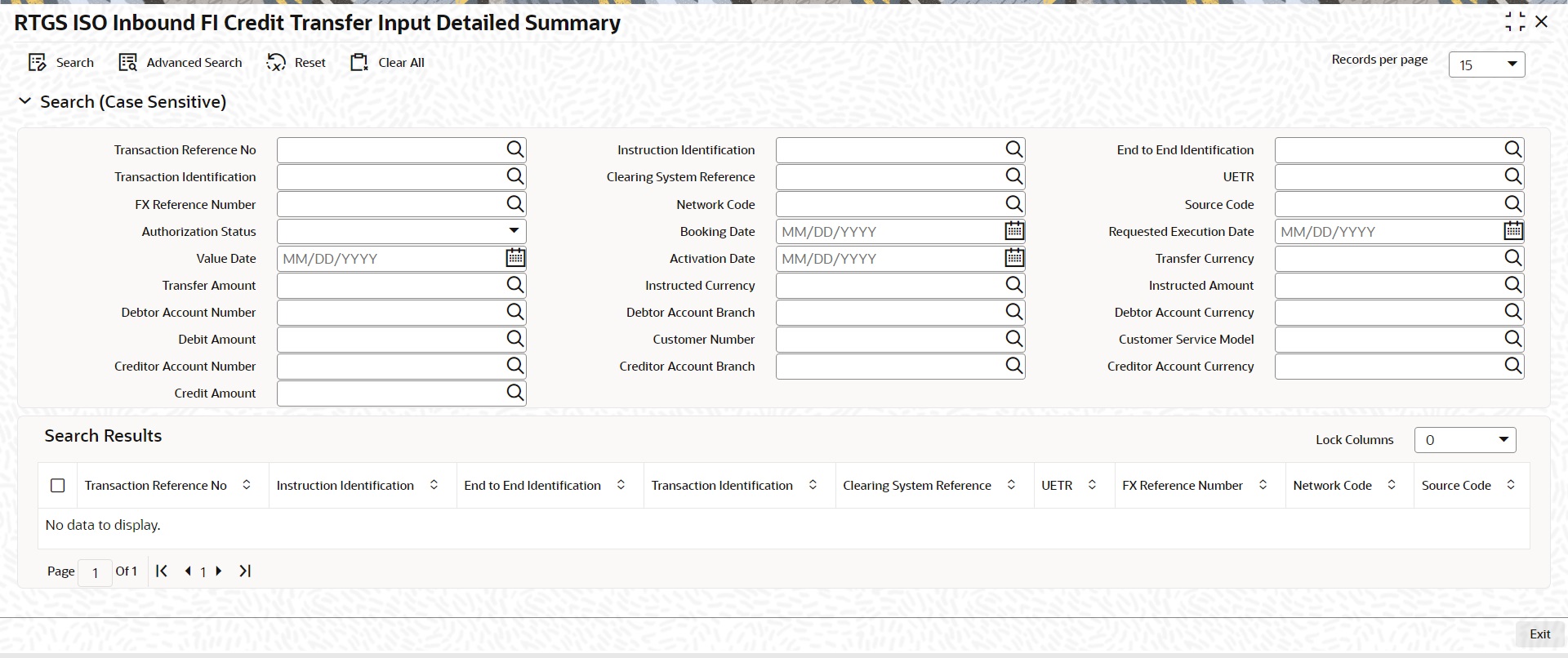
You can search using one or more of the following parameters:
l Transaction Reference Number
l Instruction Identification
l End to End Identification
l Transaction Identification
l Clearing System Reference
l UETR
l FX Reference Number
l Network Code
l Source Code
l Authorization Status
l Booking Date
l Requested Execution Date
l Value Date
l Activation Date
l Transfer Currency
l Transfer Amount
l Instructed Currency
l Instructed Amount
l Debtor Account Number
l Debtor Account Branch
l Debtor Account Currency
l Debit Amount
l Customer Number
l Customer Service Model
l Creditor Account Number
l Creditor Account Branch
l Creditor Account Currency
l Credit Amount
Once you have specified the search parameters, click ‘Search’ button. The system displays the records that match the search criteria.
Double click a record or click the ‘Details’ button after selecting a record to view the detailed screen.
5.2.3 RTGS ISO Inbound FI to FI Customer Credit Transfer View
You can view RTGS ISO Inbound FI to FI Customer Credit Transfer transactions through this screen.
You can invoke “RTGS ISO Inbound FI to FI Customer Credit Transfer View” screen by typing the function ID ‘PSDIT2CV’ in the field at the top right corner of the Application tool bar and clicking on the adjoining arrow button.
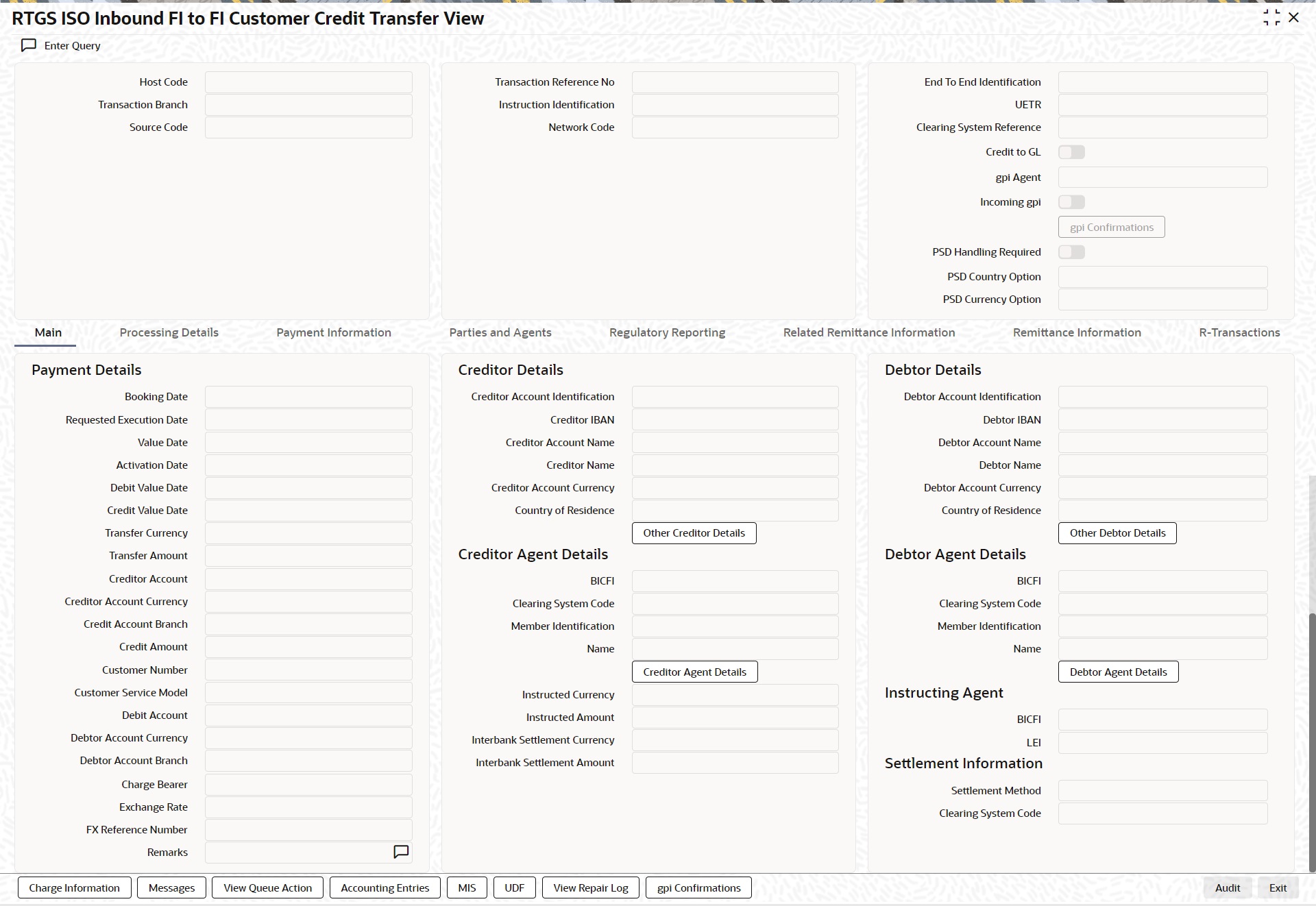
l From this screen, click ‘Enter Query’ button. The Transaction Reference Number field gets enabled, for the user to specify the Reference Number.
l Click ‘Execute Query’ button to populate the details of the transaction in the RTGS ISO Inbound FI to FI Customer Credit Transfer View screen. The system displays all the fields in the below mentioned tabs based on the transaction reference number selected:
– Main
– Processing Details
– Payment Information
– Parties and Agents
– Regulatory Reporting
– Related Remittance Information
– Remittance Information
– R-Transactions
For more details on Main, Payment Information, Parties and Agents, Regulatory Reporting, Related Remittance Information, and Remittance Information tabs refer to 'PSDIT2CT' screen details above.
5.2.3.1 Processing Details
You can invoke this screen by clicking ‘Processing Details’ tab at the bottom of RTGS ISO Inbound FI to FI Customer Credit Transfer View screen.
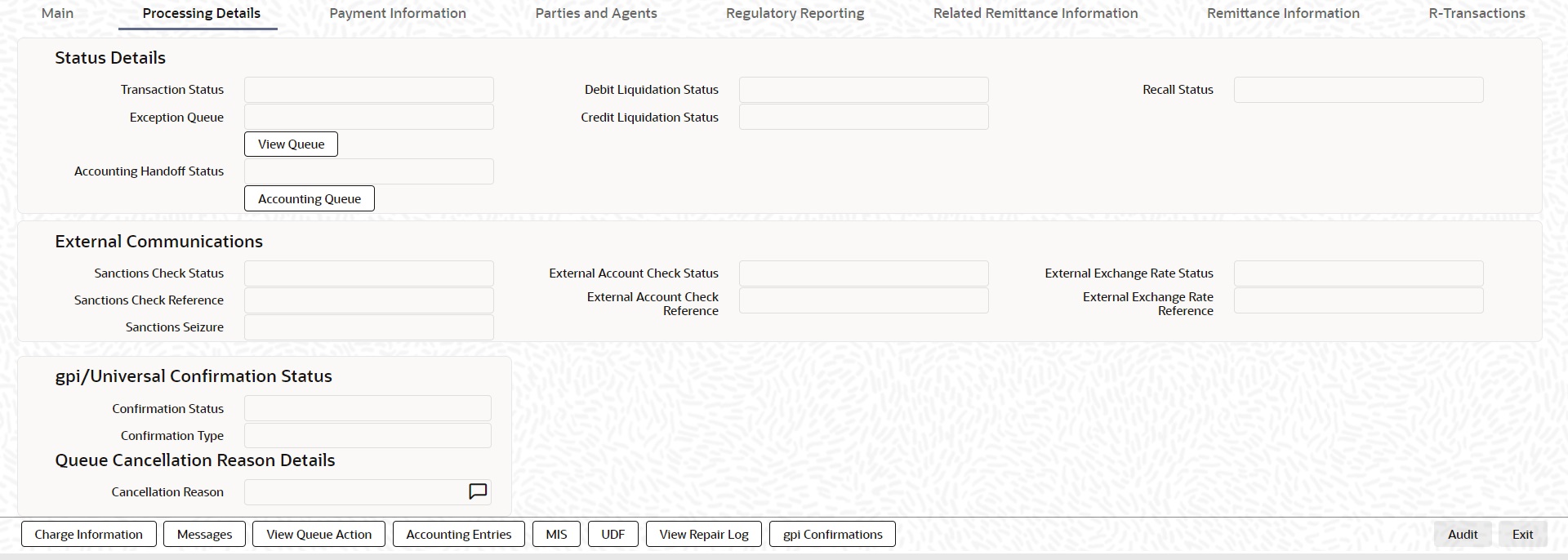
5.2.3.2 R-Transactions
You can invoke this screen by clicking ‘R-Transactions’ tab at the bottom of RTGS ISO Inbound FI to FI Customer Credit Transfer View screen.

l R-Transactions tab displays the Inbound / Outbound R Messages like Cancellation Request (camt.056) / Cancellation Response (camt.029).
l You select the R-Transaction and click on the 'View Transaction' button to view the selected R-Transaction details.
5.2.3.3 Charge Information
You can invoke this screen by clicking ‘Charge Information’ tab at the bottom of RTGS ISO Inbound FI to FI Customer Credit Transfer View screen.
5.2.3.4 All Messages
You can invoke this screen by clicking ‘Messages’ tab at the bottom of RTGS ISO Inbound FI to FI Customer Credit Transfer View screen.
5.2.3.5 View Queue Action Log
You can invoke this screen by clicking ‘View Queue Action’ tab at the bottom of RTGS ISO Inbound FI to FI Customer Credit Transfer View screen.
5.2.3.6 Accounting Entries
You can invoke this screen by clicking ‘Accounting Entries’ tab at the bottom of RTGS ISO Inbound FI to FI Customer Credit Transfer View screen.
5.2.3.7 MIS View
You can invoke this screen by clicking ‘MIS’ tab at the bottom of RTGS ISO Inbound FI to FI Customer Credit Transfer View screen.
5.2.3.8 UDF View
You can invoke this screen by clicking ‘UDF’ tab at the bottom of RTGS ISO Inbound FI to FI Customer Credit Transfer View screen.
5.2.3.9 View Repair Log
You can invoke this screen by clicking the 'View Repair Log' tab in RTGS ISO Inbound FI to FI Customer Credit Transfer View screen to view repair data on the transaction.
Following details are displayed:
l Queue Reference No
l Field Name
l Old Value
l Repaired Data
l Error
5.2.3.10 gpi Confirmations
You can invoke this screen by clicking the 'gpi Confirmation' tab in RTGS ISO Inbound FI to FI Customer Credit Transfer View screen.
5.2.3.11 RTGS ISO Inbound FI to FI Customer Credit Transfer View Summary
You can invoke “RTGS ISO Inbound FI to FI Customer Credit Transfer View Summary” screen by typing ‘PSSIT2CV’ in the field at the top right corner of the Application tool bar and clicking on the adjoining arrow button.
.JPG)
You can search using one or more of the following parameters:
l Transaction Reference Number
l Transaction Status
l Queue Code
l Network Code
l Transfer Currency
l Transfer Amount
l Booking Date
l Requested Execution Date
l Activation Date
l Transaction Branch
l Source Code
l Instruction Identification
l End to End Identification
l Transaction Identification
l Clearing System Reference
l Customer Number
l Debtor Account Number
l Creditor Account Number
l Recall Status
Once you have specified the search parameters, click ‘Search’ button. The system displays the records that match the search criteria.
Double click a record or click the ‘Details’ button after selecting a record to view the detailed screen.
Process Return Button
Click the 'Process Return’ button at the bottom of the screen to invoke the Generic Wires ISO Outbound Payment Return Input Detailed ‘PSDOCBRT’ screen, when the below conditions are satisfied:
l You have required access rights on this user action (Either Role level or User Level).
l Transaction status is ‘Processed’.
Reverse Button
Click the 'Reverse’ button at the bottom of the screen to invoke the Generic Wires ISO Outbound Payment Return Input Detailed ‘PSDOCBRT’ screen, when the below conditions are satisfied:
l Transaction status is ‘Processed’.
Generate Confirmation Button
Click the 'Generate Confirmation’ button at the bottom of the screen to invoke the SWIFT/gpi Universal/Confirmation - Manual Generation ‘PXDGPIMC’ screen to capture the gpi/Confirmation message generation input values. The user action is allowed only when the below conditions are satisfied:
l You have required role or user level queue action access rights for the user action ‘Generate Confirmation’.
5.2.4 RTGS ISO Inbound FI Credit Transfer View
You can view RTGS ISO Inbound FI Credit Transfer transactions through this screen.
You can invoke “RTGS ISO Inbound FI Credit Transfer View” screen by typing the function ID ‘PSDIT2BV’ in the field at the top right corner of the Application tool bar and clicking on the adjoining arrow button.
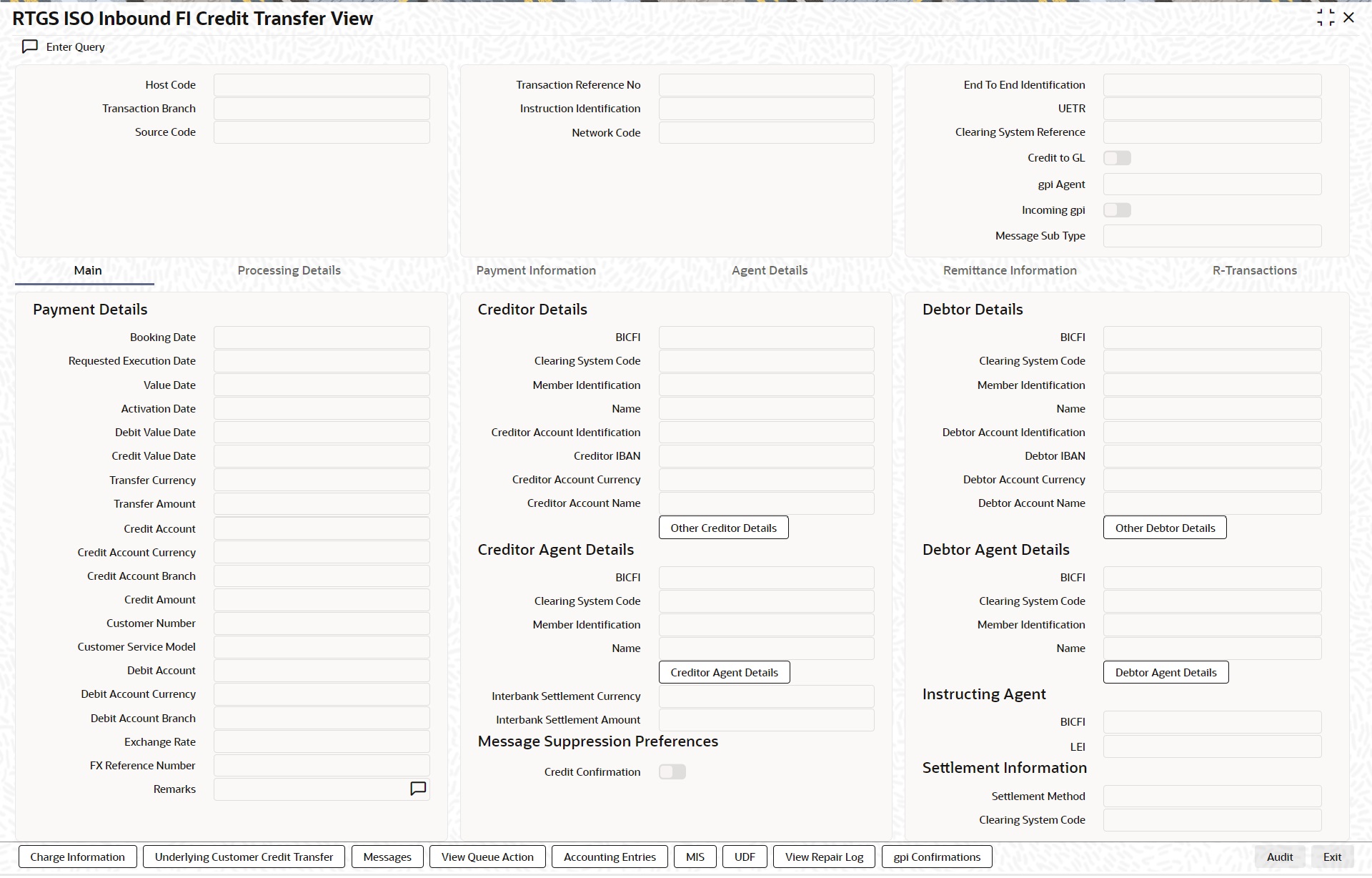
l From this screen, click ‘Enter Query’ button. The Transaction Reference Number field gets enabled, for the user to specify the Reference Number.
l Click ‘Execute Query’ button to populate the details of the transaction in the TARGET2 Inbound FI Credit Transfer View screen. The system displays all the fields in the below mentioned tabs based on the transaction reference number selected:
– Main
– Processing Details
– Payment Information
– Agent Details
– Remittance Information
– R-Transactions
For more details on Main, Payment Information, Agent Details, and Remittance Information tabs refer to PSDIRTBT’ screen details above.
5.2.4.1 Processing Details
You can invoke this screen by clicking ‘Processing Details’ tab at the bottom of RTGS ISO Inbound FI Credit Transfer View screen.
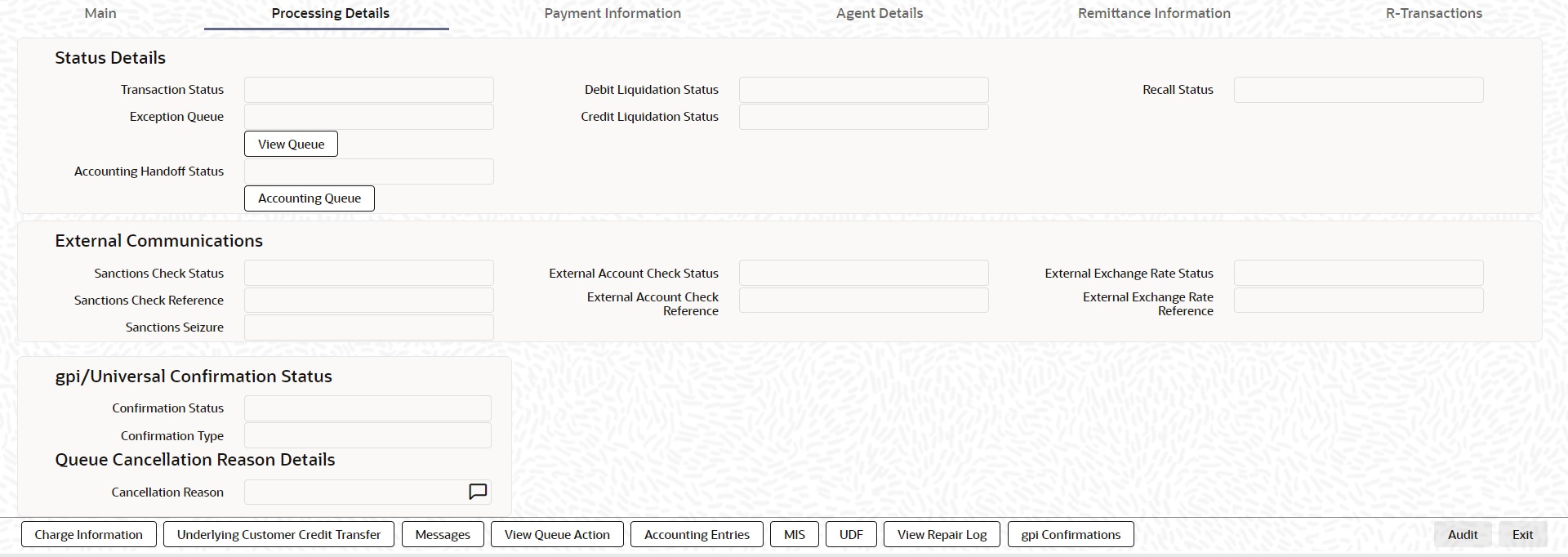
5.2.4.2 R-Transactions
You can invoke this screen by clicking ‘R-Transactions’ tab at the bottom of RTGS ISO Inbound FI Credit Transfer View screen.
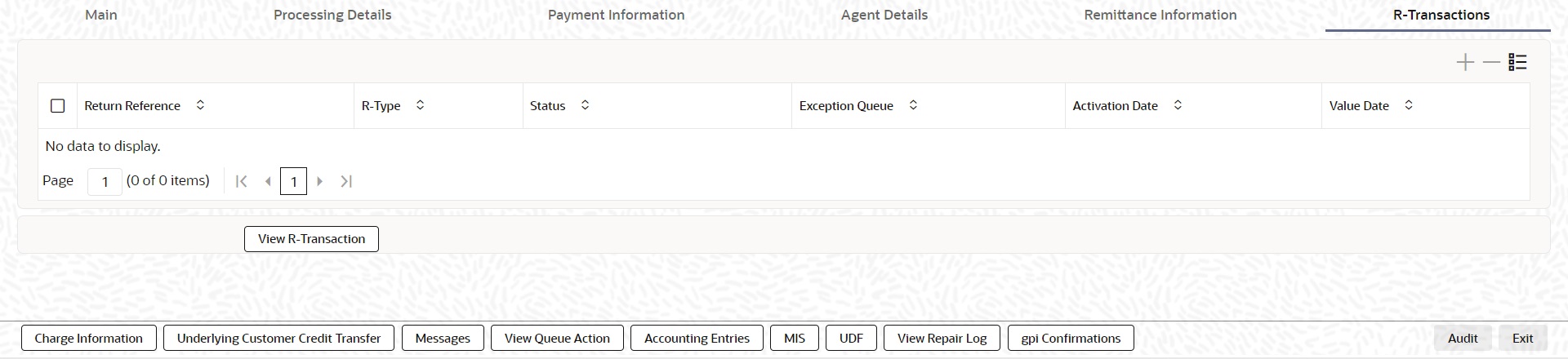
l R-Transactions tab displays the Cancellation Request (camt.056) transaction received for the incoming pacs.009 transaction.
l You select the Cancellation Request (camt.056) transaction and click on View R-Transaction button to open Generic Wires ISO Inbound FI to FI Payment Cancellation Request View (PSDICNCV) screen with selected transaction details.
5.2.4.3 Charge Information
You can invoke this screen by clicking ‘Charge Information’ tab at the bottom of RTGS ISO Inbound FI Credit Transfer View screen.
5.2.4.4 Underlying Customer Credit Transfer
You can invoke this screen by clicking ‘Underlying Customer Credit Transfer’ tab at the bottom of RTGS ISO Inbound FI Credit Transfer View screen.
Other Agents
Click ‘Other Agents’ tab to invoke this screen.
Other Details
Click ‘Other Details’ tab to invoke this screen.
5.2.4.5 All Messages
You can invoke this screen by clicking ‘Messages’ tab at the bottom of RTGS ISO Inbound FI Credit Transfer View screen.
5.2.4.6 View Queue Action Log
You can invoke this screen by clicking ‘View Queue Action’ tab at the bottom of RTGS ISO Inbound FI Credit Transfer View screen.
5.2.4.7 Accounting Entries
You can invoke this screen by clicking ‘Accounting Entries’ tab at the bottom of RTGS ISO Inbound FI Credit Transfer View screen.
5.2.4.8 MIS View
You can invoke this screen by clicking ‘MIS’ tab at the bottom of RTGS ISO Inbound FI Credit Transfer View screen.
5.2.4.9 UDF View
You can invoke this screen by clicking ‘UDF’ tab at the bottom of RTGS ISO Inbound FI Credit Transfer View screen.
5.2.4.10 View Repair Log
You can invoke this screen by clicking the 'View Repair Log' tab in RTGS SIO Inbound FI Credit Transfer View screen to view repair data on the transaction.
Following details are displayed:
l Queue Reference No
l Field Name
l Old Value
l Repaired Data
l Error
5.2.4.11 gpi Confirmations
You can invoke this screen by clicking ‘gpi Confirmation’ tab at the bottom of RTGS ISO Inbound FI Credit Transfer View screen.
5.2.4.12 RTGS ISO Inbound FI Credit Transfer View Summary
You can invoke “RTGS ISO Inbound FI Credit Transfer View Summary” screen by typing ‘PSSIT2BV’ in the field at the top right corner of the Application tool bar and clicking on the adjoining arrow button.
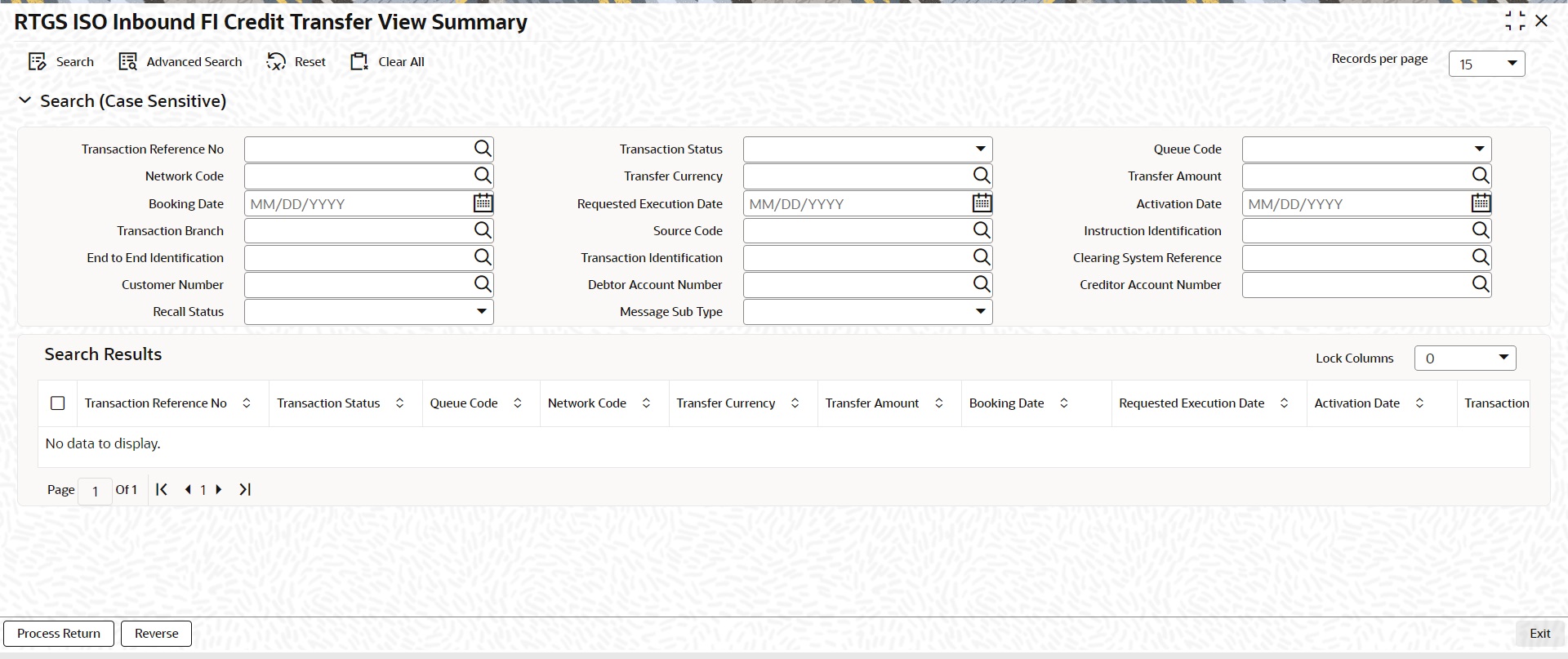
You can search using one or more of the following parameters:
l Transaction Reference Number
l Transaction Status
l Queue Code
l Network Code
l Transfer Currency
l Transfer Amount
l Booking Date
l Requested Execution Date
l Activation Date
l Transaction Branch
l Source Code
l Instruction Identification
l End to End Identification
l Transaction Identification
l Clearing System Reference
l Customer Number
l Debtor Account Number
l Creditor Account Number
l Recall Status
l Message Sub Type
Once you have specified the search parameters, click ‘Search’ button. The system displays the records that match the search criteria.
Double click a record or click the ‘Details’ button after selecting a record to view the detailed screen.
Process Return Button
Click the 'Process Return’ button at the bottom of the screen to invoke the Generic Wires ISO Outbound Payment Return Input Detailed ‘PSDOCBRT’ screen, when the below conditions are satisfied:
l You have required access rights on this user action (Either Role level or User Level).
l Transaction status is ‘Processed’.
Reverse Button
Click the 'Reverse’ button at the bottom of the screen to invoke the Generic Wires ISO Outbound Payment Return Input Detailed ‘PSDOCBRT’ screen, when the below conditions are satisfied:
l Transaction status is ‘Processed’.
5.3 Inbound Transaction Processing
Inbound payments follows the below listed processing steps:
l Section 5.3.1, "Bank Re-direction"
l Section 5.3.2, "Account Re-direction"
l Section 5.3.3, "D to A Conversion"
l Section 5.3.4, "Account Derivation"
l Section 5.3.5, "Charge Account Defaulting"
l Section 5.3.6, "PSD Validation"
l Section 5.3.7, "Network Cutoff Validation"
l Section 5.3.8, "Beneficiary Name Validations"
l Section 5.3.9, "Customer Payment Restriction Validation"
l Section 5.3.10, "EU Payer Validation"
l Section 5.3.11, "Sanction Check"
l Section 5.3.12, "Duplicate Check"
l Section 5.3.13, "Authorization Limit Validations"
l Section 5.3.14, "External Account Check Processing"
l Section 5.3.15, "Exchange Rate/FX Processing"
l Section 5.3.17, "Charges Calculation - Charge Bearer 'DEBT’"
l Section 5.3.18, "Accounting"
l Section 5.3.20, "FI to FI Payment Status Report (pacs.002) generation"
l Section 5.3.21, "Transaction Cancellation Processing"
l Section 5.3.22, "Future Date Transaction Processing"
l Section 5.3.23, "Rule-Based Price"
l Section 5.3.24, "Loan Account Processing"
l The system checks the Bank Redirection maintenance (PMDBKRED) for any redirections maintained against the Bank Codes mentioned in the transaction. If there are any redirections maintained, the Redirected Bank Code replaces the Original Bank Code in the transaction.
l The system checks the Account Redirection maintenance (PMDACRED) for any redirections maintained against the accounts mentioned in the transaction. If there are redirections maintained, the redirected account replaces the original account in the transaction.
l The system converts party details (Name and Address) to BICFI when records are maintained in D to A Converter maintenance PMDDAMNT.
l The system validates the Credit Account against the External Customer Account Input STDCRACC to check whether the account is valid (Open / Authorized).
5.3.5 Charge Account Defaulting
l The system defaults charge account from Customer Preferences Detailed (PMDFLPRF) maintenance, when the charge account is not provided during input and if charge account is given in the customer preference.
l The system checks whether the charge account defaulted or given during input is a valid account or not (Open/Authorized). If it is not a valid account, then the transaction is moved to Repair queue for user action.
l The PSD Validation is applicable only for FI to FI Customer Transfer (pacs.008).
l The flag ‘PSD Applicable’ on Source Maintenance Detailed screen is referred for checking if PSD check is applicable for the Host.
5.3.7 Network Cutoff Validation
CBPRPlus
l The cutoff time maintained in BIC Cutoff Maintenance (PXDCYCOF) is used for Network cutoff checks for Cross Border payments.
l The cutoff time maintained in the Inbound BIC Cutoff Maintenance (PXDINCOF) is used for Network cutoff check for Inbound Cross Border payments.
l If the transaction processing time is past cutoff time maintained or no Cutoff maintenance is available, the transaction is moved to the Network cutoff queue.
l The cutoff time maintained in Generic RTGS Network Preference Maintenance (PSDGRTNP) is used for Network cutoff checks for RTGS TARGET 2 transactions.
l The fields Cutoff Hours, Cutoff Minutes are referred to check the transaction processing time of pacs.008 transaction.
l The fields Interbank Cutoff Hour, Interbank Cutoff Minute are referred to check the transaction processing time of pacs.009 transaction.
l If the transaction processing time is past cutoff time maintained or no Cutoff maintenance is available, the transaction is moved to the Network cutoff queue.
5.3.8 Beneficiary Name Validations
l The name value in the Creditor Name field for pacs.008 or name value in the Creditor Account Name field for pacs.009 if received in the message or entered in the transaction is matched with the Account Description of resolved credit account (STDCRACC).
l If the name does not match the account description, then the validation is done based on the additional names maintained for the account in the Customer Account Name Match (PMDCUSNM) screen.
l The 'Beneficiary Name Match Required' flag value maintained at the 'Generic Wires ISO Inbound Network Preferences' (PSDIGWNP) is checked.
– Beneficiary Name Match validation is not done for value NO.
– Beneficiary Validation Currency / Amount fields is checked if the flag value is YES.
– For no value selected for the Beneficiary Validation Currency / Amount fields, the Beneficiary Name match is done for all Inbound transactions.
l If any value is selected in those fields, then the transfer amount is converted to the Beneficiary validation amount equivalent.
l The equivalent amount is compared against the Beneficiary Validation amount.
Note
Inbound pacs.008 / pacs.009 transactions is considered for Beneficiary Name match processing.
5.3.9 Customer Payment Restriction Validation
l If the Credit Account / Credit Account’s customer is selected, the system checks whether the account/customer is restricted to do any Inbound Cross Border ISO payment.
l The Customer Payment Restriction (PMDCRSTR) maintenance is referred for the Credit Account / Customer combination
l The EU Payer validation applies only for FI to FI Customer Transfer (pacs.008).
l EU Payer validation applies to the Unstructured Address.
l Existing EU Payer validations which are applied on the Cross-Border MT transaction are applicable.
l 'Sanctions Check Required' flag at the Source Network Preference (PMDSORNW) is referred for the Host code, Source code, Network code, and Transaction Type as 'Incoming'.
l A Sanctions request XML is prepared and sent to the Sanction System. A record is logged into the Sanction Queue. The request remains in Sanction Queue till the final response (Accept / Reject / Seizure) is received.
l If Duplicate Check fields are defined at the source level, the duplicate check is done against the inbound transactions booked (Till Duplicate Check Days).
l If the transaction is within the duplicate checking period maintained at source preferences, then the transaction is considered for Duplicate Checking.
5.3.13 Authorization Limit Validations
l Authorization Limit currency and Limit 1 amount values at the Source Network Preference referred for the Host code, Source code, Network code, and Transaction Type as “Incoming”.
l Authorization Limit 2 amount value at the Source Network Preference referred for the Host code, Source code, Network code, and Transaction Type as “Incoming”.
l Two levels of authorization limits can be maintained for a Network and source in PMDSORNW (optional).If the transfer amount is greater than authorization limit 1, the transaction is moved to Authorization Limit 1 Queue.
l On approval from Authorization Limit 1 Queue, if the transfer amount is greater than authorization limit 2, the transaction is moved to Authorization Limit 2 Queue. If the transfer amount is less than authorization limit 2, the transaction proceeds to next processing step.
l If the Authorization Limit check is done on booking date, it is not repeated on Value date processing.
5.3.14 External Account Check Processing
l The ‘External Credit Approval System’ is picked up from the External Customer Account (STDCRACC).
l An EAC request XML is prepared that includes the details like a debit account, amount to be debited, and charge components with charge amount to be debited.
l A record is logged in to the ECA Queue. The request is in ECA Queue with status as ‘Pending’ till the final response (Accept / Reject / Seizure) is received.
5.3.15 Exchange Rate/FX Processing
l If the Credit Currency is different from Transfer Currency, then the flag 'External Exchange Rate Required" is referred from the Generic Wires ISO Inbound Network Preferences maintenance (PSDIGWNP) for the Host code, Network code and Transaction Type as 'Incoming' combination.
l If the flag is set as Yes, then the ‘External Exchange Rate System’ is picked up from the External Exchange Rate mapping maintenance (PMDERMAP). An External Exchange Rate request XML is sent to the external exchange rate system, and a record is logged into the Exchange Rate Queue (PQSEXEXQ) with Queue Code as ‘External Exchange Rate Queue’.
l If the flag is set as No, then the STANDARD MID exchange rate is picked up from the currency exchange rates.
l The 'FX Rate Type' value defined in the Outbound Generic Wires ISO Outbound Network Preference (PSDOGWNP) is referred in case the debit account currency is different from the transfer currency.
l The transaction amount (or) debit amount is derived based on the 'FX Rate Type' value and using SELL rate. This amount derivation is done on Enrich user action for manually inputted transaction.
Cross Border
l The ‘Transaction Pricing Code’ field value is picked up from the SWIFT Pricing Preferences Detailed (PMDSWPRF) screen as shown below:
|
Customer Transfer |
||||
|
Network Code |
Transaction Type |
Transfer Currency |
Transfer Type |
Remarks |
|
SPECIFIC |
SPECIFIC |
SPECIFIC |
Customer Transfer / Customer Transfer with Cover |
System picks the "SHA Price Code" if Charge Bearer is SHAR |
|
SPECIFIC |
SPECIFIC |
*AL |
Customer Transfer / Customer Transfer with Cover |
System picks the "SHA Price Code" if Charge Bearer is SHAR |
|
SPECIFIC |
SPECIFIC |
SPECIFIC |
Customer Transfer / Customer Transfer with Cover |
System picks the "BEN Price Code" if Charge Bearer is CRED |
|
SPECIFIC |
SPECIFIC |
*AL |
Customer Transfer / Customer Transfer with Cover |
System picks the "BEN Price Code" if Charge Bearer is CRED |
|
SPECIFIC |
SPECIFIC |
SPECIFIC |
Customer Transfer / Customer Transfer with Cover |
System picks the "OUR Price Code" if Charge Bearer is DEBT |
|
SPECIFIC |
SPECIFIC |
*AL |
Customer Transfer / Customer Transfer with Cover |
System picks the "OUR Price Code" if Charge Bearer is DEBT |
|
Bank Transfer |
||||
|
Network Code |
Transaction Type |
Transfer Currency |
Transfer Type |
Remarks |
|
SPECIFIC |
SPECIFIC |
SPECIFIC |
Bank Transfer |
System picks the "Bank Transfer Price Code" maintained for the combination |
|
SPECIFIC |
SPECIFIC |
*AL |
Bank Transfer |
System picks the "Bank Transfer Price Code" maintained for the combination |
|
Default Pricing Code Pickup |
||||
|
Network Code |
Transaction Type |
Transfer Currency |
Transfer Type |
Remarks |
|
SPECIFIC |
SPECIFIC |
SPECIFIC |
Bank Transfer / Customer Transfer / Customer Transfer with Cover |
System picks the "Default Price Code" if pricing code is not maintained for the combination |
|
SPECIFIC |
SPECIFIC |
*AL |
Bank Transfer / Customer Transfer / Customer Transfer with Cover |
System picks the "Default Price Code" if pricing code is not maintained for the combination |
l If a Pricing code value is maintained, then the Pricing value is picked up from the Pricing Value Maintenance (PPDVLMNT).
l During manual transaction input, the charge amount calculated for each pricing component is shown in the Pricing Details tab where the user can change the charge amount.
l The ‘Transaction Pricing Code’ field value is picked up from the Generic RTGS Inbound Network Preference (PSDGRTIN) screen as below:
– If the transaction is a pacs.008 transaction, then pricing code maintained in the Customer Transfer Price Code field is picked up and applied on the transaction.
– If the transaction is a pacs.009 transaction, then pricing code maintained in the Bank Transfer Price Code field is picked up and applied on the transaction.
– If a Pricing code value is maintained, then the Pricing value is picked up from the Pricing Value Maintenance (PPDVLMNT).
– During manual transaction input, the charge amount calculated for each pricing component is shown in the Pricing Details tab, where the user can change the charge amount.
5.3.17 Charges Calculation - Charge Bearer 'DEBT’
l Charges are calculated based on the Receiver Pricing Code linked to Outbound Claim Preferences (PXDSRIMT) for the Sender and Transfer Currency combination. If there is no Outbound Claim Preference maintained, then the Receiver Pricing Code is picked up from the 'Default Receiver Price Code' value maintained in Charge Claim Default Preferences (PXD191PF).
l If 'Rule Based Pricing' is checked in Claim preferences, the charges are computed by applying Pricing Rule framework
l If Pricing rule is not applicable (or) no Pricing rule is satisfied, the charges are computed using the Receiver Pricing Code.
l Price code can contain multiple components including tax components. Income/tax payable accounting is done component-wise.
– If charge currencies can be different,
– The debit amount is calculated by converting the charge currencies to debit currency (Transfer Currency).
– While doing the price value pick up, the system consider the customer as the customer ID linked to the Sender BIC. If no customer ID is linked, customer is considered as 'ALL'.
l Charge/tax amount to be collected is first recovered from Incoming message Charges Information Charge amount, if available.
– If the computed amount is greater than received charge amount, the difference is claimed by sending out MT 191 claim message. If the transaction is gpi enabled, then MT 191 claim is suppressed.
– If the claim payment is received in excess, the difference amount is credited to income GL.
l Receiver charge accounting template linked in Generic Wires ISO Inbound Network Preference (PSDIGWNP) is used for accounting.
– If the claim amount received is less, and the difference is within the tolerance maintained, then it will be expensed out.
– Expense GL maintained in Charge Claim Default preferences is debited and Receivable GL from the same maintenance is credited.
l The ‘Debit Liquidation’ & ‘Credit Liquidation’ accounting codes maintained in Generic Wires ISO Outbound Network Preferences (PSDOGWNP) for the Host code, Network code, Transaction Type ‘Outgoing’ and Transfer Currency combination are applicable for posting the accounting entries.
l The MIS & UDFs are defaulted based on the MIS Group / UDF Group defined in the Source Network Code maintenance (PMDSORNW).
l If MIS Group/UDF Group values are not maintained, then the MIS Group/UDF Group values maintained at Source Code maintenance (PMDSORCE) are referred.
l For manual transaction input, the user can edit the default values of MIS & UDF.
5.3.20 FI to FI Payment Status Report (pacs.002) generation
l It is applicable only for CBPRPlus transactions:
– On successful processing of an Inbound pacs.008/pacs.009 transaction, additional changes are done to generate the FI to FI Payment Status report (pacs.002) message.
5.3.21 Transaction Cancellation Processing
l An Inbound transaction can get cancelled from an exception queue either manually or automatically based on the response from external system.
l After successful completion of all cancellation processing steps, the transaction status is marked as Cancelled.
5.3.22 Future Date Transaction Processing
l An inbound transaction booked with future value dated moved to Warehouse Queue (PQSFUVAQ) after doing all validations till Sanctions check.
l The transaction is processed on the activation date from the beginning.
l The Payments Auto Job ‘PQDFUVAQ’ should be configured to trigger the transaction processing for future valued transactions on the activation date.
Inbound Price Rule Element
|
Attribute ID |
pacs.008 field |
pacs.009 field |
ROP Value Expected |
|
BENEFICIARY_COUNTRY |
Customer Country from Customer Maintenance |
Customer Country from Customer Maintenance |
2 Char Country Code |
|
CHARGE_WHOM |
Charge Bearer |
NA |
DEBT CRED SHAR |
|
COVER_REQD |
Settlement Method is COVE or not |
NA |
TRUE / FALSE |
|
CR_ACCOUNT_CCY |
Credit Account Currency |
Credit Account Currency |
3 Char Currency Code |
|
CUSTOMER_SERVICE_MODEL
|
Customer Service Model |
Customer Service Model |
Customer Service Model values |
|
DR_AGT_BIC |
Debtor Agent Details -> BICFI |
Debtor Agent Details -> BICFI |
|
|
CATEGORY_PURPOSE |
Category Purpose Code (or) Category Purpose Proprietary |
Category Purpose Code (or) Category Purpose Proprietary |
ISO Category Purpose Code values (or) Category Purpose Proprietary values |
|
CR_AGT_BIC |
Creditor Agent Details -> BICFI |
Creditor Agent Details -> BICFI |
|
|
CR_AGT_MEMBER_ID |
Creditor Agent Details -> Member Identification |
Creditor Agent Details -> Member Identification |
|
|
DR_AGT_MEMBER_ID |
Debtor Agent Details -> Member Identification |
Debtor Agent Details -> Member Identification |
|
|
PURPOSE |
Purpose Code (or) Purpose Proprietary |
Purpose Code (or) Purpose Proprietary |
ISO Purpose Code values (or) Purpose Proprietary values |
|
RECEIVER_BIC |
Instructed Agent -> BICFI |
Instructed Agent -> BICFI |
|
|
SENDER_BIC |
Instructing Agent -> BICFI |
Instructing Agent -> BICFI |
|
|
SERVICE_LEVEL |
Service Level Code (1st occurrence) (or) Service Level Proprietary (1st occurrence) |
Service Level Code (1st occurrence) (or) Service Level Proprietary (1st occurrence) |
ISO Service Level Code values (or) Service Level Proprietary values |
|
SOURCE_CODE |
Source Code |
Source Code |
|
|
TRANSFER_CURRENCY |
Transfer Currency |
Transfer Currency |
|
|
TRANSFER_TYPE |
Customer Transfer |
Bank Transfer |
B - Bank Transfer C - Customer Transfer |
|
TXN_BRANCH_CODE |
Transaction Branch |
Transaction Branch |
|
|
IS_CREDITTOGL_PAYMENT |
Yes |
Yes |
FALSE |
Note
For Incoming SWIFT CBPRPlus, the pacs.008 messages with Charge Bearer as ‘DEBT’, the pricing code/pricing value is picked up from the Charge Claim maintenances, Outbound Charge Claim Maintenance (PXDSRIMT) / Charge Claim Default Preferences (PXD191PF). The Pricing Rule / SWIFT Pricing code preferences are not applied.
Outbound Price Rule Element
|
Attribute ID |
pacs.008 field |
pacs.009 field |
ROP Value Expected |
|
BENEFICIARY_COUNTRY |
Creditor - Country of Residence. If blank, Country in Postal Address |
Creditor - Country in Postal Address. If blank, Country from BIC. |
2 Char Country Code |
|
CHARGE_WHOM |
Charge Bearer |
NA |
DEBT CRED SHAR |
|
COVER_REQD |
Settlement Method is COVE or not |
NA |
TRUE / FALSE |
|
CUSTOMER_SERVICE_MODEL
|
Customer Service Model |
Customer Service Model |
Customer Service Model values |
|
DR_ACCOUNT_CCY |
Debit Account Currency |
Debit Account Currency |
|
|
DR_AGT_BIC |
Debtor Agent Details -> BICFI |
Debtor Agent Details -> BICFI |
|
|
CATEGORY_PURPOSE |
Category Purpose Code (or) Category Purpose Proprietary |
Category Purpose Code (or) Category Purpose Proprietary |
|
|
CR_AGT_BIC |
Creditor Agent Details -> BICFI |
Creditor Agent Details -> BICFI |
|
|
CR_AGT_MEMBER_ID |
Creditor Agent Details -> Member Identification |
Creditor Agent Details -> Member Identification |
|
|
DR_AGT_MEMBER_ID |
Debtor Agent Details -> Member Identification |
Debtor Agent Details -> Member Identification |
|
|
PURPOSE |
Purpose Code (or) Purpose Proprietary |
Purpose Code (or) Purpose Proprietary |
ISO Purpose Code values (or) Purpose Proprietary values |
|
RECEIVER_BIC |
Instructed Agent -> BICFI |
Instructed Agent -> BICFI |
|
|
SENDER_BIC |
Instructing Agent BIC |
Instructing Agent BIC |
|
|
SERVICE_LEVEL |
Service Level Code (1st occurrence) (or) Service Level Proprietary (1st occurrence) |
Service Level Code (1st occurrence) (or) Service Level Proprietary (1st occurrence) |
ISO Service Level Code values (or) Service Level Proprietary values |
|
SOURCE_CODE |
Source Code |
Source Code |
|
|
TRANSFER_CURRENCY |
Transfer Currency |
Transfer Currency |
|
|
TRANSFER_TYPE |
Customer Transfer |
Bank Transfer |
B - Bank Transfer C - Customer Transfer |
|
TXN_BRANCH_CODE |
Transaction Branch |
Transaction Branch |
|
|
IS_PREFUNDED_PAYMENT |
Prefunded Payments flag |
Prefunded Payments flag |
TRUE / FALSE |
|
IS_CREDITTOGL_PAYMENT |
|
|
FALSE |
5.3.24 Loan Account Processing
5.3.24.1 External Account Check
l In the External Account Check request the credit account is sent as the loan account, and the credit amount is sent as the loan payment amount.
l The loan system is expected to validate the loan account sent in the request and loan payment amount (amount is not greater than Loan outstanding amount) and send the response accordingly.
5.3.24.2 Transaction Cancellation/Return
External Credit Approval
l As part of this cancellation, an ECA request is sent to the loan system with the loan account reference and loan payment reference sent in the request.
l The loan payment system is expected to validate the loan account reference and loan payment reference and whether the loan payment can be reversed or not and send the response accordingly.
Accounting
l In the accounting handoff sent to loan system, reversal indicator flag is set as Yes.
l Transaction reference is sent as user reference number.