2. Hong Kong Faster Payment System
OBPM supports:
l to process HK FPS Credit Transfer in real time mode for HKD, RMB currencies.
l to generate/process below messages for outbound Credit Transfers (Real Time):
– Pacs.008 to FPS (without payee account verification)
– Pacs.002 from FPS (Payment Status Report from FPS)
l Outbound HKFPS CT transactions is not logged in queue in case of any validation failure and upfront rejected.
l Support to process below messages for inbound Credit Transfers (Real Time):
– Pacs.008 from FPS (without payee account verification)
l Credit/Debit Notifications to payer/payee
2.2.1 HKFPS Outbound Credit Transfer Payment Preferences
You can invoke “HKFPS Outbound Credit Transfer Payment Preferences” screen by typing ‘PKDOCTPF’ in the field at the top right corner of the Application tool bar and clicking on the adjoining arrow button. Click new button on the Application toolbar.
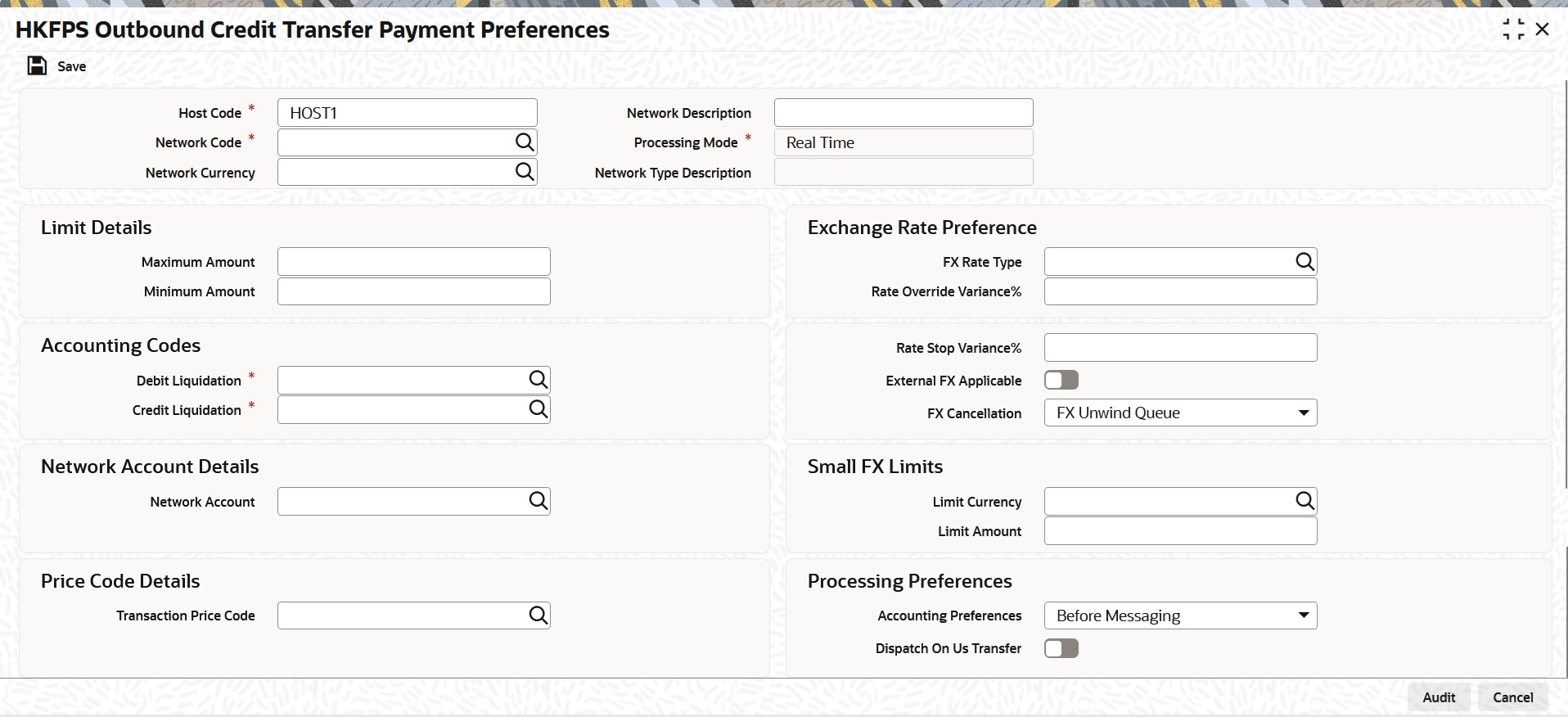
You can specify the following fields:
Host Code
System defaults the Host Code details on clicking the ‘New’ button.
Network Code
Select the specific Network Code from list of values. The list of values lists HK FPS network defined in the host (Open/Authorized) - Network code for Payment Type ‘Hong Kong FPS’ defined in Network Code Maintenance (PMDNWCOD).
Network Code Description
System defaults the description of the Network code.
Network Type Description
System defaults the Network Type Description of the Network selected.
Network Currency
Specify the Network Currency from list of values. Currency codes defined are listed.
Processing Mode
By-default, Real Time is selected as the Processing Mode.
Limit Details
Minimum Amount
Specify the Minimum transaction amount.
Maximum Amount
Specify the Maximum transaction amount.
Exchange Rate Preference
FX Rate Type
Specify the Currency Rate Type from the list of values.
Rate Override Variance%
Specify the Exchange Rate Variance for override.
Rate Stop Variance%
Specify the Exchange Rate Variance for processing stop.
External FX Applicable
This check box is to indicate whether external exchange rate applicable or not.
FX Cancellation
Select the FX Cancellation from below values:
l FX Unwind Queue
l Auto Interface
Accounting Codes
Debit Liquidation
Specify the Debit Liquidation from the list of values. List of all valid (Open/Authorized) accounting codes defined in the host where Main Transaction Dr/Cr Indicator is 'Debit'.
Credit Liquidation
Specify the Credit Liquidation from the list of values. List of all valid (Open/Authorized) accounting codes defined in the host where Main Transaction Dr/Cr Indicator is 'Credit'.
Network Account Details
Network Account
Specify the Network Account from the list of values. List of all valid (Open/Authorized) accounts defined in the host for the selected currency.
Small FX Limit
Small FX Limit Currency
Specify the Small FX Limit Currency from the list of values. List of all valid (Open/Authorized) currency codes are defined.
Small FX Limit Amount
Specify the Small FX Limit Amount.
Price Code Details
Transaction Price Code
Specify the Transaction Price Code from the list of values.
Processing Preferences
Accounting Preferences
Select the Accounting Preferences from below values:
l Before Messaging (Default)
l After Messaging
Dispatch On Us Transfer
This check box is to indicate dispatch outbound message or not for the on-us transfer.
2.2.1.1 HKFPS Outbound Credit Transfer Payment Preferences Summary
You can invoke “HKFPS Outbound Credit Transfer Payment Preferences Summary” screen by typing ‘PKSOCTPF’ in the field at the top right corner of the Application tool bar and clicking on the adjoining arrow button.
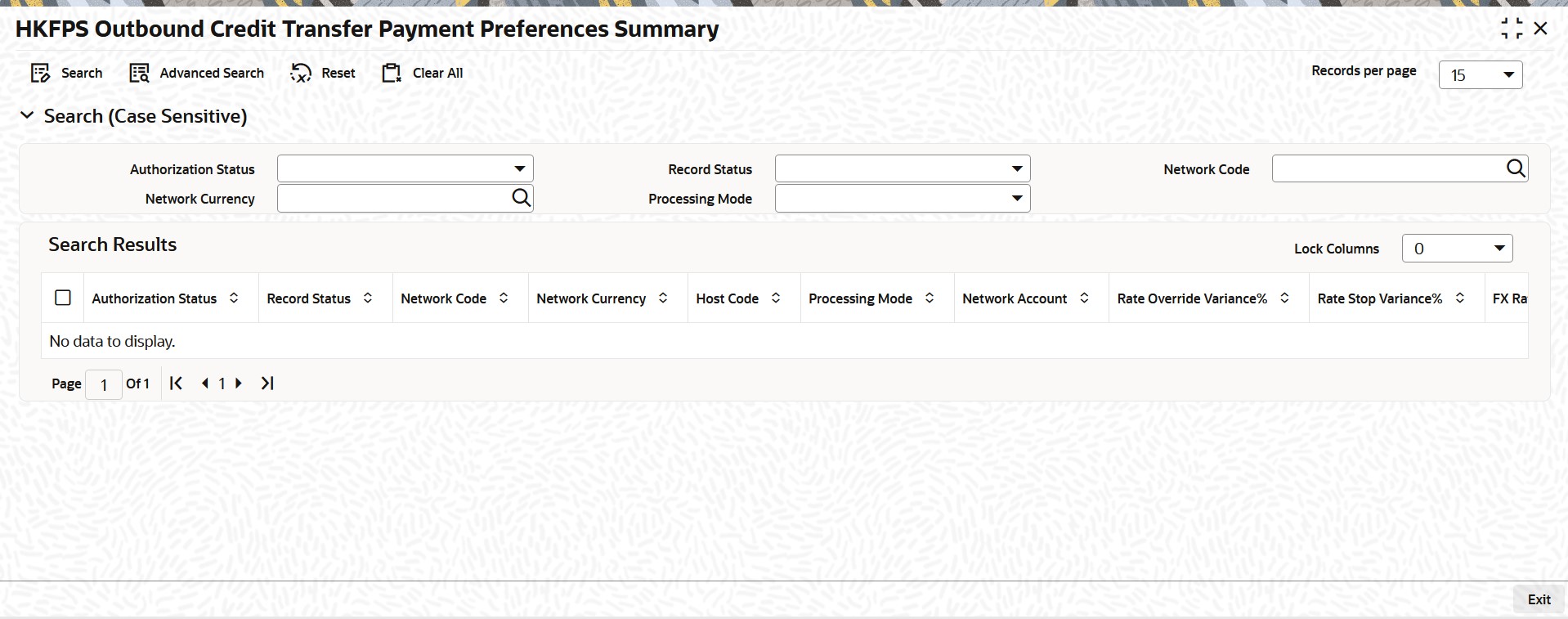
You can search using the following parameter:
l Authorization Status
l Record Status
l Network code
l Payment Type
l Network Currency
l Processing Mode
Once you have specified the search parameters, click ‘Search’ button. The system displays the records that match the search criteria.
2.2.2 HKFPS Inbound Credit Transfer Payment Preferences
You can invoke “HKFPS Inbound Credit Transfer Payment Preferences” screen by typing ‘PKDICTPF’ in the field at the top right corner of the Application tool bar and clicking on the adjoining arrow button. Click new button on the Application toolbar.
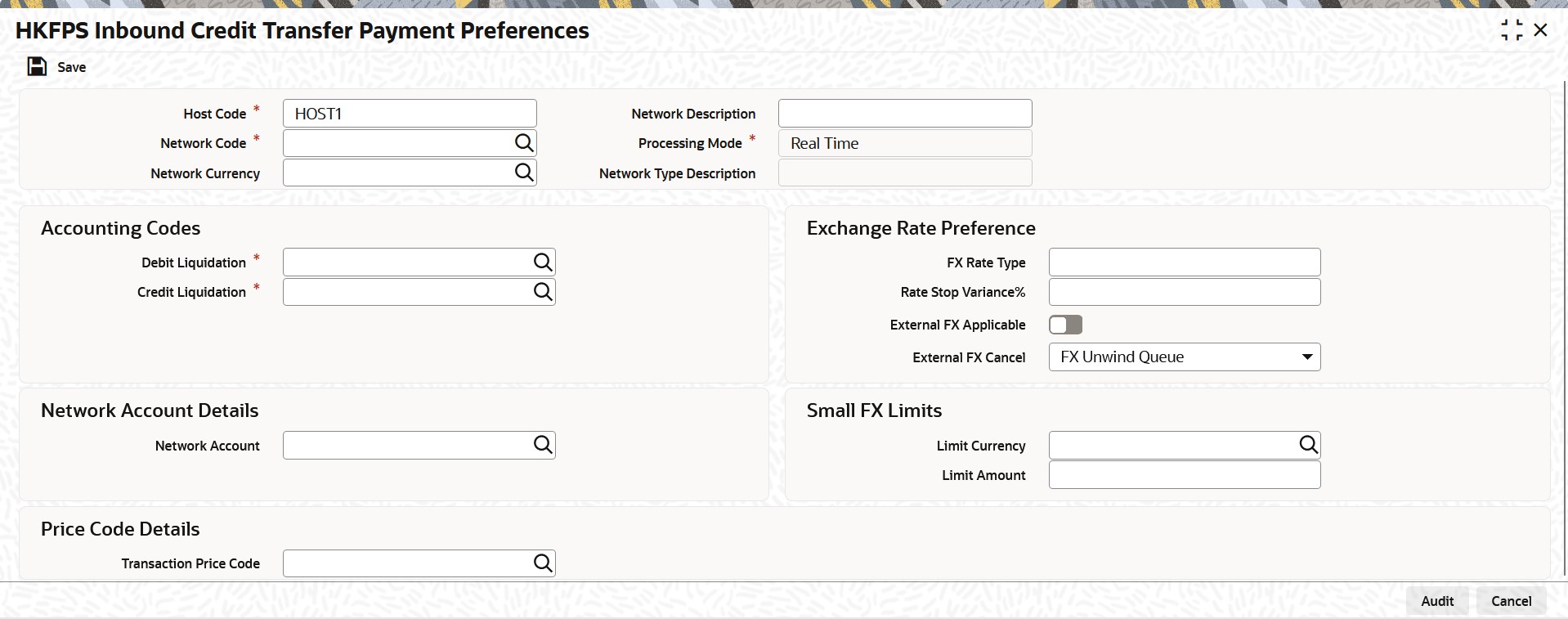
You can specify the following fields:
Host Code
System defaults the Host Code details on clicking the ‘New’ button.
Network Code
Select the specific Network Code from list of values. Lists HK FPS network defined in the host (Open/Authorized) - Network code for Payment Type ‘Hong Kong FPS’ defined in Network Code Maintenance (PMDNWCOD).
Network Code Description
System defaults the description of the Network code.
Network Type Description
System defaults the Network Type Description of the Network code.
Network Currency
Specify the Network Currency from list of values. Currency codes defined are listed.
Processing Mode
By-default, Real Time is selected as the Processing Mode.
Accounting Codes
Debit Liquidation
Specify the Debit Liquidation from the list of values. List of all valid (Open/Authorized) accounting codes defined in the host where Main Transaction Dr/Cr Indicator is 'Debit'.
Credit Liquidation
Specify the Credit Liquidation from the list of values. List of all valid (Open/Authorized) accounting codes defined in the host where Main Transaction Dr/Cr Indicator is 'Credit'.
Exchange Rate Preference
FX Rate Type
Specify the Currency Rate Type from the list of values.
Rate Stop Variance%
Specify the Exchange Rate Variance for processing stop.
External FX Applicable
This check box is to indicate whether external exchange rate applicable or not.
FX Cancellation
Select the FX Cancellation from below values:
l FX Unwind Queue
l Auto Interface
Network Account Details
Network Account
Specify the Network Account from the list of values. List of all valid (Open/Authorized) accounts defined in the host for the selected currency.
Small FX Limit
Small FX Limit Currency
Specify the Small FX Limit Currency from the list of values. List of all valid (Open/Authorized) currency codes are defined.
Small FX Limit Amount
Specify the Small FX Limit Amount.
Price Code Details
Transaction Price Code
Specify the Transaction Price Code from the list of values.
2.2.2.1 HKFPS Inbound Credit Transfer Payment Preferences Summary
You can invoke “HKFPS Inbound Credit Transfer Payment Preferences Summary” screen by typing ‘PKSICTPF’ in the field at the top right corner of the Application tool bar and clicking on the adjoining arrow button.
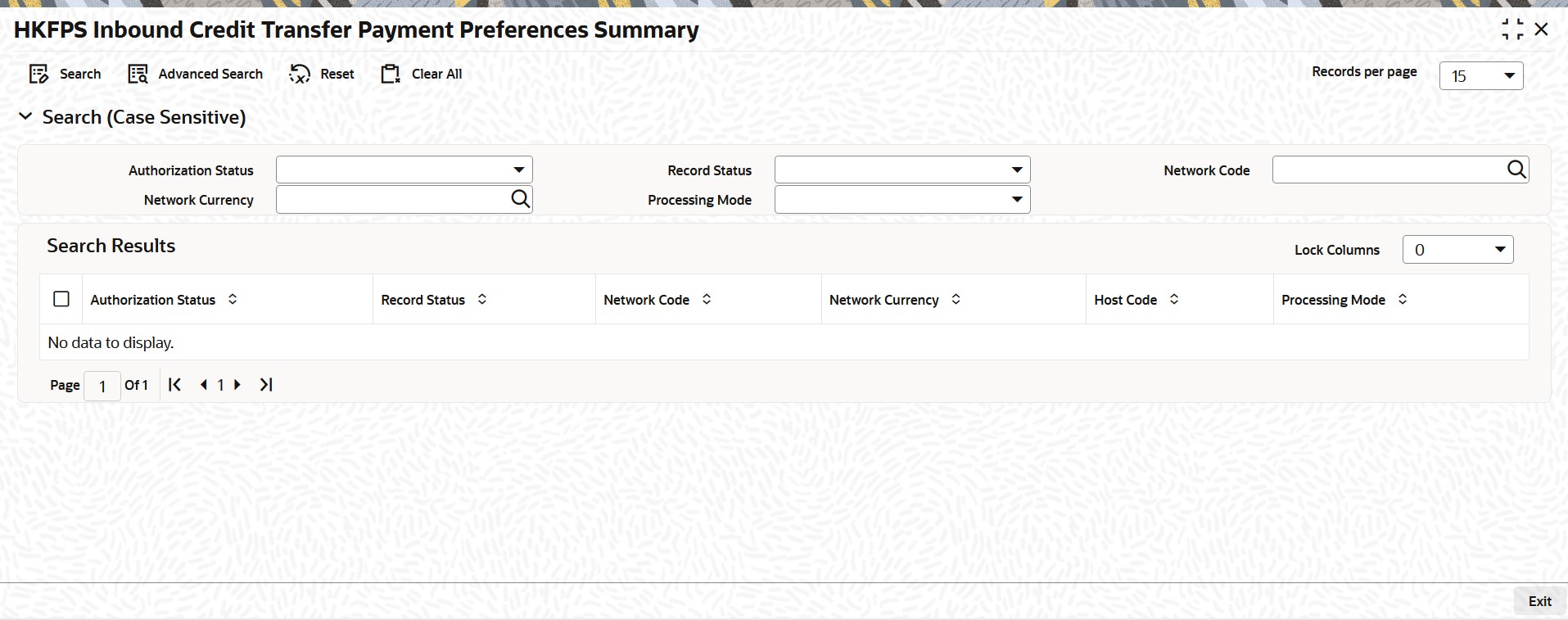
You can search using the following parameter:
l Authorization Status
l Record Status
l Network code
l Payment Type
l Network Currency
l Processing Mode
Once you have specified the search parameters, click ‘Search’ button. The system displays the records that match the search criteria.
2.2.3 HKFPS Network Currency Details
You can invoke “HKFPS Network Currency Details” screen by typing ‘PKDHKFNC’ in the field at the top right corner of the Application tool bar and clicking on the adjoining arrow button. Click new button on the Application toolbar.
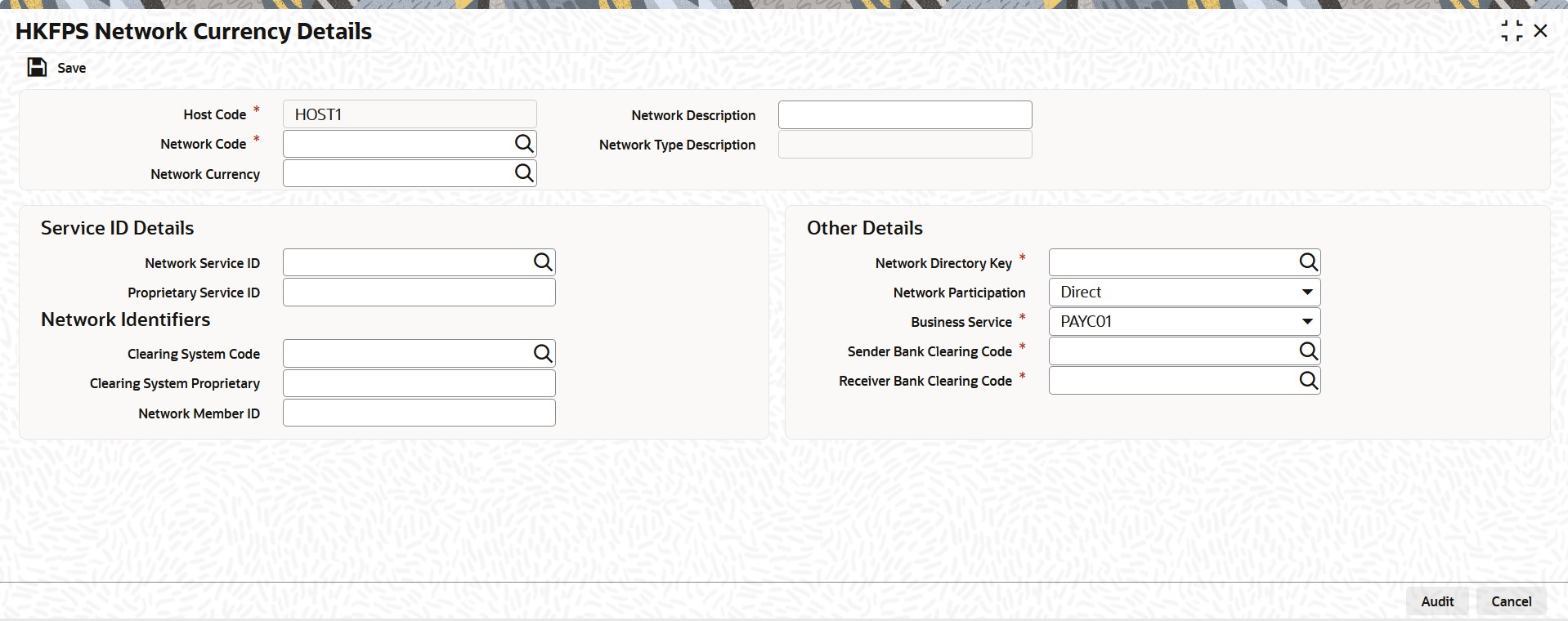
You can specify the following fields:
Host Code
System defaults the Host Code details on clicking the ‘New’ button.
Network Code
Select the specific Network Code from list of values. The list of values lists HK FPS network defined in the host (Open/Authorized) - Network code for Payment Type 'Hong Kong FPS' defined in Network Code Maintenance (PMDNWCOD).
Network Code Description
System defaults the description of the Network code.
Network Type Description
System defaults the description of the Network code.
Network Currency
Specify the Network Currency from list of values. System allows HKFPS outbound/inbound payments only in the currencies maintained here for the HKFPS network.
Service ID Details
Network Service ID
Specify the Network Service ID from the list of values. The list of values lists of ISO Clearing code- Service ID.
Proprietary Service ID
Specify the Service ID value proprietary. HKF value can be maintained.
Network Identifiers
Clearing System Code
Specify the Clearing System Code from the list of values. The list of values lists of ISO Clearing code.
Clearing System Proprietary
Specify the Clearing system Proprietary.
Network Member ID
Specify the Member Id.
Other Details
Network Directory Key
Specify the Network Directory Key from the list of values. List of all valid (Open/Authorized) Network Directory Key maintained in the existing screen 'Network Directory Key Maintenance (PMDDRKEY).
Network Participation
Select the Network Participation from the following values:
l Direct
l Indirect
Business Service
Select the Business Service Code from the following values:
l PAYC01
l PAYC02
l PAYC03
Sender Bank Clearing Code
Specify the Sender Bank Clearing Code from the list of values. List of all valid (Open/Authorized) Network Clearing code defined in 'HKFPS Network Directory'.
Receiver Bank Clearing Code
Specify the Receiver Bank Clearing Code from the list of values. List of all valid (Open/Authorized) Network Clearing code defined in 'HKFPS Network Directory'.
2.2.3.1 HKFPS Network Currency Details Summary
You can invoke “HKFPS Network Currency Details Summary” screen by typing ‘PKSHKFNC’ in the field at the top right corner of the Application tool bar and clicking on the adjoining arrow button.
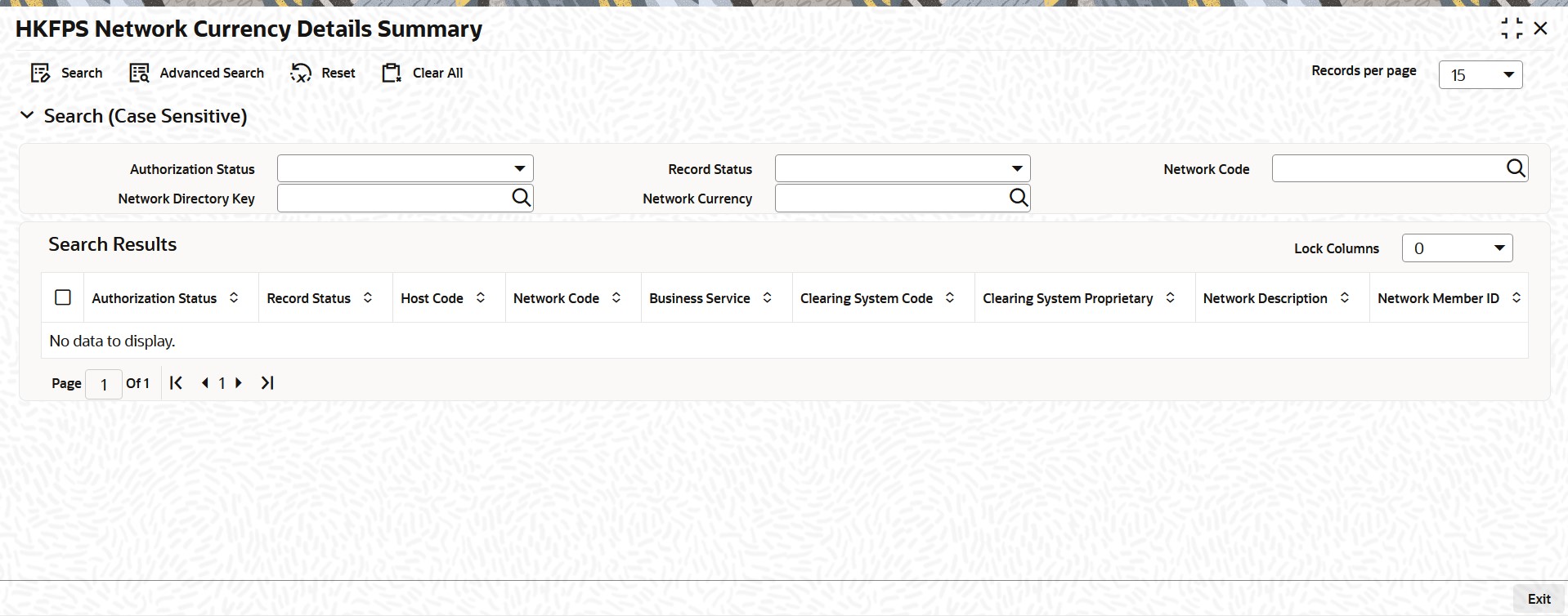
You can search using the following parameter:
l Authorization Status
l Record Status
l Network code
l Network Directory Key
l Payment Type
l Network Currency
Once you have specified the search parameters, click ‘Search’ button. The system displays the records that match the search criteria.
You can invoke “HKFPS Network Directory” screen by typing ‘PKDHKFDR’ in the field at the top right corner of the Application tool bar and clicking on the adjoining arrow button. Click new button on the Application toolbar.
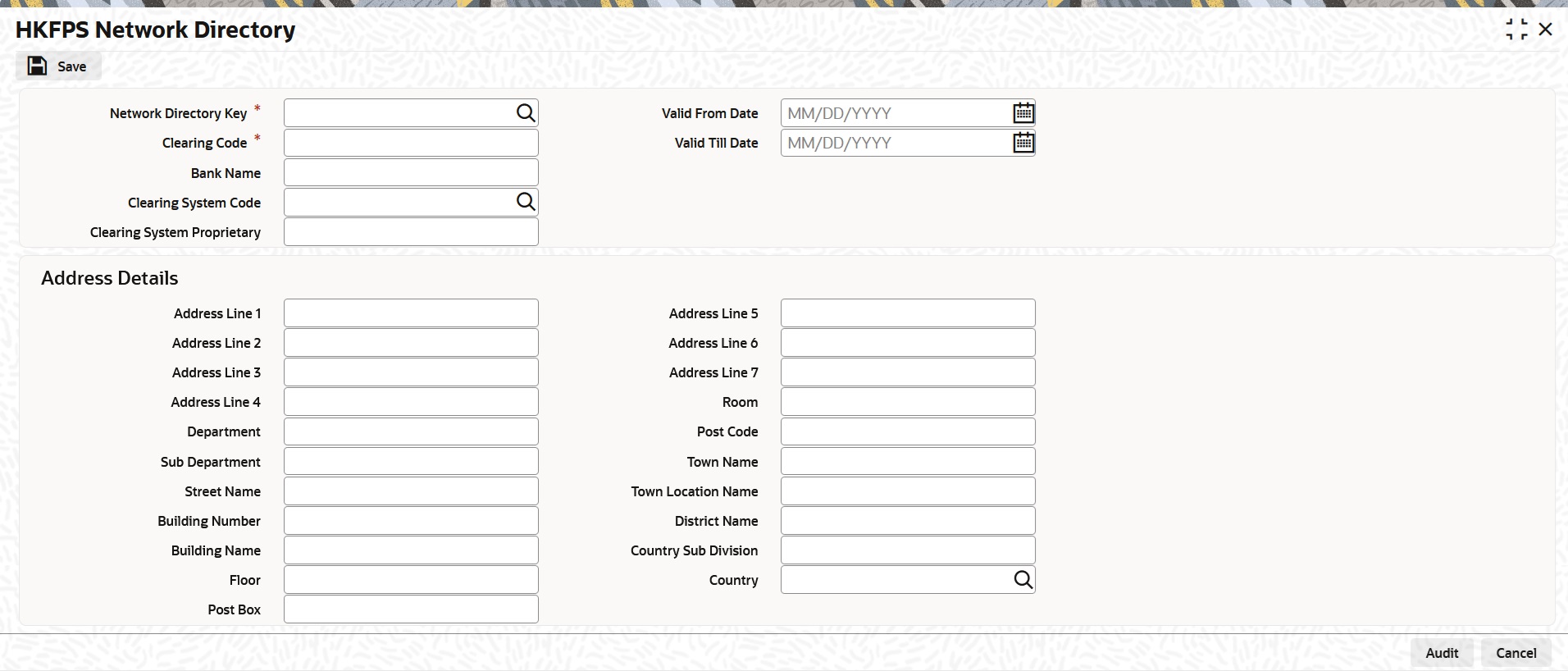
You can specify the following fields:
Network Directory Key
Select the specific Network Code from list of values. The list of values lists Network Directory Key maintained in the existing screen 'Network Directory Key Maintenance (PMDDRKEY) are linked here.
Clearing Code
Specify the Clearing Code.
Bank Name
Specify the Bank Name.
Clearing System Code
Specify the Clearing System Code from the list of values.
Clearing System Proprietary
Specify the Clearing system Proprietary.
Valid From Date
Specify the Valid From Date.
Valid Till Date
Specify the Valid Till Date.
Address Details
Specify the following fields with appropriate values
l Address Line 1, 2, 3, 4, 5, 6, 7
l Department
l Sub Department
l Street Name
l Building Number
l Building Name
l Floor
l Post Box
l Room
l Post Code
l Town Name
l Town Location Name
l District Name
l Country Sub Division
l Country
2.2.4.1 HKFPS Network Directory Summary
You can invoke “HKFPS Network Directory Summary” screen by typing ‘PKSHKFDR’ in the field at the top right corner of the Application tool bar and clicking on the adjoining arrow button.
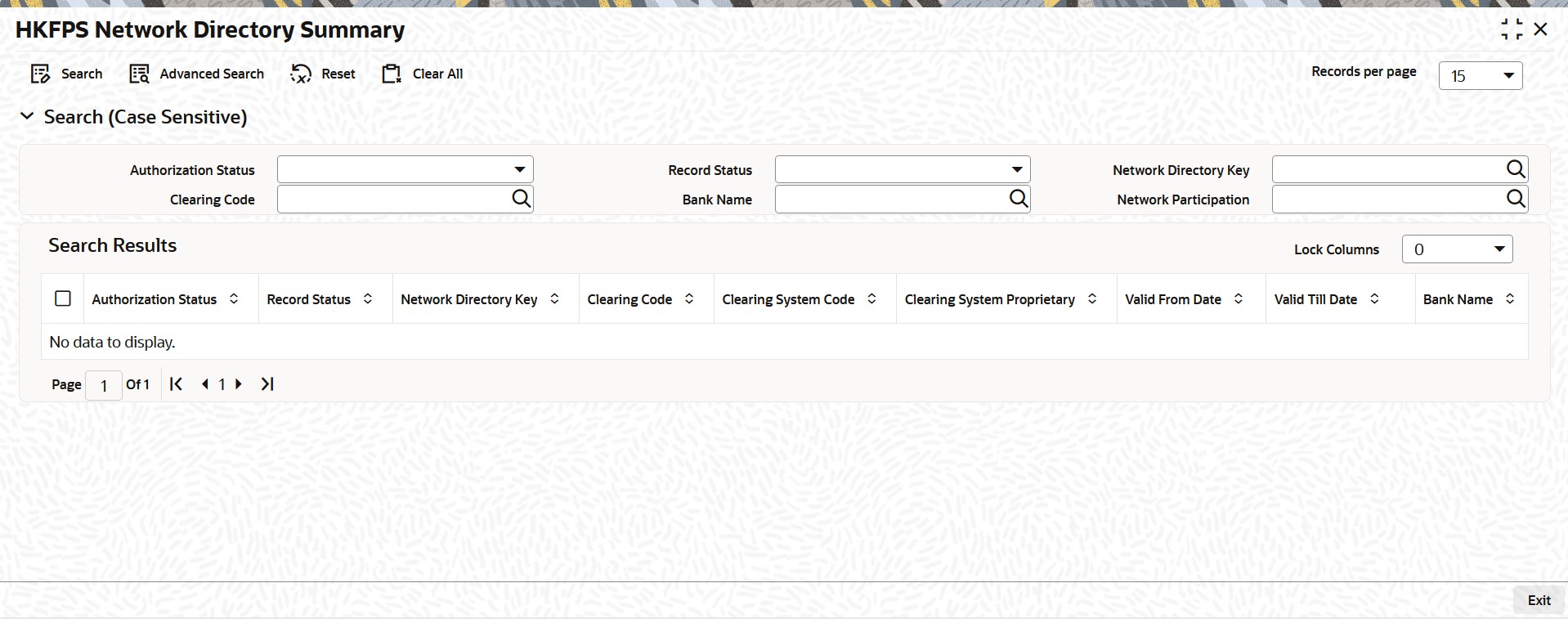
You can search using the following parameter:
l Authorization Status
l Record Status
l Network Directory Key
l Clearing Code
l Bank Name
l Network Participation
Once you have specified the search parameters, click ‘Search’ button. The system displays the records that match the search criteria.
2.2.5 Branch Identifier for HKFPS Network
You can invoke “Branch Identifier for HKFPS Network” screen by typing ‘PKDHKFBR’ in the field at the top right corner of the Application tool bar and clicking on the adjoining arrow button. Click New button on the Application toolbar.
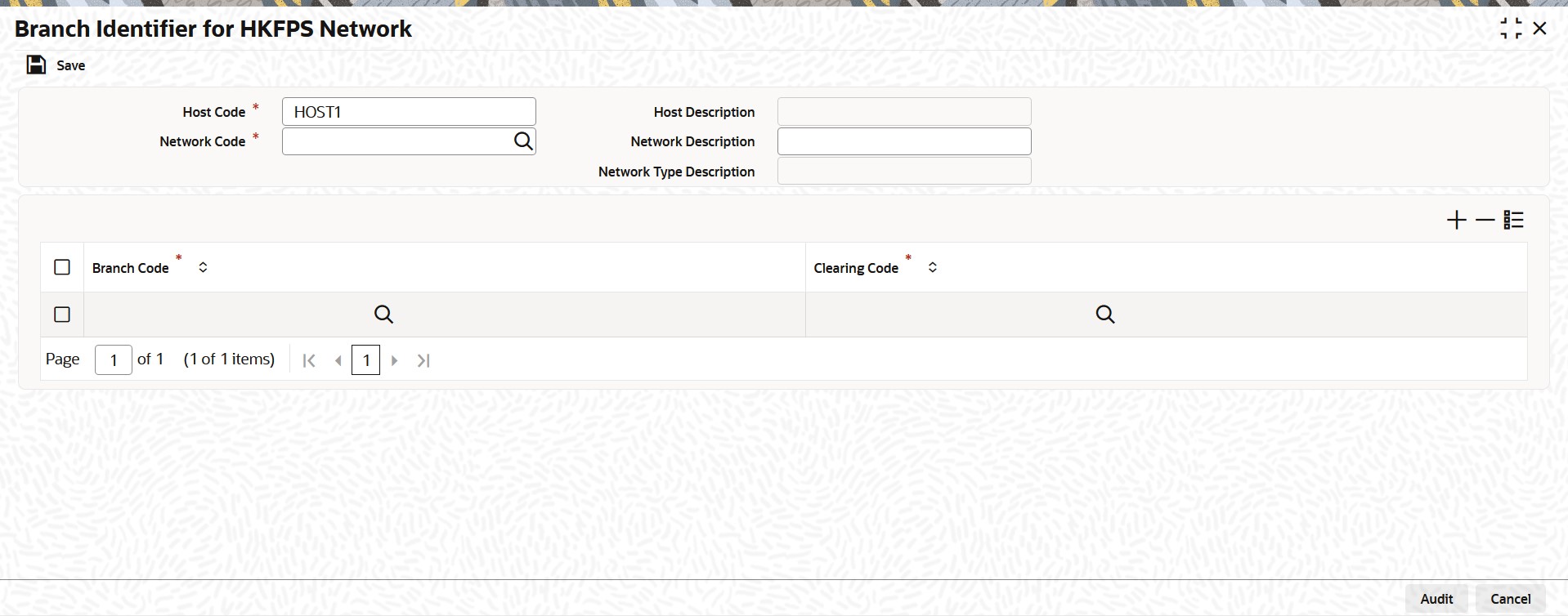
You can specify the following fields:
Host Code
System defaults the Host Code details on clicking the ‘New’ button.
Host Code Description
System defaults the Description of the Host Code displayed.
Network Code
Select the specific Network Code from list of values. Lists HK FPS network defined in the host (Open/Authorized) - Network code for Payment Type 'Hong Kong FPS' defined in Network Code Maintenance (PMDNWCOD).
Network Code Description
System defaults the description of the Network code.
Branch Code
Specify the specific Network Code from list of values. List of Branch Codes (Open/Authorized) defined in the current host.
Clearing Code
Specify the Clearing Code from list of values. List of Clearing codes (Open/Authorized) defined in the Hong Kong Network Directory maintained.
Network Type Description
System defaults the Description of the Network Code displayed.
2.2.5.1 Branch Identifier for HKFPS Network Summary
You can invoke “Branch Identifier for HKFPS Network Summary” screen by typing ‘PKSHKFBR’ in the field at the top right corner of the Application tool bar and clicking on the adjoining arrow button.
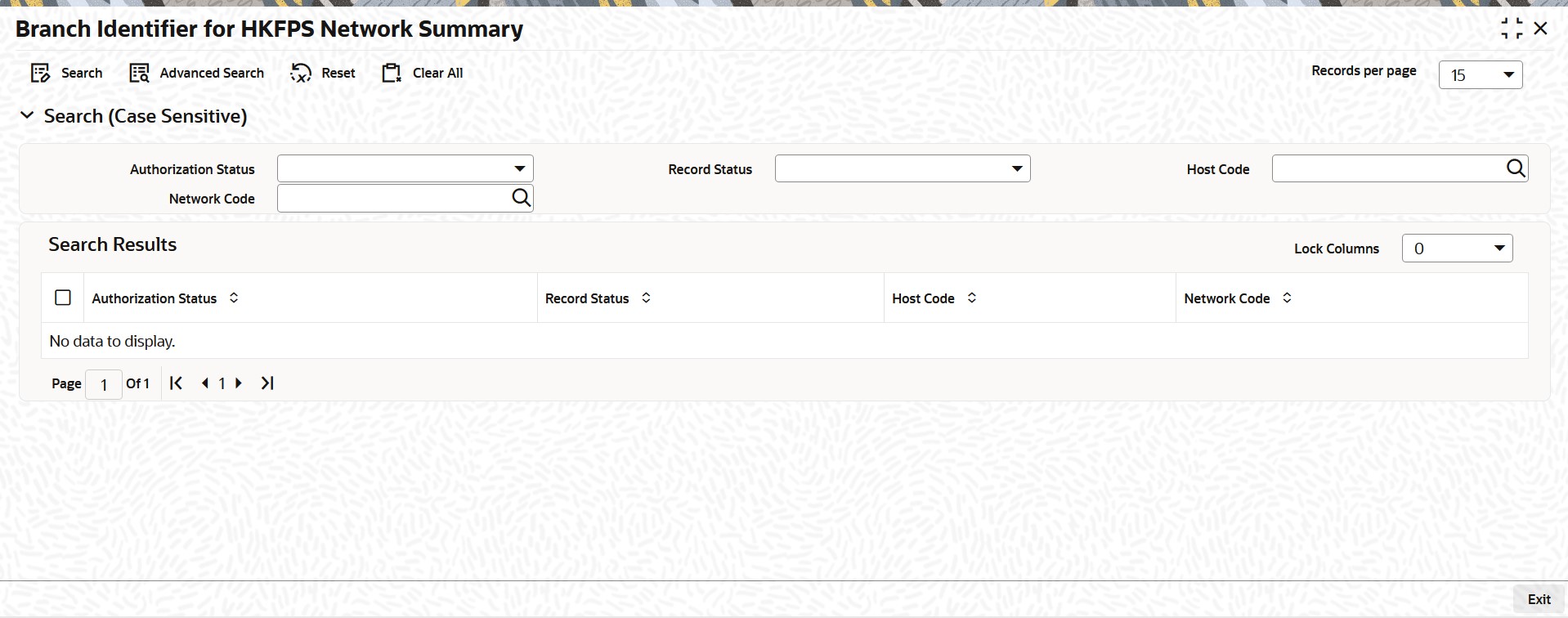
You can search using the following parameter:
l Authorization Status
l Record Status
l Host Code
l Network code
Once you have specified the search parameters, click ‘Search’ button. The system displays the records that match the search criteria.
2.2.6 Network Connectivity Maintenance
You can invoke “Network Connectivity Maintenance” screen by typing ‘PKDHKFCT’ in the field at the top right corner of the Application tool bar and clicking on the adjoining arrow button. Click new button on the Application toolbar.
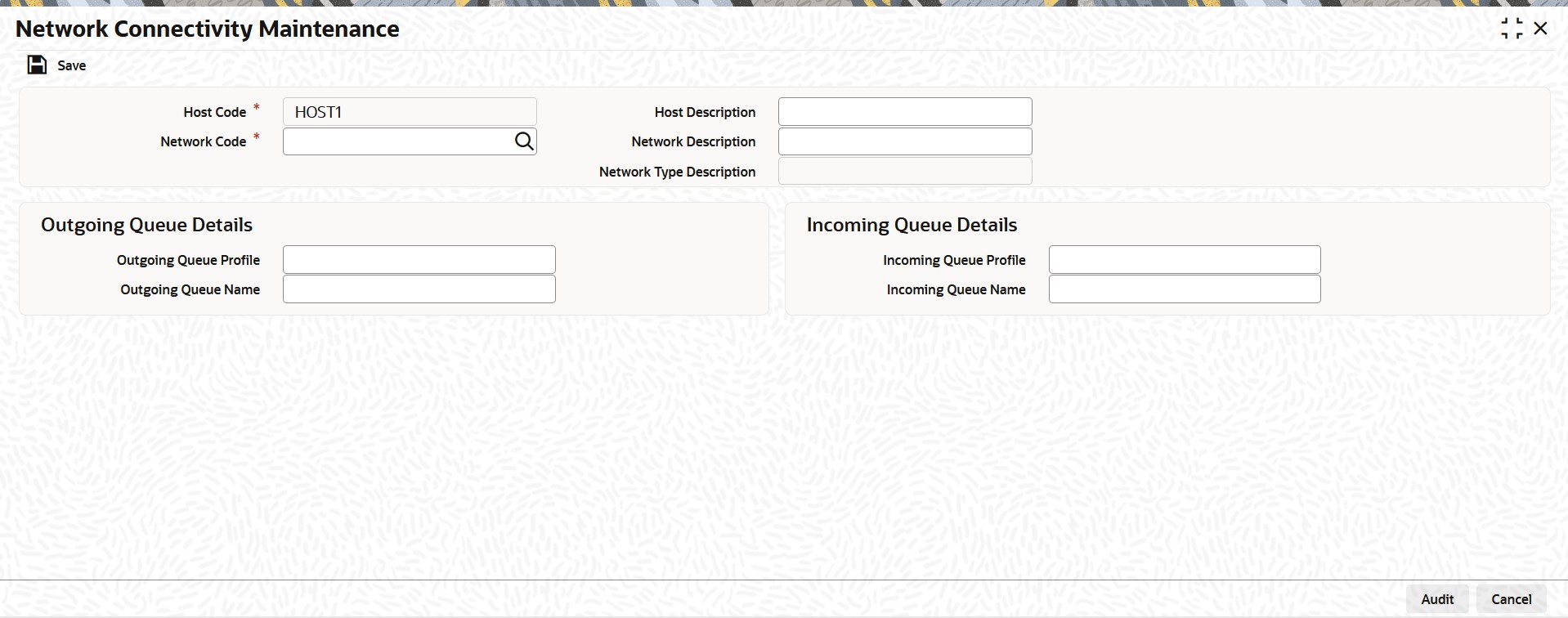
You can specify the following fields:
Host Code
System defaults the Host Code details on clicking the ‘New’ button.
Host Code Description
System defaults the description of the host code.
Network Code
Select the specific Network Code from list of values. List of all valid (Open/Authorized) HKFPS networks defined in the host.
Network Code Description
System defaults the description of the Network code.
Network Type Description
System defaults the description of the Network code.
Outgoing Queue Details
Outgoing Queue Profile
Specify the Outgoing Queue Profile from the list of values.
Outgoing Queue Name
Specify the Queue name.
Incoming Queue Details
Incoming Queue Profile
Specify the Incoming Queue Profile from the list of values.
Incoming Queue Name
Specify the Queue name.
2.2.6.1 Network Connectivity Maintenance Summary
You can invoke “Network Connectivity Maintenance Summary” screen by typing ‘PKSHKFCT’ in the field at the top right corner of the Application tool bar and clicking on the adjoining arrow button.
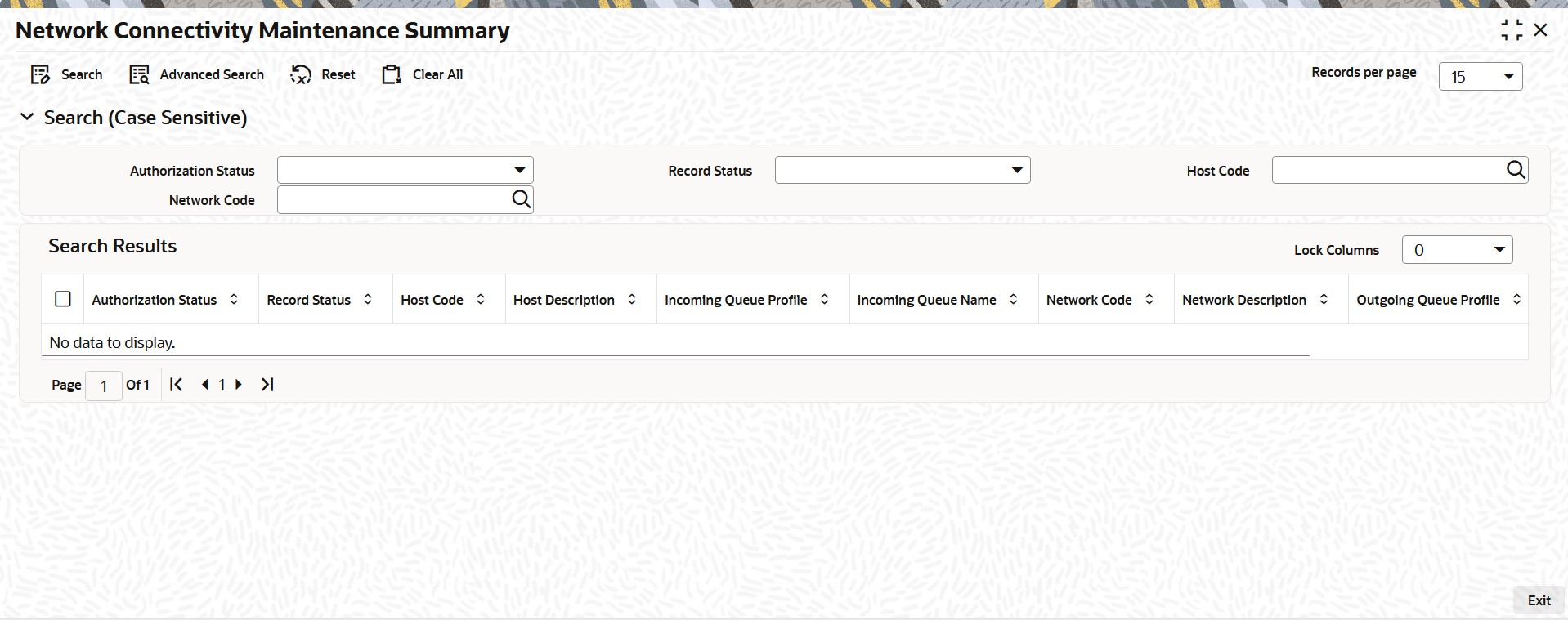
You can search using the following parameter:
l Authorization Status
l Record Status
l Host Code
l Network code
Once you have specified the search parameters, click ‘Search’ button. The system displays the records that match the search criteria.
2.3 Outbound Transaction screens
2.3.1 HKFPS Outbound Credit Transfer Transaction Input
You can invoke “HKFPS Outbound Credit Transfer Transaction Input” screen by typing ‘PKDOTONL’ in the field at the top right corner of the Application tool bar and clicking on the adjoining arrow button. Click new button on the Application toolbar.
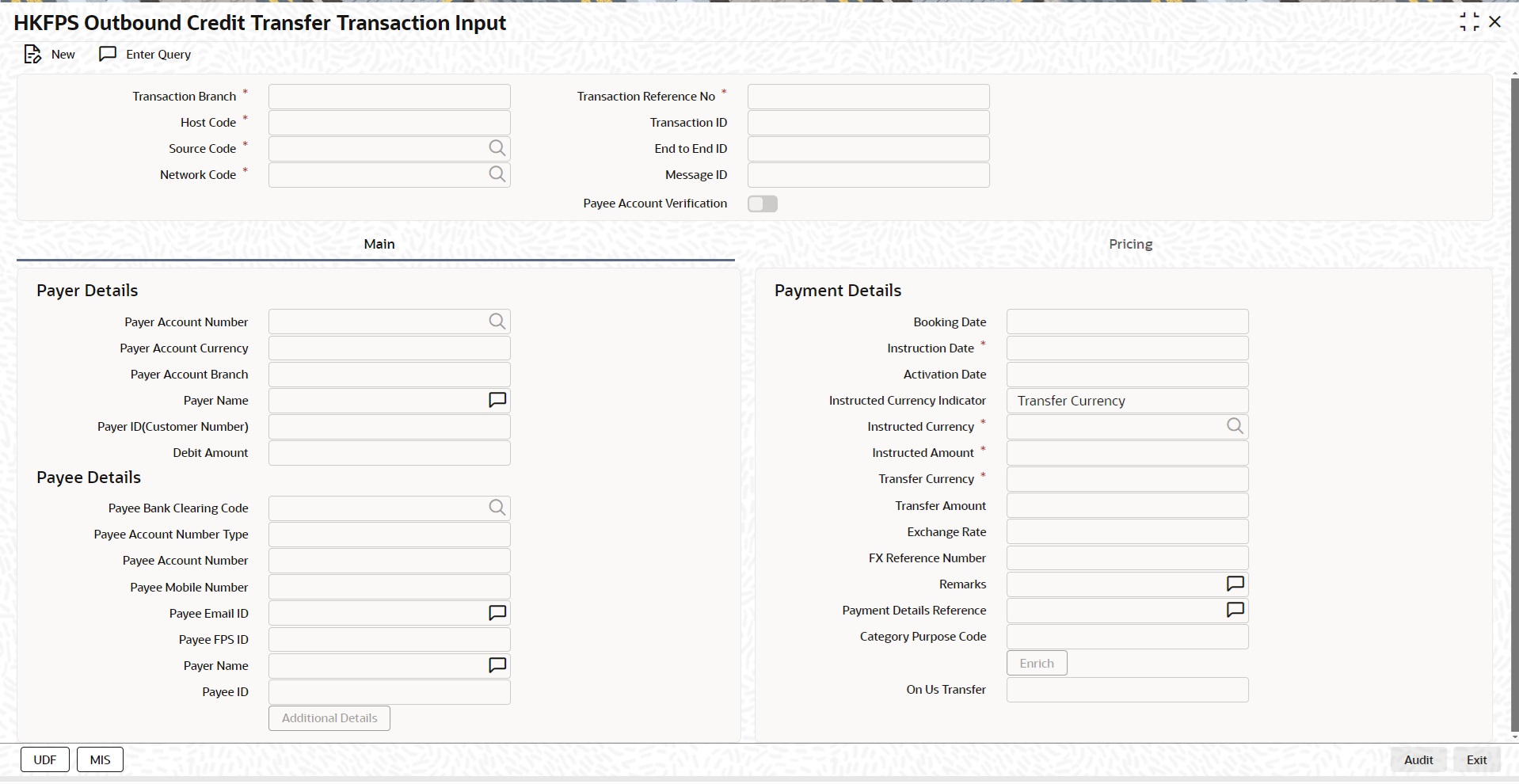
You can specify the following fields:
Transaction Branch
System defaults the Transaction Branch details on clicking the ‘New’ button.
Transaction Branch Number
System defaults the Transaction Branch Number on clicking the ‘New’ button, using the current logic.
Host Code
System defaults the Host Code details on clicking the ‘New’ button.
Transaction ID
This field gets generated on authorization of the outbound HKFPS payment.
Transaction ID (PKDOTONL/PKDOVIEW) is generated using the UETR number generation logic (used in Cross Border Module). However, with the 4 hyphens removed, resulting in a total length of 32 characters.
Source code
For manually input transactions, source code is defaulted as MANL. For transactions received through web services or rest services, the source code is populated as received in the request.
End To End ID
End to End ID is populated as the transaction reference. You can modify the same.
Network Code
If only one Network is maintained for with payment type as 'Faster Payment' ('K') for the host code, the same is defaulted in this field. In case multiple networks are found for the same combination, all applicable networks are listed for the field. You can select the required network.
Message ID
This field is generated at the time of message generation on authorization of the outbound HKFPS payment.
Format: M[Clearing Code][YYYYMMDD][Others]
Clearing Code which is part of mask: This is populated as the Sender Bank Clearing Code as maintained in 'HKFPS Network Currency Details' [PKDHKFNC]
"[YYYYMMDD]" is the activation date in YYYYMMDD format [pick up from PKDOTONL]
"[Others]" is transaction reference number generated and defaulted in field 'Payment Details Reference' in the transaction screen.
Valid example: M00120160801-A10200/N3001
Payee Account Verification
By default, this field is un-checked. During message generation,
l If Checked: populate 'PERFORM_PYE_VRF'
l If un-checked: populate 'SKIP_PYE_VRF'
2.3.1.1 Main Tab
Payer Details
Payer Account Number
Specify the Payer Account Number from the list of values. All open and authorized accounts maintained in the External Customer Account maintenance (STDCRACC) are listed for this field.
Payer Account Currency and Account Branch
Specify the Payer Account Currency and Branch. These fields are auto-populated based on the debtor account selected.
Payer Name
Specify the Payer Name. This field is populated based on debtor account customer.
Payer ID(Customer Number)
Specify the Payer ID. The customer number linked to the payer account are populated.
Debit Amount
This field is populated as the transfer amount converted in debtor account currency. Exchange rate pick up is based on network preferences maintained. This field is disabled for user input.
Payee Details
Payee Bank Clearing Code
Specify the Payee Bank Clearing Code from the list values. Lists all the open/authorized clearing codes maintained in HKFPS Network Directory (PKDHKFDR).
Payee Account Number Type
Select the Payee Account Number Type from below values provided in the drop down:
l BBAN - Customer / bank account number
l AIIN - Credit card number
l SVID - FPS identifier
l EMAL - Email address
l MOBN - Mobile number
l CUST - Customer ID
Specify the following fields, as required:
l Payee Account number
l Payee Mobile number
l Payee Email ID
l Payee FPS ID
l Payee Name
l Payee ID (Customer number)
Payment Details
Booking Date
This field is defaulted as application server date,
Instruction Date
This field gets defaulted as booking date. Back date / future date is not allowed. It is current dated always for Hong Kong FPS.
Activation Date
Activation date is a derived field based on the instruction date provided. Payment is processed on Activation date. If Instruction date is back-dated, Activation date is moved to Current date.
Branch Holidays, Network Holidays are not applicable, if processing mode is Real-Time as maintained in PKDOCTPF.
Instructed Currency Indicator
Select the Instructed Currency Indicator from below values:
l Debit Currency
l Transfer Currency
If transfer currency is selected, it is mandatory to provide transfer amount. If debit currency is selected, it is mandatory to input debit amount.
Instructed Currency
Specify the Instructed Currency from the list of values.
Instructed Amount
Specify the Instructed Amount.
Transfer Currency
Specify the Transfer Currency. If the network allows only single currency as per HKFPS Network currency preferences (PKDHKFNC) maintained, this currency is populated as transfer currency. If multiple currencies (HKD, RMB, CNY, USD as applicable) are allowed, you can select from the list of allowed currencies.
Transfer Amount
Specify the Transfer Amount that is to be sent in the outbound payment.
Exchange Rate
If transfer currency and debtor (payer) account currency are different, then exchange rate can be provided by user. System retains the input value and validates the same against override and stop variances maintained at HKFPS Outbound Credit Transfer Preferences' (PKDOCTPF) level.
If exchange rate is not a user input, system picks up exchange rate during 'Enrich' provided the transfer amount is less than small FX limit maintained. If there exchange rate is not available, a proper error message is shown.
Based on debit amount/transfer amount input, the other amount is computed by the system.
If transfer amount is more than small FX limit and if external exchange rate is applicable, then rate pick up happens during transaction processing.
FX Reference Number
Specify the FX Reference Number.
Remarks
Specify the Remarks, if any.
Payment Details Reference
You can specify any payment specific reference this field. This is defaulted to transaction reference number and editable.
Category Purpose Code
Select the Category Purpose Code from the following drop down values.
l CXPSNL - For General Personal Payment
l CXBSNS - For General Business Payment
l CXMRCH - For Merchant Payment
l CXSALA - For Salary and Benefits Payment
The default value is General Personal Payment.
Enrich Button
On enrich, populate exchange rate, debit amount and charge/tax amounts.
On Us Transfer
This filed is displayed based on the payee branch clearing code from the following drop down values.
l Yes
l No
2.3.1.2 Additional Details
When you click on Additional Details Button, below screen is displayed:
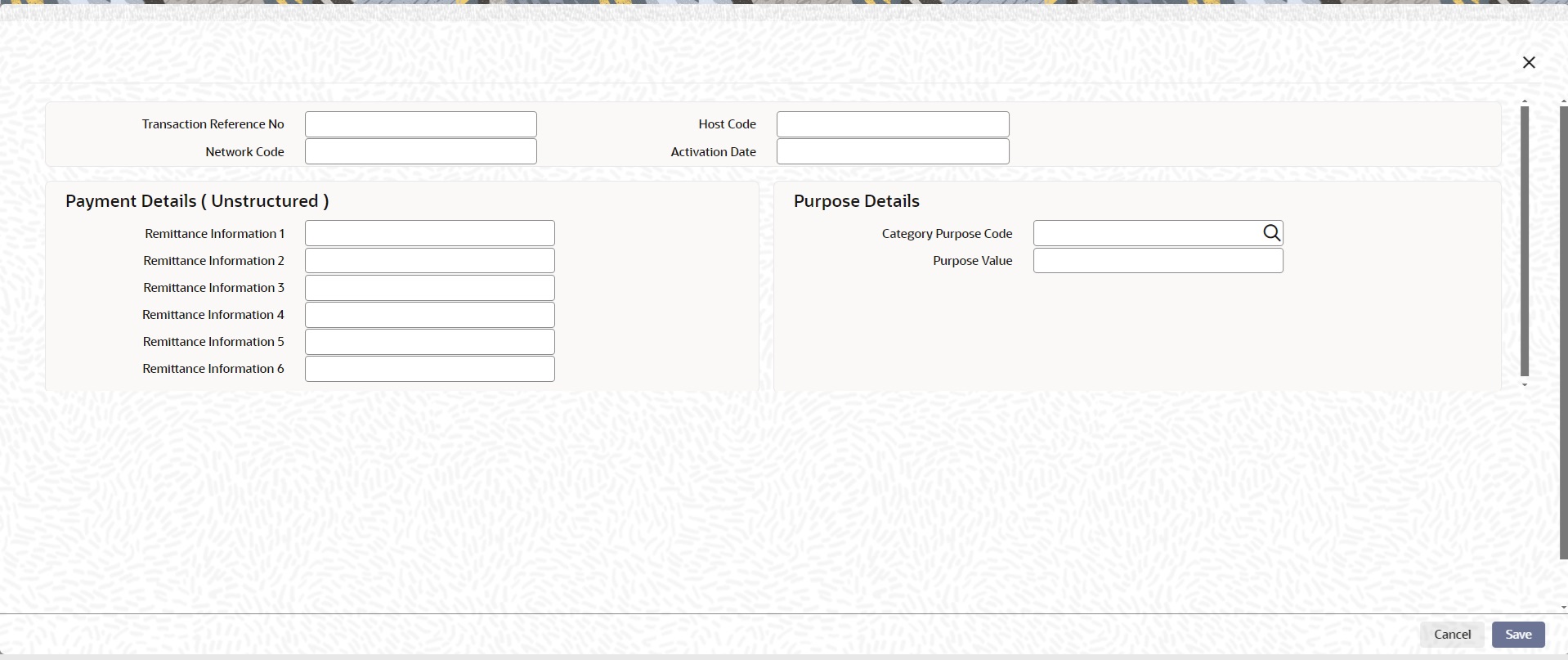
You can specify the following fields:
Transaction Reference Number
This field displays the Transaction Reference Number.
Host Code
This field displays the Host Code.
Network Code
Specify the Network Code.
Activation Date
This field displays the Host Code.
Payment Details ( Unstructured )
Remittance Information 1-6
You can specify the payment related information here. For HKFPS, add information details in only one line.
Purpose Details
Category Purpose Code
Specify the ISO Category Purpose Code from the list of values.
Purpose Value
Specify any non-ISO purpose codes here.
You can view the charge amount computed by the system for each of the Pricing components of the Pricing code linked to the network code of the transaction. Click the “Pricing” tab.
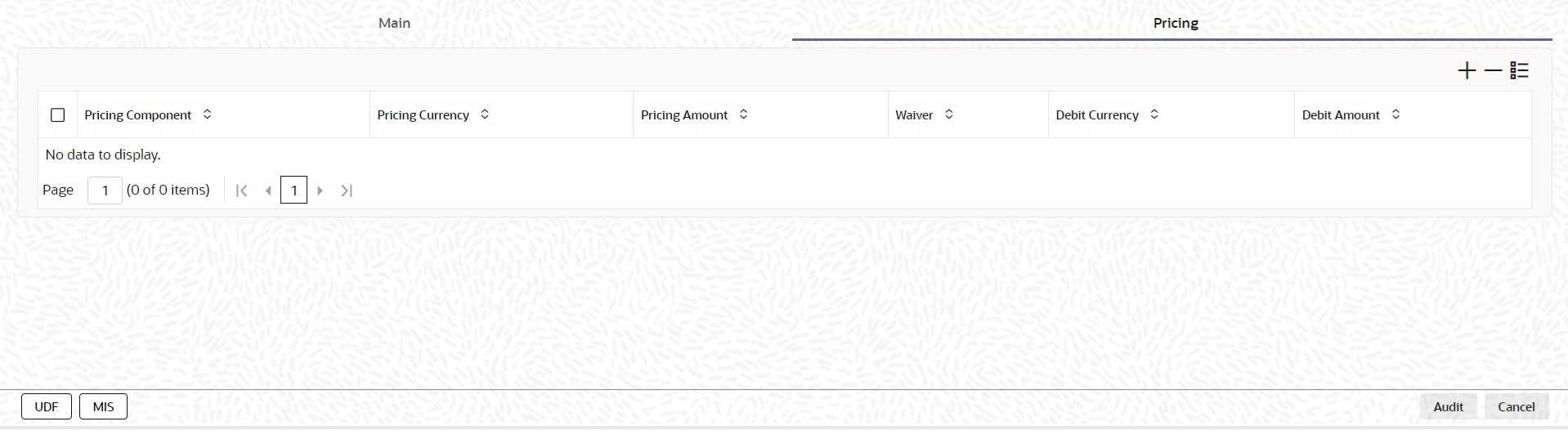
For the Transaction initiated, system displays the fees/tax charged in this section.
Pricing Component
The system displays each Pricing component of the Pricing code from the Pricing Code maintenance.
Pricing Currency
The system displays the Pricing currency of each Pricing component of the Pricing code.
Pricing Amount
The system displays the calculated Charge amount for each Pricing component of the Pricing code.
Waived
The system displays if charges for any Pricing component are waived in the Pricing maintenance.
Debit Currency
The system displays the currency of the Charge account to be debited for the charges.
Debit Amount
The system displays the Charge amount for each Pricing component debited to the charge account in Debit currency. If the Pricing currency is different from the Debit currency the calculated charges are converted to the Debit currency and populated in this field.
2.3.1.4 UDF Tab
Click the ‘UDF’ Section in the Transaction View screen to invoke this sub screen.
This sub-screen defaults values of UDF fields that are part of the UDF group specified for the ‘Manual’ source.
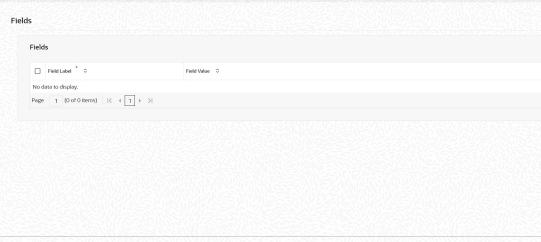
Specify the following details.
Fields
Field Label
The system displays all fields that are part of the associated UDF group.
Value
The system displays the default value, where exists for the UDF fields. You can change the default value or specify value for other fields (where default value does not exist)
2.3.1.5 MIS Tab
You can maintain the MIS information for the Transaction. If the MIS details are not entered for the Transaction the same is defaulted from the product maintenance. Click the ‘MIS’ link to invoke the ‘MIS’ sub-screen
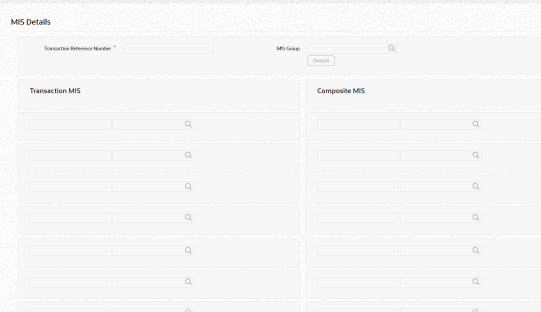
Specify the following details
Transaction Reference
The system displays the transaction reference number of the transaction.
MIS Group
Specify the MIS group code. Alternatively, you can select the MIS group code from the option list. The list MIS group displays all valid MIS groups maintained in the system for different sources in the Source maintenance. By default, the MIS group linked to the ‘Manual’ source is populated while booking a transaction from this screen.
Default button
Click this button after selecting a MIS group different from the default MIS Group (which was populated) so that any default MIS values can be populated from to link to the Transaction MIS and Composite MIS classes.
Transaction MIS
The default MIS values for Transaction MIS classes are populated for the MIS group. You can change one or more default MIS values or specify more MIS values. Alternatively, you can select MIS values from the option list.
Composite MIS
The default MIS values for Composite MIS classes are populated for the MIS group. You can change one or more default MIS values or specify more MIS values. Alternatively, you can select MIS values from the option list.
2.3.1.6 HKFPS Outbound Credit Transfer Transaction Summary
You can invoke “HKFPS Outbound Credit Transfer Transaction Summary” screen by typing ‘PKSOTONL’ in the field at the top right corner of the Application tool bar and clicking on the adjoining arrow button.
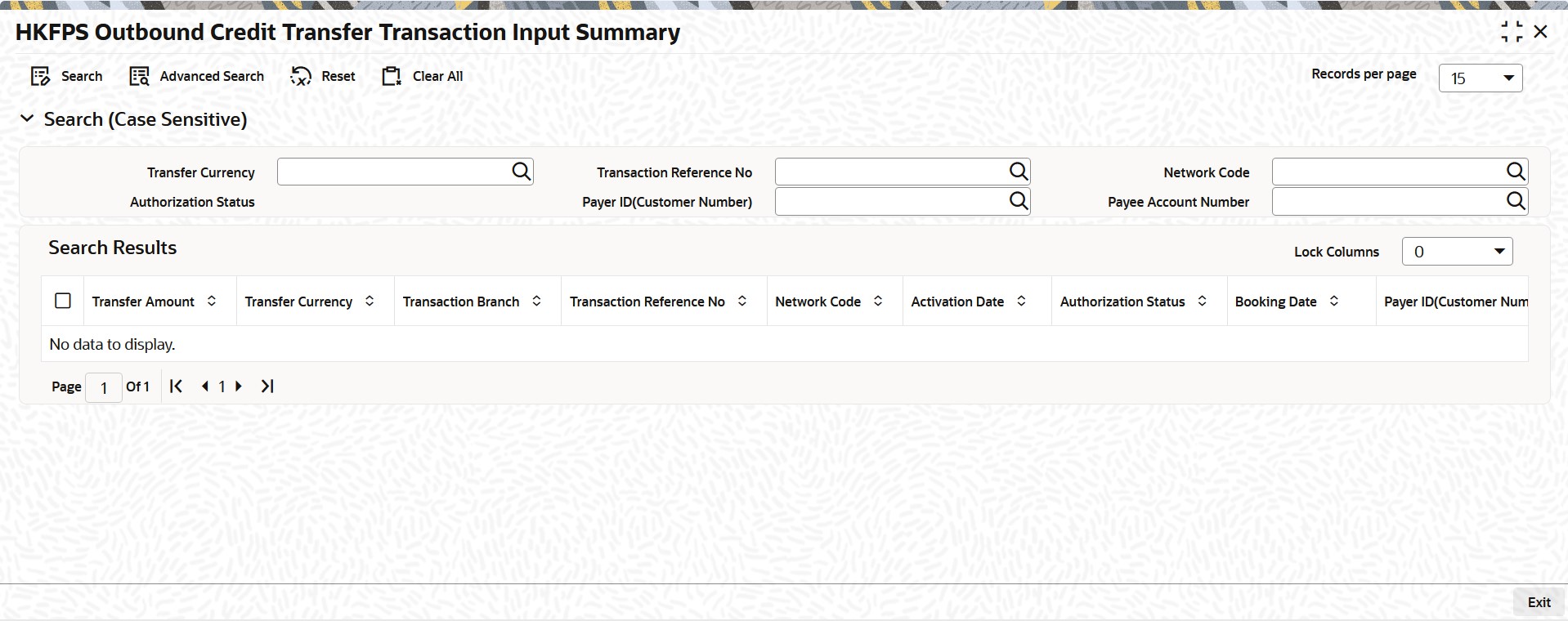
You can search using the following parameter:
l Transfer Currency
l Transaction Reference Number
l Network code
l Authorization Status
l Payer ID(Customer Number)
l Payee Account Number
Once you have specified the search parameters, click ‘Search’ button. The system displays the records that match the search criteria.
2.3.2 HKFPS Outbound Credit Transfer Transaction View
You can invoke “HKFPS Outbound Credit Transfer Transaction View” screen by typing ‘PKDOVIEW’ in the field at the top right corner of the Application tool bar and clicking on the adjoining arrow button. Click new button on the Application toolbar.
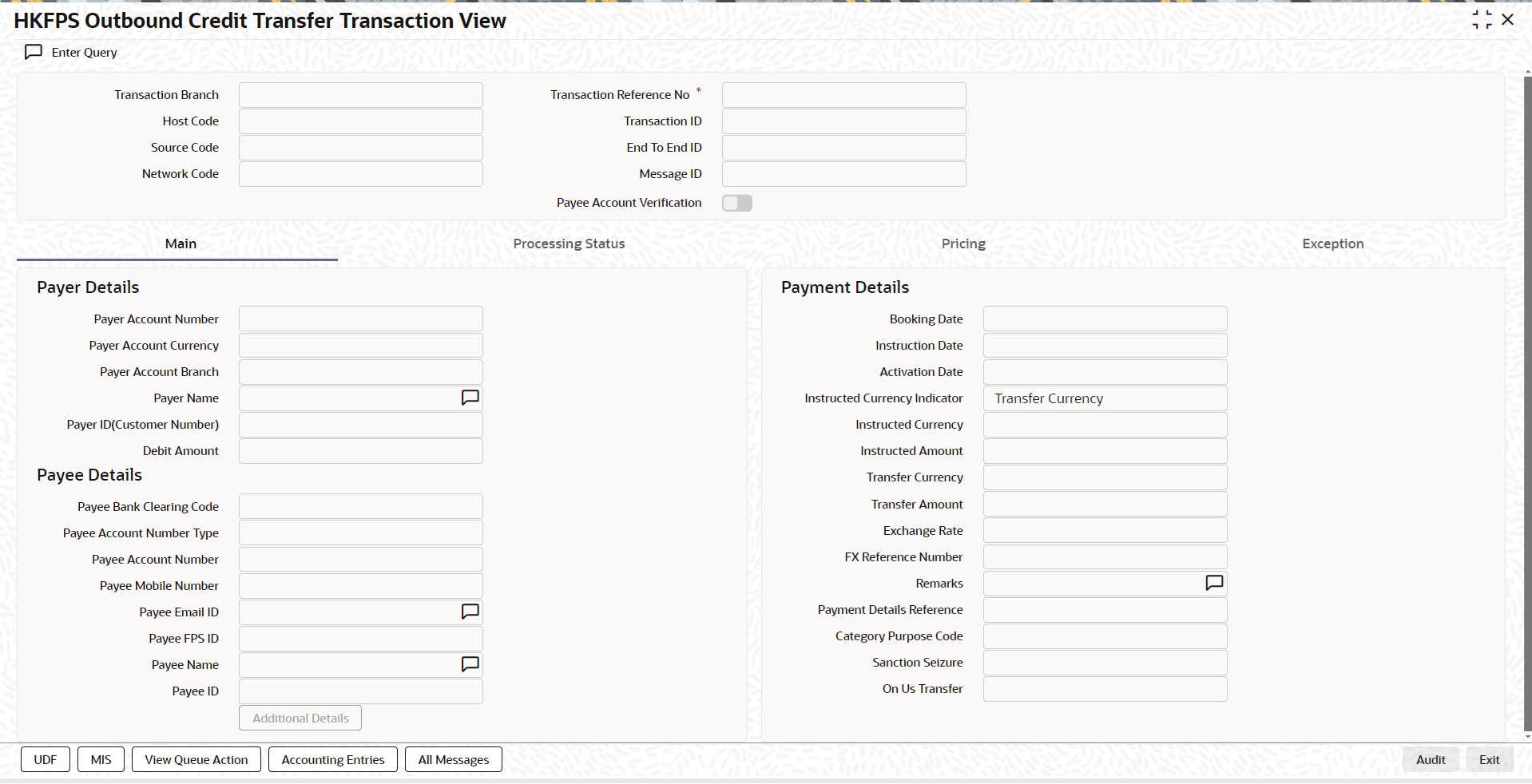
You can specify the following fields:
Transaction Branch
This field displays the Transaction Branch details.
Transaction Branch Number
This field displays the Transaction Branch Number, using the current logic.
Host Code
This field displays the Host Code details.
Transaction ID
This field gets generated on authorization of the outbound HKFPS payment.
Transaction ID (PKDOTONL/PKDOVIEW) is generated using the UETR number generation logic (used in Cross Border Module). However, with the 4 hyphens removed, resulting in a total length of 32 characters.
Source code
For manually input transactions, source code is defaulted as MANL. For transactions received through web services or rest services, the source code is populated as received in the request.
End To End ID
End to End ID is populated as the transaction reference.
Network Code
If only one Network is maintained for with payment type as 'Faster Payment' ('K') for the host code, the same is displayed in this field. In case multiple networks are found for the same combination, all applicable networks are listed for the field. You can select the required network.
Message ID
This field is generated at the time of message generation on authorization of the outbound HKFPS payment.
Format: M[Clearing Code][YYYYMMDD][Others]
Clearing Code which is part of mask: This is populated as the Sender Bank Clearing Code as maintained in 'HKFPS Network Currency Details' [PKDHKFNC]
"[YYYYMMDD]" is the activation date in YYYYMMDD format [pick up from PKDOTONL]
"[Others]" is transaction reference number generated and defaulted in field 'Payment Details Reference' in the transaction screen.
Valid example: M00120160801-A10200/N3001
Payee Account Verification
By default, this field is un-checked. During message generation,
l If Checked: populate 'PERFORM_PYE_VRF'
l If un-checked: populate 'SKIP_PYE_VRF'
2.3.2.1 Main Tab
Payer Details
Payer Account Number
This field displays the Payer Account Number from the list of values. All open and authorized accounts maintained in the External Customer Account maintenance (STDCRACC) are listed for this field.
Payer Account Currency and Account Branch
This field displays the Payer Account Currency and Branch. These fields are auto-populated based on the debtor account selected.
Payer Name
This field displays the Payer Name. This field is populated based on debtor account customer.
Payer ID(Customer Number)
This field displays the Payer ID. The customer number linked to the payer account are populated.
Debit Amount
This field is populated as the transfer amount converted in debtor account currency. Exchange rate pick up is based on network preferences maintained. This field is disabled for user input.
Payee Details
Payee Bank Clearing Code
This field displays the Payee Bank Clearing Code from the list values. Lists all the open/authorized clearing codes maintained in HKFPS Network Directory (PKDHKFDR).
Payee Account Number Type
This field displays the Payee Account Number Type from below values provided in the drop down:
l BBAN - Customer / bank account number
l AIIN - Credit card number
l SVID - FPS identifier
l EMAL - Email address
l MOBN - Mobile number
l CUST - Customer ID
Specify the following fields, as required:
l Payee Account number
l Payee Mobile number
l Payee Email ID
l Payee FPS ID
l Payee Name
l Payee ID (Customer number)
Payment Details
Booking Date
This field is defaulted as application server date,
Instruction Date
This field gets defaulted as booking date. Back date / future date is not allowed. It is current dated always for Hong Kong FPS.
Activation Date
Activation date is a derived field based on the instruction date provided. Payment is processed on Activation date.
If Instruction date is back-dated, Activation date is moved to Current date.
Branch Holidays, Network Holidays are not applicable, if processing mode is Real-Time as maintained in PKDOCTPF.
Instructed Currency Indicator
This field displays the Instructed Currency Indicator from below values:
l Debit Currency
l Transfer Currency
If transfer currency is selected, it is mandatory to provide transfer amount. If debit currency is selected, it is mandatory to input debit amount.
Instructed Currency
This field displays the Instructed Currency from the list of values.
Instructed Amount
This field displays the Instructed Amount.
Transfer Currency
This field displays the Transfer Currency. If the network allows only single currency as per HKFPS Network currency preferences (PKDHKFNC) maintained, this currency is populated as transfer currency. If multiple currencies (HKD, RMB, CNY, USD as applicable) are allowed, you can select from the list of allowed currencies.
Transfer Amount
This field displays the Transfer Amount that is to be sent in the outbound payment.
Exchange Rate
If transfer currency and debtor (payer) account currency are different, then exchange rate can be provided by user. System retains the input value and validates the same against override and stop variances maintained at HKFPS Outbound Credit Transfer Preferences' (PKDOCTPF) level.
If exchange rate is not a user input, system picks up exchange rate during 'Enrich' provided the transfer amount is less than small FX limit maintained. If there exchange rate is not available, a proper error message is shown.
Based on debit amount/transfer amount input, the other amount is computed by the system.
If transfer amount is more than small FX limit and if external exchange rate is applicable, then rate pick up happens during transaction processing.
FX Reference Number
This field displays the FX Reference Number.
Remarks
This field displays the Remarks, if any.
Payment Details Reference
You can specify any payment specific reference this field. This is defaulted to transaction reference number and editable.
Category Purpose Code
This field displays the Category Purpose Code from the following drop down values.
l CXPSNL - For General Personal Payment
l CXBSNS - For General Business Payment
l CXMRCH - For Merchant Payment
l CXSALA - For Salary and Benefits Payment
The default value is General Personal Payment.
Sanction Seizure
This field displays Sanction Seizure.
On Us Transfer
This field displays the following drop down values.
l Yes
l No
2.3.2.2 Additional Details
When you click on Additional Details Button, below screen is displayed:
You can specify the following fields:
Transaction Reference Number
This field displays the Transaction Reference Number.
Host Code
This field displays the Host Code.
Network Code
This field displays the Network Code.
Activation Date
This field displays the Host Code.
Payment Details ( Unstructured )
Remittance Information 1-6
This field displays the payment related information here.
Purpose Details
Category Purpose Code
This field displays the Category Purpose Code from the list of values.
Purpose Value
This field displays any non-ISO purpose codes here.
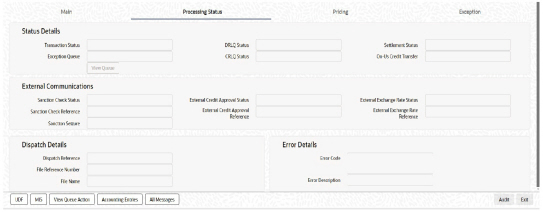
2.3.2.3 Processing Status
This tab provides the transaction status details and the External System Requests Status details.
2.3.2.4 Pricing Tab
You can view the charge amount computed by the system for each of the Pricing components of the Pricing code linked to the network code of the transaction. Click the “Pricing” tab.
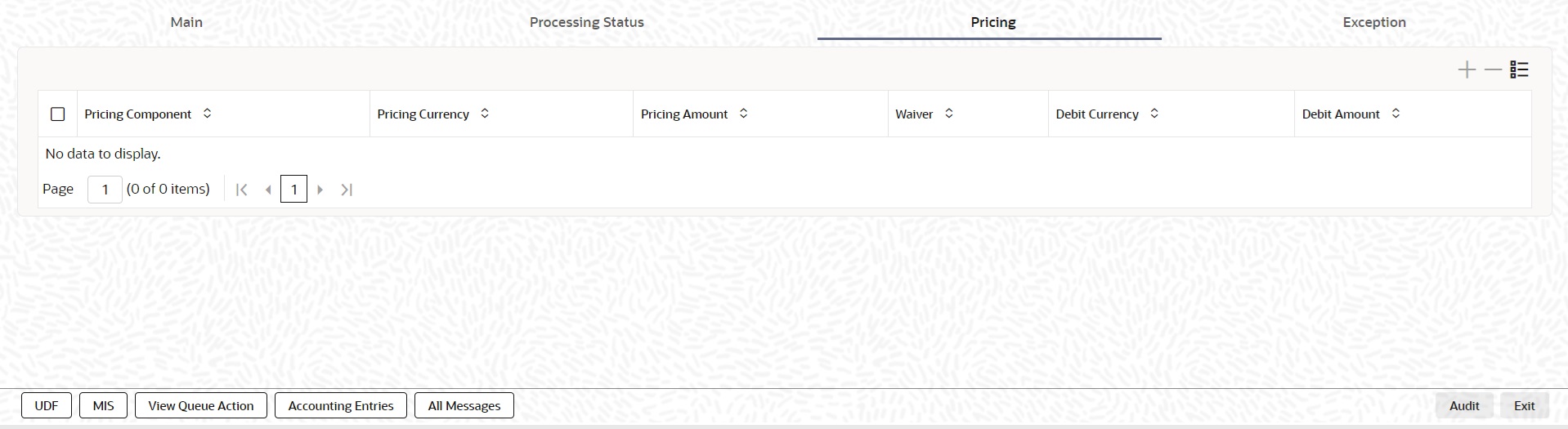
For the Transaction initiated, system displays the fees/tax charged in this section.
Pricing Component
The system displays each Pricing component of the Pricing code from the Pricing Code maintenance.
Pricing Currency
The system displays the Pricing currency of each Pricing component of the Pricing code.
Pricing Amount
The system displays the calculated Charge amount for each Pricing component of the Pricing code.
Waived
The system displays if charges for any Pricing component are waived in the Pricing maintenance.
Debit Currency
The system displays the currency of the Charge account to be debited for the charges.
Debit Amount
The system displays the Charge amount for each Pricing component debited to the charge account in Debit currency. If the Pricing currency is different from the Debit currency the calculated charges are converted to the Debit currency and populated in this field.
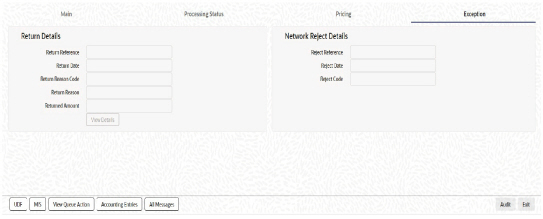
2.3.2.5 Exception
This tab provides the Return and Network Reject Details.
2.3.2.6 UDF Tab
Click the ‘UDF’ Section in the Transaction View screen to invoke this sub screen.
This sub-screen defaults values of UDF fields that are part of the UDF group specified for the ‘Manual’ source.
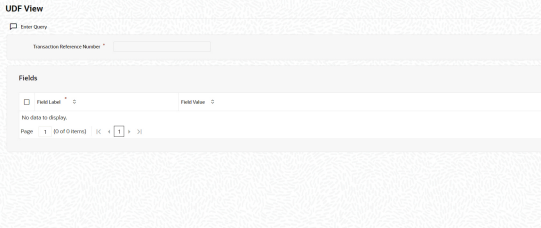
Specify the following details.
Fields
Field Label
The system displays all fields that are part of the associated UDF group.
Value
The system displays the default value, where exists for the UDF fields. You can change the default value or specify value for other fields (where default value does not exist)
2.3.2.7 MIS Tab
You can maintain the MIS information for the Transaction. If the MIS details are not entered for the Transaction the same is defaulted from the product maintenance. Click the ‘MIS’ link to invoke the ‘MIS’ sub-screen
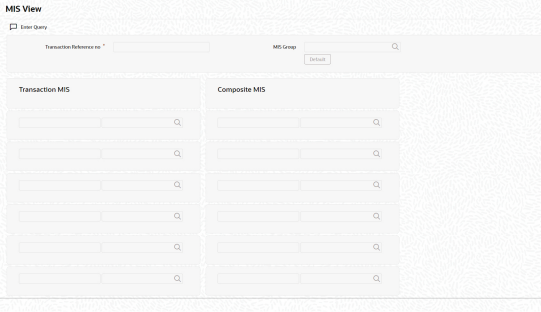
Specify the following details
Transaction Reference
The system displays the transaction reference number of the transaction.
MIS Group
Specify the MIS group code. Alternatively, you can select the MIS group code from the option list. The list MIS group displays all valid MIS groups maintained in the system for different sources in the Source maintenance. By default, the MIS group linked to the ‘Manual’ source is populated while booking a transaction from this screen.
Default button
Click this button after selecting a MIS group different from the default MIS Group (which was populated) so that any default MIS values can be populated from to link to the Transaction MIS and Composite MIS classes.
Transaction MIS
The default MIS values for Transaction MIS classes are populated for the MIS group. You can change one or more default MIS values or specify more MIS values. Alternatively, you can select MIS values from the option list.
Composite MIS
The default MIS values for Composite MIS classes are populated for the MIS group. You can change one or more default MIS values or specify more MIS values. Alternatively, you can select MIS values from the option list.
2.3.2.8 View Queue Action Log
You can view all the queue actions for the respective transaction initiated. You can invoke this screen by clicking the ‘View Queue Action’ tab in PKDOVIEW screen, where the Transaction Reference Number is auto populated and Queue movement related details are displayed.
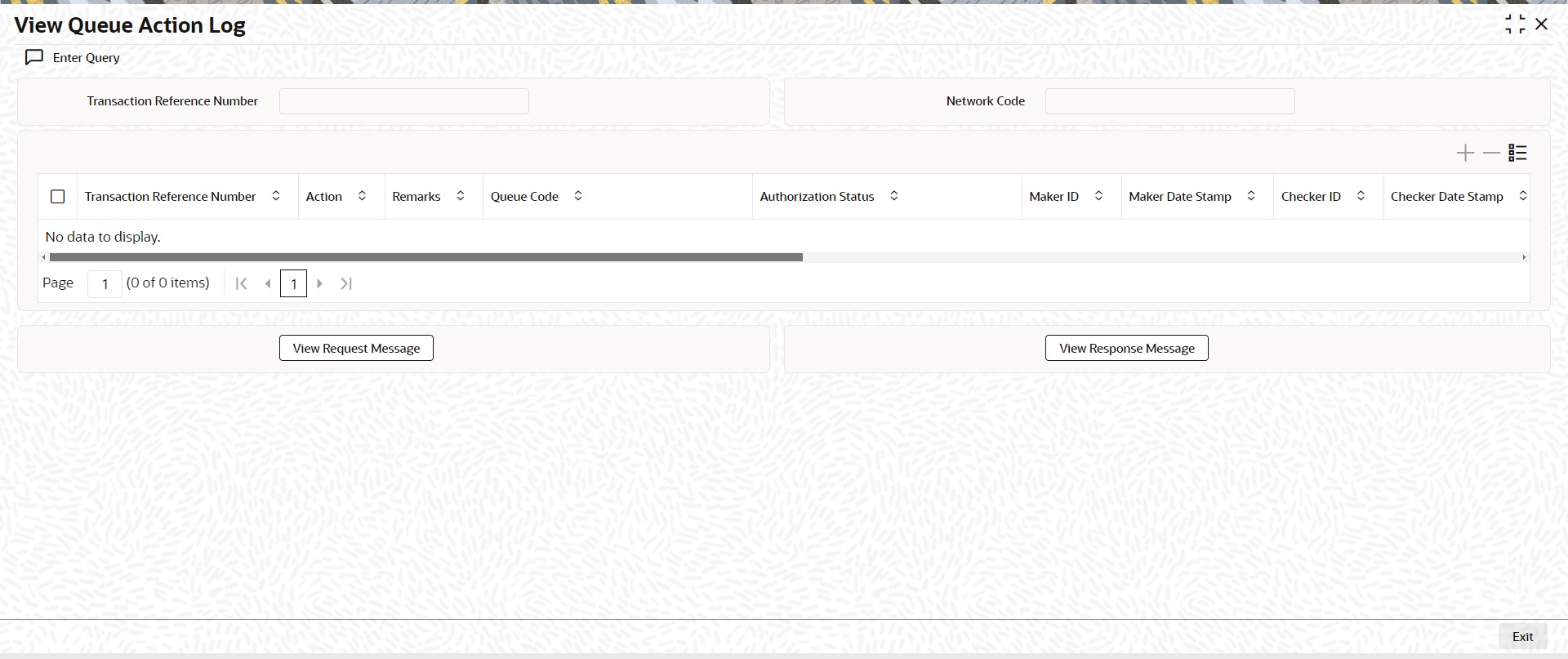
Following details are displayed:
l Transaction Reference Number
l Network Code
l Action
l Remarks
l Queue Code
l Authorization Status
l Maker ID
l Maker Date Stamp
l Checker ID
l Checker Date Stamp
l Queue Status
l Queue Reference No
l Primary External Status
l Secondary External Status
l External Reference Number
You can view the request sent and the corresponding response received for each row in Queue Action Log.
Also you can view the request sent to and the response received from external systems for the following:
l Sanction system
l External credit approval
l External Account Check
l External FX fetch
l External price fetch
l Accounting system
2.3.2.9 Accounting Entries
Click the Accounting Entries tab and view the accounting entries for the transaction initiated.
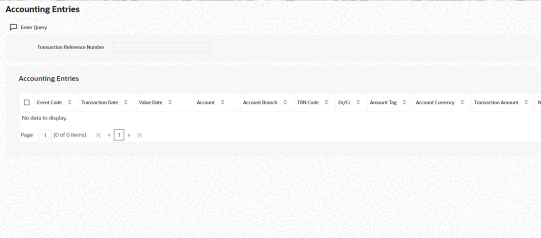
By default, the following attributes of the Accounting Entries tab are displayed:
l Event Code
l Transaction Date
l Value Date
l Account
l Account Branch
l TRN Code
l Dr/Cr.
l Amount Tag
l Account Currency
l Transaction Amount
l Netting
l Offset Account
l Offset Account Branch
l Offset TRN Code
l Offset Amount Tag
l Offset Currency
l Offset Amount
l Offset Netting
l Handoff Status
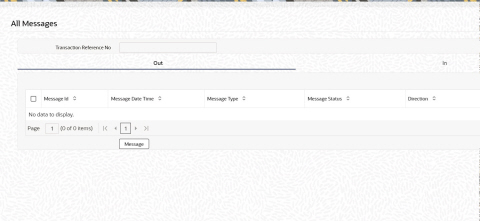
2.3.2.10 All Messages
You can invoke this screen by clicking ‘All Messages’ tab in the screen. On click of 'All Messages', system displays the below screen, with the outbound pacs.008 message sent, inbound pacs.002 settlement message received
2.3.2.11 HKFPS Outbound Credit Transfer Transaction View Summary
You can invoke “HKFPS Outbound Credit Transfer Transaction View Summary” screen by typing ‘PKSOVIEW’ in the field at the top right corner of the Application tool bar and clicking on the adjoining arrow button.
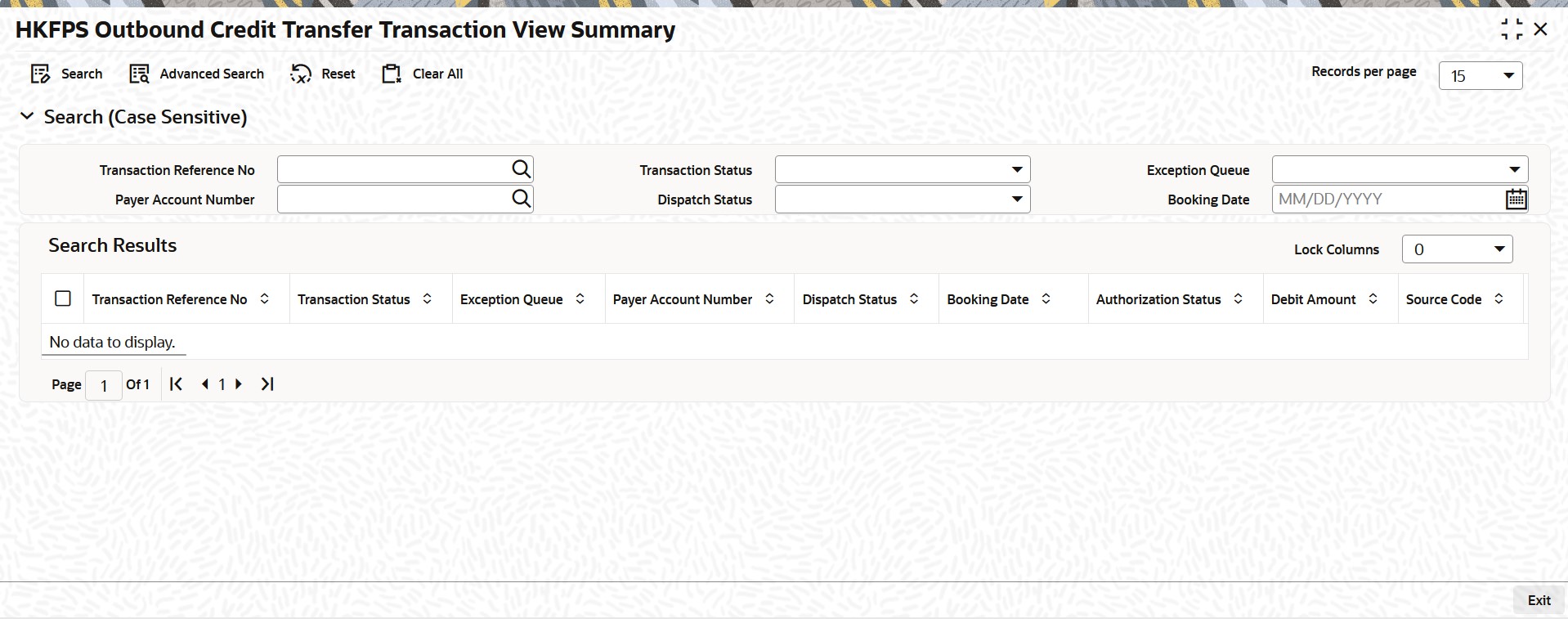
You can search using the following parameter:
l Transaction Reference Number
l Transaction Status
l Exception Queue
l Payer Account Number
l Dispatch Status
l Booking Date
Once you have specified the search parameters, click ‘Search’ button. The system displays the records that match the search criteria.
2.3.3 HKFPS Outbound Real Time Credit Transfer Message Browser
You can invoke “HKFPS Outbound Real Time Credit Transfer Message Browser” screen by typing ‘PKSOUTBR’ in the field at the top right corner of the Application tool bar and clicking on the adjoining arrow button.
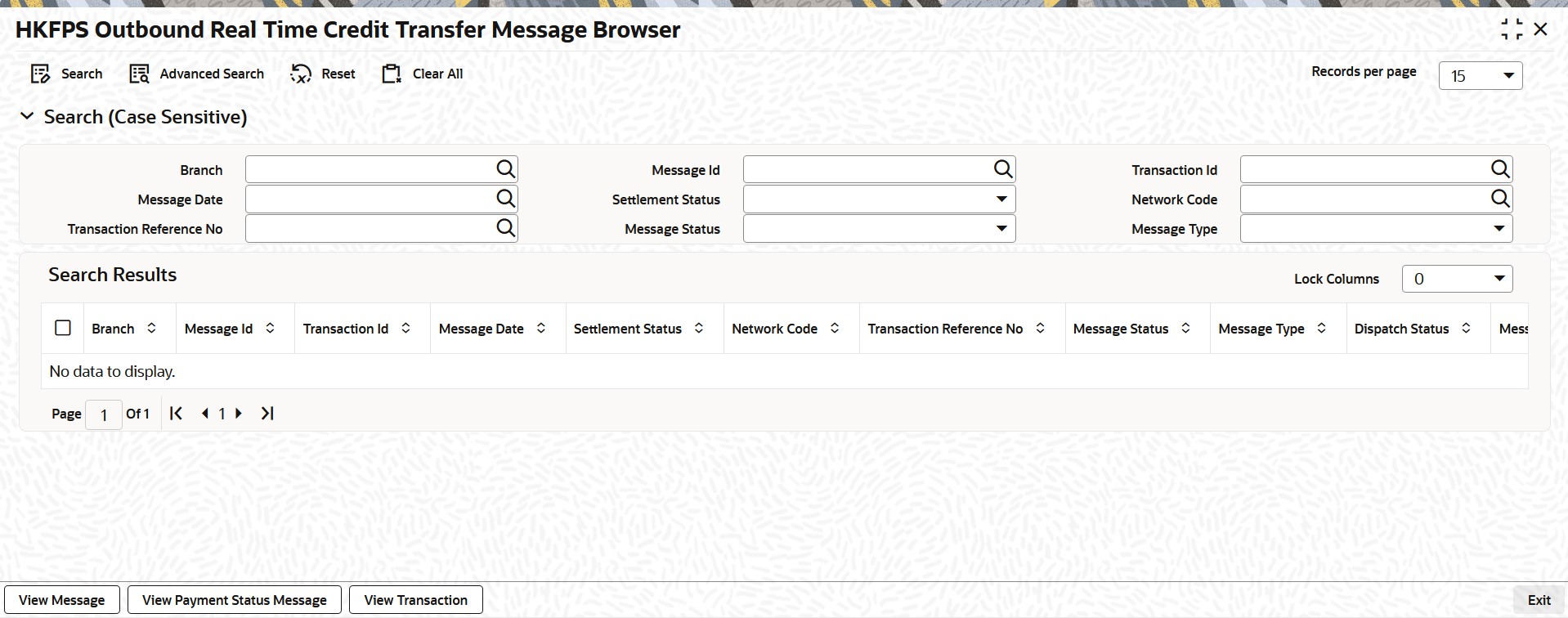
You can search using the following parameter:
l Branch
l Message Id
l Transaction Id
l Message Date
l Settlement Status
l Network code
l Transaction Reference Number
l Message Status
l Message Type
Once you have specified the search parameters, click ‘Search’ button. The system displays the records that match the search criteria.
Below Sub screens are available:
View Message - This sub screen shows outgoing pacs.008 messages applicable.
View Payment Status Message - This sub screen shows incoming pacs.002 payment status report messages. Matched based on 'Message ID' of the outbound payment.
View Transaction - This sub screen displays the outbound view screen (PKDOVIEW) for pacs.008 messages.
2.4 Inbound Transaction screens
2.4.1 HKFPS Inbound Credit Transfer Transaction View
You can invoke “HKFPS Inbound Credit Transfer Transaction View” screen by typing ‘PKDIVIEW’ in the field at the top right corner of the Application tool bar and clicking on the adjoining arrow button.
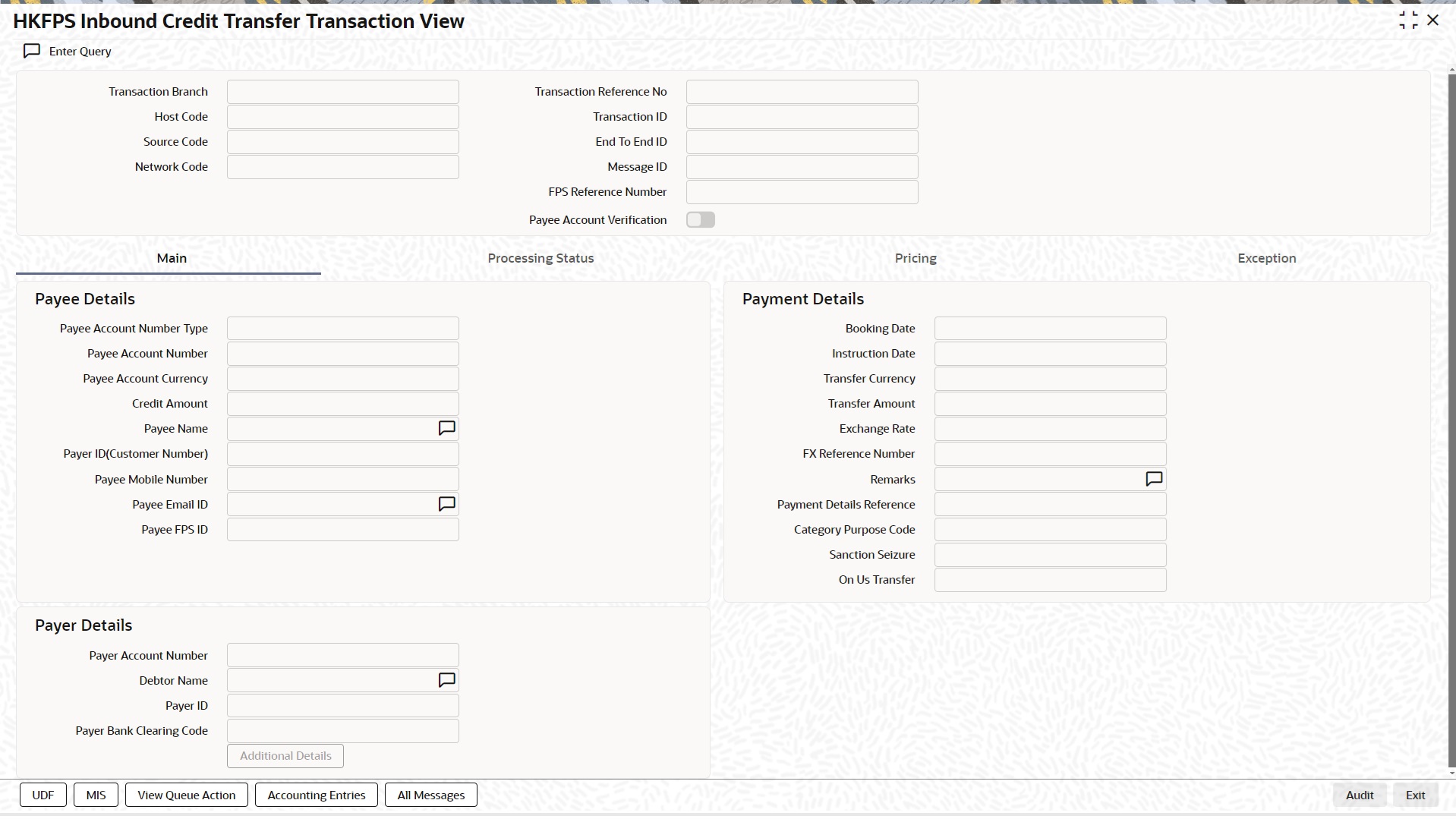
You can specify the following fields:
Transaction Branch
This field displays the Transaction Branch details.
Transaction Reference Number
This field displays the Transaction Reference Number, using the current logic.
Host Code
This field displays the Host Code details.
Transaction ID
Transaction ID received in the pacs.008 message is populated.
Source code
This field populates as 'HKPFS' for transactions received from the clearing network.
End To End ID
End to End id received in the pacs.008 message is populated.
Network Code
Network Code maintained in PKDICTPF screen for the inbound payment is displayed.
Message ID
Message Id received in the pacs.008 message is populated.
Payee Account Verification
If 'PERFORM_PYE_VRF', this is checked.
If 'SKIP_PYE_VRF', this is un-checked.
2.4.1.1 Main Tab
Payee Details
Payee Account Number Type
This field displays the Payee Account Number Type.
Payee Account Number
Payee Account Number as received in the pacs.008 message is displayed.
Payee Account Currency
This field displays the Payee Account Currency.
Payee Name
This field displays the Payee Name.
Payee ID(Customer Number)
This field displays the Payee ID. The customer number linked to the payee account are populated.
Payee Mobile Number
This field displays the Payee Mobile Number.
Payee Email ID
This field displays the Payee Email ID.
Payee FPS ID
This field displays the Payee FPS ID.
Payer Details
Payer Account Number
Payer Account Number as received in the pacs.008 message is displayed here.
Debtor Name
This field displays the Debtor Name.
Payer ID
This field displays the Payer ID.
Payee Bank Clearing Code
Payer Bank Clearing Code as received in the pacs.008 message is displayed here.
Payment Details
Booking Date
This field is defaulted as application server date.
Instruction Date
This field gets defaulted as booking date. Back date / future date is not allowed. It is current dated always for Hong Kong FPS.
Activation Date
Activation date is a derived field based on the instruction date provided. Payment is processed on Activation date.
If Instruction date is back-dated, Activation date is moved to Current date.
Branch Holidays, Network Holidays are not applicable, if processing mode is Real-Time as maintained in PKDOCTPF.
Instructed Currency Indicator
This field displays the Instructed Currency Indicator from below values:
l Debit Currency
l Transfer Currency
Instructed Currency
This field displays the Instructed Currency.
Instructed Amount
This field displays the Instructed Amount.
Transfer Currency
This field displays the Transfer Currency. If the network allows only single currency as per HKFPS Network currency preferences (PKDHKFNC) maintained, this currency is populated as transfer currency.
Transfer Amount
This field displays the Transfer Amount received in the outbound payment.
Exchange Rate
System picks up exchange rate during 'Enrich' provided the transfer amount is less than small FX limit maintained. If there exchange rate is not available, a proper error message is shown.
Based on transfer amount input, the other amount is computed by the system.
If transfer amount is more than small FX limit and if external exchange rate is applicable, then rate pick up happens during transaction processing.
FX Reference Number
This field displays the FX Reference Number.
Remarks
This field displays the Remarks, if any.
Payment Details Reference
This field displays any payment specific reference this field. This is defaulted to transaction reference number and editable.
Category Purpose Code
This field displays the Category Purpose Code from the following drop down values.
l CXPSNL - For General Personal Payment
l CXBSNS - For General Business Payment
l CXMRCH - For Merchant Payment
l CXSALA - For Salary and Benefits Payment
The default value is General Personal Payment.
Sanction Seizure
This field displays Sanction Seizure.
On Us Transfer
This field displays the following drop down values.
l Yes
l No
2.4.1.2 Additional Details
When you click on Additional Details Button, below screen is displayed:
You can specify the following fields:
Transaction Reference Number
This field displays the Transaction Reference Number.
Host Code
This field displays the Host Code.
Network Code
This field displays the Network Code.
Activation Date
This field displays the Activation Date.
Payment Details ( Unstructured )
Remittance Information 1-6
This field displays the payment related information here.
Purpose Details
Category Purpose Code
This field displays the Category Purpose Code from the list of values.
Purpose Value
This field displays any non-ISO purpose codes here.
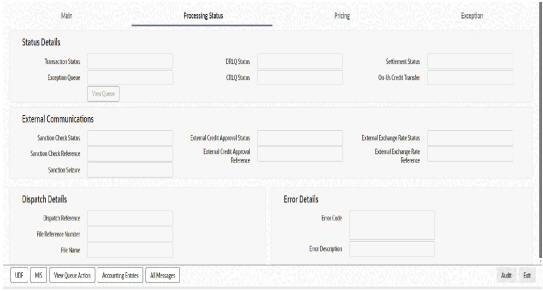
2.4.1.3 Processing Status
This tab provides the transaction status details and the External System Requests Status details.
2.4.1.4 Pricing Tab
You can view the charge amount computed by the system for each of the Pricing components of the Pricing code linked to the network code of the transaction. Click the “Pricing” tab.
For the Transaction initiated, system displays the fees/tax charged in this section.
Pricing Component
The system displays each Pricing component of the Pricing code from the Pricing Code maintenance.
Pricing Currency
The system displays the Pricing currency of each Pricing component of the Pricing code.
Pricing Amount
The system displays the calculated Charge amount for each Pricing component of the Pricing code.
Waived
The system displays if charges for any Pricing component are waived in the Pricing maintenance.
Credit Currency
The system displays the currency of the Charge account to be credited for the charges.
Credit Amount
The system displays the Charge amount for each Pricing component credited to the charge account in Debit currency. If the Pricing currency is different from the Credit currency the calculated charges are converted to the Credit currency and populated in this field.
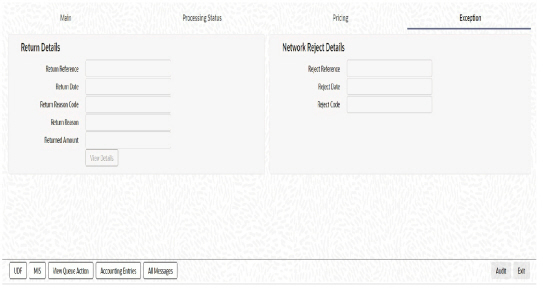
2.4.1.5 Exception
This tab provides the Return and Network Reject Details.
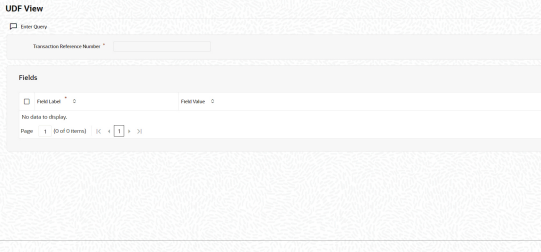
2.4.1.6 UDF Tab
Click the ‘UDF’ Section in the Transaction View screen to invoke this sub screen.
This sub-screen defaults values of UDF fields that are part of the UDF group specified for the ‘Manual’ source.
Specify the following details.
Fields
Field Label
The system displays all fields that are part of the associated UDF group.
Value
The system displays the default value, where exists for the UDF fields. You can change the default value or specify value for other fields (where default value does not exist)
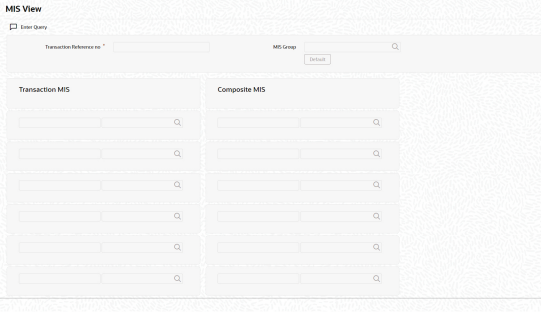
2.4.1.7 MIS Tab
You can maintain the MIS information for the Transaction. If the MIS details are not entered for the Transaction the same is defaulted from the product maintenance. Click the ‘MIS’ link to invoke the ‘MIS’ sub-screen
Specify the following details
Transaction Reference
The system displays the transaction reference number of the transaction.
MIS Group
Specify the MIS group code. Alternatively, you can select the MIS group code from the option list. The list MIS group displays all valid MIS groups maintained in the system for different sources in the Source maintenance. By default, the MIS group linked to the ‘Manual’ source is populated while booking a transaction from this screen.
Default button
Click this button after selecting a MIS group different from the default MIS Group (which was populated) so that any default MIS values can be populated from to link to the Transaction MIS and Composite MIS classes.
Transaction MIS
The default MIS values for Transaction MIS classes are populated for the MIS group. You can change one or more default MIS values or specify more MIS values. Alternatively, you can select MIS values from the option list.
Composite MIS
The default MIS values for Composite MIS classes are populated for the MIS group. You can change one or more default MIS values or specify more MIS values. Alternatively, you can select MIS values from the option list.
2.4.1.8 View Queue Action Log
You can view all the queue actions for the respective transaction initiated. You can invoke this screen by clicking the ‘View Queue Action’ tab in PKDIVIEW screen, where the Transaction Reference Number is auto populated and Queue movement related details are displayed.
Following details are displayed:
l Transaction Reference Number
l Network Code
l Action
l Remarks
l Queue Code
l Authorization Status
l Maker ID
l Maker Date Stamp
l Checker ID
l Checker Date Stamp
l Queue Status
l Queue Reference No
l Primary External Status
l Secondary External Status
l External Reference Number
You can view the request sent and the corresponding response received for each row in Queue Action Log.
Also you can view the request sent to and the response received from external systems for the following:
l Sanction system
l External credit approval
l External Account Check
l External FX fetch
l External price fetch
l Accounting system
2.4.1.9 Accounting Entries
Click the Accounting Entries tab and view the accounting entries for the transaction initiated.
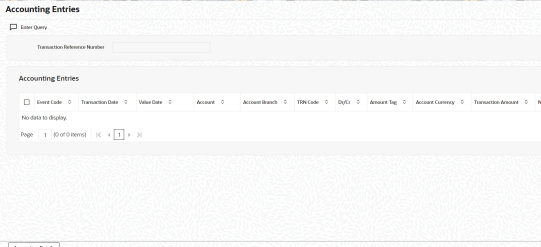
By default, the following attributes of the Accounting Entries tab are displayed:
l Event Code
l Transaction Date
l Value Date
l Account
l Account Branch
l TRN Code
l Dr/Cr.
l Amount Tag
l Account Currency
l Transaction Amount
l Netting
l Offset Account
l Offset Account Branch
l Offset TRN Code
l Offset Amount Tag
l Offset Currency
l Offset Amount
l Offset Netting
l Handoff Status
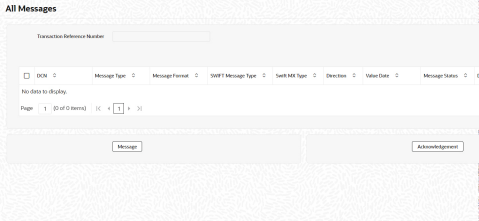
2.4.1.10 All Messages
You can invoke this screen by clicking ‘All Messages’ tab in the screen. On click of 'All Messages', system displays the below new screen, with the incoming pacs.008 message received.
2.4.1.11 HKFPS Inbound Credit Transfer Transaction View Summary
You can invoke “HKFPS Inbound Credit Transfer Transaction View Summary” screen by typing ‘PKSIVIEW’ in the field at the top right corner of the Application tool bar and clicking on the adjoining arrow button.
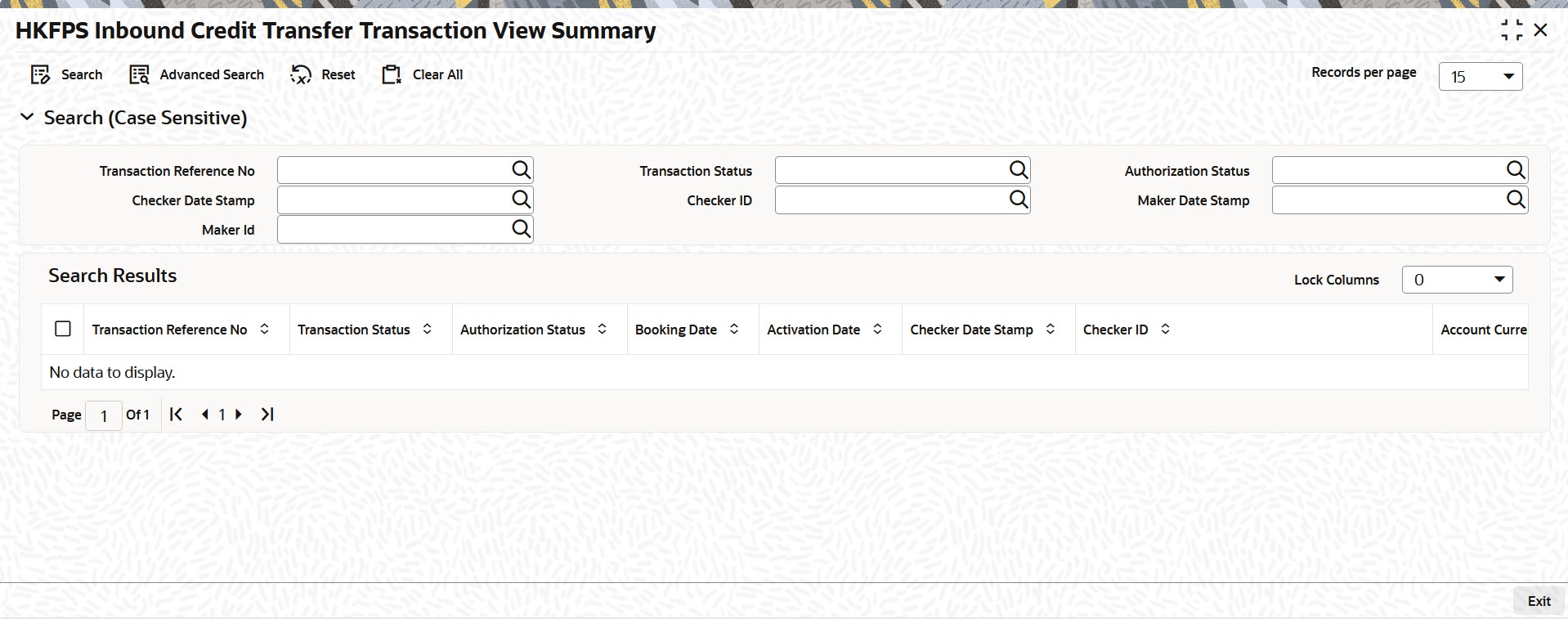
You can search using the following parameter:
l Transaction Reference Number
l Transaction Status
l Authorization Status
l Checker Date Stamp
l Checker ID
l Maker Date Stamp
l Maker ID
Once you have specified the search parameters, click ‘Search’ button. The system displays the records that match the search criteria.
2.4.2 HKFPS Inbound Real Time Credit Transfer Message Browser
You can invoke “HKFPS Inbound Real Time Credit Transfer Message Browser” screen by typing ‘PKSINBRW’ in the field at the top right corner of the Application tool bar and clicking on the adjoining arrow button.
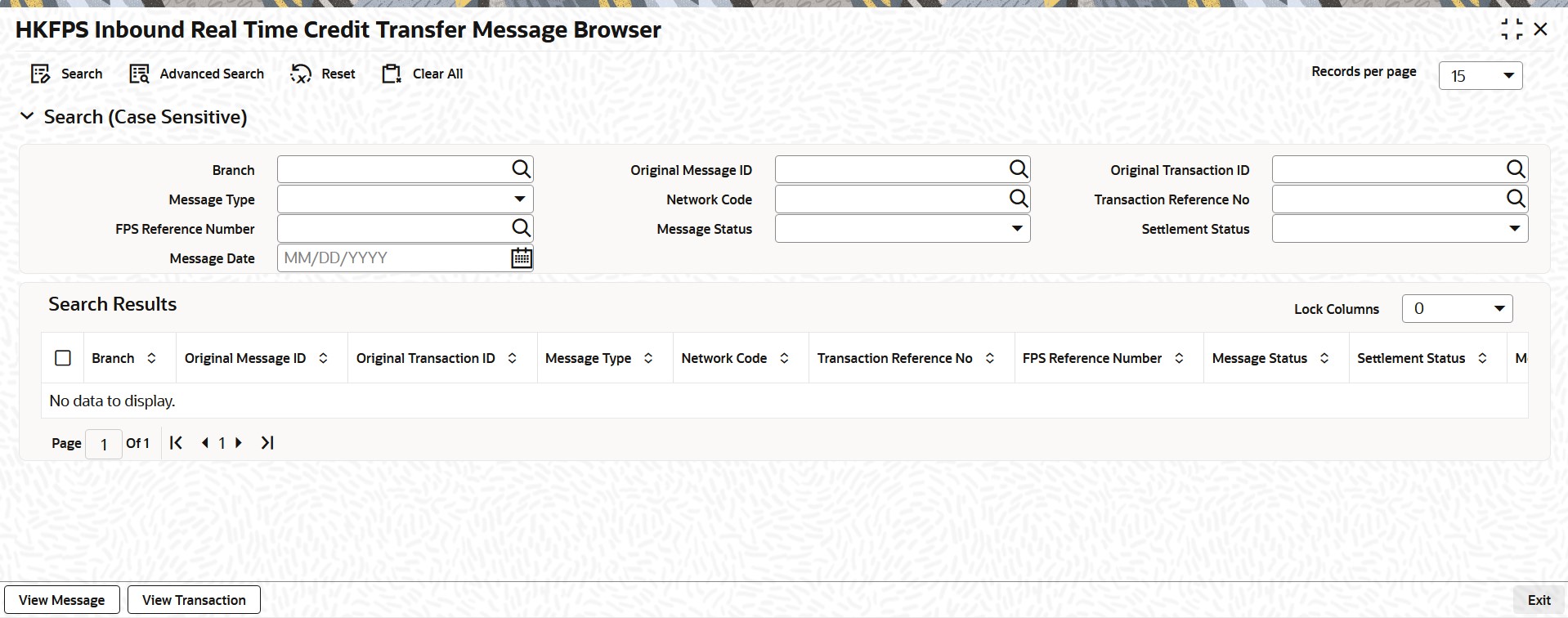
You can search using the following parameter:
l Branch
l Original Message ID
l Original Transaction ID
l Message Type
l Network code
l Transaction Reference Number
l FPS Reference Number
l Message Status
l Settlement Status
l Message Date
Once you have specified the search parameters, click ‘Search’ button. The system displays the records that match the search criteria.