Step 7: JMS Queue Setup in JBoss EAP 7.4
Add Queue Details
- Navigate to <jboss_home>\standalone\configuration.
- Open standalone-full.xml
- Search for xml tag <jms-queue.
- Add the following lines below the existing jms-queue entries.
<jms-queue name="RequestQueue" entries="java:/jms/RequestQueue"/>
<jms-queue name="ReplyToQueue" entries="java:/jms/ReplyToQueue"/>
<connection-factory name="ConnectionFactory" entries="java:/jms/ConnectionFactory" connectors="in-vm"/>
- After adding above lines, the xml should look like below:

- Save the changes.
Starting JBoss Server with standalone-full configuration
- Make sure to stop the JBoss server.
- Navigate to <jboss_home>\bin directory.
- Execute the command standalone.bat -c standalone-full.xml.

Confirm the JMS Queue setup in JBoss Console
To confirm that the Queues are successfully setup, follow these steps:
- Open the JBoss console, http://localhost:9990/console
- Once the console window opens, click the Runtime tab.
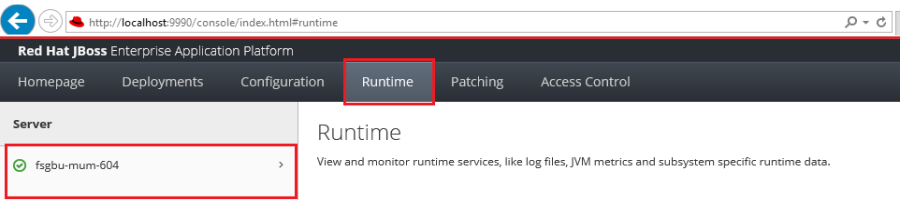
- Select the Server listed on the left.
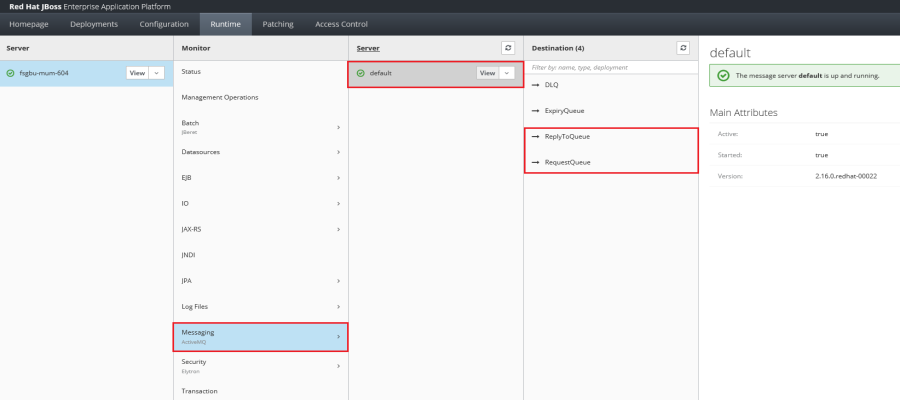
- Select Messaging from the Monitor listing.
- Select default server.
- All the Queues associated with the default server is listed including the newly added RequestQueue and ReplyToQueue.
Configure Queue Information in IBSS
To configure the Queue information in IBSS, follow these steps:
- Open IBSS in browser and navigate to Services screen (IBSS → Nodes → Services)/.
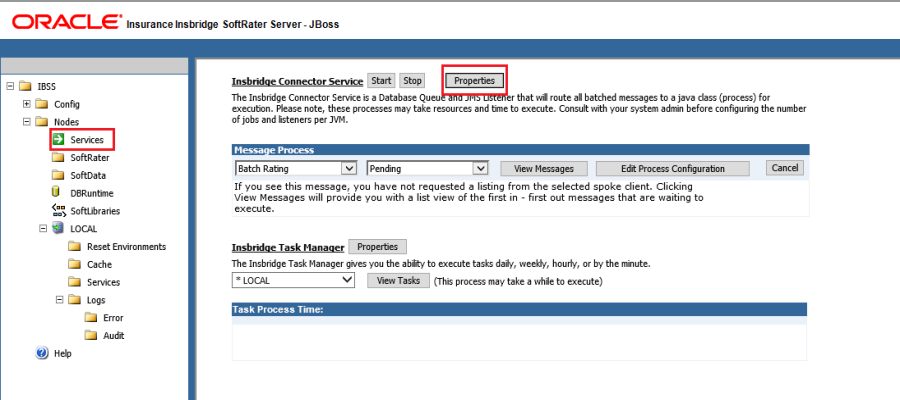
- Click Properties under Insbridge Connector Service.
- In the pop-up window that appears, provide the details for Queues as below:
- Queue Location - jms/RequestQueue
- ReplyTo Location - jms/ReplyToQueue
- Connection Factory - jms/ConnectionFactory
- Context Factory - org.jboss.naming.remote.client.InitialContextFactory
- Provider Url - http-remoting://localhost:8080
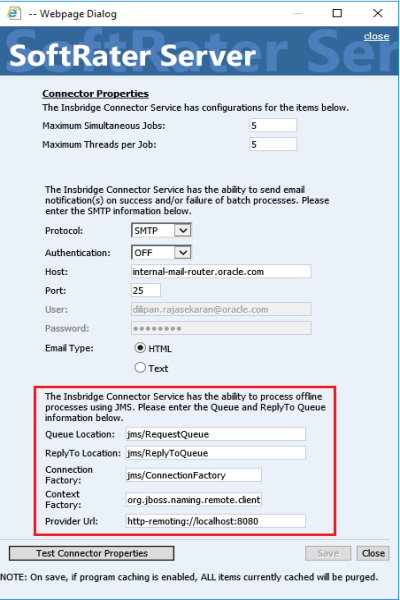
- Save the changes.
- Click Test Connector Properties
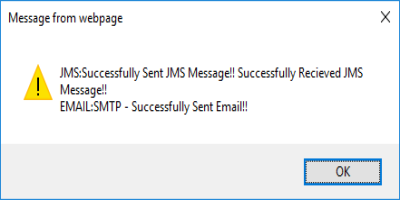
A popup window as below confirms that the Queues are configured successfully.
Stopping and Starting JBoss
If the application fails to launch and the port and server name are correct, you may need to stop and start JBoss.
