Moving Steps
You can move a step at any time to any position. Steps are moved one at a time. There are two ways to move steps.
- Drop and Drag
- Change Step Order Option
Drop and Drag
Drop and drag allow you to highlight the step you want to move and drag it to the location you want. The current position is in the step details. Where you have the step positioned to move is in the highlighted box. A line is positioned in the steps column showing where the step will be dropped.
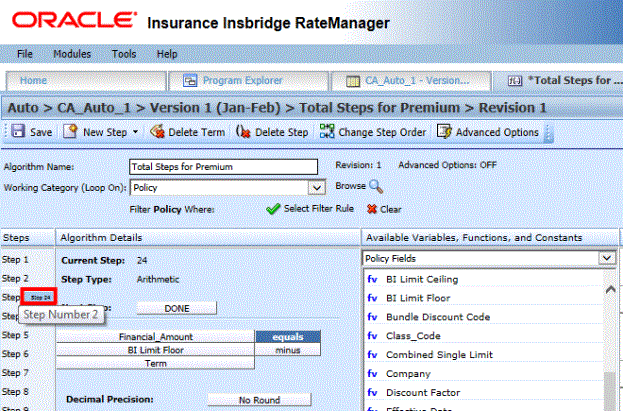
- Highlight the step you want to move in the Steps column.
- Drag it to a new location in the list and drop it.
Using the Change Step Order Button
The Change Step Order button may be easier to use if you have a lot of steps. You can select the exact location you want from a list of steps.
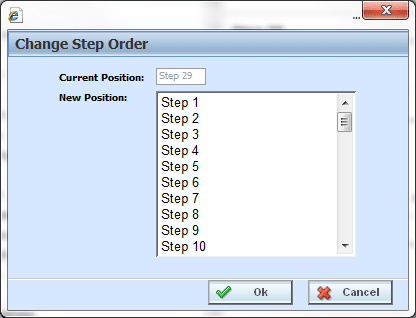
- To use the Change Step Order button, highlight the step you want to move in the Steps column.
- Click the Change Step Order button. A window is displayed.
- Select the new position where you want the step.
- Click Ok. The window closes and the step is in the new location.
