2. Limit Tree
Corporates usually have multiple limits as part of the credit facilities enjoyed by them with the bank. The facilities can be Fund based or Non-Fund based.
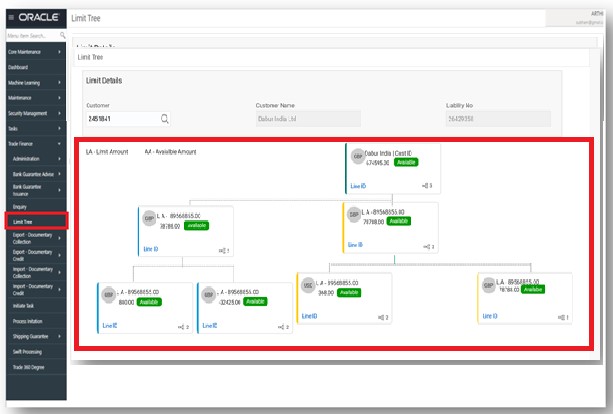
Limit Tree process enable the user to view all the facilities (Limits) linked to a customer in a single page in tree structure.
The first level of parent limit line is displayed, on Customer id Search. On clicking of any Limit tile, the corresponding next level Limit/Sub limit is displayed. Each Node displays the Line Id, Limit Amount, Available Amount, and Line Currency.
The available amount is highlighted with Green/Red colour code. The number of sub nodes is displayed as icon. Comprehensive Line details should be displayed if the user clicks on the Line ID link in any Node.
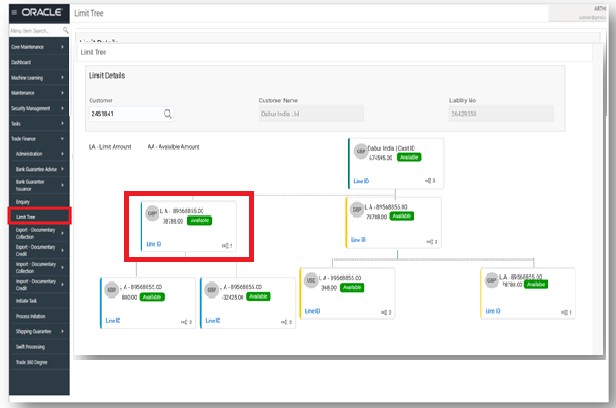
On clicking on the Line ID link, the separate screen should pop up and displays all the Limit details as read only. On expansion of final Node, Line structure should be in Tree view.
In the subsequent steps, let’s see the steps to make an enquiry for the contracts available in back office and mid office:
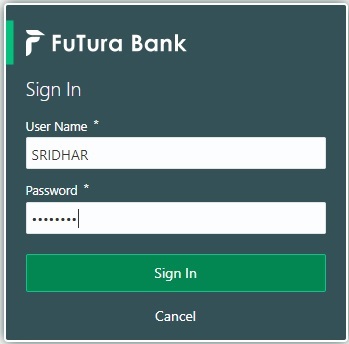
1. Using the entitled login credentials for Registration stage, login to the OBTFPM application.
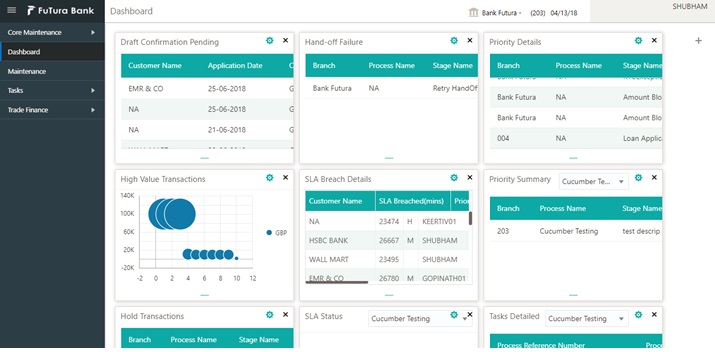
2. On login, user must be able to view the dashboard screen with widgets as mapped to the user.
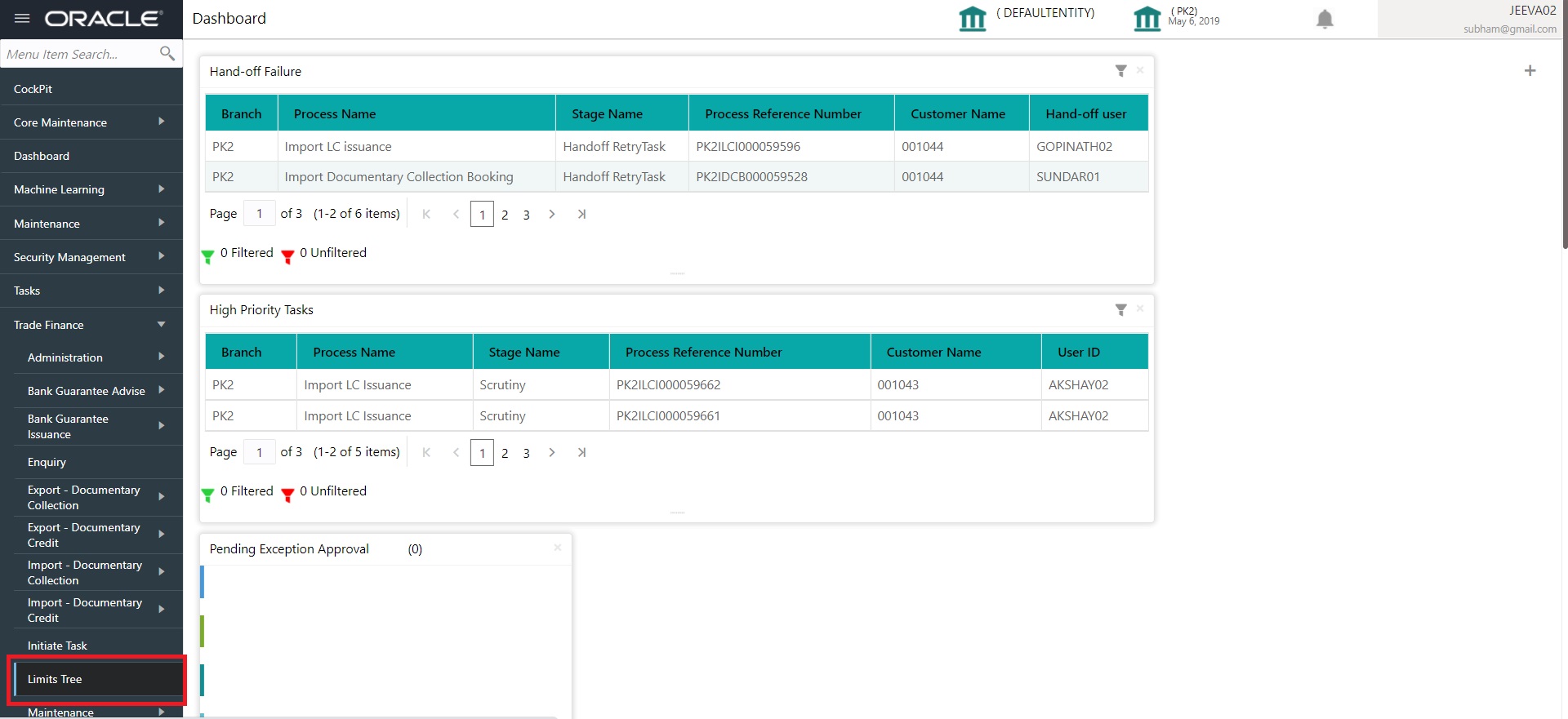
3. Click Trade Finance> Limit Tree.
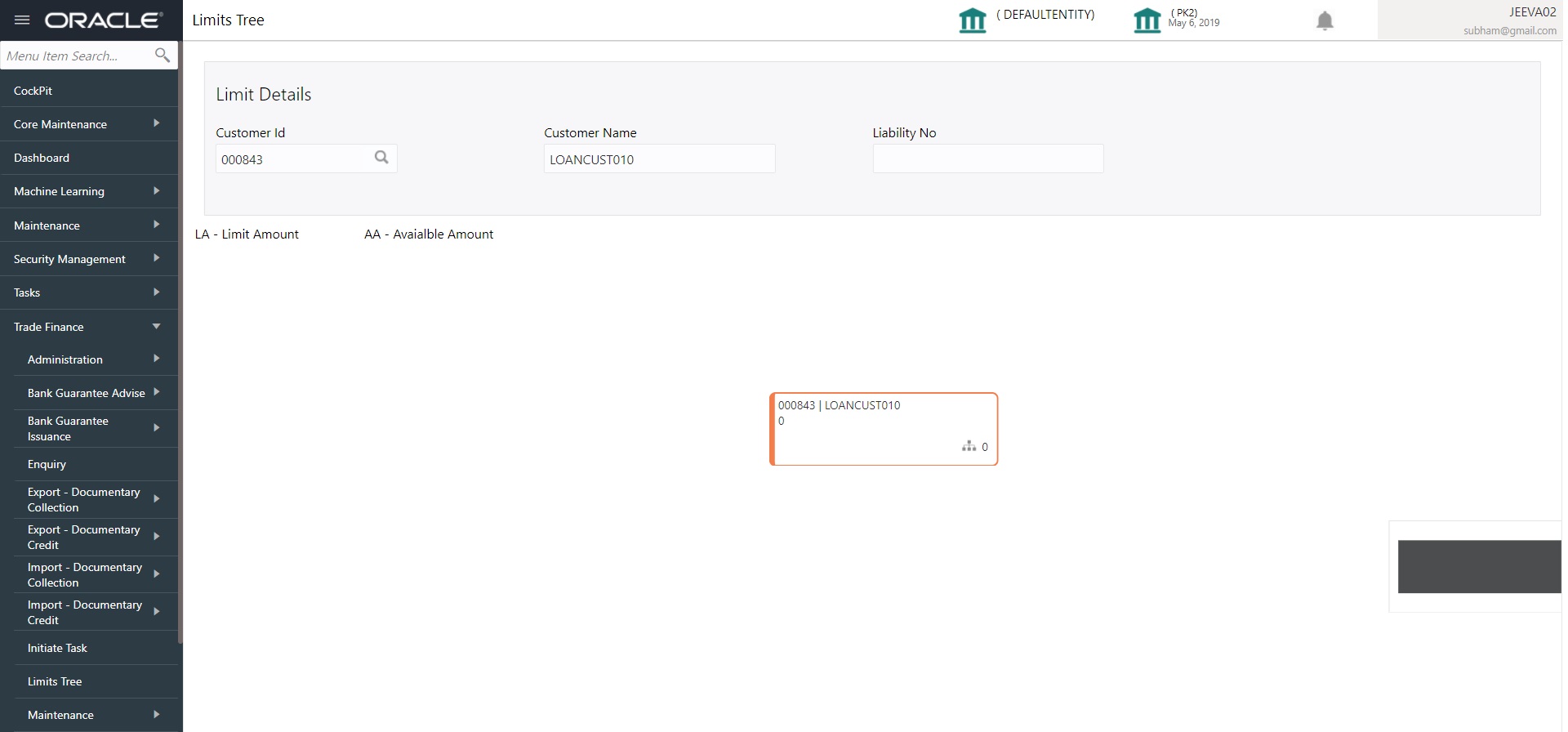
Provide the Limit Details based on the description in the following table:
|
Field |
Description |
Sample Values |
|---|---|---|
|
Customer Id |
Provide the Customer Id. Alternatively, user can search the Customer Id using LOV. In the LOV, user can input Customer Number, Customer Name, Liability No to fetch the limit details. Based on the search result, select the applicable Customer for viewing the limit tree. |
|
|
Customer Name |
Customer Name will be populated based on the selected Customer Id from the LOV. |
EMR & CO |
|
Liability No |
Liability No will be populated based on the selected Customer Id from the LOV. |
|
4. On successful selection of the liability id from the LOV result, the line associated with the Customer Liability should be queried from the ELCM system and display only the first level node of the limit structure. On clicking on the each Node tiles, the corresponding child nodes is displayed.
5. On clicking Line Id link on any node, the detailed information of line details is displayed as read-only.
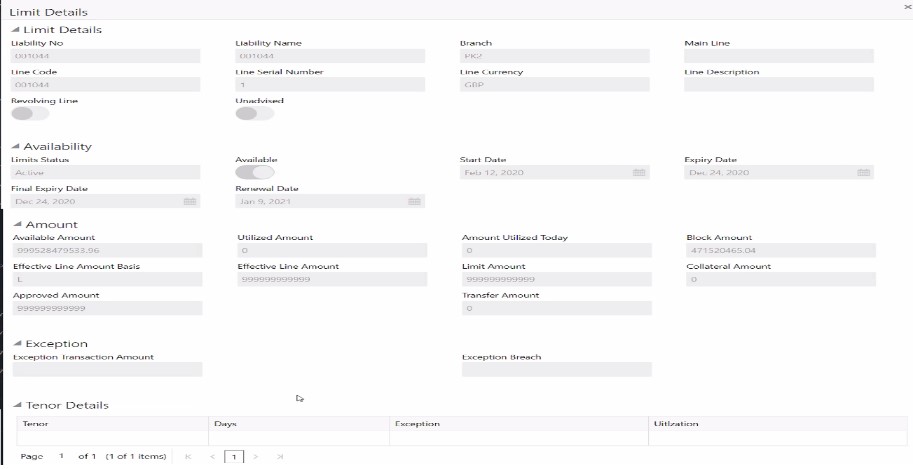
Provide the Collection Details based on the description in the following table:
|
Field |
Description |
Sample Values |
|---|---|---|
|
Liability Number |
Read only field. |
|
|
Liability Name |
Read only field. |
|
|
Branch |
Read only field. |
|
|
Main Line |
Read only field. |
|
|
Line Code |
Read only field. |
|
|
Line Serial number |
Read only field. |
|
|
Line CCY |
Read only field. |
|
|
Line Description |
Read only field. |
|
|
Revolving Line |
Read only field. |
|
|
Unadvised |
Read only field. |
|
|
Availablity |
||
|
Limit Status |
Read only field. |
|
|
Available |
Read only field. |
|
|
Start Date |
Read only field. |
|
|
Expiry Date |
Read only field. |
|
|
Final Expiry Date |
Read only field. |
|
|
Renewable Date |
Read only field. |
|
|
Amount |
||
|
Available Amount |
Read only field. |
|
|
Utilized Amount |
Read only field. |
|
|
Amount Utilized Today |
Read only field. |
|
|
Block Amount |
Read only field. |
|
|
Effective Line Amount Basis |
Read only field. |
|
|
Effective Line Amount |
Read only field. |
|
|
Limit Amount |
Read only field. |
|
|
Collateral Amount |
Read only field. |
|
|
Approved Amount |
Read only field. |
|
|
Transfer Amount |
Read only field. |
|
|
Exception |
||
|
Exception Transaction Amount |
Read only field. |
|
|
Tenor Details |
||
|
Tenor |
Read only field. |
|
|
Days |
Read only field. |
|
|
Exception |
Read only field. |
|
|
Utilization |
Read only field. |
|