2. China National Advanced Payment System-CNAPS
This chapter contains the following sections:
l Section 2.1, "Overview of CNAPS"
l Section 2.2, "CNAPS Maintenances"
Processing of inbound/outbound payments through China’s second generation payment system CNAPS2 for the following:
l HVPS - High Value Payment System
l BEPS Regular - Bulk Electronic Payment System
l BEPS Real- Time
For each of the above mentioned networks, following payment types are supported:
l Customer Transfer
l Bank Transfer
For each of the transaction, the message generation is done at custom layer and sent to middle-ware and the actual message/file generation for the Network happens from the middle-ware
The transactions/processing considered for HVPS/BEPS are as below:
|
Sl.No. |
Transaction Type |
Transaction |
Transfer Type |
|
1 |
Outbound |
Credit Transfer |
Customer transfer |
|
2 |
Outbound |
Credit Transfer |
Bank transfer |
|
3 |
Outbound |
Account information inquiry |
N.A. |
|
4 |
Outbound |
Receipt of Acknowledgement Messages |
N.A. |
|
5 |
Inbound |
Credit Transfer |
Customer transfer |
|
6 |
Inbound |
Credit Transfer |
Bank transfer |
|
9 |
Inbound |
Sending Acknowledgements (positive/Negative) |
N.A. |
|
10 |
Inbound |
Directory maintenance |
N.A. |
This section lists the key common maintenances that are required for processing of outbound and inbound CNAPS Payments.
l Source Maintenance (PMDSORCE)
l Source Network Preferences (PMDSORNW)
l External System Maintenances for - Sanctions, External Credit Approval and Accounting
For more details on above mentioned maintenance screens, refer to Payments Core User Guide.
The other key maintenances are as follows:
You can maintain the CNAPS network preferences in this screen for each payment method.
You can invoke the ‘CNAPS Network Preferences’ screen by typing ‘PHDNWPRF’ in the field at the top right corner of the application toolbar and clicking the adjoining arrow button. Click ‘New’ button on the Application toolbar.
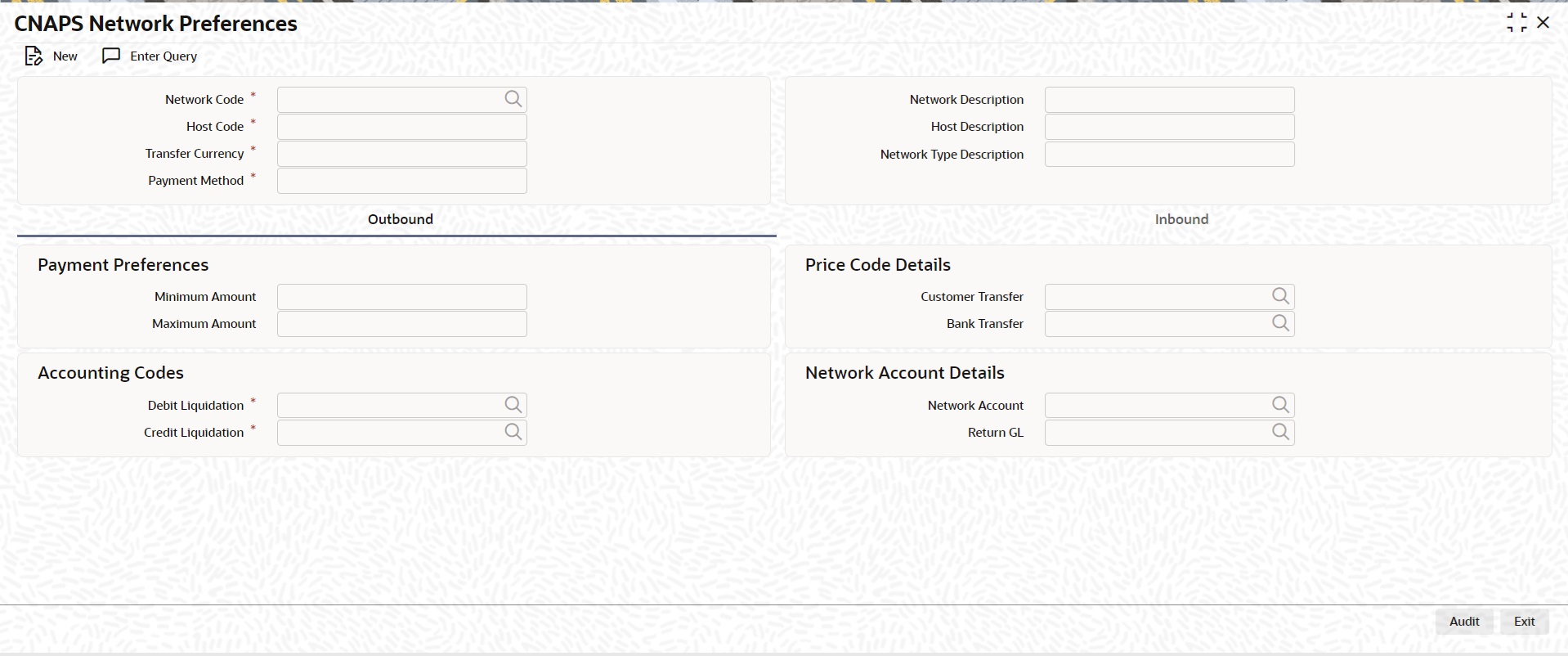
You can specify the following fields:
Network Code
Select the Network code from the list of values. All Valid networks maintained with payment type as CNAPS are listed.
Network Description
System defaults the Network description based on the network selected.
Network Type Description
System defaults the Network Type Description based on the Network selected.
Host Code
System defaults the Host code of transaction branch.
Host Code Description
System defaults the description of the Host Code displayed.
Transfer Currency
Transfer currency is defaulted from the Network Currency restriction data store.
Payment Method
Select the payment type from the drop-down list. This is a mandatory field. The list displays the following values:
l HVPS
l BEPS
l BEPS - Real - Time
Outbound Payment Preferences
The following fields are available as part of Outbound preferences for the network and payment method combination:
Payment Preferences
Minimum Amount
Specify the Minimum amount allowed for the network. This is an optional field.
Maximum Amount
Specify the Maximum amount allowed for the network. This is an optional field.
Price Code Details
Customer Transfer
Select the pricing code specific to Customer Transfer from the list of values. All the valid pricing codes maintained in the PPDCDMNT screen are listed here.
Bank Transfer
Select the pricing code specific to Bank Transfer from the list of values. All the valid pricing codes maintained in the PPDCDMNT screen are listed here.
Accounting Codes
Debit Liquidation
Select the Debit liquidation code from the list of values. This is a mandatory field. Accounting codes maintained in Accounting Template maintenance (PMDACCTL) with transaction type as Debit are listed here.
Credit Liquidation
Select the Credit liquidation code from the list of values. This is a mandatory field. Accounting codes maintained in Accounting Template maintenance (PMDACCTL) with transaction type as Credit are listed here.
Network Account Details
Network Account
Select the valid Network Account from the list of values. All valid Nostro accounts of currency CNY are listed in this field. it is not a mandatory field.
Note
If Clearing GL is maintained in accounting template for credit leg (Offset Account) then system fetches the clearing GL as a Network Account otherwise. System fetches the Network account maintained in this field as credit account.
Inbound Payment Preferences
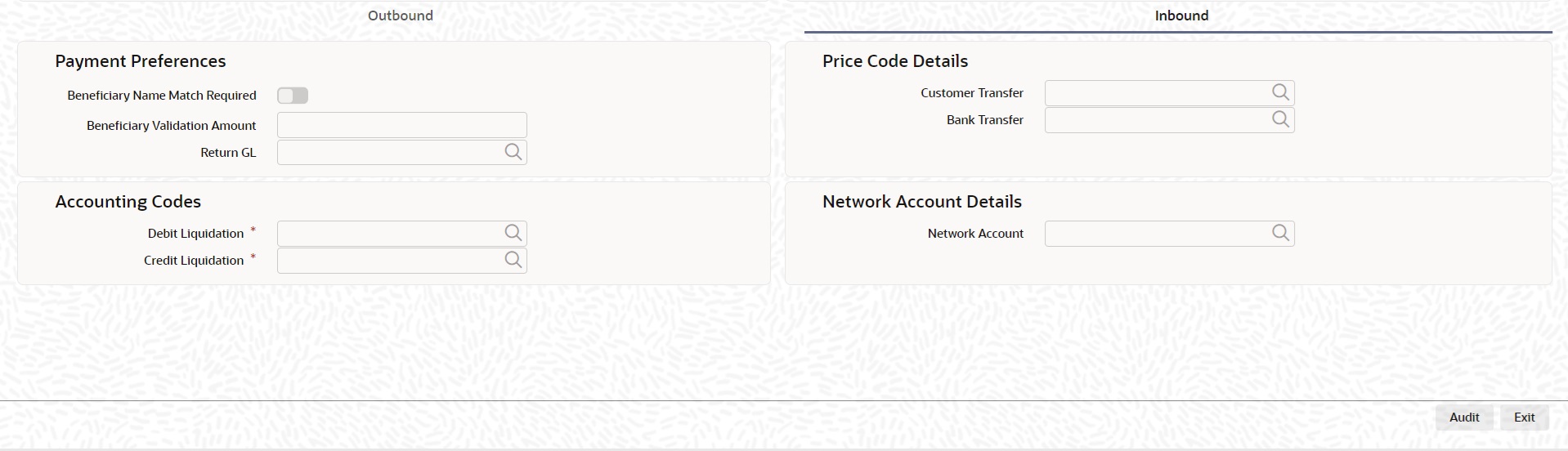
Payment Preferences
Beneficiary Name Match Required
For inbound payments beneficiary name match is done based on this flag. The preference created here can be applied if the Host Code, Network code, Currency and Payment Method fields inputted during inbound payment processing is exactly matched.
Beneficiary Validation Amount
Specify the Amount in currency CNY.
Return GL
Specify the Return GL from the list of values.
Price Code Details
Customer Transfer
Select the pricing code specific to Customer Transfer from the list of values. All the valid pricing codes maintained in the PPDCDMNT screen are listed here.
Bank Transfer
Select the pricing code specific to Bank Transfer from the list of values. All the valid pricing codes maintained in the PPDCDMNT screen are listed here.
Accounting Codes
Debit Liquidation
Select the Debit liquidation code from the list of values. This is a mandatory field. Accounting codes maintained in Accounting Template maintenance (PMDACCTL) with transaction type as Debit are listed here.
Credit Liquidation
Select the Credit liquidation code from the list of values. This is a mandatory field. Accounting codes maintained in Accounting Template maintenance (PMDACCTL) with transaction type as Credit are listed here.
Network Account Details
Network Account
Select the valid Network Account from the list of values. All valid Nostro accounts of currency CNY are listed in this field. It is a non- mandatory field.
Note
If Clearing GL is maintained in accounting template for debit leg then system fetches the clearing GL as network account otherwise.System fetches the Network account maintained in this field as credit account.
You can maintain the settlement instructions in this screen. The SSI created here can be used as the beneficiary on the outbound payment booking.
You can invoke the ‘CNAPS Settlement Instruction’ screen by typing ‘PHDSSIMT’ in the field at the top right corner of the application toolbar and clicking the adjoining arrow button. Click ‘New’ button on the Application toolbar.
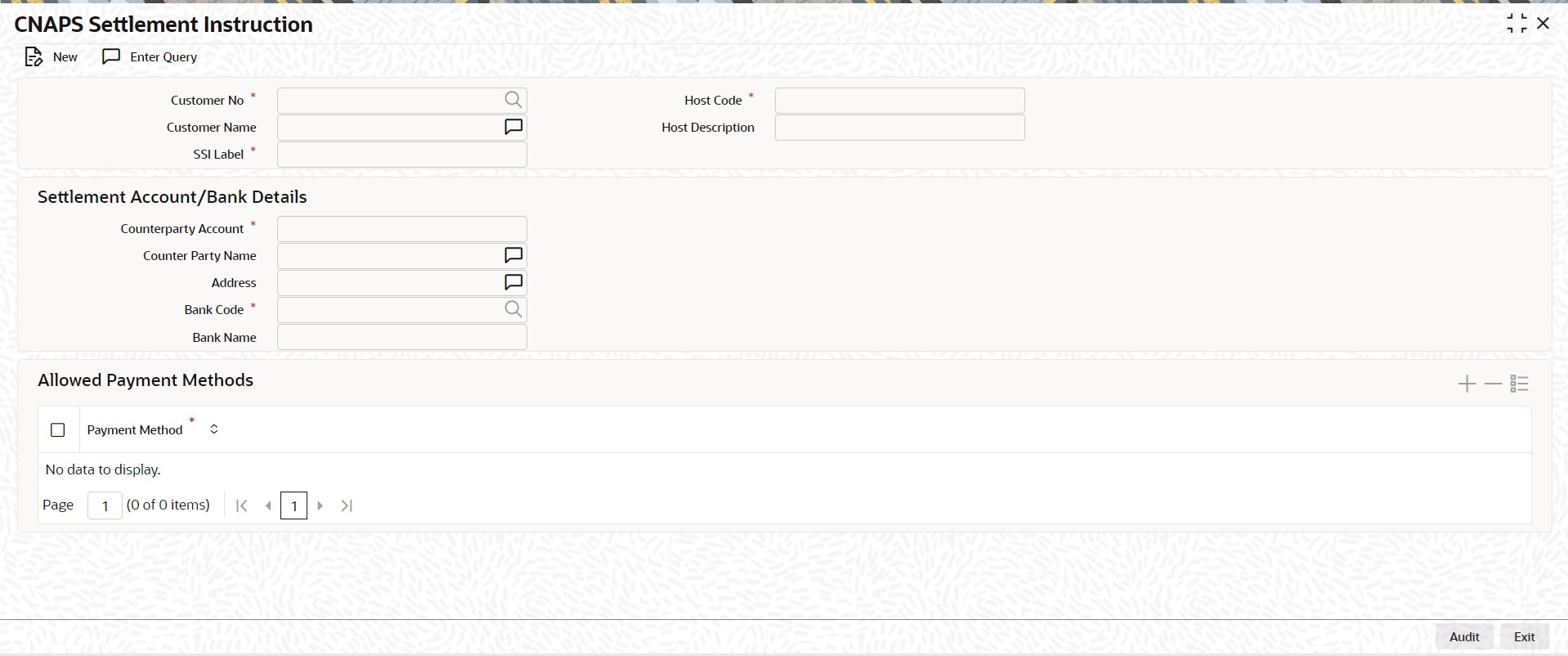
You can specify the following fields:
Customer Number
Select the Customer Number from the list of values. All the valid customer accounts for the Host are list.
Customer Name
System defaults the Customer Name, based on the Customer Number selected.
SSI Label
Specify the SSI Label and this is an user input field. It is mandatory and allowed character length is 35.
Host Code
System defaults the Host code of transaction branch.
Host Code Description
System defaults the description of the Host Code displayed.
Settlement Account / Bank Details
Account
Specify the beneficiary account details here. This is a mandatory field.
Counterparty Name
Specify the Counterparty name. This is an optional field and allows Chines characters.
Address
Specify the Address. This is an optional field and allows Chines characters.
Bank Code
Select the Bank Code from the list of values. Bank code of Counterparty’s bank has to be captured in this field. This is a mandatory field. All Bank codes listed in the CNAPS directory are listed here.
Bank Name
System defaults the name of the Bank Code displayed.
Allowed Payment Methods
Payment Method
Select the payment type from the drop-down list, for which the settlement instruction to be maintained.The list displays the following values:
l HVPS
l BEPS
l BEPS - Real Time
You can maintain the processing branch clearing line number in this screen. This is a host level maintenance.
You can invoke the ‘CNAPS Branch Identifier’ screen by typing ‘PHDBRIDT’ in the field at the top right corner of the application toolbar and clicking the adjoining arrow button.Click ‘New’ button on the Application toolbar.
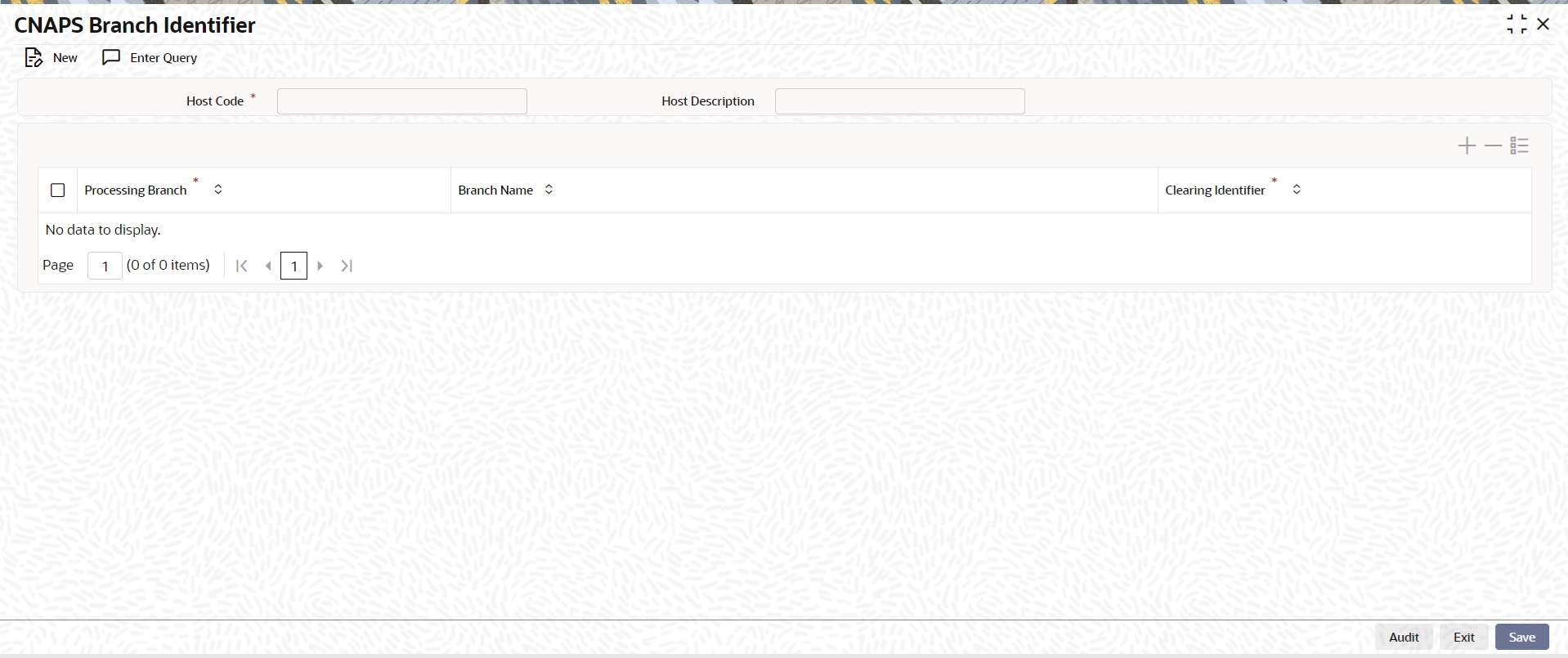
You can specify the following fields:
Host Code
System defaults the Host code of transaction branch.
Processing Branch
Select the Processing Branch from the list of values. All the valid branches for the Host are listed here.
Branch Name
System defaults the name of the processing branch selected.
Clearing Identifier
Specify a valid Clearing Identifier. Maximum of 14 alpha-numeric characters are allowed in this field.
You can maintain the directory records in this screen.
You can invoke the ‘CNAPS Directory’ screen by typing ‘PHDDIREC’ in the field at the top right corner of the application toolbar and clicking the adjoining arrow button.Click ‘New’ button on the Application toolbar.
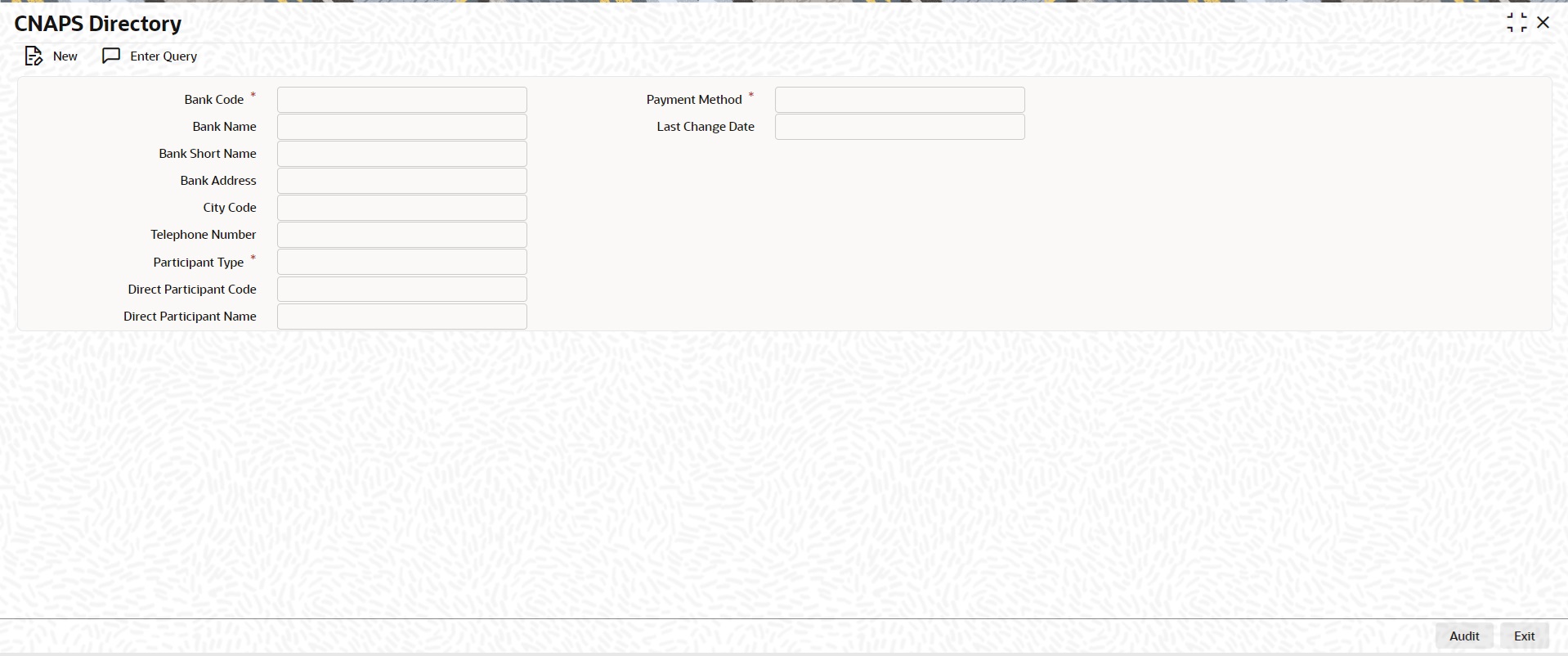
You can specify the following fields:
Bank Code
Specify a valid Bank Code. This is a mandatory field and allowed character length is 14.
For BEPS - Real Time, Bank Code maintained for BEPS to be referred.
Bank Name
Specify a valid Bank Name. This is a mandatory field and allowed character length is 140.
This field allows Chinese Characters.
Bank Short Name
Specify a valid Bank Short Name. Allowed character length is 35.
Bank Address
Specify a valid Bank Address. This is a mandatory field and allowed character length is 32.
City Code
Specify a valid City Code. This is an optional field and allowed character length is 60.
Telephone
Specify a valid Telephone number. This is an optional field and allowed character length is 70.
Participant Type
Select the Participant Type from the drop-down values. System defaults the value as ‘Direct’. The options are - Direct, Indirect.
Direct Participation Code
Specify a Direct Participation Code. This is a mandatory field and allowed character length is 14.
Direct Participation Name
Specify a Direct Participation Name.
Payment Method
Select the Payment Method from the drop-down values. System defaults the value as ‘HVPS’. The options are - HVPS, BEPS.
Last Change Date
Specify the Last Change Date.
You can maintain business types allowed for CNAPS in this screen. This is host-level maintenance.
You can invoke the ‘CNAPS Business Types’ screen by typing ‘PHDBTYPE’ in the field at the top right corner of the application toolbar and clicking the adjoining arrow button.Click ‘New’ button on the Application toolbar.
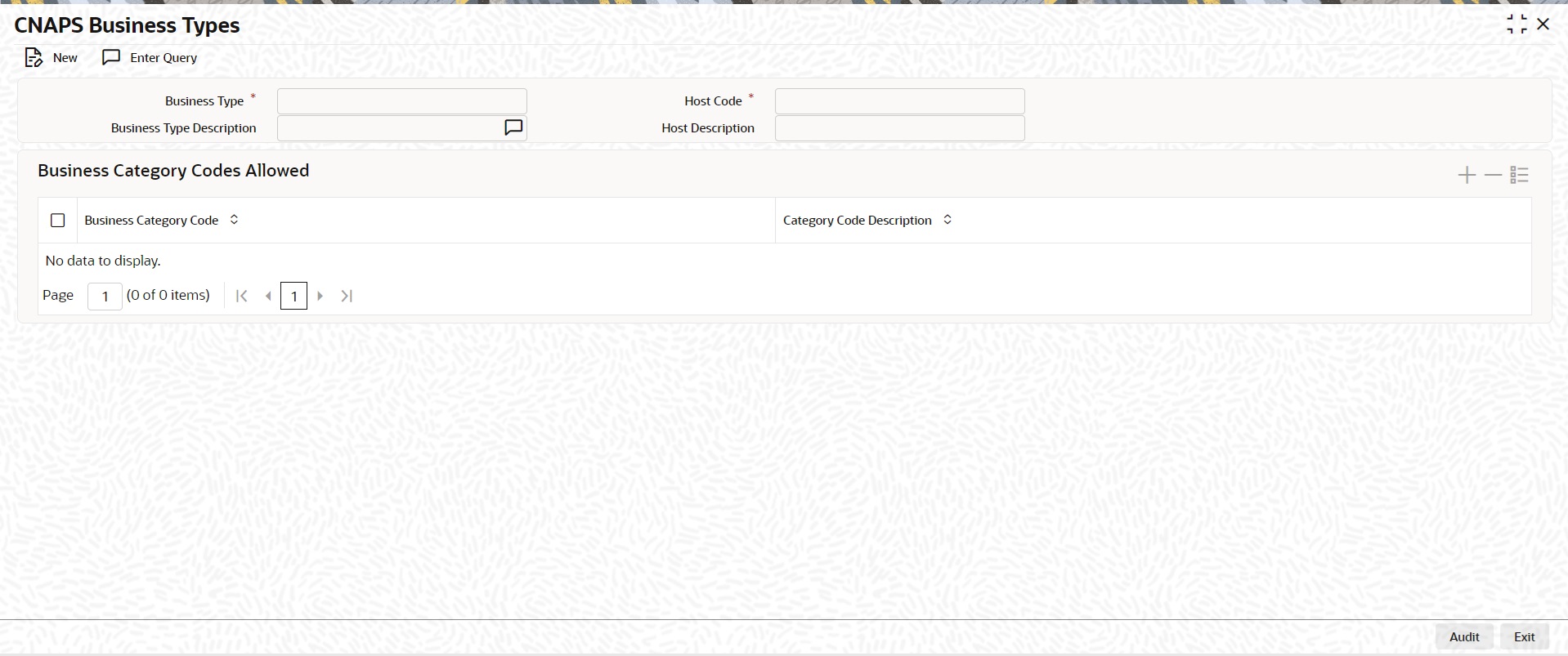
You can specify the following fields:
Business Type
This is an input field with allowed character length of 4. Alphanumeric characters are allowed and is mandatory.
Note
Chinese characters are not allowed in this field,
Business Type Description
Specify the Business Type Description. Alphanumeric characters are allowed and supported length is 255 characters.
Note
Chinese characters are allowed in Business type Description field.
SSI Label
Specify the SSI Label and this is an user input field. It is mandatory and allowed character length is 35.
Host Code
System defaults the Host code of transaction branch.
Host Code Description
System defaults the description of the Host Code displayed.
Business Category Codes Allowed
Business Category Code
Specify the Business Category Codes allowed for the business type here. It is mandatory to maintain atleast one Business Category Code per business type. Alphanumeric values are allowed up-to a length of 5 characters.
Note
Chinese characters are not allowed in this field.
Category Code Description
Specify the Category Code Description. Alphanumeric characters are allowed and supported length is 255 characters.
Note
Chinese characters are allowed in Category Code Description field.
You can maintain the network cutoff time for the CNAPS Network for each payment mode in this screen.
You can invoke the ‘CNAPS Network Cutoff Maintenance’ screen by typing ‘PHDCTOFF’ in the field at the top right corner of the application toolbar and clicking the adjoining arrow button. Click ‘New’ button on the Application toolbar.
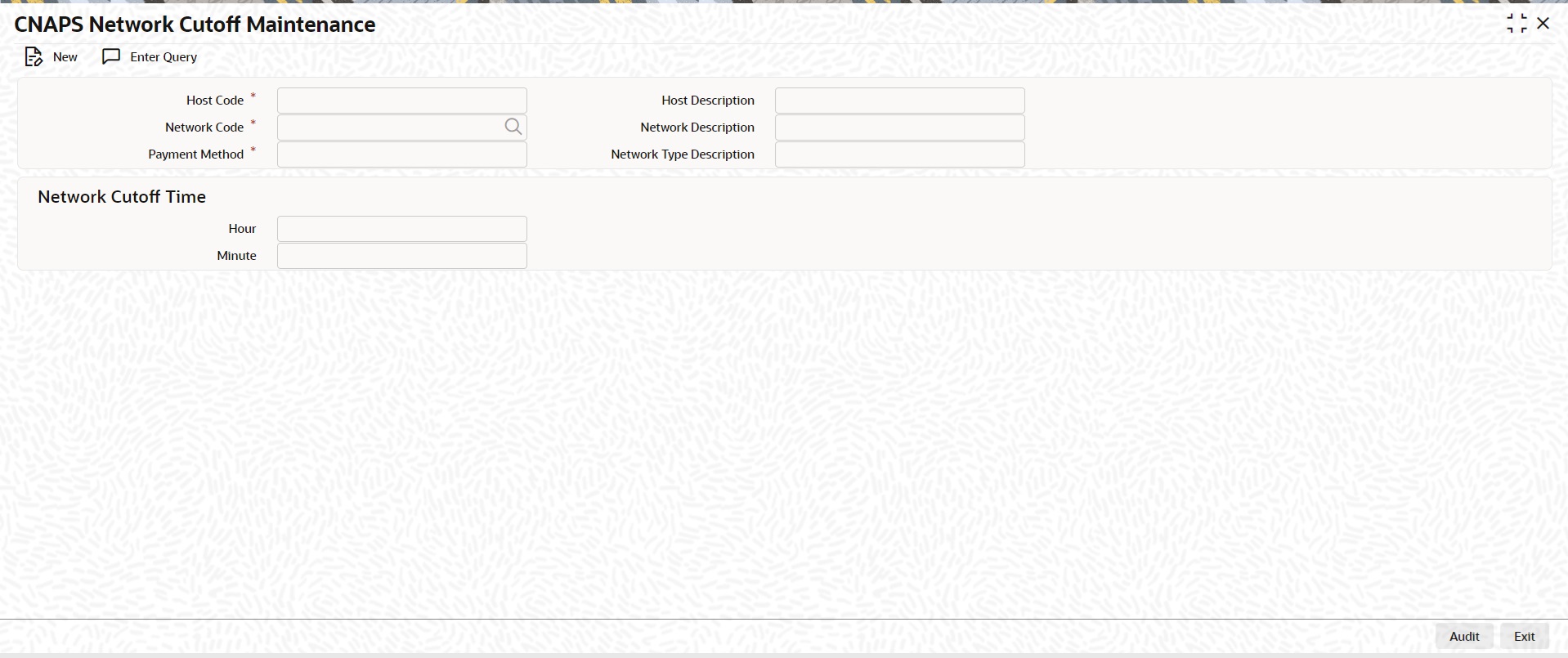
You can specify the following fields:
Host Code
System defaults the Host code of transaction branch.
Host Code Description
System defaults the description of the Host Code displayed.
Network Code
Specify the Network code, for which the cutoff maintenances to be done.
Network Description
System defaults the description on the Network selected.
Network Type Description
System defaults the Network Type Description on the Network selected.
Payment Method
Select the payment type from the drop-down list, for which the Network cutoff to be maintained.The list displays the following values:
l HVPS
l BEPS
l BEPS - Real Time
Network Cutoff Time
Hour
Specify the network cut-off hour.
Minute
Specify the network cut-off in minutes.
You can maintain the preferences common for the CNAPS Network in this screen.
You can invoke the ‘CNAPS Common Preferences’ screen by typing ‘PHDCNPRF’ in the field at the top right corner of the application toolbar and clicking the adjoining arrow button.Click ‘New’ button on the Application toolbar.
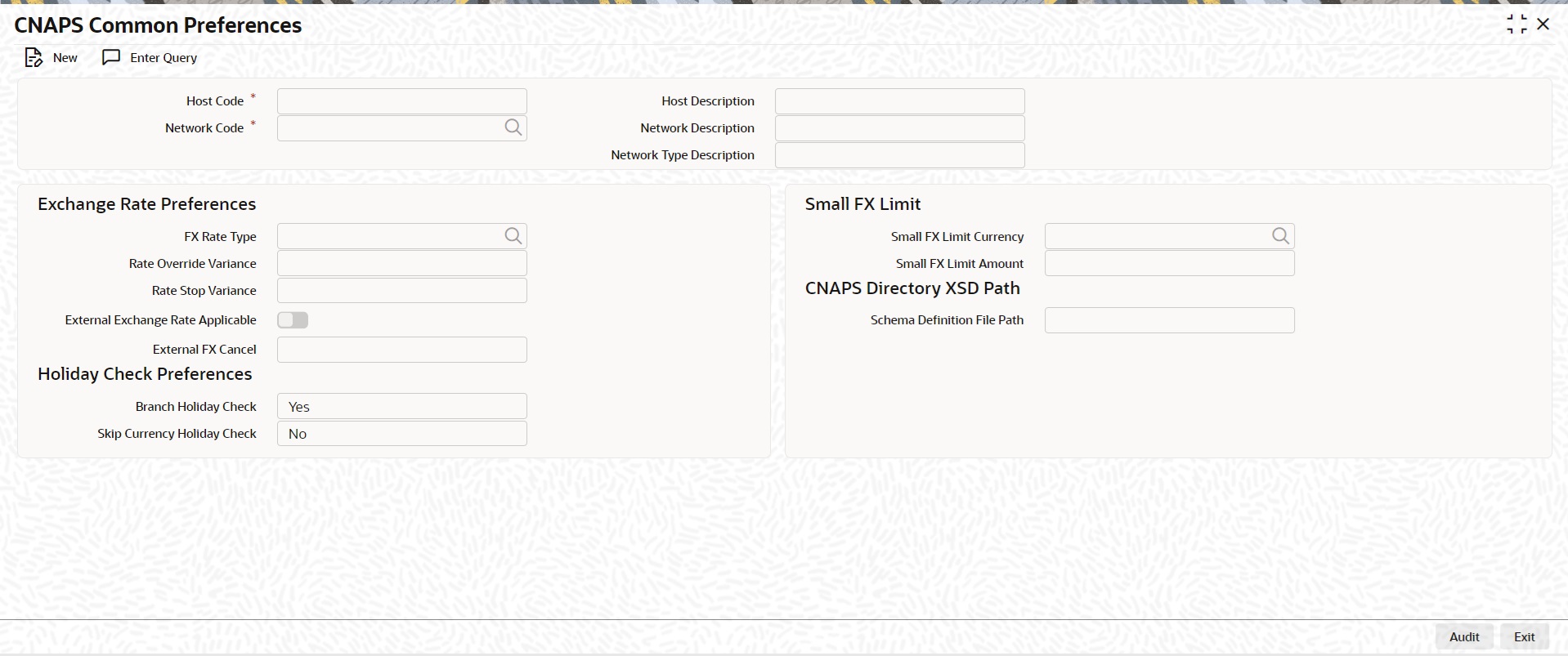
You can specify the following fields:
Host Code
System defaults the Host code of transaction branch.
Host Code Description
System defaults the Description on the Host Code selected.
Network Code
Specify the Network code.
Network Description
System defaults the Description on the Network Code selected.
Network Type Description
System defaults the Network Type Description on the Network Code selected.
Exchange Rate Preferences
FX Rate Type
Select the FX Rate Type from the list of values. Exchange rate pick up for a payment transaction is based on Small FX rate type maintained in Network Preferences. All open and authorized exchange rate types available in core system are listed for this field.
Rate Override Variance
Specify the Rate Override Variance. If exchange rate provided for a payment transaction exceeds the override limit specified, then system logs an override and transaction is saved.
Rate Stop Variance
Specify the Rate Stop Variance.
In case the exchange rate specified exceeds the Stop limit specified, the system throws an error.
External Exchange Rate Applicable
Payment details are sent to external system to obtain exchange rate, if this flag is checked.
External FX Cancel
Select the External FX Cancel option from the drop- down values. System defaults the option as ‘Auto. The options are:
l Auto
l Manual
If FX reference number is available for a transaction and if it is canceled or rolled over from an exception queue, the preference specified here, is applied.
Processing of FX Request:
l FX reversal request is sent to external system automatically if the mode is auto.
l If the Mode is Manual, the transaction is inserted into FX unwind queue for the operator to take a manual reversal of FX contract. The transaction then proceeds with cancellation or roll over as the case may be.
Small FX Limit
Small FX Limit Currency
Specify the currency of the small FX limit. All the valid currencies are listed here.
Small FX Limit Amount
Specify the amount of the small FX amount. System converts the transfer amount in Small FX limit currency and compares with this limit.
Holiday Check Preferences
Branch Holiday Check
By default, this field value is Yes.
If the field is Yes, then Branch holidays are considered for Activation Date derivation.
If this field is No, then Branch holiday calendar is not considered while deriving the Activation Date.
Skip Currency Holiday Check
By default, this field value is No.
If the field value is 'Yes', the currency Holiday check is skipped during Instruction Date derivation.
2.2.7.1 CNAPS Common Preferences Summary
You can invoke the “CNAPS Common Preferences Summary” screen by typing ‘PHSCNPRF’ in the field at the top right corner of the application toolbar and clicking the adjoining arrow button..
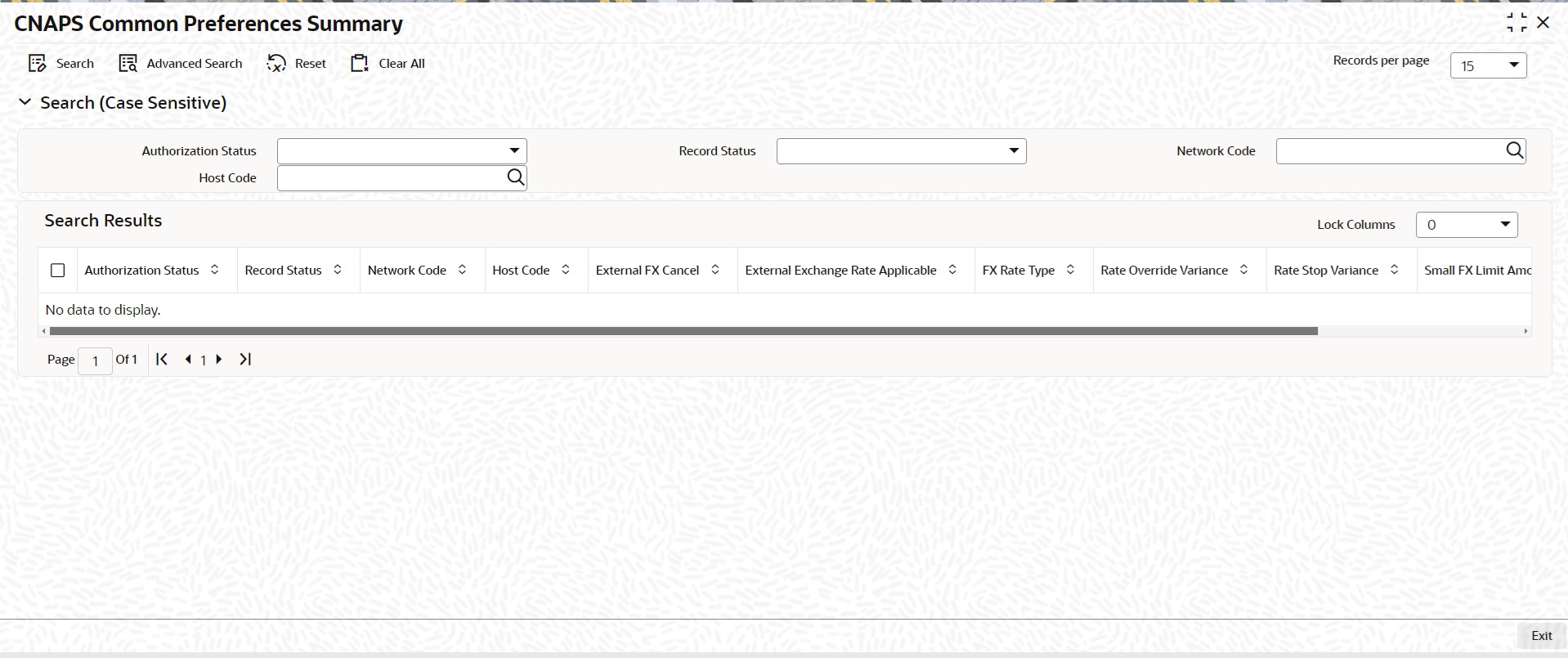
You can search using one or more of the following parameters:
l Authorization Status
l Record Status
l Network Code
l Host Code
Once you have specified the search parameters, click ‘Search’ button. The system displays the records that match the search criteria.
2.2.8 CNAPS Return Code Maintenance
You can maintain the Return codes applicable for CNAPS transactions and linking it to system error codes, using this screen
You can invoke the ‘CNAPS Return Code Maintenance’ screen by typing ‘PHDRTNCD’ in the field at the top right corner of the application toolbar and clicking the adjoining arrow button. Click ‘New’ button on the Application toolbar.
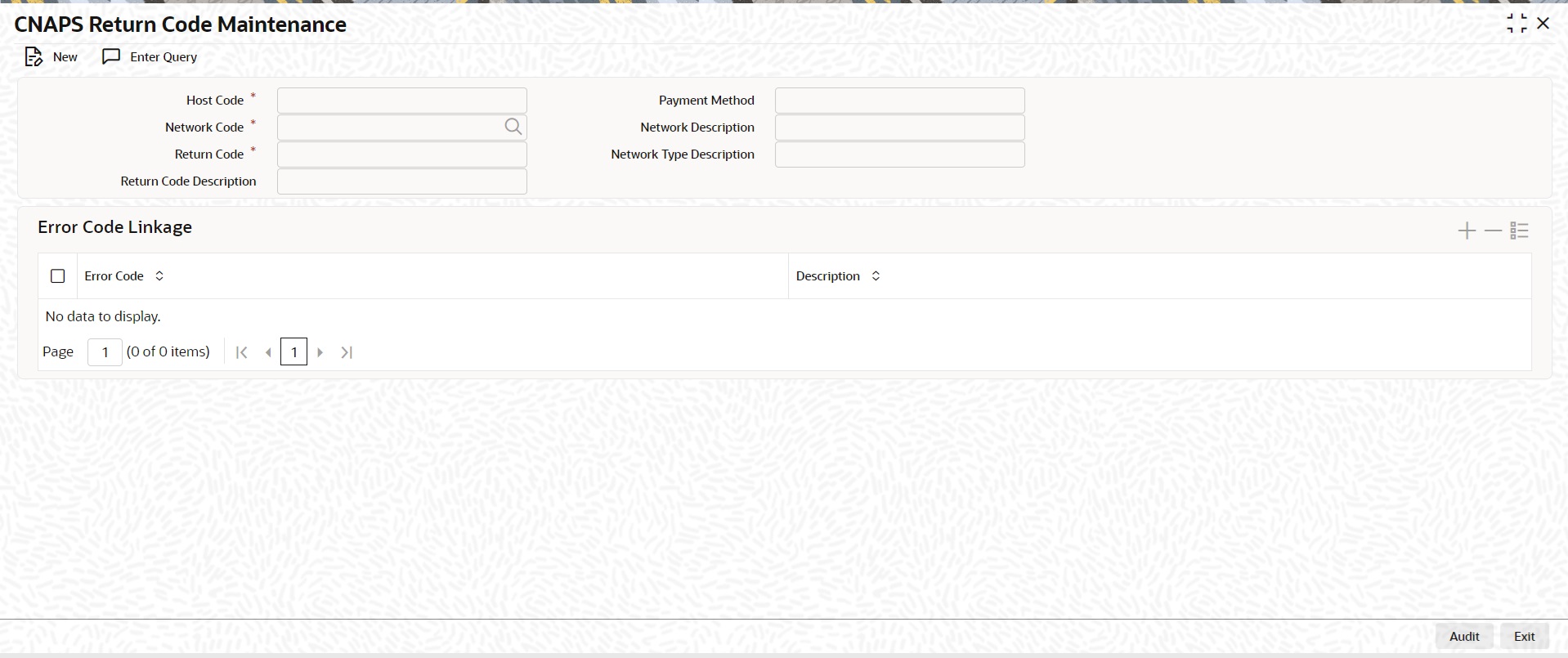
You can specify the following fields:
Host Code
System defaults the Host code of transaction branch.
Payment Method
Select the payment type from the drop-down list. This is a mandatory field. The list displays the following values:
l HVPS
l BEPS
l BEPS - Real - Time
Network Code
Select the Network code from the list of values. All the Network codes maintained in Network Code maintenance for the Payment types 'CNAPS' & 'CNAPS Debit' are listed.
Network Description
System defaults the Network description based on the network selected.
Network Type Description
System defaults the Network Type Description based on the Network selected.
Return Code
Specify the Return Code.
Return Code Description
Specify the Return Code Description.
Error Code Linkage
If inbound CNAPS BEPS Real-time / CNAPS Debit transactions need to be auto-returned in case of any exception encountered during processing, the corresponding error code has to be linked to a Return Code.
Error Code
Specify the Error Code from the list of values. This field lists the system Error Codes related to the Network payment type.
Description
Error code description will be defaulted based on the Error Code selected.
2.2.8.1 CNAPS Return Code Maintenance Summary
You can view the CNAPS inbound transactions booked in the transaction summary screen.
You can invoke the ‘CNAPS Return Code Maintenance Summary’ screen by typing ‘PHSRTNCD’ in the field at the top right corner of the Application toolbar and clicking on the adjoining arrow button.
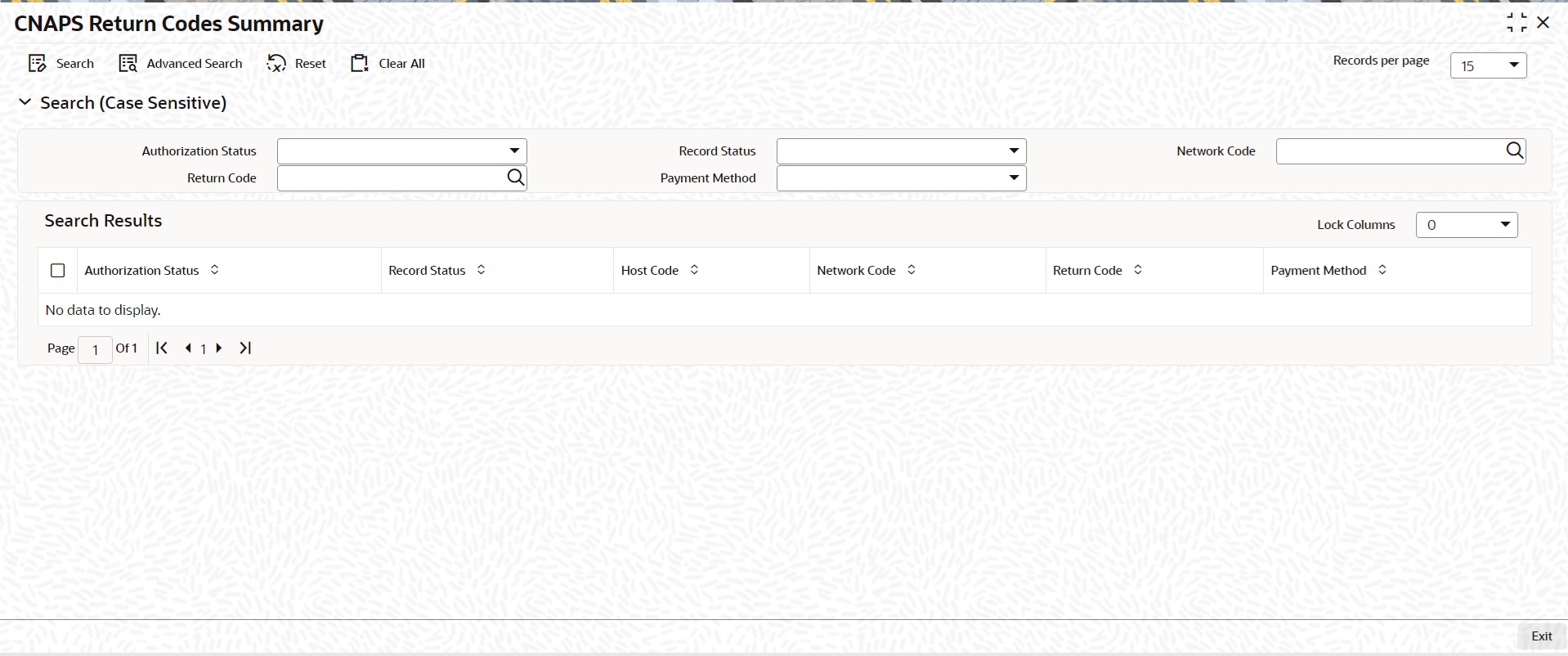
You can search for the records using one or more of the following parameters:
l Transaction Reference
l Booking Date
l Transaction Branch
l End to End Identification
l Instruction Date
l Customer Account
l Source Reference Number
l Activation Date
l Customer Number
l Source Code
l Transfer Amount
l Customer Service Model
l Network Code
l Maker ID
l Counterparty Account
l Payment Method
l Checker ID
l Counterparty Bank Code
l Transfer Type
l Authorization Status
Once you have specified the search parameters, click ‘Search’ button. The system displays the records that match the search criteria.
2.2.9 SWIFT Codeword Mapping for CNAPS
You can map SWIFT codewords to CNAPS business type Codeword, using this screen This is used when inbound SWIFT payments are to be processed as pass through payments by sending outbound CNAPS Credit payments.
You can invoke the ‘SWIFT Codeword Mapping for CNAPS’ screen by typing ‘PHDSWIFT’ in the field at the top right corner of the application toolbar and clicking the adjoining arrow button.Click ‘New’ button on the Application toolbar.
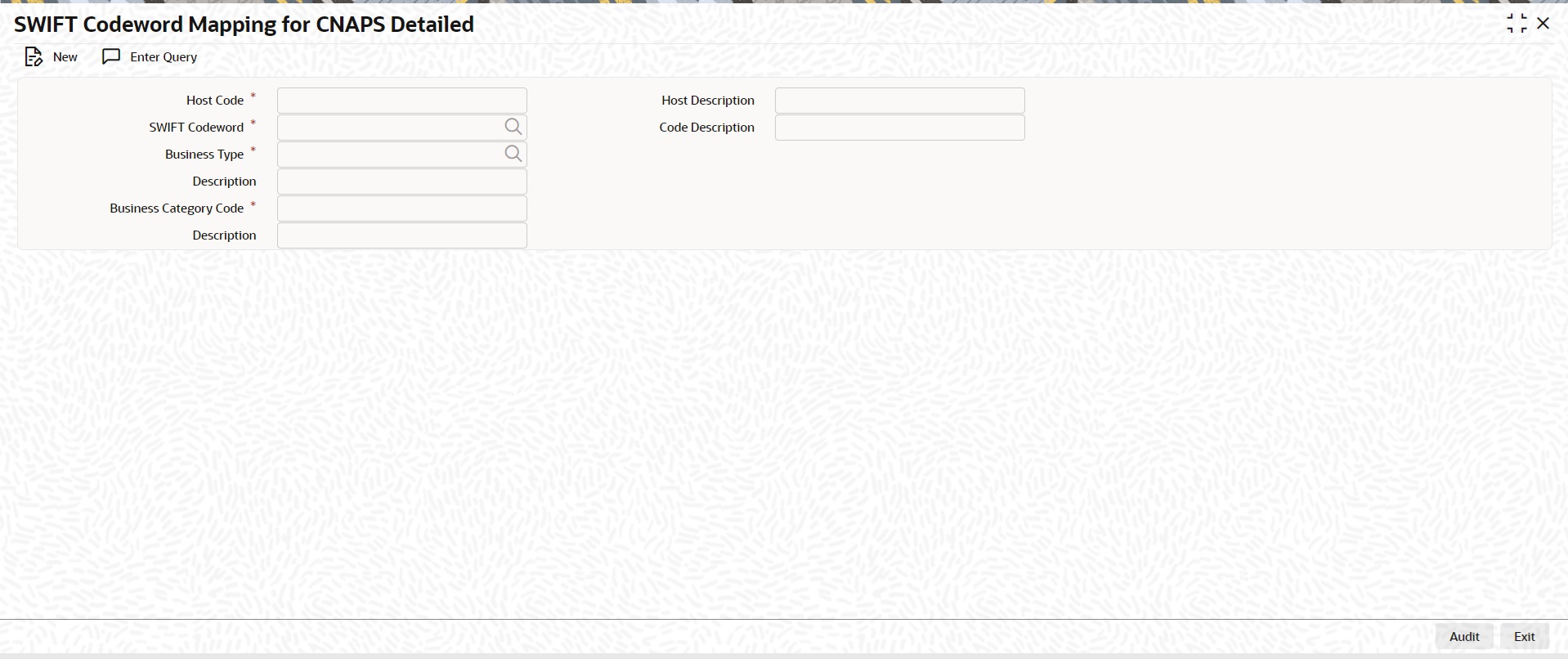
You can specify the following fields:
Host Code
System defaults the Host code of transaction branch.
Host Code Description
System defaults the Description based on the Host Code selected.
Swift Codeword
Specify the Swift Codeword from the list of values. SWIFT code word field lists all distinct code words available in SWIFT Code word maintenance.
Code Description
Based on Code word selected Codeword description is populated.
Business Type
Specify the Business Type from the list of values. All the valid combination of Business type & Business Category combination are listed.
Description
Based on the selected business type, Description is populated.
Business Category Code
Based on the combination selected Business Category Code field is populated.
Description
Based on the selected Business Type/Category Code, Description field is populated.
2.2.9.1 SWIFT Codeword Mapping for CNAPS Summary
You can invoke the ‘SWIFT Codeword Mapping for CNAPS Summary’ screen by typing ‘PHSSWIFT’ in the field at the top right corner of the Application toolbar and clicking on the adjoining arrow button.
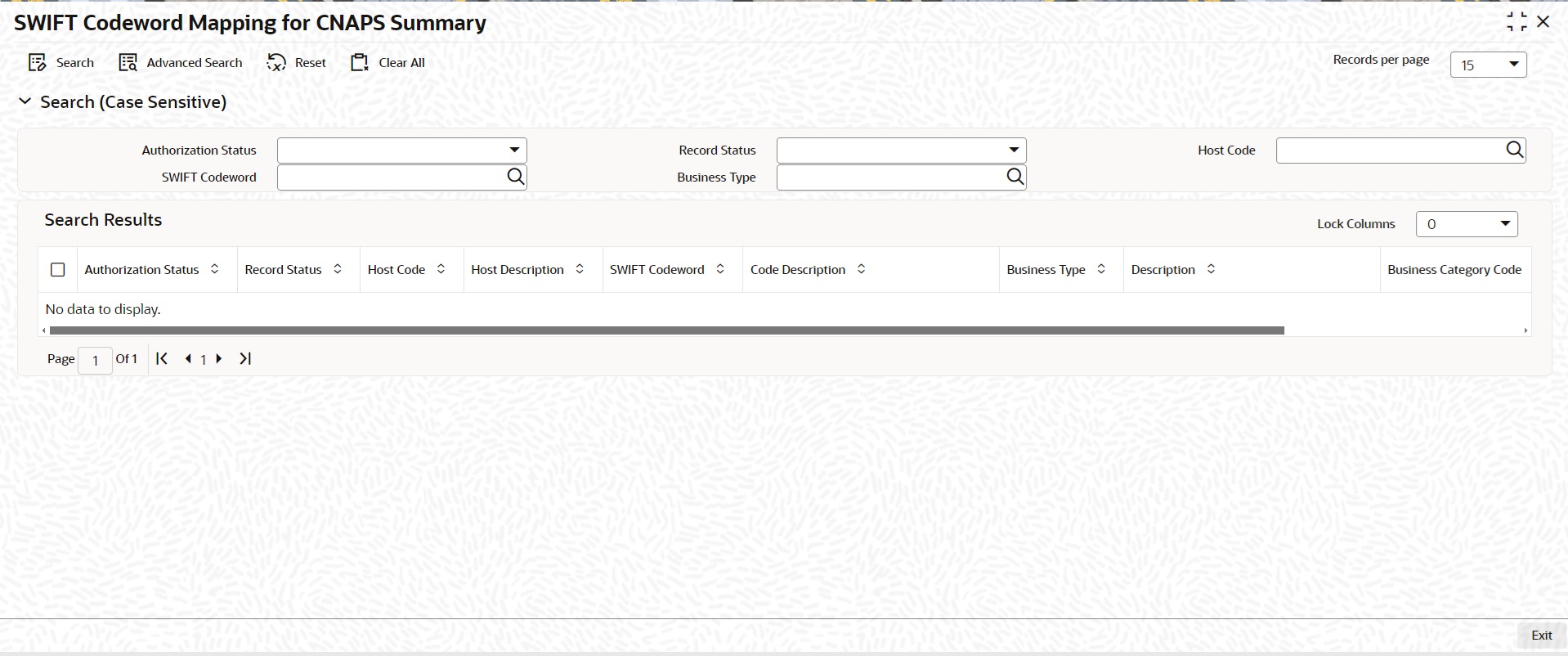
You can search for the records using one or more of the following parameters:
l Transaction Reference
l Booking Date
l Transaction Branch
l End to End Identification
l Instruction Date
l Customer Account
l Source Reference Number
l Activation Date
l Customer Number
l Source Code
l Transfer Amount
l Customer Service Model
l Network Code
l Maker ID
l Counterparty Account
l Payment Method
l Checker ID
l Counterparty Bank Code
l Transfer Type
l Authorization Status
Once you have specified the search parameters, click ‘Search’ button. The system displays the records that match the search criteria.