4. SWIFT Messages
4.1.1 Viewing Outgoing Message Browser Summary
You can invoke “Outgoing Message Browser Summary” screen by typing ‘PMSOUTBR’ in the field at the top right corner of the Application tool bar and clicking on the adjoining arrow button.
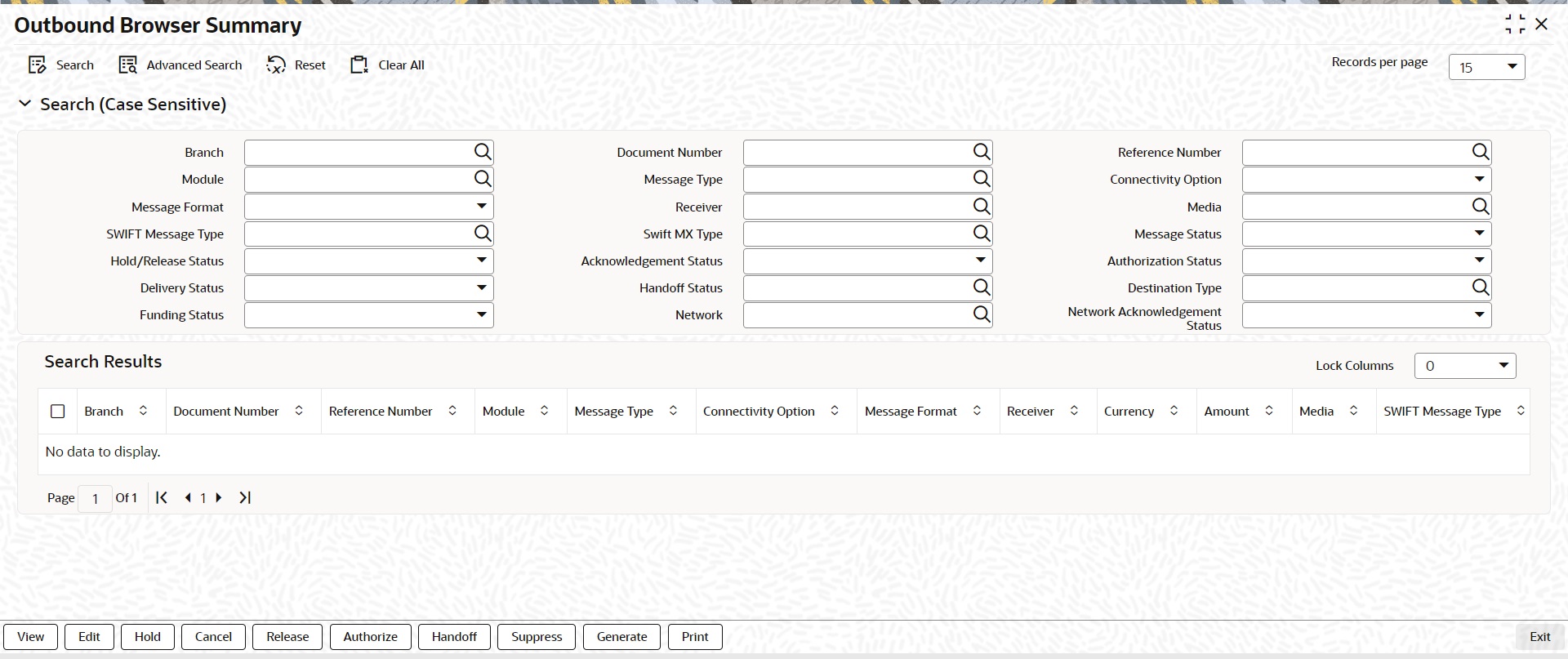
You can search using one or more of the following parameters:
l Branch
l Document Number
l Reference Number
l Module
l Message Type
l Connectivity Option
l Message Format
l Receiver
l Media
l SWIFT Message Type
l Swift MX Type
l Message Status
l Hold/Release Status
l Acknowledgement Status
l Authorization Status
l Delivery Status
l Handoff Status
l Destination Type
l Funding Status
l Network
l Network Acknowledgement Status
Note
Queue Access rights is applicable for Outgoing Browser Summary (PMSOUTBR). Refer to Exception Queues user guide, for details on Queue Access Rights.
Once you have specified the search parameters, click ‘Search’ button. The system displays the records that match the search criteria.
The following are the actions can be performed on the resultant search results:
l View - Displays the selected message
l Edit - Edit and change message content, if not handed off yet
l Hold - Hold a message, if generated & not handed off yet
l Cancel - Cancel a message, which is not handed off yet
l Release - Release a message, if withheld due to a hold rule
l Suppress - Suppress a message, if not handed off yet
l Authorize - Authorize the edited message
l Handoff - Handoff a message to SWIFT alliance, if not released yet
l Generate - Generate a message which is un-generated status
l Print - Print a generated message
Note
l Only Release/Suppress Actions are allowed on messages that are marked as ‘Withheld’ and requires authorization by another user.
l Messages that are marked as ‘Withheld’ can be manually released any time, even before the release rule start time. Release time gets updated on authorization of manual release.
l If a payment message marked as ‘Withheld’ is Released on any other business day after ‘Message Date’, then the system shows ‘This payment message cannot be released’ information message. Such payment messages are allowed to be suppressed from the outbound browser.
l Any message with Message Status Un-generated can be generated using the Generate action.
l A generated or handed off message can be printed using Print action.
l SWIFT LAU generated for the outgoing SWIFT MT message for payments can be viewed from the Payments Outgoing message browser screen.
l SWIFT LAU is displayed in summary result which shows the LAU generated for the message.
4.1.2 Invoking Outgoing Message Browser Screen
Additional fields are introduced in the outgoing browser to track the status of the message and along with bulk criteria and bulk reference number.
The new fields are bulk status, bulk file reference number and bulk preference name.
If the message is not satisfied with any of the bulk rule defined in the system, then bulk status will be marked as NA (Bulking not applicable).
You can Double click a record or click the ‘Details’ button after selecting a record in “Outgoing Message Browser Summary” screen ‘PMSOUTBR to view the details in ‘Message Outgoing Browser’ screen PMDOUTBR’ screen.
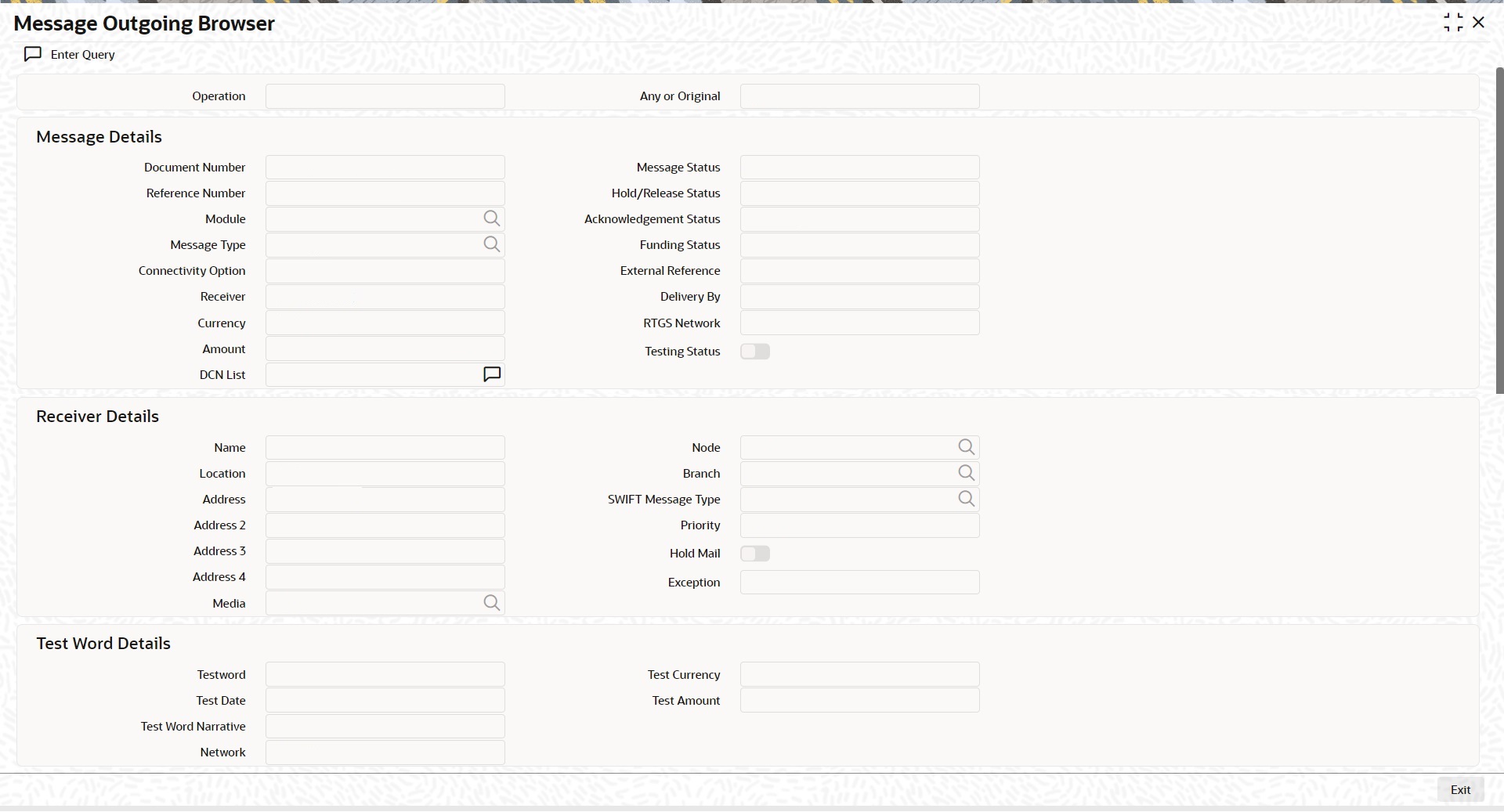
You can specify the following fields:
Operation
The system displays the type of operation.
Any or Original
The system displays if the message was ‘Any’ or ‘Original’.
Message Details
Document Number
Specify the Document Number.
Message Status
The system displays the status of the message.
Reference Number
Specify the reference number
Hold/Release Status
The system displays if the message is in Hold or Released status.
Module
Specify the module name.
Acknowledgement Status
The system displays the acknowledgement status of the message.
Message Type
Specify the type of message.
External Reference
Specify the external reference details.
Receiver
Specify the Receiver details.
Delivery By
Specify the Delivery details of the message.
Currency
Specify the currency that is specified in the message.
RTGS Network
Specify the RTGS Network.
Testing Status
The system checks this box, if the message requires testing.
DCN List
Specify the DCN List details.
Receiver Details
Name
Specify the name of the Receiver.
Node
Specify the Receiver Node.
Location
Specify the location of the Receiver.
Branch
Specify the branch of the Receiver.
Address
Specify the address details of the Receiver in the lines provided from 1 o 4.
SWIFT Message Type
Specify the SWIFT Message Type.
Priority
The system displays the priority of the message.
Hold Mail
The system check this box, if the mail must be held.
Exception
Specify the Exception details.
Media
Specify the media details.
Test Word Details
Test-word
Specify the Test Word details.
Test Amount
Specify the Test Amount
Test Date
Specify the date of testing.
Test Currency
Specify the currency used for testing.
Test Word Narrative
Specify the Test Word details.
Network
Specify the Network.
4.2.1 Viewing Incoming Message Browser Summary
Payments incoming messages can be viewed from the Incoming Message Browser screen
SWIFT LAU received from incoming message and the check sum calculated by system (LAU_Validation) are displayed in the incoming browser.
You can invoke “Incoming Message Browser Summary” screen by typing ‘PMSINBRW’ in the field at the top right corner of the Application tool bar and clicking on the adjoining arrow button.
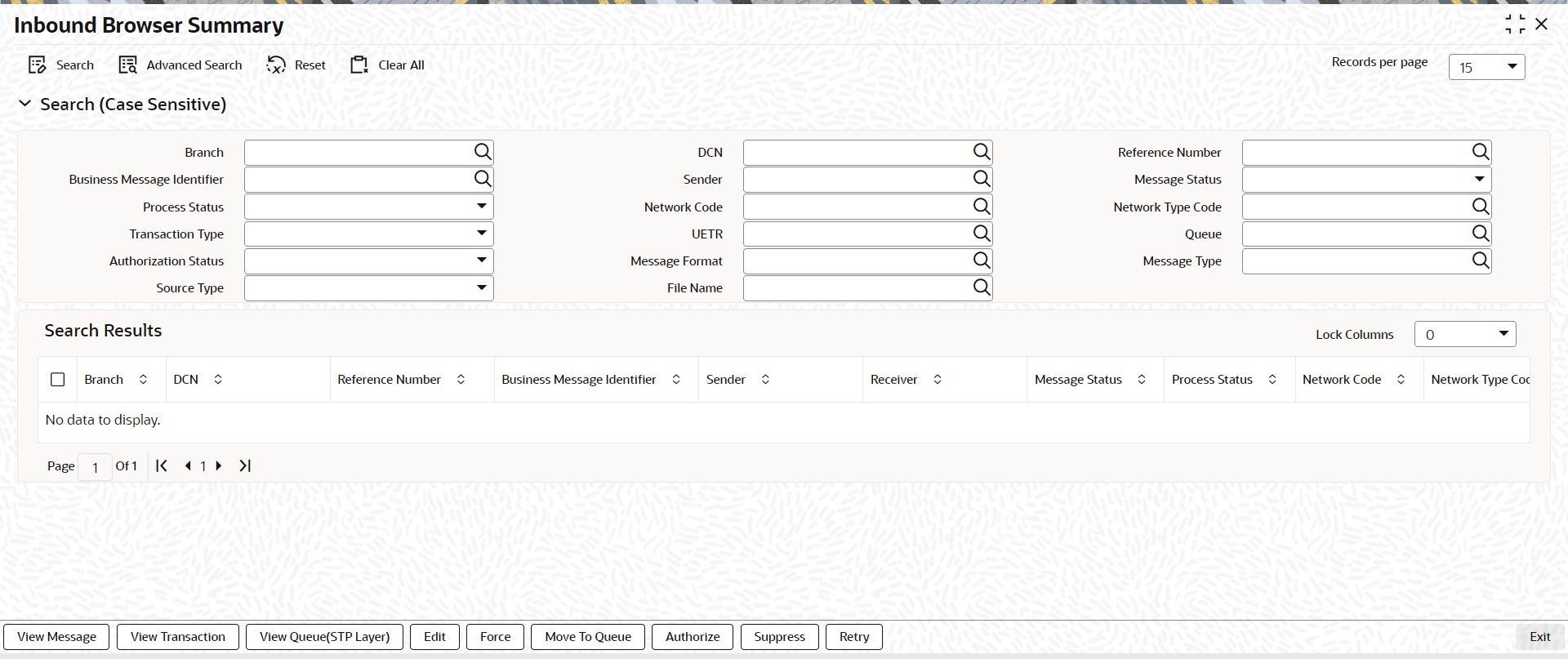
You can search using one or more of the following parameters:
l Branch
l DCN
l Reference Number
l Business Message Identifier
l Sender
l Message Type
l Message Status (Suppressed/ Pending Cover Match / Repair / Pending Network Resolution / Moved to Unmatched Queue / Move to Non STP Queue/Move to Process Exception Queue/Move to Business Override Queue/STP Cancelled/Move to Sanctions Check Queue)
l Process Status (Unprocessed / Processed / Repair / Exception)
l Queue
l Network Code
l Network Type Code
l Transaction Type (Incoming / Outgoing)
l UETR
l Authorization Status (Authorized / Unauthorized)
l Message Format
l Source Type
Note
l Queue Access rights is applicable for Incoming Browser Summary(PMSINBRW). Refer to Exception Queues user guide, for details on Queue Access Rights.
l If the Payments incoming messages has UETR then system populates UETR value in the search result section.
l Incoming MT210 message received via SWIFT is logged in Inbound Browser Summary (PMSINBRW) screen with process status “Unprocessed”.
l Incoming MT210 message would be matched to another Inbound SWIFT payment message (MT202, MT205) that is expected to be received later.
Once you have specified the search parameters, click ‘Search’ button. The system displays the records that match the search criteria.
The following operations are available in the Summary screen:
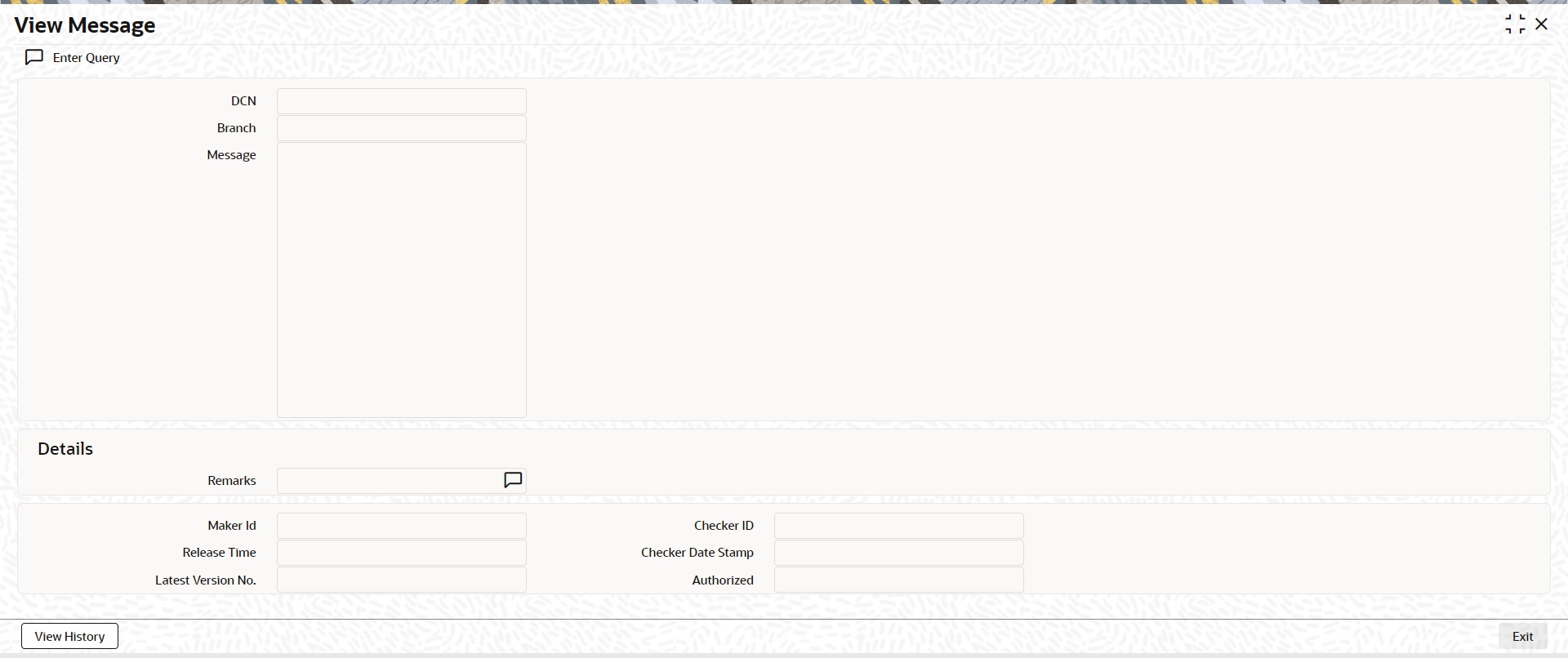
View Message
You can view the message received from SWIFT/RTGS network for the selected record" - Description for View Message button.
View Transaction
You can view the Inbound/Outbound transaction view screen based on the Process Status, Message Status, Network Type Code, and Transaction Type (Incoming / Outgoing) of the selected payment message:
l For MT 103/202/205/202COV/205COV messages, on clicking the View Transaction tab, the system launches Inbound / Outbound Cross Border / RTGS Transaction View screens when the incoming MT messages are fully processed (Process Status as ‘Processed’ and Message Status as Blank). If the Incoming MT messages are in any STP Layer exception queue (or) the Message Status is 'STP Cancelled', then the system displays Inbound SWIFT View (PSDIVIEW) screen.
l For SWIFT CBPRPlus messages, on clicking the View Transaction tab, the system launches Inbound / Outbound SWIFT CBPRPlus Transaction View screens when the incoming SWIFT CBPRPlus messages are fully processed (Process Status as ‘Processed’ and Message Status as Blank). If the Incoming SWIFT CBPRPlus messages are in any STP Layer exception queue (or) the Message Status is 'STP Cancelled', then the system displays STP Layer Inbound Transaction View screens.
l For TARGET2 messages, on clicking the View Transaction tab, the system launches Inbound / Outbound TARGET2 ISO Transaction View screens when the incoming TARGET2 messages are fully processed (Process Status as ‘Processed’ and Message Status as Blank). If the Incoming TARGET2 messages are in any STP Layer exception queue (or) the Message Status is 'STP Cancelled', then the system displays STP Layer Inbound Transaction View screens.
This user action is not applicable when the Message Status is 'Move to Sanctions Check Queue'.
View Queue (STP Layer)
l For MT / MX messages, on clicking the View Queue (STP Layer) tab, the system launches the STP Layer exception queue when the Incoming messages are moved to any STP Layer exception queue.
When the Message Status is 'Move to Sanctions Check Queue', Sanctions Check Queue (PQSSNCKQ) screen is invoked with the message reference filtered.
4.2.2 Invoking Incoming Message Browser Screen
This screen is modified to view the incoming message details like source type and SWIFTNet connector name.
You can Double click a record or click the ‘Details’ button after selecting a record in “Incoming Message Browser Summary” screen PMSINBRW’ screen to view the details in Incoming Message Browser’ screen by PMDINBRW’ screen.
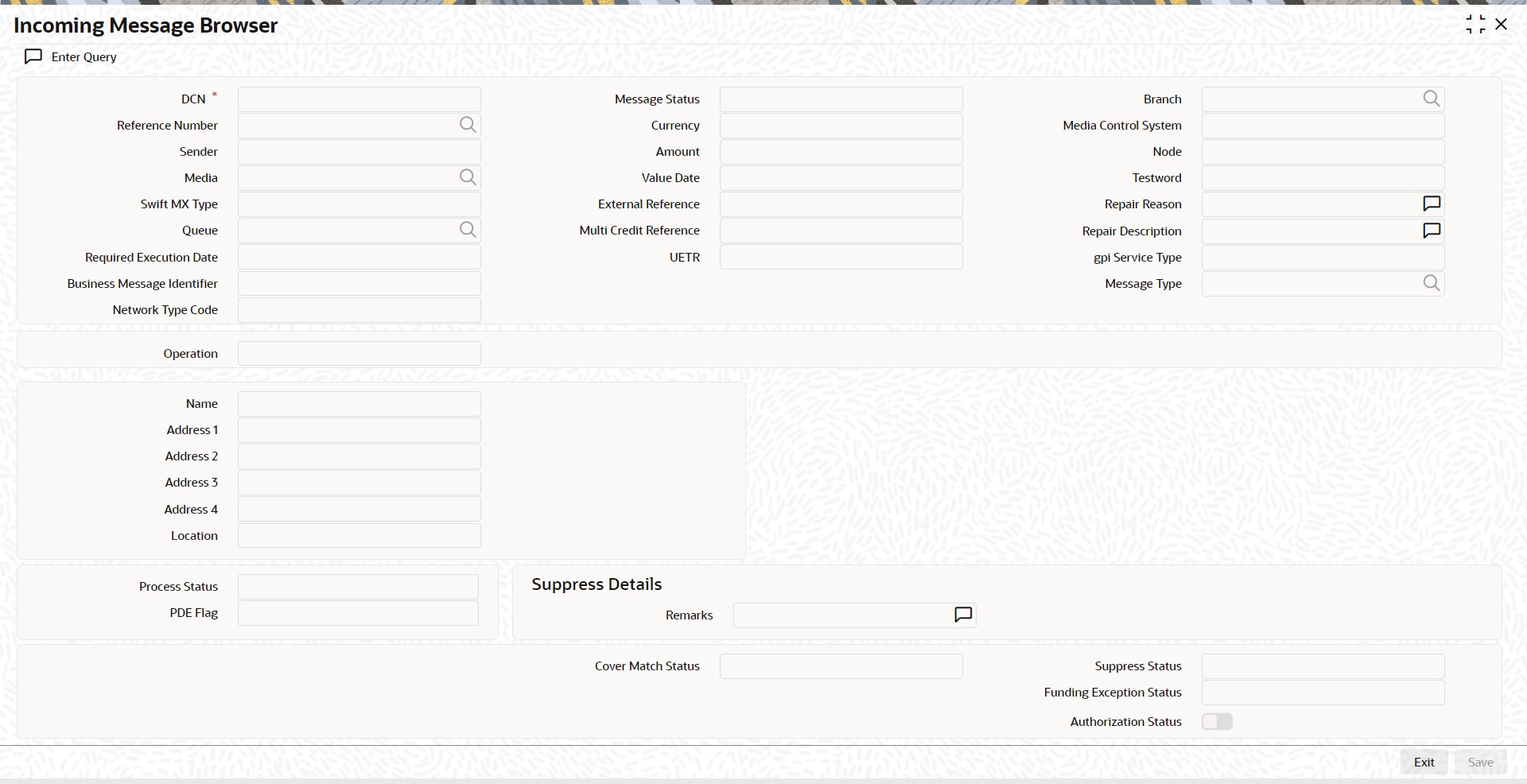
You can specify the following fields:
Document Number
Specify the Document Number.
Reference No
Specify the Reference Number of the document.
Sender
Specify the reference number.
Media
Specify the required media.
SWIFT Message Type
Specify the required SWIFT Message Type.
Queue
Specify the queue name.
Required Execution Date
Specify the required execution date.
Operation
Select the required operation.
Name
Specify the name.
Address 1
Specify the address.
Address 2
Specify the address.
Address 3
Specify the address.
Address 4
Specify the address.
Location
Specify the required location.
Status
Specify the required status.
Currency
Specify the required currency.
Amount
Specify the amount.
Value Date
Specify the value date.
External Reference
Specify the external reference number.
Multi Credit Reference
Specify the multi credit reference details.
Branch
Specify the required branch.
Media Control System
Specify the Media Control System.
Node
Specify the required node.
Testword
Specify the testword.
Repair Reason
Specify the Repair Reason.
Reason Description
Specify the description of the reason.
Suppress Details
Process Status
Specify the status of the process.
PDE Flag
Check the PDE flag if required.
Remarks
Specify the any remarks of the Suppress details.
Suppress Message
Specify the suppress message details.
Cover Match Status
Specify the status of the cover match.
Suppress Status
Specify the status of the suppress.
Funding Exception Status
Specify the status of the Funding Exception.
Authorization Status
Check the Authorization Status box, if required.
The following are the list of functionalities that are part of Bulker Framework:
l Ability to bulk the outgoing SWIFT MT messages with a configurable delimiter based on parameters like Message Type, Value Date, Currency, Receiver BIC and Sender BIC.
l Option to schedule automatic bulking with a start and end time with time frequency so that the bulking process runs between start and end time for configured frequency.
l Ability to configure size or volume based bulking.
l File name prefix should be configurable in the system.
l The system supports option to compress the bulk file before sending it to the SWIFTNet network.
Below listed key maintenances are referred for Bulking and De-bulking of SWIFT MT Messages processing:
l Bulk Preference Definition (MSDBLKRL)
– Bulk Preference Definition screen is used to configure the preferences to be used during the bulking process.
– It also defines the scheduling parameters to automate the bulking process, like start time, end time and frequency.
– Compression required and compression type is applicable only for SWIFTNet connectivity not for other destination types.
l Bulker Monitor (MSDBLKMN)
– This is the screen to monitor the bulk scheduler execution.
– You can view the bulk preference name and the execution start time, end time, execution status and no of files generated.
– You can initiate the ad-hoc bulking for the selected bulk preference.
– To initiate the adhoc manual bulking the detail screen has to be invoked and click on the adhoc bulking button to trigger the adhoc bulking for the chosen bulk preference.
– To Reprocess the messages which are got failed in the previous bulking process user has to invoke bulk monitor details screen. Then click on the user regenerate button to reprocess the failed message to reprocess.
For more details about fields of above mentioned maintenance screens, refers to Common Core - Electronic Messaging Service User Guide.
SWIFT Alliance LAU is enabled in order to secure messaging between Oracle Banking Payments and SWIFT.
If there is any interference with the message as it is transmitted between source and destination, the checksum fails, indicating the message integrity has been breached.
Below listed key maintenances are referred for File exchange processing:
l SWIFT LAU Key Maintenance (MSDLAUMN)
– This screen can be accessed for maintenance from Head Office only.
– Specific users with necessary roles can access the maintenance screen. Switching LAU ‘ON’ or ‘OFF’ affects all the outgoing SWIFT messages in FCUBS. SWIFT LAU maintenance data is referred by EMS for calculation of checksum for outbound or inbound messages.
– Message direction must be chosen based on the key is maintained for Outgoing or Incoming SWIFT message.
For more details about fields of above mentioned maintenance screens, refers to Common Core - Electronic Messaging Service User Guide.
4.4.1 Viewing SWIFT LAU Key Summary
You can invoke “SWIFT LAU Key Summary” screen by typing ‘MSSLAUMN’ in the field at the top right corner of the Application tool bar and clicking on the adjoining arrow button.
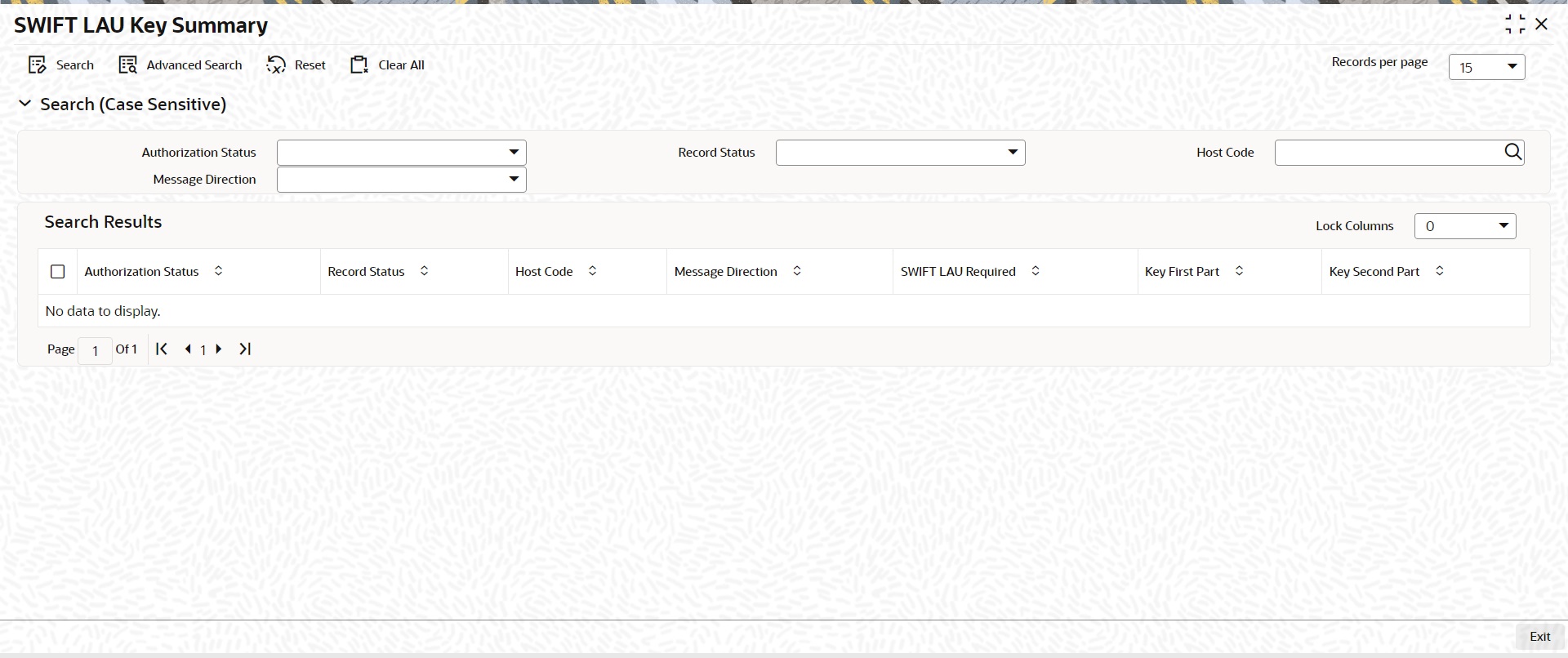
You can search using one or more of the following parameters:
l Authorization Status
l Record Status
l Host Code
l Message Direction
Once you have specified the search parameters, click ‘Search’ button. The system displays the records that match the search criteria for the following:
l Authorization Status
l Record Status
l Host Code
l Message Direction
l SWIFT LAU Required
l Key First Part
l Key Second PartDetailed Processing Logic for Outgoing SWIFT LAU
l The messaging module is enhanced to incorporate the new S-block in the SWIFT message. And the same is generated for all outbound messages from FCUBS with message status ‘G’.
l The messaging module fetches the records in outgoing browser with MSG_STATUS = ’G’ and generates S-Block data.
l For all outbound messages, the generated checksum is appended in S-Block and can be viewed from Outgoing Message Browser front end screen.
l Successful generation of S-Block data and message hand-off to out folder updates the message status to ‘H’
l EMS does not update message status to ‘H’ in Outgoing message browser if, there is failure to append the S block data in the message and the status of message remains ‘G’.
EMS next hand-off job picks the messages with status ‘G’ and regenerates S Block data and appends same in the message which also updates message status to ‘H’.
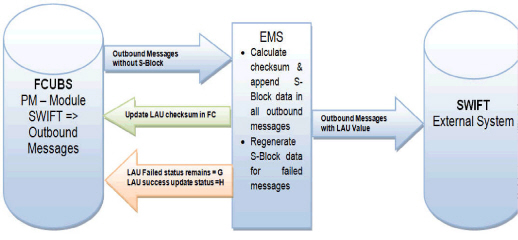
Refer the Process Flow diagram below:
4.4.2 Detailed Processing Logic for Incoming SWIFT LAU
l The messaging module is enhanced to validate inbound messages with S block data.
l Received encrypted S-Block checksum values are validated.
l You can view both, check sum received & generated in SWIFT_LAU & LAU_VALIDATION fields respectively. Messages with status ‘R’ in Incoming message browser hold differences in check sum data between SWIFT_LAU and LAU_VALIDATION data.
l Incoming message without any data in S Block is uploaded in incoming browser with status ‘R’ and there is no data updated in SWIFT_LAU field where as EMS generated checksum gets updated in LAU_VALIDATION field.
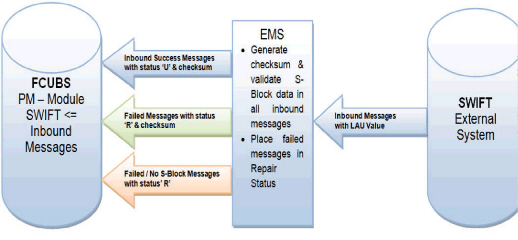
Refer the Process Flow diagram below:
4.5 SWIFT FIN Header Configuration
Provision is given in an application to configure delivery monitoring flag in the FIN message application header. Based on the configuration provided the customer can do the maintenance to receive/not receive MT011 delivery notifications.
4.5.1 SWIFT FIN Header Preference
This screen supports processing of delivery notification messages.
You can invoke ‘SWIFT FIN Header Preference screen’ by typing ‘ PXDFNHDR’ in the field at the top right corner of the Application tool bar and clicking on the adjoining arrow button.
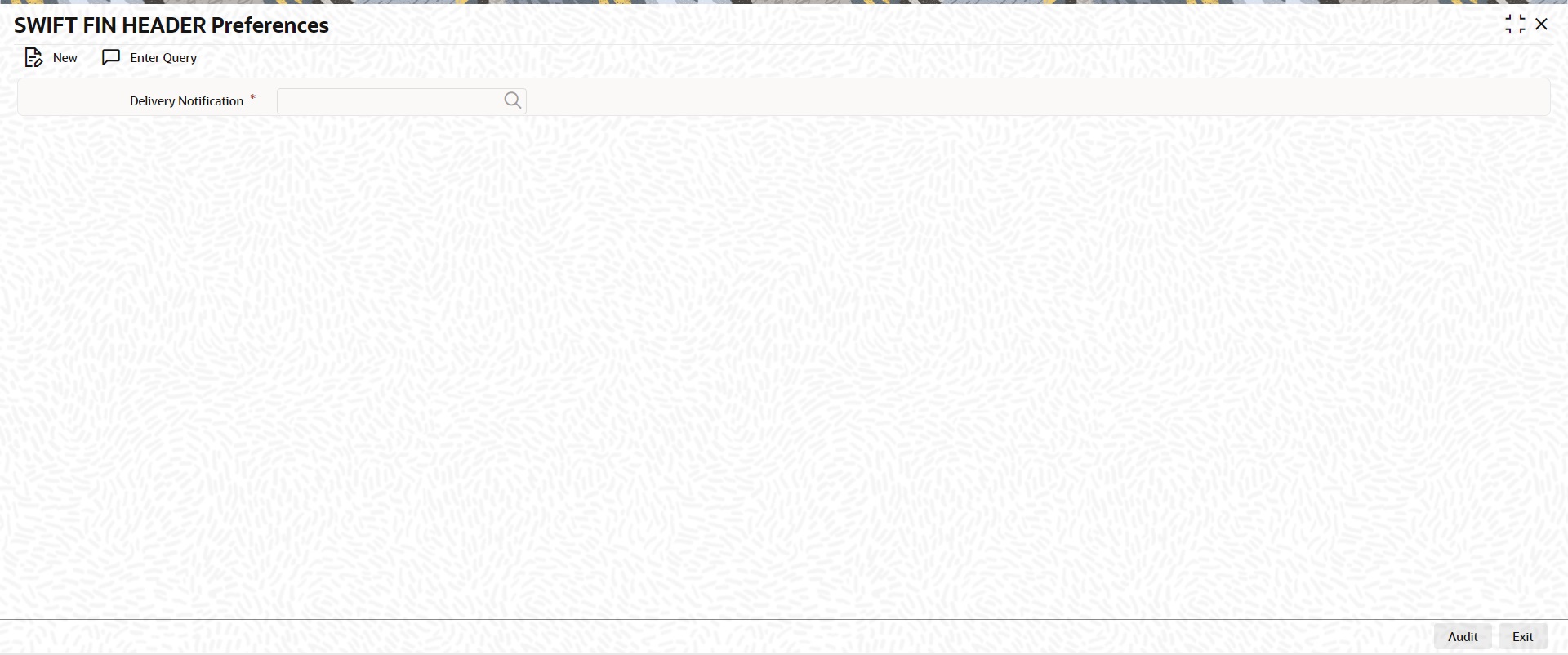
You can specify the following details by clicking on ‘New’ button to create a new record or verify the existing records by clicking on Enter Query button.
Delivery Notification
Specify the Delivery Notification from the following list of values:
l Required
l Not Required
4.5.1.1 SWIFT FIN HEADER Preferences Summary
You can invoke ‘SWIFT FIN HEADER Preferences Summary‘ screen by typing ‘PXSFNHDR’ in the field at the top right corner of the Application tool bar and clicking on the adjoining arrow button.
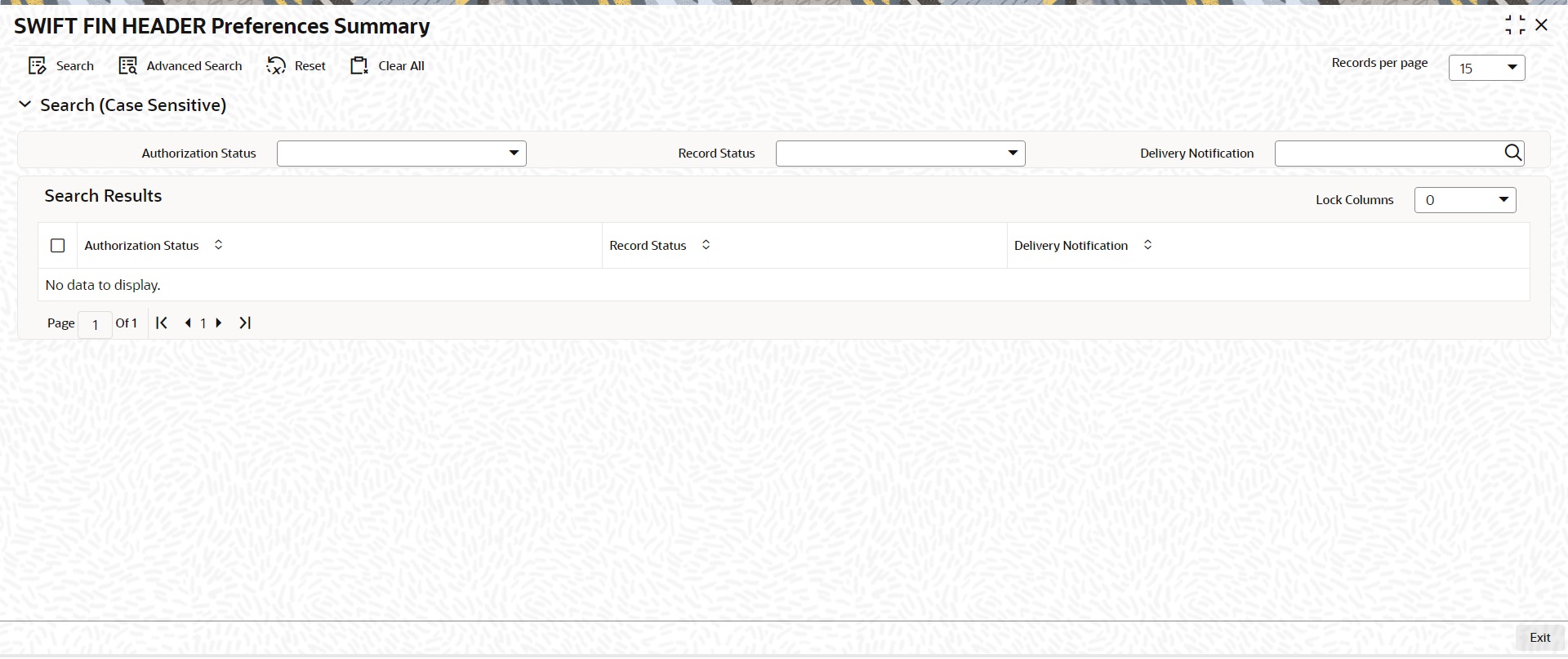
You can search using one or more of the following parameters:
l Authorization Status (Authorized / Unauthorized / Rejected)
l Record Status (Open / Closed)
l Delivery Notification
Once you have specified the search parameters, click ‘Search’ button. The system displays the records that match the search criteria.
Double click a record after selecting a record to view the detailed screen.
4.5.2 SWIFT FIN Header Host Preference
This screen supports processing of delivery notification messages.
You can invoke ‘SWIFT FIN Header Host Preference screen’ by typing ‘ PXDFNHST’ in the field at the top right corner of the Application tool bar and clicking on the adjoining arrow button.
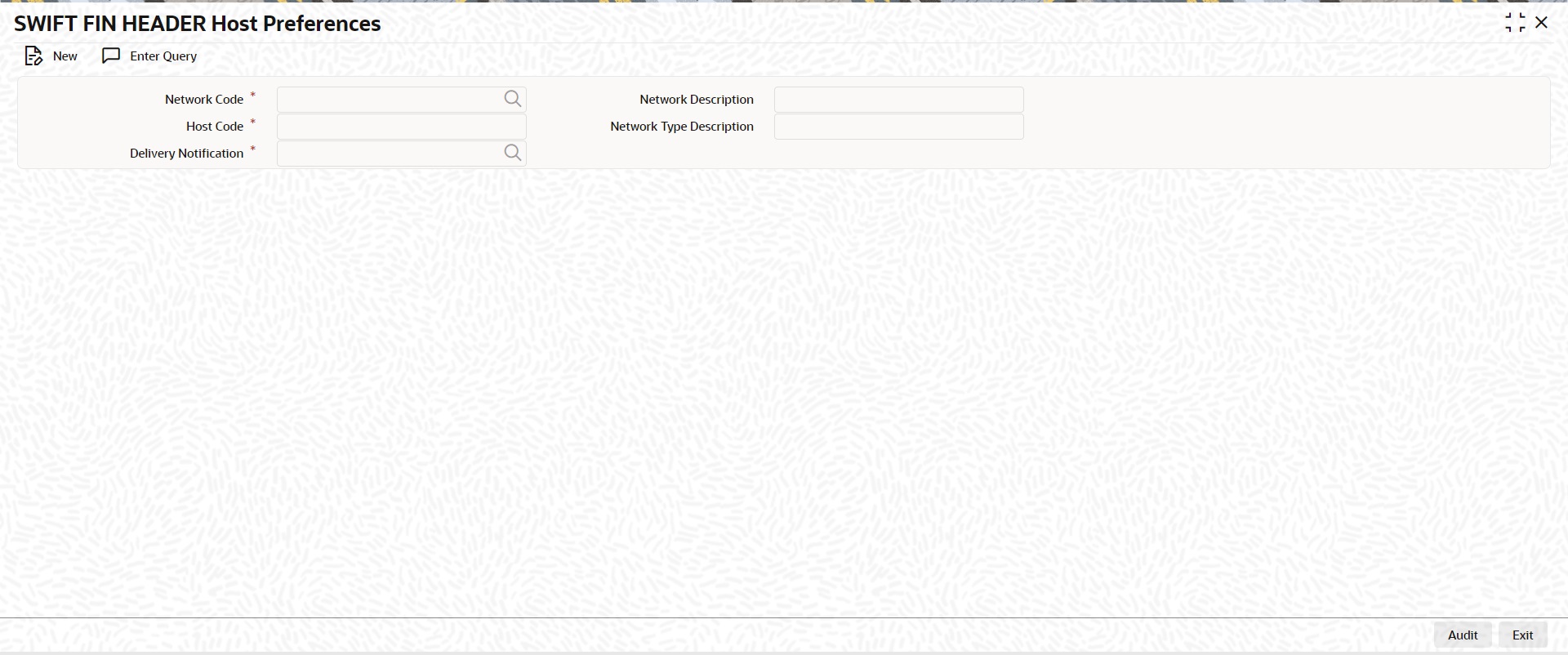
You can specify the following details by clicking on ‘New’ button to create a new record or verify the existing records by clicking on Enter Query button.
Host Code
System defaults the Host code of the logged in user.
Network Code
This field list all the Network codes maintained for payment types 'Cross Border' and 'RTGS' in the host.
Delivery Notification
Specify the Delivery Notification from the following list of values:
l Required
l Not Required
Network Description
The system defaults the Network Description based on the Network Code selected.
Network Type Description
The system defaults the Network Type Description based on the Network Code selected.
4.5.2.1 SWIFT FIN HEADER Host Preferences Summary
You can invoke ‘SWIFT FIN HEADER Host Preferences Summary‘ screen by typing ‘PXSFNHDR’ in the field at the top right corner of the Application tool bar and clicking on the adjoining arrow button.
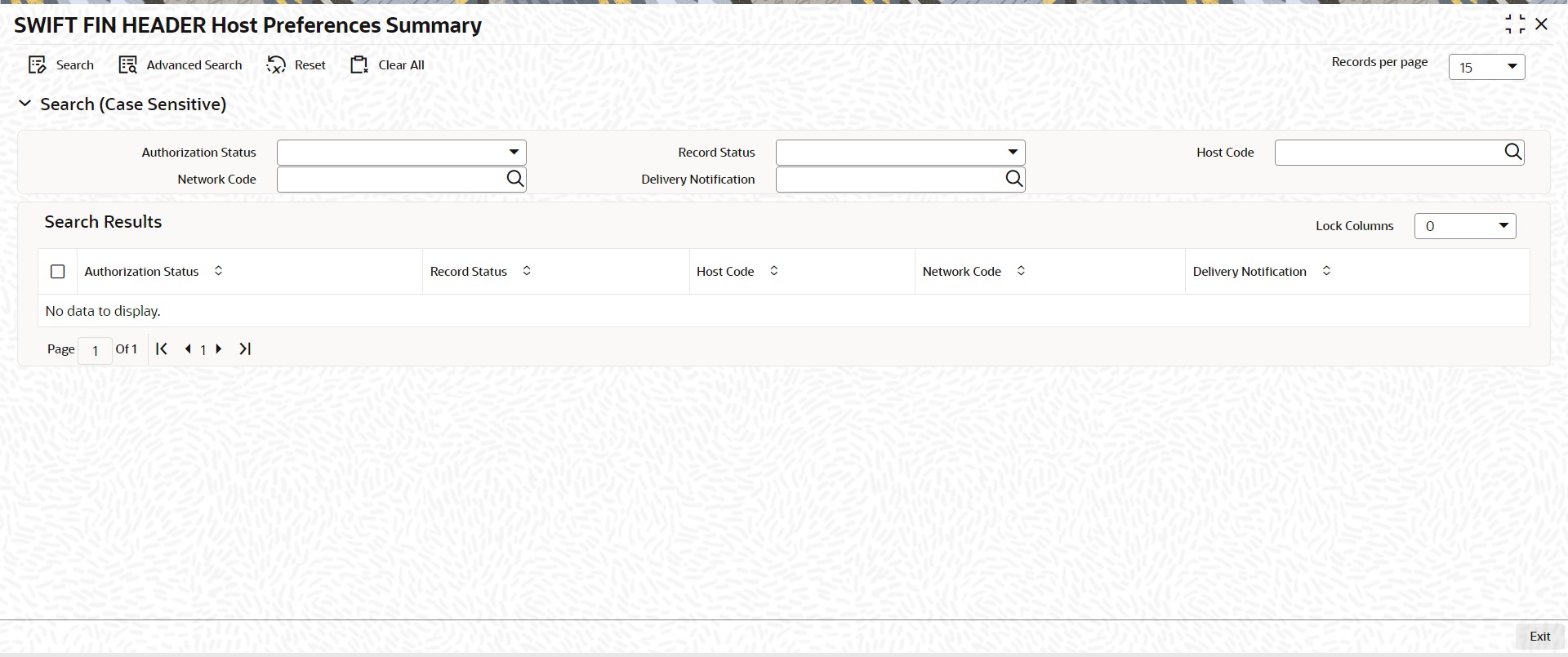
You can search using one or more of the following parameters:
l Authorization Status (Authorized / Unauthorized / Rejected)
l Record Status (Open / Closed)
l Host Code
l Network Code
l Delivery Notification
Once you have specified the search parameters, click ‘Search’ button. The system displays the records that match the search criteria.
Double click a record after selecting a record to view the detailed screen.
4.5.3 SWIFT FIN Header Processing
Below is the list of messages applicable on Swift Fin Header preferences and Host preferences:
|
Message Type |
Message Description |
|---|---|
|
MT103/103 REMIT/103 STP |
Single Customer Credit Transfer |
|
MT202 |
General Financial Institution Transfer |
|
MT205 |
Financial Institution Transfer Execution |
|
MT202COV |
General Financial Institution Transfer |
|
MT205COV |
Financial Institution Transfer Execution |
|
MT200 |
Financial Institution Transfer for its Own Account |
|
MT210 |
Notice to Receive |
While generating the outgoing MT message, system checks for Delivery Notification maintenance done in the FIN Header Host Preference (PXDFNHST) screen.
If there is no host level message preference maintained, then system checks the FIN Header Preference (PXDFNHDR) screen.
|
Level 1 |
SWIFT FIN Header Host Preference |
|---|---|
|
Level 2 |
SWIFT FIN Header Preference |
Based on the Message Priority (i.e. Value provided in Bank priority field) of outgoing transaction input screen and Delivery Notification field value, the Delivery Monitoring field of FIN message application header gets populated
l When Message Priority value is U
– If Delivery Notification value is ‘Required, Field value gets populated with 3.
– If Delivery Notification value is Not Required, Field value gets populated as 1.
l When Message Priority value is N
– If Delivery Notification value is ‘Required, Field value gets populated with 2.
– If Delivery Notification value is Not Required, Field value gets blank.
Note
When value of the delivery notification is sent as blank then system do not receive MT011 (i.e. Delivery Notification) from SWIFT.