Assigning an Absence System and Pay Group to a Payee
|
Page Name |
Definition Name |
Usage |
|---|---|---|
|
JOB_DATA2 |
Select Absence Management as the absence system and assign pay group parameters for each payee whose absences are tracked through Absence Management. |
You use the Installation Table - Products page in HR to indicate that Absence Management is installed.
There are two actions for which you can select an absence system for a payee:
Hire
Rehire
During the hire or rehire process you select an absence system for a payee on the Job Data - Payroll page. This becomes part of the payee’s Job record.
For example, suppose that you initially implemented HR, but used a third-party absence management system. On January 1, 2005, your organization decided to convert to Absence Management. You insert a new effective-dated row into the Job record with Absence Management selected in the Absence System list box. The payee's absence data will be calculated in Absence Management for absence periods that are in effect as of January 1, 2005.
See Setting Up Implementation Defaults.
Points to Remember
Here are some points to remember about assigning Absence Management as the absence system:
In order for a payee to be processed in Absence Management, the payee must have a Job record, because information about the Absence System flag and the pay group are stored on the payee's Job record. This applies to all types of payees - employees and contingent workers.
Absence Management processes only the payees for whom the Absence System indicator is set to Absence Management for the period of time that the payees are associated with that absence system.
Absence Management does not prevent you from changing the Absence System indicator from Absence Management to another absence system going forward.
Absence Management does not prevent you from changing the Absence System indicator from Absence Management to another absence system retroactively.
Note: It is recommended that you create retro and period segmentation triggers for the Absence System change.
Absence Management does not support the Payroll System of Other.
Absence Management will automatically default as the Absence System when Global Payroll is selected as the Payroll System.
Absence Management may be used as a stand alone application and must have a Payroll System of Global Payroll.
There is no integration between absence systems.
For example, if your organization switches from Absence Management to another absence management system, PeopleSoft does not automatically transfer the balances and the data. You must transfer that information yourself.
System Occurrences When a Job Data Record is Added or Modified
Certain things happen in the system when a Job record is created for a payee. For example, a row is inserted into the Schedule Assignment table, indicating that the person should use the default schedules that are assigned at the pay group level for Absence Management and at the work group level for PeopleSoft Time and Labor. This occurs regardless of whether or not the payee's absences are tracked in Absence Management.
Use the Payroll page (JOB_DATA2) to select Absence Management as the absence system and assign pay group parameters for each payee whose absences are tracked through Absence Management.
Navigation:
This example illustrates the fields and controls on the Job Data - Payroll page.
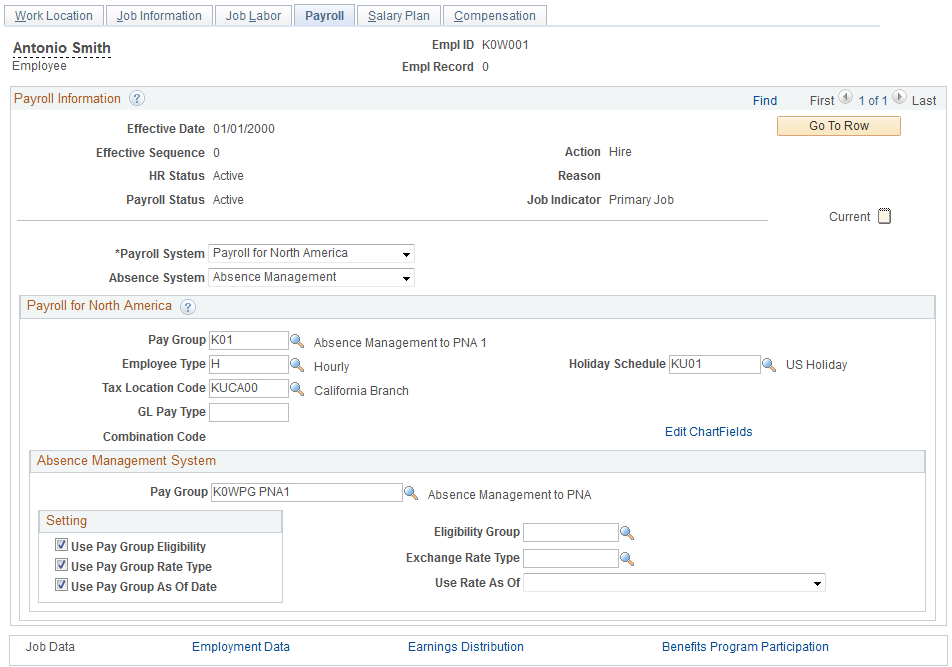
For each payee whose absences you will track in Absence Management, you must do the following:
Select Absence Management on the Installation Table - Products page.
Assign the payee to a pay group on the Job Data - Payroll page in HR.
The pay group assignment determines the default values for the payee’s eligibility group. You can override these values for an individual payee on the Job Data - Payroll page.
Note: As part of the general setup for Absence Management, you must define payee job data defaults on the Pay Group Name page prior to selecting a pay group for a payee on the Job Data - Payroll page.
Note: If you do not select a holiday schedule for the payee on the Job Data - Payroll page, the system uses the holiday schedule assigned to the payee's pay group during absence processing .
Note: The Job Data - Payroll page is discussed in HR documentation. The Pay Group Name page is discussed elsewhere in this documentation.