4. Foreign Account Tax Compliance Act
FATCA is the acronym for Foreign Account Tax Compliance Act enacted by the US Government as part of the Hiring Incentives to Restore Employment (HIRE) Act, in 2010.The purpose of FATCA is to help Internal Revenue Service (IRS) to identify and collect tax from US Persons (USP) holding financial assets outside US.
This chapter deals with Foreign Account Tax Compliance regulation. It includes the description about functions that would help Oracle FLEXCUBE to support FATCA.
This chapter contains the following sections:
l Section 4.1, "Maintaining FATCA Product"
l Section 4.2, "Customer Type-wise FATCA Maintenance"
l Section 4.3, "Entity FATCA Classification"
l Section 4.4, "Criteria for Applying US Indicia"
l Section 4.5, "Tracking FATCA Customers"
l Section 4.6, "Viewing FATCA Withholding Log"
l Section 4.7, "FATCA Referral Processing"
l Section 4.8, "FATCA Rule Maintenance"
l Section 4.9, "Intraday Batch Maintenance"
l Section 4.10, "Post EOTI Batch Maintenance"
l Section 4.11, "Data Population into Data Stores"
l Section 4.12, "FATCA Obligation Population and Classification Scenarios"
You can maintain products, account class and instruments that is applicable for FATCA withholding. The system will mark all the contracts, accounts and deals created using any of the listed values in the maintenance as US sourced obligation. The maintenance will also indicate whether the obligation created should be considered at the time of computing FATCA balance for the customer and whether grandfathering is applicable for the obligation.
You can store a list of products, account classes or instruments at a bank level using ‘FATCA - Product, Account Classes and Instruments’ screen, invoked from the Application Browser. You can invoke this screen by typing ‘STDFATPR’ in the field at the top right corner of the Application tool bar and clicking the adjoining arrow button.
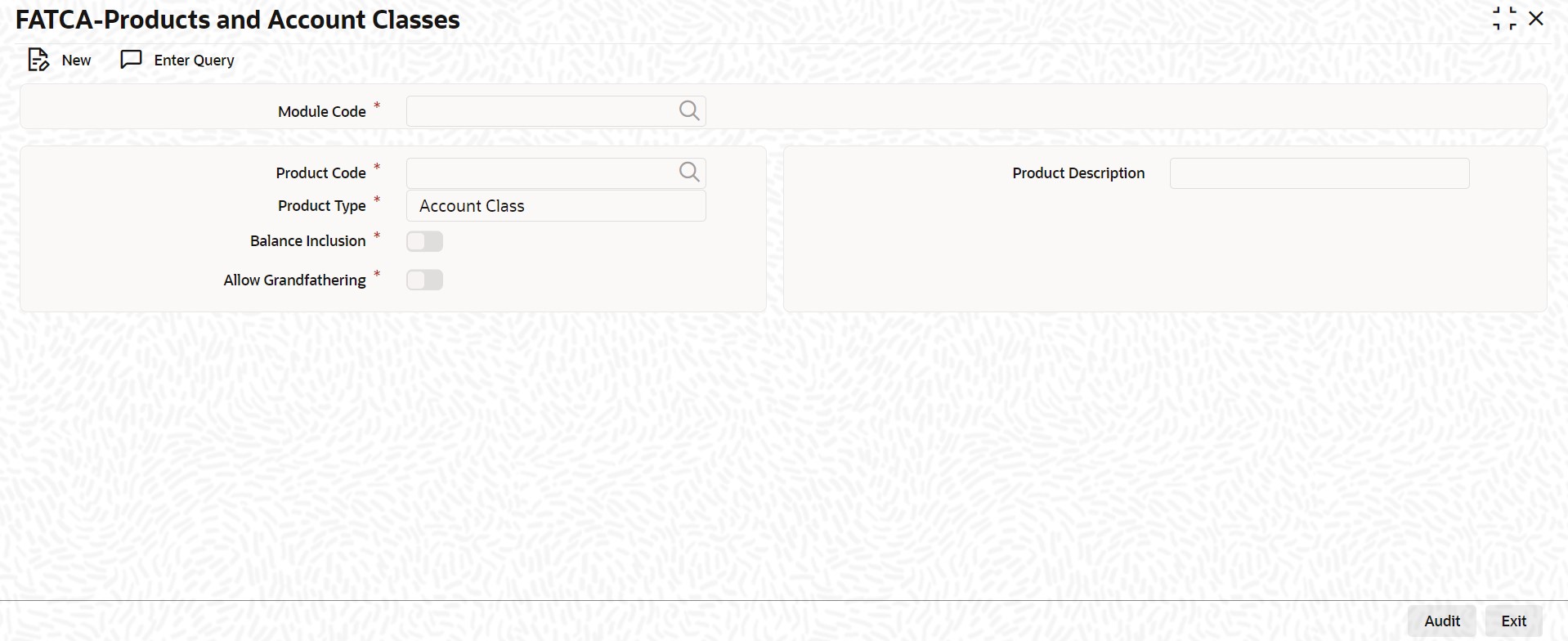
You can specify the following details:
Module Code
Specify the module code for the product or account class. You can also select the valid module code from the adjoining option list.
Product Code
Specify the product, account class or instrument code. You can also select the valid product code from the adjoining option list.
Product Description
The system displays the description for the selected product code.
Type
Select the type of the product from the drop-down list. Following are the options available in the drop-down list:
l Product
l Account Class
l Instrument
Incl. Bal.
Check this box if the balance of the contract account should be included for FATCA.
Allow Grandfathering
Check this box if the grandfathering of contracts booked using the product/account class/instrument is allowed.
Grandfathered obligations needs to be checked based on the ‘Allow Grandfathering’ field at the ‘FATCA - Product, Account Classes and Instruments’ screen. The obligation is grandfathered if Account Opening Date is less than Grandfathered cutoff date and there are no changes in tenor, amount or rate of interest after grandfathered cutoff date.
While authorizing, if customer is a reportable FATCA status or is recalcitrant, the system will identify all accounts, contracts and deals for the customer booked using products, account classes or instruments. For each of the customer the total FATCA balance should be updated in the threshold currency maintained for that type of customer. The FATCA balance of the customer will be the sum total of all balances of the customer obligations.
If the maintenance is being modified, then at the time of authorization of the maintenance, the system will perform the following:
l If a product, account class or instrument is being removed from the list then all accounts, contracts or deals booked using the product, account class or instrument should be removed from the tracking table
l The customer balance should be updated accordingly.
If a new product, account class or instrument is being added to the list, then at the time of authorization of the maintenance, the system should scan for all contracts, accounts or deals booked using the newly added product, account class or instrument with ‘Incl. Bal.’ field checked. If the counterparty of such a contract, account or deal has a reportable FATCA status, a row should be inserted into the FATCA tracking table.
4.2 Customer Type-wise FATCA Maintenance
This section contains the following topics:
l Section 4.2.1, "Maintaining Customer Type-wise FATCA Parameters"
l Section 4.2.2, "Viewing Customer Type-wise FATCA Parameters"
4.2.1 Maintaining Customer Type-wise FATCA Parameters
You can maintain the FATCA parameters for different customer types in ‘Customer Type-wise FATCA Parameters’ screen. To invoke this screen type ‘STDFATCA’ in the field at the top right corner of the Application tool bar and click on the adjoining arrow button.
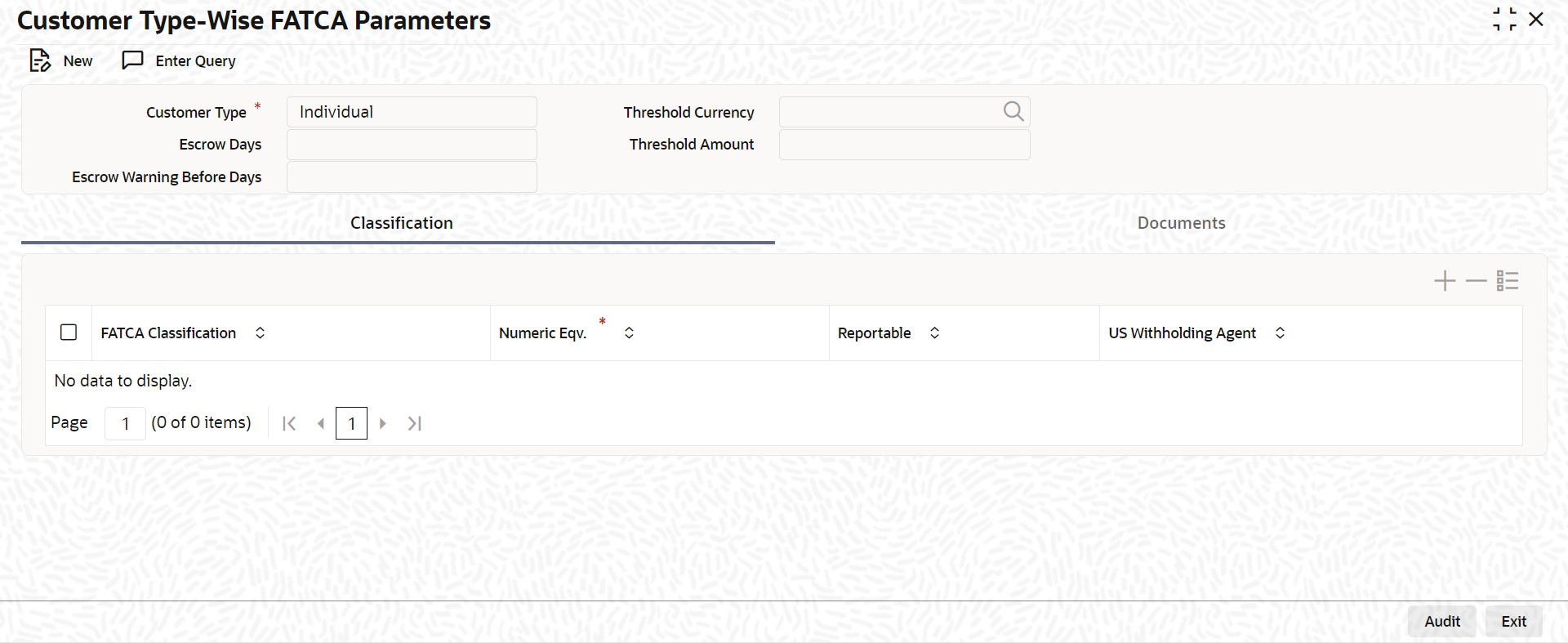
You can capture the following in this screen:
Customer Type
Select the type for customer from the adjoining drop-down list. The options available are:
l Individual
l Bank
l Corporate
Threshold Currency
Select the threshold currency from the adjoining option list.
Threshold Amount
Specify the threshold amount.
Escrow Days
Specify the number of days for which a transaction for the type of customer can he held in Escrow account.
Escrow Warning Before Days
Specify the number of days before the expiry of Escrow period, when an alert should be raised.
Classification Details
FATCA Classification
Specify the FATCA classification for the given customer type.
Numeric Eqv.
Specify a numeric equivalent for FATCA classification. The numeric value should be unique for the given customer type and you cannot repeat a numeric for the given customer type.
Reportable
Check this box to indicate that the FATCA Classification mentioned is Reportable to IRS.
US Withholding Agent
Check this box to indicate if the status defined is a US withholding agent or not.
The check box for US withholding agent must be enabled only if the customer type is Bank. This check box should be unchecked for all other customer types. If the customer is a bank type of customer, then this check box should be enabled. A single status should be mandatorily defined as US withholding agent.
Document Details
Category
Select the category of documents from the adjoining option list.
Type
Specify the type of document.
Verification Limit in Days
Specify the number of days allowed to submit the documents for FATCA verification.
Note
If the check box ‘FATCA Applicable’ in the ‘Bank Parameters’ screen is not checked, then saving a record in Customer Type Wise FATCA parameters is not allowed.
4.2.2 Viewing Customer Type-wise FATCA Parameters
You can view the customer type details maintained in the ‘Customer Type-wise FATCA Parameters’ screen using the ‘Customer Type-Wise FATCA Parameters Summary’ screen. You can invoke this screen by typing ‘STSFATCA’ in the field at the top right corner of the Application tool bar and clicking on the adjoining arrow button.
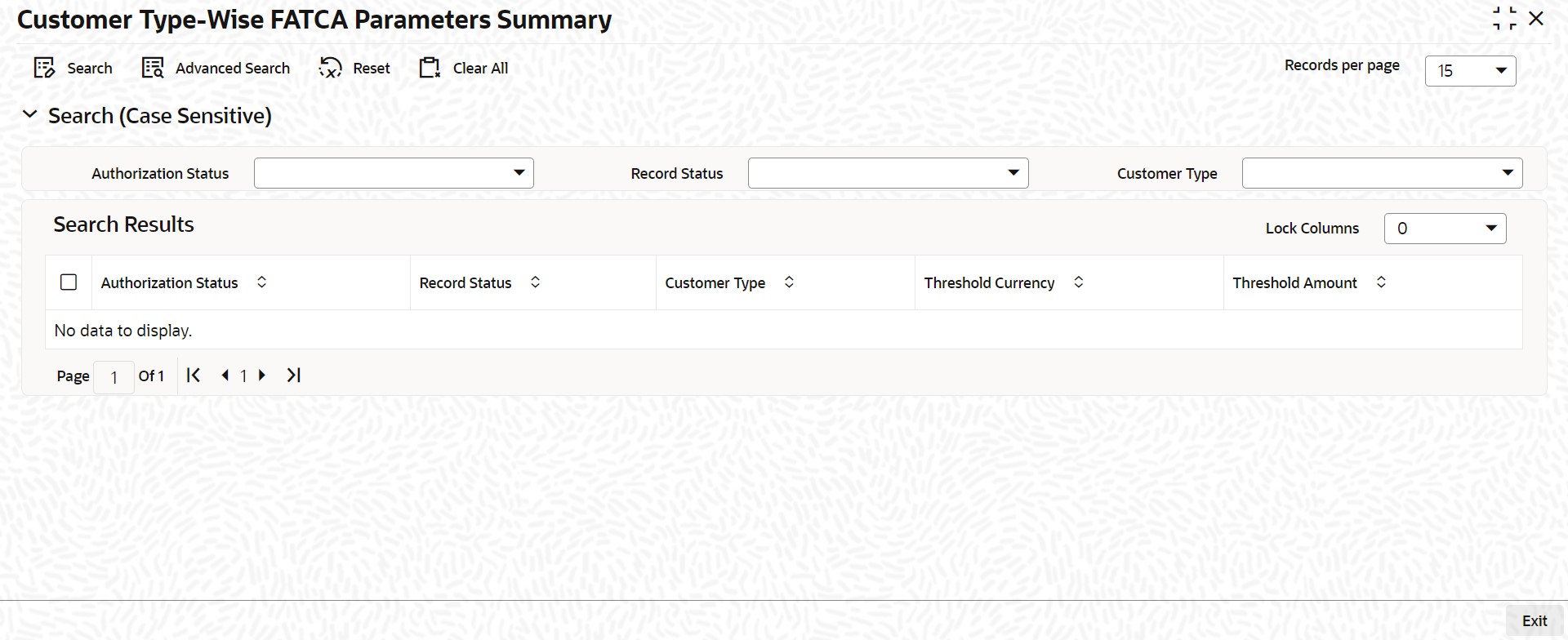
In the above screen, you can base your queries on any or all of the following parameters and fetch records:
l Authorization Status
l Record Status
l Customer Type
l Threshold Currency
l Threshold Amount
Select any or all of the above parameters for a query and click ‘Search’ button. The records meeting the selected criteria are displayed.
l Authorization Status
l Record Status
l Customer Type
l Threshold Currency
l Threshold Amount
4.3 Entity FATCA Classification
This section contains the following topics:
l Section 4.3.1, "Maintaining Customer FATCA Classification"
l Section 4.3.2, "Viewing Customer FATCA Classification"
4.3.1 Maintaining Customer FATCA Classification
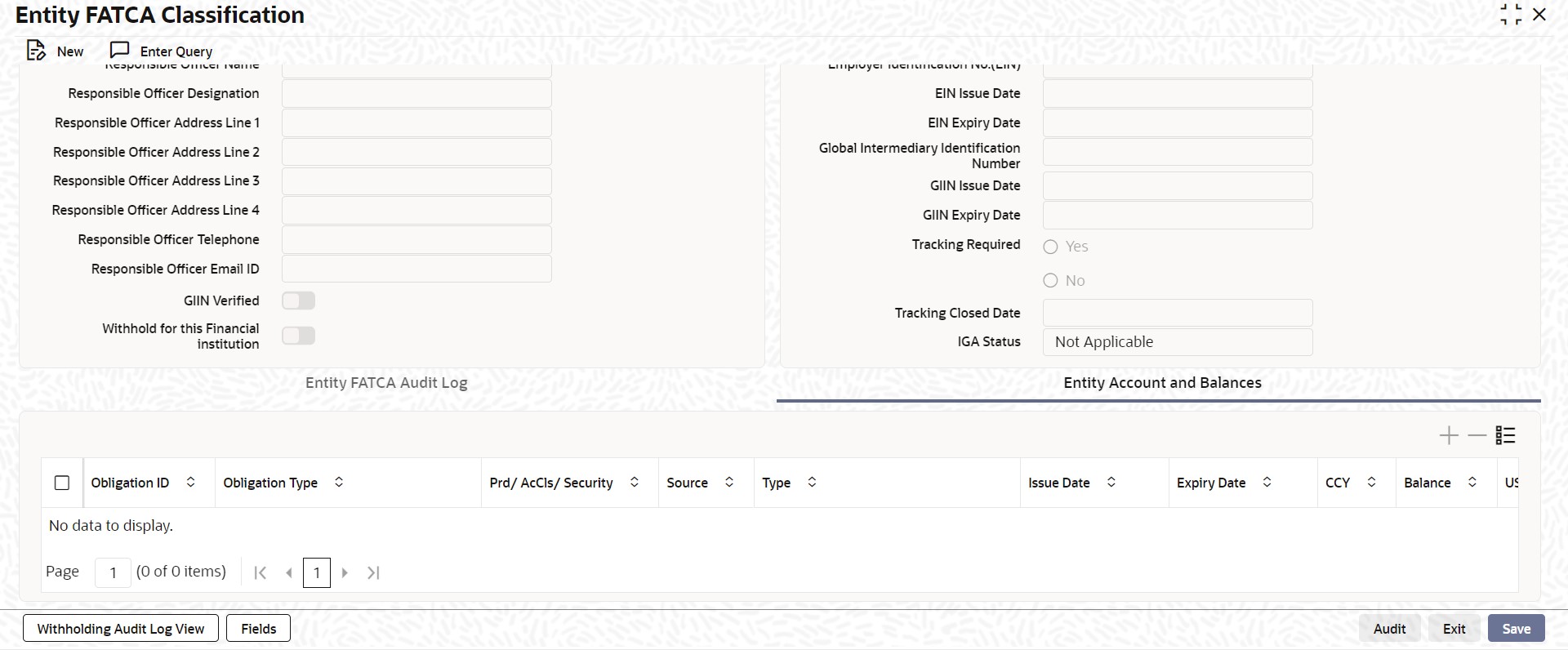
You can maintain the FATCA classification details of a customer in the ‘Entity FATCA Classification’ screen if the US Indicia conditions are satisfied or changed. To invoke this screen type ‘STDCFCLF’ in the field at the top right corner of the Application tool bar and click /on the adjoining arrow button..
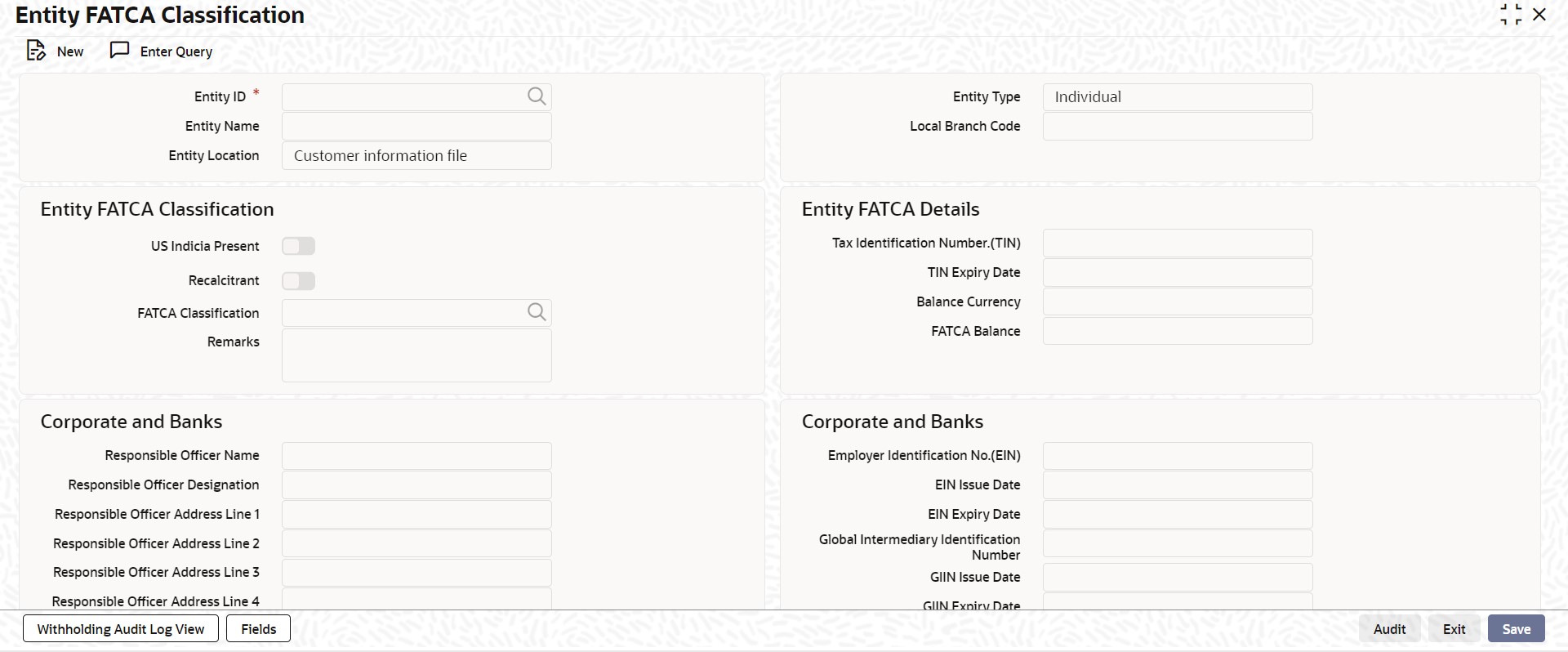
Entity ID
Select the entity ID from the adjoining option list.
Entity Name
The system displays the full name of the entity.
Entity Location
This indicates the origination of the classification record.
Entity Type
Based on the entity ID selected, the system displays the entity type.
Local Branch Code
The system displays the local branch code.
Entity FATCA Classification
US Indicia Present
The check box US Indicia Present is checked based on the FATCA classification batch or the authorization of a customer record. However you can check or uncheck the box after performing due diligence.
If this box is checked and the ‘FATCA Classification’ status is ‘PENDING CLASSIFICATION’, then
l Tracking required will be checked.
l Tracking Closed Date will be blank
If the customer has US indicia, the batch will extract the customer account and obligations based on FATCA product, account class and instruments maintenance. The batch will add up the balances based on ‘Inc Bal.’ field of the FATCA product, account class and instrument maintenance.
The FATCA classification batch will check address fields in all the CASA accounts for the customer and in the message address fields maintained for the customer along with the customer information (CIF) record for US indicia details. If US indicia is found either in the customer information (CIF) data or in any of the customer account data or in the customer message address, the ‘US Indicia’ field at the customer FATCA classification level will be selected the bank will do further due diligence.
Recalcitrant
The check box Recalcitrant is checked based on the FATCA classification batch or the authorization of a customer record.
You can check this box if:
l The check box US Indicia Present is checked.
l FATCA classification is reportable.
FATCA Classification
The system displays the value maintained for the field ‘FATCA Classification’ at ‘Customer Type Wise FATCA Parameters’ maintenance screen. However, you can modify by selecting the FATCA Classification from the adjoining option list. The system displays the value for this as ‘PENDING CLASSIFICATION’ initially (during the Batch run/ Customer Authorization).
Remarks
Specify remarks, if any.
Entity FATCA Details
Tax identification Number (TIN)
Specify the tax identification number of the customer.
TIN Expiry Date
Specify the expiry date of the tax identification number. If TIN Expiry Date is blank, it indicates that the tax identification number does not expire.
Balance Currency
The system displays the total balance of the customer.
FATCA Balance
Specify the total balance of all accounts/contracts for the customer, that are included for FATCA reporting set.
If the customer’s FATCA balance is greater than or equal to the threshold amount maintained for the customer type, and:
l If the current ‘US Indicia Present’ status is Yes and the customer has a reportable FATCA classification, then no further processing is required.
l If the current ‘US Indicia Present’ is No, you need to set the ‘US Indicia Present’ and ‘Tracking Required’ to Yes and the ‘FATCA Classification’ to PENDING CLASSIFICATION.
l If the current ‘US Indicia Present’ is Yes, but the customer does not have a reportable FATCA classification, then you need to set the classification to PENDING CLASSIFICATION and ‘Tracking Required’ to YES.
If the customer’s FATCA balance is less than the threshold amount maintained for customer type then:
l If the current ‘US Indicia Present’ status is Yes, then set the FATCA classification to LOW VALUE EXEMPT.
l If the current ‘US Indicia Present’ status is NO, then set the customer’s ‘US Indicia Present’ to YES and insert the obligations in the obligations tracking table. Update the customer’s FATCA classification to LOW VALUE EXEMPT.
For Corporates and Banks
Responsible Officer Name
Specify the name of the officer responsible for FATCA compliance.
Responsible Officer Designation
Specify the designation of officer responsible for FATCA compliance.
Responsible Officer Address Line 1
Specify the address of the officer responsible for FATCA compliance.
Responsible Officer Address Line 2
Specify the address of the officer responsible for FATCA compliance.
Responsible Officer Address Line 3
Specify the address of the officer responsible for FATCA compliance.
Responsible Officer Address Line 4
Specify the address of the officer responsible for FATCA compliance.
Responsible Officer Telephone
Specify the telephone number of the officer responsible for FATCA compliance.
Responsible Officer Email ID
Specify the e-mail ID of the officer responsible for FATCA compliance.
GIIN Verified
Check this box to indicate whether the GIIN number has been validated against the list of GIIN received from IRS.
Withhold for this Financial Institution
Check this box to to indicate that the customer requires withholding on their behalf. The bank will withhold the FATCA classification for that particular financial year.
This field is applicable only if the bank is a USWA and the customer is a bank type of customer.
Corporate and Banks
Employer Identification No. (EIN)
Specify the employer identification number.
EIN Issue Date
Specify the date when the employer identification number is issued.
EIN Expiry Date
Specify the date when the employer identification number has to be revalidated or renewed. If EIN Expiry Date is blank, it indicates that EIN does not expire.
Global Intermediary Identification Number (GIIN)
Specify the Global Intermediary Identification Number issued to the bank by IRS.
GIIN Issue Date
Specify the date on which GIIN was issued.
GIIN Expiry Date
Specify the date on which GIIN will be expiring.
Tracking Required
Check this box to indicate that the customer should be tracked for FATCA classification or re-classification.
If this box is unchecked, then it is mandatory to maintain ‘Tracking Closed Date’.
Tracking Closed Date
Specify the tracking closed date. Tracking closed date cannot be a future date.
IGA Status
Select the Inter-Governmental Agreement type from the drop-down list. The list displays the following values:
l Not Applicable - The Domicile status is not applicable for the entity. This value is allowed for the individual type of entities.
l Model -1 A - The financial institution belongs to a domicile that has signed the Model 1 – A agreement.
l Model -1 B - The financial institution belongs to a domicile that has signed the Model 1 – B agreement.
l Model - 2 - The financial institution does not belong to any Inter-Governmental Agreement domicile and has signed an independent agreement with IRS.
Note
This field is enabled only if the entity type is Bank (B).
Entity FATCA Audit Log
The system records any change to customer classification whether automatically or manually here.
Date Logged
The system displays the application date.
Reason for Logging
The system displays the details about the user making the changes.
Logging Remarks
Specify logging remarks, if any.
US Indicia Updated
The system displays if the ‘US Indicia’ is updated by the system or not.
Recalcitrant Updated
The system displays if the ‘Recalcitrant’ is updated by the system or not.
Source Code
The system displays the source code.
Entity Account and Balances
Click ‘Entity Account and Balances’ tab to specify the entity account and balances details.
Obligation ID
Specify the obligation ID.
Obligation Type
Select the type of obligation from the drop-down list. Following are the options available in the drop-down list:
l Account
l Contract
l Portfolio
Prd/AcCls/Security
Specify the security details.
Source
Specify the source details.
Type
Select the type from the drop-down list. Following are the options available in the drop-down list:
l Internal
l External
Issue Date
Specify the issue date.
Expiry Date
Specify the expiry date.
CCY
Select the currency from the option list.
Balance
Specify the balance.
US Sourced
Check this box to enable US sourced.
Include Bal
Check this box to include the balance.
Grandfathered
Check this box to enable grandfathered.
Last Updated Date
The system displays the last updated date.
Remarks
Specify remarks, if any.
Maker ID
The system displays the maker ID.
Click ‘Withholding Audit Log View’ button to view the FATCA withholding log in the ‘FATCA Withholding Audit Log View’ screen. You can view the withholding log as a drill down from the FATCA obligation record and also independently. The withholding log provides a means to track FATCA withholding.
For more information on viewing FATCA Withholding Audit Log, refer to the section ‘Viewing FATCA Withholding Log’ in this User Manual.
Click ‘Fields’ to capture additional FATCA details.
4.3.2 Viewing Customer FATCA Classification
You can view the FATCA Classification details of the customers maintained in the ‘Customer FATCA Classification’ screen using the ‘Customer FATCA Classification Summary’ screen. You can invoke this screen by typing ‘STSCFCLF’ in the field at the top right corner of the Application tool bar and clicking on the adjoining arrow button.
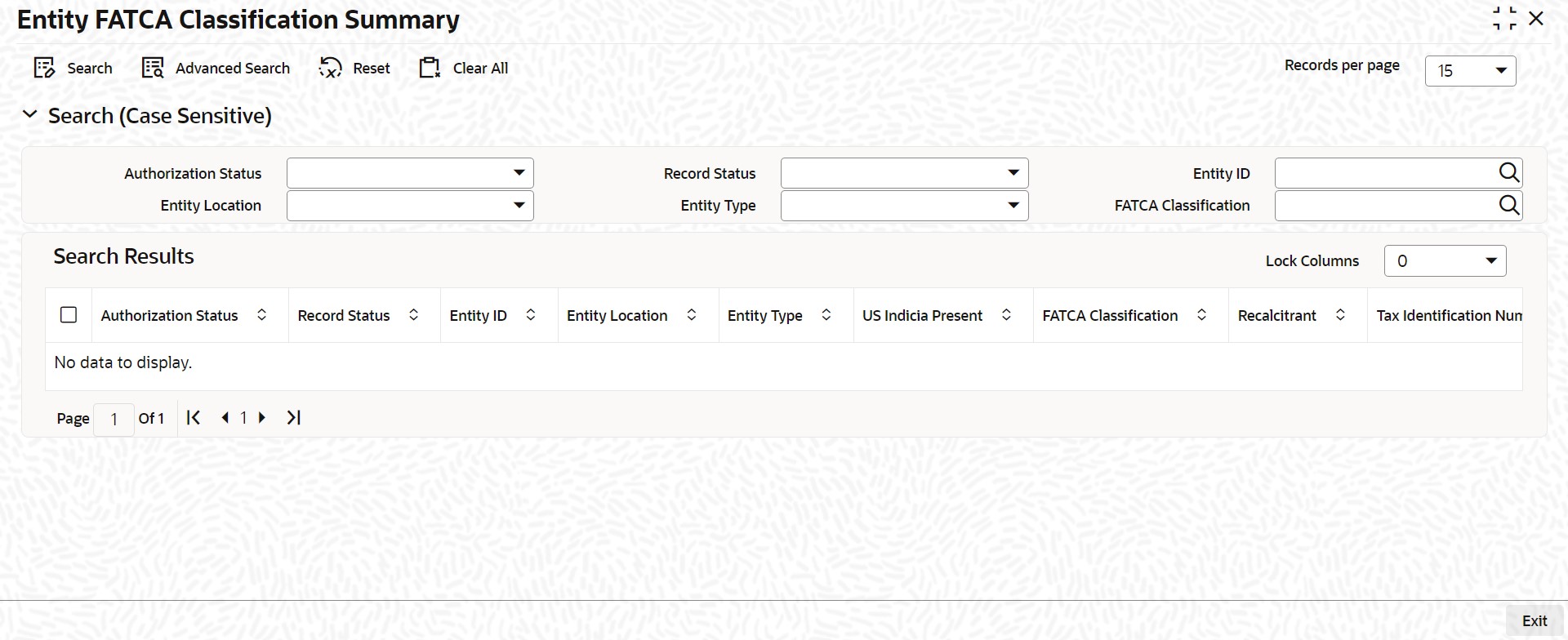
In the above screen, you can base your queries on any or all of the following parameters and fetch records:
l Authorization Status
l Record Status
l Customer No
l US Indicia Present
l Recalcitrant
l FATCA Classification
l Employer Identification No. (EIN)
l GIIN
Select any or all of the above parameters for a query and click ‘Search’ button. The records meeting the selected criteria are displayed.
If you are allowed to query customer information, then system displays the following details pertaining to the fetched records:
l Authorization Status
l Record Status
l Customer No
l US Indicia Present
l FATCA Classification
l Recalcitrant
l Employer Identification No. (EIN)
l EIN Issue Date
l EIN Expiry Date
l GIIN
l Tax Identification Number (TIN)
l TIN Expiry Date
l Tracking Required
l Tracking Closed Date
l Remarks
4.4 Criteria for Applying US Indicia
The system evaluates the US Indicia of the customer based on the following criteria maintained in ‘Customer Maintenance’ screen. The system will apply the criteria on creating a new customer record / on Modification of new customer record:
l If the customer is an individual, then the customer record satisfies US Indicia if any one or more of the following conditions are met:
– If the nationality of the customer is US
– If the country in the correspondence address or permanent address is US or its territories
– If the international dialing code for telephone number is that of US
– If the international dialing code for mobile number is that of US
– If the international dialing code for FAX number is that of US
– If the country of birth is US or its territories.
– If the country in address of Power of Attorney holder is US or its territories
– If the nationality of power of attorney holder is US
– If the international dialing code for telephone number of power of attorney holder is US
– If the permanent US residence status flag is Yes
– If the ‘Visited US in last 3 years’ flag is Yes
– If the country in domicile address is US or its territories
l If the customer is a corporate, then the customer record satisfies US indicia if any one or more of the following conditions are met:
– If country in correspondence address is US or its territories
– If the nationality is US
– If the international dialing code for telephone number is that of US
– If the international dialing code for mobile number is that of US
– If the international dialing code for FAX number is that of US
– If the country in registered address is US or its territories
– If the Country of Incorporation is US or its territories
– If the international dialing code for mobile number is that of US for at least one of the directors.
– If the international dialing code for telephone number is that of US for at least one of the directors
– If the country in mailing address is US or its territories for at least one of the directors.
– If the country in permanent address is US for at least one of the directors.
– If the US permanent residence Status is Yes for at least one of the directors.
– If the nationality is US or its territories for at least one of the directors.
l If the customer is a financial institution, then the US Indicia should be ‘Y’.
Note
US Territories Included for FATCA assessment are:
– American Samoa (AS)
– Guam (GU)
– Marianas Islands (MP)
– Puerto Rico (PR)
– US Virgin Islands (VI)
All residents born in the above listed US commonwealth territories are automatically granted US citizenship and hence qualify for FATCA evaluation. The ISD Codes of these territories are also +1 as that of US
You can track the customers whose FATCA classification or re-classification is pending or needs due diligence. You can monitor such records using the ‘Customer FATCA Tracking’ query screen. To invoke this screen type ‘STSFCTRK’ in the field at the top right corner of the Application tool bar and click on the adjoining arrow button.
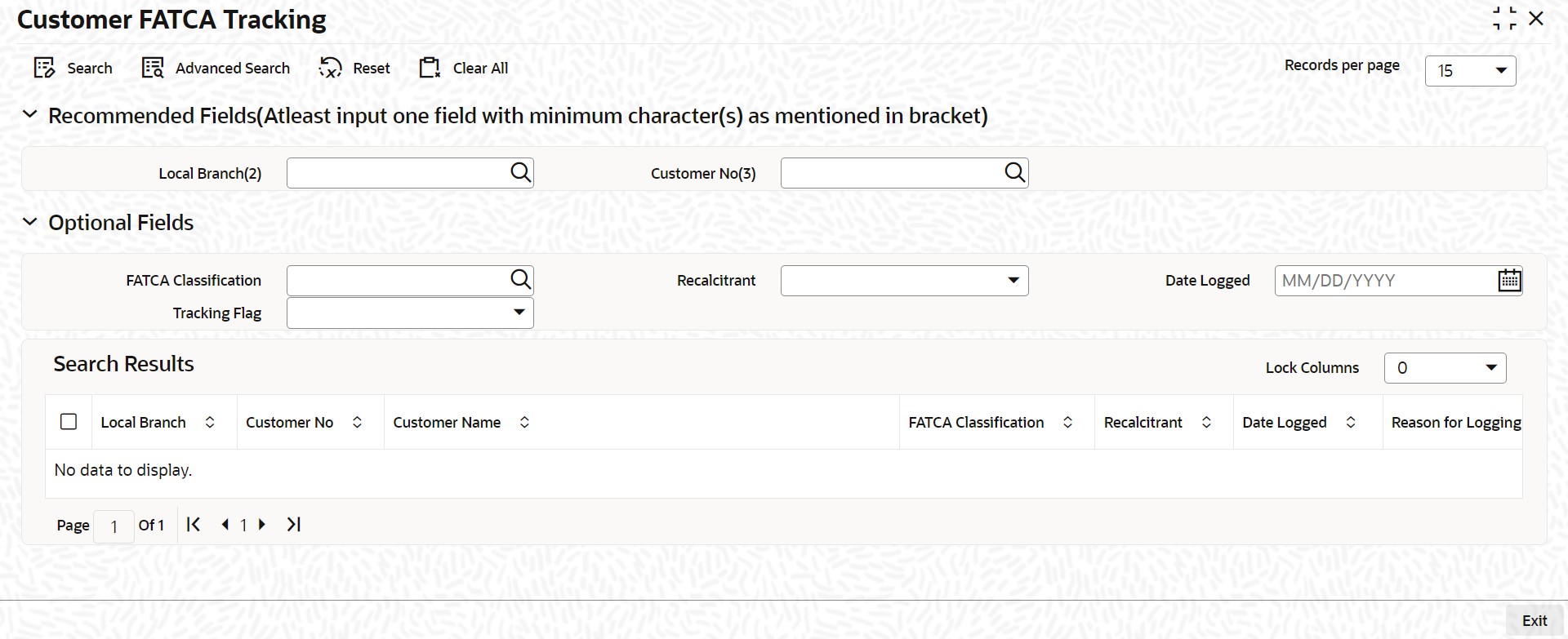
In the above screen, you can base your queries on any or all of the following parameters and fetch records:
l Local Branch
l Customer No
l FATCA Classification
l Recalcitrant
l Date Logged
l Tracking Flag
Select any or all of the above parameters for a query and click ‘Search’ button. The records meeting the selected criteria are displayed.
If you are allowed to query customer information, then system displays the following details pertaining to the fetched records:
l Local Branch
l Customer No
l Customer Name
l FATCA Classification
l Recalcitrant
l Date Logged
l Reason for Logging
l Criteria Matched
l Tracking Flag
4.6 Viewing FATCA Withholding Log
You can view FATCA withholding log. You can view the withholding log as a drill down from the FATCA obligation record and also independently in the ‘FATCA Withholding Audit Log View’ screen. The withholding log provides a means to track FATCA withholding.
You can invoke the ‘FATCA Withholding Audit Log View’ screen by typing ‘TADFWHLG’ in the field at the top right corner of the Application tool bar and clicking the adjoining arrow button.
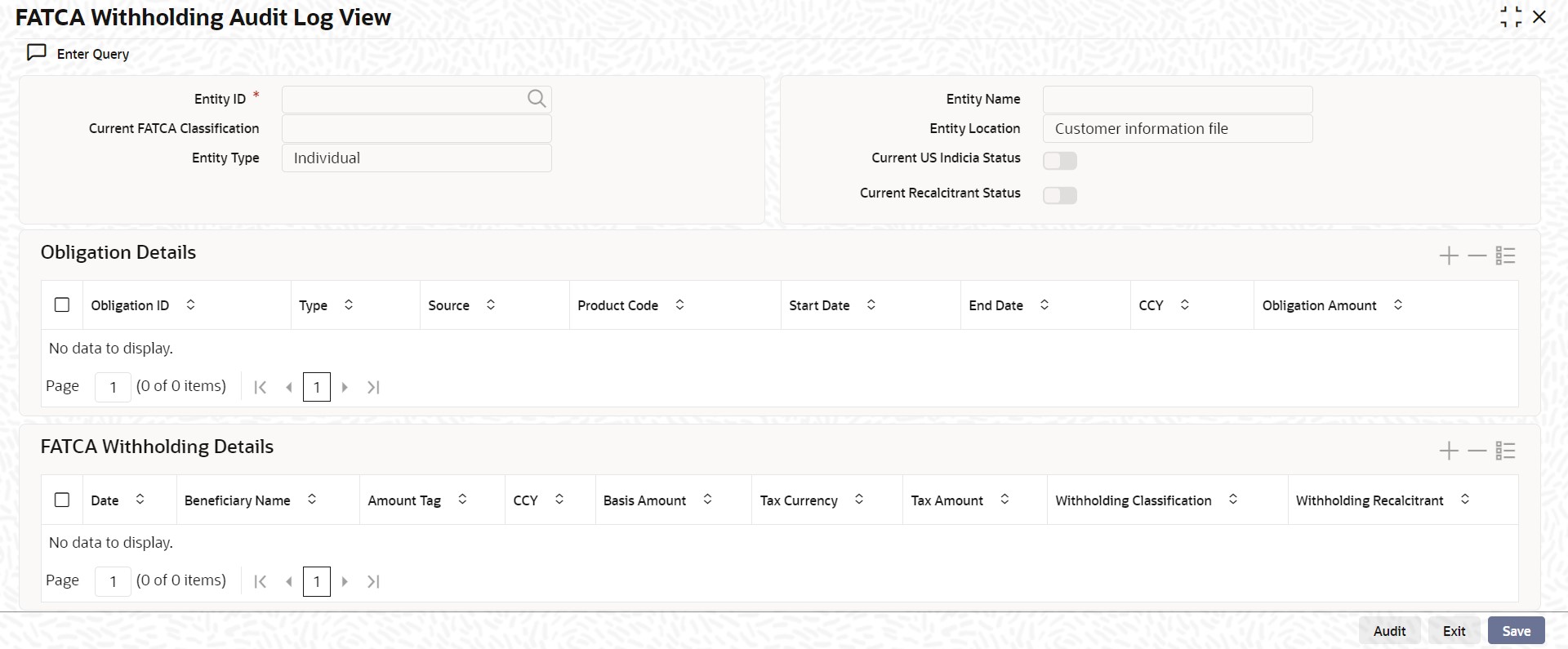
You can view the FATCA Withholding Audit Log based on the following parameter:
Entity ID
Specify a unique identification ID for the entity. Alternatively, you can select the entity ID from the option list. The list displays all the entity ID maintained in the system.
Click ‘Execute Query’ button, the system displays the following details pertaining to the FATCA Withholding Audit Log based on the entity ID selected.
l Entity Name
l Current FATCA Classification
l Entity Location
l Entity Type
l Current US Indicia Status
l Current Recalcitrant Status
l Obligation ID
l Type
l Source
l Product Code
l Start Date
l End Date
l CCY
l Obligation Amount
l Date
l Beneficiary Name
l Amount Tag
l CCY
l Basis Amount
l Tax Currency
l Tax Amount
l Withholding Classification
l Withholding Recalcitrant
This section contains the following topics:
l Section 4.7.1, "Processing FATCA Referral Transactions"
l Section 4.7.2, "Viewing Referral Processing Summary"
4.7.1 Processing FATCA Referral Transactions
You can process referred transactions manually in the ‘Referral Processing’ screen. You can fetch a FATCA referral record, which is in E – ESCROW and P – PENDING status to decide whether to perform withholding or not.
While saving the FATCA referral record, the referral status gets updated to the status ‘C’ – CLOSED and the authorization status of the referral record gets updated to ‘U’ – Unauthorized.
You can perform the following actions in the ‘Referral Processing’ screen:
l Delete an unauthorized referral record
l Authorization of unauthorized referral record by another user
l Unlock and Cancel an authorized referral record that has decision status as ‘WITHHOLD/NO WITHHOLD’ and the referral status as ‘CLOSED’.
You can invoke the ‘Referral Processing’ screen by typing ‘TADFATRF’ in the field at the top right corner of the Application tool bar and clicking the adjoining arrow button.
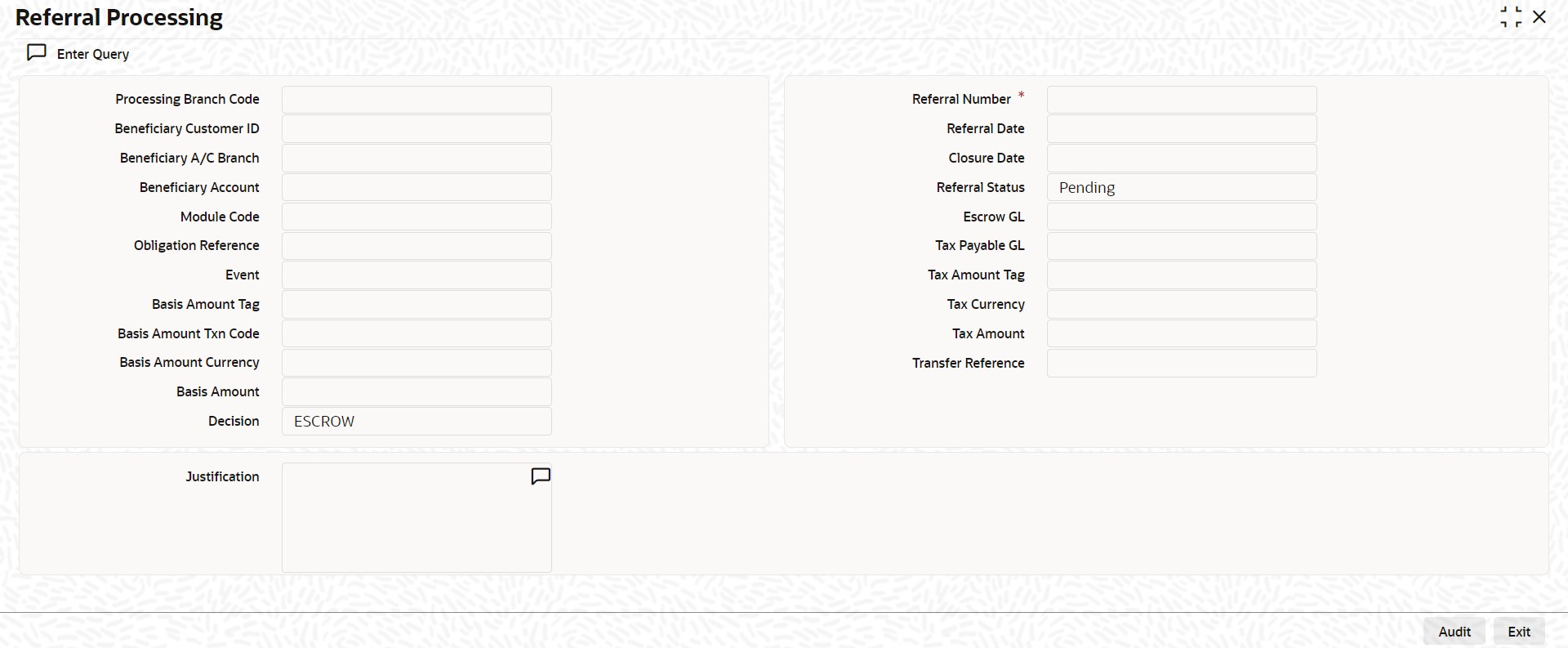
You can specify the following details:
Referral Number
Specify the referral number of the FATCA referral record.
The system displays the following details:
l Processing Branch Code
l Beneficiary Customer ID
l Beneficiary A/C Branch
l Beneficiary Account
l Module Code
l Obligation Reference
l Event
l Basis Amount Tag
l Basis Amount Txn Code
l Basis Amount Currency
l Basis Amount
l Referral Date
l Closure Date
l Referral Status
l Pending Closed
l Escrow GL
l Tax Payable GL
l Tax Amount Tag
l Tax Currency
l Tax Amount
l Transfer Reference
To process referred transaction manually, click ‘Execute Query’ button. You can specify the following details:
Decision
Select the decision from the drop-down list. The list displays the following values:
l ESCROW
l WITHHOLD
l NO WITHHOLD
l CANCELLED
Justification
Specify the justification for the decision taken.
Click the ‘Save’ button to save the transaction. The system saves the record and updates the status to ‘C-Closed’.
4.7.2 Viewing Referral Processing Summary
You can view the summary of referral processing in the ‘Referral Processing Summary’ screen. It displays the status of the records maintained, whether it is authorized, unauthorized or rejected.
You can invoke this screen by typing ‘TASFATRF’ in the field at the top right corner of the Application tool bar and clicking on the adjoining arrow button.
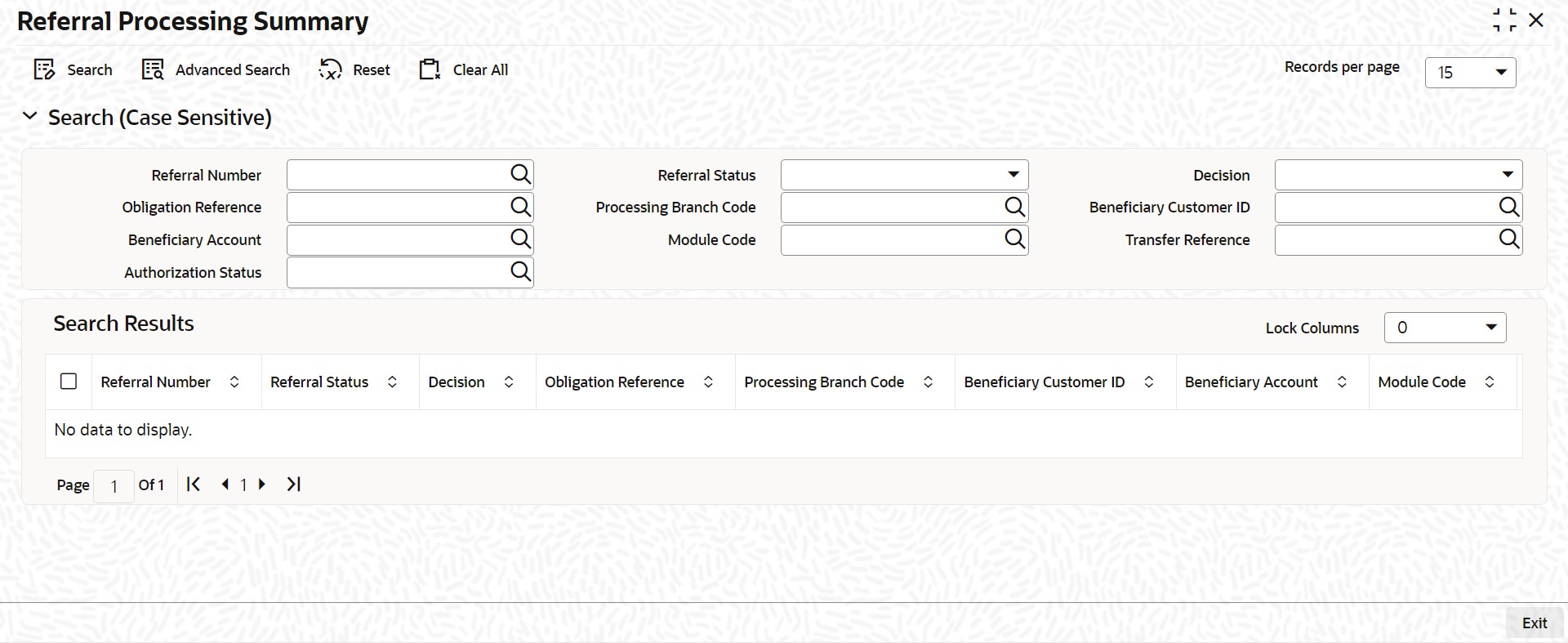
In the above screen, you can base your queries on any or all of the following parameters and fetch records:
l Referral Number
l Decision
l Processing Branch Code
l Beneficiary Account
l Transfer Reference
l Referral Status
l Obligation Reference
l Beneficiary Customer ID
l Module Code
l Authorization Status
Click ‘Search’ button. The system identifies all records satisfying the specified criteria and displays the following details for each one of them:
l Referral Number
l Referral Status
l Decision
l Obligation Reference
l Processing Branch Code
l Beneficiary Customer ID
l Beneficiary Account
l Module Code
l Referral Date
l Closure Date
l Beneficiary A/C Branch
l Event
l Basis Amount Tag
l Basis Amount Txn Code
l Basis Amount Currency
l Basis Amount
l Escrow GL
l Tax Payable GL
l Tax Amount Tag
l Tax Currency
l Tax Amount
l Transfer Reference
l Maker
l Date Time
l Checker
l Date Time
l Authorization Status
This section contains the following topics:
l Section 4.8.1, "Maintaining FATCA Withholding Rule"
l Section 4.8.2, "System Data Elements"
l Section 4.8.3, "Expression Builder"
l Section 4.8.4, "Viewing FATCA Rule Summary"
l Section 4.8.5, "Reporting Income Code Maintenance"
4.8.1 Maintaining FATCA Withholding Rule
You can maintain FATCA withholding rules in the ‘FATCA Rule Maintenance’ screen. In this screen, you can describe a set of conditions and return the resultant decision. The FATCA Withholding Rule Maintenance helps to create a rule that determines whether FATCA withholding is required or not. While defining tax rule, a flag indicates whether the tax rule is a FATCA based rule or not. If case the tax rule is a FATCA based rule, then a FATCA withholding rule has to be linked to the tax rule.
During evaluation of the tax rule, the FATCA withholding rule is evaluated first and based on the outcome of the FATCA withholding rule, the tax rule computes the withholding tax.
The conditions you can describe are as follows:
l The beneficiary customer’s recalcitrant status
l The obligations US sourced status and grandfathered status
l The expression evaluating the amount tag, currency, transaction code, module, and the customers status (internal or external)
The resultant decision are as follows:
l Withhold
l Do not withhold
l Refer for Manual Processing
The tax computation for the resultant decision are as follows:
l If the outcome is ‘Withhold’, the tax is computed and liquidated.
l If the outcome is ‘Do not withhold, the tax will not be computed.
l If the outcome is ‘Refer for Manual Processing, the tax will be computed and held in Escrow account. The record will be sent for manual decision.
You can invoke the ‘FATCA Rule Maintenance’ screen by typing ‘TADFATTX’ in the field at the top right corner of the Application tool bar and clicking the adjoining arrow button.
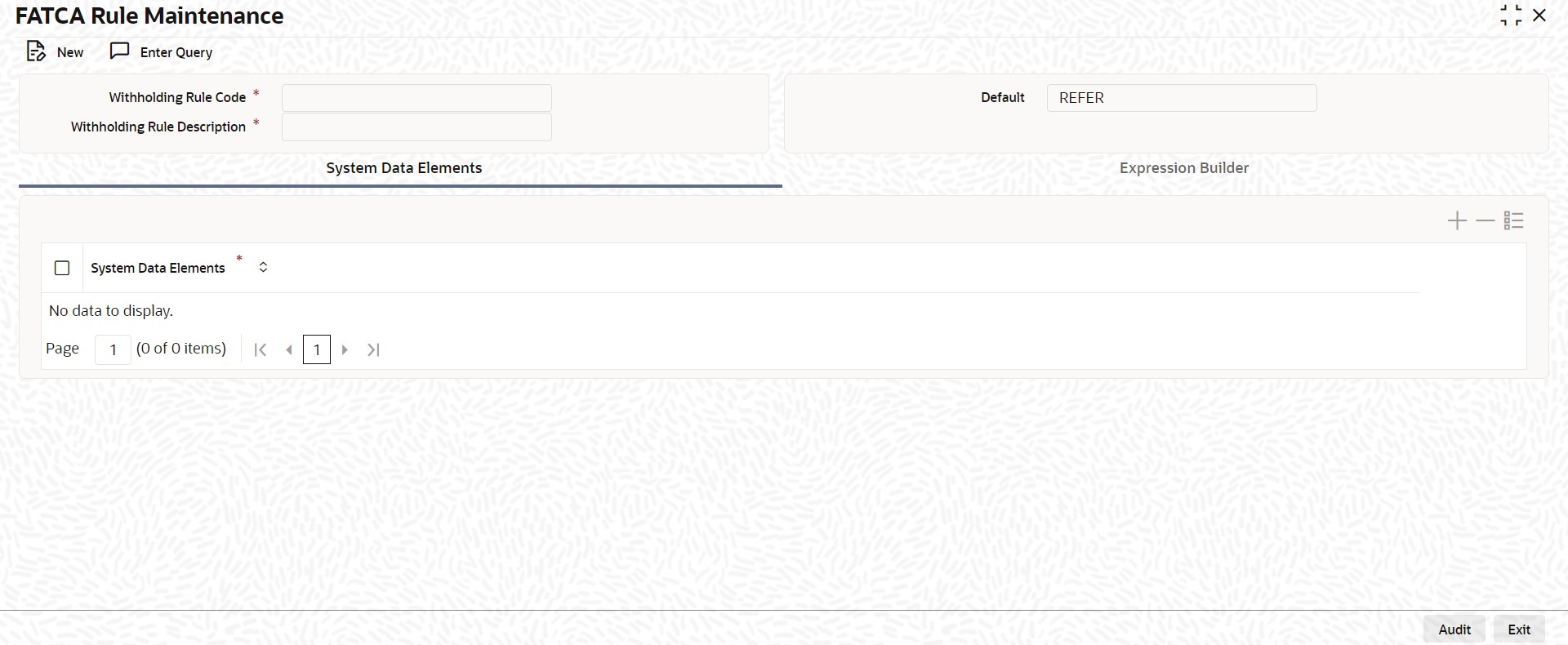
You can specify the following details:
Withholding Rule Code
Specify a unique rule ID for the FATCA rule
Withholding Rule Description
Specify the description of the FATCA Rule.
Default
Select the default option from the drop-down list. The list displays the following values:
l REFER
l NO WITHHOLFD
l WITHHOLD
All the SDEs that are allowed for the rule are provided in this tab. You can select one or more than one SDEs to be used in the rule. Each system data element appears only once in the list. To specify SDE, click ‘System Data Elements’ tab.
System Data Elements
Specify the SDEs allowed for user in expression.
You can use the following SDE’s as part of the formula FATCA Tax rule Maintenance:
l CUST_FATCA_CLASSFN – If you use this SDE in FATCA Tax Rule Maintenance (TADFATTX) screen, it will return the actual FATCA classification of the customer. If you use this SDE in IC Rule Maintenance (ICDRUMNT) screen, it will return the numeric equivalent value of the customer’s FATCA classification.This SDE returns the numeric equivalent value of the customer’s FATCA classification.
l GA_DOMICILE – This SDE returns the IGA Domicile status of the customer from Entity FATCA classification record. The value can be 0, 10, 11 or 20.
There would be no change in the way IC or FATCA tax rules are maintained
For more information on SDEs, refer to the section ‘System Data Elements Maintenance’ in the chapter ‘Maintaining System Data Elements’ in Interest and Charges User Manual.
You can build the expression by picking up elements and associated operators in the expression. To build expression, click ‘Expression Builder’ tab.
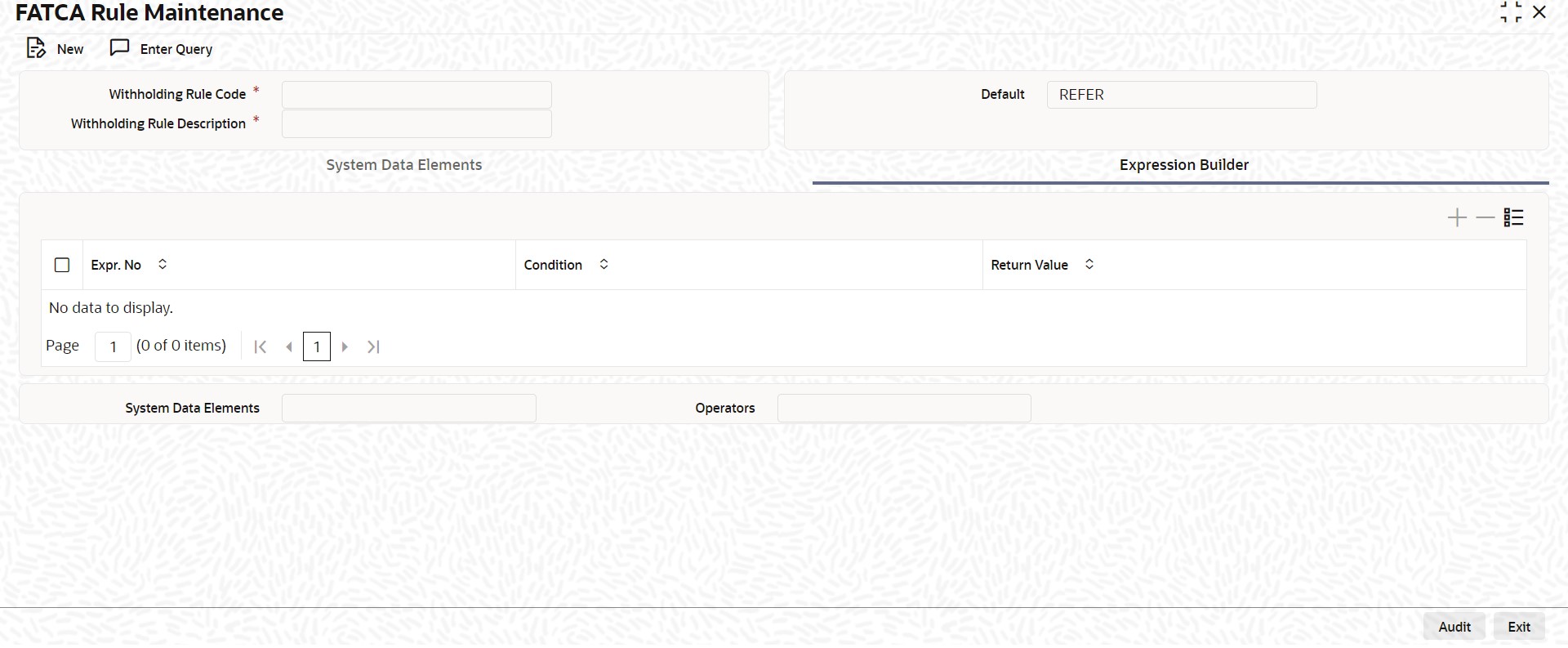
Expression Number
Specify the expression number.
Condition
Specify the condition of the expression.
Return Value
Select the return value from the drop down list. The list displays the following values:
l REFER
l NO WITHHOLFD
l WITHHOLD
System Data Element
Select the SDEs to help build the expression for operator. The list displays the following values:
l FATCA_CUST_TYPE - The customer type for beneficiary customer. This SDE returns values I (Individual), C (Corporate) or B (Bank).
l FATCA_RECALCITRANT - The recalcitrant status of the beneficiary customer. The value is returned from the Customer FATCA classification record.
l FATCA_US_SOURCED - This would be the US Sourced status of the obligation. This value would be returned from the FATCA Obligation record for the obligation number (contract reference number or portfolio ID).
l FATCA_GRANDFATHERED - The grandfathered status of the obligation. The value is returned from the FATCA Obligation record for the obligation number (Contract Reference Number or Portfolio ID).
l FATCA_MODULE_CODE - The module from where the tax is being evaluated.
l FATCA_AMOUNT_TAG - The basis amount’s amount tag. Basically the amount tag which appears as the basis amount when the tax rule is linked in the product.
l FATCA_TXN_CODE - The transaction code of the basis amount tag transaction.
l FATCA_CCY_CODE - The currency in which the transaction is being posted.
l FATCA_EXT_CUST - The beneficiary customer account is held by a financial institution that has asked to be withheld against.
Operators
Select the operators from the drop-down list. The list displays the following values:
l >
l <
l =
l <>
l <=
l >=
l AND
l OR
4.8.4 Viewing FATCA Rule Summary
You can view the summary of FATCA Rule in the ‘FATCA Rule Summary’ screen. It displays the status of the records maintained, whether it is authorized, unauthorized or rejected.
You can invoke this screen by typing ‘TASFATTX’ in the field at the top right corner of the Application tool bar and clicking on the adjoining arrow button.
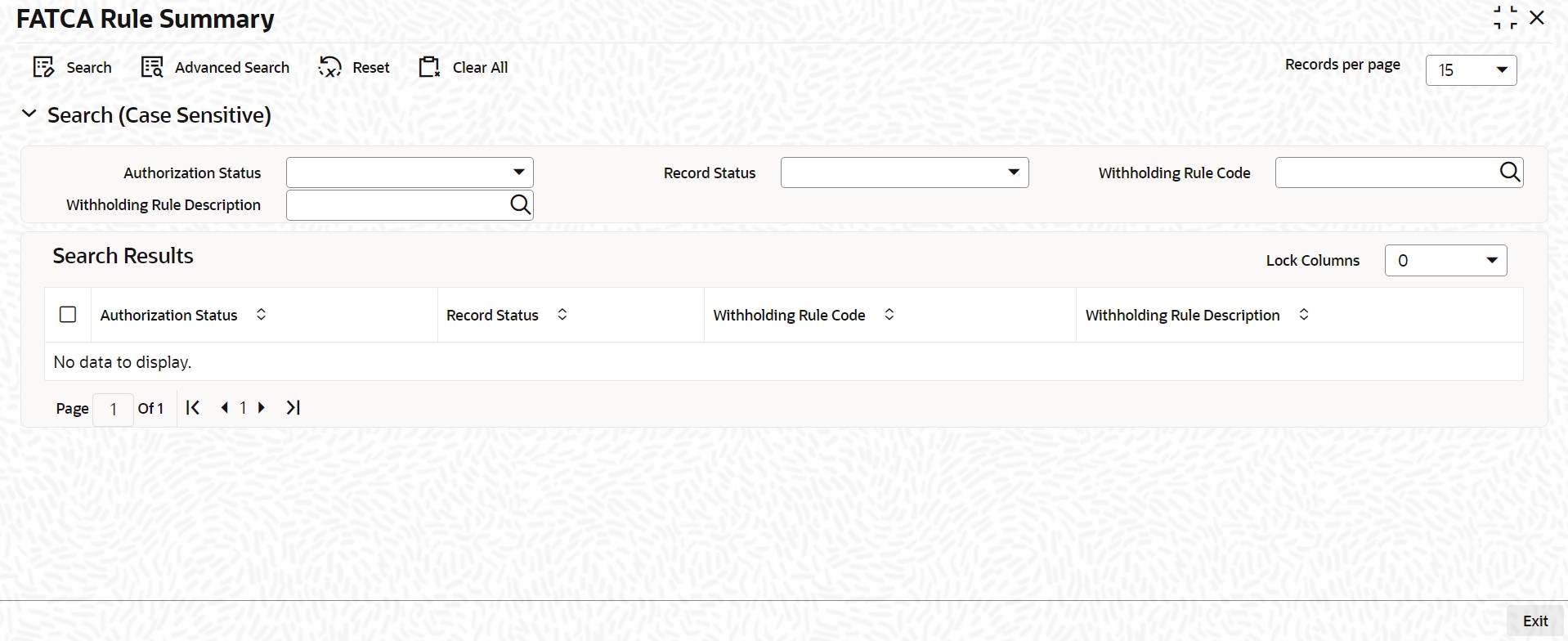
In the above screen, you can base your queries on any or all of the following parameters and fetch records:
l Authorization Status
l Withholding Rule Code
l Record Status
l Withholding Rule Description
Click ‘Search’ button. The system identifies all records satisfying the specified criteria and displays the following details for each one of them:
l Authorization Status
l Record Status
l Withholding Rule Code
l Withholding Rule Description
4.8.5 Reporting Income Code Maintenance
Income codes are codes used by FATCA reports for withheld transactions. You can define these income codes for an amount tag and transaction code combination in the ‘Reporting Income Code Maintenance’ screen.
Note
For a given income code, the combination of transaction code and amount tag will be unique.
You can invoke this screen by typing ‘TADINCCD’ in the field at the top right corner of the Application tool bar and clicking on the adjoining arrow button.
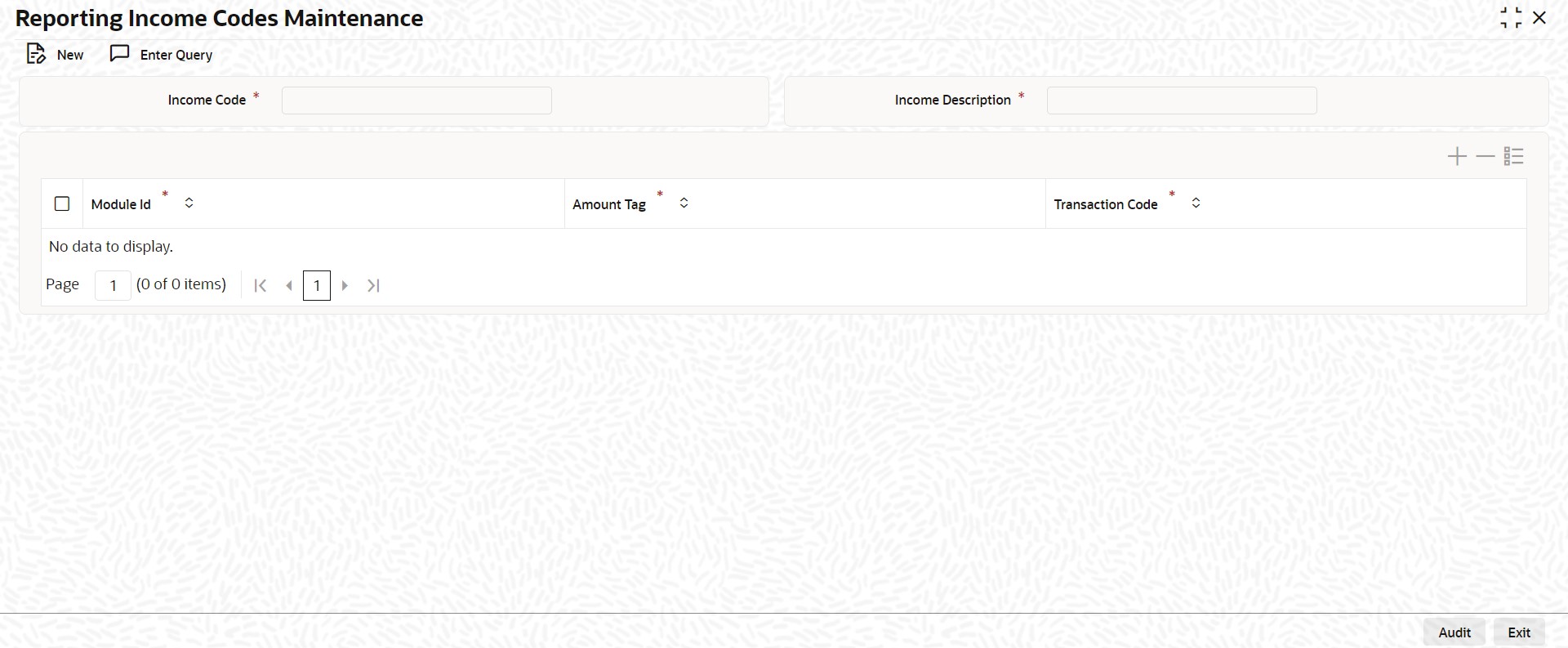
In this screen, you can define multiple transaction code and amount tag combinations for an income code.
Income Code
Specify a unique identifier for income.
Income Code Description
Specify the description of the income code.
Module ID
Specify the module ID for the amount tag to be picked up. Alternatively, you can select the module ID from the option list. The list displays the module IDs maintained in the system.
Amount Tag
Specify the amount tag that would part define the income code. Alternatively, you can select the amount tag from the option list. The list displays the amount tags maintained in the system.
Transaction Code
Specify the transaction code. Alternatively, you can select the transaction code from the option list. The list displays the transaction codes maintained in the system.
4.8.5.1 Viewing Reporting Income Code Summary
You can view the summary of reporting income code summary in the ‘Reporting Income Code Summary’ screen. It displays the status of the records maintained, whether it is authorized, unauthorized or rejected.
You can invoke this screen by typing ‘TASINCCD’ in the field at the top right corner of the Application tool bar and clicking on the adjoining arrow button.
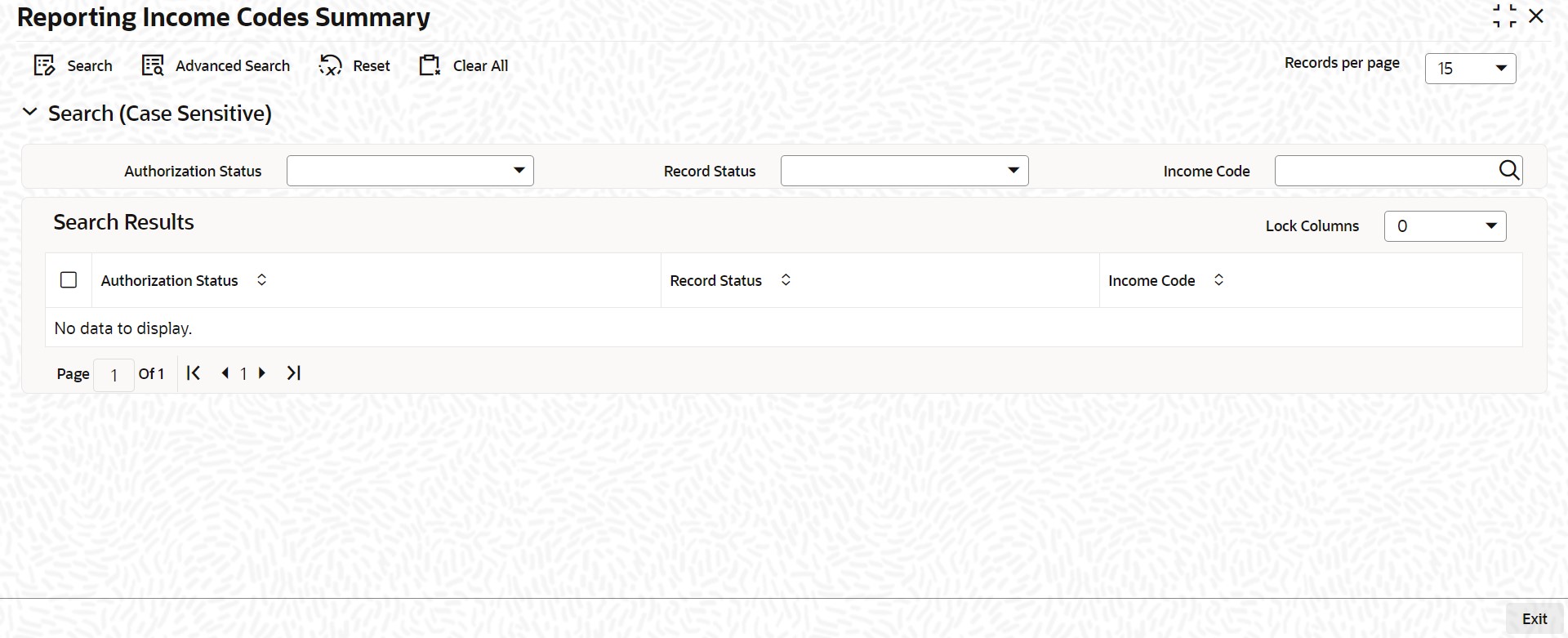
In the above screen, you can base your queries on any or all of the following parameters and fetch records:
l Authorization Status
l Income Code
l Record Status
Click ‘Search’ button. The system identifies all records satisfying the specified criteria and displays the following details for each one of them:
l Authorization Status
l Record Status
l Income Code
4.9 Intraday Batch Maintenance
This section contains the following topics:
l Section 4.9.1, "Maintaining Intraday Batches"
l Section 4.9.2, "Processing FATCACOM Batch"
l Section 4.9.3, "Processing FATCAEXT Batch"
4.9.1 Maintaining Intraday Batches
You can define the following intraday batches to identify the customers based on FATCA classification:
l FATCACOM
l FATCAEXT
4.9.2 Processing FATCACOM Batch
FATCACOM batch scans all the customer records to check whether the customers qualify for FATCA. The batch identifies the FATCA classified customer records and marks them in FATCA classification data stores.
Note
The FATCACOM batch should be run at least once so that the existing customer records can be scanned to check if they are eligible for FATCA.
The processing logic of the batch is available under the section ‘FATCA Classification Data Population into Data Stores’.
4.9.2.1 Maintenance
In order to enable this batch, you need to maintain the following details in ‘Batch EOD Function Input’ screen.
Function ID
Specify the function ID as FATCACOM.
End of Cycle Group
Select the end of cycle group ‘Transaction Input’.
Report Orientation
Select ‘Not Applicable’.
For further details regarding ‘Batch EOD Function Input’ screen, refer to the chapter ‘Automated End of Cycle Operations’ in the Automated End of Day user manual.
4.9.3 Processing FATCAEXT Batch
FATCAEXT batch extracts data for FATCA reporting. The data for FATCA reporting is extracted usually at the end of a financial year. However, at the bank’s discretion, the report can be extracted on any date. An ad-hoc (intra-day) batch facilitates extraction of data for FATCA reporting.
The parameters and details of FATCAEXT batch are as follows:
l The batch extracts data as of a date. This date is termed as the extraction date. The extraction date is stamped on every extraction record.
l A start date or the date from which the records are to be extracted is provided as a ‘function input’ for the intra-day batch. All records starting from this start date and including the extraction date is extracted and stored. If the start date is not provided, it is assumed that the first date of the financial year is the start date. The extraction date is the end date and it need not be input.
l Only one set of record is stored for a given extraction date. If the batch is re-run on any given date, then old records extracted for that date is first be deleted and the new set of records are stored.
The processing logic of the batch is available under the section ‘FATCA Classification Data Population into Data Stores’.
4.9.3.1 Maintenance
In order to enable this batch, you need to maintain the following details in ‘Batch EOD Function Input’ screen.
Function ID
Specify the function ID as FATCAEXT.
End of Cycle Group
Select the end of cycle group ‘Transaction Input’.
Report Orientation
Select ‘Not Applicable’.
For further details regarding ‘Batch EOD Function Input’ screen, refer to the chapter ‘Automated End of Cycle Operations’ in the Automated End of Day user manual.
4.10 Post EOTI Batch Maintenance
This section contains the following topics:
l Section 4.10.1, "Processing FATCAINC Batch"
4.10.1 Processing FATCAINC Batch
FATCAINC batch checks whether a change in the customer records affects the existing FATCA classification of a customer. This batch identifies such customer records and marks them in FATCA classification Data-stores.
The data in the FATCA data store is picked up by the FATCAINC batch to determine any change in their US Indicia or recalcitrant status based on the following conditions:
l The expected submission date of the documents is less than the current application date and the actual submission date is null.
l The expiry date of the documents is less than the application date.
l The US Indicia status is ‘Y’, but the FATCA classification is not reportable.
l The US Indicia status is ‘N’, but the FATCA classification is reportable.
The processing logic of the batch is available under the section ‘FATCA Classification Data Population into Data Stores’.
4.10.1.1 Maintenance
In order to enable this batch, you need to maintain the following details in ‘Batch EOD Function Input’ screen.
Function ID
Specify the function ID as FATCAINC.
End of Cycle Group
Select the end of cycle group ‘Transaction Input’.
Report Orientation
Select ‘Not Applicable’.
For further details regarding ‘Batch EOD Function Input’ screen, refer to the chapter ‘Automated End of Cycle Operations’ in the Automated End of Day user manual.
4.11 Data Population into Data Stores
This section contains the following topics:
l Section 4.11.1, "FATCA Classification Data Population into Data Stores"
l Section 4.11.2, "Automatic Population of Check List for Due Diligence"
4.11.1 FATCA Classification Data Population into Data Stores
The system populates the data related to FATCA classification into the FATCA classification data stores as per the logic provided below.
This logic is applicable only if ‘FATCA Applicable’ flag is set to ‘Y’ in the ‘Bank Parameters Maintenance’ screen.
Case 1: The customer is an Individual or Corporate customer and satisfies US indicia
conditions, then the process is as follows:
4. The system checks whether the customer record exist in the FATCA classification data store. If the record does not exists, then the system will insert a record into FATCA CLASSIFICATION data store with the following parameters:
l ‘US Indicia Present’ flag set to ‘Y’
l ‘FATCA Classification’ set to ‘PENDING CLASSIFICATION’
l ‘Tracking Required’ flag set to ‘Y’
5. The system inserts a record into FATCA CLASSIFICATION LOG data store with the reason for logging as ‘NEW – US Indicia Present’. The system also sets the US Indicia match criteria to the appropriate matching criteria and US Indicia Updated flag to ‘Y’.
6. If the system finds that the customer record already exists in the FATCA classification data store, there can be the following situations:
l ‘US Indicia’ flag is set to ‘N’. In this case, the system updates the customer record in the FATCA CLASSIFICATION data store with the following details:
– ‘US Indicia Present’ flag updated to ‘Y’
– ‘FATCA Classification’ set to ‘PENDING CLASSIFICATION’
– ‘Tracking Required’ flag updated to ‘Y’
7. The system inserts a record into FATCA CLASSIFICATION LOG data store with the reason for logging as ‘CHANGE-US Indicia Present’. The system also sets the US Indicia match criteria to the appropriate matching criteria and US Indicia Updated flag to ‘Y’.
l ‘US Indicia’ flag is set to ‘Y’ and the customer’s FATCA classification is maintained as ‘Reportable’ in ‘FATCA Parameters Maintenance’. In this case, the system checks document status for ‘Recalcitrant’ flag.
– If the expected submission date is prior to the current date and actual submission date in document checklist is null, the ‘Recalcitrant’ flag will be updated to ‘Y’.
– The system inserts a record into FATCA CLASSIFICATION LOG data store with the reason for logging as ‘CHANGE-Document not submitted’ and ‘Recalcitrant Updated’ flag will be set to ‘Y’.
– If the document expiry date is prior to the current date in document check list, the ‘Recalcitrant’ flag will be updated to ‘Y’.
– The system inserts a record into data store with the reason for logging as ‘CHANGE– Document expired’ and ‘Recalcitrant Updated’ flag will be set t ‘Y’.
If a customer record is marked by the system as ‘Recalcitrant’ with Recalcitrant flag set as ‘Y’, the system will not reset it to back to ‘N’, even if the conditions no longer applies on that customer at a later stage. You need to manually deal with such situations by applying due-diligence. You can set the ‘Recalcitrant’ flag manually as deemed fit.
Case 2: If the customer is an Individual or Corporate and does not satisfy US indicia
conditions, then the process is as follows:
8. The system checks whether the customer record exist in the FATCA classification data store. If the record does not exist, then no processing is required.
9. If the record already exists and the ‘US Indicia’ flag is set to ‘Y’ then, the system updates the customer record in FATCA CLASSIFICATION data store with the following parameters:
l ‘US Indicia Present’ flag updated to ‘N’.
l ‘FATCA classification’ as ‘PENDING CLASSIFICATION’
l ‘Tracking Required’ flag updated to ‘Y’
10. The system inserts a record into FATCA CLASSIFICATION LOG data store with the reason for logging as ‘CHANGE-US Indicia Not Present’ and ‘US Indicia Updated’ flag set to ‘Y’.
Case 3: The customer is a Bank.
11. The system check whether the customer record exist in the FATCA classification data store. If the record does not exist, then a record is inserted into FATCA Classification data store with the following parameters.
l ‘US Indicia Present’ flag set to ‘Y’
l ‘FATCA classification’ set as ‘PENDING CLASSIFICATION’
l ‘Tracking Required’ flag set to ‘Y’
12. The system inserts a record into FATCA CLASSIFICATION LOG data store with the reason for logging as ‘Financial Institution – Due Diligence’ and ‘US Indicia Updated’ flag will be set to ‘Y’.
13. If the record is already present and the FATCA classification is maintained as ‘Reportable’ in ‘FATCA Parameters Maintenance’ then, the system checks the document status for ‘Recalcitrant’ Flag.
– If the expected submission date is prior to the current date and actual submission date in document checklist is null, the ‘Recalcitrant’ flag will be updated to ‘Y’.
– The system inserts a record into FATCA CLASSIFICATION LOG data store with the reason for logging as ‘CHANGE-Document not submitted’ and ‘Recalcitrant Updated’ flag will be set to ‘Y’.
– If the document expiry date is prior to the current date in document check list, the ‘Recalcitrant’ flag will be updated to ‘Y’.
– The system inserts a record into data store with the reason for logging as ‘CHANGE– Document expired’ and ‘Recalcitrant Updated’ flag will be set t ‘Y’.
Note
You can maintain the default classification - 'PENDING CLASSIFICATION' for each type of the customers if they wish to register for FATCA classification.
4.11.2 Automatic Population of Check List for Due Diligence
Oracle FLEXCUBE facilitates linkage of required documents automatically during due diligence. When a customer is classified for ‘PENDING CLASSIFICATION’ in the Maintaining Customer Type-wise FATCA Parameters (STDFATCA) screen, the system automatically populates the check list for FATCA due diligence.
The system populates the check list automatically for a customer in the following scenarios:
l Saving a new customer from Customer Maintenance and the due diligence check as part of saving results in ‘PENDING CLASSIFICATION’ FATCA status.
l Modifying an existing customer from Customer Maintenance and the due diligence check as part of saving results in ‘PENDING CLASSIFICATION’ FATCA status.
l Modifying a customer’s FATCA classification manually from Entity FATCA classification screen to ‘PENDING CLASSIFICATION’.
l Due diligence batch run on existing customer record returns ‘PENDING CLASSIFICATION’ for a given customer.
4.12 FATCA Obligation Population and Classification Scenarios
|
SCENARIO |
Obligation Data Populated
|
Grandfather Check
|
FATCA
|
FATCA Classification
|
US Indicia
|
Recalcitrant
|
|
BATCH : FATCA COMPLETE
|
Yes -- if Static US Indicia is Y |
Yes |
Yes |
1. If FATCA Balance >=Threshold Amount |
Yes - Based on Static Criterions only |
Defaulted 'N' |
|
BATCH : FATCA INCREMENTAL
|
No |
Yes |
No |
No |
No |
Yes |
|
CUSTOMER CREATION (From STDCIF)
|
No |
No |
No |
If Static US Indicia is Y, then PENDING CLASSIFICATION |
Yes-Based on Static Criterions |
Defaulted to 'N' |