9. Features
9.1 Cancellation from Exception Queues
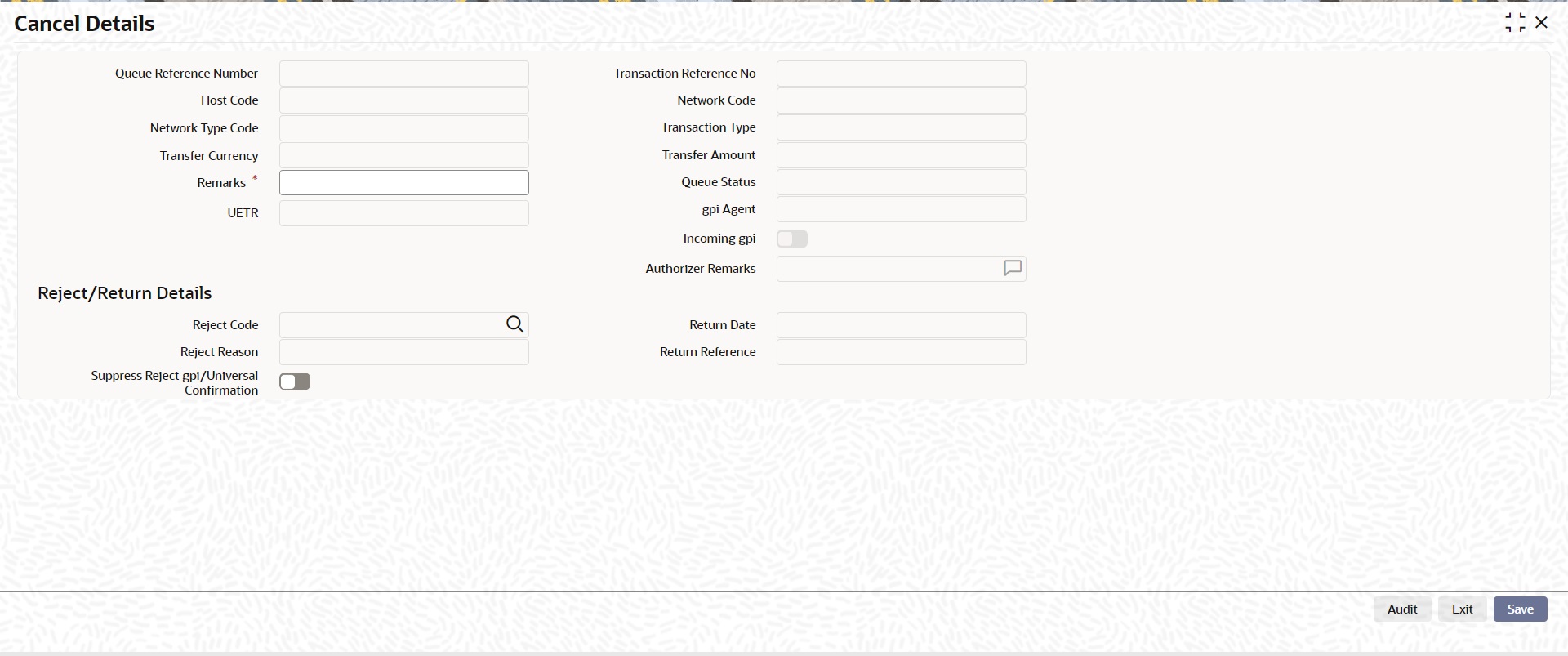
You can invoke “Cancel Action” screen-by clicking on the Cancel button present in every Exception Queue.
On cancelling a payment transaction from any Exception Queue, if it has not undergone Sanction scanning yet, the transaction is sanctioned before cancellation. If the Sanction response is Approve or Reject, transaction is cancelled. Else, if it is Seize, transaction is seized.
If the transaction stayed in an Exception Queue over days and cancelled on a later day, Sanctioning will be done considering SC retry days – even if was sanction scanned earlier.
Remarks to be filled in mandatorily in the cancellation screen.
Additionally, the following changes are executed on a payment, on cancellation, based on its payment direction
9.1.1 Cancelling Outbound payment
l If the transaction has crossed ECA stage, on cancellation, the amount is released, by triggering a release block request to DDA system.
l If the payment is a cross currency transfer (transfer currency & debit account currency are different) and External FX rate was fetched, the FX utilization is undone, by triggering a FX unwind request.
l If the transaction is cancelled from Sanction Queue on a later day, the Ring Fence block made on booking day EOD is undone, by triggering a ECA undo request to DDA system.
Note
Cancel action details performed from Exception Queues are displayed in View Queue Action Log screen.
9.1.2 Cancelling Inbound payment
l Cross border / SWIFT based RTGS : Option is available to post the credit to Return GL or to suppress the entries. Reject / Return details are not applicable.
l SEPA ACH : pacs.004 message is sent back to the sender of pacs.008 automatically, to return the funds of the cancelled payment.Reject / Return details are mandatory.
l SEPA DD : pacs.004 or pacs.002 message (considering the network settlement date & time) is sent back to the sender of pacs.008 automatically, to return the funds of the cancelled payment. Reject / Return details are mandatory.
l India RTGS: pacs.004 is sent back to the sender of pacs.008 automatically, to return the funds of the cancelled payment. Reject / Return details are mandatory.
You can invoke “Cancel Action” screen by clicking on the Cancel button present at bottom of the ‘Repair Queue ‘screen ‘PQSREPQU’.
Note
l Suppress and Cancel actions are not allowed for Inbound ACH and Direct Debits. Only Return action is allowed.
l Return action is not allowed for Cross Border and RTGS transactions.
l Remarks is mandatory to be given.
9.2 Locking of Records in Processing Queues
Locking of transaction records on a user initiating Queue Action is provided for the below listed queues for all actions except View Action:
l Document Approval Queue (PQSDOCAQ)
l Non STP Queue (PQSNSTPQ)
l Repair Queue (PQSREPQU)
l Verification Queue (PQSVERFQ)
l Exchange Rate Queue (PQSEXEXQ)
l Warehouse Queue (PQSFUVAQ
This is enabled by maintaining cstb_param OBPM_QUEUE_ACTION_LOCK as Y.
If the user has opened any of the Queue Action screens except View actions, system locks the payment record selected. If another user tries to initiate any other Queue Action from the same Exception Queue, the below error is thrown:
“Payment record is locked for User Action”.
Lock is removed if the first user cancels or completes the Queue Action.
Note
If the queue action screen is closed without using OK or Exit button, the lock is to be removed manually using the below detailed screen.
You can release the Queue Action Lock manually in this screen.
Any user having access to this screen is able to release any existing lock. Select one or more records and click 'Clear' button to Release the block.
You can invoke the ‘Clear Queue Action Lock’ screen by typing ‘PMDCLRQU’ in the field at the top right corner of the application toolbar and clicking the adjoining arrow button. Click New button on the Application toolbar.
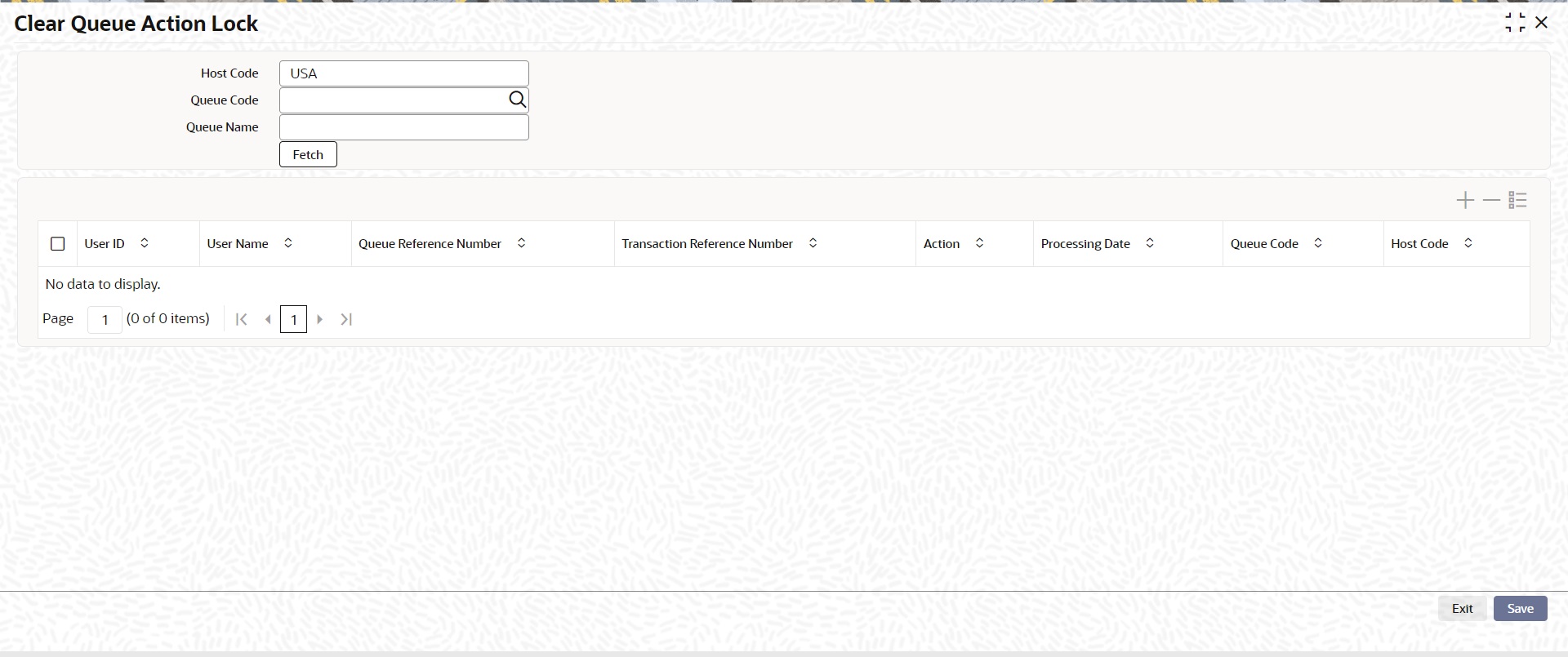
You can specify the following details:
Host Code
System defaults the Host Code of transaction branch on clicking ‘New’.
Queue Code
Specify the Queue Code from the list of values.
Queue Name
System defaults the Name of the Queue Code displayed.
Fetch
Click on Fetch, following fields are displayed:
l User ID
l User Name
l Queue Reference Number
l Transaction Reference Number
l Action
l Processing Date
l Queue Code
l Host Code
9.3 Acting from an Exception Queue on a later day
When payment transaction moves to an Exception Queue and an action is taken a later day, than the booking day, an override “Activation date is in the past, the dates are re-derived. Do you want to proceed?” would be sought.
On acceptance, activation date of the payment is force reset to current date. And, by this its instruction date is re derived and entire exception handling process is re-executed from beginning.
Processing cutoff is not validated when a payment is processed from a queue on a later day.
When an outbound payment is approved from Sanction or ECA Q on a later day, then Customer Rollover Preference is applied. Refer Payments Core manual on this.
Alternatively you can disagree on this override and in turn cancel the payment, if it need not be executed on a later day.
An option is provided in the below listed exception queues to export the user selected records to an excel sheet:
l Auth Limit1 Queue
l Auth Limit2 Queue
l Business Override Queue
l EAC Queue
l ECA Queue
l EU Payer Queue
l Exchange Rate Queue
l External Pricing Queue
l Network Cut-off Queue
l Non STP Queue
l Process Cut-off Queue
l Process Exception Queue
l Repair Queue
l Sanction Check Queue
l Settlement Review Queue
l Verification Queue
l Warehouse Queue
Export action is considered only on selected records and export the queue records to an excel sheet.