16. Generic RTGS Admin Message Processing
This feature supports the processing of admin messages admi.002, admi.004, admi.005, and admi.007.
This section contains the following sub-sections:
l Section 16.1, "Generic Wires ISO Message Rejection (admi.002)"
l Section 16.2, "Generic Wires ISO System Event Notification (admi.004)"
l Section 16.3, "Generic Wires ISO Report Request Transaction (admi.005)"
l Section 16.4, "Generic Wires ISO Receipt Acknowledgment (admi.007)"
16.1 Generic Wires ISO Message Rejection (admi.002)
16.1.1 Generic Wires ISO Message Rejection View
You can view the parsed data of incoming admi.002 message through this screen.
You can invoke ‘Generic Wires ISO Message Rejection View’ screen by typing ‘PSDIMRVW’ in the field at the top right corner of the Application tool bar and clicking on the adjoining arrow button.
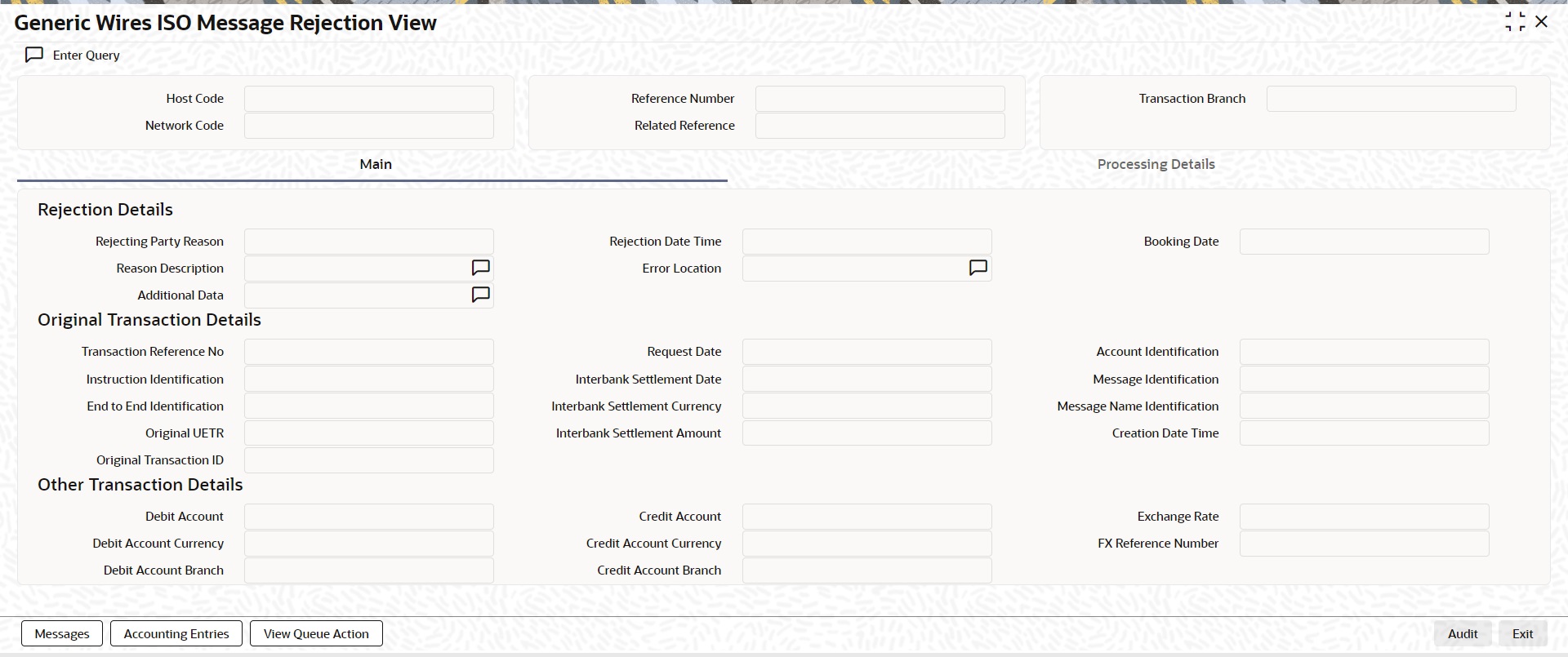
You can specify the following fields:
Host Code
System defaults the Host Code of the user’s logged in branch.
Network Code
System defaults the Network Code of the original message with which the admi.002 message is matched.
Reference Number
The system displays Transaction Reference Number.
Related Reference
The system displays Related Reference Received in the message.
Transaction Branch
System defaults the branch code of the logged in user branch.
16.1.1.1 Main Tab
Click Main tab on the ‘Generic Wires ISO Message Rejection View’ screen.
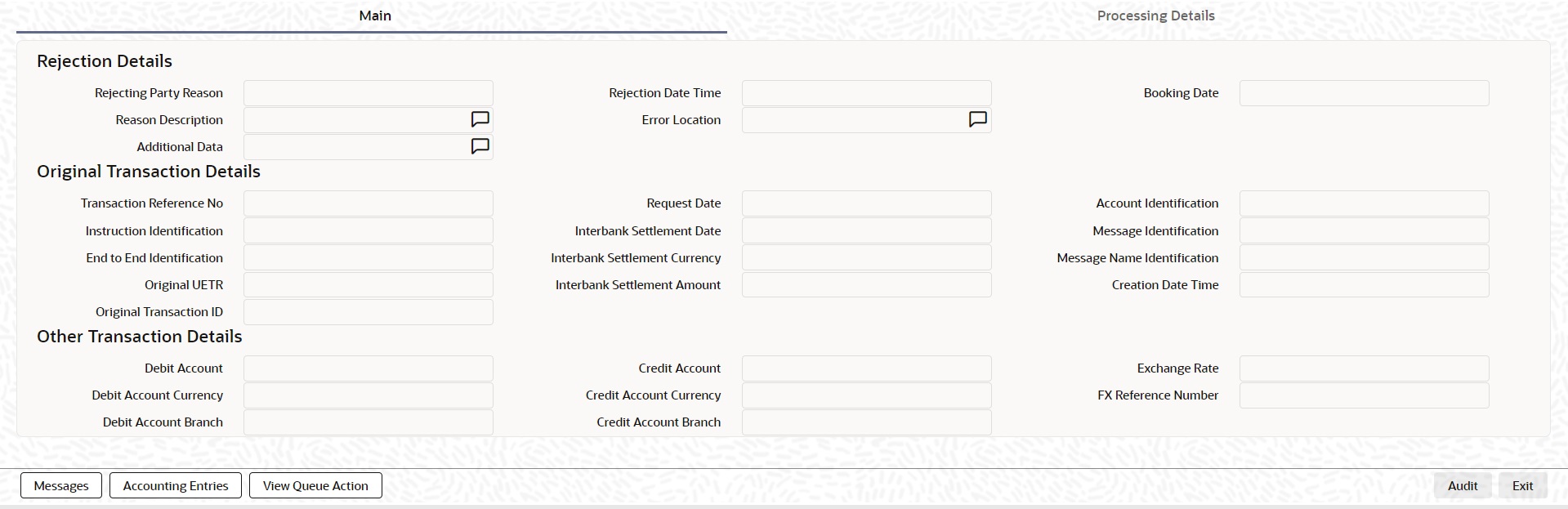
You can specify the following fields:
Rejection Details
Rejecting Party Reason
System displays Reject Reason as Received in the message.
Reason Description
System displays Reason Description as Received in the message.
Additional Data
System displays Additional Data as Received in the message.
Rejection Date Time
System displays Rejection Date Time received in the message.
Error Location
System displays Error Location received in the message.
Booking Date
System defaults to current branch date on which admi.002 is received.
Original Transaction Details
Instruction Identification
System default the original transaction reference number.
End to End Identification
System defaults the original transaction UETR.
Original UETR
System defaults the original transaction UETR.
Original Transaction ID
This field displays Transaction Identification of the original transaction.
Interbank Settlement Date
This field displays Interbank Settlement Date of the original transaction.
Interbank Settlement Currency
This field displays Interbank Settlement Currency of the original transaction.
Interbank Settlement Amount
This field displays Interbank Settlement Amount of the original transaction.
Message Identification
This field displays Message Identification of the original transaction.
Message Name Identification
This field displays Message Name Identification of the original transaction. The possible values are pacs.008, pacs.009 or camt.050.
Creation Date Time
This field displays Creation Date Time of the original transaction.
Other Transaction Details
Debit Account
System defaults the Debit Account of original transaction.
Debit Account Currency
System defaults the Debit Account Currency of original transaction.
Debit Account Branch
System defaults the Debit Account Branch of original transaction.
Credit Account
System defaults the Credit Account of original transaction.
Credit Account Currency
System defaults the Credit Account Currency of original transaction.
Credit Account Branch
System defaults the Credit Account Branch of original transaction.
Exchange Rate
System defaults the Exchange Rate applied on original transaction.
FX Reference Number
System defaults the FX Reference Number applied on original transaction.
16.1.1.2 Processing Details
Click Processing Details tab on the ‘Generic Wires ISO Message Rejection View’ screen.
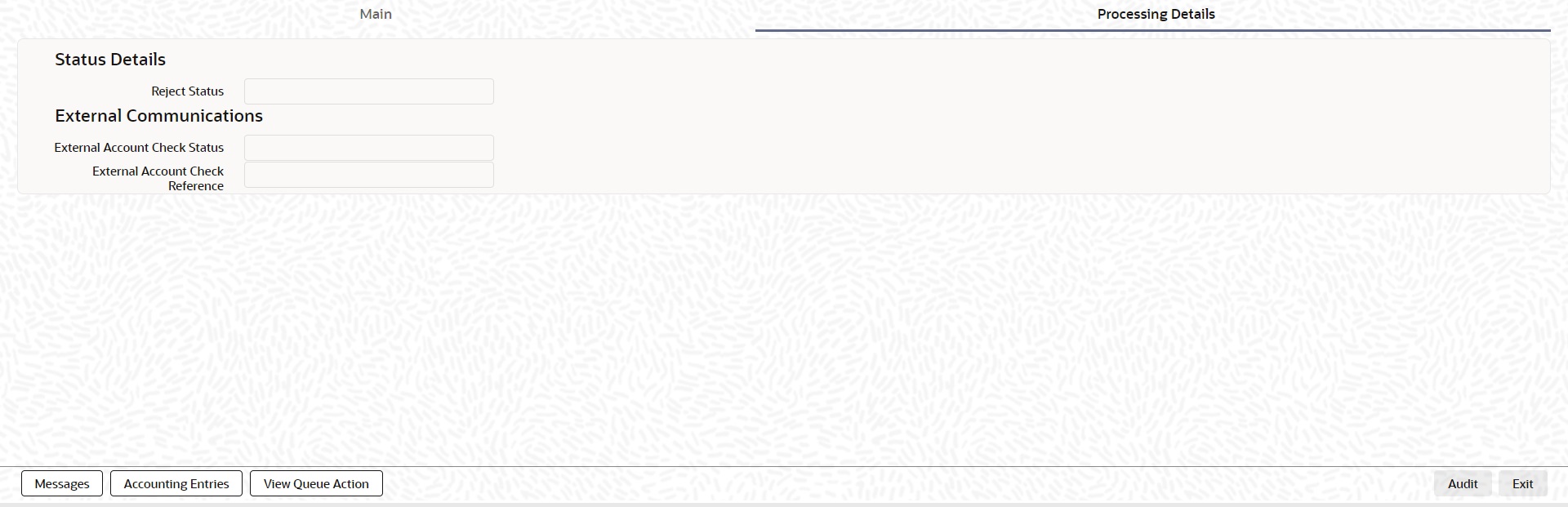
You can specify the following fields:
Status Details
Rejection Status
System displays the status of admi.002 message.
External Communication
Specify the following fields:
l External Account Check Status
l External Account Check Reference
16.1.1.3 Messages
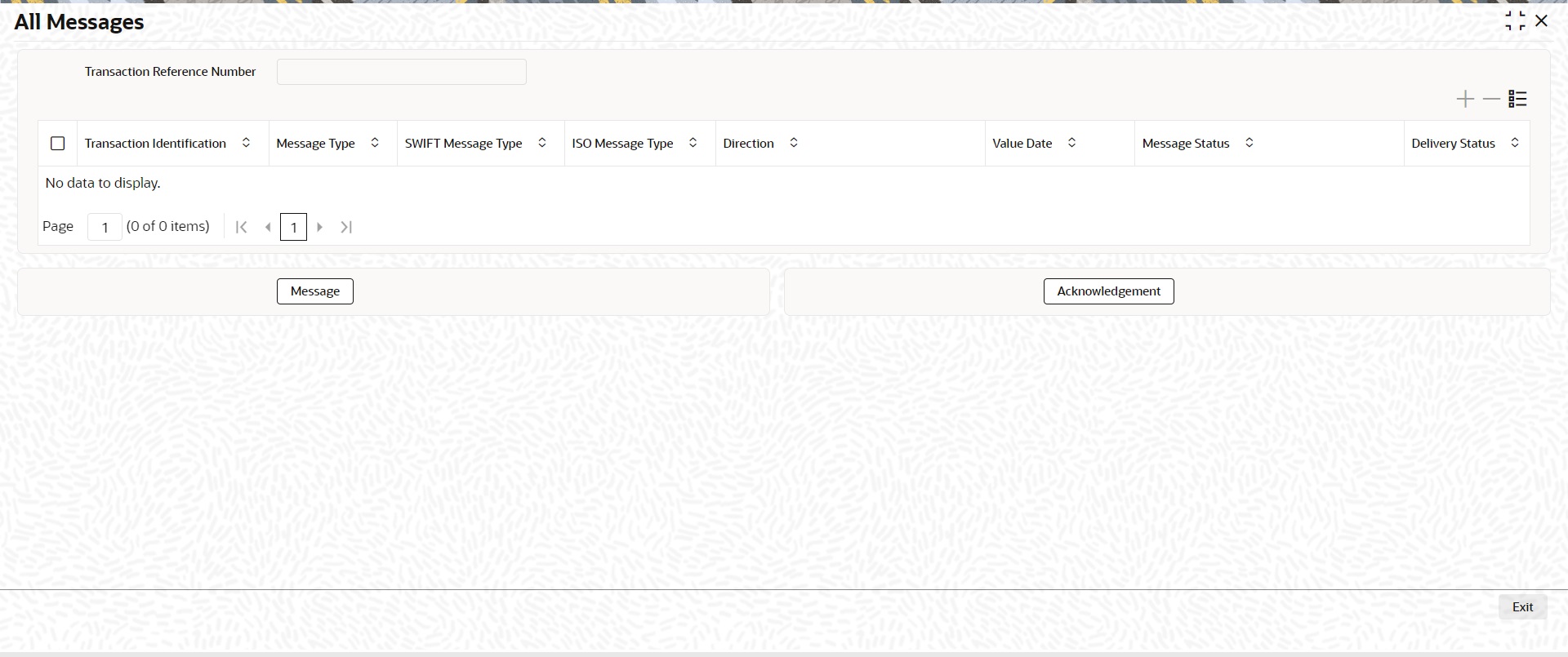
You can invoke All Messages 'PSDOCMSG' screen by clicking ‘Messages’ button on ‘PSDIMRVW’ screen.
This screen displays the Inbound admi.002 message and the Original outgoing message with which the Inbound admi.002 message is matched.
16.1.1.4 Accounting Entries
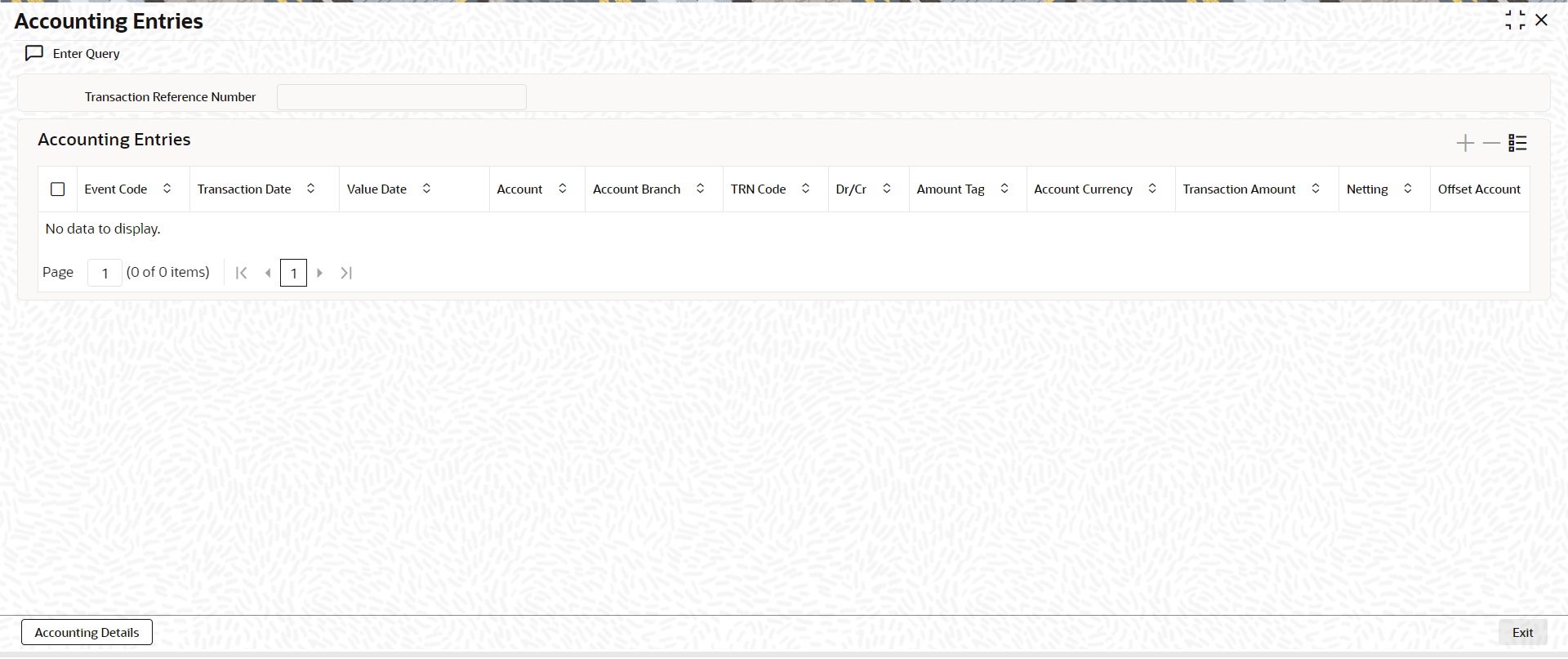
You can view the Accounting Entries details for the transaction in this screen. Click the “Accounting Entries” tab on the PSDIMRVW screen to invoke this sub-screen.
16.1.1.5 View Queue Action Log
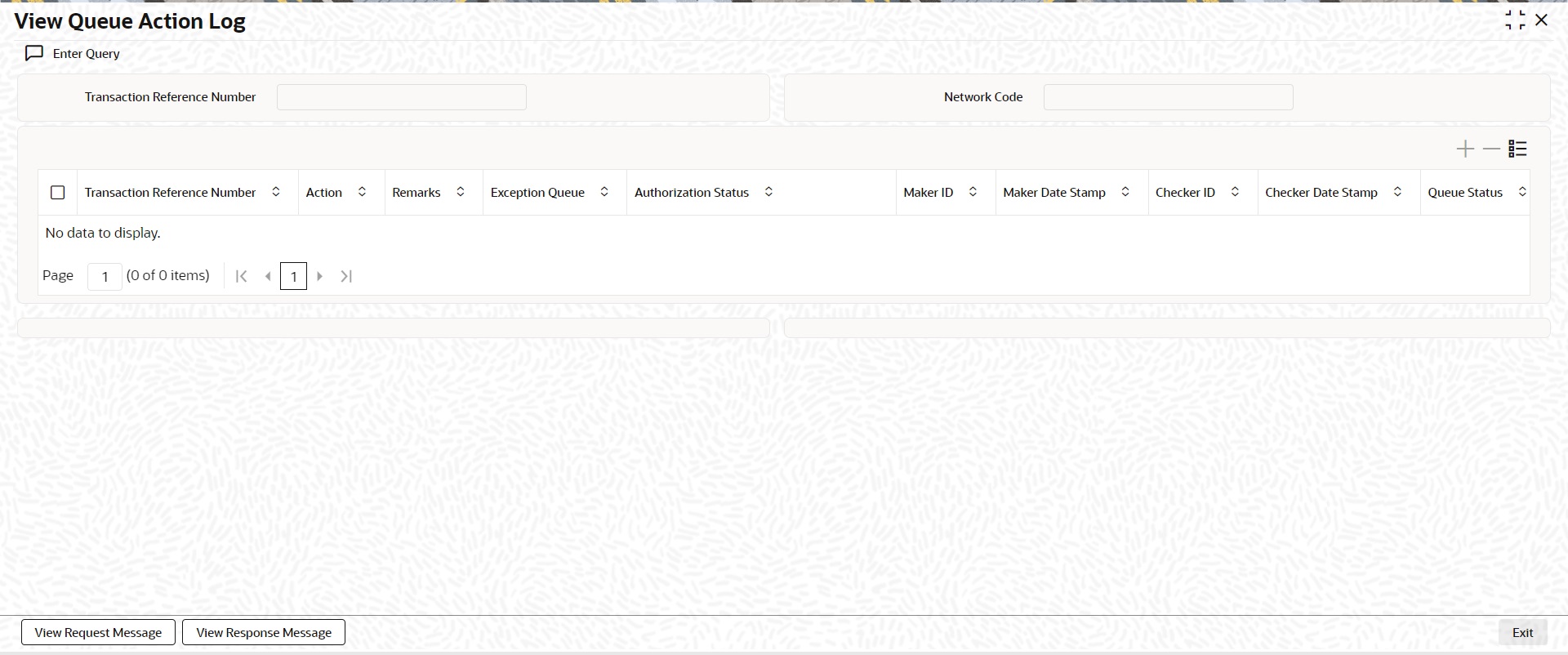
You can invoke View Queue Action Log ‘PQDQUACL’ screen by clicking View Queue Action button on ‘PSDIMRVW’ screen.
16.1.1.6 Generic Wires ISO Message Rejection Summary View
You can invoke ‘Generic Wires ISO Message Rejection Summary View’ screen by typing ‘PSSIMRVW’ in the field at the top right corner of the Application tool bar and clicking on the adjoining arrow button.
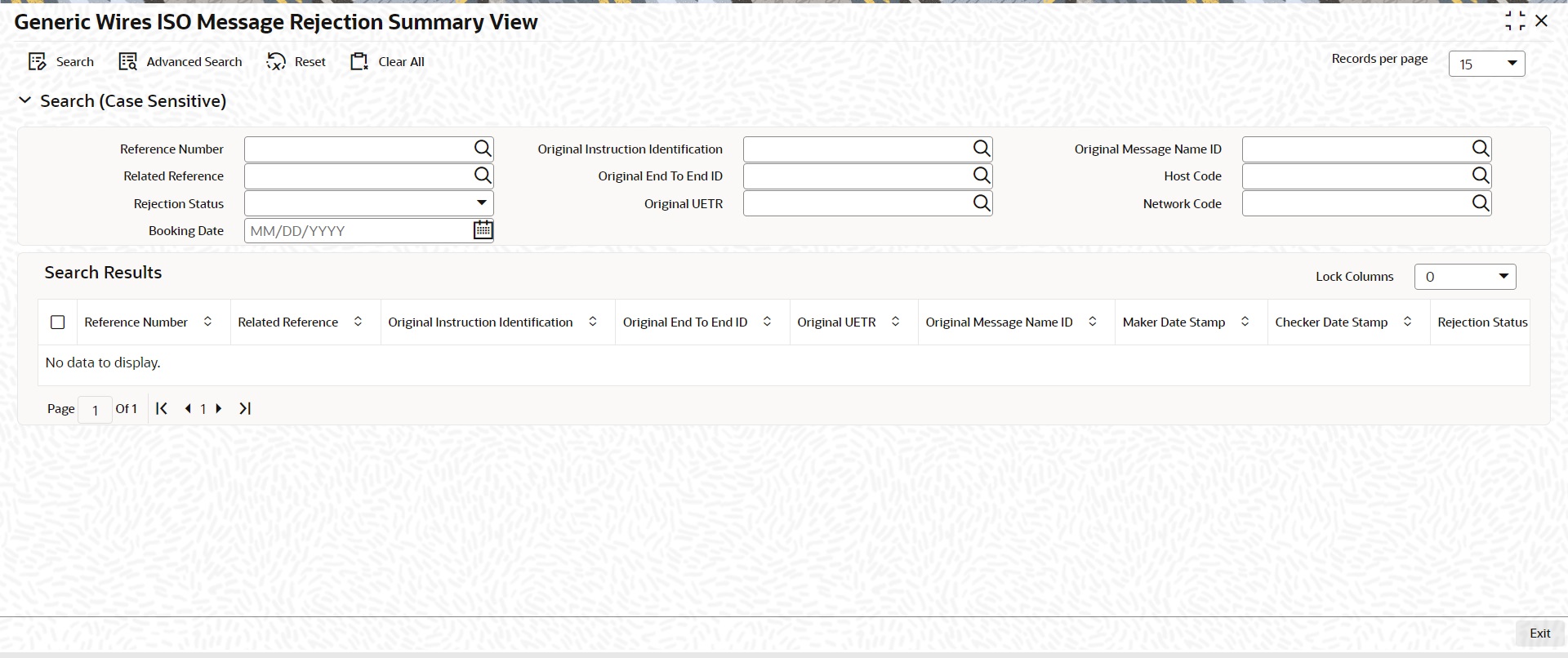
You can search using one or more of the following parameters:
l Reference Number
l Related Reference
l Rejection Status
l Booking Date
l Original Instruction Identification
l Original End to End ID
l Original UETR
l Original Message Name ID
l Host Code
l Network Code
Once you have specified the search parameters, click ‘Search’ button. The system displays the records that match the search criteria. You can view the following details:
Double click a record or click the ‘Details’ button after selecting a record to view the detailed screen.
16.1.2 Generic Wires ISO Message Rejection Processing
16.1.2.1 Message Upload
l Inbound Rejection (admi.002) message is recieved without TARGET2 business header.
l The incoming Rejection (admi.002) message is parsed and uploaded in Inbound Browser Summary (PMSINBRW) screen.
l You can view the message details in Generic Wires ISO Message Rejection View (PSDIMRVW) screen.
16.1.2.2 Message Matching and Linking with Outgoing Messages
l After parsing the admi.002 message, the message is matched with the outgoing TARGET2 ISO message using following matching criteria:
– Related Reference received in the incoming admi.002 message is matched with Business Message Identifier (<BizMsgIdr>) sent in outgoing message.
l If the admi.002 message matching fails, then admi.002 record Receipt Acknowledgement status under Processing Details tab of Generic Wires ISO Message Rejection View (PSDIMRVW) screen is marked as 'Unmatched' and Process status of the uploaded admi.002 is 'Processed' in incoming browser (PMSINBRW).
l If the admi.002 message matches with outgoing message then:
– Process status is marked as 'Processed' in the Incoming Message Browser (PMSINBRW) .
– The system updates the reference number in the Incoming Message Browser (PMSINBRW) with matched transaction reference number.
– Rejection status is marked as 'In Progress' if matched transaction is pacs.008, pacs.009CORE, pacs.009COV and camt.050 under Processing Details tab of Generic Wires ISO Message Rejection View (PSDIMRVW) screen.
– Rejection status for other messages is marked as ‘Processed’.
16.1.2.3 Transaction Status Update
l Transaction Status for the original transaction is updated as "Rejected".
l Rejection (admi.002) message status is updated as 'Processed' upon successful processing.
l The transaction status on the Rejection & parent transactions are displayed as below:
|
Scenario |
Rejection (i.e., admi.002) Rejection status |
Parent (i.e., pacs.008/pacs.009/camt.050) Transaction Status |
|
Rejection (admi.002) received and Not Matched |
Unmatched |
Processed |
|
Rejection (admi.002) received and matched |
In Progress / Processed |
Processed |
|
Rejection (admi.002) is pending in Queue |
Exception |
Processed |
|
Rejection (admi.002) rejected by EAC |
Cancelled |
Processed |
|
Rejection (admi.002) successfully completed |
Processed |
Rejected |
16.1.2.4 FX Rate Fetch
l The system picks the exchange rate applied on the original pacs.008, pacs.009CORE, pacs.009COV, camt.050 message and apply the same exchange rate for calculating the Customer credit amount.
16.1.2.5 External Account Check (EAC)
l The ‘External Credit Approval System’ is picked up from the External Customer Account (STDCRACC). An EAC request XML is prepared which includes the details like a debit account, amount to be debited and charge components along with charge amount to be debited is included in the request.
l A record is logged in to the EAC Queue. The request is in EAC Queue with status as 'Pending' till the final response (Accept / Reject / Seizure) is received.
l Carry Forward user action is not allowed on the message in EAC queue.
l On Cancelling the transaction from EAC queue accounting entry is posted for parking the funds in Return GL. (Return GL maintained in Generic Wires Outbound Network Preference (PSDOGWNP) under R-Transaction Preference is referred).
Note
EAC request is sent with Inbound Rejection (admi.002) message Transaction Reference Number.
16.1.2.6 Accounting
l Accounting Handoff is prepared and sent to accounting system. A record is logged into the Accounting Queue (PQSACCQU) reflecting the status of the handoff.
Note
Accounting entries are posted with Inbound Rejection (admi.002) message Transaction Reference Number.
16.2 Generic Wires ISO System Event Notification (admi.004)
16.2.1 Generic Wires ISO System Event Notification View
You can view the parsed data of incoming admi.004 message through this screen.
You can invoke ‘Generic Wires ISO System Event Notification View’ screen by typing ‘PSDIGENV’ in the field at the top right corner of the Application tool bar and clicking on the adjoining arrow button.
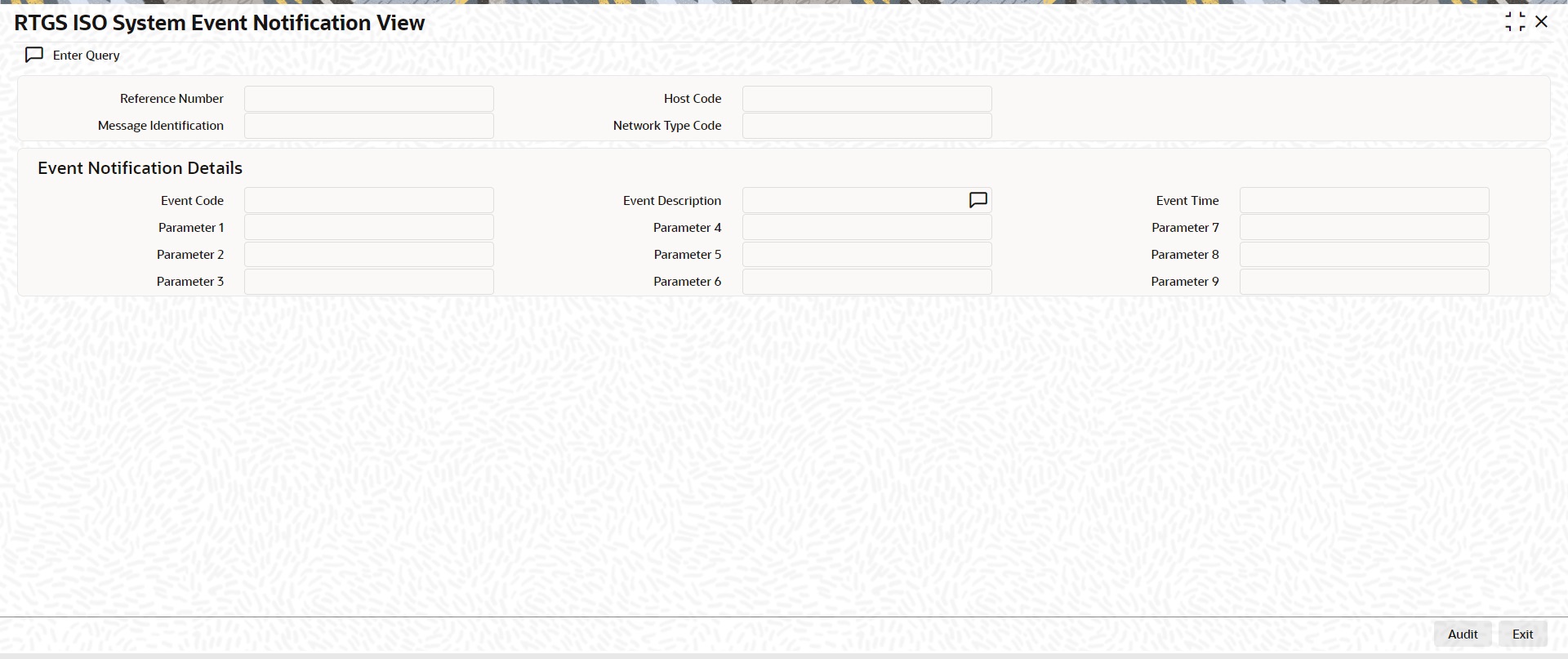
You can specify the following fields:
Reference Number
The system displays Transaction Reference Number.
Host Code
System defaults the Host Code of the user’s logged in branch.
Message Id
The system displays Message Identification Received in the header.
Network Type Code
The system displays the Network Type Code of the EU Target 2.
Event Notification Details
You can view Event details and Parameters received in the incoming message in the following fields:
l Event Code
l Parameter 1
l Parameter 2
l Parameter 3
l Event Description
l Parameter 4
l Parameter 5
l Parameter 6
l Event Time
l Parameter 7
l Parameter 8
l Parameter 9
16.2.1.1 Generic Wires ISO System Event Notification View Summary
You can invoke ‘Generic Wires ISO System Event Notification View Summary’ screen by typing ‘PSSIGENV’ in the field at the top right corner of the Application tool bar and clicking on the adjoining arrow button.
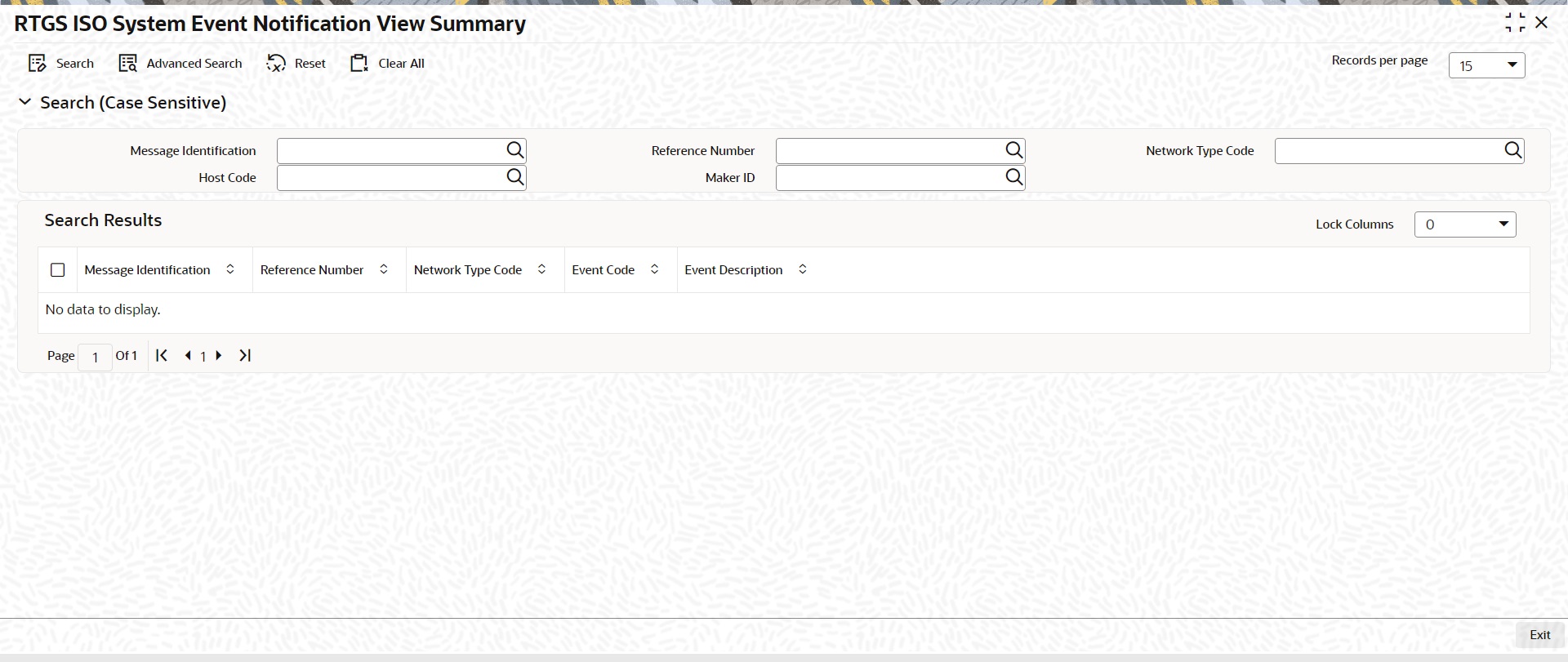
You can search using one or more of the following parameters:
l Message Id
l Authorization Status
l Host Code
l Maker Id
l Transaction Reference Number
l Network Type Code
l Record Status
Once you have specified the search parameters, click ‘Search’ button. The system displays the records that match the search criteria. You can view the following details:
Double click a record or click the ‘Details’ button after selecting a record to view the detailed screen.
16.2.2 Generic Wires ISO System Event Notification Processing
16.2.2.1 System Event Notification (admi.004) Processing
l Inbound System Event Notification (admi.004) message is received with TARGET2 business header.
l After receiving the Inbound System Event Notification (admi.004) message, the message is created and logged in the incoming message tables.
l The system does format validations for the admi.004 message received based on the schema details maintained for the message in File Parameter Detailed (PMDFLPRM) maintenance.
l On completing the format validations, the message is parsed and uploaded to the Inbound Browser Summary (PMSINBRW) screen.
l After upload user can view the message details in the Generic Wires ISO System Event Notification View (PSDIGENV) screen.
16.3 Generic Wires ISO Report Request Transaction (admi.005)
16.3.1 Generic Wires ISO Report Request Transaction Input
You can manually book the outgoing Report Request (admi.005) transaction through this screen.
You can invoke ‘Generic Wires ISO Report Request Transaction Input’ screen by typing ‘PSDOGWRR’ in the field at the top right corner of the Application tool bar and clicking on the adjoining arrow button. Click ‘New’ button on the Application toolbar.
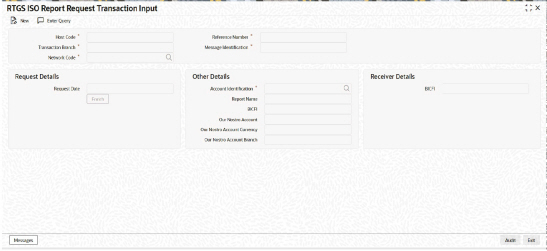
You can specify the following fields:
Host Code
System defaults the Host Code of the user’s logged in branch on clicking ‘New’ button.
Reference Number
The system displays Transaction Reference Number.
Transaction Branch
System defaults the Transaction Branch on clicking ‘New’ button.
Message Identification
The system displays Message Identification Received in the header.
Network Code
Select the Network from the list of values. The list contains all EU-TARGET2 networks defined in Network code definition (PMDNWCOD) for the host.
Request Details
Request Date
System default the Request Date to current branch date.
Other Details
Account Identification
Select from the list of value for Account Identification.
Report Name
The system displays the Report Name.
BICFI
System defaults the BIC code of the selected account.
Our Nostro Account
The system displays the Our Nostro Account as maintained in the application.
Our Nostro Account Currency
System defaults the currency of the account.
Our Nostro Account Branch
System defaults the branch of the account.
Receiver Details
BICFI
The system displays the BIC code of the receiver.
16.3.1.1 Generic Wires ISO Report Request Transaction Input Summary View
You can invoke ‘Generic Wires ISO Report Request Transaction Input Summary View’ screen by typing ‘PSSOGWRR’ in the field at the top right corner of the Application tool bar and clicking on the adjoining arrow button.
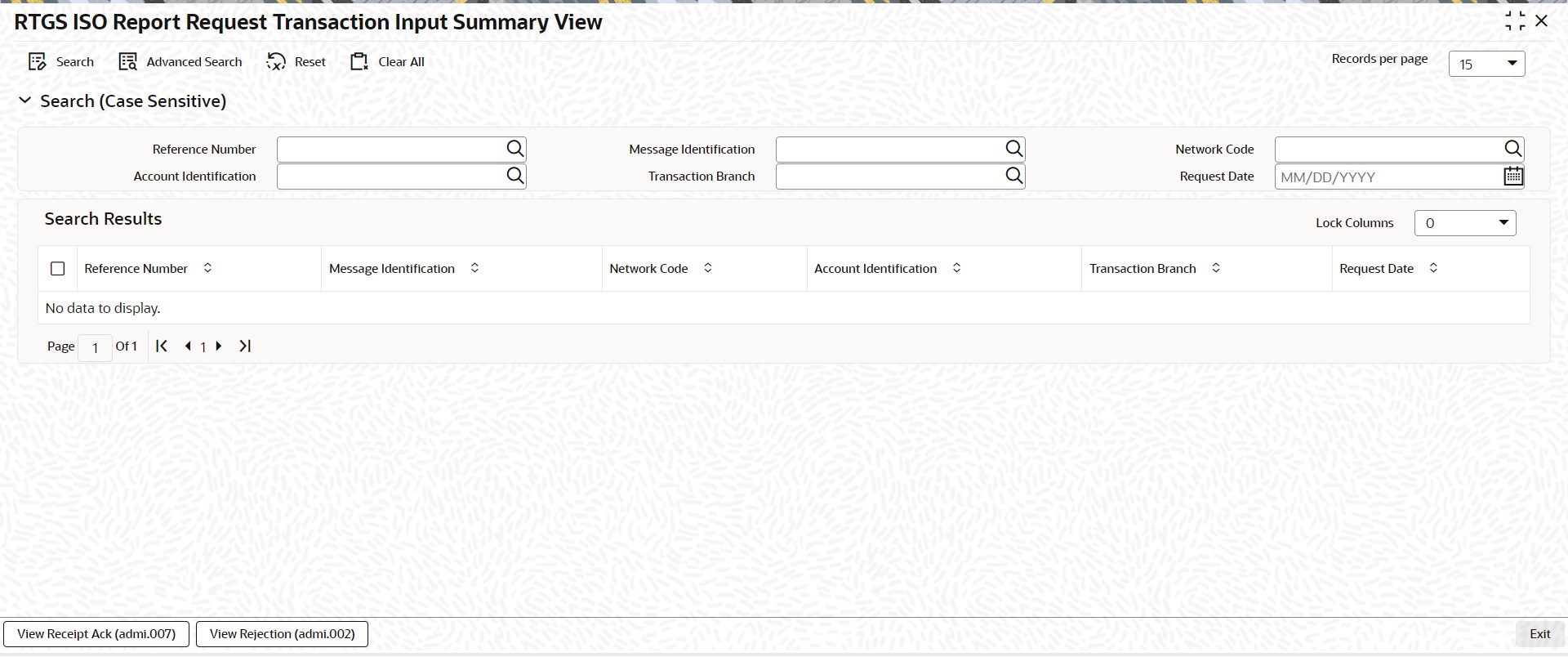
You can search using one or more of the following parameters:
l Reference Number
l Network Code
l Transaction Branch
l Message Identification
l Account Identification
l Request Date
l Receipt Ack (admin.007) Received
l View Rejection (admi.002)
Once you have specified the search parameters, click ‘Search’ button. The system displays the records that match the search criteria. You can view the following details:
Double click a record or click the ‘Details’ button after selecting a record to view the detailed screen.
l You can click ‘View Receipt Ack (admi.007)’ button to launch Generic Wires ISO Receipt Acknowledgement View (PSDIGRAV) screen and display the Acknowledgement (admi.007) message received for outgoing admi.005 message.
l In case if no Acknowledgement (admi.007) message is received and user clicks on ‘View Receipt Ack (admi.007)’ button then error message "Receipt Acknowledgement (admi.007) is not received for the transaction" is displayed.
l You can click View Rejection (admi.002) button to launch Generic Wires ISO Message Rejection View (PSDIMRVW) screen and display the Rejection (admi.002) message received for outgoing admi.005 message.
l It displays error message "Rejection (admi.002) is not received for the transaction", if you receive no Rejection (admi.002) message on clicking View Rejection (admi.002) button.
16.3.2 Generic Wires ISO Report Request Transaction Processing
l You can book the Report Query Request (admi.005) message using the Generic Wires ISO Report Request Transaction Input (PSDOGWRR) screen.
l The generated message is delivered to the ‘Outgoing Queue’ message queue defined in the Message Media Control Maintenance (MSDMGMCS) screen.
l You can view the generated messages in the Outbound Browser Summary (PMSOUTBR) Screen.
l After generating the message, the generated message is validated against the XSD maintenance done for the message in File Parameters Detailed (PMDFLPRM) screen.
16.4 Generic Wires ISO Receipt Acknowledgment (admi.007)
16.4.1 Generic Wires ISO Receipt Acknowledgment View
You can view Generic Wires ISO Receipt Acknowledgment transactions through this screen.
You can invoke “Generic Wires ISO Receipt Acknowledgment View” screen by typing the function ID ‘PSDIGRAV’ in the field at the top right corner of the Application tool bar and clicking on the adjoining arrow button.
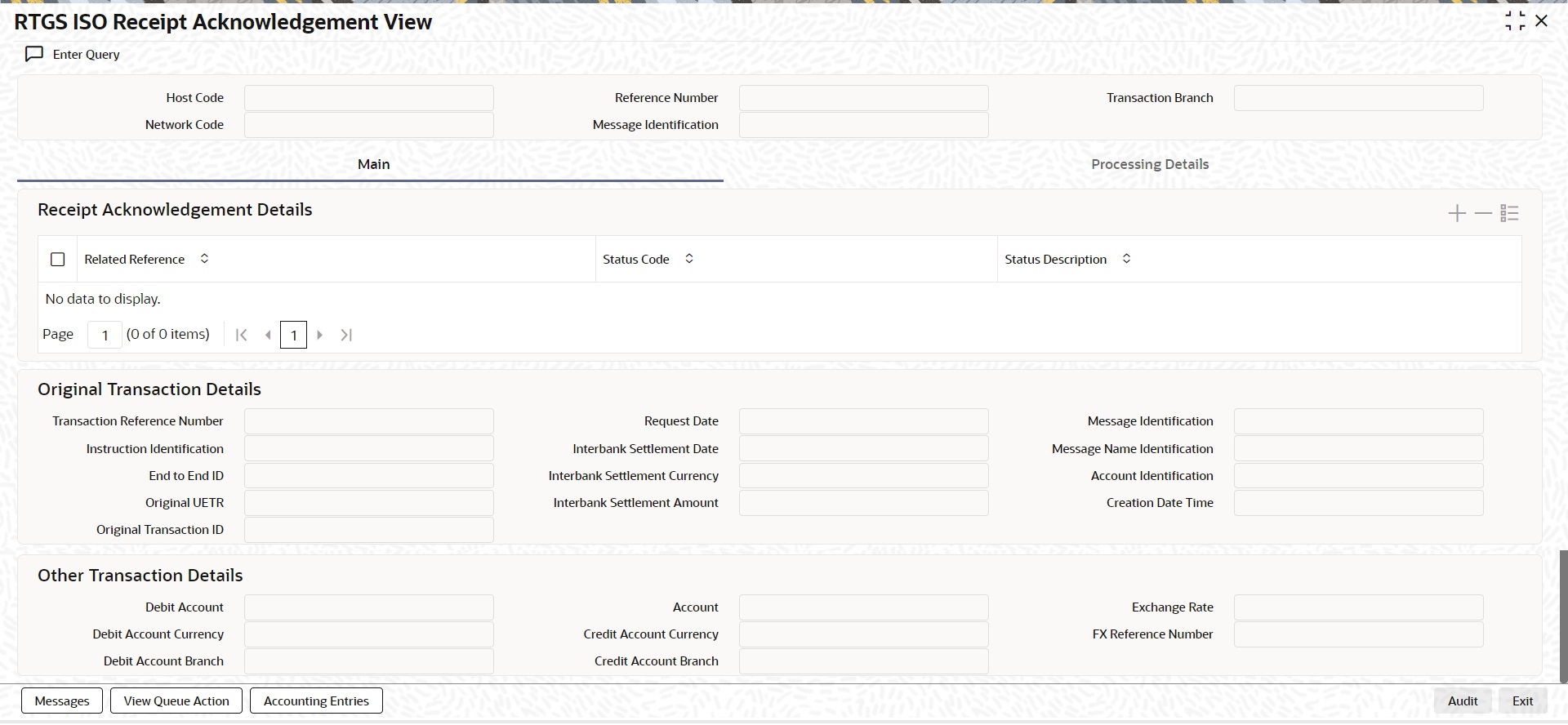
l From this screen, click ‘Enter Query’ button. The Reference Number field gets enabled, for the user to specify the Reference Number.
l Click ‘Execute Query’ button to populate the details of the transaction in the Generic Wires ISO Receipt Acknowledgment View screen. The system displays all the fields in the below mentioned tabs based on the transaction reference number selected:
– Main
– Processing Details
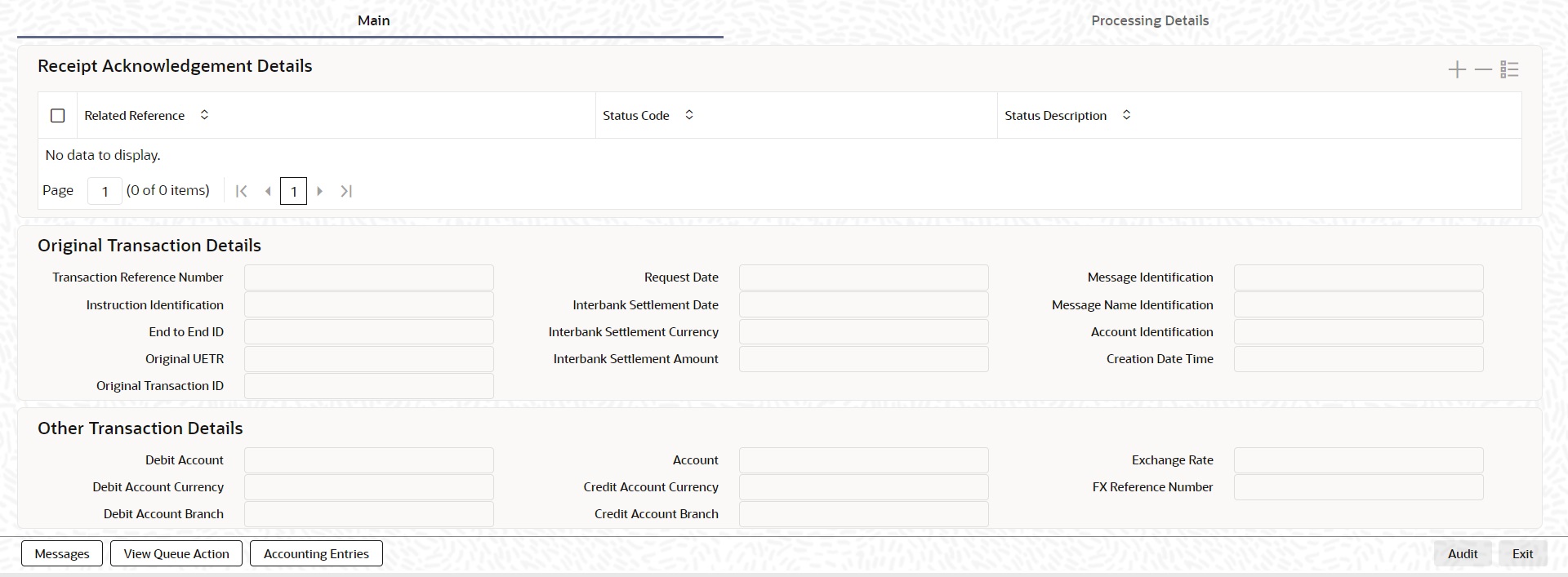
16.4.1.1 Main Tab
You can invoke this screen by clicking ‘Main’ tab at the bottom of Generic Wires ISO Receipt Acknowledgment View screen.
16.4.1.2 Processing Details
You can invoke this screen by clicking ‘Processing Details’ tab at the Generic Wires ISO Receipt Acknowledgment View screen.
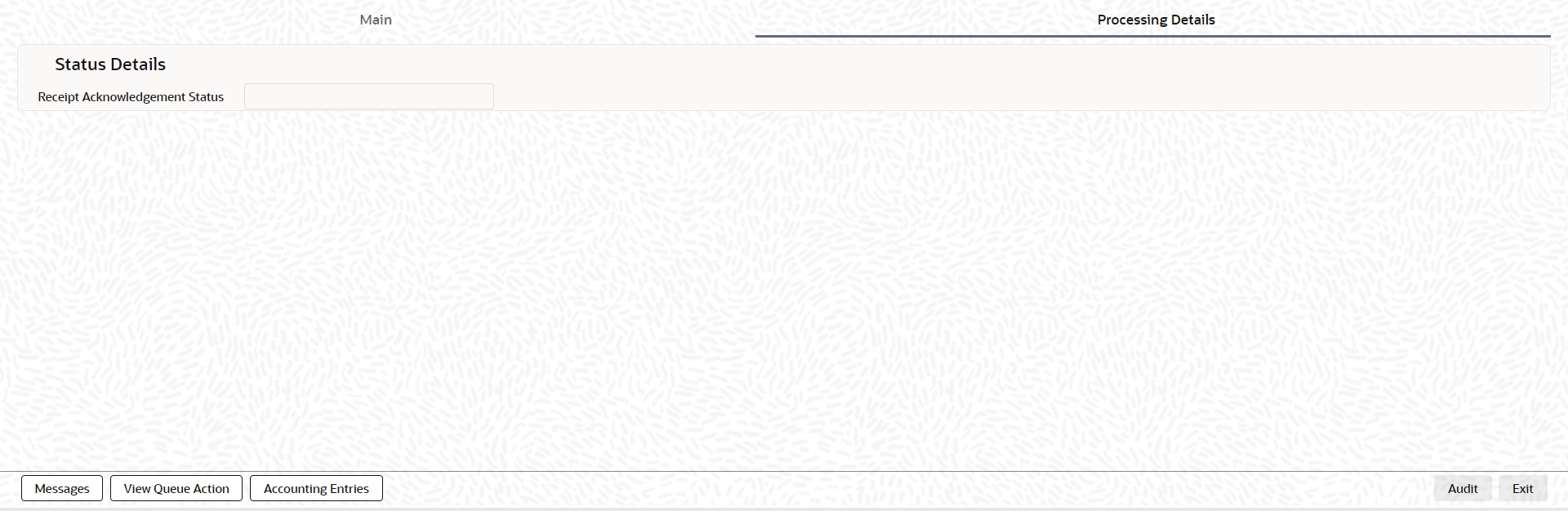
This screen list below processing fields of Status Report Message.
Receipt Acknowledgement Status
This field display the status of admi.007 message. One of the following status values are displayed Unmatched or Matched.
16.4.1.3 All Messages
You can invoke this screen by clicking ‘Messages’ tab at the bottom of Generic Wires ISO Receipt Acknowledgment View screen.
l You can view the Inbound admi.007 message and the Original outgoing admi.005 message with which the Inbound admi.007 message is matched.
16.4.1.4 View Queue Action
You can invoke this screen by clicking ‘View Queue Action’ tab at the bottom of Generic Wires ISO Receipt Acknowledgment View screen.
16.4.1.5 Accounting Entries
You can invoke this screen by clicking ‘Accounting Entries’ tab at the bottom of Generic Wires ISO Receipt Acknowledgment View screen.
16.4.1.6 Generic Wires ISO Receipt Acknowledgement Summary View
You can invoke “Generic Wires ISO Receipt Acknowledgement Summary View” screen by typing ‘PSSIGRAV’ in the field at the top right corner of the Application tool bar and clicking on the adjoining arrow button.
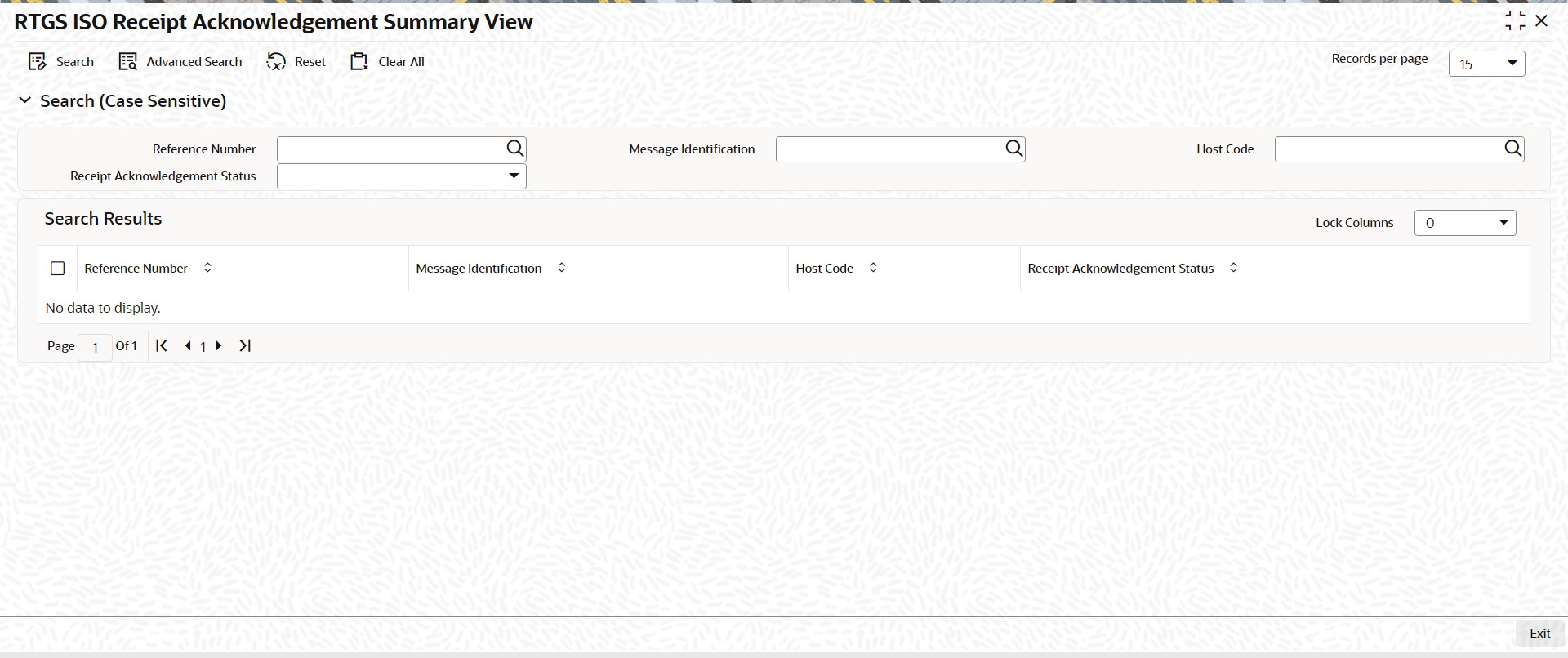
You can search using one or more of the following parameters:
l Reference Number
l Related Reference
l Status Code
l Message Identification
l Host Code
l Receipt Acknowledgement Status
Once you have specified the search parameters, click ‘Search’ button. The system displays the records that match the search criteria.
Double click a record or click the ‘Details’ button after selecting a record to view the detailed screen.
16.4.2 Generic Wires ISO Receipt Acknowledgment Processing
16.4.2.1 Receipt Acknowledgement (admi.007) Processing
l Inbound Receipt Acknowledgement (admi.007) message is received without TARGET2 business header.
l After receiving the Inbound Receipt Acknowledgement (admi.007) message the message is created and logged in the incoming message tables.
l The system does format validations for the admi.007 message received based on the schema details maintained for the message in File Parameter Detailed (PMDFLPRM) maintenance.
l On completing the format validations, the message is parsed and uploaded Inbound Browser Summary (PMSINBRW) screen.
l After upload, you can view the message details in the Generic Wires ISO Receipt Acknowledgement View (PSDIGRAV) screen.
l After parsing the admi.007 message, the message is matched with the outgoing admi.005 message using the following matching criteria:
– Related Reference received in the incoming admi.007 message is matched with Business Message Identifier (<BizMsgIdr>) sent in outgoing admi.005 message.
l If the admi.007 message matching fails, then admi.007 record Receipt Acknowledgement status under Processing Details Tab of Generic Wires ISO Receipt Acknowledgement View (PSDIGRAV) screen is marked as ‘Unmatched’ and Process status of the uploaded admi.007 is ‘Processed’ in incoming browser (PMSINBRW).
l If the admi.007 message matches with admi.005 message then:
– admi.007 record Receipt Acknowledgement status under Processing Details Tab of Generic Wires ISO Receipt Acknowledgement View (PSDIGRAV) screen is marked as ‘Matched’.
– Process status of the uploaded admi.007 is ‘Processed’ in the incoming browser (PMSINBRW).
– The incoming admi.007 message get linked with admi.005 message (i.e. Generated Reference field is updated with the Transaction Reference number of admi.005 messages).
16.4.2.2 Transaction Status Update
l The transaction status on the admi.007 & parent (admi.005) transactions are displayed as below:
|
Scenario |
Receipt Acknowledgment (i.e. admi.007) Receipt Acknowledgment status |
Parent (i.e. admi.005) Transaction Status |
|
Receipt Acknowledgment (admi.007) received and Not Matched |
Unmatched |
Processed |
|
Receipt Acknowledgment (admi.007) received and Matched |
Matched |
Processed |