5. IMPS Inbound Payments
The inbound IMPS payments are received as Request Pay from NPCI. System receives and processes the payments based on predefined processing steps.
5.1 IMPS Inbound Transaction Input
This chapter contains the following sections:
l Section 5.1.1, "Inbound IMPS Transaction View"
5.1.1 Inbound IMPS Transaction View
Inbound payment status can be viewed from this screen.Payments received from all channels are listed in this screen. The related messages are listed in the ‘All Messages’ sub-screen.
You can invoke ‘Inbound IMPS Transaction View’ screen by typing the function ID ‘PJDIVIEW’ in the field at the top right corner of the Application tool bar and clicking on the adjoining arrow button.
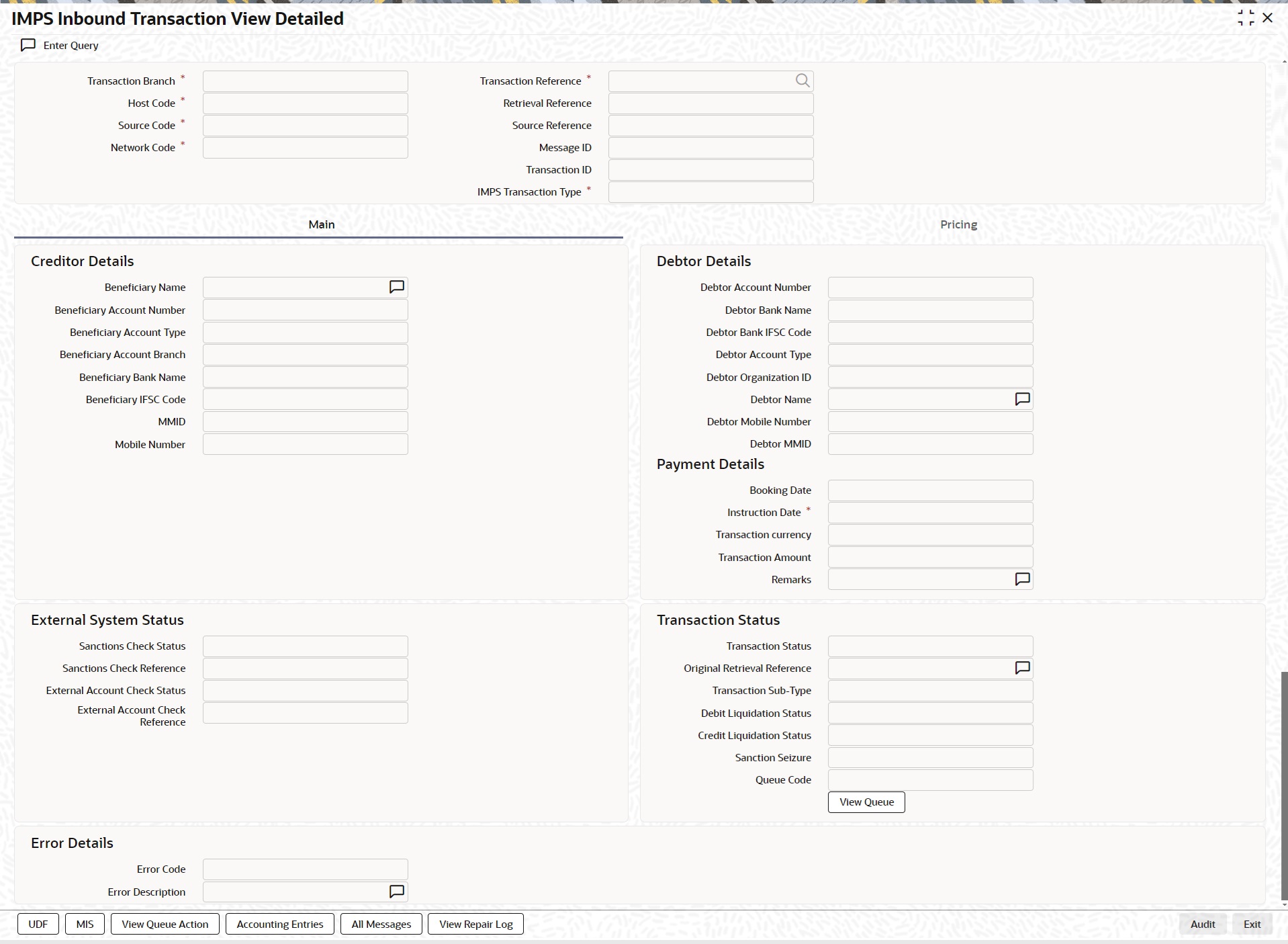
l From this screen, click Enter Query. The Transaction Reference field gets enabled which opens an LOV screen.
l Click the Fetch button and select the required value.
l Along with the transaction details in the Main and Pricing tabs user can also view the Status details for the following:
– External System Status
– Transaction Status
– Error Details
l Click Execute Query to populate the details of the transaction in the Inbound IMPS Transaction View screen.
For more details on Main, Pricing tabs refer to ‘PJDITONL’ screen.
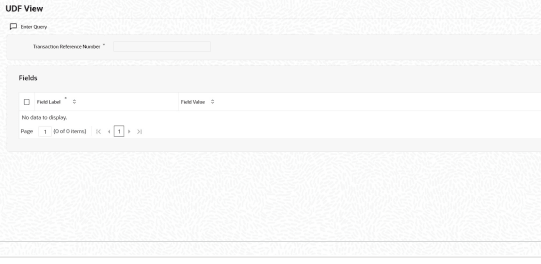
5.1.1.1 UDF Tab
You can invoke this screen by clicking ‘UDF’ tab in the screen.
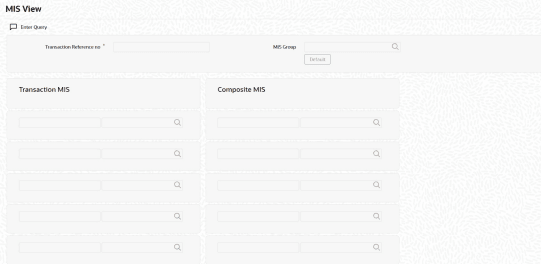
5.1.1.2 MIS Tab
You can invoke this screen by clicking ‘MIS’ tab in the screen.
5.1.1.3 View Queue Action Log
You can view all the queue actions for the respective transaction initiated. You can invoke this screen by clicking the ‘View Queue Action’ button in View screen, where the Transaction Reference Number is auto populated and related details are displayed.:
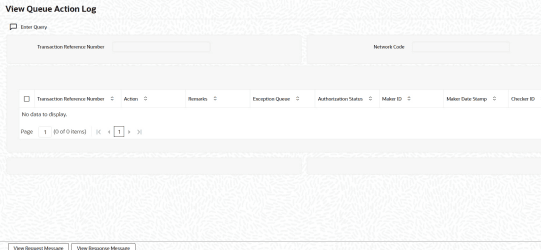
For more details on the fields, refer to section 2.2.2.3
5.1.1.4 Accounting Entries Tab
You can view the Accounting Entries posted for the Inbound IMPS in Accounting entries Tab.
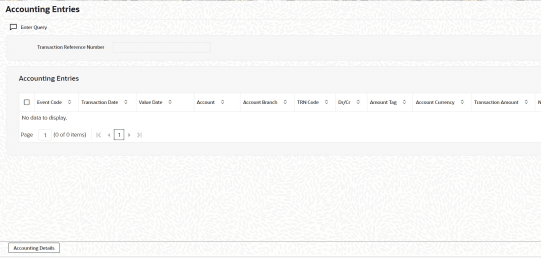
For more details on the fields and tabs, refer to section 2.2.2.5
5.1.1.5 All Messages
Click the ‘All Messages’ link in the Inbound IMPS Transaction View screen, to invoke this sub-screen.
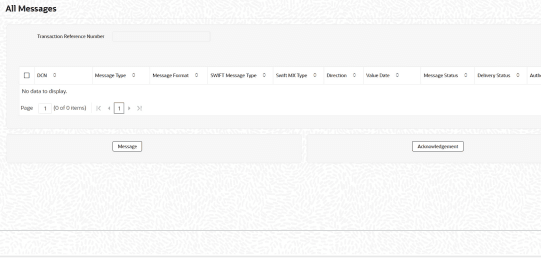
You can view the generated messages and the response messages for the transaction in this sub screen for the Transaction Reference Number specified. For more details on the fields, refer to section 2.2.2.4
5.1.1.6 View Repair Log
You can view all the Repair actions for the respective transaction initiated. You can invoke this screen by clicking the ‘View Repair Log’ button in View screen, where the Transaction Reference Number is auto populated and related details are displayed.
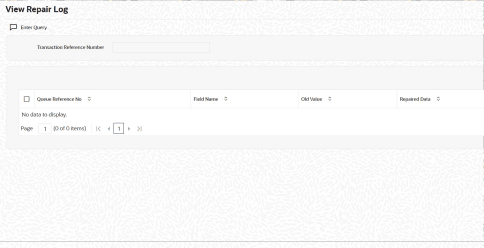
For more details on the fields, refer to section 2.2.6.6
5.1.1.7 IMPS Inbound Transaction View Summary
You can invoke ‘IMPS Inbound Transaction View Summary’ screen by typing ‘PJSIVIEW’ in the field at the top right corner of the Application tool bar and clicking on the adjoining arrow button.
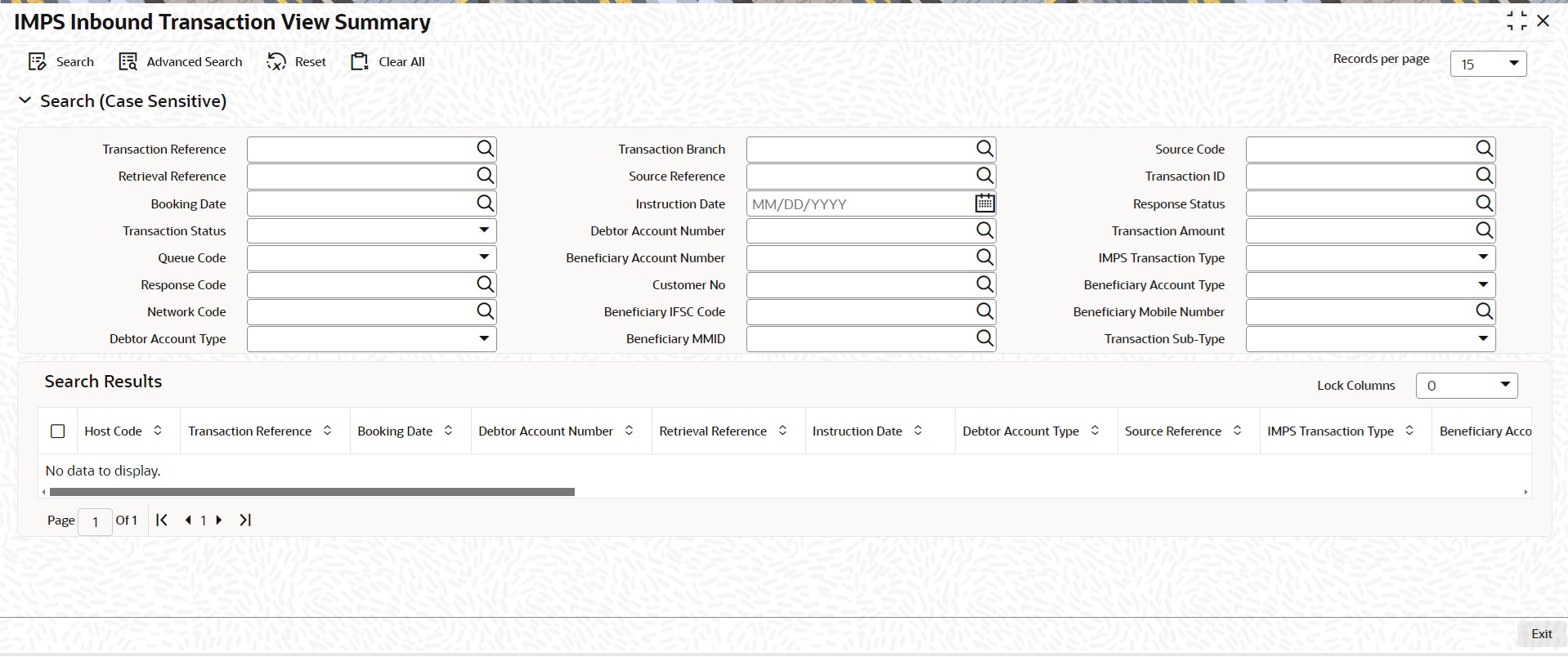
You can search for the records using one or more of the following parameters:
l Transaction Reference
l Retrieval Reference
l Source Reference Number
l Transaction ID
l Message ID
l Network Code
l Source Code
l Booking Date
l Instruction Date
l IMPS Transaction Type
l Transaction Currency
l Transaction Branch
l Transaction Amount
l Debtor Account Number
l Beneficiary Account Number
l Beneficiary IFSC Code
l Beneficiary MMID
l Beneficiary Mobile Number
l Sanction Seizure
l Response Code
l Response Status
l Transaction Status
l Debtor Account Type
l Queue Code
l Beneficiary Account Type
l Transaction Sub-Type
Once you have specified the search parameters, click ‘Search’ button. The system displays the records that match the search criteria.
Double click a record or select a record and click on ‘Details’ button to view the detailed maintenance screen.
5.2 IMPS Inbound Payments Processing
5.2.1 Inbound IMPS Payment Processing
The inbound IMPS payments are received as Request pay message from NPCI. System receives and processes the payments based on predefined processing steps.
l Inbound payments follows the below listed processing steps:
– Message Parsing and Message Type/Transaction Type Derivation
– Initial Validations
– Host/Branch Derivation
– Duplicate Check
– Sanctions Check
– External Account Credit Check
– Response Pay Message Generation and Check Transaction Status Response generation if applicable
– Internal Pricing, if applicable
– Accounting
Note
If Inbound IMPS message is having RRN and Sending Bank NBIN matching with existing transaction then it should be returned with “94: Duplicate Transaction Response code”.
5.2.1.1 Message Type/Transaction Type Derivation
l System will parse the inbound Request Pay XML and derive the API name from the first tag of the XML.
l Also, Transaction Type as' CREDIT' from the XML tag <Txn> type.
5.2.1.2 Initial Validations
The validations are similar to that of Outbound Payments.Mandatory field checks/ Referential data checks are done as below:
'OrgID' Validation:
System performs following steps:
l Derive the 'OrgID' field value from Header (<Head>) tag.
l Validate if the 'OrgID' field value from the XML is same as maintained on India Payments Out bank Identifier screen (PMDIOBID).
– If above step is successful, then payment is processed ahead.
– If above step fails, then payment is rejected.
Transaction Type (P2P/P2A) derivation -
System derives the IMPS transaction type from the 'Payee Address type' tag from XML file.
l If the <Payee. AC> -> addrType is 'Account' then the inbound transaction is P2A.
l If the <Payee. AC> -> addrType is 'Mobile' then the inbound transaction is P2P.
Beneficiary Details Derivation
System derives the beneficiary account number, beneficiary Branch IFSC, Beneficiary MMID and Beneficiary Mobile Number from the ‘<Payee.Ac.Detail>’ tag of the inbound XML file.
l For P2P – Based on the MMID and Mobile Number combination in XML file, derive beneficiary account number from the India Payments account preferences screen (PMDEXACP).
l For P2A – Payee IFSC and Account Number is present in XML file.
Beneficiary account type is present in the inbound XML message. System derives the beneficiary account type and populate the same in the Response File.
Transaction Account Branch Derivation
For P2A - Derive Based on IFSC Code present in ‘<Payee.Ac.Detail>’ tag.
For P2P - Based on the MMID and Mobile Number combination in XML file, derive beneficiary account number from the India Payments account preferences screen (PMDEXACP).
5.2.1.3 Customer and Account Status Check
System checks customer and Credit account are valid i.e. open and authorized. If 'Invalid' it is moved to Process Exception queue.
Beneficiary Account Currency: Validation is available to check only INR accounts are allowed for incoming credits.
System validates if the derived beneficiary account type as explained in the previous step 2.3, is allowed for the Inbound Payment and Network Code as maintained in Account Type Restrictions screen (PJDACSTR) for inbound payments.
If the account type is not allowed for the network, system displays 'This Account Type is not allowed for IMPS transfer'. Transaction gets rejected with appropriate response code.
If the validation is successful, it moves to the next step.
After the above step, If the beneficiary account type is found to be '40' i.e. NRE account type, then system applies Non NRE to NRE payments Check validation as below:
|
Debtor Account Type |
Beneficiary Account Type |
Result |
|---|---|---|
|
<>40* |
'40' |
Transaction rejected (Response Code 'M4') |
|
Equal to '40' |
Equal to '40','10', '11'* |
Transaction Processed (Response Code '00') |
|
Equal to '10', '11'* |
Equal to '10', '11'* |
Transaction Processed (Response Code '00') |
Note
‘*’ - As per the allowed account types maintained for Inbound Payment and Network Code in PJDACSTR.
5.2.1.4 Duplicate Check
l Duplicate parameters can be maintained for the source (PMDSORCE). Based on the duplicate days and fields set, duplicate check for the transaction is done. If the transaction is identified as a duplicate transaction, it is rejected. (ISO Response Code: ‘94’).
l The following parameters are available for duplicate check:
– Debtor Account - DBTR_ACC
– Beneficiary Account - CRDTR_ACC (Aadhaar number, MMID& Mobile Number is used to derive the account as explained earlier.)
– Transaction Amount - TFR_AMT
– Retrieval Reference Number - RRN
– Transaction ID - TXN_ID
– Message ID - MSG_ID
– Instruction Date - VALUE_DATE
– CRDTR_BANK_CODE
– Debtor Bank Identification Code - DBTR_BANK_CODE (Existing element is used. For IMPS Payments DE – 32 is mapped to this element.)
– Related Reference Number - END_TO_END_ID (Existing element is used. Related reference number is mapped to this element. This is applicable for India IMPS payments only.)
5.2.1.5 Sanction Check
l If ‘Approved’ response is received from Sanctions, transaction is processed further.
l If ‘Seizure’ response is received from Sanctions system then Nostro account is debited, and the Seizure GL is credited. Generate ‘RespPay’ message with ISO Response code: ZI (SUSPECTED FRAUD).
l If the Sanctions response is rejected, interim or timed out, the transaction is rejected. Response to NPCI is generated as below –
– Rejected – Generate ‘RespPay’ message with ISO Response code: UB (UNABLE TO PROCESS)
– Interim– Generate ‘RespPay’ message with ISO Response code: UB (UNABLE TO PROCESS).
l Pending – System waits for response from Sanctions and based on the response received, it processes further as above.
5.2.1.6 External Account Check
l Transaction details is sent to DDA system, for the validation of the credit account. If External Account Check is ‘Approved’, the transaction is marked as ‘Processed’ and response message is generated.
l If the EAC status is ‘Rejected’, ‘Interim’, then the transaction is rejected with ISO Response Code: UB (UNABLE TO PROCESS. System do not consider EAC/DDA Final Response for the ‘interim’ status.
l If the EAC status is ‘Pending’, OBPM awaits a response from EAC/DDA system and based on the response received, it processes further as above.
Note
Customer and account status checks are done by the external ECA system along with account balance check.
Transaction Status - Queue Code
|
Transaction Status |
Applicable Queue Code for IMPS |
Remarks |
|
In Progress |
<SC/EA> |
Transaction is under progress (or) response is pending from External systems. Queue Code is applicable if response is pending from External systems |
|
Processed |
## |
OUT success response message is generated. |
|
Seized |
## |
Sanction Seized. |
|
Rejected |
## |
On any validation failure / Non-positive response from external system. |
5.2.1.7 Response Message generation and Response Code mapping
System generates 'RespPay' message with response code '00' for successfully 'processed' transaction.
System generates 'RespPay' message with appropriate error code and response code where transaction processing fails.
When response message is sent to NPCI then under <Ref> tag, only 'Type = Payee' details needs to be populated. Further when NPCI will forward the response message to remitter bank then NPCI enriches the <Ref> tag by adding 'Type = Payer details.
Response Codes (Reject Codes) for auto rejects are maintained in the existing reject code maintenance screen (PMDRJMNT). The error codes received in ECA response can also be configured in the PMDRJMNT.
If IMPS Reject codes are not maintained/closed in PMDRJMNT and if any incoming IMPS transaction gets rejected and could not able to find MATCHING error code, then system rejects the transaction and send the Common Error Code as 'MT - TRANSACTION NOT ALLOWED AS GENERAL ERROR'.
5.2.1.8 Inbound Check Transaction Status Request Processing and Response generation
When system receives Check Transaction request, system parses it and match it with the original Inbound message using Message ID (msgId) in the header tag.
Based on the transaction status, system generates the response file with correct Response code and send the message to NPCI switch
|
Inbound Request Pay XML/Message |
Inbound Transaction Status |
Check Transaction Request Sent by Debtor Bank |
Inbound Check Transaction Request Received |
System Action for Inbound Transaction |
|
Yes |
In Progress, Exception |
56 to 65 sec |
Yes (Check Transaction Request Sequence 1) |
1. Log Check Transaction request sequence 1 2. Check Transaction Response (Sequence 1) will not be generated. |
|
Yes |
Processed |
66-75 secs |
Yes (Check Transaction Request Sequence 2) |
1. Log Check Transaction request sequence 2. 2. Generate Check Transaction Response and hand off. |
|
Yes |
Processed |
76-85 secs |
Yes (Check Transaction Request Sequence 3) |
1. Log Check Transaction request sequence 3. 2. Generate Check Transaction Response and hand off. |
|
Yes |
Rejected |
66-75 secs/76-85 secs |
Yes (Check Transaction Request Sequence 2, 3) |
1. Log Check Transaction request sequence 2, 3. 2. Generate Check Transaction Response with response code 'M0' and hand off. |
5.2.1.9 Pricing
Internal pricing calculations are performed for the inbound payment, if applicable.
5.2.1.10 Accounting Handoff
Accounting is handed off to the external system
l Dr. Inward Settlement GL
l Cr. Intermediary GL
l Dr. Intermediary GL
l Cr. Customer Account
5.2.1.11 Notification
Notification to Beneficiary is generated after the credit accounting is successfully posted (Transaction Status ‘Processed’, Event ‘CRLQ’).
Supported Response codes that are sent in the response messages are as below:
Response Codes (Reject Codes) for auto rejects for IMPS network are maintained in the Reject Code maintenance screen (PMDRJMNT). For more details on this, refer to Payments Core User Guide.
Processing Monitoring
l System reads the incoming Request Pay messages and populates the data into the staging table.
l System checks the incoming Check Transaction Request messages and send Check Transaction Response based on the conditions as explained above under Check Transaction response handling.
5.2.3 Debit Reversal Processing
The existing ‘ReqPay’ API inculdes <Txn.type = DISPUTE | AUTOUPDATE> and < Txn.subType = DR_REVERSAL> for crediting the customer account (Debit Reversal).
NPCI triggers this debit reversal, when transaction is deemed approved at NPCI and has failed at beneficiary and has given return (RET) confirmation in Autoupdate or in DisputeStatusChk.
Original Outbound Transaction is fetched based on <Txn.orgTxnID>, <Txn.orgTxnDate>, <Txn.orgRrn>, <Txn.orgTxnAmt> and <Payee.Ac.Detail>.
Upon successful match, system processes Inbound ReqPay successfully and Original Outbound Transaction status gets updated as Reversed.
5.3 IMPS Inbound Message Browser
5.3.1 IMPS Inbound Message Browser
You can view all the inbound messages generated in this screen.
You can invoke ‘IMPS Inbound Message Browser’ screen by typing ‘PJSINBRW’ in the field at the top right corner of the Application tool bar and clicking on the adjoining arrow button.
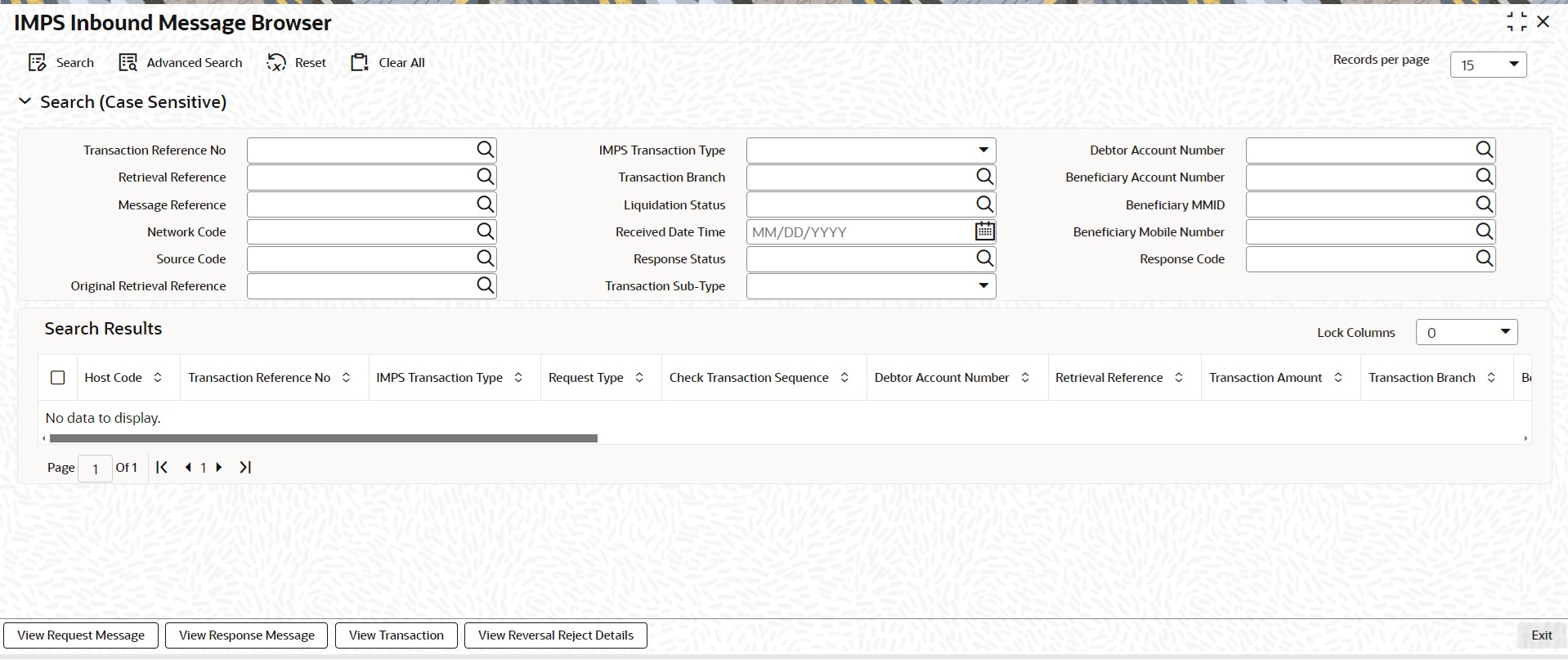
You can search for the records using one or more of the following parameters:
l Message Reference
l Retrieval Reference
l Transaction Reference No
l Network Code
l Source Code
l IMPS Transaction Type
l Transaction Branch
l Received Date Time
l Response Code
l Response Status
l Liquidation Status
l Debtor Account Number
l Beneficiary Account Number
l Beneficiary MMID
l Beneficiary Mobile Number
l Original Retrieval Reference
l Transaction Sub-Type
Following messages can be viewed from this browser:
l RequestPay – Inbound Original Request and Verification Request
l ResponsePay – Outbound Original Response and Verification Response
Once you have specified the search parameters, click ‘Search’ button. The system displays the records that match the search criteria. Following actions can be done from this screen:
View Request Message
Select a record and click on ‘View Request Message’ button to view the request message details. System displays the following details with the respective fields.
l Message Reference Number
l Transaction Reference Number
l Message Type
l Message
View Response Message
Select a record and click on ‘View Response Message’ button to view the request message details. System displays the following details with the respective fields.
l Message Reference Number
l Transaction Reference Number
l Message Type
l Message
View Transaction
Select a record and click on ‘View Transaction’ to view the complete transaction details.
System launches the IMPS Inbound View Detailed screen (PJDIVIEW) on clicking the ‘View Transaction’ tab for the selected record.
View Reversal Reject Details
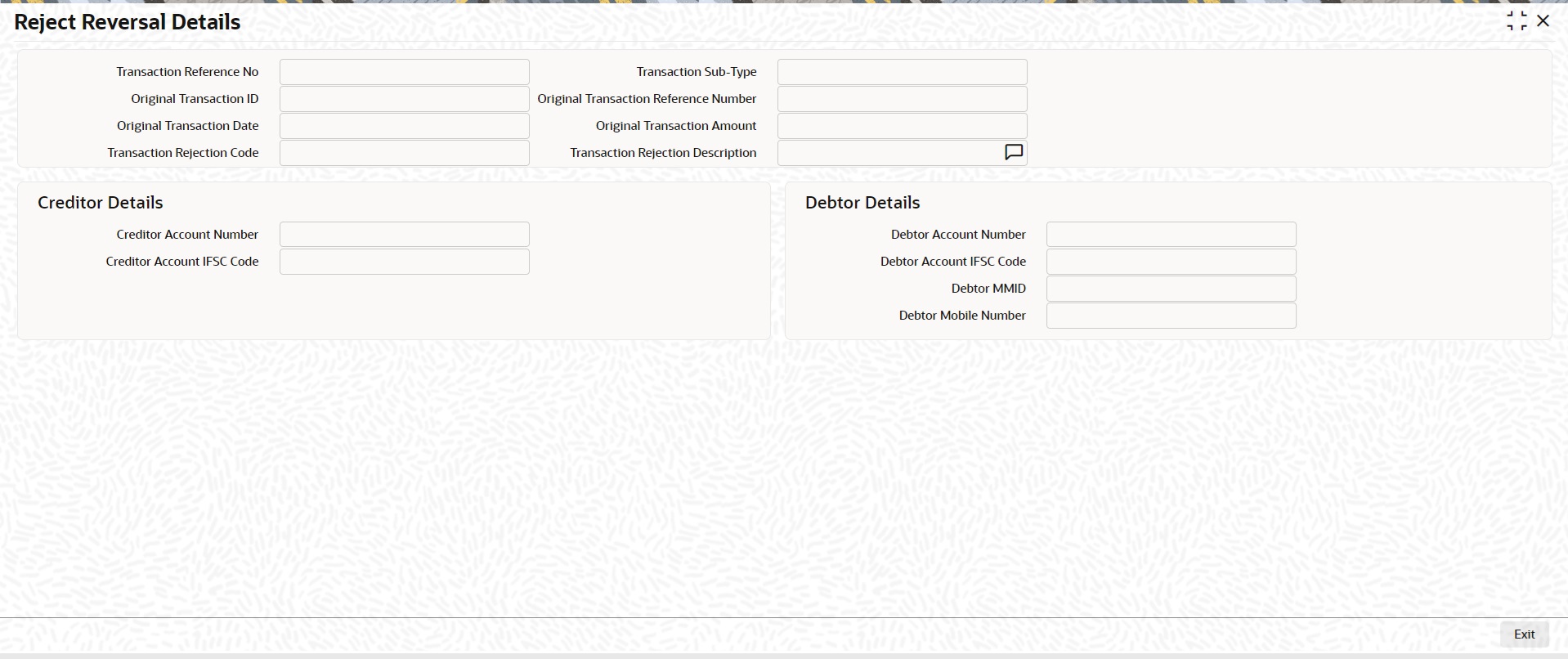
For the rejected remitter online credit API transaction, Click 'View Reversal Reject Details' button to invoke 'Reject Reversal Details' (Function ID:PJDREVDL) sub screen. You can view reversal transactions.
Following are the events for which the notifications are triggered:
l Notification is triggered to Creditor after successful accounting posting on CRLQ event.
l Notification is triggered to Debtor after the receipt of original response message (MTI 0210) with response codes as below:
– Positive response codes ‘00’ (‘Approved’ response from Beneficiary bank, ‘91’ (Time-out response from NPCI: ‘Deemed Approved’)
– Negative Response Codes: Any response codes other than ‘00’, ‘91’
|
Field |
XML Tag |
|
Retrieval Reference Number |
<Retrieval Reference Number> |
5.5 IMPS Acknowledgement Message for Inbound Transaction
If any incoming IMPS XML message is received, system generates acknowledgement response within 5 sec.
This acknowledgement message is generated for:
l Request Pay
l Response Pay
l Check Transaction Request
l Check Transaction Response
l Heartbeat Request and Response.
This Ack response is the only acknowledgement of receipt of the message. No validation is performed on inbound XML message received.
Acknowledgement response format is defined by NPCI.
XSD validation will be done for Outbound Ack message before sending to NPCI.
Ack Message is available to view on screen PJDIVIEW -> All messages -> Response Messages Tab.