Assigning Initiative Resources
This section discusses how to assign initiative resources.
|
Page Name |
Definition Name |
Navigation |
Usage |
|---|---|---|---|
|
Resources |
AV_INTV_CMPGN_RSRC AV_INTV_EVNT_RSRC AV_INTV_MEMBR_RSRC AV_INTV_VOL_RSRC AV_INTV_OTHR_RSRC |
|
Maintain information about the persons and units that support an initiative. |
Access the Resources page ().
This example illustrates the fields and controls on the Resources page. You can find definitions for the fields and controls later on this page.
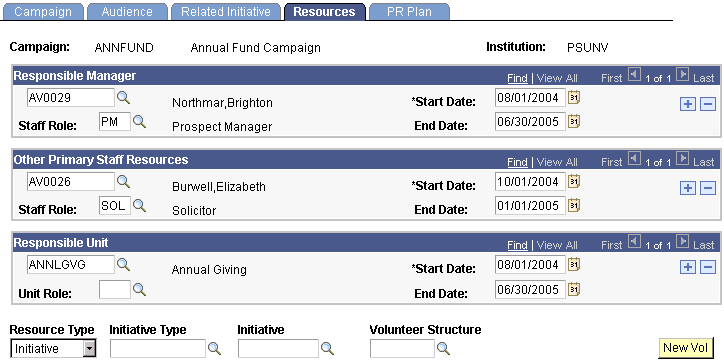
You assign the responsible person for an initiative on the initial definition page in the component, but you maintain information about other resources associated with the initiative on this page.
Field or Control |
Description |
|---|---|
Staff Role (responsible manager staff role) |
In the upper left hand field of the Responsible Manager group box, enter the ID of the responsible person who should get reports and notifications related to the initiative. Only valid defined staff and units are available for assignment. In the Staff Role field, enter the role of the responsible manager at the institution. Examples of staff roles are Prospect Manager, Campaign Manager, Solicitor, and so on. Roles are defined by your institution using the Roles page. Only valid defined staff and units are available for assignment. |
Staff Role (other primary staff resource role) |
In the upper left hand field of the Other Primary Staff Resources group box, enter the IDs of any other staff members who are participating in the initiative, such as the class giving officer or the reunion manager. Only valid defined staff and units are available for assignment. Important! These resources only need to be linked here if the person's assignment has not been established as the responsible person for a related initiative. In the Staff Role field, enter the role of the staff member at the institution. Examples of staff roles are Prospect Manager, Campaign Manager, Solicitor, and so on. Roles are determined by your institution. |
Unit Role (responsible unit role) |
In the upper left hand field of the Responsible Unit group box, enter the name of the unit that is responsible for the initiative. In the Unit Role field, enter the purpose of the unit at the institution. Roles are determined by your institution. |
Resource Type |
Assign a volunteer as a resource. Values include Initiative or Mbr Org (member organization). |
Initiative Type |
If you selected Initiative as a resource type, select an initiative type associated with the volunteer. |
Initiative |
If you selected Initiative as a resource type, select the initiative with which the volunteer is associated. |
Mbr Org Code |
If you selected Mbr Org as a resource type, select the code with which the volunteer is associated. |
Volunteer Structure |
To assign a volunteer as a resource, select a volunteer structure code for the volunteer. This prompt is only active if you have a defined volunteer structure assigned to this initiative. If you do not have a volunteer structure defined, click the New Vol button to create one. |
New Vol (new volunteer) |
Click to access the Volunteer Structure page, where you can structure a new volunteer leadership group to assign specifically to this initiative. |