Using Delivered PeopleTools Section Templates
A section template enables you to import a predefined section definition into a fluid homepage or dashboard. A section template defines a single section definition and is stored in the Fluid Section Templates folder (in the Fluid Structure Content folder), which you can import in your landing page, homepage, or dashboard.
PeopleTools delivers the following section templates:
Recently Visited (PTRECENTLYVISITED).
Favorites (PTFAVORITES).
Navigation Collections (PT_NAVCOL_TEMPLATE).
In PeopleTools, the recently visited items and favorites are available in Quick Access Bar (QAB) and in the NavBar. From PeopleTools 8.62.06, you can add the recently visited items, favorites, and navigation collections to a landing page, sectionalized homepage, or sectionalized dashboard as a section. You should note that these section templates work correctly in landing pages, sectionalized homepages and dashboards, which implement the new styling model described in the preceding topics.
For instructions on importing section templates into a landing page, homepage, or dashboard, see Importing a Section in Homepages and Dashboards.
The Recently Visited section template renders users’ recently accessed navigation items as links by default. Administrators can import this section into any PeopleSoft landing page, homepage, or dashboard. The template leverages an application class that extends the DynamicLoader application class, ensuring dynamic and efficient data sourcing.
The recently visited items are available in the Quick Access Bar (QAB) and in the NavBar. In addition to these, PeopleTools enables you to add the recently visited items to a landing page, homepage, or dashboard as a section.
When you plan to use the Recently Visited section, you should note the following:
User permissions for the Recently Visited section match those required to view recently used items in QAB and NavBar.
If a user does not have access to the recently used items, the section does not appear.
If there are no recent items, for example, on the user's first login, the section does not appear.
The number of items displayed adheres to the configured limit for recently used items. However, you can specify the number of items to be displayed, which is described later in this topic.
To view the delivered Recently Visited section template, navigate to , and select the corresponding Edit link.
This example illustrates the settings in the delivered Recently Visited section template. You can find definitions for the fields and controls later in this page.
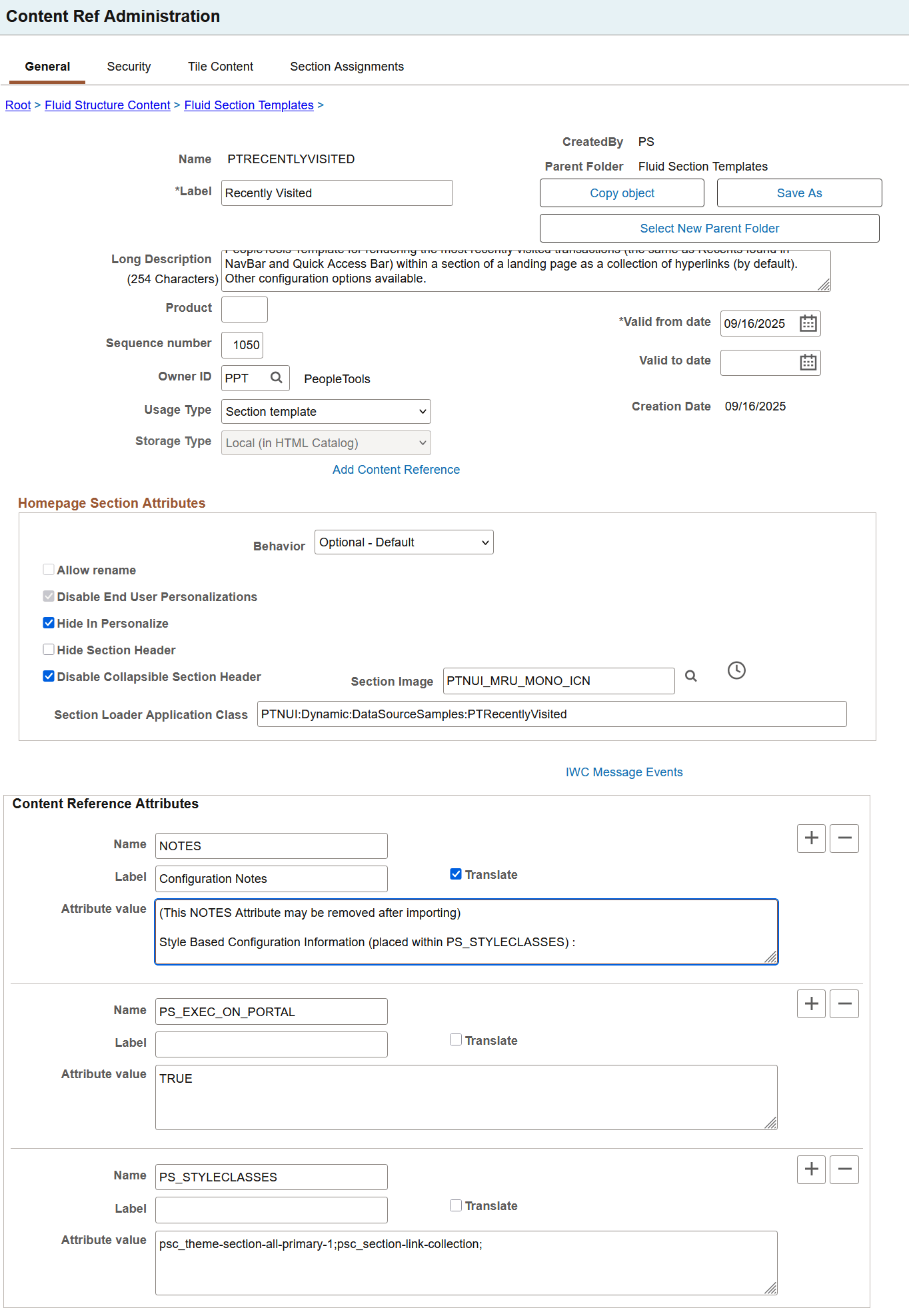
For descriptions of all the fields and controls on the Recently Visited section template page, see Creating a Section Template.
The following table describes the fields that you should take note of and change, if required, after you import this section template to a target landing page, homepage, or dashboard.
|
Field or Control |
Description |
|---|---|
|
Section Loader Application Class |
Use the PTRecentlyVisited application class to dynamically load the recent items in the section. It is an extension to the base class PTNUI:Dynamic:DynamicLoader. |
|
Content Reference Attributes |
|
Style Class-Based Data Configurations for Recently Visited Section
The style class-based data-configurations should be placed in PS_STYLECLASSES and should be prefixed with data_. It should follow this format: data_NAME-VALUE. The name (alphanumeric) and value (alphanumeric) pair should be separated with a hyphen (-). For example, data_IMAGENAME-DEFAULT.
|
Style |
Example |
Description |
|---|---|---|
|
data_IMAGENAME-? |
data_IMAGENAME-DEFAULT |
Replace the "?" with the name of the icon to be used for all items within this section, however you cannot use an icon for tile presentation as a hyperlink; you should choose an alternate tile presentation to use an icon. A value of DEFAULT means that the same icon used within NavBar and QAB will be used for all recent items. This setting is optional. |
|
data_MAXRESULTS-? |
data_MAXRESULTS-5 |
Replace the "?" with the maximum recently visited items (numeric value) to be displayed within the section. The default is all items up to the configured limit of maximum recent items storage. This setting is optional. |
|
data_TILEPREFIX-? |
data_TILEPREFIX-MYMRU |
Replace the "?" with the string to be used as the prefix for the tile names (ID's) created dynamically in the section. The default is PTMRU. The alphanumeric string should not exceed 8 characters and should not contain special characters. This setting is optional. You would typically use a prefix to differentiate one set of recently visited tiles from another set. For example, if you plan to create two recently visited sections with different tile presentation, using a prefix helps you to differentiate the tile names. |
Examples of the Recently Visited Section
The Recently Visited section with the default settings is rendered as shown in this screenshot.
psc_theme-section-all-primary-1
psc_section-link-collection
psc_sectgroup-C
This example illustrates the Recently Visited section with default settings.
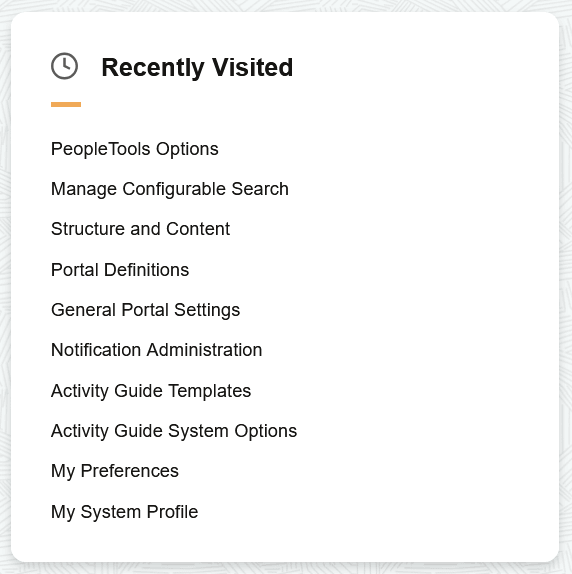
After importing the section template, you may modify the style classes and style class-based data configurations as shown in the following example:
In PS_STYLECLASSES attribute, enter style classes separated by semi-colon (;). In this example, the single style class-based configuration sets the image name for all entries to be PTNUI_MRUITEM_ICN.
psc_theme-section-primary-1
psc_theme-tile-transparent
psc_section-simple-list-collection
psc_sectgroup-C
data_IMAGENAME-PTNUI_MRUITEM_ICN
Based on styling and data configurations from the example, the Recently Visited section is rendered as shown here:
This example illustrates the Recently Visited section post import with modified style classes and style class-based data configurations.
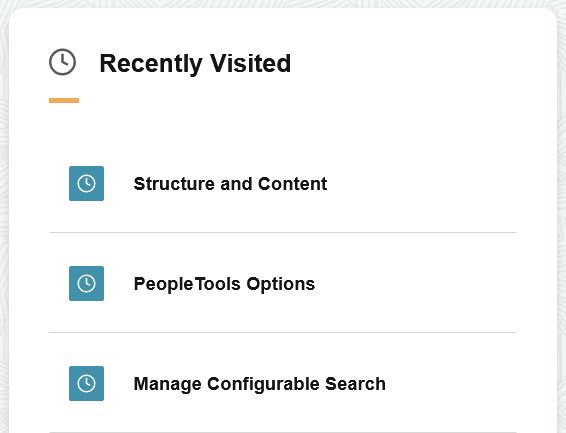
The Favorites section template renders users’ favorite items as links by default. Administrators can import this section into any PeopleSoft landing page, homepage, or dashboard. The template leverages an application class that extends the DynamicLoader application class.
The Favorites items are available in the Quick Access Bar (QAB) and in the NavBar. In addition to these, PeopleTools enables you to add the Favorites items to a landing page, sectionalized homepage, or sectionalized dashboard as a section.
When you plan to use the Favorites section, you should note the following:
If a user has not saved any favorites, the section does not appear.
Permissions to access favorites data are the same as that for favorites within QAB and NavBar. If the user does not have permissions to access favorites data, the section does not appear.
All favorites items are displayed. You can use style class-based data configuration (data_MAXRESULTS-?) to limit the number of favorites items displayed in the section.
If you want to design the section such that a scroll bar appears for users to view all the items, application developers can enable vertical scrolling by limiting the height of a section. For information on adjusting section height to enable vertical scrolling, see Creating and Styling Sections.
An edit button (pencil icon) is available on the Favorites section to navigate to the Edit Favorites component. For more information on the Edit Favorites page, see Working with Favorites.
To view the delivered Favorites section template, navigate to , and select the corresponding Edit link.
This example illustrates the settings in the delivered Favorites section template. You can find definitions for the fields and controls later in this page.
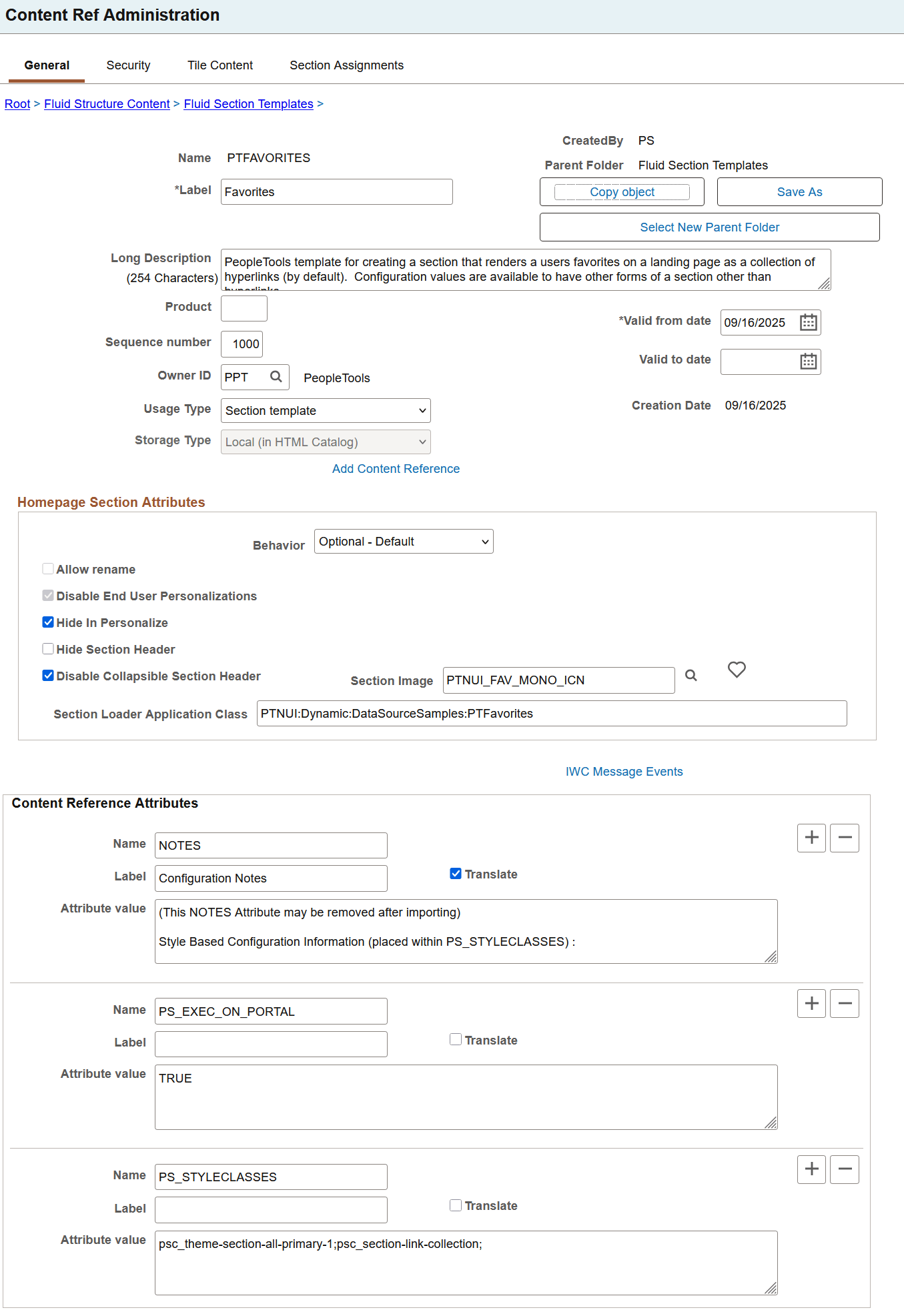
For descriptions of all the fields and controls on the Favorites section template page, see Creating a Section Template.
The following table describes the fields that you should take note of and change, if required, after you import this section template to a target landing page, sectionalized homepage, or sectionalized dashboard.
|
Field or Control |
Description |
|---|---|
|
Section Loader Application Class |
Use the PTFavorites application class to dynamically load the Favorites items in the section. It is an extension to the base class PTNUI:Dynamic:DynamicLoader. |
|
Content Reference Attributes |
|
Style Class-Based Data Configurations for the Favorites Section
The style class-based data configurations should be placed in PS_STYLECLASSES and should be prefixed with data_. It should follow this format: data_NAME-VALUE. The name (alphanumeric) and value (alphanumeric) pair should be separated with a hyphen (-). For example, data_IMAGENAME-DEFAULT.
|
Style |
Example |
Description |
|---|---|---|
|
data_IMAGENAME-? |
data_IMAGENAME-DEFAULT |
Replace the "?" with the name of the icon to be used for all items within this section, however you cannot use an icon for tile presentation as a hyperlink; you should choose an alternate tile presentation to use an icon. A value of DEFAULT means that the same icon used within NavBar and QAB will be used for all Favorites items. This setting is optional. |
|
data_MAXRESULTS-? |
data_MAXRESULTS-5 |
Replace the "?" with the maximum favorite items (numeric value) to be displayed within the section. The default is all items or a value of 0. This setting is optional. |
|
data_TILEPREFIX-? |
data_TILEPREFIX-MYFAV |
Replace the "?" with the string to be used as the prefix for the tile names (ID's) created dynamically in the section. The value for this property should not exceed 8 characters. The default is PTFAV. This setting is optional. You would typically use a prefix to differentiate one set of favorites tiles from another set. For example, if you plan to create two favorites sections with different tile presentation, using a prefix helps you to differentiate the tile names. |
Examples of the Favorites Section
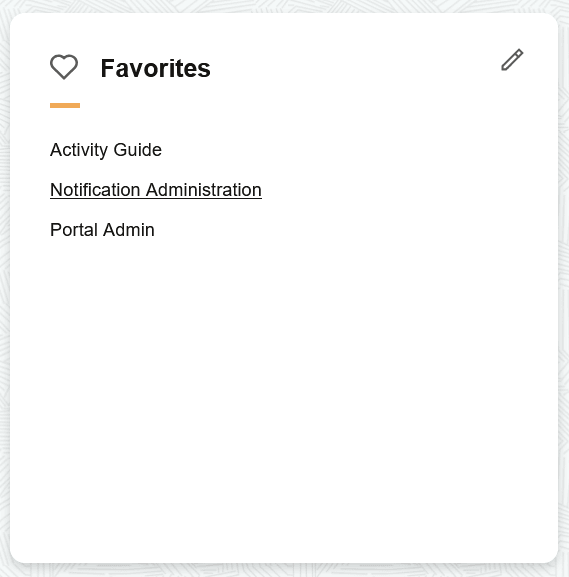
The Favorites section with the default settings is rendered as shown in this screenshot.
psc_theme-section-all-primary-1
psc_section-link-collection
psc_sectgroup-C
This example illustrates the Favorites section with default settings.
After importing the section template, you may modify the style classes and style class-based data configurations as shown in the following example:
In PS_STYLECLASSES, enter the style classes separated by a semi-colon (;). In this example, the single style class-based configuration sets the image name for all entries to be PTNUI_FAVITEM_ICN.
psc_theme-section-primary-1
psc_theme-tile-transparent
psc_section-simple-list-collection
data_IMAGENAME-PTNUI_FAVITEM_ICN
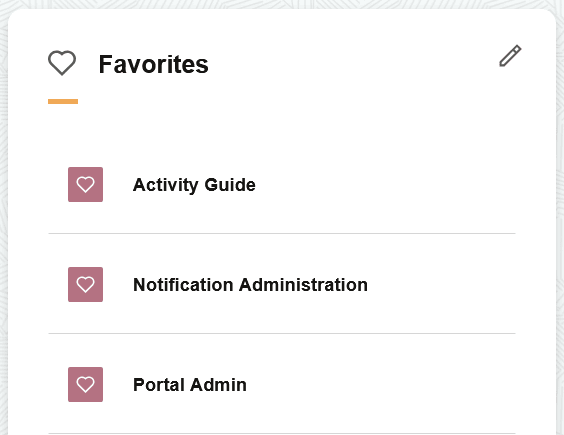
Based on styling and data configurations from the example, the Favorites section is rendered as shown here:
This example illustrates the Favorites section post import with modified style classes and style class-based data configurations.
The Navigation Collection section template renders specified navigation collection as links by default. Administrators can import this section into any PeopleSoft landing page, sectionalized homepage, or sectionalized dashboard. The template leverages an application class that extends the DynamicLoader application class, ensuring dynamic and efficient data sourcing.
The navigation collection section template is not a ready-to-use section, unlike the recently visited and favorites section templates. After you import the section into a sectionalized homepage or dashboard, you must manually configure it for your navigation collection.
Section Name - Change from the default PT_NAVCOL_TEMPLATE to a unique name that describes your collection's purpose.
Note: Avoid the PT_ prefix as it is reserved for PeopleTools-delivered objects.
Section Label - Set a meaningful label that reflects the navigation collection for end-users.
Section Image - Select an appropriate image or icon for the navigation section.
Data configuration - In the PS_STYLECLASSES attribute, locate the style class-based data configuration, specifically the text: data_PTPPNAVCOLL-NAVCOLID. Replace NAVCOLID with the actual navigation collection ID to drive the section tiles.
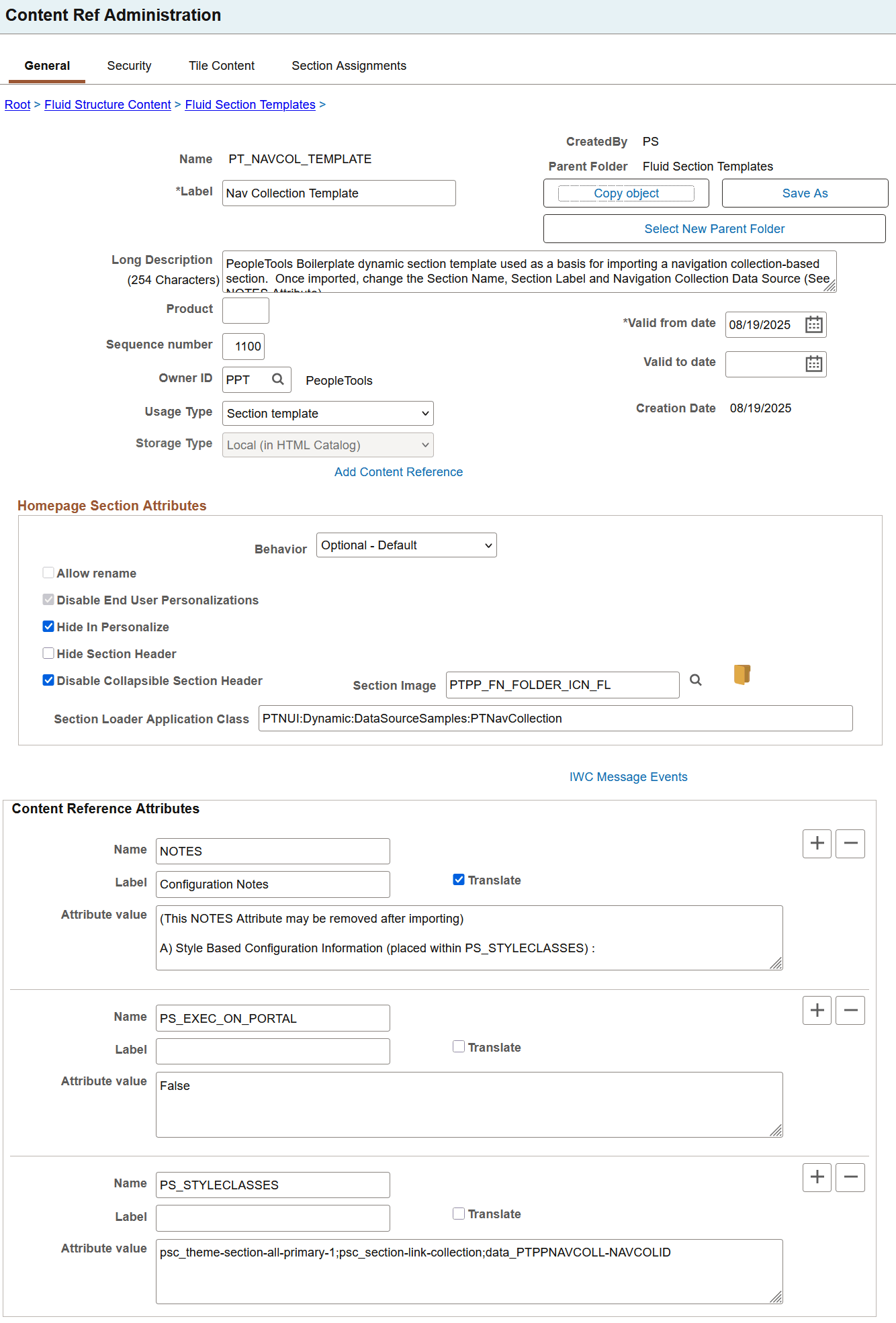
To view the delivered Navigation Collection section template, navigate to , and select the corresponding Edit link.
This example illustrates the settings in the delivered Nav Collection section template. You can find definitions for the fields and controls later in this page.
For descriptions of all the fields and controls on the Favorites section template page, see Creating a Section Template.
The following table describes the fields that you should take note of and change, if required, after you import this section template to a target landing page, homepage, or dashboard.
|
Field or Control |
Description |
|---|---|
|
Section Loader Application Class |
Use the PTNavCollection application class to dynamically load the specified navigation collection items in the section. It is an extension to the base class PTNUI:Dynamic:DynamicLoader. |
|
Content Reference Attributes |
|
Style Class-Based Data Configurations for the Navigation Collection Section
The style class-based data configurations should be placed in PS_STYLECLASSES and it should follow this format: data_NAME-VALUE. For example, data_IMAGENAME-DEFAULT.
|
Style |
Example |
Description |
|---|---|---|
|
data_PTPPNAVCOLL-? |
data_PTPPNAVCOLL-ADMN_BRANDING |
(Required) Replace the "?" with the CREF name of the desired navigation collection under the Portal Objects folder. |
|
data_IMAGENAME-? |
data_IMAGENAME-PTNUI_EXPAND_ICN |
Replace the "?" with the name of the default image to be used for all items within a navigation collection. The default display for this section is hyperlinks which does not require an image. If a tile presentation other than hyperlink is used, the default image will initially be pulled from how the navigation collection renders items in the panel form. If you specify an image name, it replaces the default image supplied by the navigation collection. This setting is optional. |
|
data_MAXDEPTH-? |
data_MAXDEPTH-2 |
Replace the "?" with the maximum levels (numeric value greater than zero) to recurse in the navigation collection hierarchy. The default is unlimited (that is, the full depth of the navigation collection). The navigation collection rendered on a panel presentation has a limit of 2 levels only. This can improve performance especially for those navigation collections using Menu links. This setting is optional. |
|
data_MAXRESULTS-? |
data_MAXRESULTS-5 |
Replace the "?" with the maximum navigation collection items (numeric value) to be displayed within the section. The default is all items or a value of 0. Because navigation collection items are fetched and then sorted for proper display (based on folder and sequence numbers), this configuration does not improve performance, but merely limits how many items are to be displayed within the section. This setting is optional. |
|
data_MAXFETCH-? |
data_MAXFETCH-200 |
Replace the "?" with the maximum navigation collection items (numeric value greater than 0) to be displayed within the section. The default is a maximum of 100 items given usability within a section. Because navigation collection items are fetched and then sorted for proper display (based on folder and sequence numbers), this configuration improves performance, but does not guarantee the order of the items to be similar to data_MAXRESULTS. This setting is optional. |
|
data_TILEPREFIX-? |
data_TILEPREFIX-MYNAV |
Replace the "?" with the string to be used as the prefix for the tile names (ID's) created dynamically in the section. The default is PTNVC. The alphanumeric string should be short (8 characters limit) and should not contain special characters. This configuration is only needed if more than one section is being used for navigation collection rendering on the same landing page. This setting is optional. |
Best Practices
Follow these best practices for better performance:
Use navigation collection-based sections for small collections; large collections can impact performance, especially when loaded remotely.
You must exercise caution if you're including Menu folders in navigation collections because they can cause excessively large number of tiles to be created.
Avoid configuring navigation collections with excessive depth or size.
Some navigation collections may not operate properly within a section (especially those that load remotely), but the majority of the navigation collections should work as expected. You should remember to use navigation collections with a small number of items so as not to overload the homepage.
Examples of the Navigation Collections Section
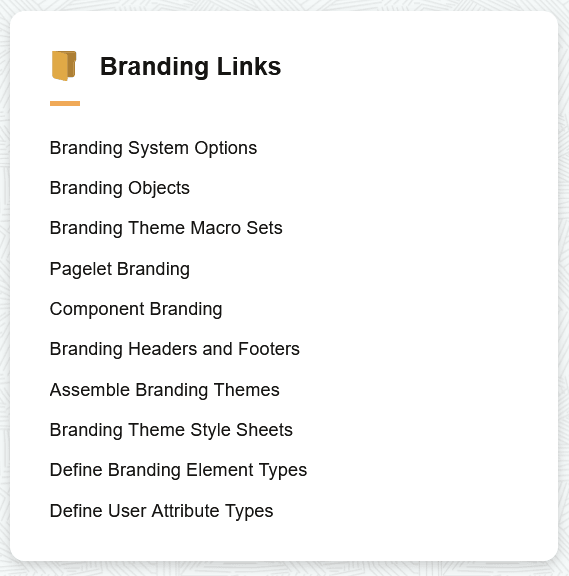
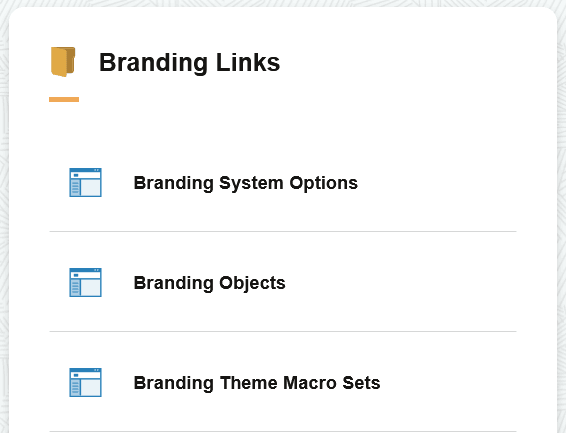
The navigation collections section with the default settings is rendered as shown in this screenshot.
psc_theme-section-all-primary-1
psc_section-link-collection
data_PTPPNAVCOLL-ADMN_BRANDING (The branding navigation collection is used only as an example to render the section; it is not the default value.)
psc_sectgroup-C
This example illustrates the navigation collections section with default settings.
After importing the section template, in addition to the mandatory changes described previously in this topic, you may modify the style classes and style class-based data configurations as shown in the following example:
In PS_STYLECLASSES, enter the style classes separated by a semi-colon (;).
psc_theme-section-primary-1
psc_theme-tile-transparent
psc_section-simple-list-collection
data_PTPPNAVCOLL-ADMN_BRANDING
psc_sectgroup-C
Based on styling and data configurations from the example, the navigation collections section is rendered as shown here:
This example illustrates the navigation collections section post import with modified style classes and style class-based data configurations.
The PS_EXEC_ON_PORTAL content reference attribute is introduced in PeopleTools 8.62.06.
The PS_EXEC_ON_PORTAL attribute controls the node location where the DynamicLoader application class is run for PeopleSoft portal content. By managing this attribute, administrators define whether data is consistently retrieved from the login (Portal) node or from the remote node.
This attribute is only applicable under the following conditions
The environment is running in a cluster.
The section is dynamic and defined exclusively on a remote node (either as an entirely remote homepage or as a section only present on a merged homepage through a remote definition).
Also note the following considerations when using the PS_EXEC_ON_PORTAL attribute:
The term local refers to the login node (the node through which the user accessed the portal) where cluster aware data would be retrieved. Any other node in the cluster is considered remote.
If a section definition exists locally, it will always be executed on the local (login) node, regardless of the attribute’s value.
If the PS_EXEC_ON_PORTAL attribute is not set, its default value is False. This means that the DynamicLoader application class for a remote section runs on the remote node where it is defined.
The PS_EXEC_ON_PORTAL attribute takes either of the two values: True or False.
When PS_EXEC_ON_PORTAL is set to True, the DynamicLoader application class is run on the login node, making the rendered data consistent regardless of whether the landing page or section is local or remote. This approach ensures that items in Recently Visited and Favorites reflect user activity from the login node, supporting users with a unified view across clustered environments.
In the Recently Visited and Favorites section templates, the default configuration is to run the DynamicLoader application class on the login node so that the retrieved data is consistent with the Recently Visited and Favorites items displayed in QAB and NavBar. This setting is not typically used with navigation collections.
When PS_EXEC_ON_PORTAL is set to False, the DynamicLoader application class is run on the remote node where the landing page or section originates.
The DynamicLoader application class is a PeopleTools delivered class, so the PS_EXEC_ON_PORTAL works seamlessly as long as both the Portal and the remote nodes are running the same patch level of PeopleTools (8.62.06 or later), and the administrator does not have to ensure that the application class is present in both the nodes. However, in the case of custom application class, administrators must ensure that the custom application class is present on the login node and the remote node when using the PS_EXEC_ON_PORTAL attribute.
The PS_EXEC_ON_PORTAL attribute is primarily used for Recently Visited and Favorites, ensuring that this data is consistently retrieved from the Portal node. However, it is also relevant in clustered environments for other types of cluster-aware data, where information should be sourced specifically from the login node. While its main application is for Recently Visited and Favorites, administrators and application developers can use this attribute for other applications or custom solutions that require data to be pulled exclusively from the login node.