Quick Overview of Your Browser Documents Page
Oracle Content and Experience Cloud gives you collaboration and content sharing with just a few clicks of your mouse. Take a minute to learn how and where to find what you need.
Here’s what you see on your Documents page when you get started:
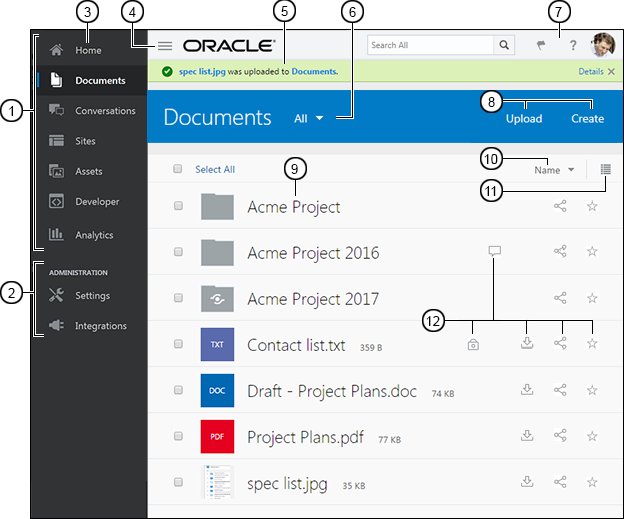
| Item | Description |
|---|---|
|
1 |
The navigation panel is where you can switch between features. The options you see on this panel depend on the user role you’ve been given. For example, only enterprise users will see options for Assets. |
|
2 |
If you have administrative privileges, you’ll see options that let you set up service-wide options. You’ll also be able to configure repositories, localization policies, and other features related to digital asset management. See Asset Management Overview for details. |
| 3 | Click Home to display a page that includes links to recent items, documentation, guided tours, and other helpful links. |
|
4 |
Click the Show/Hide icon to open or close the navigation panel |
|
5 |
Messages are shown in the message bar at the top of your content listing. |
|
6 |
Filter what you see to view only your favorites, just your content, items that are shared with you, or to view what’s in your trash folder. |
|
7 |
The user area is where you can change your preferences or find the desktop and mobile apps. Click your user picture to change your defaults. If you have notifications from conversations, the flag will show the number of notifications. |
|
8 |
Upload new files or create new folders by clicking the appropriate option. |
|
9 |
Your content list shows the types of files as well as if folders are shared |
|
10 |
Sort your content list by name or by date. |
|
11 |
Click the view icon to display items in a list view, a compact view, or a grid view. |
|
12 |
Click an icon to download it ( The conversation icon ( |
 or are your own unshared folders
  .
.
 ), share it (
 ), or mark something as a favorite (
 ).
).
 ) shows that there’s a conversation started for that item, and the reserved icon (
 ) shows that a file is reserved and locked.
Folders
When you open a folder, you’ll see slightly different actions you can perform.
-
Click Share Link to create a link for the folder.
-
Click Members to add members to the folder. Note that you can’t share your Digital Assets folder.
-
Click Upload to add new content to the folder.
-
Click Create to create a subfolder.
-
Click
 to see additional options for the file or folder.
-
Click
 to start a conversation about the folder or item you’re viewing. You can also view any conversation that’s already in progress.
Conversations
The Conversation page uses most of the same action options you know from your home page. Only the menu choices are different.
-
Click the filter button next to the heading to view all conversations, ones you’ve marked as favorites, closed conversations only, or those that are muted.
-
Click Create to start a new conversation.
You can sort the conversations by name, or last updated or you can view only those conversations with unread messages. You can also use an expanded or compact view, just like when viewing your documents.
The conversation icons tell you what kind of conversation it is. A conversation about a folder or a file shows a folder or file icon near the conversation. If the conversation was created independently of a file or folder, there is no icon.