An amount block is that part of the balance in a customer’s account, which you wish to reserve for a specific purpose. It can be specified for an account either on the directions of the customer or at the behest of the bank.
When an amount block is set for an account, the balance available for withdrawal is the current balance of the account minus the blocked amount. On expiry of the period for which the amount block is defined the system automatically updates the amount block Cheque in the ‘Customer Accounts’ table. Amount blocks are maintained in the ‘Amount Block Maintenance’ table.
For Example, If the balance in an account is 1000 currency units and the amount block defined is 500 currency units, the actual funds available for withdrawal is only 500 units. An override will be required if the customer withdraws a higher amount.
When a debit to a customer account is made, where the transaction amount exceeds the available balance in the account, the system asks for an ‘override’.
This chapter contains the following sections:
l Section 11.1, "Hold Code Maintenance"
l Section 11.2, "Amount Block Maintenance"
l Section 11.3, "Processing Amount Block Request from Channels"
This section contains the following topics:
l Section 11.1.1, "Maintaining Hold Codes"
l Section 11.1.2, "Viewing Hold Codes"
Whenever you impose an amount block (hold) on customer accounts, a valid reason can be assigned for having effected the hold. You can define these reasons using the ‘Hold Maintenance’ screen.
You can invoke this screen by typing ‘CODHOLDT’ in the field at the top right corner of the Application tool bar and clicking on the adjoining arrow button.
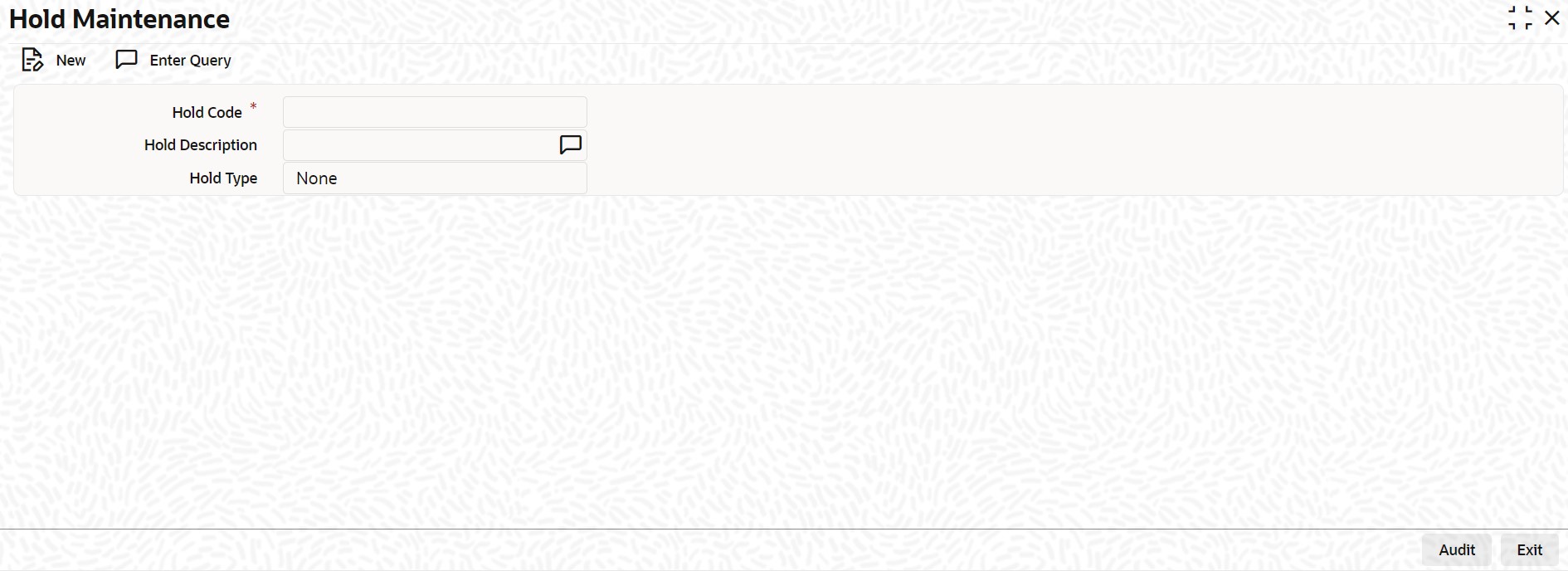
You can capture the following details here:
Hold Code
Specify a code for the amount block reason you are maintaining in the system.
Note
The Hold Code can be a maximum of 15 characters (alphanumeric type) in length.
Hold Description
Provide a brief description of the hold code.
Hold Type
In case you are defining amount hold reasons for automated system hold, select the hold type from the adjoining drop-down list. The available options are:
l Salary Hold
l Overdue Hold
l Guarantor Recovery Hold
l None
l Discounted TD
Note
Except ‘None’, for all other Hold Types mentioned above, only one Hold Code each can be maintained in the system.
You can view a summary of Hold Codes maintained in the system using the ‘Hold Summary’ screen. You can invoke this screen by typing ‘COSHOLDT’ in the field at the top right corner of the Application tool bar and clicking the adjoining arrow button.
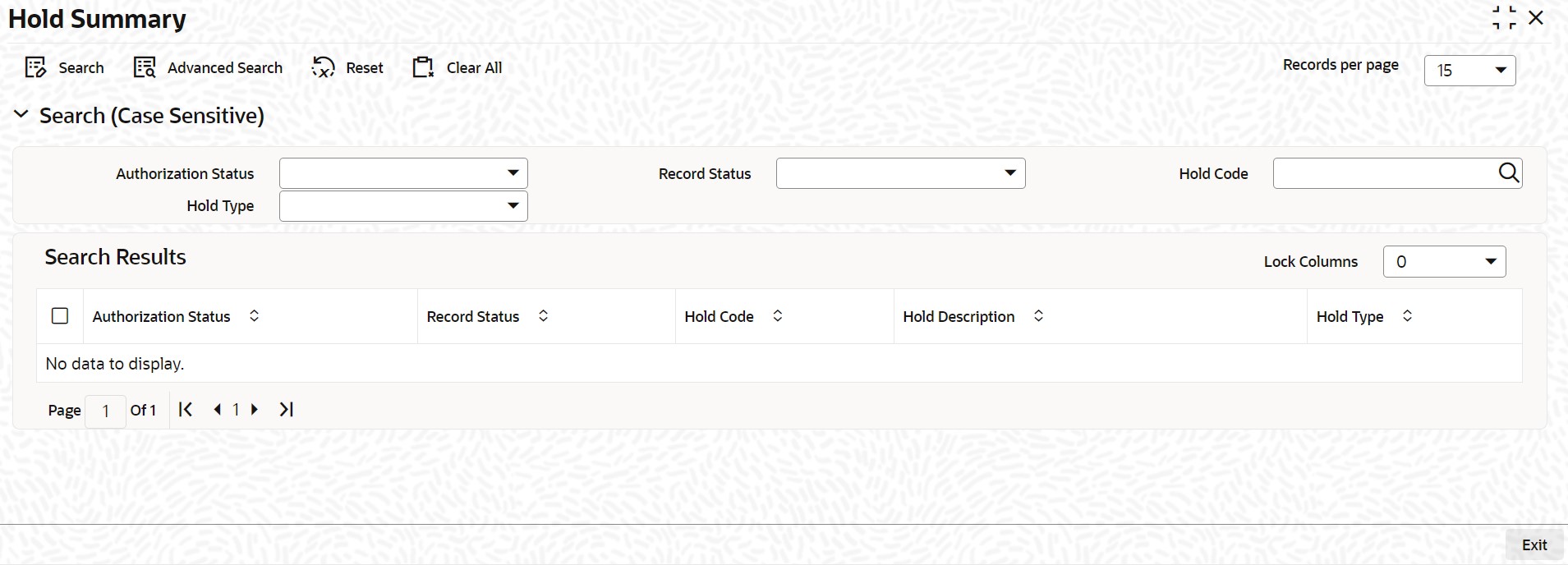
You can query on records based on any or all of the following criteria:
l Authorization Status
l Hold Code
l Record Status
l Hold Type
Click ‘Search’ button. The system identifies all records satisfying the specified criteria and displays the following details for each one of them:
l Authorization Status
l Record Status
l Hold Code
l Hold Description
l Hold Type
This section contains the following topics:
l Section 11.2.1, "Maintaining Individual Amount Blocks"
l Section 11.2.2, "Viewing Amount Block"
l Section 11.2.3, "Maintaining Consolidated Amount Block Details"
11.2.1 Maintaining Individual Amount Blocks
You can maintain amount blocks on individual accounts of a customer using the ‘Amount Block Input’ screen. You can invoke this screen by typing ‘CADAMBLK’ in the field at the top right corner of the Application tool bar and clicking on the adjoining arrow button.
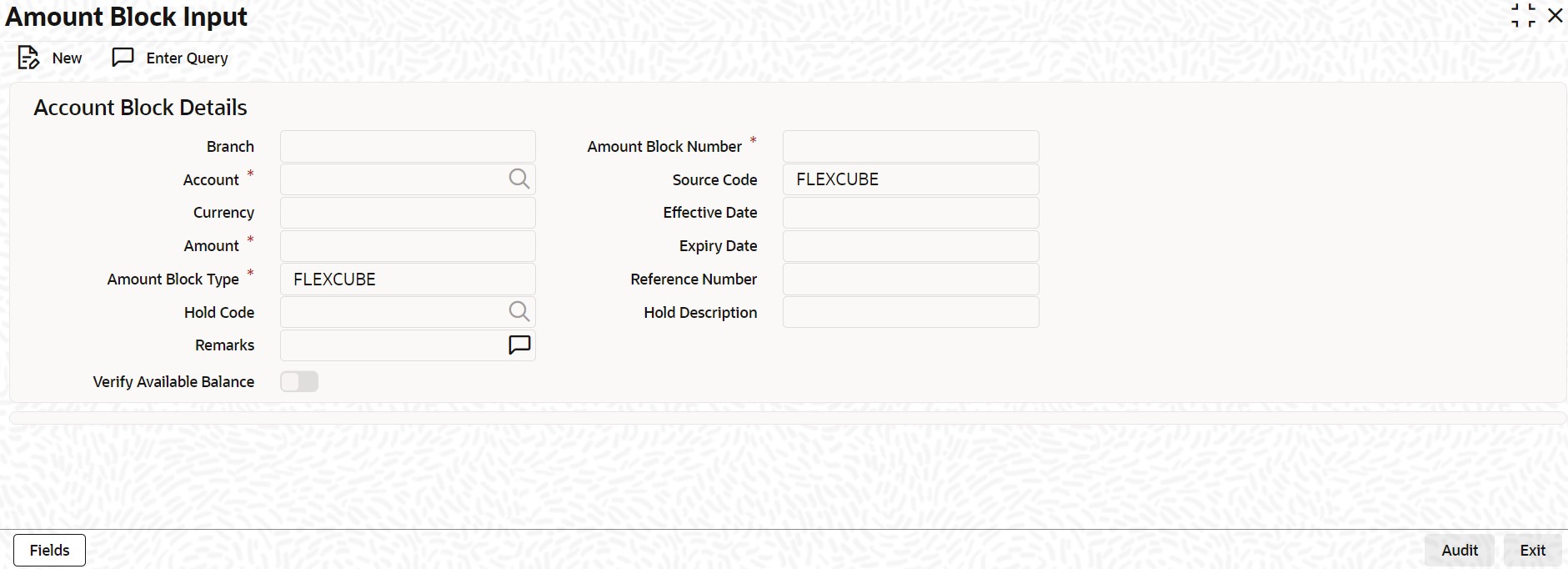
You can capture the following details here:
Account Number
Specify a valid account number of the customer for which you wish to maintain an amount block. The adjoining option list displays all valid customer accounts maintained in the selected transaction branch. You can select the appropriate one.
To view the joint holder’s details of an account and the mode of operation maintained at the account level, place the cursor on the Account field and press Ctrl+J. The system displays the ‘Joint Holder’ screen.
For more information on the ‘Joint Holder’ screen refer to the section ‘Joint Holder Maintenance’ in this User Manual.
Sequence Number
The system automatically displays the amount block sequence number.
Amount
Specify the amount which has to be blocked.
Note
– If the block amount is greater than the available balance, then the system displays an override message as “Block amount greater than available balance”.
– Interest calculations is not considered for negatively blocked amount.
– The Linked Line will not be utilized if the available balance becomes less than zero because of a amount block.
Effective Date
Specify the date from which the amount block is effective.
Note
For CASA amount block type, the effective date is the branch current date.
Expiry Date
Specify the date on which the amount block is released, so that it is available for withdrawal to the customer. You cannot modify the amount block after the expiry date
Note
For CASA amount block type, there is no expiry date.
Amount Block Type
Select the amount block type from the adjoining drop-down list. The available options are:
l FLEXCUBE
l Switch
l PreAuth
l Escrow
l CASA - indicates an amount block that is created due to debit transaction processing in Primary Accounts.
l Bulk Salary
l P2P
Note
During debit transaction processing, Oracle FLEXCUBE will use ‘Mid Rate’, if the primary account currency and cover account currency are different.
Note
– When an amount block is created and the account status is ‘No Debit’, ‘No Credit’, ‘Dormant’ or ‘Frozen’ then the system displays an override message with the account status.
– When an amount block is created and the customer status is ‘Frozen’, ‘Deceased’ or ‘Whereabouts Unknown’ then the system displays an override message with the customer status.
– If the account status is moved to 'Dormant' or 'No Debit' or 'No Debit' or 'Frozen', then the system displays an override message as 'The Account has active amount block'.
– If the account status is moved to 'Dormant' or 'No Debit' or 'No Debit' or 'Frozen', then the system displays an override message as 'The Account has active amount block'.
Note
If the amount block type is P2P, then the following transaction data is logged into ‘P2P Payment Beneficiary Registration Queue’ to track the beneficiary registration till the end date:
– Amount Block Number
– Branch Code
– Account Number
– END Date
– Beneficiary’s Email ID
– Beneficiary’s Telephone
– Beneficiary’s Facebook ID
– Status
While processing an amount block, the amount block on the sender’s account is released and
the amount is debited from the senders account and credited to the clearing suspense GL.
Remarks
Specify remarks about the amount block, if any.
Note
For structured deposit, the subscription amount will be blocked from the given CASA account automatically and this system generated block is updated with SD contract reference number in remarks field.
Reference No
The system generates a unique reference number upon saving the record.
Note
– The system generated Escrow amount blocks, are identified with an unique original transaction Reference No.
– The amount block can be released by the same source that has created the amount block.
– You are not allowed to modify or close Escrow Amount Blocks.
– System displays the consolidated blocked amount of the particular account in ‘Amounts and Dates’ details of the customer account.
System will not allow to closing the respective customer account unless existing active amount blocks are closed.
Hold Code
Specify a valid hold code. The adjoining option list displays all valid hold codes maintained in the system. You can select the appropriate one.
Hold Description
The system displays the hold code description.
Source Code
The source from which the amount block has been initiated is displayed. When an amount block is created through a source code, the same can be modified or released by the same source code.
Verify Available Balance
Check this box to enable creation of amount block only when sufficient funds are available.
You can view a summary of Amount Blocks maintained at the ‘Amount Block Input’ level using ‘Amount Block Summary’ screen.
You can invoke the ‘Amount Block Summary’ screen by typing ‘CASAMBLK’ in the field at the top right corner of the Application tool bar and clicking the adjoining arrow button.
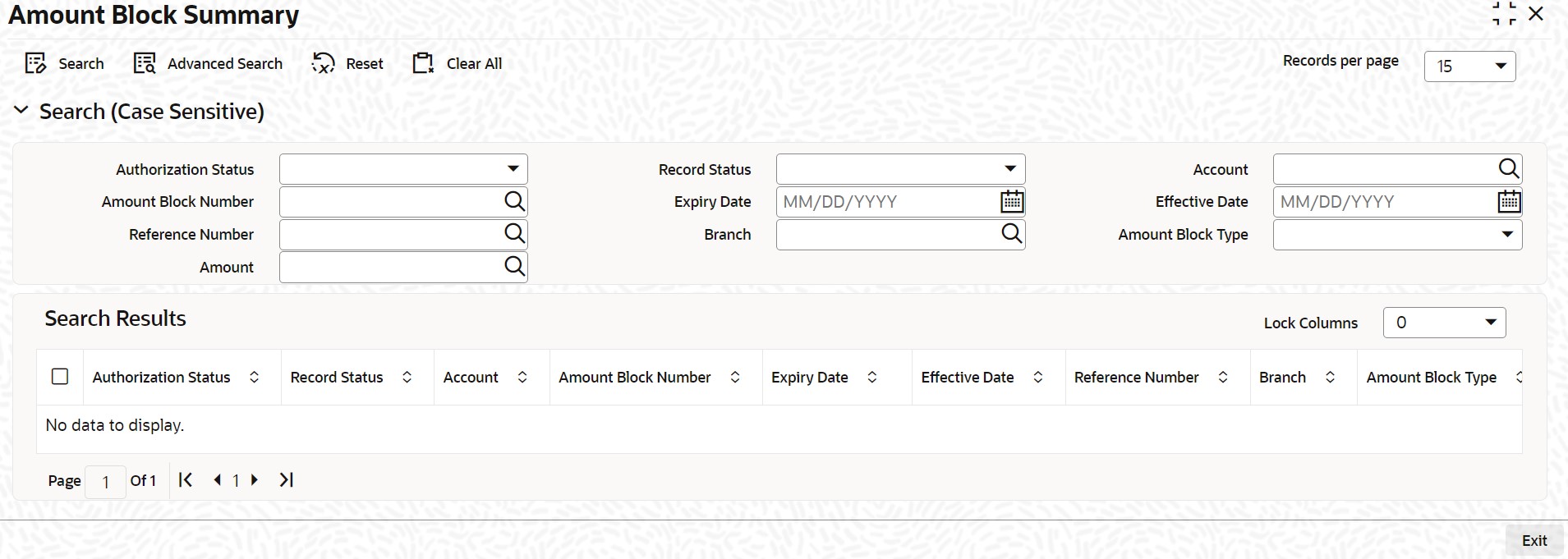
You can view records based on any or all of the following criteria:
l Authorization Status
l Record Status
l Account Number
l Sequence Number
l Amount
l Effective Date
l Expiry Date
l Reference No
Note
The system generated original transaction Reference No of Escrow amount blocks will also be displayed.
Click ‘Search’ button. The system identifies all records satisfying the specified criteria and displays the following details for each one of them:
l Authorization Status
l Record Status
l Account Number
l Sequence Number
l Amount
l Effective Date
l Expiry Date
l Reference No
11.2.3 Maintaining Consolidated Amount Block Details
You can invoke the ‘Consolidated Amount Block Input’ screen by typing ‘CADCAMBL’ in the field at the top right corner of the Application tool bar and clicking on the adjoining arrow button.
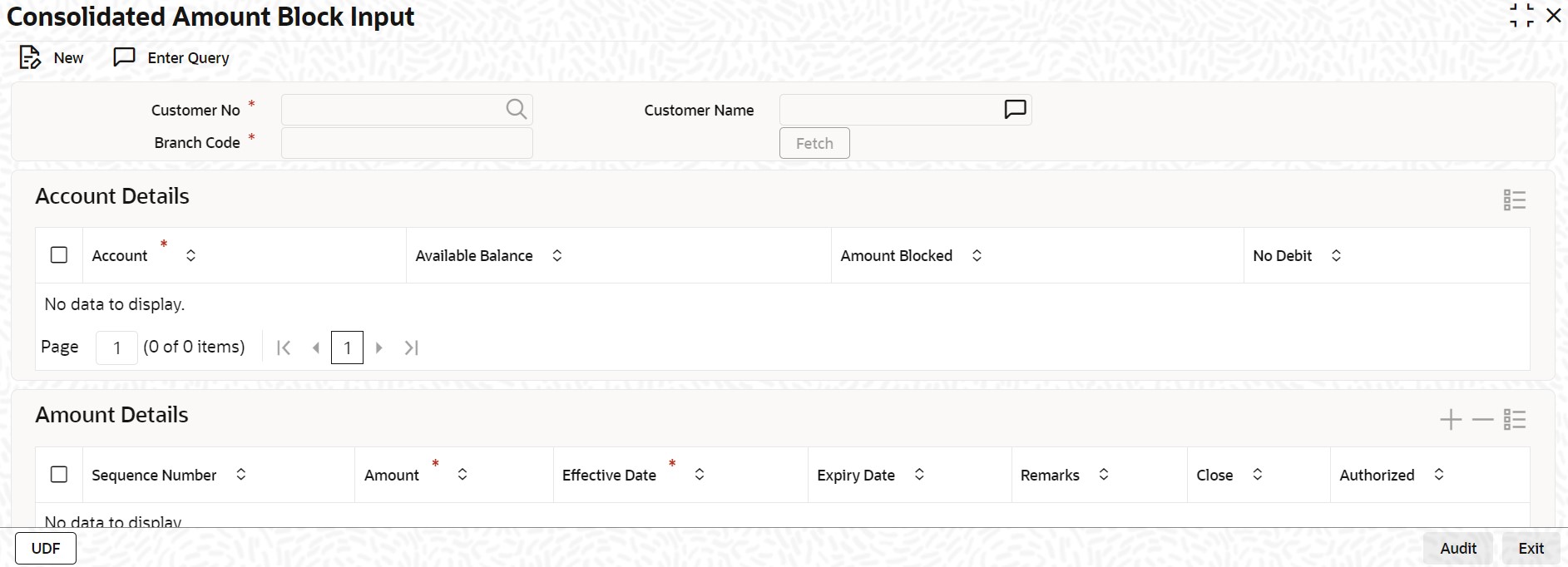
In this table, you maintain all amount block details enforced for a customer account. Any number of amount blocks can be enforced for an account.
The following information will be available in this screen:
l All the accounts maintained for the customer
l The available balance in each account
l Active amount blocks, if any
l Whether the account is marked for no-debit (‘Full Amount Block’ option is Cheques)
l The user defined fields (UDFs) associated with the Customer (i.e. the UDFs mapped to the function id ‘STDCIF’)
l You can also do a query based on the UDFs
l In addition to viewing the amount block details for an account, you can also define new blocks or modify the details pertaining to existing amount blocks, if any. You can also use this screen to mark the account for no-debits.
l You can specify the following for a new amount block:
l Amount for which the block has been enforced
l Period for which this block should remain effective
l Any remark applicable to this amount block. It could be the purpose for which the block has been enforced.
If you are maintaining consolidated amount blocks for the first time for a customer account, you need to select the name of the customer from the option-list provided. On selection of the customer, all accounts maintained for the customer that are available in the current branch will be displayed in the middle section of the screen along with existing amount block details, if any. Select an account to view all the individual amount blocks for the selected account in the lower half of the screen.
To create a new amount block, click add icon. The sequence number for each amount block will be automatically created by the system.
Maintain the following parameters for the amount block:
Amount
Specify the amount that you would like to block in the account. When an amount block is set for an account, the balance available for transaction would be the current balance of the account minus the blocked amount.
Whenever a customer account is debited of an amount that exceeds the available balance in the account, the system asks for an ‘override’. Note that the available funds in a blocked account will always be shown to be the current balance less the amount block.
The ‘Blocked Amount’ field in the middle section of the screen will display the sum of all the amount blocks placed on the account.
You can raise the blocked amount for an account. On authorization, the ‘Customer Accounts’ table will be updated with the modified blocked amount.
Effective Date
When defining amount blocks for an account, specify the date on which the amount block comes into effect. A future-dated amount block comes into effect when the Beginning of Day process is executed for the day (on which the amount block becomes effective).
Expiry Date
This is the day on which the amount block expires. An amount block is effective till the EOD is run on the expiry date. On expiry of an amount block, the block amount status in the ‘Customer Accounts Maintenance’ table gets updated (if no other amount block is enforced on this account). The balance available for transaction is also updated.
Remarks
Here you can enter any remark specific to this amount block. For example, you can capture the purpose for which a block has been affected.
No Debit
When defining amount blocks, you can choose to completely block the account from any kind of debits made to the account. To do this, select the option ‘No Debit’. At a later point, you can UN Cheque this option to release the full block and define partial blocks if required.
Close
As stated earlier, the amount block will remain active from the effective date till the expiry date. However, you can release a block before the expiry date. Select the ‘Close’ option to affect a forceful closure of the amount block. If you do not select this option, the amount block will be released as part of the EOD batch process executed on the expiry date.
11.3 Processing Amount Block Request from Channels
A file upload facility has been provided from the external channels to the FCUBS system. The Generic Interface (GI) facility is utilized for this purpose. This facility is applicable for the following activities:
l Debit or Credit Transactions
l Amount Block Request
l Amount Block Modification
l Release of Amount Blocks
This section contains the following topics:
l Section 11.3.1, "Debit or Credit Transactions Upload"
l Section 11.3.2, "Amount Block Request"
l Section 11.3.3, "Amount Block Modification"
l Section 11.3.4, "Release of Amount Block"
11.3.1 Debit or Credit Transactions Upload
To debit or credit transactions for specific customer accounts in the FCUBS system, a file upload facility has been provided through the interface code ‘IFIEXENT (for incoming) and IFOEXENT (outgoing)’. The outgoing file is linked to the incoming file and generated as per the data set provided in the incoming file.
For a failed transaction, that is, when a transaction leg in the ‘Transaction Reference Number’ fails, then the entire set of entries mapped to the transaction reference number is rolled back (including the amount block). A list of failed transactions and the status of each transactions is provided by the FCUBS system to the external channels.
The amount block reference numbers can be provided only for debit transactions. If the amount block reference number has been provided for a credit transaction, then that particular amount block will not be released. However, the credit transaction will be processed. When the “Amount Block Number” field is “Null” then there is no action taken by the system while processing the uploaded file. If the amount block reference number is provided in this field for a CASA/GL debit transaction during file upload or in the web service then on processing the transaction the following actions occur:
l If the “Amount Block Number” is valid then the amount block will be released. Transaction entries will be posted in the respective accounts. The validations that are applicable for the amount block release will be applied during releasing of the amount block through the file upload facility.
l If the “Amount Block Number” provided is invalid, then the all transaction legs under that particular Transaction Reference Number will be rolled back.
l If the “Amount Block Number” provided is not pertaining to the corresponding debit account number, the particular “Amount Block Number” will be released and processing of the corresponding debit transaction will continue.
l If “Amount Block Number” has been provided for a debit transaction and the release of amount block fails due to any reason, then the entire set of transactions will be rolled back.
Balancing of Settlement File Received from External Channels
The settlement file is sent in the transaction currency by the external channels. In case the external channel does not send the local currency equivalent amount, then the Oracle FLEXCUBE UBS system converts the transaction amounts into the local currency by applying the applicable conversion rates. The process flow of the transaction is as follows:
l The required field level details will be provided by the channels.
l If the transaction received from the channel is balanced in local currency (LCY) amount then Oracle FLEXCUBE UBS system processes that transaction.
l If the transaction received from the channel has not provided the currency equivalent amount, then that transaction will be processed as mentioned below.
– The debit/credit amount provided will be converted into LCY amount using the applicable conversion rates.
– The transaction pair will be identified using the “AMOUNTTAG” value provided by the channels.
– The average LCY amount of the transaction pair will be taken into account for processing the transaction.
– Once the transaction is balanced the accounting entries will be posted into the respective account.
– If the transaction is fails, further reconciliation needs to be done manually.
To create an amount block request using the GI facility, the AMIBLKNW (incoming) has been provided. To provide a response for the incoming files which are received from external channels an interface code AMOBLKST (outgoing) has been provided. The status of the file upload is identified by the error code provided in the outgoing file. The outgoing file would be linked to incoming file and generated in the context of the incoming file data set. The interface code formats provided for incoming and outgoing are the sample formats. Channels can copy this format and create new GI interface codes. Amount block no. should be compulsorily sent in the GI request otherwise outgoing file will not have the amount block number.
11.3.3 Amount Block Modification
To modify amount using the GI facility, the interface code AMIBLKMD (incoming) and AMOBLKST (outgoing) has been provided. The following fields can be modified in the amount block record:
l Amount
l Hold Code
l Expiry Date
l Remarks
The status of the amount block can be identified through the error code provided in the outgoing file. The outgoing file is linked to the incoming file and generated in the context of the incoming file data set. The amount block number that has to be modified should be provided by the channels. The validations that are applicable for the amount block modification is applied during modification of the amount block through upload facility also. If the modification (increasing/decreasing the amount of block) request has failed for any reason then the original amount of the block is retained. The interface code formats provided for incoming and outgoing are the sample formats. Channels can copy this format and create new GI interface codes
11.3.4 Release of Amount Block
To release an amount block using the GI facility, the interface code AMIBLKCL (incoming) and AMOBLKST (outgoing) is provided. The outgoing file is linked to the incoming file and generated in the context of the incoming file data set. The status of the upload is identified thought the Status Code field. Amount block number that has to be closed should be provided by the channels. The validations that are applicable for the amount block release will be applied during releasing of the amount block through upload facility also.