16. Delinquency Maintenance
This chapter contains the following sections:
l Section 16.1, "DQ Product Definition"
l Section 16.2, "DQ Ad hoc Liquidation"
l Section 16.3, "DQ Online Liquidation"
l Section 16.4, "DQ General Parameter Maintenance"
l Section 16.5, "DQ Transaction Amendment"
l Section 16.6, "DQ Product - Penality Rate Maintenance"
l Section 16.7, "Delinquency Processing"
This section contains the following topics:
l Section 16.1.1, "Maintaining DQ Product Details"
l Section 16.1.2, "Specifying the Accounting Role Details"
l Section 16.1.3, "Specifying the Preferences Details"
l Section 16.1.4, "Specifying the Events Details"
l Section 16.1.5, "Viewing DQ Product Summary"
16.1.1 Maintaining DQ Product Details
You can maintain the DQ product using ‘DQ Product Definition’ screen. Invoke this screen by typing ‘DQDPRMNT’ in the field at the top right corner of the Application tool bar and clicking the adjoining arrow button.
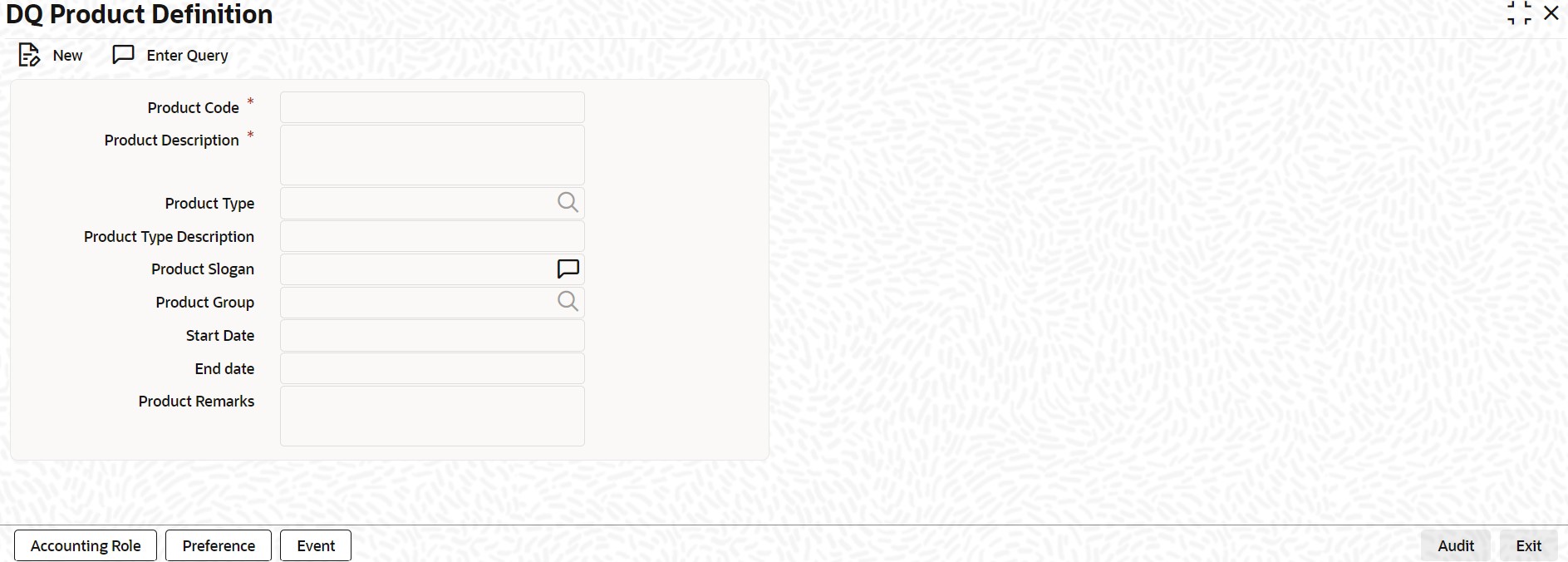
Specify the following details:
Product Code
Specify the product code.
Product Type
Specify the product type. The adjoining option list displays all the product types maintained in the system. You can choose the appropriate one.
Product Slogan
Specify the product slogan.
Product Group
Specify the product group. The adjoining option list displays all the product groups maintained in the system. You can choose the appropriate one.
Start Date
Specify the start date.
End date
Specify the end date.
Product Remarks
Specify the product remarks.
The system displays the following details:
l Product Description
16.1.2 Specifying the Accounting Role Details
Click the 'Accounting Role' button in the 'DQ Product Definition' screen. You can maintain role to head mapping for all the required accounting roles in this screen.
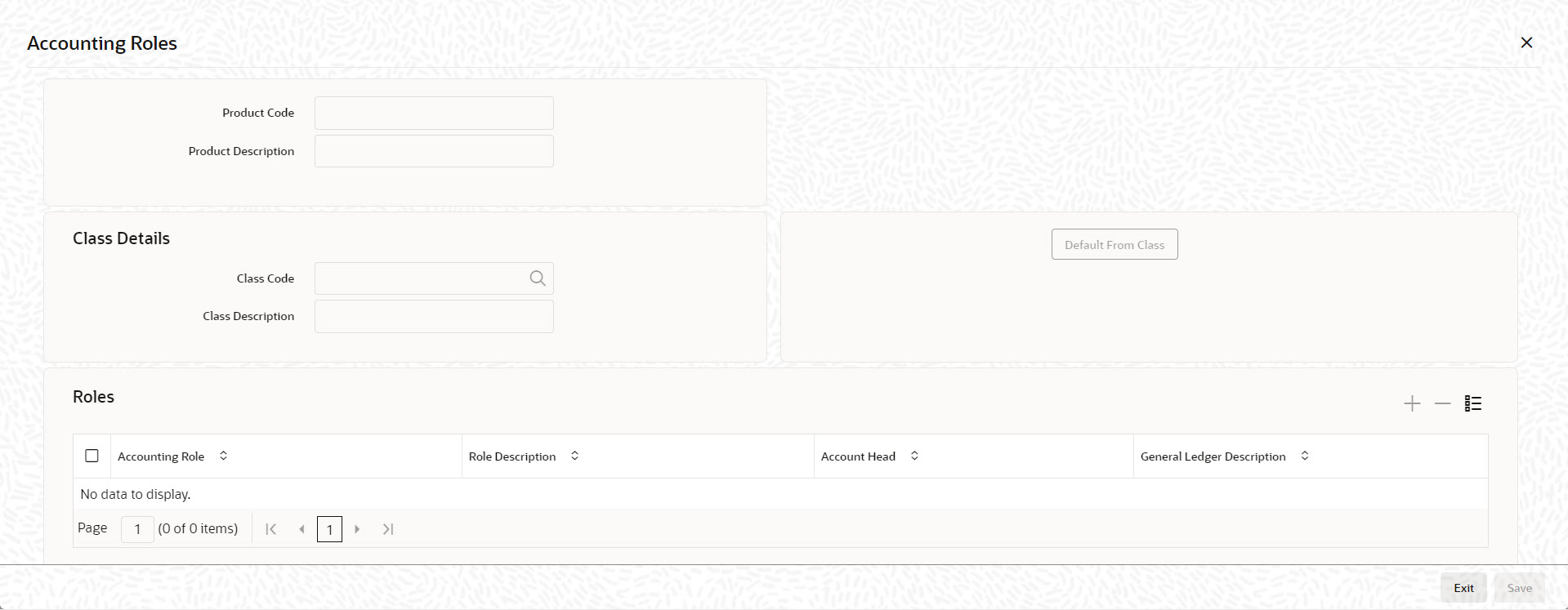
Specify the following details:
Roles
Accounting Role
Specify the accounting role. The adjoining option list displays all the accounting roles maintained in the system. You can choose the appropriate one.
Account Head
Specify the account head. The adjoining option list displays all the account heads maintained in the system. You can choose the appropriate one.
The system displays the following details:
l Product Code
l Product Description
Class Details
l Class Code
l Class Description
l Default From Class
Roles
l Role Description
l GL Description
16.1.3 Specifying the Preferences Details
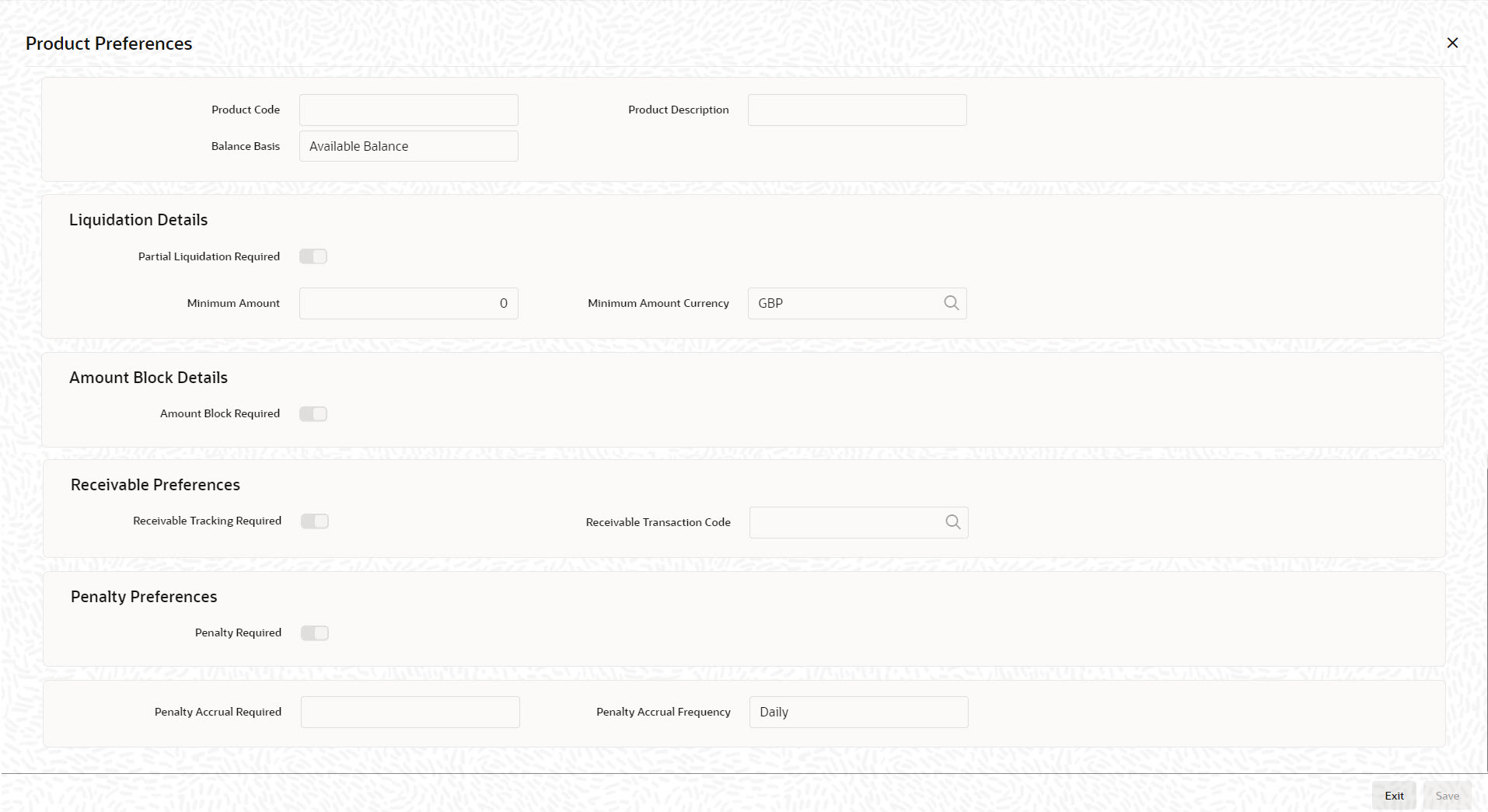
Click the 'Preferences' button in the 'DQ Product Definition' screen.You can specify product preferences details in this screen.
=
Specify the following details:
Balance Basis
Select the type of balance basis from the adjoining drop-down list. The list displays the following values:
l Available Balance Limit
l Available Balance
Liquidation Details
Partial Liquidation Required
Check this box to indicate that the partial liquidation of delinquency transaction up to the available amount will be processed.
Minimum Amount
Specify the minimum amount for partial liquidation.
Minimum Amount Currency
Specify the currency of the minimum amount being maintained. The adjoining option list displays all the currencies of the minimum amount maintained in the system. You can choose the appropriate one.
Amount Block Details
Amount Block Required
Check this box to indicate that the amount block should to be created during a credit into the overdraft account having an amount due.
Receivable Preferences
Receivable Tracking Required
Check this box to indicate that the the customer debit leg of the transaction should be posted to receivable GL maintained at 'DQ Preference' screen at DQ product. It will be liquidated only when the funds are available in the customer account.
Receivable Transaction Code
Specify the transaction code used for posting accounting entries during liquidating the receivable GL. The adjoining option list displays all the transaction codes maintained in the system. You can choose the appropriate one.
Penalty Preferences
Penalty Required
Check this box to indicate that the penalty should be calculated on amount due.
Penalty Accrual Required
Check this box to indicate that the accrual is required on penalty interest.
Penalty Accrual Frequency
Select the penalty accrual frequency from the adjoining drop-down list. The list displays the following values:
l Monthly
l Daily
The system displays the following details:
l Product Code
l Product Description
16.1.4 Specifying the Events Details
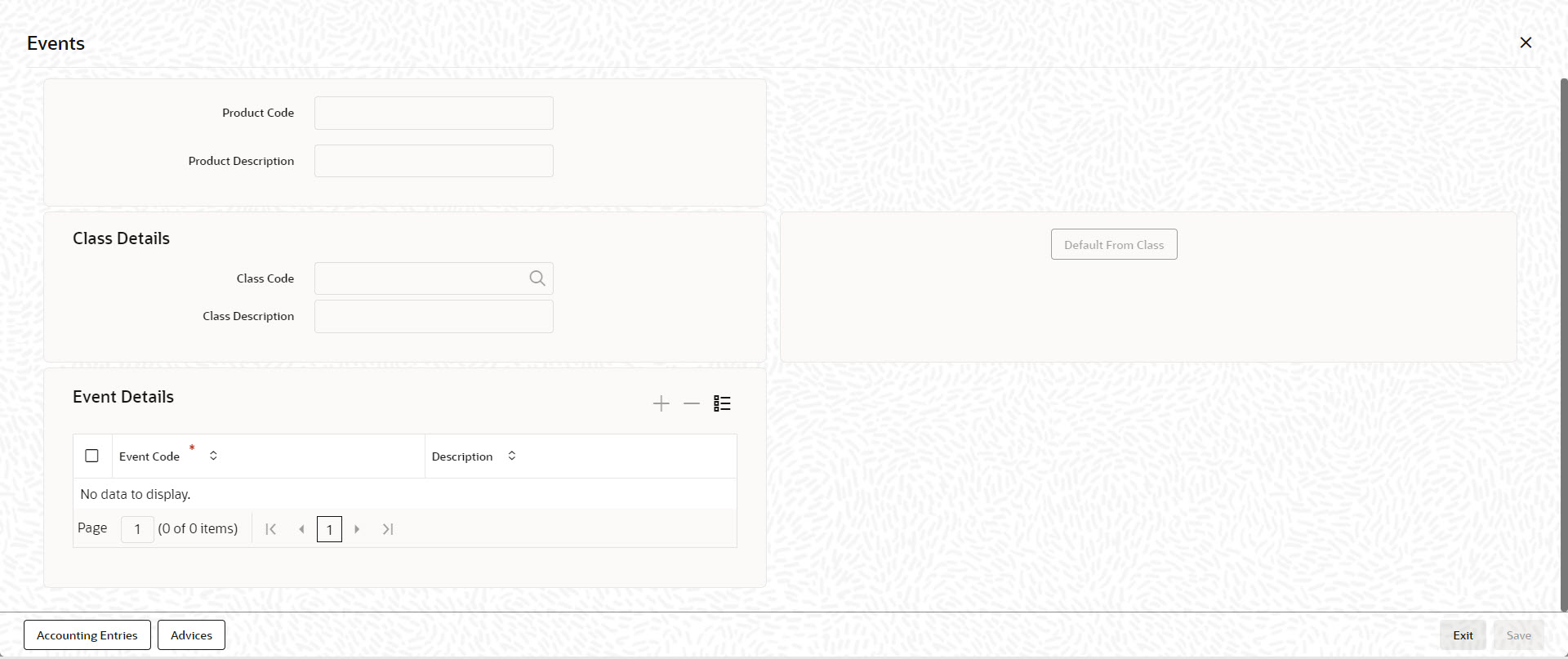
Click ‘Events’ button in the 'DQ Product Definition' screen.You can specify events details in this screen.
16.1.5 Viewing DQ Product Summary
You can query and view the DQ product details using ‘DQ Product Summary’ screen. You can invoke this screen by typing ‘DQSPRMNT’ in the field in the top right corner of the Application toolbar and clicking the adjoining arrow button.
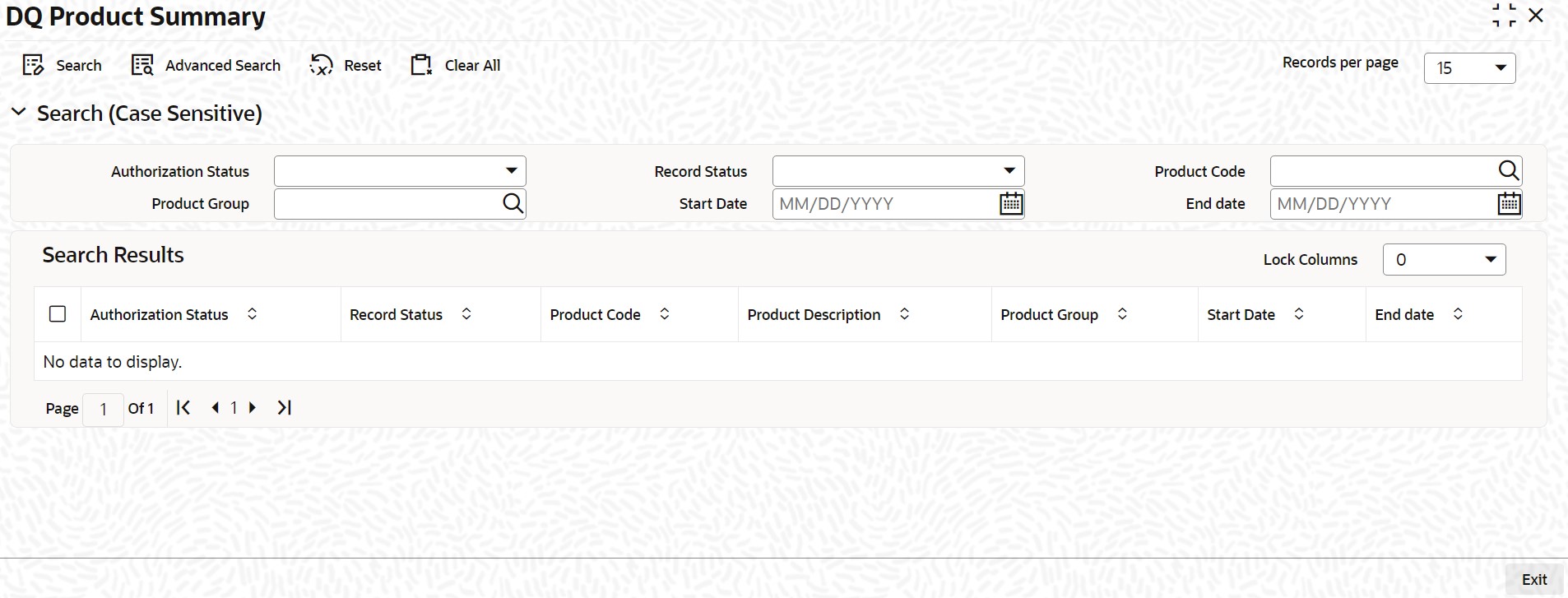
Specify any combination of the following details and click the ‘Search’ button:
l Authorization Status
l Product Code
l Start Date
l Record Status
l Product Group
l End date
The system displays the following details for the records matching the parameters specified:
l Authorization Status
l Record Status
l Product Code
l Product Description
l Product Group
l Start Date
l End date
If you do not specify any parameter for the query before clicking the ‘Search’ button, the system displays all the records available for the maintenance.
This section contains the following topics:
l Section 16.2.1, "Maintaining DQ Ad hoc Liquidation"
l Section 16.2.2, "Viewing DQ Ad hoc Liquidation Summary"
16.2.1 Maintaining DQ Ad hoc Liquidation
You can liquidate/settle the dues manually of a particular DQ record related to IC and DE modules using ‘DQ Adhoc Liquidation’ screen. Invoke this screen by typing ‘DQDADLIQ’ in the field at the top right corner of the Application tool bar and clicking the adjoining arrow button.
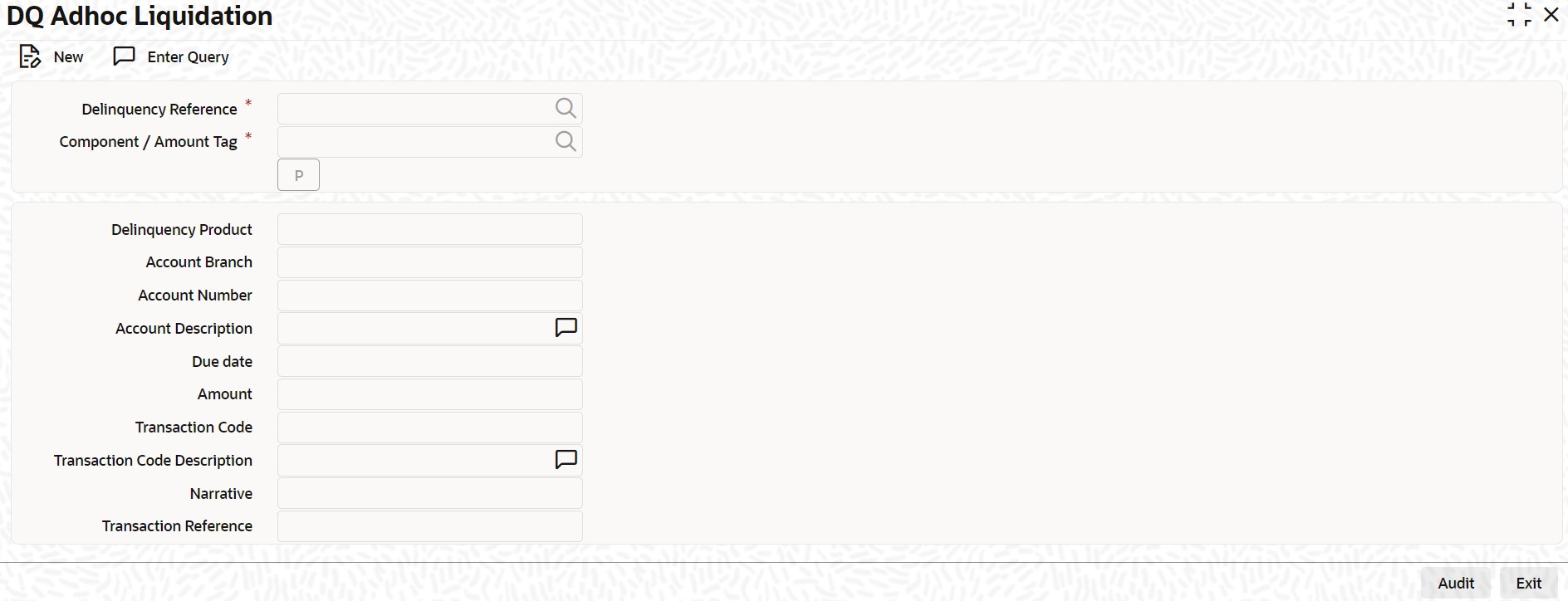
Specify the following details:
Delinquency Reference
Specify the delinquency reference. The adjoining option list displays all the active DQ records related to DE and IC module of the current branch. You can choose the appropriate one.
Component / Amount Tag
Specify the component or amount tag. The adjoining option list displays all the components maintained in the system. You can choose the appropriate one.
Transaction Reference
Specify the original transaction reference number of the contract.
The system displays the following details in this screen:
l Delinquency Product
l Account Branch
l Account Number
l Account Description
l Due date
l Amount
l Transaction Code
l Transaction Code Description
l Narrative
Validations
The following validations are performed in this screen:
Upon authorization of the IC ad hoc liquidation record, the system verifies the debit interest preferences of the settlement account in the customer account maintenance screen. If the authorization status is ‘Approved’ then the account will be force debited. If the authorization status is denied or no response, then the system validates the balance and displays appropriate error in case of insufficient balance.
On selecting the contract reference, the system liquidates the DQ when sufficient balance is available in customer account. If settlement account of the transaction is GL code, then it will not verify the GL balance for processing the record from DQ.
16.2.2 Viewing DQ Ad hoc Liquidation Summary
You can query and view the liquidated/settled DQ records using ‘DQ Adhoc Liquidation Summary’ screen. You can invoke this screen by typing ‘DQSADLIQ’ in the field in the top right corner of the Application toolbar and clicking the adjoining arrow button.
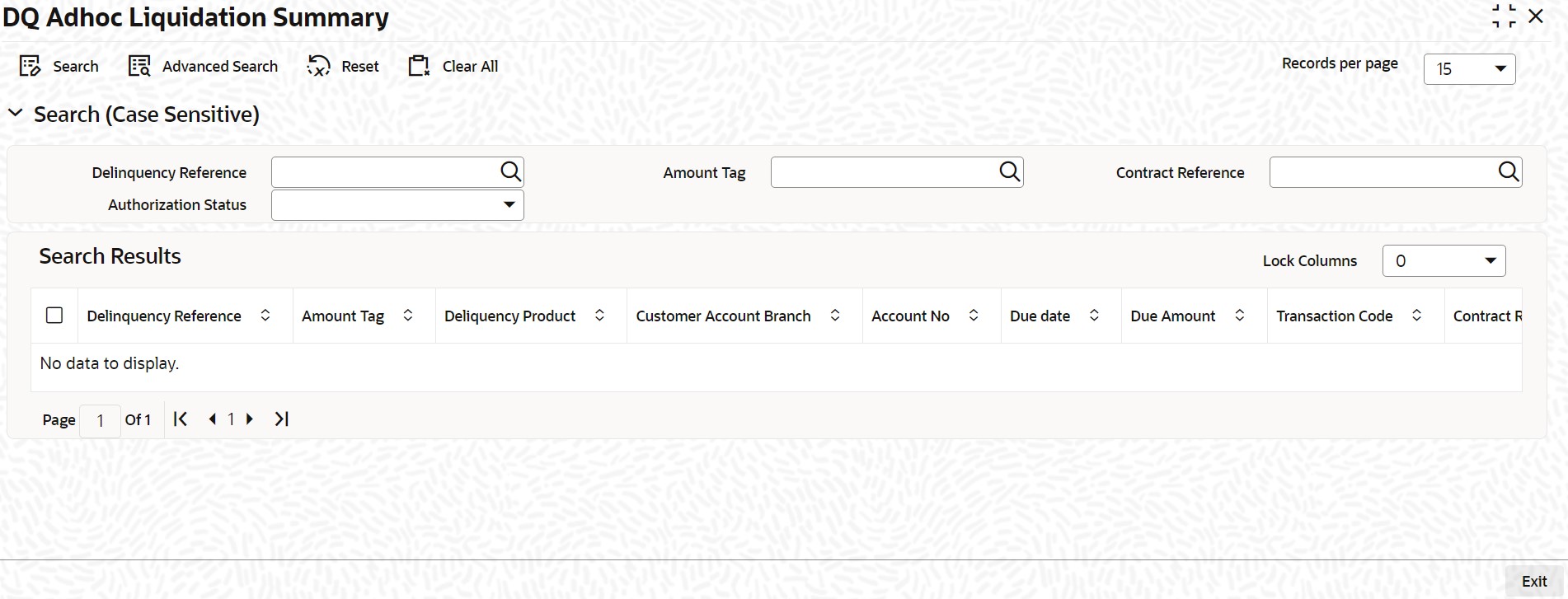
Specify any combination of the following details and click the ‘Search’ button:
l Delinquency Reference
l Contract Reference
l Amount Tag
l Authorization Status
The system displays the following details for the records matching the parameters specified:
l Delinquency Reference
l Amount Tag
l Delinquency Product
l Customer Account Branch
l Account No
l Due date
l Due Amount
l Transaction Code
l Contract Reference
l Narrative
l Authorization Status
If you do not specify any parameter for the query before clicking the ‘Search’ button, the system displays all the records available for the maintenance.
This section contains the following topics:
l Section 16.3.1, "Capturing DQ Online Liquidation Details"
l Section 16.3.2, "Viewing DQ Online Liquidation Summary"
16.3.1 Capturing DQ Online Liquidation Details
You can liquidate/settle the dues online of all DQ records related to IC and DE modules of a customer account using ‘DQ Online Liquidation’ screen. Invoke this screen by typing ‘DQDONLIQ’ in the field at the top right corner of the Application tool bar and clicking the adjoining arrow button.
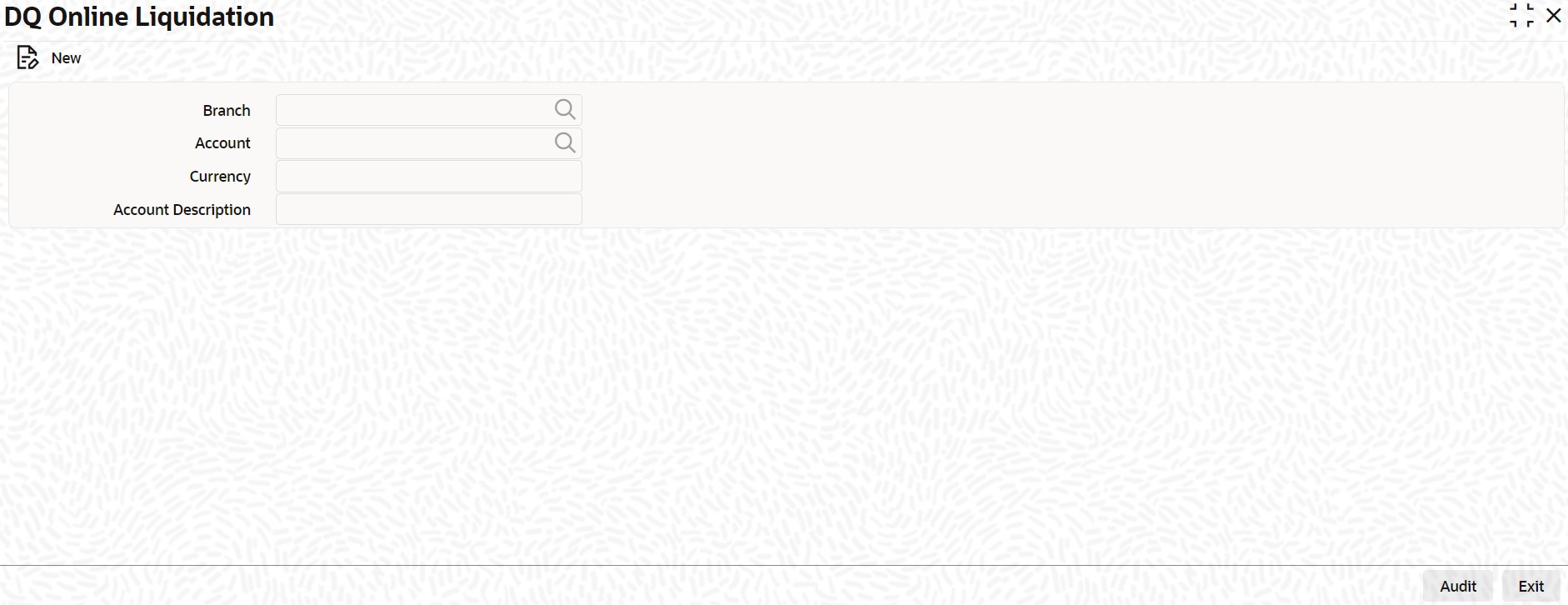
Specify the following details:
Branch
Specify the branch code. The adjoining option list displays all the valid branch codes maintained in the system. You can choose the appropriate one.
Account
Specify the account number. The adjoining option list displays all the valid customer account numbers of the branch code along with GL codes maintained in the system. You can choose the appropriate one.
The system displays the following details:
l Currency
l Account Description
Validations
The following validations are performed in this screen:
The system will not display any error upon save or authorization of online liquidation record in case of insufficient balance in the account. It allows you to save and authorize the online liquidation record and will process the liquidation only if sufficient balance is available in the account. If there is insufficient balance, it will not liquidate the transactions.
On selecting the contract reference, the system liquidates the DQ when sufficient balance is available in customer account. If settlement account of the transaction is GL code, then it will not verify the GL balance for processing the record from DQ.
16.3.2 Viewing DQ Online Liquidation Summary
You can query and view liquidated/settled the dues online of all DQ records using ‘DQ Online Liquidation Summary’ screen. You can invoke this screen by typing ‘DQSONLIQ’ in the field in the top right corner of the Application toolbar and clicking the adjoining arrow button.
Specify any combination of the following details and click the ‘Search’ button:
l Account
l Branch
The system displays the following details for the records matching the parameters specified:
l Account
l Branch
l Currency
l Account Description
l Maker ID
l Release Time
l Checker Date Stamp
l Checker ID
l Authorization Status
If you do not specify any parameter for the query before clicking the ‘Search’ button, the system displays all the records available for the maintenance.
16.4 DQ General Parameter Maintenance
This section contains the following topics:
l Section 16.4.1, "Maintaining DQ General Parameters"
l Section 16.4.2, "Viewing DQ General Parameter Maintenance Summary"
16.4.1 Maintaining DQ General Parameters
You can maintain delinquency bank level parameters using ‘DQ General Parameter Maintenance’ screen. Invoke this screen by typing ‘DQDBKPRM’ in the field at the top right corner of the Application tool bar and clicking the adjoining arrow button.
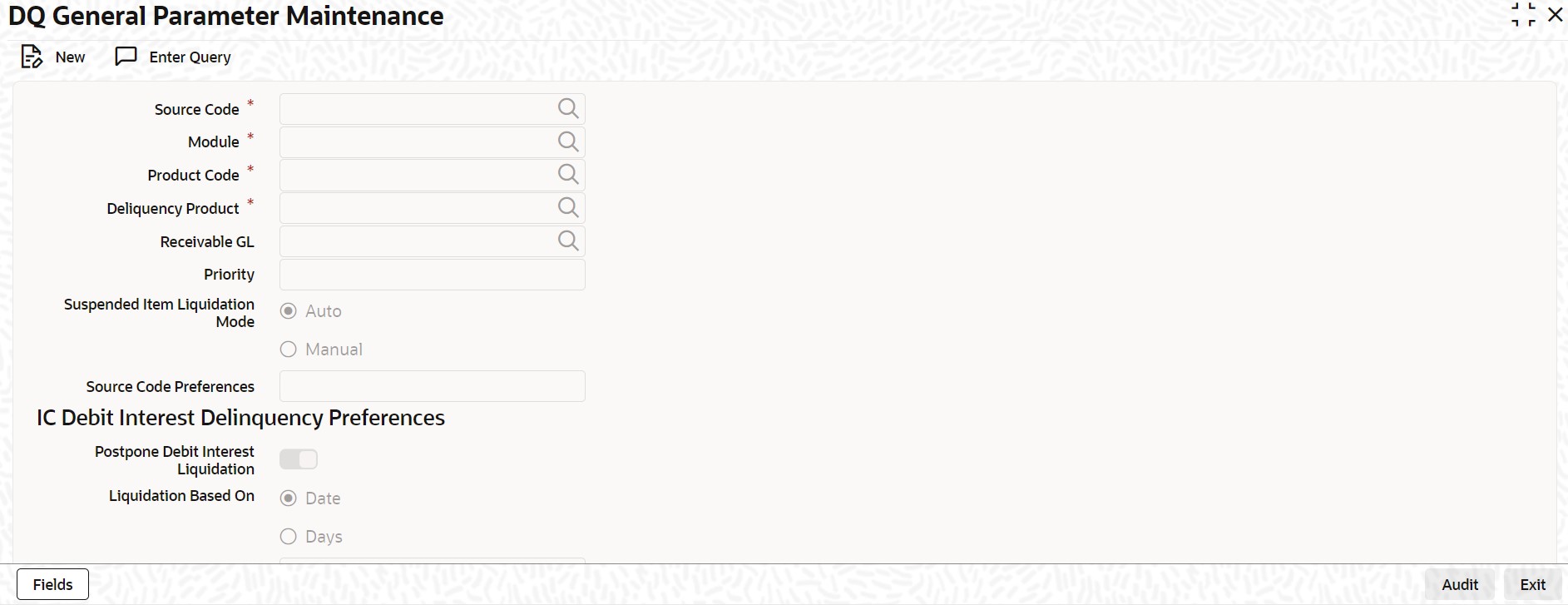
Specify the following details:
Module
Specify the module. The adjoining option list displays all the module codes maintained in the system. You can choose the appropriate one.
Product Code
Specify the product code. The adjoining option list displays all the open and authorized products of the modules selected in 'Module' field. You can choose the appropriate one.
Delinquency Product
Specify the delinquency product. The adjoining option list displays all the deliquency products maintained in the 'Delinquency Product Definition' screen. You can choose the appropriate one.
Receivable GL
Specify the receivable GL. The adjoining option list displays all the open and authorized GL codes maintained in the system. You can choose the appropriate one.
Priority
Specify the priority for auto settlement of transactions from DQ.
Suspended Item Liquidation Mode
Indicate the suspended item liquidation mode that you are maintaining. You can select one of the following options:
l Auto
l Manual
IC Debit Interest Delinquency Preferences
Postpone Debit Interest Liquidation
Check this box to indicate that the debit interest liquidation on current account related to the product should be postponed to future date.
Liquidation Based On
Indicate on which the new debit interest liquidation date will be derived. You can select one of the following options:
l Date
l Days
First Liquidation Date
Specify the value of this field in DD-MON format. The system considers the next immediate year for the due date calculation.
Days
Specify the calendar days which the system needs to add to original liquidation date to derive the new debit interest liquidation date on current account for every liquidation cycle.
Validations
The system performs certain validations in this screen:
It displays appropriate error message while saving if the following validations fail:
l ‘Partial Liquidation Required’ field is not applicable for product codes related to PC module.
l Priority will be applicable only if Suspended Liquidation Mode is specified as ‘Auto’.
l ‘Amount Block required’ field at DQ product level will be applicable only for ‘Auto’ liquidation mode of DQ records.
l Product code ‘DEMDQ’ is applicable only for Manual liquidation and Product code ‘DEADQ’ is applicable only for Auto liquidation. One of the above two products should be linked to DQ product.
l ‘Postpone Debit Interest Liquidation’ field will be applicable only for ‘Interest’ type of IC products.
l First Liquidation Date will be applicable only if ‘Liquidation Based On’ radio button value specified as ‘Date’.
l ‘Days’ field will be applicable only if ‘Liquidation Based On’ radio button value specified as ‘Days’.
l Format of ‘First Liquidation Date’ field should be specified as ‘DD-MON’.
Note
The penalty preferences section at DQ product level will not be applicable for PC and CL modules.
16.4.2 Viewing DQ General Parameter Maintenance Summary
You can query and view the delinquency bank level parameters using ‘DQ General Parameter Maintenance Summary’ screen. You can invoke this screen by typing ‘DQSBKPRM’ in the field in the top right corner of the Application toolbar and clicking the adjoining arrow button.
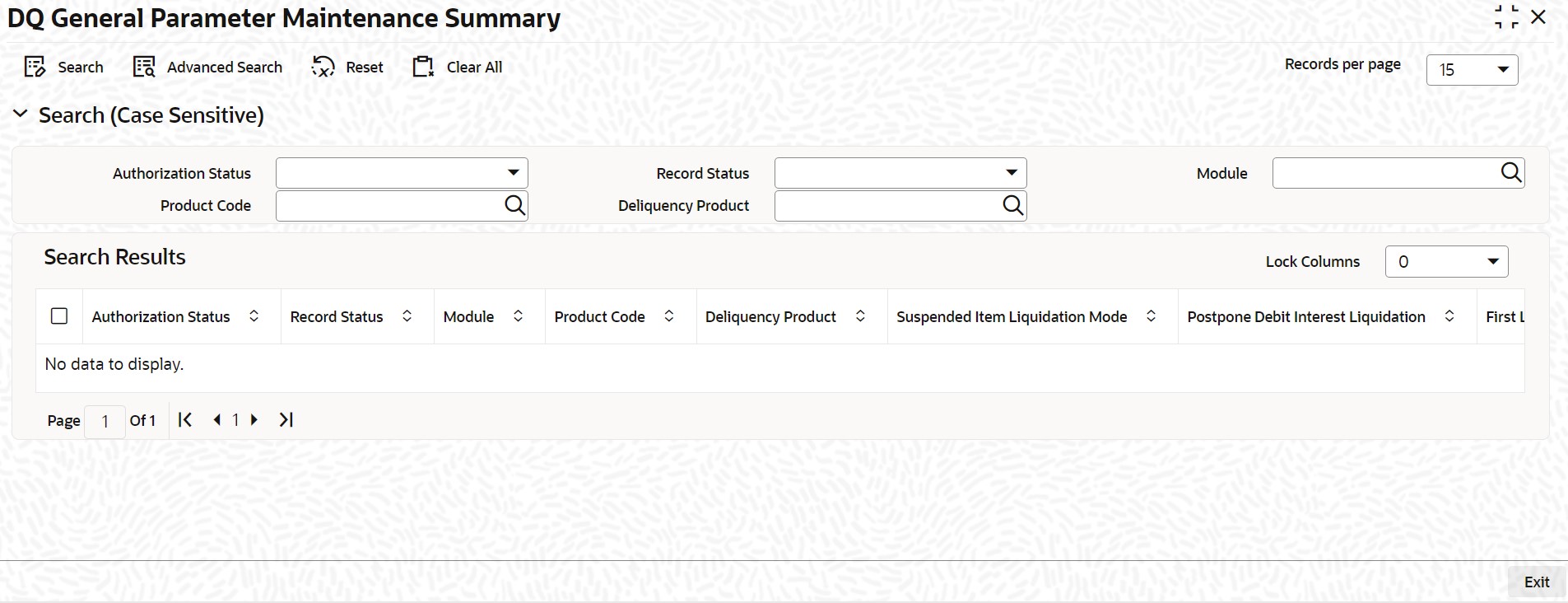
Specify any combination of the following details and click the ‘Search’ button:
l Authorization Status
l Module
l Delinquency Product
l Record Status
l Product Code
The system displays the following details for the records matching the parameters specified:
l Authorization Status
l Record Status
l Module
l Product Code
l Delinquency Product
l Suspended Item Liquidation Mode
l Postpone Debit Interest Liquidation
l First Liquidation Date
l Days
l Priority
l Receivable GL
If you do not specify any parameter for the query before clicking the ‘Search’ button, the system displays all the records available for the maintenance.
This section contains the following topics:
l Section 16.5.1, "Capturing DQ Transaction Amendment Details"
l Section 16.5.2, "Viewing DQ Transaction Amendment Summary"
16.5.1 Capturing DQ Transaction Amendment Details
You can maintain suspended item details and modify the status of the suspended item using ‘DQ Transaction Amendment’ screen. Invoke this screen by typing ‘DQDTRNAM’ in the field at the top right corner of the Application tool bar and clicking the adjoining arrow button.
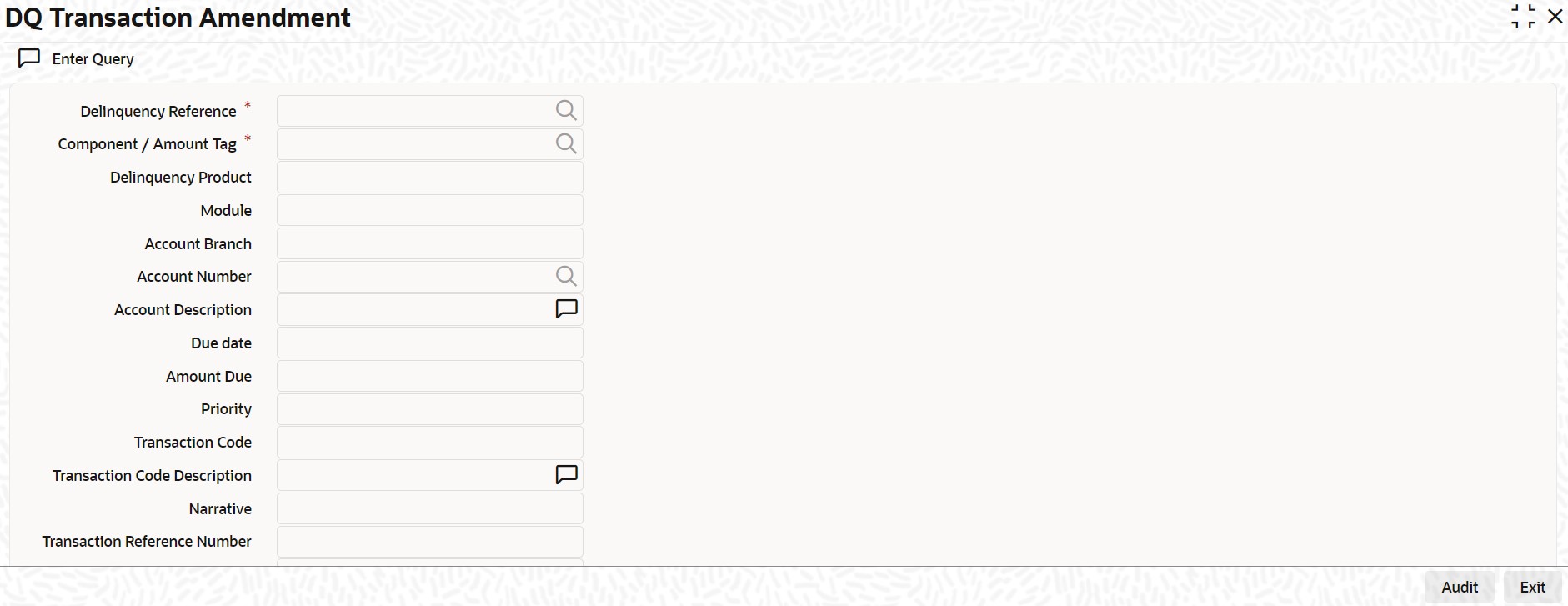
Specify the following details:
Delinquency Reference
Specify the delinquency reference. The adjoining option list displays all the DQ contract reference numbers of the transaction held in DQ. You can choose the appropriate one.
Component/Amount Tag
Specify the component or amount tag. The adjoining option list displays all the components or amount tags of record in DQ. You can choose the appropriate one.
Account Number
Specify the account number. The adjoining option list displays all the valid account numbers maintained in the system. You can choose the appropriate one.
Delinquency Status
Select the type of delinquency status from the adjoining drop-down list. The list displays the following values:
l Active
l Inactive
The system displays the following details in this screen:
l Delinquency Product
l Module
l Account Branch
l Account Description
l Due date
l Amount Due
l Priority
l Transaction Code
l Transaction Code Description
l Narrative
l Transaction Reference Number
It allows you to change field 'Delinquency Status' from 'Active' to 'Inactive' for transactions related to PC and CL modules. It displays an appropriate error message if you try to change the status of DQ transactions of any other modules/if you try to change the status from and to any other status. It allows you to change settlement account of the delinquent record related to 'DE' and 'IC' module.
16.5.2 Viewing DQ Transaction Amendment Summary
You can query and view the suspended item details using ‘DQ Transaction Amendment Summary’ screen. You can invoke this screen by typing ‘DQSTRNAM’ in the field in the top right corner of the Application toolbar and clicking the adjoining arrow button.
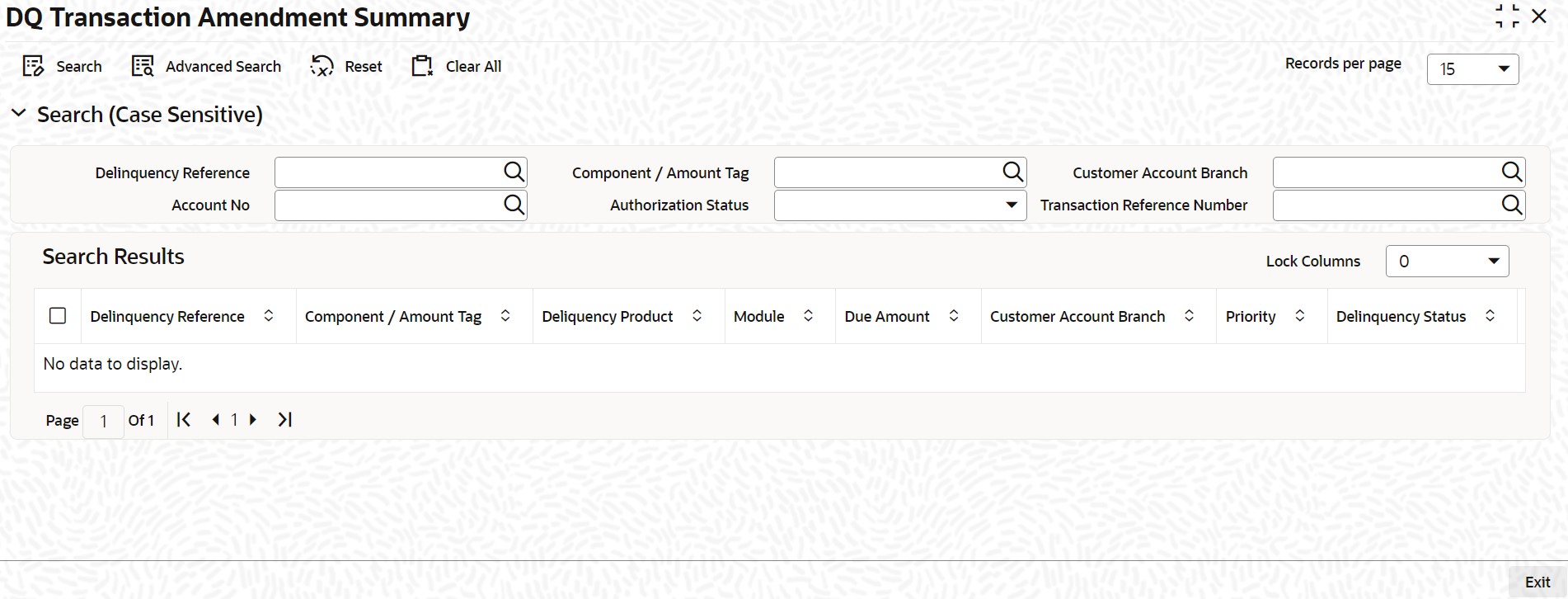
Specify any combination of the following details and click the ‘Search’ button:
l Delinquency Reference
l Customer Account Branch
l Authorization Status
l Component/Amount Tag
l Account No
l Transaction Reference Number
The system displays the following details for the records matching the parameters specified:
l Delinquency Reference
l Component/Amount Tag
l Delinquency Product
l Module
l Due Amount
l Customer Account Branch
l Priority
l Delinquency Status
l Account No
l Authorization Status
l Transaction Reference Number
If you do not specify any parameter for the query before clicking the ‘Search’ button, the system displays all the records available for the maintenance.
16.6 DQ Product - Penality Rate Maintenance
This section contains the following topics;
l Section 16.6.1, "Maintaining Penality Rate for DQ Product"
l Section 16.6.2, "Viewing DQ Product - Penality Rate Summary"
16.6.1 Maintaining Penality Rate for DQ Product
You can maintain the penality rates for branch, currency and delinquency product combination using ‘DQ Product - Penality Rate Maintenance’ screen. Invoke this screen by typing ‘DQDPRPNL’ in the field at the top right corner of the Application tool bar and clicking the adjoining arrow button.
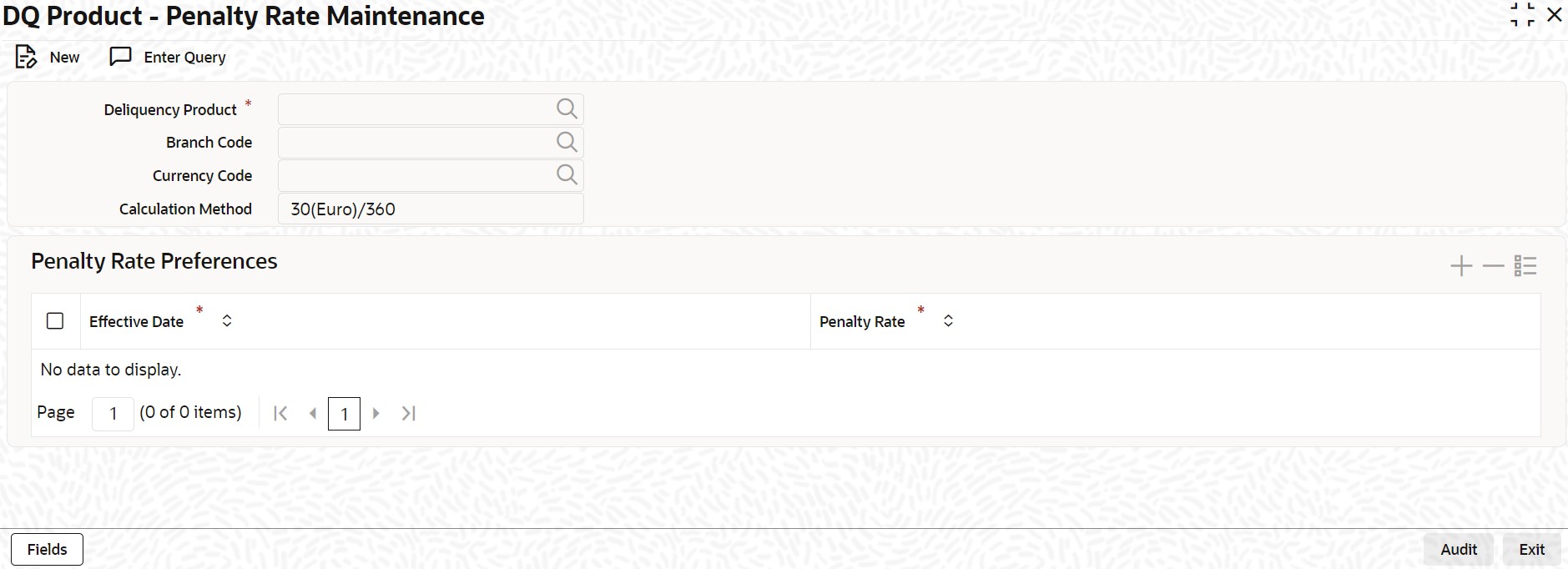
Specify the following details:
Delinquency Product
Specify the delinquency product. The adjoining option list displays all the open and authorized DQ product codes maintained in the system. You can choose the appropriate one.
Branch Code
Specify the branch code. The adjoining option list displays all the branch codes maintained in the system. You can choose the appropriate one.
Currency Code
Specify the currency code. The adjoining option list displays all the open and authorized currencies maintained in the system. You can choose the appropriate one.
Calculation Method
Select the calculation method from the adjoining drop-down list. The list displays the following values:
l 30(Euro)/360
l 30(US)/360
l Actual/360
l 30(Euro)/365
l 30(US)/365
l Actual/365
l 30(Euro)/Actual
l 30(US)/Actual
l Actual/Actual
Penalty Rate Preferences
Effective Date
Specify the effective date of penalty rates.
Penalty Rate
Specify the penalty rate applicable for delinquency product.
It displays an override message if the penalty rates for all branch/all currency is not maintained for DQ product while saving. It maintains the penalty rates for branch, delinquency product, currency code and effective date combination. It picks up the latest available rate for penalty calculation.
Back dated rate changes are effective only for active delinquency entries. If a back dated rate is changed, then the system will process the same rate change for all the records with effective dates greater than the modified record.
16.6.2 Viewing DQ Product - Penality Rate Summary
You can query and view the penalty rates for branch, currency and delinquency product combination using ‘DQ Product - Penality Rate Summary’ screen. You can invoke this screen by typing ‘DQSPRPNL’ in the field in the top right corner of the Application toolbar and clicking the adjoining arrow button.
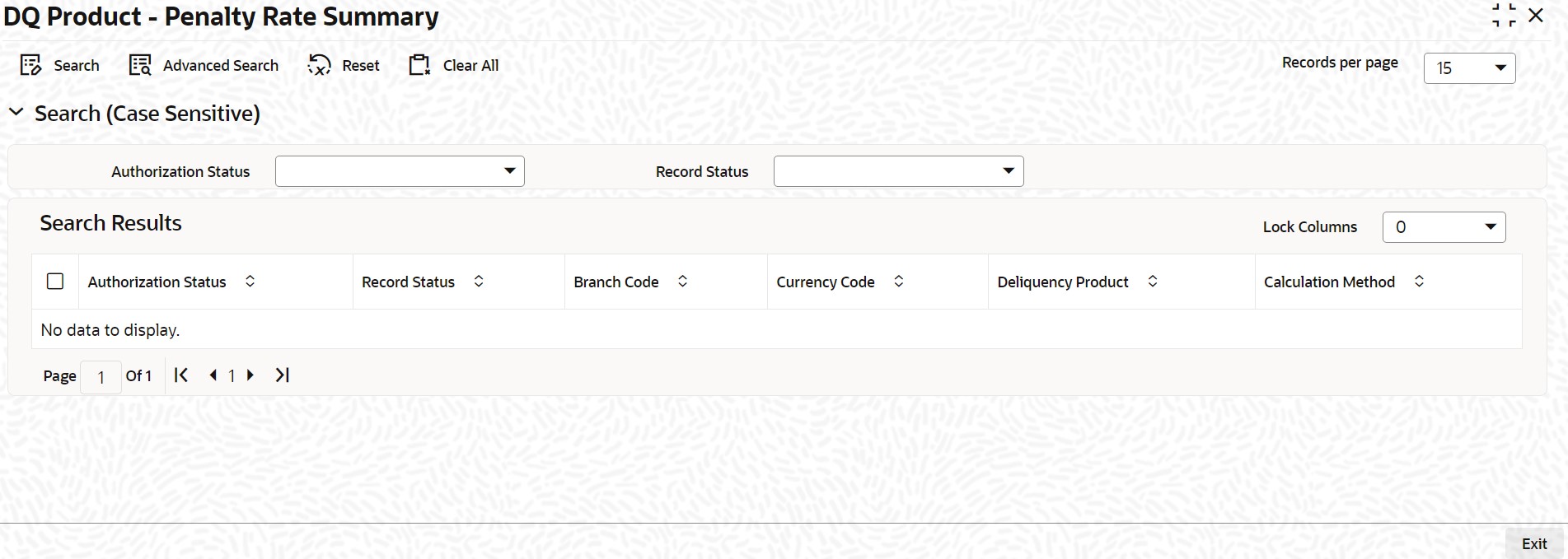
Specify any combination of the following details and click the ‘Search’ button:
l Authorization Status
l Branch Code
l Deliquency Product
l Record Status
l Currency Code
The system displays the following details for the records matching the parameters specified:
l Authorization Status
l Record Status
l Branch Code
l Currency Code
l Deliquency Product
l Calculation Method
If you do not specify any parameter for the query before clicking the ‘Search’ button, the system displays all the records available for the maintenance.
The system performs following processing:
If the balance in customer account is not sufficient to process the transaction then the respective transaction will be marked for delinquency tracking under the following conditions at the time of transaction posting:
l Product code of the transaction should be marked for delinquency tracking.
The system posts transaction to the receivable GL instead of the customer account when ‘Receivable Tracking Required’ field is checked for the associated delinquency product. The receivable GL will be picked from ‘Delinquency parameter maintenance’ screen of the delinquency product and ‘Receivable Tracking Required’ field will be applicable only for DQ products which will be linked to DE and IC products. If ‘Amount Block Required’ field is checked, then the system blocks the amount to the extent of credit amount or DQ amount due when there is a credit on settlement account of the record tracked by delinquency.
During EOD, the system checks if ‘Auto liquidation’ is allowed for the associated delinquent product. If allowed, it will release the amount block of settlement account associated with DQ record and auto liquidates the delinquent item based on the maintained priority. You need to liquidate the record manually in ‘DQ Adhoc Liquidation’ screen if Liquidation Mode is ‘Manual’ for the delinquent product. Only the transactions which are marked for ‘Full liquidation’ can be settled. DQ item will be liquidated when there is a suspended item which is marked for manual liquidation and if the underlying event is already liquidated in the respective module by debiting receivable. When the underlying event is not liquidated in the respective module, then the item should be manually liquidated in the respective module itself.
The system liquidates the delinquent item partially by releasing the partial amount block if ‘Partial Liquidation Required’ field is checked at delinquent product else it will not release the amount block and does not liquidate the record till full amount is available on customer account and the same should be blocked. If Liquidation mode is ‘Auto’ for the delinquent product related to PC and CL modules and if manual liquidation is required to be done on those items, then you need to change the ‘Delinquency Status’ of those suspended items from ‘Active’ to ‘Inactive’ in ‘DQ Transaction Details’ screen.
The system releases the amount block on the customer account for a particular transaction during status change and will not allow you to perform manual liquidation on suspended items marked for ‘Auto’ liquidation if ‘Delinquency Status’ is not ‘Inactive’. Once status is changed, you can liquidate the transaction in their respective module screens.
When any of suspended items related to DE and IC modules are marked for auto liquidation and if manual liquidation is required, then you can perform liquidation in ‘DQ Adhoc Liquidation’ screen. It changes the delinquency status to ‘Liquidated’ once liquidation of record from DQ is successful. You can liquidated/settled one or more DQ records related to same settlement account based on priority using ‘DQ Online Liquidation’ screen. If multiple transaction exists in DQ with same priority, then the system considers the due date and timestamp of the transaction for liquidation. DQ records related to DE and IC modules can also be settled in this screen.
You need to perform the following operations if delinquency items related to DE and IC modules has to be settled through cash payments:
l Debit the cash GL and post it to Intermediary GL.
l Change settlement account of DQ item in ‘DQ transaction amendment’ screen for a contract reference number. The system releases the amount block on customer settlement account of a particular DQ item.
l Perform Manual Liquidation in ‘DQ Adhoc liquidation’ screen or perform Online liquidation in ‘DQ Online Liquidation’ screen by selecting relevant DQ record or GL code.
The system will not validate the GL balance during liquidation of DQ record if settlement account is a GL code. Hence you need to debit cash GL and credit intermediary GL before changing settlement account and perform manual liquidation on DQ item. ‘Track Receivable’ field should be unchecked at the customer account level for all the customer accounts. Customer account closure will be allowed only if account does not have any delinquency or penalty to be liquidated. The system checks whether delinquency or penalty is pending is to be liquidated. In such a case, you need to liquidate using online delinquency function. The system processes the DQ records till next working day – 1 in EOD if due date of DQ record falls on holiday.
Suspension Management
Delinquency processing will be applicable in case of insufficient funds on customer accounts for a transaction related to the DE, CL,IC and PC modules.
DQ Penalty Processing
The system will perform the following processes as part of this batch process for all active delinquency transactions that require penalty interest processing:
It calculates the penalty interest if due date of the original delinquency transaction is backdated. It creates a penalty interest record using the same delinquency product when there is no penalty interest record. Priority of the penalty record will be same as priority of main record. It also creates an amount block in case if amount block is required for the delinquency product. These records exist as independent delinquency records and the liquidation of them will be processed as part of the delinquency batch process. For such records, it creates PLIQ event. During liquidation, if accruals are required and not completed, then the system will complete the pending accruals.
The system updates the amount due with the recomputed penalty interest amount when the penalty interest record is already available for the original delinquency transaction. It will also increase the amount block.
The system creates PACR event for accruals and penalty accruals will happen at frequency maintained at delinquency product level.
Accounting Entries:
Accounting Role to Head Mapping at DQ product level for penalty processing:
Following accounting roles will be maintained for delinquency penalty processing.
|
Accounting Role |
Role Description |
|---|---|
|
PENINTINC |
Penalty Interest Income |
|
PENINTREC |
Penalty Interest Receivable |
When penalty interest is with accruals, then you need to maintain the following accounting entries:
|
Event Code |
Dr/Cr |
Accounting Role |
Amount Tag |
|---|---|---|---|
|
PACR |
Dr |
PENINTREC |
PENINT_ACCR |
|
PACR |
Cr |
PENINTINC |
PENINT_ACCR |
|
PLIQ |
Dr |
CUSTOMER |
PENINT_LIQD |
|
PLIQ |
Cr |
PENINTREC |
PENINT_LIQD |
When penalty interest is without accruals, then you need to maintain the following accounting entries:
|
Event Code |
Dr/Cr |
Accounting Role |
Amount Tag |
|---|---|---|---|
|
PLIQ |
Cr |
PENINTINC |
PENINT_LIQD |
|
PLIQ |
Dr |
CUSTOMER |
PENINT_LIQD |
Delinquency Tracking on Scheduled payment liquidations – ALIQ
The system maintains same settlement account to track delinquency for scheduled payments of lending module for all the components of loan account. Delinquency tracking will be processed against the single settlement account. If the loan product is associated with delinquency product, then only overdue schedules/payments during auto liquidation of loan account will be tracked under delinquency. It tracks the overdues against a single settlement account maintained at loan account level. When currency of any of the component is different from principal component currency, then the amount due of the components will be converted into principal component currency using STANDARD MID rate and sum of all components amount dues will be tracked in delinquency.
The system updates the amount due of multiple schedules overdues to the same DQ record and there will be only one record in DQ for a loan account. It will not consider the exchange rate for tracking of amount due when there is a change in the exchange rate post conversion of overdues and in case of additional records into DQ.
The system uploads manual payment for settlement of loan installment dues based on priority if settlement account has sufficient balance during EOD. Order of settlement of dues of each component will be as per liquidation order maintained at loan product level. Manual liquidation (MLIQ) will not allowed on the loan account if there is an overdue component of the installments of loan account which is already being tracked through delinquency and delinquency status should be ‘Active’. Due to exchange rate for conversation of overdues from component currency to principal component currency, there could be a very small difference in amount due of DQ record in comparison with actual component overdues.
Delinquency Tracking on Manual Data Entry (DE)
The system debits the receivable GL to the extent of DE transaction amount and posting will be completed provided product code is associated with DQ product whenever data entry is specified through ‘Journal Single Entry Input’ screen or uploaded from CreateExtAccEntries interface gateway having module code ‘DE’ with insufficient balance in customer account. It links the product code to DQ product in case of manual liquidation is required for DE entries and a different product code in case of auto liquidation is required for DE entry transactions. It tracks the suspended item in delinquency against a particular account with amount due equal to DE transaction amount.
The system debits customer account and credits to receivable. It liquidates the DE record related to product code from delinquency based on priority when the customer account has sufficient balance during EOD.
All DE entry records which are marked for manual liquidations should be liquidated in ‘DQ Adhoc Liquidation’ Screen. Following are the account entries maintained:
|
Account |
Dr/Cr Indicator |
|---|---|
|
Customer Account |
Debit |
|
Receivable GL |
Credit |
Delinquency Tracking for Transactions from OBPM
Existing ECA / RTL has been enhanced to handle delinquency.
The system performs account balance check and validations for the debit transaction. Debit transactions from external system will be processed through ECA. The amount requested for debit will be blocked in the account and the response will be send to the external system. If the account does not have sufficient balance, after ECA and RTL checks, delinquency is tracked. In the request,
l When referral_allowed is Y and partial_release_allowed is N, real_time_liquidity (RTL) enabled flags are checked at account level. With RTL enabled, system calls OBLM to satisfy the ECA block.
l If RTL is N, referral_flag is N, partial_block_allowed is N, system picks the delinquency product maintenance for the source_code <OBPM> from the product table for necessary delinquency processing. If source_code_preference is <G> (GL), system makes the fund available in the customer account by debiting the receivable GL and crediting the customer account. Deliquency_tracking is done and a ECA block is placed. Rest of the handling is done through ECA block.
l In case of reversal of ECA block, system will reverse the accounting entries passed to the receivable GL and account and remove the delinquency tracking.
Delinquency Tracking on Debit Interest Liquidations of CASA accounts
The system debits the receivable GL to the extent of debit interest amount and complete the ILIQ process on CASA account if IC product is associated with delinquency product during debit interest liquidation on year end. Receivable GL maintained at ‘Delinquency parameter’ screen is used for debiting the debit interest amount.
The system tracks the suspended item in DQ against customer account with amount due equal to Debit interest liquidation amount and due date equal to the following:
Derived debit interest liquidation date based on parameterization at IC product preference level when ‘Postpone Debit Interest Liquidation’ field is checked at IC product level associated with customer account.
Original debit interest liquidation date when ‘Postpone Debit Interest Liquidation’ field is unchecked at IC product level associated with customer account.
The system verifies the value of ‘Authorization Status’ field based on parameterization done in DQ batch during EOD. Following are the processing done:
It liquidates the delinquency record based on priority by debiting the customer account when the value is ‘Approved’ and when the ‘Authorization Expiry Date’ field is greater than current system date. Account will be force debited to the extent of debit interest liquidation amount if there is an insufficient balance.
It skips the DQ record liquidation for current day and process the penalty on liquidation amount when value is ‘No Response’. When ‘Authorization status’ is changed to ‘Approved’, then system liquidates the DQ record by force debiting the customer account to the extent of liquidation amount and tracks penalty on customer account. Penalty will be liquidated if balance is available for penalty amount liquidation.
In case value is not changed, it tracks both debit interest and penalty on customer account till you change the radio button value at customer account level.
All IC Debit interest DQ records which are marked for manual liquidations should be liquidated in ‘DQ Adhoc Liquidation’ Screen.
Available Balance Calculation for Transaction Processing
During processing of any transactions, the system considers delinquent claims of all the accounts of the customer to derive the available balance of account when ‘Include customer delinquent claims in available balance calculation’ is checked at the ‘Bank Parameter Maintenance’ screen if debit leg of the transaction is customer’s CASA account.
Derived available balance of an account = Available balance of an account – Pending Delinquent claims of all CASA accounts of the customer.
The system allows the transaction to process when the derived available balance of account is greater than or equal to transaction amount. Else, it displays appropriate error message. It considers the derived available balance of an account and adds the transaction into delinquency tracking when the product code of the transaction is linked to DQ product. During processing of transaction, derived available balance will be calculated and validated against transaction amount.
The system converts delinquent claims of other accounts to account currency for which available balance will be derived and followed by the final available balance if the currency of customer accounts /delinquency is different from the account for which available balance is being derived. It considers settlement accounts available balance for liquidating the transaction during settlement/liquidating of record from delinquency processing.