Upgrade Process
The Upgrade option allows the upgrade process initiation.
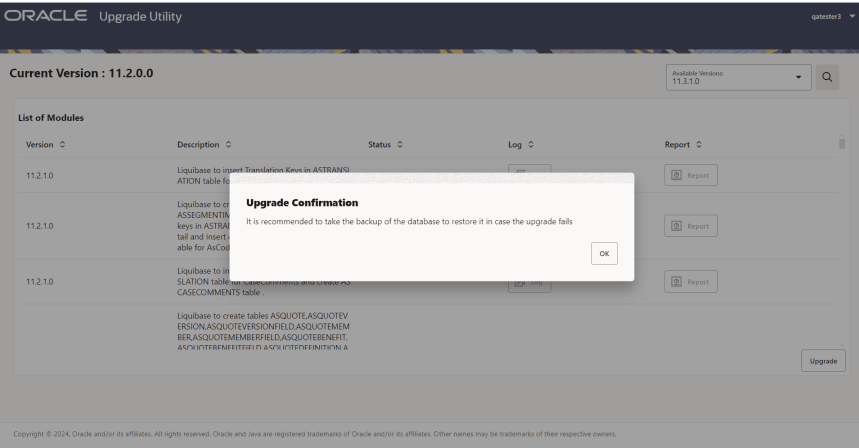
In the Upgrade Confirmation dialog box, click OK to take a database backup in case of failures.
Important: Though this version of upgrade utility support roll back capability of schema and data with some limitations specified in the Miscellaneous Scenarios and Limitations section, it is highly recommended to take back up of database before proceeding with the upgrade.
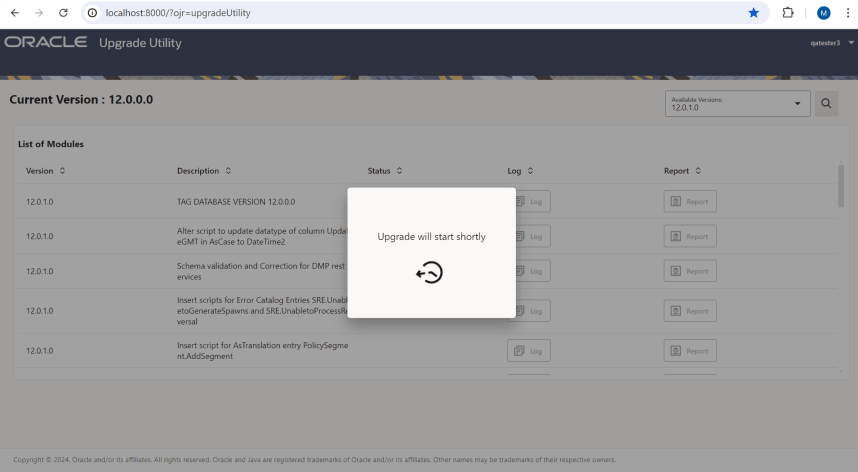
The Upgrade will start shortly message appears until the upgrade process starts.
Database Updates
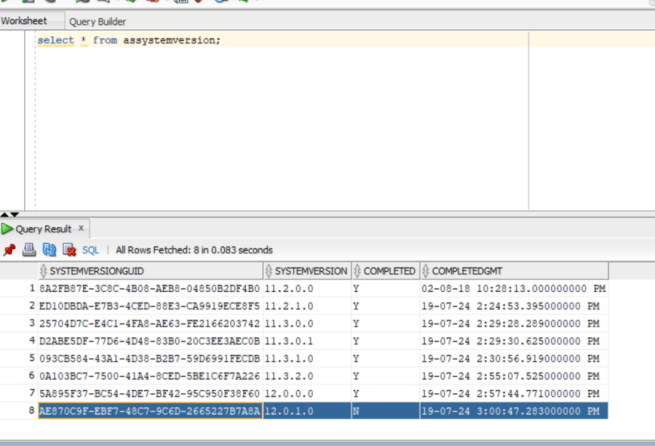
When upgrade process starts, a new row is added to the AsSystemVersion table with completed N status. After completion the status for the respective version upgrade updates to Y. This continues till the final upgraded version.
Another table AsUpgradeModule inserts entries for all the executed modules.
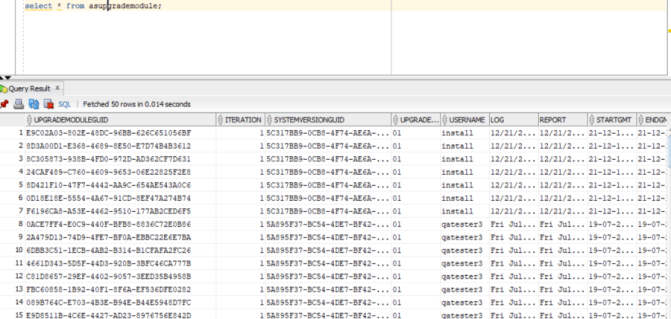
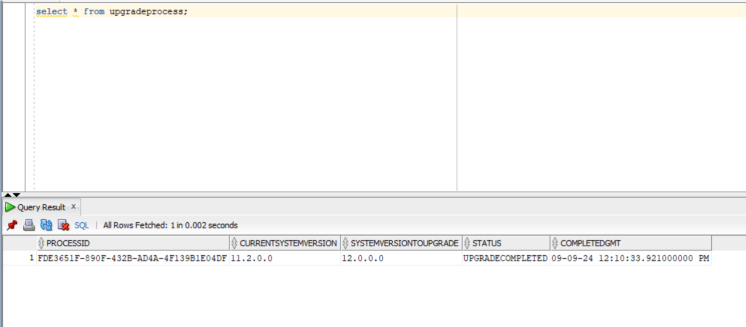
A new entry is added to table "upgradeprocess" (This is a newly introduced table and will get created during Upgrade Utility application start up. It keeps track of current state of upgrade process). The status and completed GMT have null entries initially.
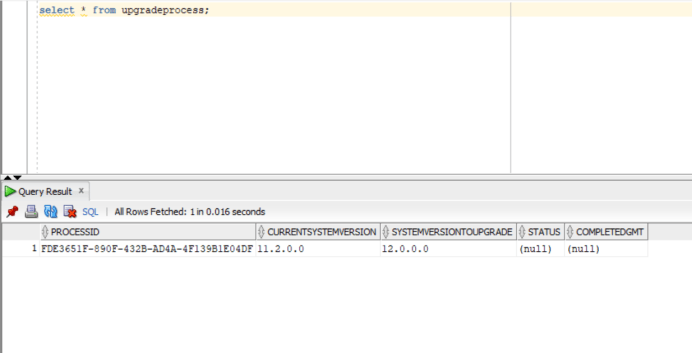
The possible status column values are:
-
UPGRADECOMPLETED: This status is updated when the upgrade operation has been successfully completed.
-
UPGRADEFAILED: This status is updated when the upgrade operation fails during execution.
-
ROLLBACKCOMPLETED: This status is updated following the successful completion of a rollback operation after an upgrade failure.
-
ROLLBACKFAILED: This status is updated when a rollback operation fails to complete.
When the upgrade process begins the Oracle Upgrade Utility page is updated and it diplays as List of Module and Dashboard section.
In the List of Modules section the status are updated according to the module execution, success or failure.
For executed modules a green tick icon appears in the Status column of the module and the Upgrade option is disabled.
In the Dashboard section, the pie chart displays the progress of the module execution according to the upgrade progress. The chart has two sections:
-
Remaining % (in beige)
-
Completed % (in green)
In the following screenshot the total number of modules are 44, where the executed modules are 6 and remaining to be executed are 38.
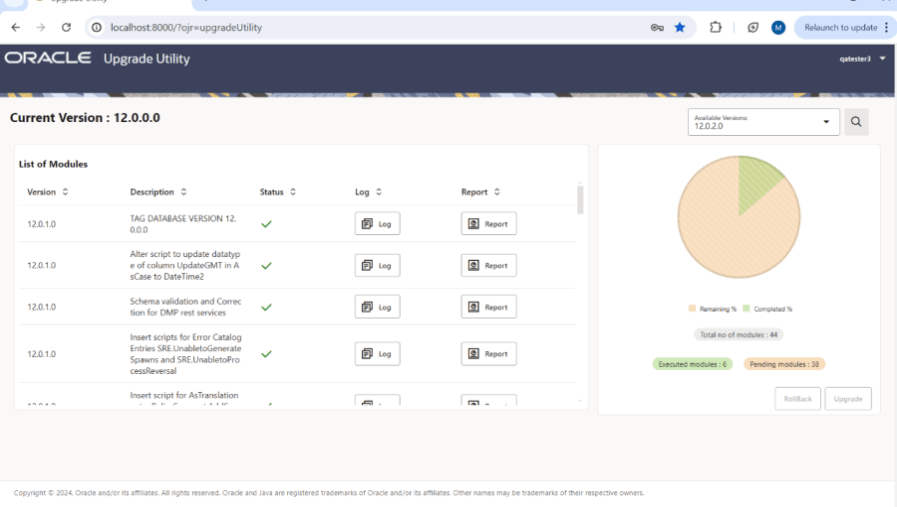
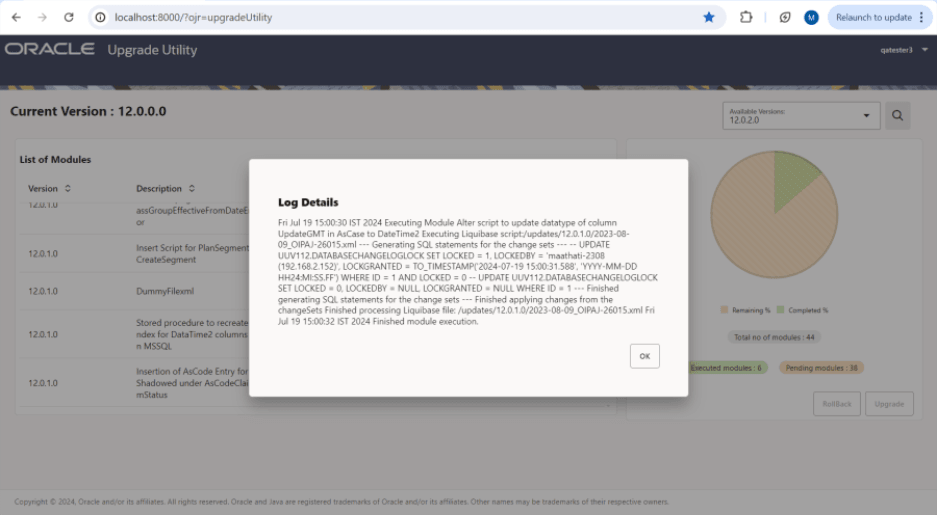
Click Log icon to view the log in the Log Details dialog box.
Click Report icon to view the report in the Report Details dialog box.
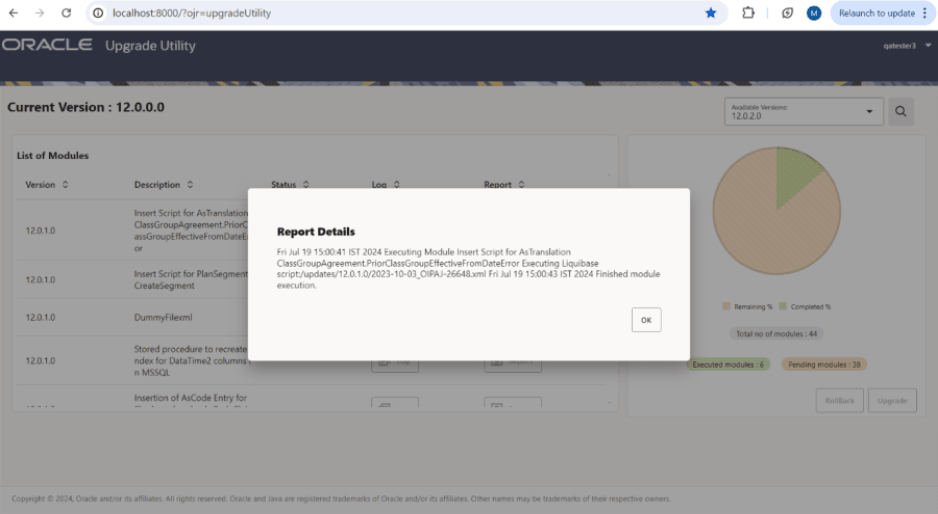
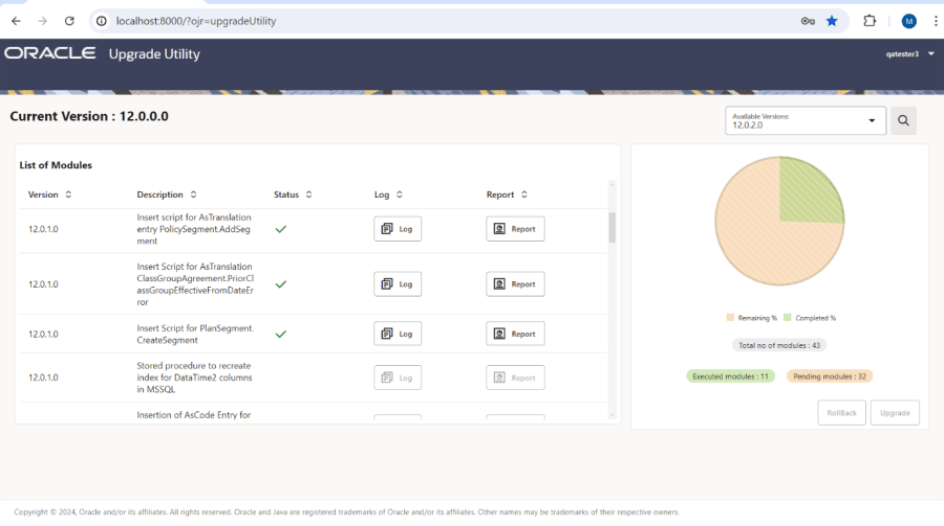
When the upgrade is executed successfully UpgradeStatus dialog box appears.
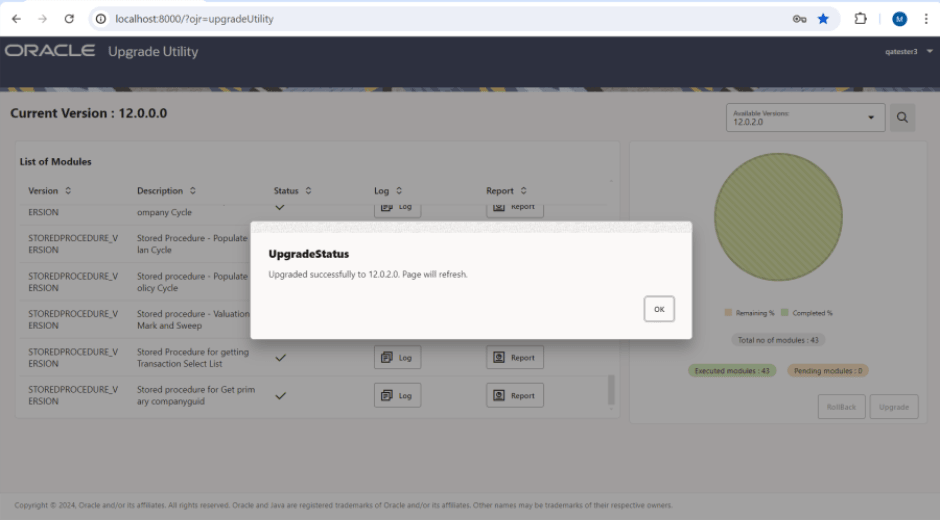
Click OK, the Upgrade Utility page is refreshed and the current version is updated as shown in the below screenshot.
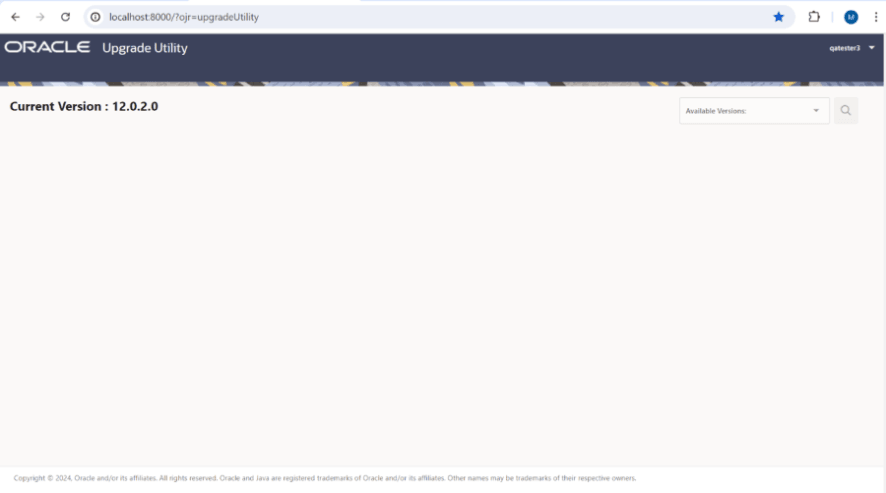
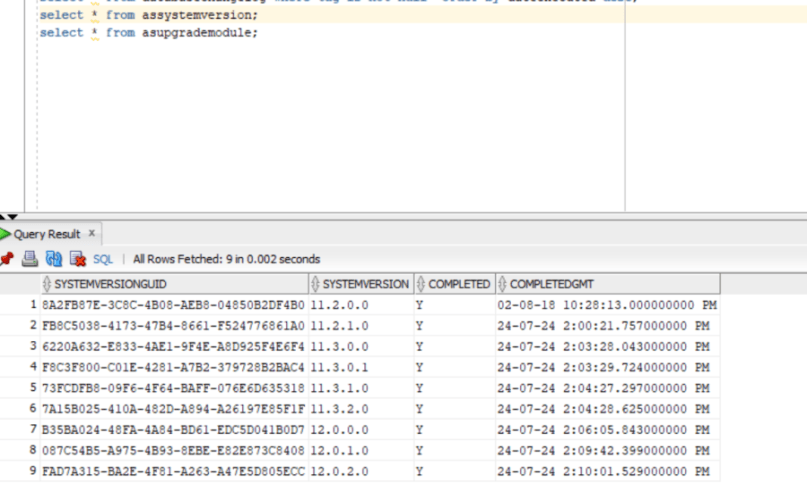
System version is stating as completed.
The upgradeprocess table entry will also get updated with the status "UPGRADECOMPLETED".