4.1 Demoting the Active NOAM from Primary to Secondary
Perform the following steps on Primary NOAM VIP to
stop the Application Software on Primary and DR NOAM.
- Launch an HTML5 compliant browser and connect to the XMI Virtual IP address
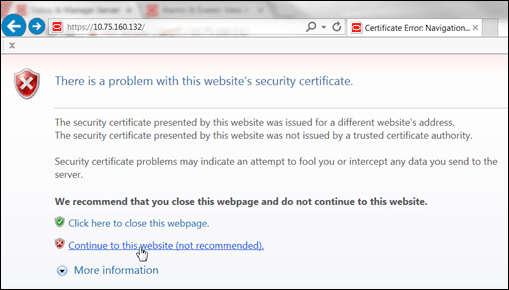
(VIP) assigned to Primary Active NOAM site.If a Certificate Error is received, click on Continue to this website (not recommended) link.
Figure 4-1 Certificate Error
The login screen appears.
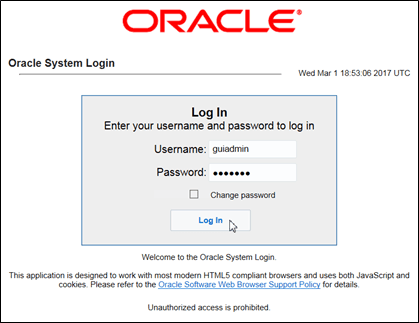
- Log in to the GUI using a User account with Administrator privileges.
Figure 4-2 Login Screen
The Product Main Menu appears.
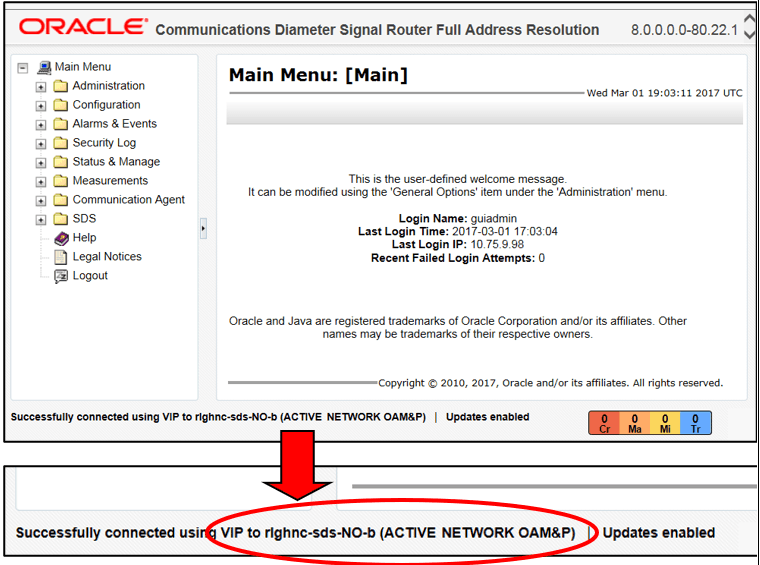
- Verify that the message shown at the bottom of the panel indicates that the
browser is using the VIP to connect to the ACTIVE NETWORK
OAM&P.
Figure 4-3 Main Menu
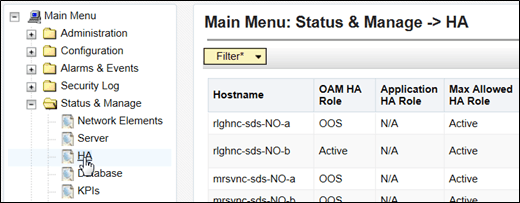
- Go to Main Menu, and then Status & Manage. Then, select HA.
Figure 4-4 Main Menu - HA
- Use the Server hostname shown in the bottom banner for the ACTIVE
NETWORK OAM&P to identify the current Primary
NOAM site.

Note:
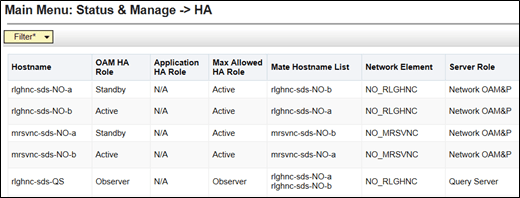
The server hostname of the ACTIVE NETWORK OAM&P identifies the current Primary NOAM site. For example, rlghnc. - As the Primary NOAM site is identified, next identify the Primary Active,
Primary Standby, Secondary Active (DR) and Secondary Standby NOAM Servers.
Note:
Active or Standby states for each NOAM server must be recorded as it is critical that the SW on each server be stopped in the exact order specified in Steps 8 - 12 of this procedure. - Record the hostnames of the Active/Standby NOAM servers at the Primary and
Secondary (DR) NOAM sites in the space provided.
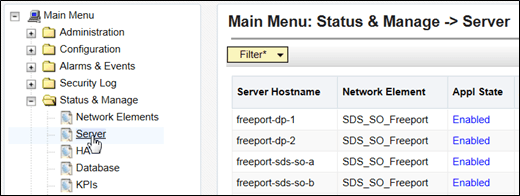
Site_1 = Primary_NOAM (Active) = _________________________ Site_1 = Primary_NOAM (Standby) = _________________________Site_2 = DR_NOAM (Active) = _________________________ Site_2 = DR_NOAM (Standby) = _________________________ - Go to Main Menu, and then Status & Manage. Manage, and then select Server.
Figure 4-5 Main Menu - Server
- Based on the information recorded in Step 6 of this procedure,
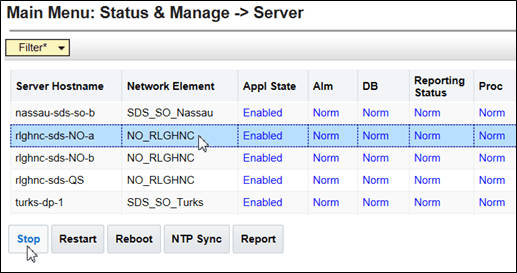
perform the following steps on the Primary NOAM Standby
server:
- Select the server in the right panel.
- Click Stop.
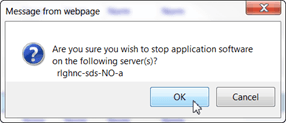
- Click OK in the pop-up confirmation
box.
Note:
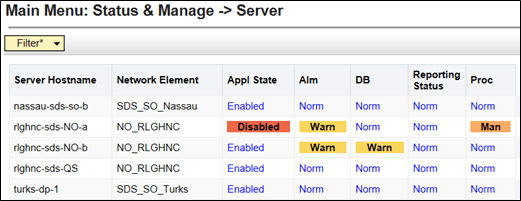
Alarms begin to generate at this time including but not limited to Event ID(s): 10008, 10075 & 31201. - After the screen refreshes, verify that the server now shows an Appl State
value of Disabled and a Proc value of
Man.
Note:
Although the screen automatically refreshes after several seconds, the user may refresh it immediately if desired by re-selecting the left menu option for the Main Menu: Status & Manage, and then Server.Note:
- To stop the SW on the Primary NOAM Active server, refer to Steps 8 - 9 of this Procedure for the Primary NOAM “Active” Server.
- To stop the SW on the DR NOAM Standby Server, refer to Steps 8 - 9 of this Procedure for the DR NOAM Standby Server.
- To stop the SW on the DR NOAM Active server, refer to Steps 8 - 9 of this Procedure for the DR NOAM Active server.
- Access the command prompt (CLI) and log in to the server as the
admusr user.
rlghnc-sds-NO-b login: admusr Password: <admusr_password>Note:
The password does not appear on the screen as you type the characters.Output received is similar to that shown below, as the server returns to a command prompt.
*** TRUNCATED OUTPUT ***PRODPATH= RELEASE=8.6.0 RUNID=00 VPATH=/var/TKLC/rundb:/usr/TKLC/appworks:/usr/TKLC/awpcommon:/usr/TKLC/comagent-gui:/usr/TKLC/comagent-gui:/usr/TKLC/comagent:/usr/TKLC/sds PRODPATH=/opt/comcol/prod [admusr@rlghnc-sds-NO-b ~]$ - Confirm that you are connected to the Primary Active
NOAM server by verifying that the server hostname matches the
entry showing VIP Act/Act.
[admusr@rlghnc-sds-NO-b ~]$ hostname rlghnc-sds-NO-b [admusr@rlghnc-sds-NO-b ~]$ ha.mystate -i |grep VIP VIP Act/Act rlghnc-sds-NO-b 0 0302:235736.946 [admusr@rlghnc-sds-NO-b ~]$ - Verify that the current value for myClusterRole is
Primary.
[admusr@rlghnc-sds-NO-b ~]$ top.myrole myNodeId=A0907.121 myParentClusters=( ) myClusterRole=Primary myRecognizedPrimary=A0907 myRecognizedSecondary=A1103 [admusr@rlghnc-sds-NO-b ~]$ - Set the value for myClusterRole to
Secondary.
[admusr@rlghnc-sds-NO-b ~]$ top.setSecondary - Using my cluster: A0907 - New Secondary Timestamp: 03/03/17 00:19:07.181 - Updating To A0907.060: rlghnc-sds-NO-a - Updating To A0907.113: rlghnc-sds-QS - Updating To A0907.121: rlghnc-sds-NO-b - Updating To A1103.165: mrsvnc-sds-NO-b - Updating To A1103.223: mrsvnc-sds-NO-a [admusr@rlghnc-sds-NO-b ~]$ - Verify that the value for myClusterRole is now
Secondary.
[admusr@rlghnc-sds-NO-b ~]$ top.myrole myNodeId=A0907.121 myParentClusters=( ) myClusterRole=Secondary myRecognizedPrimary=A0907 myRecognizedSecondary=Unknown [admusr@rlghnc-sds-NO-b ~]$ - Verify the current PID for the apwSoapServer
process.
[admusr@rlghnc-sds-NO-b ~]$ pl |grep Server A 946215 apwSoapServer Up 03/02 23:52:31 3 !CMNOSIGCHK=1 apwSoapServer [admusr@rlghnc-sds-NO-b ~]$ - Restart the apwSoapServer process.
[admusr@rlghnc-sds-NO-b ~]$ sudo pm.kill apwSoapServer [admusr@rlghnc-sds-NO-b ~]$ - Verify that the PID for the apwSoapServer process has
changed from the previous value shown in the previous step of this
procedure.
[admusr@rlghnc-sds-NO-b ~]$ pl |grep Server A 951908 apwSoapServer Up 03/02 23:52:31 3 !CMNOSIGCHK=1 apwSoapServer [admusr@rlghnc-sds-NO-b ~]$Note:
Post completion of this procedure, return to Figure 2-1.