Assigning Classifications to Supplier
The customer can assign classifications (or classification/sub-classification combinations) and associate certification information with suppliers once supplier classifications and certifying agencies have been defined.
The customer can phase in, phase out, and maintain a historical record for a supplier by controlling the effective date of each classification/sub-Classification combination.
You can assign classification information to suppliers using the Excel-to-Component Interface Utility. For more information, see Assigning Classifications to Suppliers Using Excel-to-Component Interface Utility.
Identify the classifications and certifying agencies that are currently applicable, may become applicable in the future, or may undergo a phase-out in the future. Suppliers can then assign those classifications and certifying agencies, along with supporting information such as comments and/or document attachments. Customers will also have the option to track certifications based on their expiration date and notify internal users about those that have expired or are approaching expiration, enabling them to take appropriate action. Sending Certification Notification email messages to Supplier Contacts is an optional feature. See Setting Up Supplier Classification Tracking.
|
Page Name |
Definition Name |
Usage |
|---|---|---|
|
SUP_VND_CLS |
Assign and maintain classifications, sub-classifications, and certification information. |
|
|
SUP_VNCL_ATT_SEC |
Upload one or more supporting documents for the supplier classification. |
|
|
SUP_VND_CER_SEC |
Enter the certification information for the selected classification/sub-Classification combination. |
Use Assign Classifications page (SUP_VND_CLS) to assign and maintain classifications, sub-classifications, and certification information.
Supplier classifications are optional. It is up to the customer to determine which suppliers may be assigned with classifications. There is no limit to the number of classification/sub-Classification combinations that a supplier may be assigned to.
Navigation:
This example illustrates the fields and controls on the Assign Classifications page. You can find definitions for the fields and controls later on this page.
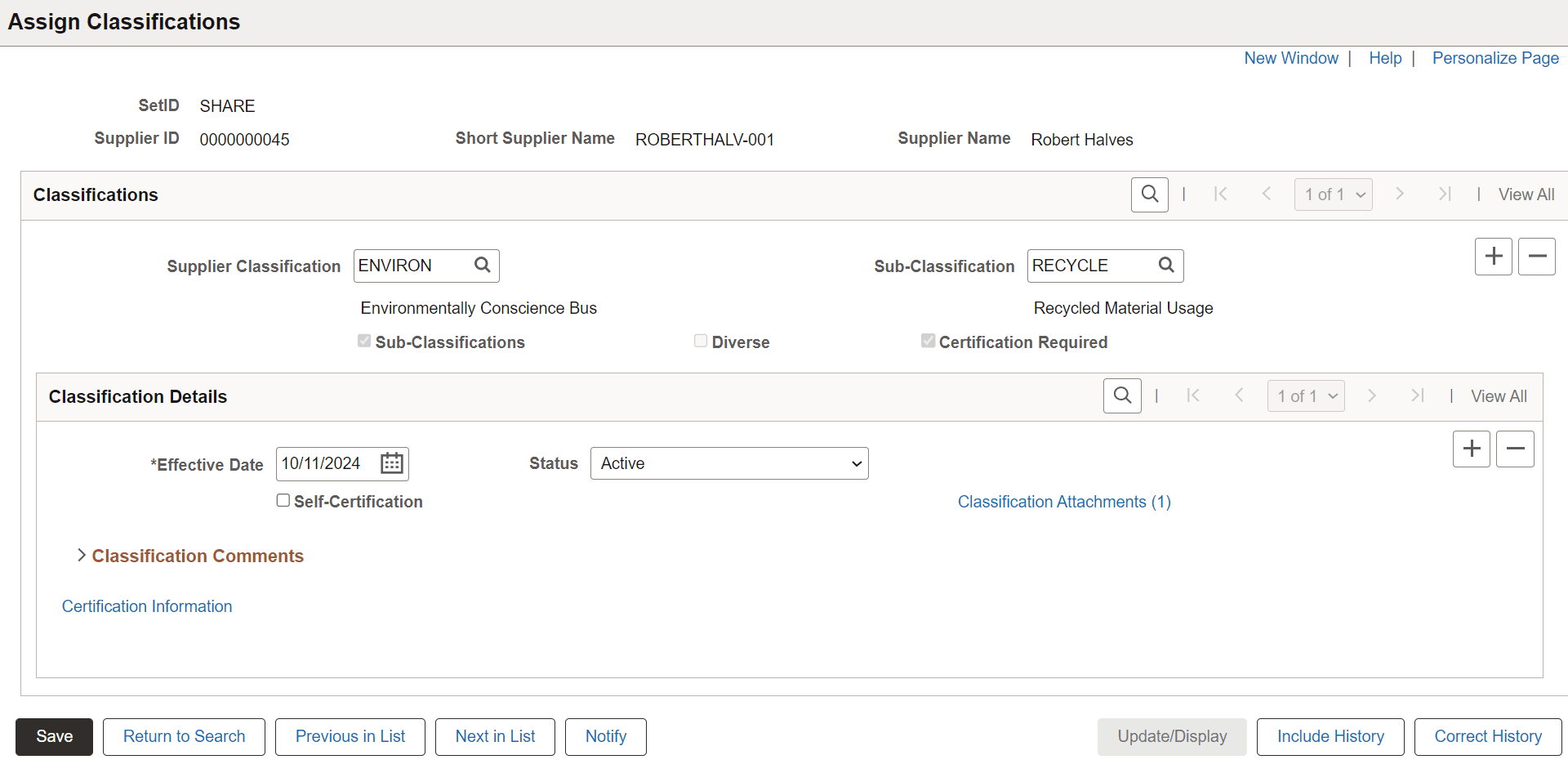
The Assign Classifications page displays the Set ID, the selected Supplier ID, the Supplier Name, and the Short Supplier Name, along with the Classifications and Classification Details sections.
Classifications
|
Field or Control |
Description |
|---|---|
|
Supplier Classification |
Select the classification from the Supplier Classification lookup. The lookup page displays all the active classifications you can select. |
|
Sub-Classifications, Diverse, and Certification Required |
These check boxes are read-only. When you select the classification, the selected classification's setting populates these check boxes. To know more about these check boxes, see Define Classifications Page. |
|
Sub-Classification |
If the selected classification has sub-classifications available, the Sub-Classification check box populates and the Sub-Classification field also appears for selection. |
|
Add a new row and Delete row |
To add multiple classifications, click Add a new row, and to remove the added classification, click Delete row. |
 (Certification Expired) |
This icon appears if a certification has expired for the classification/sub-classification. |
Classification Details
|
Field or Control |
Description |
|---|---|
|
Effective Date |
Select the date from which the classification is applicable. By default, the date is the current date, but you may change it as per requirements. |
|
Self-Certification |
Select this check box to allow the supplier to self-certify instead of using a certifying agency. The Certifying Agency field on the Certification Information page receives the Supplier ID of the currently maintained Supplier. Note: This check box appears if the Certification Required check box is enabled on the Define Classifications Page for the selected classification. |
|
Status |
Select the status of the selected classification. By default, the status is active. |
|
Classification Attachments |
Select this link to upload one or more supportive documents for the classification. To know more, see Classification Attachments Page. |
|
Classification Comments |
Click the drop-down to enter a long comment for this classification. |
|
Certification Information |
Click this link to enter the certification and certifying agency information. Note: This link appears if Certification Required check box is enabled on the Define Classifications Page for the selected classification. To know more, see Certification Information Page. |
Maintaining Assigned Supplier Classification
To maintain any supplier classification, search for the supplier using the search criteria on the Assign Classifications page. The search criteria consist of SetID, Supplier ID, Supplier Name, Class, and Supplier status.
Click Correct History to make changes to any classification/sub-classification combination and their effective dated rows, and save it.
Click Update/Display to view all classification/sub-classifications combinations for a supplier and their current and future effective dated rows. Future effective dated rows may be updated.
Click Include History to view all effective dated rows for each of the classification/sub-classification combinations assigned to the supplier. The information cannot be updated.
The following rules describe the update process of the assigned supplier classification.
You can add any number of new classifications and classification details at any time by clicking Add a new row.
In the Classifications section you cannot change an assigned classification/sub-classification. You must remove it and enter (add) a new one.
You can remove the assigned classification/sub-classification combination by clicking the Delete row button in the Classifications section. This will remove all information related to the classification/sub-classification for the supplier.
In the Classification Details section, effective date and status may be modified, removed, or a new effective dated row added.
Selecting the Self-Certification box in the Classification Details section for an existing classification/sub-classification will remove all existing Certification Information for that classification/sub-classification. It is expected that the certifying agency information will be replaced by self-certification information.
Deselecting the Self-Certification box in the Classification Details section for an existing classification/sub-classification will remove all existing Certification Information for that classification/sub-classification. It is expected that the self-certification information will be replaced by certifying agency information.
Use Classifications Attachments page (SUP_VNCL_ATT_SEC) to upload one or more supporting documents for the supplier classification.
Navigation:
Click the Classification Attachments link on the Assign Classifications page.
This example illustrates the fields and controls on the Classification Attachments page. You can find definitions for the fields and controls later on this page.
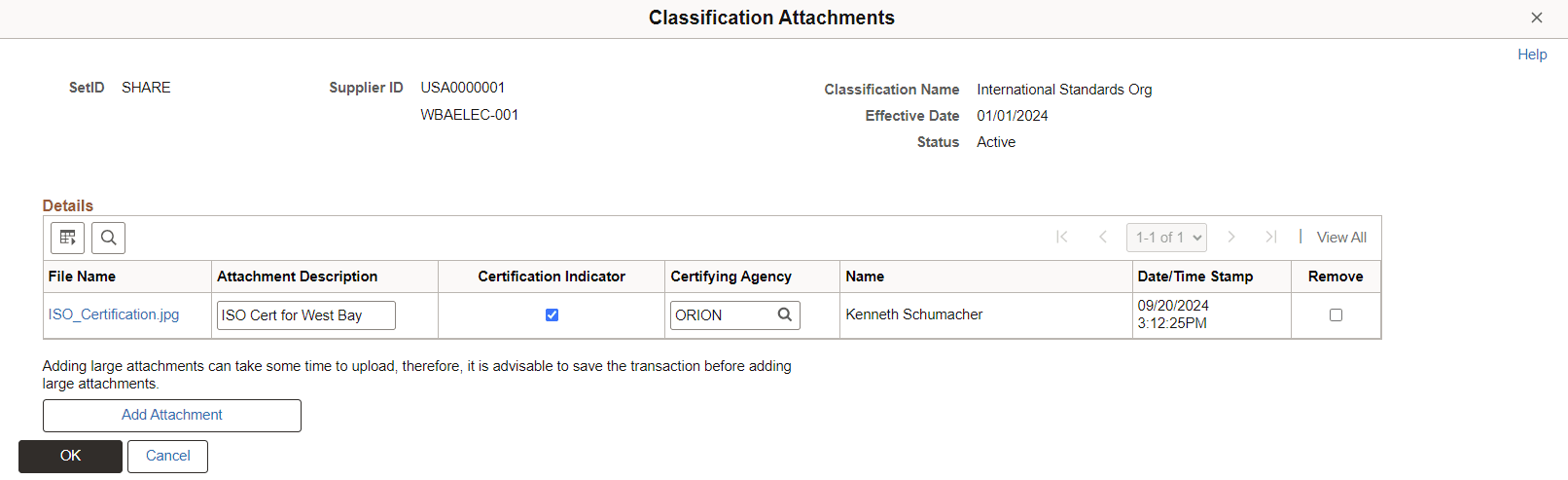
This page displays details about the supplier and classification, including SetID, Supplier ID, Classification Name, Effective Date, and Status, in addition to the following fields.
|
Field or Control |
Description |
|---|---|
|
Add Attachment |
Click this button to view the file upload window where you can upload one or more supporting documents. Note: The system displays an error message if you try to upload more than the number of attachments specified on the Installation Options - Multiple Attachments Page. |
|
File Name |
Displays the uploaded file name. Click the file name link to open the file. |
|
Attachment Description |
Enter a description for the uploaded file. |
|
Certification Indicator |
This check box is enabled if the classification/sub-classification is set to certification required. Select this box if the document is certification related. |
|
Certifying Agency |
Selecting the Certification Indicator check box enables the Certifying Agency prompt lookup field. User may optionally select a Certifying Agency to associate to the document. If Self-Certification is enabled, the Certifying Agency is populated with the Supplier ID and is display only. |
|
Name and Date/Time Stamp |
It shows the name of the individual who uploaded the file along with the upload date and time. |
|
Remove |
Click this check box to remove the attachment. Note: To remove the attachments, the Supplier Classification page should be in Correct History mode. |
Use the Certification Information page (SUP_VND_CER_SEC) to enter the certification information for the selected classification/sub-Classification combination.
All information is required except for the certification number and certification comments.
Navigation:
Click the Certification Information link on the Assign Classifications page.
You can add more than one certifying agency by clicking Add a new row.
This example illustrates the fields and controls on the Certification Information page. You can find definitions for the fields and controls later on this page.
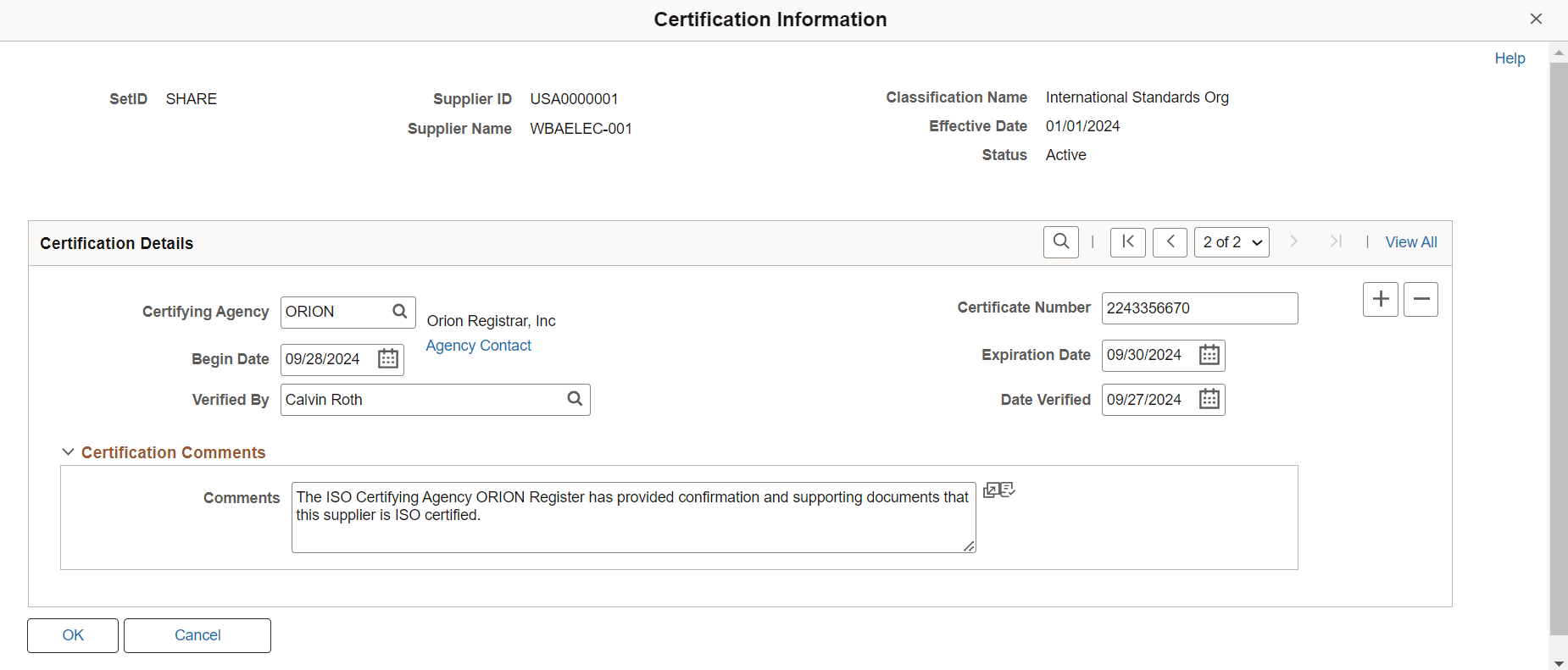
This page displays the information about the supplier along with the supplier classification details (SetID, Supplier ID, Supplier Name, Classification Name and Sub-Classification Name if applicable, Effective Date, and Status).
|
Field or Control |
Description |
|---|---|
|
Certifying Agency |
Select an active certifying agency on the certify agency lookup page. Once the certifying agency is selected, the agency contact link appears. Click this link to view the contact details of the certifying agency, which include the certifying agency name, contact name, title, contact telephone, email address, and URL. |
|
Begin Date |
Select the certification start date. |
|
Verified By |
Select the name who verified the certification. The name is selected from list of internal users in the system. |
|
Certificate Number |
Enter the certification number. |
|
Expiration Date |
Enter the expiration date for this certification. |
|
Date Verified |
Enter the verification date of the certification. |
|
Comments |
Enter the detailed description or comments for this certification. |
Note: When you select the Self-Certification check box on the Assign Classifications page, the Certification Information page automatically populates the Certifying Agency field with the Supplier ID of the currently maintained supplier. Except for the Certification Number and Certification Comments, all other Certification Information fields are editable and mandatory.