Working with the Main Menus
The  Navigation Menu enables you to switch between different pages of the application swiftly. The pages you can access are grouped according to their functionality into branches of the menu that you can expand and collapse. If you have more branches expanded than will fit on screen, the navigation menu has a scroll bar to enable you to see all areas of the menu. The layout of the navigation menu, is:
 Dashboard: If you have access to any dashboards, they will be listed here.
 Portfolios: Expand this branch to access the Portfolio Analysis, Capacity Planning and Performance Status pages.
 Projects: Expand this branch to access the EPS, Activities, Team Usage, Assignments, Issues, Documents, and Risks pages.
 Resources: Expand this branch to access the Administration, Assignments, Analysis, and Planning pages.
 Approvals: Expand this branch to access the Status Updates and Timesheets pages.
 Reports: If the reporting functionality of P6 is configured and you have access to it, this is where you will find the reports you can run.
 Administration: Expand this branch to access the Application Settings, Enterprise Data, Scheduled Services, User Administration, and User Interface Views pages.
The navigation panel collapses out of sight when you're not using it.
The context selector provides access to the Manage Dashboards, Open Portfolio, Manage Portfolios, Manage Portfolio Views, and Open Projects dialog boxes, and allows you to switch to recently used portfolios and projects P6 quickly and easily.
Your assigned user interface view and your view settings on the My Preferences page determine which menu items appear, if any.
The sample image below demonstrates what you might see in P6. You can configure available main menu items on the View tab of the My Preferences page.
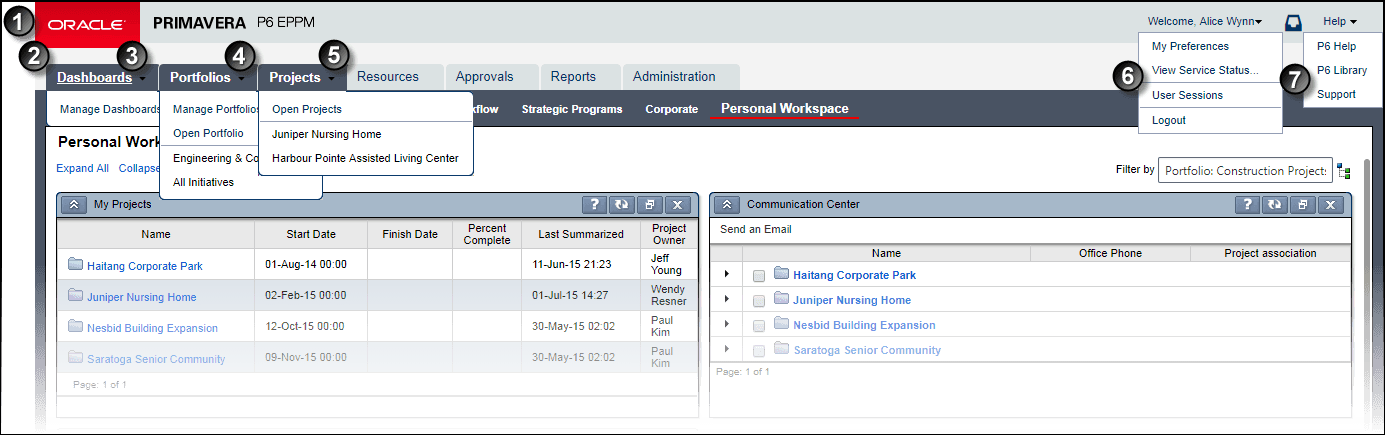
Table of P6 Main Menus
Item | Description |
|---|---|
| Oracle O: Click here to go to the page you have configured as your start page on the View tab of My Preferences. |
| Context Selector: Provides access to control-panel features for dashboards, portfolios, and projects. You can also access your most recently used portfolios and projects here. |
| Help: Opens P6 help in a separate browser window. |
| Notifications: Enables you to view any actions, timesheets, status updates, job services details, or issues awaiting your attention. |
|
|
| User Menu: Assuming all its menu items are configured, this menu provides links to adjust your own calendar and personal preferences. In addition, it can also display links to the View Service Status and User Sessions pages. You can also access the documentation library for P6 and My Oracle Support portal here. If Oracle's feedback survey is open, this is where you can access the link to participate in the survey. This is also the location of the Sign Out option. |
| Search Bar: The type-ahead search enables you to filter the most recently used lists to find a specific portfolio or project. |
| Control-panel Features: Provides access to the Manage Dashboards, Open Portfolio, Manage Portfolios, Manage Portfolio Views, and Open Projects dialog boxes. |
| Most Recently Used Lists: Provides access to your most recently used Portfolios and Projects. The number of most recently used list items can be configured on the Data Limits page of Application Settings. |


Related Topics
Last Published Wednesday, April 1, 2026