Working with P6 Help Topics
The online help appears in your default web browser whenever you need help using P6.
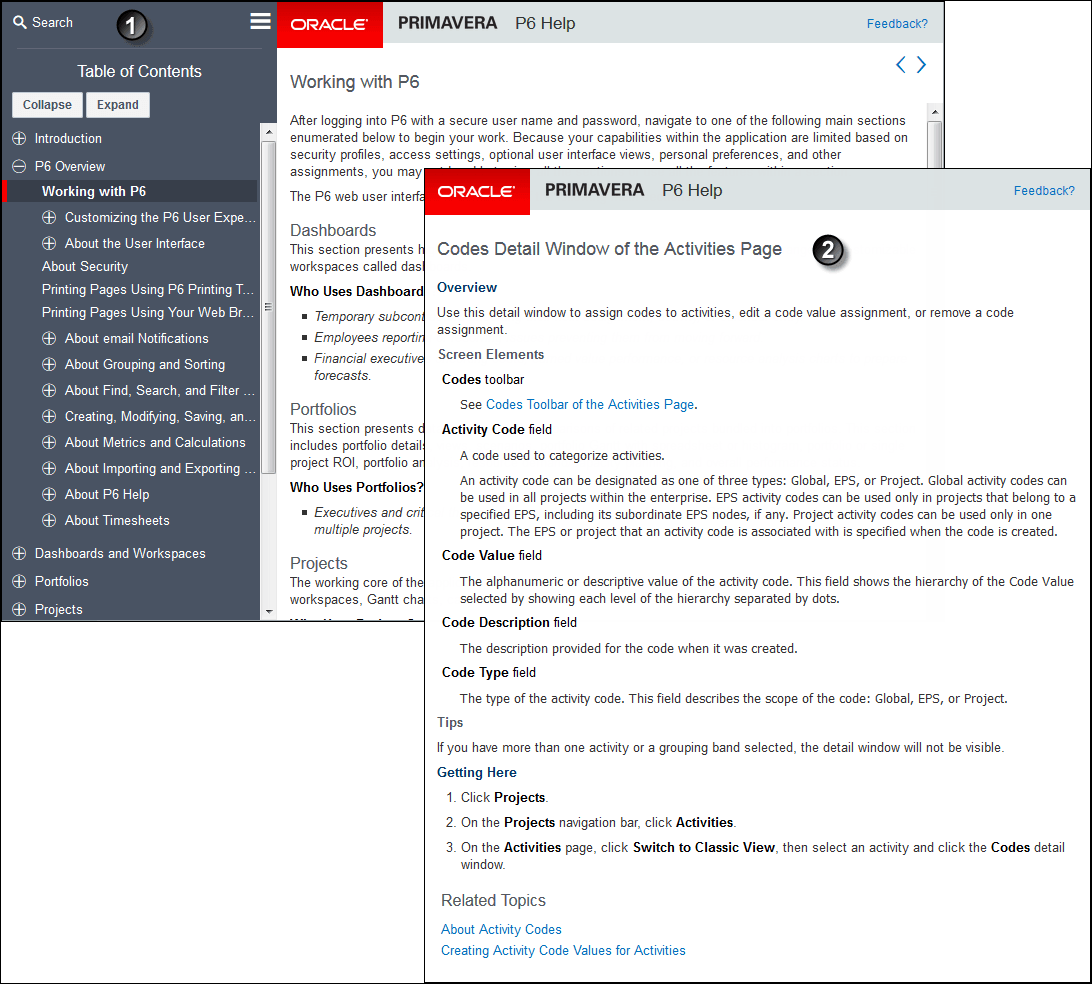
Table of Key Concepts: P6 Help
Item | Description |
|---|---|
| Controls: These controls enable you to:
|
| Contents Tree: You can see the contents of the guide in a familiar tree format. The page names here are links to the relevant page in the guide. |
| Topic Reading Pane: Provides a search box to enable you to search the whole of the guide including an option to limit your search to the titles of topics. By default, the search includes all text of all topics in the guide. This area also shows the main text of the selected topic and provides a link to the start of the chapter. Context-sensitive help topics include an overview, details for all screen elements on the P6 page or dialog box. Other types of topics include conceptual topics that tell you about main ideas, Working With topics that summarize how a feature works often with sample screen images, task topics that take you step-by-step through a procedure, and reference topics that describe icons, fields, and other information. All topics may also include applicable notes, tips, examples, and other information. |
| On This Page Panel: Provides links to each of the subheadings in the topic. You can hide or show this pane. |
| Context Sensitive Help: When you select a help button or icon in P6, the associated help page is opened for you in a separate browser window. The controls allow you to open the Contents Tree pane, go to the Table of Contents for the guide, and share the page on social media. The search box is available here too. |
| Getting Here: Lists the steps required to navigate to the relevant part of P6 |
| Related Topics: Provide you with an opportunity to learn more about the functionality related to this part of the software. |
| Thumbs Up Menu: Here you can provide us with feedback about the text of the topic. When you allow your cursor to hover-over the Thumbs Up menu, you can select either the thumbs up icon (if the topic is helpful) or the thumbs down icon to tell us about problems with the page or ways to improve the information we provide. |


Common P6 Commands
To reduce repetition, the following screen elements are considered common and are documented once in the list below rather than on every help topic. They may appear in P6 as links or buttons:
Save: Validates the data you entered or changed and then stores it. If it cannot validate and save your data, the application will alert you so you can make corrections; for example, when a required field value is missing or if a logical constraint is not met.
Close: Closes the current page or dialog box. If you modified but did not yet save data, you will be prompted to save or discard your changes.
Save and Close: Attempts to save the data and then close the current page or dialog box, returning you to the previous page.
Cancel: Closes the page without saving any changes.
Defaults: Restores all options on the current page to their original default settings.
Apply: Applies your modified settings to the object you are editing but does not save them. This allows you to preview the impacts of your changes and decide if you want to save them or make additional changes.
Customize: Opens the available options for customizing the current item. The custom settings you make may be available to only you or to other users depending on the item being customized.
OK: On a message box or alert dialog box, acknowledges that you have read the message and want to continue rather than close or cancel the operation. On a typical application dialog box, accepts your input and attempts to continue the current task.
Assign: Applies your selection and continues the current task.
Related Topics
Last Published Thursday, April 23, 2026