Template Overview
An environment template is a repeatable blueprint that is used to deploy PeopleSoft environments using Cloud Manager. A template defines the topology to be used for provisioning the PeopleSoft environment, including the Database Template, which defines the database source, middle tier components, and optional components such as search stack and PeopleSoft client. A template also defines environment attributes to enable streamlined deployments. Access to templates can be managed by defining security attributes of the templates.
|
Page Name |
Definition Name |
Usage |
|---|---|---|
|
ECL_TEMPLATE_LP_FL_GBL (Content reference for the tile.) |
Access the Environment Template landing page. |
|
|
ECL_TEMPLATE_FL |
Create new templates or edit, delete or clone existing templates. |
|
|
ECL_TEMPL_GEN_FL |
Enter the template name and description. |
|
|
ECL_TEMPL_TOP_FL |
Select the topology that you have already defined, and edit required attributes. |
|
|
ECL_TEMPL_SEC_FL |
Associate zones in which the environment is created, the roles that have access to the template, and policies that will be auto-enabled for the environment. |
|
|
ECL_TEMPL_REV_FL |
Displays the summary of the environment template that the user is about to create. |
Use the Environment Template tile (ECL_TEMPLATE_LP_FL_GBL) to access Environment Template landing page.
Navigation:
The Environment Template tile is delivered as part of the Cloud Manager home page.
This example illustrates the Environment Template Tile.
Use the Environment Template page (ECL_TEMPLATE_FL) to create a new template, and edit, delete or clone an existing template.
Navigation:
Click the Environment Template tile on the delivered Cloud Manager Fluid home page. The Environment Template page is displayed by default.
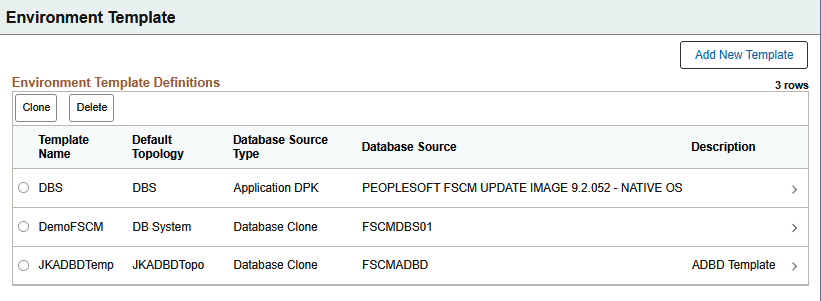
This example illustrates the fields and controls on the Environment Template Definitions page. You can find definitions for the fields and controls later on this page.
|
Field or Control |
Description |
|---|---|
|
Template Name |
Name of the template. |
|
Database Source
Type
|
Indicates the type of database source specified for the template. These types are supported:
The value shown is for the Default Topology. The same values are shown in the Source field on other pages. |
|
Database Source |
For Database Source Type Application DPK, this indicates the PeopleSoft Update Image that gets installed when the template is deployed. For Database Source Type Database Clone, this indicates the Environment Name whose database will be cloned. The value shown is for the default topology. |
|
Default Topology |
Default topology associated with the template. |
|
Description |
Add a description for the template. |
|
Clone |
Select an existing template and click to create a cloned template. |
|
Delete |
Select an existing template and click to delete it. |
|
Add New Template |
Click to define a new template. |
Edit, Delete, or Clone an Existing Template
User can edit, delete or clone the existing templates using the Environment Template landing page.
Note: It is recommended to recreate the existing templates to ensure that the new custom attributes are available in the template.
To edit an existing template details, click a row and modify the details as per requirement.
To delete an existing template, select the radio button corresponding to the template which you want to delete and click the Delete button. You cannot delete a template if it is already used for defining an environment.
To clone an existing template, select the radio button corresponding to the template which you want to clone and click the Clone button available on the Environment Template landing page. The Clone Template modal window is displayed, wherein you can enter the new template name and click the Clone button. The new template is added to the template list.