Working with 1095-C Forms as an Employee
This topic discusses how employees use the PeopleSoft Fluid User Interface to work with 1095-C forms.
|
Page Name |
Definition Name |
Usage |
|---|---|---|
|
HC_ACA_SS_CONSENT_FL_GBL |
Access the 1095-C Delivery Preferences Page. |
|
|
ACA_SS_CONSENT_FL |
Define delivery preference for 1095-C form. |
|
|
HC_ACA_SS_CONSENT_DB_FL |
Access the View Form 1095-C page. |
|
|
ACA_EE_YE_FORM_FL |
View the generated Form 1095-Cs for the employee. |
Use the 1095-C Delivery Preferences Tile (HC_ACA_SS_CONSENT_FL_GBL) to access the 1095-C Delivery Preferences Page.
Navigation:
Select Benefits, Pay & Time from the Quick Access section of the PeopleSoft (My Home) Landing Page. Under My Year-End Forms section, select the 1095-C Delivery Preferences tile.
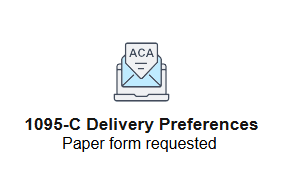
This example illustrates the 1095-C Delivery Preferences Tile when the delivery preference is in paper form.
This example illustrates the 1095-C Delivery Preferences Tile when the delivery preference is in electronic format.
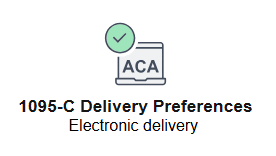
The tile image and tile text varies based on the opted delivery preference.
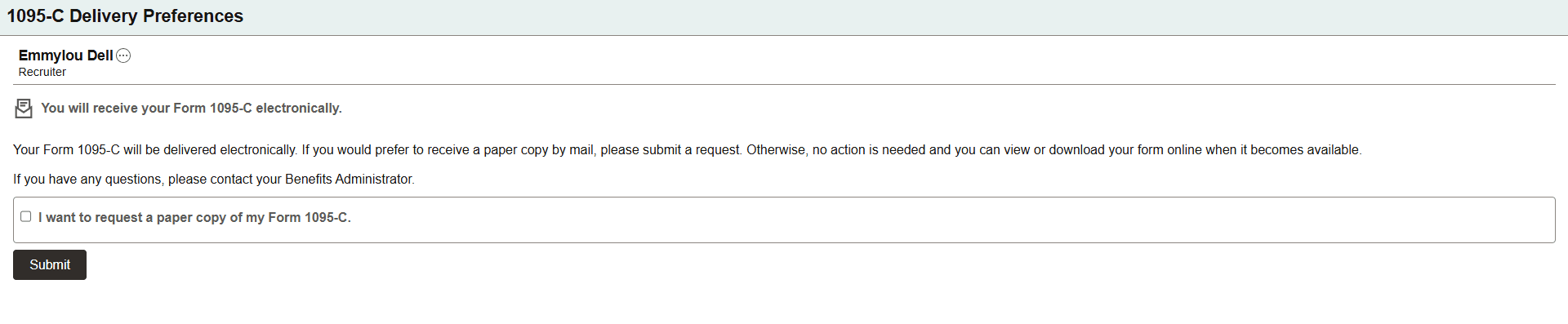
Use the 1095-C Delivery Preferences Page (ACA_SS_CONSENT_FL) to enable employees to define delivery preferences for Form 1095-C.
Navigation:
Select Benefits, Pay & Time from the Quick Access section of the PeopleSoft (My Home) Landing Page. Under My Year-End Forms section, select the 1095-C Delivery Preferences tile.
This example illustrates the 1095-C Delivery Preferences page.
ACA 1095-C Delivery Preferences Access During OnBoarding and PreBoarding
The OnBoarding and PreBoarding users can access the ACA 1095-C Delivery Preferences step as part of their OnBoarding process. If the organization adds this step to the OnBoarding template, then this page will be available to both the PreBoarding and OnBoarding users. To access the page, navigate to Employee Self Service > OnBoarding > OnBoarding Activities and launch the activity guide. Select the ACA 1095-C Delivery Preferences step under Benefits. For more information on PreBoarding, see Understanding OnBoarding and the PreBoarding and OnBoarding Phases.
Use the 1095-C Form Tile (HC_ACA_SS_CONSENT_DB_FL) to access the View Form 1095-C Page.
Navigation:
Select Benefits, Pay & Time from the Quick Access section of the PeopleSoft (My Home) Landing Page. Under My Year-End Forms section, select the 1095-C Form tile.
This example illustrates the 1095-C Form tile.
Use the View Form 1095-C Page (ACA_EE_YE_FORM_FL) to enable employees to view the Form 1095-C generated each year and submitted to the IRS.
Navigation:
Select Benefits, Pay & Time from the Quick Access section of the PeopleSoft (My Home) Landing Page. Under My Year-End Forms section, select the 1095-C Form tile.
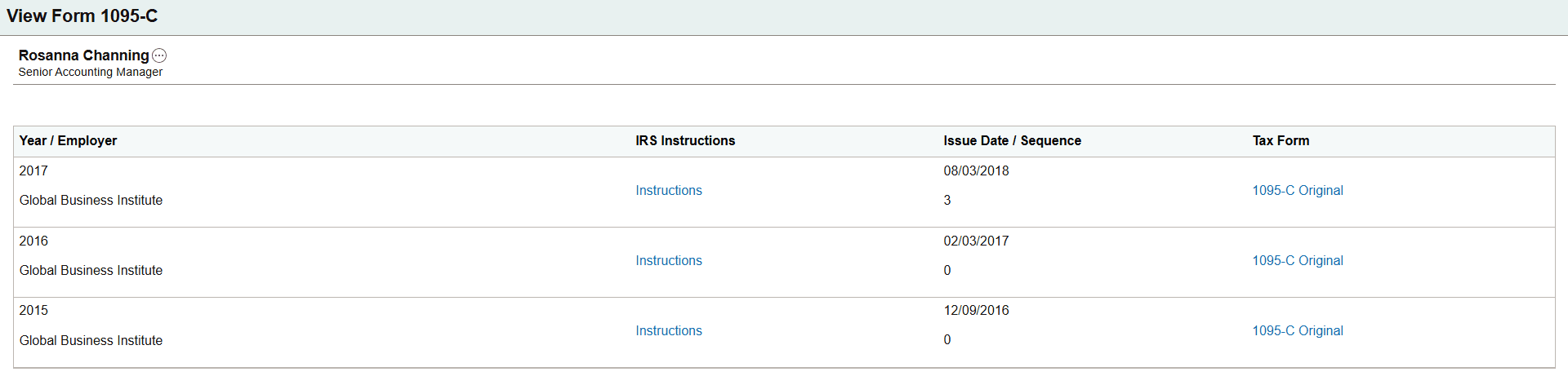
This example illustrates the 1095-C Form page.
|
Field or Control |
Description |
|---|---|
|
IRS Instructions |
Select link to open the filing instructions of the Form 1095-C for the corresponding year. |
|
Issue Date/Sequence |
Displays the date on which the corresponding form was available in Self Service and the sequence of the form. |
|
Tax Form |
Select link to open the PDF of Form 1095-C. There are three kinds of tax forms which could be available for the employee: Original, Reissue and Correction. |
Note: Starting tax year 2022, the self service PDF version of Form 1095-C and the IRS Instructions are accessible and can be read by a screen reader, for example, JAWS.
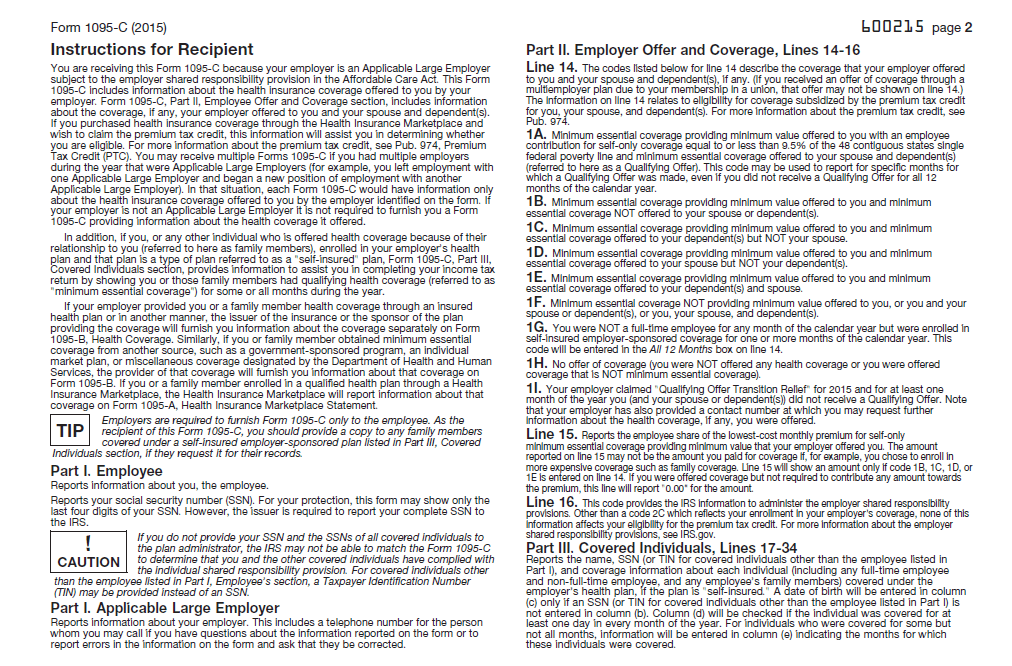
This example illustrates the IRS Instructions page which opens when you click the Instructions link on the View Form 1095-C page.
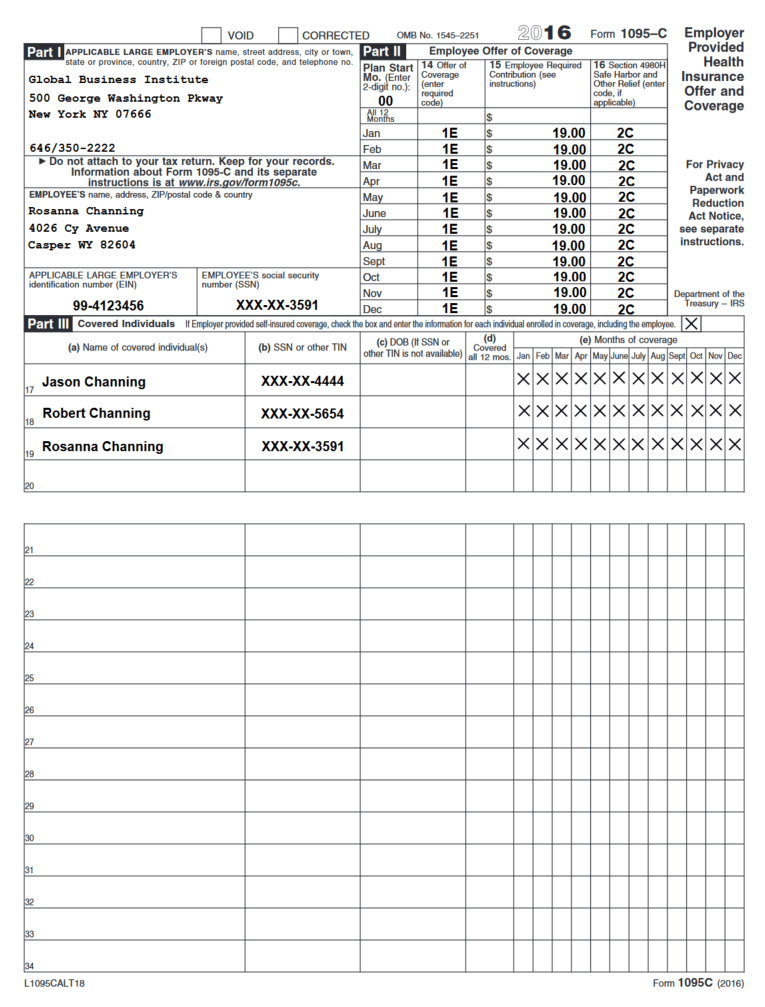
This example illustrates the Tax Form – Form 1095-C which opens when you click a Tax Form link on the View Form 1095-C page.