Advancing Performance Documents
This topic provides an overview of the Advance Documents feature and discusses how administrators can advance performance documents to the target status.
|
Page Name |
Definition Name |
Usage |
|---|---|---|
|
EP_APP_SEL_FL |
Define criteria for selecting documents to advance. |
|
|
EP_APP_ADV_FL |
Select the target status for advancing selected documents. |
|
|
EP_RUN_ADV_DOC |
Define selection criteria and the target status for advancing documents by group or department. |
|
|
EP_ADV_RES_LST_FL |
View a list of completed document advancement process instances. |
|
|
EP_ADV_REV_RPT_FL |
View the advancement status of documents for selected process instances. |
Document advancement is an administrative function in the performance management process that enables the movement of multiple documents to a subsequent status. For example, if a manager is unavailable unexpectedly and their team’s performance documents fall behind schedule, or if entire departments or groups are lagging during a performance cycle, the administrator can proactively advance those documents to keep the review process on track and ensure that all employees remain aligned with organizational timelines.
This feature allows administrators to advance documents that are in the following statuses:
From Track Progress - Checkpoint to Track Progress - <a subsequent checkpoint or Finalize Criteria> or Evaluation in Progress
From Track Progress - Finalize Criteria to Evaluation in Progress
If the options to copy the latest ratings, comments, or both from the Finalize Criteria step to the employee and manager evaluations are selected in the document template definition, these selections will be honored during document advancement.
From Pending Acknowledgement to Acknowledged
From Pending Acknowledgement to Completed (when there is no document approval)
From Acknowledged to Completed (when there is no document approval)
Administrators can select documents to advance by specifying document criteria on the Advance by Document Search - Submit Page. They can also advance documents for specific departments or groups of employees using the Advance by Group/Department Page. After the Advance Performance Documents AE process (EP_ADV_DOC) is triggered from either advance document page and subsequently completed, the results of the process instance are available for review on the Review Advanced Documents - List Page. The review page displays the status of each document included in the process instance, along with any warnings and errors. Errors must be resolved for documents to be eligible for advancement.
Here is an example of a document that was advanced from Track Progress - Checkpoint 1 to Evaluation in Progress, displayed on the Performance Document page. From the popup menu that shows the overall progress of the document, the text Admin Skipped appears for any statuses that were bypassed as a result of the advancement process.
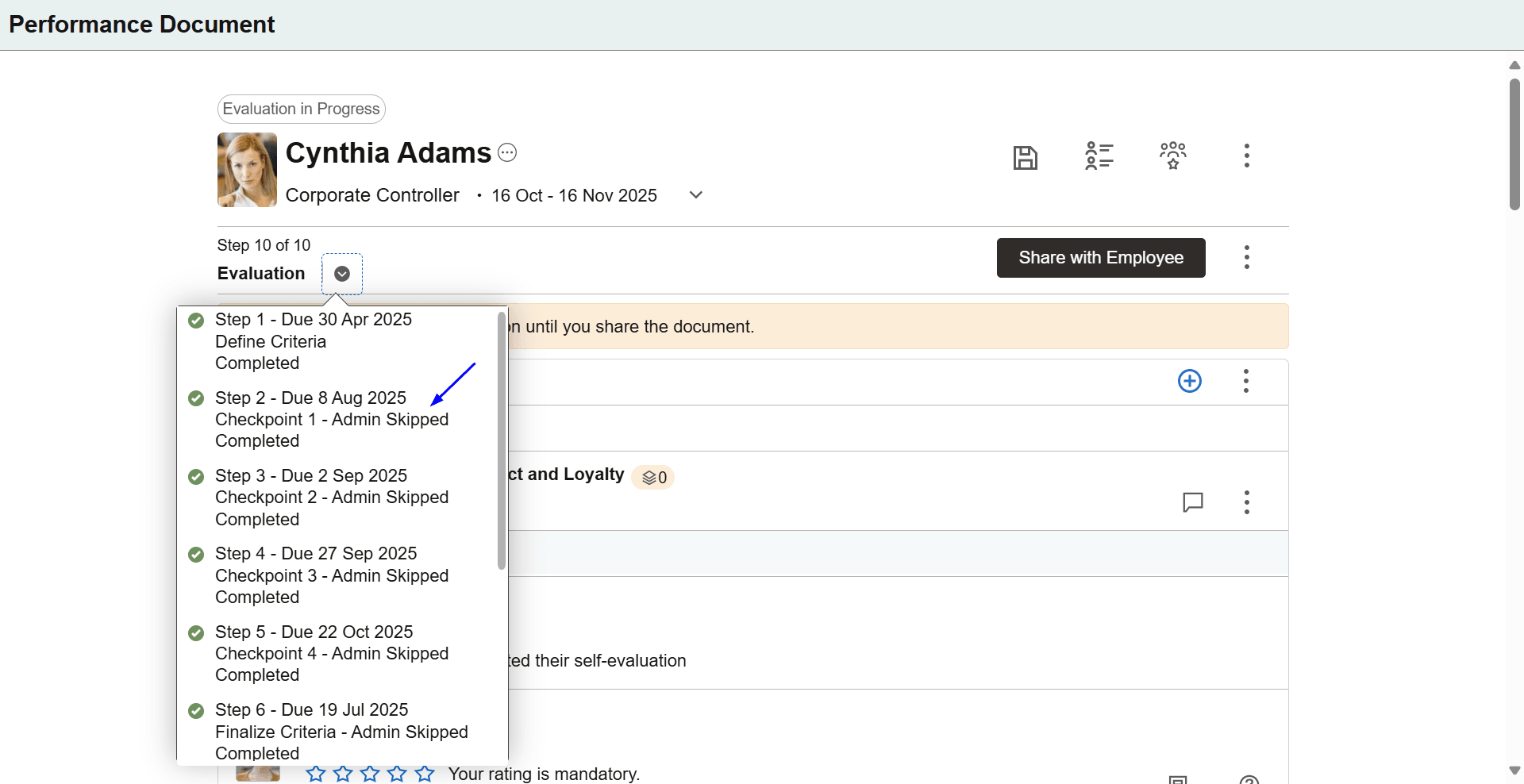
Audit information for skipped statuses in advanced documents is available on the Last Updated Page.
The system supports the delivery of notifications for document advancement using Notification Composer. Notification content (email, phone, and in-app) is maintained in Text Catalog.
If the notification option for advancing documents is enabled on the ePerformance installation page, the system sends a notification to both the employee and manager for each document successfully advanced by the administrator, after the AE process is completed in confirm mode.
Users can select a notification entry or link to access the corresponding document on the Performance Document Page.
If a document is successfully advanced to a new status, the system clears landing page notifications from the Suggestions and Continue With sections in the landing page for all users associated with that document.
To set up the Advance Documents feature, use the ePerformance Installation - ePerformance Page to:
Activate the feature by selecting the Allow Administrator to Advance Document field.
When enabled, pages for advancing documents become visible from the Performance Management Tile and in the menu navigation.
Enable notifications for document advancement by selecting the Document Status was advanced field.
User Roles
To use the Advance Documents feature, users need to be members of either:
Both ePerformance HR Admin Fluid and ePerformance HR Admin roles, or
The Performance Administrator role.
Use the Advance by Document Search - Select Documents page (EP_APP_SEL_FL) to define criteria for selecting documents to advance.
Navigation:
Select the Performance Management Tile. On the left panel, select Advance Documents, then Advance by Document Search.
This example illustrates the fields and controls on the Advance by Document Search - Select Documents page.
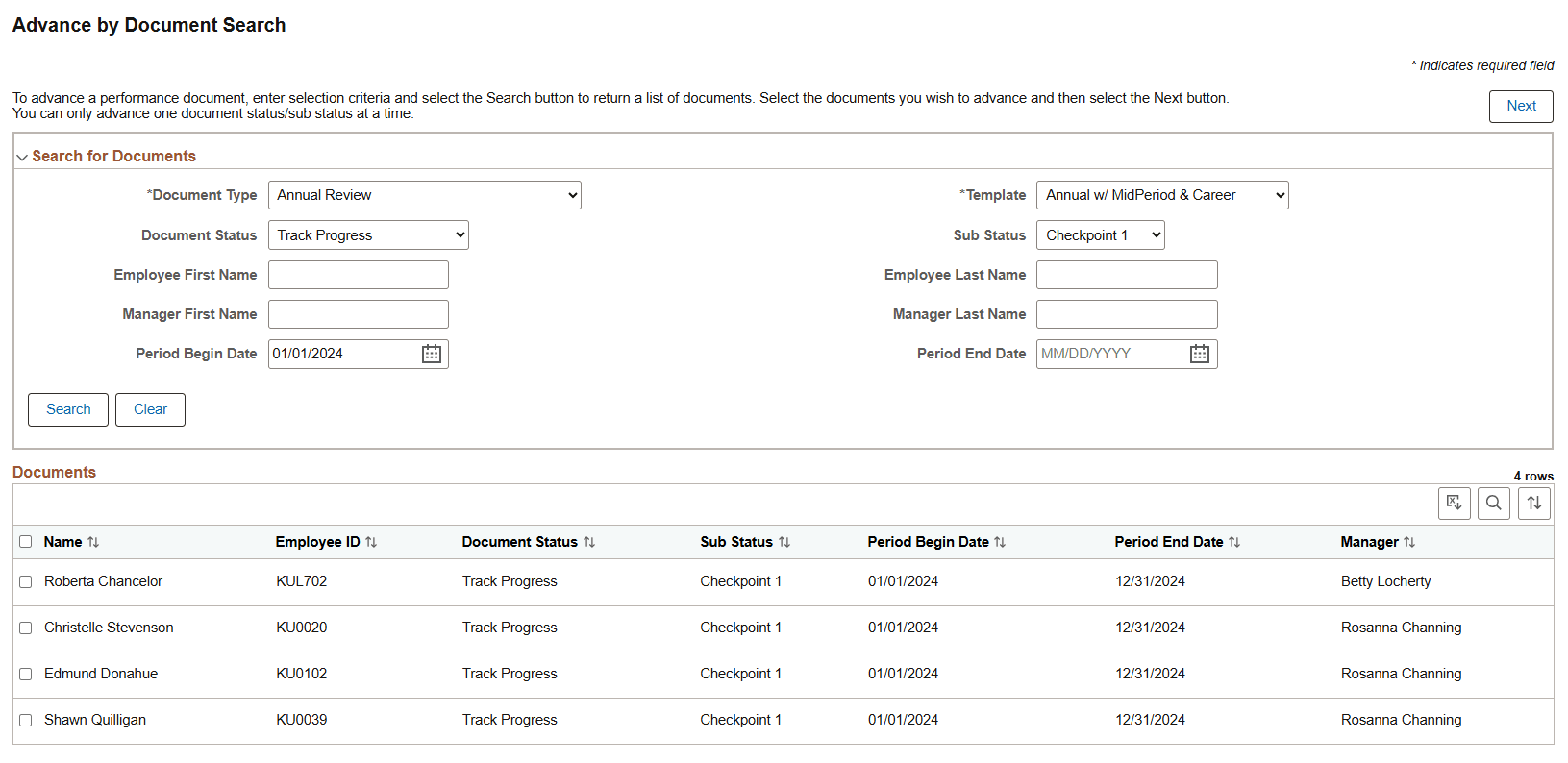
Search for Documents
Use the search fields in this section to look up documents you wish you advance. Both Document Type and Template are required fields. Select the Search button to perform document search.
|
Field or Control |
Description |
|---|---|
|
Document Status and Sub Status |
Select the document status from which you want to advance documents. You can only advance documents that belong to the Acknowledged, Pending Acknowledgement or Track Progress status. When Track Progress is selected, the Sub Status field becomes editable. |
Documents
This section displays documents that match the search criteria. Select documents to advance.
Note: Only documents with the same status and sub-status can be selected to advance within a single process. To advance documents with different statuses, you must process them separately.
Use the Advance by Document Search - Submit page (EP_APP_ADV_FL) to select the target status for advancing selected documents.
Navigation:
Select the Next button after selecting documents to advance on the Advance by Document Search - Select Documents Page.
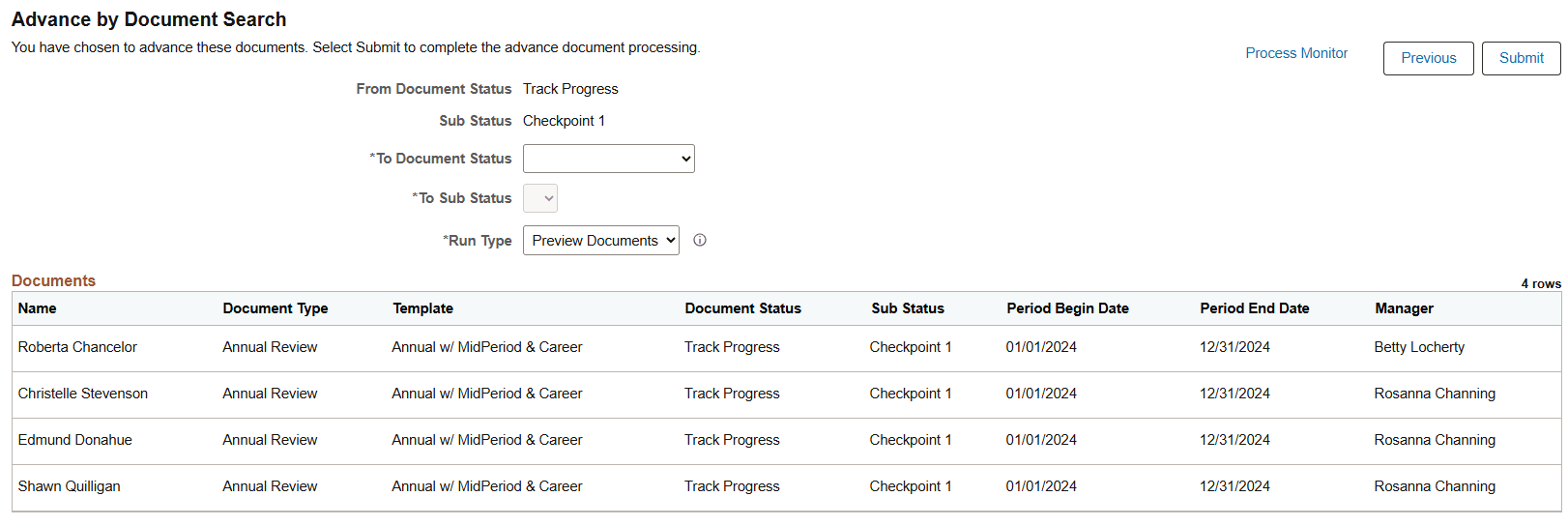
This example illustrates the fields and controls on the Advance by Document Search - Submit page.
|
Field or Control |
Description |
|---|---|
|
Process Scheduler |
Select this link to view the status of submitted processes in the Process Monitor on a modal page. |
|
Submit |
Select to run the Advance Performance Documents AE process (EP_ADV_DOC) with the specified parameters. Upon submission, the system displays a banner message acknowledging that the selected documents have been submitted for advancement. After the submitted process is complete, the results will be available for review on the Review Advanced Documents - List Page. |
|
From Document Status and Sub Status |
Displays the current status and sub-status (if applicable) of the selected documents, which are listed in the Documents section. |
|
To Document Status and To Sub Status |
Select the status and sub-status (if applicable) to which you want to advance the selected documents. The To document status value automatically becomes:
|
|
Run Type |
Select how you want to run the Advance Performance Documents process. Available values include: Preview Documents: (Default value) Select this option to run the advance document process in preview mode and view the results on the Review Advanced Documents - List Page. In preview mode, the selected documents are not actually advanced; instead, the process results, including any warnings and errors, are displayed. When running the process for the first time, it is highly recommended to use preview mode to review and address all issues before proceeding with the process in confirm mode. Confirm Documents: Select this option to advance the selected documents to the specified status in the system. |
Use the Advance by Group/Department page (EP_RUN_ADV_DOC) to define selection criteria and the target status for advancing documents by group or department.
Navigation:
Select the Performance Management Tile. On the left panel, select Advance Documents, then Advance by Group/Department.
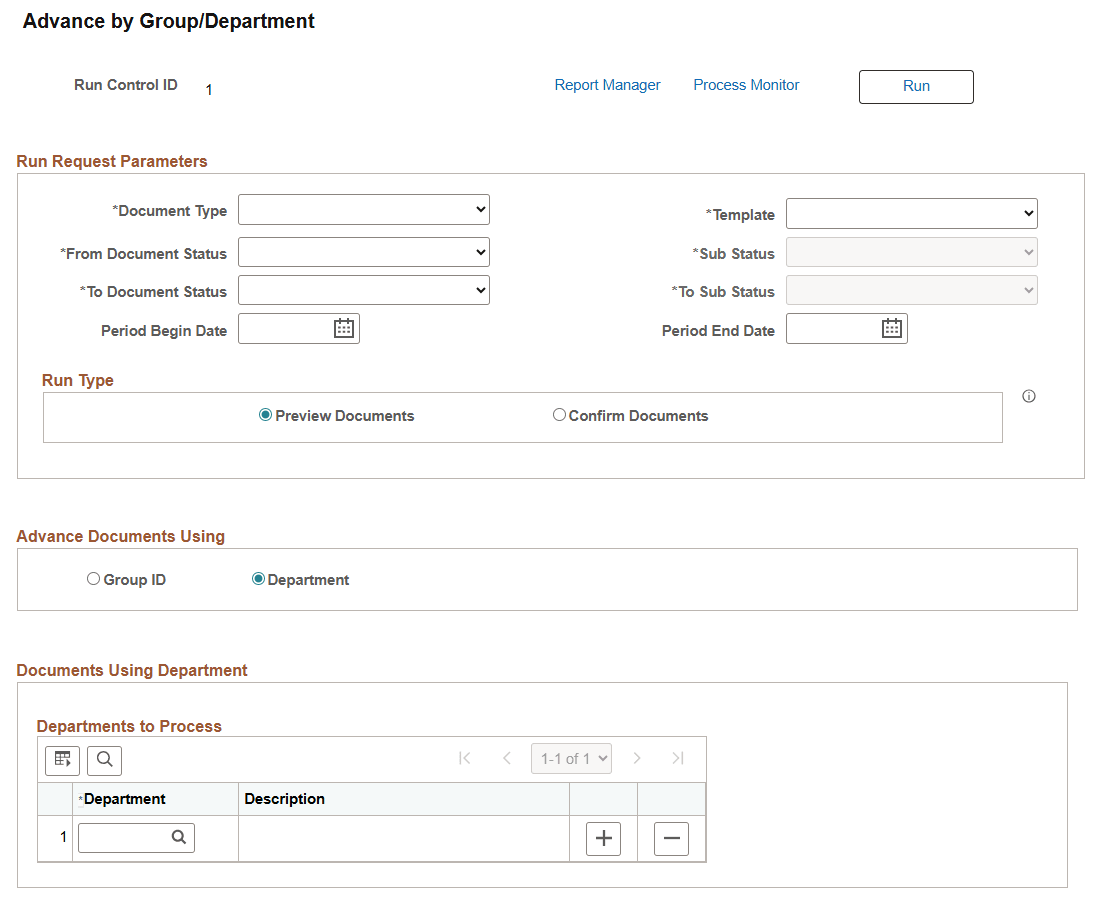
This example illustrates the fields and controls on the Advance by Group/Department page.
Run Request Parameters
Use the fields in this section to identify documents you wish to advance.
|
Field or Control |
Description |
|---|---|
|
Run Type |
Select how to run the Advanced Performance Documents process: Preview Documents: (Default value) Select this option to run the advance document process in preview mode and view the results on the Review Advanced Documents - List Page. In preview mode, the selected documents are not actually advanced; instead, the process results, including any warnings and errors, are displayed. When running the process for the first time, it is highly recommended to use preview mode to review and address all issues before proceeding with the process in confirm mode. Confirm Documents: Select this option to advance the selected documents to the specified status in the system. |
Advance Documents Using
|
Field or Control |
Description |
|---|---|
|
Group ID or Department |
Select:
|
Documents Using Group ID
Specify one or more groups for documents to be advanced. This section appears when Group ID is selected in the Advance Documents Using section.
For each selected group, enter the as of date that is used by the process to return the list of group members (employees).
Groups are defined using Group Build. For more information about the feature, see Understanding Group Build.
Documents Using Department
Specify one or more departments for documents to be advanced. This section appears when Department is selected in the Advance Documents Using section.
Use the Review Advanced Documents - List page (EP_ADV_RES_LST_FL) to view a list of completed document advancement process instances.
Navigation:
Select the Performance Management Tile. On the left panel, select Advance Documents, then Review Advanced Documents.
This example illustrates the fields and controls on the Review Advanced Documents - List page.
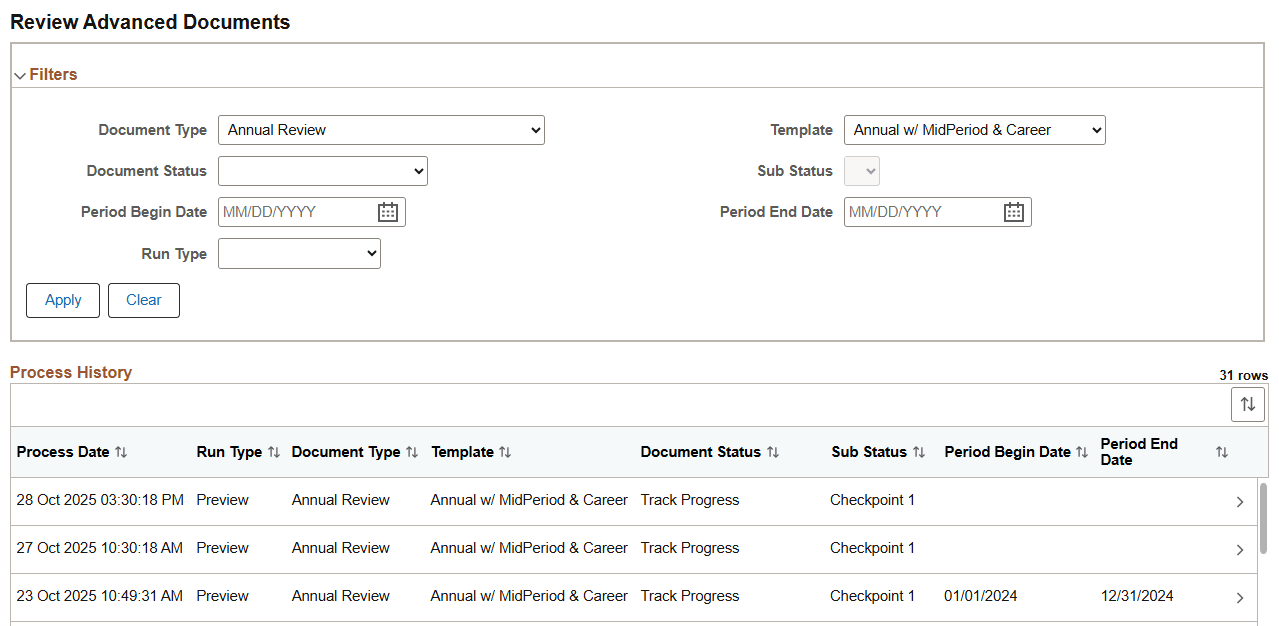
Filters
Use this section to filter process results to view as needed. For example, you can refine the list of results to only view processes that were run in preview mode or for a specific From document status.
Process History
This section lists the results of the requested Advance Performance Documents process that were submitted from the Advance by Document Search - Submit Page and Advance by Group/Department Page. Select a row to view the results of a specific process run.
Use the Review Advanced Documents - Detail page (EP_ADV_REV_RPT_FL) to view the advancement status of documents for selected process instances.
Navigation:
Select a row on the Review Advanced Documents - List Page.
This example illustrates the fields and controls on the Review Advanced Documents - Detail page.
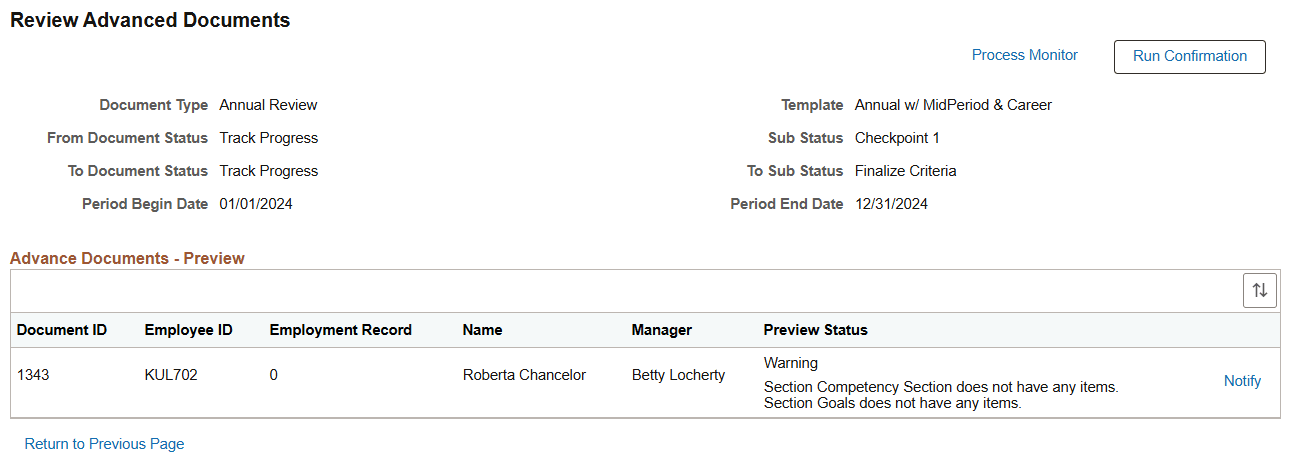
The header area displays general information about the selected process.
|
Field or Control |
Description |
|---|---|
|
Run Confirmation and Process Monitor |
Both Run Confirmation and Process Monitor appear when the run type of the selected process is Preview Documents. Select the Run Confirmation button to run the process again with the same parameters in confirm mode. This will advance the documents listed in the Advanced Documents - Preview section, except for those with errors. If documents are reported with errors, resolve the issues and rerun the process in preview mode. The process validates all selected documents again for advancement, and you can verify in the results whether the issues have been fixed. Repeat as needed until all errors are resolved, or select Run Confirmation to advance documents that do not have errors. Use the Process Monitor link to view the status of submitted processes. |
Advance Documents - <Run Type>
This section lists the status of the documents included in the process.
The section title shows the run type (Confirm or Preview) of the selected process dynamically.
|
Field or Control |
Description |
|---|---|
|
<Run Type> Status |
Displays the status of the document. Available values are: Success: indicates that the document was (or will be) advanced successfully after process completion. Warning or Warning - Processed: validation checks identified warnings in the document, as displayed. The document can still be advanced with warnings. Error: validation checks identified errors in the document, as displayed. Errors must be addressed before the document can be advanced. |
|
Notify |
Select to compose an email message to the manager of the document. For example, you can notify the manager about errors in the document that must be resolved before it can be advanced. This link is not available if the status is Success. |
|
Return to Previous Page |
Select to return to the Review Advanced Documents - List Page. |