Viewing Year-End Forms
|
Page Name |
Definition Name |
Usage |
|---|---|---|
|
|
To resolve inquiries, the payroll administrator can view or reprint employees' self-service slips in an online view that replicates the employees' self-service view. If the Final Print check box is selected, the employee can view the year-end form in self-service on or after the availability date if consent has been granted. If Final Print is not selected, only the payroll administrator can view the form. Note: Canadian employees who have consented to receive electronic slips can access their year-end slips and filing instructions in Fluid Employee Self-Service. For more information, refer to the (CAN) Using the PeopleSoft Fluid User Interface to Manage Consent for Electronic Year-End Forms topic. |
|
View T4/T4A Slips - Select Tax Year Page |
(Classic) PY_TAX_LIST_CAN |
Select a slip to view from the slip list organized by tax year. |
|
View W-2/W-2c Forms |
(Fluid) PY_ADM_YE_W2_FL (Classic) PY_SS_YE_FORM_USA |
To resolve inquiries, the payroll administrator can view or reprint employees' self-service forms in an online view that replicates the employees' self-service view. If the Final Print check box is selected, the employee can view the year-end form in self-service on or after the availability date. If Final Print is not selected, only the payroll administrator can view the form. Note: U.S. employees who have consented to receive electronic forms can access their year-end forms and filing instructions in Fluid Employee Self-Service. For more information, refer to the (USA) Using the PeopleSoft Fluid User Interface to Manage Consent and View Electronic Year-End Forms topic. |
|
View W-2/W-2c Forms - Select Tax Year Page |
(Classic) PY_TAX_LIST_USA |
Select a form to view from the list of forms organized by tax year. |
Payroll administrators can access employees' year-end forms and slips to assist with inquiries in Fluid, with the same view and experience as employees.
Year-end forms and slips function identically for both payroll administrators and employees.
Review the following items that are specific to payroll administrators when using year-end pages:
The user role and permission list required to access year-end pages are:
For U.S. year-end forms:
(Role) Payroll Administrator USA
(Permission list for W-2/W-2c forms) HCCPPY1011
For Canadian year-end slips:
(Role) Payroll Administrator CAN
(Permission list for RL-1/RL-2 slips) HCCPPY1010
(Permission list for T4/T4A slips) HCCPPY1012
Navigation to:
View W-2/W-2c Forms page:
View T4/T4A Slips page:
View RL-1/RL-2 Slips page:
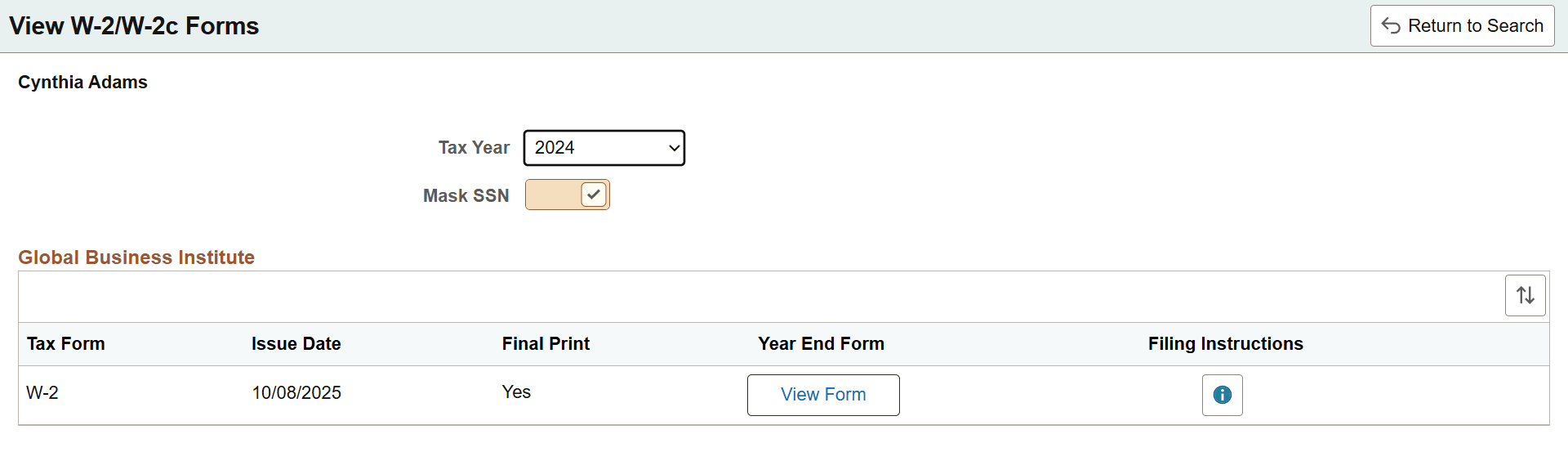
The administrator view of year-end forms and slips includes additional fields:
The employe name is shown on the page for easy identification.
The Tax Year field is available for administrators to select different year-end forms and slips.
(For Canadian year-end slips) The Mask SIN option is available. When selected, the SIN is displayed in a masked format on the year-end slip.
(For U.S. W-2/W2-c) The Mask SSN option is available if masking the SSN on the employee copy is enabled on the BI Publisher SSN Mask Options page.
When Mask SSN is selected, the SSN is displayed in a masked format on the year-end form.
The Final Print field is displayed.
This is an example of the Fluid View W-2/W-2c Forms page for administrators. The page layout is similar across all year-end forms and slips.
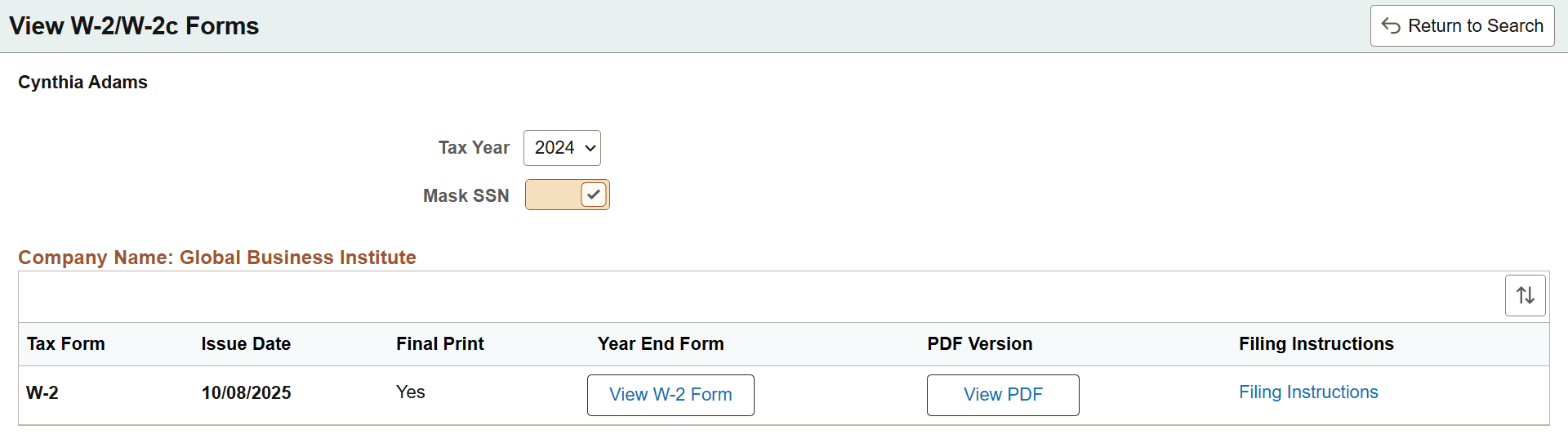
Administrators can view fluid year-end forms and slips in screen reader format (HTML), which can be enabled either at the system level using the Fluid HTML View in Standard Mode configuration on the Payroll for NA Installation Page, or at login on the Sign In page.
This is an example of the Fluid View W-2/W-2c Forms page for administrators in screen reader mode.
These steps are required before employees can view and print electronic year-end forms and slips in self-service:
Configure Integration Broker and Report Manager.
Specify tax form BI Publisher options.
See year-end processing instructions available for download in the Payroll for North America Tax Updates knowledge article (KA643) posted on My Oracle Support at the end of each year.
Specify the year-end form options.
On the Year End Form Options page, specify the tax year and the form availability date.
See Year-end processing instructions issued with the tax update posted on My Oracle Support in October of each year.
Complete the employee consent process.
Create year-end form data and then create the forms using the PDF year-end form creation processes.
Note: On the run control pages for the PDF year-end form creation processes, select the Final Print check box to enable employee self-service viewing as of the availability date specified on the Year End Form Options page. In Canada, self-service viewing is also subject to the consent status.
See year-end processing instructions available for download in the Payroll for North America Tax Updates knowledge article (KA643) posted on My Oracle Support at the end of each year.
For more information, see the product documentation for:
PeopleTools: Integration Broker Service Operations Monitor
PeopleTools: Process Scheduler