Generating Bulk Wage Statements
This topic provides an overview of bulk wage statement generation and discusses how to generate bulk wage statements.
|
Page Name |
Definition Name |
Usage |
|---|---|---|
|
RUNCTL_DWD_WAGE_ST |
Specify the parameters for generating PDF files containing multiple wage statements. |
|
|
PY_BLKPDF_EMPL_LST |
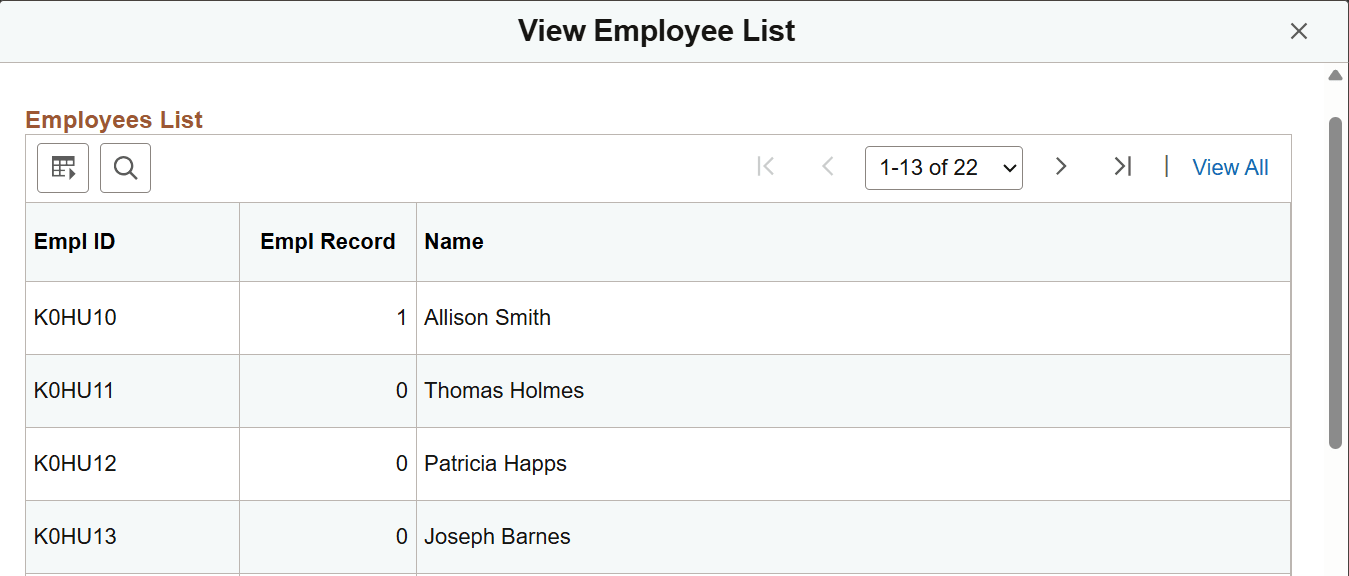
View the list of employees included in the selected group ID. |
Payroll for North America delivers a wage statement generation feature that allows bulk creation of wage statements for a specific date range, enabling payroll administrators and employees to efficiently download and print multiple statements as a single consolidated PDF file.
This feature includes an application engine (AE) process (PY_SSP_DWND) that generates consolidated PDF files containing wage statements for multiple employees. From the Multiple Wage Statements Download Page, payroll administrators can specify parameters to run the wage statement generation process, such as:
List of employees for whom wage statements are generated and the date range.
Multiple filter criteria are available for identifying employees.
Payroll cycle type (on-cycle, off-cycle, or both).
Download options.
After the process completes, payroll administrators can download the list of employee wage statements as a PDF file from the process output. For more information, refer to Viewing Bulk PDF Files in Report Manager.
Depending on the total number of wage statements included, the AE process may generate multiple PDF files. A log file with process summary is available for review.
This feature also enables employees to download multiple wage statements in Fluid Employee Self-Service. From the Paychecks Page or Paycheques page, they can specify a date range and generate a single PDF file containing all the wage statements they wish to download instantly.
Note: This feature is available for Canada, U.S., and U.S. Federal. To use this feature, customers must use BI Publisher to produce PDF paychecks. The date range selection applies only to paychecks generated through Payroll for North America.
Templates for Bulk Wage Statements
This table lists the templates that are available for bulk wage statement creation.
|
Product |
Report Name |
Description |
Data Source Type |
Data Source ID |
|---|---|---|---|---|
|
PeopleSoft Payroll for North America (USA) |
ADMUSDWD |
US Admin Bulk Wage Statement Download |
XML File |
USDWND |
|
PeopleSoft Payroll for North America (CAN) |
ADMCNDWD |
CAN Admin Bulk Wage Statement Download |
XML File |
CNDWND |
|
PeopleSoft ePay (self-service Download Multiple Wage Statement USA) |
SSPUSDWD |
US Bulk Wage Statement Download |
XML File |
USDWND |
|
PeopleSoft ePay (self-service Download Multiple Wage Statement CAN) |
SSPCNDWD |
CAN Bulk Wage Statement Download |
XML File |
CNDWND |
Both ADMUSDWD and SSPUSDWD reports use the existing overflow template PYOVRFSSP.
Both the ADMCNDWD and SSPCNDWD reports use the PYCANDWD.rtf template. This template calls the PYCNDWD.rtf sub-template, which includes content from the templates used in SSPCNADV and SSPCNCHQ reports. To ensure consistency, the PYCNDWD.rtf sub-template needs to be updated whenever either of these templates is modified.
Payroll administrators are required to use Report Manager to view bulk PDF files generated by the AE process.
After the process completes and the files are posted, follow these steps to view generated files:
Access the Report Manager.
The Report Manager link is available on the Multiple Wage Statements Download Page.
Navigation:
Locate the file to open.
The description of the report batch files is in this format:
<Report name> [BATCH<batch number>] - Wage_Statement_File_<Process-By-option>_<Process date>_<Process instance>.pdf
Example of a U.S. report name:
ADMUSDWD [BATCH0001] - Wage_Statement_File_Employees from File_2025-11-17_581058.pdf
Open the PDF file using one of the following methods:
From the Report Manager - List page:
Select the link in the Report column for the desired batch file. The PDF file is available on the Report Index page that appears.
From the Report Manager - Administration page:
Select the PDF link in the Description column for the desired batch file.
The same PDF link is also available when you select the Details link on the Report Manager - Administration page.
To set up the feature to generate and download wage statements in bulk:
Use the Bulk Download section on the Paycheck Options Table Page to specify the report definitions for generating bulk wage statement PDFs. System-delivered templates are available for use.
Use the Self Service Bulk Download and Bulk Download Parameters sections on the Payroll for NA Installation Page to enable the feature for specific countries and specify additional settings.
User Roles and Permission Lists
To run the AE process for this feature, users must be members of the Payroll Administrator CAN (for CAN), Payroll Administrator USA (for USA), or NA Payroll Administrator (for both countries) role. Roles that are assigned the HCCPFGALLP permission list will have access to this feature for Federal.
The permission lists for using this feature are:
(CAN)
HCCPPY1000
HCLPPNAMNGCAN
HCLPPNASETCAN
HCCPFGALLP
(USA)
HCCPFGALLP
HCCPPY1000
HCLPPNAMNGUSA
(USF) HCCPFGALLP
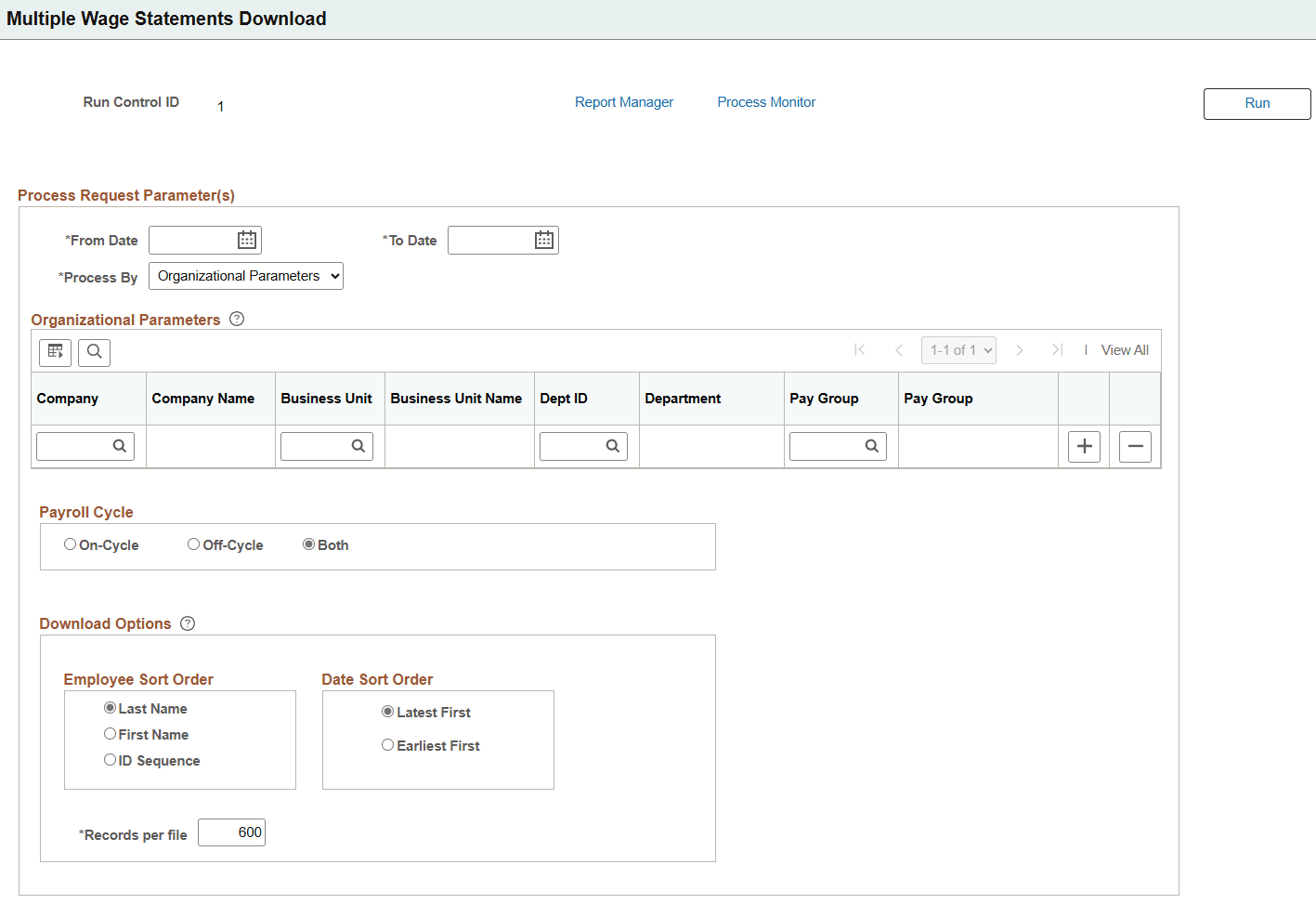
Use the Multiple Wage Statements Download page (RUNCTL_DWD_WAGE_ST) to specify the parameters for generating PDF files containing multiple wage statements.
Navigation:
This example illustrates the fields and controls on the Multiple Wage Statements Download page.
|
Field or Control |
Description |
|---|---|
|
From Date and To Date |
Specify the date range of wage statements to include in the generated PDF files. The system displays an error if the specified From Date is earlier than the date configured in the installation table as the earliest date wage statements can be downloaded in bulk for your country. |
|
Process by |
Select the method the AE process uses to identify employees whose wage statements will be included in the generated PDF files. Options include: Employees From File: The process identifies employees from an uploaded flat file. Employees From Group ID: The process identifies employees from the specified group ID. Organization Parameters: (Default) The process identifies employees using specified company parameters in the Organizational Parameters section. Selected Employees: The process identifies employees from the Employees section. |
|
Group ID |
Specify an existing group ID that identifies employees for whom to generate wage statements. You must have access to the selected group ID to run the process. This field appears if the selected Process by option is Employees from Group ID. |
|
View Employees List |
Select to view the list of employees included in the selected group ID on the View Employee List Page. Note: If the Single Check for Multiple Jobs field is selected on the Default Settings Page for the company (as of the To date specified on this run control page) of an employee included in the process, all confirmed checks for the employee corresponding to that company and pay end date will be selected, regardless of the employee record. |
|
Browse File |
Select to upload a comma-separated .csv or .txt file containing a list of employees to be processed. The file must include one column with employee IDs and a second column with the corresponding employee record number, if needed. If no employee record number is specified for an employee, all employee records will be processed. Do not include a column header. Uploaded file appears as a link and can be opened for review. This field appears if the selected Process by option is Employees from File. Note: If the Single Check for Multiple Jobs field is selected on the Default Settings Page for the company (as of the To date specified on this run control page) of an employee included in the process, all confirmed checks for the employee corresponding to that company and pay end date will be selected, regardless of the employee record. |
Organizational Parameters
This section appears if the selected Process by option is Organization Parameters.
|
Field or Control |
Description |
|---|---|
|
Company, Business Unit, and Department |
Select a company to generate wage statements for employees of that company. Add new rows to include more companies. You can narrow down the list of employees for whom to generate wage statements by specifying a business unit, department ID, or pay group for the selected company if needed. Your row-level security determines the list of business units and departments available for selection. Note: If the Single Check for Multiple Jobs field is selected on the Default Settings Page for the selected company (as of the To date specified on this run control page), all confirmed checks for employees (those included in the process) corresponding to that company and pay end date will be selected, regardless of other organizational parameters specified (such as business unit or department ID). |
Employees
Select employees for whom to generate wage statements manually. This section appears if the selected Process by option is Selected Employees.
|
Field or Control |
Description |
|---|---|
|
All Jobs |
Select to process all jobs of the specified employee. This field is selected by default. |
|
Empl Record |
If you do not want all jobs to be included in the process, clear the All Jobs check box and specify the number of the employee record to be processed on the Empl Record field that appears. Note: If the Single Check for Multiple Jobs field is selected on the Default Settings Page for the company (as of the To date specified on this run control page) of an employee included in the process, all confirmed checks for the employee corresponding to that company and pay end date will be selected, regardless of the employee record. |
Payroll Cycle
|
Field or Control |
Description |
|---|---|
|
On-Cyle, Off-Cycle, or Both |
Select to process on-cycle, off-cycle, or both on-cycle and off-cycle confirmed paychecks. |
Download Options
Use the Employee Sort Order and Date Sort Order sections together to specify how employees’ wage statements will be sorted in the generated PDF files available for download.
Suppose the selected employee sort order is Last Name, and the date sort order is Latest First. In this case, the PDF files list wage statements by employee last name. For wage statements belonging to the same employee, they are sorted by check date, with the most recent (latest) listed first.
|
Field or Control |
Description |
|---|---|
|
Employee Sort Order |
Select how employees' wage statements are sorted in PDF files, by employee's: Last Name First Name ID Sequence: employee ID |
|
Date Sort Order |
Select the sort order for an employee’s wage statements based on the check date: Latest First Earliest First |
|
Records per file |
Enter the maximum number of wage statements to include in a single PDF file. The default value comes from the Payroll for NA Installation Page. If the total number of paychecks processed exceeds this setting, the process will return multiple PDF files. |
Use the View Employee List page (PY_BLKPDF_EMPL_LST) to view the list of employees included in the selected group ID.
Select the View Employees List link on the Multiple Wage Statements Download page, when the selected Process by field value is Employees from Group ID.
This example illustrates the fields and controls on the View Employee List page.