5.5.3 IDIH Manual Deployment on OpenStack
Perform the following procedure for IDIH Manual Deployment on OpenStack using IDIH VMDK image:
- To download the IDIH Deliverable Images, contact Oracle Support Team and extract the package to access the Kafka, MySQL, and Service VMDK images.
- To download the manual installation scripts, download the zip file containing all manual installation scripts for the specific version from OHC.
- Extract the content for that specific version.
Figure 5-4 Oracle Help Center

- Log in to OpenStack using the login credentials.
- To create a port for Fixed IP Deployment, from the main menu, navigate to the Network, from the submenu, select Networks.
Note:
Do not use IP addresses from the 169.x.x.x range for IMI (internal communication) between IDIH VMs, as this range is reserved to link local addressing and is not intended for routable network communication. - Select the network Name, and then select Port, and click Create Port from the upper menu for XMI, IMI, and XSI network planning.
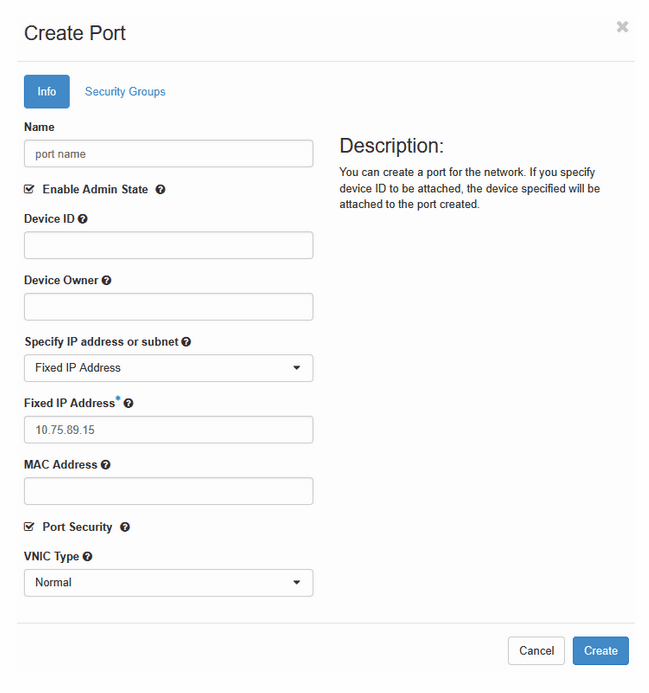
- In the Create Port dialog box, enter the following details:
Note:
The user must select either Fixed IP or Dynamic IP deployment based on the specific requirements. If the Fixed IP deployment is selected, it is mandatory to create a port prior to launching an instance.- In the Name field, enter a Name.
- Select an IP from the Specify IP address or subnet drop-down list.
- Enter Fixed IP Address and click Create.
Figure 5-5 Create Port
- To create Security Groups, navigate to Network, from the submenu, select Security Groups, and click Create Security Group.
- Create security groups for
xmiSecurityGroup,imiSecurityGroup, andxsiSecurityGroupusing the details specified in the following files, located in the downloaded zip file from OHC:eidihImiSecurityGroups.yamleidihXmiSecurityGroups.yamleidihXsiSecurityGroups.yaml
- Click Launch Instance from the upper menu bar.
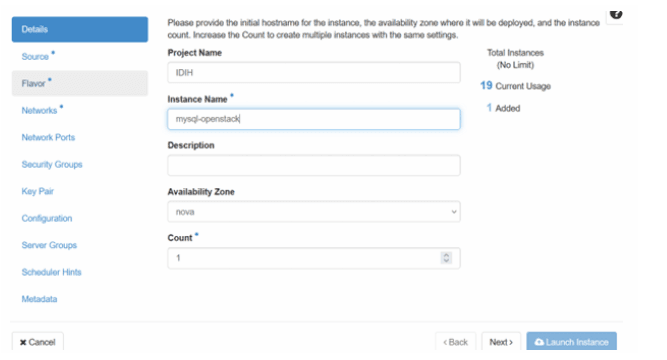
- In the Details dialog box, provide an instance name for the MySQL VM, example: mysql-openstack and click Next.
Figure 5-6 Details
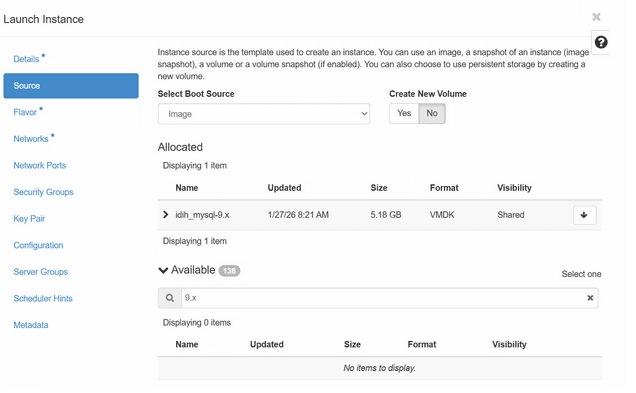
- In the Image tab, select the IDIH Deliverable VMDK image.
- Ensure that the Create New Volume option is set to NO, and click Next:
Figure 5-7 Create New Volume
- In the Flavor submenu, verify that appropriate flavors are available and select the recommended flavor for the MySQL VM based on the following table:
Table 5-11 VM Flavors
VNFC Type Image Name Flavor Name Minimum vCPUs Minimum RAM (GB) Minimum Disk (GB) EIDIH-KAFKA kafka-9.x.0.0.0.vmdk kafka-eidih 6 16 170 EIDIH-SERVICE service-9.x.0.0.0.vmdk service-eidih 6 16 120 EIDIH-DB mysql-9.x.0.0.0.vmdk mysql-eidih 6 16 220 - Network Configuration:
Note:
- XSI network port is applicable only for the Kafka VM.
- Service VMs must be deployed on a platform that provides the **x86-64-v2** CPU instruction-set baseline to the guest operating system. Validation based only on the CPU family or model number is not sufficient.
In virtualized environments, ensure that the hypervisor does not mask the required CPU features through EVC, CPU-compatibility settings, or CPUID masks.
The VMs must provide at least the following CPU flags: `pni (SSE3), ssse3, cx16, lahf_lm, popcnt, sse4_1, sse4_2`
Before deployment, verify the CPU features from within the VMs using:
`lscpu | grep -i '^Flags'` If any of the required flags are unavailable, the microservices may fail to start and display the following error:`Fatal glibc error: CPU does not support x86-64-v2`.For VMware environments, configure the EVC/CPU-compatibility baseline to provide **x86-64-v2** features (for example, an Intel Nehalem-generation baseline or newer), subject to cluster-host compatibility.
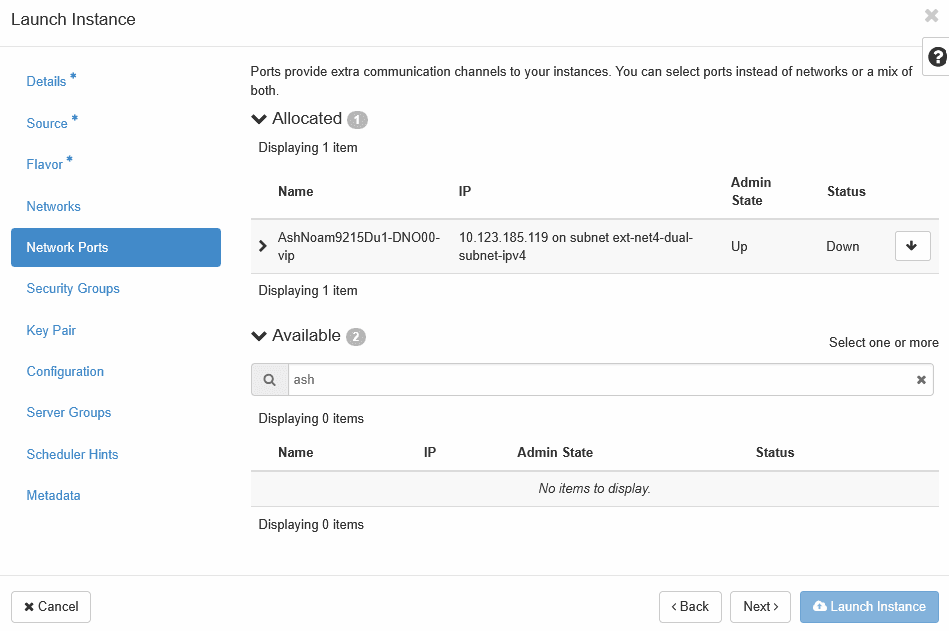
- Fixed IP deployment:
- Navigate to Network Ports, select the newly created port as shown in the image.
- To create a port, complete Step 5, and then select XMI, IMI, and XSI network ports for the VM.
Figure 5-8 Network Port
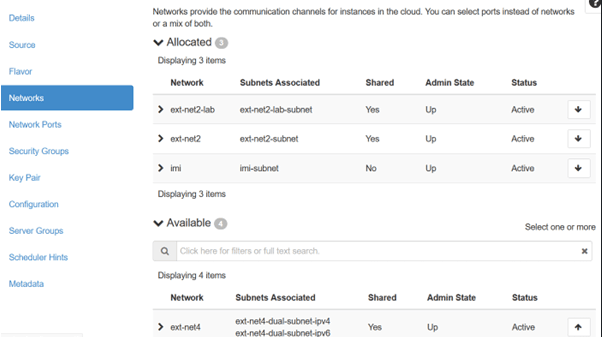
- Dynamic IP deployment: Navigate to Networks submenu, select XMI, IMI, and XSI networks for the VM.
Figure 5-9 Networks
- Attach Security Groups:
- For the Service and MySql VMs, add
xmiSecurityGroupandimiSecurityGroup. - For the Kafka VMs, add
xmiSecurityGroup,imiSecurityGroupandxsiSecurityGroup.
- For the Service and MySql VMs, add
- Click Launch Instance to create the MySQL VM.
- Perform the following substeps to configure the Virtual Machine:
- Select the newly created MySQL VM from the instance list and navigate to the Console tab.
- Log in to the Console using the login credentials to configure XMI network interface.
Note:
Establish an SSH connection to the VMs XMI IP address. If you are unable to access the XMI IP, proceed with the following steps to configure the XMI network. - Run the following command to view available network interfaces:
nmcli con showFigure 5-10 Retrieving Name of the XMI Interface

- Retrieve the XMI interface name from the above command, and configure its metric to "1" to allow SSH connection to the XMI IP.
Example:
nmcli con mod '<name of XMI interface>' ipv4.route-metric 1
nmcli con up '<name of XMI interface>'
- Perform the following steps to verify Root Partition Expansion:
- Run the
lsblkcommand to verify if the Root Partition Expansion is required. Depending on the OpenStack version, this process may be managed automatically. - If the Root Partition is not expanded, run the following commands to extend the disk partition and file system:
growpart /dev/vda 1
resize2fs /dev/vda1
- Run the
- Perform the following substeps to configure Chrony (NTP) for all VMs (Optional step):
- If outbound traffic is restricted at the OpenStack security group level, ensure UDP port 123 (NTP) is allowed for egress communication.
Example:
Direction: Egress Protocol: UDP Port: 123 Destination: <NTP server IP>/32(recommended) - From the VM, run the following command to configure the NTP:
vi /etc/chrony.conf - Comment the following lines at the beginning of the file, if present:
#server cosprings1-swi-5-rtr-1.us.oracle.com iburst #server cosprings1-swi-6-rtr-1.us.oracle.com iburst #server brmdc04-102-ck-rtr-1-lo0.us.oracle.com iburst #server brmdc04-102-ck-rtr-2-lo0.us.oracle.com iburst - Run the following command to add the NTP server IP:
server <NTP_SERVER_IP> iburst - Run the following command to restart Chrony:
systemctl restart chronyd - Run the following command to Force Immediate Time Synchronization:
chronyc makestep - Run the following command to verify NTP Synchronization:
chronyc sources -v - Run the following command to set the system timezone:
EX: timedatectl set-timezone Asia/Kolkata - Run the following command to verify timezone and NTP Status:
timedatectl
- If outbound traffic is restricted at the OpenStack security group level, ensure UDP port 123 (NTP) is allowed for egress communication.
- Repeat steps 5 to 19 for Kafka and Service VMs.
- After all the three VMs are created, verify network connectivity by pinging the XMI IP and IMI IP addresses of each VM.
Application Setup
- MySQL Setup:
- Log in to the MySQL VM and navigate to the
/optdirectory. - Copy the manual_mysql_setup.sh script to
/optand provide the required permissions. - Run the setup script:
./manual_mysql_setup.sh - When prompted, enter the IMI IP address for the MySQL bind address.
- Upon script completion, MySQL will be configured successfully.
- Log in to the MySQL VM and navigate to the
- Kafka Setup
- Log in to the Kafka VM and navigate to the
/optfolder. - Ensure the Kafka installation script is present and configurable.
- Run the setup script:
./manual_kafka_setup.sh - During configuration, provide the Kafka IMI IP and XSI IP when prompted.
- Kafka and Kraft services will start on the specified IPs.
- Use the Kafka XMI IP instead of the default Kafka IMI IP for communication with DSR (Optional).
- Uncomment the following property:
advertised.listeners=INTERNAL_PLAINTEXT://192.168.1.237:9092,INTERNAL_SSL://192.168.1.237:9093,EXTERNAL://[kafka_xmi]:9094 line in broker.properties file(path: /opt/kafka/config) and replace[kafka_xmi] with Kafka XMI IP - Comment the following property:
advertised.listeners=INTERNAL_PLAINTEXT://192.168.1.237:9092,INTERNAL_SSL://192.168.1.237:9093, EXTERNAL://10.196.84.46:9094 line. - Run the following command to restart Kraft and Kafka services:
systemctl restart kraft-controller
systemctl restart kafka
After running the health checks, Kafka is successfully set up on VM.
- Uncomment the following property:
- Log in to the Kafka VM and navigate to the
- Service Setup
- Log in to the Service VM and navigate to the
/optdirectory. - Edit the
cnidih_VM.yamlfile. - Replace <REPLACE WITH SOAM VIP> with a valid active SOAM IP.
- Navigate to the Protrace section and set the
NFCONFIG_CLIENT_ENABLEDproperty to true. - Uncomment the below command, only for IPv6 setup:
networks: cnidih-network: external: true # enable_ipv6: true # Uncomment above line if you are using IPv6 setup # please take care of indentation ( Both of the below properties should be at same level ) # enable_ipv6: true # external: true - Save and exit.
- Run the following command for the service setup script:
./manual_service_setup.sh - The script will prompt for several inputs during execution:
- Enter Service IMI IP, Service XMI IP, Kafka IMI IP, and MySQL IMI IP.
Note:
For IPv6 setups, the above IPs must be entered in square brackets ( [] ).After these inputs are provided, the script will start the required services and proceed with the health check.
- Run the following command to verify if all the services are running:
podman ps -aAccess the UI at:
https://<SERVICE XMI IP>/#/
This completes the setup for MySQL, Kafka, and Services. The IDIH deployment is now ready for use.
- Enter Service IMI IP, Service XMI IP, Kafka IMI IP, and MySQL IMI IP.
- Log in to the Service VM and navigate to the