5.5.3 IDIH Manual Deployment on OpenStack
Perform the following procedure for IDIH Manual Deployment on OpenStack using IDIH VMDK image:
- To download the IDIH Deliverable Images, contact Oracle Support Team and extract the package to access the Kafka, MySQL, and Service VMDK images.
- To download the manual installation scripts, download the zip file containing all manual installation scripts for the specific version from OHC.
- Extract the content for that specific version.
Figure 5-4 Oracle Help Center

- Log in to OpenStack using the login credentials.
- To create a port for Fixed IP Deployment, from the main menu, navigate to the Network, from the submenu, select Networks.
- Select the network Name, and then select Port, and click Create Port from the upper menu for XMI, IMI, and XSI network planning.
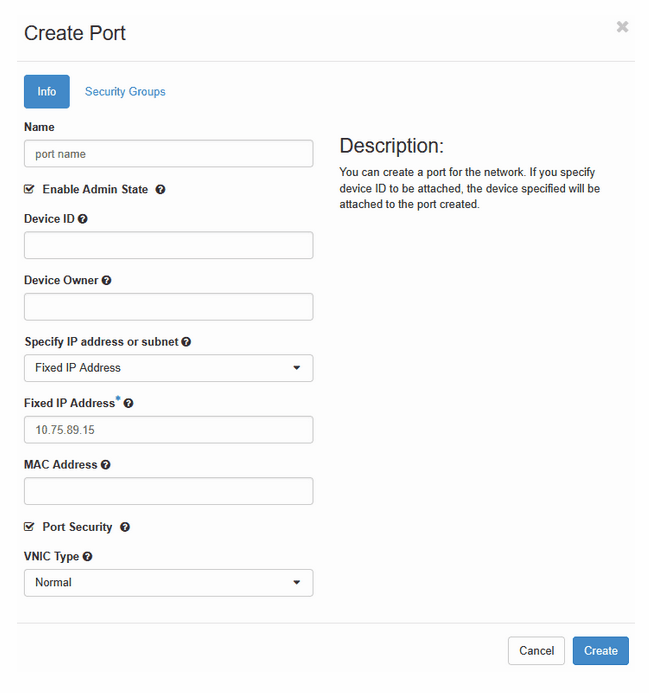
- In the Create Port dialog box, enter the
following details:
Note:
The user must select either Fixed IP or Dynamic IP deployment based on the specific requirements. If the Fixed IP deployment is selected, it is mandatory to create a port prior to launching an instance.- In the Name field, enter a Name.
- Select an IP from the Specify IP address or subnet drop-down list.
- Enter Fixed IP Address and click
Create.
Figure 5-5 Create Port
- To create Security Groups, navigate to Network, from the submenu, select Security Groups, and click Create Security Group.
- Create security groups for
xmiSecurityGroup,imiSecurityGroup, andxsiSecurityGroupusing the details specified in the following files, located in the downloaded zip file from OHC:eidihImiSecurityGroups.yamleidihXmiSecurityGroups.yamleidihXsiSecurityGroups.yaml
- Click Launch Instance from the upper menu bar.
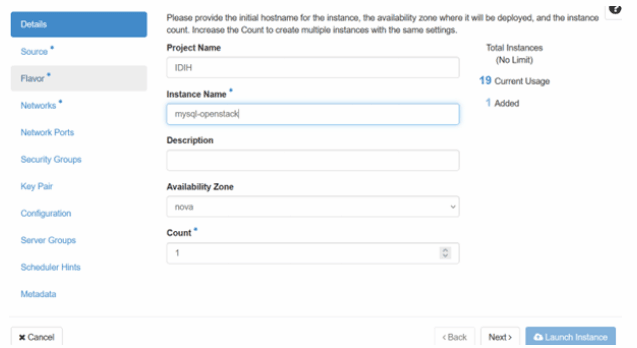
- In the Details dialog box, provide an instance
name for the MySQL VM, example: mysql-openstack and click
Next.
Figure 5-6 Details Dialog box
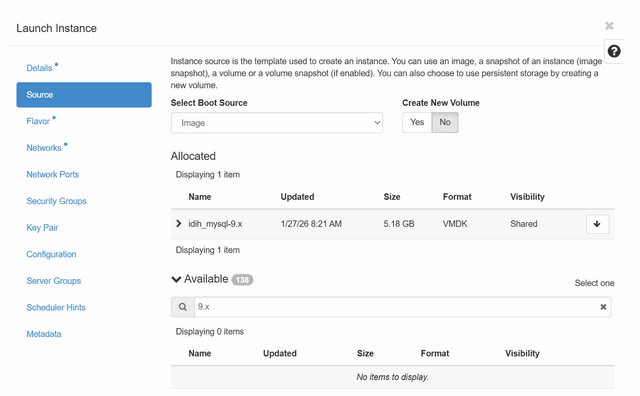
- In the Image tab, select the IDIH Deliverable VMDK image.
- Ensure that the Create New Volume option is set
to NO, and click Next:
Figure 5-7 Image tab
- In the Flavor submenu, verify that appropriate
flavors are available and select the recommended flavor for the MySQL VM based on
the following table:
Table 5-11 VM Flavors
VNFC Type Image Name Flavor Name Minimum vCPUs Minimum RAM (GB) Minimum Disk (GB) EIDIH-KAFKA kafka-9.x.0.0.0.vmdk kafka-eidih 6 16 170 EIDIH-SERVICE service-9.x.0.0.0.vmdk service-eidih 6 16 120 EIDIH-DB mysql-9.x.0.0.0.vmdk mysql-eidih 6 16 220 - Network Configuration:
Note:
XSI network port is applicable only for the Kafka VM.- Fixed IP deployment:
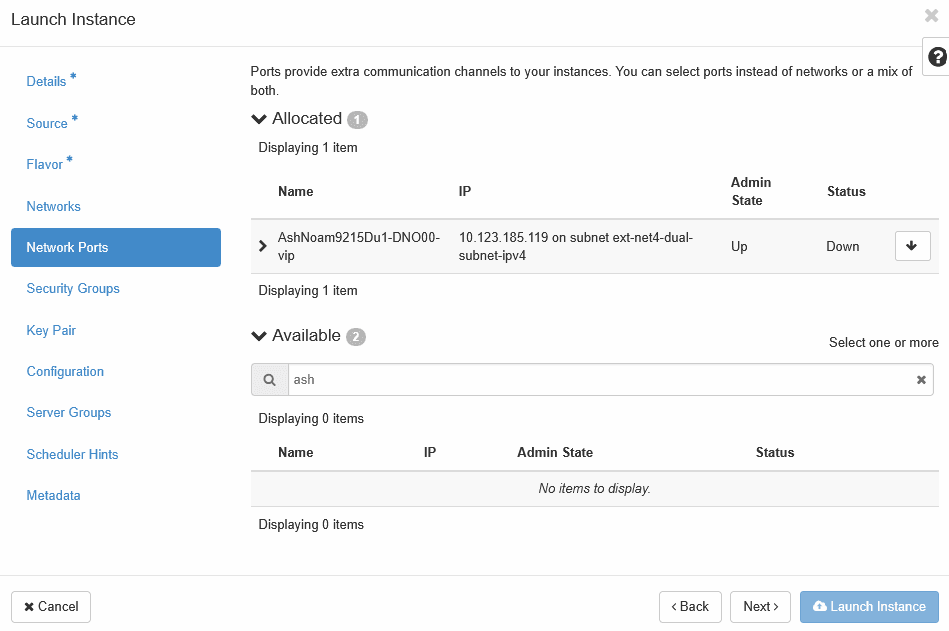
- Navigate to Network Ports, select the newly created port as shown in the image.
- To create a port, complete Step 5, and then select XMI, IMI, and XSI network ports for the VM.
Figure 5-8 Network Port
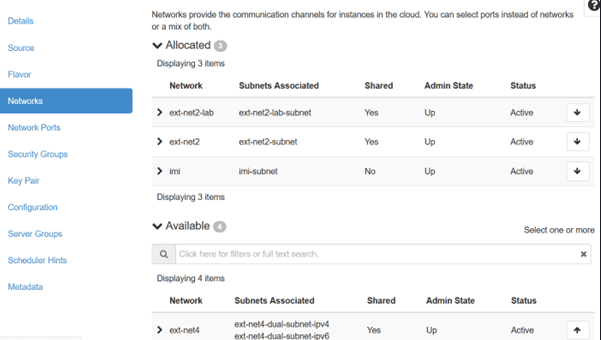
- Dynamic IP deployment: Navigate to
Networks submenu, select XMI, IMI, and XSI
networks for the VM.
Figure 5-9 Networks
- Attach Security Groups:
- For the Service and MySql VMs, add
xmiSecurityGroupandimiSecurityGroup. - For the Kafka VMs, add
xmiSecurityGroup,imiSecurityGroupandxsiSecurityGroup.
- For the Service and MySql VMs, add
- Fixed IP deployment:
- Click Launch Instance to create the MySQL VM.
- Perform the following substeps to configure the Virtual Machine:
- Select the newly created MySQL VM from the instance list and navigate to the Console tab.
- Log in to the Console using the login
credentials to configure XMI network interface.
Note:
Establish an SSH connection to the VMs XMI IP address. If you are unable to access the XMI IP, proceed with the following steps to configure the XMI network. - Run the following command to view available network
interfaces:
nmcli con showFigure 5-10 Retrieving Name of the XMI Interface

- Retrieve the XMI interface name from the above command, and
configure its metric to "1" to allow SSH connection to the
XMI IP.
Example:
nmcli con mod '<name of XMI interface>' ipv4.route-metric 1
nmcli con up '<name of XMI interface>'
- Perform the following steps to verify Root Partition
Expansion:
- Run the
lsblkcommand to verify if the Root Partition Expansion is required. Depending on the OpenStack version, this process may be managed automatically. - If the Root Partition is not expanded,
run the following commands to extend the disk partition and file
system:
growpart /dev/vda 1
resize2fs /dev/vda1
- Run the
- Perform the following substeps to configure Chrony (NTP) for all VMs
(Optional step):
- If outbound traffic is restricted at the OpenStack security
group level, ensure UDP port 123 (NTP) is allowed for egress
communication.
Example:
Direction: Egress Protocol: UDP Port: 123 Destination: <NTP server IP>/32(recommended) - From the VM, run the following command to configure the
NTP:
vi /etc/chrony.conf - Comment the following lines at the beginning of the file, if
present:
#server cosprings1-swi-5-rtr-1.us.oracle.com iburst #server cosprings1-swi-6-rtr-1.us.oracle.com iburst #server brmdc04-102-ck-rtr-1-lo0.us.oracle.com iburst #server brmdc04-102-ck-rtr-2-lo0.us.oracle.com iburst - Run the following command to add the NTP server
IP:
server <NTP_SERVER_IP> iburst - Run the following command to restart
Chrony:
systemctl restart chronyd - Run the following command to Force Immediate Time
Synchronization:
chronyc makestep - Run the following command to verify NTP
Synchronization:
chronyc sources -v - Run the following command to set the system
timezone:
EX: timedatectl set-timezone Asia/Kolkata - Run the following command to verify timezone and NTP
Status:
timedatectl
- If outbound traffic is restricted at the OpenStack security
group level, ensure UDP port 123 (NTP) is allowed for egress
communication.
- Repeat steps 5 to 19 for Kafka and Service VMs.
- After all the three VMs are created, verify network connectivity by pinging the XMI IP and IMI IP addresses of each VM.
Application Setup
- MySQL Setup:
- Log in to the MySQL VM and navigate to the
/optdirectory. - Copy the manual_mysql_setup.sh script to
/optand provide the required permissions. - Run the setup
script:
./manual_mysql_setup.sh - When prompted, enter the IMI IP address for the MySQL bind address.
- Upon script completion, MySQL will be configured successfully.
- Log in to the MySQL VM and navigate to the
- Kafka Setup
- Log in to the Kafka VM and navigate to the
/optfolder. - Ensure the Kafka installation script is present and configurable.
- Run the setup
script:
./manual_kafka_setup.sh - During configuration, provide the Kafka IMI IP and XSI IP when prompted.
- Kafka and Kraft services will start on the specified IPs.
- Use the Kafka XMI IP instead of the default Kafka IMI IP for
communication with DSR (Optional).
- Uncomment the following
property:
advertised.listeners=INTERNAL_PLAINTEXT://192.168.1.237:9092,INTERNAL_SSL://192.168.1.237:9093,EXTERNAL://[kafka_xmi]:9094 line in broker.properties file(path: /opt/kafka/config) and replace[kafka_xmi] with Kafka XMI IP - Comment the following property:
advertised.listeners=INTERNAL_PLAINTEXT://192.168.1.237:9092,INTERNAL_SSL://192.168.1.237:9093, EXTERNAL://10.196.84.46:9094 line. - Run the following command to restart Kraft and Kafka
services:
systemctl restart kraft-controller
systemctl restart kafka
After running the health checks, Kafka is successfully set up on VM.
- Uncomment the following
property:
- Log in to the Kafka VM and navigate to the
- Service Setup
- Log in to the Service VM and navigate to the
/optdirectory. - Edit the
cnidih_VM.yamlfile. - Replace <REPLACE WITH SOAM VIP> with a valid active SOAM IP.
- Navigate to the Protrace section and set
the
NFCONFIG_CLIENT_ENABLEDproperty to true. - Uncomment the below command, only for IPv6 setup:
networks: cnidih-network: external: true # enable_ipv6: true # Uncomment above line if you are using IPv6 setup # please take care of indentation ( Both of the below properties should be at same level ) # enable_ipv6: true # external: true - Save and exit.
- Run the following command for the service setup
script:
./manual_service_setup.sh - The script will prompt for several inputs during execution:
- Enter Service IMI IP, Service XMI IP, Kafka IMI IP, and
MySQL IMI IP.
Note:
For IPv6 setups, the above IPs must be entered in square brackets ( [] ).After these inputs are provided, the script will start the required services and proceed with the health check.
- Run the following command to verify if all the services
are running:
podman ps -aAccess the UI at:
https://<SERVICE XMI
                                        IP>/#/
This completes the setup for MySQL, Kafka, and Services. The IDIH deployment is now ready for use.
- Enter Service IMI IP, Service XMI IP, Kafka IMI IP, and
MySQL IMI IP.
- Log in to the Service VM and navigate to the