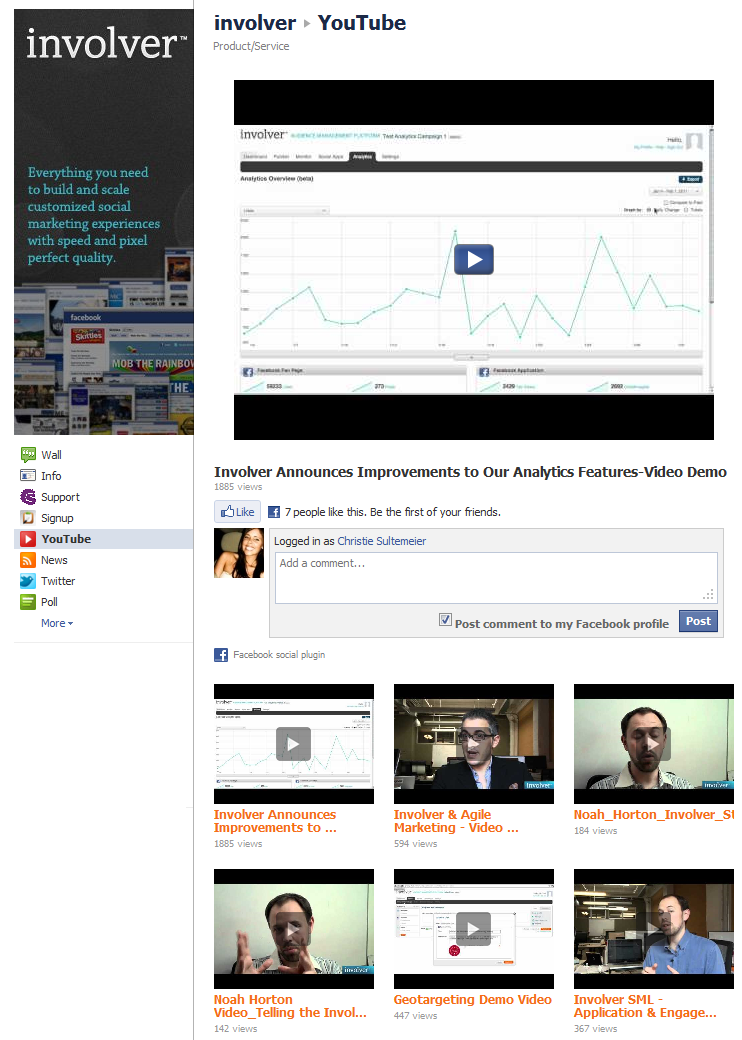
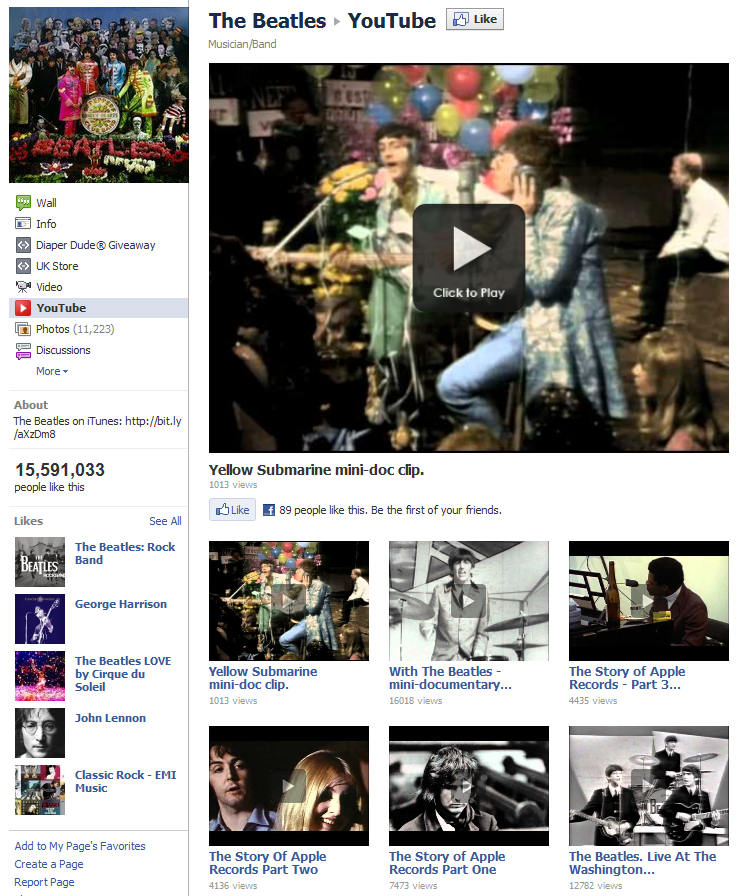
Deliver video directly to your social networks by incorporating your YouTube channel as a tab on your Facebook page!
Please note that for Free accounts updates occur once per day, for legacy Pro, Business and Enterprise accounts there are hourly updates.
Settings and Features for all Involver Accounts are accessible from the Edit Tab Settings link on the application page on Facebook.
Add YouTube User / Channel Name
Enter your YouTube account name here. As this is often misunderstood, please note the red highlight in this screenshot to see where you can get this information from your YouTube account page: http://bit.ly/bNL23a
Import Uploads
Checking this box will import the videos you have previously uploaded to YouTube.
Import Favorites
Delivers your YouTube favorites.
Allow User Comments
Lets visitors to your page post comments about your videos.
Hide Related Videos
Hides the showing of related videos after your video is played.
Featured Video
Allows you to specify a single video to appear prominently on your page.
Automatically Post Content To Wall
Your videos will not only show up in the application but also on the Fan Page Wall (not the Wall of the user account page). NOTE: in order for this to function, Wall updates must be enabled. This can be done from this screen by selecting Click here to allow Wall updates and then continuing on to the next page, where you can specify which of your Fan Pages will receive the Wall updates.
Set Maximum Number of Daily Wall Updates
Sets or removes a daily limit on the number of Wall updates allowed from this application. Note that any updates posted manually will count towards this limit.
The following settings and features are available for Business, and Enterprise clients and are also accessible from the Edit Tab Settings link:
Import a Playlist
Choose from a dropdown list of your YouTube Playlists. (Displayed videos will be ordered based on date added to YouTube.com)
Enable Tubemogul Tracking
If you have a TubeMogul account, enter the associated email address here to use TubeMogul's data tracking services.
Choose Number of Videos to Display
Select how many of the most recent videos will appear on your page. You may select a maximum of 6, 12, 18, 24, or 36. NOTE: Free installations of the YouTube app are limited to 6 videos.
General
- Display Header Image
Select an image to appear the top of this application. This image must be uploaded from your local computer, cannot be larger than 520x140, and needs to match that aspect ratio to avoid distortion. - Header Image Clickthrough URL
Enter a URL that users will be redirected to when the image is clicked on.
Background
- Padding
Choose the amount of padding (the space between the edge of the application and the content inside the applications) in pixels to have added to the page. A preview image of your selection is available on the right. - Page Background Color
Choose a color to ensure your color scheme is consistent across all of your Involver applications (with slight variations on each application page). The background color will default to white (FFFFFF). To change, click in the text box and select a color from the color picker. - Display Page Background Image?
Select an image to appear as the background of this page. The image must be uploaded from your local computer. If you upload an image, it will lay on top of the background color you have set. To undo, uncheck the box to show a background image. Images are limited to 1MB and must be bellow 4000x4000 pixels. - Page Background Image Repeat
Choose to repeat your background image one of four ways; repeat: repeat your image both horizontally and vertically, no repeat: display your image once only with no repeating, repeat-x: repeat your image horizontally only, repeat-y: repeat your image vertically only. In places where images are not being shown, your chosen background color will be. - App Border
Choose a border for your application by selecting pixel size, type of border and color of border from the dropdown menus. A preview image of your selection is available on the right.
Text
- Headers
Select a font and font color for any headers represented in the application. A preview image of your selection is available on the right. - Body/Default
Select a font, font size and font color for any headers represented in the application. A preview image of your selection is available on the right - Links
Choose how to represent all present links in the applications by selecting whether or not to display an underline, and choosing a link color. A preview image of your selection is available on the right. - Links (Hover)
Choose how to represent all present links in the applications by selecting whether or not to display an underline, and choosing a link color. A preview image of your selection is available on the right.
Elements
- Button Color
Choose a color for any present buttons here clicking in the text box and selecting a color from the color picker. A preview image of your selection is available on the right. - Button Text
Choose a color, font type, and font size to be displayed as text inside any present buttons. A preview image of your selection is available on the right. - Dividers
Choose a divider to appear between videos by selecting pixel size, type of border and color of border from the dropdown menus. A preview image of your selection is available on the right.
Advanced
- Advanced CSS
Only basic styling is supported. No transforms, transitions, or other CSS that violates Facebook Platform Guidelines for Pages. (NOTE: Any CSS used in this section will override any other settings you have selected in the previous appearance sections.)
Syndication & Accessibility
- Prefix Wall Updates
Allows custom text to be displayed before each video published to the Wall. - Custom Action Links on Wall Updates
Adds a link to a user-defined URL on the Fan Page Wall next to each published video.
Have questions? Visit our Support Site to browse our Knowledge Base for specific YouTube application use cases, or submit a support request for any unexpected behavior. Our Support Team is happy to help!