Daten zwischen Cloud-Datenbanken in der gleichen Region replizieren
Hier erfahren Sie, wie Sie Oracle Cloud Infrastructure GoldenGate einrichten, um Daten zwischen zwei autonomen KI-Datenbanken zu replizieren.
Überblick
Mit Oracle Cloud Infrastructure GoldenGate können Sie unterstützte Datenbanken in der gleichen Region replizieren. In den folgenden Schritten wird beschrieben, wie Sie eine Zieldatenbank mit Oracle Data Pump instanziieren und Daten von der Quelle in das Ziel replizieren.
Dieser Schnellstart ist auch als LiveLab verfügbar: Workshop anzeigen
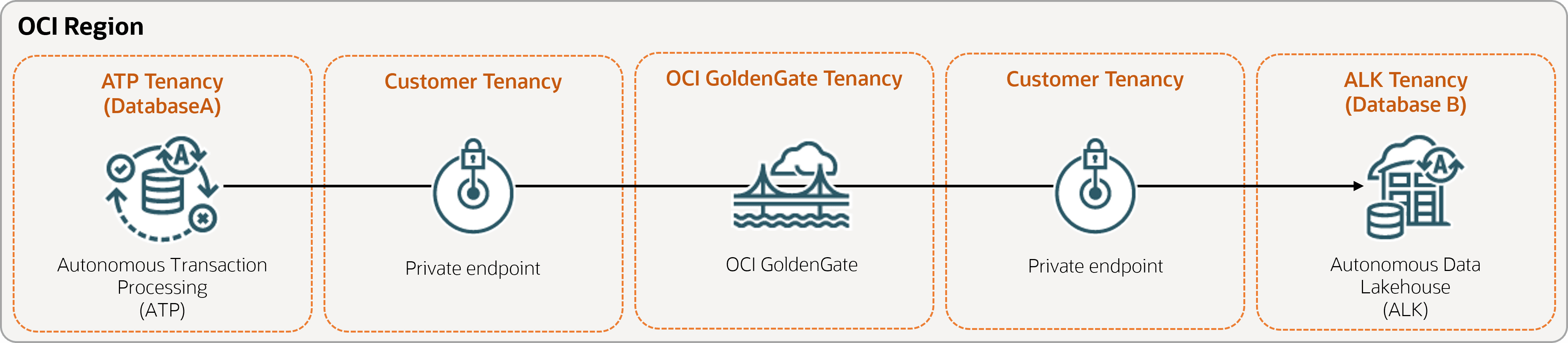
Beschreibung der Abbildung same-region.png
Bevor Sie beginnen
Um diesen Schnellstart erfolgreich abzuschließen, benötigen Sie:
-
Eine vorhandene Quelldatenbank
-
Eine vorhandene Zieldatenbank
-
Die Quell- und Zieldatenbanken müssen sich in einem einzelnen Mandanten in der gleichen Region befinden.
-
Wenn Sie Beispieldaten benötigen, laden Sie Archive.zip herunter, und befolgen Sie die Anweisungen unter Übung 1, Aufgabe 3: ATP-Schema laden.
Aufgabe 1: Umgebung einrichten
-
Erstellen Sie eine Oracle Autonomous AI Transaction Processing-(ATP-)Quellverbindung.
-
Erstellen Sie eine Autonomous AI Lakehouse-(ALK-)Zielverbindung.
-
Mit dem SQL-Tool können Sie zusätzliches Logging aktivieren:
ALTER DATABASE ADD SUPPLEMENTAL LOG DATA -
Führen Sie die folgende Abfrage im SQL-Tool aus, um sicherzustellen, dass
support_mode=FULLfür alle Tabellen in der Quelldatenbank gilt:select * from DBA_GOLDENGATE_SUPPORT_MODE where owner = 'SRC_OCIGGLL';
Aufgabe 2: Integrierten Extract erstellen
Ein integrierter Extract erfasst fortlaufende Änderungen an der Quelldatenbank.
-
Wählen Sie auf der Seite "Deployment-Details" die Option Konsole starten.
-
Geben Sie bei Bedarf oggadmin als Benutzernamen und Kennwort ein, das Sie beim Erstellen des Deployments verwendet haben, und wählen Sie Anmelden aus.
-
Transaktionsdaten und Checkpoint-Tabelle hinzufügen:
-
Rufen Sie das Navigationsmenü auf, und wählen Sie DB-Verbindungen aus.
-
Wählen Sie Verbindung zu Datenbank-SourceDB herstellen aus.
-
Wählen Sie im Navigationsmenü Trandata und dann Trandata hinzufügen (Plussymbol).
-
Geben Sie unter Schemaname
SRC_OCIGGLLein, und wählen Sie Weiterleiten aus. -
Geben Sie zur Prüfung
SRC_OCIGGLLin das Suchfeld ein, und wählen Sie Suchen aus. -
Rufen Sie das Navigationsmenü auf, und wählen Sie DB-Verbindungen aus.
-
Wählen Sie Verbindung zur Datenbank-TargetDB herstellen aus.
-
Wählen Sie im Navigationsmenü Checkpoint, Checkpoint hinzufügen (Plussymbol) aus.
-
Geben Sie unter Checkpoint-Tabelle
"SRCMIRROR_OCIGGLL"."CHECKTABLE"ein, und wählen Sie Weiterleiten aus.
-
-
Fügen Sie einen Extract hinzu.
Hinweis: Weitere Informationen zu Parametern, mit denen Sie Quelltabellen angeben können, finden Sie unter Zusätzliche Exportparameteroptionen.
Hängen Sie die folgenden Zeilen auf der Seite "Extract-Parameter" unter
EXTTRAIL <trail-name>an:-- Capture DDL operations for listed schema tables ddl include mapped -- Add step-by-step history of to the report file. Useful when troubleshooting. ddloptions report -- Write capture stats per table to the report file daily. report at 00:01 -- Rollover the report file weekly. Useful when IE runs -- without being stopped/started for long periods of time to -- keep the report files from becoming too large. reportrollover at 00:01 on Sunday -- Report total operations captured, and operations per second -- every 10 minutes. reportcount every 10 minutes, rate -- Table list for capture table SRC_OCIGGLL.*; -
Prüfen Sie, ob Transaktionen mit langer Ausführungszeit vorliegen. Führen Sie das folgende Skript in der Quelldatenbank aus:
select start_scn, start_time from gv$transaction where start_scn < (select max(start_scn) from dba_capture);Wenn die Abfrage Zeilen zurückgibt, müssen Sie die SCN der Transaktion suchen und die Transaktion anschließend festschreiben oder zurücksetzen.
Aufgabe 3: Daten mit Oracle Data Pump (ExpDP) exportieren
Mit Oracle Data Pump (ExpDP) können Sie Daten aus der Quelldatenbank in Oracle Object Storage exportieren.
-
Erstellen Sie einen Oracle Object Storage-Bucket.
Notieren Sie sich den Namespace und den Bucket-Namen für die Export- und Importskripte.
-
Erstellen Sie ein Authentifizierungstoken, kopieren Sie die Tokenzeichenfolge, und fügen Sie sie zur späteren Verwendung in einen Texteditor ein.
-
Erstellen Sie Zugangsdaten in der Quelldatenbank, und ersetzen Sie
<user-name>und<token>durch den Benutzernamen Ihres Oracle Cloud-Accounts und die Tokenzeichenfolge, die Sie im vorherigen Schritt erstellt haben:BEGIN DBMS_CLOUD.CREATE_CREDENTIAL( credential_name => 'ADB_OBJECTSTORE', username => '<user-name>', password => '<token>' ); END; -
Führen Sie das folgende Skript in der Quelldatenbank aus, um den Job "Daten exportieren" zu erstellen. Stellen Sie sicher, dass Sie
<region>,<namespace>und<bucket-name>in der Objektspeicher-URI entsprechend ersetzen.SRC_OCIGGLL.dmpist eine Datei, die bei der Ausführung dieses Skripts erstellt wird.DECLARE ind NUMBER; -- Loop index h1 NUMBER; -- Data Pump job handle percent_done NUMBER; -- Percentage of job complete job_state VARCHAR2(30); -- To keep track of job state le ku$_LogEntry; -- For WIP and error messages js ku$_JobStatus; -- The job status from get_status jd ku$_JobDesc; -- The job description from get_status sts ku$_Status; -- The status object returned by get_status BEGIN -- Create a (user-named) Data Pump job to do a schema export. h1 := DBMS_DATAPUMP.OPEN('EXPORT','SCHEMA',NULL,'SRC_OCIGGLL_EXPORT','LATEST'); -- Specify a single dump file for the job (using the handle just returned) -- and a directory object, which must already be defined and accessible -- to the user running this procedure. DBMS_DATAPUMP.ADD_FILE(h1,'https://objectstorage.<region>.oraclecloud.com/n/<namespace>/b/<bucket-name>/o/SRC_OCIGGLL.dmp','ADB_OBJECTSTORE','100MB',DBMS_DATAPUMP.KU$_FILE_TYPE_URIDUMP_FILE,1); -- A metadata filter is used to specify the schema that will be exported. DBMS_DATAPUMP.METADATA_FILTER(h1,'SCHEMA_EXPR','IN (''SRC_OCIGGLL'')'); -- Start the job. An exception will be generated if something is not set up properly. DBMS_DATAPUMP.START_JOB(h1); -- The export job should now be running. In the following loop, the job -- is monitored until it completes. In the meantime, progress information is displayed. percent_done := 0; job_state := 'UNDEFINED'; while (job_state != 'COMPLETED') and (job_state != 'STOPPED') loop dbms_datapump.get_status(h1,dbms_datapump.ku$_status_job_error + dbms_datapump.ku$_status_job_status + dbms_datapump.ku$_status_wip,-1,job_state,sts); js := sts.job_status; -- If the percentage done changed, display the new value. if js.percent_done != percent_done then dbms_output.put_line('*** Job percent done = ' \|\| to_char(js.percent_done)); percent_done := js.percent_done; end if; -- If any work-in-progress (WIP) or error messages were received for the job, display them. if (bitand(sts.mask,dbms_datapump.ku$_status_wip) != 0) then le := sts.wip; else if (bitand(sts.mask,dbms_datapump.ku$_status_job_error) != 0) then le := sts.error; else le := null; end if; end if; if le is not null then ind := le.FIRST; while ind is not null loop dbms_output.put_line(le(ind).LogText); ind := le.NEXT(ind); end loop; end if; end loop; -- Indicate that the job finished and detach from it. dbms_output.put_line('Job has completed'); dbms_output.put_line('Final job state = ' \|\| job_state); dbms_datapump.detach(h1); END;
Aufgabe 4: Zieldatenbank mit Oracle Data Pump (ImpDP) instanziieren
Mit Oracle Data Pump (ImpDP) können Sie Daten aus der Datei SRC_OCIGGLL.dmp, die aus der Quelldatenbank exportiert wurde, in die Zieldatenbank importieren.
-
Erstellen Sie Zugangsdaten in der Zieldatenbank für den Zugriff auf Oracle Object Storage (mit denselben Informationen wie im vorherigen Abschnitt).
BEGIN DBMS_CLOUD.CREATE_CREDENTIAL( credential_name => 'ADB_OBJECTSTORE', username => '<user-name>', password => '<token>' ); END; -
Führen Sie das folgende Skript in der Zieldatenbank aus, um Daten aus
SRC_OCIGGLL.dmpzu importieren. Stellen Sie sicher, dass Sie<region>,<namespace>und<bucket-name>in der Objektspeicher-URI entsprechend ersetzen:DECLARE ind NUMBER; -- Loop index h1 NUMBER; -- Data Pump job handle percent_done NUMBER; -- Percentage of job complete job_state VARCHAR2(30); -- To keep track of job state le ku$_LogEntry; -- For WIP and error messages js ku$_JobStatus; -- The job status from get_status jd ku$_JobDesc; -- The job description from get_status sts ku$_Status; -- The status object returned by get_status BEGIN -- Create a (user-named) Data Pump job to do a "full" import (everything -- in the dump file without filtering). h1 := DBMS_DATAPUMP.OPEN('IMPORT','FULL',NULL,'SRCMIRROR_OCIGGLL_IMPORT'); -- Specify the single dump file for the job (using the handle just returned) -- and directory object, which must already be defined and accessible -- to the user running this procedure. This is the dump file created by -- the export operation in the first example. DBMS_DATAPUMP.ADD_FILE(h1,'https://objectstorage.<region>.oraclecloud.com/n/<namespace>/b/<bucket-name>/o/SRC_OCIGGLL.dmp','ADB_OBJECTSTORE',null,DBMS_DATAPUMP.KU$_FILE_TYPE_URIDUMP_FILE); -- A metadata remap will map all schema objects from SRC_OCIGGLL to SRCMIRROR_OCIGGLL. DBMS_DATAPUMP.METADATA_REMAP(h1,'REMAP_SCHEMA','SRC_OCIGGLL','SRCMIRROR_OCIGGLL'); -- If a table already exists in the destination schema, skip it (leave -- the preexisting table alone). This is the default, but it does not hurt -- to specify it explicitly. DBMS_DATAPUMP.SET_PARAMETER(h1,'TABLE_EXISTS_ACTION','SKIP'); -- Start the job. An exception is returned if something is not set up properly. DBMS_DATAPUMP.START_JOB(h1); -- The import job should now be running. In the following loop, the job is -- monitored until it completes. In the meantime, progress information is -- displayed. Note: this is identical to the export example. percent_done := 0; job_state := 'UNDEFINED'; while (job_state != 'COMPLETED') and (job_state != 'STOPPED') loop dbms_datapump.get_status(h1, dbms_datapump.ku$_status_job_error + dbms_datapump.ku$_status_job_status + dbms_datapump.ku$_status_wip,-1,job_state,sts); js := sts.job_status; -- If the percentage done changed, display the new value. if js.percent_done != percent_done then dbms_output.put_line('*** Job percent done = ' \|\| to_char(js.percent_done)); percent_done := js.percent_done; end if; -- If any work-in-progress (WIP) or Error messages were received for the job, display them. if (bitand(sts.mask,dbms_datapump.ku$_status_wip) != 0) then le := sts.wip; else if (bitand(sts.mask,dbms_datapump.ku$_status_job_error) != 0) then le := sts.error; else le := null; end if; end if; if le is not null then ind := le.FIRST; while ind is not null loop dbms_output.put_line(le(ind).LogText); ind := le.NEXT(ind); end loop; end if; end loop; -- Indicate that the job finished and gracefully detach from it. dbms_output.put_line('Job has completed'); dbms_output.put_line('Final job state = ' \|\| job_state); dbms_datapump.detach(h1); END;
Aufgabe 5: Nicht integriertes Replicat hinzufügen und ausführen
-
Fügen Sie ein Replicat hinzu, und führen Sie es aus.
Ersetzen Sie auf der Seite Parameterdatei
MAP *.*, TARGET *.*;durch das folgende Skript:-- Capture DDL operations for listed schema tables ddl include mapped -- Add step-by-step history of ddl operations captured -- to the report file. Very useful when troubleshooting. ddloptions report -- Write capture stats per table to the report file daily. report at 00:01 -- Rollover the report file weekly. Useful when PR runs -- without being stopped/started for long periods of time to -- keep the report files from becoming too large. reportrollover at 00:01 on Sunday -- Report total operations captured, and operations per second -- every 10 minutes. reportcount every 10 minutes, rate -- Table map list for apply DBOPTIONS ENABLE_INSTANTIATION_FILTERING; MAP SRC_OCIGGLL.*, TARGET SRCMIRROR_OCIGGLL.*;Hinweis:
DBOPTIONS ENABLE_INSTATIATION_FILTERINGermöglicht die CSN-Filterung in Tabellen, die mit Oracle Data Pump importiert wurden. Weitere Informationen finden Sie in der Referenz zu DBOPTIONS. -
Inserts in die Quelldatenbank ausführen:
-
Kehren Sie zur Oracle Cloud-Konsole zurück, und navigieren Sie über das Navigationsmenü zurück zu Oracle AI Database, Autonomous AI Transaction Processing und dann zu SourceDB.
-
Wählen Sie auf der Seite "SourceDB Details" die Option Database actions aus, und wählen Sie SQL aus.
-
Geben Sie die folgenden Einfügevorgänge ein, und wählen Sie Skript ausführen aus:
Insert into SRC_OCIGGLL.SRC_CITY (CITY_ID,CITY,REGION_ID,POPULATION) values (1000,'Houston',20,743113); Insert into SRC_OCIGGLL.SRC_CITY (CITY_ID,CITY,REGION_ID,POPULATION) values (1001,'Dallas',20,822416); Insert into SRC_OCIGGLL.SRC_CITY (CITY_ID,CITY,REGION_ID,POPULATION) values (1002,'San Francisco',21,157574); Insert into SRC_OCIGGLL.SRC_CITY (CITY_ID,CITY,REGION_ID,POPULATION) values (1003,'Los Angeles',21,743878); Insert into SRC_OCIGGLL.SRC_CITY (CITY_ID,CITY,REGION_ID,POPULATION) values (1004,'San Diego',21,840689); Insert into SRC_OCIGGLL.SRC_CITY (CITY_ID,CITY,REGION_ID,POPULATION) values (1005,'Chicago',23,616472); Insert into SRC_OCIGGLL.SRC_CITY (CITY_ID,CITY,REGION_ID,POPULATION) values (1006,'Memphis',23,580075); Insert into SRC_OCIGGLL.SRC_CITY (CITY_ID,CITY,REGION_ID,POPULATION) values (1007,'New York City',22,124434); Insert into SRC_OCIGGLL.SRC_CITY (CITY_ID,CITY,REGION_ID,POPULATION) values (1008,'Boston',22,275581); Insert into SRC_OCIGGLL.SRC_CITY (CITY_ID,CITY,REGION_ID,POPULATION) values (1009,'Washington D.C.',22,688002); -
Wählen Sie in der OCI GoldenGate-Deployment-Konsole den Extraktnamen (UAEXT) aus, und wählen Sie Statistiken aus. Prüfen Sie, ob SRC_OCIGGLL.SRC_CITY mit 10 Einfügungen aufgeführt ist.
-
Kehren Sie zum Bildschirm "Überblick" zurück, wählen Sie Replikatname (REP) und dann Statistiken aus. Prüfen Sie, ob SRCMIRROR_OCIGGLL.SRC_CITY mit 10 Einfügungen aufgeführt ist
-