Document Generator MS Excel Tags
A "tag" refers to an expression that the Document Generator can replace in a document template using JSON data.
Data
The JSON data can be stored in Object Storage or specified inline in a request.
Example - Stored in Object Storage
  "data": {
    "source": "OBJECT_STORAGE",
    "namespace": "my_namespace",
    "bucketName": "my_bucket",
    "objectName": "my_folder/names.json"
  }
Example - Specified inline in data.content
  "data": {
    "source": "INLINE",
    "content": [{"name":"John"},{"name":"Monica"}]
  }
Tags
Tags contain paths to some value in JSON data. For example, given this data:
{
  "customer": {
    "first_name": "Jack",
    "last_name": "Smith"
  }
}
You could use this in your template:
Hello {customer.first_name} {customer.last_name}!To generate this text:
Hello Jack Smith!Note that JSON keys are case-sensitive. first_name and First_Name are different JSON keys.
Tag Delimiters
You can replace the default tag delimiters { and } with these values:
{{and}}{{{and}}}
You can specify the tag delimiters in the custom properties of the MS Excel template using both document_generator_start_delimiter and document_generator_end_delimiter as shown here:
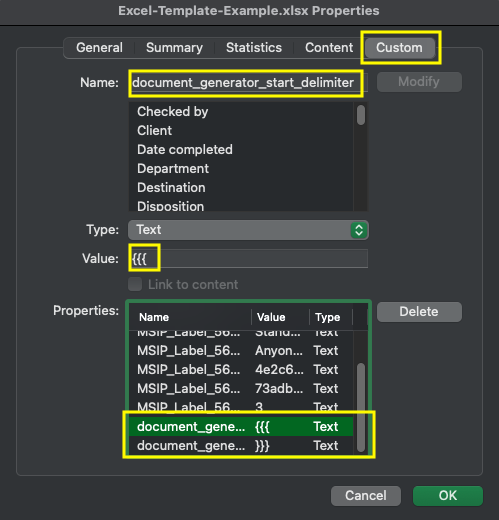
With the previous example, you can use this in your template:
Hello {{{customer.first_name}}} {{{customer.last_name}}}!To generate this text:
Hello Jack Smith!Basic Tag
Syntax: {basic}
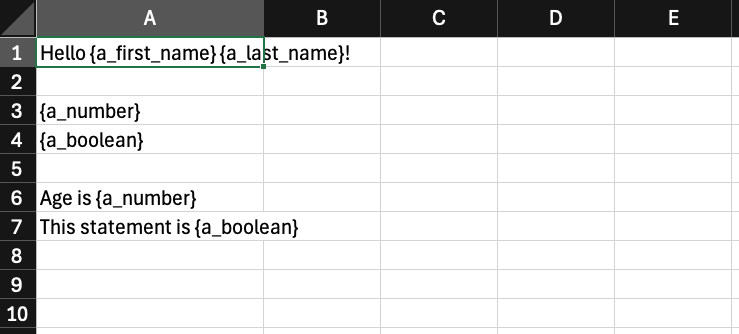
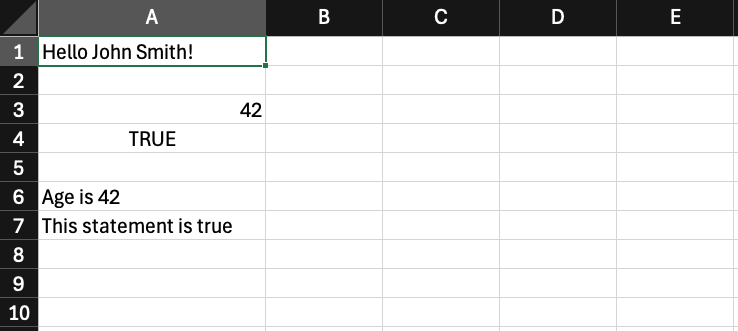
Used to inject texts, numbers or boolean values.
Examples
Data
{
  "a_first_name": "John",
  "a_last_name": "Smith",
  "a_number": 42,
  "a_boolean": true
}
Template
Output
Sample documents
| MS Excel Template | JSON Data | Output |
|---|---|---|
| Excel-Basic.xlsx | Excel-Basic.json | Excel-Basic-output.xlsx |
Vertical Loop Tag
Syntax: {vl:loop}...{/loop} or {#loop}...{/loop}
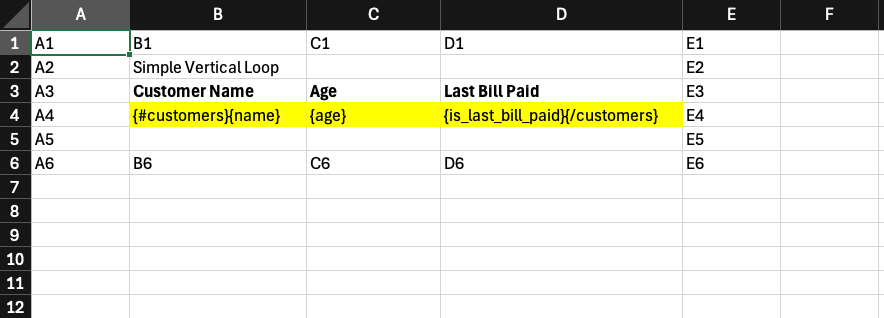
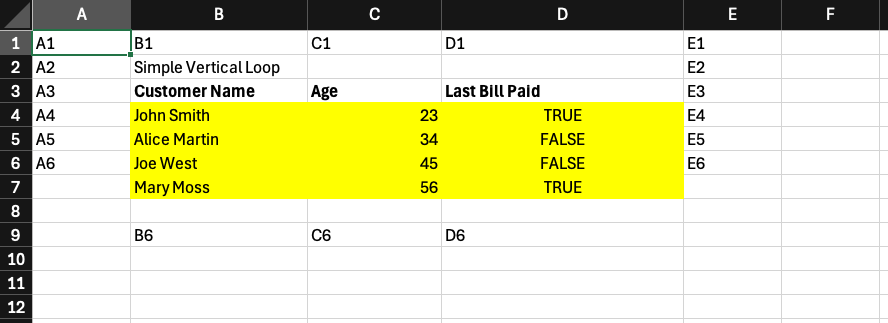
A {vl:loop} tag is used to produce copies of a range of cells vertically. The copied region is determined by the position of the tags {vl:loop} and {/loop}. Both {vl:loop} and {/loop} are included in the region.
Cells below the region are pushed down.
See Labels regarding loop tag uniqueness.
Example
Data
{
  "customers": [
    {
      "name": "John Smith",
      "age": 23,
      "is_last_bill_paid": true
    },
    {
      "name": "Alice Martin",
      "age": 34,
      "is_last_bill_paid": false
    },
    {
      "name": "Joe West",
      "age": 45,
      "is_last_bill_paid": false
    },
    {
      "name": "Mary Moss",
      "age": 56,
      "is_last_bill_paid": true
    }
  ]
}
Template
Output
Sample documents
| MS Excel Template | JSON Data | Output |
|---|---|---|
| Excel-VLoop.xlsx | Excel-VLoop.json | Excel-VLoop-output.xlsx |
Horizontal Loop Tag
Syntax: {hl:loop}...{/loop} or {:loop}...{/loop}
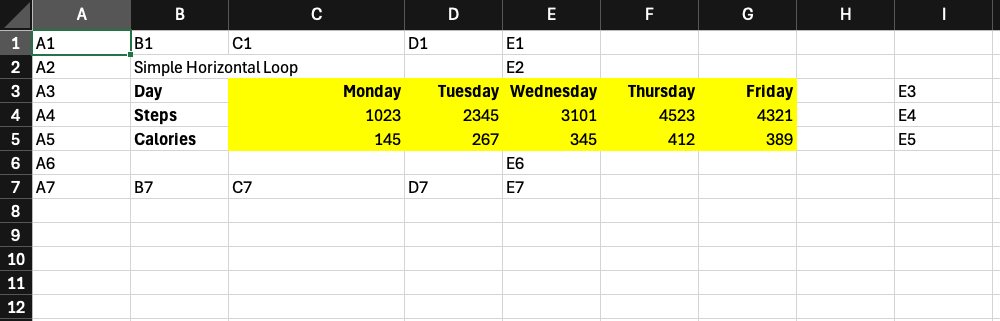
A {hl:loop} tag is used to produce copies of a region of cells horizontally. The copied region is determined by the position of the tags {hl:loop} and {/loop}. Both {hl:loop} and {/loop} are included in the region.
Cells on the right of the region are pushed to the right.
See Labels regarding loop tag uniqueness.
Example
Data
{
  "days": [
    {
      "day_of_week": "Monday",
      "steps": 1023,
      "calories": 145
    },
    {
      "day_of_week": "Tuesday",
      "steps":2345,
      "calories": 267
    },
    {
      "day_of_week": "Wednesday",
      "steps": 3101,
      "calories": 345
    },
    {
      "day_of_week": "Thursday",
      "steps": 4523,
      "calories": 412
    },
    {
      "day_of_week": "Friday",
      "steps": 4321,
      "calories": 389
    }
  ]
}
Template

Output
Sample documents
| MS Excel Template | JSON Data | Output |
|---|---|---|
| Excel-HLoop.xlsx | Excel-HLoop.json | Excel-HLoop-output.xlsx |
Conditional Tags
if Tag
Syntax: {if:expression}...{/expression} or {#expression}...{/expression}
An {if:expression} tag in a worksheet displays the enclosed range of cells only if the expression resolves to true.
When the expression is false, the enclosed range is removed and the content below is pulled up (vertically).
The expression can be either a boolean value or a boolean expression like expr(age<18). See the section below on conditional expressions.
Example
Data
{
  "age": 18,
  "name": "Bob"
}
Template

Result

We see that since we have "age": 18, age<18 is false. This causes:
- Cell range
E2:F3to be removed. - Cell range
E4:F5to be pulled up.
hif Tag
Syntax: {hif:expression}...{/expression} or {:expression}...{/expression}
An {hif:expression} tag in a worksheet displays the enclosed range of cells only if the expression resolves to true.
When the expression is false, the enclosed range is removed and the content on the right is pulled left (horizontally).
The expression can be either a boolean value or a boolean expression like expr(age<18). See the section below on conditional expressions.
Example
Data
{
  "age": 18,
  "name": "Bob"
}
Template

Result

We see that since we have "age": 18, age<18 is false. This causes:
- Cell range
B5:C6to be removed. - Cell range
D5:E6to be pulled left.
staticIf Tag
Syntax: {staticIf:expression}...{/expression} or {##expression}...{/expression}
An {staticIf:expression} tag in a worksheet displays the enclosed range of cells only if the expression resolves to true.
When the expression is false, the enclosed range is blanked out without moving any of the surrounding content.
The expression can be either a boolean value or a boolean expression like expr(age<18). See the section below on conditional expressions.
Example
Data
{
  "age": 18,
  "name": "Bob"
}
Template

Result

We see that since we have "age": 18, age<18 is false. This causes:
- Cell range
E2:F3to be blanked out.
Sample documents
| MS Excel Template | JSON Data | Output |
|---|---|---|
| Excel-Conditionals.xlsx | Excel-Conditionals.json | Excel-Conditionals-output.xlsx |
See Labels regarding conditional tags uniqueness.
Image Tag
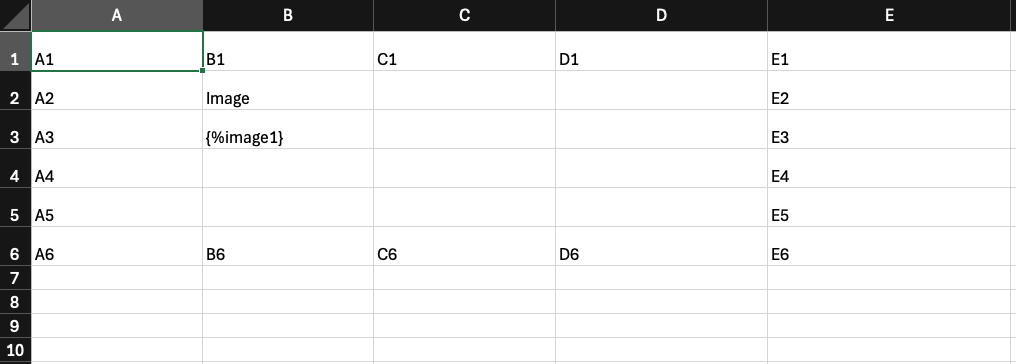
Syntax: {im:image} or {image:image} or {%image}
An {im:image} tag is used to insert an image into a worksheet. Images can be provided from an OCI Object Storage bucket or from a URL. Images must be provided as an object, for example:
{
  "my_image": {
    "source": "OBJECT_STORAGE",
    "objectName": "image.png",
    "namespace": "object_storage_namespace",
    "bucketName": "my_bucket_name",
    "mediaType": "image/png"
  }
}
General
The specific schema for each source type is described below. You can also include the following optional properties in the image object to control image formatting:
- width: A
stringof digits, followed by unit of measure. E.G.200px. Sets the width of the image. - height: A
stringof digits, followed by unit of measure. E.G.200px. Sets the height of the image. - alt_text: A
string. This will be set as the alternative text of the image.
Supported units of measure:
Document Generator supports the following units of measure for images:
- px (pixels)
- in (inches)
- cm (centimeters)
- % (percentage)
Default size of inserted images:
- The original size is preserved.
Image scaling:
If only one image dimension is provided, Document Generator calculates a scaled value for the missing dimension to preserve the aspect ratio. For instance:
- If you provide a width, but no height, a scaled height will be calculated based on the image's native dimensions and the provided width.
- If you provide a height, but no width, a scaled width will be calculated based on the image's native dimensions and the provided height.
Supported Formats
Document Generator supports the following image formats:
- PNG
- JPG
- GIF
- BMP
Schemas
OCI Object Storage
source: must be set toOBJECT_STORAGEobjectName: The path and name of the filenamespace: The namespace of your object storage bucketbucketName: The name of the bucket that contains the filemediaType: The Media Type (MIME) of the image
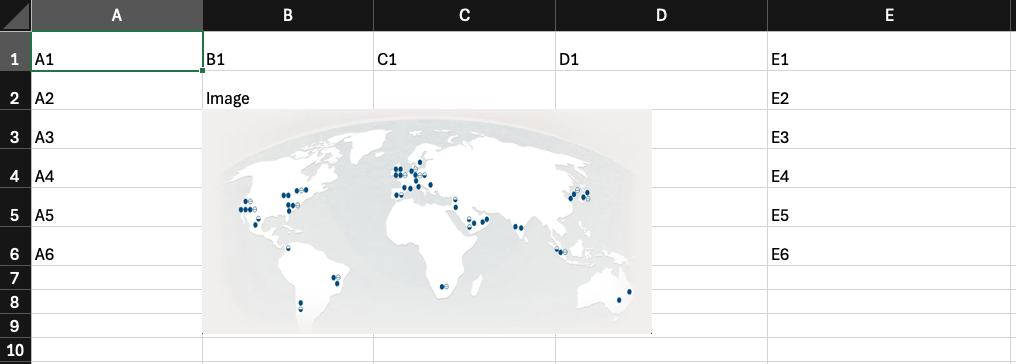
Example - Width and height specified
Data
{
  "my_image": {
    "source": "OBJECT_STORAGE",
    "objectName": "image.png",
    "namespace": "object_storage_namespace",
    "bucketName": "my_bucket_name",
    "mediaType": "image/png",
    "width": "400px",
    "height": "200px"
  }
}
Template
Result
URL
source: must be set toURLurl: the image URL instringformat
Note: to use images from the Internet, Document Generator needs outbound access to the Internet. For example, if Document Generator is running in a private subnet in OCI, you could set up a NAT Gateway to allow Document Generator to connect to the Internet.
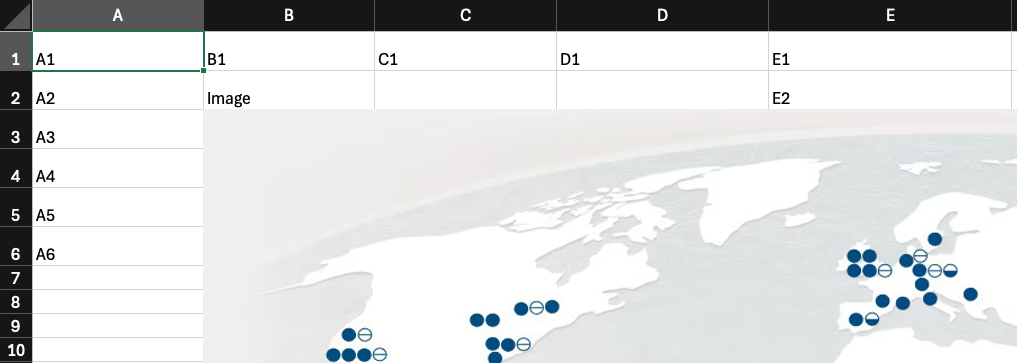
Example - Width and height not specified
Data
{
  "my_image": {
    "source": "URL",
    "url": "https://www.oracle.com/.../.jpg"
  }
}
Template
Result
Data URL
Document Generator also supports images provided as Data URLs. The image must be Base64-encoded.
source: must be set toURLurl: the image URL instringformat
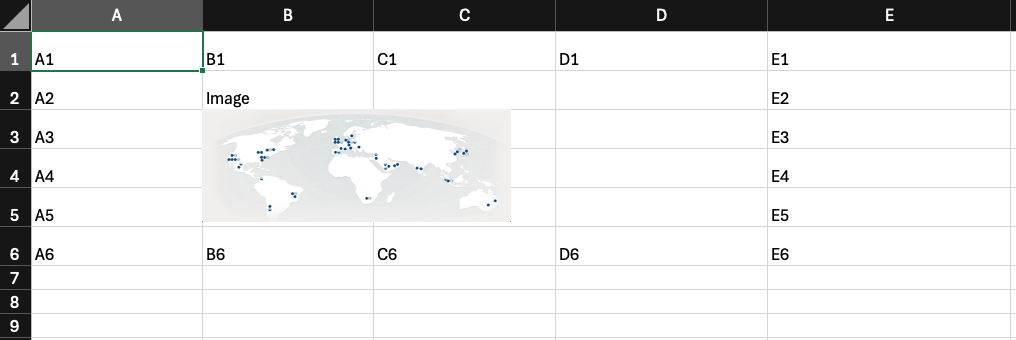
Example - Only height is specified
Data
{
  "my_image": {
    "source": "URL",
    "url": "data:image/png;base64,iVBORw0KG...go",
    "height": "150px"
  }
}
Template
Result
Sample documents
| MS Excel Template | JSON Data | Output |
|---|---|---|
| Excel-Images.xlsx | Excel-Images.json | Excel-Images-output.xlsx |
Barcode Tag
Syntax: {bc:barcode} or {barcode:barcode}
A {bc:barcode} tag is used to generate a barcode image in a worksheet. Supported barcode types are:
| Barcode | barcodeType | Example |
|---|---|---|
| Code 128 | CODE_128 | 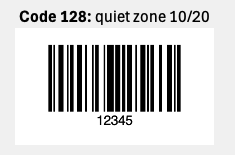 |
| Code 39 | CODE_39 | 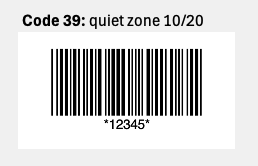 |
| Data Matrix | DATA_MATRIX | 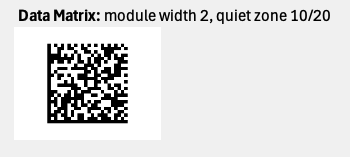 |
| International Article Number (EAN) | EAN | 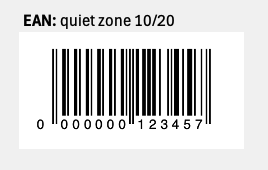 |
| Quick-response code (QR code) | QR |  |
| PDF417 | PDF417 | 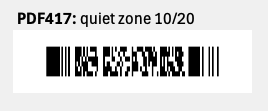 |
| Universal Product Code (UPC) | UPC | 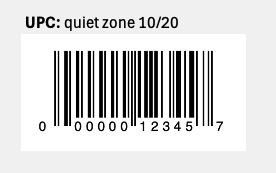 |
QuietZone
verticalSize: number - Size of the vertical quiet zone (above and below the barcode)horizontalSize: number - Size of the horizontal quiet zone (right and left of the barcode)
Example
{
  "verticalSize": 10,
  "horizontalSize": 20
}
Properties common to all barcodes
barcodeType(required):CODE_128,CODE_39,DATA_MATRIX,EAN,QR,PDF417,UPCdata(required): String - Data to be encodedmoduleWidth: number (default: 1) - The width of each bar in the barcode for 1D barcodes. The width and height of each dot for 2D barcodesquietZone: QuietZone - The empty space surrounding a barcodescale: number (default: 1.0) - Scale factor for the barcode image. All dimensions will be multiplied by this factor to generate a larger (scale > 1) or smaller (scale < 1) imagerotation:DEGREES_0(default),DEGREES_90,DEGREES_180,DEGREES_270altText: String - Alternative text for the barcode image
Code 128 - Specific properties
barHeight: number (default: 40) - Height of each barfontSize: number (default: 8) - Font size in points for human-readable text in the barcode imageallowedCodeSets:A,B,C,AB,ABC(default)
Example
{
  "barcodeType": "CODE_128",
  "data": "12345",
  "moduleWidth": 2,
  "quietZone": {
    "verticalSize": 10,
    "horizontalSize": 10
  },
  "scale": 0.5,
  "rotation": "DEGREES_90",
  "altText": "Code 128",
  "barHeight": 80,
  "fontSize": 10,
  "allowedCodeSets": "AB"
}
Code 39 - Specific properties
barHeight: number (default: 40) - Height of each barfontSize: number (default: 8) - Font size for human-readable text in the barcode imagemoduleWidthRatio: number (default: 2) - Ratio of wide bar width to narrow bar width. Allowed values are 2 or 3isExtended: boolean (default: false) - Whether to use Extended Code 39 to encode the full ASCII setcheckDigitType:NONE(default),MOD_43
Example
{
  "barcodeType": "CODE_39",
  "data": "12345?",
  "barHeight": 80,
  "fontSize": 10,
  "moduleWidthRatio": 3,
  "isExtended": true,
  "checkDigitType": "MOD_43"
}
Data Matrix - Specific properties
shape:SQUARE,RECTANGULAR- If not specified, the smallest shape will be used. Note that if thesizeis specified, the shape will not be usedsize: number (from 1 to 30) - Size of the data matrix. If not specified, the optimal size is chosen based on the data to be encoded
Example
{
  "barcodeType": "DATA_MATRIX",
  "data": "The quick brown fox jumped over the lazy dog.",
  "shape": "SQUARE",
  "size": 20
}
International Article Number (EAN) - Specific properties
barHeight: number (default: 40) - Height of each barfontSize: number (default: 8) - Font size for human-readable text in the barcode imageeanType:EAN_8,EAN_13(default)
Example
{
  "barcodeType": "EAN",
  "data": "12345",
  "barHeight": 80,
  "fontSize": 10
}
Quick-response code (QR code) - Specific properties
version: number (from 1 to 40) - QR code version. Determines the size of the symbol and how much data it can encode. Defaults to the minimum version necessary to encode the dataminEccLevel:LOW,MEDIUM,QUARTILE,HIGH. Minimum error correction level. Defaults to the maximum level possible for the selected version and dataforceByteCompaction: boolean (default: false) - Whether to force byte compaction mode. If false, the optimal compaction mode is chosen based on the data to be encoded
Example
{
  "barcodeType": "QR",
  "data": "https://docs.oracle.com/en-us/iaas/Content/Functions/Tasks/functions_pbf_catalog_document_generator.htm"
}
PDF417 - Specific properties
forceByteCompaction: boolean (default: false) - Whether to force byte compaction mode. If false, the optimal compaction mode is chosen based on the data to be encodedrowHeight: number (default: 3)pdf417Type:NORMAL(default),TRUNCATED,MICROeccLevel: number (from 0 to 8) - The amount of the barcode to dedicate to error correction codewords. The number of error correction codewords is determined by 2^(eccLevel + 1). If not specified, a value is chosen based on the data to be encoded. Ignored for micro PDF417 barcodes
Example
{
  "barcodeType": "PDF417",
  "data": "12345",
  "rowHeight": 6
}
Universal Product Code (UPC) - Specific properties
upcType:UPC_A(default),UPC_EbarHeight: number (default: 40) - Height of each barfontSize: number (default: 8) - Font size for human-readable text in the barcode imageguardPatternExtraHeight: number (default: 5) - Extra height for guard patternsshowCheckDigit: boolean (default: true) - Whether to show the check digit in the human-readable text
Example
{
  "barcodeType": "UPC",
  "data": "12345"
}
Example
Data
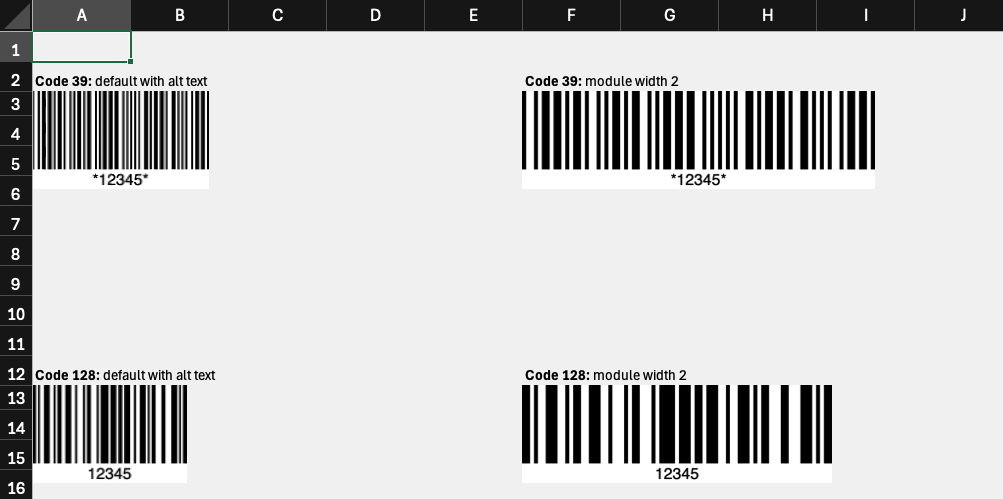
{
  "barcodeTypes": [
    {
      "name": "Code 39",
      "barcodes": [
        {
          "label": "default with alt text",
          "barcode": {
            "barcodeType": "CODE_39",
            "data": "12345",
            "altText": "an example Code 39 barcode"
          }
        },
        {
          "label": "module width 2",
          "barcode": {
            "barcodeType": "CODE_39",
            "data": "12345",
            "moduleWidth": 2
          }
        }
      ]
    },
    {
      "name": "Code 128",
      "barcodes": [
        {
          "label": "default with alt text",
          "barcode": {
            "barcodeType": "CODE_128",
            "data": "12345",
            "altText": "an example Code 128 barcode"
          }
        },
        {
          "label": "module width 2",
          "barcode": {
            "barcodeType": "CODE_128",
            "data": "12345",
            "moduleWidth": 2
          }
        }
      ]
    }
  ]
}
Template
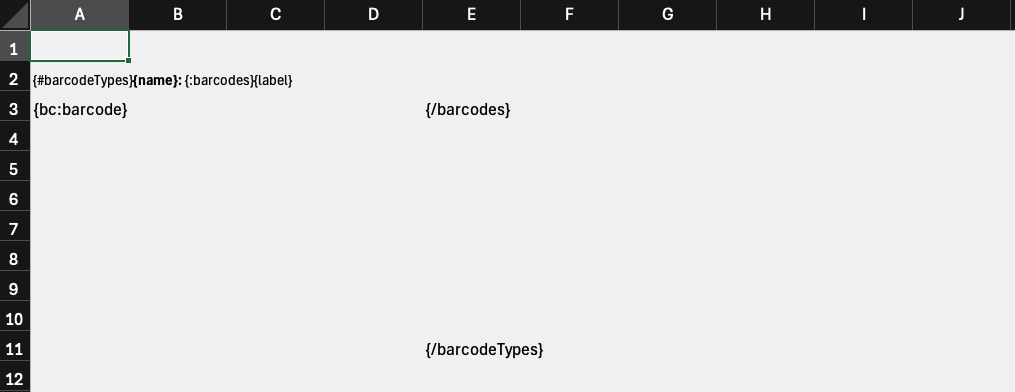
Output
Sample documents
| MS Excel Template | JSON Data | Output |
|---|---|---|
| Excel-Barcodes.xlsx | Excel-Barcodes.json | Excel-Barcodes-output.xlsx |
Cell Styling Tag
Syntax: {cs:style} or {cellStyling:style}
A {cs:style} tag is used to apply styling to an Excel cell. Styling options include:
- Font
- Horizontal alignment
- Vertical alignment
- Background color
- Borders
Styling considerations:
- Multiple cell styling tags can be applied to a cell. They are applied from left to right.
- Existing cell styling is preserved before additional styling is applied.
- The style will be applied to the entire cell
StyleColor
colorType(required):OPAQUE_HEX_RGBvalue: 6 digits Hexadecimal String
Example
{
  "color": {
    "colorType": "OPAQUE_HEX_RGB",
    "value": "FFFF00"
  }
}
BorderStyle
borderStyle(required):NONE,MEDIUM,DOUBLE,DASHED,DOTTED,MEDIUM_DASHED,MEDIUM_DASH_DOT,MEDIUM_DASH_DOT_DOTcolor: StyleColor
Example
{
  "top": {
    "borderStyle": "MEDIUM",
    "color": {
      "colorType": "OPAQUE_HEX_RGB",
      "value": "FFFF00"
    }
  }
}
Font
familyName: StringsizeInPoints: numbercolor: StyleColorisItalic: booleanisBold: booleanisStrikethrough: booleanunderline:NONE,SINGLE,DOUBLEtextPosition:BASELINE,SUPERSCRIPT,SUBSCRIPT
Example
{
  "font": {
    "familyName": "Cookie",
    "sizeInPoints": 20,
    "color": {
      "colorType": "OPAQUE_HEX_RGB",
      "value": "FF0000"
    },
    "isBold": true,
    "isItalic": true,
    "isStrikethrough": true,
    "underline": "DOUBLE",
    "textPosition": "SUPERSCRIPT"
  }
}
Horizontal Alignment
horizontalAlignment:LEFT,CENTER,RIGHT,JUSTIFY
Example
{
  "horizontalAlignment": "RIGHT"
}
Vertical Alignment
verticalAlignment:TOP,CENTER,BOTTOM
Example
{
  "verticalAlignment": "TOP"
}
Cell background color
backgroundType(required):SINGLE_FILL_COLORcolor: StyleColor
Example
{
  "background": {
    "backgroundType": "SINGLE_FILL_COLOR",
    "color": {
      "colorType": "OPAQUE_HEX_RGB",
      "value": "DDDDDD"
    }
  }
}
Borders
top: BorderStylebottom: BorderStyleleft: BorderStyleright: BorderStyle
Example
{
  "top": {
    "borderStyle": "MEDIUM",
    "color": {
      "colorType": "OPAQUE_HEX_RGB",
      "value": "FFFF00"
    }
  },
  "bottom": {
    "borderStyle": "DASHED",
    "color": {
      "colorType": "OPAQUE_HEX_RGB",
      "value": "FF00FF"
    }
  },
  "left": {
    "borderStyle": "DOTTED"
  },
  "right": {
    "borderStyle": "MEDIUM_DASHED"
  }
}
Example
Data
{
  "cookieBold": {
    "font": {
      "familyName": "Cookie",
      "sizeInPoints": 20,
      "isBold": true
    }
  },
  "products": [
    {
      "name": "Winter Gloves",
      "remaining": 444,
      "s1": {
        "font": {
          "underline": "DOUBLE"
        }
      },
      "s2": {
        "background": {
          "backgroundType": "SINGLE_FILL_COLOR",
          "color": {
            "colorType": "OPAQUE_HEX_RGB",
            "value": "DDDDDD"
          }
        }
      }
    },
    {
      "name": "Snow Shovel",
      "remaining": 11,
      "s2": {
        "font": {
          "color": {
            "colorType": "OPAQUE_HEX_RGB",
            "value": "FF0000"
          }
        },
        "background": {
          "backgroundType": "SINGLE_FILL_COLOR",
          "color": {
            "colorType": "OPAQUE_HEX_RGB",
            "value": "BBBBBB"
          }
        }
      }
    }
  ]
}
Template
Output
Notes
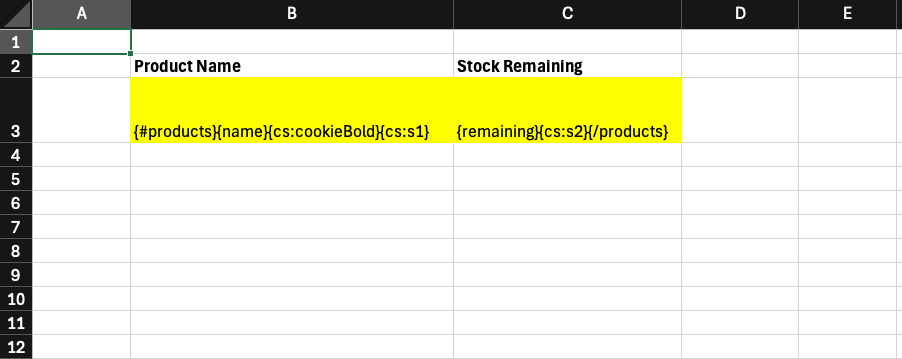
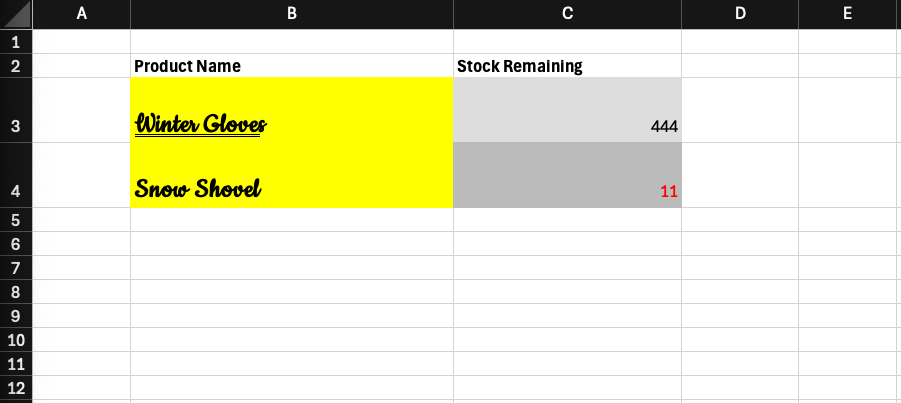
Consider cell B3. The template contains {name}{cs:cookieBold}{cs:s1}.
- The yellow background fill comes from the original cell styling.
{name}resolves to "Winter Gloves" from the data.{cs:cookieBold}applies the Cookie font from thecookieBoldstyle defined at the root of the data.{cs:s1}applies the double underline from thes1style for Winter Gloves.
Sample documents
| MS Excel Template | JSON Data | Output |
|---|---|---|
| Excel-CellStyling.xlsx | Excel-CellStyling.json | Excel-CellStyling-output.xlsx |
Formula Tag
Syntax: {fo:formula} or {formula:formula} or {>formula}
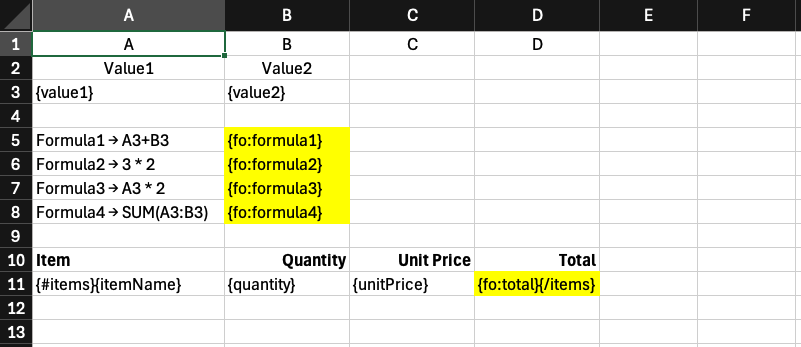
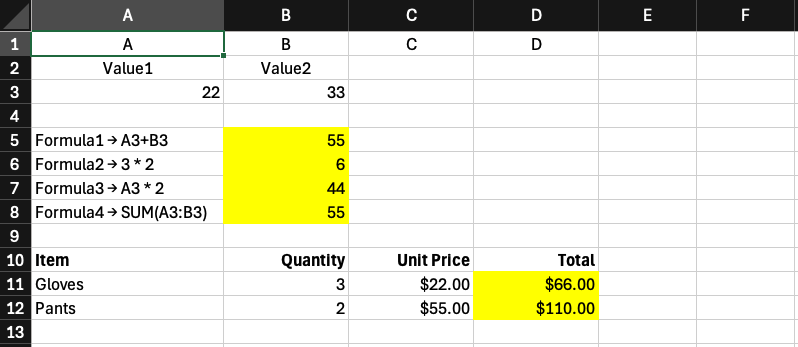
A {fo:formula} tag is used to insert an Excel formula into a worksheet.
Note that the content of the inserted formulas is not validated.
Example
Data
{
  "value1": 22,
  "value2": 33,
  "formula1": "A3+B3",
  "formula2": "3 * 2",
  "formula3": "A3 * 2",
  "formula4": "SUM(A3:B3)",
  "items": [
    {
      "itemName": "Gloves",
      "quantity": 3,
      "unitPrice": 22,
      "total": "B11 * C11"
    },
    {
      "itemName": "Pants",
      "quantity": 2,
      "unitPrice": 55,
      "total": "B12 * C12"
    }
  ]
}
Template
Output
Sample documents
| MS Excel Template | JSON Data | Output |
|---|---|---|
| Excel-Formula.xlsx | Excel-Formula.json | Excel-Formula-output.xlsx |
Hyperlink Tag
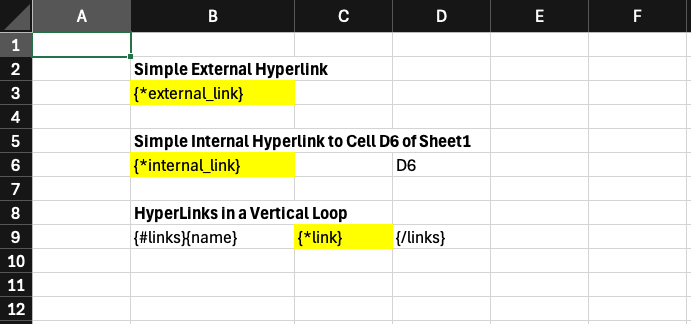
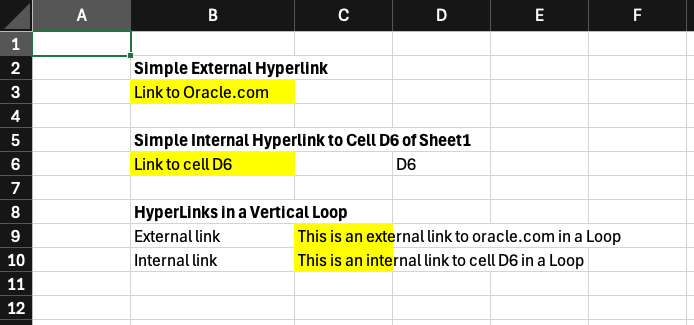
Syntax: {hy:hyperlink} or {hyperlink:hyperlink} or {*hyperlink}
A {hy:hyperlink} tag is used to insert a clickable hyperlink (including email addresses) into a document.
There are 2 types of hyperlinks:
- External
- Internal
External Hyperlinks
A hyperlink that refers to something outside the Excel file. It must be provided as an object with the following properties:
type: EXTERNALurl: a URL in string format. Example:https://www.oracle.comurl_text(optional): a string to be displayed instead of the URL
Internal Hyperlinks
A hyperlink that refers to cells inside the Excel file. It must be provided as an object with the following properties:
type: INTERNALlink: an Excel reference in string format. Example:Sheet1!D6to refer to cellD6of WorksheetSheet1link_text(optional): a string to be displayed instead of the link.tooltip(optional): a string to be displayed as a Tooltip
Example
Data
{
  "external_link": {
    "type": "EXTERNAL",
    "url": "https://www.oracle.com",
    "url_text": "Link to Oracle.com"
  },
  "internal_link": {
    "type": "INTERNAL",
    "link": "Sheet1!D6",
    "link_text": "Link to cell D6"
  },
  "links": [
    {
      "name": "External link",
      "link": {
        "type": "EXTERNAL",
        "url": "https://www.oracle.com",
        "url_text": "This is an external link to oracle.com in a Loop"
      }
    },
    {
      "name": "Internal link",
      "link": {
        "type": "INTERNAL",
        "link": "Sheet1!D6",
        "link_text": "This is an internal link to cell D6 in a Loop",
        "tooltip": "Hello from tooltip!"
      }
    }
  ]
}
Template
Output
Sample documents
| MS Excel Template | JSON Data | Output |
|---|---|---|
| Excel-Hyperlinks.xlsx | Excel-Hyperlinks.json | Excel-Hyperlinks-output.xlsx |
Page Break Tag
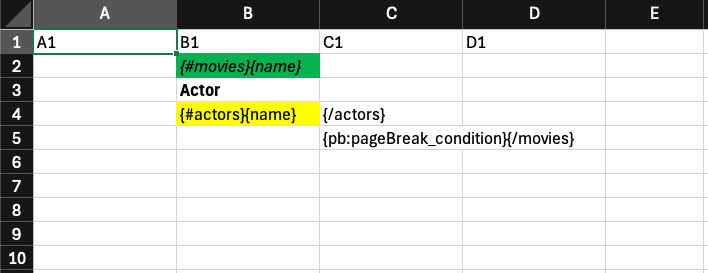
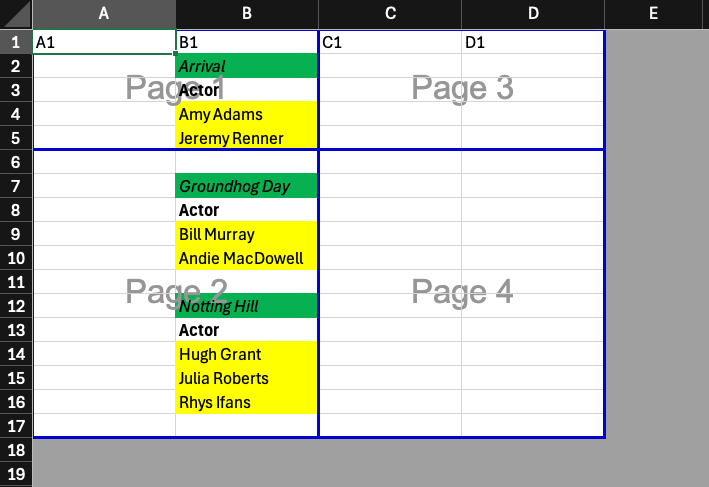
Syntax: {pb:expression} or {pageBreak:expression}
A {pb:expression} tag inserts a page break when the expression condition is true.
The expression can be either a boolean value or a boolean expression like expr(name=="Arrival"). See the section below on conditional expressions.
Example
Data
{
  "movies": [
    {
      "name": "Arrival",
      "actors": [
        {
          "name": "Amy Adams"
        },
        {
          "name": "Jeremy Renner"
        }
      ],
      "pageBreak_condition": true
    },
    {
      "name": "Groundhog Day",
      "actors": [
        {
          "name": "Bill Murray"
        },
        {
          "name": "Andie MacDowell"
        }
      ],
      "pageBreak_condition": false
    },
    {
      "name": "Notting Hill",
      "actors": [
        {
          "name": "Hugh Grant"
        },
        {
          "name": "Julia Roberts"
        },
        {
          "name": "Rhys Ifans"
        }
      ],
      "pageBreak_condition": false
    }
  ]
}
Template
Output
Sample documents
| MS Excel Template | JSON Data | Output |
|---|---|---|
| Excel-PageBreak.xlsx | Excel-PageBreak.json | Excel-PageBreak-output.xlsx |
Hide Row Tag
Syntax: {hideRow:expression}
A {hideRow:expression} tag in a worksheet hides or shows the row that contains the tag if the expression resolves to true (hide) or false (show).
The expression can be either a boolean value or a boolean expression like expr(age<18). See the section below on conditional expressions.
Note that if multiple {hideRow:expression} tags exist in the same row, the rightmost one will prevail, since Document Generator processes each row from first column to last column.
Example
Data
{
  "hideRowTrue": true,
  "customers": [
    {
      "name": "John Smith",
      "age": 23,
      "is_last_bill_paid": true
    },
    {
      "name": "Alice Martin",
      "age": 17,
      "is_last_bill_paid": false
    },
    {
      "name": "Joe West",
      "age": 36,
      "is_last_bill_paid": false
    },
    {
      "name": "Monica Richard",
      "age": 16,
      "is_last_bill_paid": true
    },
    {
      "name": "Mary Moss",
      "age": 18,
      "is_last_bill_paid": true
    }
  ]
}
Template
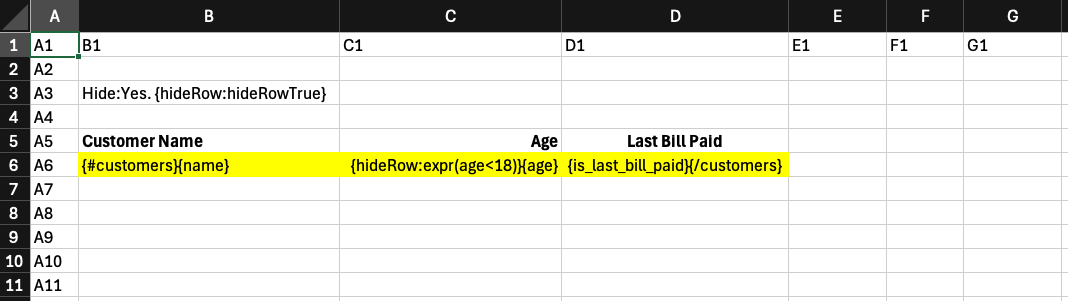
Output
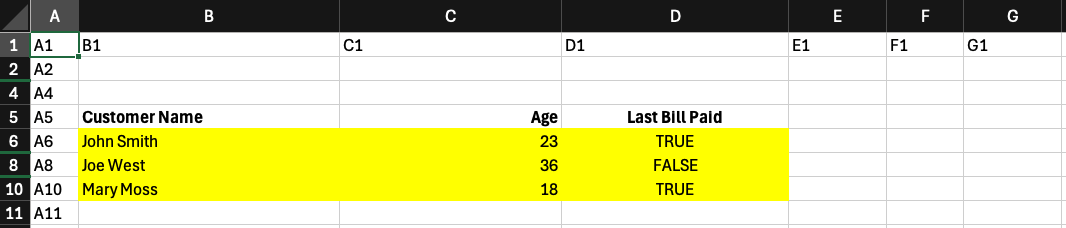
Rows 7 and 9 are hidden because the age of Alice Martin and Monica Richard is less than 18.
Sample documents
| MS Excel Template | JSON Data | Output |
|---|---|---|
| Excel-HideRow.xlsx | Excel-HideRow.json | Excel-HideRow-output.xlsx |
Hide Column Tag
Syntax: {hideColumn:expression}
A {hideColumn:expression} tag in a worksheet hides or shows the column that contains the tag if the expression resolves to true (hide) or false (show).
The expression can be either a boolean value or a boolean expression like expr(age<18). See the section below on conditional expressions.
Note that if multiple {hideColumn:expression} tags exist in the same column, the bottommost one will prevail, since Document Generator processes each Excel worksheet from top row to bottom row.
Example
Data
{
  "hideColTrue": true,
  "customers": [
    {
      "name": "John Smith",
      "age": 23,
      "is_last_bill_paid": true
    },
    {
      "name": "Alice Martin",
      "age": 18,
      "is_last_bill_paid": false
    },
    {
      "name": "Mary Moss",
      "age":17,
      "is_last_bill_paid": true
    }
  ]
}
Template

Output
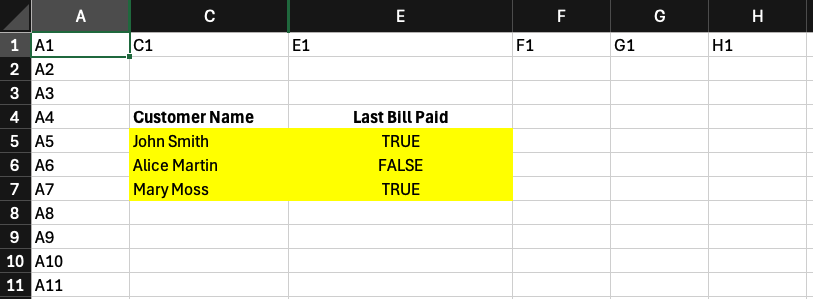
Column D is hidden because the age of Mary Moss is less than 18.
Sample documents
| MS Excel Template | JSON Data | Output |
|---|---|---|
| Excel-HideColumn.xlsx | Excel-HideColumn.json | Excel-HideColumn-output.xlsx |
Skip Tag
Syntax: {skip}
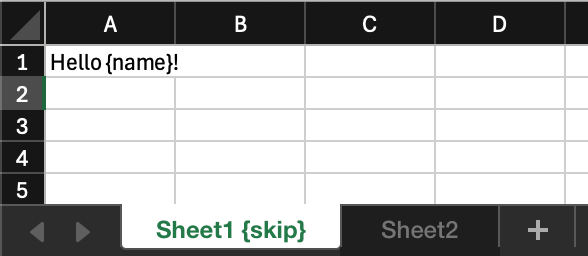
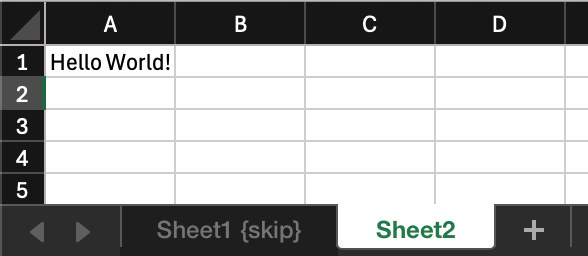
A {skip} tag in a worksheet name will prevent any tag resolution in that worksheet.
Example
Data
{
  "name": "World"
}
Template
In this example, both sheets in the template contain a tag:
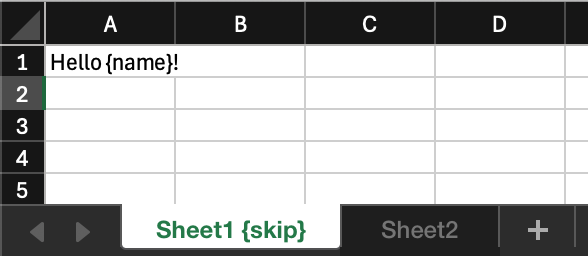

Output
In the output, only the tag in the second worksheet is resolved:
Sample documents
| MS Excel Template | JSON Data | Output |
|---|---|---|
| Excel-Skip.xlsx | Excel-Skip.json | Excel-Skip-output.xlsx |
Sheet Generation Tag
Syntax: {!dataRef} or {sg:dataRef}
A Sheet Generation tag acts as a loop or conditional tag over the entire worksheet. Only one is allowed per worksheet.
- If the backing JSON data at
dataRefis an array, the worksheet is duplicated for each additional array item. Each worksheet's tags are evaluated in the context of the corresponding array item, like a loop tag. - If the backing JSON data is the boolean value
true, the original worksheet is processed normally. - Otherwise, the worksheet is removed.
Example
Data
{
  "region": "Midwest",
  "customers": [
    {
      "name": "Alice"
    },
    {
      "name": "Bob"
    }
  ]
}
Template
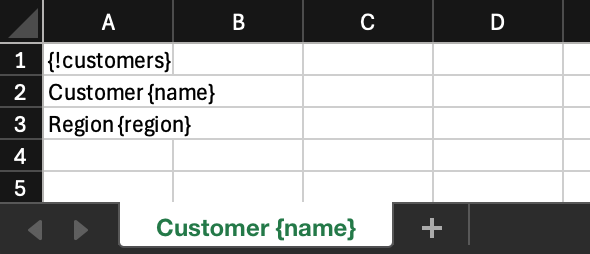
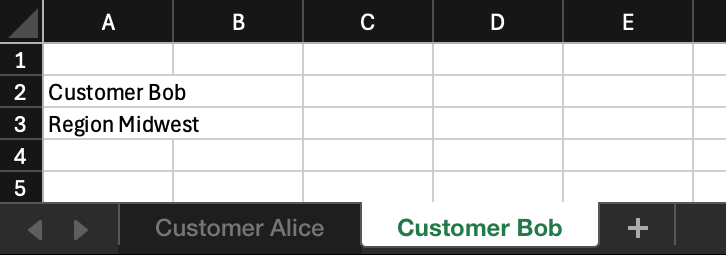
The worksheet contains a sheet generation tag, {!customers}, which refers to the customers array in the JSON data. It also contains two basic tags in the worksheet grid and another in the worksheet name.
Output
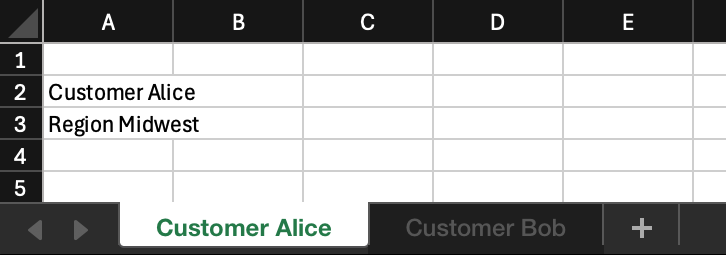
In the output:
- There is one worksheet per customer.
- The basic tag
{name}is replaced by the name of the current customer from the JSON array, including in the worksheet name. - The basic tag
{region}is replaced by the region specified at the root level of the JSON data.
Notes
- The sheet generation tag can appear anywhere in the worksheet.
- Generated worksheets will be inserted immediately after the original worksheet.
- If the name of a generated worksheet is not unique, a number is appended to its name. So if the original worksheet is called "Customer", it will generate "Customer", "Customer 2", "Customer 3", and so on.
- If the worksheet is removed, and there are no other worksheets, an empty worksheet called "Sheet1" is created so that the output file is still valid.
Sample documents
| MS Excel Template | JSON Data | Output |
|---|---|---|
| Excel-Sheet-Generation.xlsx | Excel-Sheet-Generation.json | Excel-Sheet-Generation-output.xlsx |
Conditional expressions
For some tags, Document Generator can use expressions that resolve to true or false.
These expressions combine JSON data references, operators (like == and <), built-in functions (like StartsWith) and literals (like "John" or 23).
Rules
- String comparisons are case-sensitive and use Unicode code-point comparison with NFC normalization.
- Operators are evaluated from left to right; precedence is: parentheses, comparisons,
&&, then||. Short-circuiting applies to&&and||. - Types are strict: numeric comparisons require numbers; equality only compares string-to-string, number-to-number, boolean-to-boolean. No cross-type coercion.
- JSON data references must be composed of letters (a-z, A-Z), underscores (_) or digits (0-9). The first character must be a letter or an underscore.
- Missing or null JSON data results in the expression resolving to false when evaluated.
- Invalid expression syntax in the template causes Document Generator to stop and return an error.
List of supported Operators
| Name | Description | Example |
|---|---|---|
== | True if the left operand is equal to the right operand | age == 18 |
!= | True if the left operand is not equal to the right operand | age != 18 |
> | True if the left operand is greater than the right operand | age > 18 |
>= | True if the left operand is greater than or equal to the right operand | age >= 18 |
< | True if the left operand is less than the right operand | age < 18 |
<= | True if the left operand is less than or equal to the right operand | age <= 18 |
&& | True if the left expression and the right expression are true | a == 0 && c == 42 |
|| | True if the left expression or the right expression is true | a == 0 || c == 42 |
List of supported Functions
| Name | Description | Example |
|---|---|---|
StartsWith | Data reference starts with given string | StartsWith(movieName, "The") |
StartsWithIgnoreCase | Data reference starts with given string (case-insensitive) | StartsWithIgnoreCase(movieName, "the") |
Contains | Data reference contains the given string | Contains(movieName, "Matrix") |
ContainsIgnoreCase | Data reference contains the given string (case-insensitive) | ContainsIgnoreCase(movieName, "matrix") |
Examples
| Expression | Comment |
|---|---|
age >= 18 | |
a == b || c == d && e > 0 | c == d && e > 0 is evaluated before a == b |
(title=="manager" || title == "director") && employeeCount > 2 | Parentheses can be used |
StartsWith(movieName, "The") && year == 1999 | Function StartsWith used |
Contains(movieName, "Matrix") || movies.0.actor != "Pitt" | Function Contains used. Referring to first actor in movies array |
(numberOfTomatoes > maxTomatoes) == false | Same as numberOfTomatoes <= maxTomatoes |
-1 >= -1.01 || UnknownName == "Smith" | Since first part is true, UnknownName == "Smith" is not evaluated |
Contains(drink, "Cafe\u0301") | Unicode characters are supported |
Labels
A worksheet cannot contain multiple loops or conditionals with the same name, because in some situations it is difficult to tell which start tags belong with which end tags. Use the |label: modifier to differentiate loops that reference the same array or conditional tags that have the same condition.
For example, this is not valid:
{vl:items} ... {/items}
{vl:items} ... {/items}
But this is valid:
{vl:items|label:1} ... {/items|label:1}
{vl:items|label:2} ... {/items|label:2}
Tag - Advanced Examples
Loop nesting
This example contains three nested loops: two vertical loops and one horizontal loop.
Data
The three loop levels in the data are genres, movies, and actors.
{
  "genres": [
    {
      "name": "Comedy",
      "movies": [
        {
          "name": "Groundhog Day",
          "actors": [
            {
              "name": "Bill Murray",
              "birth_year": 1950
            },
            {
              "name": "Andie MacDowell",
              "birth_year": 1958
            }
          ]
        },
        {
          "name": "Notting Hill",
          "actors": [
            {
              "name": "Hugh Grant",
              "birth_year": 1960
            },
            {
              "name": "Julia Roberts",
              "birth_year": 1967
            },
            {
              "name": "Rhys Ifans",
              "birth_year": 1967
            }
          ]
        }
      ]
    },
    {
      "name": "Science Fiction",
      "movies": [
        {
          "name": "Arrival",
          "actors": [
            {
              "name": "Amy Adams",
              "birth_year": 1974
            },
            {
              "name": "Jeremy Renner",
              "birth_year": 1971
            }
          ]
        },
        {
          "name": "The Matrix",
          "actors": [
            {
              "name": "Keanu Reeves",
              "birth_year": 1964
            },
            {
              "name": "Carrie-Anne Moss",
              "birth_year": 1967
            },
            {
              "name": "Laurence Fishburne",
              "birth_year": 1961
            }
          ]
        }
      ]
    }
  ]
}
Template
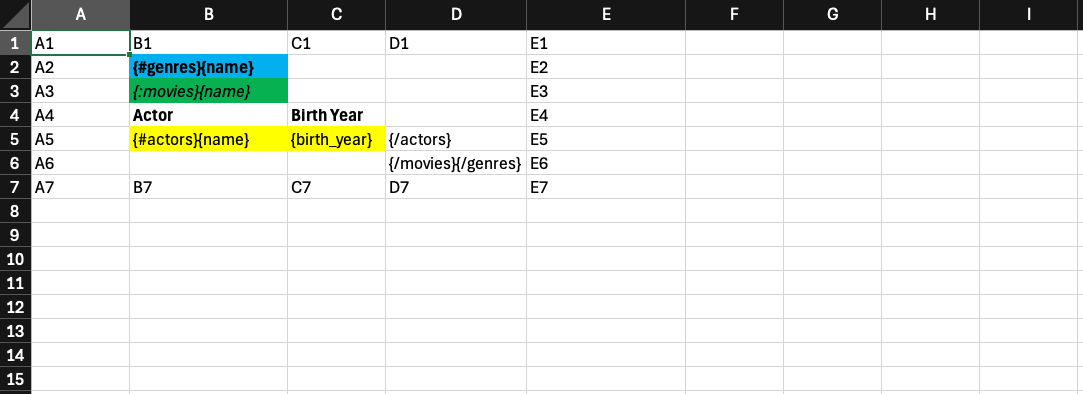
Output
Walkthrough of Loops expansion in this example
Loops are resolved in each worksheet from the top row to the bottom row. Each row is processed from left to right.
- Loop B2:D6 (genres) is expanded vertically.
- Loop B3:D6 (movies - Comedy) is expanded horizontally.
- Loop B5:D5 (actors - Groundhog Day) is expanded vertically.
- Loop E5:G5 (actors - Notting Hill) is expanded vertically.
- Loop B9:D13 (movies - Science Fiction) is expanded horizontally.
- Loop B11:D11 (actors - Arrival) is expanded vertically.
- Loop E11:G11 (actors - The Matrix) is expanded vertically.
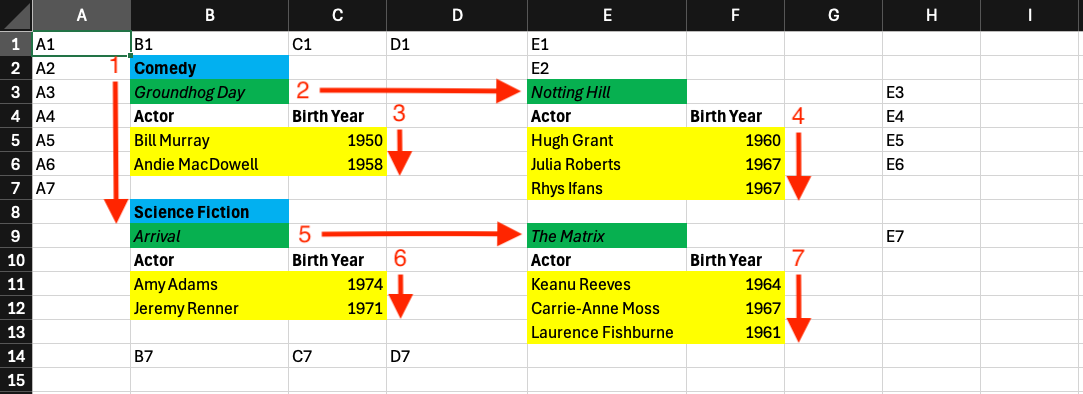
Notes
- All tags in loops are resolved in the context of their loop. In this example, the
{name}basic tag is used in each loop with a different meaning (genre name, movie name, actor name).
| MS Excel Template | JSON Data | Output |
|---|---|---|
| Excel-Loops.xlsx | Excel-Loops.json | Excel-Loops-output.xlsx |
Charts
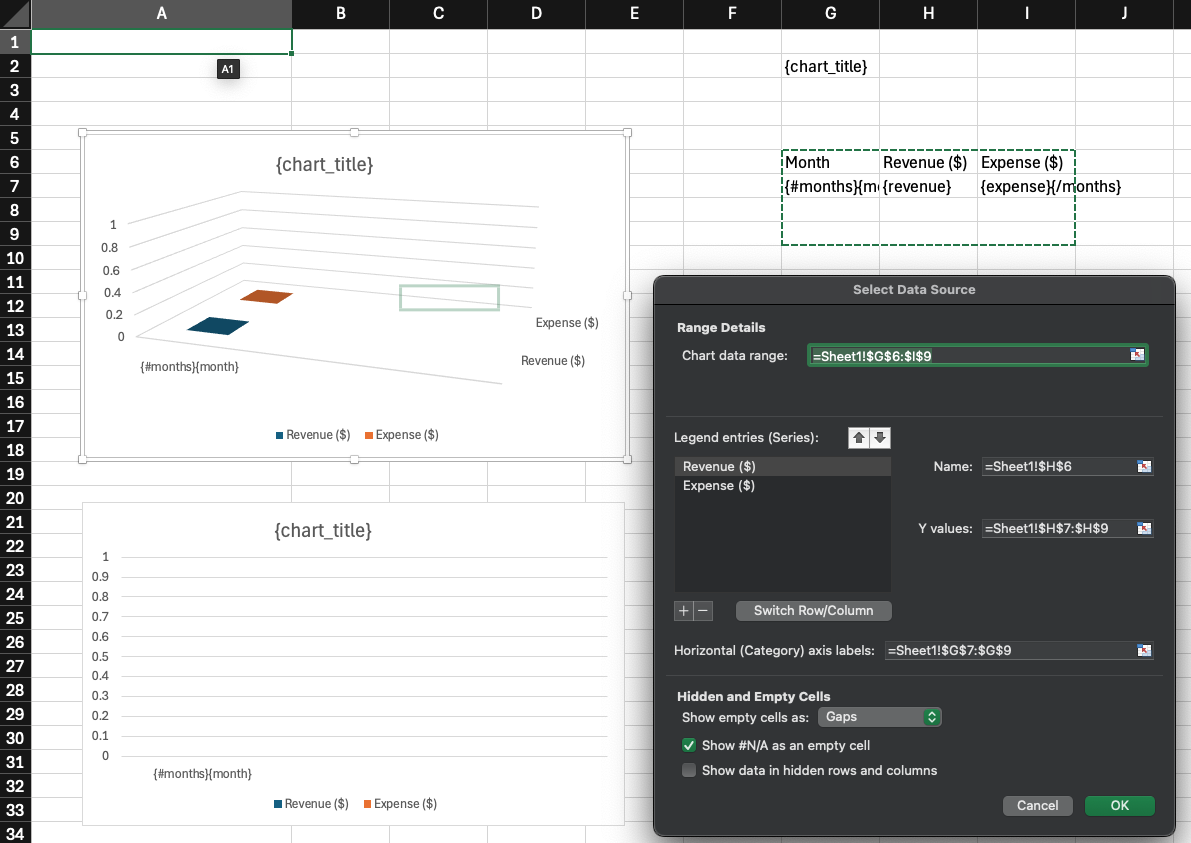
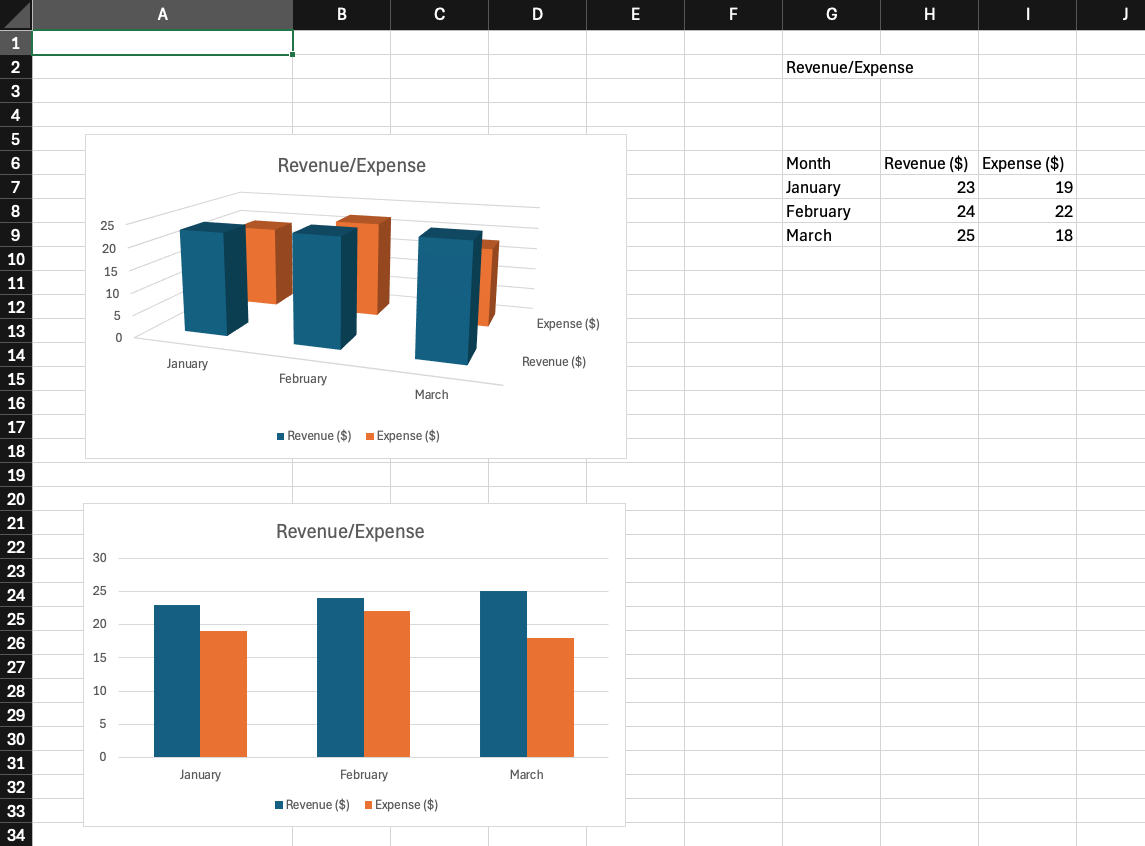
This example uses a template that contains two charts. The chart data comes from a range of cells that contains a vertical loop. The chart title refers to a cell that contains a basic tag.
Data
{
  "chart_title": "Revenue/Expense",
  "months": [
    {
      "month": "January",
      "revenue": 23,
      "expense": 19
    },
    {
      "month": "February",
      "revenue": 24,
      "expense": 22
    },
    {
      "month": "March",
      "revenue": 25,
      "expense": 18
    }
  ]
}
Template