Scenario: Sending Streaming Data to Log Analytics
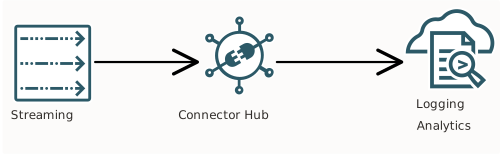
Learn how to send streaming data from the OCI Streaming service to Log Analytics using Connector Hub. Streaming ingests and consumes high-volume data streams in real time.
Required IAM Policy
Default policies provide you the access you need. The workflow for creating a connector with a Streaming source and Log Analytics target includes a default policy for reading streams and a default policy for writing to Log Analytics . If you're new to policies, see IAM Policies Overview.
Goal
The goal of this scenario is to analyze stream data.
Setting Up This Scenario
Setting up this scenario involves creating a connector to move streams to Log Analytics for analysis.
You can complete these tasks in the Oracle Cloud Infrastructure Console, CLI, or API.
For help with troubleshooting, see Troubleshooting Connectors and Troubleshooting Notifications.
On the Connectors list page, select Create connector. If you need help finding the list page, see Listing Connectors.
Task 1: Create the connectorTask 1: Create the connector
On the Connectors list page, select Create connector. If you need help finding the list page, see Listing Connectors.
1. Basic Connector Information
Enter identifying information.
- Connector name: Enter a user-friendly name for the new connector and an optional description. Avoid entering confidential information. Example: Metrics to Bucket
- Select a compartment: Select the compartment to store the new connector in.
Select Next.
2. Configure Connector Source
Select the stream.
- Select source: Select Streaming.
- Configure source:
- Compartment: Select the compartment that contains the stream that you want.
- Stream pool: Select the stream pool that contains the stream that you want.Note
To select a stream pool and stream for a connector, you must have authorization to read the stream pool and stream. See IAM Policies (Securing Connector Hub). - Stream: Select the name of the stream that you want to receive data from.
- Read position: Select Latest to start reading at messages published after saving the connector.
- Create policy: Select to accept the default policy provided for the entered source configuration.
Select Next.
3. Configure Connector Task
Select Next (skip this section).
4. Configure Connector Target
Enter the metric namespace and metric name that you want to use for the filtered log data.
- Target: Select Logging Analytics.
- Configure target: Select the compartment, log group, and log source.
- Create policy: Select to accept the default policy provided for the entered target configuration.
Select Next.
Connector Preview
Review the connector configuration and then select Create.
The creation process begins, and its progress is displayed. On completion, the connector's details page opens.
Task 2: Create the alarmTask 2: Create the alarm
This example walks through using the Console to create an alarm that sends a message when Monitoring receives metric data points corresponding to VCN flow log data for rejected traffic. During this process, you'll create a topic and an email subscription.
- Open the navigation menu and select Observability & Management. Under Monitoring, select Alarm Definitions.
-
Select Create Alarm.
-
On the Create Alarm page, under Define alarm, set up your threshold:
-
Metric description:
- Compartment: (select the compartment specified in the previous task, where you are storing the metric data points corresponding to the VCN flow log data)
- Metric namespace: (enter the metric namespace that you specified in the connector)
- Metric name: (enter the metric name that you specified in the connector)
- Interval: 1m
- Statistic: Count
-
Trigger rule:
- Operator: greater than
- Value: 0
- Trigger delay minutes: 1
-
Metric description:
- Under Notifications, Destinations, set up an email notification:
- Destination Service: Notifications Service
- Compartment: (select the compartment where you want to create the topic and associated subscriptions)
-
Topic: Select Create a topic
Note
If you already created your topic and email subscription, you can select that topic here instead of creating a new one.- Topic name: Rejected Traffic Topic
- Subscription protocol: Email
- Subscription Email: (type your email address here)
-
Select Save alarm.
-
Define the Streaming source for the connector: Save a file named
source.json.Example source.json file{ "kind": "streaming", "streamId": "<stream_OCID>", "cursor" : { "kind": "LATEST" } } -
Define the Object Storage target for the connector: Save a file named
target.json.Example target.json file{ "kind": "loggingAnalytics", "logGroupId": "<log_group_OCID>", "logSourceIdentifier": "<log_source_name>" } -
Create the connector using the oci sch service-connector create command:
Example command for creating a connectoroci sch service-connector create --compartment-id <compartment_OCID> --display-name "Stream to Log Analytics" --source file://source.json --target file://target.jsonFor a complete list of parameters and values for CLI commands, see the CLI Command Reference.
For help with troubleshooting, see Troubleshooting Connectors and Troubleshooting Notifications.
For a complete list of flags and variable options for CLI commands, see the Command Line Reference.
-
Use the CreateServiceConnector operation to create the connector.
Example CreateServiceConnector requestPOST /20200909/serviceConnectors Host: service-connector-hub.us-phoenix-1.oraclecloud.com <authorization and other headers> { "compartmentId": "<compartment_OCID>", "displayName": "Stream to Log Analytics", "source": { "kind": "streaming", "streamId": "<stream_OCID>", "cursor" : { "kind": "LATEST" } }, "target": { "kind": "loggingAnalytics", "logGroupId": "<log_group_OCID>", "logSourceIdentifier": "<log_source_name>" } }