Autonomous AI Database (Serverless)
Oracle Autonomous AI Database Service provides you with the capability to set up and modify disaster recovery configurations. It is crucial to establish your recovery time objective (RTO) and recovery point objective (RPO) for different levels of failures, including both planned and unplanned events.
Follow these steps to set up the different types of disaster recovery.
-
Backup-based disaster recovery:
Oracle Autonomous AI Database Service on AWS supports backup-based disaster recovery (DR).
-
Autonomous Data Guard:
Autonomous Data Guard for Oracle Autonomous AI Database Service provides high availability and disaster recovery by maintaining a standby database in a separate availability zone (AZ) or region. When enabled, it ensures that the primary and standby databases remain synchronized with a RPO of 1 minute and it allows automatic failover in the event of an outage or disaster.
Note
Note: If you have selected deployment mode as Secure access from everywhere or Secure access from allowed IPs, you may create up to 1 local peer. If you have selected deployment mode as Managed private virtual network IP only, you may create up to 1 local peer and one cross region peer for every remote paired region.
Cross-Region Disaster Recovery Region Pairs
| Source Region | Peer Region |
|---|---|
US East (N. Virginia): |
US West (Oregon): |
Add Disaster Recovery
Complete the following steps to add a peer database in a different region.
-
From the AWS Console, select Oracle AI Database@AWS.
-
From the left navigation menu, select Autonomous AI Databases Serverless.
-
Select your Autonomous AI Database Serverless that you are using.
-
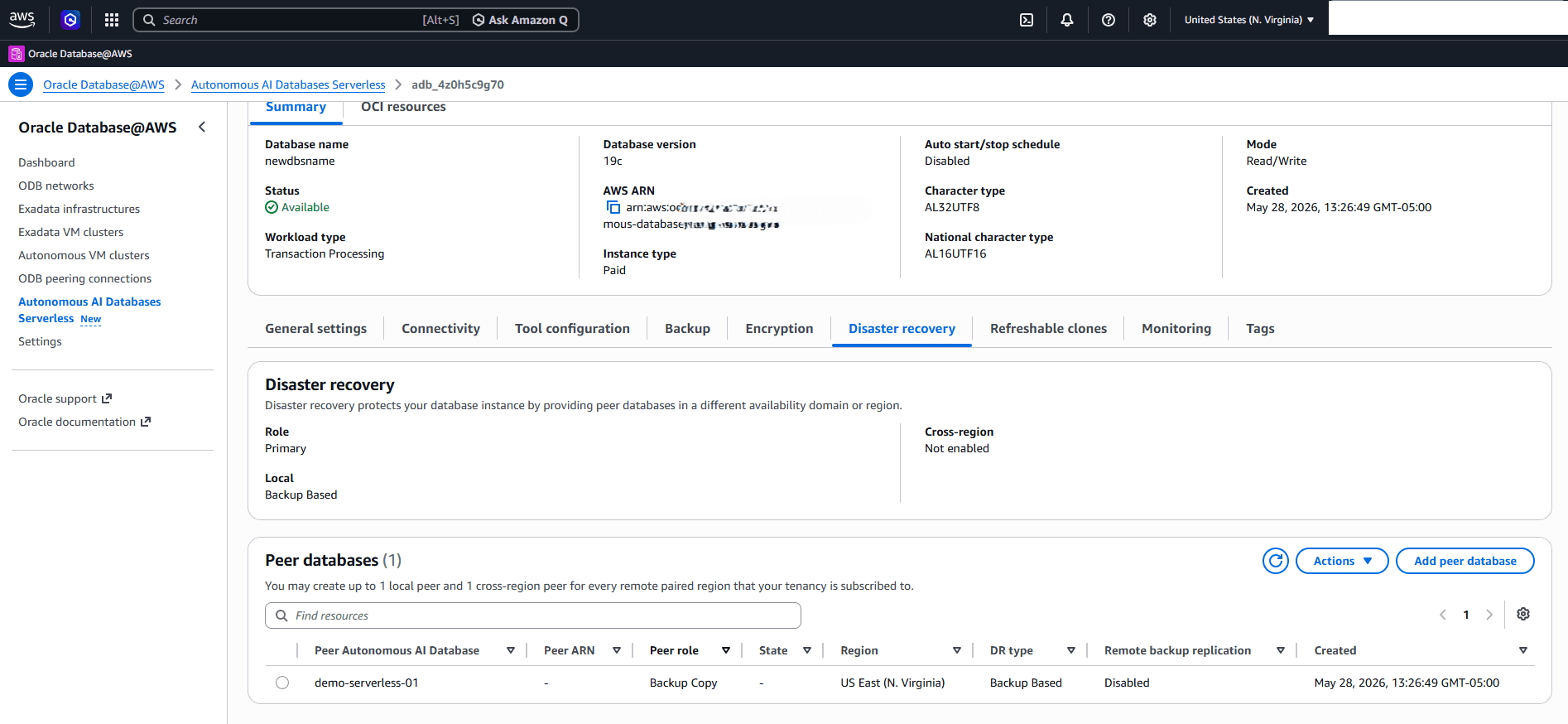
Select the Disaster recovery tab.
-
From the Peer databases section, select the Add peer database button.
Note
Note: Adding disaster recovery creates a peer database and can impact billing.-
To create a cross-region peer database, select Enable.
-
Select a Region for Autonomous Data Guard. If a peer exists in a region, that region does not appear in the list.
-
Choose either Autonomous Data Guard or Backup-based disaster recovery as your Disaster recovery type. For more information, see Recovery Time Objective and Recovery Point Objective.
-
Enable the Enable cross-region backup replication to disaster recovery peer toggle if you want to enable backup replication to disaster recovery peer.
Note
Note: Enabling backup replication replicates backups to the remote peer up to 7 days (or the selected backup retention period, if less than 7 days). Replicated backups incur additional backup storage cost. -
From the dropdown list, select ODB network.
-
The Host name prefix and Private IP address fields are optional.
-
To add tags, expand the Tags section. Select the Add new tag and then enter a key and a value. This section is optional.
-
To save the peer database configuration, select the Save button.
-
For more information, see Service Level Objectives (SLOs).
Edit Disaster Recovery
Complete the following steps to edit disaster recovery to enable Autonomous Data Guard.
-
From the AWS Console, select Oracle AI Database@AWS.
-
From the left navigation menu, select Autonomous AI Databases Serverless.
-
Select your Autonomous AI Database Serverless that you want to enable Autonomous Data Guard.
-
Select the Disaster recovery tab.
-
From the Peer databases section, select your peer database that you want to modify and then select the Actions button. Choose the Edit disaster recovery option.
-
Review the Region where your database is located. This field is read-only.
-
Choose your disaster recovery type. The options are Autonomous Data Guard and Backup-based disaster recovery.
-
Select the Save button to save your changes.
-
Switchover
Switchover is a planned transition from the primary database to its standby. This operation is typically used for maintenance, testing, or proactively shifting the workloads. When using Oracle Autonomous Data Guard, switchover ensures minimal downtime and zero data loss by promoting the standby database to primary status while demoting the original primary to standby. To perform a switchover, your Autonomous AI Database must be part of a configured Disaster Recovery Protection Group.
These are the steps to perform a switchover of your Autonomous AI Database from the Oracle AI Database@AWS dashboard.
-
From the AWS Console, select Oracle AI Database@AWS.
-
From the left navigation menu, select Autonomous AI Databases Serverless.
-
Select your Autonomous AI Database Serverless that you are using.
-
Select the Disaster recovery tab.
-
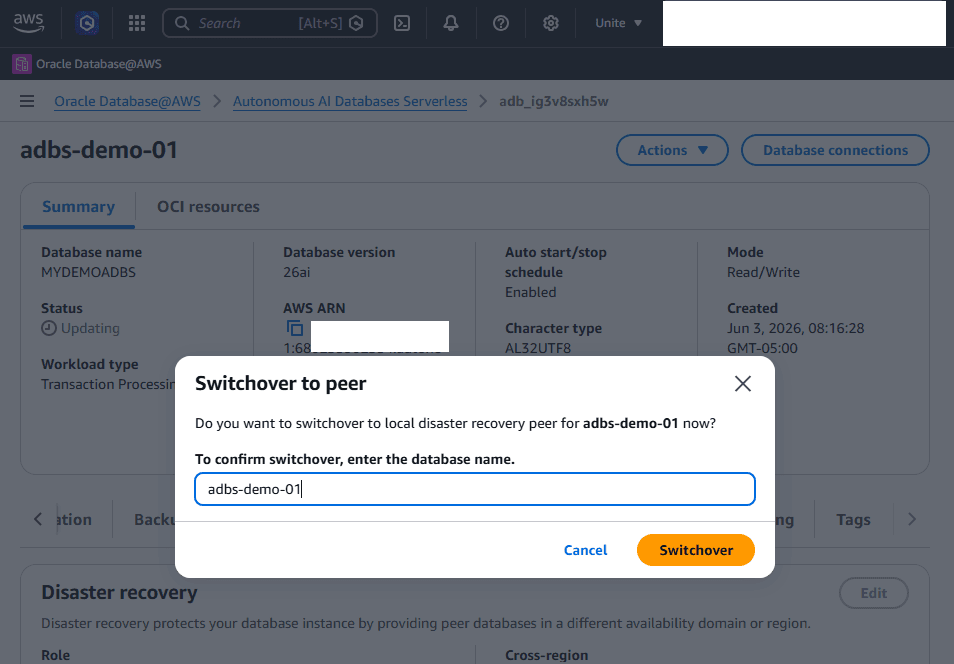
From the Peer databases section, select your peer database that you are using and then select the Actions button. Choose the Switchover option.
-
From the Switchover to peer page, enter the database name in the confirmation field.
-
To perform a switchover, select the Switchover button.
-
Failover
A failover is an unplanned operation that promotes the standby database to primary when the original primary becomes unavailable, which may result in data loss depending on the outage and data replication status. You should perform a switchover first and perform a failover when a switchover can not be completed such as in the event of a system failure or unplanned outage.
These are the steps to perform a failover of your Autonomous AI Database from the Oracle AI Database@AWS dashboard.
-
From the AWS Console, select Oracle AI Database@AWS.
-
From the left navigation menu, select Autonomous AI Databases Serverless.
-
Select your Autonomous AI Database Serverless that you are using.
-
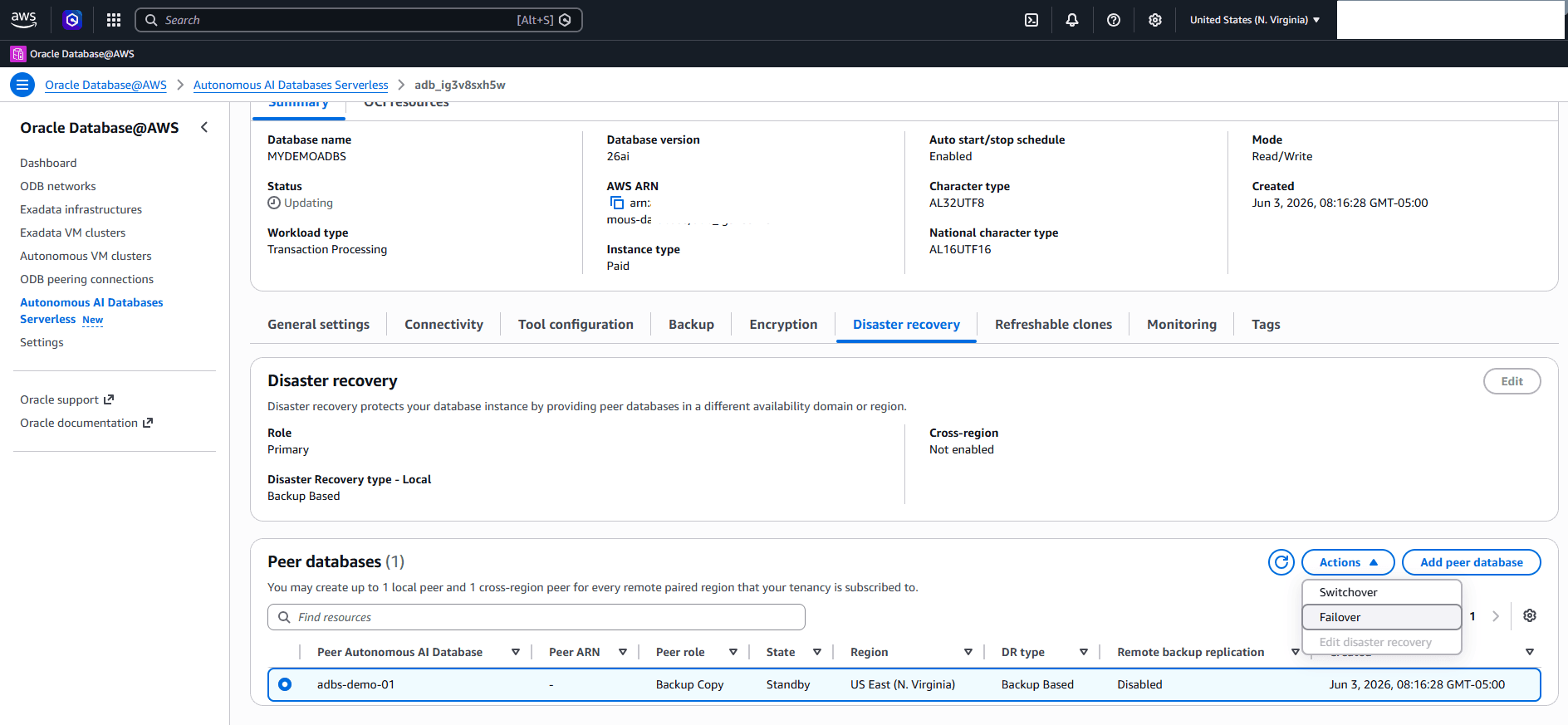
Select the Disaster recovery tab.
-
From the Peer databases section, select your peer database that you are using and then select the Actions button. Choose the Failover option.
-
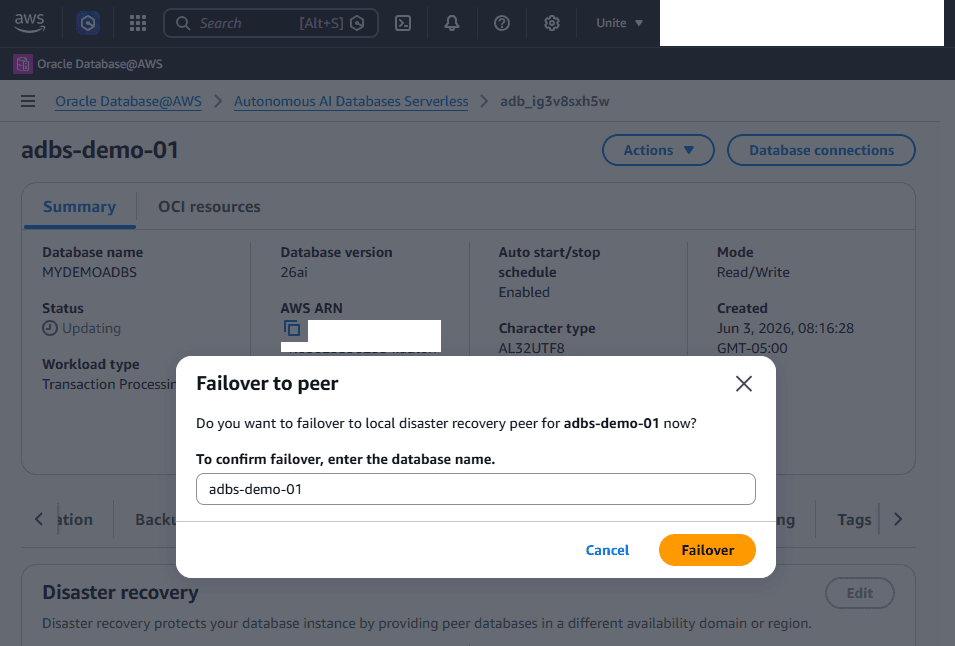
From the Failover to peer page, enter the database name in the confirmation field.
-
To perform a switchover, select the Failover button.
-
-
Edit Disaster Recovery
Complete the following steps to edit disaster recovery to enable Autonomous Data Guard.
-
From the OCI Console, select Oracle AI Database and then select Autonomous AI Database.
-
From the Applied filters section, select the Compartment.
-
From the list, select your Autonomous AI Database that you want to enable Autonomous Data Guard.
-
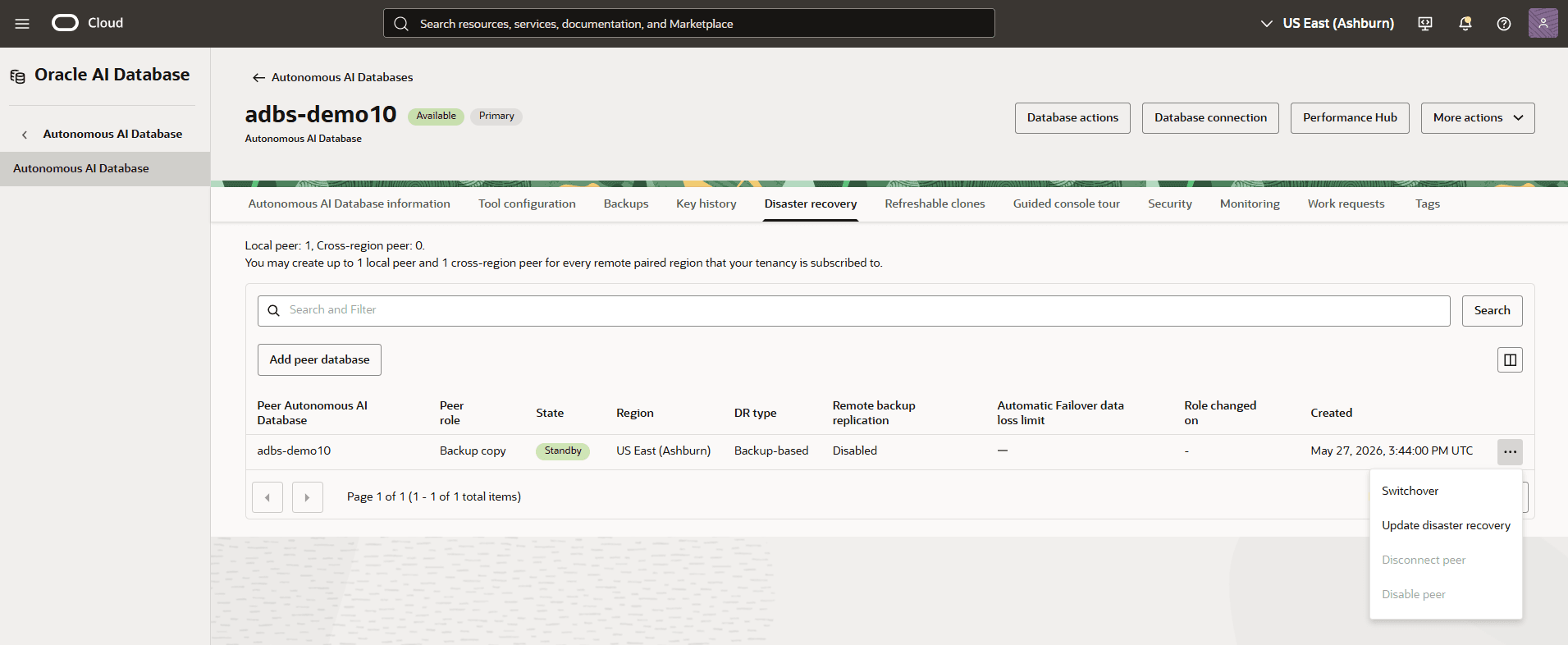
Select the Disaster recovery tab to update your disaster recovery type.
-
From the Peer Autonomous AI Database list, select the three dots (…) menu and then select the Update disaster recovery option.
-
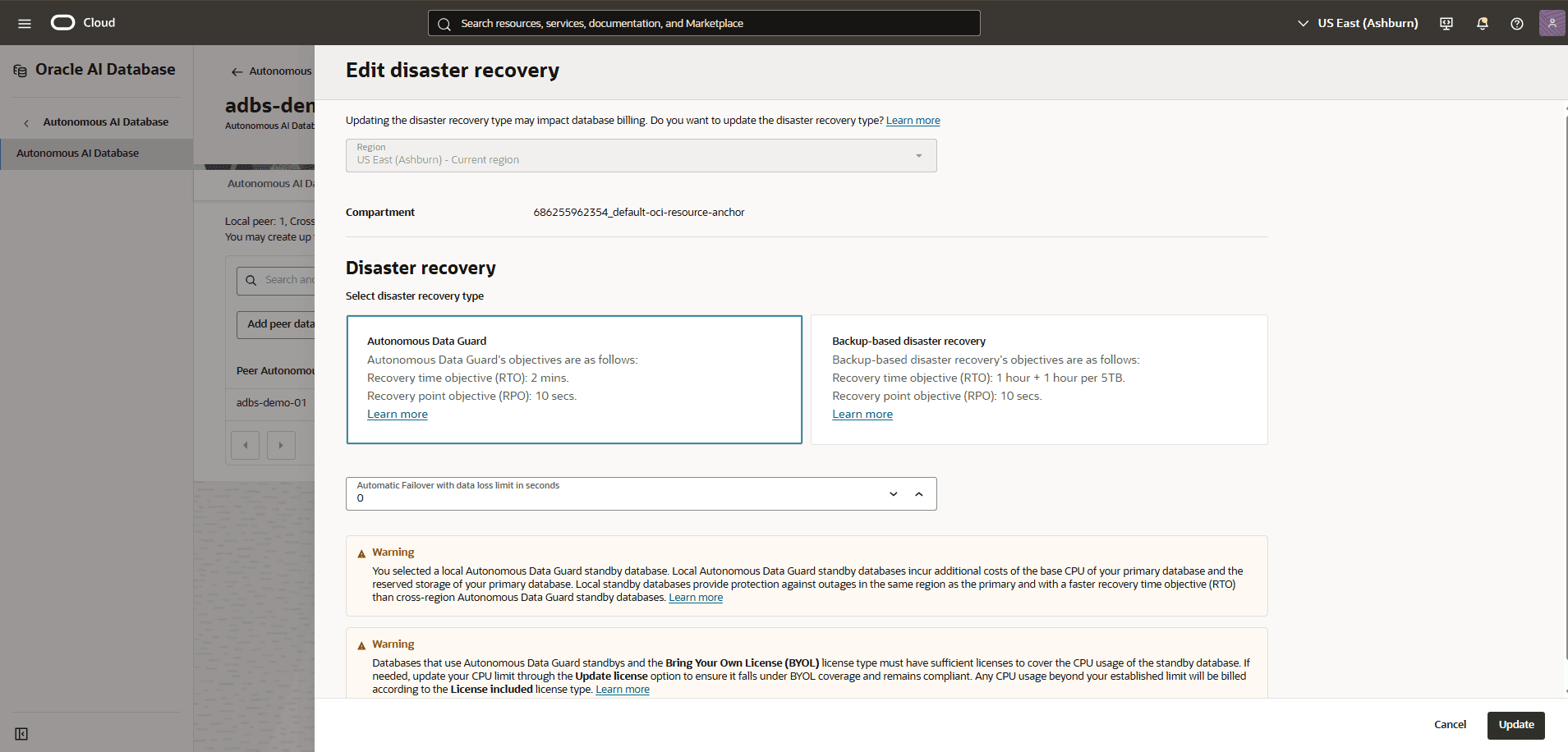
From the Edit disaster recovery page, enter the following information.
-
Review the Region where your database is located. This field is read-only.
-
Review the Compartment information. This field is read-only.
-
Choose your disaster recovery type. The options are Autonomous Data Guard and Backup-based disaster recovery. Select the Autonomous Data Guard option to enable Autonomous Data Guard.
- In the Automatic failover with data loss limit in seconds field, accept the default data loss limit of 0, or enter a custom value for the automatic failover data loss limit. The value must be between 0 and 3600 seconds.
-
Select the Update button to save your changes.
-
Switchover
Switchover is a planned transition from the primary database to its standby. This operation is typically used for maintenance, testing, or proactively shifting the workloads. When using Oracle Autonomous Data Guard, switchover ensures minimal downtime by promoting the standby database to primary status while demoting the original primary to standby. To perform a switchover, your Autonomous AI Database must be part of a configured Disaster Recovery Protection Group.
Complete the following steps to perform a switchover.
-
From the OCI Console, select Oracle AI Database and then select Autonomous AI Database.
-
From the Applied filters section, select the Compartment.
-
From the list, select your Autonomous AI Database that you want to enable Autonomous Data Guard.
-
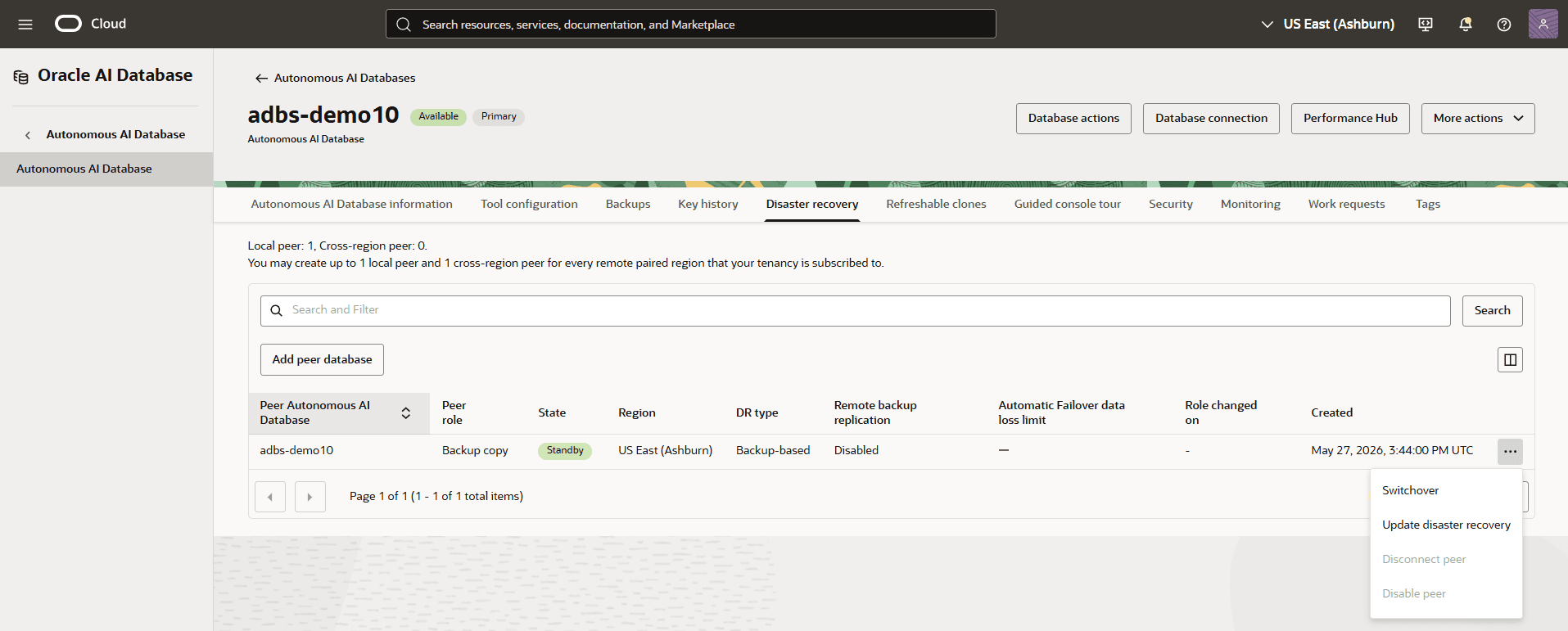
Select the Disaster recovery tab to update your disaster recovery type.
-
From the Peer Autonomous AI Database list, select the three dots (…) menu and then select the Switchover option.
-
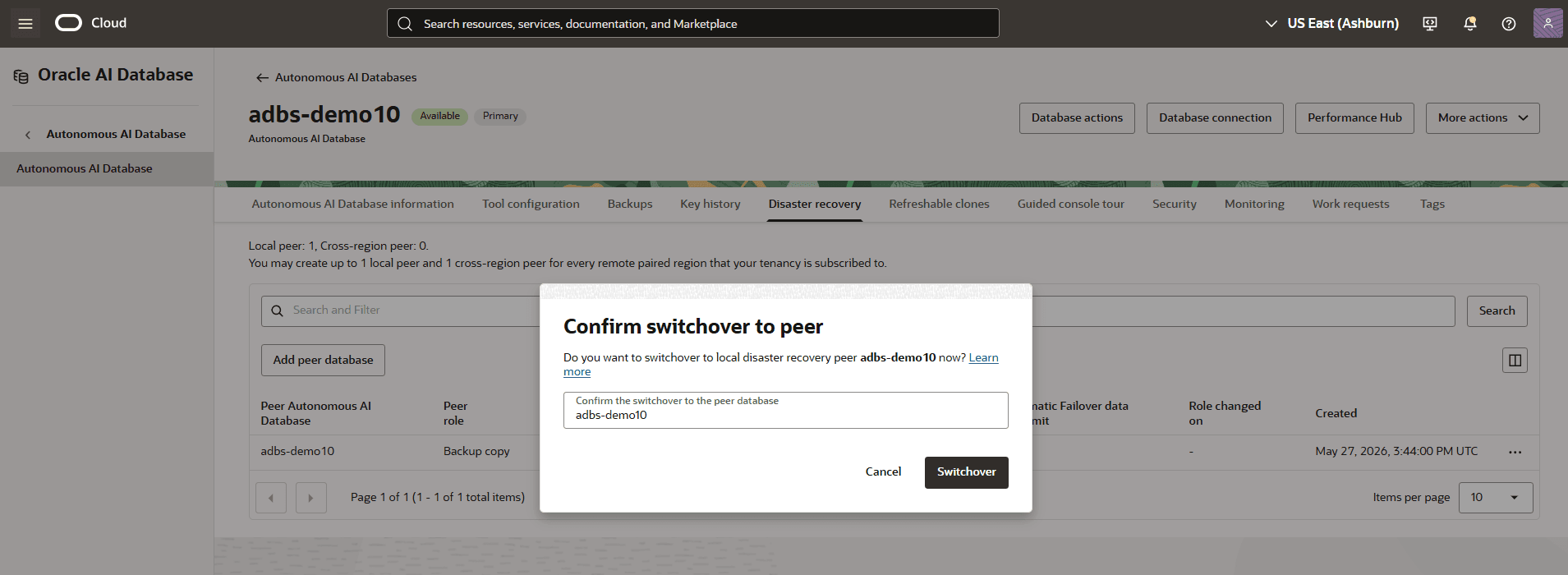
From the Confirm switchover to peer page, enter the following information.
-
Enter the name of the database in the confirmation field.
-
Select the Switchover button.
-
-
There is currently no content for this page. Oracle AI Database@AWS team intends to add content here, and this placeholder text is provided until that text is added. The Oracle AI Database@AWS team is excited about future new features, enhancements, and fixes to this product and this accompanying documentation. We strongly recommend you watch this page for those updates.
There is currently no content for this page. Oracle AI Database@AWS team intends to add content here, and this placeholder text is provided until that text is added. The Oracle AI Database@AWS team is excited about future new features, enhancements, and fixes to this product and this accompanying documentation. We strongly recommend you watch this page for those updates.
There is currently no content for this page. Oracle AI Database@AWS team intends to add content here, and this placeholder text is provided until that text is added. The Oracle AI Database@AWS team is excited about future new features, enhancements, and fixes to this product and this accompanying documentation. We strongly recommend you watch this page for those updates.