Exadata Exascale Storage Vault
Learn how to configure Exascale Storage and create Exascale Storage Vaults on an existing Exadata Infrastructure.
Configure Exascale Storage on an Existing Exadata Infrastructure
Note
Note: Ensure that the following prerequisites are met before proceeding:
-
Ensure that you have the required Exadata Exascale Storage Vault permissions.
-
If you do not have an existing Exadata Infrastructure, you can create one by following the Exadata Infrastructure steps.
-
Ensure that the Status of your Exadata Infrastructure is Available.
-
Exadata Dedicated Storage Vaults are compatible with Grid Infrastructure and Database versions 26ai or later.
Complete the following steps:
-
From the Oracle AI Database@AWS dashboard, expand the Exadata Database Service on Dedicated Infrastructure section, and then select Exadata infrastructures.
-
From the list, select your Exadata Infrastructure that you want to configure an Exascale Storage.
-
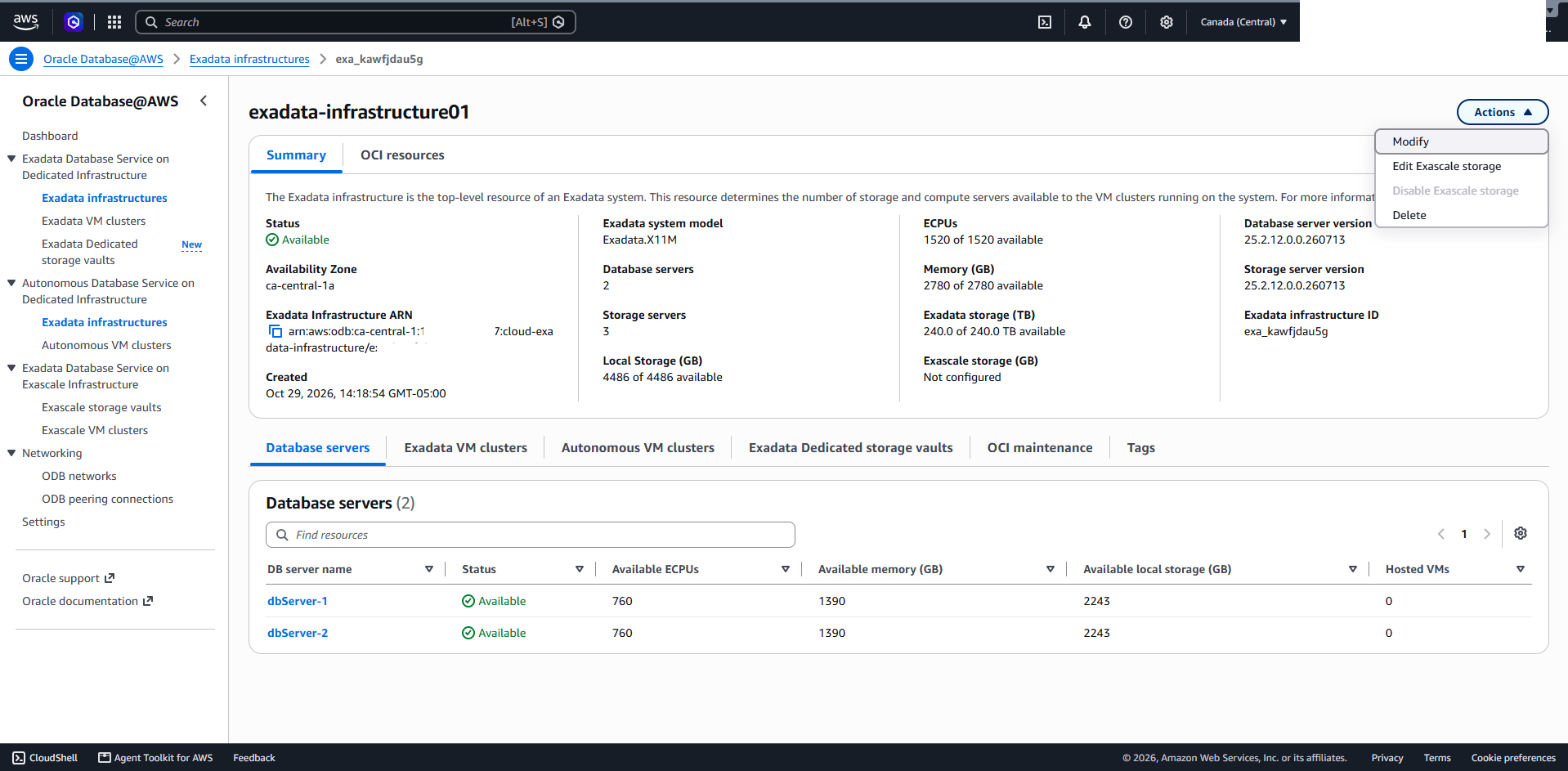
On the Exadata infrastructure details page, select Actions in the upper-right corner.
-
From the Actions dropdown menu, select Edit Exascale storage.
-
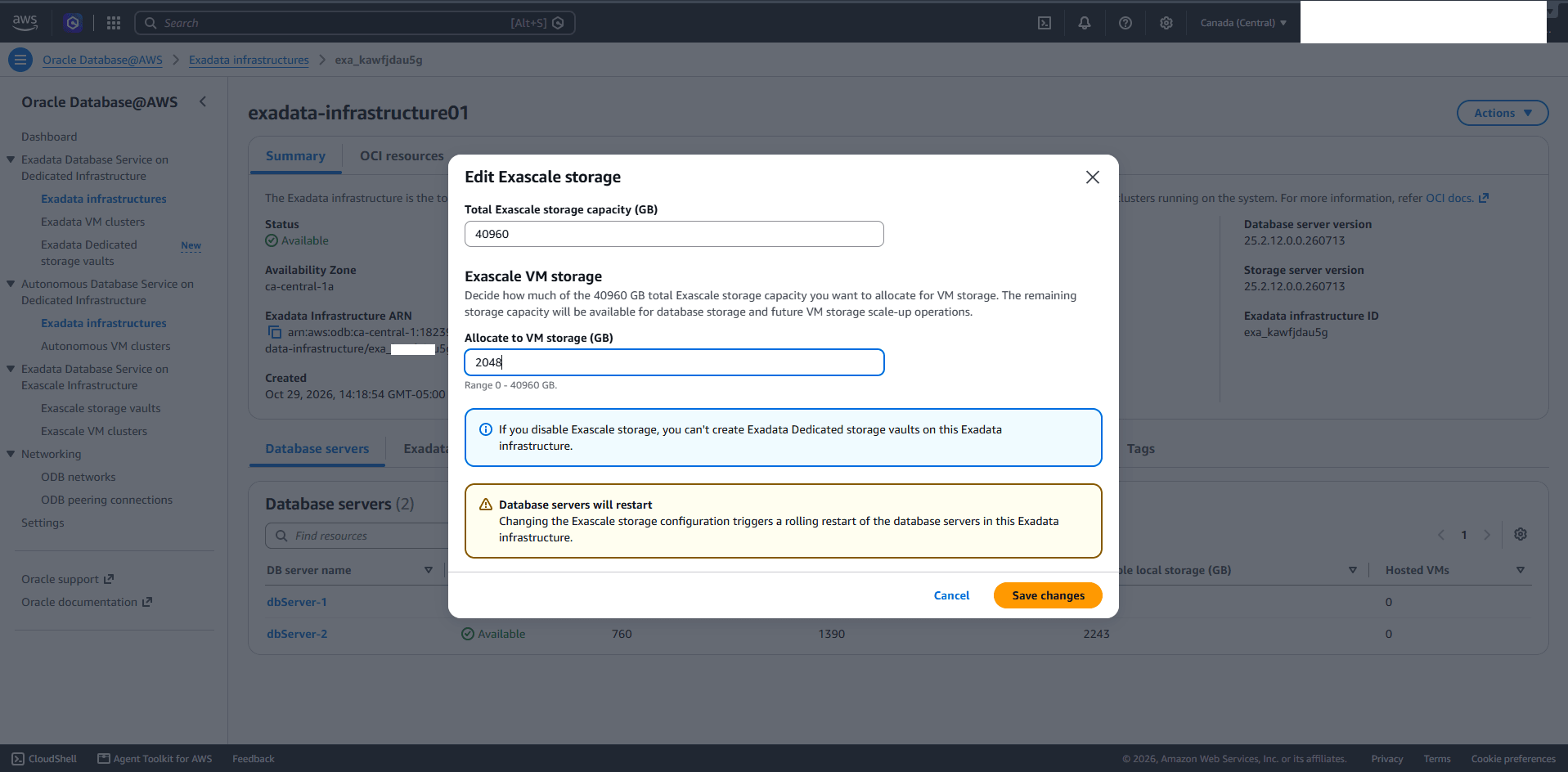
In the Edit Exascale storage dialog, complete the following steps:
-
Total Exascale storage capacity (GB): Enter the total Exascale storage capacity to configure for the Exadata Infrastructure.
-
Allocate to VM storage (GB): Enter the amount of Exascale storage capacity to allocate to VM storage. The range is from 0 GB to Total Exascale storage capacity (GB). The remaining storage capacity is available for database storage and future VM storage scale-up operations.
Note
Note: If you disable Exascale storage, you can’t create Exadata Dedicated storage vaults on your Exadata Infrastructure. -
Select Save changes to apply the Exascale storage configuration.
-
-
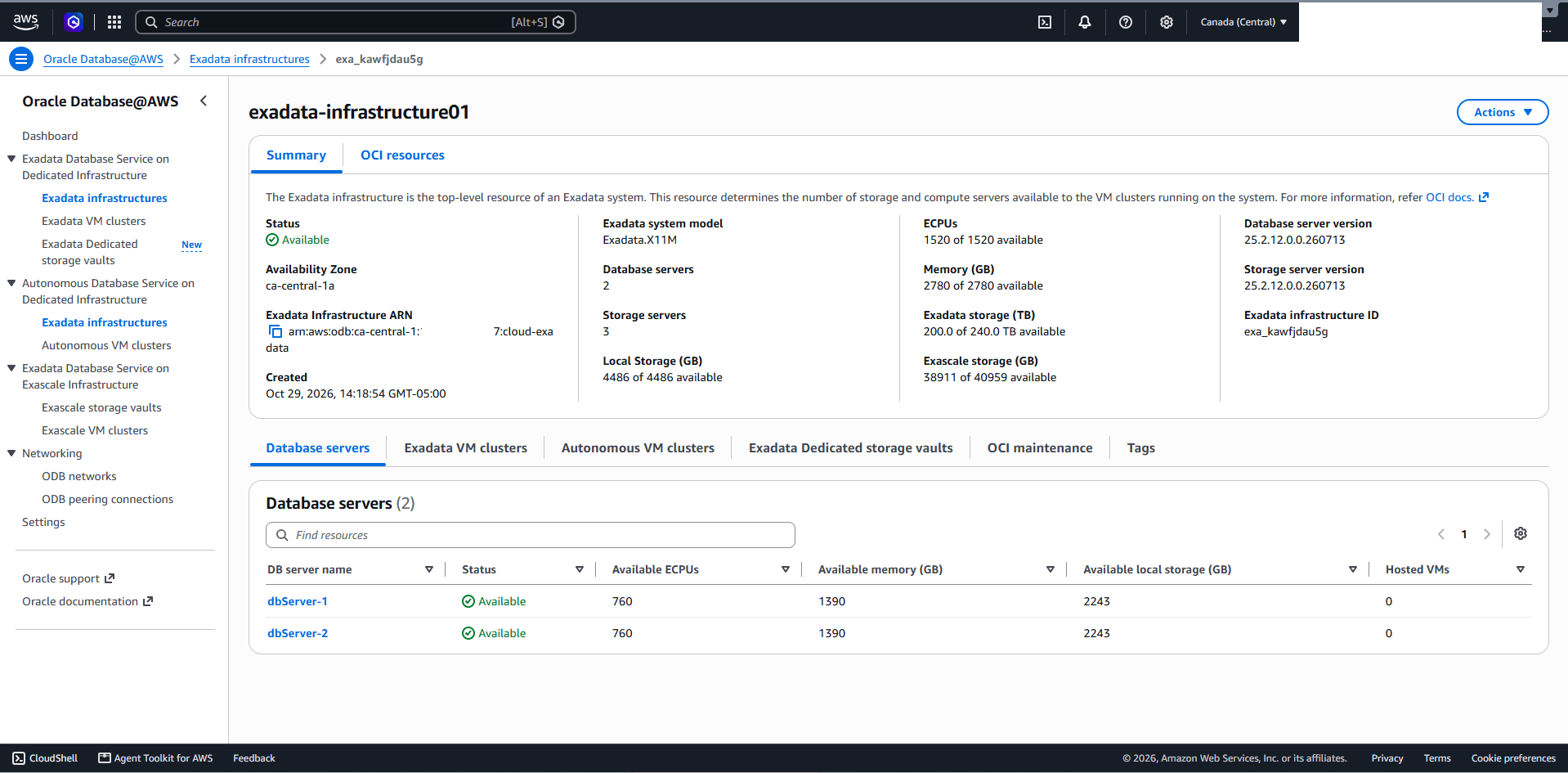
Navigate back to the Exadata infrastructure details page to view the Status of your Exadata Infrastructure and Exascale Storage (GB) information.
Create an Exascale Storage Vault
-
From the Oracle AI Database@AWS dashboard, expand the Exadata Database Service on Dedicated Infrastructure section, and then select Exadata Dedicated storage vaults.
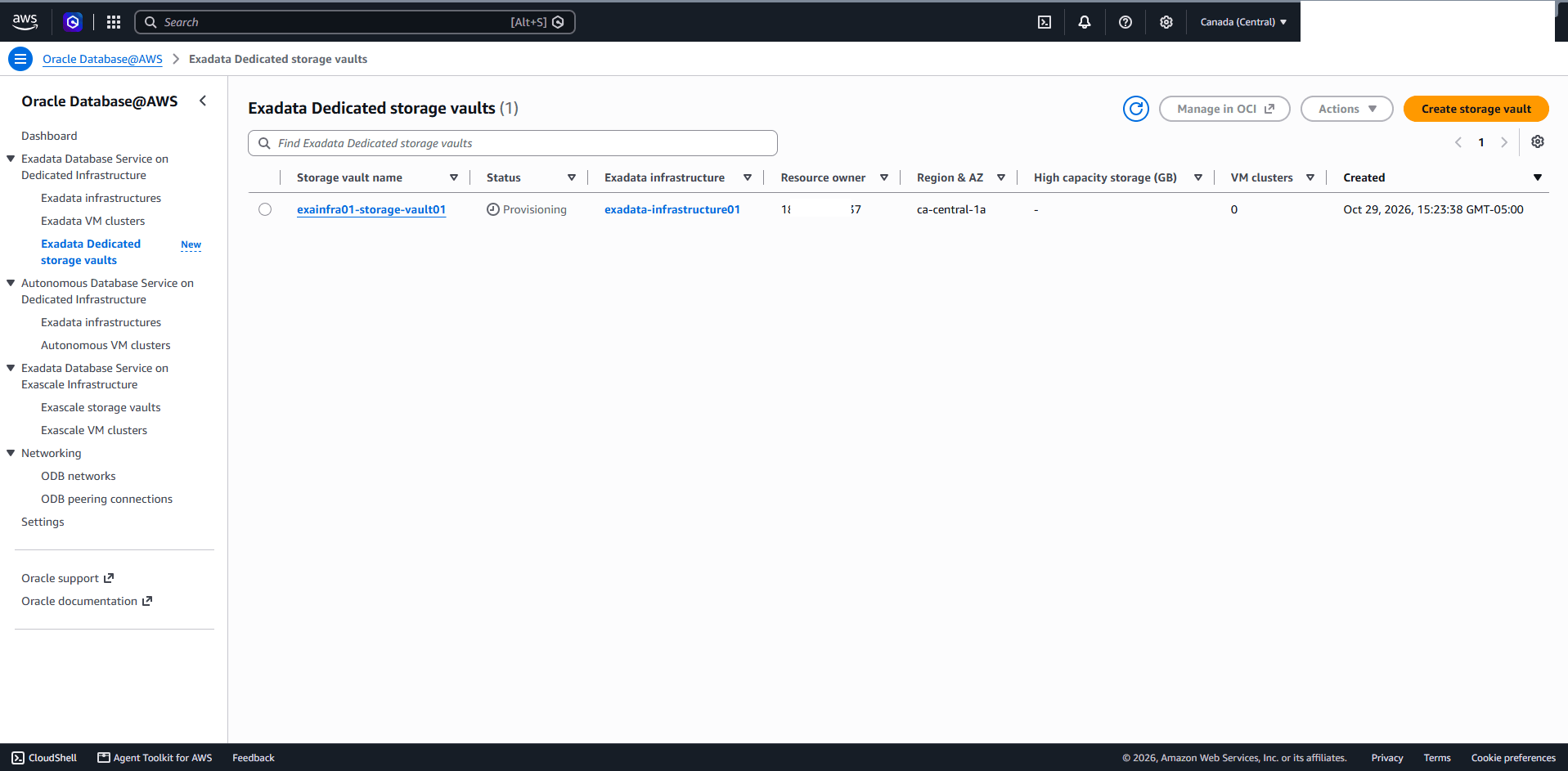
- Select Create storage vault in the upper-right corner to begin creating a new storage vault.
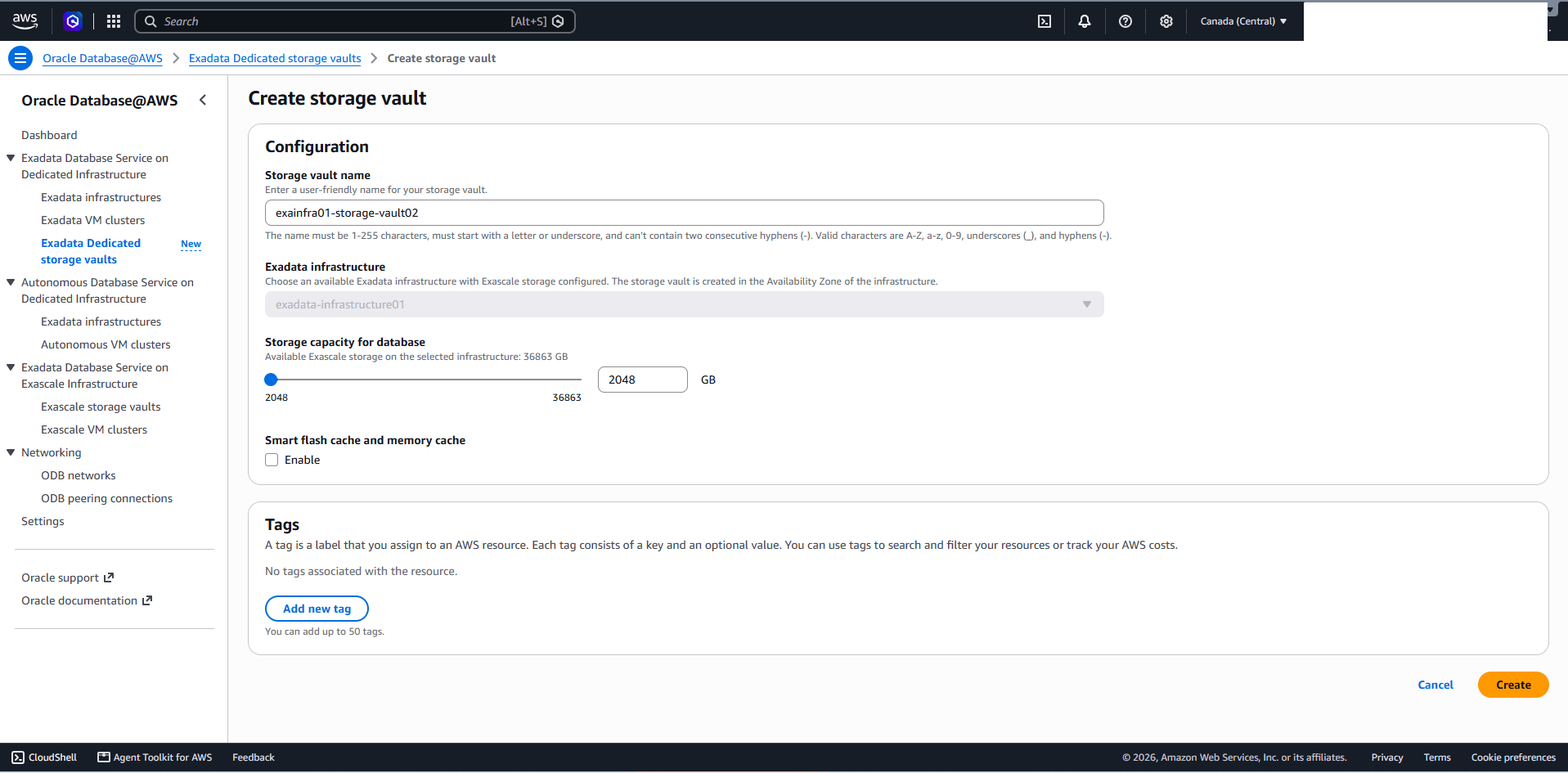
- On the Create storage vault page, complete the following steps.
- Storage vault name: Enter a descriptive name for the Exascale Storage Vault. The name must be 1-255 characters, must start with a letter or underscore, and can’t contain two consecutive hyphens (-). Valid characters are A-Z, a-z, 0-9, underscores (_), and hyphens (-).
- Exadata infrastructure: From the dropdown list, select an available Exadata Infrastructure with Exascale storage configured.The storage vault will be created in the same Availability Zone as the selected Exadata Infrastructure.
-
Storage capacity for database: Specify the storage capacity to allocate for the database by adjusting the slider or entering a value in GB.
Note
Note:
-
The minimum configurable or resizable size for an Exascale Storage Vault is 2 TB.
-
To successfully create a vault, ensure that the storage pool size exceeds the requested vault size. A portion of the storage pool is reserved for system overhead and is not available for vault allocation. For example, creating a 2 TB vault requires a storage pool larger than 2 TB (typically at least 2.2 TB).
-
A vault can be shared between two or more Exadata VM Clusters.
-
-
Smart flash cache and memory cache: This option is currently not supported.
- The Tags section is optional. Select Add new tag to assign tags to the Exascale Storage Vault.
- Each tag consists of a Key and an Value - optional**.
- Tags help search and filter resources or track AWS costs.
- You can add up to 50 tags.
- Review the configuration details and select Create to create the storage vault.
-
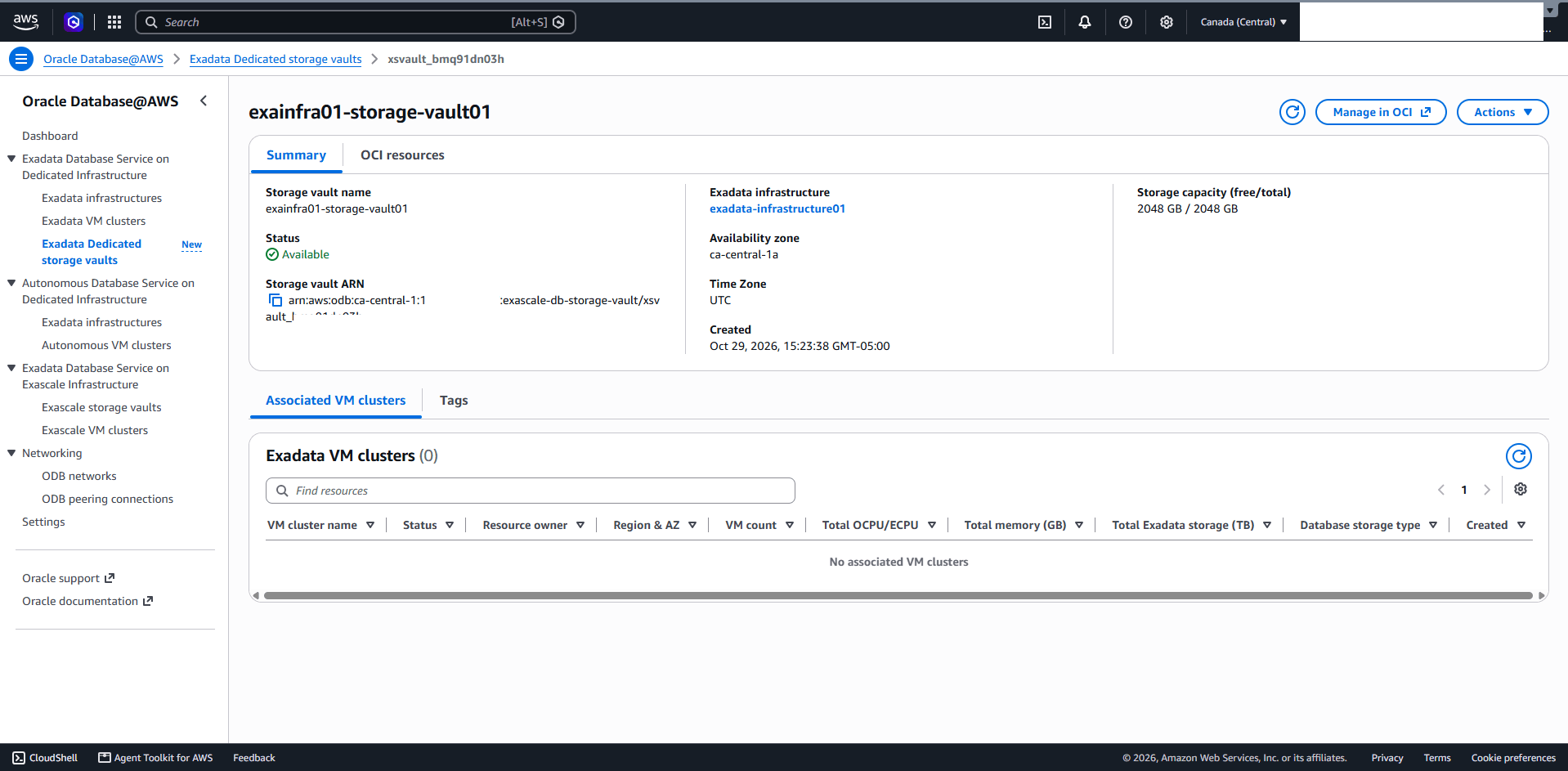
Navigate back to Exadata Dedicated storage vaults page to view the Status. Once the process is complete, the Status will change to Available.
-
There is currently no content for this page. Oracle AI Database@AWS team intends to add content here, and this placeholder text is provided until that text is added. The Oracle AI Database@AWS team is excited about future new features, enhancements, and fixes to this product and this accompanying documentation. We strongly recommend you watch this page for those updates.
There is currently no content for this page. Oracle AI Database@AWS team intends to add content here, and this placeholder text is provided until that text is added. The Oracle AI Database@AWS team is excited about future new features, enhancements, and fixes to this product and this accompanying documentation. We strongly recommend you watch this page for those updates.
There is currently no content for this page. Oracle AI Database@AWS team intends to add content here, and this placeholder text is provided until that text is added. The Oracle AI Database@AWS team is excited about future new features, enhancements, and fixes to this product and this accompanying documentation. We strongly recommend you watch this page for those updates.
There is currently no content for this page. Oracle AI Database@AWS team intends to add content here, and this placeholder text is provided until that text is added. The Oracle AI Database@AWS team is excited about future new features, enhancements, and fixes to this product and this accompanying documentation. We strongly recommend you watch this page for those updates.
What’s Next?
- Create an Exadata VM Cluster.