Migrate to Autonomous AI Database (Dedicated)
Oracle Zero Downtime Migration (ZDM) can be used to facilitate complex database migrations with maximum availability and minimal disruption. It uses the best practices of Oracle’s Maximum Availability Architecture (MAA) during the migration process. This topic outlines the use of Oracle Zero Downtime Migration for migrations to Autonomous AI Database. This capability supports moving databases across different platforms and versions, allowing deployment in multicloud environments.
Target Environment: Autonomous AI Database
Autonomous AI Database is a database service that automatically manages tasks such as provisioning, security, patching, and tuning. This automation reduces operational costs and helps prevent human error. When you deploy Autonomous AI Database on Oracle AI Database@AWS, it uses a native connection with low latency to AWS applications. This setup helps maintain high performance and makes it easier to integrate with other AWS services.
Key Benefits of Using Oracle Zero Downtime Migration for Autonomous AI Database Migrations
Feature Description Operational Simplicity Oracle Zero Downtime Migration provides an end-to-end, automated, and streamlined orchestration process, often described as a single-button experience, to reduce the complexity of fleet-wide migrations. Minimal Risk The tool aligns with MAA best practices and includes intelligent pre-validation checks to reduce the risk of migration failures. High Flexibility Oracle Zero Downtime Migration’s logical migration paths support moving databases between both identical and different database versions and platforms, enabling modernization during the migration. Integrated Performance You can benefit from the superior, automated management of Autonomous AI Database combined with the low-latency network performance provided by the Oracle AI Database@AWS infrastructure. Cost-Effectiveness Oracle Zero Downtime Migration is available at no cost, allowing organizations to leverage its advanced automation without an additional licensing expense. Supported Migration Workflows
Oracle Zero Downtime Migration supports two workflows that are designed to help move databases between different source and target environments.
-
Logical Online Migration
-
Downtime Profile: Minimal (Near Zero).
-
Compatibility: Supports migrations between the same or different database versions and platforms.
-
Process:
-
Initial Load: Oracle Data Pump is used to export the source data.
-
Staging: Oracle Data Pump’s dump files are temporarily stored on a managed NFS file share, specifically utilizing the AWS FSx for OpenZFS service.
-
Synchronization: Oracle GoldenGate is deployed to maintain continuous synchronization, capturing and replicating transactions from the source to the target Autonomous AI Database to ensure data consistency until the final cut-over is performed.
-
-
-
Logical Offline Migration
-
Downtime Profile: Offline (Requires a planned application maintenance window).
-
Compatibility: Supports migrations between the same or different database versions and platforms.
-
Process:
-
Export/Import: The method utilizes Oracle Data Pump for the complete export of the source database and subsequent import into the target Autonomous AI Database.
-
Staging: The Oracle Data Pump’s dump files are stored on a managed NFS file share such as AWS FSx for OpenZFS.
-
Cutover: This method is used when the required application downtime is acceptable, as it does not employ Oracle GoldenGate for continuous synchronization.
-
-
Note
Note: Logical migration methods are recommended for migrating to Autonomous AI Database because they support moving data across different platforms and database versions, which is often needed when using a managed cloud service.For more information on Oracle Zero Downtime Migration, see the following resources:
-
Amazon S3 provides a flexible storage layer for Oracle AI Database workloads beyond direct migration use cases. It can store and manage a wide variety of database-related files, including data files, dump files, CSV, JSON, and Parquet files, logs, reports, and backup artifacts. Oracle AI Database(s) can also use Amazon S3 for features such as external tables, which enable Oracle AI Database to read and process data directly from object storage without storing it in the database.
Because Oracle Autonomous AI Database on Dedicated Exadata Infrastructure does not provide direct access to the underlying Autonomous VM Cluster, the Amazon S3 File Gateway approach is not supported for Autonomous AI Database deployments.
Instead, this solution shows how to integrate Amazon S3 by using the DBMS_CLOUD package, which enables access to query, load, and unload data stored in Amazon S3 directly from the Autonomous AI Database environment.
The scenarios where this solution applies are listed below.
Use Cases
-
Table-level export and import: Using Oracle Data Pump with DBMS_CLOUD or custom wrappers to move individual tables or schema.
-
File-based ingestion: Loading CSV, JSON, Parquet files into Autonomous AI Database using DBMS_CLOUD.COPY_DATA.
-
External tables: Querying data directly from Amazon S3 without physically importing it.
-
Incremental loads: Staging delta files in Amazon S3 and applying them to Autonomous AI Database tables.
-
Analytics pipelines: Integrating Amazon S3 data lakes with Autonomous AI Database for hybrid workloads.
Solution Overview
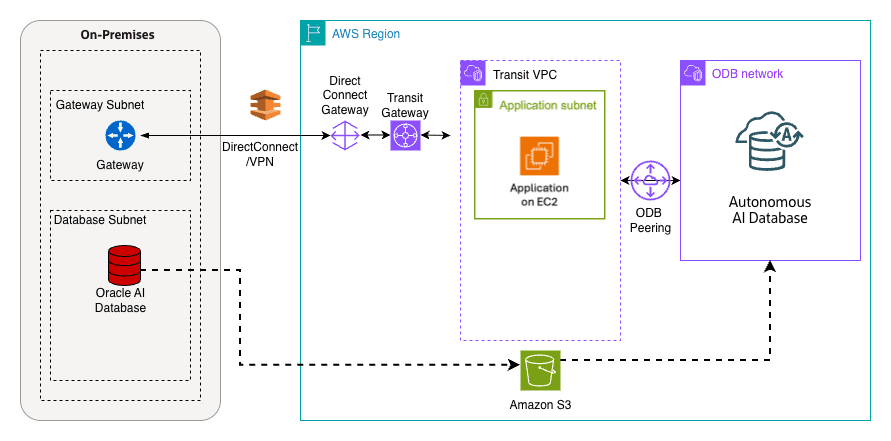
This solution shows how Amazon S3 can serve as a staging area for logical backups and migration artifacts, supporting the migration of Oracle AI Databases to Autonomous AI Database in Oracle AI Database@AWS.
The following architecture diagram shows a workflow where the source is an Oracle AI Database running on Linux or Autonomous AI Database, and the target is an Oracle Autonomous AI Database on Dedicated Exadata Infrastructure in the Oracle AI Database@AWS environment. The Amazon S3 bucket is shared and mounted on both the on-premises systems and within Oracle Autonomous AI Database on Dedicated Exadata Infrastructure in the Oracle AI Database@AWS environment.
Prerequisites
Complete the following prerequisites steps before implementing the solution:
-
Source: The source database runs on a compatible Oracle AI Database such as Exadata, RAC, or a standalone instance.
-
Target: Autonomous AI Database deployed in Oracle AI Database@AWS.
-
Amazon S3: The source and target should have access to same Amazon S3 bucket.
-
Network connectivity: Proper routes established between on‑premises systems and AWS region hosting Autonomous AI Database.
Prepare to Load Data from Amazon S3
Complete the following steps to verify the prerequisites and prepare to load data from Amazon S3.
-
Confirm that the Amazon S3 bucket contains a data file, such as
data.txt, that you can import. The sample file in this example contains the following data:1,Direct Sales 2,Tele Sales 3,Catalog 4,Internet 5,Partners -
In AWS Console, sign in to your AWS account.
-
Grant the AWS IAM user access privileges for the Amazon S3 bucket.
-
Create an access key for the AWS IAM user.
-
Obtain the object URL for the data file stored in the Amazon S3 bucket.
Load Data from Amazon S3
-
Create Cloud Credentials in Oracle Autonomous AI Database:
To access data from Amazon S3 that is not publicly accessible, use a credential to authenticate with Amazon S3.
Connect to
<your_PDB_name>as the database user<your_database_user_name>, and run the following script to create a credential based on the access key ID and secret access key for the IAM user<your_IAM_user>:BEGIN DBMS_CLOUD.CREATE_CREDENTIAL( credential_name => 'AWS_S3_CRED', username => '<AWS_ACCESS_KEY_ID>', password => '<AWS_SECRET_ACCESS_KEY>' ); END; /For detailed information about the parameters, see CREATE_CREDENTIAL Procedure.
-
Validate Files in Amazon S3 from Oracle Autonomous AI Database by Using DBMS_CLOUD:
Use the Amazon S3 URL to perform operations, such as listing objects and copying data from the bucket. Use the following steps to find the Amazon S3 URI (HTTPS URL) to use with Oracle Autonomous AI Database
DBMS_CLOUD:-
Sign in to the AWS Management Console.
-
Navigate to Amazon S3.
-
Select the bucket name.
-
Navigate to the folder, and select the object or file that you want to use.
-
On the object details page, locate the Copy URL or Object URL buttons.
-
Select Copy URL or Object URL to copy the HTTPS URL for the Amazon S3 object. The URL uses the following format:
https://s3.<region>.amazonaws.com/<bucket-name>/<path_to_file>
-
-
List the objects that Oracle Autonomous AI Database can access by using the stored credential:
SELECT *
FROM DBMS_CLOUD.LIST_OBJECTS(
  credential_name => 'AWS_S3_CRED',
  location        => 'https://s3.<region>.amazonaws.com/<bucket-name>/<path_to_file>',
  prefix          => '<table_name>'
);
-
-
Load Data from Amazon S3 into Oracle Autonomous AI Database:
Note
Note: Create the target table in the correct format and schema before you load the data.-
Upload CSV, JSON, or Parquet files into the mapped Amazon S3 bucket, and obtain the file URI path.
-
An Amazon S3 URI path uses the following format:
https://s3.<region>.amazonaws.com/<bucket-name>/<path_to_file> -
Use
DBMS_CLOUD.COPY_DATAto load data directly into Oracle Autonomous AI Database tables:BEGIN DBMS_CLOUD.COPY_DATA( table_name => '<Table_Name>', credential_name => 'AWS_S3_CRED', file_uri_list => 'https://s3.<region>.amazonaws.com/<bucket-name>/sample.csv', format => json_object('delimiter' VALUE ',') ); END; /
For detailed information about the parameters, see COPY_DATA Procedure.
-
-
Validate the Data Load:
Run queries to confirm ingestion and data integrity:
SELECT * FROM <Table_Name>; -
Automate and Monitor:
Use automation for repeatable loading operations.
-
Store files in compressed formats, such as GZIP, to reduce transfer costs.
-
Use Oracle Autonomous AI Database monitoring tools and Amazon CloudWatch to monitor throughput, latency, and cost.
-
Benefits of Integration
-
Seamless data ingestion: Simplifies moving files from AWS workloads into Oracle AI Database@AWS.
-
Cost efficiency: By leveraging Amazon S3, you can share the same files between source and target, reducing data transfer costs and storage overhead.
-
Security: IAM‑based credentials and Oracle’s built‑in encryption ensure compliance.
-
Scalability: Amazon S3 provides virtually unlimited storage, while Oracle Autonomous AI Database scales compute elastically.
Conclusion
You can use Amazon S3 with Oracle Autonomous AI Database to create a data pipeline. This approach supports data ingestion and hybrid workloads across Oracle and AWS services.
Learn more
For more information, see the following resources:
-
As organizations adopt hybrid and cloud-first strategies, integrating Oracle Autonomous AI Database with cloud native storage solutions supports flexibility, scalability, and operational efficiency. Amazon Elastic File System provides a fully managed, scalable, and elastic network file system that can be integrated with Oracle AI Database@AWS. Amazon Elastic File System enables the use of shared storage for backups, schema exports, external tables, and large-scale analytics workloads without affecting database performance or security.
This guide provides step-by-step instructions for connecting Amazon Elastic File System to Autonomous AI Database, performing read and write operations, and using EFS for database export and external table use cases.
Solution Overview
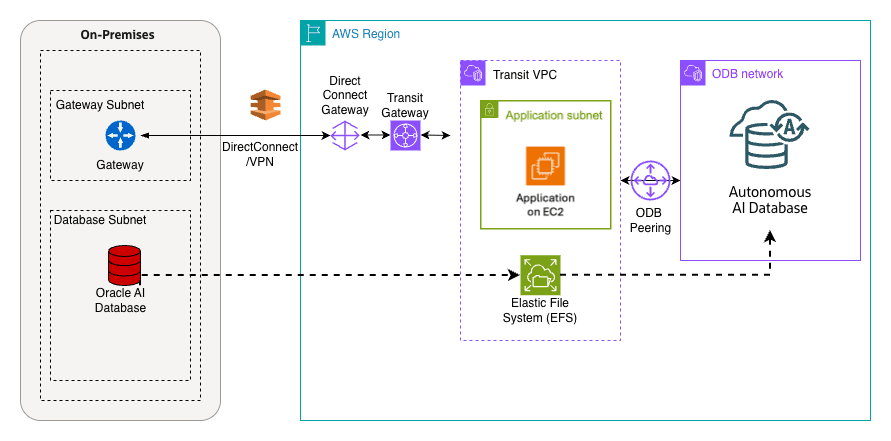
This solution shows how you can use Amazon Elastic File System as a landing zone for logical backups, making it easier to migrate Oracle AI Database to Autonomous AI Database on Oracle AI Database@AWS.
-
Source: Oracle AI Database running on‑premises or in the cloud.
-
Target: Autonomous AI Database deployed in Oracle AI Database@AWS.
-
Work-flow: The EFS share is provisioned and mounted both on the source systems and on Oracle Exadata Infrastructure hosting Autonomous AI Database.
-
Purpose: The mounted EFS acts as a staging area for export dump files or other migration artifacts, which are then seamlessly imported into the target Autonomous AI Database environment.
Prerequisites
The following prerequisites are required to migrate to Autonomous AI Database using Amazon Elastic File System.
-
Source database: Running on compatible Oracle AI Database such as Exadata Database, Oracle Real Application Clusters or standalone instance.
-
Target Autonomous AI Database: Deployed on Oracle AI Database@AWS
-
Amazon Elastic File System: EFS mount point created in the same Availability Zone as your target Autonomous AI Database.
-
Network connectivity: Appropriate network routes established between on‑premises systems and the AWS region.
-
DNS resolver: It must be able to resolve the EFS IP address.
-
Port requirements: TCP port 2049 must be open for inbound traffic to the Autonomous VM Cluster VPC.
DNS Setup in OCI
These are the steps to resolve the NFS server name, create an A‑record in OCI DNS.
-
From the Autonomous AI Database details page in Oracle AI Database@AWS, select the Manage in OCI button.
-
From the OCI portal, navigate to the Networking section, and then select Virtual cloud networks.
-
Select your VCN from the list, and then from the Details tab, select the DNS Resolver link.
-
From the Private resolvers Details tab, select the Default private view link.
-
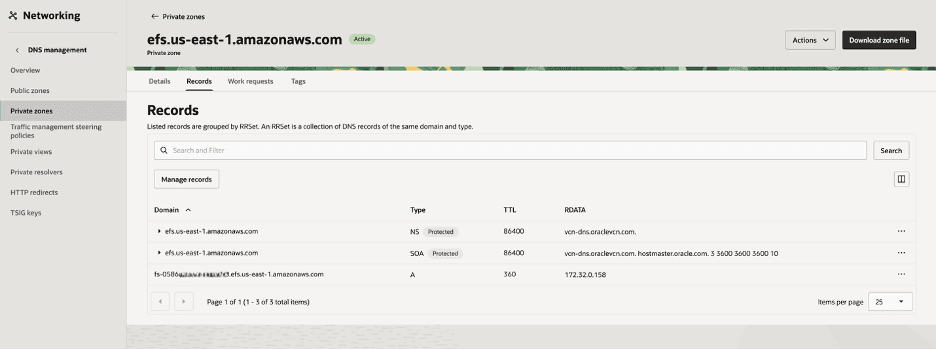
Select the Private zones tab and then select the Create zone button. For example, efs.us-east-1.amazonaws.com.
-
After creating a zone successfully, select the Records tab to add a record. For example,
fs-0586XXXXXXXXXXXXX.efs.us-east-1.amazonaws.compointing to the actual IP address of the AWS‑managed NFS server. -
Select the Review changes button, and then select the Publish changes button to apply your changes.
-
Update the Network Security Group (NSG) in OCI to allow traffic from the VPC where the NFS server resides.
-
Once it is complete, the FQDN from OCI DB will resolve to the AWS EFS endpoint.
These are the steps to migrate to Autonomous AI Database using Amazon Elastic File System.
-
Configure Network Access to EFS
-
Add the EFS host to the Access Control List (ACL) to allow the database to connect and resolve the EFS endpoint by using the following PL/SQL script:
BEGIN DBMS_NETWORK_ACL_ADMIN.APPEND_HOST_ACE( host => 'fs-0586ab576856f1d00.efs.us-east-1.amazonaws.com', ace => xs$ace_type( privilege_list => xs_name_list('connect','resolve'), principal_name => 'ADMIN', principal_type => xs_acl.ptype_db ) ); END; / COMMIT; -
Verify connectivity:
SELECT utl_inaddr.get_host_address( 'fs-0586ab576856f1d00.efs.us-east-1.amazonaws.com' ) AS ip_address FROM dual; -
The output will return the IP address of your EFS mount point.
-
-
Create a Database Directory for Amazon Elastic File System
-
Define a directory object in the database that points to the EFS file system path:
CREATE DIRECTORY EFS_DIR AS 'efs';
-
-
Attach the Amazon Elastic File System
-
Attach the EFS mount to the database using NFSv4:
BEGIN
  DBMS_CLOUD_ADMIN.ATTACH_FILE_SYSTEM(
    file_system_name     => 'AWS_EFS',
    file_system_location => 'fs-0586ab576856f1d00.efs.us-east-1.amazonaws.com:/',
    directory_name       => 'EFS_DIR',
    description          => 'AWS EFS attached via NFSv4',
    params               => JSON_OBJECT('nfs_version' VALUE 4)
  );
END;
/
-
-
Verify the Directory
-
Confirm that the directory is correctly mapped to the Amazon Elastic File System mount path:
SELECT directory_name, directory_path
FROM   dba_directories
WHERE  directory_name = 'EFS_DIR';
-
-
Test Read/Write Access Using UTL_FILE
-
Write a File:
DECLARE f UTL_FILE.FILE_TYPE; BEGIN f := UTL_FILE.FOPEN('EFS_DIR', 'test_file.txt', 'w'); UTL_FILE.PUT_LINE(f, 'Hello from ADB-D to EFS!'); UTL_FILE.FCLOSE(f); END; / -
Read the File Back:
DECLARE
  f   UTL_FILE.FILE_TYPE;
  txt VARCHAR2(32767);
BEGIN
  f := UTL_FILE.FOPEN('EFS_DIR', 'test_file.txt', 'r');
  UTL_FILE.GET_LINE(f, txt);
  DBMS_OUTPUT.PUT_LINE('Read from EFS: ' || txt);
  UTL_FILE.FCLOSE(f);
END;
/
-
-
Export Database Schema to Amazon Elastic File System
-
Use Oracle Data Pump (
expdp) to export the schema directly to the Amazon Elastic File System directory.expdp admin/DBatAWS_1234@demofspdb_tp schemas=TEST directory=EFS_DIR dumpfile=test.dmp logfile=test.log -
Verify exported files:
SELECT OBJECT_NAME
FROM   DBMS_CLOUD.LIST_FILES('EFS_DIR');
-
-
Import Database Schema from EFS into Autonomous AI Database
-
Once the schema dump files are available on Amazon Elastic File System, you can import directly into the target database:
impdp admin/DBatAWS_1234@demofspdb_tp schemas=TEST directory=EFS_DIR dumpfile=test.dmp logfile=import_test.log -
Verify imported objects:
SELECT table_name
FROM   user_tables
WHERE  owner = 'TEST';
-
Best Practices
-
Use NFSv4: Ensures better performance and compatibility with Autonomous AI Database.
-
Enable Multi-AZ Mount Targets: Increases availability and fault tolerance.
-
Secure Access with IAM and VPC Security Groups: Protects data in transit and at rest.
-
Monitor Usage: Regularly check Amazon Elastic File System performance metrics to prevent bottlenecks for large workloads.
Conclusion
Integrating Amazon Elastic File System with Autonomous AI Database on Autonomous AI Database provides a flexible, scalable, and secure storage solution. By following the steps outlined above, you can use EFS for database exports, external tables, and general file storage. This enables seamless hybrid cloud workflows while maintaining Oracle’s high availability and performance standards. This setup helps you efficiently manage large data-sets, streamline migrations, and improve business continuity in the cloud.
-