Migrate to Exadata Database
- Oracle Zero Downtime Migration (ZDM) can be used to simplify and automate complex database migrations while adhering to the highest standards of the Oracle Maximum Availability Architecture (MAA). This topic explains how ZDM can be used to migrate to Oracle Exadata Database Service on Dedicated Infrastructure, which is an important option for organizations that need a secure and reliable multicloud environment. By using Oracle Zero Downtime Migration, you can :
- Minimize business disruption and achieve near-zero downtime.
- Migrate databases between various versions and hardware platforms.
- Leverage complete automation and orchestration for reduced risk and complexity.
Target Environment: Oracle Exadata Database Service on Dedicated Infrastructure
Oracle Exadata Database Service on Dedicated Infrastructure integrates the high performance, availability, and scalability of Oracle Exadata Database and Oracle Real Application Clusters (RAC) directly within AWS. This integration ensures that the migrated database maintains a fast, low-latency connection to all associated applications running on AWS.
Key Benefits of Using Oracle Zero Downtime Migration for Exadata Database MigrationsTable 1-1
Feature Description Minimal/Zero Downtime Oracle Zero Downtime Migration uses advanced Oracle technologies such as Oracle Data Guard and Oracle Golden Gate to maintain source and target synchronization, ensuring availability throughout the migration process. Automated Orchestration The utility provides a simplified, one-button experience by automating pre-validation checks, the data transfer, and the final cut-over, therefore significantly reducing manual effort and potential human error. Platform Flexibility Oracle Zero Downtime Migration supports migrations between identical or differing database platforms and versions, allowing for simultaneous modernization as part of the move. Cost Efficiency Oracle Zero Downtime Migration is available free of charge, helping organizations realize substantial cost savings on their overall migration project. Risk Reduction By adhering to proven MAA best practices and leveraging automated validation, Oracle Zero Downtime Migration ensures a robust and reliable migration path. Supported Migration Work-flows
Oracle Zero Downtime Migration supports four work-flows, giving you flexibility to choose the best option based on your availability needs and the compatibility of your source and target environments.- Physical Online Migration
- Downtime Profile: Minimal (Near Zero).
- Compatibility: Requires the same database version and platform between source and target.
- Process: This work-flow uses Oracle Data Guard for continuous, physical synchronization. The target database is created using a restore from service method, which allows for direct data transfer and explicitly avoids backing up the source database to an intermediate storage location. This is the fastest online option for same-platform migrations.
- Logical Online Migration
- Downtime Profile: Minimal (Near Zero).
- Compatibility: Supports migrations between the same or different database versions and platforms.
- Process: This method uses Oracle Data Pump for the initial data movement. The dump files are temporarily staged on an NFS file share such as Amazon Elastic File System. Oracle Golden Gate is used to maintain transactional consistency and synchronize the source and target databases until the final cut-over.
- Physical Offline Migration
- Downtime Profile: Offline (Requires application downtime).
- Compatibility: It requires the same database version and platform.
- Process: The target database is created using Oracle Recovery Manager (RMAN) backup and restore. The RMAN backup files are stored on an intermediate NFS file share, such as AWS FSx for OpenZFS. This workflow is simpler but requires an acceptable maintenance window.
- Logical Offline Migration
- Downtime Profile: Offline (Requires application downtime).
- Compatibility: Supports migrations between the same or different database versions and platforms.
- Process: This process utilizes Oracle Data Pump export and import. The exported dump files are staged on an intermediate NFS file share such as Amazon Elastic File System. This method is preferred when moving between different database versions where an online migration is not feasible.
For more information on Oracle Zero Downtime Migration, see the following resources:You can also utilize Amazon Elastic File System and Amazon S3 File Gateway as storage solutions for RMAN or Data Pump backups generated by Database Migration Service and Oracle Zero Downtime Migration.
Amazon S3 can be used as a flexible storage layer for Oracle Database workloads beyond direct migration scenarios. It can store database-related files and can be used for features such as external tables, enabling Oracle Databases to read and process data stored in object storage without persisting it inside the database. There are two primary ways to access Amazon S3 for Oracle Database backups and migrations in AWS environments. Understanding the differences between these two approaches is critical when designing a migration strategy because each option serves different workload requirements and operational constraints.
Direct Access to Amazon S3
This approach uses Oracle-native tools or integrations such as the DBMS_CLOUD package and Oracle Secure Backup Cloud Module to read and write objects directly to and from an Amazon S3 bucket. It provides object-based storage for backups, scripts, and Oracle Data Pump dump files without requiring a file system interface. It is suitable when the database accesses Amazon S3 by using Amazon S3 APIs with credentials or roles and can reduce overhead for large-scale object operations.
Use Cases
- Table-level export and import: Using Oracle Data Pump with DBMS_CLOUD or custom wrappers to move individual tables or schema.
- File-based ingestion: Loading CSV, JSON, Parquet files into Exadata Database using DBMS_CLOUD.COPY_DATA.
- External tables: Querying data directly from Amazon S3 without physically importing it.
- Incremental loads: Staging delta files in Amazon S3 and applying them to Exadata Database tables.
- Analytics pipelines: Integrating Amazon S3 data lakes with Exadata Database for hybrid workloads.
File-Based Access via Amazon S3 File Gateway
This option is part of AWS Storage Gateway and presents an Amazon S3 bucket as a standard NFS (or SMB) file share that you can mount on Linux or Windows servers like a local file system. Its purpose is to enable applications that require file-protocol access including Oracle Recovery Manager (RMAN) and Oracle Data Pump (Data Pump) to use Amazon S3 through NFS mounts, with local caching for performance and background asynchronous uploads to Amazon S3, without requiring direct Amazon S3 API configuration in the database. It is suitable for hybrid or on-premises-to-cloud migrations, or when the workflow requires file system semantics.
Use Cases
- Database migration staging: Acts as a landing zone for RMAN backups or Data Pump dump files before importing into Exadata Database.
- Hybrid migration workflows: Source systems and Exadata Database both mount the same Amazon S3-backed file share.
- Bulk movement of artifacts: Export or import of schemas, large dump files, or archive logs.
- Disaster recovery or archival: Stores backups in S3 while keeping them accessible as files.
This guide focuses on migrating to Oracle Exadata Database in Oracle AI Database@AWS (which runs on VM clusters with access to Linux-based virtual machines) therefore it covers only Amazon S3 File Gateway. In Exadata environments, you can mount the Amazon S3 bucket as an NFS file system, which enables RMAN backup and restore operations in the same way as local or shared storage, without requiring changes to the database configuration to use Amazon S3 APIs. For Amazon S3 direct access, see Migrate to Autonomous AI Database (Dedicated).
Key Considerations for Migration
Selecting the optimal Amazon S3 File Gateway configuration depends on workload size, performance requirements, and storage needs.- Cache Disk Sizing
- You can use multiple local disks, which improves write performance by enabling parallel access.
- You must ensure the cache disk is large enough to accommodate the active working set.
- Network Performance
- A network bandwidth of 10 Gbps or greater is recommended for high-throughput workloads.
- Avoid using ephemeral storage for gateways running on Amazon EC2.
- Protocol Selection
- NFS is recommended for the Linux-based workloads.
- SMB is suitable for the Windows environments.
- Gateway Scaling
- When handling hundreds of terabytes, deploying multiple gateways enhances scalability.
- Each gateway should be configured according to the number of files per directory, with a recommended limit of 10,000 files per directory.
- Performance Optimization
- You must use Amazon EBS General Purpose SSDs for cache disks to maximize IOPS.
- You must ensure that the root EBS volume is at least 150
GiBfor optimal starting performance.
Solution Overview
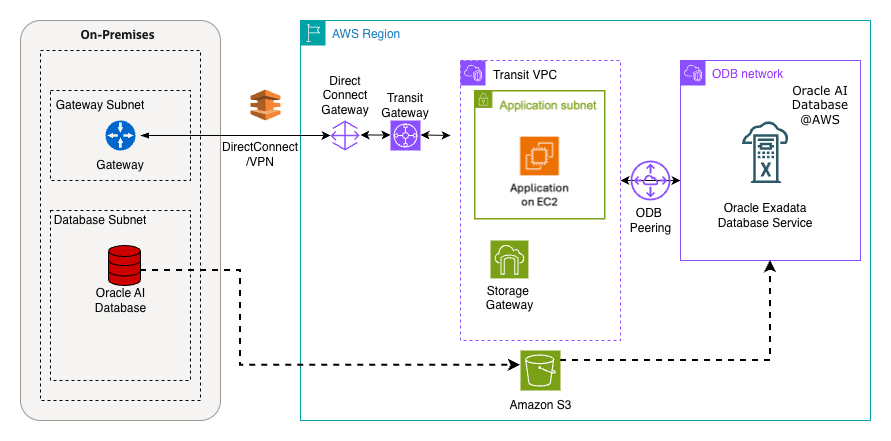
This solution shows how Amazon S3 can serve as a landing zone for RMAN backups to support the database migration process. The following architecture diagram illustrates the workflow in which the source is an Oracle Database running on Linux or Oracle Exadata Database, and the target is an Oracle Exadata Database Service created in the Oracle AI Database@AWS environment. The Amazon S3 bucket is shared and used both on the on-premises systems and within the Oracle Exadata Infrastructure in the Oracle AI Database@AWS environment.
Prerequisites
The following prerequisites are required to migrate to Exadata Database using Amazon S3 File Gateway.- Source database running on compatible Oracle Database such as Exadata Database, RAC or database instance.
- Target Exadata Database as part of Oracle AI Database@AWS
- Amazon S3 bucket shared across the two VPCs.
- To use an Amazon S3 File Gateway across two different VPCs, you need to establish a private connection between the gateway and the Amazon S3 buckets within the other VPC. This typically involves setting up a VPC Endpoint for Amazon S3 within the gateway's VPC and then using VPC Peering or a Transit Gateway to connect the two VPCs.
- Modify the Amazon S3 bucket policy to allow access from both endpoint IDs.
Backup an On-Prem Oracle Database from an EC2 Instance Using Amazon S3 File Gateway
This topic explains the process of using Amazon S3 File Gateway to back up an Oracle Database hosted on an EC2 instance. The same approach is applicable for on-premises environments, covering both Storage Gateway and local databases. These are the steps to implement the backup solution:
- Provision an Amazon S3 File Gateway
- From the AWS console, navigate to Storage Gateway.
- Select the Create gateway button.
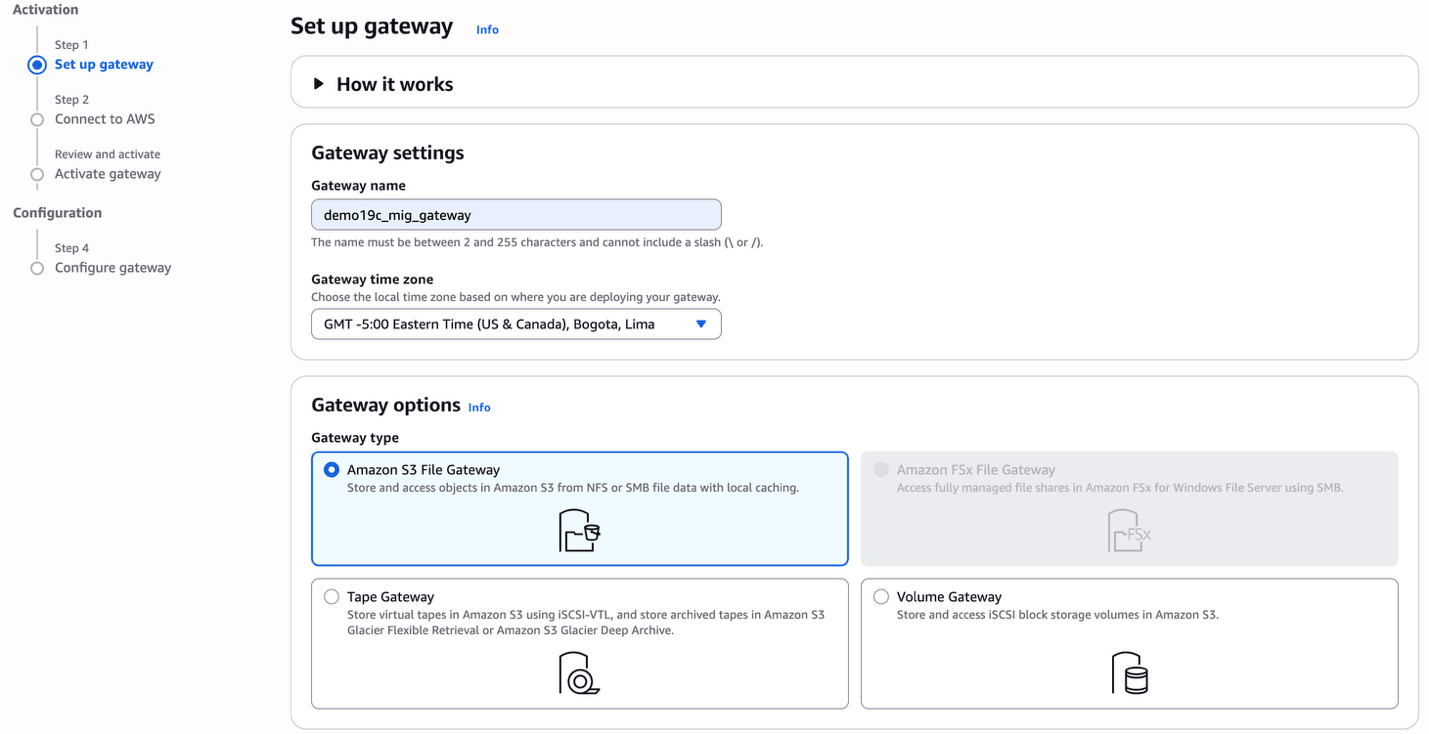
- In the Set up gateway section, enter the following information.
- Enter a descriptive name in the Gateway name field. The name must be between 2 and 255 characters and cannot include a slash (\ or /).
- From the dropdown list, select the Gateway time zone. Choose the local time zone based on where you want to create your gateway.
- From the Gateway options section, choose the Amazon S3 File Gateway option.
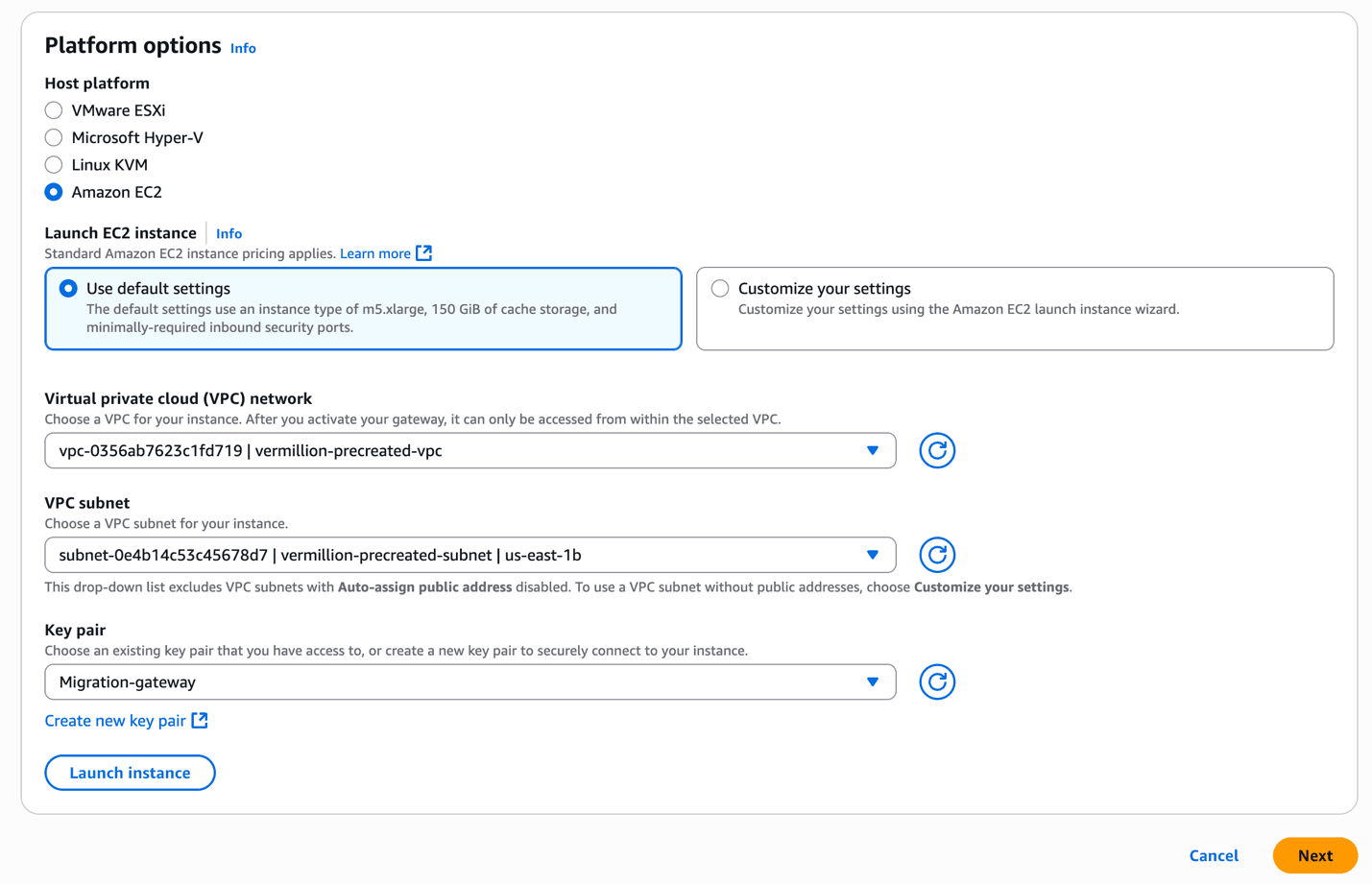
- From the Platform options section, choose the Amazon EC2 as the host platform.
- Choose the Use default settings if you want to create an EC2 instance with default settings. Alternatively, you can click on Customize your settings to select the EC2 instance size and shape .
- From the dropdown list, select the Virtual private cloud (VPC) network.
- From the dropdown list, select the VPC subnet.
- From the Key pair dropdown list, select the existing key pair. If you do not have an existing one, select the Create new key pair link to create one.
- Select the Launch instance button to launch the EC2 instance with default settings. If you select the Customize your settings option, the instance will be launched in EC2 instance console.
- Select the Next button to proceed.
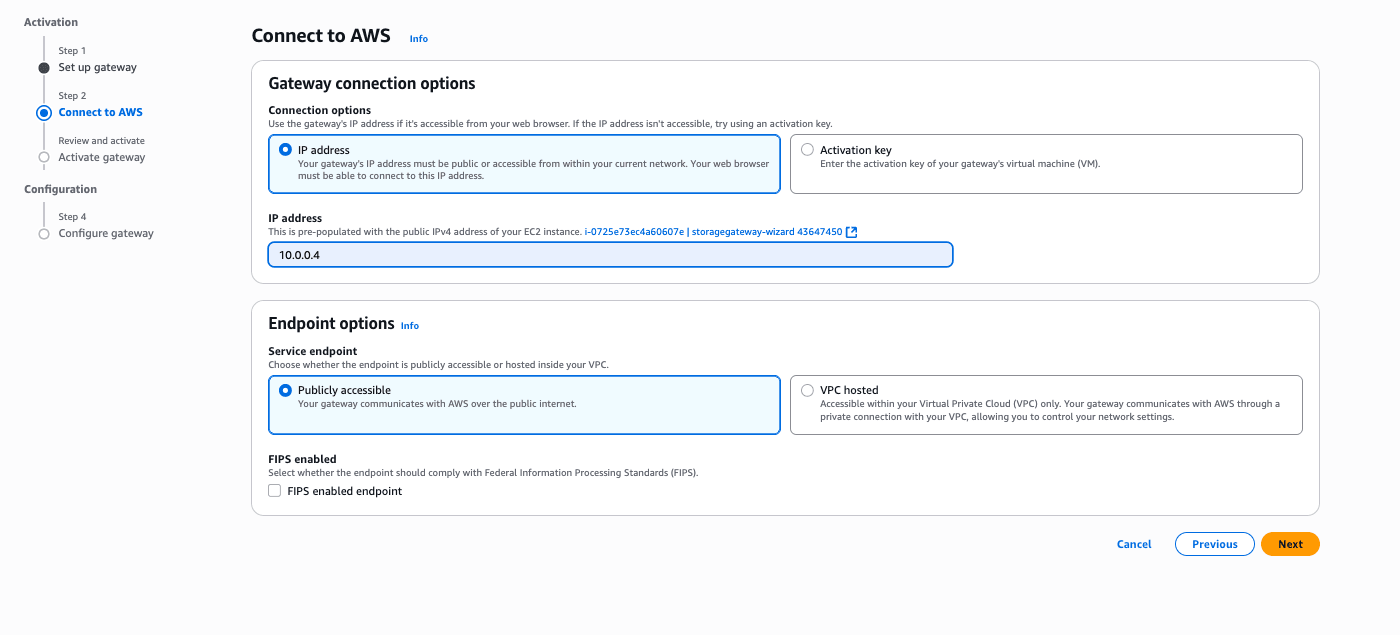
- In the Connect to AWS section, enter the following information.
- From the Connection options section, choose the IP address option.
- The IP address automatically populates from the previous step where you created an EC2 instance.
- From the Service endpoint section, choose either the Publicly accessible option or VPC hosted option.
- Select the Next button to continue the creation process or select the Previous button to go back.
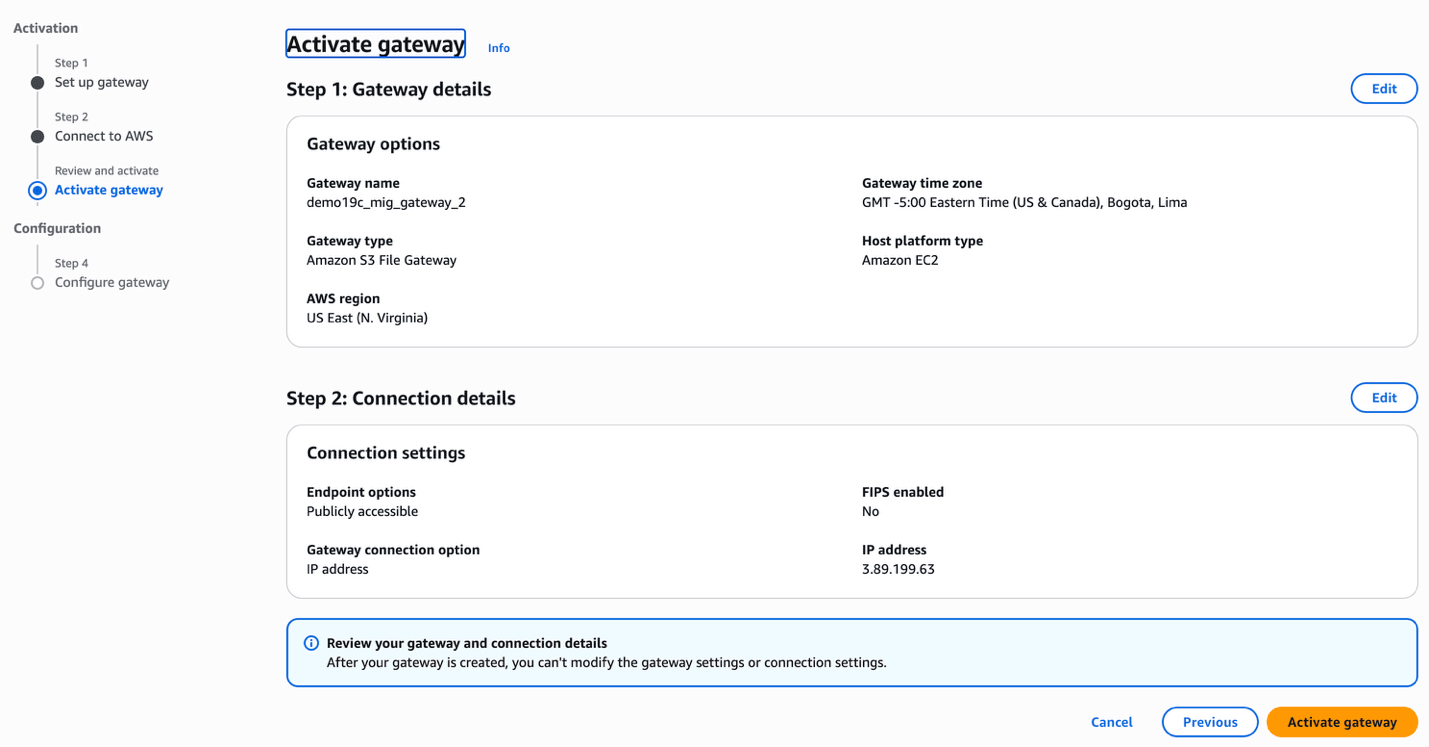
- In the Activate gateway section, enter the following information.
- Review the Gateway details and Connection details, and then click on the Activate gateway button to continue the creation process or select the Previous button to go back.
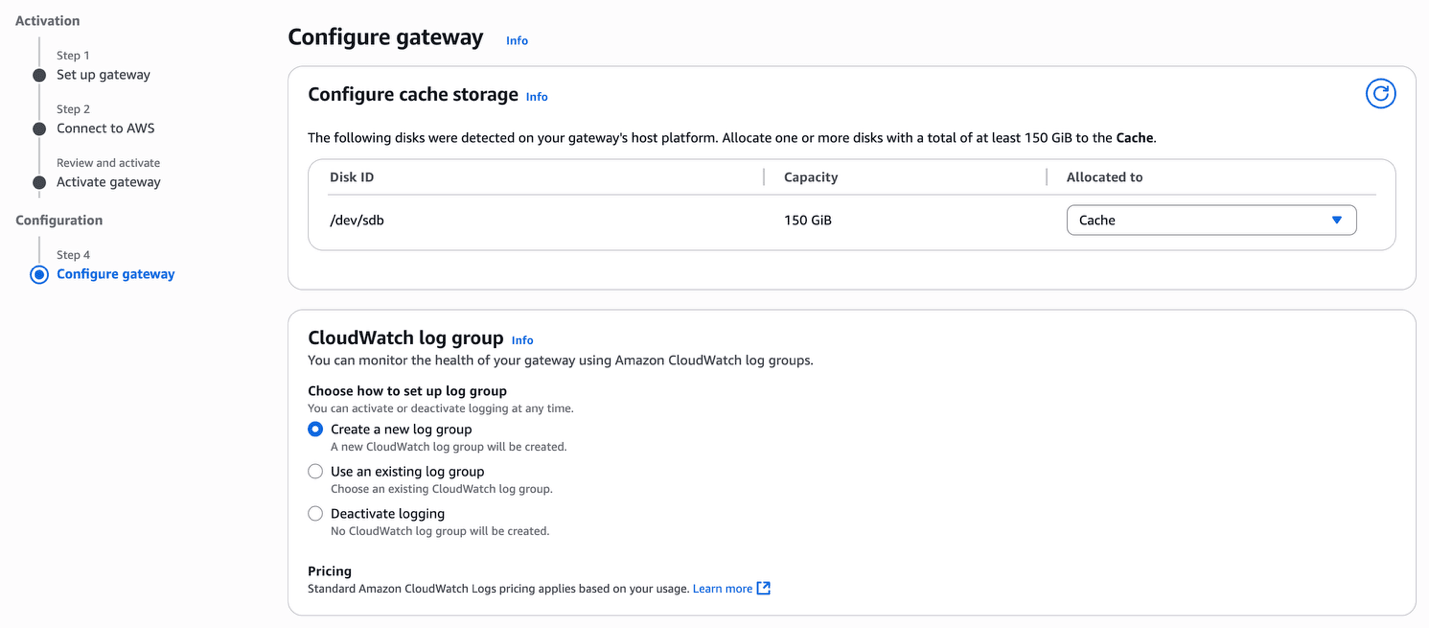
- In the Configure gateway section, enter the following information.
- From the Configure cache storage section, allocate one or more disks.
- From the CloudWatch log group section, choose either the Create a new log group option or the Use an existing group option. The Deactivate logging option is not recommended.
- From the CloudWatch alarms section, choose the Create Storage Gateway's recommended alarms option.
- Based on your requirements, you can add Tags by selecting the Add new tag button.
- Select the Configure button.
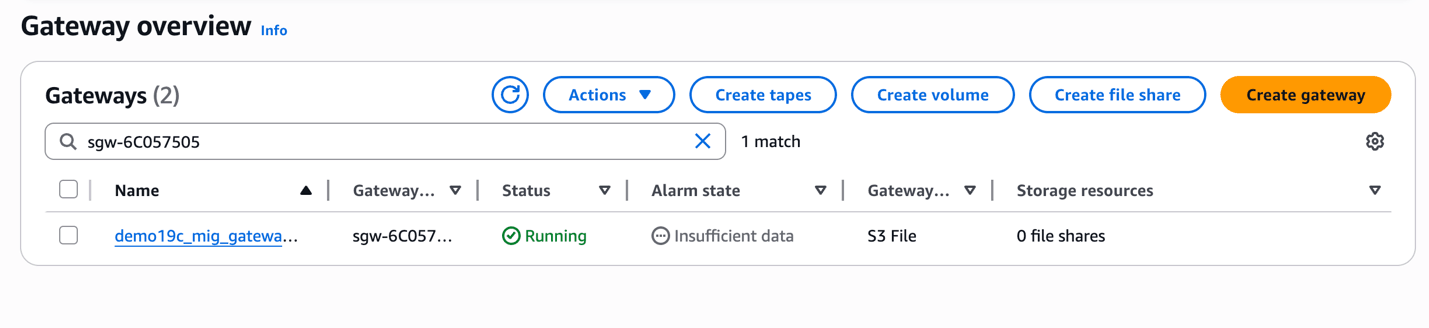
- Once your gateway is created, the status will change to Running.
- Create a File ShareNote
Once the gateway is created, you can create a file share.- From the AWS console, navigate to Storage Gateway.
- From the Storage resources section, select File shares.
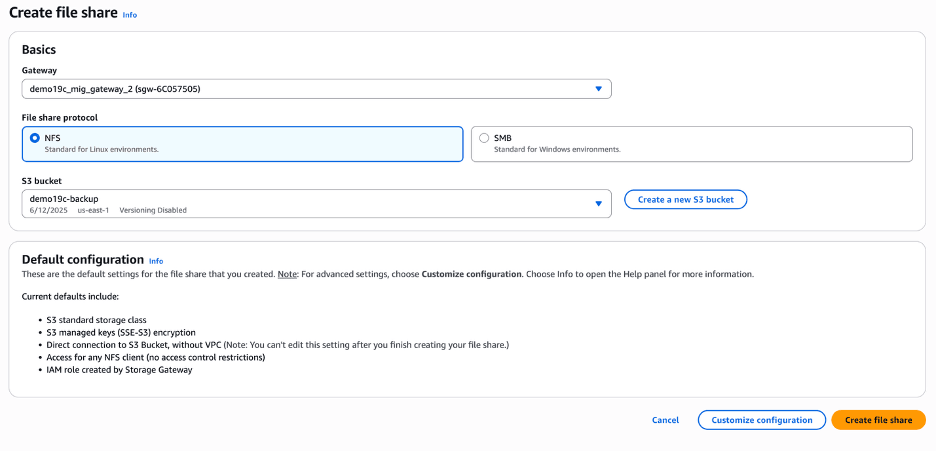
- Select the Create file share button, and then complete the following substeps.
- From the Create file share page, select the Gateway that you created previously.
- From the File share protocol section, choose the NFS option.
- From the S3 bucket dropdown list, select your existing S3 bucket. If you do not have one, you can create one by clicking the Create a new S3 bucket button.
- Select the Create file share button.
- Mount NFS Share in the Oracle Database EC2 Instance
- Use the following bash commands in the database EC2 instance and mount the Amazon S3 bucket as NFS mount points. The NFS parameters used are specific to Oracle Database and RMAN.
- Create a directory with the required mount name. For example, the
s3_mountdirectory was created. - Run the following command.
mount -t nfs -o nolock,hard [ip-address]:/demo19c-backup /s3_mount/
- Backup Oracle Database
You can use the NFS file share that is mounted on the database server to take backups on either using Oracle Data Pump or RMAN. For this example, RMAN is being used.
Oracle Recovery Manager provides a robust utility for backing up Oracle Databases. When storing backups in Amazon S3, ensure that the
db_recovery_file_destparameter is set to the NFS mount point established in previous steps. Additionally, to enforce a strict storage limit, define thedb_recovery_file_dest_sizeparameter, which controls the maximum space allocated for files within the recovery destination. For more information about RMAN backup types and best practices, see RMAN basic concepts.- Set the parameter
db_recovery_file_destto point the NFS share mounted in the previous steps, and define thedb_recovery_file_dest_sizeby using the following command.alter system set db_recovery_file_dest='' scope=both; alter system set db_recovery_file_dest_size='<size limit for nfs share mount point>' scope=both; - This is an example output after setting up the parameters
db_recovery_file_destanddb_recovery_file_dest_size.alter system set db_recovery_file_dest='/s3_mount' scope=both; alter system set db_recovery_file_dest_size='1000G' scope=both; - Run RMAN backup on the database server using the following command:
rman target /
RMAN> RUN
 {
 CONFIGURE DEFAULT DEVICE TYPE TO DISK;
 CONFIGURE DEVICE TYPE DISK PARALLELISM 3;
 BACKUP DATABASE PLUS ARCHIVELOG;
 }
- Set the parameter
- Verify Backup Upload to Bucket
For Oracle Database backups utilizing parallel processing via RMAN or Data Pump, configuring multiple cached disks in Amazon S3 File Gateway significantly improves performance. Instead of relying on a single disk, distributing the workload across multiple cache disks enhances throughput by leveraging parallelism, optimizing storage efficiency and backup speed.
All the backup files are uploaded into Amazon S3 in the background as the Storage Gateway writes the files to the shares. Transport Layer Security encryption protects the data while in transit and Content-MD5 headers are used for data integrity.
Depending on the backup file size and network bandwidth between your Amazon S3 File Gateway and AWS, the backup file can take time to transfer from the local cache of Amazon S3 File Gateway to Amazon S3 bucket. You can use CloudWatch metrics to monitor the traffic.
Restore an Oracle Database on the Target Oracle Exadata VM Cluster- Create an Amazon S3 File Gateway in the ODB Peered VPC
- Follow the steps from above to create a Amazon S3 File Gateway in the AWS VPC which is peered to the Exadata Database using ODB peering.
- When you create the file share make sure you are using the same Amazon S3 bucket that you have used for the RMAN backups.
- Mount NFS Share in the Exadata Virtual Machine
- Enter the following bash commands in the database EC2 instance and mount the Amazon S3 bucket as NFS mount points. The NFS parameters used are specific to Oracle Database and RMAN.
- Create a directory with the required mount name in this case we created the
s3_mount/targetdirectory.mount -t nfs -o nolock,hard [ip-address]:/demo19c-backup /s3_mount/target - After the NFS is mounted, the RMAN backup will be available on target Exadata Database since they are both using the same Amazon S3 bucket.
- Restore the Backup
Using RMAN restore, databases can be restored on the same server or different server. RMAN backups can be used for disaster recovery scenarios across different regions in AWS as well.
- Use the following command to complete the restore on Exadata Database:
rman target /
RMAN> CATALOG START WITH '/s3_mount/target' NOPROMPT;
RMAN> run {
CONFIGURE DEFAULT DEVICE TYPE TO DISK;
CONFIGURE DEVICE TYPE DISK PARALLELISM 3;
RESTORE DATABASE;
RECOVER DATABASE;
alter database open;
}
- Use the following command to complete the restore on Exadata Database:
- Validation
- Run the validation steps to ensure the RMAN restore completed successfully.
Table 1-2 Validation Commands
Check Area Command Expected Result RMAN Log - No errors, restore complete DB Status select status from v$instance;OPEN Datafiles select * from v$datafile;All ONLINE Tablespaces select * from dba_tablespaces;All ONLINE Alert Log Tail the alert log Opened successfully Application Data select count(*) from known tablesReturns rows
- Run the validation steps to ensure the RMAN restore completed successfully.
Conclusion:
Leveraging Amazon S3 File Gateway for migrating from on-prem Exadata Database to Exadata Database on Oracle AI Database@AWS offers a strategic, secure, and scalable bridge for hybrid cloud workflows. It simplifies data transfer by presenting Amazon S3 as an NFS mount, enabling seamless integration with existing Exadata environments while reducing operational overhead. The key AWS resources for Amazon S3 File Gateway include:- Official Product Page: Overview, benefits, and use cases of Amazon S3 File Gateway.
- Best Practices: Guidance on performance tuning, security, and lifecycle management.
Migrating an on-premises Oracle Database to Oracle Exadata Database within AWS can be a complex process as it requires an efficient data transfer mechanism. Amazon Elastic File System provides a managed, highly available, elastic file storage solution that simplifies migration workflows. By integrating Amazon Elastic File System with your databases, you can streamline data movement, reduce storage overhead, and enhance migration efficiency.
There are several advantages that Amazon Elastic File System offers, making it an ideal choice for migration.- Scalability and Elasticity
Amazon Elastic File System automatically scales from gigabytes to petabytes which eliminates the need for manual storage provisioning. This ensures that migration workloads can handle large datasets without storage constraints.
- Seamless Integration with Oracle Database
Amazon Elastic File System supports Network File System (NFS) protocols, allowing Oracle Databases to read and write directly to the EFS file system. This is particularly useful for Data Pump exports and imports, RMAN backups, and transportable tablespaces.
- Cost Optimization
Amazon Elastic File System follows a pay-as-you-go model, reducing upfront costs. It eliminates the need for dedicated storage provisioning, making it a cost-effective choice for temporary migration workloads.
- High Availability and Durability
Amazon Elastic File System is designed for Multi-Availability Zone (Multi-AZ) replication, ensuring high availability and data durability. This minimizes the risk of data loss during migration.
- Enhanced Security
Amazon Elastic File System supports encryption at rest and in transit, ensuring that sensitive database files remain protected throughout the migration process.
Solution Overview
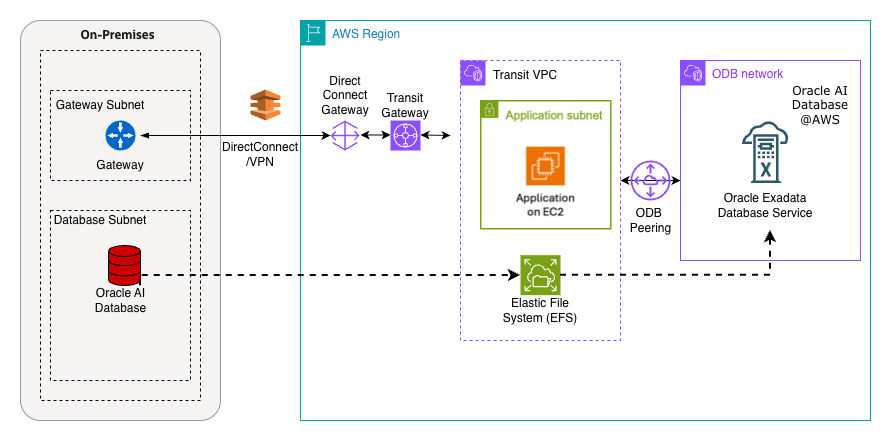
This solution demonstrates how an Amazon Elastic File System file share can serve as a landing zone for RMAN backups, simplifying the database migration process.
The architecture diagram below illustrates the workflow, where the source is an Oracle Database running on Linux or Oracle Exadata Database, and the target is an Oracle Exadata Database Service created in the Oracle AI Database@AWS environment. The EFS share is set up and used both on-premises hosts mounting the EFS file system over VPN/Direct Connect and within the Oracle Exadata Infrastructure in the Oracle AI Database@AWS.
Prerequisites
The following prerequisites are required to complete this solution.- Source database running on compatible Oracle Database such as Exadata Database, RAC or a single-instance database.
- Target Exadata Database as part of Oracle AI Database@AWS.
- EFS file system and mount targets in required subnets/AZs
- Network connectivity and routes established between the on-premises and AWS region.
Using Amazon Elastic File System for Oracle Database Migration:
Complete the following steps.- Setting Up Amazon Elastic File System
- From the AWS console, navigate to Elastic File System.
- Select the Create file system button.
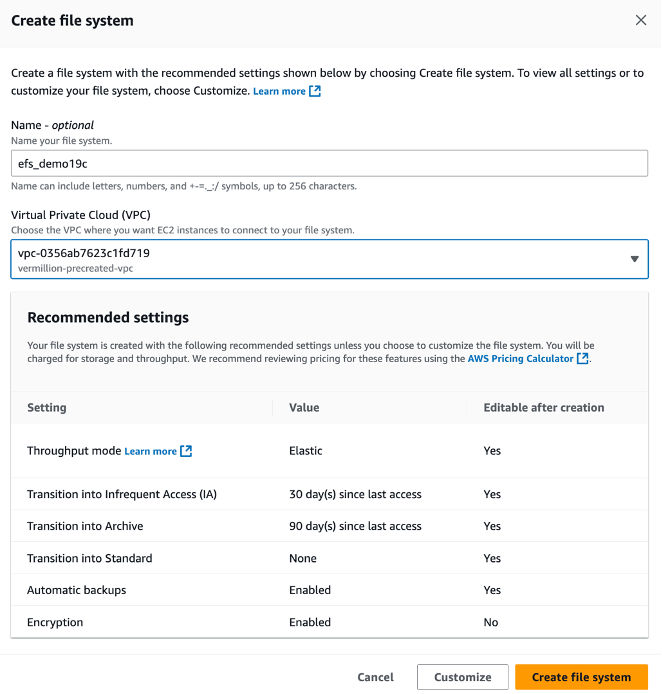
- In the Create file system section, enter the following information.
- The Name field is optional. If you want, you can enter a descriptive name for your file system. The name must include letters, numbers, and
+-=._:/symbols and it can up to 256 characters. - From the Virtual Private Cloud (VPC) section, choose the VPC where you want EC2 instances to connect to your file system.
- From the Recommended settings section, review the settings. If you want to change the default settings, click on the Customize button and make required changes.
- Select the Create file system button to create a file system.
- The Name field is optional. If you want, you can enter a descriptive name for your file system. The name must include letters, numbers, and
- Configure mount targets within the same VPC as your Oracle Database.
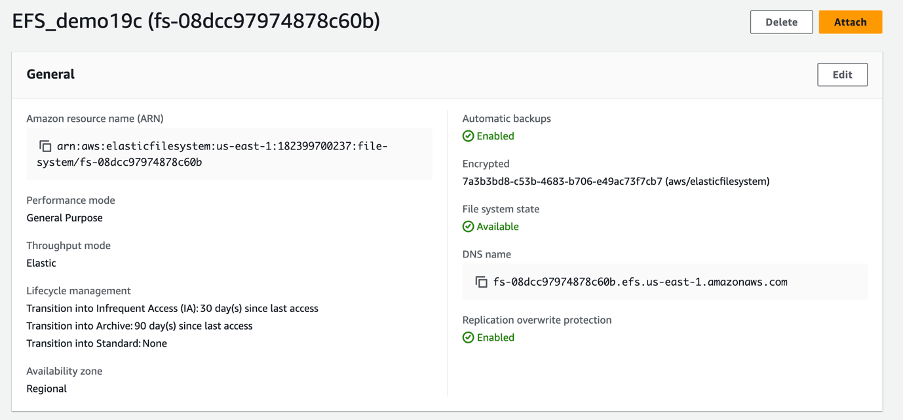
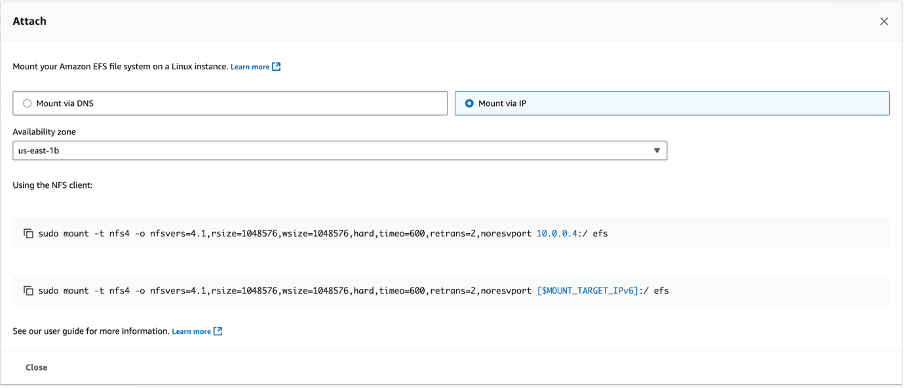
- Select the previously created file system, and then select the Attach button which provides you the sample commands to attach the EFS to the database server.
- From the Attach page, select the Mount via IP option.
- From the dropdown list, select the Availability zone.
- Copy the commands located under the Using the NFS client section.
- Mounting EFS on Oracle Database Server
- Create a directory on the database server.
[oracle@vm-q9rk11 backup]$ mkdir -p /home/oracle/backup/efs_backup - Use the following command to mount EFS on an EC2 instance running Oracle:
[root@vm-q9rk11 ~]# sudo mount -t nfs4 -o nfsvers=4.1, rsize=1048576, wsize=1048576, hard, timeo=600, retrans=2,noresvport \ >10.0.0.4: /home/oracle/backup/efs_backup - Verify that RMAN backups are stored on EFS.
df -k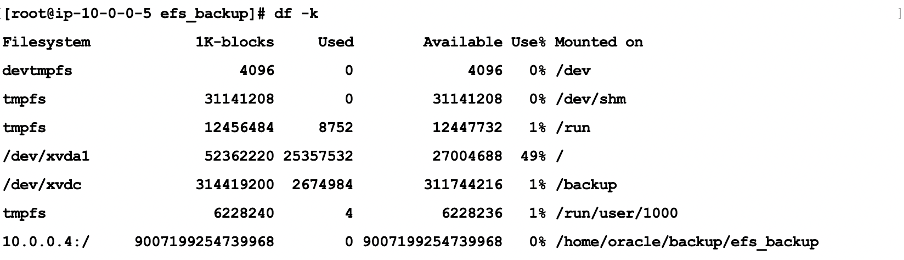
- You can use Oracle Data Pump export / import or RMAN, or any other backup and restore method to migrate where EFS can be used as a staging area for the files. In this example, the RMAN option is used as the migration tool.
- RMAN Backups: Use EFS as a backup staging area before transferring data to Exadata Database.
- Create a directory on the database server.
- Migrating Oracle Database Files
A key advantage of using Amazon Elastic File System for Oracle Recovery Manager backups is its ability to provide a shared, highly available storage layer between the on-premises Oracle environment and the Exadata system. This eliminates the need for complex data movement processes.
- Configure RMAN to store backups on EFS.
CONFIGURE CHANNEL DEVICE TYPE DISK FORMAT '/home/oracle/backup/efs_backup/rman_backup_%U'; - Run RMAN backup for container database
ORCLPDB1.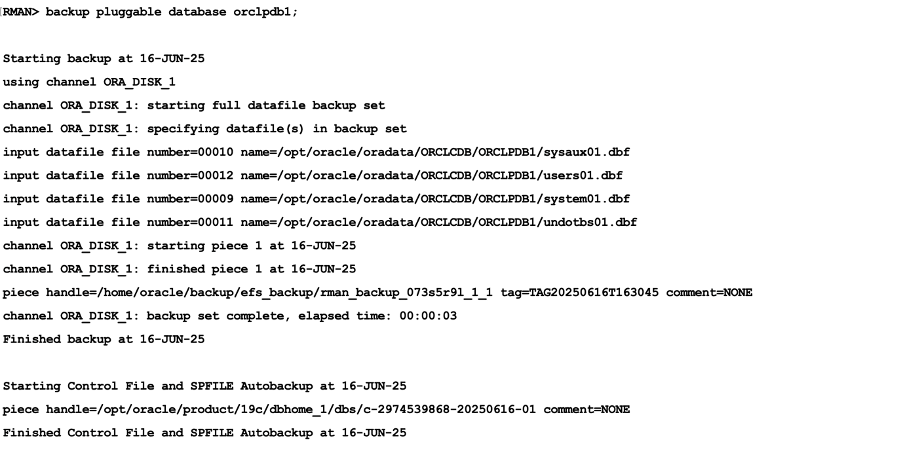
- Verify that RMAN backups are stored on EFS.
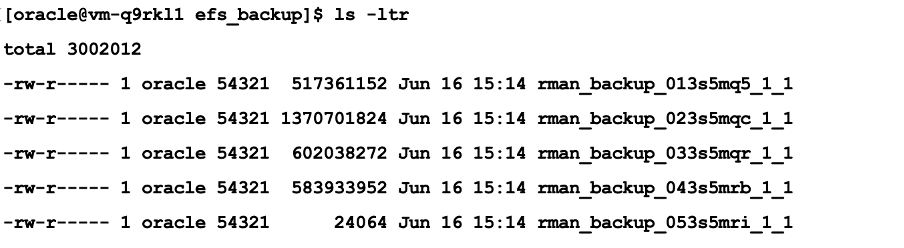
- Configure RMAN to store backups on EFS.
Restore an Oracle Exadata Database at Oracle Exadata VM Cluster
Since Amazon Elastic File System is a shared storage solution, the same backup files stored in EFS on-premises will be accessible from EFS Oracle Exadata Database.- Mount the EFS on Oracle Exadata VM Cluster using the following command.
[opc@vm-q9rk11 ~]$ sudo mount -t nfs4 -o nfsvers=4.1, rsize=1048576, wsize=1048576, hard,timeo-600, retrans=2,noresvport 10.0.0.4:/ /home/oracle/backup/efs_backup - Validate RMAN backup availability at the EFS location
/home/oracle/backup/efs_backup. - Restoring the database on Oracle Exadata Database Pluggable Database (PDB) Complete Recovery.
$ rman target=/ RUN { CONFIGURE CHANNEL DEVICE TYPE DISK FORMAT '/home/oracle/backup/efs_backup/rman_backup_%U'; ALTER PLUGGABLE DATABASE orclpdb1 CLOSE; RESTORE PLUGGABLE DATABASE orclpdb1; RECOVER PLUGGABLE DATABASE orclpdb1; ALTER PLUGGABLE DATABASE orclpdb1 OPEN; } - Since EFS maintains consistency across all mounted instances, there is no need to manually transfer files, they are readily available for recovery on Oracle Exadata Database.
Key Benefits- Eliminates manual file transfer between environments.
- Ensures high availability and durability of RMAN backups.
- Accelerates migration timelines by leveraging shared storage.
Conclusion- Amazon Elastic File System provides a scalable, cost-effective, and secure solution for migrating Oracle Databases from on-premises environments Oracle Exadata Database at AWS. By leveraging EFS integration, organizations can simplify data movement, reduce storage overhead, and accelerate migration timelines.
- For more information about mounting EFS across regions, and different VPC’s, see Mounting EFS file systems from a different AWS Region.
- Scalability and Elasticity
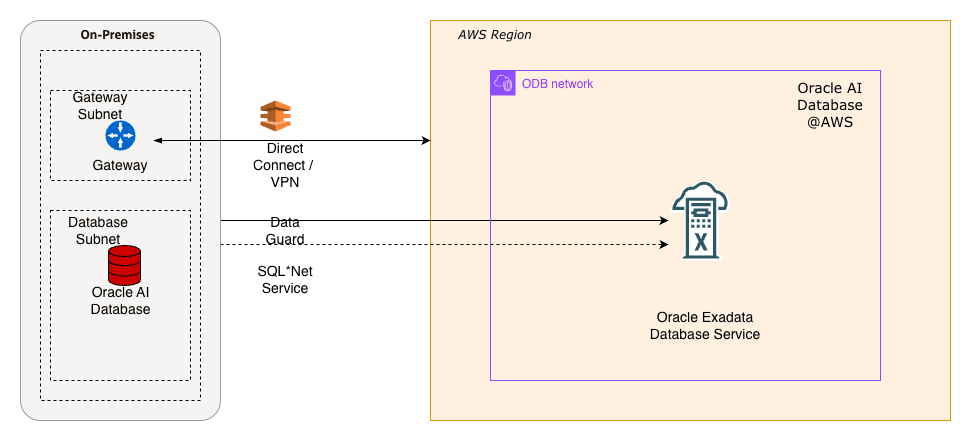
Oracle Data Guard supports high availability and disaster recovery by maintaining a synchronized standby database. For migration, you can set up a physical standby database in the target environment, such as new hardware, cloud infrastructure, or a different database version for an upgrade. Synchronize the standby database with the primary database, and then perform a switchover so that the standby database becomes the new primary database. This approach reduces downtime to seconds during the switchover.
This guide describes a physical standby configuration for migration based on standard practices. It assumes a single-instance configuration for simplicity. For Oracle Real Application Clusters (RAC) configurations, adjust the steps accordingly. For upgrades, such as from 12c to 19c, the standby database runs a higher database version by using mixed-version support, available from 11.2.0.1 and later. If applicable, use Zero Downtime Migration (ZDM) to automate cloud migrations.
Assumptions:
- The source (primary) server and the target (standby) server have compatible operating systems and sufficient resources.
- Oracle Database Enterprise Edition (Oracle Data Guard is included).
- Basic networking such as firewalls allow port 1521 for the listener and port 22 for SSH.
Solution Architecture
Prerequisites
Before you start, complete the following prerequisites:
- Source Database:
- Run the database in the
ARCHIVELOGmode.SELECT log_mode FROM v$database;The query returnsARCHIVELOG. If the database does not run inARCHIVELOGmode, enable theARCHIVELOGmode. This change requires downtime.SHUTDOWN IMMEDIATE; STARTUP MOUNT; ALTER DATABASE ARCHIVELOG; ALTER DATABASE OPEN; - Enable
FORCE LOGGING.ALTER DATABASE FORCE LOGGING; - Add standby redo logs (one more group than online redo logs, same size). Query
v$logfor sizes, then add standby redo logs for each thread.ALTER DATABASE ADD STANDBY LOGFILE GROUP <n> ('<path>') SIZE <size>; - Configure
tnsnames.oraentries for the primary database and the standby database. - Configure RMAN control file autobackup.
CONFIGURE CONTROLFILE AUTOBACKUP ON; - For upgrades, ensure that the source and target database versions are compatible in accordance with Oracle Support guidance. For example,
Doc ID 785347.1.
- Run the database in the
- Target Server
- Install the Oracle binaries. Use the same database version, or a higher version for an upgrade.
- Create directories that match the source environment. For example,
/u01/oradata,/u01/frafor the Fast Recovery Area. - Configure SSH key-based access from the source to the target and from the target to the source for users such as
oracle. - Start the listener and configure
tnsnames.oraentries for the primary database and the standby database. - For Zero Downtime Migration (optional automation), install the ZDM software on a separate host and configure the response file.
- Networking
- Establish a private, low-latency link by using AWS Direct Connect (preferred) or Site-to-Site VPN to support secure redo log shipping to the standby in AWS VPC.
- Ensure the SQL*Net connectivity. Test
tnspingbetween hosts. - Configure time synchronization. Use NTP.
- Backup Storage
(If you use ZDM or external backups)
- Ensure access to Object Storage, NFS, or ZDLRA.
- Tools (Optional)
- Use Oracle AutoUpgrade for upgrades.
- Use ZDM for cloud migrations. ZDM uses Oracle Data Guard automatically.
Use the following table to configure key initialization parameters on the primary database and propagate these parameter settings to the standby database.
Parameter Value Example Purpose DB_NAME'orcl'Same on primary and standby. DB_UNIQUE_NAME'orcl_primary' (primary), 'orcl_standby' (standby)Unique identifier for Data Guard. LOG_ARCHIVE_CONFIG'DG_CONFIG=(orcl_primary,orcl_standby)'Enables sending/receiving logs. STANDBY_FILE_MANAGEMENT'AUTO'Auto-creates files on standby. FAL_SERVER'standby_tns'Fetch Archive Log server for gap resolution. LOG_ARCHIVE_DEST_2'SERVICE=standby_tns ASYNC VALID_FOR=(ONLINE_LOGFILES,PRIMARY_ROLE) DB_UNIQUE_NAME=orcl_standby'Remote archive destination. - Prepare the Primary Database
- Enable the required features as SYS.
ALTER DATABASE FORCE LOGGING; ALTER SYSTEM SET LOG_ARCHIVE_CONFIG='DG_CONFIG=(<primary_unique_name>,<standby_unique_name>)' SCOPE=BOTH; ALTER SYSTEM SET STANDBY_FILE_MANAGEMENT=AUTO SCOPE=BOTH; - Add standby redo logs (for example, for 3 online groups, add 4 standby groups).
ALTER DATABASE ADD STANDBY LOGFILE THREAD 1 GROUP 4 ('/u01/oradata/standby_redo04.log') SIZE 100M; -- Repeat for additional groups. - Create a backup of the primary database using RMAN (include
archivelogsfor synchronization).CONNECT TARGET / BACKUP DATABASE FORMAT '/backup/db_%U' PLUS ARCHIVELOG FORMAT '/backup/arc_%U'; BACKUP CURRENT CONTROLFILE FOR STANDBY FORMAT '/backup/standby_ctl.ctl'; - Copy the backup files, password file (
orapw<sid>), and parameter file (init.oraorspfile) to the target server.
- Enable the required features as SYS.
- Prepare the Standby Database Server
- Install Oracle software (use the same version or a higher version for upgrade).
- Create the necessary directories.
mkdir -p /u01/oradata/<db_name>mkdir -p /u01/fra/<DB_UNIQUE_NAME_upper>mkdir -p /u01/app/oracle/admin/<db_name>/adump - Edit the copied parameter file on standby database server.
- Set
DB_UNIQUE_NAMEto the standby value. - Set
FAL_SERVERto the primary TNS name. - Adjust paths if needed. For example,
CONTROL_FILES, DB_RECOVERY_FILE_DEST.
- Set
- Start the standby instance in
NOMOUNTmode.CREATE SPFILE FROM PFILE='/path/to/init.ora';STARTUP NOMOUNT;
- Create the Standby Database
- Use RMAN to duplicate the database from the active database.
CONNECT TARGET sys/<password>@primary_tns CONNECT AUXILIARY sys/<password>@standby_tns
          DUPLICATE TARGET DATABASE FOR STANDBY FROM ACTIVE DATABASE DORECOVER
          NOFILENAMECHECK;
Alternative: If you use backup files, duplicate the database for standby from a backup location.DUPLICATE DATABASE FOR STANDBY BACKUP LOCATION '/backup' NOFILENAMECHECK; - On standby, start managed recovery.
ALTER DATABASE RECOVER MANAGED STANDBY DATABASE USING CURRENT LOGFILE;
- Use RMAN to duplicate the database from the active database.
- Configure Data Guard
- On primary, set remote logging.
ALTER SYSTEM SET LOG_ARCHIVE_DEST_2='SERVICE=<standby_tns> ASYNC VALID_FOR=(ONLINE_LOGFILES,PRIMARY_ROLE) DB_UNIQUE_NAME=<standby_unique_name>' SCOPE=BOTH;ALTER SYSTEM SET LOG_ARCHIVE_DEST_STATE_2=ENABLE SCOPE=BOTH;ALTER SYSTEM SET FAL_SERVER='<standby_tns>' SCOPE=BOTH; - On standby.
ALTER SYSTEM SET FAL_SERVER='<primary_tns>' SCOPE=BOTH; - (Optional) Enable Data Guard Broker for easier management.
- Set
DG_BROKER_START=TRUEon both. - Create configuration.
DGMGRL> CREATE CONFIGURATION dg_config AS PRIMARY DATABASE IS <primary_unique_name> CONNECT IDENTIFIER IS <primary_tns>; - Add standby.
DGMGRL> ADD DATABASE <standby_unique_name> AS CONNECT IDENTIFIER IS <standby_tns>; - Enable the configuration.
DGMGRL> ENABLE CONFIGURATION;
- Set
- On primary, set remote logging.
- Verify Synchronization
- On primary, force log switches.
ALTER SYSTEM SWITCH LOGFILE; - On standby, check apply status.
SELECT PROCESS, STATUS, THREAD#, SEQUENCE# FROM v$managed_standby;Look for
MRP0applying logs. - Check for gaps.
SELECT * FROM v$archive_gap;Should return no rows.
- Monitor lag.
SELECT NAME, VALUE FROM v$dataguard_stats WHERE NAME = 'apply lag';
Allow time for full sync before migration.
- On primary, force log switches.
- Perform Switchover (Migration Cutover)
- Stop applications connected to primary (minimal downtime starts here).
- Verify no gaps and stop recovery on standby.
ALTER DATABASE RECOVER MANAGED STANDBY DATABASE CANCEL; - Using Broker (recommended).
DGMGRL> SWITCHOVER TO <standby_unique_name>;- Manual alternative.
- On primary:
ALTER DATABASE COMMIT TO SWITCHOVER TO PHYSICAL STANDBY WITH SESSION SHUTDOWN; - On old primary (now standby):
STARTUP MOUNT; ALTER DATABASE RECOVER MANAGED STANDBY DATABASE DISCONNECT; - On new primary (old standby):
ALTER DATABASE COMMIT TO SWITCHOVER TO PHYSICAL PRIMARY WITH SESSION SHUTDOWN; ALTER DATABASE OPEN;
- On primary:
- Manual alternative.
- Verify roles. New primary should be
PRIMARY.SELECT DATABASE_ROLE FROM v$database; - Redirect applications to new primary.
- (Optional) Decommission old primary or keep as new standby.
Optional: Upgrading During Migration
If you migrate to a later database version.
- Install the later-version Oracle Database binaries on the target server.
- After the step 3, activate the standby database for the upgrade.
ALTER DATABASE ACTIVATE STANDBY DATABASE; - Start the database in upgrade mode:
STARTUP UPGRADE; - Use
AutoUpgrade:- Create the configuration file.
- Run the following command.
java -jar autoupgrade.jar -config <file> -mode upgrade
- After the upgrade:
- Run the following command.
datapatch - Open the database.
- Continue with the database as the new primary database.
- Run the following command.
Using Zero Downtime Migration (ZDM) for Automation
For cloud migrations, for example, to Oracle Cloud Infrastructure (OCI):
- Install ZDM on a dedicated host.
- Create a response file with parameters such as
MIGRATION_METHOD=ONLINE_PHYSICAL,DATA_TRANSFER_MEDIUM=OSS, andTGT_DB_UNIQUE_NAME. - Run the following with an evaluation run first, and then run the full migration. Pause after the Data Guard configuration step for verification.
zdmcli migrate database -rsp <file> -sourcesid <sid> ... - ZDM automates the backup, standby database creation, and switchover.
Troubleshooting Tips
- Common errors:
- ORA-01110 (file mismatch): Check file paths.
- Apply lag:
- Verify the network connection and increase available bandwidth.
- For additional details:
- Review the alert log and Oracle Data Guard dynamic performance views, such as
v$dataguard_status
- Review the alert log and Oracle Data Guard dynamic performance views, such as
- Test the procedure in a non-production environment first.
- Refer to Oracle documentation for version-specific differences.
This process supports a near-zero-downtime migration.