Prerequisites
To learn more about the prerequisites for restoring your database(s) in Oracle AI Database@AWS, see the Backup - Prerequisites section.
Network Prerequisites for a Cross-Region Exadata Database Restore
This topic describes the cross-region networking setup that you need to perform a cross-region restore. The setup enables a target Exadata Database in one AWS region to access backup files in OCI Object Storage that come from a source database in a different AWS region.
After you establish connectivity, follow the Exadata Database - Restore documentation to restore your Exadata Database.
The following diagram illustrates the cross-region architecture diagram for this configuration. 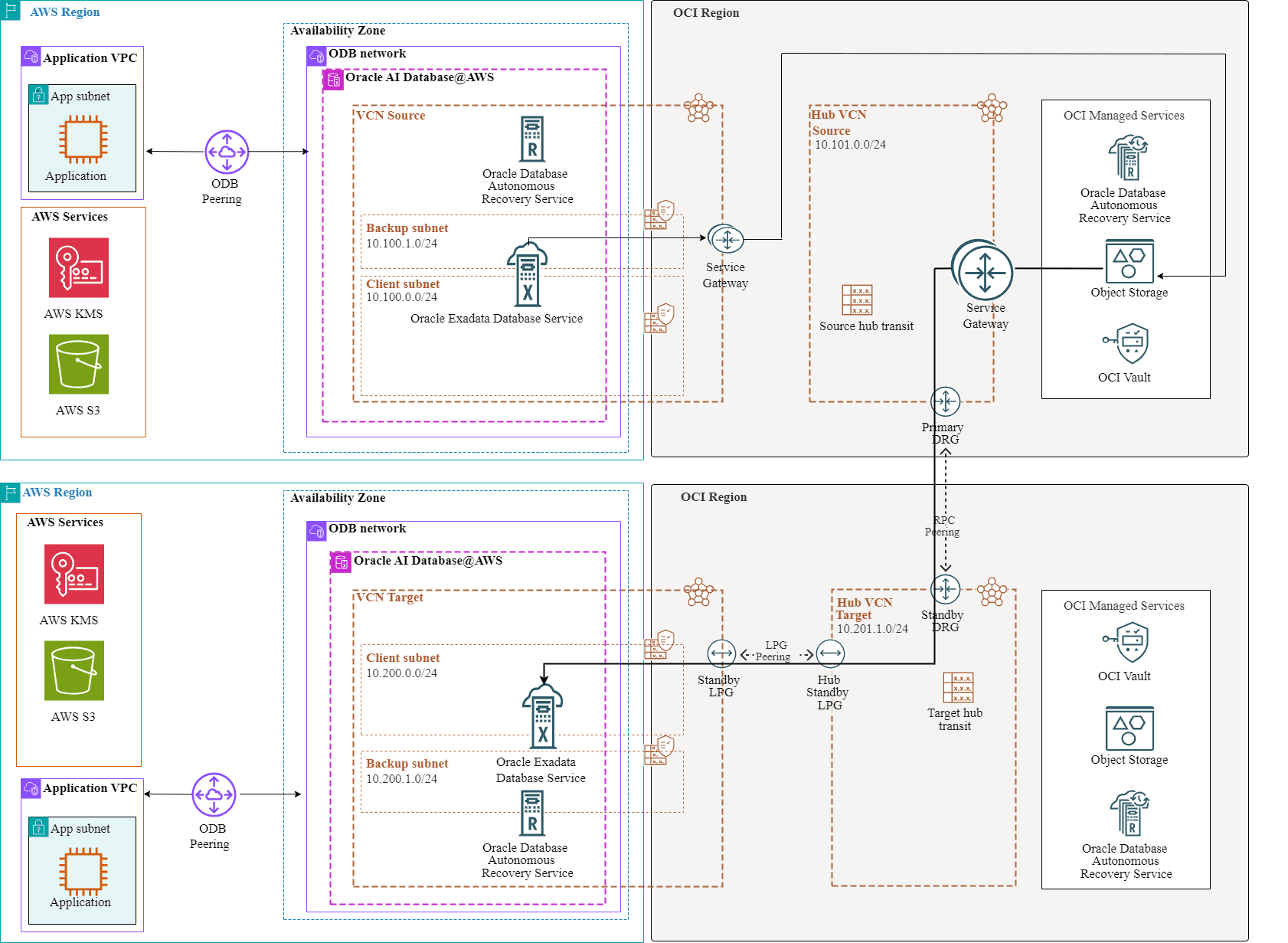
In this architecture, the source database uses OCI Object Storage as its backup repository and routes backup traffic through a Service Gateway. To restore the database, you must configure the target database with network access to the Object Storage endpoint in the source region to retrieve those backups.
In this architecture:
-
The Source Hub VCN
10.101.0.0/24is created. -
The target Exadata VM Cluster is deployed within the target region’s VCN, where the client and backup subnets utilize the CIDR blocks
100.200.0.0/24and10.200.1.0/24, respectively. -
The Target Hub VCN
10.201.1.0/24is created.
Note:
-
Download and update the diagram with your CIDR.
-
Review the Remote Peering Connection Count service limit, and request a service limit increase if needed.
-
Plan Hub VCN CIDR to avoid overlapping IP addresses. The hub VCN CIDR can be small, for example,
/28. -
If you plan to deploy resources in the subnet, define the CIDR accordingly.
Complete the following steps to configure cross-region VCN peering and establish network communication between the target region and the source Object Storage bucket that the architecture diagram shows.
Configure the Network in the Source Region
-
From the AWS Console, select the source Exadata VM Cluster, and then select the Manage in OCI button to open the OCI Console.
-
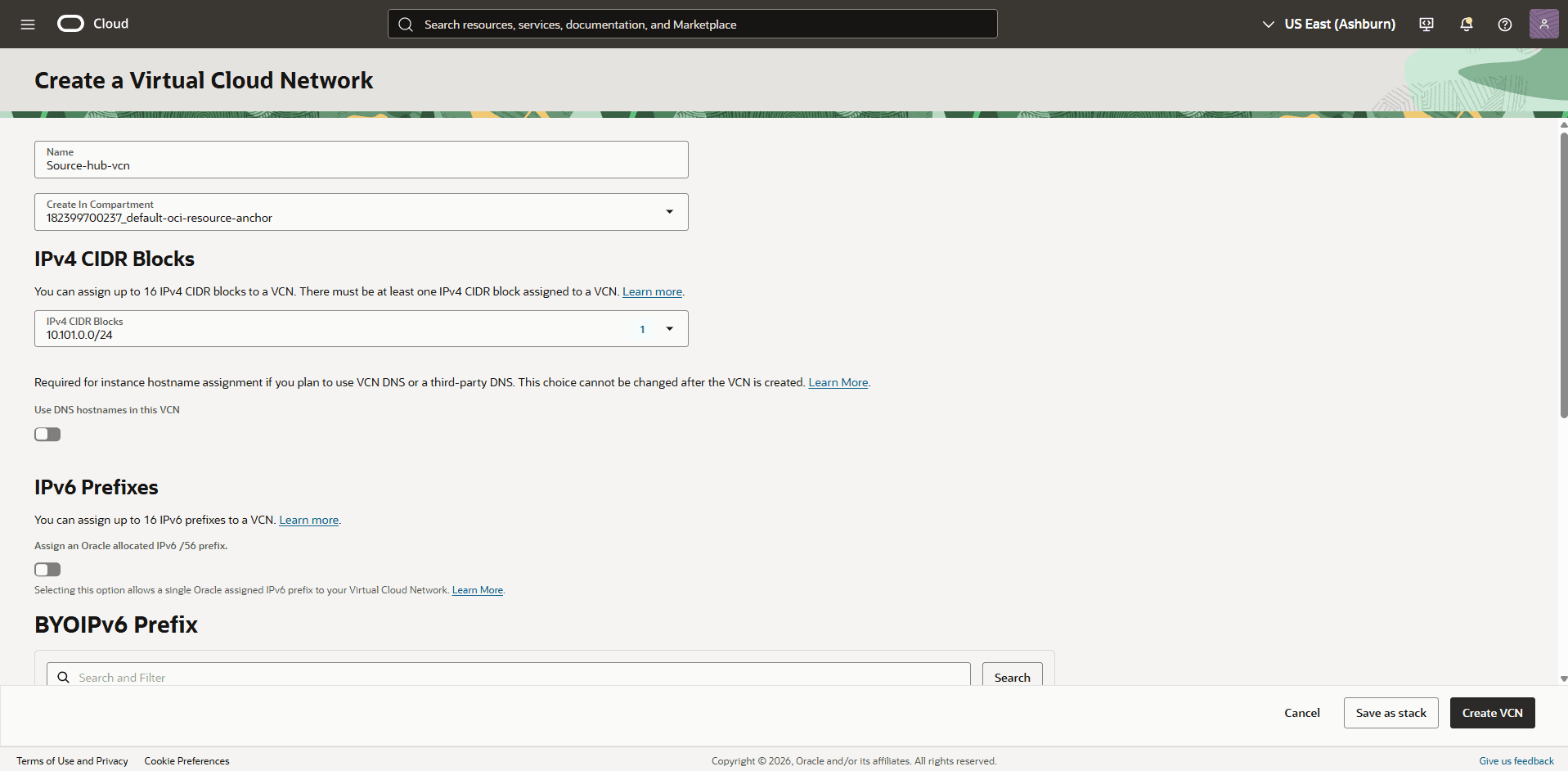
From the OCI Console, navigate to Networking to create a Virtual Cloud Network (VCN) of the source region (HUB VCN Source).
-
From the left menu, select Virtual cloud networks.
-
Select the Create VCN button.
-
Name: Enter a descriptive name. For example,
Source-hub-vcn. -
Create In compartment: Select the compartment where you want to create the VCN.
-
IPv4 CIDR Blocks: Enter the CIDR block for your Hub VCN. Ensure that this block does not overlap with your existing network address space.
-
Select the Create VCN button.
-
-
-
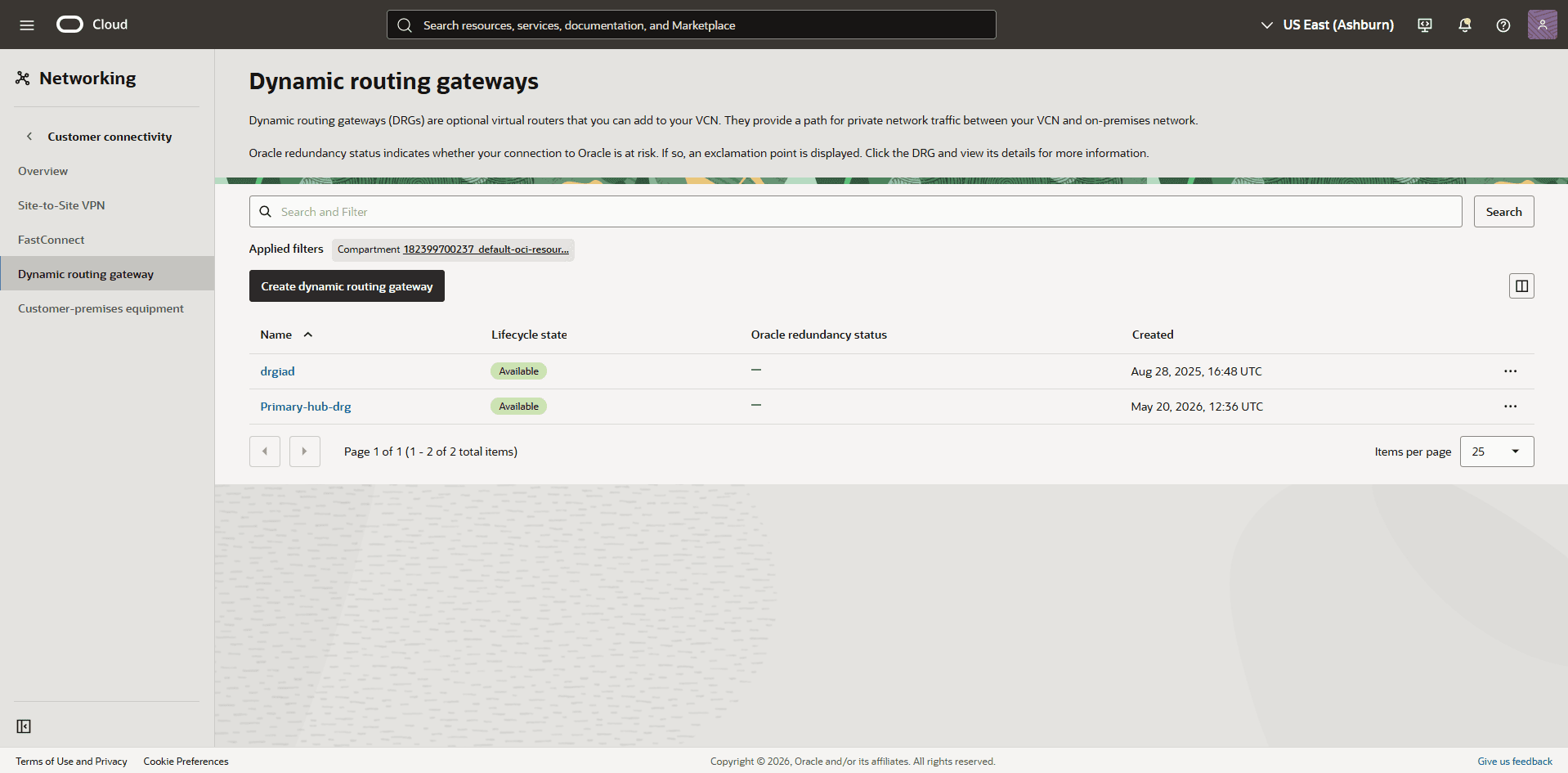
Create a dynamic routing gateway named
Source-hub-drg.-
From the OCI Console, select Networking.
-
Under the Customer connectivity section, select Dynamic routing gateway, and then select the Create dynamic routing gateway button.
-
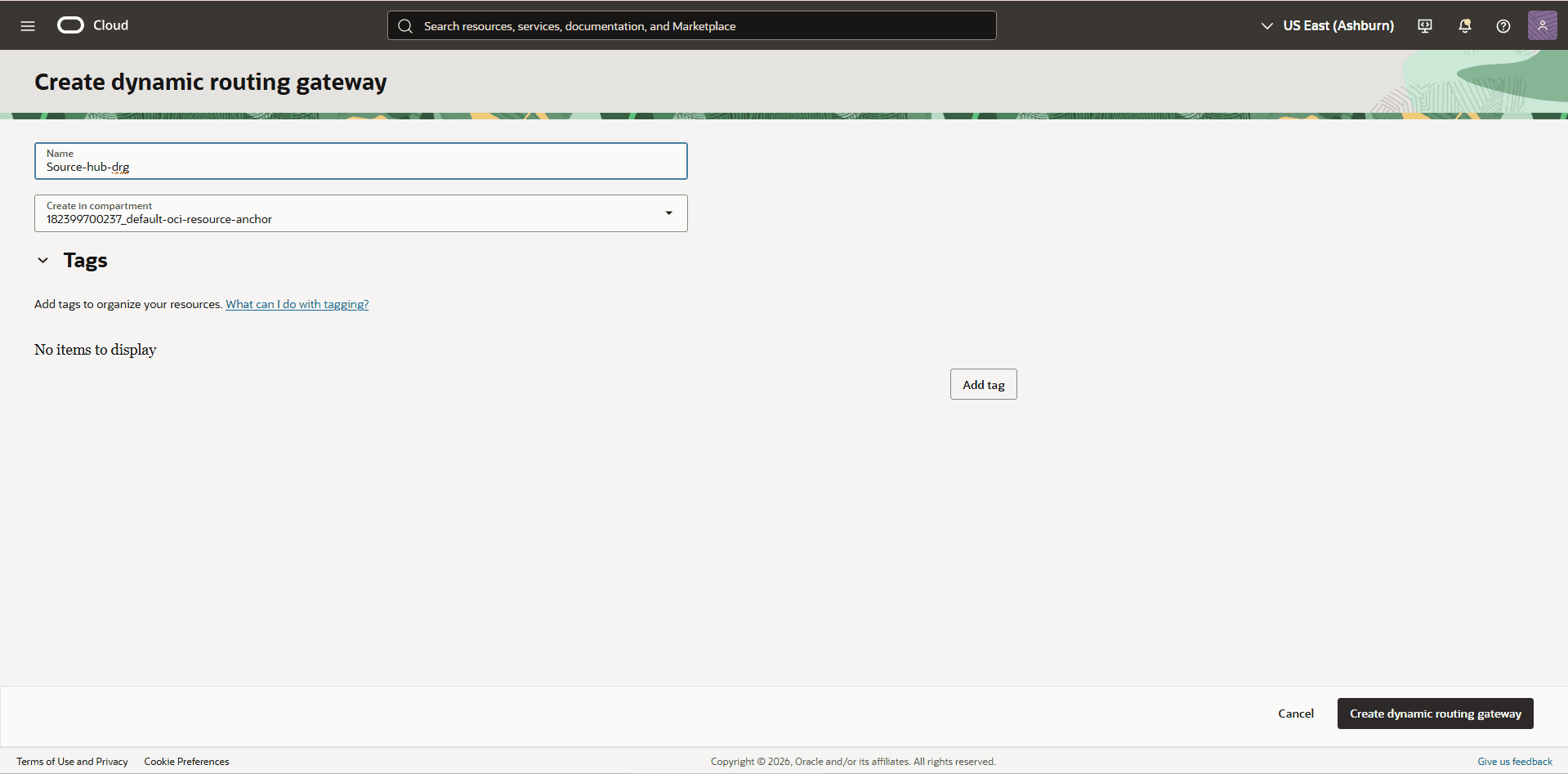
In the Create dynamic routing gateway page, enter the following information.
-
Enter a descriptive name. For example,
Source-hub-drg. -
Select the Create dynamic routing gateway button.
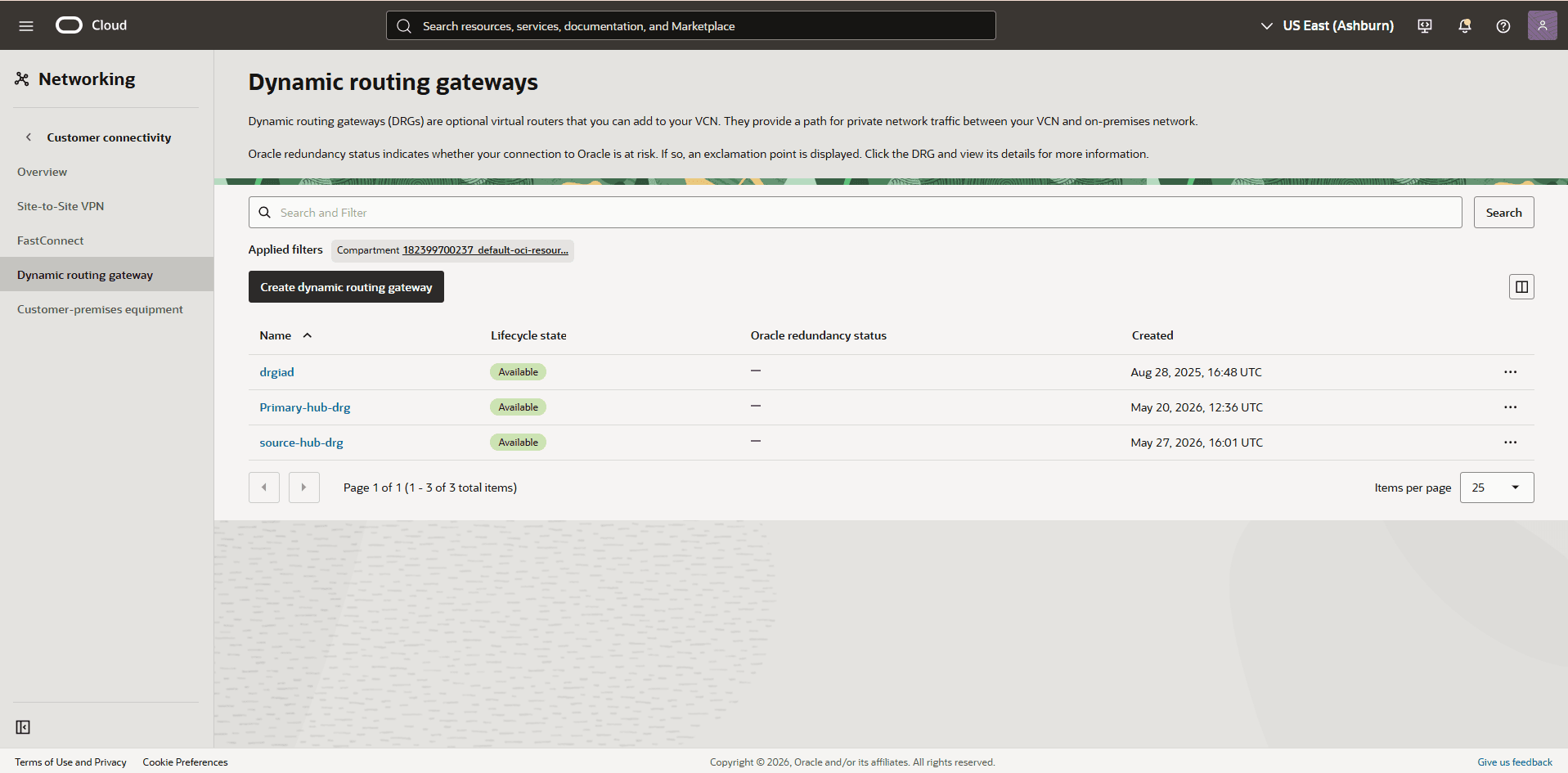
-
-
-
Create a service gateway named
primary-hub-sgto enable the private network communication to OCI Object Storage.-
From the OCI Console, select Networking.
-
From the left menu, select Virtual cloud networks.
-
In the Hub VCN Source VCN, select the Gateways tab.
-
Scroll down to the Service Gateways section, and then select the Create Service Gateway button.
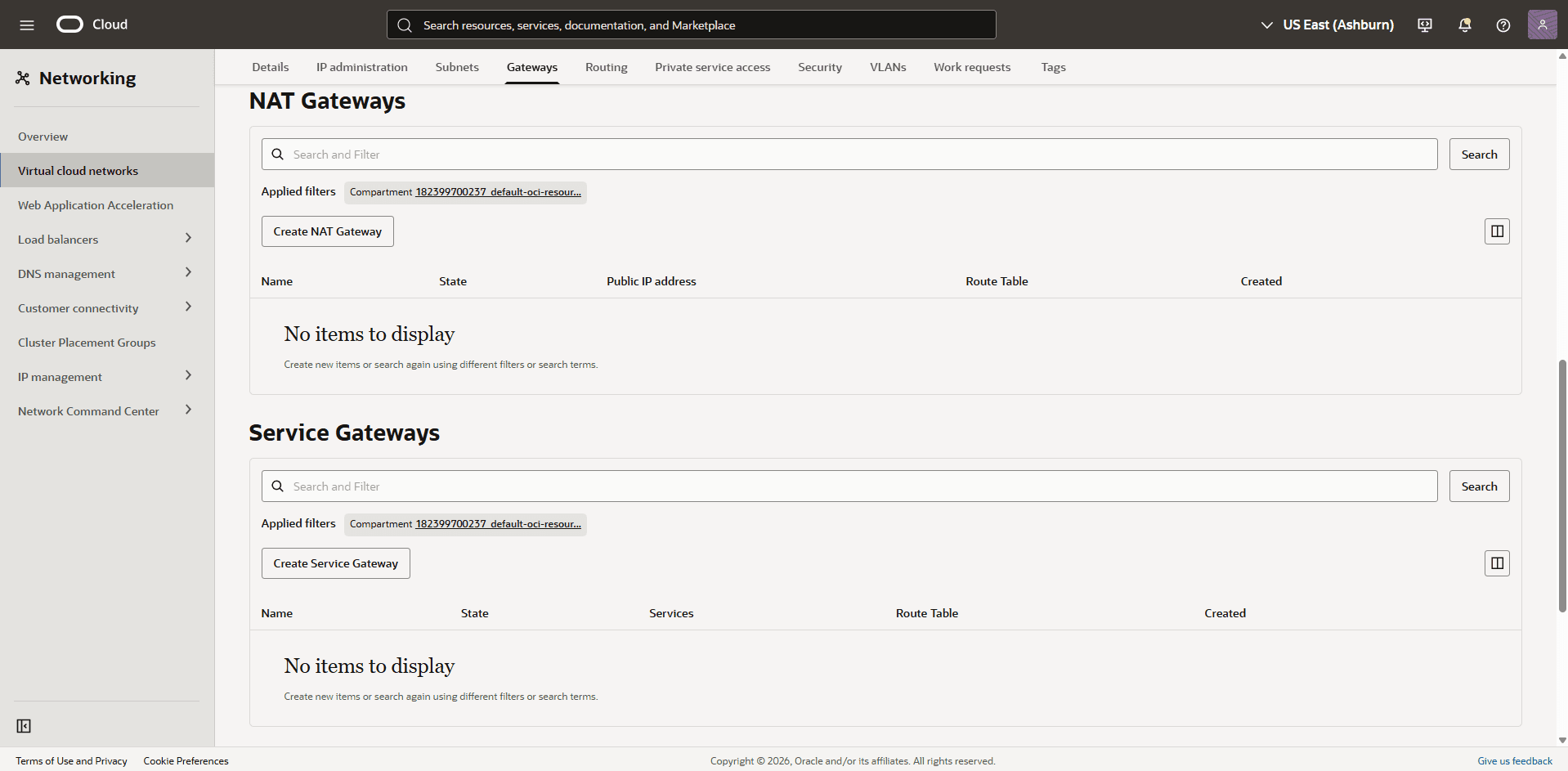
-
In the Create Service Gateway page, enter the following information.
-
Name: Enter a descriptive name. For example,
primary-hub-sg. -
Create In compartment: Select the compartment where you want to create your service gateway.
-
Services: Select the OCI IAD Object Storage option.
-
Expand the Advanced options section, and then select the default Route Table for
source-hub-vcn. -
The Tags section is optional.
-
Review your information, and then select the Create Service Gateway button.
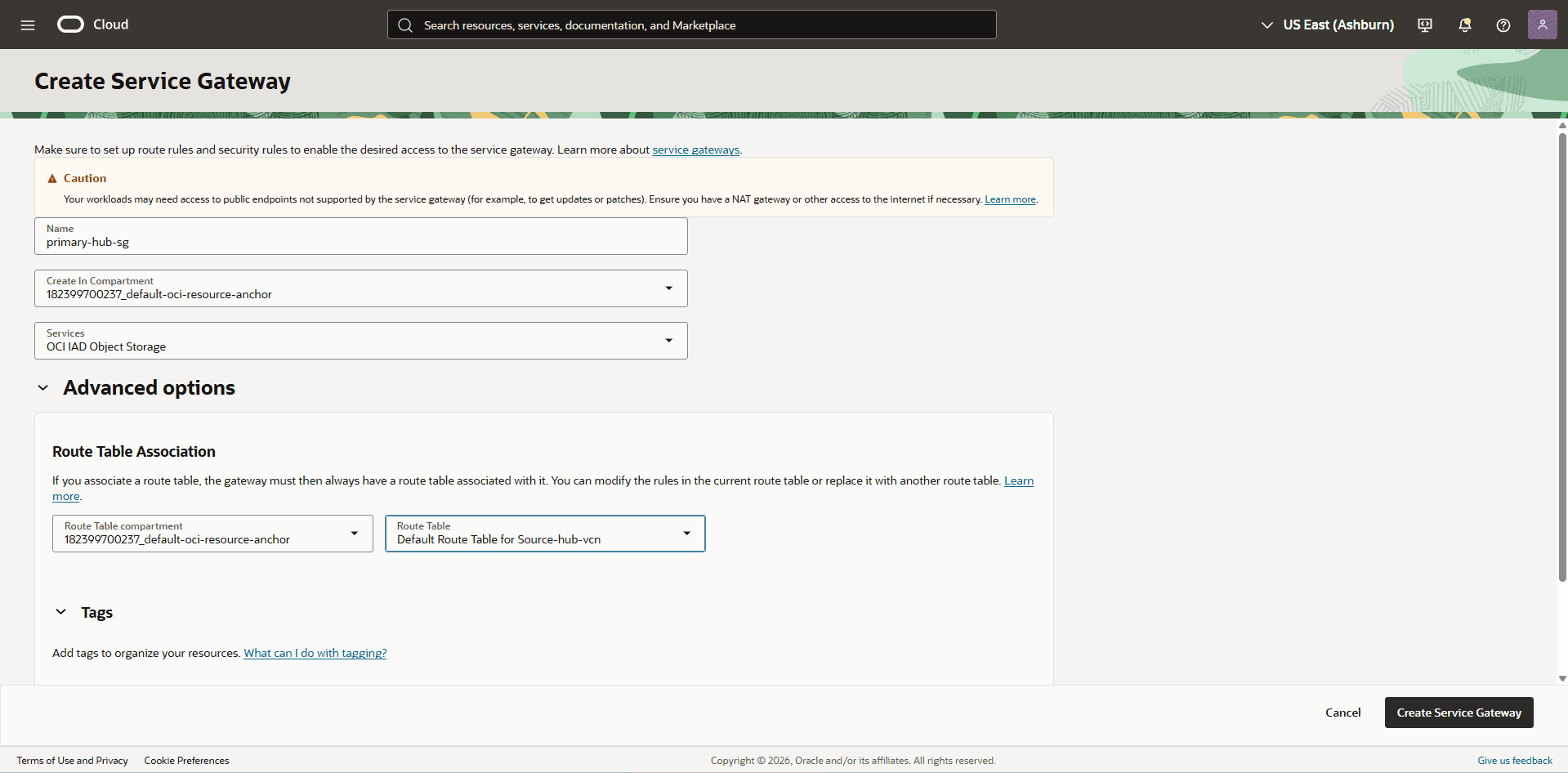
-
-
-
Create a route table in the source hub VCN to route network traffic between the primary hub VCN and the service gateway.
-
From the OCI Console, select Networking.
-
From the left menu, select Virtual cloud networks, and then select the HUB VCN Source VCN.
-
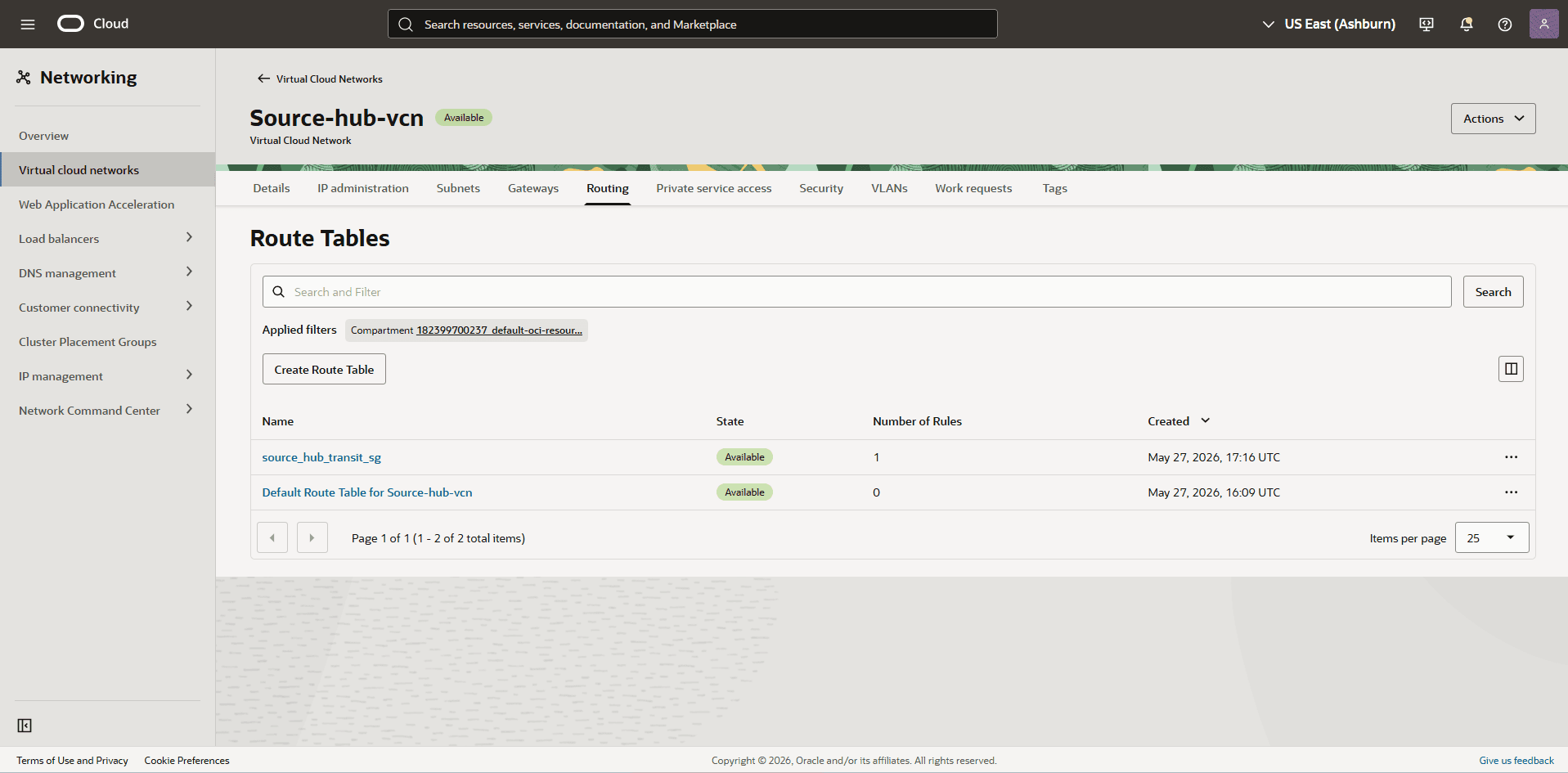
Select the Routing tab, and then select the Create Route Table button.
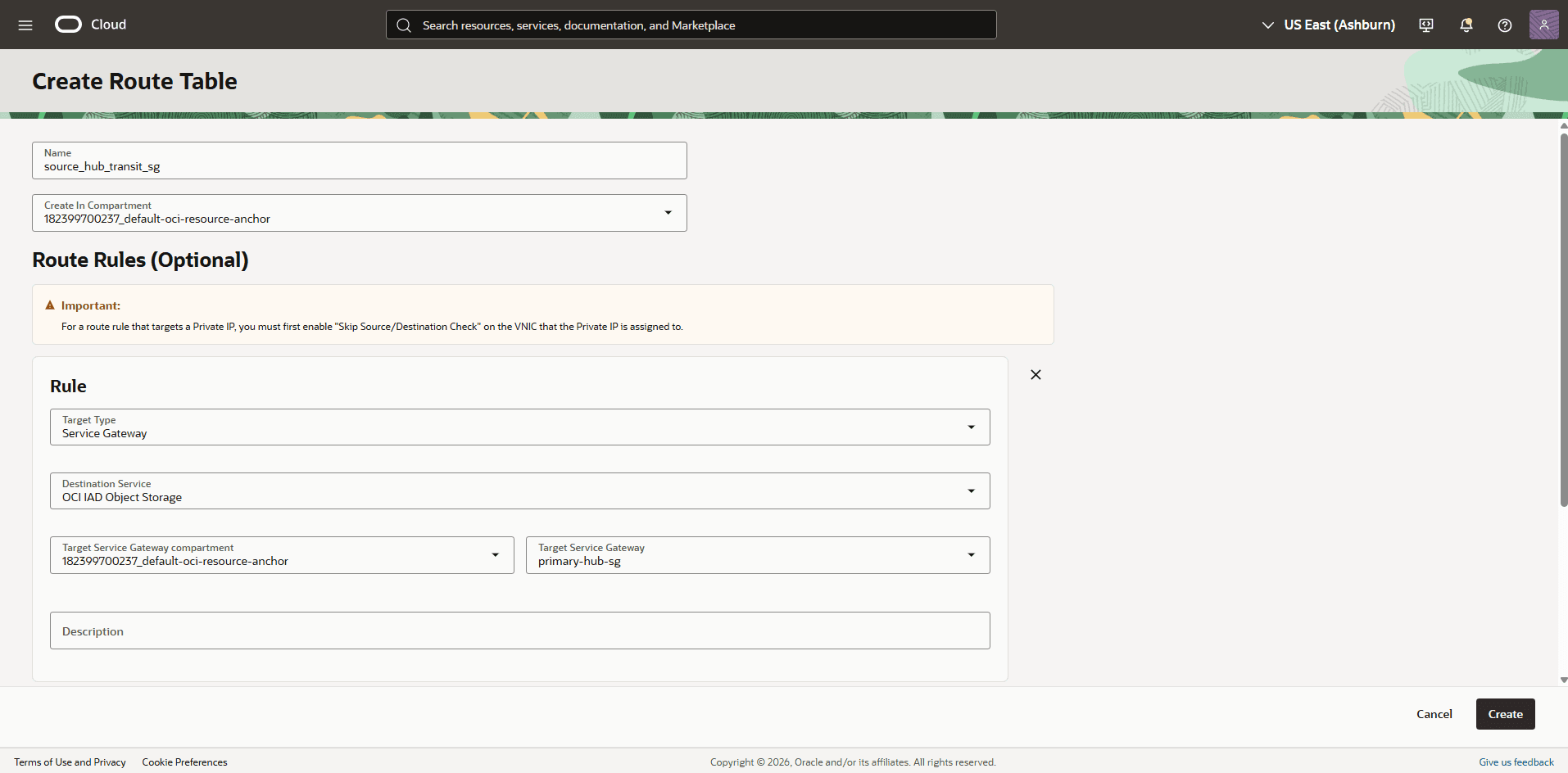
-
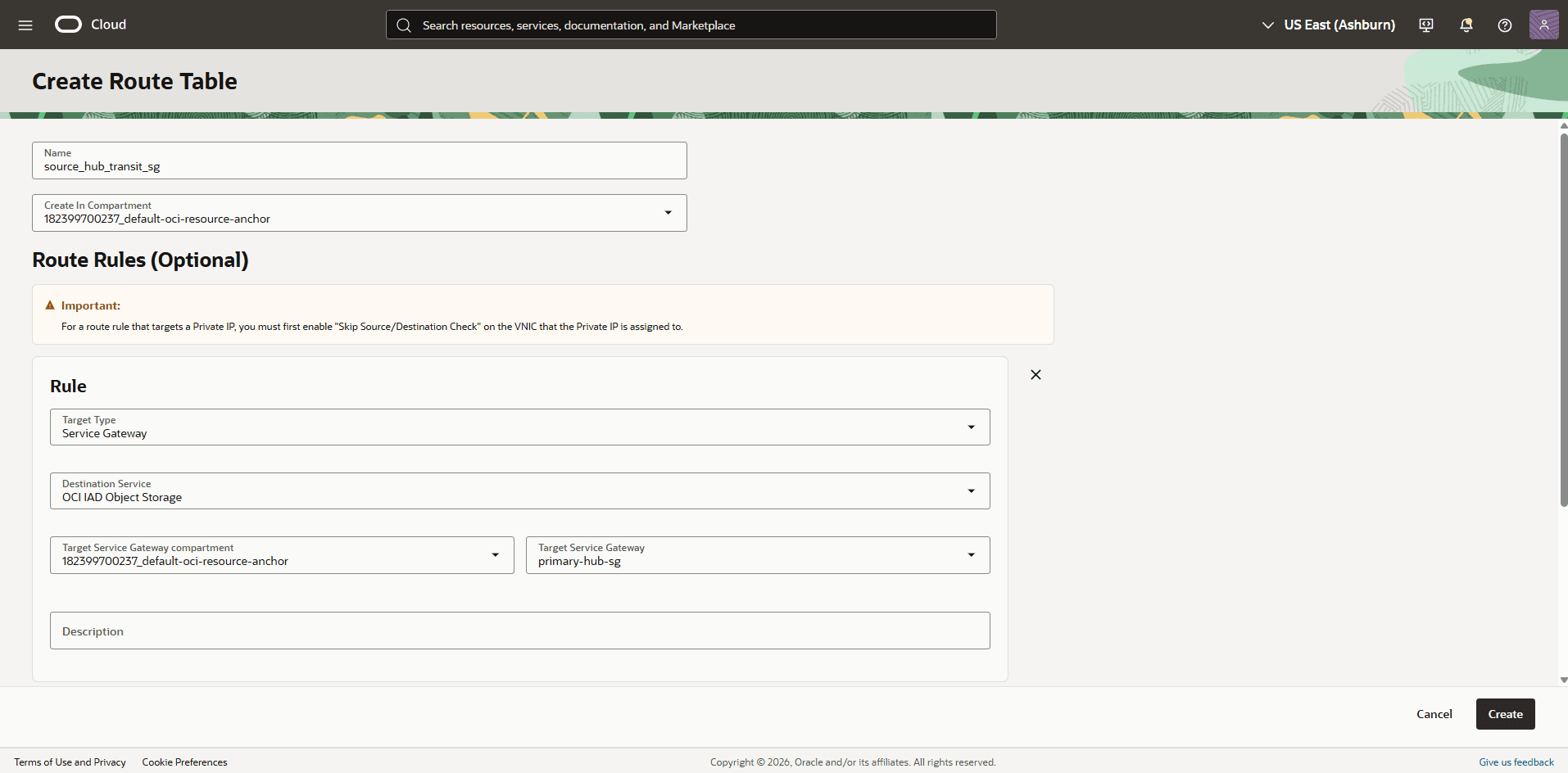
In the Create Route Table page, enter the following information.
-
Name: Enter a descriptive name. For example,
source_hub_transit_sg. -
Select the + Another Route Rule button.
-
Target Type: Select the Service Gateway option.
-
Destination Service: Select the OCI IAD Object Storage option.
-
Target Service Gateway: Select the service gateway that you created in the HUB VCN Source. For example,
primary-hub-sg. -
Description: Enter a description.
-
Select the Create button.
-
-
-
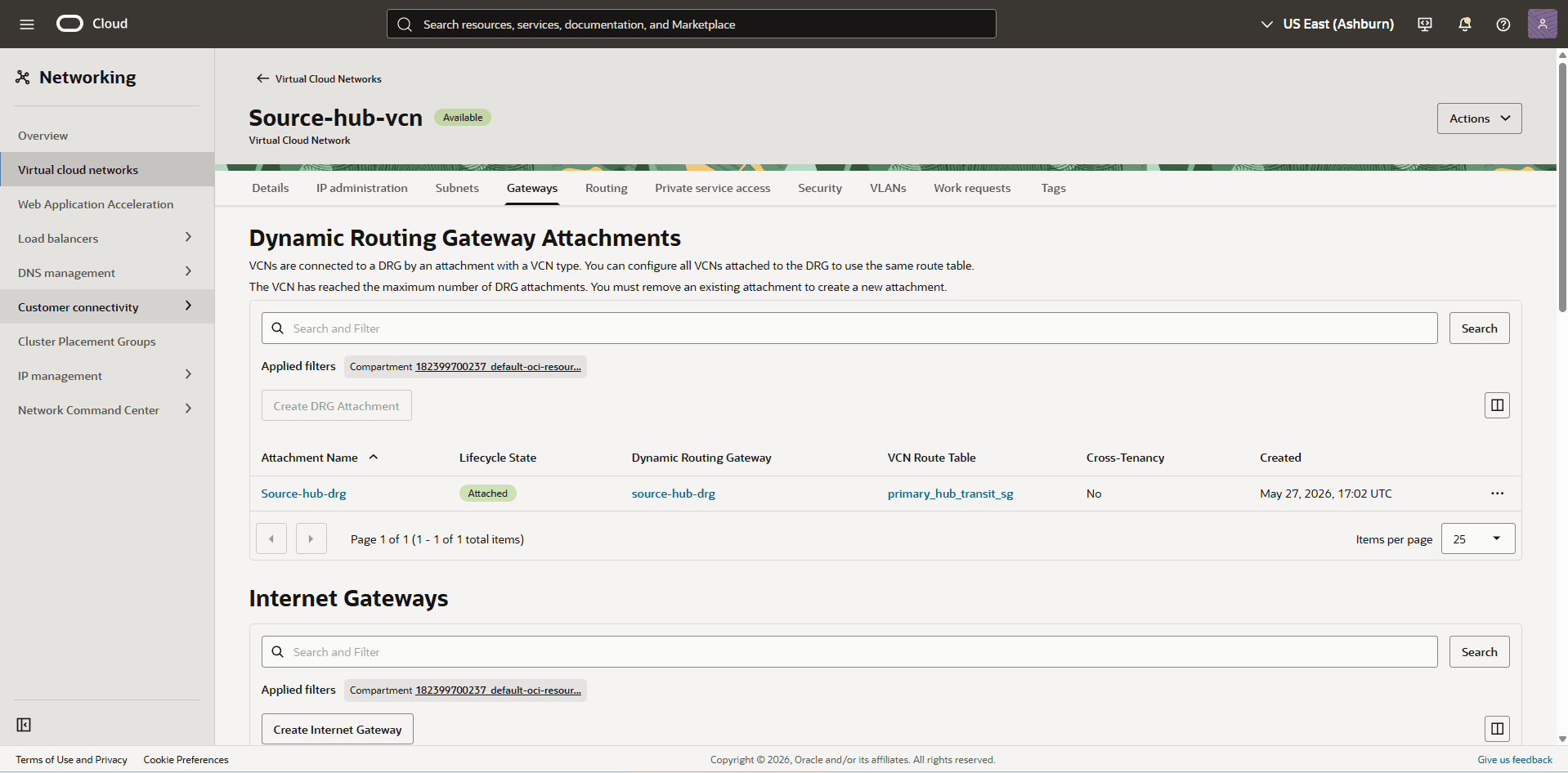
Attach the dynamic routing gateway to the HUB VCN Source VCN.
-
From the OCI Console, select Networking.
-
Form the left menu, select Virtual cloud networks, and then select the HUB VCN Source VCN.
-
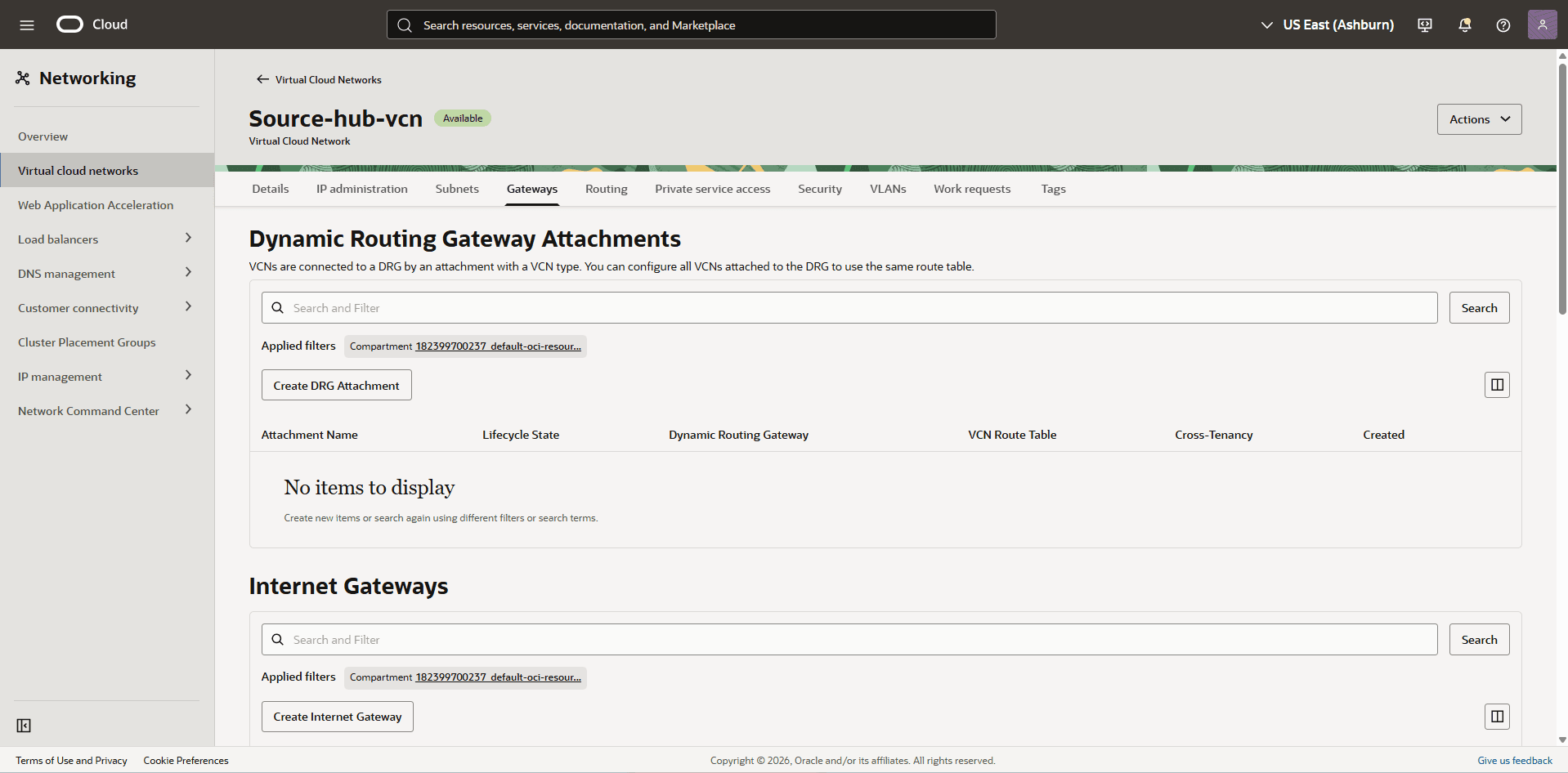
In the HUB VCN Source VCN, select the Gateways tab.
-
From the Dynamic Routing Gateway Attachments section, select the Create DRG Attachment button.
-
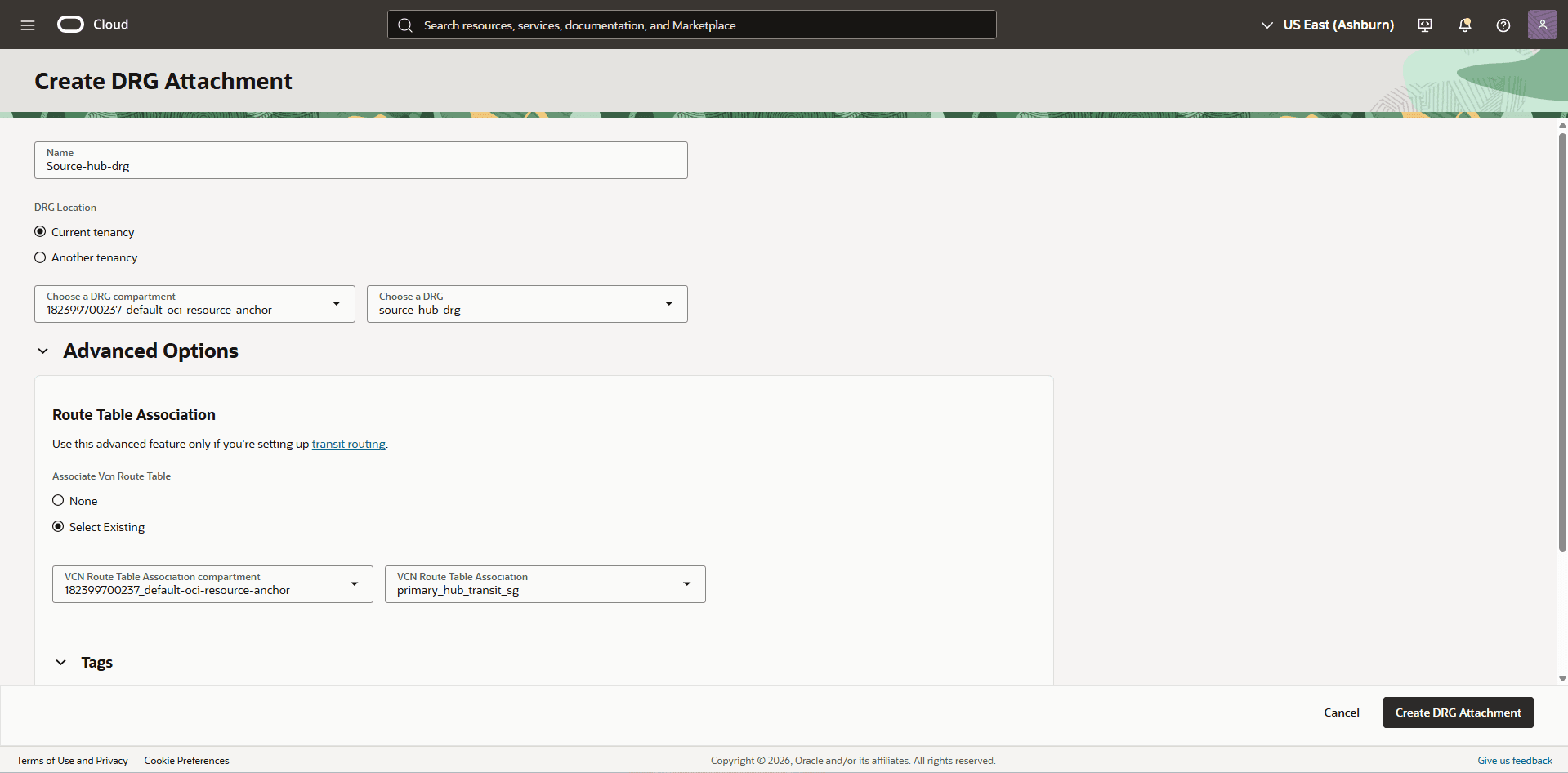
In the Create DRG Attachment page, enter the following information.
-
Name: Enter a descriptive name. For example,
Source-hub-drg. -
DRG Location: Choose the Current tenancy option.
-
From the dropdown list, select a DRG compartment and then select the DRG that you created in the previous step.
-
Expand the Advanced Options section, and then enter the following information.
-
From the Route Table Association section, choose the Select Existing option.
-
Select the VCN Route Table Association compartment and then select the VCN Route Table Association that you created in the previous step. For example,
primary_hub_transit_sg.
-
-
The Tags section is optional.
-
Select the Create DRG Attachment button.
-
-
-
In the HUB VCN Source VCN, create a second route table to direct network traffic to the target network.
-
From the HUB VCN Source VCN, select the Routing tab, then select the Create Route Table button.
-
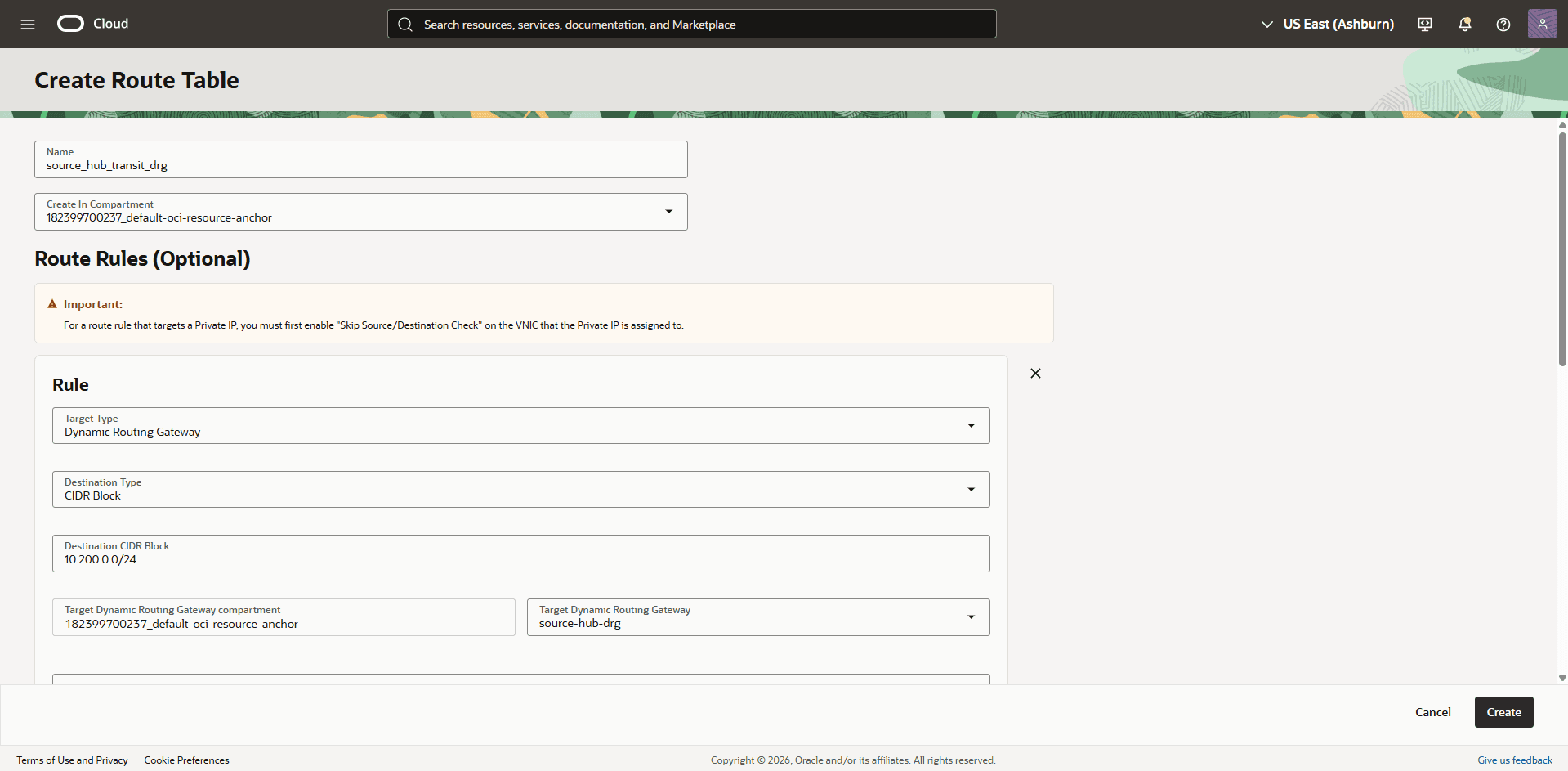
In the Create Route Table page, enter the following information.
-
Name: Enter a descriptive name. For example,
source_hub_transit_drg. -
Select the + Another Route Rule button.
-
Target Type: Select the Dynamic Routing Gateway option.
-
Destination CIDR Block: Enter the VCN target client subnet CIDR which is
10.200.0.0/24. -
Target Dynamic Routing Gateway: select the DRG associated with the HUB VCN Source. For example,
source-hub-drg. -
Description: Enter a description.
-
-
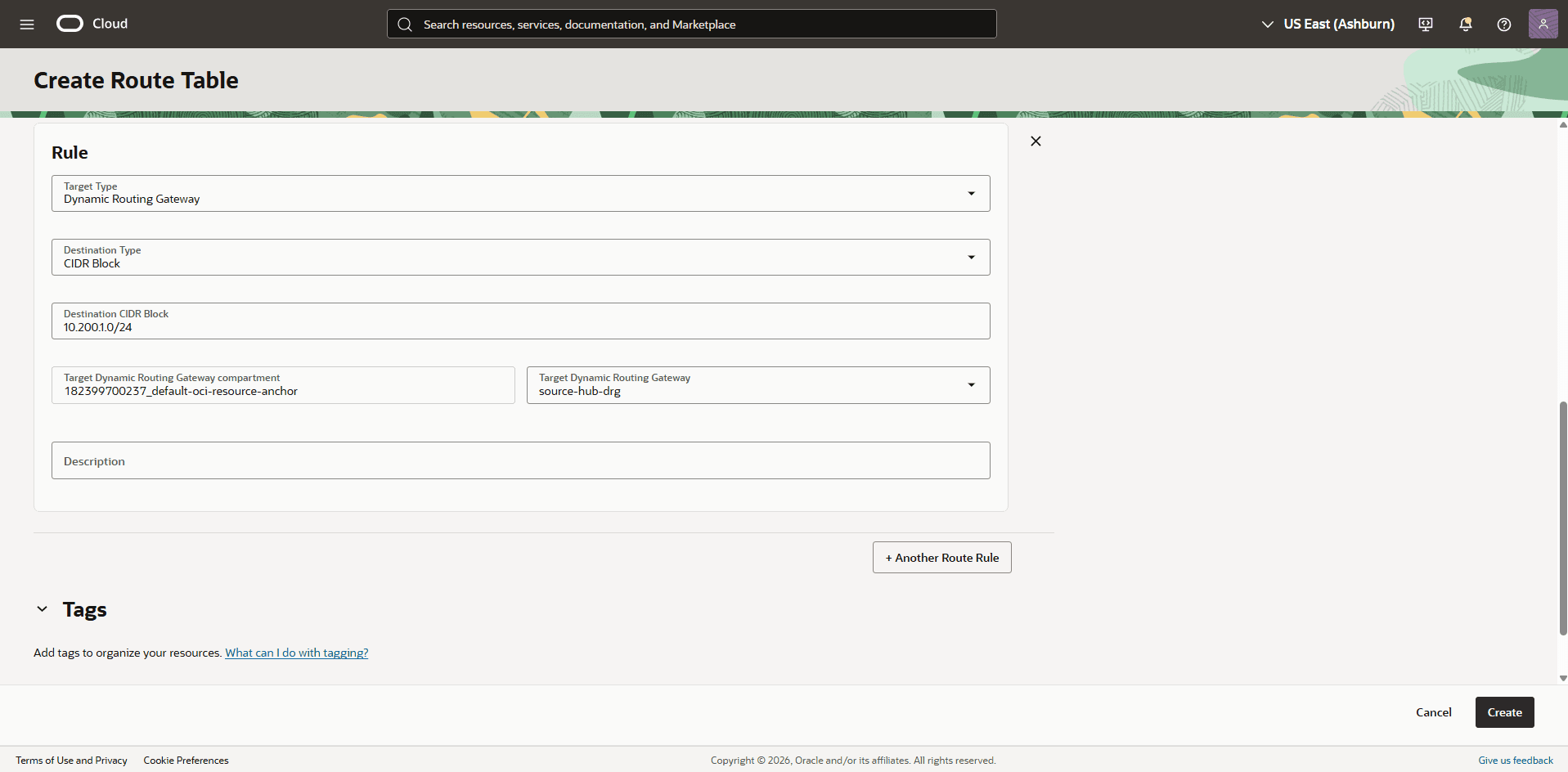
Select the + Another Route Rule button.
- Repeat the steps 7bi through 7bvi for the VCN target backup subnet CIDR (
10.200.1.0/24).
- Repeat the steps 7bi through 7bvi for the VCN target backup subnet CIDR (
-
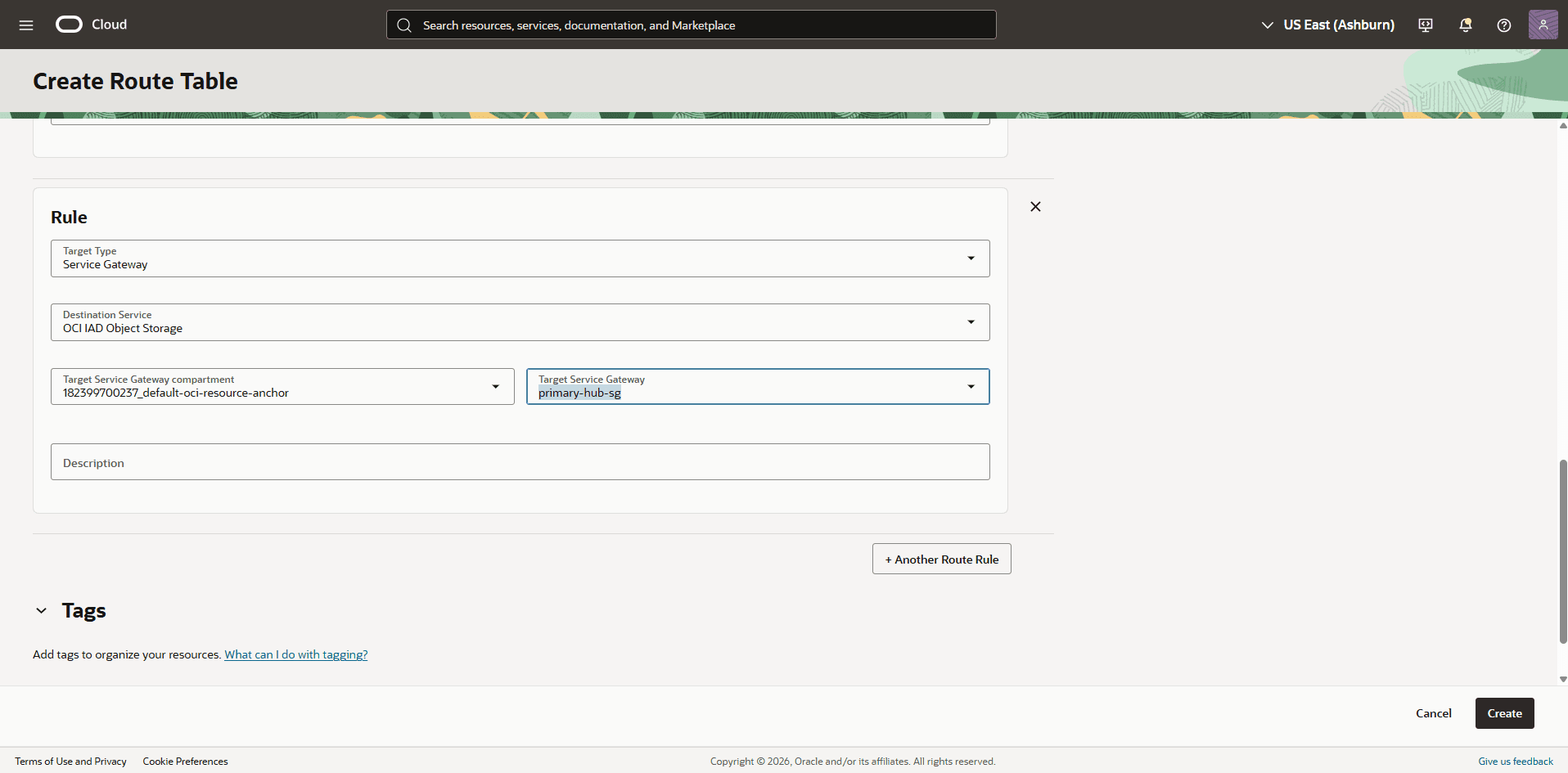
Select the + Another Route Rule button.
-
Target Type: Choose the Service Gateway option.
-
Destination Service: Select the OCI IAD Object Storage option.
-
Target Service Gateway: Select the service gateway associated with the HUB VCN Source. For example,
primary-hub-sg. -
Description: Enter a description.
-
-
Select the Create button.
-
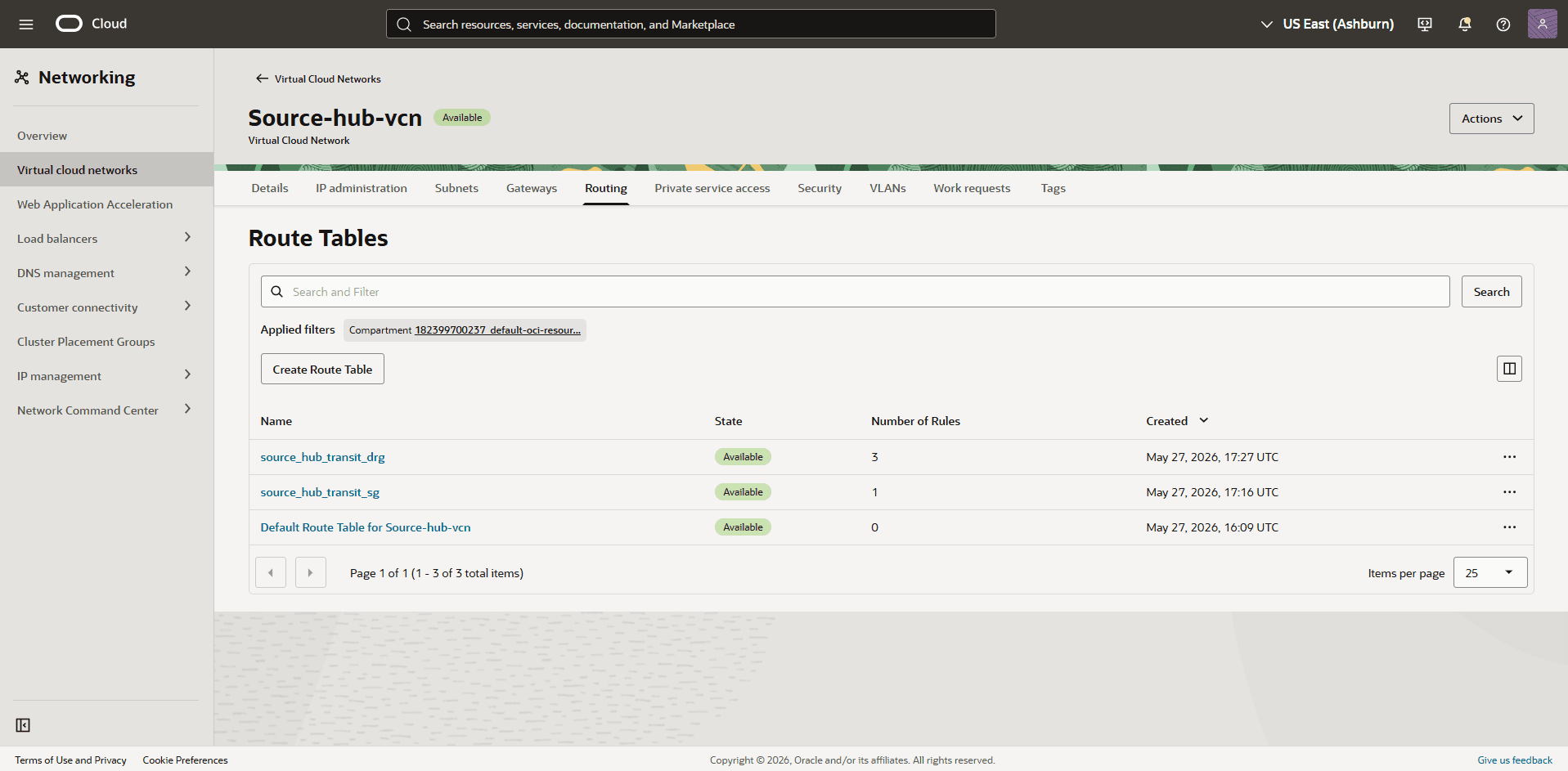
Once it is created, you can review the details from the Routing tab.
-
-
Edit the
source-hub-drgattachment from the Source-Hub-VCN to update the dynamic routing gateway (DRG) route table.-
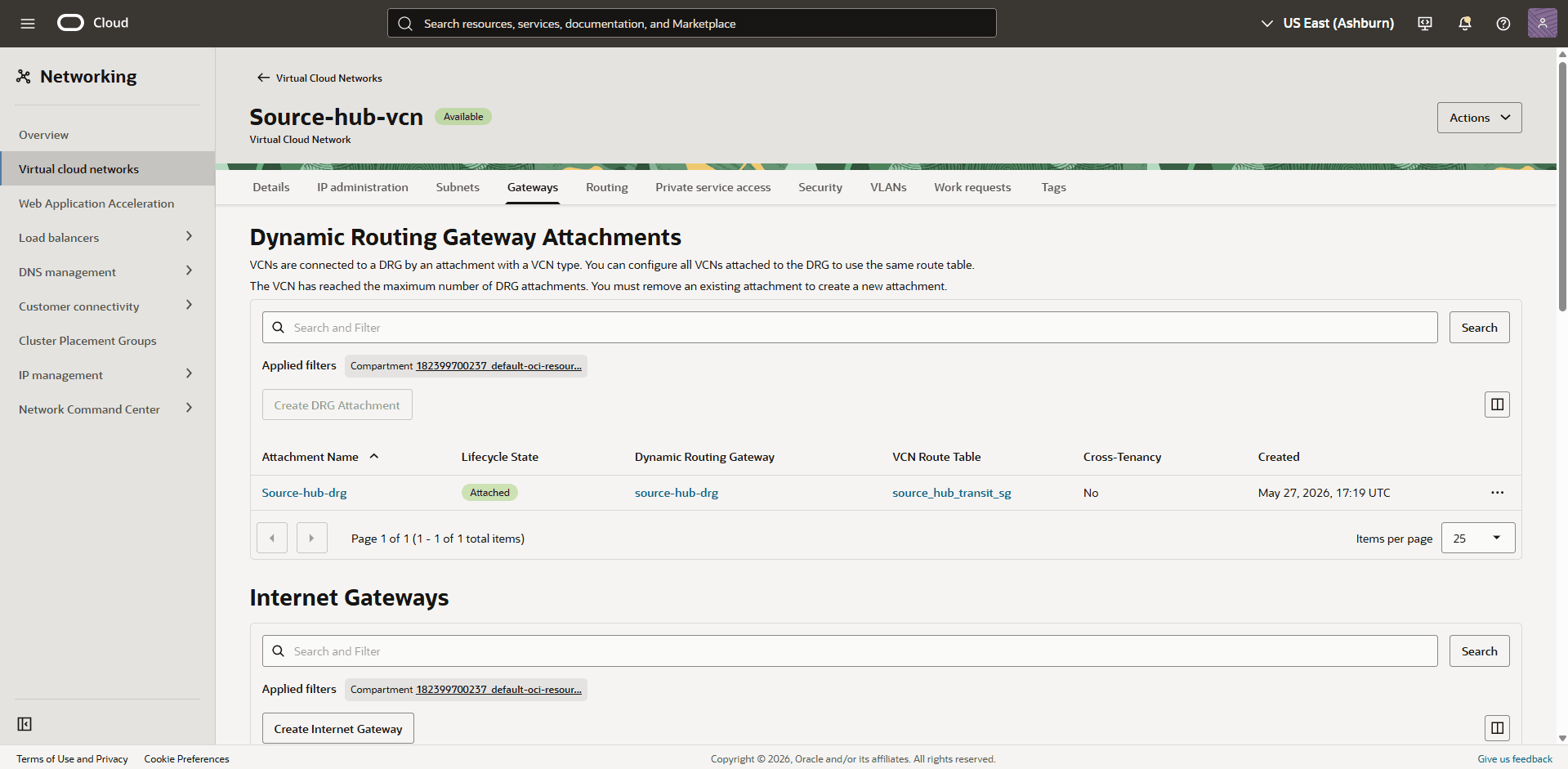
From the Hub VCN Source VCN, select the Gateways tab.
-
From the Dynamic Routing Gateway Attachments section, select the name of your DRG attachment.
-
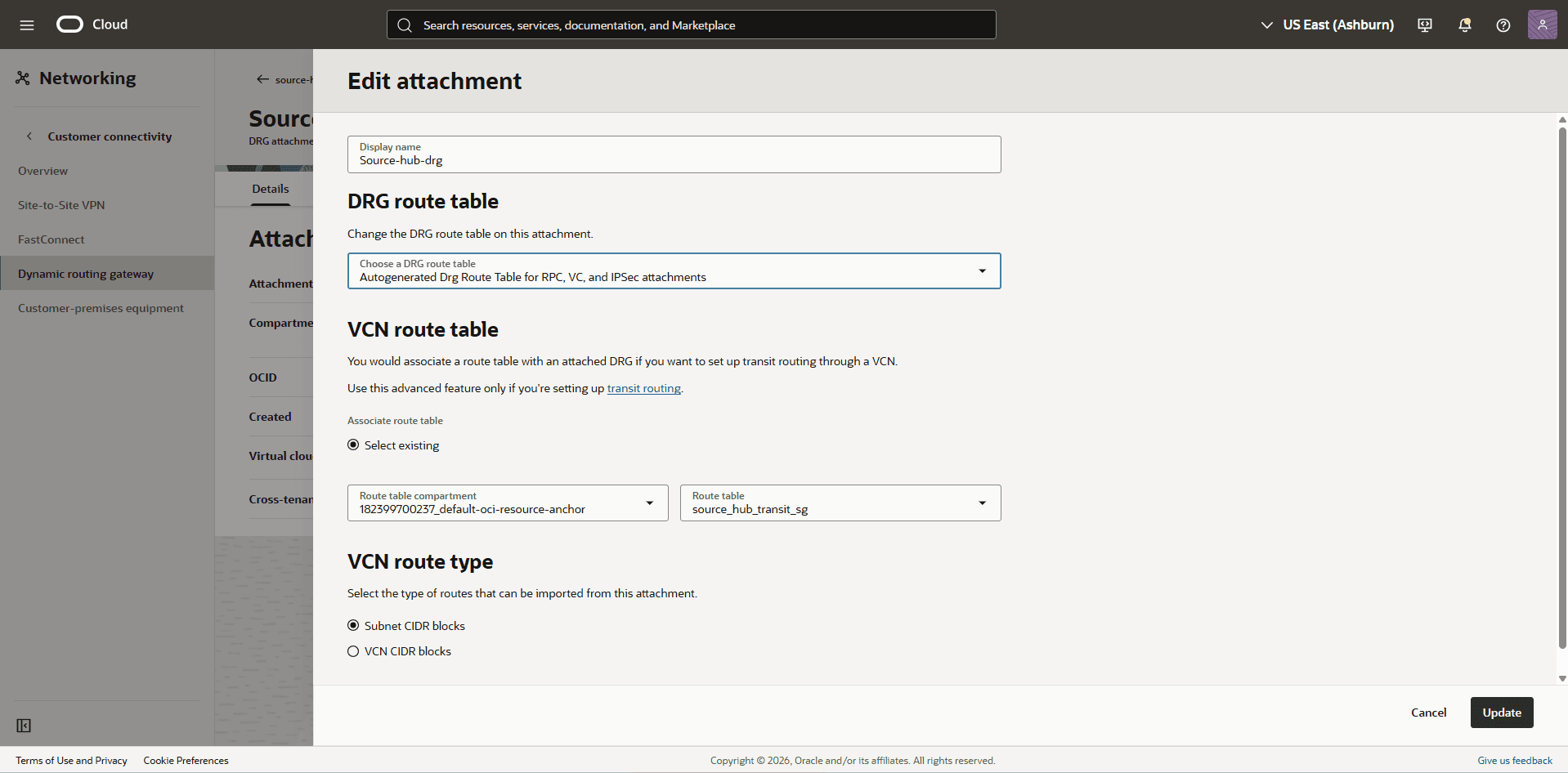
Select the Edit button.
-
From the Edit attachment page, enter a Display name.
-
From the Choose a DRG route table dropdown list, select the Autogenerated Drg Route Table for RPC, VC, and IPSec attachments option.
-
From the VCN route table section, choose the Select existing option as your Associate route table.
-
Choose the Route table compartment and Route table.
-
From the VCN route type section, select the Subnet CIDR blocks option.
-
-
Select the Update button to save your changes.
-
-
Validate the dynamic routing gateway (DRG) route table options.
-
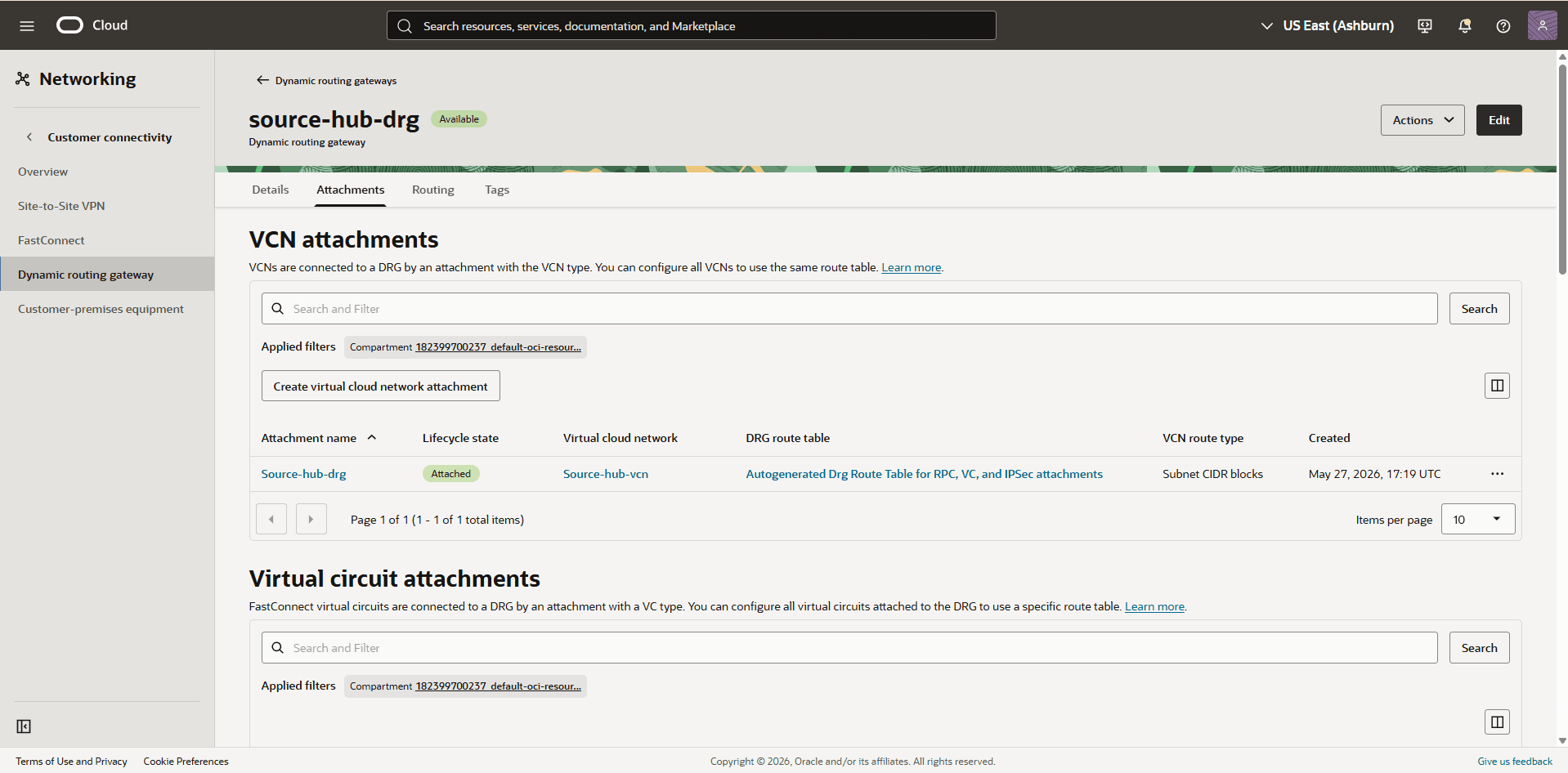
From the left menu, select Dynamic Routing Gateway, and then select the Attachments tab.
-
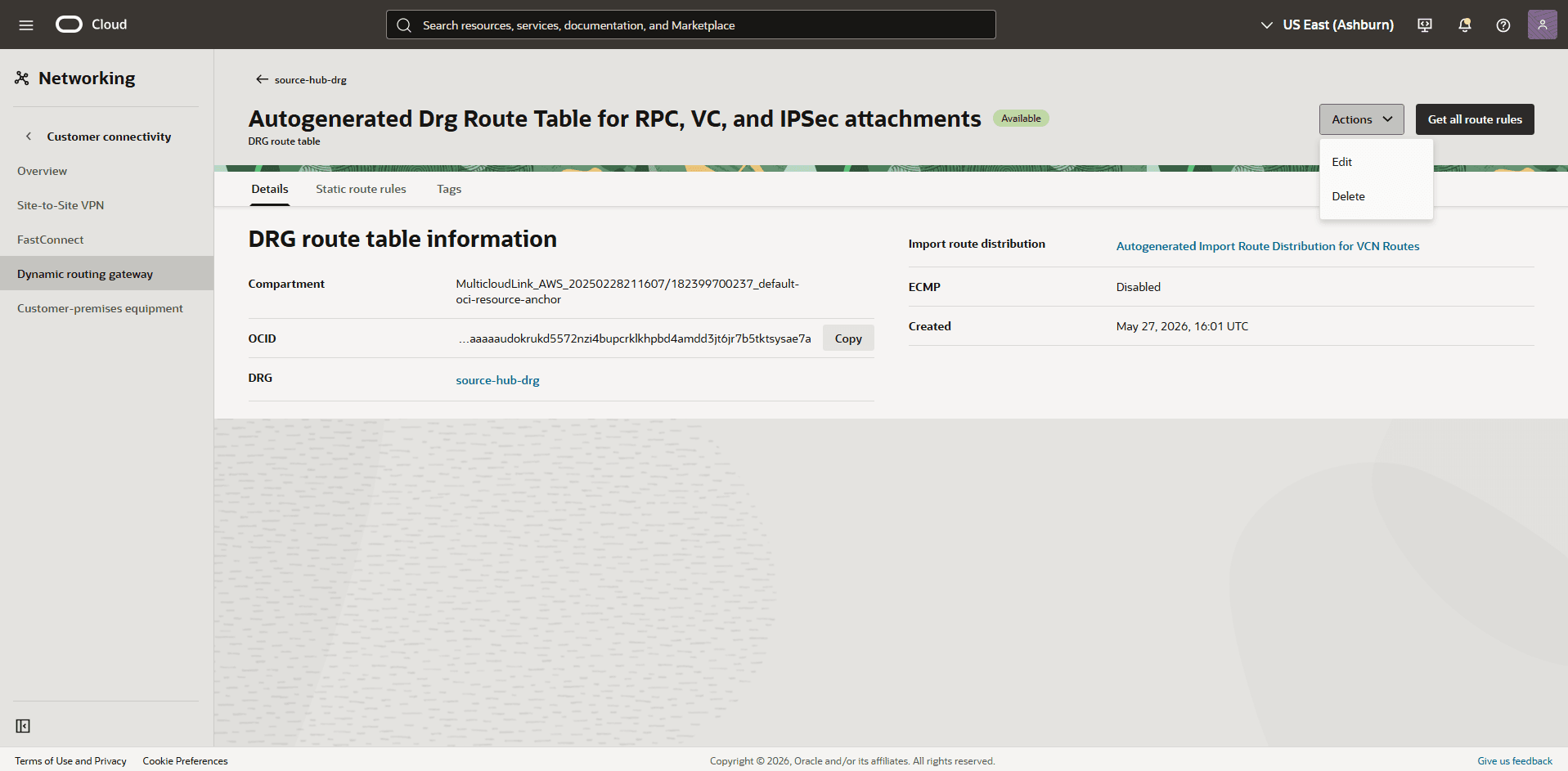
In the VCN attachments section, navigate to the DRG route table column, and then select the Autogenerated Drg Route Table for RPC, VC, and IPSec attachments link.
-
Select the Actions button, and then select the Edit option.
-
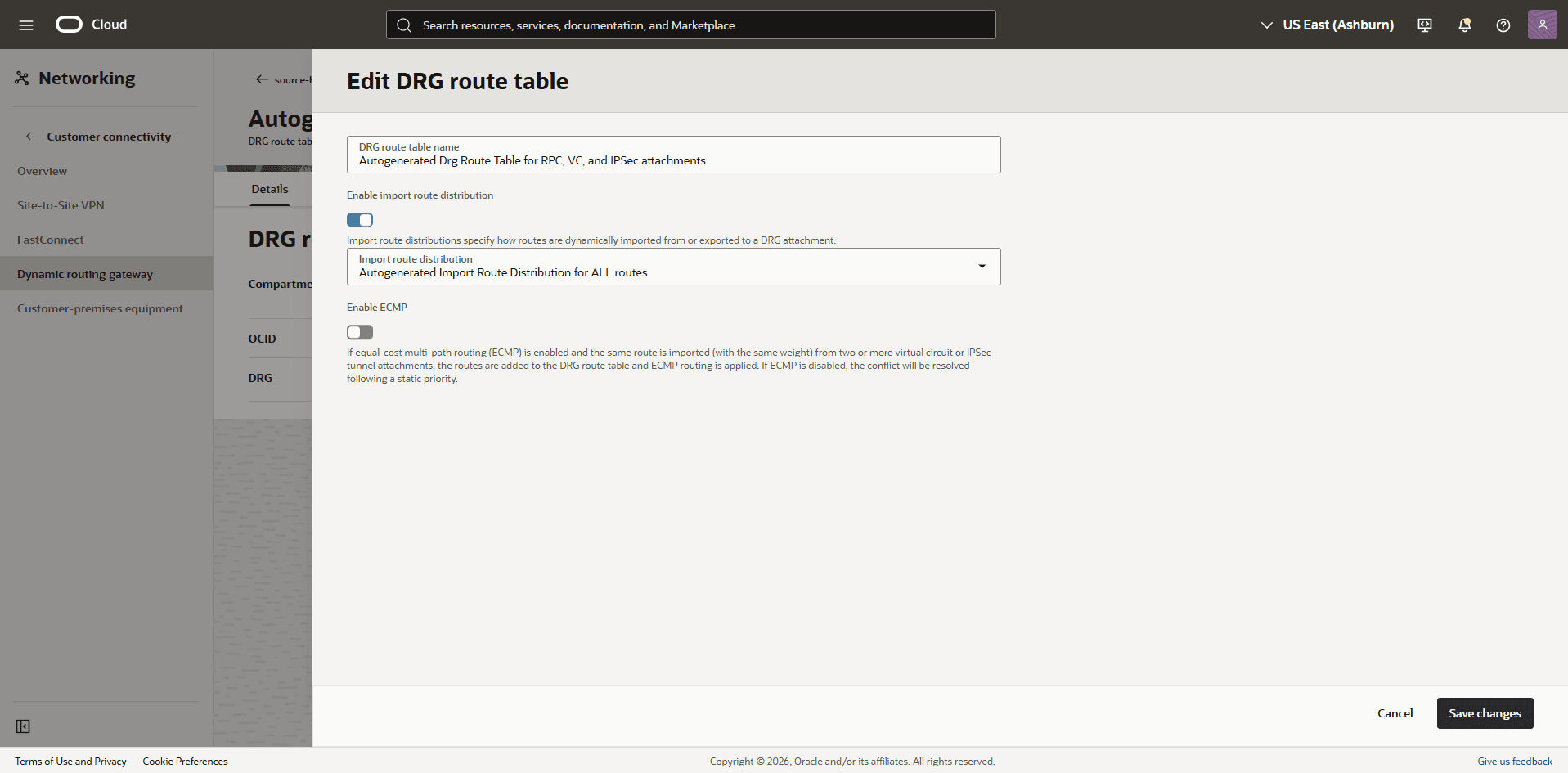
From the Edit DRG route table page, make sure that the Enable import route distribution option is enabled and Import route distribution is set to Autogenerated Import Route Distribution for ALL routes.
-
Select the Save changes option.
Note
Note:
-
To configure routing more precisely, disable the import route distribution of the Autogenerated DRG Route Table for RPC, VC, and IPSec attachments route table.
-
For Autogenerated DRG Route Table for VCN attachments, create and assign a new import route distribution that includes only the required RPC attachment.
-
-
-
From the
Source-hub-drg, create remote peering connection attachments.-
From the Networking section, select Dynamic routing gateway.
-
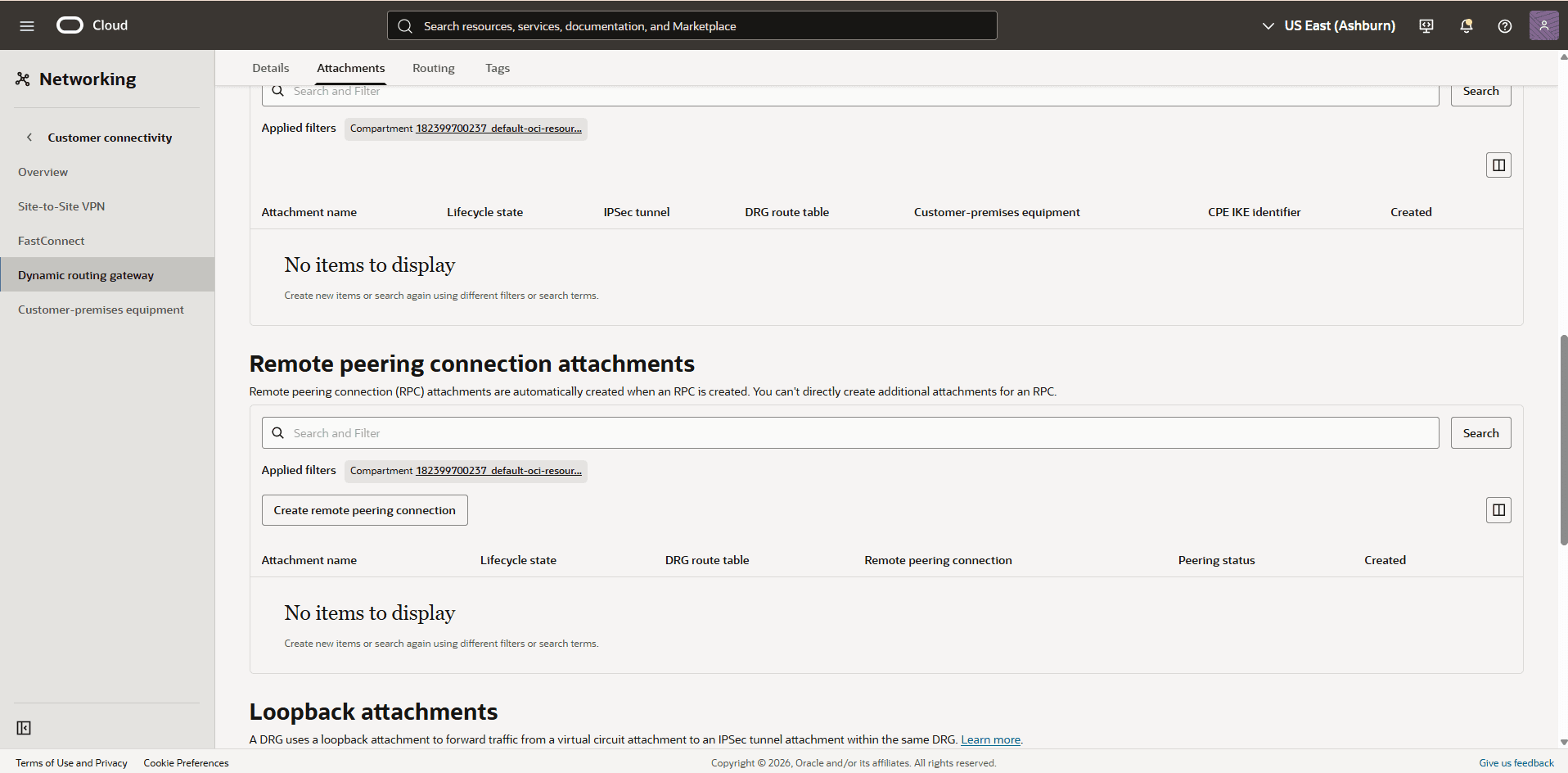
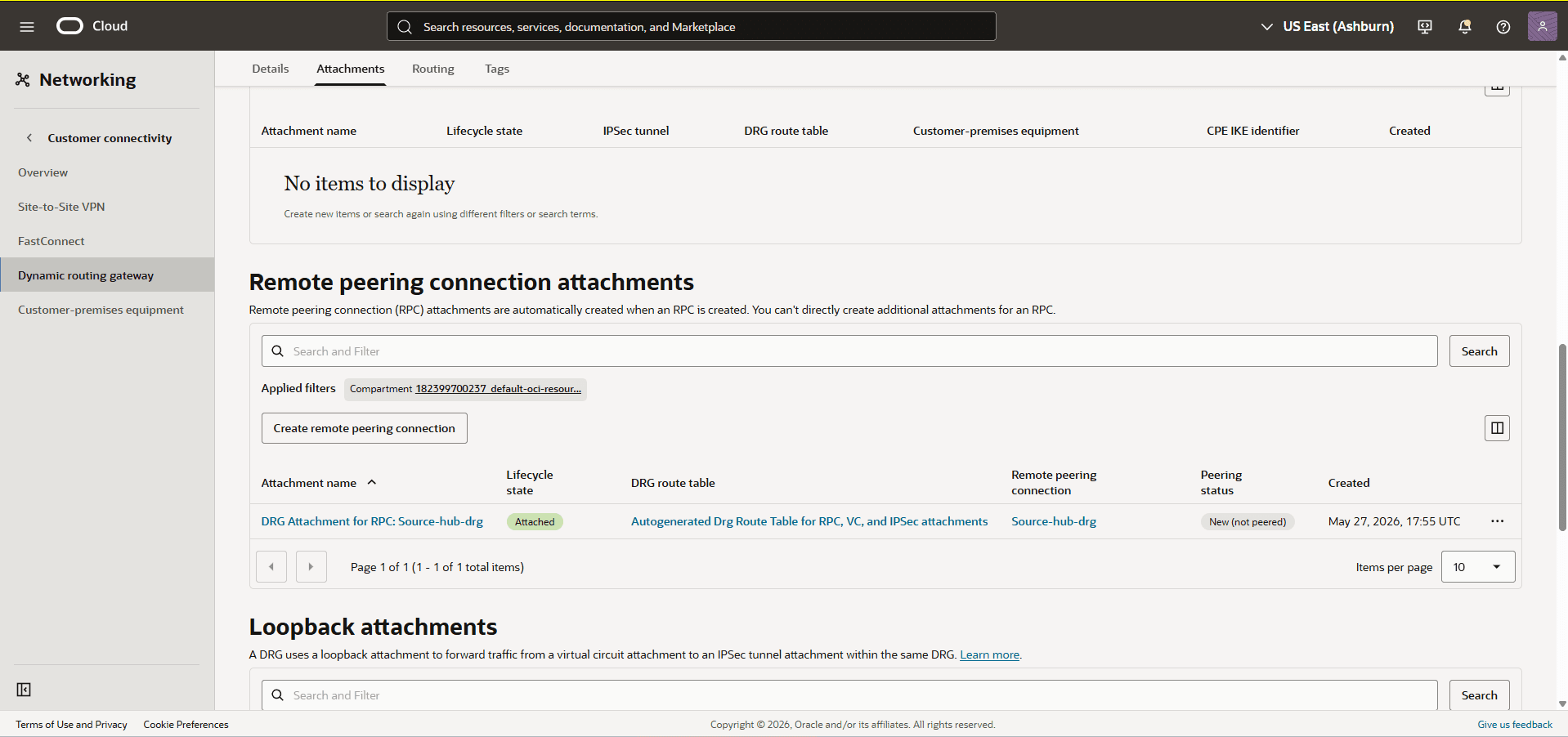
Select the Attachments tab, and then scroll down to the Remote peering connection attachments section.
-
Select the Create remote peering connection button.
-
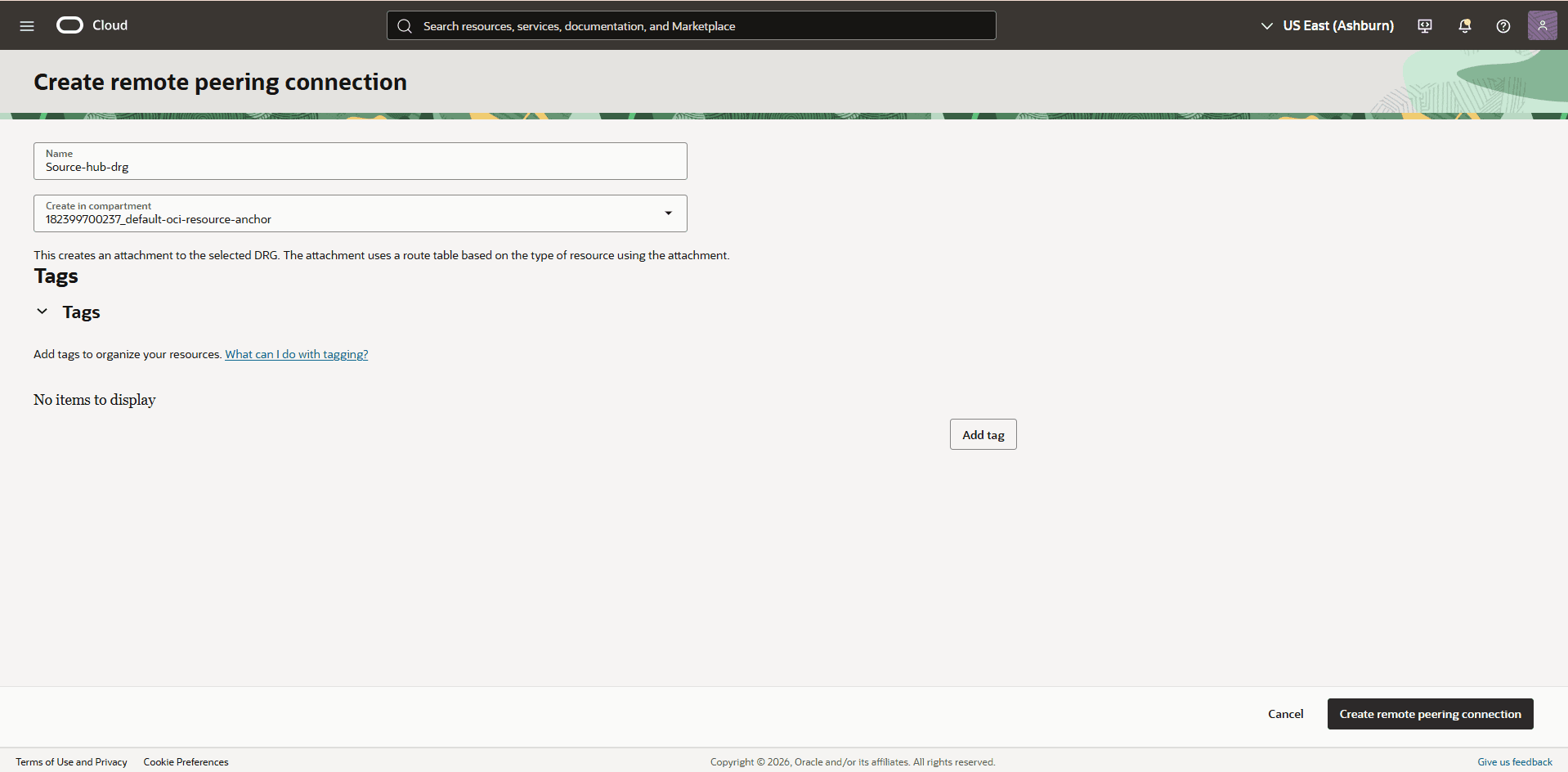
From the Create remote peering connection page, enter the following information.
-
Name: Enter a descriptive name. For example,
Source-hub-drg. -
Create in compartment: Select the compartment where you want to create your remote peering connection.
-
The Tags section is optional.
-
Select the Create remote peering connection button.
-
-
Once it is complete, select the remote peering connection
Source-hub-drgwhich you created in the previous step, and take note of the OCID information.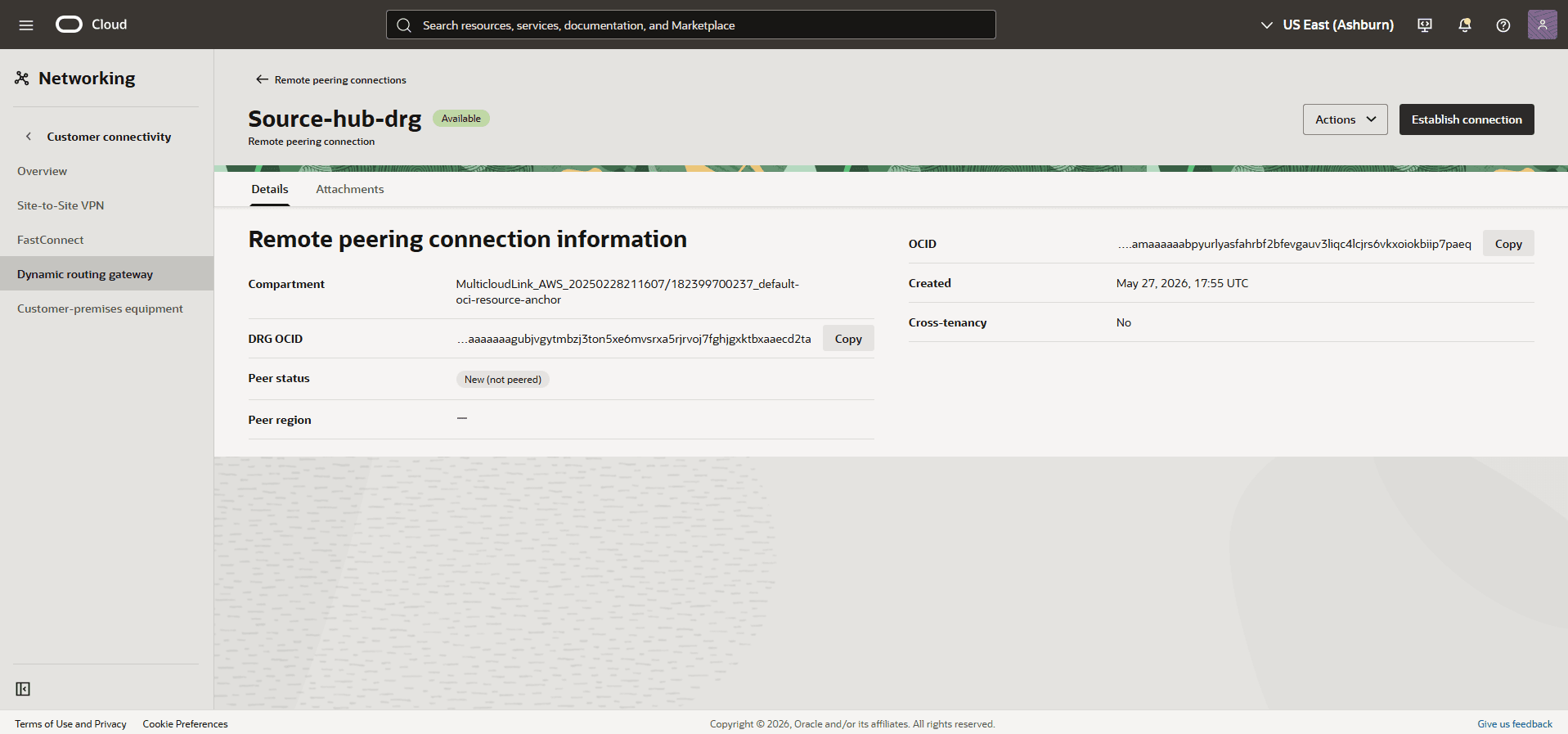
-
-
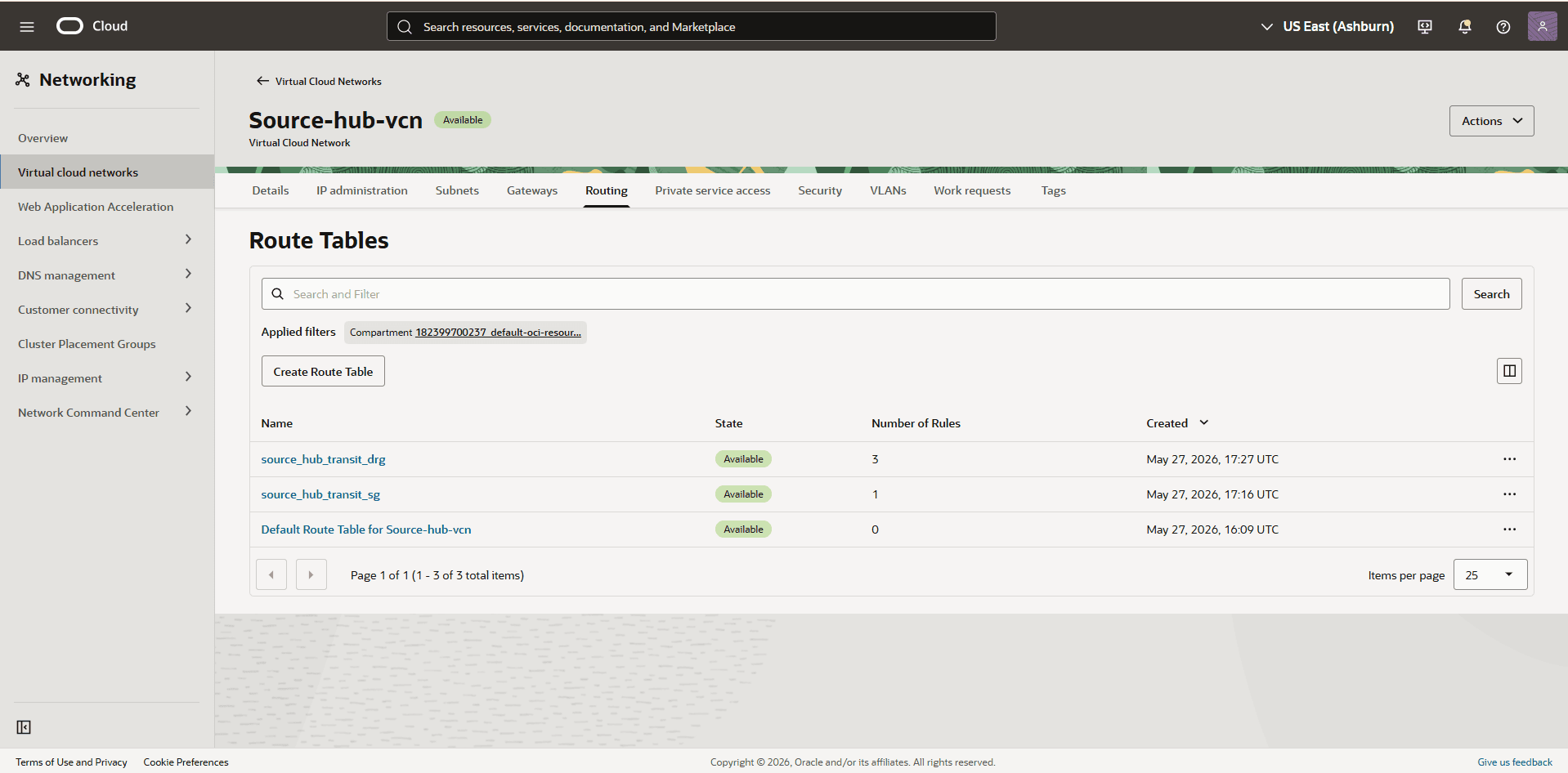
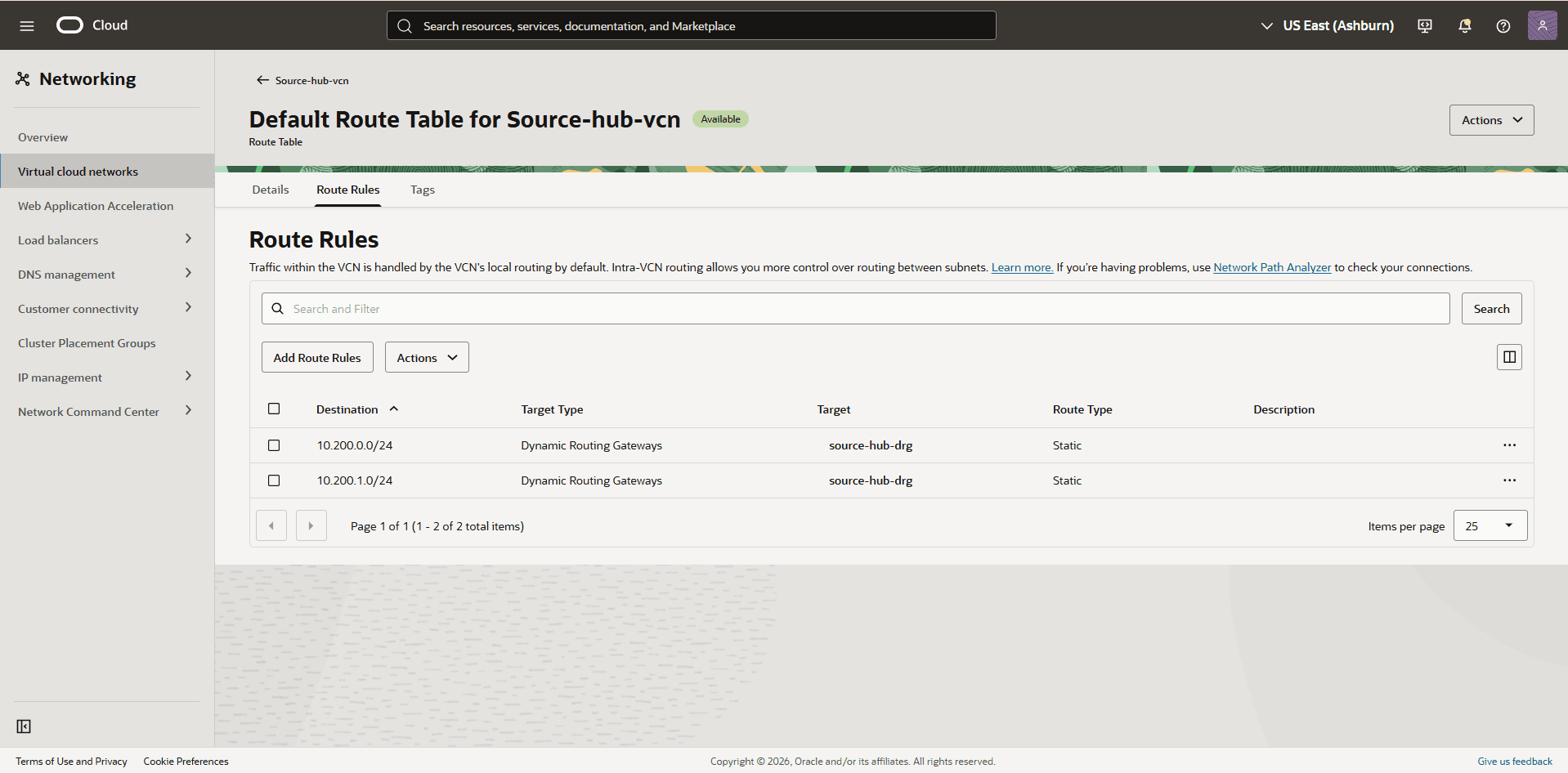
Update the Source-Hub Default route table to add a route rule for the target VCN client subnet and backup CIDR range.
-
From the HUB VCN Source VCN, select the Routing tab, and then select the name of the default route table.
-
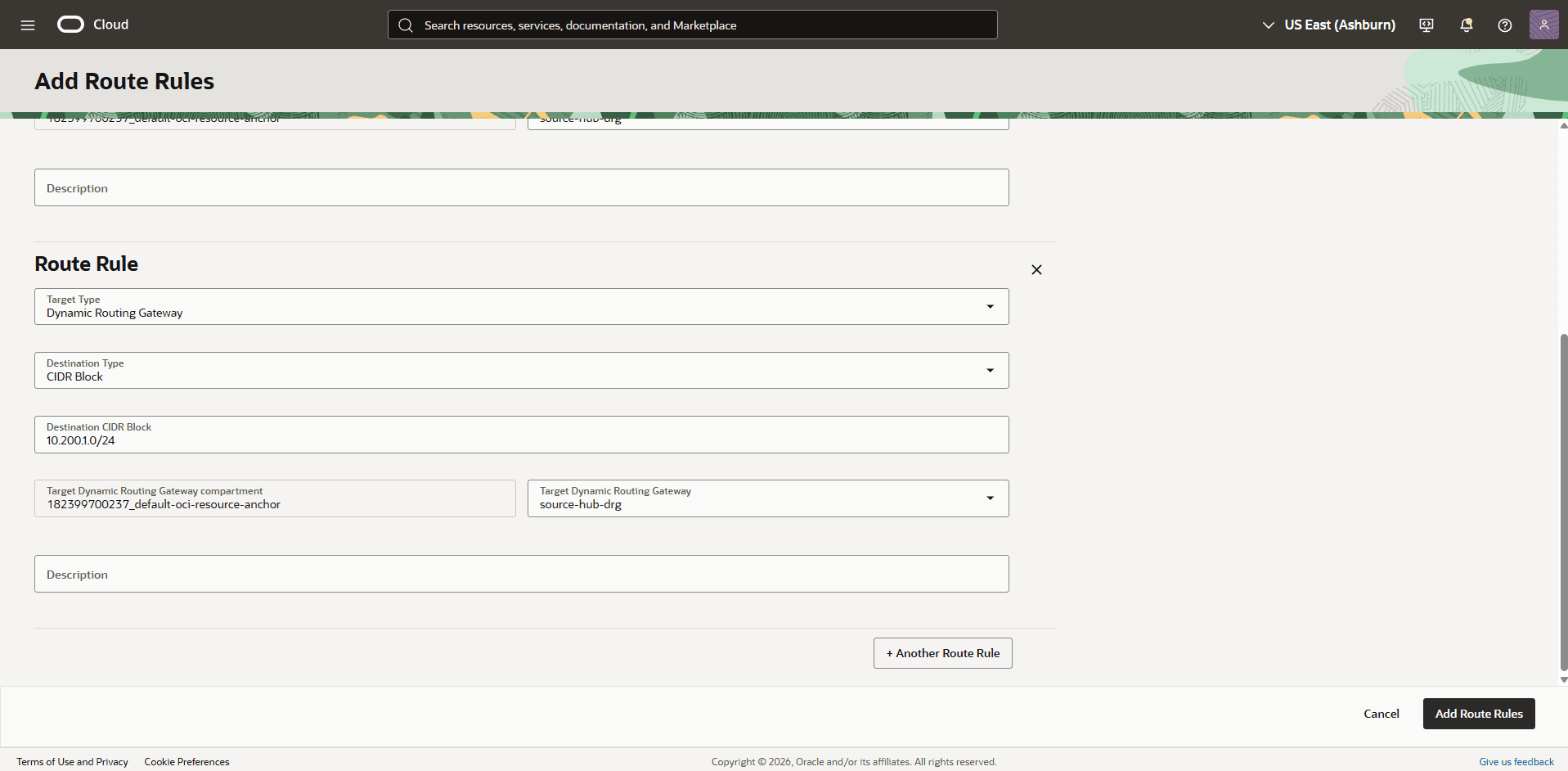
Select the Route Rules tab, then select the Add Route Rules button.
-
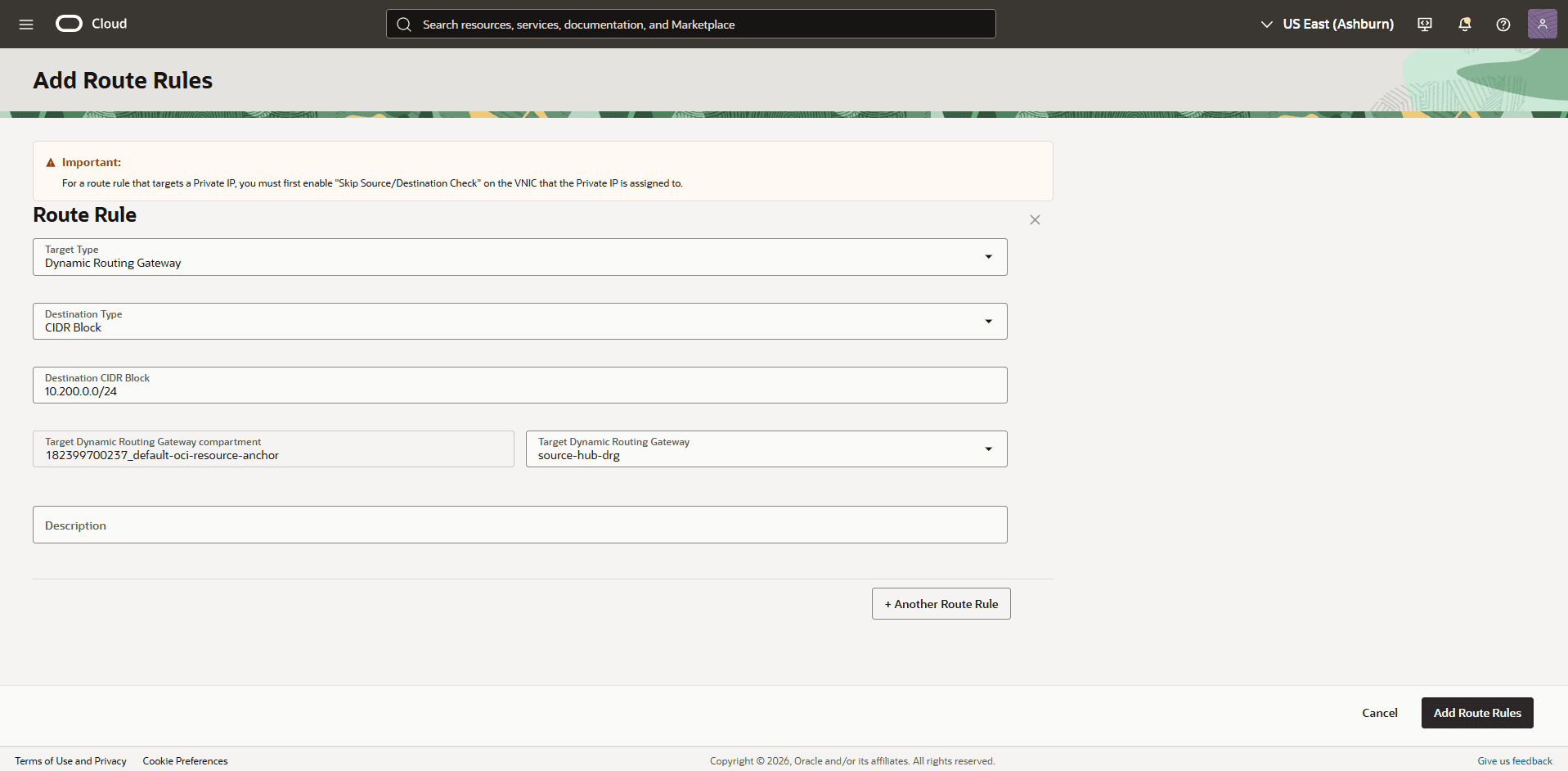
From the Add Route Tables page, enter the following information.
-
Target Type: Choose the Dynamic Routing Gateway option.
-
Destination Type: Select the CIDR Block option.
-
Destination CIDR Block: Enter the target VCN client subnet CIDR. For example,
10.200.0.0/24. -
Target Dynamic Routing Gateway compartment: Select the compartment.
-
Target Dynamic Routing Gateway: Select your DRG. For example,
source-hub-drg. -
Description: Enter a description.
-
Select the + Another Route Rule button.
-
Repeat the steps 11ci through 11cvi for the target VCN’s backup subnet CIDR block (
10.200.1.0/24). -
Select the Add Route Rules button.
-
-
Configure the Network in the Target Region
-
From the AWS Console, select the target Exadata VM Cluster, and then select the Manage in OCI button to open the OCI Console.
-
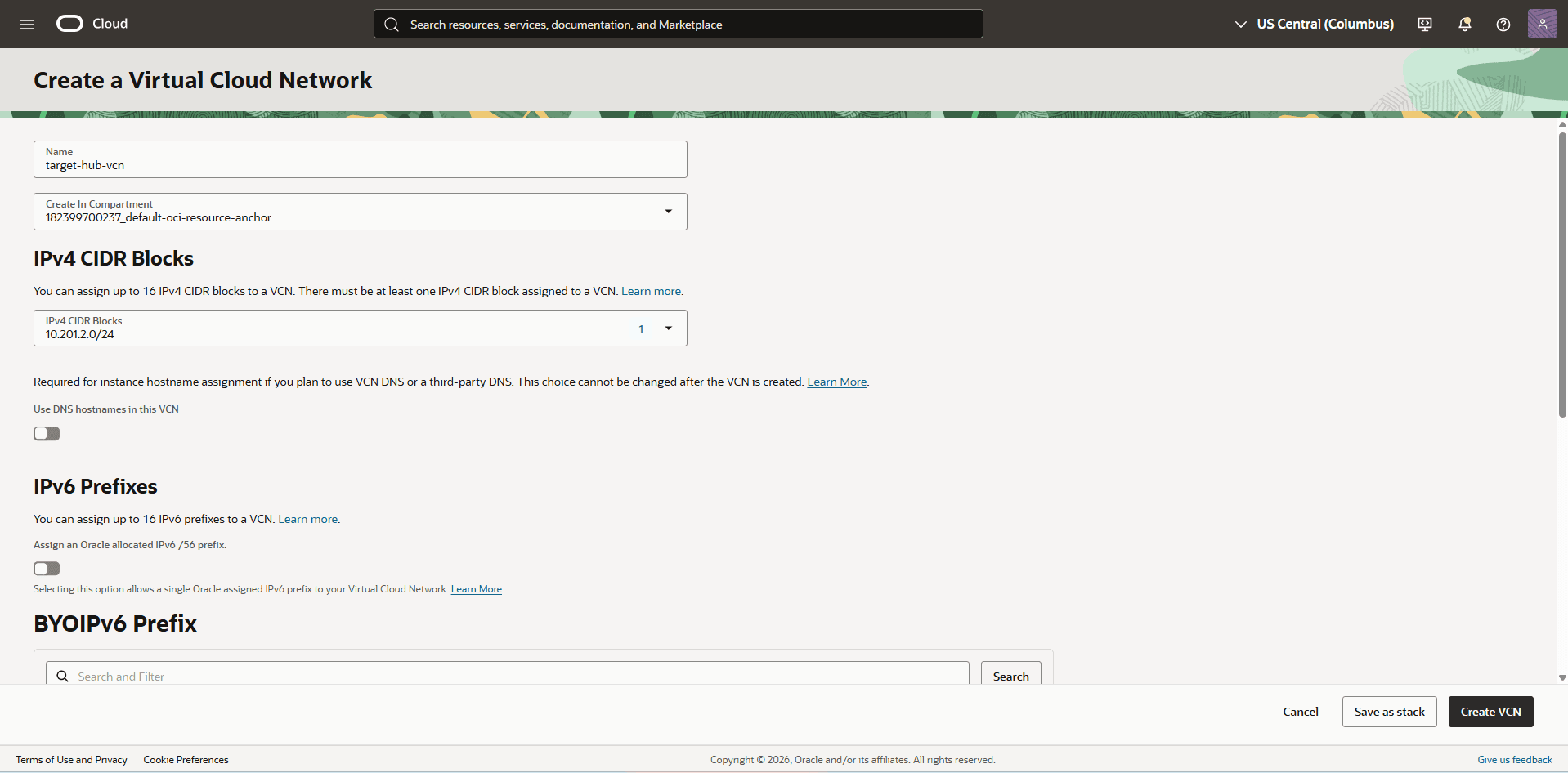
From the OCI Console, navigate to Networking to create a Virtual Cloud Network (VCN) on the target region (HUB VCN Target).
-
From the left menu, select Virtual cloud networks, and then select the Create VCN button.
-
Name: Enter a descriptive name. For example,
target-hub-vcn. -
Create In compartment: Select the compartment where you want to create the VCN.
-
Enter the CIDR block for your Hub VCN in the IPv4 CIDR Blocks field. Ensure that this block does not overlap with your existing network address space.
-
Select the Create VCN button.
-
-
-
Deploy two local peering gateways (LPGs),
Target-hub-LPGandTarget-LPG, inHUB VCN Targetand the VCN of the target Exadata VM Cluster respectively.-
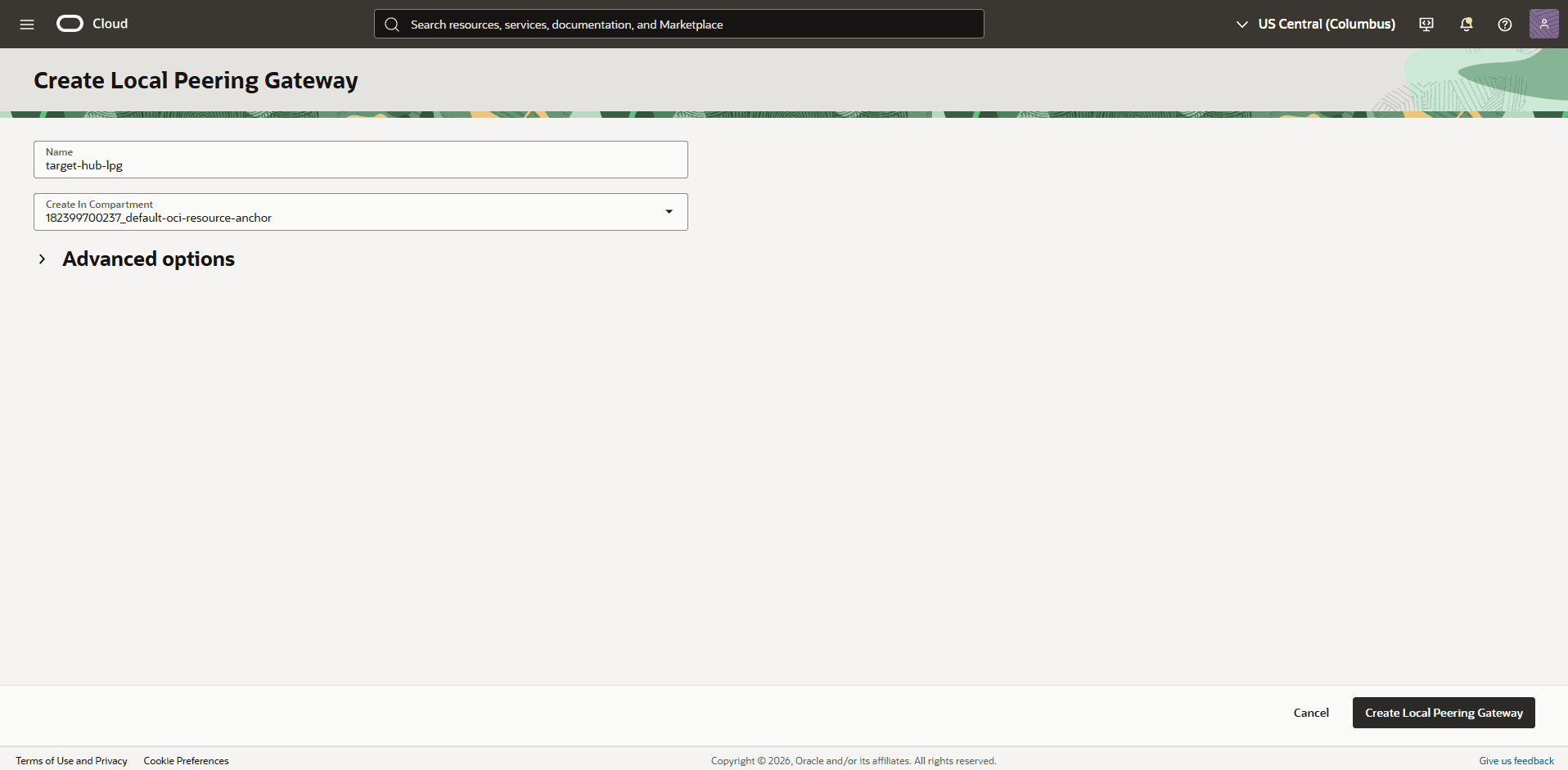
In the Target-Hub VCN detail page, select the Gateways tab, scroll down to the Local Peering Gateways section, and then select the Create Local Peering Gateway button.
-
In the Create Local Peering Gateway page, enter the following information.
-
Name: Enter a descriptive name. For example,
target-hub-lpg. -
Review the Create in compartment field and make sure it is the compartment that you want to create your Local Peering Gateway in.
-
The Advance options section is optional.
-
Select the Create Local Peering Gateway button.
-
-
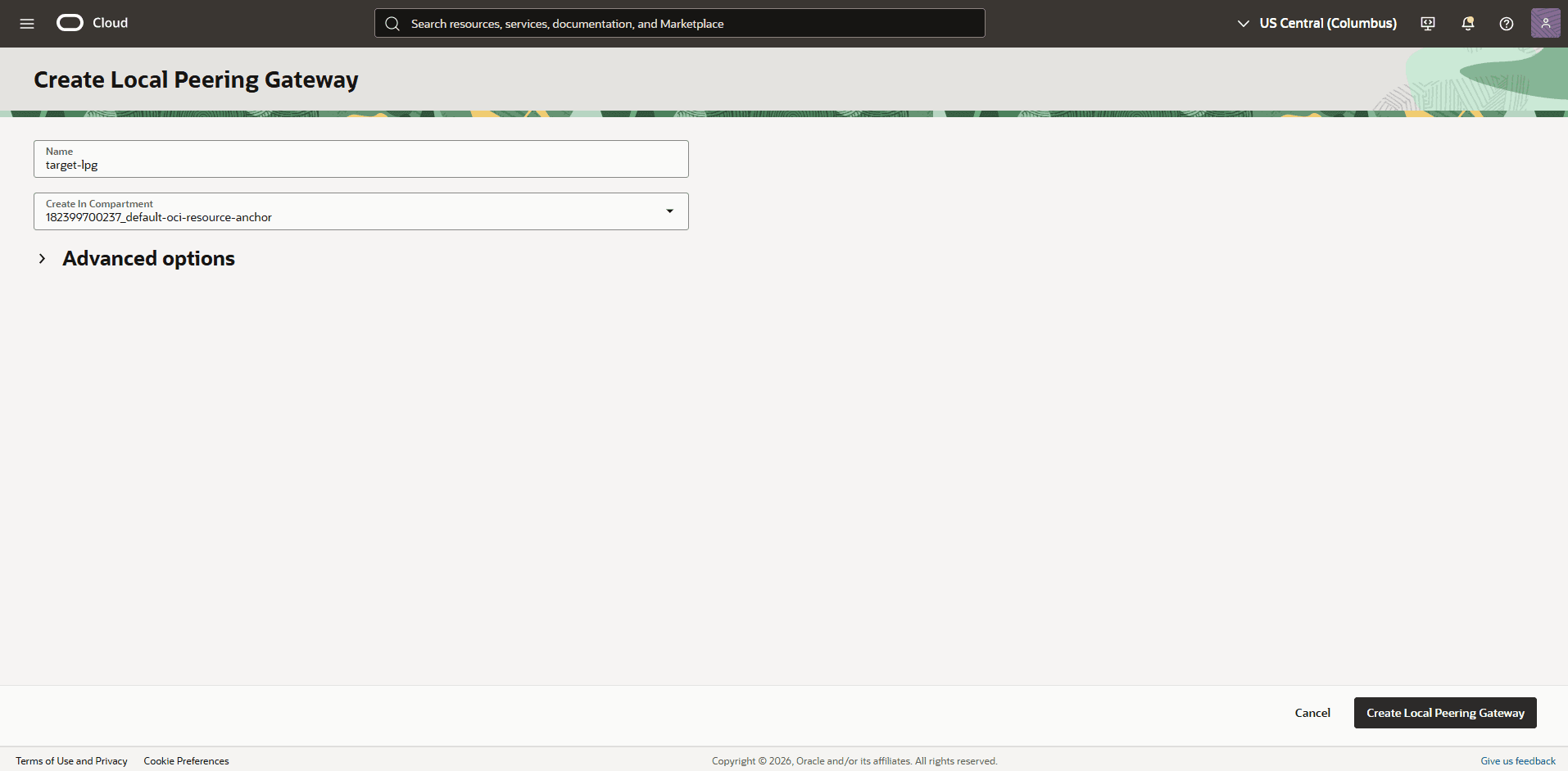
In the Target Exadata VM Cluster VCN detail page, select the Gateways tab, scroll down to the Local Peering Gateways section, and then select the Create Local Peering Gateway button.
-
Name: Enter a descriptive name. For example,
target-lpg. -
Review the Create in compartment field and make sure it is the compartment that you want to create your Local Peering Gateway in.
-
The Advance options section is optional.
-
Select the Create Local Peering Gateway button.
-
-
-
Establish a local peering connection between the local peering gateways (LPGs) for VCN Target and HUB VCN Target.
-
In your Target Exadata VM Cluster VCN, select the Gateways tab, and select Local Peering Gateways. Locate the LPG that you previously created, and select the three dots menu. Select the Establish Peering option.
-
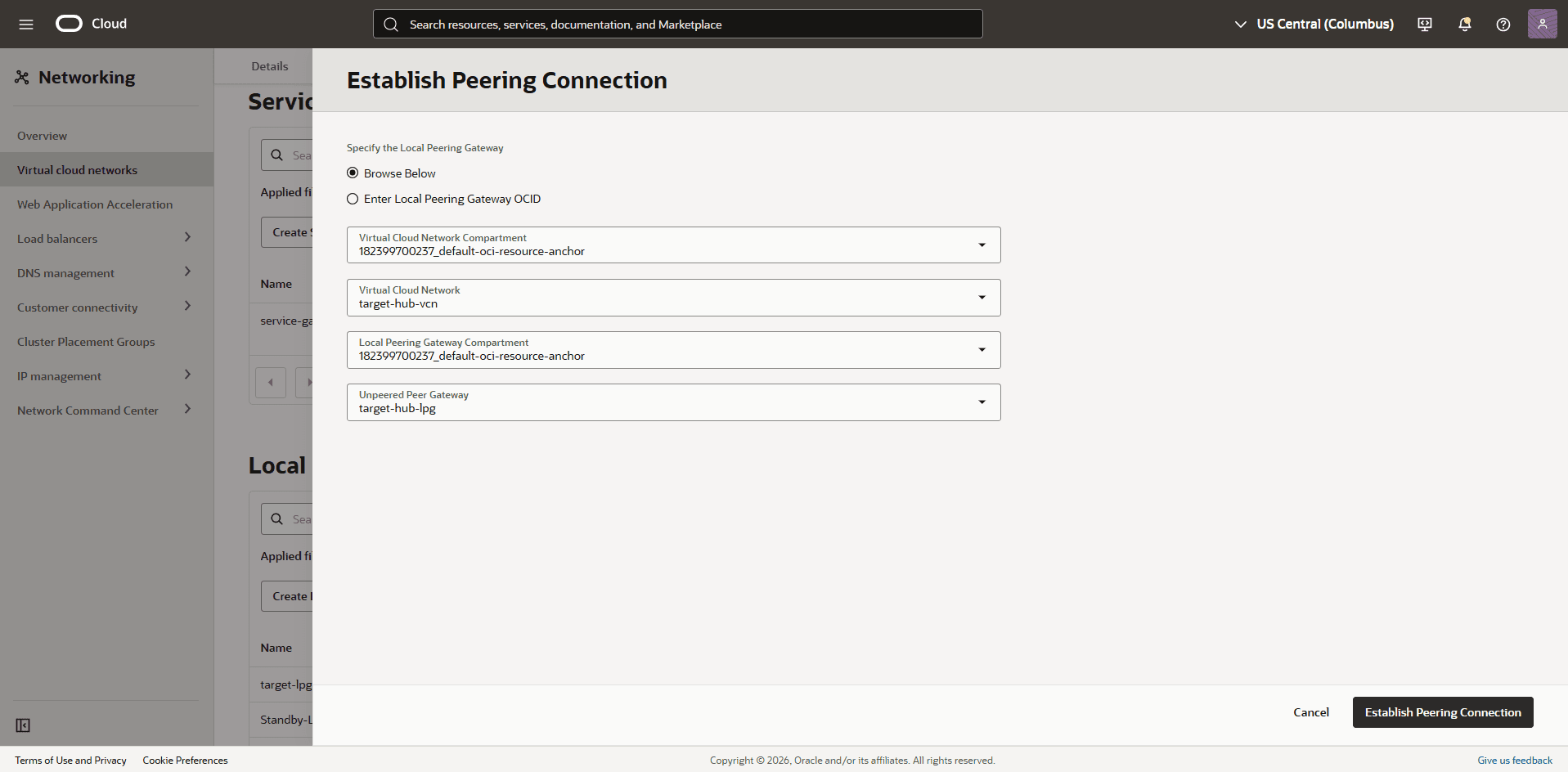
From the Establish Peering Connection page, choose the Browse Below option.
-
Select the compartment from the Virtual Cloud Network Compartment dropdown list.
-
From the Virtual Cloud Network dropdown list, select your Target-Hub VCN. For example,
target-hub-vcn. -
Select the compartment from the Local Peering Gateway Compartment dropdown list.
-
From the Unpeered Peer Gateway, select your Target-Hub-LPG. For example,
target-hub-lpg. -
Review your information, and then select the Establish Peering Connection button.
-
-
-
Create a dynamic routing gateway (DRG) named
target-hub-drg.-
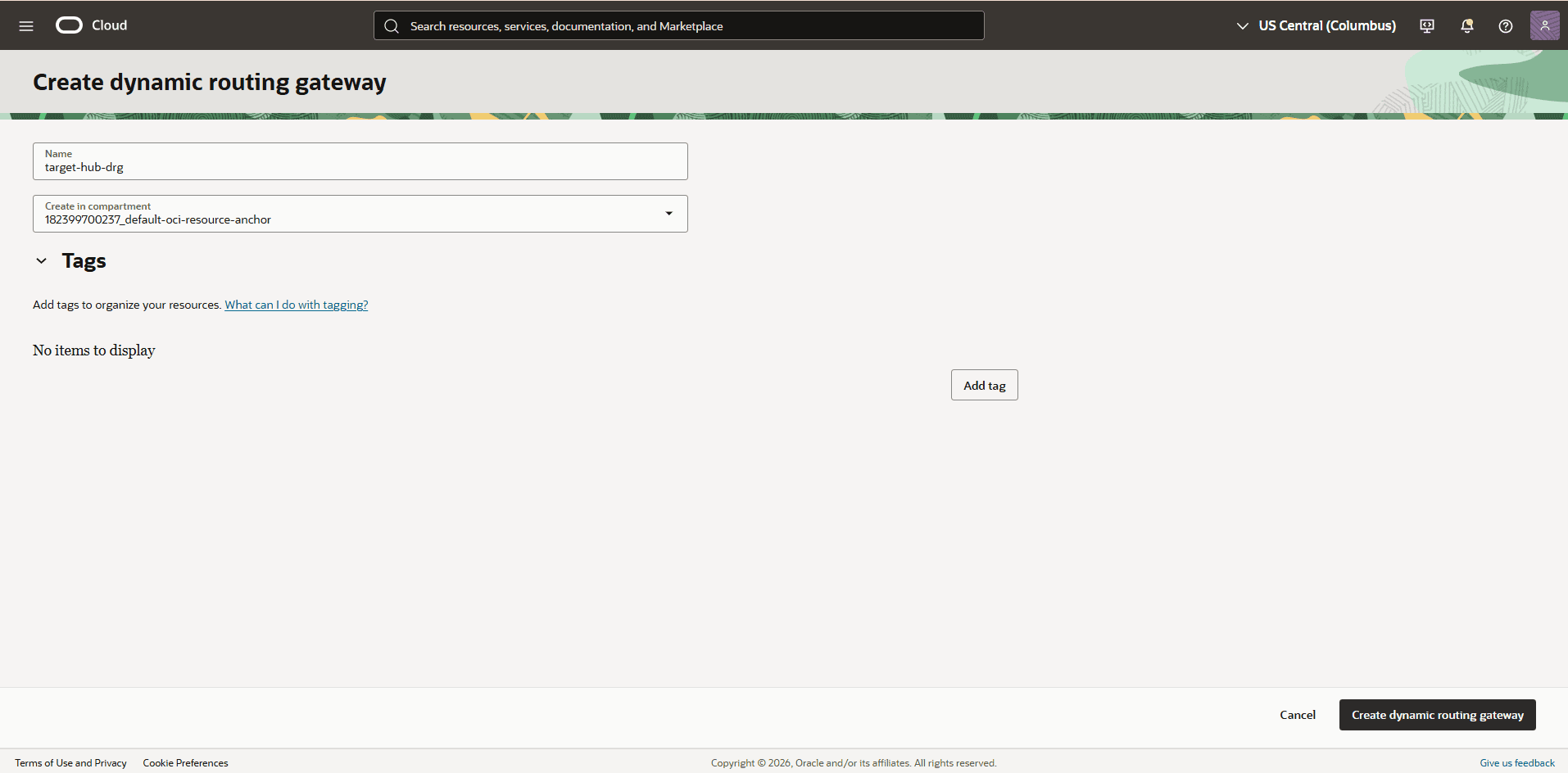
From the OCI Console, navigate to Networking. From the Customer connectivity section, select Dynamic routing gateway, and then select the Create dynamic routing gateway button.
-
Name: Enter a descriptive name. For example,
target-hub-drg. -
Review the Create in compartment field and make sure it is the compartment that you want to create your Local Peering Gateway in.
-
The Tags section is optional.
-
Select the Create dynamic routing gateway button.
-
-
-
Create a route table in the HUB VCN Target VCN, to route the network traffic between the HUB VCN Target and VCN Target.
-
From the OCI Console, navigate to Networking, select Virtual cloud networks, and then select the HUB VCN Target VCN.
-
Select the Routing tab, then select the Create Route Table button.
-
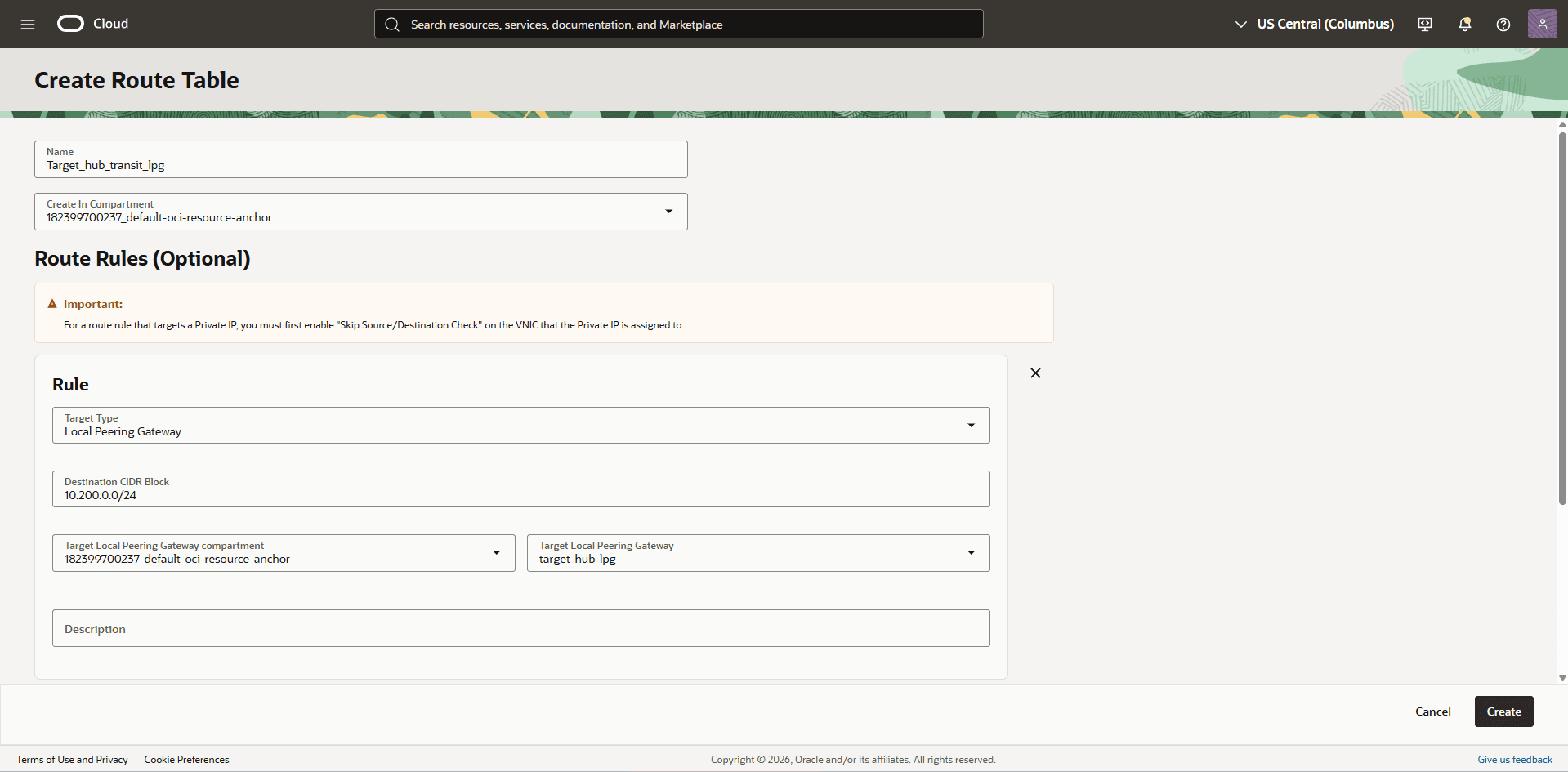
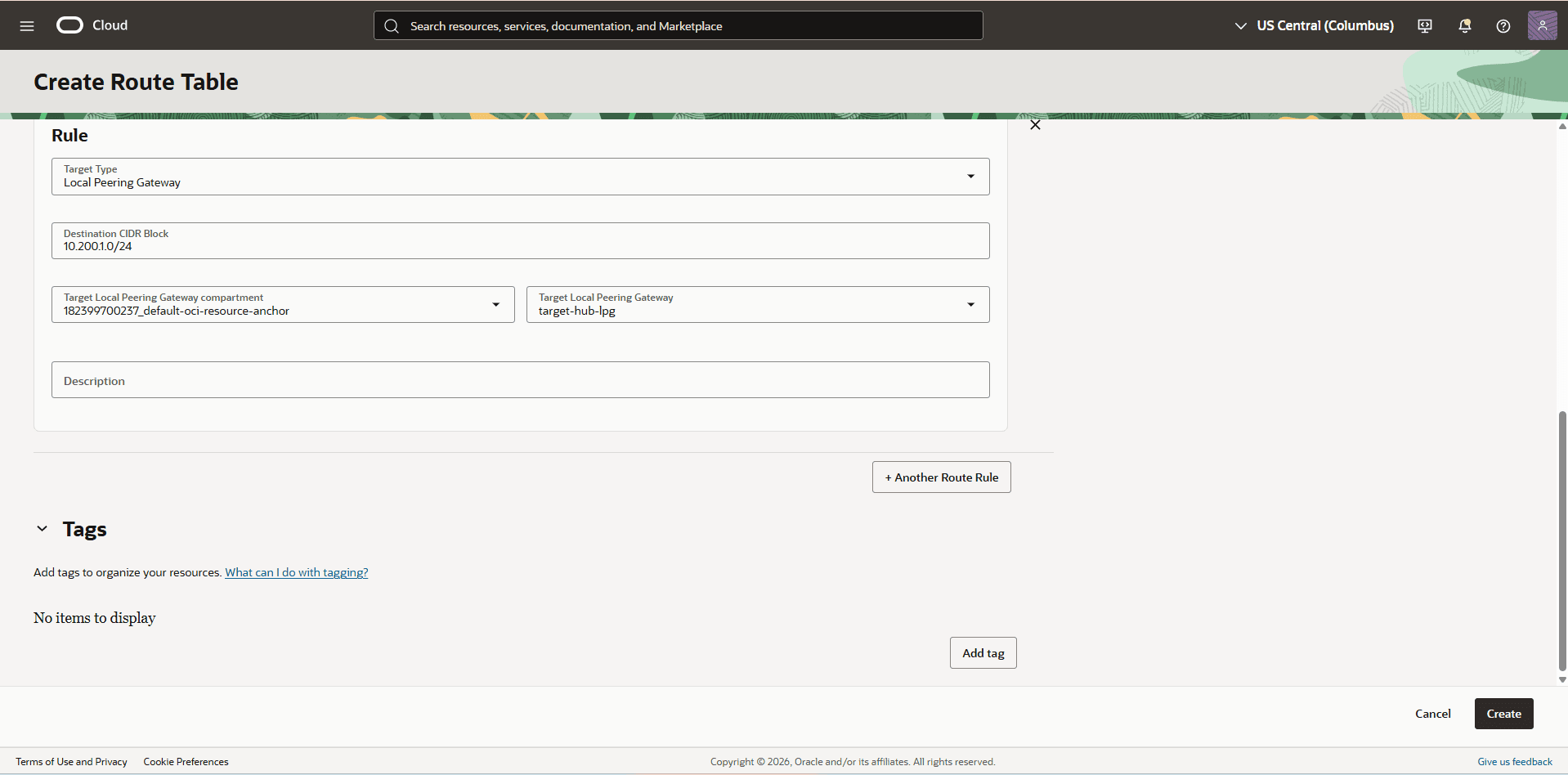
Name: Enter a descriptive name. For example,
target_hub_transit_lpg. -
Select the + Another Route Rule button.
-
Target Type: Select the Local Peering Gateway as your target type.
-
Destination CIDR Block: Enter the target Exadata VM Cluster Client Subnet CIDR (
10.200.0.0/24). -
Target Local Peering Gateway: Select the LPG which is created in the HUB VCN Source. For example,
target-hub-lpg. -
Description: Enter a description.
-
Select the + Another Route Rule button.
-
Repeat steps iii through vi for the VCN Target backup subnet CIDR (
10.200.1.0/24). -
Review your information and then select the Create button.
-
-
-
Attach the DRG to the HUB VCN Target VCN.
-
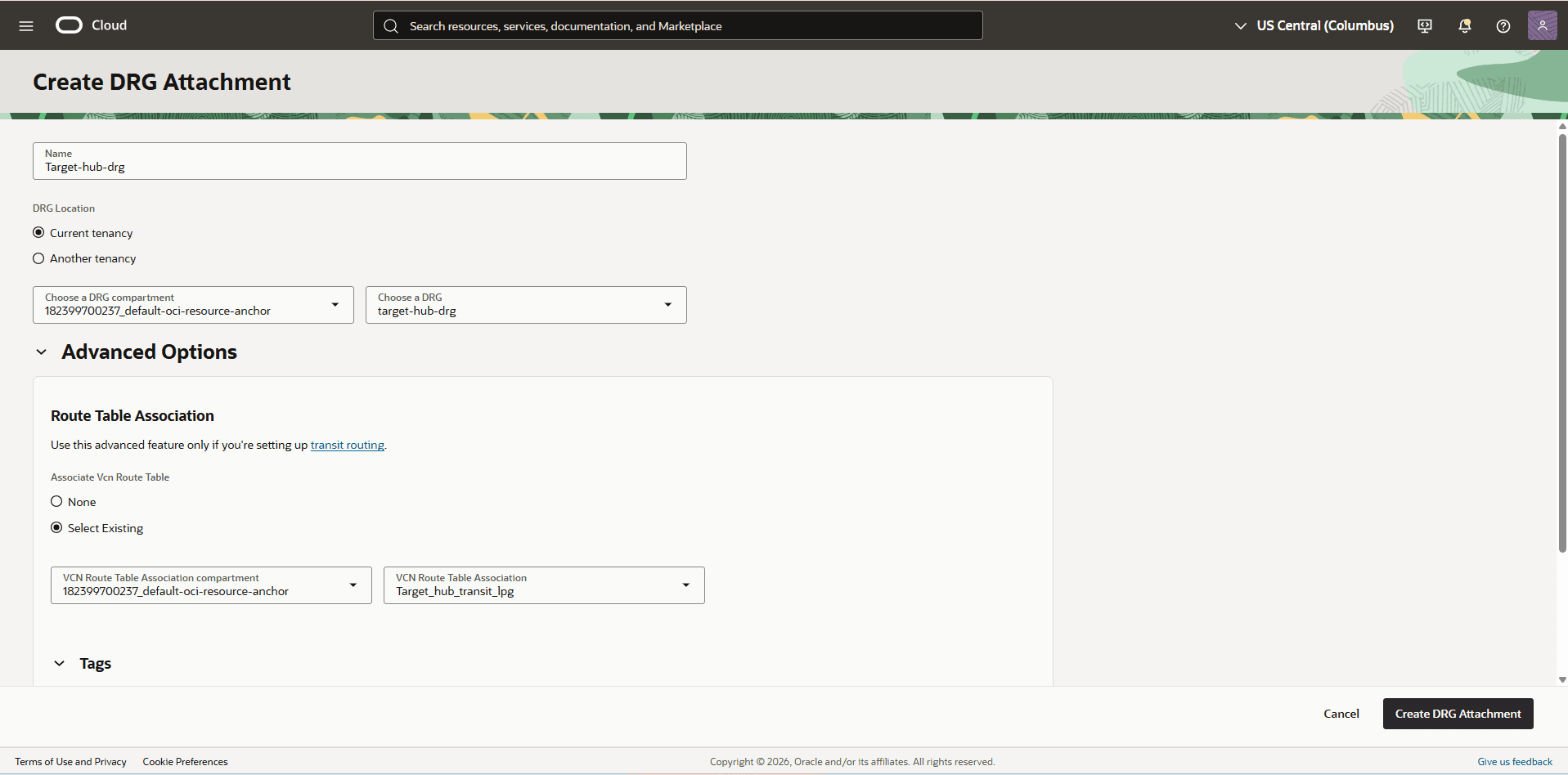
In the HUB VCN Target VCN, select the Gateways tab. From the Dynamic Routing Gateway Attachments section, select the Create DRG Attachment button.
-
Name: Enter a descriptive name. For example,
target-hub-drg. -
DRG Location: Choose the Current tenancy option.
-
Choose a DRG: Select the DRG name that you previously created.
-
Expand the Advanced Options section.
-
From the Route Table Association section, choose the Select Existing option. Select the VCN Route Table Association compartment. Select the routing table that you previously created from the VCN Route Table Association dropdown list. For example,
Target_hub_transit_lpg. -
Select the Create DRG Attachment button.
-
-
Identify Public IP Addresses for Oracle Services Network in the source region.
Note
Note: To access the source OCI Object Storage endpoints, you must identify the public IP CIDR blocks required to route traffic and grant the necessary network permissions. For more information, see Public IP Addresses for VCNs and the Oracle Services Network and Downloading the JSON File. -
In the HUB VCN Target VCN , create a second route table to direct network traffic to the source network.
-
From the HUB VCN Target VCN, select the Routing tab, and then select the Create Route Table button.
-
Name: Enter a descriptive name. For example,
Target_hub_transit_sg. -
Select the + Another Route Rule button.
-
Target Type: Select the Dynamic Routing Gateway as your target type.
-
Destination CIDR Block: Enter the source OCI Object Storage endpoint IP CIDR such as
134.70.24.0/21. -
Target Dynamic Routing Gateway compartment: Select the DRG associated with the HUB VCN Target VCN. For example,
Target-hub-drg.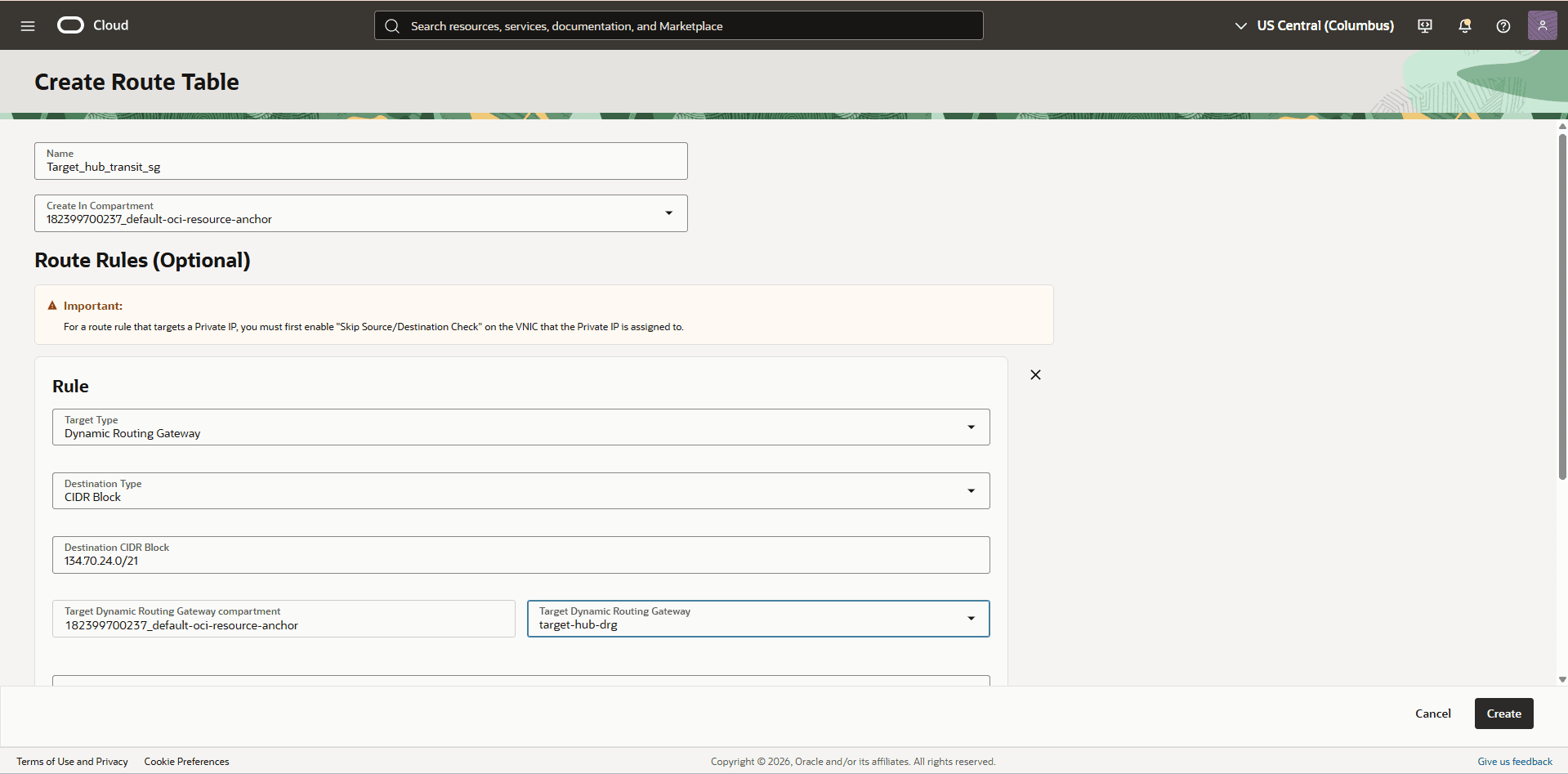
-
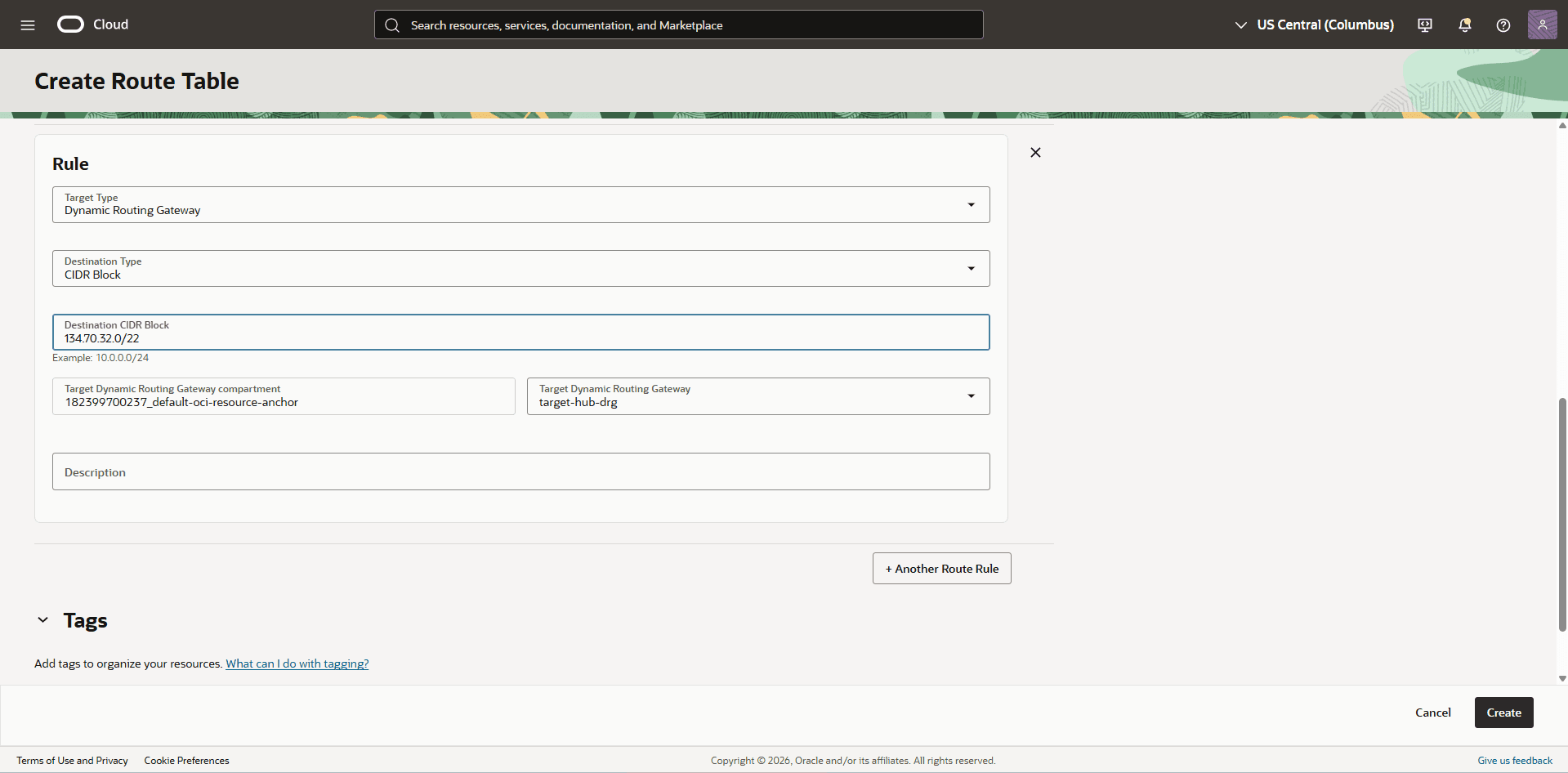
Description: Enter a description.
-
Repeat the steps 9c through 9g for all the Object Storage Endpoint IP CIDRs in the source region (
134.70.32.0/22). -
Select the Create button.
-
-
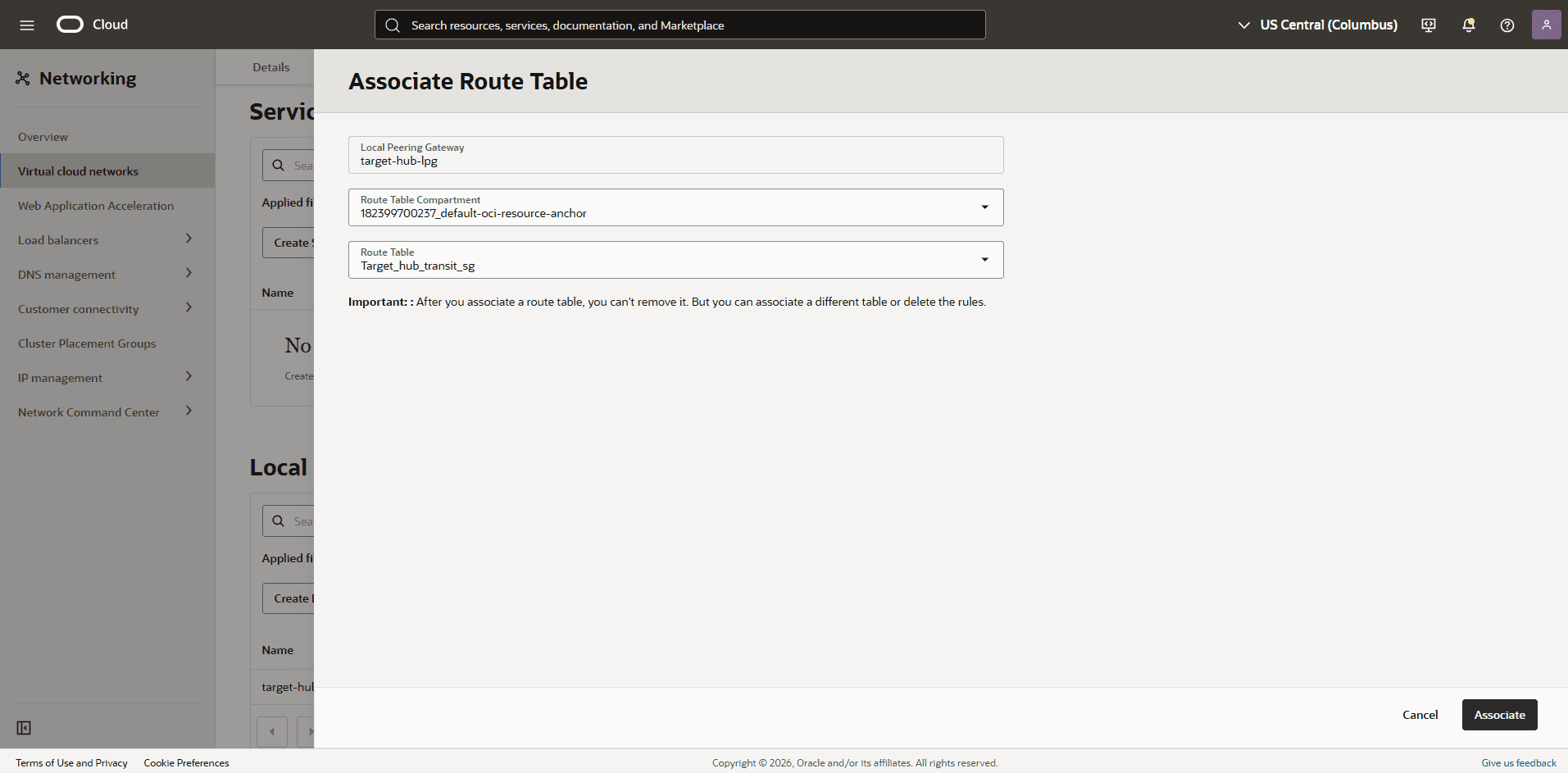
Associate the Target_hub_transit_sg route table to the Hub-Target-LPG gateway.
-
From the Hub VCN Target VCN, select the Gateways tab, navigate to the Local Peering Gateways section.
-
Select the three dots, then select Associate Route Table option.
-
Select the route table that you previously created for the Local Peering Gateway. For example, Target_hub_transit_sg.
-
Select the Associate button.
-
-
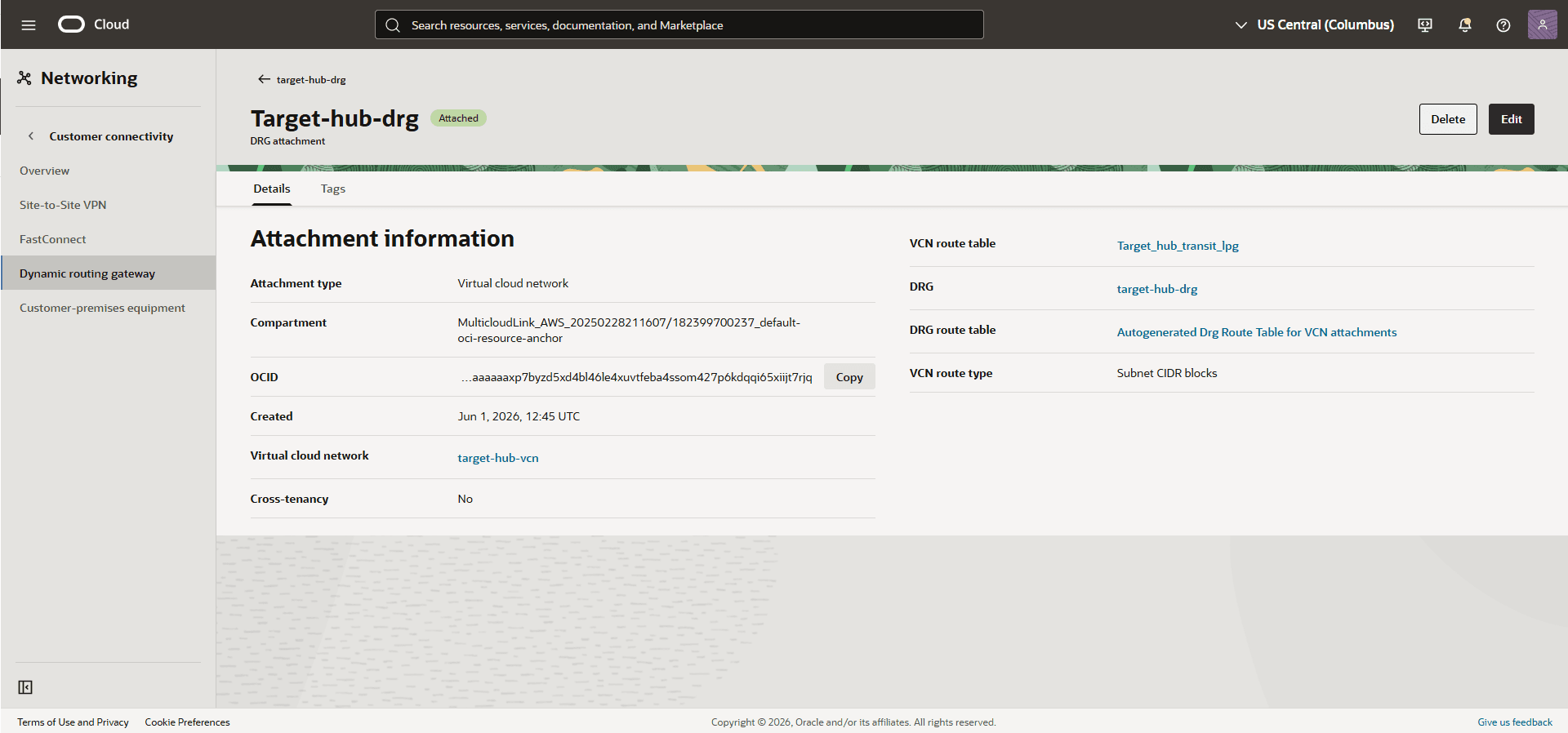
Edit Target-Hub-DRG attachment from the Target-Hub-VCN to add DRG route table.
-
From the Target-Hub-VCN VCN, select the Gateways tab. From the Dynamic Routing Gateway Attachments section, select the name of your DRG attachment.
-
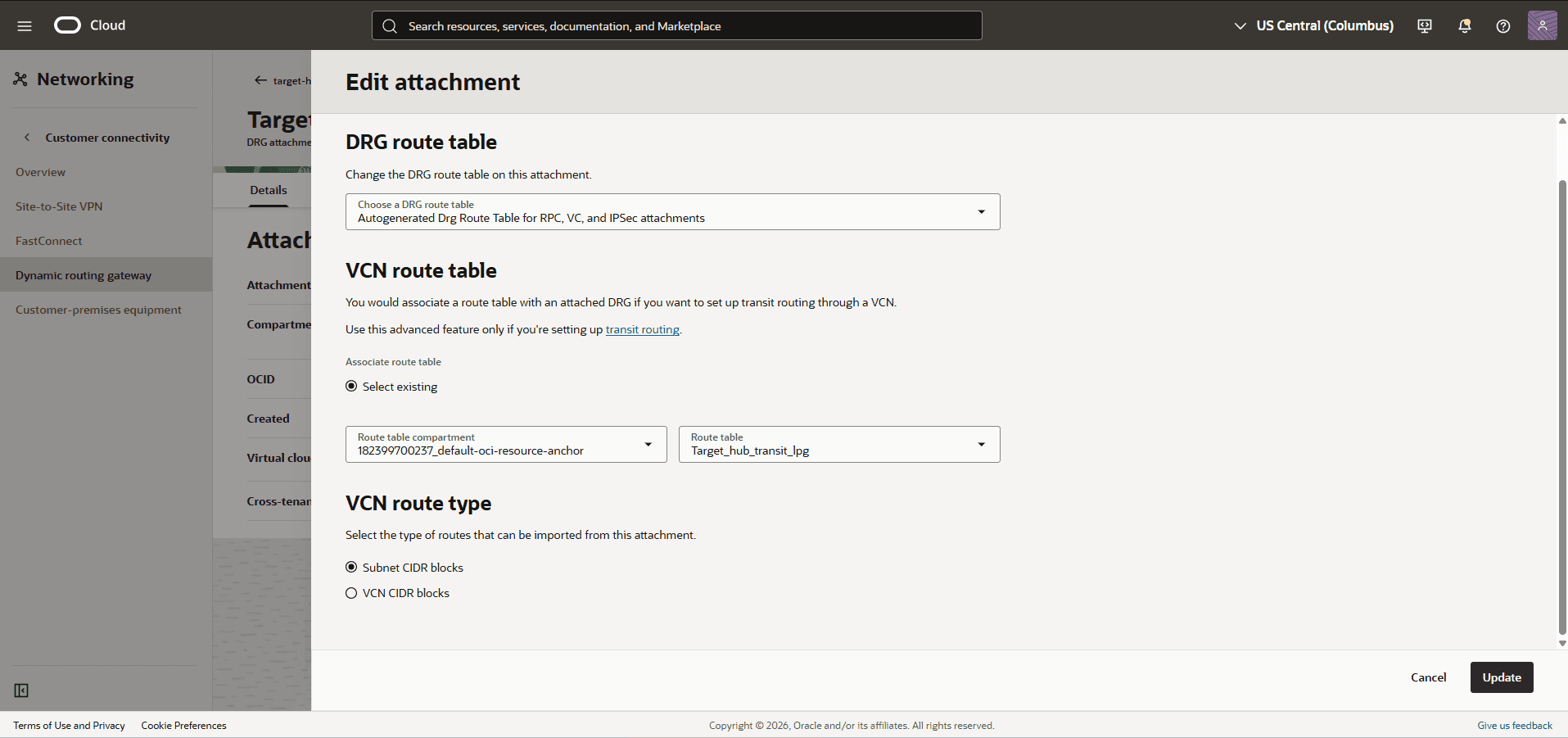
Select the Edit button.
-
From the Choose a DRG route table dropdown list, select Autogenerated Drg Route Table for RPC, VC, and IPSec attachments.
-
Select the Update button.
-
-
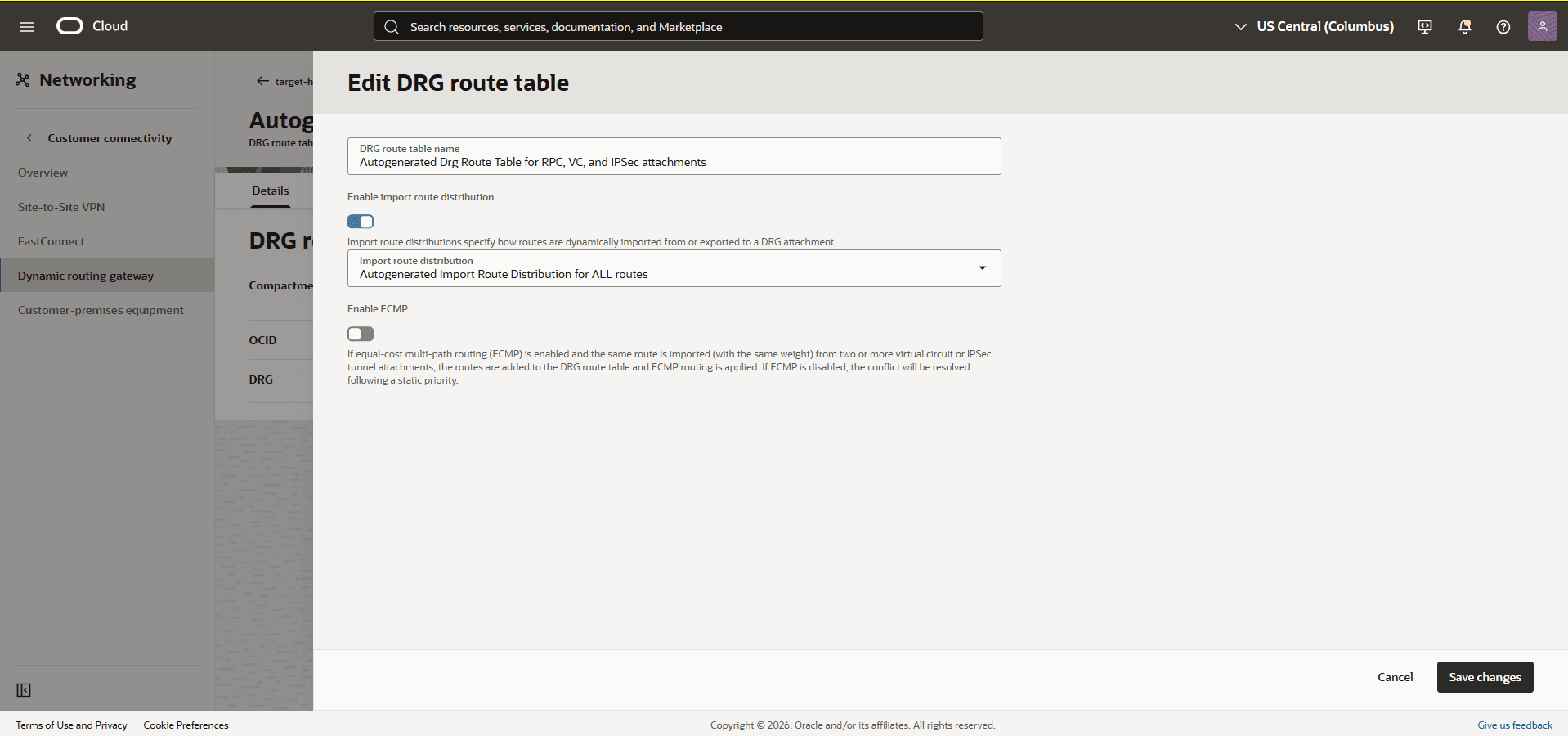
Validate the DRG route table options.
-
From the Dynamic Routing Gateway section, select the Attachments tab. From the VCN attachments section, under the DRG route table column, select Autogenerated Drg Route Table for RPC, VC, and IPSec attachments.
-
Select the Actions button, and then select the Edit option.
-
Make sure that the Enable import route distribution option is enabled and Import route distribution is set to Autogenerated Import Route Distribution for ALL routes.
-
Select the Save changes option.
Note
Note:
-
To configure routing more precisely, disable the import route distribution of the Autogenerated DRG Route Table for RPC, VC, and IPSec attachments route table.
-
For Autogenerated DRG Route Table for VCN attachments, create and assign a new import route distribution that includes only the required RPC attachment.
-
-
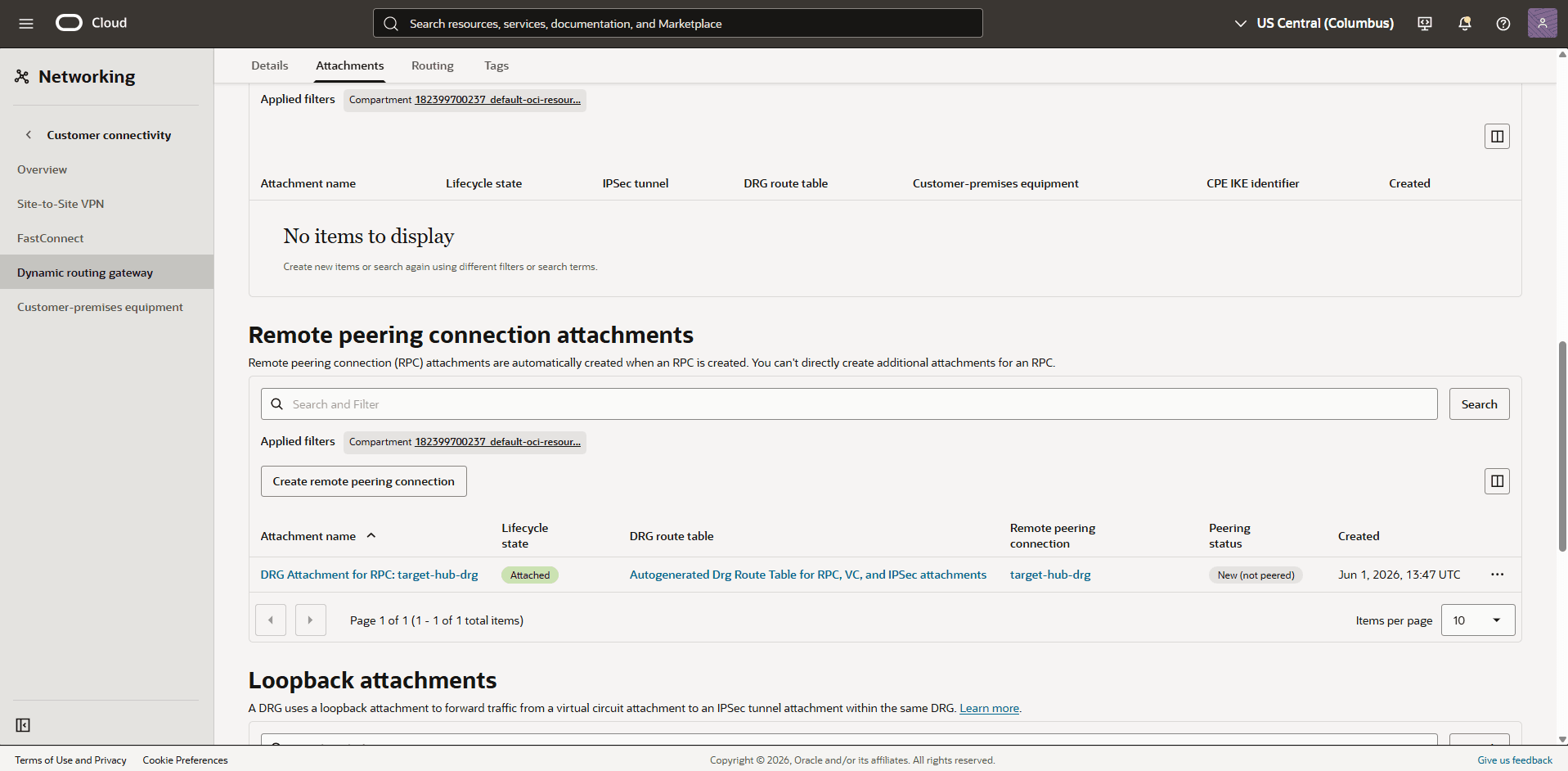
From the Target-Hub-DRG, create a remote peering connection attachments.
-
From Dynamic routing gateway page, select the Attachments tab, scroll down to the Remote peering connection attachments section. Select the Create remote peering connection button.
-
Name: Enter a descriptive name. For example,
Target-hub-drg. -
Select the Create remote peering connection button.
-
From the Target-Hub-DRG, scroll down to the Remote peering connection attachments section, under Remote peering connection column, select the remote peering connection. For example,
Target-hub-drg.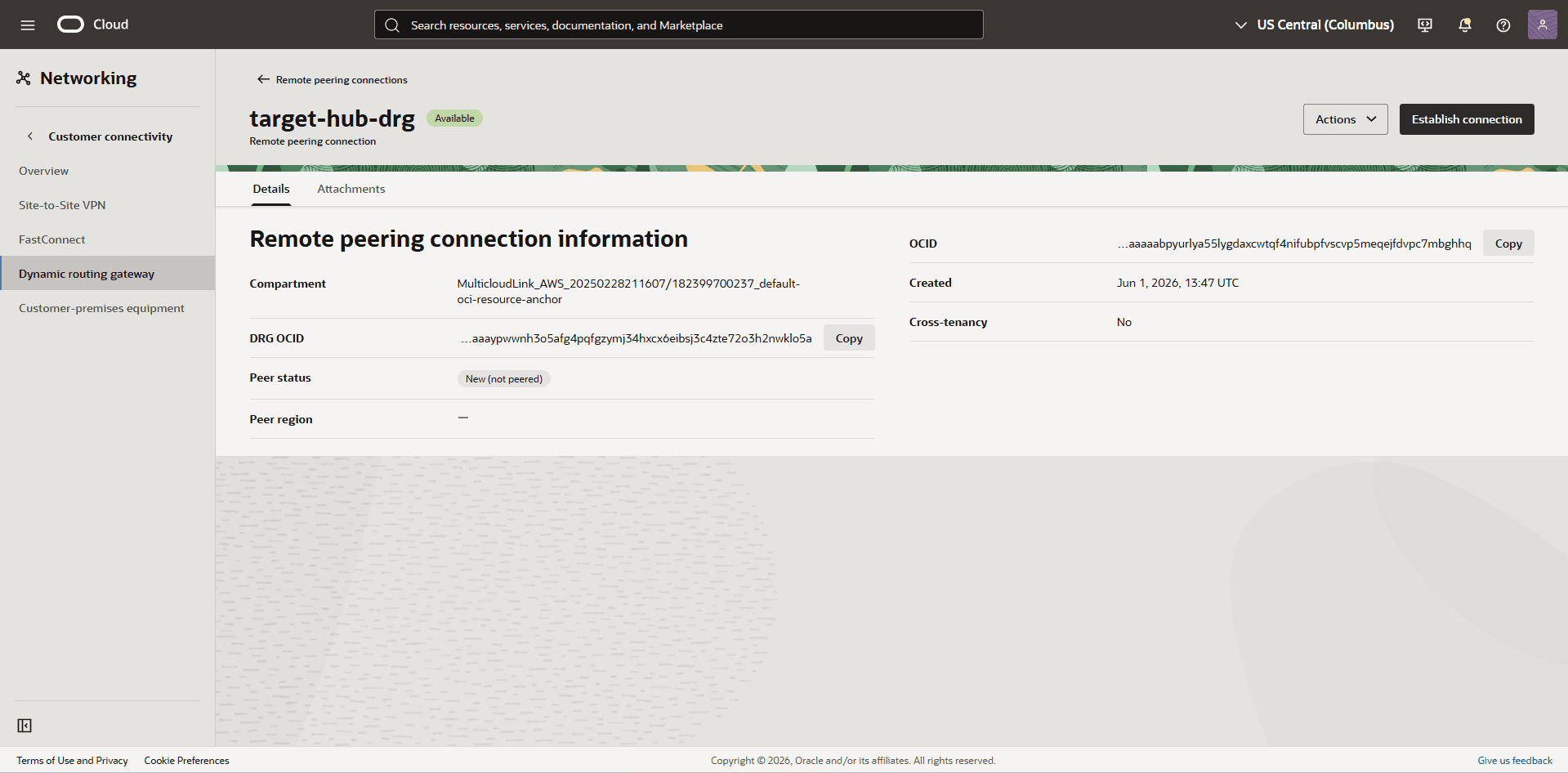
-
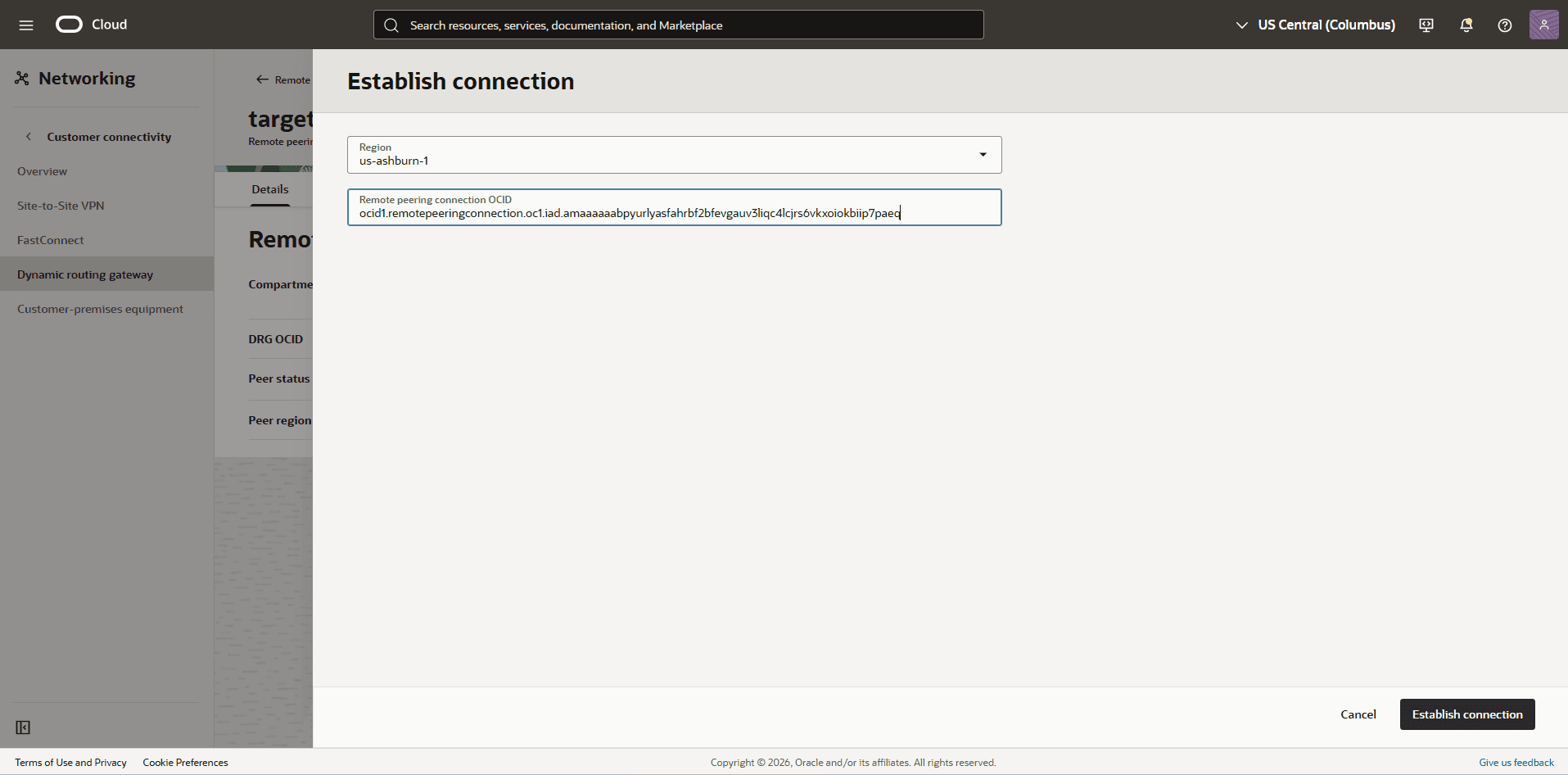
Select the Establish Connection button and then enter the following information.
-
Region: Select your Source Region
-
Remote peering connection OCID: Provide the Source-Hub-drg remote peering connection OCID that you copied.
-
Select the Establish connection button.
Note
Note: When the peering status becomes peered, both regions are connected. -
-
-
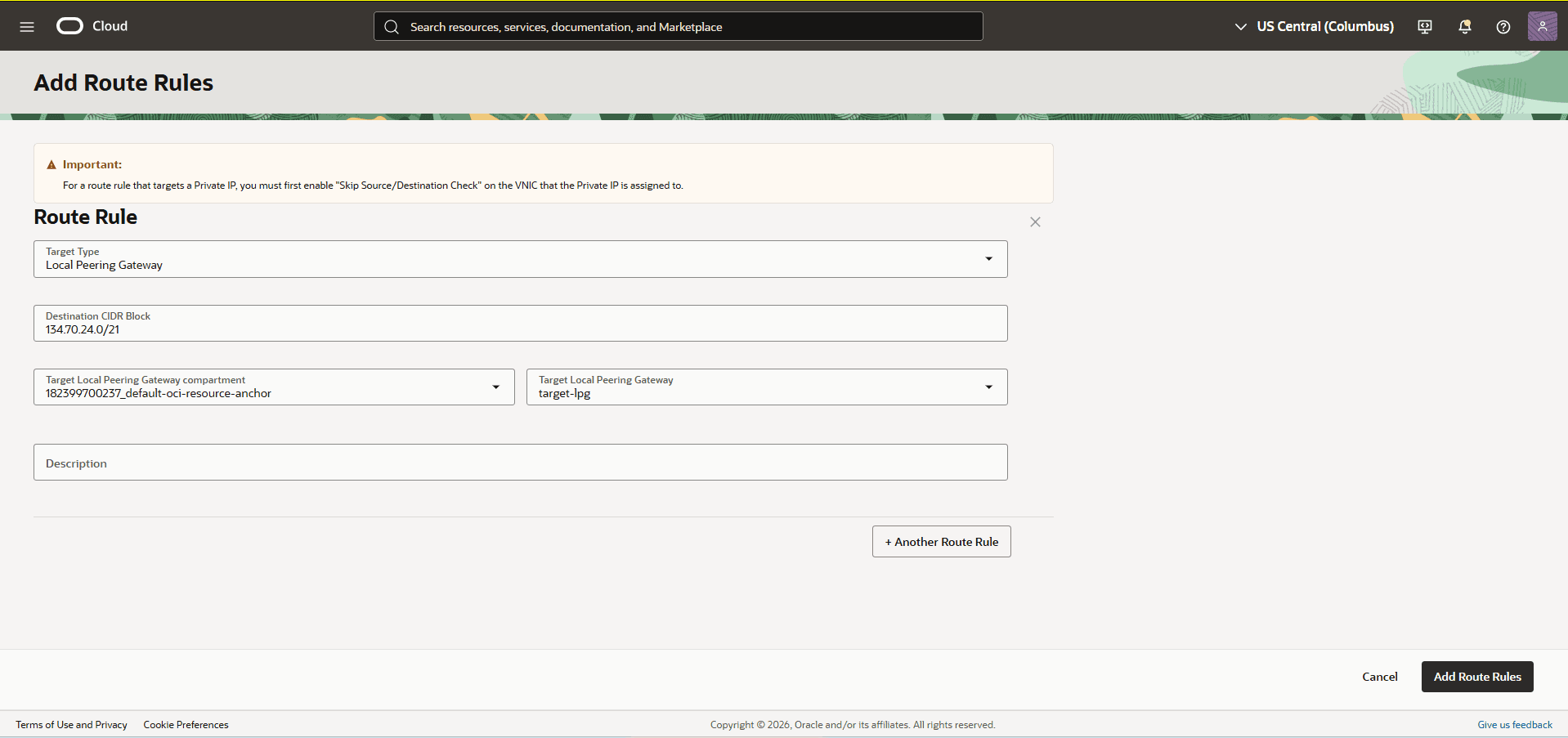
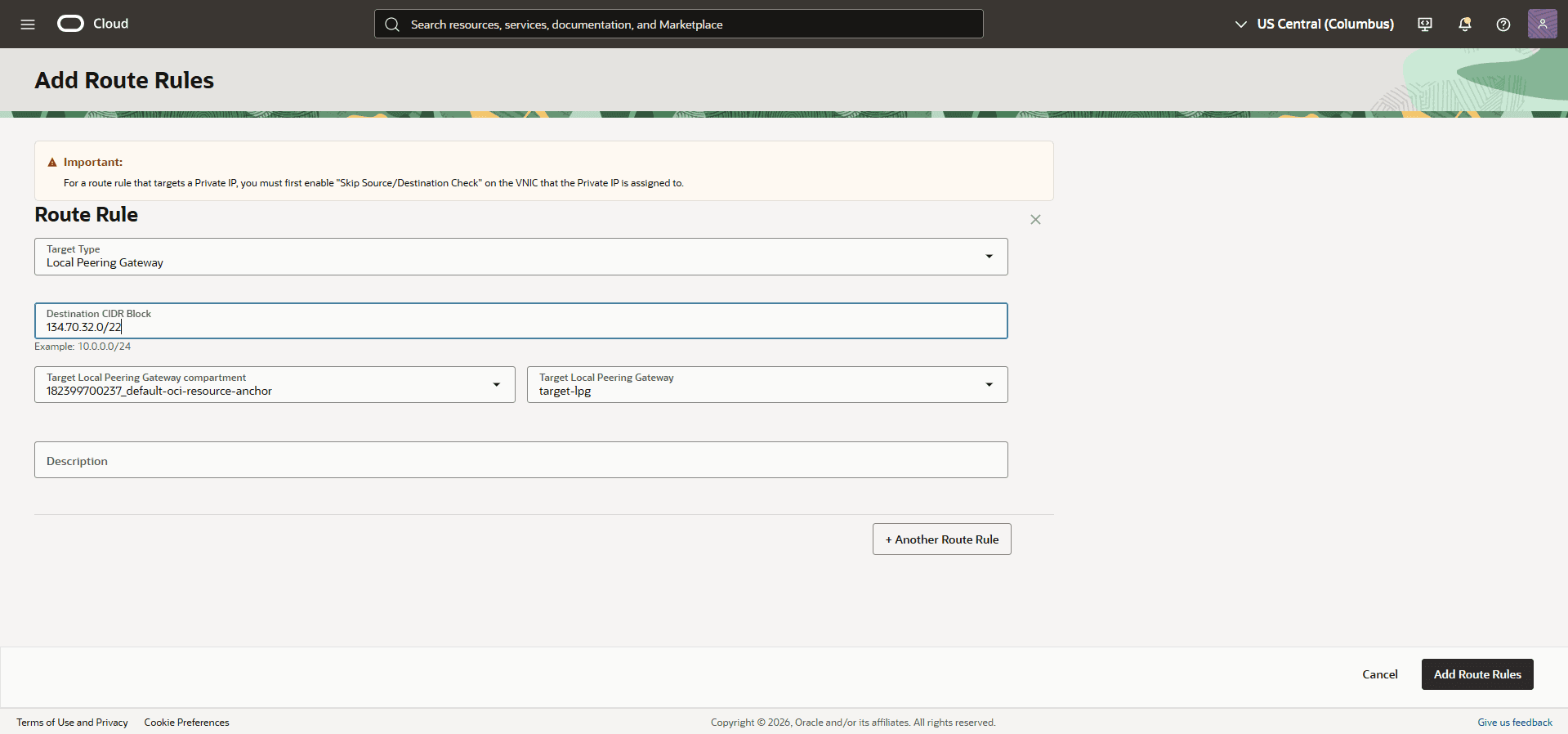
Update the Target VCN default route table, add a route rule to the source region OCI Object Storage endpoint CIDRs range.
-
From your target Exadata VM Cluster VCN, select the Routing tab, then select the name of the default route table.
-
Select the Route Rules tab, then select the Add Route Rules button.
-
Target Type: Select the Local Peering Gateway as your target type.
-
Destination CIDR Block: Select the source region Object Storage endpoint public IP CIDR such as
134.70.24.0/21. -
Target Local Peering Gateway: Select your LPG. For example,
Target-lpg. -
Description: Enter a description.
-
Select the + Another Route Rule button.
-
Repeat the steps 14c through 14g for all the Object Storage Endpoint IP CIDR in the source region such as
134.70.32.0/22. -
Select the Add Route Rules button.
-
-
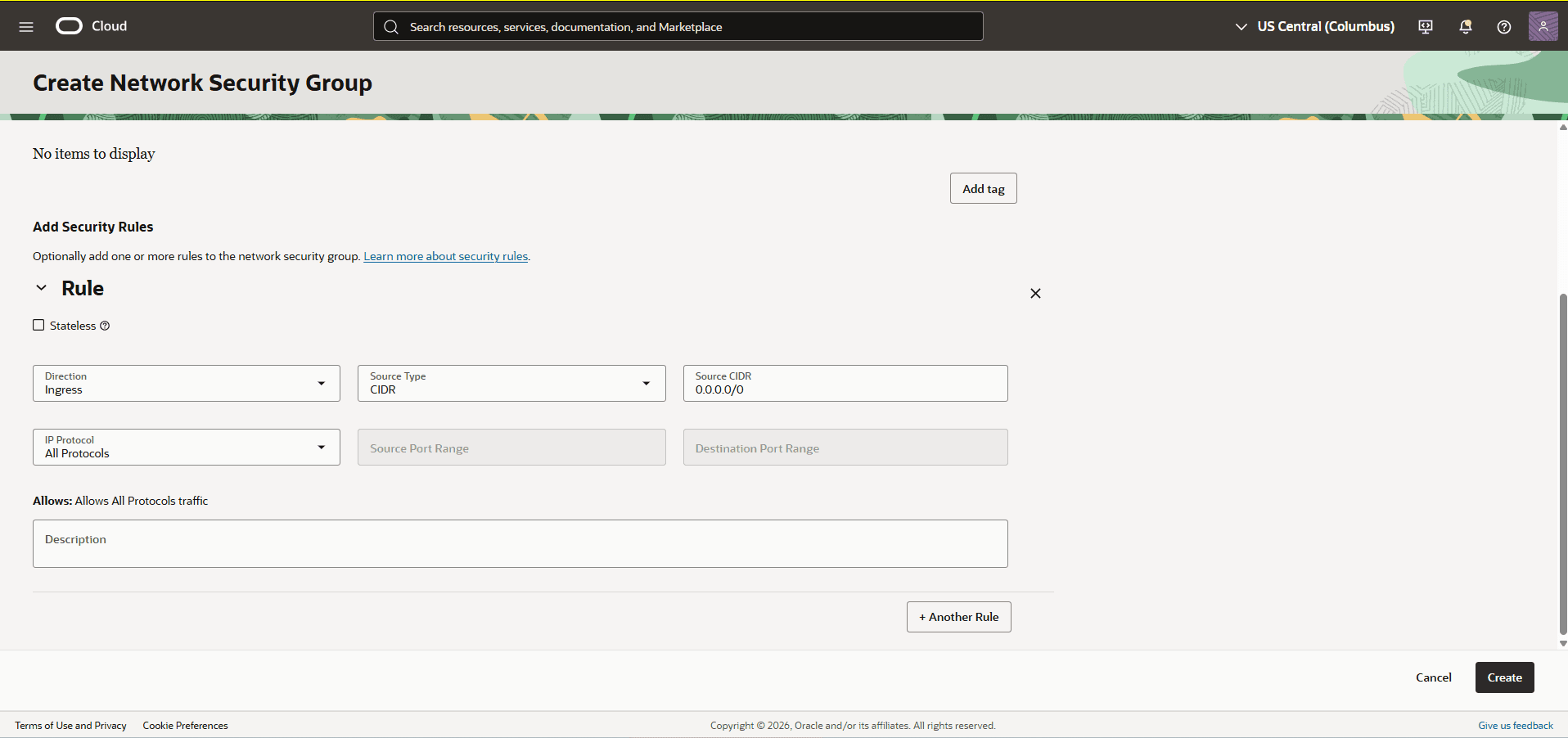
Create a custom Network Security Group (NSG) in the target Exadata VM Cluster VCN.
-
From your target Exadata VM Cluster VCN, select the Security tab. scroll down to the Network Security Groups section, and then select the Create Network Security Group button.
-
Name: Select a name for your custom NSG
-
Name: Select Ingress.
-
Source Type: Select CIDR.
-
Source CIDR: Enter your source CIDR.
-
IP Protocol: Select All Protocols.
-
Select the Create button.
-
-
Attach the Custom NSG to target Exadata VM Cluster backup subnet.
-
From your target Exadata VM Cluster information page, scroll down to the Network section. From the Backup network security groups section, select the Edit button.
-
Select the + Another network security group button.
-
Select the compartment that you created the custom NSG.
-
Select the name of the custom NSG.
-
Select the Save button.
-
-
Test Connectivity
Connect via SSH to your target Exadata VM Cluster and run a curl command against the OCI Object Storage URL endpoint.
curl -v https://swiftobjectstorage.<OCI-Region>.oraclecloud.com:443

Example (US East - Ashburn):
curl -v https://swiftobjectstorage.us-ashburn-1.oraclecloud.com:443