EC2
This topic explains the required steps to connect to Oracle Exadata Database Service on Dedicated Infrastructure in Oracle AI Database@AWS from a Java application running on an Amazon EC2 instance.
Prerequisites
This section describes the requirements to deploy, compile and package a Java application then deploy it on application to connect to Oracle Exadata Database Service on Dedicated Infrastructure with Product table for performing create, read, update, and delete (CRUD) operations.
Oracle Exadata Database
This database is connected from Application Server using Java application.
-
Oracle Exadata Database Service on Dedicated Infrastructure connection details
-
An Oracle Database user to create database sessions and runs SQL commands.
-
Connectivity from application server to Oracle Exadata Database.
-
A Product table in Oracle Database.
Run the following command to create the Product table and insert a test record:
-- Create the Product table
CREATE TABLE Product (
    id NUMBER PRIMARY KEY,
    name VARCHAR2(100) NOT NULL,
    price NUMBER(10, 2) NOT NULL
);

-- Insert a quick test record (optional, so your UI isn't empty on first load)
INSERT INTO Product (id, name, price)
VALUES (1, 'Test Migration Item',
99.99);

-- Commit the transaction
COMMIT;
Development Machine
Use this machine to compile the Java source and create the package. Install the following software to run the application.
-
Java Development Kit (JDK): Download and install JDK 25.
-
Oracle JDBC Driver: Download the standalone
ojdbc17.jar.
Application Server ( Amazon EC2 Red Hat Enterprise Linux 10 )
Use this machine to deploy the Java package and run the application that connects to the Exadata Database. Install the following software to run the application.
-
Java Runtime Environment (JRE/JDK): Install OpenJDK 25.
sudo dnf install java-25-openjdk -
Oracle JDBC driver: Upload the same
ojdbc17.jarfile alongside your application. -
Ensure that port
8080is open in your Amazon EC2 Security Group Inbound rules.
Implementation
-
Build and Package on Development Machine
-
Place
SimpleProductApp.javaandojdbc17.jarin the same directory.import java.io.*; import java.net.InetSocketAddress; import java.sql.*; import com.sun.net.httpserver.*; public class SimpleProductApp { // Read sensitive info from environment variables private static final String DB_URL = System.getenv("DB_URL"); private static final String DB_USER = System.getenv("DB_USER"); private static final String DB_PASS = System.getenv("DB_PASS"); public static void main(String[] args) throws Exception { if (DB_URL == null || DB_USER == null || DB_PASS == null) { System.err.println("ERROR: Missing DB_URL, DB_USER, or DB_PASS environment variables."); System.exit(1); } // Create a built-in Java HTTP Server on port 8080 HttpServer server = HttpServer.create(new InetSocketAddress(8080), 0); server.createContext("/", new ProductHandler()); server.setExecutor(null); server.start(); System.out.println("Server started on port 8080."); System.out.println("Connecting to Exadata at: " + DB_URL); } static class ProductHandler implements HttpHandler { @Override public void handle(HttpExchange exchange) throws IOException { String method = exchange.getRequestMethod(); StringBuilder responseHTML = new StringBuilder(); try (Connection conn = DriverManager.getConnection(DB_URL, DB_USER, DB_PASS)) { // Handle POST requests (Create, Update, Delete) if ("POST".equalsIgnoreCase(method)) { InputStreamReader isr = new InputStreamReader(exchange.getRequestBody(), "utf-8"); BufferedReader br = new BufferedReader(isr); String formData = br.readLine(); // Simple URL-encoded parsing (action=add&id=1&name=Apples&price=10) String[] params = formData.split("&"); String action = getValue(params, 0); String id = getValue(params, 1); String name = getValue(params, 2); String price = getValue(params, 3); try (Statement stmt = conn.createStatement()) { if ("add".equals(action)) { stmt.executeUpdate("INSERT INTO Product (id, name, price) VALUES (" + id + ", '" + name + "', " + price + ")"); } else if ("update".equals(action)) { stmt.executeUpdate("UPDATE Product SET name='" + name + "', price=" + price + " WHERE id=" + id); } else if ("delete".equals(action)) { stmt.executeUpdate("DELETE FROM Product WHERE id=" + id); } } } // Handle GET requests (Read/View UI) responseHTML.append("<html><body style='font-family: sans-serif; padding: 20px;'>"); responseHTML.append("<h2>Exadata Product Manager</h2>"); // Input Form responseHTML.append("<form method='POST' style='background: #f4f4f4; padding: 15px; width: 300px;'>") .append("Action: <select name='action'><option value='add'>Add</option><option value='update'>Update</option><option value='delete'>Delete</option></select><br/><br/>") .append("ID: <input type='number' name='id' required><br/><br/>") .append("Name: <input type='text' name='name'><br/><br/>") .append("Price: <input type='number' step='0.01' name='price'><br/><br/>") .append("<input type='submit' value='Execute'>") .append("</form><br/>"); // Data Table responseHTML.append("<table border='1' cellpadding='8' style='border-collapse: collapse;'>") .append("<tr style='background: #ddd;'><th>ID</th><th>Name</th><th>Price</th></tr>"); try (Statement stmt = conn.createStatement(); ResultSet rs = stmt.executeQuery("SELECT id, name, price FROM Product ORDER BY id")) { while (rs.next()) { responseHTML.append("<tr><td>").append(rs.getInt("id")).append("</td>") .append("<td>").append(rs.getString("name")).append("</td>") .append("<td>").append(rs.getDouble("price")).append("</td></tr>"); } } responseHTML.append("</table></body></html>"); } catch (SQLException e) { responseHTML.append("<h3>Database Error: ").append(e.getMessage()).append("</h3>"); } // Send Response byte[] responseBytes = responseHTML.toString().getBytes("UTF-8"); exchange.sendResponseHeaders(200, responseBytes.length); OutputStream os = exchange.getResponseBody(); os.write(responseBytes); os.close(); } private String getValue(String[] params, int index) { if (index < params.length && params[index].contains("=")) { return params[index].split("=").length > 1 ? params[index].split("=")[1] : ""; } return ""; } } } -
Open your command prompt or terminal and run the following.
-
Run the following command to compile the Java file.
javac -cp ojdbc17.jar SimpleProductApp.java -
Package into a JAR packages the compiled
.classfile into an executable JAR. You do not need to bundle the Oracle JDBC driver in the JAR. Provide the driver at runtime by using the class path.jar cfe app.jar SimpleProductApp *.classNote
Note: If thejarcommand is not recognized on Windows, update the systemPATH. -
After a successful compile and package, output directory will have additional files created as
app.jar.
-
-
Deploy and Run on Amazon EC2 Red Hat Enterprise Linux 10
-
Transfer
app.jarandojdbc17.jarto your Red Hat Enterprise Linux instance by using SCP or SFTP. -
To set environment variables, export your Exadata Database connection strings and credentials directly in the Linux terminal. Replace the placeholders with your Exadata Database values.
export DB_URL="jdbc:oracle:thin:@//<exadata-ip-or-scan>:1521/<service_name>" export DB_USER="your_db_username" export DB_PASS="your_db_password" -
Run the following command to start the application by ensuring both your application and the Oracle JDBC driver are in the classpath.
nohup java -cp app.jar:ojdbc17.jar SimpleProductApp > app.log 2>&1 & # check logs cat app.log -
To access the UI, open a web browser and navigate to
http://<EC2-instance-public-ip>:8080. -
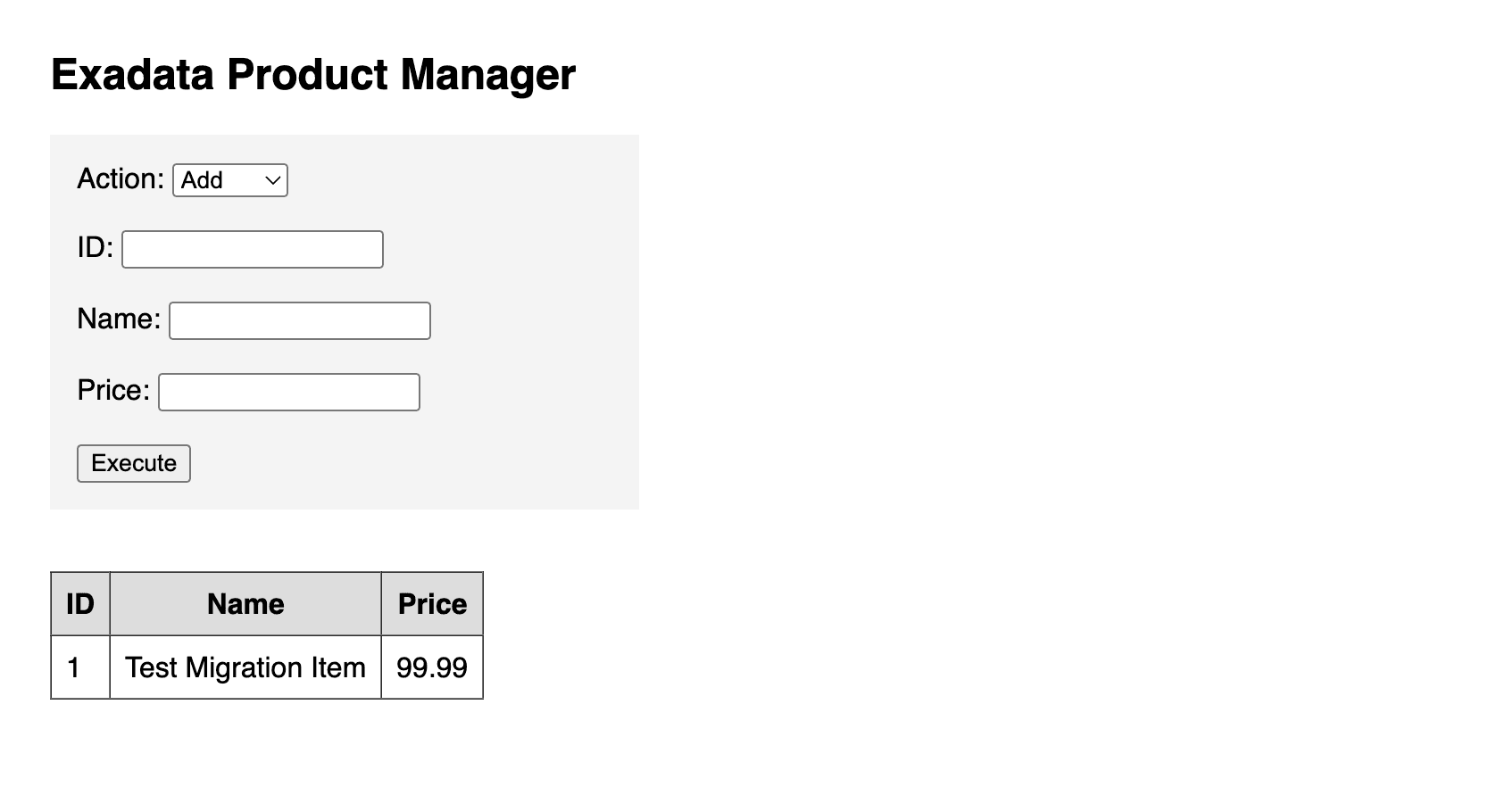
After the application starts successfully, the UI displays options to manage Products.
-
-
Cleanup
-
Run the following command to terminate the Java application to stop HTTP service enabled from
app.jar.pkill -f SimpleProductApp
-